Page 2 - àçëíêìäñàü èéãúáéÇÄíÖãü
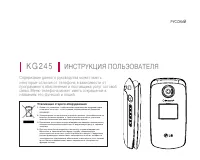
K G 2 4 5 àçëíêìäñàü èéãúáéÇÄíÖãü êìëëäàâ ëÓ‰ÂʇÌË ‰‡ÌÌÓ„Ó ÛÍÓ‚Ó‰ÒÚ‚‡ ÏÓÊÂÚ ËÏÂÚ¸ÌÂÍÓÚÓ˚ ÓÚ΢Ëfl ÓÚ ÚÂÎÂÙÓ̇ ‚ Á‡‚ËÒËÏÓÒÚË ÓÚÔÓ„‡ÏÏÌÓ„Ó Ó·ÂÒÔ˜ÂÌËfl Ë ÔÓÒÚ‡‚˘Ë͇ ÛÒÎÛ„ ÒÓÚÓ‚ÓÈÒ‚flÁË. åÂÌ˛ ÚÂÎÂÙÓ̇ ÏÓÊÂÚ ËÏÂÚ¸ ÒÓ͇˘ÂÌËfl ‚̇Á‚‡ÌËflı Â„Ó ÙÛÌ͈ËÈ Ë ÓÔˆËÈ. Утилизация стаpого обоpудования 1. Символ н...
Page 8 - éÒÚÓÓÊÌÓ
ÑÎfl LJ¯ÂÈ ÅÂÁÓÔ‡ÒÌÓÒÚË 7 ÑÎfl LJ¯ÂÈ ÅÂÁÓÔ‡ÒÌÓÒÚË éÁ̇ÍÓϸÚÂÒ¸ Ò ˝ÚËÏË ÂÍÓÏẨ‡ˆËflÏË. àıÌÂÒӷβ‰ÂÌË ÏÓÊÂÚ ·˚Ú¸ ÓÔ‡ÒÌ˚Ï ËÎËÌÂÁ‡ÍÓÌÌ˚Ï. éÒÚÓÓÊÌÓ ] ÇÒ GSM ÚÂÎÂÙÓÌ˚ ‰ÓÎÊÌ˚ ·˚Ú¸ ÔÓÒÚÓflÌÌÓ‚˚Íβ˜ÂÌ˚ ̇ ·ÓÚÛ Ò‡ÏÓÎÂÚ‡. ] ç ‰ÂÊËÚ ÚÂÎÂÙÓÌ ‚ Û͇ı ‚Ó ‚ÂÏflÛÔ‡‚ÎÂÌËfl ‡‚ÚÓÏÓ·ËÎÂÏ ËÎË ËÌ˚ÏÚ‡ÌÒÔÓÚÌ˚Ï Ò‰ÒÚ...
Page 12 - ùÙÙÂÍÚ˂̇fl ‡·ÓÚ‡ Ò ÚÂÎÂÙÓÌÓÏ; ùÎÂÍÚÓÌÌ ̊ ÛÒÚÓÈÒÚ‚‡
11 êÛÍÓ‚Ó‰ÒÚ‚Ó ‡‚ÚÓËÁÓ‚‡ÌÌ˚È ˆÂÌÚ Ó·ÒÎÛÊË‚‡ÌËfl ÍÓÏÔ‡ÌËËLG. ] ç‡ÍÎÂÈ͇ ‚Ó ‚ÌÛÚÂÌÌÂÈ ˜‡ÒÚË ÚÂÎÂÙÓ̇ (ÔÓ‰‡ÍÍÛÏÛÎflÚÓÓÏ) ÒÓ‰ÂÊËÚ ‚‡ÊÌÛ˛ ËÌÙÓχˆË˛‰Îfl Ò‚ËÒÌ˚ı ˆÂÌÚÓ‚. ç ۉ‡ÎflÈÚ Âfi. ùÙÙÂÍÚ˂̇fl ‡·ÓÚ‡ Ò ÚÂÎÂÙÓÌÓÏ ÑÎfl ‰ÓÒÚËÊÂÌËfl ÓÔÚËχθÌÓÈÔÓËÁ‚Ó‰ËÚÂθÌÓÒÚË ÚÂÎÂÙÓ̇ Ò ÏËÌËχθÌ˚ÏÔÓÚ·ÎÂÌËÂÏ ˝ÌÂ...
Page 13 - èÓÚÂ̈ˇΠ̧ÌÓ ‚Á ̊‚ÓÓÔ‡Ò̇fl Ò‰‡
ÚÂÎÂÙÓÌÓ‚ ÔË ‚ÓʉÂÌËË ‡‚ÚÓÏÓ·ËÎfl. ] ÇÓ ‚ÂÏfl ÛÔ‡‚ÎÂÌËfl ‡‚ÚÓÏÓ·ËÎÂÏ ÌÂÔÓθÁÛÈÚÂÒ¸ ÚÂÎÂÙÓÌÓÏ, ‰Âʇ Â„Ó ‚ ÛÍÂ. ] ÇÒ ‚ÌËχÌË ‰ÓÎÊÌÓ ·˚Ú¸ ÒÓÒ‰ÓÚÓ˜ÂÌÓ Ì‡ÛÔ‡‚ÎÂÌËË ‡‚ÚÓÏÓ·ËÎÂÏ. ] àÒÔÓθÁÛÈÚ „‡ÌËÚÛÛ «Ò‚Ó·Ó‰Ì˚ ÛÍË». ] ÖÒÎË ‰ÓÓÊÌ˚ ÛÒÎÓ‚Ëfl ˝ÚÓ„Ó ÚÂ·Û˛Ú, Ô‰ÓÒÛ˘ÂÒÚ‚ÎÂÌËÂÏ ‚˚ÁÓ‚‡ ËÎË ‰Ó ÓÚ‚ÂÚ‡...
Page 14 - ëÂÚ‚‡fl ÛÒÎÛ„‡
13 êÛÍÓ‚Ó‰ÒÚ‚Ó ] ç ËÒÔÓθÁÛÈÚ ÚÂÎÂÙÓÌ Ì‡ ·ÓÚÛ Ò‡ÏÓÎfiÚ‡ ·ÂÁ‡Á¯ÂÌËfl ̇ ÚÓ ˝ÍËԇʇ. 낉ÂÌËfl Ó· ‡ÍÍÛÏÛÎflÚÓ ËÓ·‡˘ÂÌËÂ Ò ÚÂÎÂÙÓÌÓÏ ] è‰ Á‡fl‰ÍÓÈ Ì ÌÛÊÌÓ ÔÓÎÌÓÒÚ¸˛ ‡Áflʇڸ‡ÍÍÛÏÛÎflÚÓ. Ç ÓÚ΢ˠÓÚ ‰Û„Ëı‡ÍÍÛÏÛÎflÚÓÌ˚ı ÒËÒÚÂÏ Û ˝ÚÓ„Ó ‡ÍÍÛÏÛÎflÚÓ‡ÓÚÒÛÚÒÚ‚ÛÂÚ ˝ÙÙÂÍÚ Ô‡ÏflÚË, ÍÓÚÓ˚È ÏÓÊÂÚÌ··„...
Page 15 - éÔËÒ‡ÌË ÚÂÎÂÙÓ̇
îÛÌ͈ËË KG245 14 îÛÌ͈ËË KG245 éÔËÒ‡ÌË ÚÂÎÂÙÓ̇ 1. ÑË̇ÏËÍ 2. É·‚Ì˚È ‰ËÒÔÎÂÈ ] B Beep pxx: ÛÓ‚Â̸ Ò˄̇·, ÛÓ‚Â̸ Á‡fl‰‡ ‡ÍÍÛÏÛÎflÚÓ‡ Ë ‡Á΢Ì˚ ÙÛÌ͈ËË ] ç çË ËÁÁ: Ë̉Ë͇ÚÓ˚ ÙÛÌ͈ËÓ̇θÌ˚ı Í·‚˯ 3. ä·‚Ë¯Ë ˆËÙ Ë Á̇ÍÓ‚ ] Ç Ç ÂÂÊ ÊË ËÏ ÏÂÂ Ó ÓÊ ÊË Ë‰ ‰‡‡Ì ÌË Ëflfl: ‚‚‰ÂÌË ÌÓÏÂÓ‚ ‰Îfl ̇·Ó...
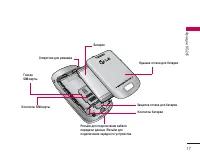
Page 17 - Rear view
îÛÌ͈ËË KG245 16 îÛÌ͈ËË KG245 Rear view ! $ ^ * @ ä·‚˯‡ ÔÓ‰Ú‚ÂʉÂÌËfl ä·‚˯‡ á‡ÍÓ̘ËÚ¸ ] ÇÍβ˜ÂÌËÂ/‚˚Íβ˜ÂÌË (Û‰ÂʇÌËÂ) ] éÍÓ̘‡ÌË ËÎË ÓÚÍÎÓÌÂÌË ‚˚ÁÓ‚‡. ä·‚˯‡ éÚÔ‡‚ËÚ¸ ] ç‡·Ó ÚÂÎÂÙÓÌÌÓ„Ó ÌÓχ Ë ÓÚ‚ÂÚ Ì‡ ‚˚ÁÓ‚. ] Ç ÂÊËÏ ÓÊˉ‡ÌËfl ÔÓ͇Á ÔÓÒΉÌËı ËÒıÓ‰fl˘Ëı,‚ıÓ‰fl˘Ëı Ë ÔÓÔÛ˘ÂÌÌ˚ı ‚˚ÁÓ‚Ó‚...
Page 19 - ÇÌËχÌËÂ
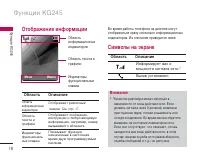
éÚÓ·‡ÊÂÌË ËÌÙÓχˆËË ÇÓ ‚ÂÏfl ‡·ÓÚ˚ ÚÂÎÂÙÓ̇ ̇ ‰ËÒÔΠÏÓ„ÛÚÓÚÓ·‡Ê‡Ú¸Òfl Ò‡ÁÛ ÌÂÒÍÓθÍÓ ËÌÙÓχˆËÓÌÌ˚ıË̉Ë͇ÚÓÓ‚. àı ÓÔËÒ‡ÌË ÔË‚Ó‰ËÚÒfl ÌËÊÂ. ëËÏ‚ÓÎ˚ ̇ ˝Í‡Ì é·Î‡ÒÚ¸ éÔËÒ‡ÌË éÚÓ·‡Ê‡ÂÚ ‡Á΢Ì˚ Á̇˜ÍË. ëÏ. ÒÚ. 17. éÚÓ·‡Ê‡˛Ú ÒÓÓ·˘ÂÌËfl,ËÌÒÚÛ͈ËË Ë Î˛·Û˛ ‚‚Ó‰ËÏÛ˛ËÌÙÓχˆË˛, ̇ÔËÏÂ, ÌÓÏÂ...
Page 21 - ìÒÚ‡Ìӂ͇ SIM Í‡Ú ̊ Ë ·‡Ú‡ÂË; èËÏ ̃‡ÌËÂ
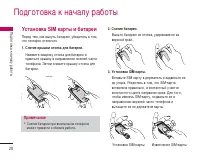
ìÒÚ‡Ìӂ͇ SIM ͇Ú˚ Ë ·‡Ú‡ÂË è‰ ÚÂÏ, Í‡Í ‚˚ÌÛÚ¸ ·‡Ú‡Â˛, ۷‰ËÚÂÒ¸ ‚ ÚÓÏ,˜ÚÓ ÚÂÎÂÙÓÌ ÓÚÍβ˜ÂÌ. 1. ëÌflÚË Í˚¯ÍË ÓÚÒÂ͇ ‰Îfl ·‡Ú‡ÂË. ç‡ÊÏËÚ Á‡˘ÂÎÍÛ ÓÚÒÂ͇ ‰Îfl ·‡Ú‡ÂË ËÒ‰‚Ë̸Ú Í˚¯ÍÛ ‚ ̇ԇ‚ÎÂÌËË ÌËÊÌÂÈ ˜‡ÒÚËÚÂÎÂÙÓ̇. á‡ÚÂÏ ÒÌËÏËÚ Í˚¯ÍÛ ÓÚÒÂ͇ ‰Îfl·‡Ú‡ÂË. 2. ëÌflÚË ·‡Ú‡ÂË. Ç˚̸Ú ·‡Ú‡Â˛ ËÁ...
Page 22 - á‡fl‰Í‡ ·‡Ú‡ÂË
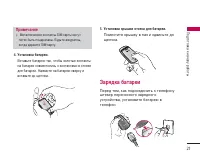
21 èÓ‰„ÓÚӂ͇ Í Ì‡˜‡ÎÛ ‡·ÓÚ˚ 4. ìÒÚ‡Ìӂ͇ ·‡Ú‡ÂË. ÇÒÚ‡‚¸Ú ·‡Ú‡Â˛ Ú‡Í, ˜ÚÓ·˚ ÁÓÎÓÚ˚ ÍÓÌÚ‡ÍÚ˚̇ ·‡Ú‡Â ÒÓ‚ÏÂÒÚËÎËÒ¸ Ò ÍÓÌÚ‡ÍÚ‡ÏË ‚ ÓÚÒÂ͉Îfl ·‡Ú‡ÂË. ç‡ÊÏËÚ ̇ ·‡Ú‡Â˛ Ò‚ÂıÛ Ë‚ÒÚ‡‚¸Ú ‰Ó ˘ÂΘ͇. 5. ìÒÚ‡Ìӂ͇ Í˚¯ÍË ÓÚÒÂ͇ ‰Îfl ·‡Ú‡ÂË. èÓÏÂÒÚËÚ Í˚¯ÍÛ ‚ Ô‡Á Ë Ò‰‚Ë̸Ú ‰Ó˘ÂΘ͇. á‡fl‰Í‡ ·‡Ú‡ÂË...
Page 23 - éÚÒÓ‰ËÌÂÌË ‡‰‡ÔÚ‡
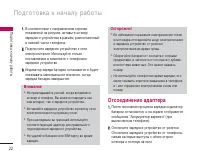
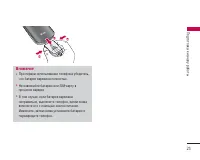
èÓ‰„ÓÚӂ͇ Í Ì‡˜‡ÎÛ ‡·ÓÚ˚ 22 1 1.. Ç ÒÓÓÚ‚ÂÚÒÚ‚ËË Ò Ì‡Ô‡‚ÎÂÌËÂÏ ÒÚÂÎÍË, ÔÓ͇Á‡ÌÌÓÈ Ì‡ ËÒÛÌÍÂ, ‚ÒÚ‡‚¸Ú ¯ÚÂÍÂÁ‡fl‰ÌÓ„Ó ÛÒÚÓÈÒÚ‚‡ ‚ ‡Á˙fiÏ, ‡ÒÔÓÎÓÊÂÌÌ˚È‚ ÌËÊÌÂÈ ˜‡ÒÚË ÚÂÎÂÙÓ̇. 2 2.. èÓ‰Íβ˜ËÚ Á‡fl‰ÌÓ ÛÒÚÓÈÒÚ‚Ó Í ÒÂÚË ˝ÎÂÍÚÓÔËÚ‡ÌËfl. àÒÔÓθÁÛÈÚ ÚÓθÍÓÔÓÒÚ‡‚ÎflÂÏÓ ‚ ÍÓÏÔÎÂÍÚÂ Ò ÚÂÎÂÙÓÌÓÏÁ‡fl...
Page 25 - äÓ‰ ̊ ‰ÓÒÚÛÔ‡
èÓ‰„ÓÚӂ͇ Í Ì‡˜‡ÎÛ ‡·ÓÚ˚ 24 äÓ‰˚ ‰ÓÒÚÛÔ‡ ÑÎfl Ô‰ÓÚ‚‡˘ÂÌËfl ÌÂÒ‡Ì͈ËÓÌËÓ‚‡ÌÌÓ„ÓËÒÔÓθÁÓ‚‡ÌËfl ÚÂÎÂÙÓ̇ ÏÓÊÌÓ ‚ÓÒÔÓθÁÓ‚‡Ú¸ÒflÍÓ‰‡ÏË ‰ÓÒÚÛÔ‡, ÓÔËÒ‡ÌÌ˚ÏË ‚ ‰‡ÌÌÓÏ ‡Á‰ÂÎÂ.äÓ‰˚ ‰ÓÒÚÛÔ‡ (ÍÓÏ ÍÓ‰Ó‚ PUK Ë PUK2) ÏÓÊÌÓËÁÏÂÌËÚ¸ Ò ÔÓÏÓ˘¸˛ ÙÛÌ͈ËË à àÁÁÏ ÏÂÂÌ ÌË ËÚÚ¸¸ ÍÍÓ Ó‰ ‰˚ ˚ [åÂÌ˛ 7-5-5]. PIN-ÍÓ‰ (ÓÚ 4...
Page 26 - è‡ÓÎ ̧ Á‡ÔÂÚ‡ ‚ ̊ÁÓ‚‡
25 Á̇˜ÂÌË "0 00 00 00 0". ùÚÓÚ ÍÓ‰ Ú·ÛÂÚÒfl ‰Îfl Û‰‡ÎÂÌËfl ‚ÒÂı Á‡ÔËÒÂÈ Ì‡ ÚÂÎÂÙÓÌÂ Ë ‡ÍÚË‚‡ˆËË ÏÂÌ˛ë ë· · Ó ÓÒÒË ËÚÚ¸¸ Ì Ì‡‡ÒÒÚÚ Ó ÓÈ ÈÍÍË Ë. äÓ‰ ·ÂÁÓÔ‡ÒÌÓÒÚË ÌÂÓ·ıÓ‰ËÏ Ú‡ÍÊ ‰Îfl ‚Íβ˜ÂÌËfl Ë ‚˚Íβ˜ÂÌËfl ÙÛÌ͈ËË·ÎÓÍËÓ‚ÍË ÚÂÎÂÙÓ̇ Ò ˆÂθ˛ Ô‰ÓÚ‚‡˘ÂÌËflÂ„Ó ÌÂÒ‡Ì͈ËÓÌËÓ‚‡ÌÌÓ„Ó ËÒÔÓθÁÓ‚‡...
Page 27 - ÇıÓ‰fl ̆ËÂ Ë ËÒıÓ‰fl ̆Ë Á‚ÓÌÍË; àÒıÓ‰fl ̆ËÈ ‚ ̊ÁÓ‚; ç‡ÒÚÓÈ͇ Á‚Û͇
éÒÌÓ‚Ì˚ ÙÛÌ͈ËË 26 éÒÌÓ‚Ì˚ ÙÛÌ͈ËË ÇıÓ‰fl˘ËÂ Ë ËÒıÓ‰fl˘Ë Á‚ÓÌÍË àÒıÓ‰fl˘ËÈ ‚˚ÁÓ‚ 1. ì·Â‰ËÚÂÒ¸, ˜ÚÓ ‚‡¯ ÚÂÎÂÙÓÌ ‚Íβ˜ÂÌ. 2. ǂ‰ËÚ ÌÓÏ ÚÂÎÂÙÓ̇, ‚Íβ˜‡fl ÍÓ‰ ‡ÈÓ̇. ] ç‡ÊÏËÚÂ Ë Û‰ÂÊË‚‡ÈÚ ÍÌÓÔÍÛ Û‰‡ÎÂÌËfl ‰Îfl Û‰‡ÎÂÌËfl ‚ÒÂ„Ó ÌÓχ. 3. óÚÓ·˚ ‚˚Á‚‡Ú¸ ‡·ÓÌÂÌÚ‡, ̇ÊÏËÚ ÍÌÓÔÍÛ . 4. ÑÎfl Á‡‚¯ÂÌËfl ‚˚ÁÓ...
Page 28 - éÚ‚ÂÚ Ì‡ ‚ıÓ‰fl ̆ËÈ Á‚ÓÌÓÍ; åÓ ̆ÌÓÒÚ ̧ Ò˄̇·
éÚ‚ÂÚ Ì‡ ‚ıÓ‰fl˘ËÈ Á‚ÓÌÓÍ èË ÔÓÎÛ˜ÂÌËË ‚˚ÁÓ‚‡ ÔÓÁ‚Û˜ËÚ ÚÂÎÂÙÓÌÌ˚ÈÒ˄̇ΠÖÒÎË ÓÔ‰ÂÎÂÌË ÌÓχ ‚ÓÁÏÓÊÌÓ,ÌÓÏ ‚˚Á˚‚‡˛˘Â„Ó ‡·ÓÌÂÌÚ‡ (ËÏfl, ÙÓÚÓ„‡ÙËfl,ÒÓı‡ÌÂÌÌ˚ ‚ ÚÂÎÂÙÓÌÌÓÈ ÍÌË„Â) ÓÚÓ·‡Ê‡ÂÚÒfl̇ ‰ËÒÔÎÂÂ. 1. ÑÎfl ÓÚ‚ÂÚ‡ ̇ ‚ıÓ‰fl˘ËÈ ‚˚ÁÓ‚ ‡ÒÍÓÈÚ ÚÂÎÂÙÓÌ Ë Ì‡ÊÏËÚ ÍÌÓÔÍÛ ËÎË ÎÂ‚Û˛ ÙÛÌ͈ËÓ̇θÌÛ˛ ÍÎ...
Page 29 - êÂÊËÏ í9; àÁÏÂÌÂÌË ÂÊËχ ‚‚Ó‰‡ ÚÂÍÒÚ‡; àÒÔÓÎ ̧ÁÓ‚‡ÌË ÂÊËχ T9
éÒÌÓ‚Ì˚ ÙÛÌ͈ËË 28 éÒÌÓ‚Ì˚ ÙÛÌ͈ËË ÒÓ·ÒÚ‚ÂÌÌÓ„Ó ÔË‚ÂÚÒÚ‚Ëfl. Ç ÚÂÎÂÙÓÌ ËϲÚÒfl ÒÎÂ‰Û˛˘Ë ÏÂÚÓ‰˚ ‚‚Ó‰‡ÚÂÍÒÚ‡. êÂÊËÏ í9 ä ͇ʉÓÈ Í·‚˯ ̇ Í·‚ˇÚÛ ÔË‚flÁ‡ÌÓ ·ÓÎÂÂÓ‰ÌÓÈ ·ÛÍ‚˚. ùÚÓÚ ÂÊËÏ ÔÓÁ‚ÓÎflÂÚ ‚‡Ï ‚‚Ó‰ËÚ¸ÒÎÓ‚‡ ÔÛÚÂÏ Ó‰ËÌÓ˜ÌÓ„Ó Ì‡Ê‡ÚËfl ̇ Í·‚˯Ë.íÂÎÂÙÓÌ ‚ ÂÊËÏ í9 ‡‚ÚÓχÚ˘ÂÒÍË Ò‡‚ÌË‚‡ÂÚ‚‡...
Page 30 - àÒÔÓÎ ̧ÁÓ‚‡ÌË ‡ÎÙ‡‚ËÚÌÓ„Ó ÂÊËχ.
29 éÒÌÓ‚Ì˚ ÙÛÌ͈ËË ‚‚Ó‰‡ ÚÂÍÒÚ‡, ̇˜Ë̇ÈÚ ‚‚Ó‰ËÚ¸ ÒÎÓ‚‡Ì‡Ê‡ÚËÂÏ ÍÌÓÔÓÍ ÓÚ ‰Ó . ÑÎfl ‚‚Ó‰‡ ͇ʉÓÈ ·ÛÍ‚˚ ̇ÊËχÈÚ ̇ Í‡Ê‰Û˛ Í·‚Ë¯Û ÔÓÓ‰ÌÓÏÛ ‡ÁÛ. ] ëÎÓ‚Ó ËÁÏÂÌflÂÚÒfl Ò Ì‡·ÓÓÏ Í‡Ê‰ÓÈ ·ÛÍ‚˚.ç ӷ‡˘‡ÈÚ ‚ÌËχÌËfl ̇ ËÌÙÓχˆË˛ ̇‰ËÒÔΠ‰Ó ÚÂı ÔÓ, ÔÓ͇ Ì ̇Ô˜‡Ú‡ÂÚÂÒÎÓ‚Ó ÔÓÎÌÓÒÚ¸˛. ] ÑÎfl ÔÓÒÏÓÚ‡ ‚...
Page 31 - åÂÌ ̨ ‚Ó ‚ÂÏfl ‡Á„Ó‚Ó‡
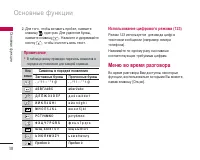
éÒÌÓ‚Ì˚ ÙÛÌ͈ËË 30 éÒÌÓ‚Ì˚ ÙÛÌ͈ËË 2. ÑÎfl ÚÓ„Ó, ˜ÚÓ·˚ ‚ÒÚ‡‚ËÚ¸ ÔÓ·ÂÎ, ̇ÊÏËÚ Í·‚Ë¯Û Ó‰ËÌ ‡Á. ÑÎfl Û‰‡ÎÂÌËfl ·ÛÍ‚˚, ̇ÊÏËÚ Í·‚Ë¯Û . ç‡ÊÏËÚÂ Ë Û‰ÂÊË‚‡ÈÚ ÍÌÓÔÍÛ , ˜ÚÓ·˚ Ó˜ËÒÚËÚ¸ ‚ÂÒ¸ ÚÂÍÒÚ. àÒÔÓθÁÓ‚‡ÌË ˆËÙÓ‚Ó„Ó ÂÊËχ (123) êÂÊËÏ 123 ËÒÔÓθÁÛÂÚÒfl ‰Îfl ‚‚Ó‰‡ ˆËÙ ‚ÚÂÍÒÚÓ‚ÓÏ ÒÓÓ·˘ÂÌËË (̇ÔËÏÂ...
Page 32 - ÇÓ ‚ÂÏfl ‡Á„Ó‚Ó‡; èÂÂÍÎ ̨ ̃ÂÌË ÏÂÊ‰Û ‰‚ÛÏfl ‚ ̊ÁÓ‚‡ÏË
31 éÒÌÓ‚Ì˚ ÙÛÌ͈ËË ÇÓ ‚ÂÏfl ‡Á„Ó‚Ó‡ åÂÌ˛, ÓÚÓ·‡Ê‡ÂÏÓ ̇ ˝Í‡Ì ÚÂÎÂÙÓ̇ ‚Ó‚ÂÏfl ‚˚ÁÓ‚‡, ÓÚ΢‡ÂÚÒfl ÓÚ „·‚ÌÓ„Ó ÏÂÌ˛ ÔÓÛÏÓΘ‡Ì˲, ÍÓÚÓÓ ÓÚÓ·‡Ê‡ÂÚÒfl ‚ ÂÊËÏÂÓÊˉ‡ÌËfl. 臇ÏÂÚ˚ ÓÔËÒ‡Ì˚ ÌËÊÂ. ÇÚÓÓÈ ËÒıÓ‰fl˘ËÈ Á‚ÓÌÓÍ óÚÓ·˚ ‚˚ÔÓÎÌËÚ¸ ‚ÚÓÓÈ ‚˚ÁÓ‚, ÏÓÊÌÓ ‚˚·‡Ú¸ÌÂÓ·ıÓ‰ËÏ˚È ÌÓÏ ËÁ ÚÂÎÂÙÓÌÌÓÈ ÍÌË„...
Page 33 - éÚÍÎ ̨ ̃ÂÌË ÏËÍÓÙÓ̇; ÉÛÔÔÓ‚ÓÈ ‚ ̊ÁÓ‚ ËÎË ÍÓÌÙÂÂ̈-Ò‚flÁ ̧; ç‡·Ó ‚ÚÓÓ„Ó ÌÓχ
éÒÌÓ‚Ì˚ ÙÛÌ͈ËË 32 éÒÌÓ‚Ì˚ ÙÛÌ͈ËË éÚÍβ˜ÂÌË ÏËÍÓÙÓ̇ ÇÓ ‚ÂÏfl ‡Á„Ó‚Ó‡ ÏÓÊÌÓ ‚˚Íβ˜ËÚ¸ ÏËÍÓÙÓÌ,̇ʇ‚ ÍÌÓÔÍÛ [éÔˆËË] Ë ‚˚·‡‚ Å ÅÂÂÁÁ ÁÁ‚‚ÛÛÍ͇‡ åÓÊÌÓ ‚Íβ˜ËÚ¸ Á‚ÛÍ ‚ ÚÂÎÂÙÓÌÂ, ‚˚·‡‚ Ç ÇÍÍÎ Î.. ÁÁ‚‚ÛÛÍÍ. äÓ„‰‡ Á‚ÛÍ ‚ ÚÂÎÂÙÓÌ ÓÚÍβ˜ÂÌ, ‚˚Á˚‚‡˛˘Ëȇ·ÓÌÂÌÚ Ì ÏÓÊÂÚ ‚‡Ò ÒÎ˚¯‡Ú¸, ÌÓ ‚˚ ÔÓ-ÔÂÊÌÂÏÛ...
Page 34 - ÑÓ·‡‚ÎÂÌË ‚ ̊ÁÓ‚‡ Í ÍÓÌÙÂÂ̈-Ò‚flÁË
33 éÒÌÓ‚Ì˚ ÙÛÌ͈ËË Ë ‚˚·ÂËÚ ÏÂÌ˛ ä äÓ ÓÌ ÌÙ Ù ÂÂÌ Ìˆ ˆË Ëflfl//é é· ·˙ ˙‰ ‰Ë ËÌ ÌË ËÚÚ¸¸ ‚‚ÒÒÂÂıı. ìÒÚ‡Ìӂ͇ ‚˚ÁÓ‚Ó‚ ÍÓÌÙÂÂ̈-Ò‚flÁË Ì‡ Û‰ÂʇÌË ç‡ÊÏËÚ ÎÂ‚Û˛ ÙÛÌ͈ËÓ̇θÌÛ˛ ÍÌÓÔÍÛ, ‡ Á‡ÚÂÏ‚˚·ÂËÚ ÏÂÌ˛ ä äÓ ÓÌ ÌÙ Ù ÂÂÌ Ìˆ ˆË Ëflfl//ì ì‰ ‰ÂÂ Ê Ê‡‡Ì ÌË Ë ‚‚ÒÒÂÂıı. ÄÍÚË‚ËÁ‡ˆËfl ÍÓÌÙÂÂ̈-...
Page 35 - CxeÏa ÏeÌ ̨
34 CxeÏa ÏeÌ˛ 1. àÏÂ̇ 1.1 àÒ͇ڸ 1.2 ÑÓ·‡‚ËÚ¸ 1.3 ÉÛÔÔ˚ 1.4 Å˚ÒÚ˚È Ì‡·Ó 1.5 ë‚ÓÈ ÌÓÏ 1.6 ÇËÁËÚ̇fl ͇ÚӘ͇ 1.7 ç‡ÒÚÓÈÍË 2. Ç˚ÁÓ‚˚ 2.1 èÓÔÛ˘ÂÌÌ˚ 2.2 ÇıÓ‰fl˘Ë 2.3 àÒıÓ‰fl˘Ë 2.4 ÇÒ ‚˚ÁÓ‚˚ 2.5 쉇ÎËÚ¸ ÔÓÒΉÌË Á‚ÓÌÍË 2.6 ëÚÓËÏÓÒÚ¸ 2.7 ëÔ‡‚͇ GPRS 3. ÄÍÒÂÒÒÛ‡˚ 3.1 àÁ·‡ÌÌÓ 3.2 ÅÛ‰ËθÌËÍ 3.3...
Page 38 - àÒÍ‡Ú ̧
37 àÏÂ̇ àÏÂ̇ àÒ͇ڸ åÂÌ˛ 1.1 1. ç‡ıÓ‰flÒ¸ ‚ ÂÊËÏ ÓÊˉ‡ÌËfl, ̇ÊÏËÚ [àÏÂ̇] Ë Á‡ÚÂÏ [OK]. 2. ǂ‰ËÚ ËÒÍÓÏÓ ËÏfl ËÎË ‚˚·ËËÚÂ Â„Ó ËÁ ÒÔËÒ͇ ËÏfiÌ ‚Û˜ÌÛ˛. 3. ÑÎfl ‰‡ÍÚËÓ‚‡ÌËfl, Û‰‡ÎÂÌËfl ËÎË ÍÓÔËÓ‚‡ÌËfl Á‡ÔËÒË Ì‡ÊÏËÚ ÎÂ‚Û˛ ÙÛÌ͈ËÓ̇θÌÛ˛Í·‚Ë¯Û [éÔˆËË]. ] è è Ó ÓÒÒÏ ÏÓ ÓÚÚ :: ÔÓÒÏÓÚ ‚˚·‡ÌÌÓ...
Page 40 - ë‚ÓÈ ÌÓÏÂ
39 àÏÂ̇ ë‚ÓÈ ÌÓÏ (‚ Á‡‚ËÒËÏÓÒÚË ÓÚ SIM ͇Ú˚) åÂÌ˛ 1.5 åÓÊÌÓ ÒÓı‡ÌËÚ¸ Ë ÔÓ‚ÂËÚ¸ Ò‚ÓÈ ÌÓÏ ‚ SIM-͇ÚÂ. ÇËÁËÚ̇fl ͇ÚӘ͇ åÂÌ˛ 1.6 чÌ̇fl ÓÔˆËfl ÔÓÁ‚ÓÎflÂÚ Ç‡Ï ÒÓÁ‰‡‚‡Ú¸ÒÓ·ÒÚ‚ÂÌÌÛ˛ ‚ËÁËÚÌÛ˛ ͇ÚÓ˜ÍÛ Ò Ç‡¯ËÏ ËÏÂÌÂÏË ÌÓÏÂÓÏ ÚÂÎÂÙÓ̇. ÑÎfl ÚÓ„Ó, ˜ÚÓ·˚ ÒÓÁ‰‡Ú¸ÌÓ‚Û˛ ‚ËÁËÚÌÛ˛ ͇ÚÓ˜ÍÛ, ̇ÊÏËÚ ÎÂ‚Û˛ÙÛ...
Page 42 - èÓÔÛ ̆ÂÌÌ ̊Â
Ç˚ÁÓ‚˚ 41 Ç˚ÁÓ‚˚ èÓ‚ÂËÚ¸ Á‡ÔËÒ¸ Ó ÔÓÔÛ˘ÂÌÌ˚ı, ÔËÌflÚ˚ı ËËÒıÓ‰fl˘Ëı ‚˚ÁÓ‚‡ı ÏÓÊÌÓ ÚÓθÍÓ ‚ ÒÎÛ˜‡Â, ÂÒÎË ‚ÁÓÌ ӷÒÎÛÊË‚‡ÌËfl ˉÂÌÚËÙË͇ˆËfl ÎËÌËË ‚˚ÁÓ‚‡ÔÓ‰‰ÂÊË‚‡ÂÚÒfl ÒÂÚ¸˛. çÓÏÂ Ë ËÏfl (ÂÒÎËËÏÂÂÚÒfl) ÓÚÓ·‡Ê‡˛ÚÒfl ‚ÏÂÒÚÂ Ò ‰‡ÚÓÈ Ë‚ÂÏÂÌÂÏ ‚˚ÁÓ‚‡. èÓÔÛ˘ÂÌÌ˚ åÂÌ˛ 2.1 чÌ̇fl ÓÔˆËfl ÔÓÁ‚ÓÎflÂÚ ÔÓÒχÚË‚‡Ú...
Page 43 - ÇÒÂ ‚ ̊ÁÓ‚ ̊
Ç˚ÁÓ‚˚ 42 ÇÒ ‚˚ÁÓ‚˚ åÂÌ˛ 2.4 Ç˚ ÏÓÊÂÚ ÔÓÒÏÓÚÂÚ¸ ÒÔËÒÓÍ ‚ÒÂı ‚ıÓ‰fl˘Ëı,ËÒıÓ‰fl˘Ëı Ë ÔÓÔÛ˘ÂÌÌ˚ı ‚˚ÁÓ‚Ó‚. 쉇ÎËÚ¸ ÔÓÒΉÌË Á‚ÓÌÍË åÂÌ˛ 2.5 èÓÁ‚ÓÎflÂÚ Û‰‡ÎËÚ¸ ÒÔËÒÍË è è Ó ÓÔ ÔÛÛ˘ ˘ÂÂÌ ÌÌ Ì˚ ˚ÂÂ, Ç ÇııÓ Ó‰ ‰flfl˘ ˘Ë ËÂÂ Ë à àÒÒııÓ Ó‰ ‰flfl˘ ˘Ë ËÂÂ. åÓÊÌÓ Û‰‡ÎËÚ¸ ÒÔËÒÍË Ç ÇÒÒ ‚‚˚ ˚ÁÁÓ Ó‚‚˚ ˚ Á‡ Ó‰ËÌ ...
Page 44 - ëÔ‡‚͇ GPRS
43 Ç˚ÁÓ‚˚ ÛÒÚ‡ÌÓ‚ÎÂÌËfl ÎËÏËÚ‡ ‡ÒıÓ‰Ó‚. ÖÒÎË Ç˚‚˚·ÂÂÚ óËÚ‡Ú¸, ·Û‰ÂÚ ÔÓ͇Á˚‚‡Ú¸ÒflÍÓ΢ÂÒÚ‚Ó ÓÒÚ‡˛˘ËıÒfl ‰ËÌˈ. ÖÒÎË Ç˚‚˚·ÂÂÚ àÁÏÂÌËÚ¸, Ç˚ ÒÏÓÊÂÚ ËÁÏÂÌflÚ¸ LJ¯ÎËÏËÚ ÓÔ·Ú˚. ] Ä Ä‚‚ÚÚÓ ÓÔ ÔÓ ÓÍ͇‡ÁÁ:: чÌ̇fl ÒÂÚ‚‡fl ÛÒÎÛ„‡ ÔÓÁ‚ÓÎflÂÚ Ç‡Ï ‡‚ÚÓχÚ˘ÂÒÍË ÔÓÒχÚË‚‡Ú¸ ÒÚÓËÏÓÒڸLJ¯Â„Ó ÔÓÒΉÌÂ„Ó ‚˚ÁÓ‚‡....
Page 45 - àÁ·‡ÌÌÓÂ
ÄÍÒÂÒÒÛ‡˚ 44 àÁ·‡ÌÌÓ åÂÌ˛ 3.1 ùÚ‡ ÙÛÌ͈Ëfl ‰‡ÂÚ ‚ÓÁÏÓÊÌÓÒÚ¸ ‰Ó·‡‚ÎflÚ¸ÒÓ·ÒÚ‚ÂÌÌ˚ ÔÛÌÍÚ˚ ‚ „ÓÚÓ‚˚È ÒÔËÒÓÍ. ëÓÁ‰‡‚Ò‚Ó ÏÂÌ˛, ÏÓÊÌÓ ·˚ÒÚÓ ÔÓÎÛ˜ËÚ¸ ‰ÓÒÚÛÔ ÍÌÛÊÌ˚Ï ÙÛÌ͈ËflÏ ‚ ÂÊËÏ ÓÊˉ‡ÌËfl, ̇ʇ‚̇‚Ë„‡ˆËÓÌÌÛ˛ Í·‚Ë¯Û ‚‚Âı. ÅÛ‰ËθÌËÍ åÂÌ˛ 3.2 Ç˚ ÏÓÊÂÚ ̇ÒÚÓËÚ¸ ‰Ó 5 Ò˄̇ÎÓ‚ ·Û‰ËθÌË͇,ÍÓÚÓ˚ ·Û‰Û...
Page 46 - åÓË ÛÒÚÓÈÒÚ‚‡
45 ÄÍÒÂÒÒÛ‡˚ åÓË ÛÒÚÓÈÒÚ‚‡ (åÂÌ˛ 3.3.1) Ç˚ ÏÓÊÂÚ ÔÓÒÏÓÚÂÚ¸ ‚Ò ÛÒÚÓÈÒÚ‚‡Ì‡ıÓ‰fl˘ËÂÒfl ‚ ÁÓÌ ‰ÂÈÒÚ‚Ëfl Bluetooth ‚‡¯Â„ÓÚÂÎÂÙÓ̇. ɇÌËÚÛ˚ (åÂÌ˛ 3.3.2) åÓÊÌÓ ÔÓÒÏÓÚÂÚ¸ Ë ‰Ó·‡‚ËÚ¸ ‚Ò ÛÒÚÓÈÒÚ‚‡handsfree, ÒÓ‚ÏÂÒÚËÏ˚Â Ò ÚÂÎÂÙÓÌÓÏ. èË Ì‡ıÓʉÂÌËË ‚ ÏÂÌ˛ åÓË ÛÒÚÓÈÒÚ‚‡ ËÎËɇÌËÚÛ˚ Ç‡Ï ‰ÓÒÚÛÔÌ˚ ÒÎÂ...
Page 47 - à„ ̊ Ë ÔËÎÓÊÂÌËfl; åÓË Ë„ ̊ Ë ÔËÎÓÊÂÌËfl
à„˚ Ë ÔËÎÓÊÂÌËfl åÂÌ˛ 3.4 åÓË Ë„˚ Ë ÔËÎÓÊÂÌËfl (åÂÌ˛ 3.4.1) • åÓË Ë„˚ Ë ÔËÎÓÊÂÌËfl Ç ‰‡ÌÌÓÏ ÏÂÌ˛ ÏÓÊÌÓ ÛÔ‡‚ÎflÚ¸ ÔËÎÓÊÂÌËflÏËJava, ÛÒÚ‡ÌÓ‚ÎÂÌÌ˚ÏË Ì‡ ÚÂÎÂÙÓÌÂ.ᇄÛÊÂÌÌ˚ ÔËÎÓÊÂÌËfl ÏÓÊÌÓ Á‡ÔÛÒ͇ڸ ËÎËÛ‰‡ÎflÚ¸, ÏÓÊÌÓ Ú‡ÍÊ ÛÒÚ‡ÌÓ‚ËÚ¸ Ô‡‡ÏÂÚÒÓ‰ËÌÂÌËfl. ᇄÛÊÂÌÌ˚ ÔËÎÓÊÂÌËflÒÓı‡Ìfl˛ÚÒfl ‚ ÒÓÓÚ‚ÂÚÒÚ...
Page 48 - ä‡Î ̧ÍÛÎflÚÓ
47 ÄÍÒÂÒÒÛ‡˚ • èÓÙËÎË ùÚÓ ÏÂÌ˛ ÒÓ‰ÂÊËÚ Ú Ê ԇ‡ÏÂÚ˚, ˜ÚÓ ËàÌÚÂÌÂÚ ÏÂÌ˛. î‡ÍÚ˘ÂÒÍË, ‰Îfl Á‡„ÛÁÍË ÌÓ‚˚ıÔËÎÓÊÂÌËÈ ÌÂÓ·ıÓ‰ËÏÓ Internet ÒÓ‰ËÌÂÌËÂ. ä‡Î¸ÍÛÎflÚÓ åÂÌ˛ 3.5 ÇÍβ˜‡ÂÚ ‚ Ò·fl Òڇ̉‡ÚÌ˚ ÙÛÌ͈ËË, Ú‡ÍË ͇Í+, –, x, / : ë ëÎ ÎÓ ÓÊ ÊÂÂÌ ÌË ËÂÂ, Ç Ç˚ ˚˜ ˜Ë ËÚÚ‡‡Ì ÌË ËÂÂ, ì ìÏ ÏÌ ÌÓ ÓÊ ÊÂÂÌ...
Page 49 - äÓÌ‚ÂÚÂ; á‡ÔËÒ ̧
ÄÍÒÂÒÒÛ‡˚ 48 äÓÌ‚ÂÚ åÂÌ˛ 3.6 èÂÓ·‡ÁÛÂÚ Î˛·Ó ËÁÏÂÂÌË ‚ ÌÛÊÌÛ˛ LJςÂ΢ËÌÛ. ëÛ˘ÂÒÚ‚ÛÂÚ 4 ÚËÔ‡ ‚ÓÁÏÓÊÌ˚ıÔÂÓ·‡ÁÓ‚‡ÌËÈ ‚ ‰Û„Ë ‚Â΢ËÌ˚: è èÎ ÎÓ Ó˘ ˘‡‡‰ ‰¸¸, Ñ ÑÎ ÎË ËÌ Ì‡‡, Ç ÇÂÂÒÒ, é é· ·˙ ˙ÂÂÏ Ï . 1. Ç˚ ÏÓÊÂÚ ‚˚·‡Ú¸ Ó‰ËÌ ËÁ ˜ÂÚ˚Âı ÚËÔÓ‚ ‚Â΢ËÌ ÔÛÚÂÏ Ì‡Ê‡ÚËfl ̇ Í·‚Ë¯Û [Ö‰ËÌˈ‡]. 2. Ç˚·...
Page 50 - èÓÒÏÓÚÂÚ ̧ ÒÔËÒÓÍ
49 èÓÒÏÓÚÂÚ¸ ÒÔËÒÓÍ (åÂÌ˛ 3.8.2) íÂÎÂÙÓÌ ÔÓ͇ÊÂÚ ÒÔËÒÓÍ „ÓÎÓÒÓ‚˚ı ÒÓÓ·˘ÂÌËÈ.Ç˚ ÏÓÊÂÚ ÔÓÒÎÛ¯‡Ú¸, ËÎË Û‰‡ÎËÚ¸ Ù‡ÈÎ ÒÁ‡ÔËÒ‡ÌÌ˚Ï „ÓÎÓÒÓÏ. SIM-Ò‚ËÒ åÂÌ˛ 3.9 åÂÌ˛ Á‡‚ËÒËÚ ÓÚ SIM-͇Ú˚ Ë ÒÂÚ‚˚ı ÒÎÛÊ·. ÄÍÒÂÒÒÛ‡˚
Page 51 - ä‡ÎẨ‡ ̧; ÑÓ·‡‚ËÚ ̧ Á‡ÔËÒ ̧
鄇̇ÈÁ 50 鄇̇ÈÁ ä‡ÎẨ‡¸ åÂÌ˛ 4.1 äÓ„‰‡ Ç˚ ‚ÓȉÂÚ ‚ ˝ÚÓ ÏÂÌ˛, Ç˚ ۂˉËÚ ̇˝Í‡Ì ‰ËÒÔÎÂfl ä‡ÎẨ‡¸. Ç ‚ÂıÌÂÈ ˜‡ÒÚË ˝Í‡Ì‡ÂÒÚ¸ ÏÂÒÚÓ ‰Îfl ‰‡Ú˚. ÖÒÎË Ç˚ ÏÂÌflÂÚ ‰‡ÚÛ, ÚÓ͇ÎẨ‡¸ ·Û‰ÂÚ Ó·ÌÓ‚ÎfiÌ ‚ ÒÓÓÚ‚ÂÚÒÚ‚ËË Ò ‚ÌÓ‚¸ÛÒÚ‡ÌÓ‚ÎÂÌÌÓÈ ‰‡ÚÓÈ. ÑÎfl ̇ıÓʉÂÌËflÓÔ‰ÂÎÂÌÌÓ„Ó ‰Ìfl ·Û‰ÂÚ ËÒÔÓθÁÓ‚‡Ú¸ÒflÍ...
Page 52 - èÓÒÏÓÚÂÚ ̧ ‚ÒÂ; 쉇ÎËÚ ̧ ÔÓÒΉÌÂÂ; á‡ÏÂÚÍË
51 鄇̇ÈÁ èÓÒÏÓÚÂÚ¸ ‚Ò (åÂÌ˛ 4.1.3) èÓ͇Á˚‚‡ÂÚ ÒÓ·˚ÚËfl Ó„‡Ì‡ÈÁ‡, Á‡ÍÂÔÎÂÌÌ˚ÂÁ‡ ‚ÒÂÏË ‰ÌflÏË. èË ÔÓÏÓ˘Ë Í·‚˯ , ̇‚Ë„‡ˆËË ÔÓÒÏÓÚËÚ ‚Ò Á‡ÔËÒË. ç‡Ê‡ÚË ̇Í·‚Ë¯Û [éÔˆËË] ÔÓÁ‚ÓÎflÂÚ ÔÓÎÛ˜ËÚ¸ ‰ÓÒÚÛÔ Í ÚÓÏÛ Ê ҇ÏÓÏÛ ÏÂÌ˛, Í‡Í Ë ‚ ‚ ÓÔˆËË èÓÒÏÓÚ. 쉇ÎËÚ¸ ÔÓÒΉÌ (åÂÌ˛ 4.1.4) Ç˚ ÏÓÊÂÚ Û...
Page 53 - çÓ‚Ó ÒÓÓ· ̆ÂÌËÂ; ç‡ÔËÒ‡Ú ̧ SMS; ÇÒÚ‡‚ËÚ ̧
ëÓÓ·˘ÂÌËfl 52 ëÓÓ·˘ÂÌËfl çÓ‚Ó ÒÓÓ·˘ÂÌË åÂÌ˛ 5.1 чÌÌÓ ÏÂÌ˛ ‚Íβ˜‡ÂÚ ÙÛÌ͈ËË, ÓÚÌÓÒfl˘ËÂÒfl ÍSMS (ëÎÛÊ·‡ ÍÓÓÚÍËı ÒÓÓ·˘ÂÌËÈ), MMS (ëÎÛÊ·‡ÏÛθÚËωËÈÌ˚ı ÒÓÓ·˘ÂÌËÈ), „ÓÎÓÒÓ‚ÓÈ ÔÓ˜ÚÂ, ‡Ú‡ÍÊÂ Í ÒÎÛÊ·Ì˚Ï ÒÓÓ·˘ÂÌËflÏ ÒÂÚË. ç‡ÔËÒ‡Ú¸ SMS (åÂÌ˛ 5.1.1) Ç˚ ÏÓÊÂÚ ‚‚Ó‰ËÚ¸ Ë Â‰‡ÍÚËÓ‚‡Ú¸ ÚÂÍÒÚÓ‚ÓÂÒÓÓ·˘ÂÌËÂ, ÔÓ‚Â...
Page 54 - ç‡ÔËÒ‡Ú ̧ MMS
ëÓÓ·˘ÂÌËfl 53 ÌÂÒÍÓθÍËı ÔÓÎÛ˜‡ÚÂÎÂÈ ÒÓÓ·˘ÂÌËfl. 3. Ç˚ ÏÓÊÂÚ ‰Ó·‡‚ÎflÚ¸ ÌÓχ ÚÂÎÂÙÓÌÓ‚ ËÁ ÚÂÎÂÙÓÌÌÓÈ ÍÌË„Ë. 4. ç‡ÊÏËÚ ÔÓÒΠÁ‡‚¯ÂÌËfl ‚‚Ó‰‡ ˆËÙ. ÇÒ ÒÓÓ·˘ÂÌËfl ·Û‰ÛÚ ‡‚ÚÓχÚ˘ÂÒÍËÒÓı‡ÌflÚ¸Òfl ‚ Ô‡ÔÍ «éÚÔ‡‚ÎÂÌÌ˚», ‰‡ÊÂÔÓÒΠÌÂÛ‰‡˜ÌÓÈ ÓÚÔ‡‚ÍË. ] ë ëÓ Óıı ‡‡Ì ÌË ËÚÚ¸¸:: ëÓı‡ÌflÂÚ ÒÓÓ·˘ÂÌË ‚ Ô‡Ô...
Page 55 - éÔˆËË
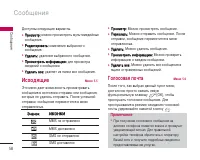
ëÓÓ·˘ÂÌËfl 54 ëÓÓ·˘ÂÌËfl 1. ÇÓȉËÚ ‚ ÏÂÌ˛ ëÓÓ·˘ÂÌËfl ÔÛÚfiÏ Ì‡Ê‡ÚËfl [OK]. 2. ÖÒÎË Ç˚ ıÓÚËÚ ̇ÔËÒ‡Ú¸ ÌÓ‚Ó ÒÓÓ·˘ÂÌËÂ, ‚˚·ÂËÚ ç‡ÔËÒ‡Ú¸ MMS . 3. Ç˚ ÏÓÊÂÚ ÒÓÁ‰‡Ú¸ ÌÓ‚Ó ÒÓÓ·˘ÂÌË ËÎË ‚˚·‡Ú¸ Ó‰ËÌ ËÁ ÛÊ „ÓÚÓ‚˚ı ¯‡·ÎÓÌÓ‚ÏÛθÚËωËÈÌ˚ı ÒÓÓ·˘ÂÌËÈ. 4. ç‡ÊÏËÚ ÇÒÚ‡‚ËÚ¸ ‰Îfl ÚÓ„Ó, ˜ÚÓ·˚ ‚ÒÚ‡‚ËÚ¸ ‚ ÒÓÓ·˘ÂÌË ë...
Page 57 - ÇıÓ‰fl ̆ËÂ
ëÓÓ·˘ÂÌËfl 56 4. ç‡Ê‡‚ Ô‡‚Û˛ ÙÛÌ͈ËÓ̇θÌÛ˛ Í·‚Ë¯Û [ÇÒÚ‡‚ËÚ¸], ÏÓÊÌÓ ÔËÒÓ‰ËÌËÚ¸ ‡Á΢Ì˚ÂÚËÔ˚ Ù‡ÈÎÓ‚. ÇıÓ‰fl˘Ë åÂÌ˛ 5.2 é ÔÓÎÛ˜ÂÌÌÓÏ ÒÓÓ·˘ÂÌËË ‚‡Ò ËÁ‚ÂÒÚËÚ Ò˄̇Î. ëÓÓ·˘ÂÌËfl ·Û‰ÛÚ ÒÓı‡ÌflÚ¸Òfl ‚ Ô‡ÔÍ "ÇıÓ‰fl˘ËÂ". Ç Ô‡ÔÍ "ÇıÓ‰fl˘ËÂ" ͇ʉÓ ÒÓÓ·˘ÂÌË ÏÓÊÌÓˉÂÌÚËÙˈËÓ‚‡Ú¸ ÔÓ Á̇˜Í‡Ï....
Page 58 - CÓÓ· ̆ÂÌËfl SIM; èÓ ̃ÚÓ‚ ̊È fl ̆ËÍ
57 ❇ CÓÓ·˘ÂÌËfl SIM ëÓÓ·˘ÂÌË SIM - ˝ÚÓ ÒÓÓ·˘ÂÌËÂ, ı‡Ìfl˘ÂÂÒfl ‚Ô‡ÏflÚË SIM-͇Ú˚. èË ÔÓÎÛ˜ÂÌËË Ò˄̇· Ó ÏÛθÚËωËÈÌÓÏÒÓÓ·˘ÂÌËË ÔÓ‰ÓʉËÚÂ, ÔÓ͇ ÒÓÓ·˘ÂÌËÂÁ‡„ÛÁËÚÒfl, ÔÓÒΠ˜Â„Ó Â„Ó ÏÓÊÌÓ ·Û‰ÂÚÔÓÒÏÓÚÂÚ¸. ÑÎfl ÚÓ„Ó ˜ÚÓ·˚ ÔÓ˜ËÚ‡Ú¸ ÒÓÓ·˘ÂÌËÂ, ‚˚·ÂËÚÂÓ‰ÌÓ ËÁ ÌËı, ̇ʇ‚ Í·‚Ë¯Û . ] è è Ó ÓÒÒÏ ÏÓ ÓÚÚ ...
Page 60 - àÌÙÓ Í‡Ì‡Î ̊; óËÚ‡Ú ̧
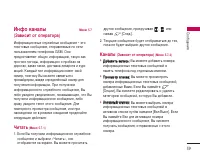
59 ëÓÓ·˘ÂÌËfl àÌÙÓ Í‡Ì‡Î˚ åÂÌ˛ 5.7 (ᇂËÒËÚ ÓÚ ÓÔ‡ÚÓ‡) àÌÙÓχˆËÓÌÌ˚ ÒÎÛÊ·Ì˚ ÒÓÓ·˘ÂÌËfl – ˝ÚÓÚÂÍÒÚÓ‚˚ ÒÓÓ·˘ÂÌËfl, ÓÚÔ‡‚ÎflÂÏ˚ ÔÓ ÒÂÚËÔÓθÁÓ‚‡ÚÂÎflÏ ÚÂÎÂÙÓÌÓ‚ GSM. éÌËÔ‰ÓÒÚ‡‚Îfl˛Ú Ó·˘Û˛ ËÌÙÓχˆË˛, Ú‡ÍÛ˛ ͇ÍÔÓ„ÌÓÁ ÔÓ„Ó‰˚, ËÌÙÓχˆË˛ Ó Ôӷ͇ı ̇‰ÓÓ„‡ı, Á‡Í‡Á Ú‡ÍÒË, ‰ÓÒÚ‡‚͇ ÎÂ͇ÒÚ‚ Ë ÍÛ͈҇Ë...
Page 61 - ò‡·ÎÓÌ ̊; íÂÍÒÚÓ‚ ̊ ̄‡·ÎÓÌ ̊; èÓ‰ÔËÒ ̧; SMS ÒÓÓ· ̆ÂÌËÂ
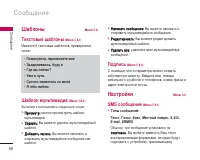
ëÓÓ·˘ÂÌËfl 60 ëÓÓ·˘ÂÌËfl ò‡·ÎÓÌ˚ åÂÌ˛ 5.8 íÂÍÒÚÓ‚˚ ¯‡·ÎÓÌ˚ (åÂÌ˛ 5.8.1) àÏÂÂÚÒfl 6 ÚÂÍÒÚÓ‚˚ı ¯‡·ÎÓÌÓ‚, Ô˂‰ÂÌÌ˚ıÌËÊÂ: ò‡·ÎÓÌ ÏÛθÚËωˇ (åÂÌ˛ 5.8.2) Ç˚ ÏÓÊÂÚ ËÒÔÓθÁÓ‚‡Ú¸ ÒÎÂ‰Û˛˘Ë ÓÔˆËË. ] è è Ó ÓÒÒÏ ÏÓ ÓÚÚ :: ÏÓÊÌÓ ÔÓÒÏÓÚÂÚ¸ ¯‡·ÎÓÌ ÏÛθÚËωˇ. ] ì ì‰ ‰‡‡Î ÎË ËÚÚ¸¸:: Ç˚ ÏÓÊÂÚ ۉ‡ÎËÚ¸ ÏÛθ...
Page 62 - MMS ÒÓÓ· ̆ÂÌËÂ
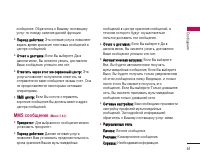
61 ëÓÓ·˘ÂÌËfl ÒÓÓ·˘ÂÌËÂ. é·‡ÚËÚÂÒ¸ Í Ç‡¯ÂÏÛ ÔÓÒÚ‡‚˘ËÍÛÛÒÎÛ„ ÔÓ ÔÓ‚Ó‰Û Ì‡Î˘Ëfl ‰‡ÌÌÓÈ ÙÛÌ͈ËË. ] è èÂÂ Ë ËÓ Ó‰ ‰ ‰ ‰ÂÂÈ ÈÒÒÚÚ‚‚Ë Ëflfl:: ùÚ‡ ÒÂÚ‚‡fl ÛÒÎÛ„‡ ÔÓÁ‚ÓÎflÂÚ Á‡‰‡Ú¸ ‚ÂÏfl ı‡ÌÂÌËfl ÚÂÍÒÚÓ‚˚ı ÒÓÓ·˘ÂÌËÈ ‚ˆÂÌÚ ÒÓÓ·˘ÂÌËÈ. ] é éÚÚ˜ ˜ÂÂÚÚ Ó Ó ‰ ‰Ó ÓÒÒÚÚ‡‡‚‚ÍÍÂÂ:: ÖÒÎË Ç˚ ‚˚·ÂÂÚ ч ‚ ‰‡ÌÌÓÏ ÏÂÌ˛,...
Page 63 - ùÎÂÍÚÓÌ̇fl ÔÓ ̃Ú‡
ëÓÓ·˘ÂÌËfl 62 ëÓÓ·˘ÂÌËfl ùÎÂÍÚÓÌ̇fl ÔÓ˜Ú‡ (åÂÌ˛ 5.9.3) чÌÌ˚È ÔÛÌÍÚ ÏÂÌ˛ ÔÓÁ‚ÓÎflÂÚ Ç‡Ï Â‰‡ÍÚËÓ‚‡Ú¸,Û‰‡ÎflÚ¸ ËÎË ‰Ó·‡‚ÎflÚ¸ Û˜ÂÚÌ˚ Á‡ÔËÒË˝ÎÂÍÚÓÌÌÓÈ ÔÓ˜Ú˚. ] ì˜fiÚ̇fl Á‡ÔËÒ¸ ÇÒÂ„Ó Ç˚ ÏÓÊÂÚ Á‡‰‡Ú¸ 3 Û˜ÂÚÌ˚ Á‡ÔËÒË˝ÎÂÍÚÓÌÌÓÈ ÔÓ˜Ú˚. ÑÎfl ‚ıÓ‰‡ ‚ ÏÂÌ˛ éÔˆËË̇ÊÏËÚ Í·‚Ë¯Û [éÔˆËË]. Ç ÔÛÌÍÚ ÏÂÌ˛ê‰‡ÍÚËÓ‚...
Page 64 - ñÂÌÚ „ÓÎÓÒÓ‚ÓÈ ÔÓ ̃Ú ̊
63 ëÓÓ·˘ÂÌËfl ] ì ì‰ ‰‡‡Î ÎË ËÚÚ¸¸:: 쉇ÎÂÌË ‚˚·‡ÌÌÓÈ Û˜fiÚÌÓÈ Á‡ÔËÒË. ] Ñ ÑÓ Ó· ·‡‡‚‚Ë ËÚÚ¸¸:: Ç˚ ÏÓÊÂÚ ‰Ó·‡‚ËÚ¸ ÌÓ‚Û˛ Û˜fiÚÌÛ˛ Á‡ÔËÒ¸. ] íӘ͇ ‰ÓÒÚÛÔ‡ á‰ÂÒ¸ Ç˚ ÏÓÊÂÚ ‰‡ÍÚËÓ‚‡Ú¸ ÚÓ˜ÍÛ ‰ÓÒÚÛÔ‡. ] á ᇇ„„Ó ÓÎ ÎÓ Ó‚‚Ó ÓÍÍ:: ǂ‰ËÚ ËÏfl ÚÓ˜ÍË ‰ÓÒÚÛÔ‡ (ËÏfl ÔÓ ÛÏÓΘ‡Ì˲ - Access point 1, 2). ] A AP P...
Page 65 - Push ÒÓÓ· ̆ÂÌËfl
ëÓÓ·˘ÂÌËfl 64 Ò˄̇Î, ÌÂÒÏÓÚfl ̇ ÔÓÎÛ˜ÂÌËÂËÌÙÓχˆËÓÌÌÓ„Ó ÚÂÍÒÚÓ‚Ó„Ó ÒÓÓ·˘ÂÌËfl. ] üÁ˚ÍË Ç˚ ÏÓÊÂÚ ‚˚·‡Ú¸ flÁ˚Í ÔÛÚfiÏ Ì‡Ê‡ÚËfl[ÇÍÎ/Ç˚ÍÎ]. á‡ÚÂÏ Ç˚ ÔÓÎÛ˜ËÚÂËÌÙÓχˆËÓÌÌÓ ÚÂÍÒÚÓ‚Ó ÒÓÓ·˘ÂÌË ÒÛ͇Á‡ÌËÂÏ ‚˚·‡ÌÌÓ„Ó Ç‡ÏË flÁ˚͇. Push ÒÓÓ·˘ÂÌËfl (åÂÌ˛ 5.9.6) åÓÊÌÓ Á‡‰‡Ú¸ Ô‡‡ÏÂÚ, Û͇Á˚‚‡˛˘ËÈ, ÔÓÎÛ˜‡Ú¸‰‡ÌÌÓÂ...
Page 68 - èÓÙËÎË; ÄÍÚË‚ËÓ‚‡Ú ̧
ç‡ÒÚÓÈÍË 67 ç‡ÒÚÓÈÍË Ç˚ ÏÓÊÂÚ ÛÒÚ‡ÌÓ‚ËÚ¸ ÒÎÂ‰Û˛˘Ë ÓÔˆËË ËÔ‡‡ÏÂÚ˚ ‰Îfl LJ¯Â„Ó Û‰Ó·ÒÚ‚‡ Ë ÔÓ Ç‡¯ÂÏÛÛÒÏÓÚÂÌ˲. 1. ç‡ÊÏËÚ Í·‚Ë¯Û [åÂÌ˛] ‚ ÂÊËÏ ÓÊˉ‡ÌËfl. 2. ç‡ÊÏËÚ Í·‚Ë¯Û ‰Îfl ÔÓÎÛ˜ÂÌËfl ÔflÏÓ„Ó ‰ÓÒÚÛÔ‡ ‰Îfl ‚ıÓ‰‡ ‚ ÏÂÌ˛ ç‡ÒÚÓÈÍË. èÓÙËÎË åÂÌ˛ 7.1 Ç ÏÂÌ˛ è è Ó ÓÙ ÙË ËÎ ÎË Ë ÏÓÊÌÓ ÓÚ„ÛÎËÓ‚‡...
Page 69 - èÂÂËÏÂÌÓ‚‡Ú ̧; чڇ Ë ÇÂÏfl
ç‡ÒÚÓÈÍË 68 ç‡ÒÚÓÈÍË ] ë ëË Ë„„Ì Ì‡‡Î Î ÍÍΠ·‡‚‚Ë Ë‡‡ÚÚÛÛ ˚ ˚:: Ç˚·Ó Ò˄̇· Í·‚ˇÚÛ˚. ] É É Ó ÓÏ ÏÍÍÓ ÓÒÒÚÚ¸¸ ÍÍΠ·‡‚‚Ë Ë‡‡ÚÚÛÛ ˚ ˚:: ìÒÚ‡ÌÓ‚ËÚ „ÓÏÍÓÒÚ¸ Ò˄̇· Í·‚ˇÚÛ˚. ] í íÓ ÓÌ Ì ÒÒΠ·‡È ȉ ‰Â ‡‡:: èÓÁ‚ÓÎflÂÚ Ì‡ÒÚÓËÚ¸ Á‚ÛÍ ÓÚÍ˚ÚËfl/Á‡Í˚ÚËfl Í˚¯ÍË. ] É É Ó ÓÏ ÏÍÍÓ ÓÒÒÚÚ¸¸...
Page 70 - íÂÎÂÙÓÌ; ÑËÒÔÎÂÈ; üÁ ̊Í
69 ç‡ÒÚÓÈÍË ìÒÚ‡ÌÓ‚. ‚ÂÏfl (åÂÌ˛ 7.2.2) ] ì ìÒÒÚÚ‡‡Ì ÌÓ Ó‚‚.. ‚‚ ÂÂÏ Ïflfl Ç˚ ÏÓÊÂÚ ‚‚ÂÒÚË ÚÂÍÛ˘Â ‚ÂÏfl. ] î îÓ Ó Ï Ï‡‡ÚÚ ‚‚ ÂÂÏ ÏÂÂÌ ÌË Ë Ç˚ ÏÓÊÂÚ ÛÒÚ‡ÌÓ‚ËÚ¸ ÙÓÏ‡Ú ‚ÂÏÂÌË ÏÂʉÛ24-˜‡ÒÓ‚˚Ï ÙÓχÚÓÏ Ë 12-˜‡ÒÓ‚˚Ï. íÂÎÂÙÓÌ åÂÌ˛ 7.3 Ç˚ ÏÓÊÂÚ ̇ÒÚÓËÚ¸ ÙÛÌ͈ËË, ÓÚÌÓÒfl˘ËÂÒfl ÍÚÂÎÂÙÓÌÛ. ÑËÒÔÎÂÈ (å...
Page 71 - 臉ÂÒ‡ˆËfl; èÓ‰ÏÂÌ ̨
ç‡ÒÚÓÈÍË 70 ç‡ÒÚÓÈÍË Ç˚ÁÓ‚˚ åÂÌ˛ 7.4 Ç˚ ÏÓÊÂÚ ÛÒÚ‡ÌÓ‚ËÚ¸ ÓÔˆËË, ÓÚÌÓÒfl˘ËÂÒfl Í‚˚ÁÓ‚Û, ÔÛÚÂÏ Ì‡Ê‡ÚËfl ̇ Í·‚Ë¯Û [Ç˚·Ó] ‚ ÏÂÌ˛ ç‡ÒÚÓÈÍË. 臉ÂÒ‡ˆËfl (åÂÌ˛ 7.4.1) ìÒÎÛ„‡ Ô‡‰ÂÒ‡ˆËË ‚˚ÁÓ‚‡ ÔÓÁ‚ÓÎflÂÚÔ‡‰ÂÒÓ‚˚‚‡Ú¸ ‚ıÓ‰fl˘Ë „ÓÎÓÒÓ‚˚ ‚˚ÁÓ‚˚,Ù‡ÍÒËÏËθÌ˚ ‚˚ÁÓ‚˚, ‡ Ú‡ÍÊe ËÌÙÓχˆËÓÌÌ˚‚˚ÁÓ‚˚ ̇ ‰...
Page 72 - êÂÊËÏ ÓÚ‚ÂÚ‡; éÊˉ‡ÌË ‚ ̊ÁÓ‚‡
71 ç‡ÒÚÓÈÍË ç‡ ‰Û„ÓÈ ÌÓÏ ì͇ÊËÚ ÌÓÏÂ, ̇ ÍÓÚÓ˚È ·Û‰ÂÚÔ‡‰ÂÒÓ‚‡Ì ‚˚ÁÓ‚. ç‡ ËÁ·‡ÌÌ˚È ÌÓÏ Ç˚‚Ó‰ËÚ ÒÔËÒÓÍ ËÁ·‡ÌÌ˚ı ÌÓÏÂÓ‚. ] éÚÏÂ̇ éÚÍβ˜‡ÂÚ ÒÓÓÚ‚ÂÚÒÚ‚Û˛˘Û˛ ÛÒÎÛ„Û. ] èÓÒÏÓÚÂÚ¸ ÒÚ‡ÚÛÒ èÓ‚Â͇ ÒÚ‡ÚÛÒ‡ ÒÓÓÚ‚ÂÚÒÚ‚Û˛˘ÂÈ ÛÒÎÛ„Ë. êÂÊËÏ ÓÚ‚ÂÚ‡ (åÂÌ˛ 7.4.2) ] è è Ë Ë Ó ÓÚÚÍÍ ˚ ˚ÚÚË ËË Ë Í...
Page 73 - áÛÏÏÂ; ÅÂÁÓÔ‡ÒÌÓÒÚ ̧; ÅÎÓÍËӂ͇ ÚÂÎÂÙÓ̇
ç‡ÒÚÓÈÍË 72 ç‡ÒÚÓÈÍË ] è è Ó ÓÒÒÏ ÏÓ ÓÚÚ ÂÂÚÚ¸¸ ÒÒÚÚ‡‡ÚÚÛÛÒÒ:: èÓ͇Á˚‚‡ÂÚ ÒÚ‡ÚÛÒ ‰‡ÌÌÓÈ ÛÒÎÛ„Ë. áÛÏÏ (åÂÌ˛ 7.4.5) ÖÒÎË Ç˚ ‚˚·ÂÂÚÂ Ç ÇÍÍÎ Î, Ç˚ ÒÏÓÊÂÚ ÔÓ‚ÂflÚ¸ ÔÓ‰ÓÎÊËÚÂθÌÓÒÚ¸ ‚˚ÁÓ‚‡ ÔÓ Á‚ÛÍÓ‚ÓÏÛ Ò˄̇ÎÛ,ÍÓÚÓ˚È ·Û‰ÂÚ ‡Á‰‡‚‡Ú¸Òfl Í‡Ê‰Û˛ ÏËÌÛÚÛ ‚ ıӉ‚˚ÁÓ‚‡. Ä‚ÚÓ‰ÓÁ‚ÓÌ (åÂÌ˛ 7.4.6) ] Ç ÇÍ...
Page 74 - á‡ÔÂÚ ‚ ̊ÁÓ‚‡; îËÍÒËÓ‚‡ÌÌ ̊È Ì‡·Ó
73 ç‡ÒÚÓÈÍË ËÒÔÓθÁÓ‚‡ÌËfl LJ¯Â„Ó ÚÂÎÂÙÓ̇. èË ‚Íβ˜ÂÌËËÚÂÎÂÙÓÌ Á‡ÔÓÒËÚ ÍÓ‰ ·ÂÁÓÔ‡ÒÌÓÒÚË, ÂÒÎË ˝Ú‡ÙÛÌ͈Ëfl ‚Íβ˜Â̇. ÖÒÎË Ç˚ ‚˚·ÂÂÚ è è Ë Ë ÒÒÏ ÏÂÂÌ Ì S SIIM M, LJ¯ ÚÂÎÂÙÓÌ Á‡ÔÓÒËÚ ˝ÚÓÚ ÍÓ‰ ÚÓθÍÓ ‚ ÒÎÛ˜‡Â ÒÏÂÌ˚ SIM-͇Ú˚. á‡ÔÂÚ ‚˚ÁÓ‚‡ (åÂÌ˛ 7.5.3) ìÒÎÛ„‡ Á‡ÔÂÚ‡ ‚˚ÁÓ‚‡ Ì ÔÓÁ‚ÓÎflÂÚ Ç‡¯ÂÏÛÚ...
Page 75 - àÁÏÂÌËÚ ̧ ÍÓ‰ ̊; Ç ̊·Ó ÒÂÚË; Ä‚ÚÓχÚË ̃ÂÒÍË
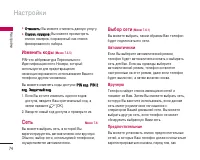
ç‡ÒÚÓÈÍË 74 ç‡ÒÚÓÈÍË ] é éÚÚÏ ÏÂÂÌ ÌË ËÚÚ¸¸:: Ç˚ ÏÓÊÂÚ ÓÚÏÂÌËÚ¸ ‰‡ÌÌÛ˛ ÛÒÎÛ„Û. ] ë ëÔ ÔË ËÒÒÓ ÓÍÍ Ì ÌÓ ÓÏ ÏÂÂ Ó Ó‚‚:: Ç˚ ÏÓÊÂÚ ÔÓÒÏÓÚÂÚ¸ ÒÔËÒÓÍ ÌÓÏÂÓ‚, ÒÓı‡ÌÂÌÌ˚È Í‡Í ÒÔËÒÓÍÙËÍÒËÓ‚‡ÌÌÓ„Ó Ì‡·Ó‡. àÁÏÂÌËÚ¸ ÍÓ‰˚ (åÂÌ˛ 7.5.5) PIN–˝ÚÓ ‡··Â‚ˇÚÛ‡ èÂÒÓ̇θÌÓ„Óà‰ÂÌÚËÙË͇ˆËÓÌÌÓ„Ó çÓχ, ÍÓÚÓ˚...
Page 76 - Ç ̊·Ó ‰Ë‡Ô‡ÁÓ̇; PCS Only; èÓ‰ÍÎ ̨ ̃ÂÌË GPRS; ÇÒ„‰‡ ‚ÍÎ ̨ ̃fiÌ; ëÚ‡ÚÛÒ Ô‡ÏflÚË
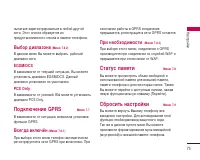
75 ç‡ÒÚÓÈÍË Ô˚Ú‡Ú¸Òfl Á‡Â„ËÒÚËÓ‚‡Ú¸Òfl ‚ β·ÓÈ ‰Û„ÓÈÒÂÚË. ùÚÓÚ ÒÔËÒÓÍ Ó·‡ÁÛÂÚÒfl ËÁÔ‰ÛÒÚ‡ÌÓ‚ÎÂÌÌÓ„Ó ÒÔËÒ͇ ‚ Ô‡ÏflÚË ÚÂÎÂÙÓ̇. Ç˚·Ó ‰Ë‡Ô‡ÁÓ̇ (åÂÌ˛ 7.6.2) Ç ‰‡ÌÌÓÏ ÏÂÌ˛ Ç˚ ÏÓÊÂÚ ‚˚·‡Ú¸ ‡·Ó˜ËȉˇԇÁÓÌ ÒÂÚË. EGSM/DCS Ç Á‡‚ËÒËÏÓÒÚË ÓÚ ÚÂÍÛ˘ÂÈ ÒËÚÛ‡ˆËË, Ç˚ ÏÓÊÂÚÂÛÒÚ‡ÌÓ‚ËÚ¸ ‰Ë‡Ô‡ÁÓÌ EGSM/DCS. чÌ...
Page 78 - 燂˄‡ˆËfl Ò ÔÓÏÓ ̆ ̧ ̨ WAP-·‡ÛÁ‡; ÑÓχ ̄Ìflfl
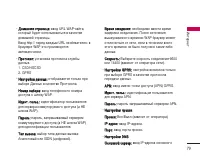
àÌÚÂÌÂÚ 77 àÌÚÂÌÂÚ åÓÊÌÓ ÔÓÎÛ˜ËÚ¸ ‰ÓÒÚÛÔ Í ‡Á΢Ì˚Ï ÛÒÎÛ„‡ÏWAP (Wireless Application Protocol), Ú‡ÍËÏ Í‡Í·‡ÌÍÓ‚ÒÍË ÓÔ‡ˆËË, ÌÓ‚ÓÒÚË, ҂Ӊ͇ ÔÓ„Ó‰˚ ˇÒÔËÒ‡ÌË ÂÈÒÓ‚. ùÚË ÛÒÎÛ„Ë Ô‰̇Á̇˜ÂÌ˚ÒÔˆˇθÌÓ ‰Îfl ÏÓ·ËθÌ˚ı ÚÂÎÂÙÓÌÓ‚ ËÔÓ‰‰ÂÊË‚‡˛ÚÒfl ÔÓÒÚ‡‚˘Ë͇ÏË ÛÒÎÛ„ WAP. èӂ¸Ú ‰ÓÒÚÛÔÌÓÒÚ¸ ÛÒÎÛ„ W...
Page 79 - á‡Í·‰ÍË; èÂÂÈÚË Í URL
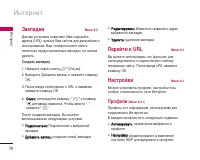
á‡Í·‰ÍË åÂÌ˛ 8.2 чÌ̇fl ÛÒÚ‡Ìӂ͇ ÔÓÁ‚ÓÎflÂÚ Ç‡Ï ÒÓı‡ÌflÚ¸‡‰ÂÒ‡ (URL) ÌÛÊÌ˚ı Ç‡Ï Ò‡ÈÚÓ‚ ‰Îfl ‰‡Î¸ÌÂȯ„ÓËÒÔÓθÁÓ‚‡ÌËfl. LJ¯ ÚÂÎÂÙÓÌ ÏÓÊÂÚ ËÏÂÚ¸ÌÂÒÍÓθÍÓ Ô‰ÛÒÚ‡ÌÓ‚ÎÂÌ˚ı Á‡Í·‰ÓÍ, Ëı ÌÂθÁflÛ‰‡ÎËÚ¸. ëÓÁ‰‡Ú¸ Á‡Í·‰ÍÛ 1. ç‡ÊÏËÚ ÎÂ‚Û˛ ÍÌÓÔÍÛ [éÔˆËË]. 2. Ç˚·ÂËÚ ÑÓ·‡‚ËÚ¸ Á‡ÔËÒ¸ Ë Ì‡ÊÏËÚ Í·‚Ë¯Û éä. 3. ...
Page 81 - î‡ÈÎ ̊ cookie
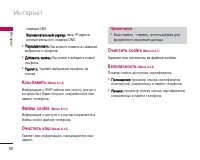
àÌÚÂÌÂÚ 80 àÌÚÂÌÂÚ Ò‚‡ DNS Ç ÇÒÒÔ ÔÓ ÓÏ ÏÓ Ó„„‡‡ÚÚÂÂΠθ¸Ì Ì˚ ˚È È ÒÒ ‚‚ :: ‚‚Ó‰ IP-‡‰ÂÒ‡ ‚ÒÔÓÏÓ„‡ÚÂθÌÓ„Ó Ò‚‡ DNS ] è è ÂÂË ËÏ ÏÂÂÌ ÌÓ Ó‚‚‡‡ÚÚ¸¸:: Ç˚ ÏÓÊÂÚ ËÁÏÂÌËÚ¸ ̇Á‚‡ÌË ‚˚·‡ÌÌÓ„Ó ÔÓÙËÎfl. ] Ñ ÑÓ Ó· ·‡‡‚‚Ë ËÚÚ¸¸ ÁÁ‡‡Ô ÔË ËÒÒ¸¸:: Ç˚ ÏÓÊÂÚ ‰Ó·‡‚ËÚ¸ ÌÓ‚˚È ÔÓÙËθ. ] ì ì‰ ...
Page 82 - îÓÚÓ„‡ÙËË ‰Îfl ÚÂÎÂÙÓÌÌÓÈ ÍÌË„Ë
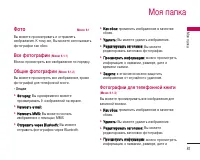
åÓfl Ô‡Ô͇ 81 åÓfl Ô‡Ô͇ îÓÚÓ åÂÌ˛ 9.1 Ç˚ ÏÓÊÂÚ ÔÓÒχÚË‚‡Ú¸ Ë ÓÚÔ‡‚ÎflÚ¸ËÁÓ·‡ÊÂÌËfl. ä ÚÓÏÛ ÊÂ, Ç˚ ÏÓÊÂÚ ËÒÔÓθÁÓ‚‡Ú¸ÙÓÚÓ„‡ÙËË Í‡Í Ó·ÓË. ÇÒ ÙÓÚÓ„‡ÙËË (åÂÌ˛ 9.1.1) åÓÊÌÓ ÔÓÒÏÓÚÂÚ¸ ‚Ò ËÁÓ·‡ÊÂÌËfl ÔÓ ÔÓfl‰ÍÛ. 鷢ˠÙÓÚÓ„‡ÙËË (åÂÌ˛ 9.1.2) Ç˚ ÏÓÊÂÚ ÔÓÒÏÓÚÂÚ¸ ‚Ò ËÁÓ·‡ÊÂÌËfl, ÍÓÏÂÙÓÚÓ„‡ÙËÈ ‰...
Page 83 - ÉÓÎÓÒÓ‚ ̊ Á‡ÔËÒË
åÓfl Ô‡Ô͇ 82 åÓfl Ô‡Ô͇ ‚ÂÏÂÌË Ò˙ÂÏÍË. ] á ᇇ˘ ˘Ë ËÚÚ‡‡:: ‚ ˝ÚÓÏ ÏÂÌ˛ ÏÓÊÌÓ Á‡˘ËÚËÚ¸ ËÁÓ·‡ÊÂÌË ÓÚ ÒÎÛ˜‡ÈÌÓ„Ó Û‰‡ÎÂÌËfl. àÁÓ·‡ÊÂÌËfl åÂÌ˛ 9.2 àÒÔÓθÁÓ‚‡Ìˠ΂ÓÈ ÙÛÌ͈ËÓ̇θÌÓÈ Í·‚Ë¯Ë ‚ÂÊËÏ ÔÓÒÏÓÚ‡ ËÁÓ·‡ÊÂÌËfl ÓÚÍÓÂÚÒÎÂ‰Û˛˘Ë ԇ‡ÏÂÚ˚: ] ì ìÒÒÚÚ‡‡Ì ÌÓ Ó‚‚Ë ËÚÚ¸¸ Í͇‡ÍÍ Ó Ó· ·Ó ÓË Ë:: Ç˚·‡ÌÌ...
Page 84 - ÑÛ„ËÂ
83 åÓfl Ô‡Ô͇ ÔËÎÓÊÂÌËfl ËÎË Ì‡Òڇ˂‡Ú¸ ÓÔˆËË ÒÓ‰ËÌÂÌËfl ÒàÌÚÂÌÂÚ ‰Îfl Á‡„ÛÁÍË ÔËÎÓÊÂÌËÈ. ëÏ. [åÂÌ˛ 3-4]. ÑÛ„Ë åÂÌ˛ 9.5 Ç ‰‡ÌÌÓÏ ÒÔËÒÍ ÓÚÓ·‡Ê‡˛ÚÒfl Ù‡Î˚, ÌÂÔÓ‰‰ÂÊË‚‡ÂÏ˚ ÚÂÎÂÙÓÌÓÏ. Ç˚ ÏÓÊÂÚÂÔÓËÁ‚ÂÒÚË ÒÎÂ‰Û˛˘Ë ‰ÂÈÒÚ‚Ëfl: ] ì ì‰ ‰‡‡Î ÎË ËÚÚ¸¸:: ÔÓÁ‚ÓÎflÂÚ Û‰‡ÎËÚ¸ Ù‡ÈÎ ËÁ ÒÔËÒ͇. ] é éÚÚÔ Ô ‡‡‚...
Page 85 - ëڇ̉‡Ú̇fl ·‡Ú‡Âfl
ÄÍÒÂÒÒÛ‡˚ 84 ÄÍÒÂÒÒÛ‡˚ ëڇ̉‡Ú̇fl ·‡Ú‡Âfl ɇÌËÚÛ‡ èÓÁ‚ÓÎflÂÚ ‡·ÓÚ‡Ú¸ ‚ ‡‚ÚÓχÚ˘ÂÒÍÓÏ ÂÊËÏÂ. äÓÏÔÎÂÍÚ ÒÓÒÚÓËÚ ËÁ ÏËÍÓÙÓ̇ Ë Ì‡Û¯ÌËÍÓ‚. ÑÓÓÊÌ˚È ‡‰‡ÔÚ ùÚÓ ÛÒÚÓÈÒÚ‚Ó ÔÓÁ‚ÓÎflÂÚ Á‡flʇڸ ÚÂÎÂÙÓÌ, ÍÓ„‰‡ Ç˚ ̇ıÓ‰ËÚÂÒ¸ ‚Ì ‰Óχ ËÎË ÓÙËÒ‡. 䇷Âθ Ô‰‡˜Ë ‰‡ÌÌ˚ı Ë CD Ò ÔÓ„‡ÏÌ˚Ï Ó·ÂÒÔ˜ÂÌËÂÏ Ç˚ Ï...
Page 86 - é· ̆ËÂ
íÂıÌ˘ÂÒÍË ı‡‡ÍÚÂËÒÚËÍË 85 íÂıÌ˘ÂÒÍË ı‡‡ÍÚÂËÒÚËÍË é·˘Ë ç ç‡‡Ë ËÏ ÏÂÂÌ ÌÓ Ó‚‚‡‡Ì ÌË Ë è è Ó Ó‰ ‰ÛÛÍÍÚÚ‡‡ : KG245 Ñ ÑË Ë‡‡Ô Ô‡‡ÁÁÓ ÓÌ Ì : GSM 900 / DCS 1800 / PCS 1900 ùÍÒÔÎÛ‡Ú‡ˆËÓÌÌ˚ íÂÏÔ‡ÚÛ˚ å 凇ÍÍÒÒ.. : +55 ° C å åË ËÌ Ì.. : -10 ° C
Page 88 - U S E R G U I D E
K G 2 4 5 U S E R G U I D E Some of contents in this manual may differ from yourphone depending on the software of the phone or yourservice provider. Disposal of your old appliance 1. When this crossed-out wheeled bin symbol is attached to a product it meansthe product is covered by the European Dir...
Page 89 - Ta b l e o f C o n te n ts
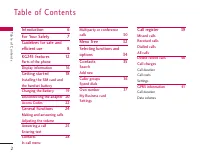
Ta b l e o f C o n te n ts 2 T able of Cont ent s Introduction 6 For Your Safety 7 Guidelines for safe andefficient use 8 KG245 features 12 Parts of the phoneDisplay information 16 Getting started 18 Installing the SIM card andthe handset batteryCharging the Battery 19 Disconnecting the adapter 20Ac...
Page 90 - Tools
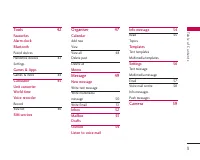
3 T able of Cont ent s Tools 42 FavouritesAlarm clockBluetooth Paired devices Handsfree devices 43 Settings Games & Apps Games & more 44 Calculator 45 Unit converterWorld timeVoice recorder Record View list 46 SIM services Organiser 47 Calendar Add new View View all 48 Delete past Delete all...
Page 91 - Table of Contents; Settings
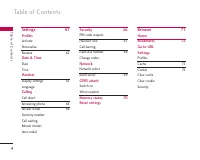
Table of Contents 4 Settings 61 Profiles Activate Personalise Rename 62 Date & Time Date Time Handset Display settings 63 Language Calling Call divert Answering phone 64 Answer mode 66 Send my number Call waiting Minute minder Auto redial Security 66 PIN code request Handset lock 67 Call barring...
Page 92 - My stuff; Accessories
5 My stuff 75 Photos All pictures General pictures Phonebook pictures ImagesSounds Voice records 76 MP3 ringtone Downloaded Games & AppsOthers Accessories 77 Technical data 78 T able of Cont ent s
Page 93 - I n t ro d u c t i o n
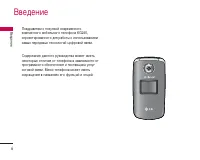
Congratulations on your purchase of the advanced andcompact KG245 mobile phone, designed to operatewith the latest digital mobile communicationtechnology. This user’s guide contains important information onthe use and operation of this phone. Please read all theinformation carefully for optimal perf...
Page 94 - Fo r Yo u r S a f ety; Warning; Caution
Fo r Yo u r S a f ety 7 For Y our Safe ty Please read these simple guidelines. Not followingthese guidelines may be dangerous or illegal. Furtherdetailed information is given in this manual. Warning ] Mobile Phones must be switched off at all times inaircrafts. ] Do not hold the phone in your hand w...
Page 95 - G u i d e l i n es f o r s a f e a n d e f f i c i e n t u s e; Parts of the phone
G u i d e l i n es f o r s a f e a n d e f f i c i e n t u s e 8 Radio wave exposure and Specific AbsorptionRate (SAR) information This mobile phone model KG245 has been designed tocomply with applicable safety requirement for exposureto radio waves. This requirement is based on scientificguidelines...
Page 96 - Efficient phone operation
9 Guideline s for safe and efficient use ] Do not keep the phone next to credit cards ortransport tickets; it can affect the information on themagnetic strips. ] Do not tap the screen with a sharp object;otherwise, it may damage the phone. ] Do not expose the phone to liquid or moisture. ] Use the a...
Page 97 - Blasting area; Guidelines for safe and efficient use
Electronics devices All mobile phones may get interference, whichcould affect performance. ] Do not use your mobile phone near medicalequipment without requesting permission. Avoidplacing the phone over the pacemaker, (i.e. in yourbreast pocket). ] Some hearing aids might be disturbed by mobilephone...
Page 98 - In aircraft; Battery information and care; Network service
11 Guideline s for safe and efficient use In aircraft Wireless devices can cause interference in aircraft. ] Turn off your mobile phone before boarding anyaircraft. ] Do not use it on the ground without crewpermission. Battery information and care ] You do not need to completely discharge the batter...
Page 99 - KG 245 f e at u res
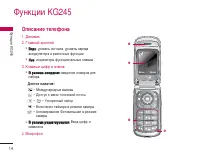
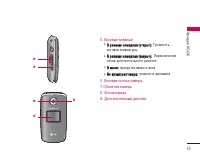
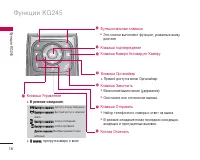
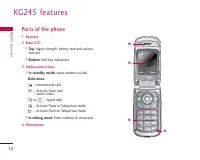
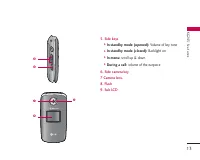
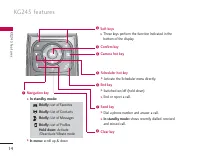
KG 245 f e at u res 12 K G 2 4 5 fea ture s Parts of the phone 1. Earpiece 2. Main LCD ] Top : Signal strength, battery level and various function ] Bottom : Soft key indications 3. Alpha numeric keys ] In standby mode: Input numbers to dial Hold down – International calls– Activate Voice mail centr...
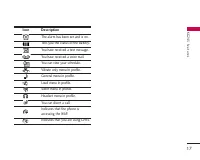
Page 103 - Display Information; Note
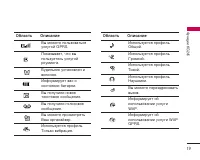
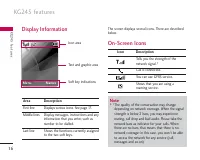
Display Information The screen displays several icons. There are describedbelow. On-Screen Icons KG245 features 16 K G 2 4 5 fea ture s Note ] *The quality of the conversation may change depending on network coverage. When the signalstrength is below 2 bars, you may experiencemuting, call drop and b...
Page 105 - G ett i n g s ta r te d
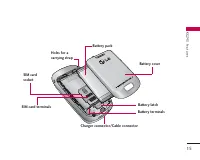
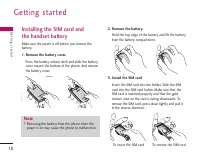
Installing the SIM card and the handset battery Make sure the power is off before you remove thebattery. 1. Remove the battery cover. Press the battery release latch and slide the batterycover toward the bottom of the phone. And removethe battery cover. 2. Remove the battery. Hold the top edge of th...
Page 106 - Charging the Battery
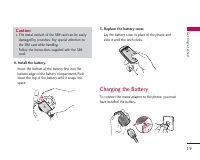
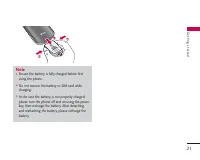
19 Getting st ar te d 4. Install the battery. Insert the bottom of the battery first into thebottom edge of the battery compartment. Pushdown the top of the battery until it snaps intospace. 5. Replace the battery cover. Lay the battery cover in place of the phone andslide it until the latch clicks....
Page 107 - Getting started; Disconnecting the adapter
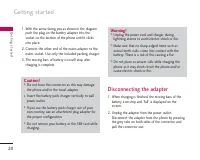
Getting started 20 1. With the arrow facing you as shown in the diagram push the plug on the battery adapter into thesocket on the bottom of the phone until it clicksinto place. 2. Connect the other end of the mains adapter to the mains socket. Use only the included packing charger. 3. The moving ba...
Page 109 - Access Codes
Getting started 22 Access Codes You can use the access codes described in this sectionto avoid unauthorised use of your phone. The accesscodes (except PUK and PUK2 codes) can be changedby using the Change codes feature [Menu 7-5-5]. See page 66. PIN code (4 to 8 digits) The PIN (Personal Identificat...
Page 110 - Network Password
23 Network Password The netwok password is required when you use Callbarring [Menu 7-5-3] function. You obtain thepassword from your network operator when yousubscribe to this function. See page 67 for furtherdetails. Getting st ar te d
Page 111 - G e n e ra l Fu n c t i o n s; Making and answering calls; Making a call; Adjusting the volume
G e n e ra l Fu n c t i o n s 24 Gener al F unctions Making and answering calls Making a call 1. Make sure your phone is powered on. 2. Enter a phone number including the area code. ] Press and hold the key to erase the entire number. 3. Press the send key to call the number. 4. To end the call, pre...
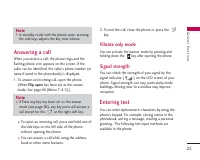
Page 112 - Answering a call; Vibrate only mode; Signal strength; Entering text
Answering a call When you receive a call, the phone rings and theflashing phone icon appears on the screen. If thecaller can be identified, the caller’s phone number (orname if saved in the phonebook) is displayed. 1. To answer an incoming call, open the phone. (When Flip open has been set as the an...
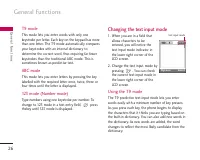
Page 113 - General Functions; T9 mode; Changing the text input mode; Using the T9 mode
General Functions 26 Gener al F unctions T9 mode This mode lets you enter words with only onekeystroke per letter. Each key on the keypad has morethan one letter. The T9 mode automatically comparesyour keystrokes with an internal dictionary todetermine the correct word, thus requiring far fewerkeyst...
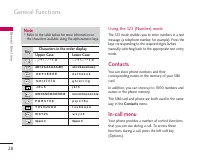
Page 114 - Using the ABC mode
27 Gener al F unctions 1. When you are in the T9 predictive text input mode, start entering a word by pressing keysto . Press one key per letter. ] The word changes as letters are typed. Ignorewhat’s on the screen until the word is typedcompletely. ] If the word is still incorrect after typingcomple...
Page 116 - During a call; Switching between two calls
29 Gener al F unctions During a call The menu displayed on the handset screen during acall is different to the default main menu displayedwhen in standby mode, and the options aredescribed below. Making a second call You can get a number you wish to dial from thephonebook to make a second call. Pres...
Page 117 - Switching DTMF tones on during a call; Multiparty or conference calls; Making a second call; Activate the conference call on hold; Adding calls to the conference call
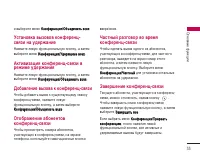
General Functions 30 Gener al F unctions Switching DTMF tones on during a call To turn DTMF tones on during a call, press the leftsoft key, and then select DTMF on . DTMF tones can be turned off the same way. DTMF tones allow yourphone to make use of an automated switchboard. Multiparty or conferenc...
Page 118 - Displaying callers in a conference call; Ending a conference call
31 Gener al F unctions left soft key, then select the Multiparty/Join all . Displaying callers in a conference call To scroll through the numbers of the callers whomake up a conference call on the handset screen, usethe up/down navigation keys. Taking a private call during aconference call To have a...
Page 119 - M e nu Tre e
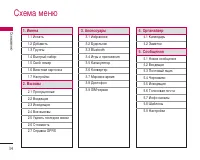
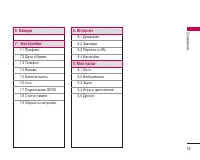
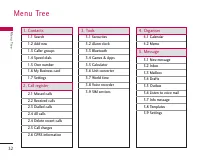
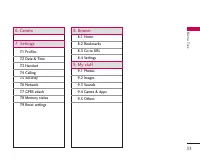
32 Men u T ree 1. Contacts 1.1 Search 1.2 Add new 1.3 Caller groups 1.4 Speed dials 1.5 Own number 1.6 My Business card 1.7 Settings 2. Call register 2.1 Missed calls 2.2 Received calls 2.3 Dialled calls 2.4 All calls 2.4 Delete recent calls 2.5 Call charges 2.6 GPRS information 3. Tools 3.1 Favouri...
Page 121 - S e l e c t i n g f u n c t i o n s a n d o pt i o n s
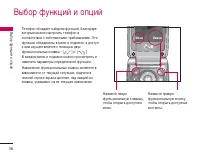
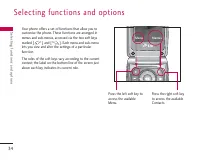
S e l e c t i n g f u n c t i o n s a n d o pt i o n s 34 Selecting functions and op tions Your phone offers a set of functions that allow you tocustomise the phone. These functions are arranged inmenus and sub-menus, accessed via the two soft keysmarked [ ] and [ ]. Each menu and sub-menu lets you ...
Page 122 - C o n ta c ts; Add new
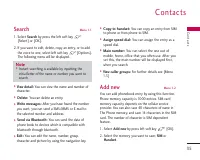
35 C o n ta c ts Cont acts Search Menu 1.1 1. Select Search by press the left soft key [Select] or [OK]. 2. If you want to edit, delete, copy an entry, or to add the voice to one, select left soft key [Options]. The following menu will be displayed. ] View detail: You can view the name and number of...
Page 124 - Own number
37 Cont acts Own number (Sim dependent) Menu 1.5 You can save and check your own number in SIM card. My Business card Menu 1.6 This option allows you to create your own businesscard featuring Name and an mobile phone number. Tocreate a new business card, press the left soft key[Options] and enter th...
Page 126 - C a l l re g i s te r; Missed calls
C a l l re g i s te r 39 Call r egist er You can check the record of missed, received, anddialled calls only if the network supports the CallingLine Identification (CLI) within the service area. The number and name (if available) are displayedtogether with the date and time at which the call wasmade...
Page 127 - Call register; Delete recent calls
Call register 40 Delete recent calls Menu 2.5 Allows you to delete Missed calls and Received calls lists. You can delete Dialled calls and All calls lists at one time. Call charges Menu 2.6 Call duration (Menu 2.6.1) Allows you to view the duration of your incoming andoutgoing calls. You can also re...
Page 129 - To o l s; Favourites; Bluetooth; Paired devices
To o l s 42 Favourites Menu 3.1 This option allows you to add your own favourites tothe list already provided. Once you create your ownmenu, you can access the desired function quickly inthe idle screen by pressing the up navigation key. Alarm clock Menu 3.2 You can set up to 5 alarm clocks to go of...
Page 130 - Handsfree devices
43 T ools Handsfree devices (Menu 3.3.2) You can view the list of handsfree devices which arecompatible with bluetooth phone. If you have entered Paired devices or Handsfreedevices, you will see the following options in boththose menus. ] Connect/Disconnect : Allows you to connect to other Bluetooth...
Page 132 - Calculator; Record
45 T ools Calculator Menu 3.5 This contains the standard functions such as +, –, x, ÷: Addition , Subtraction , Multiplication , and Division . Furthermore, you can use the various function ofcalculator such as +/- . 1. Input the numbers by pressing numeric keys. 2. Use a navigation key to select a ...
Page 133 - View list; SIM services
Tools 46 2. If you want to finish recording, press the left soft key [Save]. 3. Key in Voice memo title, press the left soft key [OK]. View list (Menu 3.8.2) The phone shows voice memo list. You can Playbackand Delete the recorded voice memo. In addition, youcan send a multimedia message or Email. S...
Page 134 - O rg a n i s e r; Calendar; View
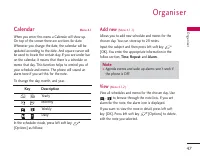
O rg a n i s e r 47 Organiser Calendar Menu 4.1 When you enter this menu a Calendar will show up. On top of the screen there are sections for date.Whenever you change the date, the calendar will beupdated according to the date. And square cursor willbe used to locate the certain day. If you see unde...
Page 135 - View all; Delete past; Organiser
View all (Menu 4.1.3) Shows the notes that are set for all days. Use , to browse through the note lists. If you want to viewthe note in detail, press left soft key [OK]. Delete past (Menu 4.1.4) You can delete the past schedule that has been alreadynotified you. Delete all (Menu 4.1.5) You can delet...
Page 136 - M es s a g e; New message; Write text message; Insert
M es s a g e 49 Message New message Menu 5.1 This menu includes functions related to SMS (ShortMessage Service), MMS (Multimedia Message Service),Email, voice mail, as well as the network’s servicemessages. Write text message (Menu 5.1.1) You can write and edit text message, checking thenumber of me...
Page 137 - Message; Write multimedia message
Message 50 Message ] Alignment : You can select the alignment fo text. ] Add T9 dictionary : You can add your own words. This menu will only be shown when the edit modehas been set to T9ABC/T9Abc/T9abc. ] T9 languages: Select the desired language for T9 input mode. You can also deactivate the T9 inp...
Page 138 - Write Email
Message 51 ] Save: You can save multimedia messages In drafts or As template . ] Add slide: You can add a slide Next or Previous current slide. ] Move to slide: You can move to previous or next slide. ] Delete slide: You can delete current slides. ] Set slide format - Set timer: You can set a timer ...
Page 139 - Inbox
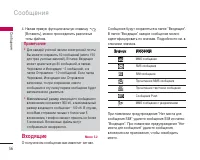
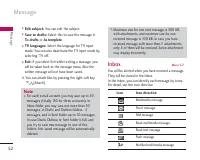
Message 52 Message ] Edit subject: You can edit the subject. ] Save to drafts: Select this to save the message in To drafts or As templete . ] T9 languages: Select the language for T9 input mode. You can also deactivate the T9 input mode byselecting 'T9 off'. ] Exit: If you select Exit whilst writin...
Page 140 - SIM message; Mailbox
53 Message If the phone shows ‘No space for SIM message’, youonly have to delete the SIM messages from the Inbox.If the phone displays ‘No space for SMS’, you will thenneed to delete messages, media or applications to freeup space. ❇ SIM message SIM message means that the message isexceptionally sto...
Page 141 - Outbox; Read
Message 54 Message ] View information: To view the information of the message. ] Delete all: Deletes all of the messages in the folder. Outbox Menu 5.5 This menu allows you to view the messages which youhave sent, those that are currently sending ormessages that have failed sending previously. ] Vie...
Page 142 - Topics; Templates; Text templates; Text message
55 Message 2. The message will be shown until another message is selected. Topics (Menu 5.7.2) (Dependent to network and subscription) ] Add new : You can add Info service message numbers in the Phone memory with its nickname. ] View list : You can see Info service message numbers which you have add...
Page 143 - Mulitimedia message
Message 56 Message ERMES Usually, the type of message is set to Text . You can convert your text into alternative formats. Contactyour service provider for the availability of thisfunction. ] Validity period: This network service allows you to set how long your text messages will be stored at themes...
Page 144 - Access Point; Voice mail centre
57 Message A profile is the network information used to connect tothe Internet. Each profile has a [Options] menu as follows: ] Set as default: You can select a mail account asdefault. ] Edit - User name: Enter your email ID. - E-mail address: Enter the email address given to you by your service pro...
Page 145 - Info message; Push messages
Message 58 Message accordingly. ] Home: You can listen to voice mails by selecting Home. ] Roaming: Even when you are in abroad, you can listen to voice mails if roaming service is supported. Info message (Menu 5.9.5) ] Receive Yes: If you select this menu, your phone will receive Info service messa...
Page 146 - C a m e ra; Quick Access to Camera Mode
C a m e ra 59 Camer a Quick Access to Camera Mode Your multimedia phone comes with an easy-to-usebuilt-in camera, which allows you to instantly take, viewand share pictures with your friends and family. To take a picture with phone opened 1. Press Camera menu and quickly the screen will now become t...
Page 147 - Camera
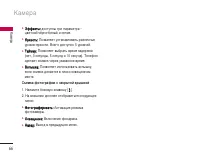
Camera 60 Camer a White/Sephia ] Brightness: Use the right/left navigation keys to adjust lighting. 5 lighting levels are available: ] Timer: Allows you to select the time delay (Off, 3 Seconds, 5 Seconds). Then the phone takes a photoafter the specified time. ] Flash: Allows you to set the flash wh...
Page 148 - S ett i n g s; Activate
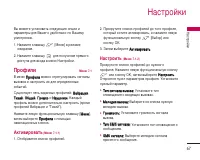
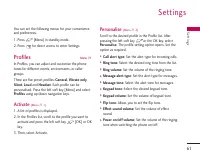
S ett i n g s 61 Settings You can set the following menus for your convenienceand preferences. 1. Press [Menu] in standby mode. 2. Press for direct access to enter Settings. Profiles Menu 7.1 In Profiles, you can adjust and customise the phonetones for different events, environments, or callergroups...
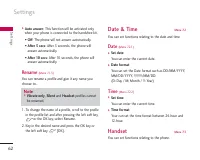
Page 149 - Rename; Handset
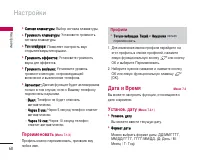
Settings 62 Settings ] Auto answer : This function will be activated only when your phone is connected to the handsfree kit. • Off : The phone will not answer automatically. • After 5 secs : After 5 seconds, the phone will answer automatically. • After 10 secs : After 10 seconds, the phone will answ...
Page 150 - Display settings; Language; Calling; Call divert
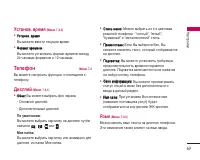
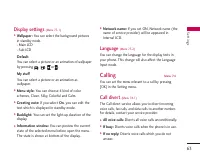
63 Settings Display settings (Menu 7.3.1) ] Wallpaper: You can select the background pictures in standby mode.- Main LCD- Sub LCD Default You can select a picture or an animation of wallpaperby pressing , , or . My stuff You can select a picture or an animation aswallpaper. ] Menu style: You can cho...
Page 151 - The submenus; Answering phone
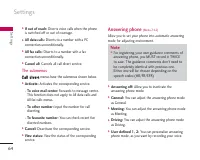
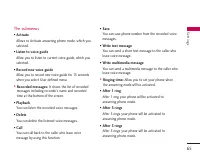
Settings 64 Settings ] If out of reach: Diverts voice calls when the phone is switched off or out of coverage. ] All data calls: Diverts to a number with a PC connection unconditionally. ] All fax calls: Diverts to a number with a fax connection unconditionally. ] Cancel all: Cancels all call divert...
Page 153 - Security
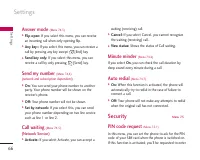
Settings 66 Settings Answer mode (Menu 7.4.3) ] Flip open: If you select this menu, you can receive an incoming call when only opening flip. ] Any key:: If you select this menu, you can receive a call by pressing any key except [End] key. ] Send key only: If you select this menu, you can receive a c...
Page 154 - Handset lock; Call barring
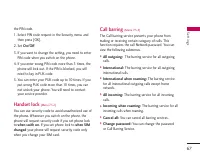
67 Settings the PIN code. 1. Select PIN code request in the Security menu, and then press [OK]. 2. Set On/Off . 3. If you want to change the setting, you need to enter PIN code when you switch on the phone. 4. If you enter wrong PIN code more than 3 times, the phone will lock out. If the PIN is bloc...
Page 155 - Change codes; Network; Network select; Automatic
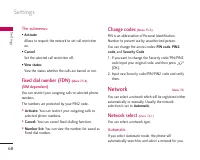
Settings 68 Settings The submenus: • Activate Allows to request the network to set call restrictionon. • Cancel Set the selected call restriction off. • View status View the status whether the calls are barred or not. Fixed dial number (FDN) (Menu 7.5.4) (SIM dependent) You can restrict your outgoin...
Page 156 - Band select; PCS only; GPRS attach; Switch on
69 Once you have selected “Automatic”, the phone will beset to “Automatic” even though the power is off andon. Manual The phone will find the list of available networks andshow you them. Then you can select the network whichyou want to use if this network has a roamingagreement with your home networ...
Page 157 - Memory status
Settings 70 Settings Memory status Menu 7.8 You can check free space and memory usage of eachrepository, Internal memory, Multimedia memory andExternal memory. You can go to each repository menu. Reset settings Menu 7.9 You can initialize all factory defaults. You need Securitycode to activate this ...
Page 158 - B rows e r; Navigating with the WAP browser; Home
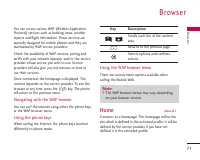
B rows e r 71 Br o w ser You can access various WAP (Wireless ApplicationProtocol) services such as banking, news, weatherreports and flight information. These services arespecially designed for mobile phones and they aremaintained by WAP service providers. Check the availability of WAP services, pr...
Page 159 - Browser; Bookmarks; Go to URL
Browser 72 Br o w ser Bookmarks Menu 8.2 This menu allows you to store the URL of favouriteweb pages for easy access at a later time. Your phonehas several pre-installed bookmarks. These pre-installed bookmarks cannot be deleted. To create a bookmark 1. Press the left soft key [Options]. 2. Select A...
Page 160 - Cache
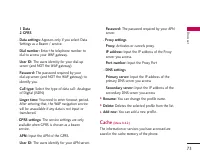
73 Br o w ser 1 Data2 GPRS - Data settings: Appears only if you select Data Settings as a Bearer / service. Dial number: Enter the telephone number to dial to access your WAP gateway. User ID: The users identity for your dial-up server (and NOT the WAP gateway). Password: The password required by yo...
Page 161 - Cookie
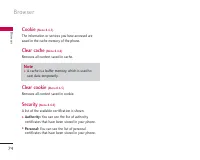
Browser 74 Br o w ser Cookie (Menu 8.4.3) The information or services you have accessed aresaved in the cache memory of the phone. Clear cache (Menu 8.4.4) Removes all context saved in cache. Clear cookie (Menu 8.4.5) Removes all context saved in cookie. Security (Menu 8.4.6) A list of the available...
Page 162 - M y s t u f f; All pictures; General pictures
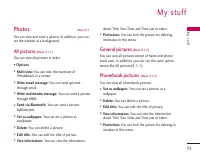
M y s t u f f 75 My stuff Photos Menu 9.1 You can view and send a picture. In addition, you canset the window as a background. All pictures (Menu 9.1.1) You can view all pictures in order. • Options ] Multi view: You can view the maximum of 9thumbnails in a screen. ] Write email message: You can sen...
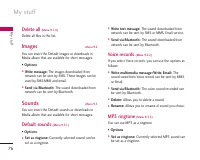
Page 163 - Delete all; Images; Sounds; Default sounds; Voice records
My stuff 76 My stuff Delete all (Menu 9.1.4) Delete all files in the list. Images Menu 9.2 You can insert the Default images or downloads inMedia album that are available for short messages. • Options ] Write message: The images downloaded from network can be sent by SMS. These images can beused by ...
Page 164 - Downloaded; Others
77 Downloaded (Menu 9.3.4) After selecting sounds from downloaded from Networkcan be used as a set as ringtone and so on. Games & Apps Menu 9.4 In this menu, you can manage the Java applicationsinstalled on your phone. You can play or deletedownloaded applications, or set the connect option.This...
Page 165 - Ac c es s o r i es
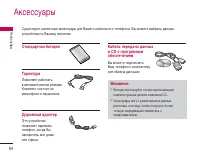
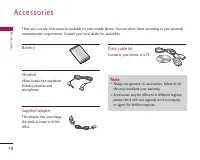
B attery Headset Allows hands-free operation. Includes earpiece andmicrophone. Supplied adapter This adapter lets you chargethe while at home or in theoffice. D ata cable kit Connects your phone to a PC. There are a variety of accessories available for your mobile phone. You can select these accordi...
Page 166 - Te c h n i c a l d ata; General; Ambient Temperatures
Te c h n i c a l d ata 79 T echnical da ta General Product name : KG245 System : GSM 900 / DCS 1800 / PCS 1900 Ambient Temperatures Max : +55°C Min : -10°C




 LG G7050 User Manual
 LG KE770 Shine User Manual
 LG KF700 User Manual
 LG KG110 User Manual
 LG KG200 User Manual
 LG KG225 User Manual
 LG KG300 User Manual
 LG KG320 User Manual
 LG KG800 User Manual
 LG KG810 User Manual
 LG KG920 User Manual
 LG L342i User Manual
 LG M4410 User Manual
 LG M6100 User Manual
 LG P7200 User Manual
 LG S5000 User Manual
 LG S5200 User Manual
 LG T5100 User Manual
 LG W7000 User Manual
 LG X Power 2 M320 User Manual