Page 2 - à ç ë í ê ì ä ñ à ü è é ã ú á é Ç Ä í Ö ã ü
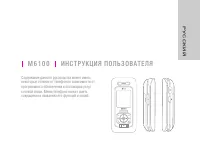
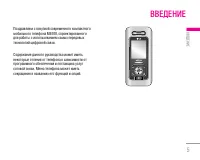
M 6 1 0 0 à ç ë í ê ì ä ñ à ü è é ã ú á é Ç Ä í Ö ã ü ëÓ‰ÂʇÌË ‰‡ÌÌÓ„Ó ÛÍÓ‚Ó‰ÒÚ‚‡ ÏÓÊÂÚ ËÏÂÚ¸ÌÂÍÓÚÓ˚ ÓÚ΢Ëfl ÓÚ ÚÂÎÂÙÓ̇ ‚ Á‡‚ËÒËÏÓÒÚË ÓÚÔÓ„‡ÏÏÌÓ„Ó Ó·ÂÒÔ˜ÂÌËfl Ë ÔÓÒÚ‡‚˘Ë͇ ÛÒÎÛ„ ÒÓÚÓ‚ÓÈ Ò‚flÁË. åÂÌ˛ ÚÂÎÂÙÓ̇ ÏÓÊÂÚ ËÏÂÚ¸ÒÓ͇˘ÂÌËfl ‚ ̇Á‚‡ÌËflı Â„Ó ÙÛÌ͈ËÈ Ë ÓÔˆËÈ. êìëëäàâ
Page 3 - ìÚËÎËÁ‡ˆËfl ÒÚ‡Ó„Ó Ó·ÓÛ‰Ó‚‡ÌËfl
2 ìÚËÎËÁ‡ˆËfl ÒÚ‡Ó„Ó Ó·ÓÛ‰Ó‚‡ÌËfl 1. ëËÏ‚ÓΠ̇ ÛÒÚÓÈÒÚ‚Â, ËÁÓ·‡Ê‡˛˘ËÈ Ô˜ÂÍÌÛÚÓ ÏÛÒÓÌÓ ‚Â‰Ó ÓÁ̇˜‡ÂÚ, ˜ÚÓ Ì‡ ËÁ‰ÂÎË ‡ÒÔÓÒÚ‡ÌflÂÚÒfl ÑËÂÍÚË‚‡ 2002/96/EC. 2. ùÎÂÍÚ˘ÂÒÍËÂ Ë ˝ÎÂÍÚÓÌÌ˚ ÛÒÚÓÈÒÚ‚‡ ‰ÓÎÊÌ˚ ÛÚËÎËÁÓ‚˚‚‡Ú¸Òfl Ì ‚ÏÂÒÚÂ Ò ·˚ÚÓ‚˚Ï ÏÛÒÓÓÏ, ‡ ‚ ÒÔˆˇθÌÓÏ ÏÂÒÚÂ, Û͇Á‡ÌÌÓÏ Ô‡‚ËÚÂÎ...
Page 7 - êÂÍÓÏẨ‡ˆËË ‰Îfl ·ÂÁÓÔ‡ÒÌÓ„Ó Ë ̋ÙÙÂÍÚË‚ÌÓ„Ó ËÒÔÓÎ ̧ÁÓ‚‡ÌËfl; • èË ÓÔ‰ÂÎÂÌËË ÌÓÏ ‚ÓÁ‰ÂÈÒÚ‚Ëfl ‡‰ËÓ‚ÓÎÌ
6 êÂÍÓÏẨ‡ˆËË ‰Îfl ·ÂÁÓÔ‡ÒÌÓ„Ó Ë ˝ÙÙÂÍÚË‚ÌÓ„Ó ËÒÔÓθÁÓ‚‡ÌËfl \ êÛÍÓ‚Ó‰ÒÚ‚Ó èÓ˜ËÚ‡ÈÚ ˝ÚË ÌÂÒÎÓÊÌ˚ ÂÍÓÏẨ‡ˆËË.çÂÒӷβ‰ÂÌË ˝ÚËı ËÌÒÚÛ͈ËÈ ÏÓÊÂÚ ·˚Ú¸ ÓÔ‡ÒÌ˚ÏË Ì‰ÓÔÛÒÚËÏ˚Ï. èӉӷ̇fl ËÌÙÓχˆËfl Ó· ˝ÚÓÏÔ˂‰Â̇ ‚ ‰‡ÌÌÓÏ ÛÍÓ‚Ó‰ÒÚ‚Â. ÇÓÁ‰ÂÈÒÚ‚Ë ‡‰ËÓ˜‡ÒÚÓÚÌÓÈ˝Ì„ËË ë‚‰ÂÌËfl Ó ‚ÓÁ‰ÂÈÒÚ‚ËË ‡‰ËÓ‚ÓÎ...
Page 8 - ùÎÂÍÚÓÌÌ ̊ ÛÒÚÓÈÒÚ‚‡
7 | êÛÍÓ‚Ó‰ÒÚ‚Ó • ç ËÒÔÓθÁÛÈÚ ÚÂÎÂÙÓÌ ‚·ÎËÁË ˝ÎÂÍÚÓÔË·ÓÓ‚, ̇ÔËÏÂ, ‚·ÎËÁË ÚÂ΂ËÁÓ‡, ‡‰ËÓ ËÎËÔÂÒÓ̇θÌÓ„Ó ÍÓÏÔ¸˛Ú‡. • ìÒÚÓÈÒÚ‚Ó Ì ‰ÓÎÊÌÓ Ì‡ıÓ‰ËÚ¸Òfl ‚·ÎËÁË ËÒÚÓ˜ÌËÍÓ‚ ÚÂÔ·, ̇ÔËÏÂ, ‡‰Ë‡ÚÓÓ‚ ËÎË ÔÎËÚ. • ç ÓÌflÈÚ ÛÒÚÓÈÒÚ‚Ó. • ìÒÚÓÈÒÚ‚Ó Ì ‰ÓÎÊÌÓ ÔÓ‰‚„‡Ú¸Òfl ÏÂı‡Ì˘ÂÒÍÓÈ ‚Ë·‡ˆË...
Page 10 - ÑÂÚË
9 | êÛÍÓ‚Ó‰ÒÚ‚Ó ÑÂÚË ï‡ÌËÚ ÚÂÎÂÙÓÌ ‚ ̉ÓÒÚÛÔÌÓÏ ‰Îfl χÎÂ̸ÍËı ‰ÂÚÂÈÏÂÒÚÂ. Ç ÌÂÏ ÂÒÚ¸ ÏÂÎÍË ‰ÂÚ‡ÎË, ÍÓÚÓ˚ ÔËÓÚÒÓ‰ËÌÂÌËË Ë ÔÓÔ‡‰‡ÌËË ‚ ‰˚ı‡ÚÂθÌ˚ ÔÛÚË ÏÓ„ÛÚ‚˚Á‚‡Ú¸ Û‰Û¯¸Â. ùÍÒÚÂÌÌ˚È ‚˚ÁÓ‚ ùÍÒÚÂÌÌ˚È ‚˚ÁÓ‚ ÏÓÊÂÚ ·˚Ú¸ ̉ÓÒÚÛÔÂÌ ‚ÌÂÍÓÚÓ˚ı ÒÂÚflı ÒÓÚÓ‚ÓÈ Ò‚flÁË. èÓ˝ÚÓÏÛ ÌÂθÁflÔÓÎÌÓÒÚ¸˛ ÔÓ·„‡Ú¸Ò...
Page 11 - éÔËÒ‡ÌË ÚÂÎÂÙÓ̇; Çˉ ÒÔ‰Ë; ÉÌÂÁ‰Ó ‰Îfl ÔÓ‰ÍÎ ̨ ̃ÂÌËfl „‡ÌËÚÛ ̊
éÔËÒ‡ÌË ÚÂÎÂÙÓ̇ Çˉ ÒÔÂÂ‰Ë 1. ÅÓÍÓ‚˚ Í·‚Ë¯Ë ‚‚Âı/‚ÌËÁ • ê„ÛÎËӂ͇ „ÓÏÍÓÒÚË Ò˄̇ÎÓ‚ Í·‚ˇÚÛ˚ ‚ ÂÊËÏ ÓÊˉ‡ÌËfl ÔË ÓÚÍ˚ÚÓÏ ÚÂÎÂÙÓÌÂ. • ê„ÛÎËӂ͇ „ÓÏÍÓÒÚË Ì‡Û¯ÌË͇ ‚Ó ‚ÂÏfl ‡Á„Ó‚Ó‡. 2. ùÍ‡Ì Çˉ ÒÔ‡‚‡ 3. ÉÌÂÁ‰Ó ‰Îfl ÔÓ‰Íβ˜ÂÌËfl „‡ÌËÚÛ˚ 4. ä‡Ï‡/äÌÓÔ͇ MP3 éÚÍÓÈÚ ÚÂÎÂÙÓÌ,˜ÚÓ·˚ ÓÚ...
Page 13 - Ç ‡ÒÍ ̊ÚÓÏ ‚ˉÂ; ょfl ÙÛÌ͈ËÓ̇Π̧̇fl Í·‚Ë ̄‡; ÇÌËχÌËÂ
Ç ‡ÒÍ˚ÚÓÏ ‚ˉ 1. ÑË̇ÏËÍ 2. ょfl ÙÛÌ͈ËÓ̇θ̇fl Í·‚˯‡ Ç˚ÔÓÎÌÂÌË ‰ÂÈÒÚ‚Ëfl, Û͇Á‡ÌÌÓ„Ó Ì‡ ˝Í‡ÌÂÌÂÔÓÒ‰ÒÚ‚ÂÌÌÓ Ì‡‰ Í·‚˯ÂÈ. 3. ä·‚˯‡ éÚÔ‡‚ËÚ¸ ç‡·Ó ÚÂÎÂÙÓÌÌÓ„Ó ÌÓχ Ë ÓÚ‚ÂÚ Ì‡ ‚ıÓ‰fl˘Ë‚˚ÁÓ‚˚. ç‡Ê‡‚ ˝ÚÛ ÍÌÓÔÍÛ ‚ ÂÊËÏ ÓÊˉ‡ÌËfl,ÏÓÊÌÓ Ú‡ÍÊ ÔÓÎÛ˜ËÚ¸ ·˚ÒÚ˚È ‰ÓÒÚÛÔ ÍÔÓÒΉÌËÏ ‚ıÓ‰fl˘ËÏ, ËÒıÓ...
Page 14 - åÓÊÂÚ · ̊Ú ̧ ÓÚÍÎ ̨ ̃ÂÌ ‚Ó ‚ÂÏfl ‡Á„Ó‚Ó‡.; ä·‚Ë ̄Ë ìÔ‡‚ÎÂÌËfl; : ÇÓ ‚ÂÏfl ̇·Ó‡ ÌÓχ Û‰ÂÊË‚‡ÈÚ ̋ÚÛ
13 5. åËÍÓÙÓÌ åÓÊÂÚ ·˚Ú¸ ÓÚÍβ˜ÂÌ ‚Ó ‚ÂÏfl ‡Á„Ó‚Ó‡. 6. ùÍ‡Ì éÚÓ·‡ÊÂÌË ÔÓÎÌÓˆ‚ÂÚÌ˚ı Á̇˜ÍÓ‚ ÒÓÒÚÓflÌËflÚÂÎÂÙÓ̇, ÔÛÌÍÚÓ‚ ÏÂÌ˛, ËÌÙÓχˆËË ËÁàÌÚÂÌÂÚ‡, Ë Ú‡Í ‰‡ÎÂÂ. 7. ä·‚Ë¯Ë ìÔ‡‚ÎÂÌËfl àÒÔÓθÁÛÈÚ ˝ÚË Í·‚Ë¯Ë ‰Îfl ÔÓÍÛÚÍË ÏÂÌ˛ ËÔÂÂÏ¢ÂÌËfl ÍÛÒÓ‡. 8. 臂‡fl ÙÛÌ͈ËÓ̇θ̇fl Í·‚˯‡ Ç˚ÔÓÎÌÂÌË ‰Â...
Page 15 - éÚÓ·‡ÊÂÌË ËÌÙÓχˆËË; ëËÏ‚ÓÎ éÔËÒ‡ÌËÂ; ì͇Á ̊‚‡ÂÚ ÒÓÒÚÓflÌË Á‡fl‰‡ ·‡Ú‡ÂË.
éÚÓ·‡ÊÂÌË ËÌÙÓχˆËË ÇÓ ‚ÂÏfl ‡·ÓÚ˚ ÚÂÎÂÙÓ̇ ̇ ‰ËÒÔΠÏÓ„ÛÚÓÚÓ·‡Ê‡Ú¸Òfl Ò‡ÁÛ ÌÂÒÍÓθÍÓ ËÌÙÓχˆËÓÌÌ˚ıË̉Ë͇ÚÓÓ‚. àı ÓÔËÒ‡ÌË ÔË‚Ó‰ËÚÒfl ÌËÊÂ. ëËÏ‚ÓÎ éÔËÒ‡ÌË ëËÏ‚ÓÎ éÔËÒ‡ÌË èÓ͇Á˚‚‡ÂÚ ÏÓ˘ÌÓÒÚ¸ ÔËÌËχÂÏÓ„ÓÒ˄̇· ÒÂÚË. ❈ ì͇Á˚‚‡ÂÚ, ˜ÚÓ ‚ ‰‡ÌÌ˚È ÏÓÏÂÌÚÓÒÛ˘ÂÒÚ‚ÎflÂÚÒfl ‚˚ÁÓ‚. ëËÏ‚ÓÎ éÔËÒ‡ÌË ì͇...
Page 16 - ç‡ÒÚÓÂÌÓ ÒÓ· ̊ÚË Âʉ̂ÌË͇
15 ëËÏ‚ÓÎ éÔËÒ‡ÌË ì͇Á˚‚‡ÂÚ, ˜ÚÓ ‡ÍÚË‚ËÓ‚‡Ì ÔÓÙËθ“é·˘ËÈ”. àÌÙÓÏËÛÂÚ Ó· ËÒÔÓθÁÓ‚‡ÌËË ÛÒÎÛ„ËWAP. àÌÙÓÏËÛÂÚ Ó· ËÒÔÓθÁÓ‚‡ÌËË ÛÒÎÛ„ËWAP GPRS. ç‡ÒÚÓÂÌÓ ÒÓ·˚ÚË Âʉ̂ÌË͇ ëÎÛÊ·‡ Ô‡‰ÂÒ‡ˆËË ‚˚ÁÓ‚‡ ‡ÍÚ˂̇ ÇÍβ˜Â̇ ÙÛÌ͈Ëfl Bluetooth | îÛÌ͈ËË M 6100 ÇÌËχÌË • ÖÒÎË ÓÚÓ·‡Ê‡ÂÚÒfl ÌËÁÍËÈ Á‡fl‰ ·...
Page 17 - ìÒÚ‡Ìӂ͇ SIM Í‡Ú ̊ Ë ·‡Ú‡ÂË; èÓ‰„ÓÚӂ͇ Í Ì‡ ̃‡ÎÛ ‡·ÓÚ ̊; èËÏ ̃‡ÌËÂ
ìÒÚ‡Ìӂ͇ SIM ͇Ú˚ Ë ·‡Ú‡ÂË è‰ ÚÂÏ, Í‡Í ‚˚ÌÛÚ¸ ·‡Ú‡Â˛, ۷‰ËÚÂÒ¸ ‚ ÚÓÏ, ˜ÚÓÚÂÎÂÙÓÌ ÓÚÍβ˜ÂÌ. 1. ëÌflÚË ·‡Ú‡ÂË. 뉂Ë̸Ú Á‡˘ÂÎÍÛ ÓÚÒÂ͇ ‰Îfl ·‡Ú‡ÂË ‚‚Âı, Á‡ÚÂχÍÍÛ‡ÚÌÓ ‚˚Ú‡˘ËÚ ·‡Ú‡Â˛, ‰Âʇ  Á‡ ‚ÂıÌ˛˛˜‡ÒÚ¸. 2. ìÒÚ‡Ìӂ͇ SIM-͇Ú˚. ÇÒÚ‡‚¸Ú SIM ͇ÚÛ ‚ ‰ÂʇÚÂθ Ë Á‡‰‚Ë̸ڠ ‰ÓÛÔÓ‡. ì...
Page 18 - á‡fl‰Í‡ ·‡Ú‡ÂË; Ç ÒÓÓÚ‚ÂÚÒÚ‚ËË Ò Ì‡Ô‡‚ÎÂÌËÂÏ ÒÚÂÎÍË,
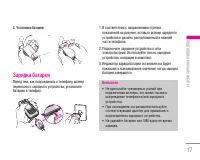
3. ìÒÚ‡Ìӂ͇ ·‡Ú‡ÂË. á‡fl‰Í‡ ·‡Ú‡ÂË è‰ ÚÂÏ, Í‡Í ÔÓ‰ÒÓ‰ËÌËÚ¸ Í ÚÂÎÂÙÓÌÛ ¯ÚÂÍÂÔÂÂÌÓÒÌÓ„Ó Á‡fl‰ÌÓ„Ó ÛÒÚÓÈÒÚ‚‡, ÛÒÚ‡ÌÓ‚ËÚ·‡Ú‡Â˛ ‚ ÚÂÎÂÙÓÌ. 1. Ç ÒÓÓÚ‚ÂÚÒÚ‚ËË Ò Ì‡Ô‡‚ÎÂÌËÂÏ ÒÚÂÎÍË, ÔÓ͇Á‡ÌÌÓÈ Ì‡ ËÒÛÌÍÂ, ‚ÒÚ‡‚¸Ú ¯ÚÂÍ Á‡fl‰ÌÓ„ÓÛÒÚÓÈÒÚ‚‡ ‚ ‡Á˙fiÏ, ‡ÒÔÓÎÓÊÂÌÌ˚È ‚ ÌËÊÌÂȘ‡ÒÚË ÚÂÎÂÙÓ̇. 2. èÓ...
Page 19 - éÚÒÓ‰ËÌÂÌË ‡‰‡ÔÚ‡; èÓÒΠÓÍÓÌ ̃‡ÌËfl ÔÓˆÂÒÒ‡ Á‡fl‰ÍË Ë̉Ë͇ÚÓ; éÒÚÓÓÊÌÓ
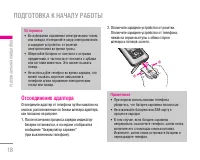
éÚÒÓ‰ËÌÂÌË ‡‰‡ÔÚ‡ éÚÒÓ‰ËÌËÚ ‡‰‡ÔÚ ÓÚ ÚÂÎÂÙÓ̇ ÔÛÚfiÏ Ì‡Ê‡ÚËfl ̇ÍÌÓÔÍË, ‡ÒÔÓÎÓÊÂÌÌ˚ ÔÓ ·ÓÍ‡Ï ¯ÚÂ͇ ‡‰‡ÔÚ‡,Í‡Í ÔÓ͇Á‡ÌÓ Ì‡ ËÒÛÌÍÂ. 1. èÓÒΠÓÍÓ̘‡ÌËfl ÔÓˆÂÒÒ‡ Á‡fl‰ÍË Ë̉Ë͇ÚÓ ·‡Ú‡ÂË ÓÒÚ‡ÌÓ‚ËÚÒfl, Ë Ì‡ ˝Í‡Ì ÓÚÓ·‡ÁËÚÒflÒÓÓ·˘ÂÌË “ÄÍÍÛÏÛÎflÚÓ Á‡flÊÂÌ” (ÔË ‚˚Íβ˜ÂÌÌÓÏ ÚÂÎÂÙÓÌÂ). 2. éÚÍÎ...
Page 20 - ÇÍÎ ̨ ̃ÂÌË ÚÂÎÂÙÓ̇; Á‡ÔÓÒ; Ç ̊ÍÎ ̨ ̃ÂÌË ÚÂÎÂÙÓ̇; äÓ‰ ̊ ‰ÓÒÚÛÔ‡; àÁÏÂÌËÚ ̧ ÍÓ‰ ̊
ÇÍβ˜ÂÌËÂ Ë ‚˚Íβ˜ÂÌËÂÚÂÎÂÙÓ̇ ÇÍβ˜ÂÌË ÚÂÎÂÙÓ̇ 1. ìÒÚ‡ÌÓ‚ËÚ ·‡Ú‡Â˛ ‚ ÚÂÎÂÙÓÌ Ë ÔÓ‰Íβ˜ËÚÂ Â„Ó Í ‚̯ÌÂÏÛ ËÒÚÓ˜ÌËÍÛ ÔËÚ‡ÌËfl, ̇ÔËÏ ÍÔÓÚ‡ÚË‚ÌÓÏÛ ‡‰‡ÔÚÂÛ, ‡‰‡ÔÚÂÛ ‡‚ÚÓÏÓ·ËθÌÓ„ÓÔËÍÛË‚‡ÚÂÎfl ËÎË Í ‡‚ÚÓÏÓ·ËθÌÓÈ „‡ÌËÚÛÂ.åÓÊÌÓ Ú‡ÍÊ ÛÒÚ‡ÌÓ‚ËÚ¸ ‚ ÚÂÎÂÙÓÌ Á‡flÊÂÌÌÛ˛·‡Ú‡Â˛. 2. ç‡ÊÏËÚÂ Ë ‚ Ú˜Â...
Page 21 - è‡ÓÎ ̧ Á‡ÔÂÚ‡ ‚ ̊ÁÓ‚‡
äÓ‰ PIN2 (ÓÚ 4 ‰Ó 8 ˆËÙ) äÓ‰ PIN2 Ô‰ÓÒÚ‡‚ÎflÂÚÒfl ‚ÏÂÒÚÂ Ò ÌÂÍÓÚÓ˚ÏË SIM-͇ڇÏË, ÓÌ ÌÂÓ·ıÓ‰ËÏ ‰Îfl ‚ÓÁÏÓÊÌÓÒÚËËÒÔÓθÁÓ‚‡ÌËfl Ú‡ÍËı ÙÛÌ͈ËÈ, Í‡Í îËÍÒËÓ‚‡ÌÌ˚È Ì‡·Ó ÌÓÏÂÓ‚ . ùÚË ÙÛÌ͈ËË ‰ÓÒÚÛÔÌ˚ ÚÓθÍÓ ‚ ÚÓÏ ÒÎÛ˜‡Â, ÂÒÎË ÓÌË ÔÓ‰‰ÂÊË‚‡˛ÚÒfl SIM-͇ÚÓÈ. ÑÎflÔÓÎÛ˜ÂÌËfl ‰ÓÔÓÎÌËÚÂθÌÓÈ ËÌÙÓχˆËË Ó·‡ÚËÚÂ...
Page 22 - ÇıÓ‰fl ̆ËÂ Ë ËÒıÓ‰fl ̆Ë Á‚ÓÌÍË; àÒıÓ‰fl ̆ËÈ ‚ ̊ÁÓ‚; éÒÌÓ‚Ì ̊ ÙÛÌ͈ËË
ÇıÓ‰fl˘ËÂ Ë ËÒıÓ‰fl˘Ë Á‚ÓÌÍË àÒıÓ‰fl˘ËÈ ‚˚ÁÓ‚ 1. ì·Â‰ËÚÂÒ¸, ˜ÚÓ ‚‡¯ ÚÂÎÂÙÓÌ ‚Íβ˜ÂÌ. 2. ǂ‰ËÚ ÌÓÏ ÚÂÎÂÙÓ̇, ‚Íβ˜‡fl ÍÓ‰ ‡ÈÓ̇. • ç‡ÊÏËÚÂ Ë Û‰ÂÊË‚‡ÈÚ ÍÌÓÔÍÛ Û‰‡ÎÂÌËfl ( C ) ‰Îfl Û‰‡ÎÂÌËfl ‚ÒÂ„Ó ÌÓχ. 3. óÚÓ·˚ ‚˚Á‚‡Ú¸ ‡·ÓÌÂÌÚ‡, ̇ÊÏËÚ ÍÌÓÔÍÛ ( S ). 4. ÑÎfl Á‡‚¯ÂÌËfl ‚˚ÁÓ‚‡ ̇ÊÏËÚ ÍÌÓÔÍÛ Á‡‚¯ÂÌ...
Page 23 - éÚÍ ̊ÚË Ò·ȉ‡; åÓ ̆ÌÓÒÚ ̧ Ò˄̇·
ç‡ÒÚÓÈ͇ Á‚Û͇ ë ÔÓÏÓ˘¸˛ ·ÓÍÓ‚˚ı ÍÌÓÔÓÍ ( [ ) ÏÓÊÌÓ Â„ÛÎËÓ‚‡Ú¸ „ÓÏÍÓÒÚ¸ ‚ ̇ۯÌËÍ ‚Ó ‚ÂÏfl ‡Á„Ó‚Ó‡. ÑÎflÛ‚Â΢ÂÌËfl „ÓÏÍÓÒÚË ËÒÔÓθÁÛÈÚ ‚ÂıÌ˛˛·ÓÍÓ‚Û˛ ÍÌÓÔÍÛ, ‡ ‰Îfl ÛÏÂ̸¯ÂÌËfl – ÌËÊÌ˛˛. éÚ‚ÂÚ Ì‡ ‚ıÓ‰fl˘ËÈ Á‚ÓÌÓÍ èË ÔÓÎÛ˜ÂÌËË ‚˚ÁÓ‚‡ ÔÓÁ‚Û˜ËÚ ÚÂÎÂÙÓÌÌ˚ÈÒ˄̇Î. ÖÒÎË ÓÔ‰ÂÎÂÌË ÌÓχ ‚ÓÁÏÓÊÌÓ,...
Page 24 - Ç‚Ó‰ ÚÂÍÒÚ‡; êÂÊËÏ í9
Ç‚Ó‰ ÚÂÍÒÚ‡ Ç˚ ÏÓÊÂÚ ‚‚ÂÒÚË ·ÛÍ‚ÂÌÌÓ-ˆËÙÓ‚˚ ÒËÏ‚ÓÎ˚,ËÒÔÓθÁÛfl ÒÓÓÚ‚ÂÚÒÚ‚Û˛˘Ë Í·‚Ë¯Ë ÚÂÎÂÙÓ̇.ç‡ÔËÏÂ, ÔË ÒÓı‡ÌÂÌËË ËÏÂÌ ‚ ÚÂÎÂÙÓÌÌÓÈ ÍÌË„Â,̇ÔËÒ‡ÌËË ÒÓÓ·˘ÂÌËfl ËÎË ÒÓÁ‰‡ÌËË ÒÓ·ÒÚ‚ÂÌÌÓ„ÓÔË‚ÂÚÒÚ‚Ëfl. Ç ÚÂÎÂÙÓÌ ËϲÚÒfl ÒÎÂ‰Û˛˘Ë ÏÂÚÓ‰˚ ‚‚Ó‰‡ ÚÂÍÒÚ‡. êÂÊËÏ í9 ä ͇ʉÓÈ Í·‚˯ ̇ Í·‚ˇÚÛ ÔË‚fl...
Page 25 - èËÏ ̊; Good; àÒÔÓÎ ̧ÁÓ‚‡ÌË ‡ÎÙ‡‚ËÚÌÓ„Ó ÂÊËχ
åÓÊÌÓ Ú‡ÍÊ ‰Ó·‡‚ÎflÚ¸ ÌÓ‚˚ ÒÎÓ‚‡ ‚ ÒÎÓ‚‡¸. èÓÏ ‰Ó·‡‚ÎÂÌËfl ÌÓ‚˚ı ÒÎÓ‚ ‚‚Ó‰ËÏÓ ÒÎÓ‚ÓËÁÏÂÌflÂÚÒfl ̇ ̇˷ÓΠ·ÎËÁÍÓ ÒÎÓ‚Ó ËÁ ÒÎÓ‚‡fl.åÓÊÌÓ ‚Íβ˜‡Ú¸ ËÎË ÓÚÍβ˜‡Ú¸ ÂÊËÏ T9, ‡ Ú‡ÍÊÂËÁÏÂÌflÚ¸ flÁ˚Í T9, Û‰ÂÊË‚‡fl ÍÌÓÔÍÛ ( * ) . 1. äÓ„‰‡ ‚˚ ËÒÔÓθÁÛÂÚ ÂÊËÏ Ô‰Ë͇ÚË‚ÌÓ„Ó ‚‚Ó‰‡ ÚÂÍÒÚ‡, ̇˜Ë̇ÈÚ ‚‚Ó‰ËÚ...
Page 26 - Í·‚Ë ̄Û; åÂÌ ̨ ‚Ó ‚ÂÏfl ‡Á„Ó‚Ó‡; ÇÓ ‚ÂÏfl ‡Á„Ó‚Ó‡
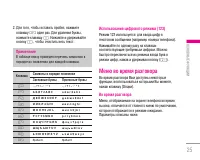
25 | éÒÌÓ‚Ì˚ ٠ÛÌ͈ËË èËϘ‡ÌËÂ Ç Ú‡·Îˈ ‚ÌËÁÛ Ô˂‰ÂÌ Ô˜Â̸ ÒËÏ‚ÓÎÓ‚ ‚ÔÓfl‰Í Ëı ÔÓfl‚ÎÂÌËfl ‰Îfl ͇ʉÓÈ Í·‚˯Ë. 2. ÑÎfl ÚÓ„Ó, ˜ÚÓ·˚ ‚ÒÚ‡‚ËÚ¸ ÔÓ·ÂÎ, ̇ÊÏËÚ Í·‚Ë¯Û 0 Ó‰ËÌ ‡Á. ÑÎfl Û‰‡ÎÂÌËfl ·ÛÍ‚˚, ̇ÊÏËÚ Í·‚Ë¯Û C . ç‡ÊÏËÚÂ Ë Û‰ÂÊË‚‡ÈÚ ÍÌÓÔÍÛ C , ˜ÚÓ·˚ Ó˜ËÒÚËÚ¸ ‚ÂÒ¸ ÚÂÍÒÚ. ä·‚˯‡ ëËÏ‚ÓÎ˚ ‚...
Page 27 - ÇÚÓÓÈ ËÒıÓ‰fl ̆ËÈ Á‚ÓÌÓÍ; àÒÍ‡Ú ̧; èÂÂÍÎ ̨ ̃ÂÌË ÏÂÊ‰Û ‰‚ÛÏfl ‚ ̊ÁÓ‚‡ÏË; ÖÒÎË ‚ÍÎ ̨ ̃ÂÌÓ; éÊˉ‡ÌË ‚ ̊ÁÓ‚‡; Ô‚ ̊È ‚ ̊ÁÓ‚ Ë ÓÚ‚ÂÚËÚ ̧ ̇ ‚ÚÓÓÈ, ̇ʇ‚; ᇂ ̄ËÚ ̧ Ë ÓÚ‚ÂÚËÚ ̧.; éÚÍÎÓÌÂÌË ‚ıÓ‰fl ̆Â„Ó ‚ ̊ÁÓ‚‡; ËÎË Ì‡Ê‡‚
ÇÚÓÓÈ ËÒıÓ‰fl˘ËÈ Á‚ÓÌÓÍ óÚÓ·˚ ‚˚ÔÓÎÌËÚ¸ ‚ÚÓÓÈ ‚˚ÁÓ‚, ÏÓÊÌÓ ‚˚·‡Ú¸ÌÂÓ·ıÓ‰ËÏ˚È ÌÓÏ ËÁ ÚÂÎÂÙÓÌÌÓÈ ÍÌË„Ë. ç‡ÊÏËÚÂÔ‡‚Û˛ ÙÛÌ͈ËÓ̇θÌÛ˛ ÍÌÓÔÍÛ Ë ‚˚·ÂËÚ àÒ͇ڸ . óÚÓ·˚ ÒÓı‡ÌËÚ¸ ̇·‡ÌÌ˚È ÌÓÏ ‚ ÚÂÎÂÙÓÌÌÛ˛ÍÌË„Û ‚Ó ‚ÂÏfl ‡Á„Ó‚Ó‡, ̇ÊÏËÚ ԇ‚Û˛ÙÛÌ͈ËÓ̇θÌÛ˛ ÍÌÓÔÍÛ Ë ‚˚·ÂËÚ ÑÓ·‡‚ËÚ¸ Á‡ÔËÒ¸. èÂÂ...
Page 28 - éÚÍÎ ̨ ̃ÂÌË ÏËÍÓÙÓ̇; åÓÊÌÓ; ÉÛÔÔÓ‚ÓÈ ‚ ̊ÁÓ‚ ËÎË ÍÓÌÙÂÂ̈-Ò‚flÁ ̧
éÚÍβ˜ÂÌË ÏËÍÓÙÓ̇ ÇÓ ‚ÂÏfl ‡Á„Ó‚Ó‡ ÏÓÊÌÓ ‚˚Íβ˜ËÚ¸ ÏËÍÓÙÓÌ,̇ʇ‚ ÍÌÓÔÍÛ [éÔˆËË] Ë ‚˚·‡‚ Ç˚ÍÎ. Á‚ÛÍ. åÓÊÌÓ ‚Íβ˜ËÚ¸ Á‚ÛÍ ‚ ÚÂÎÂÙÓÌÂ, ‚˚·‡‚ ÇÍÎ. Á‚ÛÍ. äÓ„‰‡ Á‚ÛÍ ‚ ÚÂÎÂÙÓÌ ÓÚÍβ˜ÂÌ, ‚˚Á˚‚‡˛˘ËÈ ‡·ÓÌÂÌÚ ÌÂÏÓÊÂÚ ‚‡Ò ÒÎ˚¯‡Ú¸, ÌÓ ‚˚ ÔÓ-ÔÂÊÌÂÏÛ Â„Ó ÒÎ˚¯ËÚÂ. ÇÍβ˜ÂÌË ÚÓ̇θÌ˚ı Ò˄̇ÎÓ‚ DTMF ‚Ó ‚Â...
Page 29 - ‰Îfl ÛÒÚ‡ÌÓ‚ÍË; ᇂ ̄ÂÌË ÍÓÌÙÂÂ̈-Ò‚flÁË; ÖÒÎË ‚ ̊·‡Ú ̧ ÏÂÌ ̨; äÓÌÙÂÂ̈Ëfl/ᇂ ̄ËÚ ̧; , ÔÓÒΠ̇ʇÚËfl ΂ÓÈ ÙÛÌ͈ËÓ̇Π̧ÌÓÈ
ìÒÚ‡Ìӂ͇ ‚˚ÁÓ‚Ó‚ ÍÓÌÙÂÂ̈-Ò‚flÁË Ì‡Û‰ÂʇÌË ç‡ÊÏËÚ ÎÂ‚Û˛ ÙÛÌ͈ËÓ̇θÌÛ˛ ÍÌÓÔÍÛ, ‡ Á‡ÚÂÏ‚˚·ÂËÚ ÏÂÌ˛ äÓÌÙÂÂ̈Ëfl/ì‰ÂʇÌË ‚ÒÂı. ÄÍÚË‚ËÁ‡ˆËfl ÍÓÌÙÂÂ̈-Ò‚flÁË ‚ ÂÊËÏÂÛ‰ÂʇÌËfl ç‡ÊÏËÚ ÎÂ‚Û˛ ÙÛÌ͈ËÓ̇θÌÛ˛ ÍÌÓÔÍÛ, ‡ Á‡ÚÂÏ‚˚·ÂËÚ ÏÂÌ˛ äÓÌÙÂÂ̈Ëfl/ëÓ‰ËÌ. ‚ÒÂı. ÑÓ·‡‚ÎÂÌË ‚˚ÁÓ‚‡ Í ÍÓÌÙÂÂ̈-Ò‚flÁË óÚ...
Page 30 - ëïÖåÄ åÖçû; èÓÙËÎË
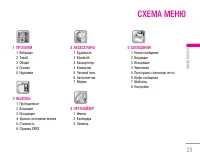
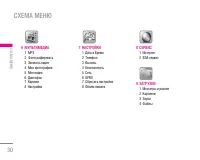
29 ëïÖåÄ åÖçû | CxeÏa Ï eÌ˛ 1 èÓÙËÎË 1 ÇË·‡ˆËfl2 íËıËÈ3 é·˘ËÈ4 ÉÓÏÍÓ5 ç‡Û¯ÌËÍË 2 Ç˚ÁÓ‚˚ 1 èÓÔÛ˘ÂÌÌ˚Â2 ÇıÓ‰fl˘ËÂ3 àÒıÓ‰fl˘ËÂ4 쉇ÎËÚ¸ ÔÓÒΉÌË Á‚ÓÌÍË5 ëÚÓËÏÓÒÚ¸6 ëÔ‡‚͇ GPRS 3 ÄÍÒÂÒÒÛ‡˚ 1 ÅÛ‰ËθÌËÍ2 Bluetooth3 ä‡Î¸ÍÛÎflÚÓ4 äÓÌ‚ÂÚÂ5 ó‡ÒÓ‚ÓÈ ÔÓflÒ6 Ä‚ÚÓÓÚ‚ÂÚ˜ËÍ7 åÓ‰ÂÏ 4 鄇̇ÈÁ 1 àÏÂ̇2 ä‡ÎẨ‡...
Page 32 - Ç ̊·Ó ÙÛÌ͈ËÈ Ë ÓÔˆËÈ
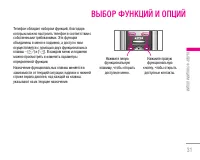
31 Ç˚·Ó ÙÛÌ͈ËÈ Ë ÓÔˆËÈ | Ç˚·Ó Ù ÛÌ͈ËÈ Ë ÓÔˆËÈ íÂÎÂÙÓÌ Ó·Î‡‰‡ÂÚ Ì‡·ÓÓÏ ÙÛÌ͈ËÈ, ·Î‡„Ó‰‡flÍÓÚÓ˚Ï ÏÓÊÌÓ Ì‡ÒÚÓËÚ¸ ÚÂÎÂÙÓÌ ‚ ÒÓÓÚ‚ÂÚÒÚ‚ËË ÒÒÓ·ÒÚ‚ÂÌÌ˚ÏË Ú·ӂ‡ÌËflÏË. ùÚË ÙÛÌ͈ËËÓ·˙‰ËÌÂÌ˚ ‚ ÏÂÌ˛ Ë ÔÓ‰ÏÂÌ˛, ‡ ‰ÓÒÚÛÔ Í ÌËÏÓÒÛ˘ÂÒÚ‚ÎflÂÚÒfl Ò ÔÓÏÓ˘¸˛ ‰‚Ûı ÙÛÌ͈ËÓ̇θÌ˚ıÍ·‚˯ – [ < ] Ë [ > ]. Ç Í‡...
Page 34 - èÂÂËÏÂÌÓ‚‡Ú ̧; íÓÎ ̧ÍÓ “ÇË·‡ˆËfl“ “íËıËÈ“
• ÉÓÏÍÓÒÚ¸ ‚ÍÎ/‚˚ÍÎ: ìÒÚ‡ÌÓ‚ËÚ ÛÓ‚Â̸ „ÓÏÍÓÒÚË ÏÂÎÓ‰ËË, ÒÓÔÓ‚Óʉ‡˛˘ÂÈ ‚Íβ˜ÂÌËÂË ‚˚Íβ˜ÂÌË ÚÂÎÂÙÓ̇. • Ä‚ÚÓÓÚ‚ÂÚ: чÌ̇fl ÙÛÌ͈Ëfl ·Û‰ÂÚ ‡ÍÚË‚ËÓ‚‡Ì‡ ÚÓθÍÓ ‚ ÚÓÏ ÒÎÛ˜‡Â, ÂÒÎË Í Ç‡¯ÂÏÛ ÚÂÎÂÙÓÌÛÔÓ‰Íβ˜ÂÌ˚ ̇ۯÌËÍË. - Ç˚ÍÎ: íÂÎÂÙÓÌ Ì ·Û‰ÂÚ Óڂ˜‡Ú¸ ‡‚ÚÓχÚ˘ÂÒÍË. - óÂÂÁ 5 ÒÂÍ: óÂÂÁ 5 ÒÂÍÛ̉ ÚÂÎ...
Page 36 - 쉇ÎËÚ ̧ ÔÓÒΉÌË Á‚ÓÌÍË; èÓÁ‚ÓÎflÂÚ Û‰‡ÎËÚ ̧ ÒÔËÒÍË; èÓÔÛ ̆ÂÌÌ ̊Â, ÇıÓ‰fl ̆Ë Ë; åÓÊÌÓ Û‰‡ÎËÚ ̧ ÒÔËÒÍË; ÇÒ ‚ ̊ÁÓ‚ ̊; ëÚÓËÏÓÒÚ ̧; èÓ‰ÓÎÊËÚÂÎ ̧ÌÓÒÚ ̧
쉇ÎËÚ¸ ÔÓÒΉÌË Á‚ÓÌÍË åÂÌ˛ 2.4 èÓÁ‚ÓÎflÂÚ Û‰‡ÎËÚ¸ ÒÔËÒÍË èÓÔÛ˘ÂÌÌ˚Â, ÇıÓ‰fl˘ËÂ Ë àÒıÓ‰fl˘ËÂ. åÓÊÌÓ Û‰‡ÎËÚ¸ ÒÔËÒÍË ÇÒ ‚˚ÁÓ‚˚ Á‡ Ó‰ËÌ ‡Á. ëÚÓËÏÓÒÚ¸ åÂÌ˛ 2.5 èÓ‰ÓÎÊËÚÂθÌÓÒÚ¸ åÂÌ˛ 2.5.1 èÓÁ‚ÓÎflÂÚ ÔÓÒχÚË‚‡Ú¸ ÔÓ‰ÓÎÊËÚÂθÌÓÒÚ¸ ‚ıÓ‰fl˘ËıË ËÒıÓ‰fl˘Ëı ‚˚ÁÓ‚Ó‚. í‡ÍÊ ÏÓÊÌÓ Ò·ÓÒËÚ¸ ‚ÂÏfl‚˚ÁÓ‚Ó‚. ÑÓÒÚÛÔÌ...
Page 37 - ëÔ‡‚͇ GPRS; ÒÓ‰ËÌÂÌËfl; é· ̇ÂÏ ‰‡ÌÌ ̊ı; éÚÔ‡‚ÎÂÌÓ
ëÔ‡‚͇ GPRS åÂÌ˛ 2.6 Ç˚ ÏÓÊÂÚ ÔÓ‚ÂËÚ¸ ÍÓ΢ÂÒÚ‚Ó Ô‰‡ÌÌÓÈËÌÙÓχˆËË Ò ÔÓÏÓ˘¸˛ GPRS. í‡Í Ê Ç˚ ÏÓÊÂÚÂÔÓÒÏÓÚÂÚ¸ ÒÍÓθÍÓ ‚ÂÏÂÌË Ç˚ ̇ıÓ‰ËÚÂÒ¸ ̇ ÎËÌËË. èÓ‰ÓÎÊËÚÂθÌÓÒÚ¸ åÂÌ˛ 2.6.1 Ç˚ ÏÓÊÂÚ ÔÓ‚ÂËÚ¸ ÔÓ‰ÓÎÊËÚÂθÌÓÒÚ¸ ÔÓÒΉÌÂ„Ó ÒÓ‰ËÌÂÌËfl ËÎË ‚ÒÂı ÒÓ‰ËÌÂÌËÈ. Ç˚ Ú‡ÍÊ ÏÓÊÂÚ ۉ‡ÎËÚ¸ ‚Ò ˝ÚË ‰...
Page 38 - ÅÛ‰ËÎ ̧ÌËÍ; ÇÍÎ; ÔÛÚÂÏ Ì‡Ê‡ÚËfl ̇ Í·‚Ë ̄Ë.; Bluetooth
ÅÛ‰ËθÌËÍ åÂÌ˛ 3.1 Ç˚ ÏÓÊÂÚ ̇ÒÚÓËÚ¸ ‰Ó 5 Ò˄̇ÎÓ‚ ·Û‰ËθÌË͇,ÍÓÚÓ˚ ·Û‰ÛÚ Ò‡·‡Ú˚‚‡Ú¸ ‚ Û͇Á‡ÌÌÓ ‚ÂÏfl. 1. Ç˚·ÂËÚ ÇÍÎ ÔÛÚÂÏ Ì‡Ê‡ÚËfl ̇ Í·‚˯Ë. 2. Ç˚·ÂËÚ ÔÂËÓ‰ ÔÓ‚ÚÓÂÌËfl ÔË ÔÓÏÓ˘Ë Í·‚˯ ̇‚Ë„‡ˆËË : é‰ËÌ ‡Á, èÓÌ~èflÚ, èÓÌ~ëÛ·, Öʉ̂ÌÓ. 3. Ç˚·ÂËÚ Ê·ÂÏ˚È Á‚ÛÍ ·Û‰ËθÌË͇ Ë Ì‡ÊÏËÚ <...
Page 39 - ä‡Î ̧ÍÛÎflÚÓ; ÑÂÎÂÌËÂ
åÓË ÛÒÚÓÈÒÚ‚‡ åÂÌ˛ 3.2.1 Ç˚ ÏÓÊÂÚ ÔÓÒÏÓÚÂÚ¸ ‚Ò ÛÒÚÓÈÒÚ‚‡ ̇ıÓ‰fl˘ËÂÒfl‚ ÁÓÌ ‰ÂÈÒÚ‚Ëfl Bluetooth ‚‡¯Â„Ó ÚÂÎÂÙÓ̇. ɇÌËÚÛ˚ åÂÌ˛ 3.2.2 Ç˚ ÏÓÊÂÚ ÔÓÒÏÓÚÂÚ¸ ÒÔËÒÓÍ „‡ÌËÚÛ, ÍÓÚÓ˚Â̇ıÓ‰flÚÒfl ‚ ÁÓÌ ‰ÂÈÒÚ‚Ëfl Bluetooth ‚‡¯Â„ÓÚÂÎÂÙÓ̇. ç‡ÒÚÓÈÍË åÂÌ˛ 3.2.3 Ç ‰‡ÌÌÓÏ ÔÛÌÍÚ Ç˚ ÏÓÊÂÚ ̇ÒÚÓËÚ¸ ÓÔˆËËBl...
Page 40 - чÍÚË‚ËÓ‚‡Ú ̧
äÓÌ‚ÂÚ åÂÌ˛ 3.4 èÂÓ·‡ÁÛÂÚ Î˛·Ó ËÁÏÂÂÌË ‚ ÌÛÊÌÛ˛ LJςÂ΢ËÌÛ. ëÛ˘ÂÒÚ‚ÛÂÚ 7 ÚËÔÓ‚ ‚ÓÁÏÓÊÌ˚ıÔÂÓ·‡ÁÓ‚‡ÌËÈ ‚ ‰Û„Ë ‚Â΢ËÌ˚: LJβڇ, èÎÓ˘‡‰¸, ÑÎË̇, ÇÂÒ, íÂÏÔ‡ÚÛ‡, é·˙ÂÏ Ë ëÍÓÓÒÚ¸. 1. Ç˚·ÂËÚ ‚Â΢ËÌÛ, ÍÓÚÓÛ˛ Ç˚ ıÓÚËÚ ÔÂÓ·‡ÁÓ‚‡Ú¸ ÔÛÚÂÏ Ì‡Ê‡ÚËfl ̇ Í·‚Ë¯Ë U , D ̇‚Ë„‡ˆËË. ç‡ÊÏËÚ Í·‚Ë...
Page 41 - чÌÌ ̊ ‡Á‰ÂÎ ̊ ‚ÍÎ ̨ ̃‡ ̨Ú ÒÎÂ‰Û ̨ ̆ÂÂ:; á‡ÔËÒ‡ÌÌ ̊ ÒÓÓ· ̆ÂÌËfl; ÇÓÒÔÓËÁ‚‰ÂÌËÂ
é·˘ËÈ åÂÌ˛ 3.6.2 ÇÍβ˜ÂÌË ÂÊËχ ‡‚ÚÓÓÚ‚ÂÚ˜Ë͇ “é·˘ËÈ” ÇÒÚ˜‡ åÂÌ˛ 3.6.3 ÇÍβ˜ÂÌË ÂÊËχ ‡‚ÚÓÓÚ‚ÂÚ˜Ë͇. “ÇÒÚ˜‡” ᇠÛÎÂÏ åÂÌ˛ 3.6.4 ÇÍβ˜ÂÌË ÂÊËχ ‡‚ÚÓÓÚ‚ÂÚ˜Ë͇ “Ç ‡‚ÚÓÏÓ·ËΔ èÓθÁÓ‚‡ÚÂθÒÍËÈ 1/ 2 åÂÌ˛ 3.6.5/6 ç‡ÒÚÓÈ͇ Ë ‚Íβ˜ÂÌË ÔÓθÁÓ‚‡ÚÂθÒÍÓ„Ó ÂÊËχ1/2. чÌÌ˚È ÂÊËÏ ÔÓÁ‚ÓÎflÂÚ Ç‡Ï ËÒÔÓ...
Page 42 - èÓ‰ÓÎÊËÚÂÎ ̧ÌÓÒÚ ̧ Á‚ÓÌ͇; èÓÒΠ3 ÒÂÍ; åÓ‰ÂÏ
èÓ‰ÓÎÊËÚÂθÌÓÒÚ¸ Á‚ÓÌ͇ åÂÌ˛ 3.6.8 èÓÁ‚ÓÎflÂÚ ÛÒÚ‡ÌÓ‚ËÚ¸ ‚ÂÏfl Á‡‰ÂÊÍË Ô‰‚Íβ˜ÂÌËÂÏ ÙÛÌ͈ËË ‡‚ÚÓÓÚ‚ÂÚ˜Ë͇. • èÓÒΠ3 ÒÂÍ : óÂÂÁ 3 ÒÂÍÛ̉˚ LJ¯ ÚÂÎÂÙÓÌ ‡‚ÚÓχÚ˘ÂÒÍË ‚Íβ˜ËÚ ÙÛÌÍˆË˛ ‡‚ÚÓÓÚ‚ÂÚ˜Ë͇. • èÓÒΠ5 ÒÂÍ : óÂÂÁ 5 ÒÂÍÛ̉ LJ¯ ÚÂÎÂÙÓÌ ‡‚ÚÓχÚ˘ÂÒÍË ‚Íβ˜ËÚ ÙÛÌÍˆË˛ ‡‚ÚÓÓÚ‚ÂÚ˜Ë͇. • èÓÒΠ10 Ò...
Page 43 - àÏÂ̇; ꉇÍÚËÓ‚‡Ú ̧; ÑÓ·‡‚ËÚ ̧ Á‡ÔËÒ ̧
àÏÂ̇ åÂÌ˛ 4.1 àÒ͇ڸ åÂÌ˛ 4.1.1 (ëӂ¯ÂÌË ‚˚ÁÓ‚Ó‚ ËÁ ÚÂÎÂÙÓÌÌÓÈ ÍÌËÊÍË) 1. ç‡ıÓ‰flÒ¸ ‚ ÂÊËÏ ÓÊˉ‡ÌËfl, ̇ÊÏËÚ < [àÏÂ̇] Ë Á‡ÚÂÏ [OK]. 2. ÑÎfl ‰‡ÍÚËÓ‚‡ÌËfl, Û‰‡ÎÂÌËfl ËÎË ÍÓÔËÓ‚‡ÌËfl Á‡ÔËÒË Ì‡ÊÏËÚ ÎÂ‚Û˛ ÙÛÌ͈ËÓ̇θÌÛ˛ Í·‚Ë¯Û < [éÔˆËË]. ç‡ ‰ËÒÔΠÔÓfl‚ËÚ¸Òfl ÒÎÂ‰Û˛˘Âe ÏÂÌ˛. • ꉇÍÚËÓ‚‡Ú¸ ...
Page 44 - ÉÛÔÔ ̊
43 | 鄇̇ÈÁ ÖÏÍÓÒÚ¸ Ô‡ÏflÚË ÚÂÎÂÙÓ̇ ÒÓÒÚ‡‚ÎflÂÚ 1000 Á‡ÔËÒÂÈ.ÖÏÍÓÒÚ¸ Ô‡ÏflÚË SIM-͇Ú˚ ÓÔ‰ÂÎflÂÚÒflÔÓÒÚ‡‚˘ËÍÓÏ ÛÒÎÛ„. äÓ΢ÂÒÚ‚Ó ÒËÏ‚ÓÎÓ‚, ÍÓÚÓÓÂÏÓÊÌÓ ÒÓı‡ÌËÚ¸ ̇ SIM-͇ÚÂ, Á‡‚ËÒËÚ ÓÚ Í‡Ú˚. 1. Ç˚·ÂËÚ ÑÓ·‡‚ËÚ¸ Á‡ÔËÒ¸ , ̇ʇ‚ ‰Îfl ˝ÚÓ„Ó ÎÂ‚Û˛ ÙÛÌ͈ËÓ̇θÌÛ˛ Í·‚Ë¯Û < [éä] ËÎË [OK]. 2. Ç˚·ÂË...
Page 45 - Å ̊ÒÚ ̊È Ì‡·Ó; Å ̊ÒÚ ̊È; ç‡ÒÚÓÈÍË
Å˚ÒÚ˚È Ì‡·Ó åÂÌ˛ 4.1.4 ã˛·˚Ï ÍÌÓÔÍ‡Ï ÓÚ 2 ‰Ó 9 ÏÓÊÌÓ Ì‡Á̇˜ËÚ¸ ÌÓÏ ‡·ÓÌÂÌÚ‡. èÓÒΠ˝ÚÓ„Ó ÏÓÊÌÓ Ò‰Â·ڸ ‚˚ÁÓ‚‰‡ÌÌÓ„Ó ‡·ÓÌÂÌÚ‡, ̇ʇ‚ ÒÓÓÚ‚ÂÚÒÚ‚Û˛˘Û˛ˆËÙÓ‚Û˛ ÍÌÓÔÍÛ. 1. ë̇˜‡Î‡ ‚ ÂÊËÏ ÓÊˉ‡ÌËfl ÓÚÍÓÈÚ ÚÂÎÂÙÓÌÌÛ˛ ÍÌË„Û, ̇ʇ‚ ̇ Í·‚Ë¯Û > [àÏÂ̇]. 2. èÂÂÏ¢‡ÈÚÂÒ¸ ÔÓ ÏÂÌ˛ ‰Ó ÙÛÌ͈ËË Å˚ÒÚ˚È Ì...
Page 46 - äÓÔËÓ‚‡Ú ̧ ‚ÒÂ; ëÓı‡ÌËÚ ̧ ÓË„Ë̇Î; 쉇ÎËÚ ̧ ‚ÒÂ; • ë‚ËÒÌ ̊ ÌÓχ
45 | 鄇̇ÈÁ äÓÔËÓ‚‡Ú¸ ‚Ò åÂÌ˛ 4.1.6 Ç˚ ÏÓÊÂÚ ÍÓÔËÓ‚‡Ú¸/ÔÂÂÏ¢‡Ú¸ Á‡ÔËÒË ËÁ Ô‡ÏflÚËSIM ͇Ú˚ ‚ Ô‡ÏflÚ¸ ÚÂÎÂÙÓ̇ Ë Ì‡Ó·ÓÓÚ. 1. ë̇˜‡Î‡ ‚ ÂÊËÏ ÓÊˉ‡ÌËfl ÓÚÍÓÈÚ ÚÂÎÂÙÓÌÌÛ˛ ÍÌË„Û, ̇ʇ‚ ̇ Í·‚Ë¯Û > [àÏÂ̇]. 2. èÂÂÏ¢‡ÈÚÂÒ¸ ÔÓ ÏÂÌ˛ ‰Ó ÙÛÌ͈ËË äÓÔËÓ‚‡Ú¸ ‚ÒÂ Ë ‰Îfl ‡ÍÚË‚‡ˆËË Ì‡ÊÏËÚ Í·‚Ë¯Û ...
Page 47 - ä‡ÎẨ‡ ̧; ä·‚Ë ̄‡
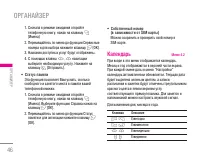
1. ë̇˜‡Î‡ ‚ ÂÊËÏ ÓÊˉ‡ÌËfl ÓÚÍÓÈÚ ÚÂÎÂÙÓÌÌÛ˛ ÍÌË„Û, ̇ʇ‚ ̇ Í·‚Ë¯Û > [àÏÂ̇]. 2. èÂÂÏ¢‡ÈÚÂÒ¸ ÔÓ ÏÂÌ˛ ‰Ó ÙÛÌ͈ËË ë‚ËÒÌ˚ ÌÓχ Ë ‰Îfl ‚˚·Ó‡ ̇ÊÏËÚ Í·‚Ë¯Û < [OK] . 3. ç‡Á‚‡ÌËfl ‰ÓÒÚÛÔÌ˚ı ÛÒÎÛ„ ·Û‰ÛÚ ÓÚÓ·‡ÊÂÌ˚.4. ë ÔÓÏÓ˘¸˛ Í·‚˯ U , D ̇‚Ë„‡ˆËË ‚˚·ÂËÚ ÌÂÓ·ıÓ‰ËÏÛ˛ ÛÒÎÛ„Û. ç‡ÊÏËÚ Ì...
Page 48 - ÒÓı‡ÌËÚ ̧ ‰Ó 20 Á‡ÏÂÚÓÍ.; èÓÒÏÓÚÂÚ ̧ ÔÎ‡Ì ̊ ̇ ‰ÂÌ ̧; Ç ̊ ÏÓÊÂÚ ۉ‡ÎËÚ ̧ ‚Ò Á‡ÔËÒË.; èÂÂÈÚË Í ‰‡ÚÂ; åÓÊÌÓ ÔÂÂÈÚË ÌÂÔÓÒ‰ÒÚ‚ÂÌÌÓ Í ‚ ̊·‡ÌÌÓÈ ‰‡ÚÂ.; åÂÎÓ‰Ëfl Ò˄̇·; åÓÊÌÓ ÛÒÚ‡ÌÓ‚ËÚ ̧ Á‚ÛÍÓ‚ÓÈ Ò˄̇Π‰Îfl ͇ÎẨ‡fl.; á‡ÏÂÚ͇
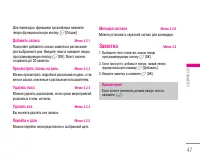
ÑÎfl ÔÂÂıÓ‰‡ Í ÙÛÌ͈ËflÏ Ó„‡Ì‡ÈÁ‡ ̇ÊÏËÚÂÎÂ‚Û˛ ÙÛÌ͈ËÓ̇θÌÛ˛ ÍÌÓÔÍÛ < [éÔˆËË]; ÑÓ·‡‚ËÚ¸ Á‡ÔËÒ¸ åÂÌ˛ 4.2.1 èÓÁ‚ÓÎflÂÚ ‰Ó·‡‚ÎflÚ¸ ÌÓ‚˚ Á‡ÏÂÚÍË Ë ‡ÒÔËÒ‡ÌˉÎfl ‚˚·‡ÌÌÓ„Ó ‰Ìfl. ǂ‰ËÚ ÚÂÏÛ Ë Ì‡ÊÏËÚ ÎÂ‚Û˛ÔÓ„‡ÏÏËÛÂÏÛ˛ ÍÌÓÔÍÛ < [OK]. ÇÒÂ„Ó ÏÓÊÌÓ ÒÓı‡ÌËÚ¸ ‰Ó 20 Á‡ÏÂÚÓÍ. èÓÒÏÓÚÂÚ¸ Ô·Ì˚ ̇ ‰Â...
Page 49 - çÓ‚Ó ÒÓÓ· ̆ÂÌËÂ; ç‡ÔËÒ‡Ú ̧ SMS; ÑÓÒÚÛÔÌ ̊ ÒÎÂ‰Û ̨ ̆Ë ÙÛÌ͈ËË.; : ǂ‰ËÚ ÌÓÏ ÚÂÎÂÙÓ̇ ËÎË ‚ ̊·ÂËÚÂ
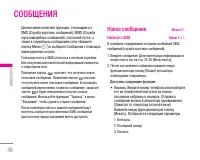
чÌÌÓ ÏÂÌ˛ ‚Íβ˜‡ÂÚ ÙÛÌ͈ËË, ÓÚÌÓÒfl˘ËÂÒfl Í SMS (ëÎÛÊ·‡ ÍÓÓÚÍËı ÒÓÓ·˘ÂÌËÈ), MMS (ëÎÛÊ·‡ÏÛθÚËωËÈÌ˚ı ÒÓÓ·˘ÂÌËÈ), „ÓÎÓÒÓ‚ÓÈ ÔÓ˜ÚÂ, ‡Ú‡ÍÊÂ Í ÒÎÛÊ·Ì˚Ï ÒÓÓ·˘ÂÌËflÏ ÒÂÚË. ç‡ÊÏËÚÂÍÌÓÔÍÛ åÂÌ˛ ( < ) Ë ‚˚·ÂËÚ ëÓÓ·˘ÂÌËfl Ò ÔÓÏÓ˘¸˛ ̇‚Ë„‡ˆËÓÌÌ˚ı ÍÌÓÔÓÍ. ÉÓÎÓÒÓ‚‡fl ÔÓ˜Ú‡ Ë SMS ÓÚÌÓÒflÚÒfl Í ÒÂÚ‚˚Ï ÒÎÛÊ·‡Ï.Ñ...
Page 50 - ç‡ÔËÒ‡Ú ̧ MMS
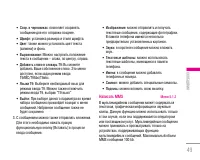
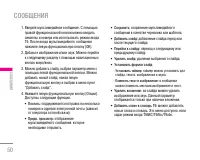
49 | ëÓÓ·˘ÂÌËfl • ëÓı. ‚ ˜ÂÌÓ‚Ë͇ı : ÔÓÁ‚ÓÎflÂÚ ÒÓı‡ÌflÚ¸ ÒÓÓ·˘ÂÌË ‰Îfl Â„Ó ÓÚÔ‡‚ÍË ÔÓÁ‰ÌÂÂ. • òËÙÚ : ÛÒÚ‡Ìӂ͇ ‡Áχ Ë ÒÚËÎfl ¯ËÙÚ‡. • ñ‚ÂÚ : Ú‡ÍÊ ÏÓÊÌÓ ÛÒÚ‡ÌÓ‚ËÚ¸ ˆ‚ÂÚ ÚÂÍÒÚ‡ (Á‡ÎË‚ÍË) Ë ÙÓ̇. • Ç˚‡‚ÌË‚‡ÌË : åÓÊÌÓ Ì‡ÒÚÓËÚ¸ ÔÓÎÓÊÂÌË ÚÂÍÒÚ‡ ‚ ÒÓÓ·˘ÂÌËË – Ò·‚‡, ÔÓ ˆÂÌÚÛ, ÒÔ‡‚‡. • ÑÓ·‡‚ËÚ¸...
Page 51 - ìÒÚ‡ÌÓ‚ËÚ ̧ Ú‡ÈÏÂ; èÓÏÂÌflÚ ̧ ÚÂÍÒÚ Ë ËÁÓ·‡ÊÂÌËÂ
1. ǂ‰ËÚ ÏÛθÚËωËÈÌÓ ÒÓÓ·˘ÂÌËÂ. ë ÔÓÏÓ˘¸˛ Ô‡‚ÓÈ ÙÛÌ͈ËÓ̇θÌÓÈ ÍÌÓÔÍË ÏÓÊÌÓ ‚‚Ó‰ËÚ¸ÒËÏ‚ÓÎ˚ Ë ÌÓχ ËÎË ËÒÔÓθÁÓ‚‡Ú¸ ÂÊËÏ ‚‚Ó‰‡T9. èÓÒΠ‚‚Ó‰‡ ÏÛθÚËωËÈÌÓ„Ó ÒÓÓ·˘ÂÌËfl̇ÊÏËÚ ÎÂ‚Û˛ ÙÛÌ͈ËÓ̇θÌÛ˛ ÍÌÓÔÍÛ [OK]. 2. ÑÓ·‡‚¸Ú ËÁÓ·‡ÊÂÌË Ë/ËÎË Á‚ÛÍ. åÓÊÌÓ ÔÂÂÈÚË Í ÒÎÂ‰Û˛˘ÂÏÛ ‡Á‰ÂÎÛ Ò ÔÓÏÓ˘¸˛ ̇...
Page 52 - : èË ‚ ̊·Ó ‰‡ÌÌÓ„Ó Ô‡‡ÏÂÚ‡ ‚Ó ‚ÂÏfl; ÇıÓ‰fl ̆ËÂ; á̇ ̃ÓÍ
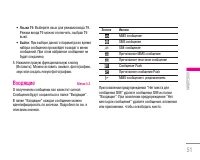
• üÁ˚ÍË T9 : Ç˚·ÂËÚ flÁ˚Í ‰Îfl ÂÊËχ ‚‚Ó‰‡ T9. êÂÊËÏ ‚‚Ó‰‡ T9 ÏÓÊÌÓ ÓÚÍβ˜ËÚ¸, ‚˚·‡‚ T9‚˚ÍÎ. • Ç˚ÈÚË : èË ‚˚·Ó ‰‡ÌÌÓ„Ó Ô‡‡ÏÂÚ‡ ‚Ó ‚ÂÏfl ̇·Ó‡ ÒÓÓ·˘ÂÌËfl ÔÓËÁÓȉÂÚ ‚ÓÁ‚‡Ú Í ÏÂÌ˛ÒÓÓ·˘ÂÌËÈ. èË ˝ÚÓÏ Ì‡·‡ÌÌÓ ÒÓÓ·˘ÂÌË Ì·ۉÂÚ ÒÓı‡ÌÂÌÓ. 5. ç‡ÊÏËÚ ԇ‚Û˛ ÙÛÌ͈ËÓ̇θÌÛ˛ ÍÌÓÔÍÛ [ÇÒÚ‡‚ËÚ¸]. åÓÊÌ...
Page 53 - 臇ÏÂÚ ̊ MMS; CÓÓ· ̆ÂÌËfl SIM
èË ÔÓÎÛ˜ÂÌËË Ò˄̇· Ó ÏÛθÚËωËÈÌÓÏÒÓÓ·˘ÂÌËË ÔÓ‰ÓʉËÚÂ, ÔÓ͇ ÒÓÓ·˘ÂÌË Á‡„ÛÁËÚÒfl,ÔÓÒΠ˜Â„Ó Â„Ó ÏÓÊÌÓ ·Û‰ÂÚ ÔÓÒÏÓÚÂÚ¸. ÑÎfl ÚÓ„Ó ˜ÚÓ·˚ ÔÓ˜ËÚ‡Ú¸ ÒÓÓ·˘ÂÌËÂ, ‚˚·ÂËÚ ӉÌÓËÁ ÌËı, ̇ʇ‚ Í·‚Ë¯Û < . • èÓÒÏÓÚ : ÏÓÊÌÓ ÔÓÒÏÓÚÂÚ¸ ÔÓÎÛ˜ÂÌÌÓ ÒÓÓ·˘ÂÌËÂ. • 쉇ÎËÚ¸ : Ç˚ ÏÓÊÂÚ ۉ‡ÎËÚ¸ ÚÂÍÛ˘Â ÒÓÓ·˘Â...
Page 54 - éÔˆËË Û‚Â‰ÓÏÎÂÌËÈ Ó ÔÓÎÛ ̃ÂÌËË MMS; ÔÓÒÏÓÚÂÚ ̧ ËÌÙÓχˆË ̨ Ó ÒÓÓ· ̆ÂÌËË.; àÒıÓ‰fl ̆ËÂ
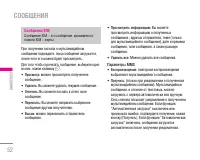
éÔˆËË Û‚Â‰ÓÏÎÂÌËÈ Ó ÔÓÎÛ˜ÂÌËË MMS • èÓÒÏÓÚÂÚ¸ ËÌÙÓχˆË˛ : Ç˚ ÏÓÊÂÚ ÔÓÒÏÓÚÂÚ¸ ËÌÙÓχˆË˛ Ó ÒÓÓ·˘ÂÌËË. • èÓÎÛ˜ËÚ¸ : Ç˚ ÏÓÊÂÚ Á‡„ÛÁËÚ¸ ÒÓÓ·˘ÂÌËÂ Ò WAP- Ò‡ÈÚ‡ ÓÔ‡ÚÓ‡. ÑÎfl ÔÓÎÛ˜ÂÌËfl ÒÓÓ·˘ÂÌËfl ̇LJ¯ÂÏ ÚÂÎÂÙÓÌ ‰ÓÎÊÂÌ ·˚Ú¸ ̇ÒÚÓÂÌ WAP. àÒıÓ‰fl˘Ë åÂÌ˛ 5.3 á‰ÂÒ¸ Ç˚ ÏÓÊÂÚ ÔÓÒÏÓÚÂÚ¸ ÓÚÔ‡‚ÎÂÌÌ˚Â...
Page 55 - ÖÒÎË ÒÓÓ· ̆ÂÌË Ì · ̊ÎÓ ÓÚÔ‡‚ÎÂÌÓ:; óÂÌÓ‚ËÍË
• 쉇ÎËÚ¸ ‚Ò : åÓÊÌÓ Û‰‡ÎËÚ¸ ‚Ò ÒÓÓ·˘ÂÌËfl ËÁ Ô‡ÔÍË “éÚÔ‡‚ÎÂÌÌ˚”. ÖÒÎË ÒÓÓ·˘ÂÌË Ì ·˚ÎÓ ÓÚÔ‡‚ÎÂÌÓ: • èÓÒÏÓÚ : ÏÓÊÌÓ ÔÓÒÏÓÚÂÚ¸ ÌÂÓÚÔ‡‚ÎÂÌÌÓ ÒÓÓ·˘ÂÌËÂ. • 쉇ÎËÚ¸ : Ç˚ ÏÓÊÂÚ ۉ‡ÎËÚ¸ ÚÂÍÛ˘Â ÒÓÓ·˘ÂÌËÂ. • éÚÔ‡‚ËÚ¸ : ÏÓÊÌÓ ÓÚÔ‡‚ËÚ¸ ÒÓÓ·˘ÂÌËÂ. • èÓÒÏÓÚÂÚ¸ ËÌÙÓχˆË˛ : ÏÓÊÌÓ ÔÓÒÏÓÚÂÚ¸ ËÌÙÓ...
Page 56 - èÓÒÎÛ ̄‡Ú ̧ „ÓÎÓÒÓ‚Û ̨ ÔÓ ̃ÚÛ; ÑÎfl Ô‡‚ËÎ ̧ÌÓÈ; àÌÙÓ ÒÓÓ· ̆ÂÌËfl; óËÚ‡Ú ̧; », ÓÌÓ ÓÚÓ·‡ÁËÚÒfl ̇; ä‡Ì‡Î ̊; ÑÓ·‡‚ËÚ ̧; ÖÒÎË ÚÂÏ ̊ ÛÊ ÒÛ ̆ÂÒÚ‚Û ̨Ú, ÏÓÊÌÓ Ëı
èÓÒÎÛ¯‡Ú¸ „ÓÎÓÒÓ‚Û˛ ÔÓ˜ÚÛ åÂÌ˛ 5.5 ùÚÓ ÏÂÌ˛ Ó·ÂÒÔ˜˂‡ÂÚ ·˚ÒÚ˚È ‰ÓÒÚÛÔ Í„ÓÎÓÒÓ‚ÓÏÛ ÔÓ˜ÚÓ‚ÓÏÛ fl˘ËÍÛ (ÂÒÎË Ú‡Í‡fl ÛÒÎÛ„‡Ô‰ÓÒÚ‡‚ÎflÂÚÒfl ‚ ÒÂÚË). è‰ ËÒÔÓθÁÓ‚‡ÌËÂÏ ˝ÚÓÈÙÛÌ͈ËË ÌÂÓ·ıÓ‰ËÏÓ ‚‚ÂÒÚË ÌÓÏ „ÓÎÓÒÓ‚ÓÈ ÔÓ˜Ú˚,ÛÒÚ‡ÌÓ‚ÎÂÌÌ˚È ÓÔ‡ÚÓÓÏ ÒÂÚË. èË ÔÓÎÛ˜ÂÌËË ÌÓ‚Ó„Ó „ÓÎÓÒÓ‚Ó„Ó ÒÓÓ·˘ÂÌËfl ̇˝Í‡Ì Ó...
Page 57 - ò‡·ÎÓÌ ̊; íÂÍÒÚÓ‚ ̊ ̄‡·ÎÓÌ ̊; ò‡·ÎÓÌ ÏÛÎ ̧ÚËωˇ
ò‡·ÎÓÌ˚ åÂÌ˛ 5.7 Ç ÚÂÎÂÙÓÌ ÒÓ‰ÂÊËÚÒfl ÒÔËÒÓÍ ¯‡·ÎÓÌÓ‚. åÓÊÌÓÔÓÒχÚË‚‡Ú¸ Ë Â‰‡ÍÚËÓ‚‡Ú¸ ¯‡·ÎÓÌ˚ ÒÓÓ·˘ÂÌËÈ,‡ Ú‡ÍÊ ÒÓÁ‰‡‚‡Ú¸ ÌÓ‚˚Â. ÑÓÒÚÛÔÌÓ ‰‚‡ ÚËÔ‡¯‡·ÎÓÌÓ‚: ÚÂÍÒÚÓ‚˚Â Ë ÏÛθÚËωˇ. ò‡·ÎÓÌ˚ÏÛθÚËωËfl Ç˚ ‰ÓÎÊÌ˚ ‚‚Ó‰ËÚ¸ Ò‡ÏË. íÂÍÒÚÓ‚˚ ¯‡·ÎÓÌ˚ åÂÌ˛ 5.7.1 ÑÓÒÚÛÔÌ˚ ÒÎÂ‰Û˛˘Ë ÙÛÌ͈ËË. • èÓÒÏÓÚ : Ô...
Page 58 - èÓ‰ÔËÒ ̧; SMS ÒÓÓ· ̆ÂÌËÂ; é· ̊ ̃ÌÓ, ÚËÔ ÒÓÓ· ̆ÂÌËfl ÛÒÚ‡ÌÓ‚ÎÂÌ Ì‡; MMS ÒÓÓ· ̆ÂÌËÂ
èÓ‰ÔËÒ¸ åÂÌ˛ 5.7.3 ë ÔÓÏÓ˘¸˛ ˝ÚÓ„Ó Ô‡‡ÏÂÚ‡ ÏÓÊÌÓ ÒÓÁ‰‡Ú¸ÒÓ·ÒÚ‚ÂÌÌÛ˛ ‚ËÁËÚÍÛ. ǂ‰ËÚ ËÏfl, ÌÓχÏÓ·ËθÌÓ„Ó Ë ‡·Ó˜Â„Ó ÚÂÎÂÙÓÌÓ‚, ÌÓÏ هÍÒ‡ ˇ‰ÂÒ ˝ÎÂÍÚÓÌÌÓÈ ÔÓ˜Ú˚. ç‡ÒÚÓÈÍË åÂÌ˛ 5.8 SMS ÒÓÓ·˘ÂÌË åÂÌ˛ 5.8.1 • íËÔ˚ ÒÓÓ·˘ÂÌËÈ: íÂÍÒÚ, ÉÓÎÓÒ, î‡ÍÒ, åÂÒÚÌ˚È ÔÂȉÊ., ï.400, Ö-mail, ERMES • é·˚˜ÌÓ, ÚË...
Page 59 - • èËÂÏ
• éÚ˜ÂÚ Ó ‰ÓÒÚ‡‚Í : ÖÒÎË Ç˚ ‚˚·ÂÂÚ ч ‚ ‰‡ÌÌÓÏ ÏÂÌ˛, Ç˚ ÒÏÓÊÂÚ ÛÁ̇ڸ, ‰ÓÒÚ‡‚ÎÂÌÓ Ç‡¯ÂÒÓÓ·˘ÂÌË ÛÒÔ¯ÌÓ ËÎË ÌÂÚ. • Ä‚ÚÓχÚ˘ÂÒ͇fl Á‡„ÛÁ͇ : ÖÒÎË Ç˚ ‚˚·ÂËÚ ÇÍÎ , Ç˚ ·Û‰ÂÚ ‡‚ÚÓχÚ˘ÂÒÍË ÔÓÎÛ˜‡Ú¸ÏÛθÚËωËÈÌ˚ ÒÓÓ·˘ÂÌËfl. ÖÒÎË Ç˚ ‚˚·ÂËÚ Ç˚ÍÎ, Ç˚ ·Û‰ÂÚ ÔÓÎÛ˜‡Ú¸ ÚÓθÍÓ Û‚Â‰ÓÏÎÂÌËÂÏ Ó· ˝ÚÓÏ ÒÓÓ·...
Page 60 - • ë˄̇Î; : LJ ̄ ÚÂÎÂÙÓÌ ·Û‰ÂÚ ËÁ‰‡‚‡Ú ̧ Á‚ÛÍÓ‚ÓÈ Ò˄̇Î; çÂÚ; : LJ ̄ ÚÂÎÂÙÓÌ Ì ·Û‰ÂÚ ËÁ‰‡‚‡Ú ̧ Á‚ÛÍÓ‚ÓÈ; • üÁ ̊ÍË; Push ÒÓÓ· ̆ÂÌËfl
• ë˄̇Πч : LJ¯ ÚÂÎÂÙÓÌ ·Û‰ÂÚ ËÁ‰‡‚‡Ú¸ Á‚ÛÍÓ‚ÓÈ Ò˄̇ΠÔË ÔÓÎÛ˜ÂÌËË ËÌÙÓχˆËÓÌÌÓ„Ó ÚÂÍÒÚÓ‚Ó„ÓÒÓÓ·˘ÂÌËfl. çÂÚ : LJ¯ ÚÂÎÂÙÓÌ Ì ·Û‰ÂÚ ËÁ‰‡‚‡Ú¸ Á‚ÛÍÓ‚ÓÈ Ò˄̇Î, ÌÂÒÏÓÚfl ̇ ÔÓÎÛ˜ÂÌË ËÌÙÓχˆËÓÌÌÓ„ÓÚÂÍÒÚÓ‚Ó„Ó ÒÓÓ·˘ÂÌËfl. • üÁ˚ÍË Ç˚ ÏÓÊÂÚ ‚˚·‡Ú¸ flÁ˚Í ÔÛÚfiÏ Ì‡Ê‡ÚËfl[ÇÍÎ/Ç˚ÍÎ]. á‡ÚÂÏ Ç˚ ÔÓÎÛ˜ËÚ ËÌÙÓÏ...
Page 61 - AAC; : ó‡ÒÚÓÚ‡ ‰ËÒÍÂÚËÁ‡ˆËË ÓÚ 8 ÍɈ ‰Ó 48; WMA; : ó‡ÒÚÓÚ‡ ‰ËÒÍÂÚËÁ‡ˆËË ÓÚ 8 ÍɈ ‰Ó 48 ÍɈ,
MP3 åÂÌ˛ 6.1 íÂÎÂÙÓÌ M6100 Ó·ÓÛ‰Ó‚‡Ì ‚ÒÚÓÂÌÌ˚Ï MP3-ÔÓË„˚‚‡ÚÂÎÂÏ. åÓÊÌÓ ÔÓÒÎۯ˂‡Ú¸ ÏÛÁ˚͇θÌ˚ÂÙ‡ÈÎ˚ ‚ ÙÓχÚ MP3, Á‡ÔËÒ‡ÌÌ˚ ‚ Ô‡ÏflÚ¸ÚÂÎÂÙÓ̇, ËÒÔÓθÁÛfl ÒÓ‚ÏÂÒÚËÏÛ˛ „‡ÌËÚÛÛ ËÎË‚ÒÚÓÂÌÌ˚È ‰Ë̇ÏËÍ. èÓË„˚‚‡ÚÂθ ÔÓ‰‰ÂÊË‚‡ÂÚ ÒÎÂ‰Û˛˘Ë ÙÓχÚ˚: • MPEG-1 Layer III, MPEG-2 Layer III, MPEG-2.5 Lay...
Page 62 - MP3 ÔÎÂÂ; ç‡ÊÏËÚ ÎÂ‚Û ̨ ÙÛÌ͈ËÓ̇Π̧ÌÛ ̨ ÍÌÓÔÍÛ; èÓ‚ÚÓ ‚ ̊‰ÂÎÂÌÌÓ„Ó; : ‚ ÒÎÛ ̃‡Â ‡ÍÚË‚‡ˆËË ‰‡ÌÌÓÈ; ä‡Í Á‚ÓÌÓÍ; : ‚ ̋ÚÓÏ ÏÂÌ ̨ ÏÓÊÌÓ ÛÒÚ‡ÌÓ‚ËÚ ̧; ùÍ‚‡Î‡ÈÁÂ
äÓ„‰‡ Ç˚ ÔÓ‰Íβ˜‡ÂÚ ÚÂÎÂÙÓÌ Í ÍÓÏÔ¸˛ÚÂÛ ˜ÂÂÁUSB-͇·Âθ (ÔÓÒÚ‡‚ÎflÂÚÒfl ‚ ÍÓÏÔÎÂÍÚÂ Ò ÚÂÎÂÙÓÌÓÏ),Ç˚ ÏÓÊÂÚ ÔÓÒχÚË‚‡Ú¸ Ô‡ÔÍË ‚ Ô‡ÏflÚË ÚÂÎÂÙÓ̇˜ÂÂÁ ÓÍÌÓ Ó·˚˜ÌÓ„Ó ÔÓ‚Ó‰ÌË͇. èÓÒΠÁ‡‚¯ÂÌËflÍÓÔËÓ‚‡ÌËfl Ù‡ÈÎÓ‚ ‚Ó Ùν¯-Ô‡ÏflÚ¸ ÚÂÎÂÙÓ̇ ÔÂÂ‰Â„Ó ÓÚÍβ˜ÂÌËÂÏ ÓÚ ÍÓÏÔ¸˛Ú‡ ÌÂÓ·ıÓ‰ËÏÓÍÓÂÍÚÌÓ Á‡‚¯ËÚ¸ ...
Page 63 - êÂÊËÏ ‚ÓÒÔÓËÁ‚‰ÂÌËfl; ëÎÛ ̃‡ÈÌ ̊È ‚ ̊·Ó; ÇËÁۇΠ̧Ì ̊ ̋ÙÙÂÍÚ ̊; èÎÂÈÎËÒÚ; îÓÚÓ„‡ÙËÓ‚‡Ú ̧
62 åÛθÚËωˇ \ åÛθÚËωˇ - êÂÊËÏ ‚ÓÒÔÓËÁ‚‰ÂÌËfl : Ç ˝ÚÓÏ ÏÂÌ˛ ÏÓÊÌÓ ÛÒÚ‡ÌÓ‚ËÚ¸ ÂÊËÏ ‚ÓÒÔÓËÁ‚‰ÂÌËfl. - ëÎÛ˜‡ÈÌ˚È ‚˚·Ó : ëÎÛ˜‡ÈÌ˚È ÔÓfl‰ÓÍ ‚ÓÒÔÓËÁ‚‰ÂÌËfl ‚ÒÂı ÏÛÁ˚͇θÌ˚ı Ù‡ÈÎÓ‚ MP3. - ÇËÁۇθÌ˚ ˝ÙÙÂÍÚ˚ : ùÚÓ ÏÂÌ˛ ÔÓÁ‚ÓÎflÂÚ ËÁÏÂÌflÚ¸ ÙÓÌ Üä-‰ËÒÔÎÂfl ÔË ‚ÓÒÔÓËÁ‚‰ÂÌËËÙ‡ÈÎÓ‚ MP3. èÎÂÈÎËÒÚ åÂÌ˛...
Page 64 - á‡ÔËÒ‡Ú ̧ ‚ˉÂÓ
63 | åÛθÚËωˇ ç‡ÊÏËÚ ÎÂ‚Û˛ ÙÛÌ͈ËÓ̇θÌÛ˛ ÍÌÓÔÍÛ [éÔˆËË],˜ÚÓ·˚ ÓÚÓ·‡ÁËÚ¸ ‚ÒÔÎ˚‚‡˛˘Â ÏÂÌ˛. • üÍÓÒÚ¸ : ̇ÒÚÓÈ͇ flÍÓÒÚË. • ê‡ÁÏ : ̇ÒÚÓÈ͇ ‡Áχ ËÁÓ·‡ÊÂÌËfl. • í‡ÈÏ : ÛÒÚ‡Ìӂ͇ ‚ÂÏÂÌË Á‡‰ÂÊÍË. • 䇘ÂÒÚ‚Ó : ÛÒÚ‡Ìӂ͇ ͇˜ÂÒÚ‚‡ ËÁÓ·‡ÊÂÌËfl. • Ň·ÌÒ ·ÂÎÓ„Ó : ̇ÒÚÓÈ͇ Ô‡‡ÏÂÚÓ‚ ‚ ÒÓÓÚ‚Â...
Page 65 - åÓË ÙÓÚÓ„‡ÙËË; åÓ ‚ˉÂÓ; éÔˆËË
64 åÛθÚËωˇ \ åÛθÚËωˇ åÓË ÙÓÚÓ„‡ÙËË åÂÌ˛ 6.4 åÓÊÌÓ ÔÓÒχÚË‚‡Ú¸ Ë ÓÚÔ‡‚ÎflÚ¸ ËÁÓ·‡ÊÂÌËfl.äÓÏ ÚÓ„Ó, ÏÓÊÌÓ ÛÒÚ‡ÌÓ‚ËÚ¸ ËÁÓ·‡ÊÂÌË ‚͇˜ÂÒÚ‚Â Ó·Ó‚. éÔˆËË • îÓÚÓfl‰ : ‚˚ Ó‰ÌÓ‚ÂÏÂÌÌÓ ÏÓÊÂÚ ÔÓÒχÚË‚‡Ú¸ 9 ËÁÓ·‡ÊÂÌËÈ Ì‡ ˝Í‡ÌÂ. • éÚÔ‡‚͇ ˜ÂÂÁ Bluetooth : ÓÚÔ‡‚͇ ËÁÓ·‡ÊÂÌËfl ˜ÂÂÁ Bluetoot...
Page 66 - ÑËÍÚÓÙÓÌ; á‡ÔËÒ ̧; 䇇ÓÍÂ; ÇÍÎ ̨ ̃ÂÌË ÂÊËχ 䇇ÓÍÂ; ì Ç‡Ò ÔÓfl‚flÚÒfl ÒÎÂ‰Û ̨ ̆Ë ‚ÓÁÏÓÊÌÓÒÚË
ÑËÍÚÓÙÓÌ åÂÌ˛ 6.6 îÛÌ͈Ëfl Á‡ÔËÒË „ÓÎÓÒ‡ ‰‡fiÚ Ç‡Ï ‚ÓÁÏÓÊÌÓÒÚ¸ Á‡ÔË҇ڸ̠·ÓΠ‰ÂÒflÚË „ÓÎÓÒÓ‚˚ı ÒÓÓ·˘ÂÌËÈ, ͇ʉÓ ËÁÍÓÚÓ˚ı ÏÓÊÂÚ ‰ÎËÚ¸Òfl Ì ‰Óθ¯Â 15-ÚË ÒÂÍÛ̉. á‡ÔËÒ¸ åÂÌ˛ 6.6.1 Ç˚ ÏÓÊÂÚ ÒÓı‡ÌËÚ¸ „ÓÎÓÒÓ‚Û˛ Á‡ÔËÒ¸ ‚ ÚÂÎÂÙÓÌÂ. 1. èÓÒΠ̇˜‡Î‡ Á‡ÔËÒË ÓÚÓ·‡Ê‡˛ÚÒfl ÒÓÓ·˘ÂÌË “á‡ÔËÒ¸” Ë Ò˜ÂÚ˜ËÍ ÓÒÚ‡‚¯Â...
Page 67 - íÂÍÒÚ; : Ç ̊ ÏÓÊÂÚ ÔÓÒÏÓÚÂÚ ̧ ÒÎÓ‚‡ ‚ ̊·‡ÌÌÓÈ; 쉇ÎËÚ ̧; ÇÓÁ‚‡Ú Í ÒÔËÒÍÛ ‰ÓÒÚÛÔÌ ̊ı; çÓ‚‡fl ÔÂÒÌfl; ëÓ‰ÂÊËÚ Í‡ÚÍÓ ÓÔËÒ‡ÌË ÙÛÌ͈ËË ä‡‡ÓÍÂ.; ä‡Ï‡; Ä‚ÚÓÒÓı‡ÌÂÌËÂ; ÙÓÚÓ„‡ÙËÈ ÔÓÒΠÔÓ‰Ú‚ÂʉÂÌËfl.; ÇˉÂÓ͇χ; 쉇ÎËÚ ̧ ‚Ò ‚ˉÂÓ; çÓ‚‡fl; ᇄÛÁÍË; à„ ̊ Ë ÔËÎÓÊÂÌËfl; BÌËÏaÌËÂ
• íÂÍÒÚ : Ç˚ ÏÓÊÂÚ ÔÓÒÏÓÚÂÚ¸ ÒÎÓ‚‡ ‚˚·‡ÌÌÓÈ ÔÂÒÌË. • 쉇ÎËÚ¸ : Ç˚ ÏÓÊÂÚ ۉ‡ÎËÚ¸ ‰‡ÌÌÛ˛ ÍÓÏÔÓÁËˆË˛. • ç‡Á‡‰ Í ÒÔËÒÍÛ: ÇÓÁ‚‡Ú Í ÒÔËÒÍÛ ‰ÓÒÚÛÔÌ˚ı ÍÓÏÔÓÁˈËÈ. çÓ‚‡fl ÔÂÒÌfl Ç˚·ÂËÚ ÙÛÌÍˆË˛ çÓ‚‡fl ÔÂÒÌfl ̇ʇÚËÂÏ ÍÌÓÔÍËéä. çÓ‚‡fl ÔÂÒÌfl ÏÓÊÂÚ ·˚Ú¸ Á‡„ÛÊÂ̇ ÔÛÚÂÏËÒÔÓθÁÓ‚‡ÌËfl ÒÂÚÂ‚Ó„Ó ÒÓ‰ËÌÂÌËfl. àÌÙÓÏ...
Page 68 - ÑËÒÔÎÂÈ
Ç˚ ÏÓÊÂÚ ÛÒÚ‡ÌÓ‚ËÚ¸ ÒÎÂ‰Û˛˘Ë ÓÔˆËË ËÔ‡‡ÏÂÚ˚ ‰Îfl LJ¯Â„Ó Û‰Ó·ÒÚ‚‡ Ë ÔÓ Ç‡¯ÂÏÛÛÒÏÓÚÂÌ˲. 1. ç‡ÊÏËÚ Í·‚Ë¯Û < [åÂÌ˛] ‚ ÂÊËÏ ÓÊˉ‡ÌËfl. 2. ç‡ÊÏËÚ Í·‚Ë¯Û 7 ‰Îfl ÔÓÎÛ˜ÂÌËfl ÔflÏÓ„Ó ‰ÓÒÚÛÔ‡ ‰Îfl ‚ıÓ‰‡ ‚ ÏÂÌ˛ ç‡ÒÚÓÈÍË. чڇ Ë ÇÂÏfl åÂÌ˛ 7.1 Ç˚ ÏÓÊÂÚ ̇ÒÚÓËÚ¸ ÙÛÌ͈ËË, ÓÚÌÓÒfl˘ËÂÒfl Í ‰‡Ú ˂ÂÏÂÌË. ...
Page 69 - 臉ÂÒ‡ˆËfl; • äÓ„‰‡ Á‡ÌflÚÓ; 臉ÂÒ‡ˆËfl ‚ ̊ÁÓ‚Ó‚ ÂÒÎË ÚÂÎÂÙÓÌ Á‡ÌflÚ.; • ÖÒÎË ÌÂÚ ÓÚ‚ÂÚ‡; éÚÏÂÌflÂÚ ‚Ò ÔÂÂ̇ԇ‚ÎÂÌËfl ‚ ̊ÁÓ‚Ó‚.
íÂχ åÂÌ˛ 7.2.2 ùÚÓÚ ÔÛÌÍÚ ÔÓÁ‚ÓÎflÂÚ ‚˚·‡Ú¸ Ó‰ÌÛ ËÁÔ‰‚‡ËÚÂθÌÓ ÛÒÚ‡ÌÓ‚ÎÂÌÌ˚ı ÚÂÏ. üÁ˚Í åÂÌ˛ 7.2.3 åÓÊÌÓ ÏÂÌflÚ¸ flÁ˚Í ÚÂÍÒÚ‡ ̇ ‰ËÒÔΠÚÂÎÂÙÓ̇. ùÚËËÁÏÂÌÂÌËfl Ú‡ÍÊ ‚ÎËfl˛Ú ̇ flÁ˚Í ‚‚Ó‰‡. Ç˚ÁÓ‚˚ åÂÌ˛ 7.3 Ç˚ ÏÓÊÂÚ ÛÒÚ‡ÌÓ‚ËÚ¸ ÓÔˆËË, ÓÚÌÓÒfl˘ËÂÒfl Í ‚˚ÁÓ‚Û,ÔÛÚÂÏ Ì‡Ê‡ÚËfl ̇ Í·‚Ë¯Û < [OK] ‚ ÏÂÌ˛ ç‡ÒÚ...
Page 70 - êÂÊËÏ ÓÚ‚ÂÚ‡; • éÚÍ ̊ÚË Ò·ȉ‡; èÓÒ ̊Î‡Ú ̧ Ò‚ÓÈ ÌÓÏÂ; • ìÒÚ‡ÌÓ‚ÎÂÌÓ ÒÂÚ ̧ ̨
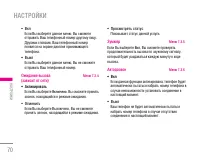
èÓ‰ÏÂÌ˛ åÂÌ˛ 臉ÂÒ‡ˆËfl ËÏÂÂÚ ÔÓ‰ÏÂÌ˛, ÍÓÚÓ˚ Û͇Á‡Ì˚ ÌËÊÂ. • ÄÍÚË‚ËÓ‚‡Ú¸ ÄÍÚË‚ËÛÂÚ ÒÓÓÚ‚ÂÚÒÚ‚Û˛˘Û˛ ÛÒÎÛ„Û. ç‡ „ÓÎÓÒÓ‚Û˛ ÔÓ˜ÚÛ Ç‚Ó‰ ÌÓχ ‰Îfl Ô‡‰ÂÒ‡ˆËË ‚˚ÁÓ‚‡ ̇ ÌÓÏ„ÓÎÓÒÓ‚ÓÈ ÔÓ˜Ú˚. ç‡ ‰Û„ÓÈ ÌÓÏ ì͇ÊËÚ ÌÓÏÂ, ̇ ÍÓÚÓ˚È ·Û‰ÂÚ Ô‡‰ÂÒÓ‚‡Ì‚˚ÁÓ‚. ç‡ ËÁ·‡ÌÌ˚È ÌÓÏ Ç˚‚Ó‰ËÚ ÒÔËÒÓÍ ËÁ·...
Page 71 - • ÄÍÚË‚ËÓ‚‡Ú ̧; ÖÒÎË Ç ̊ ‚ ̊·ÂËÚÂ; ÇÍÎ ̨ ̃ÂÌÓ; • éÚÏÂÌËÚ ̧; èÓ͇Á ̊‚‡ÂÚ ÒÚ‡ÚÛÒ ‰‡ÌÌÓÈ ÛÒÎÛ„Ë.; áÛÏÏÂ; ÖÒÎË Ç ̊ ‚ ̊·ÂÂÚÂ; , Ç ̊ ÒÏÓÊÂÚ ÔÓ‚ÂflÚ ̧; Ä‚ÚÓ‰ÓÁ‚ÓÌ; • ÇÍÎ
• ÇÍÎ ÖÒÎË Ç˚ ‚˚·ÂÂÚ ‰‡ÌÌÓ ÏÂÌ˛, Ç˚ ÒÏÓÊÂÚÂÓÚÔ‡‚ËÚ¸ LJ¯ ÚÂÎÂÙÓÌÌ˚È ÌÓÏ ‰Û„ÓÏÛ ÎˈÛ.ÑÛ„ËÏË ÒÎÓ‚‡ÏË, LJ¯ ÚÂÎÂÙÓÌÌ˚È ÌÓÏÂÔÓfl‚ËÚÒfl ̇ ˝Í‡Ì ‰ËÒÔÎÂfl ÔËÌËχ˛˘Â„ÓÚÂÎÂÙÓ̇. • Ç˚ÍÎ ÖÒÎË Ç˚ ‚˚·ÂÂÚ ‰‡ÌÌÓ ÏÂÌ˛, Ç˚ Ì ÒÏÓÊÂÚÂÓÚÔ‡‚ËÚ¸ LJ¯ ÚÂÎÂÙÓÌÌ˚È ÌÓÏÂ. éÊˉ‡ÌË ‚˚ÁÓ‚‡ åÂÌ˛ 7.3.4 (Á‡‚ËÒËÚ ÓÚ ÒÂÚ...
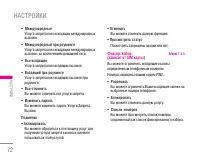
Page 72 - ÅÂÁÓÔ‡ÒÌÓÒÚ ̧; ‡ Á‡ÚÂÏ Ì‡ÊÏËÚÂ; ÅÎÓÍËӂ͇ ÚÂÎÂÙÓ̇; èË ÒÏÂÌÂ; , LJ ̄ ÚÂÎÂÙÓÌ Á‡ÔÓÒËÚ ̋ÚÓÚ ÍÓ‰ ÚÓÎ ̧ÍÓ ‚ ÒÎÛ ̃‡Â; í‡ÈÏ ‡‚ÚÓ ·ÎÓÍ. Í·‚Ë ̄; • ÇÒ ËÒıÓ‰fl ̆ËÂ; ìÒÎÛ„‡ Á‡ÔÂÚ‡ ‚ÒÂı ËÒıÓ‰fl ̆Ëı ‚ ̊ÁÓ‚Ó‚.
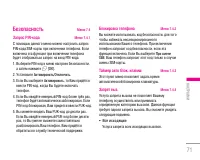
71 | ç‡ÒÚÓÈÍË ÅÂÁÓÔ‡ÒÌÓÒÚ¸ åÂÌ˛ 7.4 á‡ÔÓÒ PIN-ÍÓ‰‡ åÂÌ˛ 7.4.1 ë ÔÓÏÓ˘¸˛ ‰‡ÌÌÓ„Ó ÏÂÌ˛ ÏÓÊÌÓ Ì‡ÒÚÓËÚ¸ Á‡ÔÓÒPIN-ÍÓ‰‡ SIM-͇Ú˚ ÔË ‚Íβ˜ÂÌËË ÚÂÎÂÙÓ̇. ÖÒÎË‚Íβ˜Â̇ ˝Ú‡ ÙÛÌ͈Ëfl ÔË ‚Íβ˜ÂÌËË ÚÂÎÂÙÓ̇·Û‰ÂÚ ÓÚÓ·‡Ê‡Ú¸Òfl Á‡ÔÓÒ Ì‡ ‚‚Ó‰ PIN-ÍÓ‰‡. 1. Ç˚·ÂËÚ PIN-ÍÓ‰ ‚ ÏÂÌ˛ ̇ÒÚÓÂÍ ·ÂÁÓÔ‡ÒÌÓÒÚË, ‡ Á‡ÚÂÏ...
Page 74 - Ç ̊ ÏÓÊÂÚ ËÁÏÂÌflÚ ̧ ÍÓ‰ ̊ ‰ÓÒÚÛÔ‡:; ëÂÚ ̧; Ç ̊·Ó ÒÂÚË; • Ä‚ÚÓχÚË ̃ÂÒÍË
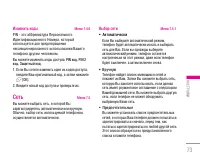
73 | ç‡ÒÚÓÈÍË àÁÏÂÌËÚ¸ ÍÓ‰˚ åÂÌ˛ 7.4.6 PIN - ˝ÚÓ ‡··Â‚ˇÚÛ‡ èÂÒÓ̇θÌÓ„Óà‰ÂÌÚËÙË͇ˆËÓÌÌÓ„Ó çÓχ, ÍÓÚÓ˚ÈËÒÔÓθÁÛÂÚÒfl ‰Îfl Ô‰ÓÚ‚‡˘ÂÌËflÌÂÒ‡Ì͈ËÓÌËÓ‚‡ÌÌÓ„Ó ËÒÔÓθÁÓ‚‡ÌËfl LJ¯Â„ÓÚÂÎÂÙÓ̇ ‰Û„ËÏ ˜ÂÎÓ‚ÂÍÓÏ. Ç˚ ÏÓÊÂÚ ËÁÏÂÌflÚ¸ ÍÓ‰˚ ‰ÓÒÚÛÔ‡: PIN ÍÓ‰, PIN 2 ÍÓ‰, ᇢËÚÌ˚È ÍÓ‰. 1. ÖÒÎË Ç˚ ıÓÚËÚ ËÁÏÂÌË...
Page 75 - Ç ̊·Ó ‰Ë‡Ô‡ÁÓ̇; GPRS; • ÇÓÒÒÚ‡ÌÓ‚ËÚ ̧ ̇ÒÚÓÈÍË ÔÓ ÛÏÓÎ ̃‡ÌË ̨; èÓÁ‚ÓÎflÂÚ ‚ÂÌÛÚ ̧Òfl Í Ì‡ÒÚÓÈÍ‡Ï ÔÓ ÛÏÓÎ ̃‡ÌË ̨.; • é ̃ËÒÚËÚ ̧ ÏÛÎ ̧ÚËωˇ Ô‡ÏflÚ ̧; èÓÁ‚ÓÎflÂÚ Ó ̃ËÒÚËÚ ̧ Ô‡ÏflÚ ̧ ÏÛÎ ̧ÚËωˇ.; é· ̇ÂÏ Ô‡ÏflÚË; ÇÌÛÚÂÌÌflfl Ô‡ÏflÚ ̧
Ç˚·Ó ‰Ë‡Ô‡ÁÓ̇ åÂÌ˛ 7.5.2 àÒÔÓθÁÛÈÚ ‰‡ÌÌÛ˛ ÛÒÚ‡ÌÓ‚ÍÛ ‰Îfl ̇ÒÚÓÈÍË ÒÂÚËÒڇ̉‡Ú‡ GSM. GPRS åÂÌ˛ 7.6 Ç Á‡‚ËÒËÏÓÒÚË ÓÚ ÒËÚÛ‡ˆËË, ‚ÓÁÏÓÊ̇ ÛÒÚ‡Ìӂ͇ÂÊËÏÓ‚ ‡·ÓÚ˚ ÙÛÌ͈ËË GPRS. ë·ÓÒËÚ¸ ̇ÒÚÓÈÍË åÂÌ˛ 7.7 Ç˚ ÏÓÊÂÚ ‚ÂÌÛÚ¸ LJ¯ÂÏÛ ÚÂÎÂÙÓÌÛ ‚Ò Á‡‚Ó‰ÒÍËÂ̇ÒÚÓÈÍË. ÑÎfl ‡ÍÚË‚ËÓ‚‡ÌËfl ˝ÚÓÈ ÙÛÌ͈ËËÌÂÓ·ıÓ‰...
Page 76 - ÑÎfl ‚ ̊ıÓ‰‡ ËÁ ·‡ÛÁ‡ ‰ÓÒÚ‡ÚÓ ̃ÌÓ Ì‡Ê‡Ú ̧ Í·‚Ë ̄Û; 燂˄‡ˆËfl Ò ÔÓÏÓ ̆ ̧ ̨ WAP-·‡ÛÁ‡; àÍÓÌ͇; àÒÔÓÎ ̧ÁÓ‚‡ÌË ÏÂÌ ̨ WAP-·‡ÛÁ‡
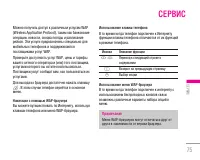
75 ë‚ËÒ | ë‚ËÒ åÓÊÌÓ ÔÓÎÛ˜ËÚ¸ ‰ÓÒÚÛÔ Í ‡Á΢Ì˚Ï ÛÒÎÛ„‡Ï WAP(Wireless Application Protocol), Ú‡ÍËÏ Í‡Í ·‡ÌÍÓ‚ÒÍËÂÓÔ‡ˆËË, ÌÓ‚ÓÒÚË, ҂Ӊ͇ ÔÓ„Ó‰˚ Ë ‡ÒÔËÒ‡ÌËÂÂÈÒÓ‚. ùÚË ÛÒÎÛ„Ë Ô‰̇Á̇˜ÂÌ˚ ÒÔˆˇθÌÓ ‰ÎflÏÓ·ËθÌ˚ı ÚÂÎÂÙÓÌÓ‚ Ë ÔÓ‰‰ÂÊË‚‡˛ÚÒflÔÓÒÚ‡‚˘Ë͇ÏË ÛÒÎÛ„ WAP. èӂ¸Ú ‰ÓÒÚÛÔÌÓÒÚ¸ ÛÒÎÛ„ WAP...
Page 77 - àÌÚÂÌÂÚ; ÑÓχ ̄Ìflfl; ç‡ÊÏËÚ ÎÂ‚Û ̨ ÍÌÓÔÍÛ; èÂÂÈÚË Í URL
àÌÚÂÌÂÚ åÂÌ˛ 8.1 ÑÓχ¯Ìflfl åÂÌ˛ 8.1.1 á‡È‰ËÚ ̇ ‰Óχ¯Ì˛˛ ÒÚ‡ÌˈÛ. ÑÓχ¯ÌÂÈÒÚ‡ÌˈÂÈ ·Û‰ÂÚ Ò‡ÈÚ, ÍÓÚÓ˚È ÓÔ‰ÂÎflÂÚÒfl‡ÍÚË‚Ì˚Ï ÔÓÙËÎÂÏ. ÖÒÎË Ç˚ Ì ÓÔ‰ÂÎËÎË Â„Ó ‚‡ÍÚË‚ÌÓÏ ÔÓÙËÎÂ, ÚÓ ÓÌ ·Û‰ÂÚ ÓÔ‰ÂÎÂÌÔÓ‚‡È‰ÂÓÏ. á‡Í·‰ÍË åÂÌ˛ 8.1.2 чÌ̇fl ÛÒÚ‡Ìӂ͇ ÔÓÁ‚ÓÎflÂÚ Ç‡Ï ÒÓı‡ÌflÚ¸ ‡‰ÂÒ‡(URL) ÌÛÊÌ˚ı Ç‡Ï ...
Page 78 - Ç Í‡Ê‰ÓÏ ÔÓÙËΠÂÒÚ ̧ ÒÎÂ‰Û ̨ ̆Ë ÔÓ‰ÏÂÌ ̨:; ÄÍÚË‚ËÓ‚‡Ú ̧; : ‰‡ÍÚËÓ‚‡ÌËÂ Ë ËÁÏÂÌÂÌË ̇ÒÚÓÂÍ; è‡ÓÎ ̧; ëÍÓÓÒÚ ̧
77 | ë‚ËÒ ç‡ÒÚÓÈÍË åÂÌ˛ 8.1.4 èÓÙËÎË èÓÙËθ ˝ÚÓ ËÌÙÓχˆËfl, ËÒÔÓθÁÛÂχfl ‰ÎflÒÓ‰ËÌÂÌËfl Ò àÌÚÂÌÂÚÓÏ. Ç Í‡Ê‰ÓÏ ÔÓÙËΠÂÒÚ¸ ÒÎÂ‰Û˛˘Ë ÔÓ‰ÏÂÌ˛: • ÄÍÚË‚ËÓ‚‡Ú¸ : ÔËÏÂÌÂÌË ‚˚·‡ÌÌÓ„Ó ÔÓÙËÎfl. • ç‡ÒÚÓÈÍË : ‰‡ÍÚËÓ‚‡ÌËÂ Ë ËÁÏÂÌÂÌË ̇ÒÚÓÂÍ WAP ‰Îfl ‚˚·‡ÌÌÓ„Ó ÔÓÙËÎfl. - ÑÓÏ. ÒÚ‡Ìˈ‡: ‚‚Ó‰ URL ‚...
Page 79 - Cookie
- ç‡ÒÚÓÈÍË GPRS: ̇ÒÚÓÈ͇ ‚ÓÁÏÓÊ̇ ÚÓθÍÓ ÔË ‚˚·Ó GPRS ‚ ͇˜ÂÒÚ‚Â ÒÎÛÊ·˚ ÔÓÚÓÍÓ·. APN : ‚‚Ó‰ APN GPRS. à‰ÂÌÚ. ÔÓθÁ. : ˉÂÌÚËÙË͇ˆËfl ÔÓθÁÓ‚‡ÚÂÎfl ‰Îfl Ò‚‡ APN. è‡Óθ : Ô‡Óθ Á‡Ô‡¯Ë‚‡ÂÏ˚È Ò‚ÂÓÏ APN. - ç‡ÒÚÓÈÍË ÔÓÍÒË èÓÍÒË : ÇÍÎ./Ç˚ÍÎ. IP ‡‰ÂÒ : ‚‚Ó‰ IP-‡‰ÂÒ‡ ÔÓÍÒË-Ò‚‡. èÓÚ ...
Page 81 - åÓË Ë„ ̊ Ë ‡ÁÌÓÂ; ‰ÓÒÚÛÔÌ ̊ ÒÎÂ‰Û ̨ ̆Ë ÔÛÌÍÚ ̊ ÏÂÌ ̨.
åÓË Ë„˚ Ë ‡ÁÌÓ åÂÌ˛ 9.1 åÓË Ë„˚ Ë ‡ÁÌÓ åÂÌ˛ 9.1.1 Ç ‰‡ÌÌÓÏ ÏÂÌ˛ ÏÓÊÌÓ ÛÔ‡‚ÎflÚ¸ ÔËÎÓÊÂÌËflÏËJava, ÛÒÚ‡ÌÓ‚ÎÂÌÌ˚ÏË Ì‡ ÚÂÎÂÙÓÌÂ. ᇄÛÊÂÌÌ˚ÂÔËÎÓÊÂÌËfl ÏÓÊÌÓ Á‡ÔÛÒ͇ڸ ËÎË Û‰‡ÎflÚ¸, ÏÓÊÌÓÚ‡ÍÊ ÛÒÚ‡ÌÓ‚ËÚ¸ Ô‡‡ÏÂÚ ÒÓ‰ËÌÂÌËfl.ᇄÛÊÂÌÌ˚ ÔËÎÓÊÂÌËfl ÒÓı‡Ìfl˛ÚÒfl ‚ÒÓÓÚ‚ÂÚÒÚ‚Û˛˘Ë ԇÔÍË. ç‡ÊÏËÚ ÎÂ‚Û˛ÙÛÌ...
Page 82 - è‰ÛÔÂʉÂÌËÂ
81 | ᇄÛÁÍË èÓÙËÎË åÂÌ˛ 9.1.2 ùÚÓ ÏÂÌ˛ ÒÓ‰ÂÊËÚ Ú Ê ԇ‡ÏÂÚ˚, ˜ÚÓ Ë àÌÚÂÌÂÚÏÂÌ˛. î‡ÍÚ˘ÂÒÍË, ‰Îfl Á‡„ÛÁÍË ÌÓ‚˚ı ÔËÎÓÊÂÌËÈÌÂÓ·ıÓ‰ËÏÓ Internet ÒÓ‰ËÌÂÌËÂ. èËϘ‡ÌË • Java - ˝ÚÓ ÚÂıÌÓÎÓ„Ëfl, ‡Á‡·ÓÚ‡Ì̇fl ÍÓÏÔ‡ÌËÂÈ ‘Sun Microsystems’. ë ÔÓÏÓ˘¸˛ÚÂÎÂÙÓ̇, ÔÓ‰‰ÂÊË‚‡˛˘Â„Ó WAP, ÏÓÊÌÓÁ‡„ÛÁËÚ¸ Java...
Page 83 - ä‡ÚËÌÍË; á‡ÔÓÏË̇ ̨ ̆ ÛÒÚÓÈÒÚ‚Ó USB
82 ᇄÛÁÍË \ ᇄÛÁÍË ä‡ÚËÌÍË åÂÌ˛ 9.2 àÒÔÓθÁÓ‚‡Ìˠ΂ÓÈ ÙÛÌ͈ËÓ̇θÌÓÈ Í·‚Ë¯Ë < [éÔˆËË] ÓÚÍÓÂÚ ÒÎÂ‰Û˛˘Ë ԇ‡ÏÂÚ˚. • ä‡Í Ó·ÓË : ÏÓÊÌÓ ÛÒÚ‡ÌÓ‚ËÚ¸ ‚˚·‡ÌÌÓ ËÁÓ·‡ÊÂÌË ‚ ͇˜ÂÒÚ‚Â Á‡ÒÚ‡‚ÍË. • ç‡ÔËÒ‡Ú¸ MMS : Á‡„ÛÊÂÌÌ˚ ËÁÓ·‡ÊÂÌËfl ÏÓÊÌÓ ÓÚÔ‡‚ËÚ¸ ÔÓÒ‰ÒÚ‚ÓÏ MMS. ê‡ÁÏ MMS ÌÂÏÓÊÂÚ Ô‚˚¯‡Ú...
Page 85 - äÓÏÔ ̧ ̨ÚÂÌ ̊ ÔÓ„‡ÏÏ ̊ Ë àÌÚÂÌÂÚ
- Storage : ˝Ú‡ Ô‡Ô͇ ÒıӉ̇ Ò ı‡ÌËÎˢÂÏ Ù‡ÈÎÓ‚. Ç ˝ÚÛ Ô‡ÔÍÛ ÏÓÊÌÓ Á‡„Ûʇڸ β·˚ ‚ˉ˚Ù‡ÈÎÓ‚, ËÁÓ·‡ÊÂÌËfl, Á‚ÛÍË Ë ‰‡ÊÂÌÂÔÓ‰‰ÂÊË‚‡ÂÏ˚ ÚÂÎÂÙÓÌÓÏ Ù‡ÈÎ˚(̇ÔËÏÂ, Ù‡ÈÎ˚ Word Ë Excel), ˜ÚÓ·˚ ÓÌË‚Ò„‰‡ ̇ıÓ‰ËÎËÒ¸ ÔÓ‰ ÛÍÓÈ, Ë ÏÓÊÌÓ ·˚ÎÓ ‚β·Ó ‚ÂÏfl Á‡„ÛÁËÚ¸ Ëı ̇ ‰Û„ÓÈ ÍÓÏÔ¸˛ÚÂ.ç‡ ÚÂÎÂÙÓÌ هÈÎ˚,...
Page 86 - èÓÒΠËÒÔÓÎ ̧ÁÓ‚‡ÌËfl ÏÓ‰Âχ ÂÍÓÏẨÛÂÚÒfl
85 | ᇄÛÁÍË 4. èÓÒΠËÒÔÓθÁÓ‚‡ÌËfl ÏÓ‰Âχ ÂÍÓÏẨÛÂÚÒfl ÓÚÍβ˜ËÚ¸ Â„Ó Ò ÔÓÏÓ˘¸˛ ÏÂÌ˛ “ÄÍÒÂÒÒÛ‡˚” –“åÓ‰ÂÏ”. è‰ÛÔÂʉÂÌË çËÍÓ„‰‡ Ì ‡ÁÏ¢‡ÈÚ هÈÎ˚ ‚Ì ԇÔÓÍ: “Music,Photos, Storage Ë Videos” Ú.Í. ˝ÚÓ ÏÓÊÂÚ ÔË‚ÂÒÚËÍ Ó¯Ë·Í‡Ï ‚ ‡·ÓÚ ÚÂÎÂÙÓ̇ Ë ÔÓÚ ‰‡ÌÌ˚ı. èËϘ‡ÌË ÖÒÎË ‚ ÔÓˆÂÒÒ Ô‰‡˜Ë...
Page 87 - ëڇ̉‡Ú̇fl ·‡Ú‡Âfl; • ëÚÂÂÓÌ‡Û ̄ÌËÍË
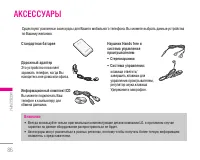
86 ÄÍÒÂÒÒÛ‡˚ \ ÄÍÒÂÒÒÛ‡˚ ëڇ̉‡Ú̇fl ·‡Ú‡Âfl ÑÓÓÊÌ˚È ‡‰‡ÔÚ ùÚÓ ÛÒÚÓÈÒÚ‚Ó ÔÓÁ‚ÓÎflÂÚÁ‡flʇڸ ÚÂÎÂÙÓÌ, ÍÓ„‰‡ Ç˚̇ıÓ‰ËÚÂÒ¸ ‚Ì ‰Óχ ËÎË ÓÙËÒ‡. àÌÙÓχˆËÓÌÌ˚È ÍÓÏÔÎÂÍÚ/CD Ç˚ ÏÓÊÂÚ ÔÓ‰Íβ˜‡Ú¸ LJ¯ÚÂÎÂÙÓÌ Í ÍÓÏÔ¸˛ÚÂÛ ‰ÎflÓ·ÏÂ̇ ‰‡ÌÌ˚ÏË. ç‡Û¯ÌËÍ Hands free ËÒËÒÚÂχ ÛÔ‡‚ÎÂÌËflÔÓË„˚‚‡ÚÂÎÂÏ • ëÚÂÂÓ̇Û...
Page 88 - é· ̆ËÂ; ç‡ËÏÂÌÓ‚‡ÌË èÓ‰ÛÍÚ‡ : M6100; ùÍÒÔÎÛ‡Ú‡ˆËÓÌÌ ̊ íÂÏÔ‡ÚÛ ̊; íÂıÌË ̃ÂÒÍË ı‡‡ÍÚÂËÒÚËÍË
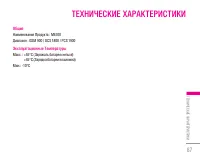
87 鷢ˠç‡ËÏÂÌÓ‚‡ÌË èÓ‰ÛÍÚ‡ : M6100 ÑˇԇÁÓÌ : GSM 900 / DCS 1800 / PCS 1900 ùÍÒÔÎÛ‡Ú‡ˆËÓÌÌ˚ íÂÏÔ‡ÚÛ˚ å‡ÍÒ. : +55°C (á‡flʇڸ ·‡Ú‡Â˛ ÌÂθÁfl) +45°C (á‡fl‰Í‡ ·‡Ú‡ÂË ‚ÓÁÏÓÊ̇) åËÌ.: -10°C íÂıÌ˘ÂÒÍË ı‡‡ÍÚÂËÒÚËÍË | íÂıÌ˘ÂÒÍË ı‡‡ÍÚÂËÒÚËÍË
Page 89 - è‡ÏflÚ͇
Page 91 - U S E R ’ S G U I D E
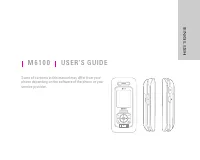
M 6 1 0 0 U S E R ’ S G U I D E Some of contents in this manual may differ from yourphone depending on the software of the phone or yourservice provider. ENGLISH
Page 92 - Disposal of your old appliance
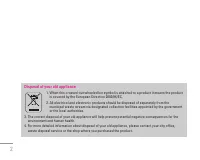
2 Disposal of your old appliance 1. When this crossed-out wheeled bin symbol is attached to a product it means the product is covered by the European Directive 2002/96/EC. 2. All electrical and electronic products should be disposed of separately from the municipal waste stream via designated collec...
Page 93 - TABLE OF CONTENTS
INTRODUCTION 5 GUIDELINES FOR SAFE AND EFFICIENT USE 6 M6100 FEATURES 10 Parts of the phone 10 Display Information 14 GETTING STARTED 16 Installing the SIM card and battery 16 Charging the Battery 17 Disconnecting the adapter 18 Turning your phone on and off 19 Access codes 19 GENERAL FUNCTIONS 21 M...
Page 95 - INTRODUCTION
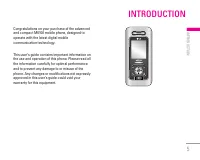
5 INTRODUCTION | Introduction Congratulations on your purchase of the advancedand compact M6100 mobile phone, designed tooperate with the latest digital mobilecommunication technology. This user’s guide contains important information onthe use and operation of this phone. Please read allthe informat...
Page 96 - GUIDELINES FOR SAFE AND EFFICIENT USE; • The radio wave exposure guidelines employ a unit; Product care and maintenance; • Do not disassemble this unit. Take it to a qualified
6 GUIDELINES FOR SAFE AND EFFICIENT USE \ Guidelines forsafe andefficient use Please read these simple guidelines. Not followingthese guidelines may be dangerous or illegal.Further detailed information is given in this manual. Exposure to radio frequencyenergy Radio wave exposure and Specific Absorp...
Page 97 - Electronics devices
7 | Guidelines forsafe andefficient use • The unit should be kept away from heat sources such as radiators or cookers. • Do not drop. • Do not subject this unit to mechanical vibration or shock. • The coating of the phone may be damaged if covered with wrap or vinyl wrapper. • Use dry cloth to clean...
Page 99 - Battery information and care
9 | Guidelines forsafe andefficient use Battery information and care • You do not need to completely discharge the battery before recharging. Unlike other batterysystems, there is no memory effect that couldcompromise the battery’s performance. • Use only LG batteries and chargers. LG chargers are d...
Page 100 - Parts of the phone; Front view
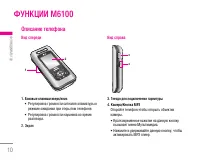
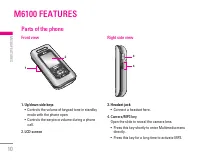
Parts of the phone Front view 1. Up/down side keys • Controls the volume of keypad tone in standby mode with the phone open. • Controls the earpiece volume during a phone call. 2. LCD screen Right side view 3. Headset jack • Connect a headset here. 4. Camera/MP3 key Open the slide to reveal the came...
Page 101 - Press this button to remove the battery cover.; SIM card terminals
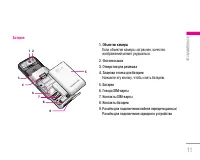
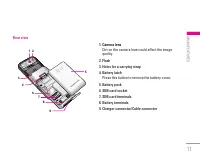
Rear view 1. Camera lens Dirt on the camera lens could affect the imagequality. 2. Flash 3. Holes for a carrying strap 4. Battery latch Press this button to remove the battery cover. 5. Battery pack 6. SIM card socket 7. SIM card terminals 8. Battery terminals 9. Charger connector/Cable connector 11...
Page 102 - Open view; Note
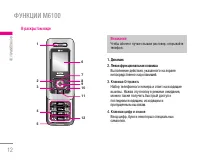
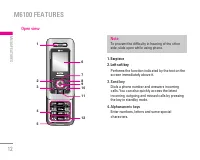
Open view 1. Earpiece 2. Left soft key Performs the function indicated by the text on thescreen immediately above it. 3. Send key Dials a phone number and answers incomingcalls. You can also quickly access the latestincoming, outgoing and missed calls by pressingthe key in standby mode. 4. Alphanume...
Page 103 - Special function keys; : A long press of this key enters the
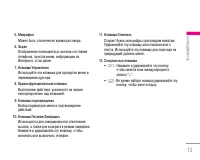
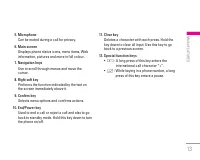
13 5. Microphone Can be muted during a call for privacy. 6. Main screen Displays phone status icons, menu items, Webinformation, pictures and more in full colour. 7. Navigation keys Use to scroll through menus and move thecursor. 8. Right soft key Performs the function indicated by the text onthe sc...
Page 104 - Display Information; Indicates a call is in progress.; Icon; Indicates the receipt of a message.
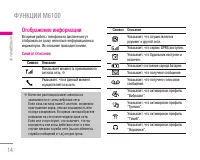
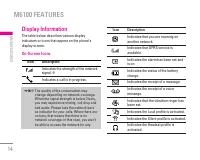
Display Information The table below describes various displayindicators or icons that appear on the phone’sdisplay screen. On-Screen Icons Icon Description Indicates the strength of the networksignal. ❈ Indicates a call is in progress. Icon Description Indicates that you are roaming onanother networ...
Page 105 - Indicates that you are using GPRS.
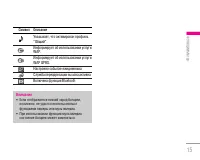
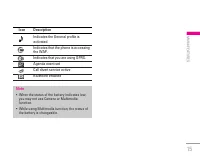
15 Icon Description Indicates the General profile isactivated. Indicates that the phone is accessingthe WAP. Indicates that you are using GPRS. Agenda event set Call divert service active Bluetooth enabled | M6100 features Note • When the status of the battery indicates low, you may not use Camera o...
Page 106 - GETTING STARTED
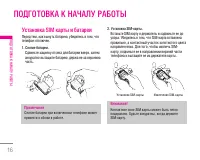
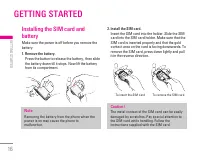
Installing the SIM card andbattery Make sure the power is off before you remove thebattery. 1. Remove the battery. Press the button to release the battery, then slidethe battery down till it stops. Now lift the batteryfrom its compartment. 2. Install the SIM card. Insert the SIM card into the holder...
Page 107 - Charging the Battery; With the arrow facing you as shown in the; Caution
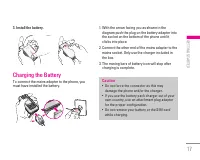
3. Install the battery. Charging the Battery To connect the mains adapter to the phone, youmust have installed the battery. 1. With the arrow facing you as shown in the diagram push the plug on the battery adapter intothe socket on the bottom of the phone until itclicks into place. 2. Connect the ot...
Page 108 - Disconnecting the adapter; When charging is finished, the moving bars of the; Warning
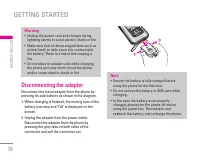
Disconnecting the adapter Disconnect the travel adapter from the phone bypressing its side buttons as shown in the diagram. 1. When charging is finished, the moving bars of the battery icon stop and ‘Full’ is displayed on thescreen. 2. Unplug the adapter from the power outlet. Disconnect the adapter...
Page 109 - Turning your phone on and off; Turning your phone ON; Access codes
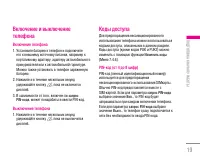
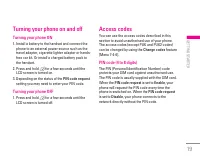
Turning your phone on and off Turning your phone ON 1. Install a battery to the handset and connect the phone to an external power source such as thetravel adapter, cigarette lighter adapter or hands-free car kit. Or install a charged battery pack tothe handset. 2. Press and hold E for a few seconds...
Page 110 - Barring password; The barring password is required when you use the
PIN2 code (4 to 8 digits) The PIN2 code, supplied with some SIM cards, isrequired to access functions such as Advice of Call Charge and Fixed dial number . These functions are only available if supported by your SIM card. Checkwith your network operator for further information. PUK code (4 to 8 digi...
Page 111 - Making and answering calls; Making a call; • Press and hold the clear key (; Making a call from the call history list; Select the desired number by using the up/down; Making an international call; Press and hold the; Ending a call; GENERAL FUNCTIONS
Making and answering calls Making a call 1. Make sure your phone is switched on. 2. Enter a phone number, including the area code. • Press and hold the clear key ( C ) to erase the entire number. 3. Press the send key ( S ) to call the number. 4. To end the call, press the end key ( E ) or the right...
Page 112 - Slide open; Signal strength
Adjusting the volume If you want to adjust the earpiece volume during acall, use the side keys ( [ ) . Press the up side key to increase and down side key to decrease thevolume. Answering a call When you receive a call, the phone rings and theflashing phone icon appears on the screen. If thecaller c...
Page 113 - Entering text; T9 mode; key until 123 mode is displayed.; Changing the text input mode; When you are in a field that; Using the T9 mode
Entering text You can enter alphanumeric characters by usingthe phone’s keypad. For example, storing names inthe phonebook, writing a message, creating apersonal greeting. The following text input methods are available in thephone. T9 mode This mode lets you enter words with only onekeystroke per le...
Page 114 - Example; Home; languages; Using the ABC mode
You can also add new words in the dictionary. Asnew words are added, the word changes to reflectthe most likely candidate from the dictionary. Youcan turn the T9 mode on or off, and change the T9language by holding down the ( * ) key. 1. When you are in the T9 predictive text input mode, start enter...
Page 115 - delete letters, press the; During a call
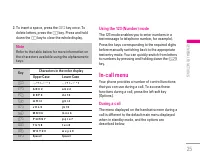
25 | General Functions Note Refer to the table below for more information onthe characters available using the alphanumerickeys. 2. To insert a space, press the 0 key once. To delete letters, press the C key. Press and hold down the C key to clear the whole display. Key Characters in the order displ...
Page 116 - Making a second call; Search; Switching between two calls; Swap; Answering an incoming call; Call waiting; Rejecting an incoming call
Making a second call You can get a number you wish to dial from thephonebook to make a second call. Press the rightsoft key then select Search . To save the dialled number into the phonebook during a call, press theright soft key then select Add new. Switching between two calls To switch between two...
Page 117 - Press the left soft key, then select the
Switching DTMF tones on during a call To turn DTMF tones on during a call, press the leftsoft key, and then select DTMF on . DTMF tones can be turned off the same way. DTMF tones allow yourphone to make use of an automated switchboard. Multiparty or conference calls The multiparty or conference serv...
Page 118 - to put all the; Ending a conference call; After pressing the left soft key, selecting
Adding calls to the conference call To add a call to an existing conference call, pressthe left soft key, then select the Conference/Join all. Displaying callers in a conference call To scroll through the numbers of the callers whomake up a conference call on the handset screen,use the up/down navig...
Page 119 - MENU TREE; PROFILES
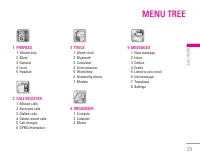
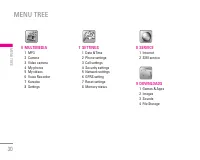
29 MENU TREE | Menu Tree 1 PROFILES 1 Vibrate only2 Silent3 General4 Loud5 Headset 2 CALL REGISTER 1 Missed calls2 Received calls3 Dialled calls4 Delete recent calls5 Call charges6 GPRS information 3 TOOLS 1 Alarm clock2 Bluetooth3 Calculator4 Unit converter5 World time6 Answering phone7 Modem 4 ORG...
Page 121 - SELECTING FUNCTIONS AND OPTIONS; Press the left soft key
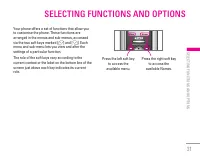
31 SELECTING FUNCTIONS AND OPTIONS | Selecting Functions and Options Your phone offers a set of functions that allow youto customise the phone. These functions arearranged in the menus and sub-menus, accessedvia the two soft keys marked [ < ] and [ > ]. Each menu and sub-menu lets you view and...
Page 122 - PROFILES
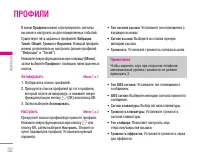
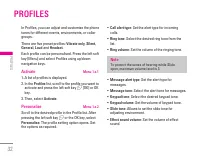
In Profiles, you can adjust and customise the phonetones for different events, environments, or callergroups. There are five preset profiles: Vibrate only, Silent, General, Loud and Headset . Each profile can be personalised. Press the left softkey [Menu] and select Profiles using up/downnavigation ...
Page 123 - Rename; Vibrate only, Silent; Headset
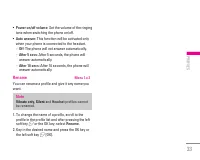
• Power on/off volume : Set the volume of the ringing tone when switching the phone on/off. • Auto answer : This function will be activated only when your phone is connected to the headset. - Off : The phone will not answer automatically. - After 5 secs : After 5 seconds, the phone will answer autom...
Page 124 - CALL REGISTER
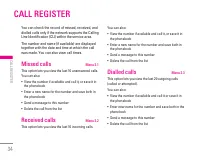
You can check the record of missed, received, anddialled calls only if the network supports the CallingLine Identification (CLI) within the service area. The number and name (if available) are displayedtogether with the date and time at which the callwas made. You can also view call times. Missed ca...
Page 125 - Delete recent calls; Allows you to delete; Missed calls; Received; lists. You can delete; Dialled calls; All calls; Call charges; Call duration
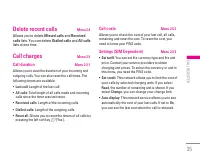
Delete recent calls Menu 2.4 Allows you to delete Missed calls and Received calls lists. You can delete Dialled calls and All calls lists at one time. Call charges Menu 2.5 Call duration Menu 2.5.1 Allows you to view the duration of your incoming andoutgoing calls. You can also reset the call times....
Page 126 - GPRS information; Last call; Data volumes; All
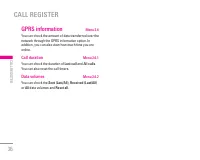
GPRS information Menu 2.6 You can check the amount of data transferred over thenetwork through the GPRS information option. Inaddition, you can also view how much time you areonline. Call duration Menu 2.6.1 You can check the duration of Last call and All calls . You can also reset the call timers. ...
Page 127 - Alarm clock; On; and enter the alarm time you want.; Phonebook contacts; Paired devices; TOOLS
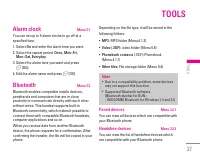
Alarm clock Menu 3.1 You can set up to 5 alarm clocks to go off at aspecified time. 1. Select On and enter the alarm time you want. 2. Select the repeat period: Once, Mon~Fri, Mon~Sat, Everyday. 3. Select the alarm tone you want and press < [OK]. 4. Edit the alarm name and press < [OK]. Blueto...
Page 128 - Settings; Calculator; Division; Unit converter; You can select one of four unit types by pressing
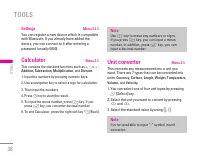
Settings Menu 3.2.3 You can register a new device which is compatiblewith Bluetooth. If you already have added thedevice, you can connect to it after entering apassword (usually 0000). Calculator Menu 3.3 This contains the standard functions such as +, –, x, ÷ : Addition, Subtraction, Multiplication...
Page 129 - Deactivate; • Listen to voice guide
World time Menu 3.5 You can view clocks of the world’s major cities. 1. Select the city belonged to the time zone by pressing L , R key. 2. You can set the current time to the city time you select by pressing the left soft key < [Set]. Answering phone Menu 3.6 Allow you to set your phone into aut...
Page 130 - Modem
Recorded messages Menu 3.6.7 It shows the list of recorded messages includingrecorder’s name and recorded time at the bottom ofthe screen. • Play : You can listen the recorded voice messages. • Delete : You can delete the listened voice messages. • Call : You can call back to the caller who leave vo...
Page 131 - ORGANISER; Contacts
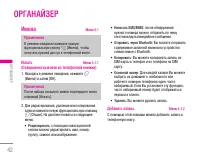
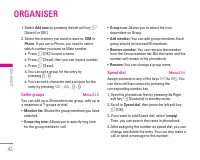
41 ORGANISER | Organiser Contacts Menu 4.1 Search Menu 4.1.1 (Calling from phonebook) 1. Select Search by press the left soft key < [Select] or [OK]. 2. If you want to edit, delete or copy an entry, select the left soft key < [Options]. The following menu will be displayed. • Edit : You can ed...
Page 133 - Variable; Copy all
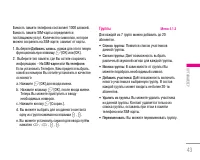
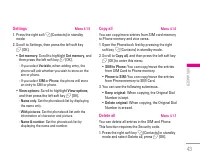
43 | Organiser Settings Menu 4.1.5 1. Press the right soft > [Contacts] in standby mode. 2. Scroll to Settings, then press the left soft key < [OK]. • Set memory: Scroll to highlight Set memory , and then press the left soft key < [OK]. - If you select Variable , when adding entry, the phon...
Page 134 - • Service dial number; Information; • Memory status; Memory status; Calendar
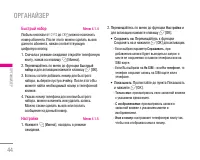
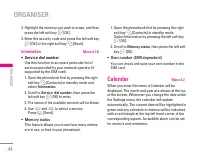
2. Highlight the memory you wish to erase, and then press the left soft key < [OK]. 3. Enter the security code and press the left soft key < [OK] or the right soft key > [Back]. Information Menu 4.1.8 • Service dial number Use this function to access a particular list ofservices provided by...
Page 135 - Key; In the scheduler mode, press left soft key; Memo
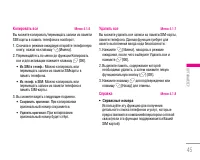
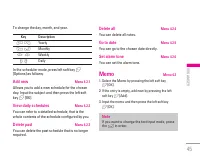
45 | Organiser To change the day, month, and year. Key Description 1 3 Yearly * # Monthly U D Weekly L R Daily In the scheduler mode, press left soft key < [Options] as follows; Add new Menu 4.2.1 Allows you to add a new schedule for the chosenday. Input the subject and then press the left softke...
Page 136 - New message; Write text message; Send; MESSAGES
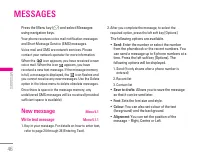
Press the Menu key ( < ) and select Messages using navigation keys. Your phone receives voice mail notification messagesand Short Message Service (SMS) messages. Voice mail and SMS are network services. Pleasecontact your network operator for more information. When the icon appears, you have rece...
Page 137 - Write multimedia message
• Add T9 dictionary : You can add your own words. This menu will only be shown when theedit mode has been set to T9ABC/T9Abc/T9abc. • T9 languages : Select the desired language for T9 input mode. You can also deactivate the T9input mode by selecting ‘T9 off ’. • Exit : If you select this whilst writ...
Page 139 - Inbox; SIM message
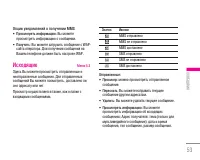
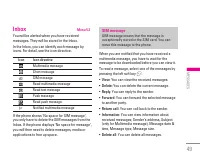
Inbox Menu 5.2 You will be alerted when you have receivedmessages. They will be stored in the Inbox. In the Inbox, you can identify each message byicons. For detail, see the icon directive. Icon Icon directive Multimedia message Short message SIM message Read multimedia message Read text message Pus...
Page 140 - Outbox
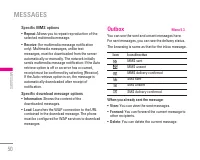
Specific MMS options • Repeat : Allows you to repeat reproduction of the selected multimedia message. • Receive : (for multimedia message notification only). Multimedia messages, unlike textmessages, must be downloaded from the serverautomatically or manually. The network initiallysends multimedia m...
Page 141 - When you didn’t send the message:; Drafts
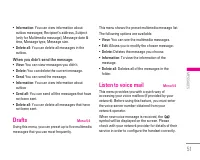
• Information : You can view information about outbox messages; Recipient’s address, Subject(only for Multimedia message), Message date &time, Message type, Message size. • Delete all : You can delete all messages in the outbox. When you didn’t send the message: • View : You can view messages yo...
Page 142 - Info message; Read; to view the message, it will be displayed; Topics; Add new; Templates; Text templates; The following options are available.; View
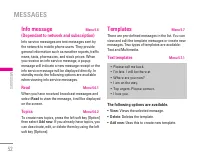
Info message Menu 5.6 (Dependant to network and subscription) Info service messages are text messages sent bythe network to mobile phone users. They providegeneral information such as weather reports, trafficnews, taxis, pharmacies, and stock prices. Whenyou receive an info service message, a popupm...
Page 143 - Text message
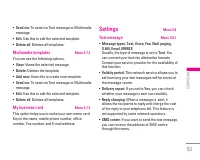
• Send via : To send via Text message or Multimedia message. • Edit : Use this to edit the selected template. • Delete all : Deletes all templates. Multimedia templates Menu 5.7.2 You can use the following options. • View : Views the selected message. • Delete : Deletes the template. • Add new : Use...
Page 145 - • Receive; • Alert; Yes; • Languages; Push messages
Info message Menu 5.8.4 • Receive Yes : If you select this menu, your phone will receive Info service messages. No : If you select this menu, your phone will not receive Info service messages any more. • Alert Yes : Your phone will beep when you have received Info service message numbers. No : Your ...
Page 146 - The music player supports:; : Sampling frequency up from 8KHz to; MULTIMEDIA
MP3 Menu 6.1 The M6100 has an integrated MP3 player built-in.You can enjoy listening to MP3 music files on yourphone memory using a compatible headset or viathe internal loudspeaker. The music player supports: • MPEG-1 Layer III, MPEG-2 Layer III, MPEG-2.5 Layer III Sampling frequency up from 8KHz t...
Page 147 - MP3 player; Press the left soft key; View play list; : You can view the play list on; Area repeat; : The special area part of the; Set as ring tone; : This menu allows to set the; Setting; Equalizer; Playmode; Set shuffle; Visual effect; Playlist
MP3 player Menu 6.1.1 1. Press MP3 menu, and then select MP3 player. 2. Press the left soft key < [Options] to access the following menus. • View play list : You can view the play list on listening to the music. • Area repeat : The special area part of the current music is repeated when you selec...
Page 148 - Camera; : Allows you to change the settings; Video Camera
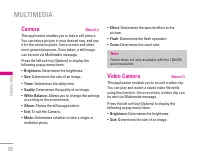
58 MULTIMEDIA \ Multimedia Camera Menu 6.2 This application enables you to take a still picture.You can take a picture in your desired size, and useit for the contacts photo, home screen and othermore general purposes. Once taken, a still imagecan be sent via Multimedia message. Press the left soft ...
Page 149 - My Photos; My Videos; Options
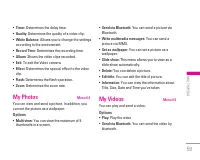
59 | Multimedia • Timer : Determines the delay time. • Quality : Determines the quality of a video clip. • White Balance : Allows you to change the settings according to the environment. • Record Time : Determines the recording time. • Album : Shows the video clips recorded. • Exit : To exit the Vid...
Page 150 - Voice Recorder; Record; Start to Karaoke menu; Karaoke; My song
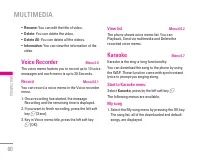
• Rename : You can edit the title of video. • Delete : You can delete the video. • Delete All : You can delete all the videos. • Information : You can view the information of the video. Voice Recorder Menu 6.6 The voice memo feature you to record up to 10 voicemessages and each memo is up to 20 Seco...
Page 151 - New song
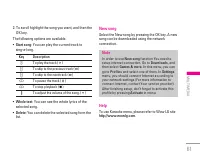
2. To scroll highlight the song you want, and then the OK key. The following options are available. • Start song : You can play the current track to sing-a-long. Key Description O To play the track ( 4 ) L To skip to the previous track ( 7 ) R To skip to the next track ( 8 ) U To pause the track ( ;...
Page 152 - Auto save; : If you set On, the images will be saved; Delete all photos; : This menu allows to delete all; Video camera; Delete all videos; : This menu allows you to delete
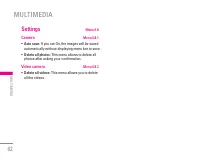
Settings Menu 6.8 Camera Menu 6.8.1 • Auto save : If you set On, the images will be saved automatically without displaying menu bar to save. • Delete all photos : This menu allows to delete all photos after asking your confirmation. Video camera Menu 6.8.2 • Delete all videos : This menu allows you ...
Page 153 - Phone settings; Display settings; SETTINGS
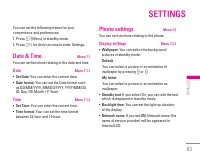
You can set the following menus for yourconvenience and preferences. 1. Press < [Menu] in standby mode. 2. Press 7 for direct access to enter Settings. Date & Time Menu 7.1 You can set functions relating to the date and time. Date Menu 7.1.1 • Set Date : You can enter the current date. • Date...
Page 154 - Call settings; Call divert
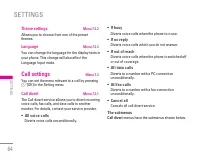
Theme settings Menu 7.2.2 Allows you to choose from one of the presetthemes. Language Menu 7.2.3 You can change the language for the display texts inyour phone. This change will also affect theLanguage Input mode. Call settings Menu 7.3 You can set the menu relevant to a call by pressing < [OK] i...
Page 155 - Answer mode; • Slide open; Send my number; • Set by network
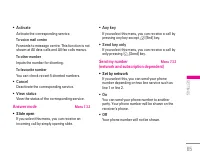
• Activate Activate the corresponding service. To voice mail centre Forwards to message centre. This function is notshown at All data calls and All fax calls menus. To other number Inputs the number for diverting. To favourite number You can check recent 5 diverted numbers. • Cancel Deactivate the c...
Page 156 - • Activate; Minute minder; Auto redial; • On; Security settings; PIN code request
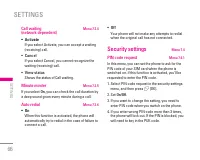
Call waiting Menu 7.3.4 (network dependent) • Activate If you select Activate, you can accept a waiting(receiving) call. • Cancel If you select Cancel, you cannot recognize thewaiting (receiving) call. • View status Shows the status of Call waiting. Minute minder Menu 7.3.5 If you select On , you ca...
Page 157 - You can enter your PUK code up to 10 times. If you; Handset lock; This menu allows to set the time of Auto key lock.; Call barring; The barring service for all outgoing calls.
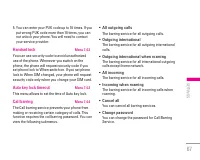
67 | Settings 5. You can enter your PUK code up to 10 times. If you put wrong PUK code more than 10 times, you cannot unlock your phone. You will need to contactyour service provider. Handset lock Menu 7.4.2 You can use security code to avoid unauthorizeduse of the phone. Whenever you switch on thep...
Page 158 - • Cancel; Set the selected call restriction off.; • View status; Fixed dial number; The numbers are protected by your PIN2 code.; • Enable; You can cancel fixed dialling function.; • Number list; Change codes; You can change the access codes:
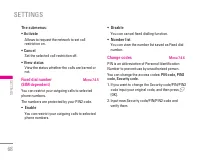
The submenus:• Activate Allows to request the network to set callrestriction on. • Cancel Set the selected call restriction off. • View status View the status whether the calls are barred ornot. Fixed dial number Menu 7.4.5 (SIM dependent) You can restrict your outgoing calls to selectedphone number...
Page 159 - Network settings; Automatic; Network selection; • Automatic; Band selection; GPRS SETTING
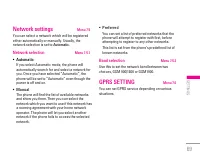
69 | Settings Network settings Menu 7.5 You can select a network which will be registeredeither automatically or manually. Usually, thenetwork selection is set to Automatic . Network selection Menu 7.5.1 • Automatic If you select Automatic mode, the phone willautomatically search for and select a ne...
Page 160 - Reset settings; • Restore default settings; Allows you to restore default settings.; • Clear multimedia memory; Internal memory
Reset settings Menu 7.7 You can initialize all default settings. You need theSecurity code to activate this function. • Restore default settings Allows you to restore default settings. • Clear multimedia memory Allows you to format the multimedia memory andcreate a default directory. Memory status M...
Page 161 - SERVICE; will return to the previous menu.; Navigating with the WAP browser; Using the WAP browser menu
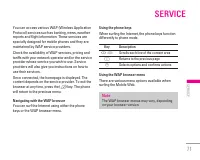
71 SERVICE | Service You can access various WAP (Wireless ApplicationProtocol) services such as banking, news, weatherreports and flight information. These services arespecially designed for mobile phones and they aremaintained by WAP service providers. Check the availability of WAP services, pricin...
Page 162 - Internet; These pre-installed bookmarks cannot be deleted.; Go to URL
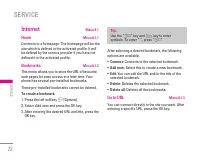
Internet Menu 8.1 Home Menu 8.1.1 Connects to a homepage. The homepage will be thesite which is defined in the activated profile. It willbe defined by the service provider if you have notdefined it in the activated profile. Bookmarks Menu 8.1.2 This menu allows you to store the URL of favouriteweb p...
Page 163 - Activate
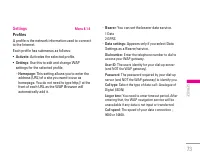
73 | Service Settings Menu 8.1.4 Profiles A profile is the network information used to connectto the Internet. Each profile has submenus as follows: • Activate : Activates the selected profile. • Settings : Use this to edit and change WAP settings for the selected profile. - Homepage : This setting ...
Page 164 - Cache
- GPRS settings: The service settings are only available when GPRS is chosen as a bearerservice. APN: Input the APN of the GPRS. User ID: The users identify for your APN server. Password: The password required by your APNserver. - Proxy settings Proxy : On/Off IP address : Input the IP address of th...
Page 165 - SIM service; For more information contact your service provider.
75 | Service SIM service Menu 8.2 (SIM dependent) Your service provider can offer special applicationsthrough the SIM card, such as home banking, stockmarket, etc. If you are registered for one of theseservices, the service name will appear at the end ofthe Main Menu. With the SIM Services menu your...
Page 166 - DOWNLOADS
Games & Apps Menu 9.1 Games & Apps Menu 9.1.1 In this menu, you can manage the Java applicationsinstalled in your phone. You can play or deletedownloaded applications, or set the connect option.The downloaded applications are organised infolders. Press the left soft key < [OK] to open the...
Page 167 - Images; Set as wallpaper; Sounds; Set as ringtone
77 | Downloads Profiles Menu 9.1.2 This menu contains the same settings of the Internetmenu. In fact, in order to download newapplications, a WAP connection is needed. Images Menu 9.2 The left soft key < [Options] will bring up the following options. • Set as wallpaper : Currently selected Pictur...
Page 168 - Write messages; File Storage; USB connectivity
78 DOWNLOADS \ Downloads • Write messages : Melody Sound can be sent via SMS and MMS. • Send via Bluetooth : Melody Sound can be sent via Bluetooth. File Storage Menu 9.4 This folder is similar to a file storage. It contains allthe file transferred through UMS functionality orBluetooth, as images, s...
Page 169 - Music; : In this folder you can copy music files.; Photos; : This folder is reserved for the pictures; Storage; : This folder is similar to a file storage.; Videos; : In this folder you can download on PC
- Music : In this folder you can copy music files. The supported formats are: MP3, AAC, AAC+,AAC++, WMA, MP4 (audio) and WAV. The filesin this folder can be played using the MP3 playerof the phone. - Photos : This folder is reserved for the pictures taken with the phone’s digital camera. You cantran...
Page 170 - PC programs and Internet
PC programs and Internet You can connect the phone to your PC to manageyour phonebook contacts, upload new contentssuch as wallpapers and ringtones or use the built inmodem. 1. Install the programs included in the CD-ROM. 2. On the phone, open the menu Tools – Modem and confirm the activation. 3. Co...
Page 171 - • Stereo headset; ACCESSORIES
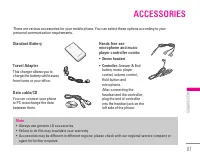
Standard Battery Travel Adapter This charger allows you tocharge the battery while awayfrom home or your office. Data cable/CD You can connect your phoneto PC to exchange the databetween them. Hands free ear-microphone and musicplayer controller combo • Stereo headset • Controller : Answer & End...
Page 172 - TECHNICAL DATA
General Product name : M6100 System : GSM 900 / DCS 1800 / PCS 1900 Ambient Temperatures Max : +55°C (discharging) +45°C (charging) Min : -10°C 82 TECHNICAL DATA \ Technical Data
Page 174 - MEMO




 LG KG320 User Manual
 LG KG800 User Manual
 LG KG810 User Manual
 LG KG920 User Manual
 LG L342i User Manual
 LG M4410 User Manual
 LG P7200 User Manual
 LG S5000 User Manual
 LG S5200 User Manual
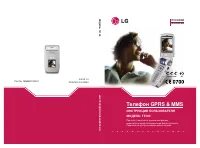 LG T5100 User Manual
 LG W7000 User Manual
 LG X Power 2 M320 User Manual
 LG X Power K220DS Manual
 LG 600 User Manual
 LG B2000 User Manual
 LG B2100 User Manual
 LG B2150 User Manual
 LG B2250 User Manual
 LG C1100 User Manual
 LG C1400 User Manual