Page 2 - ИНСТРУКЦИЯ ПОЛЬЗОВАТЕЛЯ
K G 8 10 ИНСТРУКЦИЯ ПОЛЬЗОВАТЕЛЯ ç‡ÒÚÓfl˘Â ÛÍÓ‚Ó‰ÒÚ‚Ó ÏÓÊÂÚ Ì ÔÓÎÌÓÒÚ¸˛ ÒÓÓÚ‚ÂÚÒÚ‚Ó‚‡Ú¸ ÚÂÎÂÙÓÌÛ. ùÚÓ Á‡‚ËÒËÚ ÓÚ ‚ÂÒËË ÛÒÚ‡ÌÓ‚ÎÂÌÌÓ„Ó Ì‡ ÌÂÏ ÔÓ„‡ÏÏÌÓ„Ó Ó·ÂÒÔ˜ÂÌËfl Ë ÔÓÒÚ‡‚˘Ë͇ ÛÒÎÛ„. Утилизация старого оборудования 1. ùÚÓÚ ëËÏ‚ÓÎ ÓÁ̇˜‡ÂÚ, ˜ÚÓ Ì‡ ËÁ‰ÂÎË ‡ÒÔÓÒÚ‡ÌflÂÚÒfl ÑËÂÍÚË‚‡ 2002/96/EC. ...
Page 3 - Введение; é„·‚ÎÂÌËÂ
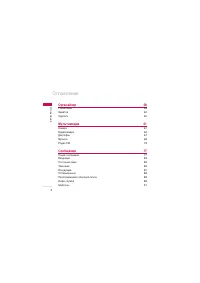
é„·‚ÎÂÌË Введение 8 Рекомендации для безопасного и эффективногоиспользования 9 Функции KG810 20 éÔËÒ‡ÌË ÚÂÎÂÙÓ̇ 20 é·‡Ú̇fl ÒÚÓÓ̇ ÚÂÎÂÙÓ̇ 25 éÚÓ·‡ÊÂÌË ËÌÙÓχˆËË 26 Подготовка к началу работы 29 ìÒÚ‡Ìӂ͇ SIM ͇Ú˚ Ë ·‡Ú‡ÂË 29 á‡fl‰Í‡ ·‡Ú‡ÂË 31 éÚÍβ˜ÂÌË Á‡fl‰ÌÓ„Ó ÛÒÚÓÈÒÚ‚‡ 32 Основные ...
Page 5 - Органайзер
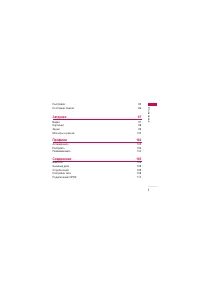
é„·‚ÎÂÌË Органайзер 58 ê‡ÒÔËÒ‡ÌË 58 á‡ÏÂÚ͇ 60 ë‰Â·ڸ 60 Мультимедиа 61 ä‡Ï‡ 61 ÇˉÂÓ͇χ 66 ÑËÍÚÓÙÓÌ 67 åÛÁ˚͇ 68 ꇉËÓ FM 73 Сообщения 77 çÓ‚Ó ÒÓÓ·˘ÂÌË 77 ÇıÓ‰fl˘Ë 83 èÓ˜ÚÓ‚˚È fl˘ËÍ 85 óÂÌÓ‚ËÍ 86 àÒıÓ‰fl˘Ë 87 éÚÔ‡‚ÎÂÌÌ˚ 88 èÓÒÎۯ˂‡ÌË „ÓÎÓÒÓ‚ÓÈ ÔÓ˜Ú˚ 88 àÌÙÓ ÒÎÛÊ·‡ 88 ò‡·ÎÓÌ˚ 91 é„·...
Page 7 - Инструменты
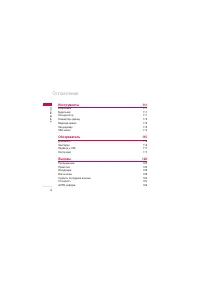
é„·‚ÎÂÌË Инструменты 111 àÁ·‡ÌÌ˚ 111 ÅÛ‰ËθÌËÍ 111ä‡Î¸ÍÛÎflÚÓ 111 äÓÌ‚ÂÚ ‰ËÌˈ 112 åËÓ‚Ó ‚ÂÏfl 113 ëÂÍÛ̉ÓÏ 113 SIM-ÏÂÌ˛ 114 Обозреватель 115 ÑÓχ¯Ìflfl 116 á‡Í·‰ÍË 116 èÂÂıÓ‰ Í URL 117 ç‡ÒÚÓÈÍË 117 Вызовы 122 èÓÔÛ˘ÂÌÌ˚ 122 èËÌflÚ˚ 122 àÒıÓ‰fl˘Ë 123 ÇÒ ‚˚ÁÓ‚˚ 123 쉇ÎËÚ¸ ÔÓÒΉÌË ‚...
Page 9 - ǂ‰ÂÌËÂ
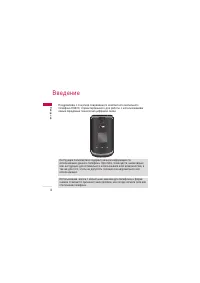
ǂ‰ÂÌË èÓÁ‰‡‚ÎflÂÏ Ò ÔÓÍÛÔÍÓÈ ÒÓ‚ÂÏÂÌÌÓ„Ó ÍÓÏÔ‡ÍÚÌÓ„Ó ÏÓ·ËθÌÓ„ÓÚÂÎÂÙÓ̇ KG810, ÒÔÓÂÍÚËÓ‚‡ÌÌÓ„Ó ‰Îfl ‡·ÓÚ˚ Ò ËÒÔÓθÁÓ‚‡ÌËÂÏÒ‡Ï˚ı Ô‰ӂ˚ı ÚÂıÌÓÎÓ„ËÈ ˆËÙÓ‚ÓÈ Ò‚flÁË. ǂ‰ÂÌË 8 àÌÒÚÛ͈Ëfl ÔÓθÁÓ‚‡ÚÂÎfl ÒÓ‰ÂÊËÚ ‚‡ÊÌÛ˛ ËÌÙÓχˆË˛ ÔÓ ËÒÔÓθÁÓ‚‡Ì˲ ‰‡ÌÌÓ„Ó ÚÂÎÂÙÓ̇. èÓ˜ÚËÚÂ, ÔÓʇÎÛÈÒÚ‡, ‚ÌËχÚÂθÌ...
Page 10 - Oсторожно; Bнимание
ÑÎfl LJ¯ÂÈ ·ÂÁÓÔ‡ÒÌÓÒÚË 9 ÑÎfl LJ¯ÂÈ ·ÂÁÓÔ‡ÒÌÓÒÚË éÁ̇ÍÓϸÚÂÒ¸ Ò ˝ÚËÏË ÂÍÓÏẨ‡ˆËflÏË. àı ÌÂÒӷβ‰ÂÌË ÏÓÊÂÚ ·˚Ú¸ÓÔ‡ÒÌ˚Ï ËÎË ÌÂÁ‡ÍÓÌÌ˚Ï. Oсторожно ] ç‡ ·ÓÚÛ Ò‡ÏÓÎÂÚÓ‚ ‚Ò GSM ÚÂÎÂÙÓÌ˚ ‰ÓÎÊÌ˚ ·˚Ú¸ ‚˚Íβ˜ÂÌ˚. ] ç ‰ÂÊËÚ ÚÂÎÂÙÓÌ ‚ Û͇ı ‚Ó ‚ÂÏfl ÛÔ‡‚ÎÂÌËfl ‡‚ÚÓÏÓ·ËÎÂÏ ËÎËËÌ˚Ï Ú‡ÌÒÔÓÚÌ˚Ï Ò‰ÒÚ‚ÓÏ. ]...
Page 13 - Обращение с телефоном и его
êÂÍÓÏẨ‡ˆËË ‰Îfl ·ÂÁÓÔ‡ÒÌÓ„Ó Ë ˝ÙÙÂÍÚË‚ÌÓ„Ó ËÒÔÓθÁÓ‚‡ÌËfl ˝ÎÂÍÚÓÌËÍË (IEEE), ÒÓÒÚ‡‚Îfl˛Ú 1,6 ÇÚ/Í„, ÛÒ‰ÌÂÌÌ˚ ̇ Ó‰ËÌ (1)„‡ÏÏ Ú͇ÌË. Обращение с телефоном и его обслуживание è‰ÛÔÂʉÂÌËÂ! àÒÔÓθÁÛÈÚ ‡ÍÍÛÏÛÎflÚÓ˚, Á‡fl‰ÌÓ ÛÒÚÓÈÒÚ‚Ó Ë ÔË̇‰ÎÂÊÌÓÒÚË, Ô‰̇Á̇˜ÂÌÌ˚ ‰Îfl ‰‡ÌÌÓÈ ÏÓ‰ÂÎË ÚÂÎÂÙÓ̇....
Page 15 - Эффективная работа с телефоном
êÂÍÓÏẨ‡ˆËË ‰Îfl ·ÂÁÓÔ‡ÒÌÓ„Ó Ë ˝ÙÙÂÍÚË‚ÌÓ„Ó ËÒÔÓθÁÓ‚‡ÌËfl ] é·ÒÎÛÊË‚‡ÌË ÚÂÎÂÙÓ̇ Ë Â„Ó ÔË̇‰ÎÂÊÌÓÒÚÂÈ ‰ÓÎÊÌÓÔÓ‚Ó‰ËÚ¸Òfl ÚÓθÍÓ ‡‚ÚÓËÁÓ‚‡ÌÌ˚Ï ÔÂÒÓ̇ÎÓÏ.çÂÍ‚‡ÎËÙˈËÓ‚‡Ì̇fl ÛÒÚ‡Ìӂ͇ ËÎË Ó·ÒÎÛÊË‚‡ÌË ÏÓÊÂÚ ‚˚Á‚‡Ú¸‚˚ıÓ‰ ÚÂÎÂÙÓ̇ ËÁ ÒÚÓfl Ë, ÒÓÓÚ‚ÂÚÒÚ‚ÂÌÌÓ, ҉·ڸ̉ÂÈÒÚ‚ËÚÂθÌÓÈ „‡‡ÌÚ˲. ] ç ËÒÔ...
Page 16 - Электронные устройства; Безопасность при движении на дорогах
15 Электронные устройства Все беспроводные телефоны подвержены влиянию помех, чтоможет отражаться на их рабочих характеристиках. ] á‡Ô¢‡ÂÚÒfl ËÒÔÓθÁÓ‚‡Ú¸ ÏÓ·ËθÌ˚È ÚÂÎÂÙÓÌ ‚·ÎËÁËωˈËÌÒÍÓ„Ó Ó·ÓÛ‰Ó‚‡ÌËfl ·ÂÁ ‡Á¯ÂÌËfl ̇ ˝ÚÓ. ç ‡ÁÏ¢‡ÈÚÂÚÂÎÂÙÓÌ Ì‡‰ ͇‰ËÓ-ÒÚËÏÛÎflÚÓÓÏ, ÚÓ ÂÒÚ¸ ‚ ̇„Û‰ÌÓÏ Í‡Ï‡...
Page 17 - Область проведения взрывных работ
êÂÍÓÏẨ‡ˆËË ‰Îfl ·ÂÁÓÔ‡ÒÌÓ„Ó Ë ˝ÙÙÂÍÚË‚ÌÓ„Ó ËÒÔÓθÁÓ‚‡ÌËfl ] ÖÒÎË ‰ÓÓÊÌ˚ ÛÒÎÓ‚Ëfl ˝ÚÓ„Ó ÚÂ·Û˛Ú, Ô‰ ÓÒÛ˘ÂÒÚ‚ÎÂÌËÂÏ‚˚ÁÓ‚‡ ËÎË ‰Ó ÓÚ‚ÂÚ‡ ̇ ‚ıÓ‰fl˘ËÈ ‚˚ÁÓ‚ ÓÒÚ‡ÌÓ‚ËÚÂÒ¸ ̇ Ó·Ó˜ËÌÂÔÓÂÁÊÂÈ ˜‡ÒÚË. ] ꇉËÓ˜‡ÒÚÓÚ̇fl ˝Ì„Ëfl ÏÓÊÂÚ ‚ÎËflÚ¸ ̇ ÌÂÍÓÚÓ˚ ˝ÎÂÍÚÓÌÌ˚ÂÒËÒÚÂÏ˚ ‡‚ÚÓÚ‡ÌÒÔÓÚÌÓ„Ó Ò‰ÒÚ‚‡, ̇ÔËÏÂ...
Page 18 - В самолете; Сведения об аккумуляторе и обращение с
17 В самолете Беспроводные устройства могут привести к сбоям в работесамолётного оборудования. ] èË ÔÓÒ‡‰Í ̇ Ò‡ÏÓÎÂÚ ‚˚Íβ˜ËÚ ÏÓ·ËθÌ˚È ÚÂÎÂÙÓÌ. ] ç ËÒÔÓθÁÛÈÚ ÚÂÎÂÙÓÌ Ì‡ ·ÓÚÛ Ò‡ÏÓÎfiÚ‡ ·ÂÁ ‡Á¯ÂÌËfl ̇ ÚÓ˝ÍËԇʇ. Сведения об аккумуляторе и обращение с телефоном ] è‰ Á‡fl‰ÍÓÈ Ì ÌÛÊÌÓ ÔÓÎÌ...
Page 19 - Сетевая услуга
êÂÍÓÏẨ‡ˆËË ‰Îfl ·ÂÁÓÔ‡ÒÌÓ„Ó Ë ˝ÙÙÂÍÚË‚ÌÓ„Ó ËÒÔÓθÁÓ‚‡ÌËfl ] á‡ÏÂÌflÈÚ ·‡Ú‡ÂË, ÂÒÎË ÓÌË Ì Óڂ˜‡˛Ú Ô‰˙fl‚ÎflÂÏ˚ÏÚ·ӂ‡ÌËflÏ. ŇڇÂË ÏÓÊÌÓ Á‡flʇڸ ÒÓÚÌË ‡Á ‰Ó ÚÂı ÔÓ, ÔÓ͇ËÏ Ì ÔÓÚ·ÛÂÚÒfl Á‡ÏÂ̇. ] ÖÒÎË ‡ÍÍÛÏÛÎflÚÓ Ì ËÒÔÓθÁÛÂÚÒfl ‚ Ú˜ÂÌË ‰ÎËÚÂθÌÓ„Ó ‚ÂÏÂÌË,Â„Ó ÌÂÓ·ıÓ‰ËÏÓ Á‡fl‰ËÚ¸, ˜ÚÓ·˚ Û‚Â...
Page 20 - Остерегайтесь повреждения органов слуха
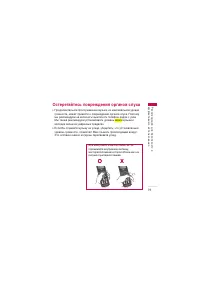
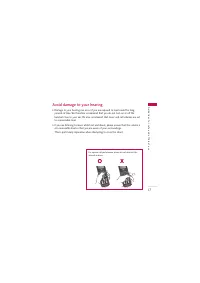
19 Остерегайтесь повреждения органов слуха ] èÓ‰ÓÎÊËÚÂθÌÓ ÔÓÒÎۯ˂‡ÌËË ÏÛÁ˚ÍË Ì‡ χÍÒËχθÌÓÏ ÛÓ‚Ì„ÓÏÍÓÒÚË, ÏÓÊÂÚ ÔË‚ÂÒÚË Í ÔÓ‚ÂʉÂÌ˲ Ó„‡ÌÓ‚ ÒÎÛı‡. èÓ˝ÚÓÏÛÏ˚ ÂÍÓÏẨÛÂÏ Ì ‚Íβ˜‡Ú¸/ ‚˚Íβ˜‡Ú¸ ÚÂÎÂÙÓÌ fl‰ÓÏ Ò ÛıÓÏ.å˚ Ú‡ÍÊ ÂÍÓÏẨÛÂÏ ÛÒڇ̇‚ÎË‚‡Ú¸ ÛÓ‚Â̸ Á‚Û͇ ÏÛÁ˚ÍË ËÏÂÎÓ‰ËË Á‚ÓÌ͇ ‚ Û...
Page 21 - Описание телефона
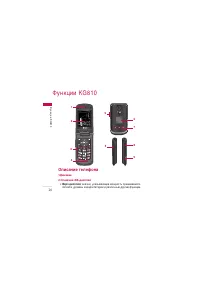
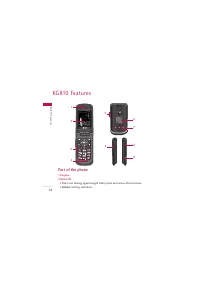
Описание телефона 1.Динамик 2.Основной ЖК-дисплей ] Верх дисплея: Á̇˜ÍË, Û͇Á˚‚‡˛˘Ë ÏÓ˘ÌÓÒÚ¸ ÔËÌËχÂÏÓ„Ó Ò˄̇·, ÛÓ‚Â̸ Á‡fl‰‡ ·‡Ú‡ÂË Ë ‡Á΢Ì˚ ‰Û„Ë ÙÛÌ͈ËË. îÛÌ͈ËË KG810 îÛÌ͈ËË KG810 20 1 5 5 6 9 8 3 4 Meню Koнтaкты Meню Koнтaкты 2 7
Page 22 - Внимание
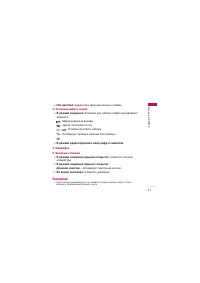
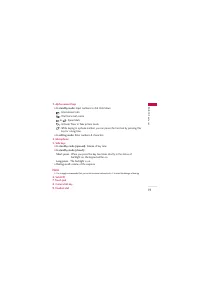
21 îÛÌ͈ËË KG810 ] Низ дисплея: Ë̉Ë͇ÚÓ˚ ÙÛÌ͈ËÓ̇θÌ˚ı Í·‚˯ 3. Клавиши цифр и знаков ] В режиме ожидания: ä·‚Ë¯Ë ‰Îfl ̇·Ó‡ ÌÓχ ‚˚Á˚‚‡ÂÏÓ„Ó ‡·ÓÌÂÌÚ‡ - åÂʉÛ̇ӉÌ˚ ‚˚ÁÓ‚˚ - ñÂÌÚ „ÓÎÓÒÓ‚ÓÈ ÔÓ˜Ú˚. ~ - ä·‚Ë¯Ë ·˚ÒÚÓ„Ó Ì‡·Ó‡ - ÄÍÚË‚ËÛÂÚ Ú‡ÈÏ ‚ ÂÊËÏ îÓÚÓ͇ÏÂ˚ ] В режиме редактирования:...
Page 24 - Клавиша управления; Клавиша подтверждения
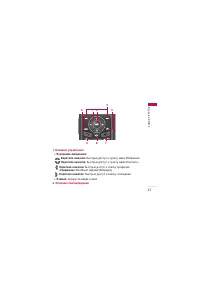
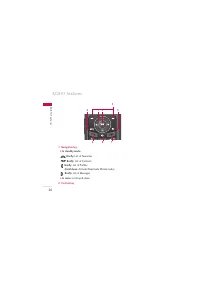
23 îÛÌ͈ËË KG810 1. Клавиша управления ] В режиме ожидания: Короткое нажатие: Å˚ÒÚ˚È ‰ÓÒÚÛÔ Í ÔÛÌÍÚÛ ÏÂÌ˛ àÁ·‡ÌÌÓ Короткое нажатие: Å˚ÒÚ˚È ‰ÓÒÚÛÔ Í ÔÛÌÍÚÛ ÏÂÌ˛ äÓÌÚ‡ÍÚ˚ Короткое нажатие: Å˚ÒÚ˚È ‰ÓÒÚÛÔ Í ÒÔËÒÍÛ ÔÓÙËÎÂÈ ( Удержание: ÇÍÎ/Ç˚ÍÎ ÂÊËχ ÇË·‡ˆËfl) Короткое нажатие: Å˚ÒÚ˚È ‰ÓÒÚÛÔ Í ÒÔ...
Page 26 - Обратная сторона телефона; Батарея
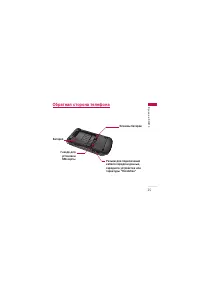
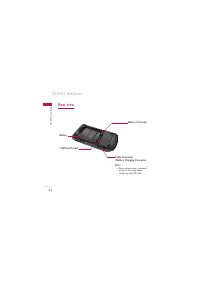
25 îÛÌ͈ËË KG810 Обратная сторона телефона D IG IT A L Z O O M Разъём для подключениякабеля передачи данных,зарядного устройства илигарнитуры "Handsfree" Батарея Клеммы батареи Гнездо для установки SIM-карты
Page 27 - Отображение информации
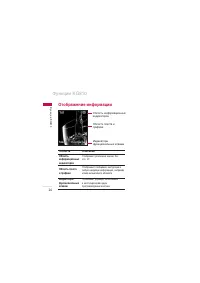
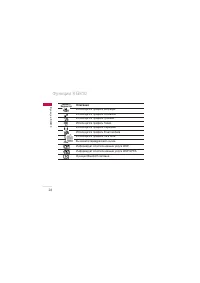
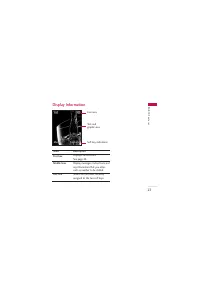
Отображение информации îÛÌ͈ËË KG810 îÛÌ͈ËË KG810 26 é·Î‡ÒÚ¸ ËÌÙÓχˆËÓÌÌ˚ıË̉Ë͇ÚÓÓ‚ é·Î‡ÒÚ¸ ÚÂÍÒÚ‡ Ë„‡ÙËÍË à̉Ë͇ÚÓ˚ÙÛÌ͈ËÓ̇θÌ˚ı Í·‚˯ Meню Koнтaкты Meню Koнтaкты Область Описание Областьинформационныхиндикаторов Область текстаи графики éÚÓ·‡Ê‡ÂÚ ‡Á΢Ì˚ Á̇˜ÍË. ëÏ.ÒÚ. 27. èÓ͇Á˚‚‡ÂÚ ÙÛ...
Page 28 - Символы на экране; Описание
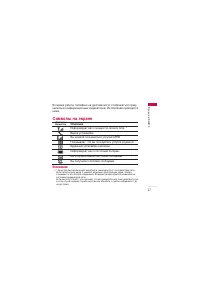
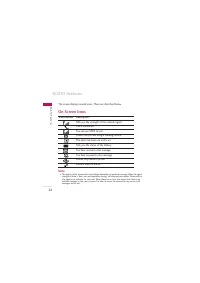
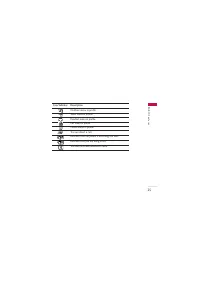
27 îÛÌ͈ËË KG810 ÇÓ ‚ÂÏfl ‡·ÓÚ˚ ÚÂÎÂÙÓ̇ ̇ ‰ËÒÔΠÏÓ„ÛÚ ÓÚÓ·‡Ê‡Ú¸Òfl Ò‡ÁÛÌÂÒÍÓθÍÓ ËÌÙÓχˆËÓÌÌ˚ı Ë̉Ë͇ÚÓÓ‚. àı ÓÔËÒ‡ÌË ÔË‚Ó‰ËÚÒflÌËÊÂ. Символы на экране Внимание ] * 䇘ÂÒÚ‚Ó ‡Á„Ó‚Ó‡ ÏÓÊÂÚ ÏÂÌflÚ¸Òfl ‚ Á‡‚ËÒËÏÓÒÚË ÓÚ ÁÓÌ˚ ‰ÂÈÒÚ‚Ëfl ÒÂÚË.ÖÒÎË ÒË· Ò˄̇· ÌËÊ 2 Á̇˜ÍÓ‚, ‚ÓÁÏÓÊÌÓ ÔË„ÎÛ¯ÂÌË Á...
Page 30 - Установка SIM карты и батареи
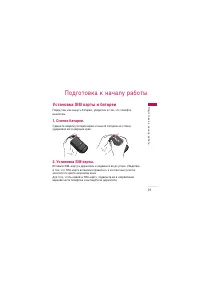
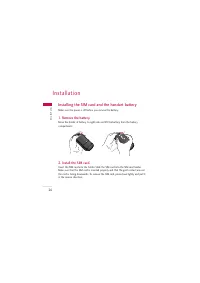
èÓ‰„ÓÚӂ͇ Í Ì‡˜‡ÎÛ ‡·ÓÚ˚ 29 èÓ‰„ÓÚӂ͇ Í Ì‡˜‡ÎÛ ‡·ÓÚ˚ Установка SIM карты и батареи è‰ ÚÂÏ, Í‡Í ‚˚ÌÛÚ¸ ·‡Ú‡Â˛, ۷‰ËÚÂÒ¸ ‚ ÚÓÏ, ˜ÚÓ ÚÂÎÂÙÓÌ‚˚Íβ˜ÂÌ. 1. Снятие батареи. 뉂Ë̸Ú Á‡˘ÂÎÍÛ ·‡Ú‡ÂË ‚‡‚Ó Ë ‚˚̸Ú ·‡Ú‡Â˛ ËÁ ÓÚÒÂ͇,Û‰ÂÊË‚‡fl  Á‡ ‚ÂıÌËÈ Í‡È. 2. Установка SIM-карты. ÇÒÚ‡‚¸Ú SIM-...
Page 31 - Примечание
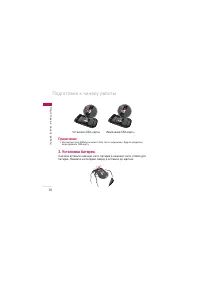
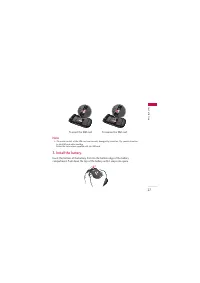
èÓ‰„ÓÚӂ͇ Í Ì‡˜‡ÎÛ ‡·ÓÚ˚ èÓ‰„ÓÚӂ͇ Í Ì‡˜‡ÎÛ ‡·ÓÚ˚ 30 Примечание ] äÓÌÚ‡ÍÚÌÓ ÓÍÌÓ SIM ͇Ú˚ ÏÓÊÂÚ ·˚Ú¸ ΄ÍÓ ÔÓˆ‡‡Ô‡ÌÓ. ÅÛ‰¸Ú ‡ÍÍÛ‡ÚÌ˚,ÍÓ„‰‡ ‰ÂÊËÚ SIM-͇ÚÛ. 3. Установка батареи. ë̇˜‡Î‡ ‚ÒÚ‡‚¸Ú ÌËÊÌ˛˛ ˜‡ÒÚ¸ ·‡Ú‡ÂË ‚ ÌËÊÌ˛˛ ˜‡ÒÚ¸ ÓÚÒÂ͇ ‰Îfl·‡Ú‡ÂË. ç‡ÊÏËÚ ̇ ·‡Ú‡Â˛ Ò‚ÂıÛ Ë ‚ÒÚ‡‚¸Ú ‰Ó...
Page 32 - Зарядка батареи
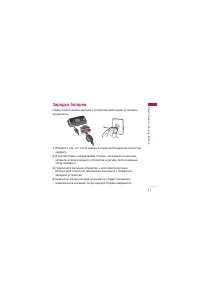
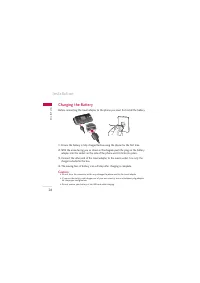
31 èÓ‰„ÓÚӂ͇ Í Ì‡˜‡ÎÛ ‡·ÓÚ˚ Зарядка батареи è‰ ÔÓ‰Íβ˜ÂÌËÂÏ Á‡fl‰ÌÓ„Ó ÛÒÚÓÈÒÚ‚‡ ÌÂÓ·ıÓ‰ËÏÓ ÛÒÚ‡ÌÓ‚ËÚ¸‡ÍÍÛÏÛÎflÚÓ. 1. èÓÏÌËÚÂ Ó ÚÓÏ, ˜ÚÓ ÔÓÒΠÁ‡ÏÂÌ˚ ·‡Ú‡ÂË ÌÂÓ·ıÓ‰ËÏÓ Âfi ÔÓÎÌÓÒÚ¸˛Á‡fl‰ËÚ¸. 2. Ç ÒÓÓÚ‚ÂÚÒÚ‚ËË Ò Ì‡Ô‡‚ÎÂÌËÂÏ ÒÚÂÎÍË, ÔÓ͇Á‡ÌÌÓÈ Ì‡ ËÒÛÌÍÂ,‚ÒÚ‡‚¸Ú ¯ÚÂÍ Á‡fl‰ÌÓ„Ó ÛÒÚÓÈÒÚ‚‡ ‚ ...
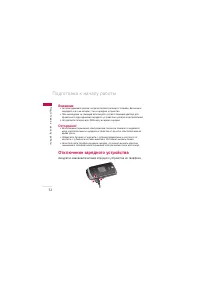
Page 33 - Отключение зарядного устройства
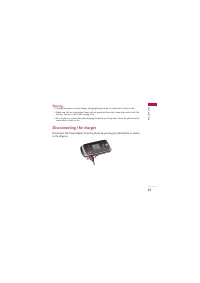
Внимание ] ç ÔËÍ·‰˚‚‡ÈÚ ÛÒËÎËÈ, ÍÓ„‰‡ ‚ÒÚ‡‚ÎflÂÚ ¯ÚÂÍ ‚ ÚÂÎÂÙÓÌ, Ç˚ ÏÓÊÂÚÂÔӂ‰ËÚ¸ Í‡Í Ò‡Ï ‡ÔÔ‡‡Ú, Ú‡Í Ë Á‡fl‰ÌÓ ÛÒÚÓÈÒÚ‚Ó. ] èË Ì‡ıÓʉÂÌËË Á‡ „‡ÌˈÂÈ ËÒÔÓθÁÛÈÚ ÒÓÓÚ‚ÂÚÒÚ‚Û˛˘ËÈ ‡‰‡ÔÚ ‰ÎflÔ‡‚ËθÌÓ„Ó ÔÓ‰ÒÓ‰ËÌÂÌËfl Á‡fl‰ÌÓ„Ó ÛÒÚÓÈÒÚ‚‡ Í ÓÁÂÚÍ ˝ÎÂÍÚÓÔËÚ‡ÌËfl. ] ç ۉ‡ÎflÈÚ ·‡Ú‡Â˛ ËÎË...
Page 34 - Исходящий вызов; Исходящие международные звонки
éÒÌÓ‚Ì˚ ÙÛÌ͈ËË 33 éÒÌÓ‚Ì˚ ÙÛÌ͈ËË Исходящий вызов 1. ì·Â‰ËÚÂÒ¸, ˜ÚÓ ‚‡¯ ÚÂÎÂÙÓÌ ‚Íβ˜ÂÌ. 2. ǂ‰ËÚ ÌÓÏ ÚÂÎÂÙÓ̇, ‚Íβ˜‡fl ÍÓ‰ „ËÓ̇. ÑÎfl Û‰‡ÎÂÌËflÌÓχ ̇ ˝Í‡Ì ‰ËÒÔÎÂfl ÌÛÊÌÓ ÔÓÒÚÓ Ì‡ÊËχڸ ÍÌÓÔÍÛ , ˜ÚÓ·˚ Û‰‡ÎflÚ¸ ÔÓ Ó‰ÌÓÈ ˆËÙ Á‡ ‡Á. ] ç‡ÊÏËÚÂ Ë Û‰ÂÊË‚‡ÈÚ ÍÌÓÔÍÛ ‰Îfl Û‰‡ÎÂÌËfl ‚ÒÂ„Ó ÌÓÏÂ...
Page 35 - Завершение звонка; Исходящий вызов на номер из телефонной книги
éÒÌÓ‚Ì˚ ÙÛÌ͈ËË éÒÌÓ‚Ì˚ ÙÛÌ͈ËË 34 Завершение звонка äÓ„‰‡ ‚˚ Á‡ÍÓ̘ËÎË Ç‡¯ ‡Á„Ó‚Ó, ̇ÊÏËÚ Í·‚Ë¯Û ÓÍÓ̘‡ÌËfl ‡Á„Ó‚Ó‡. Исходящий вызов на номер из телефонной книги Ç˚ ÏÓÊÂÚ ÒÓı‡ÌËÚ¸ ˜‡ÒÚÓ ËÒÔÓθÁÛÂÏ˚ ËÏÂ̇ Ë ÌÓχ ÚÂÎÂÙÓÌӂ̇ SIM-͇ÚÛ Ë/ËÎË ‚ Ô‡ÏflÚË ÚÂÎÂÙÓ̇. ÑÎfl ÔÓÒÏÓÚ‡ ‰ÂڇθÌÓ„ÓÓÔËÒ‡...
Page 36 - Мощность сигнала
35 éÒÌÓ‚Ì˚ ÙÛÌ͈ËË ÏÂÌ˛ ã˛·ÓÈ Í·‚˯ÂÈ (åÂÌ˛ 9.6.2.2, ÒÏ. ÒÚ. 125) ‡ÍÚË‚ËÓ‚‡ÌÏÓÊÌÓ Óڂ˜‡Ú¸ ̇ ‚˚ÁÓ‚, ̇ÊËχfl β·Û˛ Í·‚˯Û, ÍÓÏÂÍ·‚Ë¯Ë Ë Ô‡‚ÓÈ ÙÛÌ͈ËÓ̇θÌÓÈ Í·‚˯Ë. Примечание ] ÑÎfl ÓÚÍÎÓÌÂÌËfl ‚ıÓ‰fl˘Â„Ó ‚˚ÁÓ‚‡ ÔË Á‡Í˚ÚÓÈ Í˚¯Í ̇ÊÏËÚ ËÛ‰ÂÊË‚‡ÈÚ ·ÓÍÓ‚˚ ÍÌÓÔÍË Ì‡ ΂ÓÈ ÒÚÓÓÌ ÚÂÎÂÙÓ̇...
Page 37 - Ввод текста; Режим Т9
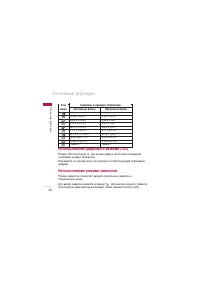
éÒÌÓ‚Ì˚ ÙÛÌ͈ËË éÒÌÓ‚Ì˚ ÙÛÌ͈ËË 36 Ввод текста Ç˚ ÏÓÊÂÚ ‚‚ÂÒÚË ·ÛÍ‚ÂÌÌÓ-ˆËÙÓ‚˚ ÒËÏ‚ÓÎ˚, ËÒÔÓθÁÛflÒÓÓÚ‚ÂÚÒÚ‚Û˛˘Ë Í·‚Ë¯Ë ÚÂÎÂÙÓ̇. Ç‚Ó‰ ÚÂÍÒÚ‡ ÌÂÓ·ıÓ‰ËÏ,̇ÔËÏÂ, ‰Îfl ‚‚Ó‰‡ ËÏÂÌ ‚ ÚÂÎÂÙÓÌÌÛ˛ ÍÌË„Û, ̇ÔËÒ‡ÌËfl ÒÓÓ·˘ÂÌËÈ,ÒÓÁ‰‡ÌËfl ÔÂÒÓ̇θÌÓ„Ó ÔË‚ÂÚÒÚ‚Ëfl ËÎË Ô·ÌËÓ‚‡ÌËfl ÒÓ·˚ÚËÈ ‚Ó„‡Ì‡ÈÁÂÂ. Ç Ú...
Page 38 - Режим символов; Изменение режима ввода текста; Использование режима Т9
37 éÒÌÓ‚Ì˚ ÙÛÌ͈ËË Цифровой режим (123) àÒÔÓθÁÛÂÚÒfl ‰Îfl ·˚ÒÚÓ„Ó Ì‡·Ó‡ ˜ËÒÂÎ ÔÛÚÂÏ Ó‰ÌÓ͇ÚÌÓ„Ó̇ʇÚËfl ̇ ÌÛÊÌÛ˛ Í·‚˯Û. ÑÎfl ËÁÏÂÌÂÌËfl ÚÂÍÛ˘Â„Ó ÂÊËχ ̇ÂÊËÏ 123, ̇ÊËχÈÚ Í·‚Ë¯Û ‰Ó ÚÂı ÔÓ, ÔÓ͇ ̇ ‰ËÒÔΠ̠ÔÓfl‚ËÚÒfl ̇‰ÔËÒ¸ 123. Режим символов ùÚÓÚ ÂÊËÏ ÔÓÁ‚ÓÎflÂÚ ‚‚Ó‰ËÚ¸ ‡Á΢Ì˚ ÒËÏ‚ÓÎ˚...
Page 40 - Использование алфавитного режима
39 éÒÌÓ‚Ì˚ ÙÛÌ͈ËË Использование алфавитного режима àÒÔÓθÁÛÈÚ Í·‚Ë¯Ë ÓÚ ‰Ó ‰Îfl ‚‚Ó‰‡ ·ÛÍ‚. 1. ç‡ÊÏËÚ Í·‚Ë¯Û Ò ·ÛÍ‚ÂÌÌ˚ÏË ÒËÏ‚Ó·ÏË Ò ÌÂÓ·ıÓ‰ËÏÓÈ ·ÛÍ‚ÓÈ. ] é‰ËÌ ‡Á ‰Îfl ‚‚Ó‰‡ Ô‚ÓÈ ·ÛÍ‚˚ ] Ñ‚‡ ‡Á‡ ‰Îfl ‚‚Ó‰‡ ‚ÚÓÓÈ ·ÛÍ‚˚ ] à Ú‡Í ‰‡Î 2. ÑÎfl ‚ÒÚ‡‚ÍË Ôӷ· ̇ÊÏËÚ Í·‚Ë¯Û Ó‰ËÌ ‡Á. ÑÎfl Û‰‡ÎÂÌ...
Page 41 - Использование режима символов; Прописные буквы
Использование цифрового режима (123) êÂÊËÏ 123 ËÒÔÓθÁÛÂÚÒfl ‰Îfl ‚‚Ó‰‡ ˆËÙ ‚ ÚÂÍÒÚÓ‚ÓÏ ÒÓÓ·˘ÂÌËË(̇ÔËÏ ÌÓχ ÚÂÎÂÙÓ̇).ç‡ÊËχÈÚ ÔÓ Ó‰ÌÓÏÛ ‡ÁÛ Ì‡ Í·‚Ë¯Ë ÒÓÓÚ‚ÂÚÒÚ‚Û˛˘Ë Ú·ÛÂÏ˚ψËÙ‡Ï. Использование режима символов êÂÊËÏ ÒËÏ‚ÓÎÓ‚ ÔÓÁ‚ÓÎflÂÚ ‚‚Ó‰ËÚ¸ ‡Á΢Ì˚ ÒËÏ‚ÓÎ˚ ËÒÔˆˇθÌ˚ Á̇ÍË.ÑÎfl ‚‚Ó‰...
Page 43 - Во время разговора; Второй исходящий звонок (зависит от сети); åÂÌ ̨ ‚Ó ‚ÂÏfl ‡Á„Ó‚Ó‡
åÂÌ˛ ‚Ó ‚ÂÏfl ‡Á„Ó‚Ó‡ Ç ÚÂÎÂÙÓÌ ËÏÂÂÚÒfl ÏÌÓÊÂÒÚ‚Ó ÙÛÌ͈ËÈ ÛÔ‡‚ÎÂÌËfl, ÍÓÚÓ˚ ÏÓÊÌÓËÒÔÓθÁÓ‚‡Ú¸ ‚Ó ‚ÂÏfl ‡Á„Ó‚Ó‡. óÚÓ·˚ ÔÓÎÛ˜ËÚ¸ ‰ÓÒÚÛÔ Í ˝ÚËÏÙÛÌ͈ËflÏ ‚Ó ‚ÂÏfl ‡Á„Ó‚Ó‡, ̇ÊÏËÚ ÎÂ‚Û˛ ÙÛÌ͈ËÓ̇θÌÛ˛ÍÌÓÔÍÛ [éÔˆËË]. Во время разговора îÛÌ͈ËË ÏÂÌ˛, ‰ÓÒÚÛÔÌ˚ ‚ ÔÓˆÂÒÒ ‡Á„Ó‚Ó‡ ÓÚ΢‡˛ÚÒfl ÓÚÙÛÌ...
Page 45 - Отключение микрофона
åÂÌ˛ ‚Ó ‚ÂÏfl ‡Á„Ó‚Ó‡ Отключение микрофона ÇÓ ‚ÂÏfl ‡Á„Ó‚Ó‡ ÏÓÊÌÓ ‚˚Íβ˜ËÚ¸ ÏËÍÓÙÓÌ, ̇ʇ‚ ÎÂ‚Û˛ÙÛÌ͈ËÓ̇θÌÛ˛ Í·‚Ë¯Û Ë ‚˚·‡‚ ÔÛÌÍÚ ÏÂÌ˛ éÚÍβ˜ËÚ¸ ÏËÍÓÙÓÌ.ÇÍβ˜ËÚ¸ ÏËÍÓÙÓÌ ÏÓÊÌÓ, ̇ʇ‚ ̇ ÎÂ‚Û˛ ÙÛÌ͈ËÓ̇θÌÛ˛Í·‚˯Û. äÓ„‰‡ ÏËÍÓÙÓÌ ‚ ÚÂÎÂÙÓÌ ÓÚÍβ˜ÂÌ, ‚˚Á˚‚‡˛˘Ëȇ·ÓÌÂÌÚ Ì ÏÓÊÂÚ Ç‡Ò ÒÎ˚¯‡Ú¸...
Page 46 - Набор второго номера
45 Конференц-связь ìÒÎÛ„‡ ÏÌÓ„ÓÒÚÓÓÌÌËı Á‚ÓÌÍÓ‚ ËÎË ÍÓÌÙÂÂ̈-‚˚ÁÓ‚Ó‚ ÔÓÁ‚ÓÎflÂÚÇ‡Ï Ó‰ÌÓ‚ÂÏÂÌÌÓ ‡Á„Ó‚‡Ë‚‡Ú¸ Ò ÌÂÒÍÓθÍËÏË ‡·ÓÌÂÌÚ‡ÏË, ÂÒÎË‚‡¯ ÓÔ‡ÚÓ ÒÓÚÓ‚ÓÈ Ò‚flÁË ÔÓ‰‰ÂÊË‚‡ÂÚ ˝ÚÛ ÛÒÎÛ„Û.åÌÓ„ÓÒÚÓÓÌÌËÈ ‡Á„Ó‚Ó ÏÓÊÂÚ ·˚Ú¸ ÛÒÚ‡ÌÓ‚ÎÂÌ, ÂÒÎË Ç˚‡Á„Ó‚‡Ë‚‡ÂÚÂ Ò Ó‰ÌËÏ ‡·ÓÌÂÌÚÓÏ, ‡ ‰Û„ÓÈ ‡·ÓÌÂÌÚ Ì‡ı...
Page 47 - Установка конференц-вызова; Добавляйте вызовы к конференц-связи
åÂÌ˛ ‚Ó ‚ÂÏfl ‡Á„Ó‚Ó‡ Установка конференц-вызова ÑÎfl ÛÒÚ‡ÌÓ‚ÎÂÌËfl ÍÓÌÙÂÂ̈-Ò‚flÁË Û‰ÂÊË‚‡ÈÚ ӉËÌ ‚˚ÁÓ‚ Ë, ÔÓ͇ÚÂÍÛ˘ËÈ ‚˚ÁÓ‚ ‡ÍÚË‚ÂÌ, ̇ÊÏËÚ ÎÂ‚Û˛ ÙÛÌ͈ËÓ̇θÌÛ˛ Í·‚Ë¯Û Ë‚˚·ÂËÚ ÔÛÌÍÚ ÏÂÌ˛ äÓÌÙÂÂ̈Ëfl/é·˙‰ËÌËÚ¸ ‚ÒÂı. Включение режима удержания в режимеКонференц-связь ÑÎfl ‚Íβ˜ÂÌË ÂÊËχ Û‰Â...
Page 48 - Завершение конференц-связи
47 äÓÌÙÂÂ̈Ëfl/ó‡ÒÚÌ˚È, ˜ÚÓ·˚ Ô‚ÂÒÚË ÓÒڇθÌ˚ ‚ıÓ‰fl˘Ë ‚˚ÁÓ‚˚‚ ÂÊËÏ Û‰ÂʇÌËfl. Завершение конференц-связи ÑÎfl Á‡‚¯ÂÌËfl ÍÓÌÙÂÂ̈ËË Ì‡ÊÏËÚ Í·‚Ë¯Û ËÎË ‚˚·ÂËÚ ÔÛÌÍÚ ÏÂÌ˛ ᇂ¯ËÚ¸ ‚˚ÁÓ‚. åÂÌ˛ ‚Ó ‚ÂÏfl ‡Á„Ó‚Ó‡
Page 49 - CxeÏa ÏeÌ ̨
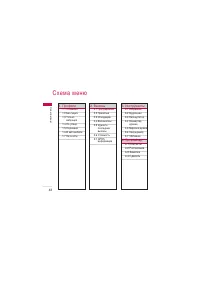
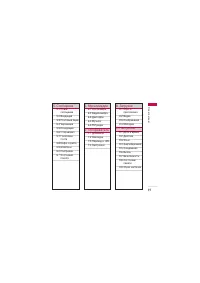
CxeÏa ÏeÌ˛ CxeÏa ÏeÌ˛ 48 1. èÓÙËÎË 1.1 éÒÌÓ‚ÌÓÈ1.2 ÅÂÁ Á‚Û͇1.3 íÓθÍÓ ‚Ë·‡ˆËfl 1.4 ç‡ ÛÎˈÂ1.5 ç‡Û¯ÌËÍË1.6 Ç ‡‚ÚÓÏÓ·ËÎÂ1.7 ç ‚ ÒÂÚË 2. Ç˚ÁÓ‚˚ 2.1 èÓÔÛ˘ÂÌÌ˚Â2.2 èËÌflÚ˚Â2.3 àÒıÓ‰fl˘ËÂ2.4 ÇÒ ‚˚ÁÓ‚˚2.5 쉇ÎËÚ¸ ÔÓÒΉÌË ‚˚ÁÓ‚˚ 2.6 ëÚÓËÏÓÒÚ¸2.7 GPRS ËÌÙÓχˆËfl 3. àÌÒÚÛÏÂÌÚ˚ 3.1 àÁ·‡ÌÌÓÂ3.2 ÅÛ‰ËθÌ...
Page 51 - Не в сети; Активировать; Настроить; Настроить; èÓÙËÎË
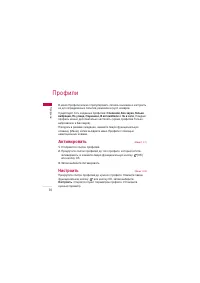
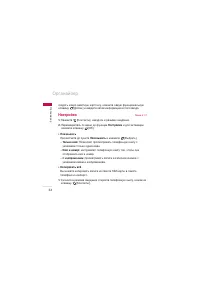
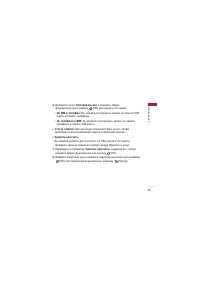
èÓÙËÎË Ç ÏÂÌ˛ èÓÙËÎË ÏÓÊÌÓ ÓÚ„ÛÎËÓ‚‡Ú¸ Ò˄̇Î˚ ‚˚ÁÓ‚Ó‚ Ë Ì‡ÒÚÓËÚ¸Ëı ‰Îfl ÓÔ‰ÂÎÂÌÌ˚ı ÒÓ·˚ÚËÈ, ÂÊËÏÓ‚ Ë „ÛÔÔ ÌÓÏÂÓ‚.ëÛ˘ÂÒÚ‚ÛÂÚ ÔflÚ¸ Á‡‰‡ÌÌ˚ı ÔÓÙËÎÂÈ: Основной, Без звука, Только вибрация, На улице, Наушники, В автомобиле Ë Не в сети . ä‡Ê‰˚È ÔÓÙËθ ÏÓÊÌÓ ‰ÓÔÓÎÌËÚÂθÌÓ Ì‡ÒÚÓËÚ¸ (ÍÓÏ ÔÓÙ...
Page 52 - Громкость клавиатуры:
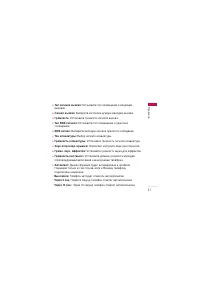
51 ] Тип сигнала вызова: ìÒÚ‡ÌÓ‚ËÚ ÚËÔ ÓÔӂ¢ÂÌËfl Ó ‚ıÓ‰fl˘Ëı ‚˚ÁÓ‚‡ı. ] Сигнал вызова: Ç˚·ÂËÚ ËÁ ÒÔËÒ͇ ÌÛÊÌÛ˛ ÏÂÎӉ˲ ‚˚ÁÓ‚‡. ] Громкость: ìÒÚ‡ÌÓ‚ËÚ „ÓÏÍÓÒÚ¸ Ò˄̇· ‚˚ÁÓ‚‡. ] Тип SMS сигнала: ìÒÚ‡ÌÓ‚ËÚ ÚËÔ ÓÔӂ¢ÂÌËfl Ó ÔËÌflÚ˚ı ÒÓÓ·˘ÂÌËflı. ] SMS сигнал: Ç˚·ÂËÚ ÏÂÎӉ˲ Ò˄̇· ÔËÌflÚÓ„Ó ÒÓÓ...
Page 53 - Пропущенные; Принятые; Ç ̊ÁÓ‚ ̊
èÓ‚ÂËÚ¸ Á‡ÔËÒ¸ Ó ÔÓÔÛ˘ÂÌÌ˚ı, ÔËÌflÚ˚ı Ë ËÒıÓ‰fl˘Ëı ‚˚ÁÓ‚‡ıÏÓÊÌÓ ÚÓθÍÓ ‚ ÒÎÛ˜‡Â, ÂÒÎË ‚ ÁÓÌ ӷÒÎÛÊË‚‡ÌËfl ˉÂÌÚËÙË͇ˆËflÎËÌËË ‚˚ÁÓ‚‡ ÔÓ‰‰ÂÊË‚‡ÂÚÒfl ÒÂÚ¸˛.çÓÏÂ Ë ËÏfl (ÂÒÎË ËÏÂÂÚÒfl) ÓÚÓ·‡Ê‡˛ÚÒfl ‚ÏÂÒÚÂ Ò ‰‡ÚÓÈ Ë ‚ÂÏÂÌÂÏ‚˚ÁÓ‚‡. åÓÊÌÓ Ú‡ÍÊ ÔÓÒÏÓÚÂÚ¸ ‚ÂÏfl ‚˚ÁÓ‚Ó‚. Пропущенные Меню 2.1 чÌ̇fl ÓÔˆËfl...
Page 54 - Исходящие; Все вызовы
53 Ç˚ÁÓ‚˚ ] Ç‚ÂÒÚË ÌÓ‚Ó ËÏfl ‰Îfl ÌÓχ Ë ÒÓı‡ÌËÚ¸ Â„Ó Ë ÌÓÏ ‚ ÚÂÎÂÙÓÌÌÓÈÍÌË„Â ] éÚÔ‡‚ËÚ¸ ̇ ˝ÚÓÚ ÌÓÏ ÒÓÓ·˘ÂÌË ] 쉇ÎËÚ¸ ‚˚ÁÓ‚ ËÁ ÒÔËÒ͇ Исходящие Меню 2.3 чÌ̇fl ÓÔˆËfl ÔÓÁ‚ÓÎflÂÚ ÔÓÒÏÓÚÂÚ¸ ÔÓÒΉÌË 20 ËÒıÓ‰fl˘Ëı‚˚ÁÓ‚Ó‚ (‚˚ÔÓÎÌÂÌÌ˚ı ËÎË ÔÓÔ˚ÚÍË ‚˚ÁÓ‚Ó‚).äÓÏ ÚÓ„Ó, ÏÓÊÌÓ: ] èÓÒÏÓÚÂÚ¸ ÌÓÏÂ...
Page 55 - Общее время
Удалить последние вызовы Меню 2.5 èÓÁ‚ÓÎflÂÚ Û‰‡ÎËÚ¸ ÒÔËÒÍË ÔÓÔÛ˘ÂÌÌ˚ı, ‚ıÓ‰fl˘Ëı, ËÒıÓ‰fl˘Ëı‚˚ÁÓ‚Ó‚, ‡ Ú‡ÍÊ ‚Ò ‚˚ÁÓ‚˚. Стоимость Меню 2.6 Общее время (åÂÌ˛ 2.6.1) èÓÁ‚ÓÎflÂÚ ÔÓÒχÚË‚‡Ú¸ ÔÓ‰ÓÎÊËÚÂθÌÓÒÚ¸ ‚ıÓ‰fl˘Ëı Ë ËÒıÓ‰fl˘Ëı‚˚ÁÓ‚Ó‚. í‡ÍÊ ÏÓÊÌÓ Ò·ÓÒËÚ¸ ‚ÂÏfl ‚˚ÁÓ‚Ó‚.ÑÓÒÚÛÔÌ˚ ÒÎÂ‰Û˛˘Ë ÔÛÌÍÚ˚: ] П...
Page 56 - Настройки
55 Ç˚ÁÓ‚˚ Стоим. вызовов (åÂÌ˛ 2.6.2) èÓÁ‚ÓÎflÂÚ ÔÓ‚ÂËÚ¸ ÒÚÓËÏÓÒÚ¸ ÔÓÒΉÌÂ„Ó ‚˚ÁÓ‚‡ ËÎË ‚ÒÂı ‚˚ÁÓ‚Ó‚,‡ Ú‡ÍÊ ÔÓ‚ÂËÚ¸ ÓÒÚ‡ÚÓÍ Ì‡ Ò˜ÂÚÂ Ë Ò·ÓÒËÚ¸ Á̇˜ÂÌËfl ÒÚÓËÏÓÒÚË.ÑÎfl ÚÓ„Ó, ˜ÚÓ·˚ Ò·ÓÒËÚ¸ Á̇˜ÂÌË ÒÚÓËÏÓÒÚË, ÌÂÓ·ıÓ‰ËÏ PIN2-ÍÓ‰. Настройки (åÂÌ˛ 2.6.3) (ᇂËÒËÚ ÓÚ SIM ͇Ú˚) ] Установ. тариф: Ç˚ ...
Page 57 - GPRS информация; Продолжительность
GPRS информация Menu 2.7 Ç˚ ÏÓÊÂÚ ÔÓ‚ÂËÚ¸ Ó·˙ÂÏ Ô‰‡ÌÌÓÈ ËÌÙÓχˆËË Ò ÔÓÏÓ˘¸˛GPRS. í‡Í Ê Ç˚ ÏÓÊÂÚ ÔÓÒÏÓÚÂÚ¸ ÒÍÓθÍÓ ‚ÂÏÂÌË Ç˚ ̇ıÓ‰ËÚÂҸ̇ ÎËÌËË. Продолжительность (åÂÌ˛ 2.7.1) Ç˚ ÏÓÊÂÚ ÔÓ‚ÂËÚ¸ ÔÓ‰ÓÎÊËÚÂθÌÓÒÚ¸ ÔÓÒΉÌÂ„Ó ÒÓ‰ËÌÂÌËfl ËÎË‚ÒÂı ÒÓ‰ËÌÂÌËÈ. Ç˚ Ú‡ÍÊ ÏÓÊÂÚ ۉ‡ÎËÚ¸ ‚Ò ˝ÚË ‰‡...
Page 58 - Избранное; Будильник; Вкл; Один; Калькулятор; деление
àÌÒÚÛÏÂÌÚ˚ 57 àÌÒÚÛÏÂÌÚ˚ Избранное Меню 3.1 ùÚ‡ ÙÛÌ͈Ëfl ‰‡ÂÚ ‚ÓÁÏÓÊÌÓÒÚ¸ ‰Ó·‡‚ÎflÚ¸ ÒÓ·ÒÚ‚ÂÌÌ˚ ÔÛÌÍÚ˚ ‚„ÓÚÓ‚˚È ÒÔËÒÓÍ. ëÓÁ‰‡‚ Ò‚Ó ÏÂÌ˛, ÏÓÊÌÓ ·˚ÒÚÓ ÔÓÎÛ˜ËÚ¸ ‰ÓÒÚÛÔ ÍÌÛÊÌ˚Ï ÙÛÌ͈ËflÏ ‚ ÂÊËÏ ÓÊˉ‡ÌËfl, ̇ʇ‚ ̇‚Ë„‡ˆËÓÌÌÛ˛Í·‚Ë¯Û ‚‚Âı. Примечание ] åÂÌ˛ SMS, MMS Ë MP3 ÛÊ ËϲÚÒfl ‚ ÒÔËÒ͠΢Ì˚ı Ë...
Page 59 - Конвертер единиц; Объем; Мировое время
2. èË ÔÓÏÓ˘Ë Í·‚Ë¯Ë Ì‡‚Ë„‡ˆËË ‚˚·ÂËÚ ÁÌ‡Í ‰ÂÈÒÚ‚Ëfl. 3. èÓÒΠ˜Â„Ó ‚‚‰ËÚ ‚ÚÓÓ ˜ËÒÎÓ. 4. ç‡ÊÏËÚ ˜ÚÓ·˚ ÔÓÒÏÓÚÂÚ¸ ÂÁÛθڇÚ. 5. óÚÓ·˚ ‚‚ÂÒÚË ‰ÂÒflÚ˘ÌÓ ˜ËÒÎÓ, ̇ÊÏËÚ . ÖÒÎË Ì‡Ê‡Ú¸ , ÏÓÊÌÓ ‚‚ÂÒÚË ÓÚˈ‡ÚÂθÌÓ ˜ËÒÎÓ. 6. ÑÎfl Á‡‚¯ÂÌËfl ‡·ÓÚ˚ Ò Í‡Î¸ÍÛÎflÚÓÓÏ Ì‡ÊÏËÚ [ç‡Á‡‰]. Конвертер единиц М...
Page 60 - Секундомер; SIM меню
59 àÌÒÚÛÏÂÌÚ˚ 1. Ç˚·ÂËÚ „ÓÓ‰, ÓÚÌÓÒfl˘ËÈÒfl Í ‚ÂÏÂÌÌÓÈ ÁÓÌ ÔÛÚÂÏ Ì‡Ê‡ÚËfl ̇Í·‚Ë¯Ë , ̇‚Ë„‡ˆËË. 2. Ç˚ ÏÓÊÂÚ ÛÒÚ‡ÌÓ‚ËÚ¸ ÚÂÍÛ˘Â ‚ÂÏfl ÔÓ Ç‡¯ÂÏÛ ÏÂÒÚÌÓÏÛ ‚ÂÏÂÌËÔÛÚfiÏ Ì‡Ê‡ÚËfl ÍÌÓÔÍË [ìÒÚ‡Ì.]. Секундомер Меню 3.6 Ç˚ ÏÓÊÂÚ ‚ÓÒÔÓθÁÓ‚‡Ú¸Òfl ÒÂÍÛ̉ÓÏÂÓÏ. 1. Ç˚·ÂËÚ ÏÂÌ˛ ëÂÍÛ̉ÓÏÂ. 2. ç‡ÊÏËÚ [ëÚ‡...
Page 61 - Контакты; Поиск в контактах; Отправить через Bluetooth:; 鄇̇ÈÁÂ
鄇̇ÈÁ Контакты Меню 4.1 Поиск в контактах (åÂÌ˛ 4.1.1) 1. ç‡ıÓ‰flÒ¸ ‚ ÂÊËÏ ÓÊˉ‡ÌËfl, ̇ÊÏËÚ [äÓÌÚ‡ÍÚ˚] Ë Á‡ÚÂÏ [OK]. 2. ǂ‰ËÚ ËÒÍÓÏÓ ËÏfl ËÎË ÔÂÂȉËÚÂ Í ÔÓÎÌÓÏÛ ÒÔËÒÍÛ ËÏfiÌ. Примечание ] èÓÒΠ̇·Ó‡ Ô‚ÓÈ ·ÛÍ‚˚ ËÏÂÌË ÚÂÎÂÙÓÌ ‡‚ÚÓχÚ˘ÂÒÍË ÔÓ͇ÊÂÚ ÍÓÌÚ‡ÍÚ˚,ËÏÂ̇ ÍÓÚÓ˚ı ̇˜Ë̇˛ÚÒfl ̇ ˝ÚÛ ...
Page 62 - Копировать в телефон:; Добавить запись
61 ] Копировать в телефон: Ç˚ ÏÓÊÂÚ ÒÍÓÔËÓ‚‡Ú¸ ÍÓÌÚ‡ÍÚ Ò SIM- ͇Ú˚ ‚ Ô‡ÏflÚ¸ ÚÂÎÂÙÓ̇ ËÎË Ì‡Ó·ÓÓÚ. ] Удалить: Ç˚ ÏÓÊÂÚ ۉ‡ÎËÚ¸ Á‡ÔËÒ¸ ËÁ ÚÂÎÂÙÓÌÌÓÈ ÍÌË„Ë. Добавить запись (åÂÌ˛ 4.1.2) ë ÔÓÏÓ˘¸˛ ˝ÚÓÈ ÙÛÌ͈ËË Ç˚ ÏÓÊÂÚ ‚‚Ó‰ËÚ¸ ÌÓ‚˚ Á‡ÔËÒË ‚ÚÂÎÂÙÓÌÌÛ˛ ÍÌË„Û. ÖÏÍÓÒÚ¸ Ô‡ÏflÚË ÚÂÎÂÙÓ̇ ÒÓÒÚ‡‚ÎflÂÚ 500 ...
Page 63 - Группы
鄇̇ÈÁ d. Ç˚ ÏÓÊÂÚ ÛÒÚ‡ÌÓ‚ËÚ¸ ËÁÓ·‡ÊÂÌË ÔÛÚfiÏ Ì‡Ê‡ÚËfl , . Группы (åÂÌ˛ 4.1.3) Ç˚ ÏÓÊÂÚ ÒÓÁ‰‡Ú¸ ÒÔËÒÓÍ ËÁ 20 Û˜‡ÒÚÌËÍÓ‚ ‰Îfl ͇ʉÓÈ ÚÂÎÂÙÓÌÌÓÈ„ÛÔÔ˚. ÇÒÂ„Ó Ú‡ÍËı „ÛÔÔ ÏÓÊÌÓ ÒÓÁ‰‡Ú¸ 7. ÑÓÒÚÛÔÌ˚ ÒÎÂ‰Û˛˘ËÂÓÔˆËË: ] Список абонентов: èÓfl‚ËÚÒfl ÒÔËÒÓÍ Û˜‡ÒÚÌËÍÓ‚ ‰‡ÌÌÓÈ „ÛÔÔ˚. ] Мелодия группы: ç‡ÁÌ...
Page 64 - Быстрый набор; Собственный номер; Визитная карточка
63 Быстрый набор (åÂÌ˛ 4.1.4) ã˛·˚Ï ÍÌÓÔÍ‡Ï ÓÚ ‰Ó ÏÓÊÌÓ Ì‡Á̇˜ËÚ¸ ÌÓÏ ‡·ÓÌÂÌÚ‡. èÓÒΠ˝ÚÓ„Ó ÏÓÊÌÓ Ò‰Â·ڸ ‚˚ÁÓ‚ ‰‡ÌÌÓ„Ó ‡·ÓÌÂÌÚ‡, ̇ʇ‚ÒÓÓÚ‚ÂÚÒÚ‚Û˛˘Û˛ ˆËÙÓ‚Û˛ ÍÌÓÔÍÛ. 1. ë̇˜‡Î‡ ‚ ÂÊËÏ ÓÊˉ‡ÌËfl ÓÚÍÓÈÚ ÚÂÎÂÙÓÌÌÛ˛ ÍÌË„Û, ̇ʇ‚ ̇Í·‚Ë¯Û [äÓÌÚ‡ÍÚ˚]. 2. èÂÂÏ¢‡ÈÚÂÒ¸ ÔÓ ÏÂÌ˛ ‰Ó ÙÛÌ͈ËË Быстрый на...
Page 67 - Расписание; Расписание на день; Клавиша
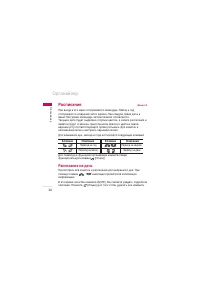
鄇̇ÈÁ Расписание Меню 4.2 èË ‚ıӉ ‚ ˝ÚÓ ÏÂÌ˛ ÓÚÓ·‡Ê‡ÂÚÒfl ͇ÎẨ‡¸. åÂÒflˆ Ë „Ó‰ÓÚÓ·‡Ê‡˛ÚÒfl ‚ ‚ÂıÌÂÈ ˜‡ÒÚË ˝Í‡Ì‡. èË Í‡Ê‰ÓÈ ÒÏÂÌ ‰‡Ú˚ ‚ÏÂÌ˛ ç‡ÒÚÓÈÍË Í‡ÎẨ‡¸ ‡‚ÚÓχÚ˘ÂÒÍË Ó·ÌÓ‚ÎflÂÚÒfl.íÂÍÛ˘‡fl ‰‡Ú‡ ·Û‰ÂÚ ‚˚‰ÂÎÂ̇ „ÓÎÛ·˚Ï ˆ‚ÂÚÓÏ, ‡ Á‡ÔËÒË ‡ÒÔËÒ‡ÌËfl ËÁ‡ÏÂÚÍË ·Û‰ÛÚ ÓÚϘÂÌ˚ ÚÂÛ„ÓθÌËÍÓÏ ...
Page 68 - Редактировать; Отправить через Bluetooth; Удалить; Повторить
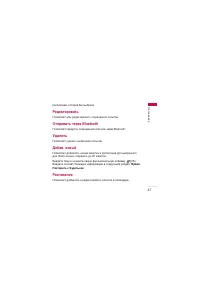
67 ‡ÒÔËÒ‡ÌËÂ, ÍÓÚÓÓ Ç˚ ‚˚·‡ÎË. Редактировать èÓÁ‚ÓÎflÂÚ ‚‡Ï ‰‡ÍÚËÓ‚‡Ú¸ ÒÓı‡ÌÂÌÌÓ ÒÓ·˚ÚËÂ. Отправить через Bluetooth èÓÁ‚ÓÎflÂÚ Ô‰‡Ú¸ ÒÓı‡ÌÂÌÌÓ ÒÓ·˚ÚË ˜ÂÂÁ Bluetooth. Удалить èÓÁ‚ÓÎflÂÚ Û‰‡ÎËÚ¸ ‚˚·‡ÌÌÓ ÒÓ·˚ÚËÂ. Добав. новый èÓÁ‚ÓÎflÂÚ ‰Ó·‡‚ÎflÚ¸ ÌÓ‚˚ Á‡ÏÂÚÍË Ë ‡ÒÔËÒ‡ÌË ‰Îfl ‚˚·‡ÌÌÓ„Ó‰...
Page 69 - Переход к дате; Заметка; заметка
鄇̇ÈÁ Переход к дате åÓÊÌÓ ÔÂÂÈÚË ÌÂÔÓÒ‰ÒÚ‚ÂÌÌÓ Í ‚˚·‡ÌÌÓÈ ‰‡ÚÂ. Мелодия расписания åÓÊÌÓ ÛÒÚ‡ÌÓ‚ËÚ¸ Á‚ÛÍÓ‚ÓÈ Ò˄̇Π‰Îfl ͇ʉÓÈ ‚˚·‡ÌÌÓÈ ‰‡Ú˚. Посмотреть всё èÓÒÏÓÚÂÚ¸ ÒÔËÒÓÍ ‚ÒÂı ÒÓı‡ÌÂÌÌ˚ı ÒÓ·˚ÚËÈ. Удалить последние Ç˚ ÏÓÊÂÚ ۉ‡ÎËÚ¸ ÔÓÒΉÌË ÒÓ·˚ÚËfl, Ó ÍÓÚÓ˚ı Ç˚ ÛÊ ·˚ÎËۂ‰ÓÏÎÂÌ˚....
Page 70 - Сделать
69 3. ǂ‰ËÚ Á‡ÏÂÚÍÛ Ë Ì‡ÊÏËÚ [OK]. Примечание ] EÒÎË ıÓÚËÚ ËÁÏÂÌËÚ¸ ÂÊËÏ ‚‚Ó‰‡ ÚÂÍÒÚ‡, ̇ÊËχÈÚ Í·‚Ë¯Û . Сделать Меню 4.4 Ç˚ ÏÓÊÂÚ ÔÓÒÏÓÚÂÚ¸ Ë ÒÓÁ‰‡Ú¸ Á‡ÏÂÚÍË. 1. Ç˚·ÂËÚ ÔÛÌÍÚ ë‰Â·ڸ Ë Ì‡ÊÏËÚ ÍÌÓÔÛ [éä]. 2. ÖÒÎË ÌÂÚ Á‡ÔËÒÂÈ, Ç˚ ÏÓÊÂÚ ‰Ó·‡‚ËÚ¸ ÌÓ‚Û˛, ̇ʇ‚ ÎÂ‚Û˛ÙÛÌ͈ËÓ‡θÌÛ˛ Í·‚Ë¯Û [...
Page 71 - ëÓÓ· ̆ÂÌËfl; Новое сообщение; Написать SMS; Написать SMS; Опции
ëÓÓ·˘ÂÌËfl ëÓÓ·˘ÂÌËfl 70 Новое сообщение Меню 5.1 чÌÌÓ ÏÂÌ˛ ‚Íβ˜‡ÂÚ ÙÛÌ͈ËË, ÓÚÌÓÒfl˘ËÂÒfl Í SMS (ëÎÛÊ·‡ÍÓÓÚÍËı ÒÓÓ·˘ÂÌËÈ), MMS (ëÎÛÊ·‡ ÏÛθÚËωËÈÌ˚ı ÒÓÓ·˘ÂÌËÈ),„ÓÎÓÒÓ‚ÓÈ ÔÓ˜ÚÂ, e-mail ÒÓÓ·˘ÂÌËflÏ, ‡ Ú‡ÍÊÂ Í ÒÎÛÊ·Ì˚ÏÒÓÓ·˘ÂÌËflÏ ÒÂÚË. Написать SMS (åÂÌ˛ 5.1.1) Ç˚ ÏÓÊÂÚ ‚‚Ó‰ËÚ¸ Ë Â‰‡ÍÚËÓ‚‡Ú¸ ÚÂÍÒÚÓ...
Page 72 - Вставить
71 ëÓÓ·˘ÂÌËfl 2. ç‡ÊÏËÚ Í·‚Ë¯Û ‰Îfl ÚÓ„Ó, ˜ÚÓ·˚ ‰Ó·‡‚ËÚ¸ ÌÂÒÍÓθÍËı ÔÓÎÛ˜‡ÚÂÎÂÈ ÒÓÓ·˘ÂÌËfl. 3. Ç˚ ÏÓÊÂÚ ‰Ó·‡‚ÎflÚ¸ ÌÓχ ÚÂÎÂÙÓÌÓ‚ ËÁ ÚÂÎÂÙÓÌÌÓÈ ÍÌË„Ë. 4. èÓÒΠ‚‚Ó‰‡ ÌÓχ ̇ÊÏËÚ ÎÂ‚Û˛ ÙÛÌ͈ËÓ̇θÌÛ˛ ÍÌÓÔÍÛ , ˜ÚÓ·˚ ÓÚÔ‡‚ËÚ¸ ÒÓÓ·˘ÂÌËÂ. Вставить ] Символ: Ç˚ ÏÓÊÂÚ ‰Ó·‡‚ÎflÚ¸ ÒÔˆˇθÌ˚ ÒËÏ‚ÓÎ˚. ]...
Page 73 - Написать MMS
] Установить Т9: Ç˚·ÂËÚ ÌÂÓ·ıÓ‰ËÏ˚È ‰Îfl ‚‚Ó‰‡ flÁ˚Í í9. í‡ÍÊ ‚ÓÁÏÓÊÌÓ ÓÚÍβ˜ËÚ¸ ÂÊËÏ ‚‚Ó‰‡ í9, ‚˚·‡‚ ÔÛÌÍÚ “í9 ‚˚ÍΔ. ] Отмена: ÖÒÎË Ç˚ ̇ÊÏÂÚ Í·‚Ë¯Û éÚÏÂ̇ ‚ ÔÓˆÂÒÒ ̇ÔËÒ‡ÌËfl ÚÂÍÒÚ‡ ÒÓÓ·˘ÂÌËfl, Ç˚ ÏÓÊÂÚ Á‡‚¯ËÚ¸ ̇ÔËÒ‡ÌË ÒÓÓ·˘ÂÌËfl Ë‚ÂÌÛÚ¸Òfl ‚ åÂÌ˛ ÒÓÓ·˘ÂÌËÈ. Ç ˝ÚÓÏ ÒÎÛ˜‡Â ÚÂÍÒÚ ÒÓÓ·˘ÂÌËfl...
Page 75 - Редактировать получателей:; Черновики
Внимание ] ÇÓ ‚ÂÏfl ÒÓÁ‰‡ÌËfl ÒÓÓ·˘ÂÌËfl ÏÛθÚËωˇ, ÂÒÎË Ô‰‡ÌÓ ËÁÓ·‡ÊÂÌË (50äÅ) ‚Ó ‚ÂÏfl Á‡„ÛÁÍË ËÁÓ·‡ÊÂÌËfl ‚˚ÔÓÎÌÂÌË ‰Û„Ëı ‰ÂÈÒÚ‚ËÈ ÏÓÊÂÚÓ͇Á‡Ú¸Òfl Ì‚ÓÁÏÓÊÌ˚Ï, ÔÓ͇ Ì ·Û‰ÂÚ Á‡‚¯Â̇ Á‡„ÛÁ͇. Написать Е-mail (åÂÌ˛ 5.1.3) óÚÓ·˚ ÓÚÔ‡‚ËÚ¸/ÔÓÎÛ˜ËÚ¸ ÒÓÓ·˘ÂÌË ˝ÎÂÍÚÓÌÌÓÈ ÔÓ˜Ú˚, ÌÂÓ·ıÓ‰ËÏÓÛÒÚ...
Page 77 - Входящие; Значок
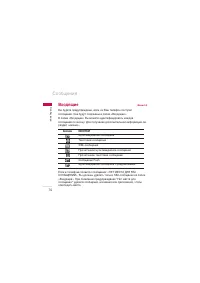
Входящие Меню 5.2 Ç˚ ·Û‰ÂÚ Ô‰ÛÔÂʉÂÌ˚, ÂÒÎË Ì‡ LJ¯ ÚÂÎÂÙÓÌ ÔÓÒÚÛÔËÚÒÓÓ·˘ÂÌËÂ. éÌË ·Û‰ÛÚ ÒÓı‡ÌÂÌ˚ ‚ Ô‡ÔÍ «ÇıÓ‰fl˘Ë».Ç Ô‡ÔÍ «ÇıÓ‰fl˘Ë» Ç˚ ÏÓÊÂÚ ˉÂÌÚËÙˈËÓ‚‡Ú¸ ͇ʉÓÂÒÓÓ·˘ÂÌË ÔÓ Á̇˜ÍÛ. ÑÎfl ÔÓÎÛ˜ÂÌËfl ‰ÓÔÓÎÌËÚÂθÌÓÈ ËÌÙÓχˆËË ÒÏ.‡Á‰ÂÎ «ËÍÓÌÍË». ÖÒÎË ‚ ÚÂÎÂÙÓÌ ÔÓfl‚ËÚÒfl ÒÓÓ·˘ÂÌËÂ: «çÖí åÖëíÄ...
Page 80 - Отправлено
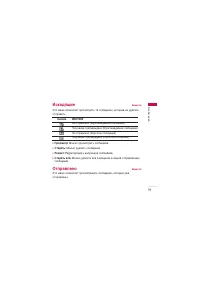
79 ëÓÓ·˘ÂÌËfl Исходящие Меню 5.5 ùÚÓ ÏÂÌ˛ ÔÓÁ‚ÓÎflÂÚ ÔÓÒÏÓÚÂÚ¸ Ú ÒÓÓ·˘ÂÌËfl, ÍÓÚÓ˚ Ì ۉ‡ÎÓÒ¸ÓÚÔ‡‚ËÚ¸. ] Просмотр: åÓÊÌÓ ÔÓÒÏÓÚÂÚ¸ ÒÓÓ·˘ÂÌËÂ. ] Стереть: åÓÊÌÓ Û‰‡ÎËÚ¸ ÒÓÓ·˘ÂÌËÂ. ] Редакт: ꉇÍÚËÓ‚‡Ú¸ ‚˚·‡ÌÌÓ ÒÓÓ·˘ÂÌËÂ. ] Стереть все: åÓÊÌÓ Û‰‡ÎËÚ¸ ‚Ò ÒÓÓ·˘ÂÌËfl ‚ fl˘ËÍ ÓÚÔ‡‚ÎÂÌÌ˚ı ÒÓÓ·˘ÂÌË...
Page 81 - олосовая почта; Инфо служба
Г олосовая почта Меню 5.7 èÓÒΠÚÓ„Ó, Í‡Í ‚˚·‡Ì ‰‡ÌÌ˚È ÔÛÌÍÚ ÏÂÌ˛, ‰ÓÒÚ‡ÚÓ˜ÌÓ ÔÓÒÚÓ̇ʇڸ ÎÂ‚Û˛ ÙÛÌ͈ËÓ̇θÌÛ˛ Í·‚Ë¯Û , ˜ÚÓ·˚ ÔÓÒÎÛ¯‡Ú¸ „ÓÎÓÒÓ‚Ó ÒÓÓ·˘ÂÌËÂ. ÑÎfl ÔÓÒÎۯ˂‡ÌËfl ‚ ÂÊËÏ ÓÊˉ‡ÌËfl„ÓÎÓÒÓ‚ÓÈ ÔÓ˜Ú˚ Û‰ÂÊË‚‡ÈÚ ̇ʇÚÓÈ ÍÌÓÔÍÛ . Примечание ] èË ÔÓÎÛ˜ÂÌËË „ÓÎÓÒÓ‚Ó„Ó ÒÓÓ·˘ÂÌËfl ̇ ‰ËÒÔΠ...
Page 82 - Получение; Темы
81 ëÓÓ·˘ÂÌËfl Получение (åÂÌ˛ 5.8.1) 1. ÖÒÎË Ç˚ ÔÓÎÛ˜ËÎË ËÌÙÓχˆËÓÌÌÓ ÒÎÛÊ·ÌÓ ÒÓÓ·˘ÂÌË ˂˚·‡ÎË «óËÚ‡Ú¸», ÓÌÓ ÓÚÓ·‡ÁËÚÒfl ̇ ˝Í‡ÌÂ. Ç˚ ÏÓÊÂÚÂÔÓ˜ËÚ‡Ú¸ ‰Û„Ó ÒÓÓ·˘ÂÌËÂ, ÔÓÍۘ˂‡fl Ò ÔÓÏÓ˘¸˛Ì‡‚Ë„‡ˆËÓÌÌ˚ı Í·‚˯ , ËÎË Ì‡Ê‡‚ [ëΉ.]. 2. íÂÍÛ˘Â ÒÓÓ·˘ÂÌË ·Û‰ÂÚ ÓÚÓ·‡Ê‡Ú¸Òfl ‰Ó ÚÂı, ÔÓ͇ Ì ·Û‰ÂÚ‚˚...
Page 83 - Список активных каналов:; Сигнал
] Список активных каналов: Ç˚ ÏÓÊÂÚ ‚˚·‡Ú¸ ÌÓχ ͇̇ÎÓ‚ ËÌÙÓχˆËÓÌÌ˚ı ÒÓÓ·˘ÂÌËÈ ‚ ‡ÍÚË‚ÌÓÏ ÒÔËÒÍ ÔÛÚfiÏ Ì‡Ê‡ÚËfl[ÇÍÎ/Ç˚ÍÎ]. ÖÒÎË Ç˚ ̇ÊÏfiÚ ÇÍÎ ‰Îfl ‡ÍÚË‚‡ˆËË ÌÓχ ͇̇·ËÌÙÓχˆËÓÌÌÓ„Ó ÒÓÓ·˘ÂÌËfl, Ç˚ ÒÏÓÊÂÚ ÔÓÎÛ˜‡Ú¸ ÒÓÓ·˘ÂÌËfl,ÓÚÔ‡‚ÎÂÌÌ˚Â Ò ˝ÚÓ„Ó ÌÓχ. Сигнал (åÂÌ˛ 5.8.4) Ç˚ ÏÓÊÂÚ ÛÒÚ‡ÌÓ‚ËÚ...
Page 84 - Шаблоны; Текст; - Срочно свяжитесь со мной; Мультимедиа
83 ëÓÓ·˘ÂÌËfl Шаблоны Меню 5.9 Текст (åÂÌ˛ 5.9.1) àÏÂÂÚÒfl ¯ÂÒÚ¸ ÚÂÍÒÚÓ‚˚ı ¯‡·ÎÓÌÓ‚, Ô˂‰ÂÌÌ˚ı ÌËÊÂ: - Перезвоните мне - Задерживаюсь, буду в - Где вы сейчас? - Уже в пути - Срочно свяжитесь со мной - Я тебя люблю Мультимедиа (åÂÌ˛ 5.9.2) Ç˚ ÏÓÊÂÚ ËÒÔÓθÁÓ‚‡Ú¸ ÒÎÂ‰Û˛˘Ë ÓÔˆËË. ] Редактировать: ÏÓÊÌ...
Page 85 - SMS сообщение; Да; Ответить через этот же центр сообщений:
Визитная карточка (åÂÌ˛ 5.9.3) Ç ˝ÚÓÏ ÏÂÌ˛ Ç˚ ÏÓÊÂÚ ÒÓÁ‰‡Ú¸ Ò‚Ó˛ ‚ËÁËÚÌÛ˛ ͇ÚÓ˜ÍÛ. Настройки Меню 5.0 SMS сообщение (åÂÌ˛ 5.0.1) ] Типы сообщений:Текст, Голос, Факс, Пейджинг, Х.400, Е-mail, ERMES èÓ ÛÏÓΘ‡Ì˲, ÚËÔ ÒÓÓ·˘ÂÌËfl ÛÒÚ‡ÌÓ‚ÎÂÌ Ì‡ íÂÍÒÚ. Ç˚ ÏÓÊÂÚÂÁ‡ÏÂÌËÚ¸ ̇ÒÚÓÈÍË ÔÓ ÛÏÓΘ‡Ì˲ ‡Î¸ÚÂ̇ÚË‚...
Page 86 - MMS сообщение
85 ëÓÓ·˘ÂÌËfl ÓÔ·Ú˚ ÚÂÎÂÙÓ̇. ] SMS центр: ÖÒÎË Ç˚ ıÓÚËÚ ÓÚÔ‡‚ÎflÚ¸ ÍÓÓÚÍË ÒÓÓ·˘ÂÌËfl Ç˚ ‰ÓÎÊÌ˚ ‚‚ÂÒÚË ‡‰ÂÒ ˆÂÌÚ‡ ÒÓÓ·˘ÂÌËÈ. ] Тема: Ç˚ ÏÓÊÂÚ ‚ÒÚ‡‚ÎflÚ¸ ÚÂÏÛ ÒÓÓ·˘ÂÌËfl. ] Настр. протокола: Ç˚ ÏÓÊÂÚ ‚˚·‡Ú¸ ̇ÒÚÓÈÍË GSM ËÎË GPRS. MMS сообщение (åÂÌ˛ 5.0.2) ] Приоритет: ÑÎfl ‚˚·‡ÌÌÓ„Ó ÒÓÓ·˘ÂÌËfl ...
Page 87 - Разрешённые типы
ÇıÓ‰fl˘ËÂ, Ë ÚÓθÍÓ ÔÓÒΠ˝ÚÓ„Ó Ç˚ ÒÏÓÊÂÚ Á‡„ÛÁËÚ¸ ˝ÚÓÒÓÓ·˘ÂÌËÂ. ÖÒÎË Ç˚ ‚˚·ÂËÚ ÔÛÌÍÚ íÓθÍÓ ‰Óχ¯Ìflfl ÒÂÚ¸, Ç˚ÒÏÓÊÂÚ ÔËÌËχڸ ÏÛθÚËωËÈÌ˚ ÒÓÓ·˘ÂÌËfl ÚÓθÍÓ ‚ LJ¯ÂȉÓχ¯ÌÂÈ ÒÂÚË. ] Сетевые настройки: Ç‡Ï ÌÂÓ·ıÓ‰ËÏÓ ÔÓËÁ‚ÂÒÚË Ì‡ÒÚÓÈÍÛ ÔÓÙËÎÂÈ ÏÛθÚËωËÈÌ˚ı ÒÓÓ·˘ÂÌËÈ. ᇠÔÓ‰Ó·ÌÓÈ ËÌÙÓχˆËÂ...
Page 88 - Учетные записи; Профиль сети
87 ëÓÓ·˘ÂÌËfl E-mail (åÂÌ˛ 5.0.3) чÌÌ˚È ÔÛÌÍÚ ÏÂÌ˛ ÔÓÁ‚ÓÎflÂÚ Ç‡Ï Â‰‡ÍÚËÓ‚‡Ú¸, Û‰‡ÎflÚ¸ ËÎˉӷ‡‚ÎflÚ¸ Û˜ÂÚÌ˚ Á‡ÔËÒË ˝ÎÂÍÚÓÌÌÓÈ ÔÓ˜Ú˚. ] Учетные записи ÇÒÂ„Ó Ç˚ ÏÓÊÂÚ Á‡‰‡Ú¸ ÚË Û˜ÂÚÌ˚ Á‡ÔËÒË ˝ÎÂÍÚÓÌÌÓÈ ÔÓ˜Ú˚.ÑÎfl ‚ıÓ‰‡ ‚ ÏÂÌ˛ Опции ̇ÊÏËÚ Í·‚Ë¯Û [éÔˆËË]. ] Вставить визитную карточку: ÖÒÎË Ç˚ ‚˚...
Page 89 - ush сообщения; Прием; Состояние памяти
P ush сообщения (åÂÌ˛ 5.0.5) ] Прием Да: ÖÒÎË Ç˚ ‚˚·ÂËÚ ˝ÚÓ ÏÂÌ˛, LJ¯ ÚÂÎÂÙÓÌ ·Û‰ÂÚ ÔËÌËχڸ ËÌÙÓχˆËÓÌÌ˚ ÒÓÓ·˘ÂÌËfl. Нет: ÖÒÎË Ç˚ ‚˚·ÂËÚ ˝ÚÓ ÏÂÌ˛, LJ¯ ÚÂÎÂÙÓÌ ·Óθ¯Â Ì ·Û‰ÂÚ ÔËÌËχڸ ËÌÙÓχˆËÓÌÌ˚ ÒÓÓ·˘ÂÌËfl. Состояние памяти Menu 5. * Ç˚ ÏÓÊÂÚ ÔÓÒÏÓÚÂÚ¸ ÒÚ‡ÚÛÒ Ô‡ÏflÚË: íÂÍÒÚ, åÛθÚËωˇ...
Page 90 - Фотокамера; • Фотографирование с открытой крышкой
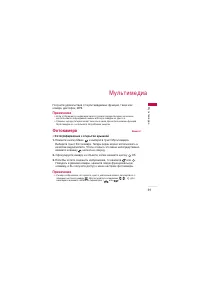
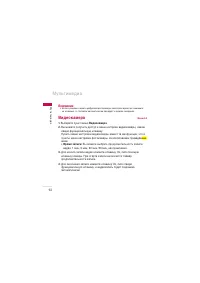
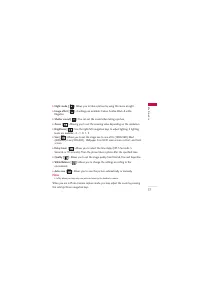
åÛθÚËωˇ 89 åÛθÚËωˇ èÓÎÛ˜ËÚ ۉӂÓθÒÚ‚Ë ÓÚ ÏÛθÚËωËÈÌ˚ı ÙÛÌ͈ËÈ, Ú‡ÍËı ͇Í͇χ, ‰ËÍÚÓÙÓÌ, MP3. Примечание ] ÖÒÎË ÓÚÓ·‡Ê‡ÂÚÒfl Ë̉Ë͇ˆËfl ÌËÁÍÓ„Ó ÛÓ‚Ìfl Á‡fl‰‡ ·‡Ú‡ÂË, ‚ÓÁÏÓÊÌÓ,‚ÓÒÔÓθÁÓ‚‡Ú¸Òfl ÙÛÌ͈ËflÏË Í‡ÏÂ˚ ËÎË ÏÛθÚËωˇ Ì ۉ‡ÒÚÒfl. ] ìÓ‚Â̸ Á‡fl‰‡ ·‡Ú‡ÂË ÏÓÊÂÚ Ó͇Á‡Ú¸Òfl ÌËÊ ÔË ...
Page 91 - Один снимок
åÛθÚËωˇ åÛθÚËωˇ 90 ] Режим: èÓÁ‚ÓÎflÂÚ Ò‰Â·ڸ ÒÂ˲ ÙÓÚÓ„‡ÙËÈ. • Фильм: ‚ˉÂÓÒ˙ÂÏ͇ • Один снимок • Серия снимков: 320ı240 ] Ночной режим [ ]: выкл./вкл ночной режим ] Эффекты [ ]: ÑÓÒÚÛÔÌ˚ ÒÎÂ‰Û˛˘Ë ÓÔˆËË: ñ‚ÂÚ, ëÂÔËfl, åÓÌÓ, 焇ÚË‚. ] Звук затвора [ ]: á‚ÛÍ 1..4, Ç˚ÍÎ. ] Увеличение [ ]: Ô...
Page 92 - Съемка фотографии с закрытой крышкой
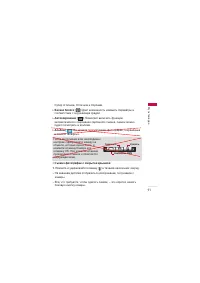
91 åÛθÚËωˇ ëÛÔË ÓÚ΢ÌÓÂ, éÚ΢ÌÓÂ Ë ïÓÓ¯ÂÂ. ] Баланс белого [ ]: чÂÚ ‚ÓÁÏÓÊÌÓÒÚ¸ ËÁÏÂÌËÚ¸ Ô‡‡ÏÂÚ˚ ‚ ÒÓÓÚ‚ÂÚÒÚ‚ËË Ò ÓÍÛʇ˛˘ÂÈ Ò‰ÓÈ. ] Автосохранение [ ]: èÓÁ‚ÓÎflÂÚ ‚Íβ˜ËÚ¸ ÙÛÌÍˆË˛ ‡‚ÚÓχÚ˘ÂÒÍÓ„Ó ÒÓı‡ÌÂÌËfl ҉·ÌÌÓ„Ó ÒÌËÏ͇, ÒÌËÏÓÍ ÏÓÊÌÓ·Û‰ÂÚ ÔÓÒÏÓÚÂÚ¸ ‚ ‡Î¸·ÓÏÂ. ] Альбом [ ]: Ç˚ ÏÓÊÂ...
Page 93 - Bнимaние; Видеокамера
åÛθÚËωˇ åÛθÚËωˇ 92 Bнимaние ] ÖÒÎË ‚ ÂÊËÏ Á‡ı‚‡Ú‡ ˆËÙÓ‚ÓÈ ÙÓÚÓ͇ÏÂ˚ ÌÂÍÓÚÓÓ ‚ÂÏfl Ì ̇ÊËχڸ̇ Í·‚˯Ë, ÚÓ ÚÂÎÂÙÓÌ ‡‚ÚÓχÚ˘ÂÒÍË ÔÂÂȉfiÚ ‚ ÂÊËÏ ÓÊˉ‡ÌËfl. Видеокамера Меню 6.2 1. Ç˚·ÂËÚ ÔÛÌÍÚ ÏÂÌ˛ Видеокамера . 2. Ç˚ ÏÓÊÂÚ ÔÓÎÛ˜ËÚ¸ ‰ÓÒÚÛÔ Í ÏÂÌ˛ ̇ÒÚÓÂÍ ‚ˉÂÓ͇ÏÂ˚, ̇ʇ‚ÎÂ‚Û˛ ÙÛ...
Page 94 - Диктофон
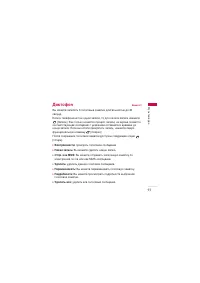
93 åÛθÚËωˇ Диктофон Меню 6.3 Ç˚ ÏÓÊÂÚ Á‡ÔËÒ‡Ú¸ 3 „ÓÎÓÒÓ‚˚ Á‡ÏÂÚÍË ‰ÎËÚÂθÌÓÒÚ¸˛ ‰Ó 30ÒÂÍÛ̉.ÖÒÎË ‚ ÚÂÎÂÙÓÌ ÌÂÚ ÌË Ó‰ÌÓÈ Á‡ÔËÒË, ÚÓ ‰Îfl ̇˜‡Î‡ Á‡ÔËÒË Ì‡ÊÏËÚ [á‡ÔËÒ¸]. ä‡Í ÚÓθÍÓ Ì‡˜ÌfiÚÒfl ÔÓˆÂÒÒ Á‡ÔËÒË, ̇ ˝Í‡Ì ÔÓfl‚ËÚÒfl ÒÓÓÚ‚ÂÚÒÚ‚Û˛˘Â ÒÓÓ·˘ÂÌËÂ Ò Û͇Á‡ÌËÂÏ ÓÒÚ‡‚¯Â„ÓÒfl ‚ÂÏÂÌË ‰ÓÍÓ̈‡ Á‡ÔËÒ...
Page 95 - Музыка
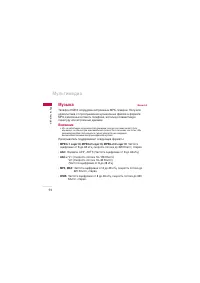
åÛθÚËωˇ åÛθÚËωˇ 94 Музыка Меню 6.4 íÂÎÂÙÓÌ KG810 Ó·ÓÛ‰Ó‚‡Ì ‚ÒÚÓÂÌÌ˚Ï MP3-ÔÎÂÂÓÏ. èÓÎÛ˜ËÚÂÛ‰Ó‚ÓθÒÚ‚Ë ÓÚ ÔÓÒÎۯ˂‡ÌËfl ÏÛÁ˚͇θÌ˚ı Ù‡ÈÎÓ‚ ‚ ÙÓχÚÂMP3, Á‡ÔËÒ‡ÌÌ˚ı ‚ Ô‡ÏflÚ¸ ÚÂÎÂÙÓ̇, ËÒÔÓθÁÛfl ÒÓ‚ÏÂÒÚËÏÛ˛„‡ÌËÚÛÛ ËÎË ‚ÒÚÓÂÌÌ˚È ‰Ë̇ÏËÍ. Bнимaние ] àÁ-Á‡ Ì·Óθ¯Ëı ‚ÓÁÏÓÊÌÓÒÚÂÈ ‰Ë̇ÏË͇, ËÌ...
Page 97 - Аудио плеер
åÛθÚËωˇ åÛθÚËωˇ 96 Аудио плеер (Menu 6.4.1) èË ‚ıӉ ‚ åê3 ÔΠÓÚÓ·‡ÁËÚÒfl ˝Í‡Ì, ËÁÓ·‡ÊÂÌÌ˚È Ì‡ ËÒÛÌÍÂ. Примечание ] ÖÒÎË ‚ ÒÔËÒÓÍ ‚ÓÒÔÓËÁ‚‰ÂÌË ‚Íβ˜‡ÂÚÒfl ÌÂÔÓ‰‰ÂÊË‚‡ÂÏ˚È Ù‡ÈÎ,ÔÓfl‚ÎflÂÚÒfl ÒÓÓ·˘ÂÌË "é¯Ë·Í‡", Ë ÚÂÎÂÙÓÌ ÔÂÂıÓ‰ËÚ Í Ô‰˚‰Û˘ÂÏÛ˝Í‡ÌÛ. 1. Ç˚·ÂËÚ ÏÂÌ˛ åÛθÚËω...
Page 98 - Режим воспроизведения:; Плейлист; Оформление плеера
97 åÛθÚËωˇ 2. ç‡ÊÏËÚ ÎÂ‚Û˛ ÙÛÌ͈ËÓ̇θÌÛ˛ Í·‚Ë¯Û [éÔˆËË] ‰Îfl ÓÚÍ˚ÚËfl ÒÎÂ‰Û˛˘Ëı ÏÂÌ˛. ] Плейлист: Ç˚·Ó ‰Û„Ó„Ó Ù‡È· MP3, ÍÓÚÓ˚È ÌÂÓ·ıÓ‰ËÏÓ ‚ÓÒÔÓËÁ‚ÂÒÚË. ] Эквалайзер: чÌÌ˚È ÚÂÎÂÙÓÌ ËÏÂÂÚ 8 Ô‰ÛÒÚ‡ÌÓ‚ÎÂÌÌ˚ı ̇ÒÚÓÂÍ ˝Í‚‡Î‡ÈÁ‡. ] Режим воспроизведения: чÌÌÓ ÏÂÌ˛ ÔÓÁ‚ÓÎflÂÚ ‚˚·‡Ú¸ ÂÊËÏ...
Page 99 - Продолжать воспроизведение; Остановка воспроизведения
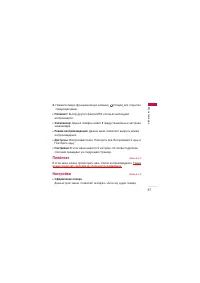
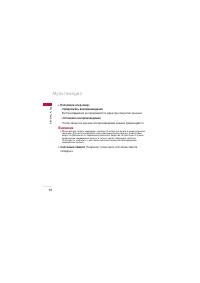
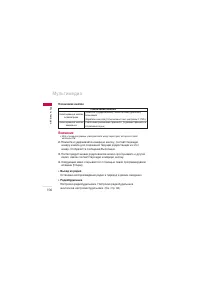
åÛθÚËωˇ åÛθÚËωˇ 98 ] Настройки откр./закр.: - Продолжать воспроизведение ÇÓÒÔÓËÁ‚‰ÂÌË Ì ÔÂ͇˘‡ÂÚÒfl ‰‡Ê ÔË Á‡Í˚ÚËË Í˚¯ÍË. - Остановка воспроизведения èÓÒΠÁ‡Í˚ÚËfl Í˚¯ÍË ‚ÓÒÔÓËÁ‚‰ÂÌË ÏÛÁ˚ÍË ÔÂ͇˘‡ÂÚÒfl. Bнимaние ] åÛÁ˚͇θÌ˚ Á‡ÔËÒË Á‡˘Ë˘ÂÌ˚ Á‡ÍÓÌÓÏ Ó· ‡‚ÚÓÒÍÓÏ Ô‡‚Â Ë Ì‡ˆËÓÌ...
Page 100 - FM радио; Слушать радио
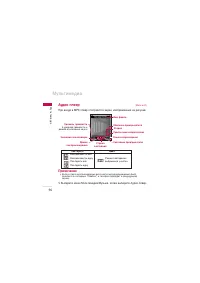
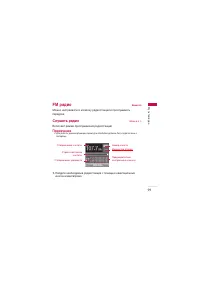
99 åÛθÚËωˇ FM радио Меню 6.5 åÓÊÌÓ Ì‡Òڇ˂‡Ú¸Òfl ̇ ‚ÓÎÌÛ ‡‰ËÓÒڇ̈ËÈ Ë ÔÓÒÎۯ˂‡Ú¸Ô‰‡˜Ë. Слушать радио (åÂÌ˛ 6.5.1) ÇÍβ˜‡ÂÚ ÂÊËÏ ÔÓÒÎۯ˂‡ÌËfl ‡‰ËÓÒڇ̈ËÈ. Примечание ] ÑÎfl ‡·ÓÚ˚ ‰‡ÌÌÓÈ ÙÛÌ͈ËË „‡ÌËÚÛ‡ Handsfree ‰ÓÎÊ̇ ·˚Ú¸ ÔÓ‰Íβ˜Â̇ ÍÚÂÎÂÙÓÌÛ. 1. ç‡È‰ËÚ ÌÂÓ·ıÓ‰ËÏ˚ ‡‰ËÓÒڇ̈ËË Ò ...
Page 101 - Назначение кнопок; Выход из радио; Радиобудильник
åÛθÚËωˇ åÛθÚËωˇ 100 Назначение кнопок Bнимaние ] ÑÎfl ÛÎÛ˜¯ÂÌËfl ÔËÂχ, ‡ÒÔflÏÎflÈÚ ¯ÌÛ „‡ÌËÚÛ˚, ÍÓÚÓ˚È ÒÎÛÊËÚ‡ÌÚÂÌÌÓÈ FM. 2. ç‡ÊÏËÚÂ Ë Û‰ÂÊË‚‡ÈÚ ÌÓÏÂÌÛ˛ ÍÌÓÔÍÛ, ÒÓÓÚ‚ÂÚÒÚ‚Û˛˘Û˛ÌÓÏÂÛ Í‡Ì‡Î‡ ‰Îfl ÒÓı‡ÌÂÌËfl ÚÂÍÛ˘ÂÈ ‡‰ËÓÒڇ̈ËË Ì‡ ˝ÚÓÚÌÓÏÂ. éÚÓ·‡ÁËÚÒfl ÒÓÓ·˘ÂÌË Ç˚ÔÓÎÌÂÌÓ. 3. èÓÒΠÔ...
Page 102 - Сохранить канал; Удалить канал; Каналы
101 åÛθÚËωˇ ] Сохранить канал ëÓı‡ÌÂÌË ‡‰ËÓ Í‡Ì‡Î‡. éÚÓ·‡ÁËÚÒfl ÒÔËÒÓÍ ÒÓÒÚÓflÌËfl 10͇̇ÎÓ‚. èÓÒΠ‚˚·Ó‡ (ÔÛÒÚÓ„Ó) ͇̇· ̇ÊÏËÚ ÎÂ‚Û˛ÔÓ„‡ÏÏËÛÂÏÛ˛ Í·‚Ë¯Û [ëÓı‡ÌËÚ¸].èË ‚˚·Ó ÛÊ Á‡ÌflÚÓ„Ó͇̇· ÔÓfl‚ËÚÒfl ÒÓÓ·˘ÂÌË á‡ÏÂÌËÚ¸? à ÂÒÎË ÔÓÒΠ˝ÚÓ„Ó ‚˚·‡Ú¸ Да , ͇̇Π·Û‰ÂÚ Á‡ÏÂÌÂÌ ÌÓ‚ÓÈ ‡‰ËÓ...
Page 103 - é·ÓÁ‚‡ÚÂÎ ̧; Навигация с помощью WAP-браузера
é·ÓÁ‚‡ÚÂθ é·ÓÁ‚‡ÚÂθ 102 åÓÊÌÓ ÔÓÎÛ˜ËÚ¸ ‰ÓÒÚÛÔ Í ‡Á΢Ì˚Ï ÛÒÎÛ„‡Ï WAP (Wireless ApplicationProtocol), Ú‡ÍËÏ Í‡Í ·‡ÌÍÓ‚ÒÍË ÓÔ‡ˆËË, ÌÓ‚ÓÒÚË, ҂Ӊ͇ ÔÓ„Ó‰˚ ˇÒÔËÒ‡ÌË ÂÈÒÓ‚. ùÚË ÛÒÎÛ„Ë Ô‰̇Á̇˜ÂÌ˚ ÒÔˆˇθÌÓ ‰ÎflÏÓ·ËθÌ˚ı ÚÂÎÂÙÓÌÓ‚. èӂ¸Ú ‰ÓÒÚÛÔÌÓÒÚ¸ ÛÒÎÛ„ WAP, ˆÂÌ˚ Ë Ú‡ËÙ˚ ‚‡¯Â„Ó ÓÔÂ...
Page 104 - Использование меню WAP-браузера; Домашняя; Создать закладку
103 é·ÓÁ‚‡ÚÂθ Использование меню WAP-браузера Ç ÚÓ ‚ÂÏfl ÍÓ„‰‡ ÚÂÎÂÙÓÌ ÔÓ‰Íβ˜ÂÌ Í ËÌÚÂÌÂÚÛ Ò ËÒÔÓθÁÓ‚‡ÌËÂÏ·ÂÒÔÓ‚Ó‰Ì˚ı ͇̇ÎÓ‚ Ò‚flÁË ‚ÓÁÏÓÊÌ˚ ‡Á΢Ì˚ ‚‡Ë‡ÌÚ˚ ̇·Ó‡ÓÔˆËÈ ‚ ÏÂÌ˛. Примечание ] åÂÌ˛ WAP-·‡ÛÁÂÓ‚ ÏÓ„ÛÚ ÓÚ΢‡Ú¸Òfl ‰Û„ ÓÚ ‰Û„‡ ‚ Á‡‚ËÒËÏÓÒÚË ÓÚ‚ÂÒËË ·‡ÛÁ‡. Домашняя Меню 7.1...
Page 105 - Переход к URL; Профили
é·ÓÁ‚‡ÚÂθ é·ÓÁ‚‡ÚÂθ 104 èÓÒΠÒÓÁ‰‡ÌËfl Á‡Í·‰ÓÍ, Ç˚ ÏÓÊÂÚ ‚ÓÒÔÓθÁÓ‚‡Ú¸Òfl ÒÎÂ‰Û˛˘ËÏËÛÒÎÛ„‡ÏË. ] Соединить: èÓ‰Íβ˜ÂÌËÂ Í ‚˚·‡ÌÌÓÈ Á‡Í·‰ÍÂ. ] Добав. новый: ÒÓÁ‰‡ÌË ÌÓ‚ÓÈ Á‡Í·‰ÍË. ] Редактировать: àÁÏÂÌËÚ ËÏfl Ë ‡‰ÂÒ ‚˚·‡ÌÌÓÈ Á‡Í·‰ÍË. ] Удалить: Û‰‡ÎÂÌË ‚˚·‡ÌÌÓÈ Á‡Í·‰ÍË. ] Удалить все...
Page 108 - Кэш; Сертификаты безопастности; WAP инфо
107 é·ÓÁ‚‡ÚÂθ Кэш (åÂÌ˛ 7.4.2) àÌÙÓχˆËfl Ò WAP-Ò‡ÈÚÓ‚ ËÎË ÛÒÎÛ„Ë, ‰ÓÒÚÛÔ Í ÍÓÚÓ˚Ï ·˚ΠLJÏËÔÓÎÛ˜ÂÌ, ÒÓı‡Ìfl˛ÚÒfl ‚ Í˝¯-Ô‡ÏflÚË ÚÂÎÂÙÓ̇. Очистить кэш (åÂÌ˛ 7.4.3) 쉇ÎflÂÚ ‚Ò˛ ËÌÙÓχˆË˛, ̇ıÓ‰fl˘Û˛Òfl ‚ Í˝¯-Ô‡ÏflÚË. Примечание ] ä˝¯-Ô‡ÏflÚ¸ - ˝ÚÓ ·ÛÙ ‰Îfl Ù‡ÈÎÓ‚, ËÒÔÓθÁÛÂÏ˚È ‰Îfl ‚ÂÏÂÌÌÓ„Ó ı‡ÌÂÌËfl‰...
Page 109 - Игры и приложения; Игры по умолчанию; Загружено; ᇄÛÁÍË
Примечание ] ç ËÁÏÂÌflÈÚ ËÏfl Ô‡ÔÍË ÔÓ ÛÏÓΘ‡Ì˲, Ú‡Í Í‡Í ˝ÚÓ ÏÓÊÂÚ ÔË‚ÂÒÚË Í Ó¯Ë·Í‡Ï. Игры и приложения Меню 8.1 Игры по умолчанию (åÂÌ˛ 8.1.1) ] Игры по умолчанию: Ç ‰‡ÌÌÓÏ ÏÂÌ˛ ÏÓÊÌÓ ÛÔ‡‚ÎflÚ¸ ÔËÎÓÊÂÌËflÏË Java, ÛÒÚ‡ÌÓ‚ÎÂÌÌ˚ÏË Ì‡ ÚÂÎÂÙÓÌÂ. ᇄÛÊÂÌÌ˚ÂÔËÎÓÊÂÌËfl ÏÓÊÌÓ Á‡ÔÛÒ͇ڸ ËÎË Û‰‡ÎflÚ¸, ÏÓÊÌÓ...
Page 110 - Справка; Видео
109 ᇄÛÁÍË ÑÎfl ÔÓÎÛ˜ÂÌËfl ·ÓΠÔÓ‰Ó·ÌÓÈ ËÙÓχˆËË Ó ÏÂÌ˛ èÓÙËÎË ÒÏ.ÔÛÌÍÚ (åÂÌ˛ 7.4.1) (ÒÚ. 105). Справка (åÂÌ˛ 8.1.4) Ç˚ ÏÓÊÂÚ ÔÓÒÏÓÚÂÚ¸ ÒÚ‡ÚÛÒ Ô‡ÏflÚË Ë ÔÓÒÏÓÚÂÚ¸ ‚ÂÒ˲ Java. Видео Меню 8.2 Ç˚ ÏÓÊÂÚ ÔÓÒχÚË‚‡Ú¸ ‚ˉÂÓÓÎËÍË ÙÓχڇ 3GP, MP4ÒÓı‡ÌÂÌÌ˚ ‚ Ô‡ÏflÚË ÚÂÎÂÙÓ̇. ] Воспроизвести:...
Page 111 - Изображения
ᇄÛÁÍË á‡„ÛÁÍË 110 ] Справка: èÓÒÏÓÚ ÔÓ‰Ó·ÌÓÈ ËÌÙÓχˆËË Ó ‚ˉÂÓ Ù‡ÈÎÂ. ] Вид - список/Вид - эскизы: êÂÊËÏ ÔÓÒÏÓÚ‡ ÒÓ‰ÂÊËÏÓ„Ó Ô‡ÔÍË. Изображения Меню 8.3 Ç ‰‡ÌÌÓÈ Ô‡ÔÍ ÒÓı‡Ìfl˛ÚÒfl Ù‡ÈÎ˚ ËÁÓ·‡ÊÂÌËÈ. èÓÒΠ‚˚·Ó‡ËÁÓ·‡ÊÂÌËfl Ç˚ ÏÓÊÂÚÂ Â„Ó ÔÓÒÏÓÚÂÚ¸, ̇ʇ‚ éä ËÎË ‚˚·‡‚éÔˆËË/èÓÒÏÓÚ. ÑÓÒÚÛ...
Page 112 - Мелодии
111 ᇄÛÁÍË ] Справка: èÓÒÏÓÚ Ò‚Ó‰ÌÓÈ ËÌÙÓχˆËË Ó· ËÁÓ·‡ÊÂÌËË. Мелодии Меню 8.4 èÓÒΠ‚˚·Ó‡ Á‚Û͇, ̇ÊÏËÚ ÎÂ‚Û˛ Í·‚Ë¯Û [éÔˆËË]. åÓÊÌÓ‚˚·‡Ú¸ ÒÎÂ‰Û˛˘Ë ԇ‡ÏÂÚ˚: ] Как звонок: Ç˚·‡ÌÌ˚È Ù‡ÈÎ ·Û‰ÂÚ ÛÒÚ‡ÌÓ‚ÎÂÌ ‚ ͇˜ÂÒÚ‚Â Ò˄̇· Ò˄̇Π‚˚ÁÓ‚‡. ] Отправить через Bluetooth: Ç˚ ÏÓÊÂÚ Ô‰‡Ú¸ ‚˚...
Page 114 - Новые возможности от LG
113 ᇄÛÁÍË Новые возможности от LG èË ÔÓ‰Íβ˜ÂÌËË Í ÍÓÏÔ¸˛ÚÂÛ ˜ÂÂÁ USB ͇·Âθ Ô‡ÏflÚ¸ ÚÂÎÂÙÓ̇ KG810 (Í‡Í ‚ÌÛÚÂÌÌflfl, Ú‡Í Ë ‚̯Ìflfl) ÓÔ‰ÂÎflÂÚÒfl Í‡Í Ò˙ÂÏÌ˚È ‰ËÒÍ. Ç˚ ÏÓÊÂÚ Á‡„Ûʇڸ ÏÛÁ˚͇θÌ˚ هÈÎ˚, ÙÓÚÓ„‡ÙËË, ÚÂÍÒÚÓ‚˚ هÈÎ˚ Ë Ú.‰. Ò ÍÓÏÔ¸˛Ú‡ ̇ ÚÂÎÂÙÓÌ Ë Ì‡Ó·ÓÓÚ. Ç‡Ï ‚ÒÂ„Ó Î˯¸ ÌÛÊÌÓ Ô...
Page 115 - Дата и время; Дата; Установить дату; Формат даты; Время; Установить время; Формат времени; ç‡ÒÚÓÈÍË
Дата и время Меню 9.1 Ç˚ ÏÓÊÂÚ ̇ÒÚÓËÚ¸ ÙÛÌ͈ËË, ÓÚÌÓÒfl˘ËÂÒfl Í ‰‡ÚÂ Ë ‚ÂÏÂÌË. Дата (åÂÌ˛ 9.1.1) ] Установить дату Ç˚ ÏÓÊÂÚ ‚‚ÂÒÚË ÚÂÍÛ˘Û˛ ‰‡ÚÛ. ] Формат даты Ç˚ ÏÓÊÂÚ ÛÒÚ‡ÌÓ‚ËÚ¸ ÙÓÏ‡Ú ‰‡Ú˚. Время (åÂÌ˛ 9.1.2) ] Установить время Ç˚ ÏÓÊÂÚ ‚‚ÂÒÚË ÚÂÍÛ˘Â ‚ÂÏfl. ] Формат времени Ç˚ ÏÓÊÂÚ ÛÒÚ‡ÌÓ‚...
Page 116 - Дисплей; Обои; Внешний дисплей; По умолчанию; Цвет меню
115 ç‡ÒÚÓÈÍË Дисплей Меню 9.2 Обои (åÂÌ˛ 9.2.1) Ç˚ ÏÓÊÂÚ ‚˚·‡Ú¸ ÙÓÌ ˝Í‡Ì‡. Внутрен. дисплей (åÂÌ˛ 9.2.1.1) Внешний дисплей (åÂÌ˛ 9.2.1.2) По умолчанию Ç˚ ÏÓÊÂÚ ‚˚·‡Ú¸ ͇ÚËÌÍÛ Ì‡ ‰ËÒÔΠÔÛÚfiÏ Ì‡Ê‡ÚËfl ËÎË . Загружено Ç˚ ÏÓÊÂÚ ‚˚·‡Ú¸ ͇ÚËÌÍÛ ‰Îfl ‰ËÒÔÎÂfl, ËÁ Ô‡ÔÍË á‡„ÛÊÂÌÓ. Цвет меню (åÂÌ˛ 9...
Page 117 - Язык; Энергосбережение
Подсветка (åÂÌ˛ 9.2.4) Ç˚ ÏÓÊÂÚ ÛÒÚ‡ÌÓ‚ËÚ¸ Ú·ÛÂÏÛ˛ ÔÓ‰ÓÎÊËÚÂθÌÓÒÚ¸ ‚ÂÏÂÌËÔÓ‰Ò‚ÂÚÍË ‰ËÒÔÎÂfl. èÓ‰Ò‚ÂÚ͇ ‚Íβ˜‡ÂÚÒfl ÔÓÒΠ̇ʇÚËfl ̇ β·Û˛Í·‚Ë¯Û ÚÂÎÂÙÓ̇. Яркость (åÂÌ˛ 9.2.5) Ç˚ ÏÓÊÂÚ ÛÒÚ‡ÌÓ‚ËÚ¸ Ê·ÂÏÛ˛ flÍÓÒÚ¸: 100%, 80%, 60%, 40% Имя сети (åÂÌ˛ 9.2.6) ÖÒÎË Ç˚ ‚˚·ÂËÚ ÇÍÎ, ÚÓ Ì‡ „·‚ÌÓÏ ‰ËÒ...
Page 118 - Соединения; Bluetooth; Режим bluetooth
117 ç‡ÒÚÓÈÍË Соединения Меню 9.5 Bluetooth (åÂÌ˛ 9.5.1) Bluetooth ÔÓÁ‚ÓÎflÂÚ ÏÓ·ËθÌ˚Ï ÛÒÚÓÈÒÚ‚‡Ï, ÔÂËÙÂËÈÌÓÏÛÓ·ÓÛ‰Ó‚‡Ì˲ Ë ÍÓÏÔ¸˛Ú‡Ï, ̇ıÓ‰fl˘ËÏÒfl ÔÓ·ÎËÁÓÒÚË,ÛÒڇ̇‚ÎË‚‡Ú¸ ÔflÏÓ ÒÓ‰ËÌÂÌË ·ÂÁ ËÒÔÓθÁÓ‚‡ÌËfl ÔÓ‚Ó‰Ó‚. ùÚÓÚÚÂÎÂÙÓÌ ÔÓ‰‰ÂÊË‚‡ÂÚ ÚÂıÌÓÎӄ˲ Bluetooth. Примечание ] ÑÎfl Bluetooth-ÏÓ...
Page 119 - Мои устройства; Гарнитуры
Мои устройства (åÂÌ˛ 9.5.1.2) åÓÊÌÓ ÔÓÒÏÓÚÂÚ¸ Ë ‰Ó·‡‚ËÚ¸ ‚Ò ÛÒÚÓÈÒÚ‚‡, ÒÓ‚ÏÂÒÚËÏ˚ Òbluetooth. Примечание ] àÁ-Á‡ ÔÓ·ÎÂÏ Ò ÒÓ‚ÏÂÒÚËÏÓÒÚ¸˛ ÌÂÍÓÚÓ˚ ÛÒÚÓÈÒÚ‚‡ ÏÓ„ÛÚ ÌÂÔÓ‰‰ÂÊË‚‡Ú¸ ˝ÚÛ ÙÛÌÍˆË˛. Гарнитуры (åÂÌ˛ 9.5.1.3) åÓÊÌÓ ÔÓÒÏÓÚÂÚ¸ Ë ‰Ó·‡‚ËÚ¸ ‚Ò ÛÒÚÓÈÒÚ‚‡ handsfree,ÒÓ‚ÏÂÒÚËÏ˚Â Ò ÚÂÎÂÙÓÌÓÏ...
Page 120 - Видимость; Доступные сервисы; Сьемный диск
119 ç‡ÒÚÓÈÍË ] Удалить: Û‰‡ÎÂÌË ÛÒÚÓÈÒÚ‚‡ bluetooth. ] Удалить все: Û‰‡ÎÂÌË ‚ÒÂı ÛÒÚÓÈÒÚ‚ bluetooth. Настройки (åÂÌ˛ 9.5.1.4) ] Видимость ìÒÚ‡Ìӂ͇ ÙÛÌ͈ËË Ó·Ì‡ÛÊÂÌËfl ‚‡¯Â„Ó ÚÂÎÂÙÓ̇ ‰Û„ËÏËÛÒÚÓÈÒÚ‚‡ÏË bluetooth. ] Моё имя ìÒÚ‡Ìӂ͇ ËÏÂÌË ÛÒÚÓÈÒÚ‚‡ bluetooth. èÓ ÛÏÓΘ‡Ì˲ÛÒڇ̇‚ÎË‚‡ÂÚÒfl ËÏfl ...
Page 121 - Сеть; Выбор сети; Автоматический
Сеть (åÂÌ˛ 9.5.3) Ç˚ ÏÓÊÂÚ ‚˚·‡Ú¸ ÒÂÚ¸, ‚ ÍÓÚÓÓÈ Ç˚ Á‡Â„ËÒÚËÛÂÚÂÒ¸‡‚ÚÓχÚ˘ÂÒÍË ËÎË ‚Û˜ÌÛ˛. é·˚˜ÌÓ ‚˚·Ó ÒÂÚË, ËÒÔÓθÁÛÂÏÓÈÚÂÎÂÙÓÌÓÏ, ÓÒÛ˘ÂÒÚ‚ÎflÂÚÒfl ‡‚ÚÓχÚ˘ÂÒÍË. Выбор сети (åÂÌ˛ 9.5.3.1) Ç˚ ÏÓÊÂÚ ‚˚·‡Ú¸, ͇ÍËÏ Ó·‡ÁÓÏ Ç‡Ì ÚÂÎÂÙÓÌ ·Û‰ÂÚ ÔÓ‰Íβ˜‡Ú¸ÒflÍ ÒÂÚË. Автоматический ÖÒÎË Ç˚ ‚˚·ÂËÚ ...
Page 122 - Выбор диапазона; PCS; Подключение GPRS; Всегда включён
121 ç‡ÒÚÓÈÍË ÚÂÏ, Í‡Í Ô˚Ú‡Ú¸Òfl Á‡Â„ËÒÚËÓ‚‡Ú¸Òfl ‚ β·ÓÈ ‰Û„ÓÈ ÒÂÚË. ùÚÓÚÒÔËÒÓÍ Ó·‡ÁÛÂÚÒfl ËÁ Ô‰ÛÒÚ‡ÌÓ‚ÎÂÌÌÓ„Ó ÒÔËÒ͇ ‚ Ô‡ÏflÚË ÚÂÎÂÙÓ̇. Выбор диапазона (åÂÌ˛ 9.5.3.2) EGSM/DCS Ç Á‡‚ËÒËÏÓÒÚË ÓÚ ÚÂÍÛ˘ÂÈ ÒËÚÛ‡ˆËË, Ç˚ ÏÓÊÂÚ ÛÒÚ‡ÌÓ‚ËÚ¸ ‰Ë‡Ô‡ÁÓÌEGSM/DCS. чÌÌ˚È ‰Ë‡Ô‡ÁÓÌ ÛÒÚ‡ÌÓ‚ÎÂÌ ÔÓ ÛÏÓΘ‡Ì˲. PCS...
Page 123 - Вызов; Переадресация; Все голосовые вызовы; Если занято; Если нет ответа; Если недоступен
Вызов Меню 9.6 Ç˚ ÏÓÊÂÚ ÛÒÚ‡ÌÓ‚ËÚ¸ ÓÔˆËË, ÓÚÌÓÒfl˘ËÂÒfl Í ‚ıÓ‰fl˘ËÏ ÎË·ÓËÒıÓ‰fl˘ËÏ ‚˚ÁÓ‚‡Ï, ÔÛÚÂÏ Ì‡Ê‡ÚËfl ̇ Í·‚Ë¯Û [OK] ‚ ÏÂÌ˛ç‡ÒÚÓÈÍË. Переадресация (åÂÌ˛ 9.6.1) ìÒÎÛ„‡ Ô‡‰ÂÒ‡ˆËË ‚˚ÁÓ‚‡ ÔÓÁ‚ÓÎflÂÚ Ô‡‰ÂÒÓ‚˚‚‡Ú¸ ‚ıÓ‰fl˘Ë„ÓÎÓÒÓ‚˚ ‚˚ÁÓ‚˚, Ù‡ÍÒËÏËθÌ˚ ‚˚ÁÓ‚˚, ‡ Ú‡ÍÊe Ô‰‡˜Û ‰‡ÌÌ˚ı̇ ‰Û„ÓÈ ÌÓ...
Page 124 - Все факсы; Подменю; Режим ответа; Флип открыт
123 ç‡ÒÚÓÈÍË ] Все факсы 臉ÂÒ‡ˆËfl ̇ ÌÓÏÂ, ÔÓ‰Íβ˜ÂÌÌ˚È Í Ù‡ÍÒËÏËθÌÓÏÛ‡ÔÔ‡‡ÚÛ. ] Отменить все éÚÏÂÌflÂÚ ‚Ò Ô‡‰ÂÒ‡ˆËË ‚˚ÁÓ‚Ó‚. Подменю åÂÌ˛ 臉ÂÒ‡ˆËfl ËÏÂÂÚ ÔÓ‰ÏÂÌ˛, ÍÓÚÓ˚ Û͇Á‡Ì˚ ÌËÊÂ. - Активировать ÄÍÚË‚ËÛÂÚ ÒÓÓÚ‚ÂÚÒÚ‚Û˛˘Û˛ ÛÒÎÛ„Û. - Отмена éÚÍβ˜‡ÂÚ ÒÓÓÚ‚ÂÚÒÚ‚Û˛˘Û˛ ÛÒÎÛ„Û. - Пр...
Page 125 - Посылать свой номер; (Á‡‚ËÒËÚ ÓÚ ÒÂÚË Ë Ô‰ÓÒÚ‡‚ÎflÂÏ ̊ı ÛÒÎÛ„); Задается сетью
] Любая кнопка ÖÒÎË Ç˚ ‚˚·ÂÂÚ ‰‡ÌÌ˚È ÂÊËÏ, Ç˚ ÒÏÓÊÂÚ ÔËÌËχڸ ‚ıÓ‰fl˘ËÈ‚˚ÁÓ‚ ÔÛÚÂÏ Ì‡Ê‡ÚËfl ̇ β·Û˛ Í·‚˯Û, Á‡ ËÒÍβ˜ÂÌËÂÏÍ·‚Ë¯Ë [éÍÓ̘‡ÌËÂ]. ] Только кнопка отправки ÖÒÎË Ç˚ ‚˚·ÂËÚ ‰‡ÌÌ˚È ÂÊËÏ, ÚÓ Ç˚ ÒÏÓÊÂÚ ÔËÌËχڸ‚ıÓ‰fl˘Ë Á‚ÓÌÍË ÔÓÒÚ˚Ï Ì‡Ê‡ÚËÂÏ Ì‡ Í·‚Ë¯Û [éÚÔ‡‚͇]. Посылать свой ном...
Page 126 - Ожидание вызова; Поминутный сигнал
125 ç‡ÒÚÓÈÍË Ожидание вызова (åÂÌ˛ 9.6.4) (Á‡‚ËÒËÚ ÓÚ ÒÂÚË) ] Активировать ÖÒÎË Ç˚ ‚˚·ÂËÚ ÇÍβ˜ÂÌÓ, Ç˚ ÒÏÓÊÂÚ ÔËÌflÚ¸ Á‚ÓÌÓÍ,̇ıÓ‰fl˘ËÈÒfl ‚ ÂÊËÏ ÓÊˉ‡ÌËfl. ] Отмена ÖÒÎË Ç˚ ‚˚·ÂËÚ Ç˚Íβ˜ÂÌÓ, Ç˚ Ì ÒÏÓÊÂÚ ÔËÌflÚ¸ Á‚ÓÌÓÍ,̇ıÓ‰fl˘ËÈÒfl ‚ ÂÊËÏ ÓÊˉ‡ÌËfl. ] Просмотреть статус èÓ͇Á˚‚‡ÂÚ ÒÚ‡ÚÛÒ ‰‡ÌÌ...
Page 127 - Выкл; Отправить DTMF; Безопасность
] Выкл LJ¯ ÚÂÎÂÙÓÌ Ì ·Û‰ÂÚ ‡‚ÚÓχÚ˘ÂÒÍË Ô˚Ú‡Ú¸Òfl ̇·‡Ú¸ ÌÓÏÂÚÂÎÂÙÓ̇ ‚ ÒÎÛ˜‡Â ÓÚÒÛÚÒÚ‚Ëfl ÒÓ‰ËÌÂÌËfl ‚ ̇ÒÚÓfl˘ËÈ ÏÓÏÂÌÚ. Отправить DTMF (åÂÌ˛ 9.6.7) Ç˚ ÏÓÊÂÚ ÓÚÔ‡‚ÎflÚ¸ DTMF ÚÓÌ˚ ‚Ó ‚ÂÏfl ‡ÍÚË‚ÌÓ„Ó ‚˚ÁÓ‚‡. ] ИнформацияDTMF тон: Двухтональный многочастотный сигнал. Безопасность Меню 9.7 Запрос PI...
Page 128 - Блокировка телефона; При смене SIM; Запрет вызовов; Все исходящие; Международ. исходящие
127 ç‡ÒÚÓÈÍË 5. ÖÒÎË ‚˚ ‚‚‰ÂÚ Ì ‚ÂÌ˚È Puk-ÍÓ‰ 10 ‡Á, Sim-͇ڇ ÔÓÎÌÓÒÚ¸˛Á‡·ÎÓÍËÛÂÚÒfl Ë ‚‡Ï ÌÂÓ·ıÓ‰ËÏÓ ·Û‰ÂÚ ÔÓÎÛ˜ËÚ¸ ÌÓ‚Û˛ ‚ ÓÙËÒ‚‡¯Â„Ó ÓÔ‡ÚÓ‡. Блокировка телефона (åÂÌ˛ 9.7.2) Ç˚ ÏÓÊÂÚ ËÒÔÓθÁÓ‚‡Ú¸ Á‡˘ËÚÌ˚È ÍÓ‰ ‰Îfl Ô‰ÓÚ‚‡˘ÂÌËflËÒÔÓθÁÓ‚‡ÌËfl LJ¯Â„Ó ÚÂÎÂÙÓ̇ ‰Û„ËÏË Îˈ‡ÏË. èË ‚Íβ˜ÂÌË...
Page 129 - Входящие при роуминге; Отменить всё; Изменить пароль
] Межд. исходящие при роуминге ìÒÎÛ„‡ Á‡ÔÂÚ‡ ‚ÒÂı ËÒıÓ‰fl˘Ëı ÏÂʉÛ̇ӉÌ˚ı ‚˚ÁÓ‚Ó‚, Á‡ËÒÍβ˜ÂÌËÂÏ ‰Óχ¯ÌÂÈ ÒÂÚË. ] Все входящие ìÒÎÛ„‡ Á‡ÔÂÚ‡ ‚ÒÂı ‚ıÓ‰fl˘Ëı ‚˚ÁÓ‚Ó‚. ] Входящие при роуминге ìÒÎÛ„‡ Á‡ÔÂÚ‡ ‚ÒÂı ‚ıÓ‰fl˘Ëı ‚˚ÁÓ‚Ó‚ ÔË ÓÛÏËÌ„Â. ] Отменить всё Ç˚ ÏÓÊÂÚ ÓÚÏÂÌËÚ¸ ‚Ò ÛÒÎÛ„Ë Á‡ÔÂÚ‡ ‚˚ÁÓ‚‡...
Page 130 - Фиксированный набор; Список номеров
129 ç‡ÒÚÓÈÍË - Просмотреть статус èÓÒÏÓÚÂÚ¸, Á‡Ô¢ÂÌ˚ Á‚ÓÌÍË, ËÎË ÌÂÚ. Фиксированный набор (åÂÌ˛ 9.7.4) (ᇂËÒËÚ ÓÚ SIM ͇Ú˚) Ç˚ ÏÓÊÂÚ ӄ‡Ì˘ËÚ¸ ËÒıÓ‰fl˘Ë ‚˚ÁÓ‚˚ ÓÔ‰ÂÎÂÌÌ˚Ï ÚÂÎÂÙÓÌÌ˚ÏÌÓÏÂÓÏ. ÑÎfl ÔÓθÁÓ‚‡ÌËfl ‰‡ÌÌÓÈ ÙÛÌ͈ËÂÈ ÌÛÊÌÓ ·Û‰ÂÚ ‚‚ÂÒÚËPin2-ÍÓ‰ ‚‡¯ÂÈ ÒËÏ Í‡Ú˚. ] Активировать Ç˚ ÏÓÊÂÚÂ...
Page 131 - Изменить коды
Изменить коды (åÂÌ˛ 9.7.5) PIN–˝ÚÓ ‡··Â‚ˇÚÛ‡ èÂÒÓ̇θÌÓ„Ó à‰ÂÌÚËÙË͇ˆËÓÌÌÓ„Ó çÓχ,ÍÓÚÓ˚È ËÒÔÓθÁÛÂÚÒfl ‰Îfl Ô‰ÓÚ‚‡˘ÂÌËfl ÌÂÒ‡Ì͈ËÓÌËÓ‚‡ÌÌÓ„ÓËÒÔÓθÁÓ‚‡ÌËfl LJ¯ÂÈ Sim-͇Ú˚ ‰Û„ËÏ ˜ÂÎÓ‚ÂÍÓÏ. Ç˚ ÏÓÊÂÚÂËÁÏÂÌflÚ¸ ÍÓ‰˚ ‰ÓÒÚÛÔ‡: Защитный код, Код PIN1, Код PIN2 . 1. ÖÒÎË Ç˚ ıÓÚËÚ ËÁÏÂÌËÚ¸ Ó‰ËÌ ËÁ ÍÓ...
Page 132 - Сброс настроек; Восстановить установки по умолчанию:; Очистить память мультимедиа:
131 ç‡ÒÚÓÈÍË Сброс настроек Меню 9.9 Ç˚ ÏÓÊÂÚ ‚ÂÌÛÚ¸ LJ¯ÂÏÛ ÚÂÎÂÙÓÌÛ ‚Ò Á‡‚Ó‰ÒÍË ̇ÒÚÓÈÍË. ÑÎfl‡ÍÚË‚ËÓ‚‡ÌËfl ˝ÚÓÈ ÙÛÌ͈ËË ÌÂÓ·ıÓ‰ËÏ ‚‚Ó‰ Á‡˘ËÚÌÓ„Ó ÍÓ‰‡ (ÔÓÛÏÓΘ‡Ì˲ - 0000).í‡Í Ê ‚ ‰‡ÌÌÓÏ ÔÛÌÍÚ ÏÂÌ˛ Ç˚ ÏÓÊÂÚ ÔÓËÁ‚ÂÒÚËÙÓχÚËÓ‚‡ÌË ÏÛθÚËωËÈÌÓÈ Ô‡ÏflÚË ÚÂÎÂÙÓ̇. ] Восстановить установки по...
Page 133 - ÄÍÒÂÒÒÛ‡ ̊; ÑÓÓÊÌ ̊È ‡‰‡ÔÚÂ; Стереонаушники
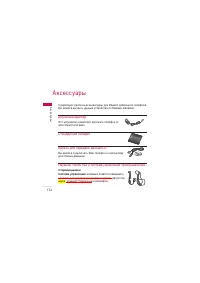
ÄÍÒÂÒÒÛ‡˚ ÄÍÒÂÒÒÛ‡˚ 132 ëÛ˘ÂÒÚ‚Û˛Ú ‡Á΢Ì˚ ‡ÍÒÂÒÒÛ‡˚ ‰Îfl LJ¯Â„Ó ÏÓ·ËθÌÓ„Ó ÚÂÎÂÙÓ̇.Ç˚ ÏÓÊÂÚ ‚˚·‡Ú¸ ‰‡ÌÌ˚ ÛÒÚÓÈÒÚ‚‡ ÔÓ Ç‡¯ÂÏÛ Ê·Ì˲. ÑÓÓÊÌ˚È ‡‰‡ÔÚ ùÚÓ ÛÒÚÓÈÒÚ‚Ó ÔÓÁ‚ÓÎflÂÚ Á‡flʇڸ ÚÂÎÂÙÓÌ ÓÚ ÒÂÚË ˝ÎÂÍÚÓÔËÚ‡ÌËfl. ëڇ̉‡Ú̇fl ·‡Ú‡Âfl 䇷Âθ ‰Îfl Ô‰‡˜Ë ‰‡ÌÌ˚ı/CD Ç˚ ÏÓÊÂÚ ÔÓ‰Íβ˜‡Ú¸ LJ...
Page 135 - Общие; Наименование изделия :; Эксплуатационные температуры; íÂıÌË ̃ÂÒÍË ı‡‡ÍÚÂËÒÚËÍË
Общие Наименование изделия : KG810 Диапазон : GSM 900 / DCS 1800 / PCS 1900 Эксплуатационные температуры Макс. : +55°C Мин. : -10°C íÂıÌ˘ÂÒÍË ı‡‡ÍÚÂËÒÚËÍË íÂıÌ˘ÂÒÍË ı‡‡ÍÚÂËÒÚËÍË 134
Page 137 - KG 810 U S E R G U I D E
KG 810 U S E R G U I D E This manual may differ from the phone depending on the phone software version and service provider used. Disposal of your old appliance 1. When this crossed-out wheeled bin symbol is attached to a product it means the product is covered by theEuropean Directive 2002/96/EC. 2...
Page 138 - Introduction; C o n te n ts
C o n te n ts Introduction 8 Guidelines for safe and efficient use 11 KG810 Features 18 Part of the phone 18 Display Information 23 On-Screen Icons 24 Installation 26 Installing the SIM card and the handset battery 26 Charging the Battery 28 Disconnecting the charger 29 General functions 30 Making a...
Page 140 - Tools; Contents
C o n te n ts Tools 50 Favourites 50 Alarm clock 50 Calculator 50 Unit converter 51 World time 51 Stop watch 52 SIM services 52 Organiser 53 Contacts 53 Calendar 58 Memo 60 To-do 60 Contents 4
Page 142 - Browser
C o n te n ts Browser 88 Home 89 Bookmarks 89 Go to URL 90 Settings 90 My stuff 94 Games & Apps 94 Videos 95 Images 96 Sounds 96 Settings 99 Date & time 99 Display 100 Language 101 Power saving 101 Connectivity 102 Calling 107 Security 111 Memory status 114 Reset settings 115 Contents 6
Page 144 - I n t ro d u c t i o n
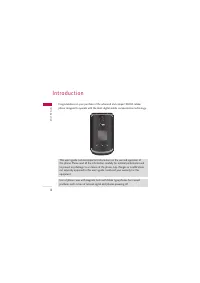
In tr o d u ct io n Congratulations on your purchase of the advanced and compact KG810 cellularphone, designed to operate with the latest digital mobile communication technology. I n t ro d u c t i o n 8 This user’s guide contains important information on the use and operation ofthis phone. Please r...
Page 145 - Fo r Yo u r S a f ety; Warning; Caution
Fo r Yo u r S a f ety 9 Fo r Yo u r S af et y Please read these simple guidelines. Not following these guidelines may be dangerousor illegal. Further detailed information is given in this manual. Warning ] Mobile Phones must be switched off at all times in aircrafts. ] Do not hold the phone in your ...
Page 146 - For Your Safety
Fo r Yo u r S af et y ] All radio transmitters carry risks of interference with electronics in close proximity.Minor interference may affect TVs, radios, PCs, etc. ] Batteries should be disposed of in accordance with relevant legislation. ] Do not dismantle the phone or battery. For Your Safety 10
Page 147 - G u i d e l i n es f o r s a f e a n d e f f i c i e n t u s e
G u i d e l i n es f o r s a f e a n d e f f i c i e n t u s e 11 Radio wave exposure and Specific Absorption Rate (SAR) information This mobile phone model KG810 has been designed to comply with applicable safetyrequirement for exposure to radio waves. This requirement is based on scientificguideli...
Page 148 - Product care and maintenance; Guidelines for safe and efficient use
G u id e lin es f o r sa fe a n d e ff ic ie n t u se Product care and maintenance Warning! Use only batteries, chargers and accessories approved for use with this particular phone model. The use of any other types may invalidate any approval or warranty applying to the phone, and may be dangerous. ...
Page 149 - Efficient phone operation
13 phone (power plug pin), metallic articles (such as a coin, paperclip or pen) mayshort-circuit the phone. Always cover the receptacle when not in use. ] Never place your phone in a microwave oven as it will cause the battery to explode. ] Only authorized personnel should service the phone and its ...
Page 150 - Electronics devices; Road safety
G u id e lin es f o r sa fe a n d e ff ic ie n t u se ] If your mobile phone supports infrared, never direct the infrared ray at anyone’seyes. Electronics devices All mobile phones may get interference, which could affect performance. ] Do not use your mobile phone near medical equipment without req...
Page 152 - Battery information and care; Network service
G u id e lin es f o r sa fe a n d e ff ic ie n t u se Battery information and care ] You do not need to completely discharge the battery before recharging. Unlikeother battery systems, there is no memory effect that could compromise thebattery’s performance. ] Use only LG batteries and chargers. LG ...
Page 153 - Avoid damage to your hearing
17 Avoid damage to your hearing ] Damage to your hearing can occur if you are exposed to loud sound for longperiods of time. We therefore recommend that you do not turn on or off thehandset close to your ear. We also recommend that music and call volumes are setto a reasonable level. ] If you are li...
Page 154 - Part of the phone
Part of the phone 1.Earpiece 2.Main LCD ] Top: Icons showing signal strength, battery level and various other functions. ] Bottom: Soft key indications K G 8 10 F e at u re s KG 810 Fe at u res 18 1 5 5 6 9 8 3 4 Menu Contacts 2 7 Menu Contacts
Page 155 - Note
19 3. Alpha numeric keys ] In standby mode: Input numbers to dial. Hold down - International calls - Dial Voice mail centre. to - Speed dials - Activate Timer in Take picture mode- While keying in a phone number, you can pause the function by pressing this key for a long time. ] In editing mode: Ent...
Page 158 - Rear view
K G 8 10 F e at u re s Rear view KG810 Features 22 D IG IT A L Z O O M Cable Connector /Battery Charging Connector Note ] Please ensure phone is poweredon and in idle mode beforeconnecting the USB cable. Battery Battery Terminals SIM Card Socket
Page 159 - Display Information
23 Display Information K G 8 10 F e at u re s Icon area Text andgraphic area Soft key indications Menu Contacts Area Description First line Middle lines Displays various icons.See page 24. Shows the functions currentlyassigned to the two soft keys. Last line Display messages, instructions andany inf...
Page 162 - Installing the SIM card and the handset battery; I n s ta l l at i o n
In st al la tio n Installing the SIM card and the handset battery Make sure the power is off before you remove the battery. 1. Remove the battery. Move the holder of battery to right side and lift the battery from the batterycompartment. 2. Install the SIM card. Insert the SIM card into the holder. ...
Page 164 - Charging the Battery; Installation
In st al la tio n Charging the Battery Before connecting the travel adapter to the phone you must first install the battery. 1. Ensure the battery is fully charged before using the phone for the first time. 2. With the arrow facing you as shown in the diagram push the plug on the batteryadapter into...
Page 165 - Disconnecting the charger
29 Warning ] Unplug the power cord and charger during lightning storms to avoid electric shock or fire. ] Make sure that no sharp-edged items such as animal teeth or nails, come into contact with the battery. There is a risk of this causing a fire. ] Do not place or answer calls while charging the p...
Page 166 - Making a Call; Making a call from the call history list.; G e n e ra l f u n c t i o n s
G e n e ra l f u n ct io n s Making a Call 1. Make sure your phone is powered on. 2. Enter a phone number including the area code. To edit a number on the displayscreen, simply press the key to erase one digit at a time. ] Press and hold the key to erase the entire number. 3. Press the key to call. ...
Page 167 - Ending a Call; Making a Call From the Contact list; Answering a Call
31 Ending a Call When you have finished a call, press the key. Making a Call From the Contact list You can store names and phone numbers dialled frequently in the SIM card as well asthe phone memory known as the Contact list. You can dial a number by simply looking up a name in the contact list. For...
Page 168 - Signal Strength; Entering Text; General functions
G e n e ra l f u n ct io n s Note ] To reject an incoming call, press and hold the side keys on the left side of the phone. 2. End the call by closing the phone or pressing the key. Note ] You can answer a call while using the Address Book or other menu features. In case phone is connected with PC v...
Page 169 - T9 Mode; Symbolic Mode
33 Note ] Some fields may allow only one text input mode (e.g. telephone number in address book fields). T9 Mode This mode allows you to enter words with only one keystroke per letter. Each key onthe keypad has more than one letter. The T9 mode automatically compares yourkeystrokes with an internal ...
Page 170 - Changing the Text Input Mode; Using the T9 Mode
G e n e ra l f u n ct io n s Changing the Text Input Mode 1. When you are in a field that allows characters to be entered, you will notice thetext input mode indicator in the upper right corner of the display. 2. If you want to change modes, press . The available modes are changed. Using the T9 Mode...
Page 171 - Using the ABC Mode
35 ] If the desired word is missing from the word choices list, add it by using the ABCmode. 2. Enter the whole word before editing or deleting any keystrokes. 3. Complete each word with a space by pressing the key or key. To delete letters, press . Press and hold down to erase the letters continuou...
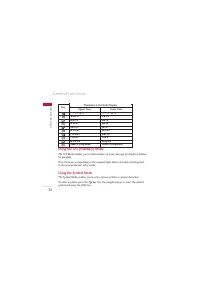
Page 172 - Using the Symbol Mode
G e n e ra l f u n ct io n s Using the 123 (Numbers) Mode The 123 Mode enables you to enter numbers in a text message (a telephone number,for example). Press the keys corresponding to the required digits before manually switching backto the appropriate text entry mode. Using the Symbol Mode The Symb...
Page 173 - S e l e c t i n g f u n c t i o n s a n d o pt i o n s
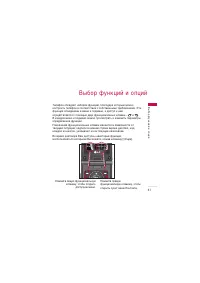
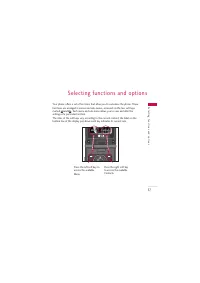
S e l e c t i n g f u n c t i o n s a n d o pt i o n s 37 Your phone offers a set of functions that allow you to customize the phone. Thesefunctions are arranged in menus and sub-menus, accessed via the two soft keysmarked and . Each menu and sub-menu allows you to view and alter the settings of a p...
Page 174 - During a Call; Swapping Between Two Calls; Answering an Incoming Call; I n - C a l l M e nu
In -Cal l Men u Your phone provides a number of control functions that you can use during a call. Toaccess these functions during a call, press the left soft key [Options]. During a Call The menu displayed on the handset screen during a call is different than the defaultmain menu displayed when in i...
Page 175 - Rejecting an Incoming Call; Muting the Microphone; Conference Calls
39 Rejecting an Incoming Call You can reject an incoming call without answering by simply pressing the key. During a call, you can reject an incoming call by pressing the key. Muting the Microphone You can mute the microphone during a call by pressing the [Options] key thenselecting [Mute]. The hand...
Page 176 - Making a Second Call; Setting Up a Conference Call; Adding Calls to the Conference Call
In -Cal l Men u call are five. Once started, you are in control of the conference call, and only you canadd calls to the conference call. Making a Second Call You can make a second call while currently on a call. Enter the second number andpress the . When the second call is connected, the first cal...
Page 178 - M e nu t re e
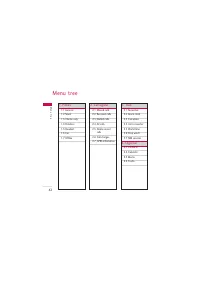
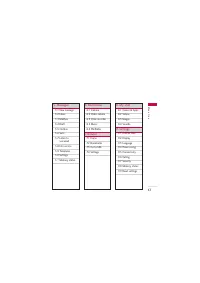
Men u t re e M e nu t re e 42 1. Profiles 1.1 General 1.2 Silent 1.3 Vibrate only 1.4 Outdoor 1.5 Headset 1.6 Car 1.7 Offline 2. Call register 2.1 Missed calls 2.2 Received calls 2.3 Dialled calls 2.4 All calls 2.5 Delete recent calls 2.6 Call charges 2.7 GPRS information 3. Tools 3.1 Favourites 3.2...
Page 180 - Activate; P ro f i l es
P ro fil es In Profiles, you can adjust and customise the phone tones for different events,environments, or caller groups. There are five preset profiles: General, Silent, Vibrate only, Outdoor, Headset, Car and Offline . Each profile can be personalised. Press the left soft key [Menu] and select Pr...
Page 182 - Missed calls; C a l l re g i s te r
C al l r e g is te r You can check the record of missed, received, and dialled calls only if the networksupports the Calling Line Identification (CLI) within the service area. The number and name (if available) are displayed together with the date and time atwhich the call was made. You can also vie...
Page 183 - Dialled calls; All calls; Delete recent calls
47 Dialled calls Menu 2.3 This option lets you view the last 20 outgoing calls (called or attempted). You can also: ] View the number if available and call it or save it in the Address Book ] Enter new name for the number and save both in the Address Book ] Send a message to this number ] Delete the...
Page 184 - Call charges; Call duration; Call costs; Call register
C al l r e g is te r Call charges Menu 2.6 Call duration (Menu 2.6.1) Allows you to view the duration of your incoming and outgoing calls. You can alsoreset the call times. The following timers are available: ] Last call: Length of the last call. ] All calls: Total length of all calls made and incom...
Page 185 - Settings; GPRS information
49 Settings (Menu 2.6.3) (SIM Dependent) ] Set tariff: You can set the currency type and the unit price. Contact your service providers to obtain charging unit prices. To select the currency or unit in thismenu, you need the PIN2 code. ] Set credit: This network allows you to limit the cost of your ...
Page 186 - Favourites; Alarm clock; Calculator; To o l s
To o ls Favourites Menu 3.1 This option allows you to add your own favourites to the list already provided. Onceyou create your own menu, you can access the desired function quickly in the idlescreen by pressing the up navigation key. Note ] The menu of New message and MP3 is already provided in you...
Page 187 - Unit converter
51 4. Press key to view the result. 5. To input the decimal number, press key. If you press key, you can enter minus number. 6. To end Calculator , press the right soft key [Back]. Unit converter Menu 3.4 This converts any measurement into a unit you want. There are 4 types that can beconverted into...
Page 188 - Stop watch; SIM services
To o ls Stop watch Menu 3.6 You can use the stopwatch function. 1. Select Stopwatch menu. 2. Press [Start] to start the stopwatch. If you want to stop it, press this key again. 3. You can save up to four records by pressing [Lap]. SIM services Menu 3.7 This menu depends on SIM and the network servic...
Page 189 - O rg a n i s e r; Contacts; Search contacts
O rg a n i s e r 53 Contacts Menu 4.1 Search contacts (Menu 4.1.1) 1. Select Search by pressing the right soft key [Contacts] or [OK]. 2. Enter the name that you want to search. Note ] Instant searching is available by inputting the initial letter of the name or number you want to search. 3. If you ...
Page 190 - Caller groups; Organiser
Org an is e r Add new (Menu 4.1.2) You can add a phonebook entry by using this function. Phone memory capacity is500 entries. SIM card memory capacity depends on the cellular service provider. Youcan also save 30 characters of name in the phone memory, and the SIM card. Note ] Maximum stored name an...
Page 192 - Own number
Org an is e r Own number (Menu 4.1.5) (Sim dependent) You can save and check your own number in SIM card. My business card (Menu 4.1.6) This option allows you to create your own business card featuring Name and anmobile phone number. To create a new business card, press the left soft key [Edit] and ...
Page 194 - Calendar; View
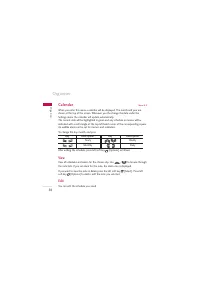
Org an is e r Calendar Menu 4.2 When you enter this menu a calendar will be displayed. The month and year areshown at the top of the screen. Whenever you the change the date under theSettings menu, the calender will update automatically.The current date will be highlighted in green and any schedule ...
Page 196 - View all schedules
Org an is e r View all schedules You can view all schedules you saved. Delete past You can delete the past schedule that you have already been notified of. Delete all You can delete all the notes. Memo Menu 4.3 1. Select the Memo by pressing the left soft key [Select]. 2. If the entry is empty, pres...
Page 197 - M es s a g es; New message; Write text message
M es s a g es 61 New message Menu 5.1 This menu includes functions related to SMS (Short Message Service), MMS(Multimedia Message Service), Email, voice mail, as well as the network’s servicemessages. Write text message (Menu 5.1.1) You can write and edit text message, checking the number of message...
Page 198 - Messages
Mess ag es Insert ] Symbol: You can add special characters. ] Picture: You can insert the Default graphics or graphics in My pictures that are available for short messages. ] Animation: You can send the message with moving image. ] Sound: You can insert sounds that are available for short messages. ...
Page 199 - Write multimedia message
63 Write multimedia message (Menu 5.1.2) A multimedia message can contain text, images, and/or sound clips. This feature canbe used only if it is supported by your network operator or service provider. Onlydevices that offer compatible multimedia message or e-mail features can receive andsend multim...
Page 200 - Write email message
Mess ag es ] Move to slide: You can move to previous or next slide. ] Delete slide: You can delete current slides. ] Set timer: You can set a timer for slide, text, picture and sound. ] Add T9 dictionary: You can add your own words. This menu will only be shown when the edit mode has been set to T9A...
Page 202 - Inbox
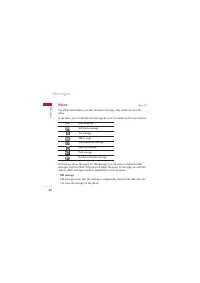
Mess ag es Inbox Menu 5.2 You will be alerted when you have received a message. They will be stored in theInbox. In the Inbox, you can identify each message by icons. For detail, see the icon directive. If the phone shows ‘No space for SIM message’, you only have to delete the SIMmessages from the I...
Page 203 - Mailbox
67 When you are notified that you have received a multimedia message, you have towait for the message to be downloaded before you can view it. To read a message, select one of the messages by pressing the left soft key . ] View: You can view the received messages. ] Delete: You can delete the curren...
Page 204 - Draft
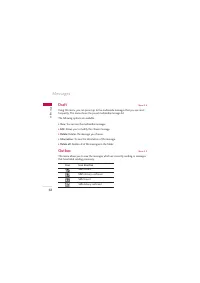
Mess ag es Draft Menu 5.4 Using this menu, you can preset up to five multimedia messages that you use mostfrequently. This menu shows the preset multimedia message list. The following options are available. ] View: You can see the multimedia messages. ] Edit: Allows you to modify the chosen message....
Page 206 - Info service; Receive; Topics
Mess ag es Info service Menu 5.8 (Dependent to network and subscription) Info service messages are text messages delivered by the network to your handset.They provide general information such as weather reports, traffic news, taxis,pharmacies, and stock prices. When you receive an info service messa...
Page 207 - Alert; Templates; Text
71 ] View list: You can see Info service message numbers which you have added. If you press [Options], you can edit and delete info message categories which you have added. ] Active list: You can select info service message numbers in the active list. if you activate an info service number, you can ...
Page 208 - Multimedia
Mess ag es - I'm late. I will be there at - Where are you now? - I am on the way. - Top urgent. Please contact. - I love you. Multimedia (Menu 5.9.2) After you have saved a new template, you can use the following options. ] View: You can see multimedia templates. ] Delete: You can delete multimedia ...
Page 209 - Text message; MMS message
73 Settings Menu 5.0 Text message (Menu 5.0.1) Text, Voice, Fax, Paging, X.400, E-mail, ERMES Usually, the type of message is set to Text. You can convert your text into alternativeformats. Contact your service provider for the availability of this function. ] Validity period: This network service a...
Page 211 - Voice mail centre; Memory status
75 ] Email accounts You can set up to 3 email accounts by selecting Add new.Using the Edit menu, you can set the following values. ] Insert Business Card: Select Yes to attach your Business Card to your email messages. ] Network profile Voice mail centre (Menu 5.0.4) You can receive the voicemail if...
Page 212 - M u l t i m e d i a; Camera
Mult im e d ia M u l t i m e d i a 76 You can enjoy your multimedia functions such as camera, voice recorder, MP3 for yourfun and convenience. Note ] When a low battery indication is given, the Camera or Multimedia function may not operate. ] The battery level indication may appear lower when using ...
Page 214 - Video camera
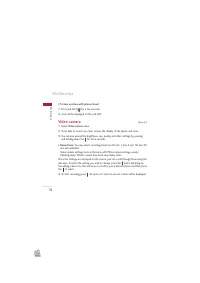
Mult im e d ia Multimedia 78 • To take a picture with phone closed 1. Press and hold [ ] for a few seconds. 2. A list will be displayed on the sub LCD. Video camera Menu 6.2 1. Select Video camera menu. 2. To be able to record, you must reverse the display of the phone and close. 3. You can also ame...
Page 215 - Voice recorder; Music
79 Mult im e d ia Voice recorder Menu 6.3 With the voice memo feature you can record up to 3 voice messages and each memocan be up to 30 seconds long. If the phone doesn't have any list of voice recording, you select [Record]. One recording has started, the remaining time is displayed. If you want t...
Page 217 - Audio player
81 Mult im e d ia you copy songs in removable disk, you should execute safe remove from your system. Note ] You should copy your MP3 files to My media\Music folder. If you copy to another folder, you will not be able to view MP3 files. ] The PC should run Windows 98 SE, Windows ME, Windows 2000, Win...
Page 219 - Playlist
83 Mult im e d ia Note ] In case that any invalid file is included in the playlist, an error message will be popped up and go back to the prior screen. 1. Press MP3 menu, and then select MP3 player. 2. Press the left soft key [Options] to access the following menus. ] View playlist: You can select a...
Page 221 - FM Radio; Listen radio
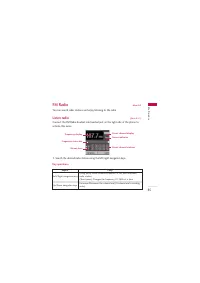
85 Mult im e d ia FM Radio Menu 6.5 You can search radio stations and enjoy listening to the radio. Listen radio (Menu 6.5.1) Connect the FM Radio headset into headset jack on the right side of the phone toactivate this menu. 1. Search the desired radio station using the left/right navigation keys. ...
Page 223 - Channels
87 ] Activate speaker Select this to listen to the radio through the built-in speaker. To turn off thespeaker, select “Deactivate speaker”. Channels (Menu 6.5.2) Opens up the channel list. After storing radio stations to the preset channels, you can listen to the radio byselecting the desired channe...
Page 224 - B rows e r
You can access various WAP (Wireless Application Protocol) services such as banking,news, weather reports and flight information. These services are specially designedfor mobile phones and they are maintained by WAP service providers. Check the availability of WAP services, pricing and tariffs with ...
Page 225 - Home
89 B ro w se r Note ] The WAP browser menus may vary, depending on your browser version. Home Menu 7.1 Connects to a homepage. The homepage will be the site which is defined in theactivated profile. It will be defined by the service provider if you have not defined itin the activated profile. Bookma...
Page 226 - Profiles
] Delete: Deletes the selected bookmark. ] Delete all: Deletes all the bookmarks. Go to URL Menu 7.3 You can connect directly to the site you want. After entering a specific URL, pressthe OK key. Settings Menu 7.4 You can set the profile, cache, cookie and security related to internet service. Profi...
Page 228 - Cache
Display image: yes/no Connect type: Continuous/Temporary Security setting: None/Secure ] Rename: You can change the profile name. ] Add new: You can add a new profile. ] Delete: Deletes the selected profile from the list. ] Delete all Cache (Menu 7.4.2) The information or services you have accessed ...
Page 229 - Security certificates; WAP information
93 B ro w se r Security certificates (Menu 7.4.4) A list of the available certification is shown. WAP information (Menu 7.4.5) You can view the information of WAP browser version.
Page 230 - Default games; Downloaded; M y s t u f f
Note ] Do not change the default folder name, or it does not work properly. Games & Apps Menu 8.1 Default games (Menu 8.1.1) ] Default Games: In this menu, you can manage the Java applications installed in your phone. You can play or delete downloaded applications, or set the connectoption. The ...
Page 231 - Information; Videos
95 My s tu ff Information (Menu 8.1.4) You can check the status of memory and view Java version. Videos Menu 8.2 Show the list of 3GP, 3G2 files at My media\Videos in Multimedia memory. ] Play: You can play the video file by pressing the OK key or selecting Play from the Option menu. To play recorde...
Page 232 - My stuff
Images Menu 8.3 After selecting a image, press the left key [View] and then you can check the options as follow: ] Set as wallpaper: urrently selected image can be set as a wallpaper. ] Write messages: The images downloaded from the network can be sent by Multimedia or Email service. Maximum message...
Page 234 - New Fantastic LG; Notice
My s tu ff My stuff 98 New Fantastic LG There is mass storage function in KG810. if you connect the USB cable, you canuse the phone as a Removable Disk. You can download MP3 files, and photos, video, txt files etc. this gives you fastaccess from PC to Phone, by just connecting the USB cable. Notice ...
Page 235 - S ett i n g s; Date; Time
S ett i n g s 99 S et tin g s Date &Time Menu 9.1 You can set functions relating to the date and time. Date (Menu 9.1.1) ] Set date You can enter the current date. ] Date format You can set the Date format such as DD/MM/YYYY, MM/DD/YYYY,YYYY/MM/DD.(D: Day / M: Month / Y: Year) Time (Menu 9.1.2) ...
Page 236 - Display; Wallpaper; Main LCD; Menu Colour
S et tin g s Settings 100 Display Menu 9.2 Wallpaper (Menu 9.2.1) You can select the background pictures in standby mode. Main LCD (Menu 9.2.1.1) Front LCD (Menu 9.2.1.2) Default You can select a picture or an animation of wallpaper by pressing or . My folder You can select a picture or an animation...
Page 237 - Backlight; Brightness; Language
101 S et tin g s Backlight (Menu 9.2.4) You can set the light-up duration of the display. Brightness (Menu 9.2.5) You can set the brightness of LCD: 100%, 80%, 60%, 40% Network name (Menu 9.2.6) If this function is activated, network name will be displayed on main LCD. Language Menu 9.3 You can chan...
Page 238 - Connectivity; Set Bluetooth
S et tin g s Settings 102 Connectivity Menu 9.5 Bluetooth (Menu 9.5.1) Bluetooth enables compatible mobile devices, peripherals and computers that are inclose proximity to communicate directly with each other without wires. This handsetsupports built-in Bluetooth connectivity, which makes it possibl...
Page 239 - Paired devices; Handsfree devices
103 S et tin g s Paired devices (Menu 9.5.1.2) You can view all devices which are compatible with Bluetooth phone. Note ] Due to a compatibility problem, some devices may not support this function. Handsfree devices (Menu 9.5.1.3) You can view the list of handsfree devices which is compatible with B...
Page 240 - Supported services; Removable disk
S et tin g s Settings 104 Settings (Menu 9.5.1.4) You can register a new device which is compatible with Bluetooth. If you already haveadded the device, you can search it after entering a password. ] My handset's visibility You can set the function that your phone is visible on the other Bluetooth d...
Page 241 - Network; Network selection
105 S et tin g s Network (Menu 9.5.4) You can select a network which will be registered either automatically or manually.Usually, the network selection is set to Automatic . Network selection (Menu 9.5.4.1) You can select a network type. Automatic If you select Automatic mode, the phone will automat...
Page 242 - Band selection; GPRS Attach; Switch on
S et tin g s Settings 106 Band selection (Menu 9.5.4.2) EGSM/DCS According to depending on Network situation, you can select EGSM/DCS. PCS According to depending on Network situation, you can select EGSM/PCS. GPRS Attach (Menu 9.5.5) You can set GPRS service depending on various situations. Switch o...
Page 243 - Calling; Call divert
107 S et tin g s Calling Menu 9.6 You can set the menu relevant to a call by pressing [Select] in the Setting menu. Call divert (Menu 9.6.1) The Call divert service allows you to divert incoming voice calls, fax calls, and datacalls to another number. For details, contact your service provider. ] Al...
Page 245 - Answer mode; Send my number
109 S et tin g s Answer mode (Menu 9.6.2) ] Flip open If you select this menu, you can receive an incoming call when you open the flip. ] Any key If you select this menu, you can receive a call by pressing any key except [End] key. ] Send key only If you select this menu, you can receive a call by o...
Page 246 - Call waiting; Minute minder; Auto redial
S et tin g s Settings 110 Call waiting (Menu 9.6.4) (network dependent) ] Activate If you select Activate, you can accept a waiting (receiving) call. ] Cancel If you select Cancel, you cannot recognize the waiting (receiving) call. ] View status Shows the status of Call waiting. Minute minder (Menu ...
Page 247 - Send DTMF; Security; PIN code request
111 S et tin g s Send DTMF (Menu 9.6.7) You can send touch tones during an active call to control your voice mailbox or otherautomated phone services. ] InformationDTMF tone: Dual Tones Multiple Frequency Security Menu 9.7 PIN code request (Menu 9.7.1) In this menu, you can set the phone to ask for ...
Page 248 - Handset lock
S et tin g s Settings 112 Handset lock (Menu 9.7.2) You can use a security code to avoid unauthorized use of the phone. Whenever youswitch on the phone, the phone will request security code if you set phone lock to When switch on . If you set phone lock to When SIM changed , your phone will request ...
Page 249 - Fixed dial number
113 S et tin g s ] Incoming when roaming The barring service for all incoming calls when roaming. ] Cancel all barrings You can cancel all barring services. ] Change password You can change the password for Call Barring Service. The submenus: - Activate Allows to request the network to set call rest...
Page 250 - Change code
S et tin g s Settings 114 ] Enable You can restrict your outgoing calls to selected phone numbers. ] Disable You can cancel fixed dialling function. ] Number list You can view the number list saved as Fixed dial number. Change code (Menu 9.7.5) PIN is an abbreviation of Personal Identification Numbe...
Page 251 - Reset setting
115 S et tin g s Reset setting Menu 9.9 You can initialize all factory defaults. You need Security code to activate thisfunction. ] Restore default settings: Allows you to restore default settings. ] Clear multimedia memory: Allows you to format the multimedia memory and create a default directory.
Page 252 - Ac c es s o r i es; Travel Adapter
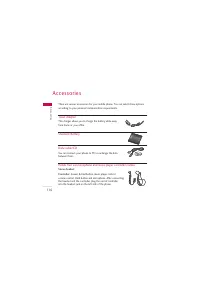
A cc es so ri es Ac c es s o r i es 116 There are various accessories for your mobile phone. You can select these optionsaccording to your personal communication requirements. Travel Adapter This charger allows you to charge the battery while away from home or your office. Standard Battery D ata cab...
Page 254 - Te c h n i c a l D ata; General
Te ch n ic al D at a Te c h n i c a l D ata 118 General Product name : KG810 System : GSM 900 / DCS 1800 / PCS 1900 Ambient Temperatures Max. : +55°C Min : -10°C

 LG KG200 User Manual
 LG KG225 User Manual
 LG KG245 User Manual
 LG KG300 User Manual
 LG KG320 User Manual
 LG KG800 User Manual
 LG KG920 User Manual
 LG L342i User Manual
 LG M4410 User Manual
 LG M6100 User Manual
 LG P7200 User Manual
 LG S5000 User Manual
 LG S5200 User Manual
 LG T5100 User Manual
 LG W7000 User Manual
 LG X Power 2 M320 User Manual
 LG X Power K220DS Manual
 LG 600 User Manual
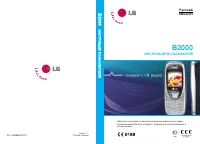 LG B2000 User Manual
 LG B2100 User Manual