Page 2 - O„·‚ÎÂÌËÂ
O„·‚ÎÂÌË 2 ǂ‰ÂÌË 5ÑÎfl LJ¯ÂÈ ·ÂÁÓÔ‡ÒÌÓÒÚË 6 PÂÍÓÏẨ‡ˆËË ‰Îfl·ÂÁÓÔ‡ÒÌÓ„Ó Ë˝ÙÙÂÍÚË‚ÌÓ„ÓËÒÔÓθÁÓ‚‡ÌËfl 8 îÛÌ͈ËË KG920 14 éÔËÒ‡ÌË ÚÂÎÂÙÓ̇éÚÓ·‡ÊÂÌË ËÌÙÓχˆËË 18 ëËÏ‚ÓÎ˚ ̇ ˝Í‡Ì 19 èÓ‰„ÓÚӂ͇ Í Ì‡˜‡ÎÛ‡·ÓÚ˚ 21 ìÒÚ‡Ìӂ͇ SIM ͇Ú˚ Ë·‡Ú‡ÂË á‡fl‰Í‡ ·‡Ú‡ÂË 22 éÚÍβ˜ÂÌË Á‡fl‰ÌÓ„ÓÛÒÚÓÈÒÚ‚‡ 24ä‡Ú...
Page 3 - åÛÎ ̧ÚËωˇ
O„·‚ÎÂÌË 3 3 á‡ÏÂÚ͇ 52 åÛθÚËωˇ 53 îÓÚÓ„‡ÙËÓ‚‡Ú¸ 54 á‡ÔËÒ‡Ú¸ ‚ˉÂÓ 56 îÓÚÓ ‚ ‡ÏÍ 57 ÑËÍÚÓÙÓÌ 58 á‡ÔËÒ¸ èÓÒÏÓÚÂÚ¸ ÒÔËÒÓÍ MP3 59 MP3 ÔΠ61 èÎÂÈÎËÒÚ 62 ç‡ÒÚÓÈÍË MoÈ aθ·ÓÏåÓfi ‚ˉÂÓ 63 ç‡ÒÚÓÈÍË 64 ä‡Ï‡ÇˉÂÓ͇χ ëÓÓ·˘ÂÌËfl 65 çÓ‚Ó ÒÓÓ·˘ÂÌË ç‡ÔËÒ‡Ú¸ SMS ç‡ÔËÒ‡Ú¸ MMS 67 ç‡ÔËÒ‡Ú¸ e-mai...
Page 4 - ŇÛÁÂ
O„·‚ÎÂÌË 4 ÑÓÒÚÛÔÌ˚ Ò‚ËÒ˚ 88 ëÓ‰ËÌÂÌË 89 ä‡Î¸ÍÛÎflÚÓ äÓÌ‚ÂÚ 90ó‡ÒÓ‚ÓÈ ÔÓflÒ SIM-ÏÂÌ˛ ŇÛÁ 91 ÑÓχ¯Ìflfl 92 á‡Í·‰ÍË èÂÂÈÚË Í URL ç‡ÒÚÓÈÍË èÓÙËÎË 93 ä˝¯ 94 î‡ÈÎ˚ “Cookie” é˜ËÒÚËÚ¸ Í˝¯ é˜ËÒÚËÚ¸ cookies ÅÂÁÓÔ‡ÒÌÓÒÚ¸ 95 Ç˚ÁÓ‚˚ 96 èÓÔÛ˘ÂÌÌ˚ ÇıÓ‰fl˘Ë àÒıÓ‰fl˘Ë ÇÒ ‚˚ÁÓ‚˚ 97 쉇ÎËÚ¸ ÔÓÒΉÌË...
Page 8 - ÇÓÁ‰ÂÈÒÚ‚Ë ‡‰ËÓ ̃‡ÒÚÓÚÌÓÈ; êÂÍÓÏẨ‡ˆËË ‰Îfl ·ÂÁÓÔ‡ÒÌÓ„Ó Ë
8 êÂÍÓÏẨ‡ˆËË ‰Îfl ·ÂÁÓÔ‡ÒÌÓ„Ó Ë ˝ÙÙÂÍÚË‚ÌÓ„Ó ËÒÔÓθÁÓ‚‡ÌËfl èÓ˜ËÚ‡ÈÚ ˝ÚË ÌÂÒÎÓÊÌ˚ ÂÍÓÏẨ‡ˆËË.çÂÒӷβ‰ÂÌË ˝ÚËı ËÌÒÚÛ͈ËÈ ÏÓÊÂÚ ·˚Ú¸ÓÔ‡ÒÌ˚Ï Ë Ì‰ÓÔÛÒÚËÏ˚Ï. èӉӷ̇flËÌÙÓχˆËfl Ó· ˝ÚÓÏ Ô˂‰Â̇ ‚ ‰‡ÌÌÓÏÛÍÓ‚Ó‰ÒÚ‚Â. ÇÓÁ‰ÂÈÒÚ‚Ë ‡‰ËÓ˜‡ÒÚÓÚÌÓÈ ˝Ì„ËË ë‚‰ÂÌËfl Ó ‚ÓÁ‰ÂÈÒÚ‚ËË ‡‰ËÓ‚ÓÎÌ ËÛ‰ÂθÌÓÈ ÏÓ...
Page 9 - é·‡ ̆ÂÌËÂ Ò ÚÂÎÂÙÓÌÓÏ Ë
êÂÍÓÏẨ‡ˆËË ‰Îfl ·ÂÁÓÔ‡ÒÌÓ„Ó Ë ˝ÙÙÂÍÚË‚ÌÓ„Ó ËÒÔÓθÁÓ‚‡ÌËfl 9 é·‡˘ÂÌËÂ Ò ÚÂÎÂÙÓÌÓÏ Ë Â„Ó Ó·ÒÎÛÊË‚‡ÌË ] á‡Ô¢‡ÂÚÒfl ‡Á·Ë‡Ú¸ ÛÒÚÓÈÒÚ‚Ó. (èË ÌÂÓ·ıÓ‰ËÏÓÒÚË ÂÏÓÌÚ‡ ÓÚÌÂÒËÚ „ÓÍ Í‚‡ÎËÙˈËÓ‚‡ÌÌÓÏÛ ÒÔˆˇÎËÒÚÛ.) ] ç ËÒÔÓθÁÛÈÚ ÚÂÎÂÙÓÌ ‚·ÎËÁË˝ÎÂÍÚÓÔË·ÓÓ‚, ̇ÔËÏÂ, ‚·ÎËÁËÚÂ΂ËÁÓ‡, ‡‰ËÓ ËÎË ÔÂ...
Page 14 - éÔËÒ‡ÌË ÚÂÎÂÙÓ̇; Çˉ ÒÔ‰Ë
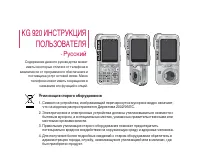
îÛÌ͈ËË KG920 îÛÌ͈ËË KG920 14 éÔËÒ‡ÌË ÚÂÎÂÙÓ̇ Çˉ ÒÔÂÂ‰Ë ÑË̇ÏËÍ ìÏÂ̸¯ËÚ¸ îÛÌ͈ËÓ̇θÌ˚ Í·‚Ë¯Ë ùÚË ÍÌÓÔÍË ‚˚ÔÓÎÌfl˛Ú ÙÛÌ͈ËË,Û͇Á‡ÌÌ˚ ‚ÌËÁÛ ‰ËÒÔÎÂflÌÂÔÓÒ‰ÒÚ‚ÂÌÌÓ Ì‡‰ ÌËÏË. éÒÌÓ‚ÌÓÈ Üä-‰ËÒÔÎÂÈ • ÇÂı ‰ËÒÔÎÂfl: ÛÓ‚Â̸ Ò˄̇·, ÛÓ‚Â̸ Á‡fl‰‡ ‡ÍÍÛÏÛÎflÚÓ‡Ë ‡Á΢Ì˚ ÙÛÌ͈ËË • çËÁ ‰ËÒÔÎÂfl: Ë̉ËÍ...
Page 15 - ÇÌËχÌËÂ
îÛÌ͈ËË KG920 15 Çˉ Ò΂‡ Çˉ ÒÔ‡‚‡ ÇÌËχÌË ] èËϘ‡ÌËÂ. óÚÓ·˚ Á‡˘ËÚËÚ¸ÒÎÛı χÍÒËχθÌ˚È ÛÓ‚Â̸„ÓÏÍÓÒÚË Ì ‰ÓÎÊÂÌÔ‚˚¯‡Ú¸ 3. ÇÌËχÌË ] óÚÓ·˚ ÔÓ‰Íβ˜ËÚ¸ USB,ÔÓ‰ÓʉËÚ ÌÂÒÍÓθÍÓÏËÌÛÚ ÔÓÒΠ‚Íβ˜ÂÌËflÚÂÎÂÙÓ̇ Ë ÔÓfl‚ÎÂÌËflÓÍ̇ ÓÊˉ‡ÌËfl. ÅÓÍÓ‚˚ Í·‚Ë¯Ë • Ç ÂÊËÏ ÓÊˉ‡ÌËfl: ÉÓÏÍÓÒÚ¸ Ò˄̇· Í·‚ˇ...
Page 17 - Çˉ ÒÁ‡‰Ë
îÛÌ͈ËË KG920 17 Çˉ ÒÁ‡‰Ë ᇢÂÎ͇ ÓÚÒÂ͇ ‰Îfl ·‡Ú‡ÂË ç‡ÊÏËÚ ˝ÚÛ ÍÌÓÔÍÛ, ˜ÚÓ·˚ÒÌflÚ¸ ·‡Ú‡Â˛. ÇÒÔ˚¯Í‡ éÚ‚ÂÒÚË ‰Îfl Âϯ͇ ÉÌÂÁ‰Ó SIM-͇Ú˚ ëڇ̉‡Ú̇fl ·‡Ú‡Âfl äÎÂÏÏ˚ ·‡Ú‡ÂË é·˙ÂÍÚË‚ ͇ÏÂ˚ Ñ‚ËÊÓÍ ¯ÚÓÍË Í‡ÏÂ˚ òÚÓ͇ ͇ÏÂ˚
Page 18 - éÚÓ·‡ÊÂÌË ËÌÙÓχˆËË
18 îÛÌ͈ËË KG920 îÛÌ͈ËË KG920 éÚÓ·‡ÊÂÌË ËÌÙÓχˆËË é·Î‡ÒÚ¸ éÔËÒ‡ÌË é·Î‡ÒÚ¸ËÌÙÓχˆËÓÌÌ˚ıË̉Ë͇ÚÓÓ‚ é·Î‡ÒÚ¸ ÚÂÍÒÚ‡ Ë„‡ÙËÍË à̉Ë͇ÚÓ˚ÙÛÌ͈ËÓ̇θÌ˚ıÍ·‚˯ é·Î‡ÒÚ¸àÌÙÓχˆËÓÌÌ˚ıË̉Ë͇ÚÓÓ‚ é·Î‡ÒÚ¸ ÚÂÍÒÚ‡Ë „‡ÙËÍË à̉Ë͇ÚÓ˚ÙÛÌ͈ËÓ̇θÌ˚ıÍ·‚˯ éÚÓ·‡Ê‡ÂÚ ‡Á΢Ì˚ÂÁ̇˜ÍË. éÚÓ·‡Ê‡˛Ú ÒÓÓ·˘ÂÌËfl,ËÌÒÚ...
Page 19 - ëËÏ‚ÓÎ ̊ ̇ ͇̋ÌÂ
19 îÛÌ͈ËË KG920 ÇÓ ‚ÂÏfl ‡·ÓÚ˚ ÚÂÎÂÙÓ̇ ̇ ‰ËÒÔΠÏÓ„ÛÚÓÚÓ·‡Ê‡Ú¸Òfl Ò‡ÁÛ ÌÂÒÍÓθÍÓËÌÙÓχˆËÓÌÌ˚ı Ë̉Ë͇ÚÓÓ‚. àı ÓÔËÒ‡ÌËÂÔË‚Ó‰ËÚÒfl ÌËÊÂ. ëËÏ‚ÓÎ˚ ̇ ˝Í‡Ì ëËÏ‚ÓÎ éÔËÒ‡ÌË à̉Ë͇ÚÓ àÌÙÓÏËÛÂÚ ‚‡Ò Ó ÏÓ˘ÌÓÒÚËÒ˄̇· ÒÂÚË. * Ç˚ÁÓ‚ ÛÒÚ‡ÌÓ‚ÎÂÌ. Ç˚ ÏÓÊÂÚ ÔÓθÁÓ‚‡Ú¸ÒflÛÒÎÛ„ÓÈ GPRS. èÓ͇Á˚‚‡ÂÚ, ˜ÚÓ ‚˚...
Page 21 - ìÒÚ‡Ìӂ͇ SIM Í‡Ú ̊ Ë; èËÏ ̃‡ÌËÂ
èÓ‰„ÓÚӂ͇ Í Ì‡˜‡ÎÛ ‡·ÓÚ˚ èÓ‰„ÓÚӂ͇ Í Ì‡˜‡ÎÛ ‡·ÓÚ˚ 21 ìÒÚ‡Ìӂ͇ SIM ͇Ú˚ Ë ·‡Ú‡ÂË è‰ ÚÂÏ, Í‡Í ‚˚ÌÛÚ¸ ·‡Ú‡Â˛, ۷‰ËÚÂÒ¸ ‚ÚÓÏ, ˜ÚÓ ÚÂÎÂÙÓÌ ‚˚Íβ˜ÂÌ. 1. ëÌflÚË ·‡Ú‡ÂË. Ç˚̸Ú ·‡Ú‡Â˛ ËÁ ÓÚÒÂ͇, Û‰ÂÊË‚‡fl ÂÂÁ‡ ‚ÂıÌËÈ Í‡È. 2. ìÒÚ‡Ìӂ͇ SIM-͇Ú˚. ÇÒÚ‡‚¸Ú SIM ͇ÚÛ ‚ ‰ÂʇÚÂθ ËÁ‡‰‚Ë̸ڠ ‰...
Page 22 - á‡fl‰Í‡ ·‡Ú‡ÂË
èÓ‰„ÓÚӂ͇ Í Ì‡˜‡ÎÛ ‡·ÓÚ˚ 22 3. ìÒÚ‡Ìӂ͇ ·‡Ú‡ÂË. ë̇˜‡Î‡ ‚ÒÚ‡‚¸Ú ÌËÊÌ˛˛ ˜‡ÒÚ¸ ·‡Ú‡ÂË ‚ÌËÊÌ˛˛ ˜‡ÒÚ¸ ÓÚÒÂ͇ ‰Îfl ·‡Ú‡ÂË.ç‡ÊÏËÚ ̇ ·‡Ú‡Â˛ Ò‚ÂıÛ Ë ‚ÒÚ‡‚¸Ú ‰Ó˘ÂΘ͇. á‡fl‰Í‡ ·‡Ú‡ÂË è‰ ÔÓ‰Íβ˜ÂÌËÂÏ Á‡fl‰ÌÓ„Ó ÛÒÚÓÈÒÚ‚‡ÌÂÓ·ıÓ‰ËÏÓ ÛÒÚ‡ÌÓ‚ËÚ¸ ‡ÍÍÛÏÛÎflÚÓ. 1. èÓÏÌËÚÂ Ó ÚÓÏ, ˜ÚÓ ÔÓÒΠÁ‡ÏÂÌ˚ ·‡Ú‡...
Page 25 - àÁ‚Π̃ÂÌËÂ Í‡Ú ̊ Ô‡ÏflÚË
èÓ‰„ÓÚӂ͇ Í Ì‡˜‡ÎÛ ‡·ÓÚ˚ 25 ÇÒÚ‡‚¸Ú ͇ÚÛ Ô‡ÏflÚË àÁ‚ΘÂÌË ͇Ú˚ Ô‡ÏflÚË 1. èÓ‰‚Ë̸Ú ͇ÚÛ Ô‡ÏflÚË Ô‡Î¸ˆÂÏ ‚ ÒÎÓÚ. 2. éÒÚÓÓÊÌÓ ‚˚̸Ú ͇ÚÛ Ô‡ÏflÚË ËÁ ÒÎÓÚ‡. àÁ‚ÎÂÍËÚ ͇ÚÛ Ô‡ÏflÚË èËϘ‡ÌË ] ÇÒÚ‡‚ÎflÈÚÂ Ë ‚˚ÌËχÈÚ ͇ÚÛ Ô‡ÏflÚËÚÓθÍÓ ÔÓ ÌÂÓ·ıÓ‰ËÏÓÒÚË, Ú‡Í Í‡Í˜‡ÒÚÓ ÛÒÚ‡Ìӂ͇/ËÁ˙flÚË ͇Ú˚ ÏÓÊÂ...
Page 27 - ĉ‡ÔÚÂ Í‡Ú ̊ Ô‡ÏflÚË
èÓ‰„ÓÚӂ͇ Í Ì‡˜‡ÎÛ ‡·ÓÚ˚ 27 3. Ç˚ ۂˉËÚ 6 Ô‡ÔÓÍ 1) ÇˉÂÓ 2) îÓÚÓ„‡ÙËË 3) ä‡ÚËÌÍË 4) åÛÁ˚͇ 5) á‚ÛÍË 6) ÑÛ„Ë 4. ÑÎfl ÒÓÁ‰‡ÌËfl ‚˚¯ÂÔ˜ËÒÎÂÌÌ˚ı Ô‡ÔÓÍ ‚͇Ú ԇÏflÚË, Ç˚ ‰ÓÎÊÌ˚ ÓÚÍ˚Ú¸ Í‡Ê‰Û˛Ô‡ÔÍÛ ‚ ÓÚ‰ÂθÌÓÒÚË. èË Ó·‡˘ÂÌËË ÍÔ‡ÔÍ ‰ÓÎÊ̇ ÓÚÓ·‡ÁËÚ¸Òfl ̇‰ÔËÒ¸“ëÔËÒÓÍ ÔÛÒÚ”, Ë ‚ ˝ÚÓ Ê ‚ÂÏfl ÒÓÁ‰...
Page 28 - èÓ‰ÒÓ‰ËÌÂÌËÂ Í‡Ú ̊
èÓ‰ÒÓ‰ËÌÂÌË ͇Ú˚ Ô‡ÏflÚË Í èä. ] ëÏÂÌ̇fl ͇ڇ Ô‡ÏflÚË ÏÓÊÂÚ ·˚Ú¸ÏÌÓ„Ó͇ÚÌÓ ËÒÔÓθÁÓ‚‡Ì‡ ‰ÎflÒÓı‡ÌÂÌËfl ÙÓÚÓ„‡ÙËÈ, ‚ˉÂÓ Ë/ËÎËåê3. (ëÓ‚ÏÂÒÚËÏÓ Ò 32å·, 64å·, 128å·ËÎË 512å· Ë ÔÓ‰‰ÂÊÍÓÈ FAT 16/32.ëÓ‚ÏÂÒÚËÏÓÒÚ¸ Á‡‚ËÒËÚ ÓÚËÁ„ÓÚÓ‚ËÚÂÎfl.) èËϘ‡ÌË ] ç‡ÍÎÂÈÍË ÏÓ„ÛÚ ÓÒÚ‡Ú¸Òfl ‚ÌÛÚËÛÒÚÓÈÒÚ‚‡ ˜ÚÂÌËfl ͇...
Page 29 - àÒıÓ‰fl ̆ËÈ ‚ ̊ÁÓ‚; àÒıÓ‰fl ̆Ë ÏÂʉÛÌ‡Ó‰Ì ̊ Á‚ÓÌÍË
éÒÌÓ‚Ì˚ ÙÛÌ͈ËË éÒÌÓ‚Ì˚ ÙÛÌ͈ËË 29 àÒıÓ‰fl˘ËÈ ‚˚ÁÓ‚ 1. ì·Â‰ËÚÂÒ¸, ˜ÚÓ ‚‡¯ ÚÂÎÂÙÓÌ ‚Íβ˜ÂÌ. 2. ǂ‰ËÚ ÌÓÏ ÚÂÎÂÙÓ̇, ‚Íβ˜‡fl ÍÓ‰ „ËÓ̇. ÑÎfl Û‰‡ÎÂÌËfl ÌÓχ ̇ ˝Í‡Ì‰ËÒÔÎÂfl ÌÛÊÌÓ ÔÓÒÚÓ Ì‡ÊËχڸ ÍÌÓÔÍÛ , ˜ÚÓ·˚ Û‰‡ÎflÚ¸ ÔÓ Ó‰ÌÓÈ ˆËÙ Á‡ ‡Á. ] ç‡ÊÏËÚÂ Ë Û‰ÂÊË‚‡ÈÚ ÍÌÓÔÍÛ ‰Îfl Û‰‡ÎÂÌËfl ‚ÒÂ„Ó ÌÓÏÂ...
Page 30 - ç‡ÒÚÓÈ͇ Á‚Û͇; éÚ‚ÂÚ Ì‡ ‚ıÓ‰fl ̆ËÈ Á‚ÓÌÓÍ
éÒÌÓ‚Ì˚ ÙÛÌ͈ËË éÒÌÓ‚Ì˚ ÙÛÌ͈ËË 30 àÒıÓ‰fl˘ËÈ ‚˚ÁÓ‚ ̇ ÌÓÏ ËÁÚÂÎÂÙÓÌÌÓÈ ÍÌË„Ë Ç˚ ÏÓÊÂÚ ÒÓı‡ÌËÚ¸ ˜‡ÒÚÓ ËÒÔÓθÁÛÂÏ˚ÂËÏÂ̇ Ë ÌÓχ ÚÂÎÂÙÓÌÓ‚ ̇ SIM-͇ÚÛË/ËÎË ‚ Ô‡ÏflÚË ÚÂÎÂÙÓ̇. ÑÎfl ÔÓÒÏÓÚ‡‰ÂڇθÌÓ„Ó ÓÔËÒ‡ÌËfl ÙÛÌ͈ËÈ ÚÂÎÂÙÓÌÌÓÈ ÍÌË„Ë, ÔÓʇÎÛÈÒÚ‡, Ó·‡ÚËÚÂÒ¸ Í ÒÚ‡Ìˈ 34. ç‡ÒÚÓÈ͇ Á‚Û͇ ÇÓ ‚Â...
Page 31 - åÓ ̆ÌÓÒÚ ̧ Ò˄̇·; Ç‚Ó‰ ÚÂÍÒÚ‡
éÒÌÓ‚Ì˚ ÙÛÌ͈ËË 31 êÂÊËÏ ‚Ë·ÓÁ‚ÓÌ͇ (·˚ÒÚ˚È) êÂÊËÏ ‚Ë·ÓÁ‚ÓÌ͇ ÏÓÊÌÓ ‡ÍÚË‚ËÓ‚‡Ú¸,̇ʇ‚ Ë Û‰ÂÊË‚‡fl ̇‚Ë„‡ˆËÓÌÌÛ˛ Í·‚˯ÛÇ΂Ó. åÓ˘ÌÓÒÚ¸ Ò˄̇· ÇÌÛÚË Á‰‡ÌËfl ÔËÂÏ ÏÓÊÂÚ ·˚Ú¸ ÎÛ˜¯Â‚·ÎËÁË ÓÍ̇. ëËÎÛ Ò˄̇· ÏÓÊÌÓ ÓˆÂÌËÚ¸ ÔÓË̉Ë͇ÚÓÛ Ò˄̇·( ) ̇ ˝Í‡Ì ‰ËÒÔÎÂfl ÚÂÎÂÙÓ̇. Ç‚Ó‰ ÚÂÍÒÚ‡ Ç˚ ÏÓÊÂÚ ‚‚...
Page 32 - êÂÊËÏ í9; êÂÊËÏ ÒËÏ‚ÓÎÓ‚
éÒÌÓ‚Ì˚ ÙÛÌ͈ËË 32 éÒÌÓ‚Ì˚ ÙÛÌ͈ËË êÂÊËÏ í9 ä ͇ʉÓÈ Í·‚˯ ̇ Í·‚ˇÚÛ ÔË‚flÁ‡ÌÓ·ÓΠӉÌÓÈ ·ÛÍ‚˚. ùÚÓÚ ÂÊËÏ ÔÓÁ‚ÓÎflÂÚ‚‡Ï ‚‚Ó‰ËÚ¸ ÒÎÓ‚‡ ÔÛÚÂÏ Ó‰ËÌÓ˜ÌÓ„Ó̇ʇÚËfl ̇ Í·‚˯Ë. íÂÎÂÙÓÌ ‚ ÂÊËÏ í9‡‚ÚÓχÚ˘ÂÒÍË Ò‡‚ÌË‚‡ÂÚ ‚‡¯Ë ̇ʇÚËfl ̇Í·‚Ë¯Ë Ò ‚ÌÛÚÂÌÌËÏ ÒÎÓ‚‡ÂÏ ‰ÎflÓÔ‰ÂÎÂÌËfl Ô‡‚ËθÌÓ„Ó ÒÎÓ‚‡...
Page 33 - àÒÔÓÎ ̧ÁÓ‚‡ÌË ÂÊËχ í9
éÒÌÓ‚Ì˚ ÙÛÌ͈ËË 33 àÒÔÓθÁÓ‚‡ÌË ÂÊËχ í9 êÂÊËÏ Ô‰Ë͇ÚË‚ÌÓ„Ó ‚‚Ó‰‡ ÚÂÍÒÚ‡ í9ÔÓÁ‚ÓÎflÂÚ ‚‡Ï ‚‚Ó‰ËÚ¸ ÒÎÓ‚‡ Ò ÏËÌËχθÌ˚ÏÍÓ΢ÂÒÚ‚ÓÏ Ì‡Ê‡ÚËÈ Ì‡ Í·‚˯Ë. èÓÒÎÂ̇ʇÚËfl ͇ʉÓÈ Í·‚˯Ë, ÚÂÎÂÙÓÌ Ì‡˜Ë̇ÂÚ‚˚҂˜˂‡Ú¸ ·ÛÍ‚˚, ÓÒÌÓ‚˚‚‡flÒ¸ ̇‚ÒÚÓÂÌÌÓÏ ÒÎÓ‚‡Â. Ç˚ ÏÓÊÂÚ ڇÍʉӷ‡‚ÎflÚ¸ ÌÓ‚˚ ÒÎÓ‚‡ ‚ ÒÎÓ‚‡¸. 1...
Page 34 - àÒÔÓÎ ̧ÁÓ‚‡ÌË ‡ÎÙ‡‚ËÚÌÓ„Ó ÂÊËχ
34 éÒÌÓ‚Ì˚ ÙÛÌ͈ËË éÒÌÓ‚Ì˚ ÙÛÌ͈ËË àÒÔÓθÁÓ‚‡ÌË ‡ÎÙ‡‚ËÚÌÓ„Ó ÂÊËχ àÒÔÓθÁÛÈÚ Í·‚Ë¯Ë ÓÚ ‰Ó ‰Îfl ‚‚Ó‰‡ ·ÛÍ‚. 1. ç‡ÊÏËÚ Í·‚Ë¯Û Ò ·ÛÍ‚ÂÌÌ˚ÏË ÒËÏ‚Ó·ÏË Ò ÌÂÓ·ıÓ‰ËÏÓÈ ·ÛÍ‚ÓÈ. ] é‰ËÌ ‡Á ‰Îfl ‚‚Ó‰‡ Ô‚ÓÈ ·ÛÍ‚˚ ] Ñ‚‡ ‡Á‡ ‰Îfl ‚‚Ó‰‡ ‚ÚÓÓÈ ·ÛÍ‚˚ ] à Ú‡Í ‰‡Î 2. ÑÎfl ‚ÒÚ‡‚ÍË Ôӷ· ̇ÊÏËÚ Í·‚Ë¯Û Ó‰Ë...
Page 35 - àÒÔÓÎ ̧ÁÓ‚‡ÌË ÂÊËχ ÒËÏ‚ÓÎÓ‚
35 éÒÌÓ‚Ì˚ ÙÛÌ͈ËË àÒÔÓθÁÓ‚‡ÌË ˆËÙÓ‚Ó„Ó ÂÊËχ(123) êÂÊËÏ 123 ËÒÔÓθÁÛÂÚÒfl ‰Îfl ‚‚Ó‰‡ ˆËÙ ‚ÚÂÍÒÚÓ‚ÓÏ ÒÓÓ·˘ÂÌËË (̇ÔËÏ ÌÓχÚÂÎÂÙÓ̇). ç‡ÊËχÈÚ ÔÓ Ó‰ÌÓÏÛ ‡ÁÛ Ì‡ Í·‚˯ËÒÓÓÚ‚ÂÚÒÚ‚Û˛˘Ë Ú·ÛÂÏ˚Ï ˆËÙ‡Ï. àÒÔÓθÁÓ‚‡ÌË ÂÊËχ ÒËÏ‚ÓÎÓ‚ êÂÊËÏ ÒËÏ‚ÓÎÓ‚ ÔÓÁ‚ÓÎflÂÚ ‚‚Ó‰ËÚ¸‡Á΢Ì˚ ÒËÏ‚ÓÎ˚ Ë ÒÔˆˇÎ...
Page 37 - ÇÓ ‚ÂÏfl ‡Á„Ó‚Ó‡; ÉÓÏ͇fl Ò‚flÁ ̧
åÂÌ˛ ‚Ó ‚ÂÏfl ‡Á„Ó‚Ó‡ åÂÌ˛ ‚Ó ‚ÂÏfl ‡Á„Ó‚Ó‡ 37 ÇÓ ‚ÂÏfl ‡Á„Ó‚Ó‡ îÛÌ͈ËË ÏÂÌ˛, ‰ÓÒÚÛÔÌ˚ ‚ ÔÓˆÂÒÒ‡Á„Ó‚Ó‡ ÓÚ΢‡˛ÚÒfl ÓÚ ÙÛÌ͈ËÈ ‚ ÂÊËÏÂÓÊˉ‡ÌËfl. ùÚË ÙÛÌ͈ËË ÓÔËÒ‡Ì˚ ÌËÊÂ. ÉÓÏ͇fl Ò‚flÁ¸ ÇÓ ‚ÂÏfl ‡Á„Ó‚Ó‡ Ç˚ ÏÓÊÂÚ ‡ÍÚË‚ËÓ‚‡Ú¸ÉÓÏÍÛ˛ Ò‚flÁ¸, ‚˚·‡‚ éÔˆËË/ÉÓÏ͇fl Ò‚flÁ¸Çäã, ËÎË Ì‡Ê‡‚ ˆÂÌڇθÌ...
Page 38 - éÚÍÎÓÌÂÌË ‚ıÓ‰fl ̆Â„Ó ‚ ̊ÁÓ‚‡; éÚÍÎ ̨ ̃ÂÌË ÏËÍÓÙÓ̇
38 åÂÌ˛ ‚Ó ‚ÂÏfl ‡Á„Ó‚Ó‡ åÂÌ˛ ‚Ó ‚ÂÏfl ‡Á„Ó‚Ó‡ ÖÒÎË ‚Íβ˜ÂÌÓ ÓÊˉ‡ÌË ‚˚ÁÓ‚‡, ÏÓÊÌÓÛ‰Âʇڸ Ô‚˚È ‚˚ÁÓ‚ Ë ÓÚ‚ÂÚËÚ¸ ̇‚ÚÓÓÈ, ̇ʇ‚ . éÚÍÎÓÌÂÌË ‚ıÓ‰fl˘Â„Ó ‚˚ÁÓ‚‡ Ç˚ ÏÓÊÂÚ ÓÚÍÎÓÌËÚ¸ ‚ıÓ‰fl˘ËÈ ‚˚ÁÓ‚,̇ʇ‚ ‰‚‡ ‡Á‡ ̇ Í·‚Ë¯Û ËÎË Ó‰ËÌ ‡Á ̇ Í·‚Ë¯Û . ÇÓ ‚ÂÏfl ‡Á„Ó‚Ó‡ ÏÓÊÌÓ ÓÚÍÎÓÌËÚ¸‚ıÓ‰fl˘ËÈ ‚˚ÁÓ...
Page 39 - ç‡·Ó ‚ÚÓÓ„Ó ÌÓχ
39 åÂÌ˛ ‚Ó ‚ÂÏfl ‡Á„Ó‚Ó‡ 39 ÂÊËÏ ÓÊˉ‡ÌËfl. èÓÒΠÛÒÚ‡ÌÓ‚ÍËÏÌÓ„ÓÒÚÓÓÌÌÂ„Ó ‚˚ÁÓ‚‡, ‚˚ÁÓ‚˚ ÏÓ„ÛÚ ·˚Ú¸‰Ó·‡‚ÎÂÌ˚, ‡Á˙‰ËÌÂÌ˚ Ë ÓÚ‰ÂÎÂÌ˚‡·ÓÌÂÌÚÓÏ, ÛÒÚ‡ÌÓ‚Ë‚¯ÂÏ ÏÌÓ„ÓÒÚÓÓÌÌ˛˛Ò‚flÁ¸. ÑÓÒÚÛÔ Í ˝ÚÓÈ ÛÒÎÛ„Â ÓÒÛ˘ÂÒÚ‚ÎflÂÚÒfl˜ÂÂÁ ÏÂÌ˛ ‚Ó ‚ÂÏfl ‡Á„Ó‚Ó‡.å‡ÍÒËχθÌÓ ÍÓ΢ÂÒÚ‚Ó ˜ÂÎÓ‚ÂÍ,Û˜‡ÒÚ‚Û˛˘Ëı ‚ ÏÌÓ„ÓÒÚÓ...
Page 40 - ᇂ ̄ÂÌË ÍÓÌÙÂÂ̈-Ò‚flÁË
40 åÂÌ˛ ‚Ó ‚ÂÏfl ‡Á„Ó‚Ó‡ åÂÌ˛ ‚Ó ‚ÂÏfl ‡Á„Ó‚Ó‡ ÑÓ·‡‚ÎflÈÚ ‚˚ÁÓ‚˚ Í ÍÓÌÙÂÂ̈-Ò‚flÁË ÑÎfl ÚÓ„Ó, ˜ÚÓ·˚ ‰Ó·‡‚ËÚ¸ ‡·ÓÌÂÌÚÓ‚ Í ÛÊÂÒÛ˘ÂÒÚ‚Û˛˘ÂÏÛ ÍÓÌÙÂÂ̈-‚˚ÁÓ‚Û̇ÊÏËÚ ÎÂ‚Û˛ ÙÛÌ͈ËÓ̇θÌÛ˛ Í·‚˯Û,Á‡ÚÂÏ ‚˚·ÂËÚ ÔÛÌÍÚ ÏÂÌ˛äÓÌÙÂÂ̈Ëfl/é·˙‰ËÌËÚ¸ ‚ÒÂı. ó‡ÒÚÌ˚È ‡Á„Ó‚Ó ‚Ó ‚ÂÏflÍÓÌÙÂÂ̈ËË ÑÎfl ΢ÌÓ„Ó ‡Á...
Page 44 - à„ ̊ Ë ÔËÎÓÊÂÌËfl; à„ ̊ Ë ÔËÎÓÊÂÌËfl; èÓÙËÎË
à„˚ Ë ÔËÎÓÊÂÌËfl 44 à„˚ Ë ÔËÎÓÊÂÌËfl à„˚ Ë ÔËÎÓÊÂÌËfl åÂÌ˛ 1.1 • à„˚ ÔÓ ÛÏÓΘ‡Ì˲: Ç ‰‡ÌÌÓÏ ÏÂÌ˛ ÏÓÊÌÓ ÛÔ‡‚ÎflÚ¸ ÔËÎÓÊÂÌËflÏË Java,ÛÒÚ‡ÌÓ‚ÎÂÌÌ˚ÏË Ì‡ ÚÂÎÂÙÓÌÂ.ᇄÛÊÂÌÌ˚ ÔËÎÓÊÂÌËfl ÏÓÊÌÓ Á‡ÔÛÒ͇ڸËÎË Û‰‡ÎflÚ¸, ÏÓÊÌÓ Ú‡ÍÊ ÛÒÚ‡ÌÓ‚ËÚ¸Ô‡‡ÏÂÚ ÒÓ‰ËÌÂÌËfl. ᇄÛÊÂÌÌ˚ÂÔËÎÓÊÂÌËfl ÒÓı‡Ìfl˛ÚÒfl ‚ÒÓÓÚ‚ÂÚÒÚ...
Page 46 - àÏÂ̇; àÒÍ‡Ú ̧
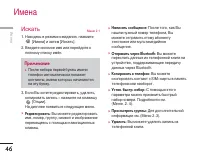
àÏÂ̇ 46 àÏÂ̇ 46 àÒ͇ڸ åÂÌ˛ 2.1 1. ç‡ıÓ‰flÒ¸ ‚ ÂÊËÏ ÓÊˉ‡ÌËfl, ̇ÊÏËÚ [àÏÂ̇] Ë Á‡ÚÂÏ [àÒ͇ڸ]. 2. ǂ‰ËÚ ËÒÍÓÏÓ ËÏfl ËÎË ÔÂÂȉËÚÂ Í ÔÓÎÌÓÏÛ ÒÔËÒÍÛ ËÏfiÌ. 3. ÖÒÎË Ç˚ ıÓÚËÚ ‰‡ÍÚËÓ‚‡Ú¸, Û‰‡ÎËÚ¸, ÍÓÔËÓ‚‡Ú¸ Á‡ÔËÒ¸ - ̇ÊÏËÚ ̇ Í·‚Ë¯Û [éÔˆËË]. ç‡ ‰ËÒÔΠÔÓfl‚ËÚ¸Òfl ÒÎÂ‰Û˛˘Âe ÏÂÌ˛. ] ꉇÍÚËÓ‚‡Ú...
Page 47 - ÉÛÔÔ ̊
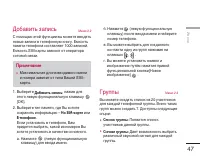
àÏÂ̇ 47 ÑÓ·‡‚ËÚ¸ Á‡ÔËÒ¸ åÂÌ˛ 2.2 ë ÔÓÏÓ˘¸˛ ˝ÚÓÈ ÙÛÌ͈ËË ‚˚ ÏÓÊÂÚ ‚‚Ó‰ËÚ¸ÌÓ‚˚ Á‡ÔËÒË ‚ ÚÂÎÂÙÓÌÌÛ˛ ÍÌË„Û. ÖÏÍÓÒÚ¸Ô‡ÏflÚË ÚÂÎÂÙÓ̇ ÒÓÒÚ‡‚ÎflÂÚ 1000 Á‡ÔËÒÂÈ.ÖÏÍÓÒÚ¸ SIM ͇Ú˚ Á‡‚ËÒËÚ ÓÚ ÓÔ‡ÚÓ‡ÒÓÚÓ‚ÓÈ Ò‚flÁË. 1. Ç˚·ÂËÚ ÑÓ·‡‚ËÚ¸ Á‡ÔËÒ¸ , ̇ʇ‚ ‰Îfl ˝ÚÓ„Ó ÎÂ‚Û˛ ÙÛÌ͈ËÓ̇θÌÛ˛ Í·‚Ë¯Û [OK]. 2. Ç˚·ÂËÚ ...
Page 48 - ëÓ·ÒÚ‚ÂÌÌ ̊È ÌÓÏÂ
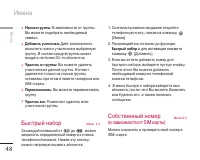
àÏÂ̇ 48 àÏÂ̇ ] àÍÓÌ͇ „ÛÔÔ˚: Ç Á‡‚ËÒËÏÓÒÚË ÓÚ „ÛÔÔ˚ Ç˚ ÏÓÊÂÚ ÔÓ‰Ó·‡Ú¸ ÌÂÓ·ıÓ‰ËÏ˚ÈÒËÏ‚ÓÎ. ] ÑÓ·‡‚ËÚ¸ Û˜‡ÒÚÌË͇: чfiÚ ‚ÓÁÏÓÊÌÓÒÚ¸ ‚Íβ˜ËÚ¸ ÌÓ‚Ó„Ó Û˜‡ÒÚÌË͇ ‚ ‚˚·‡ÌÌÛ˛„ÛÔÔÛ. Ç ÒÓÒÚ‡‚ ͇ʉÓÈ „ÛÔÔ˚ ÏÓÊÂÚ‚ıÓ‰ËÚ¸ Ì ·ÓΠ20-ÚË ‡·ÓÌÂÌÚÓ‚. ] 쉇ÎËÚ¸ ËÁ „ÛÔÔ˚: Ç˚ ÏÓÊÂÚ ۉ‡ÎËÚ¸ Û˜‡ÒÚÌË͇ ËÁ ‰‡ÌÌÓÈ ...
Page 49 - ÇËÁËÚ̇fl ͇ÚÓ ͇̃
49 àÏÂ̇ ÇËÁËÚ̇fl ͇ÚӘ͇ åÂÌ˛ 2.6 чÌ̇fl ÓÔˆËfl ÔÓÁ‚ÓÎflÂÚ Ç‡Ï ÒÓÁ‰‡‚‡Ú¸ÒÓ·ÒÚ‚ÂÌÌÛ˛ ‚ËÁËÚÌÛ˛ ͇ÚÓ˜ÍÛ Ò Ç‡¯ËÏËÏÂÌÂÏ Ë ÌÓÏÂÓÏ ÚÂÎÂÙÓ̇. ÑÎfl ÚÓ„Ó, ˜ÚÓ·˚ÒÓÁ‰‡Ú¸ ÌÓ‚Û˛ ‚ËÁËÚÌÛ˛ ͇ÚÓ˜ÍÛ, ̇ÊÏËÚÂÎÂ‚Û˛ ÙÛÌ͈ËÓ̇θÌÛ˛ Í·‚Ë¯Û [ꉇÍÚËÓ‚‡Ú¸] Ë ‚‚‰ËÚ Á‡ÚÂÏ ËÌÙÓχˆË˛‚ ÔÓÎfl ‚‚Ó‰‡. ç‡ÒÚÓÈÍË åÂÌ˛ 2.7 1. ç‡...
Page 51 - ä‡ÎẨ‡ ̧; ê‡ÒÔËÒ‡ÌË ̇ ‰ÂÌ ̧; 쉇ÎËÚ ̧ ÔÓÒΉÌÂÂ
51 鄇̇ÈÁ 鄇̇ÈÁ ä‡ÎẨ‡¸ åÂÌ˛ 3.1 äÓ„‰‡ ‚˚ ‚ÓȉfiÚ ‚ ˝ÚÓ ÏÂÌ˛, Ç˚ ۂˉËÚ ̇˝Í‡Ì ä‡ÎẨ‡¸. ÑÎfl ÓÚÏÂÚÍËÓÔ‰ÂÎfiÌÌÓ„Ó ‰Ìfl ·Û‰ÂÚ ËÒÔÓθÁÓ‚‡Ú¸ÒflÍ‚‡‰‡ÚÌ˚È ÍÛÒÓ. ÖÒÎË ‚ ͇ÎẨ‡Â͇͇fl- ÎË·Ó ‰‡Ú‡ ·Û‰ÂÚ ÔÓϘÂ̇, ˝ÚÓ ·Û‰ÂÚÓÁ̇˜‡Ú¸,˜ÚÓ ‚ ˝ÚÓÚ ‰Â̸ Á‡Ô·ÌËÓ‚‡ÌÓ͇ÍÓÂ-ÚÓ ÒÓ·˚ÚËÂ. чÌ̇fl ÙÛÌ͈Ëfl...
Page 52 - 쉇ÎËÚ ̧ ‚ÒÂ; èÂÂÈÚË Í ‰‡ÚÂ; ìÒÚ‡ÌÓ‚ËÚ ̧ ÏÂÎÓ‰Ë ̨; á‡ÏÂÚ͇
鄇̇ÈÁ 鄇̇ÈÁ 52 쉇ÎËÚ¸ ‚Ò (åÂÌ˛ 3.1.4) Ç˚ ÏÓÊÂÚ ۉ‡ÎËÚ¸ ‚Ò Á‡ÔËÒË. èÂÂÈÚË Í ‰‡Ú (åÂÌ˛ 3.1.5) åÓÊÌÓ ÔÂÂÈÚË ÌÂÔÓÒ‰ÒÚ‚ÂÌÌÓ Í‚˚·‡ÌÌÓÈ ‰‡ÚÂ. ìÒÚ‡ÌÓ‚ËÚ¸ ÏÂÎӉ˲ (åÂÌ˛ 3.1.6) åÓÊÌÓ ÛÒÚ‡ÌÓ‚ËÚ¸ Á‚ÛÍÓ‚ÓÈ Ò˄̇Π‰Îfl͇ʉÓÈ ‚˚·‡ÌÌÓÈ ‰‡Ú˚. á‡ÏÂÚ͇ åÂÌ˛ 3.2 1. Ç˚·ÂËÚ ÚÂÍÒÚ Á‡ÏÂÚÍË, ̇ʇ‚ ΂Û...
Page 56 - á‡ÔËÒ‡Ú ̧ ‚ˉÂÓ
56 åÛθÚËωˇ åÛθÚËωˇ á‡ÔËÒ‡Ú¸ ‚ˉÂÓ åÂÌ˛ 4.2 ÇÂÏfl Á‡ÔËÒË ÏÓÊÂÚ ÏÂÌflÚ¸Òfl ‚ Á‡‚ËÒËÏÓÒÚËÓÚ ÛÒÎÓ‚ËÈ Ò˙fiÏÍË (‡Á¯ÂÌËÂ, ͇˜ÂÒÚ‚Ó, ËÚ.‰) ] ç‡ÊÏËÚ ÍÌÓÔÍÛ Í‡ÏÂ˚ 3‡ÚÂÏ ÔÂÂȉËÚÂ Í ÏÂÌ˛ 3‡ÔËÒ‡Ú¸ ‚ˉÂÓ. 1 êÂÊËÏ Í‡ÏÂ˚ - ÇˉÂÓ Í‡Ï‡( ) /ë˙fiÏ͇ ‚ ‡ÏÍÂ( )/ä‡Ï‡( ) 2 ÇˉÂÓ ‡Î¸·ÓÏ 3 Ç˚·Ó ̇ÒÚÓÂÍ- ç‡Ò...
Page 57 - îÓÚÓ ‚ ‡ÏÍÂ
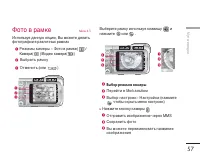
57 åÛθÚËωˇ îÓÚÓ ‚ ‡ÏÍ Menu 4.3 àÒÔÓθÁÛfl ‰‡ÌÌÛ˛ ÓÔˆË˛, Ç˚ ÏÓÊÂÚ ‰Â·ڸÙÓÚÓ„‡ÙËË ‚ ‡Á΢Ì˚ı ‡Ï͇ı 1 êÂÊËÏ˚ ͇ÏÂ˚ - îÓÚÓ ‚ ‡ÏÍÂ( )/ ä‡Ï‡( )/ÇˉÂÓ Í‡Ï‡( ) 2 Ç˚·‡Ú¸ ‡ÏÍÛ 3 éÚÏÂÌËÚ¸ (ËÎË ) Ç˚·ÂËÚ ‡ÏÍÛ ËÒÔÓθÁÛfl Í·‚Ë¯Û Ë Ì‡ÊÏËÚ ËÎË . 4 Ç˚·Ó ÂÊËχ ͇ÏÂ˚ 5 èÂÂÈÚË ‚ åÓÈ ‡Î¸·ÓÏ 6 Ç˚...
Page 58 - ÑËÍÚÓÙÓÌ; á‡ÔËÒ ̧
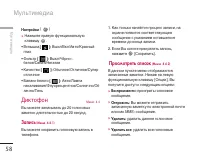
åÛθÚËωˇ 58 åÛθÚËωˇ ç‡ÒÚÓÈÍË ( ) ] ç‡ÊÏËÚ ԇ‚Û˛ ÙÛÌ͈ËÓ̇θÌÛ˛Í·‚Ë¯Û . • ÇÒÔ˚¯Í‡ [ ]: Ç˚ÍÎ/ÇÍÎ/Ä‚ÚÓ/ä‡ÒÌ˚È „·Á • îËÎ¸Ú [ ]: Ç˚ÍÎ/ófiÌÓ- ·ÂÎÓÂ/ëÂÔËfl/焇ÚË‚ • 䇘ÂÒÚ‚Ó [ ]: é·˚˜ÌÓÂ/éÚ΢ÌÓÂ/ëÛÔ ÓÚ΢ÌÓ • Ň·ÌÒ ·ÂÎÓ„Ó [ ]: Ä‚ÚÓ/ã‡ÏÔ‡ ͇̇ÎË‚‡ÌËfl/îÎÛÓÂÒˆÂÌÚÌÓÂ/ëÓÎ̘ÌÓ/é·Î‡˜ÌÓ/íÂ̸ Ñ...
Page 61 - MP3 ÔÎÂÂ
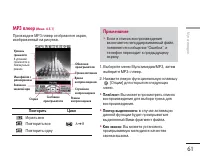
61 åÛθÚËωˇ MP3 ÔΠ(åÂÌ˛ 4.5.1) èË ‚ıӉ ‚ åê3 ÔΠÓÚÓ·‡ÁËÚÒfl ˝Í‡Ì,ËÁÓ·‡ÊÂÌÌ˚È Ì‡ ËÒÛÌÍÂ. èÓ‚ÚÓËÚ¸ ñËÍÎ à„‡Ú¸ ‚Ò èÓ‚ÚÓËÚ¸ ‚Ò A > B èÓ‚ÚÓËÚ¸ Ó‰ÌÛ 1. Ç˚·ÂËÚ ÏÂÌ˛ åÛθÚËωˇ/åê3, Á‡ÚÂÏ ‚˚·ÂËÚ MP3-ÔÎÂÂ. 2. ç‡ÊÏËÚ ÎÂ‚Û˛ ÙÛÌ͈ËÓ̇θÌÛ˛ Í·‚Ë¯Û [éÔˆËË] ‰Îfl ÓÚÍ˚ÚËfl ÒÎÂ‰Û˛˘Ëı ÏÂ...
Page 62 - èÎÂÈÎËÒÚ; MoÈ aÎ ̧·ÓÏ
åÛθÚËωˇ 62 åÛθÚËωˇ ] ç‡ÒÚÓÈÍË: Ç˚·‡‚ ˝ÚÓÚ ÔÛÌÍÚ, ‚˚ ÔÓÎÛ˜ËÚ ‰ÓÒÚÛÔ Í ‡Á΢Ì˚Ï Ì‡ÒÚÓÈÍ‡Ï åê3Ô·. èÎÂÈÎËÒÚ (åÂÌ˛ 4.5.2) Ç ˝ÚÓÏ ÏÂÌ˛ ÏÓÊÌÓ ÔÓÒÏÓÚÂÚ¸ ‚ÂÒ¸ ÒÔËÒÓÍ‚ÓÒÔÓËÁ‚‰ÂÌËfl. ç‡ÒÚÓÈÍË (åÂÌ˛ 4.5.3) ] êÂÊËÏ ‚ÓÒÔÓËÁ‚‰ÂÌËfl чÌÌÓ ÏÂÌ˛ ÔÓÁ‚ÓÎflÂÚ Ç‡Ï ÛÒÚ‡ÌÓ‚ËÚ¸ÒÎÂ‰Û˛˘Ë ÂÊËÏ˚ ‚ÓÒÔÓËÁ...
Page 63 - åÓfi ‚ˉÂÓ
63 åÛθÚËωˇ ] èÂÂËÏÂÌÓ‚‡Ú¸: Ç˚ ÏÓÊÂÚ ÔÂÂËÏÂÌÓ‚‡Ú¸ ‚˚·‡ÌÌÓ ÙÓÚÓ ] 쉇ÎËÚ¸: Û‰‡ÎÂÌË ÙÓÚÓ„‡ÙËË. ] 쉇ÎËÚ¸ ‚Òfi: Û‰‡ÎÂÌË ‚ÒÂı ÙÓÚÓ„‡ÙËÈ ] èÓÒÏÓÚÂÚ¸ ËÌÙÓχˆË˛: ÔÓÒÏÓÚ ËÌÙÓχˆËË Ó ÙÓÚÓÒÌËÏÍÂ. åÓfi ‚ˉÂÓ åÂÌ˛ 4.7 Ç˚·‡‚ ÌÛÊÌ˚È ‚ˉÂÓÍÎËÔ Ò ÔÓÏÓ˘¸˛Í·‚˯ ̇‚Ë„‡ˆËË ‚‚Âı/‚ÌËÁ, ÏÓÊÌÓ ÒÔÓÏÓ˘¸˛ Î...
Page 64 - ä‡Ï‡; ÇˉÂÓ͇χ
åÛθÚËωˇ åÛθÚËωˇ 64 ] ëÔ‡‚͇: èÓÒÏÓÚ ËÌÙÓχˆËË Ó ‚ˉÂÓÙ‡ÈÎÂ. ç‡ÒÚÓÈÍË åÂÌ˛ 4.8 ä‡Ï‡ (åÂÌ˛ 4.8.1) ] Ä‚ÚÓÒÓı‡ÌÂÌËÂ: ÖÒÎË ÛÒÚ‡ÌÓ‚ËÚ¸ ÇÍÎ., ËÁÓ·‡ÊÂÌËfl ·Û‰ÛÚ ÒÓı‡ÌÂÌ˚‡‚ÚÓχÚ˘ÂÒÍË, Ë ÒÚÓ͇ ÏÂÌ˛ ÒÓı‡ÌÂÌËflÌ ÔÓfl‚ËÚÒfl. ] 쉇ÎËÚ¸ ‚Ò ÙÓÚÓ: Ç˚ ÏÓÊÂÚ ۉ‡ÎËÚ¸ ‚Ò ÒÓı‡ÌfiÌÌ˚ ‚ Ô‡ÏflÚË ÚÂÎÂÙÓÌ...
Page 65 - çÓ‚Ó ÒÓÓ· ̆ÂÌËÂ; ç‡ÔËÒ‡Ú ̧ SMS
ëÓÓ·˘ÂÌËfl ëÓÓ·˘ÂÌËfl 65 çÓ‚Ó ÒÓÓ·˘ÂÌË åÂÌ˛ 5.1 чÌÌÓ ÏÂÌ˛ ‚Íβ˜‡ÂÚ ÙÛÌ͈ËË,ÓÚÌÓÒfl˘ËÂÒfl Í SMS (ëÎÛÊ·‡ ÚÂÍÒÚÓ‚˚ıÒÓÓ·˘ÂÌËÈ), MMS (ëÎÛÊ·‡ ÏÛθÚËωËÈÌ˚ıÒÓÓ·˘ÂÌËÈ), „ÓÎÓÒÓ‚ÓÈ ÔÓ˜ÚÂ, e-mailÒÓÓ·˘ÂÌËflÏ, ‡ Ú‡ÍÊÂ Í ÒÎÛÊ·Ì˚ÏÒÓÓ·˘ÂÌËflÏ ÒÂÚË. ç‡ÔËÒ‡Ú¸ SMS (åÂÌ˛ 5.1.1) Ç˚ ÏÓÊÂÚ ‚‚Ó‰ËÚ¸ Ë Â‰‡ÍÚËÓ‚‡Ú¸ÚÂÍÒÚÓ‚Ó...
Page 67 - ç‡ÔËÒ‡Ú ̧ MMS
ëÓÓ·˘ÂÌËfl 67 ç‡ÔËÒ‡Ú¸ MMS (åÂÌ˛ 5.1.2) Ç˚ ÏÓÊÂÚ ‚‚Ó‰ËÚ¸ Ë Â‰‡ÍÚËÓ‚‡Ú¸ÏÛθÚËωËÈÌÓ ÒÓÓ·˘ÂÌËÂ, ÔÓ‚Âflfl „ӇÁÏÂ. 1. ÑÎfl ‚ıÓ‰‡ ‚ ÏÂÌ˛ çÓ‚Ó ÒÓÓ·˘ÂÌË ̇ÊÏËÚ ÎÂ‚Û˛ ÙÛÌ͈ËÓ̇θÌÛ˛ Í·‚Ë¯Û [OK]. 2. Ç˚·ÂËÚ ÔÛÌÍÚ ÏÂÌ˛ ç‡ÔËÒ‡Ú¸ MMS , ÂÒÎË ıÓÚËÚ ̇ÔËÒ‡Ú¸ ÏÛθÚËωËÈÌÓÂÒÓÓ·˘ÂÌËÂ. 3. Ç˚ ÏÓÊÂÚ ÒÓÁ‰‡Ú...
Page 69 - ç‡ÔËÒ‡Ú ̧ e-mail ÒÓÓ· ̆ÂÌËe; èÓ‰Ò͇Á͇
ëÓÓ·˘ÂÌËfl 69 ç‡ÔËÒ‡Ú¸ e-mail ÒÓÓ·˘ÂÌËe (åÂÌ˛ 5.1.3) óÚÓ·˚ ÓÚÔ‡‚ËÚ¸/ÔÓÎÛ˜ËÚ¸ ÒÓÓ·˘ÂÌ˽ÎÂÍÚÓÌÌÓÈ ÔÓ˜Ú˚, ÌÂÓ·ıÓ‰ËÏÓ ÛÒÚ‡ÌÓ‚ËÚ¸Û˜ÂÚÌÛ˛ Á‡ÔËÒ¸ ˝ÎÂÍÚÓÌÌÓÈ ÔÓ˜Ú˚. ë̇˜‡Î‡ÒÏ. ËÌÙÓχˆË˛ Ó· ˝ÎÂÍÚÓÌÌÓÈ ÔÓ˜ÚÂ. 1. Ç ÔÓÎfl ‡‰ÂÒÓ‚ ÓÚÔ‡‚ÍË ÏÓÊÌÓ ‚ÔËÒ‡Ú¸ ÌÂÒÍÓθÍÓ ‡‰ÂÒÓ‚ ˝ÎÂÍÚÓÌÌÓÈ ÔÓ˜Ú˚. 2. ǂ‰ËÚ ÚÂÏÛ ÒÓ...
Page 70 - ÇıÓ‰fl ̆ËÂ
ëÓÓ·˘ÂÌËfl 70 ëÓÓ·˘ÂÌËfl ÇıÓ‰fl˘Ë åÂÌ˛ 5.2 Ç˚ ·Û‰ÂÚ Ô‰ÛÔÂʉÂÌ˚, ÂÒÎË Ì‡ LJ¯ÚÂÎÂÙÓÌ ÔÓÒÚÛÔËÚ ÒÓÓ·˘ÂÌËÂ. éÌË ·Û‰ÛÚÒÓı‡ÌÂÌ˚ ‚ Ô‡ÔÍ «ÇıÓ‰fl˘Ë». Ç Ô‡ÔÍ «ÇıÓ‰fl˘Ë» Ç˚ ÏÓÊÂÚÂˉÂÌÚËÙˈËÓ‚‡Ú¸ ͇ʉÓ ÒÓÓ·˘ÂÌË ÔÓÁ̇˜ÍÛ. ÑÎfl ÔÓÎÛ˜ÂÌËfl ‰ÓÔÓÎÌËÚÂθÌÓÈËÌÙÓχˆËË ÒÏ. ‡Á‰ÂÎ «ËÍÓÌÍË». á̇˜ÓÍ àäéçäà åÛθÚËωË...
Page 72 - èÓ ̃ÚÓ‚ ̊È fl ̆ËÍ; àÒıÓ‰fl ̆ËÂ
72 ëÓÓ·˘ÂÌËfl ëÓÓ·˘ÂÌËfl èÓ˜ÚÓ‚˚È fl˘ËÍ åÂÌ˛ 5.3 äÓ„‰‡ Ç˚ ‚ÓȉÂÚ ‚ ˝ÚÓ ÏÂÌ˛, ‚˚ ÏÓÊÂÚÂÒÓ‰ËÌËÚÒfl Ò Ç‡¯ËÏ ÔÓ˜ÚÓ‚˚Ï fl˘ËÍÓÏ ËÔÓ‚ÂËÚ¸ ÔÓ˜ÚÛ, ËÎË ÔÓÒÏÓÚÂÚ¸ ÔÂʉÂÒÓı‡ÌÂÌÌ˚ ÔËҸχ ·ÂÁ ‚ıÓ‰‡ ̇ ÔÓ˜ÚÓ‚˚ÈÒ‚Â. óÂÌÓ‚ËÍË åÂÌ˛ 5.4 àÒÔÓθÁÛfl ˝ÚÓ ÏÂÌ˛, ‚˚ ÏÓÊÂÚ Á‡‡ÌÂÂÒÓÁ‰‡Ú¸ ‰Ó ‰ÂÒflÚË ÏÛθÚËωËÈÌ˚ıÒÓÓ·˘...
Page 73 - èÓÒÎÛ ̄‡Ú ̧ „ÓÎÓÒÓ‚Û ̨ ÔÓ ̃ÚÛ
73 ëÓÓ·˘ÂÌËfl ] èÓÒÏÓÚ: åÓÊÌÓ ÔÓÒÏÓÚÂÚ¸ ÒÓÓ·˘ÂÌËÂ. ] èÂÂÒ·ڸ: åÓÊÌÓ ÓÚÔ‡‚ËÚ¸ ÒÓÓ·˘ÂÌËÂ. èÓÒΠÓÚÔ‡‚ÍË, ÒÓÓ·˘ÂÌË ÔÂÂÏÂÒÚËÚÒfl‚ ÏÂÌ˛ ÓÚÔ‡‚ÎÂÌÌ˚ı. ] 쉇ÎËÚ¸: åÓÊÌÓ Û‰‡ÎËÚ¸ ÒÓÓ·˘ÂÌËÂ. ] èÓÒÏÓÚÂÚ¸ ËÌÙÓχˆË˛: åÓÊÌÓ ÔÓÒÏÓÚÂÚ¸ ËÌÙÓχˆË˛ Ó Í‡Ê‰ÓÏÒÓÓ·˘ÂÌËË. ] 쉇ÎËÚ¸ ‚ÒÂ: åÓÊÌÓ Û‰‡ÎËÚ¸ ‚Ò ÒÓÓ·...
Page 74 - ä‡Ì‡Î ̊
74 ëÓÓ·˘ÂÌËfl ëÓÓ·˘ÂÌËfl àÌÙÓ-ÒÓÓ·˘ÂÌË åÂÌ˛ 5.7 (ᇂËÒËÚ ÓÚ ÓÔ‡ÚÓ‡) àÌÙÓχˆËÓÌÌ˚ ÒÓÓ·˘ÂÌËfl – ˝ÚÓÚÂÍÒÚÓ‚˚ ÒÓÓ·˘ÂÌËfl, ÓÚÔ‡‚ÎflÂÏ˚ ÔÓ ÒÂÚËÔÓθÁÓ‚‡ÚÂÎflÏ ÚÂÎÂÙÓÌÓ‚ GSM. éÌËÔ‰ÓÒÚ‡‚Îfl˛Ú Ó·˘Û˛ ËÌÙÓχˆË˛, Ú‡ÍÛ˛Í‡Í ÔÓ„ÌÓÁ ÔÓ„Ó‰˚, ËÌÙÓχˆË˛ Ó Ôӷ͇ı̇ ‰ÓÓ„‡ı, Á‡Í‡Á Ú‡ÍÒË, ‰ÓÒÚ‡‚͇ ÎÂ͇ÒÚ‚ ËÍÛÒ ‡...
Page 75 - ò‡·ÎÓÌ ̊; íÂÍÒÚÓ‚ ̊ ̄‡·ÎÓÌ ̊; ò‡·ÎÓÌ ÏÛÎ ̧ÚËωˇ
75 ëÓÓ·˘ÂÌËfl ] ëÔËÒÓÍ ‡ÍÚË‚Ì˚ı ͇̇ÎÓ‚: Ç˚ ÏÓÊÂÚ ‚˚·‡Ú¸ ÌÓχ ͇̇ÎÓ‚ ËÌÙÓχˆËÓÌÌ˚ıÒÓÓ·˘ÂÌËÈ ‚ ‡ÍÚË‚ÌÓÏ ÒÔËÒÍ ÔÛÚfiÏ̇ʇÚËfl [ÇÍÎ/Ç˚ÍÎ]. ÖÒÎË Ç˚ ̇ÊÏfiÚ ÇÍΉÎfl ‡ÍÚË‚‡ˆËË ÌÓχ ͇̇·ËÌÙÓχˆËÓÌÌÓ„Ó ÒÓÓ·˘ÂÌËfl, Ç˚ ÒÏÓÊÂÚÂÔÓÎÛ˜‡Ú¸ ÒÓÓ·˘ÂÌËfl, ÓÚÔ‡‚ÎÂÌÌ˚Â Ò ˝ÚÓ„ÓÌÓχ. ò‡·ÎÓÌ˚ åÂÌ˛ 5.8 íÂÍÒÚÓ‚˚ ¯‡...
Page 76 - SMS ÒÓÓ· ̆ÂÌËÂ; MMS ÒÓÓ· ̆ÂÌËÂ
ëÓÓ·˘ÂÌËfl 76 ëÓÓ·˘ÂÌËfl ç‡ÒÚÓÈÍË åÂÌ˛ 5.9 SMS ÒÓÓ·˘ÂÌË (åÂÌ˛ 5.9.1) ] íËÔ˚ ÒÓÓ·˘ÂÌËÈ íÂÍÒÚ, ÉÓÎÓÒ, î‡ÍÒ, åÂÒÚÌ˚È ÔÂȉÊ., ï.400,Ö-mail, ERMES èÓ ÛÏÓΘ‡Ì˲, ÚËÔ ÒÓÓ·˘ÂÌËfl ÛÒÚ‡ÌÓ‚ÎÂÌ̇ íÂÍÒÚ. Ç˚ ÏÓÊÂÚ Á‡ÏÂÌËÚ¸ ̇ÒÚÓÈÍËÔÓ ÛÏÓΘ‡Ì˲ ‡Î¸ÚÂ̇ÚË‚Ì˚ÏËÙÓχڇÏË, ÍÓÚÓ˚ ·Û‰ÛÚ ÔÓ‰ıÓ‰ËÚ¸ ÍÛÒÚÓÈÒÚ‚Û, ÔËÌËÏ...
Page 79 - ñÂÌÚ „ÓÎÓÒÓ‚ÓÈ ÔÓ ̃Ú ̊; Push ÒÓÓ· ̆ÂÌËfl
79 ëÓÓ·˘ÂÌËfl ] ĉÂÒ DNS: ᇉ‡ÈÚ ‡‰ÂÒ DNS ] èÓ‰ÔËÒ¸ Ç˚ ÏÓÊÂÚ ̇ÔËÒ‡Ú¸ Ë ÒÓı‡ÌËÚ¸ Ò‚Ó˛ ΢ÌÛ˛ ÔÓ‰ÔËÒ¸. ñÂÌÚ „ÓÎÓÒÓ‚ÓÈ ÔÓ˜Ú˚ (åÂÌ˛ 5.9.4) Ç˚ ÏÓÊÂÚ ÔÓÎÛ˜ËÚ¸ „ÓÎÓÒÓ‚Û˛ ÔÓ˜ÚÛ, ÂÒÎˉ‡Ì̇fl ÙÛÌ͈Ëfl ÔÓ‰‰ÂÊË‚‡ÂÚÒflÓÔ‡ÚÓÓÏ ÒÂÚË. èË ÔÓÒÚÛÔÎÂÌËË ÌÓ‚ÓÈ„ÓÎÓÒÓ‚ÓÈ ÔÓ˜Ú˚, ̇ ‰ËÒÔΠÚÂÎÂÙÓ̇ÔÓfl‚ËÚÒfl ÒÓÓÚ‚ÂÚ...
Page 80 - ä‡ÚËÌÍË
ä‡ÚËÌÍË åÂÌ˛ 6.1 Ç ‰‡ÌÌÓÈ Ô‡ÔÍ ÒÓı‡Ìfl˛ÚÒfl Ù‡ÈÎ˚ËÁÓ·‡ÊÂÌËÈ. èÓÒΠ‚˚·Ó‡ ËÁÓ·‡ÊÂÌËflÇ˚ ÏÓÊÂÚÂ Â„Ó ÔÓÒÏÓÚÂÚ¸, ̇ʇ‚ éä. ÑÓÒÚÛÔÌ˚ ÒÎÂ‰Û˛˘Ë ÓÔˆËË: ] ä‡Í Ó·ÓË: Ç˚·‡ÌÌ˚È Ù‡ÈÎ ÏÓÊÂÚ ·˚Ú¸ ÛÒÚ‡ÌÓ‚ÎÂÌ ‚ ͇˜ÂÒÚ‚Â Ó·Ó‚ ‡·Ó˜Â„ÓÒÚÓ·. ] ç‡ÔËÒ‡Ú¸ ÒÓÓ·˘ÂÌËÂ: èÂÂÒ˚Î͇ ËÁÓ·‡ÊÂÌËfl ÎË·Ó Í‡Í MMS-ÒÓÓ·˘ÂÌËÂ,ËÎ...
Page 81 - á‚ÛÍË
åÓË Ô‡ÔÍË 81 á‚ÛÍË åÂÌ˛ 6.2 èÓÒΠ‚˚·Ó‡ Á‚Û͇, ̇ÊÏËÚ ÎÂ‚Û˛Í·‚Ë¯Û [éÔˆËË]. åÓÊÌÓ ‚˚·‡Ú¸ÒÎÂ‰Û˛˘Ë ԇ‡ÏÂÚ˚: ] ä‡Í Á‚ÓÌÓÍ: Ç˚‰ÂÎÂÌÌ˚È Ù‡ÈÎ ÏÓÊÂÚ ·˚Ú¸ ÛÒÚ‡ÌÓ‚ÎÂÌ ‚ ͇˜ÂÒÚ‚Â Ò˄̇· ‚˚ÁÓ‚‡. ] ç‡ÔËÒ‡Ú¸ ÒÓÓ·˘ÂÌËÂ: á‚ÛÍÓ‚ÓÈ Ù‡ÈÎ ÏÓÊÂÚ ·˚Ú¸ ÓÚÔ‡‚ÎÂÌ Í‡Í SMS, MMS ËÎË E-mailÒÓÓ·˘ÂÌËÂ. å‡ÍÒËχθÌ˚È ‡ÁÏÂ...
Page 83 - é·ÓË; èË‚ÂÚÒÚ‚ËÂ
ÑËÒÔÎÂÈ 83 ÑËÒÔÎÂÈ Ç˚ ÏÓÊÂÚ ̇ÒÚÓËÚ¸ ÙÛÌ͈ËË, ÓÚÌÓÒfl˘ËÂÒflÍ ‰ËÒÔβ ÚÂÎÂÙÓ̇. é·ÓË åÂÌ˛ 7.1 Ç˚ ÏÓÊÂÚ ‚˚·‡Ú¸ ÙÓÌ ˝Í‡Ì‡. ] èÓ ÛÏÓΘ‡Ì˲ Ç˚ ÏÓÊÂÚ ‚˚·‡Ú¸ ͇ÚËÌÍÛ ‰Îfl ‰ËÒÔÎÂflÔÛÚfiÏ Ì‡Ê‡ÚËfl ËÎË . ] åÓfl Ô‡Ô͇ Ç˚ ÏÓÊÂÚ ‚˚·‡Ú¸ ͇ÚËÌÍÛ ËΡÌËχˆË˛ ‰Îfl ‰ËÒÔÎÂfl, ËÁ Ô‡ÔÍË åÓflÔ‡Ô͇. èË‚ÂÚÒÚ‚Ë åÂÌ˛ 7.2 ...
Page 86 - Bluetooth
86 àÁ·‡ÌÌ˚ åÂÌ˛ 9.1 ùÚ‡ ÙÛÌ͈Ëfl ‰‡ÂÚ ‚ÓÁÏÓÊÌÓÒÚ¸ ‰Ó·‡‚ÎflÚ¸ÒÓ·ÒÚ‚ÂÌÌ˚ ÔÛÌÍÚ˚ ‚ „ÓÚÓ‚˚È ÒÔËÒÓÍ.ëÓÁ‰‡‚ Ò‚Ó ÏÂÌ˛, ÏÓÊÌÓ ·˚ÒÚÓ ÔÓÎÛ˜ËÚ¸‰ÓÒÚÛÔ Í ÌÛÊÌ˚Ï ÙÛÌ͈ËflÏ ‚ ÂÊËÏÂÓÊˉ‡ÌËfl, ̇ʇ‚ ̇‚Ë„‡ˆËÓÌÌÛ˛ Í·‚˯ۂ‚Âı. ÅÛ‰ËθÌËÍ åÂÌ˛ 9.2 Ç˚ ÏÓÊÂÚ ̇ÒÚÓËÚ¸ ‰Ó 5 Ò˄̇ÎÓ‚·Û‰ËθÌË͇, ÍÓÚÓ˚ ·Û‰ÛÚ Ò‡·‡Ú˚‚‡Ú...
Page 87 - åÓË ÛÒÚÓÈÒÚ‚‡
87 ÄÍÒÂÒÒÛ‡˚ åÓË ÛÒÚÓÈÒÚ‚‡ (åÂÌ˛ 9.3.1) åÓÊÌÓ ÔÓÒÏÓÚÂÚ¸ Ë ‰Ó·‡‚ËÚ¸ ‚ÒÂÛÒÚÓÈÒÚ‚‡, ÒÓ‚ÏÂÒÚËÏ˚Â Ò ÚÂÎÂÙÓÌÓÏbluetooth. ɇÌËÚÛ˚ (åÂÌ˛ 9.3.2) åÓÊÌÓ ÔÓÒÏÓÚÂÚ¸ Ë ‰Ó·‡‚ËÚ¸ ‚ÒÂÛÒÚÓÈÒÚ‚‡ handsfree, ÒÓ‚ÏÂÒÚËÏ˚ ÒÚÂÎÂÙÓÌÓÏ. èË Ì‡ıÓʉÂÌËË ‚ ÏÂÌ˛ åÓË ÛÒÚÓÈÒÚ‚‡ ËÎËɇÌËÚÛ˚ Ç‡Ï ‰ÓÒÚÛÔÌ˚ ÒÎÂ‰Û˛˘Ë ÓÔˆËË:...
Page 88 - ÑÓÒÚÛÔÌ ̊ Ò‚ËÒ ̊
ÄÍÒÂÒÒÛ‡˚ 88 ] ᇉ‡Ú¸ ËÏfl: ËÁÏÂÌÂÌË ËÏÂÌË ÛÒÚÓÈÒÚ‚‡ bluetooth. ] ᇉ‡Ú¸ Í‡Í ‡‚ÚÓËÁÓ‚‡ÌÌ˚È/èÓÏÂÚËÚ¸ ͇Í̇‚ÚÓËÁÓ‚‡ÌÌ˚È: ÛÒÚ‡Ìӂ͇ ‡‚ÚÓËÁÓ‚‡ÌÌÓ„Ó ÒÓ‰ËÌÂÌËfl ÏÂʉÛÛÒÚÓÈÒÚ‚‡ÏË bluetooth. ] ÇÒ ÒÎÛÊ·˚: ÔÓÒÏÓÚ ‚ÒÂı ÒÎÛÊ·, ÔÓ‰‰ÂÊË‚‡ÂÏ˚ı ÛÒÚÓÈÒÚ‚ÓÏ bluetooth. ] 쉇ÎËÚ¸: Û‰‡ÎÂÌË ÛÒÚÓÈÒÚ‚‡ blueto...
Page 89 - ëÓ‰ËÌÂÌËÂ
89 ÄÍÒÂÒÒÛ‡˚ ëÓ‰ËÌÂÌË åÂÌ˛ 9.4 ë ÔÓÏÓ˘¸˛ ‰‡ÌÌÓ„Ó ÏÂÌ˛ Ç˚ ÏÓÊÂÚ‚˚·‡Ú¸ ÒÓ‰ËÌÂÌË ÚÂÎÂÙÓ̇ ÒÍÓÏÔ¸˛ÚÂÓÏ: ] åÓ‰ÂÏ: ë ÔÓÏÓ˘¸˛ ÏÓ‰Âχ Ç˚ ÏÓÊÂÚ ÔÓÎÛ˜ËÚ¸ ‰ÓÒÚÛÔ Í ÒÂÚ‚˚Ï Ò‚ËÒ‡Ï. ÑÎflÚÓ„Ó, ˜ÚÓ·˚ ÔÓ‰Íβ˜ËÚ¸Òfl Í ÒÂÚËËÌÚÂÌÂÚ(ËÒÔÓθÁÓ‚‡Ú¸ ÚÂÎÂÙÓÌ ‚͇˜ÂÒÚ‚Â GPRS-ÏÓ‰Âχ), ‡ Ú‡ÍÊ ‰ÎflÒÓ‰ËÌÂÌËfl ÚÂÎÂÙÓ̇ Ò...
Page 90 - äÓÌ‚ÂÚÂ
90 ÄÍÒÂÒÒÛ‡˚ äÓÌ‚ÂÚ åÂÌ˛ 9.6 èÂÓ·‡ÁÛÂÚ Î˛·Ó ËÁÏÂÂÌË ‚ ÌÛÊÌÛ˛ LJςÂ΢ËÌÛ. ëÛ˘ÂÒÚ‚ÛÂÚ 9 ÚËÔÓ‚ ‚ÓÁÏÓÊÌ˚ıÔÂÓ·‡ÁÓ‚‡ÌËÈ ‚ ‰Û„Ë ‚Â΢ËÌ˚: LJβڇ , èÎÓ˘‡‰¸ , ÑÎË̇ , ÇÂÒ , íÂÏÔ‡ÚÛ‡ , é·˙ÂÏ Ë ëÍÓÓÒÚ¸ , é·Û‚¸ , é‰Âʉ‡ . 1. Ç˚·ÂËÚ ‚Â΢ËÌÛ, ÍÓÚÓÛ˛ Ç˚ ıÓÚËÚ ÔÂÓ·‡ÁÓ‚‡Ú¸ ÔÛÚÂÏ Ì‡Ê‡ÚËfl ̇ Í...
Page 92 - èÂÂÈÚË Í URL
ÑÓχ¯Ìflfl åÂÌ˛ *.1 á‡È‰ËÚ ̇ ‰Óχ¯Ì˛˛ ÒÚ‡ÌˈÛ. ÑÓχ¯ÌÂÈÒÚ‡ÌˈÂÈ ·Û‰ÂÚ Ò‡ÈÚ, ÍÓÚÓ˚È ÓÔ‰ÂÎflÂÚÒfl‡ÍÚË‚Ì˚Ï ÔÓÙËÎÂÏ. ÖÒÎË Ç˚ Ì ÓÔ‰ÂÎËÎËÂ„Ó ‚ ‡ÍÚË‚ÌÓÏ ÔÓÙËÎÂ, ÚÓ ÓÌ ·Û‰ÂÚÓÔ‰ÂÎÂÌ ÓÔ‡ÚÓÓÏ ÒÂÚË. á‡Í·‰ÍË åÂÌ˛ *.2 чÌ̇fl ÛÒÚ‡Ìӂ͇ ÔÓÁ‚ÓÎflÂÚ Ç‡Ï ÒÓı‡ÌflÚ¸‡‰ÂÒ‡ (URL) ÌÛÊÌ˚ı Ç‡Ï Ò‡ÈÚÓ‚ ‰Îfl‰‡Î¸ÌÂȯ...
Page 94 - î‡ÈÎ ̊ “Cookie”
ŇÛÁ ŇÛÁ 94 à‰ÂÌÚ. ÔÓθÁ.: ˉÂÌÚËÙË͇ˆËfl ÔÓθÁÓ‚‡ÚÂÎfl ‰Îfl Ò‚‡ APN. è‡Óθ: Ô‡Óθ Á‡Ô‡¯Ë‚‡ÂÏ˚È Ò‚ÂÓÏ APN. - ç‡ÒÚÓÈÍË ÔÓÍÒË èÓÍÒË: ÇÍÎ/Ç˚ÍÎ (Á‡‚ËÒËÚ ÓÚ ÓÔ‡ÚÓ‡) IP a‰ÂÒ: ‚‚Ó‰ IP-‡‰ÂÒ‡. èÓÚ: ‚‚Ó‰ ÔÓÚ‡ ÔÓÍÒË. - ç‡ÒÚÓÈÍË DNS éÒÌÓ‚ÌÓÈ Ò‚Â: ‚‚Ó‰ IP-‡‰ÂÒ‡ ÓÒÌÓ‚ÌÓ„Ó Ò‚‡ DNS...
Page 95 - ÅÂÁÓÔ‡ÒÌÓÒÚ ̧
95 ŇÛÁ ÅÂÁÓÔ‡ÒÌÓÒÚ¸ (åÂÌ˛ *.4.6) èÓ͇Á‡Ì ÒÔËÒÓÍ ‰ÓÒÚÛÔÌ˚ı ÒÂÚËÙË͇ÚÓ‚. ] èÓÎÌÓÏÓ˜Ëfl: ÔÓÒÏÓÚ ÒÔËÒ͇ ÒÂÚËÙË͇ÚÓ‚ ÔÓÎÌÓÏÓ˜ËÈ, ÒÓı‡ÌÂÌÌ˚ı ‚Ô‡ÏflÚË ÚÂÎÂÙÓ̇. ] ã˘ÌÓÂ: ÔÓÒÏÓÚ ÒÔËÒ͇ ΢Ì˚ı ÒÂÚËÙË͇ÚÓ‚, ÒÓı‡ÌÂÌÌ˚ı ‚ Ô‡ÏflÚËÚÂÎÂÙÓ̇.
Page 97 - ÇÒÂ ‚ ̊ÁÓ‚ ̊; èÓ‰ÓÎÊËÚÂÎ ̧ÌÓÒÚ ̧
97 Ç˚ÁÓ‚˚ • Ç‚ÂÒÚË ÌÓ‚Ó ËÏfl ‰Îfl ÌÓχ Ë ÒÓı‡ÌËÚ¸ Â„Ó Ë ÌÓÏ ‚ ÚÂÎÂÙÓÌÌÓÈ ÍÌË„Â • éÚÔ‡‚ËÚ¸ ̇ ˝ÚÓÚ ÌÓÏ ÒÓÓ·˘ÂÌË • 쉇ÎËÚ¸ ‚˚ÁÓ‚ ËÁ ÒÔËÒ͇ ÇÒ ‚˚ÁÓ‚˚ åÂÌ˛ 0.4 Ç˚ ÏÓÊÂÚ ÔÓÒÏÓÚÂÚ¸ ÒÔËÒÓÍ ‚ÒÂı‚ıÓ‰fl˘Ëı, ËÒıÓ‰fl˘Ëı Ë ÔÓÔÛ˘ÂÌÌ˚ı‚˚ÁÓ‚Ó‚. 쉇ÎËÚ¸ ÔÓÒΉÌË Á‚ÓÌÍË åÂÌ˛ 0.5 èÓÁ‚ÓÎflÂÚ Û‰‡ÎËÚ¸ ÒÔËÒÍË Ô...
Page 98 - ëÔ‡‚͇ GPRS
ëÚÓËÏÓÒÚ¸ (åÂÌ˛ 0.6.2) èÓÁ‚ÓÎflÂÚ ÔÓ‚ÂËÚ¸ ÒÚÓËÏÓÒÚ¸ ÔÓÒΉ̄ӂ˚ÁÓ‚‡ ËÎË ‚ÒÂı ‚˚ÁÓ‚Ó‚, ‡ Ú‡ÍÊ ÔÓ‚ÂËÚ¸ÓÒÚ‡ÚÓÍ Ì‡ Ò˜ÂÚÂ Ë Ò·ÓÒËÚ¸ Á̇˜ÂÌËflÒÚÓËÏÓÒÚË. ÑÎfl ÚÓ„Ó, ˜ÚÓ·˚ Ò·ÓÒËÚ¸Á̇˜ÂÌË ÒÚÓËÏÓÒÚË, ÌÂÓ·ıÓ‰ËÏ PIN2-ÍÓ‰. ç‡ÒÚÓÈÍË (åÂÌ˛ 0.6.3) (ᇂËÒËÚ ÓÚ SIM ͇Ú˚) ] ìÒÚ‡ÌÓ‚ËÚ¸ Ú‡ËÙ: Ç˚ ÏÓÊÂÚ ÛÒÚ‡ÌÓ‚Ë...
Page 99 - чڇ Ë ‚ÂÏfl; ìÒÚ‡ÌÓ‚ËÚ ̧ ‚ÂÏfl; üÁ ̊Í; 臉ÂÒ‡ˆËfl
ç‡ÒÚÓÈÍË ç‡ÒÚÓÈÍË 99 чڇ Ë ‚ÂÏfl åÂÌ˛ #.1 Ç˚ ÏÓÊÂÚ ̇ÒÚÓËÚ¸ ÙÛÌ͈ËË, ÓÚÌÓÒfl˘ËÂÒflÍ ‰‡ÚÂ Ë ‚ÂÏÂÌË. ìÒÚ‡ÌÓ‚ËÚ¸ ‰‡ÚÛ (åÂÌ˛ #.1.1) ] ìÒÚ‡ÌÓ‚ËÚ¸ ‰‡ÚÛ Ç˚ ÏÓÊÂÚ ‚‚ÂÒÚË ÚÂÍÛ˘Û˛ ‰‡ÚÛ. ] îÓÏ‡Ú ‰‡Ú˚ Ç˚ ÏÓÊÂÚ ÛÒÚ‡ÌÓ‚ËÚ¸ ÙÓÏ‡Ú ‰‡Ú˚. ìÒÚ‡ÌÓ‚ËÚ¸ ‚ÂÏfl (åÂÌ˛ #.1.2) ] ìÒÚ‡ÌÓ‚ËÚ¸ ‚ÂÏfl Ç˚ ÏÓÊÂÚ ‚‚ÂÒÚË ÚÂÍÛ˘...
Page 101 - êÂÊËÏ ÓÚ‚ÂÚ‡; éÊˉ‡ÌË ‚ ̊ÁÓ‚‡
ç‡ÒÚÓÈÍË 101 êÂÊËÏ ÓÚ‚ÂÚ‡ (åÂÌ˛ #.3.2) ] ã˛·ÓÈ Í·‚˯ÂÈ ÖÒÎË Ç˚ ‚˚·ÂÂÚ ‰‡ÌÌÓ ÏÂÌ˛, Ç˚ÒÏÓÊÂÚ ÔËÌËχڸ ‚ıÓ‰fl˘ËÈ ‚˚ÁÓ‚ ÔÛÚÂÏ̇ʇÚËfl ̇ β·Û˛ Í·‚˯Û, Á‡ËÒÍβ˜ÂÌËÂÏ Í·‚Ë¯Ë [á‡ÍÓ̘ËÚ¸]. ] íÓθÍÓ Í·‚˯ÂÈ «éÚÔ‡‚ËÚ¸» ÖÒÎË Ç˚ ‚˚·ÂËÚ ˝ÚÓ ÏÂÌ˛, ÚÓ Ç˚ÒÏÓÊÂÚ ÔËÌËχڸ ‚ıÓ‰fl˘Ë Á‚ÓÌÍËÔÓÒÚ˚Ï Ì‡Ê‡ÚËÂÏ ...
Page 102 - áÛÏÏÂ
] èÓÒÏÓÚÂÚ¸ ÒÚ‡ÚÛÒ èÓ͇Á˚‚‡ÂÚ ÒÚ‡ÚÛÒ ‰‡ÌÌÓÈ ÛÒÎÛ„Ë. áÛÏÏ (åÂÌ˛ #.3.5) ÖÒÎË Ç˚ ‚˚·ÂÂÚ ÇÍÎ, Ç˚ ÒÏÓÊÂÚÂÔÓ‚ÂflÚ¸ ÔÓ‰ÓÎÊËÚÂθÌÓÒÚ¸ ‚˚ÁÓ‚‡ ÔÓÁ‚ÛÍÓ‚ÓÏÛ Ò˄̇ÎÛ, ÍÓÚÓ˚È ·Û‰ÂÚ‡Á‰‡‚‡Ú¸Òfl Í‡Ê‰Û˛ ÏËÌÛÚÛ ‚ ıӉ ‚˚ÁÓ‚‡. Ä‚ÚÓ‰ÓÁ‚ÓÌ (åÂÌ˛ #.3.6) ] ÇÍÎ ÖÒÎË ‰‡Ì̇fl ÙÛÌ͈Ëfl ‡ÍÚË‚ËÓ‚‡Ì‡,ÚÂÎÂÙÓÌ ·Û‰ÂÚ ‡‚ÚÓχÚ...
Page 103 - ÅÎÓÍËӂ͇ ÚÂÎÂÙÓ̇; í‡ÈÏ ‡‚ÚÓ ·ÎÓÍ. Í·‚Ë ̄
ç‡ÒÚÓÈÍË 103 ÅÎÓÍËӂ͇ ÚÂÎÂÙÓ̇ (åÂÌ˛ #.4.2) Ç˚ ÏÓÊÂÚ ËÒÔÓθÁÓ‚‡Ú¸ Á‡˘ËÚÌ˚È ÍÓ‰ ‰ÎflÔ‰ÓÚ‚‡˘ÂÌËfl ËÒÔÓθÁÓ‚‡ÌËfl LJ¯Â„ÓÚÂÎÂÙÓ̇ ‰Û„ËÏË Îˈ‡ÏË. èË ‚Íβ˜ÂÌËËÚÂÎÂÙÓ̇ Ç‡Ï ·Û‰ÂÚ ÌÂÓ·ıÓ‰ËÏÓ ‚‚ÂÒÚËÁ‡˘ËÚÌ˚È ÍÓ‰, ÂÒÎË ‰‡Ì̇fl ÓÔˆËfl‡ÍÚË‚ËÓ‚‡Ì‡. ᇢËÚÌ˚È ÍÓ‰,ÛÒÚ‡ÌÓ‚ÎÂÌÌ˚È ÔÓ ÛÏÓΘ‡Ì˲ -” 0000”. ÖÒÎË ÛÒÚ‡Ì...
Page 104 - àÁÏÂÌËÚ ̧ ÍÓ‰ ̊
ä‡Ê‰˚È ÔÛÌÍÚ ÏÂÌ˛ á‡ÔÂÚ‡ ‚˚ÁÓ‚Ó‚ÒÓ‰ÂÊËÚ ÒÎÂ‰Û˛˘Ë ÔÓ‰ÏÂÌ˛: • ÄÍÚË‚ËÓ‚‡Ú¸ Ç˚ ÏÓÊÂÚ ӷ‡ÚËÚ¸Òfl Í ÔÓÒÚ‡‚˘ËÍÛ ÛÒÎÛ„‰Îfl ÔÓÎÛ˜ÂÌËfl ÛÒÎÛ„Ë Á‡ÔÂÚ‡ ‚˚ÁÓ‚‡ ËÒÏÓÊÂÚ ÔÓθÁÓ‚‡Ú¸Òfl ˝ÚÓÈ ÛÒÎÛ„ÓÈ. • éÚÏÂ̇ Ç˚ ÏÓÊÂÚ ÓÚÏÂÌËÚ¸ ‰‡ÌÌÛ˛ ÙÛÌÍˆË˛. • èÓÒÏÓÚÂÚ¸ ÒÚ‡ÚÛÒ èÓÒÏÓÚÂÚ¸ Á‡Ô¢ÂÌ˚ Á‚ÓÌÍË, ËÎË ÌÂÚ. îËÍÒË. Ì...
Page 105 - ëÂÚ ̧; Ç ̊·Ó ÒÂÚË
ç‡ÒÚÓÈÍË 105 ëÂÚ¸ åÂÌ˛ #.5 Ç˚ ÏÓÊÂÚ ‚˚·‡Ú¸ ÒÂÚ¸, ‚ ÍÓÚÓÓÈ Ç˚Á‡Â„ËÒÚËÛÂÚÂÒ¸ ‡‚ÚÓχÚ˘ÂÒÍË ËÎË‚Û˜ÌÛ˛. é·˚˜ÌÓ ‚˚·Ó ÒÂÚË, ËÒÔÓθÁÛÂÏÓÈÚÂÎÂÙÓÌÓÏ, ÓÒÛ˘ÂÒÚ‚ÎflÂÚÒfl ‡‚ÚÓχÚ˘ÂÒÍË. Ç˚·Ó ÒÂÚË (åÂÌ˛ #.5.1) Ç˚ ÏÓÊÂÚ ‚˚·‡Ú¸, ͇ÍËÏ Ó·‡ÁÓÏ Ç‡¯ÚÂÎÂÙÓÌ ·Û‰ÂÚ ÔÓ‰Íβ˜‡Ú¸Òfl Í ÒÂÚË. Ä‚ÚÓχÚ˘ÂÒÍË ÖÒÎË Ç˚ ‚˚·...
Page 106 - Ç ̊·Ó ‰Ë‡Ô‡ÁÓ̇; èÓ‰ÍÎ ̨ ̃ÂÌË GPRS; èË ‚ÍÎ ̨ ̃ÂÌËË; é· ̇eÏ Ô‡ÏflÚË
Ç˚·Ó ‰Ë‡Ô‡ÁÓ̇ (åÂÌ˛ #.5.2) EGSM/DCS Ç Á‡‚ËÒËÏÓÒÚË ÓÚ ÚÂÍÛ˘ÂÈ ÒËÚÛ‡ˆËË, Ç˚ÏÓÊÂÚ ÛÒÚ‡ÌÓ‚ËÚ¸ ‰Ë‡Ô‡ÁÓÌ EGSM/DCS.чÌÌ˚È ‰Ë‡Ô‡ÁÓÌ ÛÒÚ‡ÌÓ‚ÎÂÌ ÔÓ ÛÏÓΘ‡Ì˲. íÓθÍÓ PCS Ç Á‡‚ËÒËÏÓÒÚË ÓÚ ÛÒÎÓ‚ËÈ, Ç˚ ÏÓÊÂÚÂÛÒÚ‡ÌÓ‚ËÚ¸ ‰Ë‡Ô‡ÁÓÌ íÓθÍÓ PCS. èÓ‰Íβ˜ÂÌË GPRS åÂÌ˛ #.6 Ç Á‡‚ËÒËÏÓÒÚË ÓÚ ÒËÚÛ‡ˆËË, ‚ÓÁÏÓÊ̇ÛÒÚ‡Ìӂ͇...
Page 107 - ë·ÓÒËÚ ̧ ̇ÒÚÓÈÍË
ç‡ÒÚÓÈÍË 107 ë·ÓÒËÚ¸ ̇ÒÚÓÈÍË åÂÌ˛ #.8 Ç˚ ÏÓÊÂÚ ‚ÂÌÛÚ¸ LJ¯ÂÏÛ ÚÂÎÂÙÓÌÛ ‚ÒÂÁ‡‚Ó‰ÒÍË ̇ÒÚÓÈÍË. ÑÎfl ‡ÍÚË‚ËÓ‚‡ÌËfl˝ÚÓÈ ÙÛÌ͈ËË ÌÂÓ·ıÓ‰ËÏ ‚‚Ó‰ Á‡˘ËÚÌÓ„ÓÍÓ‰‡. í‡Í Ê ‚ ‰‡ÌÌÓÏ ÔÛÌÍÚ ÏÂÌ˛ Ç˚ÏÓÊÂÚ ÔÓËÁ‚ÂÒÚË ÙÓχÚËÓ‚‡ÌËÂÏÛθÚËωËÈÌÓÈ (‚ÌÛÚÂÌÌÂÈ) Ë ‚̯ÌÂÈÔ‡ÏflÚË ÚÂÎÂÙÓ̇. ] ë·ÓÒËÚ¸ ̇ÒÚÓÈÍË: èÓ...
Page 109 - é· ̆ËÂ; ùÍÒÔÎÛ‡Ú‡ˆËÓÌÌ ̊Â
íÂıÌ˘ÂÒÍË ı‡‡ÍÚÂËÒÚËÍË íÂıÌ˘ÂÒÍË ı‡‡ÍÚÂËÒÚËÍË 109 鷢ˠç‡ËÏÂÌÓ‚‡ÌË ËÁ‰ÂÎËfl: KG920 ÑˇԇÁÓÌ: GSM 900 / DCS 1800 / PCS 1900 ùÍÒÔÎÛ‡Ú‡ˆËÓÌÌ˚ ÚÂÏÔ‡ÚÛ˚ å‡ÍÒ. : +55°C åËÌ. : -10°C
Page 112 - Ta b l e o f c o n te n ts
Table of contents 2 Introduction 5For Your Safety 6 Guidelines for safe and efficient use 7 KG920 features 12 Parts of the phone Display information 16 On-Screen Icons Installation 18 Installing the SIM card and the handset battery Charging the battery 19 Disconnecting the charger 20Memory cardInser...
Page 113 - My Stuff
Table of contents 3 3 Record 50 View list 51 MP3 MP3 player 52 Playlist 53 Settings Photo album 54 Video album 55 Settings Camera Video camera Messages 56 New message Write text message Write multimedia message 57 Write email message 58 Inbox 60 Mailbox 61 DraftsOutbox Listen to voice mail 62 Info m...
Page 114 - Call register
Table of contents 4 Connectivity 75Calculator Unit converter 76 World time SIM-Menu Browser 77 HomeBookmarks 78 Go to URLSettings Profiles Cache 80 Cookies Clear cache Clear cookies Security Call register 81 Missed calls Received callsDialled calls All calls 82 Delete recent callsCall charges Call d...
Page 115 - I n t ro d u c t i o n
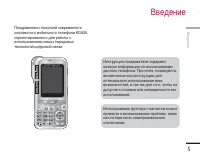
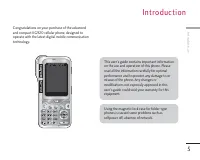
Congratulations on your purchase of the advancedand compact KG920 cellular phone, designed tooperate with the latest digital mobile communicationtechnology. I n t ro d u c t i o n Introduction 5 This user’s guide contains important informationon the use and operation of this phone. Pleaseread all th...
Page 116 - Fo r Yo u r S a f ety
Read these simple guidelines. Breaking the rules maybe dangerous or illegal. Further detailed information isgiven in this manual. CAUTION! • Switch off the phone in any area where required byspecial regulations. For example, do not use your phonein hospitals or it may affect sensitive medical equipm...
Page 117 - Exposure to radio frequency energy; Product care and maintenance; G u i d e l i n es f o r s a f e a n d e f f i c i e n t u s e
Please read these simple guidelines. Not followingthese guidelines may be dangerous or illegal. Furtherdetailed information is given in this manual. Exposure to radio frequency energy Radio wave exposure and Specific AbsorptionRate (SAR) information This mobile phone model KG920 has been designedto ...
Page 118 - Efficient phone operation
8 Guidelines for safe and efficient use • Keep away from electrical appliances such as a TV's, radios or personal computers. • The unit should be kept away from heat sources such as radiators or cookers. • Never place your phone in a microwave oven as it will cause the battery to explode. • Do not d...
Page 119 - Electronic devices
Guidelines for safe and efficient use 9 Electronic devices All mobile phones may get interference, whichcould affect performance. • Do not use your mobile phone near medical equipment without requesting permission. Avoidplacing the phone over pacemakers (i.e. in yourbreast pocket.) • Some hearing ai...
Page 122 - KG 920 f e at u res; Parts of the phone; Front view
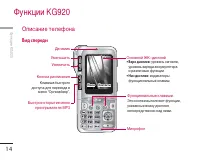
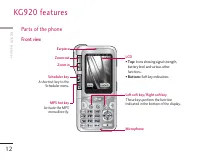
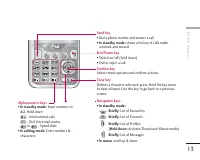
KG 920 f e at u res KG920 features 12 Parts of the phone Front view Earpiece Zoom out Left soft key/ Right soft key These keys perform the functionIndicated in the bottom of the display. LCD • Top: Icons showing signal strength, battery level and various otherfunctions. • Bottom: Soft key indication...
Page 124 - Note
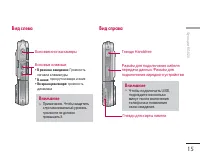
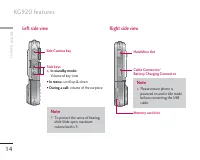
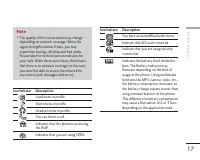
KG920 features 14 KG920 features Left side view Right side view Note ] To protect the sense of hearingwhile Slide open, maximumvolume level is 3. Note ] Please ensure phone ispowered on and in idle modebefore connecting the USBcable. Side keys ] In standby mode: Volume of key tone • In menu: scroll ...
Page 125 - Rear view
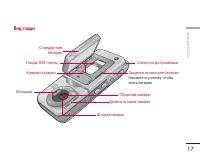
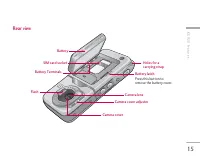
KG920 features 15 Rear view Battery latch Press this button toremove the battery cover. Flash Holes for acarrying strap SIM card socket Battery Battery Terminals Camera lens Camera cover adjuster Camera cover
Page 126 - Display Information
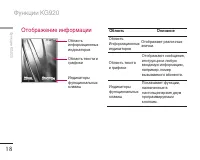
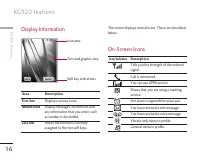
Display Information Icon area Text and graphic area Soft key indications Area Description First line Displays various icons. Middle lines Display messages, instructions andany information that you enter, suchas number to be dialled. Last line Shows the functions currentlyassigned to the two soft key...
Page 128 - I n s ta l l at i o n
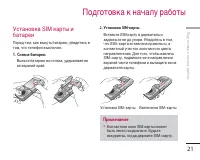
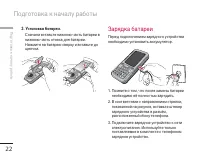
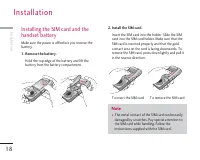
Installation 18 Installing the SIM card and thehandset battery Make sure the power is off before you remove thebattery. 1. Remove the battery. Hold the top edge of the battery and lift thebattery from the battery compartment. 2. Install the SIM card. Insert the SIM card into the holder. Slide the SI...
Page 129 - Charging the Battery
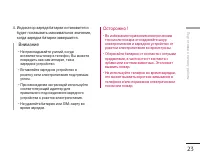
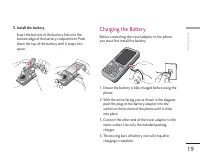
Installation 19 3. Install the battery. Insert the bottom of the battery first into thebottom edge of the battery compartment. Pushdown the top of the battery until it snaps intospace. Charging the Battery Before connecting the travel adapter to the phoneyou must first install the battery. 1. Ensure...
Page 130 - Disconnecting the charger
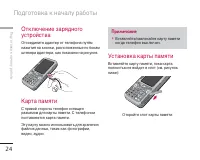
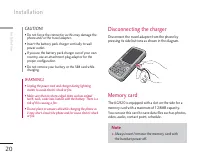
Installation 20 Disconnecting the charger Disconnect the travel adapter from the phone bypressing its side buttons as shown in the diagram. Memory card The KG920 is equipped with a slot on the side for amemory card with a maximum of 128MB capacity.You can use this card to save data files such as pho...
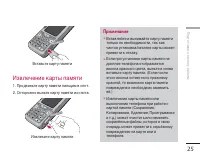
Page 131 - Inserting the memory card; Removing the memory card
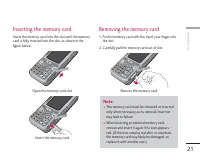
Installation 21 Inserting the memory card Insert the memory card into the slot until the memorycard is fully inserted into the slot, as shown in thefigure below: Open the memory card slot Insert the memory card Removing the memory card 1. Push in memory card with the tip of your finger into the slot...
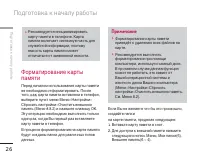
Page 132 - Memory card formatting
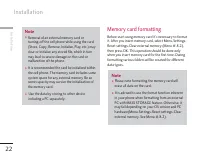
Memory card formatting Before start using memory card it's necessary to formatit. After you insert memory card, select Menu-Settings-Reset settings-Clear external memory (Menu #.8.2),then press OK. This operation should be done onlywhen you insert memory card for the first time. Duringformatting var...
Page 133 - Memory card adapter
If you do not wish for this to happen, to create thefolders on the card you need to do the following; 1. Insert the memory card into the slot. 2. Access the external memory by pressing the following keys. Menu, My stuff (6), ExternalMemory (6-4). 3. 6 Folders are displayed. 1) Videos 2) Photos 3) Im...
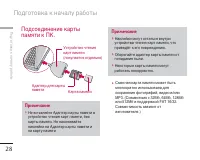
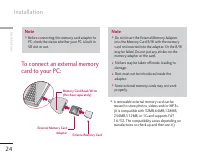
Page 134 - To connect an external memory
To connect an external memory card to your PC: ] A removable external memory card can bereused to store photos, videos and/or MP3s. (It is compatible with 32MB,64MB,128MB,256MB,512MB, or 1G and supports FAT16/32. The compatibility varies depending onmanufactures so check up and then use it.) Note ] ...
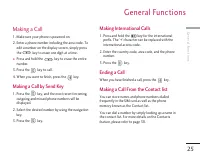
Page 135 - Making a Call; Making a Call by Send Key; G e n e ra l Fu n c t i o n s
Making a Call 1. Make sure your phone is powered on. 2. Enter a phone number including the area code. To edit a number on the display screen, simply pressthe key to erase one digit at a time. ] Press and hold the key to erase the entire number. 3. Press the key to call. 4. When you want to finish, p...
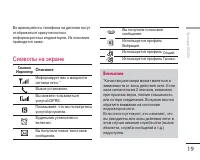
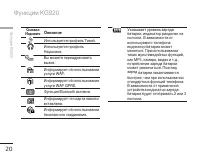
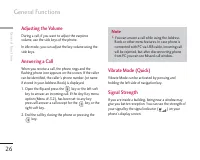
Page 136 - Signal Strength
Adjusting the Volume During a call, if you want to adjust the earpiecevolume, use the side keys of the phone. In idle mode, you can adjust the key volume using theside keys. Answering a Call When you receive a call, the phone rings and theflashing phone icon appears on the screen. If the callercan b...
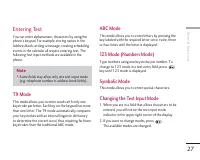
Page 137 - Entering Text; T9 Mode; Changing the Text Input Mode
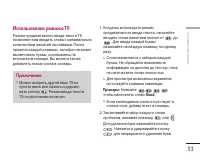
Entering Text You can enter alphanumeric characters by using thephone’s keypad. For example, storing names in theAddress Book, writing a message, creating schedulingevents in the calendar all require entering text. Thefollowing text input methods are available in thephone. T9 Mode This mode allows y...
Page 138 - Using the T9 Mode
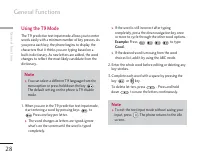
General Functions 28 Using the T9 Mode The T9 predictive text input mode allows you to enterwords easily with a minimum number of key presses. Asyou press each key, the phone begins to display thecharacters that it thinks you are typing based on abuilt-in dictionary. As new letters are added, the wo...
Page 139 - Using the ABC Mode
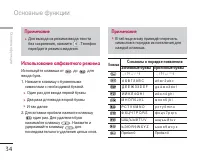
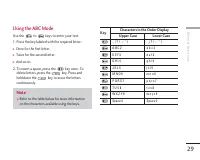
General Functions 29 Using the ABC Mode Use the to keys to enter your text. 1. Press the key labeled with the required letter: ] Once for the first letter. ] Twice for the second letter. ] And so on. 2. To insert a space, press the key once. To delete letters, press the key. Press and holddown the k...
Page 140 - Using the Symbol Mode
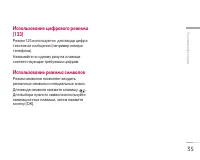
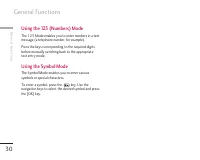
Using the 123 (Numbers) Mode The 123 Mode enables you to enter numbers in a textmessage (a telephone number, for example). Press the keys corresponding to the required digitsbefore manually switching back to the appropriatetext entry mode. Using the Symbol Mode The Symbol Mode enables you to enter v...
Page 141 - S e l e c t i n g Fu n c t i o n s a n d O pt i o n s
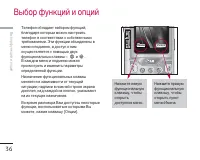
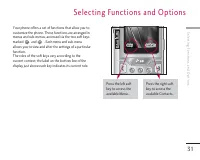
S e l e c t i n g Fu n c t i o n s a n d O pt i o n s 31 Selecting Functions and Options Your phone offers a set of functions that allow you tocustomize the phone. These functions are arranged inmenus and sub-menus, accessed via the two soft keysmarked and . Each menu and sub-menu allows you to view...
Page 142 - I n - C a l l M e nu; During a Call; Speaker phone; Answering an Incoming Call
I n - C a l l M e nu In-Call Menu 32 Your phone provides a number of control functionsthat you can use during a call. To access thesefunctions during a call, press the left soft key [Options]. During a Call The menu displayed on the handset screen during acall is different than the default main menu...
Page 143 - Conference Calls; Making a Second Call
Rejecting an Incoming Call You can reject an incoming call without answering bysimply pressing the key. During a call, you can reject an incoming call bypressing the key. Muting the Microphone You can mute the microphone during a call by pressingthe [Options] key then selecting [Mute]. The handsetca...
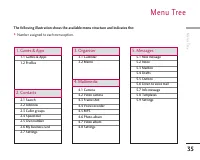
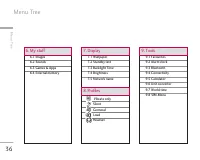
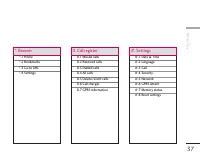
Page 145 - M e nu Tre e
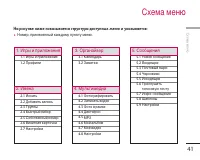
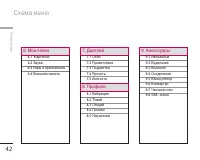
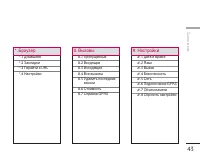
35 M e nu Tre e Menu Tree 35 The following illustration shows the available menu structure and indicates the: ] Number assigned to each menu option. 5.1 New message 5.2 Inbox 5.3 Mailbox 5.4 Drafts 5.5 Outbox 5.6 Listen to voice mail 5.7 Info message 5.8 Templates 5.9 Settings 3.1 Calendar 3.2 Memo ...
Page 148 - Profiles; G a m es & A p p s
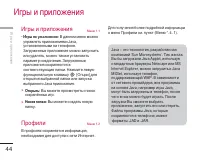
Games & Apps Menu 1.1 • Default Games: In this menu, you can manage the Java applications installed in your phone. You canplay or delete downloaded applications, or set theconnect option. The downloaded applications areorganised in folders. Press the left soft key [Options] to open theselected f...
Page 150 - Add new; C o n ta c ts
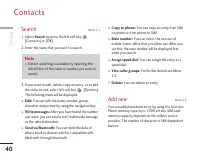
Search Menu 2.1 1. Select Search by press the left soft key [Contacts] or [OK]. 2. Enter the name that you want to search. 3. If you want to edit, delete, copy an entry, or to add the voice to one, select left soft key [Options]. The following menu will be displayed. ] Edit: You can edit the name, n...
Page 151 - Caller groups
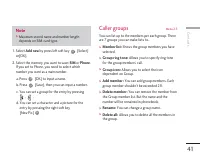
Contacts 41 1. Select Add new by press left soft key [Select] or[OK]. 2. Select the memory you want to save: SIM or Phone . If you set to Phone, you need to select whichnumber you want as a main number. a. Press [OK] to input a name. b. Press [Save], then you can input a number. c. You can set a gro...
Page 152 - Own number
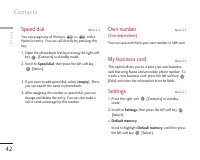
Speed dial Menu 2.4 You can assign any of the keys to with a Name list entry. You can call directly by pressing thiskey. 1. Open the phonebook first by pressing the right soft key [Contacts] in standby mode. 2. Scroll to Speed dial , then press the left soft key [Select]. 3. If you want to add speed...
Page 154 - Calendar; O rg a n i s e r
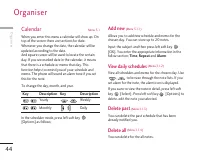
Calendar Menu 3.1 When you enter this menu a calendar will show up. Ontop of the screen there are sections for date.Whenever you change the date, the calendar will beupdated according to the date. And square cursor will be used to locate the certainday. If you see marked date in the calendar, it mea...
Page 155 - Go to date; Set alarm tone
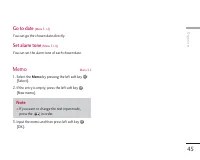
45 Go to date (Menu 3.1.5) You can go the chosen date directly. Set alarm tone (Menu 3.1.6) You can set the alarm tone of each chosen date. Memo Menu 3.2 1. Select the Memo by pressing the left soft key [Select]. 2. If the entry is empty, press the left soft key [New memo]. 3. Input the memo and the...
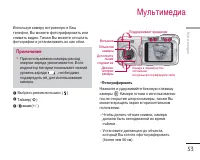
Page 156 - M u l t i m e d i a
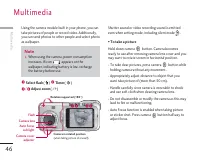
Using the camera module built in your phone, you cantake pictures of people or record video. Additionally,you can send photos to other people and select photoas wallpaper. 1 Select flash ( ) 2 Timer ( ) 3 / 4 Adjust zoom (-/+) Shutter sound or video recording sound is emittedeven when setting mode, ...
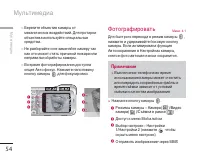
Page 157 - Camera
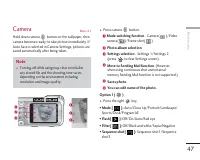
47 Camera Menu 4.1 Hold down camera button on the wallpaper, then camera becomes ready to take picture immediately. IfAuto Save is selected in Camera Settings, pictures aresaved automatically after being taken. ] Press camera button. 1 Mode switching function - Camera( )/Video camera( )/Frame shot( ...
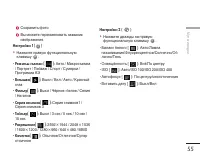
Page 158 - Video Camera
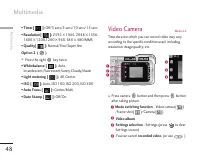
48 • Timer[ ]: Off/3 secs/5 secs/10 secs/15 secs • Resolution[ ]: 2592 l 1944, 2048 l 1536, 1600 l 1200,1280 l 960, 640 l 480/MMS • Quality[ ]: Normal/Fine/Super fine Option 2 ( ) ] Press the right key twice. • Whitebalance [ ]: Auto, Incandescent,Fluorescent,Sunny,Cloudy,Shade • Light metering [ ]:...
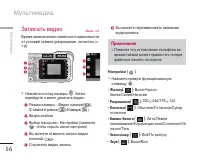
Page 159 - Frame Shot
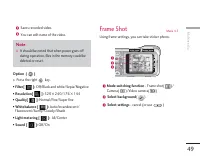
5 Saves recorded video. 6 You can edit name of the video. Option ( ) ] Press the right key. • Filter[ ]: Off/Black and white/Sepia/Negative • Resolution[ ]: 320 l 240/176 l 144 • Quality[ ]: Normal/Fine/Super fine • Whitebalance [ ]: Auto/Incandescent/ Fluorescent/Sunny/Cloudy/Shade • Light metering...
Page 160 - Voice recorder; Record
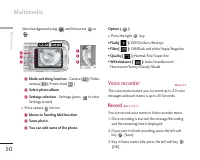
50 Multimedia Multimedia Select background using and then press or . 4 Mode switching function - Camera( )/Video camera( )/Frame shot( ) 5 Select photo album 6 Settings selection - Settings (press to clear Settings screen) ] Press camera button 7 Moves to Sending Mail function . 8 Saves photo . 9 Yo...
Page 161 - View list
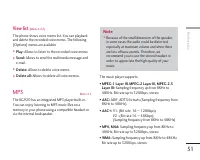
51 View list (Menu 4.4.2) The phone shows voice memo list. You can playbackand delete the recorded voice memo. The following[Options] menus are available ] Play: Allows to listen to the recorded voice memo. ] Send: Allows to send the multimedia message and e-mail. ] Delete: Allows to delete voice me...
Page 162 - MP3 player
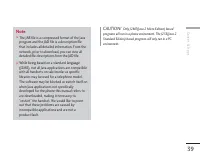
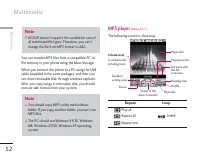
52 You can transfer MP3 files from a compatible PC tothe memory in your phone using the Mass Storage. When you connect the phone to a PC using the USBcable (supplied in the same package), and then youcan show removable disk through windows explorer.After you copy songs in removable disk, you shoulde...
Page 164 - Photo album
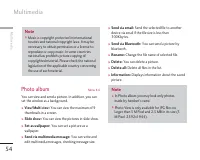
Multimedia 54 Photo album Menu 4.6 You can view and send a picture. In addition, you canset the window as a background. ] View/Multi view: You can view the maximum of 9 thumbnails in a screen. ] Slide show: You can view the pictures in slide show. ] Set as wallpaper: You can set a picture as a wallp...
Page 165 - Video camera
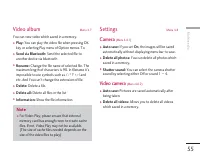
55 Video album Menu 4.7 You can view video which saved in a memory. ] Play: You can play the video file when pressing OK key or selecting Play menu of Option menus. To ] Send via Bluetooth: Send the selected file to another device via bluetooth ] Rename: Change the file name of selected file. The ma...
Page 166 - M es s a g es; New message; Write text message
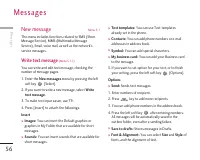
M es s a g es 56 New message Menu 5.1 This menu includes functions related to SMS (ShortMessage Service), MMS (Multimedia MessageService), Email, voice mail, as well as the network’sservice messages. Write text message (Menu 5.1.1) You can write and edit text message, checking thenumber of message p...
Page 167 - Write multimedia message
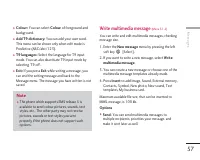
57 Messages ] Colour: You can select Colour of foreground and background. ] Add T9 dictionary: You can add your own word. This menu can be shown only when edit mode isPredictive (ABC/abc/123). ] T9 languages: Select the language for T9 input mode. You can also deactivate T9 input mode byselecting ‘T...
Page 168 - Write email message
Messages 58 ] Preview: You can preview multimedia messages you wrote. ] Save: You can save multimedia messages To drafts or As template . ] Edit subject: Modifies multimedia messages you chose. ] Add slide: You can add a slide before or after current slide. ] Move to slide: You can move to previous ...
Page 170 - Inbox
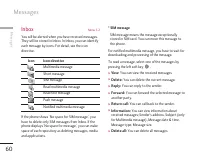
60 Inbox Menu 5.2 You will be alerted when you have received messages.They will be stored in Inbox. In Inbox, you can identifyeach message by icons. For detail, see the icondirective. If the phone shows ‘No space for SIM message’, youhave to delete only SIM messages from Inbox. If thephone displays ...
Page 171 - Mailbox
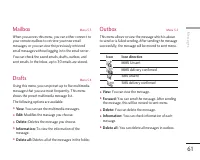
61 Messages Mailbox Menu 5.3 When you access this menu, you can either connect toyour remote mailbox to retrieve your new emailmessages, or you can view the previously retrievedemail messages without logging in to the email server. You can check the saved emails, drafts, outbox, andsent emails. In t...
Page 172 - Read
62 Listen to voice mail Menu 5.6 Once this menu has been selected, simply press theleft soft key [OK] to listen to voice mail. You can also hold down the key in standby mode to listen to voice mail. Info message Menu 5.7 (Dependent to network and subscription) Info service messages are text messages...
Page 173 - Templates; Text templates; Multimedia templates; Text message
63 Messages ] Active list: You can select info service message numbers in the active list. if you activate an infoservice number, you can receive messages sent fromthe number. Templates Menu 5.8 Text templates (Menu 5.8.1) You have 6 text templates as below; • Please call me back. • I’m late. I will...
Page 176 - Push message
Voice mailbox number (Menu 5.9.4) You can receive the voicemail if your network serviceprovider supports this feature. When a new voicemailis arrived, the symbol will be displayed on the screen.Please check with your network service provider fordetails of their service in order to configure the phon...
Page 177 - M y s t u f f; Images; Sounds
M y s t u f f 67 My stuff Images Menu 6.1 After selecting a image, press the left key [Options] and then you can check the options asfollow: ] Set as wallpaper: Currently selected image can be set as a wallpaper. ] Write messages: The sound downloaded from network can be sent by Multimedia or Email ...
Page 178 - External Memory
] Send via Bluetooth: The sound downloaded from network can be sent by Bluetooth. ] Copy to External memory: Copy the selected file to the same folder at External memory. Games & Apps Menu 6.3 In this menu, you can manage the Java applicationsinstalled in your phone. You can play or deletedownlo...
Page 179 - Notice
69 My stuff New Fantastic LG There is mass storage function in KG920. if youconnect USB cable, you can use Removable Diskin this phone. You can download MP3 files, and photos, videofiles and etc. this is very fast access from PC toPhone. you just try to connect USB cable. It’svery easy way. Notice ]...
Page 180 - Wallpaper; Standby text; Backlight Time; Brightness; Network name; D i s p l ay
70 You can set functions relating to the phone. Wallpaper Menu 7.1 You can select the background pictures in standbymode. Default You can select a picture or an animation of wallpaperby pressing , , or . My folder You can select a picture or an animation as wallpaper. Standby text Menu 7.2 If you se...
Page 181 - P ro f i l es; Activate
71 P ro f i l es Profiles In Profiles, you can adjust and customise the phonetones for different events, environments, or callergroups. There are five preset profiles: Vibrate only , Silent , General , Loud and Headset . Each profile can be personalised. Press the left soft key [Menu] and select Pro...
Page 183 - To o l s; Favourites
73 To o l s Tools Favourites Menu 9.1 This option allows you to add your own favourites tothe list already provided. Once you create your ownmenu, you can access the desired function quickly inthe idle screen by pressing the up navigation key. Alarm clock Menu 9.2 You can set up to 5 alarm clocks to...
Page 184 - Paired devices
Tools 74 Paired devices (Menu 9.3.1) You can view all devices which are compatible withbluetooth phone. Handsfree devices (Menu 9.3.2) You can view the list of handsfree devices which iscompatible with bluetooth phone. If you enter Paired devices or Handsfree devices menu,you access the options as f...
Page 185 - Connectivity
75 Tools ] Set as authorised/Set as unauthorised: Allows to set the authorised connection between eachbluetooth devices. ] All services: Allows to view all services which are supported by bluetooth device. ] Delete: Allows to delete the bluetooth device. ] Delete all: Allows to delete all bluetooth ...
Page 186 - Unit converter
76 Tools 5. To input the decimal number, press key. If you press key, you can enter ( ). 6. To end Calculator , press the right soft key [Back]. Unit converter Menu 9.6 This converts any measurement into a unit you want.There are 9 types that can be converted into units: Currency , Surface , Length ...
Page 187 - Home; B rows e r
77 Browser You can access various WAP (Wireless ApplicationProtocol) services such as banking, news, weatherreports and flight information. These services arespecially designed for mobile phones and they aremaintained by WAP service providers. Check the availability of WAP services, pricing andtarif...
Page 188 - Bookmarks; Go to URL
78 Bookmarks Menu *.2 This menu allows you to store the URL of favouriteweb pages for easy access at a later time. To create a bookmark 1. Press the left soft key [Options]. 2. Select Add new and press the OK key. 3. After entering the desired URL and title, press the OK key. After selecting a desir...
Page 191 - C a l l re g i s te r; Missed calls
C a l l re g i s te r Call register 81 You can check the record of missed, received, anddialled calls only if the network supports the CallingLine Identification (CLI) within the service area. The number and name (if available) are displayedtogether with the date and time at which the call wasmade. ...
Page 192 - Call duration
All calls Menu 0.4 You can view all lists of outgoing or incoming calls. Delete recent calls Menu 0.5 Allows you to delete Missed calls and Received callslists. You can delete Dialled calls and All calls lists atone time. Call charges Menu 0.6 Call duration (Menu 0.6.1) Allows you to view the durati...
Page 193 - GPRS information; Data volumes
Call register 83 GPRS information Menu 0.7 You can check the amount of data transferred over thenetwork through the GPRS information option. Inaddition, you can also view how much time you areonline. Call duration (Menu 0.7.1) You can check the duration of Last call, reset all and All calls . You ca...
Page 194 - Language; Call divert; S ett i n g s
Date &Time Menu #.1 You can set functions relating to the date and time. Date (Menu #.1.1) ] Set date You can enter the current date. ] Date format You can set the Date format such asDD/MM/YYYY, MM/DD/YYYY, YYYY/MM/DD. (D: Day / M: Month / Y: Year) Time (Menu #.1.2) ] Set time You can enter the ...
Page 195 - Answer mode
Settings 85 ] If out of reach Diverts voice calls when the phone is switched off orout of coverage. ] All data calls Diverts to a number with a PC connectionunconditionally. ] All fax calls Diverts to a number with a fax connectionunconditionally. ] Cancel all Cancels all call divert service. The su...
Page 196 - Send my number; Call waiting; Minute minder; Auto redial
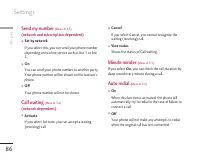
Send my number (Menu #.3.3) (network and subscription dependent) ] Set by network If you select this, you can send your phone numberdepending on two line service such as line 1 or line2. ] On You can send your phone number to another party.Your phone number will be shown on the receiver’sphone. ] Of...
Page 197 - Security; PIN code request; Auto key lock timeout
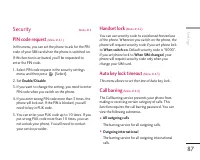
Settings 87 Security Menu #.4 PIN code request (Menu #.4.1) In this menu, you can set the phone to ask for the PINcode of your SIM card when the phone is switched on. If this function is activated, you’ll be requested toenter the PIN code. 1. Select PIN code request in the security settings menu, an...
Page 198 - Fixed dial number; Change codes
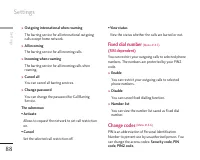
] Outgoing international when roaming The barring service for all international outgoingcalls except home network. ] All incoming The barring service for all incoming calls. ] Incoming when roaming The barring service for all incoming calls whenroaming. ] Cancel all You can cancel all barring servic...
Page 199 - Network; Network selection; Band selection
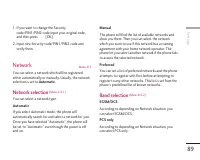
Settings 89 1. If you want to change the Security code/PIN1/PIN2 code input your original code,and then press [OK]. 2. Input new Security code/PIN1/PIN2 code and verify them. Network Menu #.5 You can select a network which will be registeredeither automatically or manually. Usually, the networkselec...
Page 200 - GPRS Attach; Switch on; Memory status
GPRS Attach Menu #.6 You can set GPRS service depending on varioussituations. Switch on (Menu #.6.1) If you select this menu, the phone is automaticallyregistered to a GPRS network when you switch thephone on. Starting a WAP or PC dial-up applicationcreated the connection between phone and networkan...
Page 201 - Ac c es s o r i es; Travel Adapter
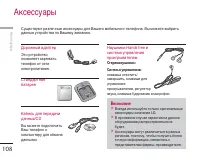
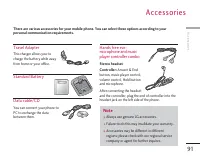
Ac c es s o r i es Accessories 91 Travel Adapter This charger allows you tocharge the battery while awayfrom home or your office. Standard Battery Data cable/CD You can connect your phone toPC to exchange the databetween them. Hands free ear-microphone and musicplayer controller combo Stereo headset...
Page 202 - Te c h n i c a l D ata
General Product name: KG920 System: GSM 900 / DCS 1800 / PCS 1900 Ambient Temperatures Max.: +55°C Min: -10°C Te c h n i c a l D ata Technical Data 92



 LG KG225 User Manual
 LG KG245 User Manual
 LG KG300 User Manual
 LG KG320 User Manual
 LG KG800 User Manual
 LG KG810 User Manual
 LG L342i User Manual
 LG M4410 User Manual
 LG M6100 User Manual
 LG P7200 User Manual
 LG S5000 User Manual
 LG S5200 User Manual
 LG T5100 User Manual
 LG W7000 User Manual
 LG X Power 2 M320 User Manual
 LG X Power K220DS Manual
 LG 600 User Manual
 LG B2000 User Manual
 LG B2100 User Manual
 LG B2150 User Manual