Page 3 - é„·‚ÎÂÌËÂ; ǂ‰ÂÌËÂ; éÒÌÓ‚Ì ̊ ÙÛÌ͈ËË 25
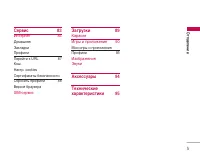
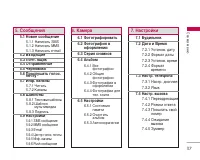
é„·‚ÎÂÌË 2 é„·‚ÎÂÌËÂé„·‚ÎÂÌË ǂ‰ÂÌË 6 ÑÎfl LJ¯ÂÈÅÂÁÓÔ‡ÒÌÓÒÚË 7 îÛÌ͈ËË S5000 15 éÔËÒ‡ÌË ÚÂÎÂÙÓ̇éÚÓ·‡ÊÂÌËÂËÌÙÓχˆËË 18 ëËÏ‚ÓÎ˚ ̇ ˝Í‡Ì 19 èÓ‰„ÓÚӂ͇ Í Ì‡˜‡ÎÛ ‡·ÓÚ˚ 21 ìÒÚ‡Ìӂ͇ SIM ͇Ú˚ Ë·‡Ú‡ÂË á‡fl‰Í‡ ·‡Ú‡ÂË 23 éÚÍβ˜ÂÌË Á‡fl‰ÌÓ„ÓÛÒÚÓËÒÚ‚‡ 24 éÒÌÓ‚Ì˚ ÙÛÌ͈ËË 25 ÇıÓ‰fl˘ËÂ Ë ËÒıÓ‰fl˘Ë...
Page 4 - ÄÍÒÂÒÒÛ‡ ̊; ëÓÓ· ̆ÂÌËfl
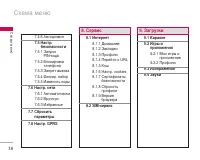
3 é„·‚ÎÂÌËÂé„·‚ÎÂÌË ÄÍÒÂÒÒÛ‡˚ 44 Bluetooth åÓË ÛÒÚÓÈÒÚ‚‡É‡ÌËÚÛ˚ç‡ÒÚÓÈÍË ä‡Î¸ÍÛÎflÚÓäÓÌ‚ÂÚ 45 åËÓ‚Ó ‚ÂÏflÑËÍÚÓÙÓÌ 46 á‡ÔËÒ¸èÓÒÏÓÚ ÒÔËÒ͇ ëÚ‡ÚÛÒ Ô‡ÏflÚËÄ‚ÚÓÓÚ‚ÂÚ˜ËÍ éÚ‚ÂÚ ‚˚ÍÎ. 47 é·˘ËÈÇÒÚ˜‡Ç ‡‚ÚÓÏÓ·ËÎÂèÓθÁÓ‚‡ÚÂθÒÍËÈ 1/ 2á‡ÔËÒ‡ÌÌ˚ ÒÓÓ·˘ÂÌËfl 48 èÓ‰ÓÎÊËÚÂθÌÓÒÚ¸ Á‚ÓÌ͇ 鄇̇ÈÁ 49 ...
Page 5 - ä‡Ï‡; ç‡ÒÚÓÈÍË
é„·‚ÎÂÌË 4 MMS ÒÓÓ·˘ÂÌË 68 E-mailñÂÌÚ „ÓÎÓÒÓ‚ÓÈ ÔÓ˜Ú˚ 70 àÌÙ. ͇̇Î˚Push ÒÓÓ·˘ÂÌËfl ä‡Ï‡ 71 îÓÚÓ„‡ÙËÓ‚‡Ú¸îÓÚÓ„‡ÙËfl ‚ ÓÙÓÏÎÂÌËË 72 ëÂËfl ÒÌËÏÍÓ‚ Äθ·ÓÏ 73 ÇÒ ÙÓÚÓ„‡ÙËË 54 鷢ˠÙÓÚÓ„‡ÙËË 54 îÓÚÓ„‡ÙËË ‚ ÓÙÓÏÎÂÌËËîÓÚÓ„‡ÙËË ‰Îfl ÚÂÎ. ÍÌË„Ë 74 ç‡ÒÚÓÈÍË ëÓÒÚÓflÌË ԇÏflÚË 57 é˜ËÒÚËÚ¸ ‡Î¸·ÓÏÄ‚...
Page 6 - ë‚ËÒ; ᇄÛÁÍË
5 ë‚ËÒ 83 àÌÚÂÌÂÚ 84 ÑÓχ¯Ìflfl 66 á‡Í·‰ÍËèÓÙËÎË 66 èÂÂÈÚË Í URL 87 ä˝¯ 68 ç‡ÒÚ. cookies 68 ëÂÚËÙË͇Ú˚ ·ÂÁÓÔ‡ÒÌÓÒÚËë·ÓÒËÚ¸ ÔÓÙËÎË 88 ÇÂÒËfl ·‡ÛÁ‡ SIM-Ò‚ËÒ á‡„ÛÁÍË 89 䇇ÓÍÂà„˚ Ë ÔËÎÓÊÂÌËfl 90 åÓË Ë„˚ Ë ÔËÎÓÊÂÌËfl 66 èÓÙËÎË 93 àÁÓ·‡ÊÂÌËflá‚ÛÍË ÄÍÒÂÒÒÛ‡˚ 94 íÂıÌ˘ÂÒÍËÂı‡‡ÍÚÂËÒÚËÍË...
Page 8 - éÒÚÓÓÊÌÓ
ÑÎfl LJ¯ÂÈ ÅÂÁÓÔ‡ÒÌÓÒÚË 7 éÁ̇ÍÓϸÚÂÒ¸ Ò ˝ÚËÏË ÂÍÓÏẨ‡ˆËflÏË. àıÌÂÒӷβ‰ÂÌË ÏÓÊÂÚ ·˚Ú¸ ÓÔ‡ÒÌ˚Ï ËÎËÌÂÁ‡ÍÓÌÌ˚Ï. éÒÚÓÓÊÌÓ ] ÇÒ GSM ÚÂÎÂÙÓÌ˚ ‰ÓÎÊÌ˚ ·˚Ú¸ÔÓÒÚÓflÌÌÓ ‚˚Íβ˜ÂÌ˚ ̇ ·ÓÚÛ Ò‡ÏÓÎÂÚ‡. ] ç ‰ÂÊËÚ ÚÂÎÂÙÓÌ ‚ Û͇ı ‚Ó ‚ÂÏflÛÔ‡‚ÎÂÌËfl ‡‚ÚÓÏÓ·ËÎÂÏ ËÎË ËÌ˚ÏÚ‡ÌÒÔÓÚÌ˚Ï Ò‰ÒÚ‚ÓÏ. ] ç ‚Íβ˜‡ÈÚ ÚÂÎ...
Page 10 - ÇÓÁ‰ÂÈÒÚ‚ËÂ
êÂÍÓÏẨ‡ˆËË ‰Îfl ·ÂÁÓÔ‡ÒÌÓ„Ó Ë ˝ÙÙÂÍÚË‚ÌÓ„Ó ËÒÔÓθÁÓ‚‡ÌËfl 9 ÇÓÁ‰ÂÈÒÚ‚Ë ‡‰ËÓ˜‡ÒÚÓÚÌÓÈ ˝Ì„ËË ë‚‰ÂÌËfl Ó ‚ÓÁ‰ÂÈÒÚ‚ËË ‡‰ËÓ‚ÓÎÌ Ë ËÛ‰ÂθÌÓÈ ÏÓ˘ÌÓÒÚË ÔÓ„ÎÓ˘ÂÌËfl (SAR) чÌ̇fl ÏÓ‰Âθ ÏÓ·ËθÌÓ„Ó ÚÂÎÂÙÓ̇ S5000ÒÓÓÚ‚ÂÚÒÚ‚ÛÂÚ ÔËÏÂÌËÏ˚Ï Ú·ӂ‡ÌËflÏ·ÂÁÓÔ‡ÒÌÓÒÚË ‰Îfl ‚ÓÁ‰ÂÈÒÚ‚Ëfl ‡‰ËÓ‚ÓÎÌ.чÌÌ˚ Ú·ӂ‡ÌËfl ÓÒ...
Page 15 - ëÂÚ‚‡fl ÛÒÎÛ„‡
êÂÍÓÏẨ‡ˆËË ‰Îfl ·ÂÁÓÔ‡ÒÌÓ„ÓË ˝ÙÙÂÍÚË‚ÌÓ„Ó ËÒÔÓθÁÓ‚‡ÌËfl 14 ] àÒÔÓθÁÛÈÚ ÚÓθÍÓ ‡ÍÍÛÏÛÎflÚÓ˚ ËÁ‡fl‰Ì˚ ÛÒÚÓÈÒÚ‚‡ ÍÓÏÔ‡ÌËË LG.á‡fl‰Ì˚ ÛÒÚÓÈÒÚ‚‡ ÍÓÏÔ‡ÌËË LGÔ‰̇Á̇˜ÂÌ˚ ‰Îfl Ó·ÂÒÔ˜ÂÌËflχÍÒËχθÌÓ„Ó ÒÓ͇ ÒÎÛÊ·˚‡ÍÍÛÏÛÎflÚÓ‡. ] á‡Ô¢‡ÂÚÒfl ‡Á·Ë‡Ú¸ ‡ÍÍÛÏÛÎflÚÓÌ˚È·ÎÓÍ ËÎË ‚˚Á˚‚‡Ú¸ ÍÓÓÚÍÓ Á‡Ï˚͇ÌË...
Page 16 - éÔËÒ‡ÌË ÚÂÎÂÙÓ̇
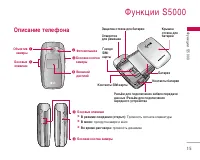
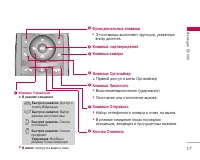
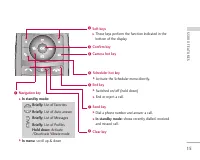
îÛÌ͈ËË S5000 15 îÛÌ͈ËË S5000 éÔËÒ‡ÌË ÚÂÎÂÙÓ̇ ! # $ % @ # é·˙ÂÍÚË‚ ͇ÏÂ˚ ÅÓÍÓ‚˚ Í·‚Ë¯Ë îÓÚÓ‚ÒÔ˚¯Ía ÅÓÍÓ‚‡fl ÍÌÓÔ͇͇ÏÂ˚ $ ÅÓÍÓ‚‡fl ÍÌÓÔ͇ ͇ÏÂ˚ Ç̯ÌËȉËÒÔÎÂÈ ÅÓÍÓ‚˚ Í·‚Ë¯Ë ] Ç ÂÊËÏ ÓÊˉ‡ÌËfl (ÓÚÍ˚Ú): ÉÓÏÍÓÒÚ¸ Ò˄̇· Í·‚ˇÚÛ˚ ] Ç ÏÂÌ˛: ÔÓÍÛÚ͇ ‚‚Âı Ë ‚ÌËÁ ] ÇÓ ‚ÂÏfl ‡Á„Ó‚Ó‡: „ÓÏÍ...
Page 18 - Rear view
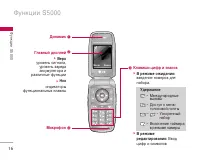
17 îÛÌ͈ËË S5000 Rear view ! $ ^ * @ ä·‚˯‡ ÔÓ‰Ú‚ÂʉÂÌËfl ä·‚˯‡ á‡ÍÓ̘ËÚ¸ ] ÇÍβ˜ÂÌËÂ/‚˚Íβ˜ÂÌË (Û‰ÂʇÌËÂ) ] éÍÓ̘‡ÌË ËÎË ÓÚÍÎÓÌÂÌË ‚˚ÁÓ‚‡. ä·‚˯‡ éÚÔ‡‚ËÚ¸ ] ç‡·Ó ÚÂÎÂÙÓÌÌÓ„Ó ÌÓχ Ë ÓÚ‚ÂÚ Ì‡ ‚˚ÁÓ‚. ] Ç ÂÊËÏ ÓÊˉ‡ÌËfl ÔÓ͇Á ÔÓÒΉÌËıËÒıÓ‰fl˘Ëı, ‚ıÓ‰fl˘Ëı Ë ÔÓÔÛ˘ÂÌÌ˚ı ‚˚ÁÓ‚Ó‚. äÌÓÔ͇ éÚÏÂÌ...
Page 19 - éÚÓ·‡ÊÂÌË ËÌÙÓχˆËË
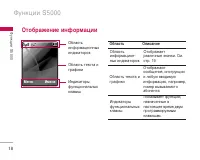
éÚÓ·‡ÊÂÌË ËÌÙÓχˆËË îÛÌ͈ËË S5000 18 îÛÌ͈ËË S5000 é·Î‡ÒÚ¸ËÌÙÓχˆËÓÌÌ˚ıË̉Ë͇ÚÓÓ‚ é·Î‡ÒÚ¸ ÚÂÍÒÚ‡ Ë„‡ÙËÍË à̉Ë͇ÚÓ˚ÙÛÌ͈ËÓ̇θÌ˚ıÍ·‚˯ é·Î‡ÒÚ¸ éÔËÒ‡ÌË é·Î‡ÒÚ¸ËÌÙÓχˆËÓÌ-Ì˚ı Ë̉Ë͇ÚÓÓ‚ éÚÓ·‡Ê‡ÂÚ‡Á΢Ì˚ Á̇˜ÍË. ëÏ.ÒÚ. 19. à̉Ë͇ÚÓ˚ÙÛÌ͈ËÓ̇θÌ˚ıÍ·‚˯ èÓ͇Á˚‚‡ÂÚ ÙÛÌ͈ËË,̇Á̇˜ÂÌÌ˚ ‚̇Ò...
Page 20 - ÇÌËχÌËÂ
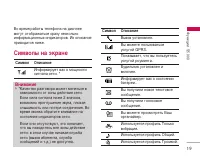
ÇÓ ‚ÂÏfl ‡·ÓÚ˚ ÚÂÎÂÙÓ̇ ̇ ‰ËÒÔÎÂÂÏÓ„ÛÚ ÓÚÓ·‡Ê‡Ú¸Òfl Ò‡ÁÛ ÌÂÒÍÓθÍÓËÌÙÓχˆËÓÌÌ˚ı Ë̉Ë͇ÚÓÓ‚. àı ÓÔËÒ‡ÌËÂÔË‚Ó‰ËÚÒfl ÌËÊÂ. ëËÏ‚ÓÎ˚ ̇ ˝Í‡Ì 19 îÛÌ͈ËË S5000 ëËÏ‚ÓÎ éÔËÒ‡ÌË Ç˚ÁÓ‚ ÛÒÚ‡ÌÓ‚ÎÂÌ. Ç˚ ÏÓÊÂÚ ÔÓθÁÓ‚‡Ú¸ÒflÛÒÎÛ„ÓÈ GPRS. èÓ͇Á˚‚‡ÂÚ, ˜ÚÓ ‚˚ ÔÓθÁÛÂÚÂÒ¸ÛÒÎÛ„ÓÈ ÓÛÏËÌ„‡. ÅÛ‰ËθÌËÍ ÛÒÚ‡ÌÓ‚ÎÂÌ Ë...
Page 22 - ìÒÚ‡Ìӂ͇ SIM Í‡Ú ̊ Ë; èËÏ ̃‡ÌËÂ
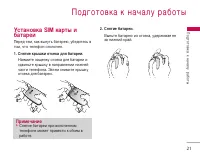
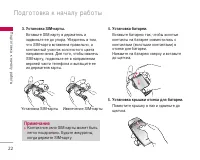
èÓ‰„ÓÚӂ͇ Í Ì‡˜‡ÎÛ ‡·ÓÚ˚ 21 ìÒÚ‡Ìӂ͇ SIM ͇Ú˚ Ë ·‡Ú‡ÂË è‰ ÚÂÏ, Í‡Í ‚˚ÌÛÚ¸ ·‡Ú‡Â˛, ۷‰ËÚÂÒ¸ ‚ÚÓÏ, ˜ÚÓ ÚÂÎÂÙÓÌ ÓÚÍβ˜ÂÌ. 1. ëÌflÚË Í˚¯ÍË ÓÚÒÂ͇ ‰Îfl ·‡Ú‡ÂË. ç‡ÊÏËÚ Á‡˘ÂÎÍÛ ÓÚÒÂ͇ ‰Îfl ·‡Ú‡ÂË ËÒ‰‚Ë̸Ú Í˚¯ÍÛ ‚ ̇ԇ‚ÎÂÌËË ÌËÊÌÂȘ‡ÒÚË ÚÂÎÂÙÓ̇. á‡ÚÂÏ ÒÌËÏËÚ Í˚¯ÍÛÓÚÒÂ͇ ‰Îfl ·‡Ú‡ÂË. 2. ëÌfl...
Page 24 - á‡fl‰Í‡ ·‡Ú‡ÂË
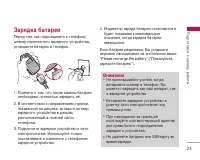
23 á‡fl‰Í‡ ·‡Ú‡ÂË è‰ ÚÂÏ, Í‡Í ÔÓ‰ÒÓ‰ËÌËÚ¸ Í ÚÂÎÂÙÓÌÛ¯ÚÂÍ ÔÂÂÌÓÒÌÓ„Ó Á‡fl‰ÌÓ„Ó ÛÒÚÓÈÒÚ‚‡,ÛÒÚ‡ÌÓ‚ËÚ ·‡Ú‡Â˛ ‚ ÚÂÎÂÙÓÌ. 1. èÓÏÌËÚÂ Ó ÚÓÏ, ˜ÚÓ ÔÓÒΠÁ‡ÏÂÌ˚ ·‡Ú‡ÂË ÌÂÓ·ıÓ‰ËÏÓ ÔÓÎÌÓÒÚ¸˛ Á‡fl‰ËÚ¸ Âfi. 2. Ç ÒÓÓÚ‚ÂÚÒÚ‚ËË Ò Ì‡Ô‡‚ÎÂÌËÂÏ ÒÚÂÎÍË, ÔÓ͇Á‡ÌÌÓÈ Ì‡ ËÒÛÌÍÂ, ‚ÒÚ‡‚¸Ú ¯ÚÂÍÂÁ‡fl‰ÌÓ„Ó ÛÒÚÓÈ...
Page 25 - éÚÍÎ ̨ ̃ÂÌË Á‡fl‰ÌÓ„Ó
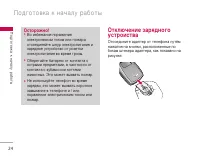
èÓ‰„ÓÚӂ͇ Í Ì‡˜‡ÎÛ ‡·ÓÚ˚ 24 éÚÍβ˜ÂÌË Á‡fl‰ÌÓ„Ó ÛÒÚÓËÒÚ‚‡ éÚÒÓ‰ËÌËÚ ‡‰‡ÔÚ ÓÚ ÚÂÎÂÙÓ̇ ÔÛÚfiÏ̇ʇÚËfl ̇ ÍÌÓÔÍË, ‡ÒÔÓÎÓÊÂÌÌ˚ ÔÓ·ÓÍ‡Ï ¯ÚÂ͇ ‡‰‡ÔÚ‡, Í‡Í ÔÓ͇Á‡ÌÓ Ì‡ËÒÛÌÍÂ. èÓ‰„ÓÚӂ͇ Í Ì‡˜‡ÎÛ ‡·ÓÚ˚ éÒÚÓÓÊÌÓ! ] ÇÓ ËÁ·ÂʇÌËfl ÔÓ‡ÊÂÌËfl˝ÎÂÍÚ˘ÂÒÍËÏ ÚÓÍÓÏ ËÎË ÔÓʇ‡ÓÚÒÓ‰ËÌflÈÚ ¯ÌÛ ˝ÎÂÍÚÓÔ...
Page 26 - ÇıÓ‰fl ̆ËÂ Ë ËÒıÓ‰fl ̆ËÂ; àÒıÓ‰fl ̆ËÈ ‚ ̊ÁÓ‚
éÒÌÓ‚Ì˚ ÙÛÌ͈ËË 25 ÇıÓ‰fl˘ËÂ Ë ËÒıÓ‰fl˘Ë Á‚ÓÌÍË àÒıÓ‰fl˘ËÈ ‚˚ÁÓ‚ 1. ì·Â‰ËÚÂÒ¸, ˜ÚÓ ‚‡¯ ÚÂÎÂÙÓÌ ‚Íβ˜ÂÌ. 2. ǂ‰ËÚ ÌÓÏ ÚÂÎÂÙÓ̇, ‚Íβ˜‡fl ÍÓ‰ ‡ÈÓ̇. ÑÎfl ‰‡ÍÚËÓ‚‡ÌËfl ÌÓχ ̇˝Í‡Ì ‰ËÒÔÎÂfl ÌÛÊÌÓ ÔÓÒÚÓ Ì‡ÊËχڸÍ·‚Ë¯Û , ˜ÚÓ·˚ Û‰‡ÎflÚ¸ ÔÓ Ó‰ÌÓÈ ˆËÙ Á‡ ‡Á. ] ç‡ÊÏËÚÂ Ë Û‰ÂÊË‚‡ÈÚ Í·‚Ë¯Û ë ‰ÎflÛ‰...
Page 27 - ᇂ ̄ÂÌË Á‚ÓÌ͇
éÒÌÓ‚Ì˚ ÙÛÌ͈ËË 26 ᇂ¯ÂÌË Á‚ÓÌ͇ äÓ„‰‡ ‚˚ Á‡ÍÓ̘ËÎË ‚‡¯ ‡Á„Ó‚Ó, ̇ÊÏËÚÂÍ·‚Ë¯Û ÓÍÓ̘‡ÌËfl ‡Á„Ó‚Ó‡ . àÒıÓ‰fl˘ËÈ ‚˚ÁÓ‚ ̇ ÌÓÏ ËÁÚÂÎÂÙÓÌÌÓÈ ÍÌË„Ë Ç˚ ÏÓÊÂÚ ÒÓı‡ÌËÚ¸ ˜‡ÒÚÓ ËÒÔÓθÁÛÂÏ˚ÂËÏÂ̇ Ë ÌÓχ ÚÂÎÂÙÓÌÓ‚ ̇ SIM-͇ÚÂË/ËÎË ‚ Ô‡ÏflÚË ÚÂÎÂÙÓ̇. ÑÎfl ÔÓÒÏÓÚ‡‰ÂڇθÌÓ„Ó ÓÔËÒ‡ÌËfl ÙÛÌ͈ËË ÚÂÎÂÙÓÌ...
Page 28 - åÓ ̆ÌÓÒÚ ̧ Ò˄̇·
27 2. ÑÎfl Á‡‚¯ÂÌËfl ‡Á„Ó‚Ó‡ Á‡ÍÓÈÚ ÚÂÎÂÙÓÌ ËÎË Ì‡ÊÏËÚ ÍÌÓÔÍÛ . êÂÊËÏ ‚Ë·ÓÁ‚ÓÌ͇ (·˚ÒÚ˚È) êÂÊËÏ ‚Ë·ÓÁ‚ÓÌ͇ ÏÓÊÌÓ ‡ÍÚË‚ËÓ‚‡Ú¸,̇ʇ‚ Ë Û‰ÂÊË‚‡fl ̇‚Ë„‡ˆËÓÌÌÛ˛ Í·‚˯ÛÇ΂Ó. åÓ˘ÌÓÒÚ¸ Ò˄̇· ÇÌÛÚË Á‰‡ÌËfl ÔËÂÏ ÏÓÊÂÚ ·˚Ú¸ ÎÛ˜¯Â‚·ÎËÁË ÓÍ̇. ëËÎÛ Ò˄̇· ÏÓÊÌÓ ÓˆÂÌËÚ¸ÔÓ Ë̉Ë͇ÚÓÛ Ò˄̇· ( ) ̇...
Page 29 - êÂÊËÏ í9; êÂÊËÏ ÒËÏ‚ÓÎÓ‚; àÁÏÂÌÂÌË ÂÊËχ ‚‚Ó‰‡ ÚÂÍÒÚ‡; àÒÔÓÎ ̧ÁÓ‚‡ÌË ÂÊËχ í9
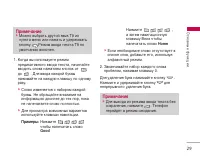
éÒÌÓ‚Ì˚ ÙÛÌ͈ËË 28 êÂÊËÏ í9 ä ͇ʉÓÈ Í·‚˯ ̇ Í·‚ˇÚÛ ÔË‚flÁ‡ÌÓ·ÓΠӉÌÓÈ ·ÛÍ‚˚. ùÚÓÚ ÂÊËÏ ÔÓÁ‚ÓÎflÂÚ‚‡Ï ‚‚Ó‰ËÚ¸ ÒÎÓ‚‡ ÔÛÚÂÏ Ó‰ËÌÓ˜ÌÓ„Ó̇ʇÚËfl ̇ Í·‚˯Ë. íÂÎÂÙÓÌ ‚ ÂÊËÏ í9‡‚ÚÓχÚ˘ÂÒÍË Ò‡‚ÌË‚‡ÂÚ ‚‡¯Ë ̇ʇÚËfl ̇Í·‚Ë¯Ë Ò ‚ÌÛÚÂÌÌËÏ ÒÎÓ‚‡ÂÏ ‰ÎflÓÔ‰ÂÎÂÌËfl Ô‡‚ËθÌÓ„Ó ÒÎÓ‚‡ Ë Ú‡ÍËÏÓ·‡ÁÓÏ Ú...
Page 31 - àÒÔÓÎ ̧ÁÓ‚‡ÌË ‡ÎÙ‡‚ËÚÌÓ„Ó
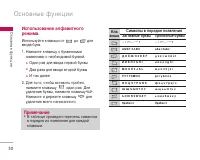
30 àÒÔÓθÁÓ‚‡ÌË ‡ÎÙ‡‚ËÚÌÓ„Ó ÂÊËχ. àÒÔÓθÁÛÈÚ Í·‚Ë¯Ë ÓÚ ‰Ó ‰Îfl ‚‚Ó‰‡ ·ÛÍ‚. 1. ç‡ÊÏËÚ Í·‚Ë¯Û Ò ·ÛÍ‚ÂÌÌ˚ÏË ÒËÏ‚Ó·ÏË Ò ÌÂÓ·ıÓ‰ËÏÓÈ ·ÛÍ‚ÓÈ. ] é‰ËÌ ‡Á ‰Îfl ‚‚Ó‰‡ Ô‚ÓÈ ·ÛÍ‚˚ ] Ñ‚‡ ‡Á‡ ‰Îfl ‚‚Ó‰‡ ‚ÚÓÓÈ ·ÛÍ‚˚ ] à Ú‡Í ‰‡Î 2. ÑÎfl ÚÓ„Ó, ˜ÚÓ·˚ ‚ÒÚ‡‚ËÚ¸ ÔÓ·ÂÎ, ̇ÊÏËÚ Í·‚Ë¯Û Ó‰ËÌ ‡Á. ÑÎfl Û‰‡ÎÂÌËfl ...
Page 34 - ÇÓ ‚ÂÏfl ‡Á„Ó‚Ó‡; ÇÚÓÓÈ ËÒıÓ‰fl ̆ËÈ Á‚ÓÌÓÍ; éÚ‚ÂÚ Ì‡ ‚ıÓ‰fl ̆ËÈ ‚ ̊ÁÓ‚
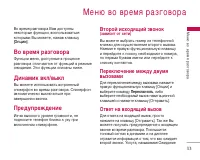
åÂÌ˛ ‚Ó ‚ÂÏfl ‡Á„Ó‚Ó‡ 33 ÇÓ ‚ÂÏfl ‡Á„Ó‚Ó‡ Ç‡Ï ‰ÓÒÚÛÔÌ˚ÌÂÍÓÚÓ˚ ÙÛÌ͈ËË, ‚ÓÒÔÓθÁÓ‚‡Ú¸ÒflÍÓÚÓ˚ÏË Ç˚ ÏÓÊÂÚÂ, ̇ʇ‚ Í·‚Ë¯Û [éÔˆËË] . ÇÓ ‚ÂÏfl ‡Á„Ó‚Ó‡ îÛÌ͈ËË ÏÂÌ˛, ‰ÓÒÚÛÔÌ˚ ‚ ÔÓˆÂÒÒ‡Á„Ó‚Ó‡ ÓÚ΢‡˛ÚÒfl ÓÚ ÙÛÌ͈ËÈ ‚ ÂÊËÏÂÓÊˉ‡ÌËfl. ùÚË ÙÛÌ͈ËË ÓÔËÒ‡Ì˚ ÌËÊÂ. ÑË̇ÏËÍ ‚ÍÎ/‚˚ÍÎ Ç˚ ÏÓÊÂÚ ËÒÔÓθÁÓ...
Page 35 - éÚÍÎÓÌÂÌË ‚ıÓ‰fl ̆Â„Ó ‚ ̊ÁÓ‚‡; Ñ‚ÛıÚÓ̇Π̧Ì ̊È
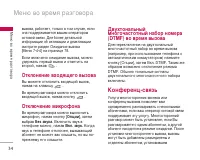
åÂÌ˛ ‚Ó ‚ÂÏfl ‡Á„Ó‚Ó‡ 34 ‚˚ÁÓ‚‡, ‡·ÓÚ‡ÂÚ, ÚÓθÍÓ ‚ ÚÓÏ ÒÎÛ˜‡Â, ÂÒÎËÓ̇ ÔÓ‰‰ÂÊË‚‡ÂÚÒfl ‚‡¯ËÏ ÓÔ‡ÚÓÓÏÒÓÚÓ‚ÓÈ Ò‚flÁË. ÑÎfl ·ÓΠ‰ÂڇθÌÓÈËÌÙÓχˆËË Ó· ‡ÍÚË‚‡ˆËË Ë ‰Â‡ÍÚË‚‡ˆËËÒÏÓÚËÚ ‡Á‰ÂÎ éÊˉ‡ÌË ‚˚ÁÓ‚‡ [åÂÌ˛ 7-4-4] ̇ ÒÚ‡Ìˈ 78. ÖÒÎË ‚Íβ˜ÂÌÓ ÓÊˉ‡ÌË ‚˚ÁÓ‚‡, ÏÓÊÌÓÛ‰Âʇڸ Ô‚˚È ‚˚ÁÓ‚ Ë ÓÚ‚...
Page 40 - ÄÍÚË‚ËÓ‚‡Ú ̧
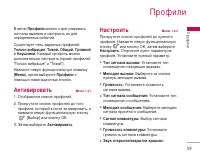
èÓÙËÎË 39 èÓÙËÎË Ç ÏÂÌ˛ èÓÙËÎË ÏÓÊÌÓ ÓÚ„ÛÎËÓ‚‡Ú¸ Ò˄̇Î˚ ‚˚ÁÓ‚Ó‚ Ë Ì‡ÒÚÓËÚ¸ Ëı ‰ÎflÓÔ‰ÂÎÂÌÌ˚ı ÒÓ·˚ÚËÈ. ëÛ˘ÂÒÚ‚ÛÂÚ ÔflÚ¸ Á‡‰‡ÌÌ˚ı ÔÓÙËÎÂÈ: íÓθÍÓ ‚Ë·‡ˆËfl , íËıËÈ, é·˘ËÈ , ÉÓÏÍËÈ Ë ç‡Û¯ÌËÍË . ä‡Ê‰˚È ÔÓÙËθ ÏÓÊÌÓ ‰ÓÔÓÎÌËÚÂθÌÓ Ì‡ÒÚÓËÚ¸ (ÍÓÏ ÔÓÙËÎÂÈ“íÓθÍÓ ‚Ë·‡ˆËfl” Ë “íËıËÈ”). ç‡ÊÏËÚ ÎÂ...
Page 42 - èÓÔÛ ̆ÂÌÌ ̊Â; àÒıÓ‰fl ̆ËÂ
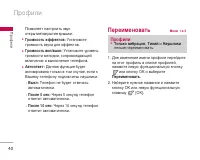
Ç˚ÁÓ‚˚ 41 èÓ‚ÂËÚ¸ Á‡ÔËÒ¸ Ó ÔÓÔÛ˘ÂÌÌ˚ı, ÔËÌflÚ˚ıË ËÒıÓ‰fl˘Ëı ‚˚ÁÓ‚‡ı ÏÓÊÌÓ ÚÓθÍÓ ‚ÒÎÛ˜‡Â, ÂÒÎË ‚ ÁÓÌ ӷÒÎÛÊË‚‡ÌËflˉÂÌÚËÙË͇ˆËfl ÎËÌËË ‚˚ÁÓ‚‡ÔÓ‰‰ÂÊË‚‡ÂÚÒfl ÒÂÚ¸˛. çÓÏÂ Ë ËÏfl (ÂÒÎË ËÏÂÂÚÒfl) ÓÚÓ·‡Ê‡˛ÚÒfl‚ÏÂÒÚÂ Ò ‰‡ÚÓÈ Ë ‚ÂÏÂÌÂÏ ‚˚ÁÓ‚‡. åÓÊÌÓÚ‡ÍÊ ÔÓÒÏÓÚÂÚ¸ ‚ÂÏfl ‚˚ÁÓ‚Ó‚. èÓÔÛ˘ÂÌÌ˚ åÂÌ˛ 2.1 чÌÌ...
Page 43 - 쉇ÎËÚ ̧ ÔÓÒΉÌËÂ; èÓ͇Á‡Ú ̧ ÒÚÓËÏÓÒÚ ̧
Ç˚ÁÓ‚˚ 42 ] Ç‚ÂÒÚË ÌÓ‚Ó ËÏfl ‰Îfl ÌÓχ Ë ÒÓı‡ÌËÚ¸Â„Ó Ë ÌÓÏ ‚ ÚÂÎÂÙÓÌÌÓÈ ÍÌË„Â ] éÚÔ‡‚ËÚ¸ ̇ ˝ÚÓÚ ÌÓÏ ÒÓÓ·˘ÂÌË ] 쉇ÎËÚ¸ ‚˚ÁÓ‚ ËÁ ÒÔËÒ͇ 쉇ÎËÚ¸ ÔÓÒΉÌË Á‚ÓÌÍË åÂÌ˛ 2.4 èÓÁ‚ÓÎflÂÚ Û‰‡ÎËÚ¸ ÒÔËÒÍË èÓÔÛ˘ÂÌÌ˚Â Ë èËÌflÚ˚ . åÓÊÌÓ Û‰‡ÎËÚ¸ ÒÔËÒÍË àÒıÓ‰fl˘ËÂ Ë ÇÒ ‚˚ÁÓ‚˚ Á‡ Ó‰ËÌ ‡Á. ëÚÓËÏÓÒÚ¸ åÂÌ˛ ...
Page 44 - ëÔ‡‚͇ GPRS
43 ç‡ÒÚÓÈÍË (ᇂËÒËÚ ÓÚ SIM ͇Ú˚) (åÂÌ˛ 2.5.3) ] ìÒÚ‡ÌÓ‚. Ú‡ËÙ: Ç˚ ÏÓÊÂÚ ÛÒÚ‡ÌÓ‚ËÚ¸ ÒÚÓËÏÓÒÚ¸ ‰ËÌˈ˚ ÓÔ·Ú˚. é·‡ÚËÚÂÒ¸ ÍLJ¯ÂÏÛ ÔÓÒÚ‡‚˘ËÍÛ ÛÒÎÛ„ ‰Îfl ÔÓÎÛ˜ÂÌËflˆÂÌ˚ Á‡ ‰ËÌËˆÛ ÓÔ·Ú˚. ÑÎfl ‰ËÌˈ˚ÓÔ·Ú˚ ‚ ‰‡ÌÌÓÏ ÏÂÌ˛ Ç‡Ï ÔÓ̇‰Ó·ËÚÒflÍÓ‰ PIN2. ] ìÒÚ‡ÌÓ‚. ͉ËÚ: чÌ̇fl ÒÂÚ‚‡fl ÛÒÎÛ„‡ ÔÓÁ‚ÓÎflÂÚ Ç‡Ï Ó...
Page 45 - Bluetooth; åÓË ÛÒÚÓÈÒÚ‚‡; ä‡Î ̧ÍÛÎflÚÓ
ÄÍÒÂÒÒÛ‡˚ 44 Bluetooth åÂÌ˛ 3.1 Bluetooth ÔÓÁ‚ÓÎflÂÚ ÛÒڇ̇‚ÎË‚‡Ú¸·ÂÒÔÓ‚Ó‰ÌÓ ÒÓ‰ËÌÂÌË ÏÂʉÛÒÓ‚ÏÂÒÚËÏ˚ÏË ÏÓ·ËθÌ˚ÏË ÛÒÚÓÈÒÚ‚‡ÏË,ÍÓÏÔ¸˛Ú‡ÏË Ë ‰Û„ËÏ ÔÂËÙÂËÈÌ˚ÏÓ·ÓÛ‰Ó‚‡ÌËÂÏ, ÍÓÚÓ˚ ̇ıÓ‰flÚÒfl ‚ ÁÓ̉ÂÈÒÚ‚Ëfl ÛÒÚÓÈÒÚ‚‡. ùÚÓÚ ÚÂÎÂÙÓÌÓÒ̇˘ÂÌ ‚ÒÚÓÂÌÌ˚Ï ÏÓ‰ÛÎÂÏ Bluetooth,ÍÓÚÓ˚È ÔÓÁ‚ÓÎflÂÚ ÓÒÛ˘ÂÒÚ...
Page 46 - äÓÌ‚ÂÚÂ; åËÓ‚Ó ‚ÂÏfl
45 4. ç‡ÊÏËÚ [àÚÓ„Ó] ‰Îfl ÔÓÒÏÓÚ‡ ÂÁÛθڇÚÓ‚. 5. ç‡ÊÏËÚ [ë·ÓÒ] ËÎË ‚‚‰ËÚ ÌÓ‚˚ ˜ËÒ·, ‰Îfl ÚÓ„Ó ˜ÚÓ·˚ ‚˚ÔÓÎÌËÚ¸ ÌÓ‚Ó‚˚˜ËÒÎÂÌËÂ. 6. ÑÎfl Á‡‚¯ÂÌËfl ‡·ÓÚ˚ Ò Í‡Î¸ÍÛÎflÚÓÓÏ Ì‡ÊÏËÚ [ç‡Á‡‰]. äÓÌ‚ÂÚ åÂÌ˛ 3.3 èÂÓ·‡ÁÛÂÚ Î˛·Ó ËÁÏÂÂÌË ‚ ÌÛÊÌÛ˛Ç‡Ï ‚Â΢ËÌÛ. ëÛ˘ÂÒÚ‚ÛÂÚ 4 ÚËÔ‡‚ÓÁÏÓÊÌ˚ı ÔÂÓ·‡ÁÓ‚‡...
Page 47 - ÑËÍÚÓÙÓÌ; á‡ÔËÒ ̧; èÓÒÏÓÚ ÒÔËÒ͇; ëÚ‡ÚÛÒ Ô‡ÏflÚË
ÄÍÒÂÒÒÛ‡˚ 46 ÑËÍÚÓÙÓÌ åÂÌ˛ 3.5 îÛÌ͈Ëfl Á‡ÔËÒË „ÓÎÓÒ‡ ‰‡fiÚ Ç‡Ï‚ÓÁÏÓÊÌÓÒÚ¸ Á‡ÔËÒ‡Ú¸ Ì ·ÓΠ‰ÂÒflÚË„ÓÎÓÒÓ‚˚ı ÒÓÓ·˘ÂÌËÈ, ͇ʉÓ ËÁ ÍÓÚÓ˚ıÏÓÊÂÚ ‰ÎËÚ¸Òfl Ì ‰Óθ¯Â 15-ÚË ÒÂÍÛ̉. á‡ÔËÒ¸ (åÂÌ˛ 3.5.1) Ç˚ ÏÓÊÂÚ ÒÓı‡ÌËÚ¸ „ÓÎÓÒÓ‚Û˛ Á‡ÔËÒ¸ ‚ÚÂÎÂÙÓÌÂ. 1. ä‡Í ÚÓθÍÓ Ì‡˜ÌfiÚÒfl ÔÓˆÂÒÒ Á‡ÔËÒË, ̇ ˝Í‡Ì ÔÓfl‚ËÚÒfl ...
Page 48 - é· ̆ËÈ; ÇÒÚ ̃‡; Ç ‡‚ÚÓÏÓ·ËÎÂ
47 éÚ‚ÂÚ ‚˚ÍÎ. (åÂÌ˛ 3.7.1) Ç ˝ÚÓÏ ÒÎÛ˜‡Â ÙÛÌ͈Ëfl ‡‚ÚÓÓÚ‚ÂÚ˜Ë͇̇ÍÚ˂̇. é·˘ËÈ (åÂÌ˛ 3.7.2) ÇÍβ˜ÂÌË ÂÊËχ ‡‚ÚÓÓÚ‚ÂÚ˜Ë͇ “é·˘ËÈ” ÇÒÚ˜‡ (åÂÌ˛ 3.7.3) ÇÍβ˜ÂÌË ÂÊËχ ‡‚ÚÓÓÚ‚ÂÚ˜Ë͇ “ÇÒÚ˜‡” Ç ‡‚ÚÓÏÓ·ËΠ(åÂÌ˛ 3.7.4) ÇÍβ˜ÂÌË ÂÊËχ ‡‚ÚÓÓÚ‚ÂÚ˜Ë͇ “Ç ‡‚ÚÓÏÓ·ËΔ èÓθÁÓ‚‡ÚÂθÒÍËÈ 1/ 2 (åÂÌ˛ 3.7.5/...
Page 49 - á‡ÔËÒ‡ÌÌ ̊ ÒÓÓ· ̆ÂÌËfl
ÄÍÒÂÒÒÛ‡˚ 48 á‡ÔËÒ‡ÌÌ˚ ÒÓÓ·˘ÂÌËfl (åÂÌ˛ 3.7.7) éÚÓ·‡Ê‡ÂÚ ÒÔËÒÓÍ Á‡ÔËÒ‡ÌÌ˚ı ÒÓÓ·˘ÂÌËÈ,‚Íβ˜‡fl ËÌÙÓχˆË˛ Ó ‡·ÓÌÂÌÚÂ Ë ‚ÂÏÂÌËÁ‡ÔËÒË ÒÓÓ·˘ÂÌËfl. ] èÓÒÎÛ¯‡Ú¸ Ç˚ ÏÓÊÂÚ ÔÓÒÎÛ¯‡Ú¸ Á‡ÔËÒ‡ÌÌ˚„ÓÎÓÒÓ‚˚ ÒÓÓ·˘ÂÌËfl. ] 쉇ÎËÚ¸ Ç˚ ÏÓÊÂÚ ۉ‡ÎËÚ¸ „ÓÎÓÒÓ‚˚ ÒÓÓ·˘ÂÌËfl. ] Ç˚ÁÓ‚ Ç˚ ÏÓÊÂÚ Òӂ¯ËÚ¸ Á‚ÓÌÓÍ ‡·ÓÌÂÌÚ...
Page 50 - àÏÂ̇; àÒÍ‡Ú ̧; (ëÓ‚Â ̄ÂÌË ‚ ̊ÁÓ‚Ó‚ ËÁ
鄇̇ÈÁ 49 鄇̇ÈÁ àÏÂ̇ åÂÌ˛ 4.1 àÒ͇ڸ (åÂÌ˛ 4.1.1) (ëӂ¯ÂÌË ‚˚ÁÓ‚Ó‚ ËÁ ÚÂÎÂÙÓÌÌÓÈ ÍÌËÊÍË) 1. ç‡ıÓ‰flÒ¸ ‚ ÂÊËÏ ÓÊˉ‡ÌËfl, ̇ÊÏËÚ [àÏÂ̇] Ë Á‡ÚÂÏ [OK]. 2. ǂ‰ËÚ ËÒÍÓÏÓ ËÏfl ËÎË ÔÂÂȉËÚÂ Í ÔÓÎÌÓÏÛ ÒÔËÒÍÛ ËÏfiÌ, ̇ʇ‚ ÎÂ‚Û˛ÙÛÌ͈ËÓ̇θÌÛ˛ Í·‚Ë¯Û [ëÔËÒÓÍ]. 3. ÖÒÎË Ç˚ ıÓÚËÚ ‰‡ÍÚËÓ‚‡Ú¸, ...
Page 51 - ÉÛÔÔ ̊
鄇̇ÈÁ 50 鄇̇ÈÁ Ç˚ ÛÒÚ‡ÌÓ‚ËÚ ˝ÚÛ ÙÛÌÍˆË˛, ˜‡ÒÚÓ̇·Ë‡ÂÏ˚È ÌÓÏ ·Û‰ÂÚ ÓÚÓ·‡Ê‡Ú¸ÒflÔ‚˚Ï ‚ ÒÔËÒÍÂ. ] 쉇ÎËÚ¸: Ç˚ ÏÓÊÂÚ ۉ‡ÎËÚ¸ Á‡ÔËÒ¸. ÑÓ·‡‚ËÚ¸ Á‡ÔËÒ¸ (åÂÌ˛ 4.1.2) ë ÔÓÏÓ˘¸˛ ˝ÚÓÈ ÙÛÌ͈ËË ‚˚ ÏÓÊÂÚ‚‚Ó‰ËÚ¸ ÌÓ‚˚ Á‡ÔËÒË ‚ ÚÂÎÂÙÓÌÌÛ˛ ÍÌË„Û.ÖÏÍÓÒÚ¸ Ô‡ÏflÚË ÚÂÎÂÙÓ̇ ÒÓÒÚ‡‚ÎflÂÚ 1000Á‡ÔËÒÂÈ. ÖÏÍÓÒ...
Page 56 - èÓÒÏÓÚ
55 ÑÎfl ÔÂÂıÓ‰‡ Í ÙÛÌ͈ËflÏ Ó„‡Ì‡ÈÁ‡̇ÊÏËÚ ÎÂ‚Û˛ ÙÛÌ͈ËÓ̇θÌÛ˛ ÍÌÓÔÍÛ [éÔˆËË]: ÑÓ·‡‚ËÚ¸ Á‡ÔËÒ¸ (åÂÌ˛ 4.2.1) èÓÁ‚ÓÎflÂÚ ‰Ó·‡‚ÎflÚ¸ ÌÓ‚˚ Á‡ÏÂÚÍË Ë‡ÒÔËÒ‡ÌË ‰Îfl ‚˚·‡ÌÌÓ„Ó ‰Ìfl. ÇÒ„ÓÏÓÊÌÓ ÒÓı‡ÌËÚ¸ ‰Ó 20 Á‡ÏÂÚÓÍ. ǂ‰ËÚ ÚÂÏÛ Ë Ì‡ÊÏËÚ ÎÂ‚Û˛ÔÓ„‡ÏÏËÛÂÏÛ˛ ÍÌÓÔÍÛ [OK]. ǂ‰ËÚ ÒÓÓÚ‚ÂÚÒÚ‚Û˛˘Û˛ËÌÙÓÏ...
Page 57 - 쉇ÎËÚ ̧ ÔÓÒΉÌÂÂ; á‡ÏÂÚÍË
鄇̇ÈÁ 56 쉇ÎËÚ¸ ÔÓÒΉÌ (åÂÌ˛ 4.2.4) Ç˚ ÏÓÊÂÚ ۉ‡ÎËÚ¸ ÔÓÒΉÌ ÒÓ·˚ÚËÂ, ÓÍÓÚÓÓÏ Ç˚ ·˚ÎË Û‚Â‰ÓÏÎÂÌ˚. 쉇ÎËÚ¸ ‚Ò (Menu 4.2.5) Ç˚ ÏÓÊÂÚ ۉ‡ÎËÚ¸ ‚Ò Á‡ÔËÒË. á‡ÏÂÚÍË åÂÌ˛ 4.3 1. Ç˚·ÂËÚ ÚÂÍÒÚ Ô‡ÏflÚÍË, ̇ʇ‚ ÎÂ‚Û˛ ÔÓ„‡ÏÏËÛÂÏÛ˛ ÍÌÓÔÍÛ [Ç˚·Ó]. 2. ÖÒÎË Ú‡Ï ÔÛÒÚÓ, ‰Ó·‡‚¸Ú ÌÓ‚Û˛, ̇ʇ‚ ÎÂ‚Û˛...
Page 58 - çÓ‚Ó ÒÓÓ· ̆ÂÌËÂ; ç‡ÔËÒ‡Ú ̧ SMS
ëÓÓ·˘ÂÌËfl 57 чÌÌÓ ÏÂÌ˛ ‚Íβ˜‡ÂÚ ÙÛÌ͈ËË,ÓÚÌÓÒfl˘ËÂÒfl Í SMS (ëÎÛÊ·‡ ÍÓÓÚÍËıÒÓÓ·˘ÂÌËÈ), MMS (ëÎÛÊ·‡ ÏÛθÚËωËÈÌ˚ıÒÓÓ·˘ÂÌËÈ), e-mail, „ÓÎÓÒÓ‚ÓÈ ÔÓ˜ÚÂ, ‡Ú‡ÍÊÂ Í ÒÎÛÊ·Ì˚Ï ÒÓÓ·˘ÂÌËflÏ ÒÂÚË. çÓ‚Ó ÒÓÓ·˘ÂÌË åÂÌ˛ 5.1 ç‡ÔËÒ‡Ú¸ SMS (åÂÌ˛ 5.1.1) Ç˚ ÏÓÊÂÚ ‚‚Ó‰ËÚ¸ Ë Â‰‡ÍÚËÓ‚‡Ú¸ÚÂÍÒÚÓ‚Ó ÒÓÓ·˘ÂÌËÂ, ÔÓ‚Âflfl...
Page 60 - ç‡ÔËÒ‡Ú ̧ MMS
59 ç‡ÔËÒ‡Ú¸ MMS (åÂÌ˛ 5.1.2) Ç˚ ÏÓÊÂÚ ‚‚Ó‰ËÚ¸ Ë Â‰‡ÍÚËÓ‚‡Ú¸ÏÛθÚËωËÈÌÓ ÒÓÓ·˘ÂÌËÂ, ÔÓ‚Âflfl „ӇÁÏÂ. 1. ÇÓȉËÚ ‚ åÂÌ˛ ëÓÓ·˘ÂÌËfl ÔÛÚfiÏ Ì‡Ê‡ÚËfl [Ç˚·Ó]. 2. ÖÒÎË Ç˚ ıÓÚËÚ ̇ÔËÒ‡Ú¸ ÌÓ‚Ó ÒÓÓ·˘ÂÌËÂ, ‚˚·ÂËÚ ç‡ÔËÒ‡Ú¸ MMS . 3. Ç˚ ÏÓÊÂÚ ÒÓÁ‰‡Ú¸ ÌÓ‚Ó ÒÓÓ·˘ÂÌË ËÎË ‚˚·‡Ú¸ Ó‰ËÌ ËÁ ÛÊ Á‡‡Ì ÔË„...
Page 63 - ÇıÓ‰fl ̆ËÂ
ëÓÓ·˘ÂÌËfl 62 ÇıÓ‰fl˘Ë åÂÌ˛ 5.2 Ç˚ ·Û‰ÂÚ Ô‰ÛÔÂʉÂÌ˚, ÂÒÎË Ì‡ LJ¯ÚÂÎÂÙÓÌ ÔÓÒÚÛÔËÚ ÒÓÓ·˘ÂÌËÂ. éÌË ·Û‰ÛÚÒÓı‡ÌÂÌ˚ ‚ Ô‡ÔÍ «ÇıÓ‰fl˘Ë».Ç Ô‡ÔÍ «ÇıÓ‰fl˘Ë», Ç˚ ÏÓÊÂÚÂˉÂÌÚËÙˈËÓ‚‡Ú¸ ͇ʉÓ ÒÓÓ·˘ÂÌË ÔÓÁ̇˜ÍÛ. ÑÎfl ÔÓÎÛ˜ÂÌËfl ‰ÓÔÓÎÌËÚÂθÌÓÈËÌÙÓχˆËË ÒÏ. ‡Á‰ÂÎ «ËÍÓÌÍË». ÖÒÎË ‚ ÚÂÎÂÙÓÌ ÔÓfl‚ËÚÒfl ÒÓÓ·˘ÂÌËÂ...
Page 64 - éÚÔ‡‚ÎÂÌÌ ̊Â
63 ] èÂÂÒ·ڸ: Ç˚ ÏÓÊÂÚ ̇ԇ‚ËÚ¸ ‚˚·‡ÌÌÓ ÒÓÓ·˘ÂÌË ‰Û„ËÏÔÓÎÛ˜‡ÚÂÎflÏ. ] Ç˚ÁÓ‚: Ç˚ ÏÓÊÂÚ ÓÒÛ˘ÂÒÚ‚ËÚ¸ ‚˚ÁÓ‚ ÚÓ„Ó ‡·ÓÌÂÌÚ‡, ÓÚ ÍÓÚÓÓ„Ó Ç˚ ÔÓÎÛ˜ËÎËÒÓÓ·˘ÂÌËÂ. ] 쉇ÎËÚ¸: Ç˚ ÏÓÊÂÚ ۉ‡ÎËÚ¸ ÚÂÍÛ˘Â ÒÓÓ·˘ÂÌËÂ. ] èÓÒÏÓÚÂÚ¸ ËÌÙÓχˆË˛: Ç˚ ÏÓÊÂÚ ÔÓÒÏÓÚÂÚ¸ ËÌÙÓχˆË˛ Ó ÔÓÎÛ˜ÂÌÌ˚ıÒÓÓ·˘ÂÌËflı ; ‡‰ÂÒ‡ı...
Page 65 - óÂÌÓ‚ËÍË; èÓÒÎÛ ̄‡Ú ̧ „ÓÎÓÒÓ‚Û ̨
ëÓÓ·˘ÂÌËfl 64 éÚÔ‡‚ÎÂÌÌ˚ ] èÓÒÏÓÚ: ÏÓÊÌÓ ÔÓÒÏÓÚÂÚ¸ ÓÚÔ‡‚ÎÂÌÌÓ ÒÓÓ·˘ÂÌËÂ. ] èÂÂÒ·ڸ: Ç˚ ÏÓÊÂÚ ̇ԇ‚ËÚ¸ ÚÂÍÛ˘Â ÒÓÓ·˘ÂÌË ‰Û„ËÏ ‡‰ÂÒ‡Ú‡Ï. ] 쉇ÎËÚ¸: Ç˚ ÏÓÊÂÚ ۉ‡ÎËÚ¸ ÚÂÍÛ˘Â ÒÓÓ·˘ÂÌËÂ. ] èÓÒÏÓÚÂÚ¸ ËÌÙÓχˆË˛: Ç˚ ÏÓÊÂÚ ÔÓÒÏÓÚÂÚ¸ ËÌÙÓχˆË˛ Ó· ËÒıÓ‰fl˘ËıÒÓÓ·˘ÂÌËflı; ĉÂÒ ÔÓÎÛ˜‡ÚÂÎfl, ÚÂ...
Page 66 - óËÚ‡Ú ̧
65 Û‰ÂÊË‚‡ÈÚ ̇ʇÚÓÈ ÍÌÓÔÍÛ . àÌÙ. ͇̇Î˚ åÂÌ˛ 5.7 (ᇂËÒËÚ ÓÚ ÓÔ‡ÚÓ‡) àÌÙÓχˆËÓÌÌ˚ ÒÎÛÊ·Ì˚ ÒÓÓ·˘ÂÌËfl –˝ÚÓ ÚÂÍÒÚÓ‚˚ ÒÓÓ·˘ÂÌËfl, ÓÚÔ‡‚ÎflÂÏ˚ ÔÓÒÂÚË ÔÓθÁÓ‚‡ÚÂÎflÏ ÚÂÎÂÙÓÌÓ‚ GSM. éÌËÔ‰ÓÒÚ‡‚Îfl˛Ú Ó·˘Û˛ ËÌÙÓχˆË˛, Ú‡ÍÛ˛Í‡Í ÔÓ„ÌÓÁ ÔÓ„Ó‰˚, ËÌÙÓχˆË˛ Ó Ôӷ͇ı̇ ‰ÓÓ„‡ı, Á‡Í‡Á Ú‡ÍÒË, ‰ÓÒÚ‡‚͇ ...
Page 67 - ä‡Ì‡Î ̊; ò‡·ÎÓÌ ̊; íÂÍÒÚÓ‚ ̊ ̄‡·ÎÓÌ ̊
ëÓÓ·˘ÂÌËfl 66 ä‡Ì‡Î˚ (åÂÌ˛ 5.7.2) (ᇂËÒËÚ ÓÚ ÓÔ‡ÚÓ‡) ] ÑÓ·‡‚ËÚ¸ Á‡ÔËÒ¸: Ç˚ ÏÓÊÂÚ ‰Ó·‡‚ËÚ¸ ÌÓχ ËÌÙÓχˆËÓÌÌ˚ı ÚÂÍÒÚÓ‚˚ıÒÓÓ·˘ÂÌËÈ ‚ Ô‡ÏflÚ¸ ÚÂÎÂÙÓ̇ ÔÓ‰ÓÚ‰ÂθÌ˚Ï ËÏÂÌÂÏ. ] èÓÒÏÓÚ ÒÔËÒ͇: Ç˚ ÏÓÊÂÚ ÔÓÒÏÓÚÂÚ¸ ÌÓχ ËÌÙÓχˆËÓÌÌ˚ıÚÂÍÒÚÓ‚˚ı ÒÓÓ·˘ÂÌËÈ, ‰Ó·‡‚ÎÂÌÌ˚ LJÏË.ÖÒÎË Ç˚ ̇ÊÏfiÚ [éÔˆËË], Ç...
Page 68 - èÓ‰ÔËÒ ̧
67 ̇ÔËÒ‡Ú¸ Ë ÓÚÔ‡‚ËÚ¸ ÏÛθÚËωËÈÌÓÂÒÓÓ·˘ÂÌËÂ. ] ÑÓ·‡‚ËÚ¸ Á‡ÔËÒ¸: Ç˚ ÏÓÊÂÚ ̇ÔËÒ‡Ú¸ Ë ÒÓı‡ÌËÚ¸ ÏÛθÚËωËÈÌÓ ÒÓÓ·˘ÂÌË ͇ͯ‡·ÎÓÌ. ] 쉇ÎËÚ¸: Ç˚ ÏÓÊÂÚ ۉ‡ÎËÚ¸ ÏÛθÚËωËÈÌ˚È ¯‡·ÎÓÌ. ] 쉇ÎËÚ¸ ‚ÒÂ: Û‰‡ÎÂÌË ‚ÒÂı ÏÛθÚËωËÈÌ˚ı ÒÓÓ·˘ÂÌËÈ. èÓ‰ÔËÒ¸ (åÂÌ˛ 5.8.3) åÓÊÌÓ ÒÓÁ‰‡Ú¸ Ò‚Ó˛ ‚ËÁËÚÌÛ˛ ͇ÚÓ˜ÍÛ....
Page 69 - MMS ÒÓÓ· ̆ÂÌËÂ
ëÓÓ·˘ÂÌËfl 68 MMS ÒÓÓ·˘ÂÌË (åÂÌ˛ 5.9.2) ] èËÓËÚÂÚ: ÑÎfl ‚˚·‡ÌÌÓ„Ó ÒÓÓ·˘ÂÌËfl ÏÓÊÌÓ ÛÒÚ‡ÌÓ‚ËÚ¸ ÔËÓËÚÂÚ. ] èÂËÓ‰ ‰ÂÈÒÚ‚Ëfl: чÌ̇fl ÒÂÚ‚‡fl ÛÒÎÛ„‡ ÔÓÁ‚ÓÎflÂÚ Ç‡Ï ÛÒÚ‡ÌÓ‚ËÚ¸ÔÓ‰ÓÎÊËÚÂθÌÓÒÚ¸ ÒÓ͇ ı‡ÌÂÌËflLJ¯Ëı ÏÛθÚËωËÈÌ˚ı ÒÓÓ·˘ÂÌËÈ ‚ˆÂÌÚ ı‡ÌÂÌËfl ÒÓÓ·˘ÂÌËÈ, ‚ Ú˜ÂÌËÂÍÓÚÓÓ„Ó ·Û‰ÛÚ ÓÒÛ˘ÂÒÚ‚ÎflÚ¸Òfl...
Page 71 - Push ÒÓÓ· ̆ÂÌËfl
ëÓÓ·˘ÂÌËfl 70 ] íӘ͇ ‰ÓÒÚÛÔ‡: Ç ‰‡ÌÌÓÏ ÔÛÌÍÚ ÏÂÌ˛ Ç˚ ÏÓÊÂÚ ‰‡ÍÚËÓ‚‡Ú¸ ÚÓ˜ÍÛ ‰ÓÒÚÛÔ‡. ñÂÌÚ „ÓÎÓÒ. ÔÓ˜Ú˚ (åÂÌ˛ 5.9.4) Ç˚ ÏÓÊÂÚ ÔÓÎÛ˜ËÚ¸ „ÓÎÓÒÓ‚Û˛ ÔÓ˜ÚÛ, ÂÒÎˉ‡Ì̇fl ÙÛÌ͈Ëfl ÔÓ‰‰ÂÊË‚‡ÂÚÒflÔÓ‚‡È‰ÂÓÏ ÒÂÚË. èË ÔÓÒÚÛÔÎÂÌËË ÌÓ‚ÓÈ„ÓÎÓÒÓ‚ÓÈ ÔÓ˜Ú˚, ̇ ˝Í‡Ì ÔÓfl‚ËÚÒflÒÓÓÚ‚ÂÚÒÚ‚Û˛˘ËÈ Á̇˜ÓÍ. ÑÎfl ÔÓÎÛ˜ÂÌ...
Page 72 - îÓÚÓ„‡ÙËÓ‚‡Ú ̧
ä‡Ï‡ 71 ä‡Ï‡ ÔÓÁ‚ÓÎËÚ Ç‡Ï Á‡Ô˜‡ÚÎÂÚ¸ β·ÓÂÒÓ·˚ÚËÂ, ҂ˉÂÚÂÎÂÏ ÍÓÚÓÓ„Ó Ç˚ ÒÚ‡ÎË. îÓÚÓ„‡ÙËÓ‚‡Ú¸ åÂÌ˛ 6.1 ë˙ÂÏ͇ ÙÓÚÓ„‡ÙËË Ò ÓÚÍ˚ÚÓÈ Í˚¯ÍÓÈ 1. Ç˚·ÂËÚ “îÓÚÓ„‡ÙËÓ‚‡Ú¸”, Á‡ÚÂÏ Ì‡ÊÏËÚ . ÖÒÎË ‚˚ ıÓÚËÚ ‚˚Á‚‡Ú¸ ÏÂÌ˛ ·˚ÒÚÂÂ, ÚÓ Ì‡ÊÏËÚÂ Ë ÔÓ‰ÂÊËÚ ÍÌÓÔÍÛ ÌÂÍÓÚÓÓ ‚ÂÏfl. 2. ëÙÓÍÛÒËÛÈÚ ͇ÏÂ...
Page 73 - îÓÚÓ„‡ÙËfl ‚
ä‡Ï‡ 72 ë˙ÂÏ͇ ÙÓÚÓ„‡ÙËË Ò Á‡Í˚ÚÓÈ Í˚¯ÍÓÈ èË ‚˚ÔÓÎÌÂÌËË ‡‚ÚÓÔÓÚÂÚ‡ LJ¯ÂËÁÓ·‡ÊÂÌË ÔÓfl‚ËÚÒfl ̇ ‚̯ÌÂÏ ‰ËÒÔÎÂÂ. 1. ÑÎËÚÂθÌÓ ̇ʇÚË . 2. Ç˚·ÂËÚ ëÙÓÚÓ„‡ÙËÓ‚‡Ú¸, Ò ÔÓÏÓ˘¸˛ [ ] ·ÓÍÓ‚ÓÈ ÍÌÓÔÍË „ÓÏÍÓÒÚË, Á‡ÚÂÏ̇ÊÏËÚ [ ]. 3. Ç˚ÔÓÎÌËÚ ÙÓÍÛÒËÓ‚ÍÛ Ì‡ Ó·˙ÂÍÚÂ, ÍÓÚÓ˚È ÌÛÊÌÓ ÒÌflÚ¸, Ë Ì‡ÊÏËÚ ...
Page 74 - ÄÎ ̧·ÓÏ; ÇÒ ÙÓÚÓ„‡ÙËË
73 Äθ·ÓÏ åÂÌ˛ 6.4 Ç˚ ÏÓÊÂÚ ÔÓÒχÚË‚‡Ú¸ Ë ÓÚÔ‡‚ÎflÚ¸ËÁÓ·‡ÊÂÌËfl. ä ÚÓÏÛ Ê ‚˚ ÏÓÊÂÚÂËÒÔÓθÁÓ‚‡Ú¸ ÙÓÚÓ„‡ÙËË Í‡Í Ó·ÓË. ÇÒ ÙÓÚÓ„‡ÙËË (åÂÌ˛ 6.4.1) åÓÊÌÓ ÔÓÒÏÓÚÂÚ¸ ‚Ò ËÁÓ·‡ÊÂÌËfl ÔÓÔÓfl‰ÍÛ. 鷢ˠÙÓÚÓ„‡ÙËË (åÂÌ˛ 6.4.2) Ç˚ ÏÓÊÂÚ ÔÓÒÏÓÚÂÚ¸ ‚Ò ËÁÓ·‡ÊÂÌËfl,ÍÓÏ ÙÓÚÓ„‡ÙËÈ ‚ ÓÙÓÏÎÂÌËË ËÙÓÚÓ„‡...
Page 75 - ëÓÒÚÓflÌË ԇÏflÚË
ä‡Ï‡ 74 îÓÚÓ„‡ÙËË ‰Îfl ÚÂÎ. ÍÌË„Ë (åÂÌ˛ 6.4.4) Ç˚ ÏÓÊÂÚ ÔÓÒχÚË‚‡Ú¸ ‚Ò ËÁÓ·‡ÊÂÌËfl‰Îfl Á‡ÔËÒÌÓÈ ÍÌËÊÍË. ] ä‡Í Ó·ÓË: ÔËÏÂÌËÚ¸ ËÁÓ·‡ÊÂÌË ‚ ͇˜ÂÒÚ‚Â Ó·Ó‚. ] ë·ȉ-¯ÓÛ: ÏÓÊÌÓ ÔÓÒÏÓÚÂÚ¸ ‚Ò ËÁÓ·‡ÊÂÌËfl, ͇ʉÓ ËÁÓ·‡ÊÂÌË ·Û‰ÂÚÓÚÓ·‡Ê‡Ú¸Òfl ‚ Ú˜ÂÌË ӉÌÓÈ ÒÂÍÛ̉˚. ] 쉇ÎËÚ¸: ‚˚ ÏÓÊÂÚ ۉ‡ÎËÚ¸ ...
Page 76 - ÅÛ‰ËÎ ̧ÌËÍ; чڇ Ë ÇÂÏfl; îÓÏ‡Ú ‰‡Ú ̊
ç‡ÒÚÓÈÍË 75 Ç˚ ÏÓÊÂÚ ÛÒÚ‡ÌÓ‚ËÚ¸ ÒÎÂ‰Û˛˘Ë ÓÔˆËË ËÔ‡‡ÏÂÚ˚ ‰Îfl LJ¯Â„Ó Û‰Ó·ÒÚ‚‡ Ë ÔÓLJ¯ÂÏÛ ÛÒÏÓÚÂÌ˲. 1. ç‡ÊÏËÚ Í·‚Ë¯Û [åÂÌ˛] ‚ ÂÊËÏ ÓÊˉ‡ÌËfl. 2. ç‡ÊÏËÚ Í·‚Ë¯Û ‰Îfl ÔÓÎÛ˜ÂÌËfl ÔflÏÓ„Ó ‰ÓÒÚÛÔ‡ ‰Îfl ‚ıÓ‰‡ ‚ ÏÂÌ˛ ç‡ÒÚÓÈÍË . ÅÛ‰ËθÌËÍ åÂÌ˛ 7.1 Ç˚ ÏÓÊÂÚ ̇ÒÚÓËÚ¸ ‰Ó 5 Ò˄̇ÎÓ‚·Û‰ËθÌË͇, ÍÓÚÓ˚ ·...
Page 77 - üÁ ̊Í
ç‡ÒÚÓÈÍË 76 ç‡ÒÚ. ‰ËÒÔÎÂfl (åÂÌ˛ 7.3.1) ] é·ÓË: Ç˚ ÏÓÊÂÚ ‚˚·‡Ú¸ ÙÓÌ ˝Í‡Ì‡. - éÒÌÓ‚ÌÓÈ ‰ËÒÔÎÂÈ - ÑÓÔÓÎÌËÚÂθÌ˚È ‰ËÒÔÎÂÈ èÓ ÛÏÓΘ‡Ì˲ Ç˚ ÏÓÊÂÚ ‚˚·‡Ú¸ ͇ÚËÌÍÛ ËΡÌËχˆË˛ ËÒÛÌ͇ ̇ ‰ËÒÔΠÔÛÚfiÏ̇ʇÚËfl ËÎË . åÓfl Ô‡Ô͇ Ç˚ ÏÓÊÂÚ ‚˚·‡Ú¸ ͇ÚËÌÍÛ ËΡÌËχˆË˛ ‰Îfl ‰ËÒÔÎÂfl, ËÁ Ô‡ÔÍË åÓflÔ‡Ô͇. ] ëÚËÎ...
Page 79 - êÂÊËÏ ÓÚ‚ÂÚ‡; éÊˉ‡ÌË ‚ ̊ÁÓ‚‡
ç‡ÒÚÓÈÍË 78 êÂÊËÏ ÓÚ‚ÂÚ‡ (åÂÌ˛ 7.4.2) ] èË ÓÚÍ˚ÚËË Í˚¯ÍË ÖÒÎË Ç˚ ‚˚·ÂÂÚ ‰‡ÌÌÓ ÏÂÌ˛, Ç˚ÒÏÓÊÂÚ ÔËÌËχڸ ‚ıÓ‰fl˘ËÈ ‚˚ÁÓ‚ÔÛÚÂÏ ÔÓÒÚÓ„Ó ÓÚÍ˚ÚËfl Í˚¯ÍË. ] ã˛·ÓÈ Í·‚˯ÂÈ ÖÒÎË Ç˚ ‚˚·ÂÂÚ ‰‡ÌÌÓ ÏÂÌ˛, Ç˚ÒÏÓÊÂÚ ÔËÌËχڸ ‚ıÓ‰fl˘ËÈ ‚˚ÁÓ‚ÔÛÚÂÏ Ì‡Ê‡ÚËfl ̇ β·Û˛ Í·‚˯Û, Á‡ËÒÍβ˜ÂÌËÂÏ Í·‚Ë¯Ë [éÍÓ̘‡Ì...
Page 80 - áÛÏÏÂ; Ä‚ÚÓ‰ÓÁ‚ÓÌ
79 ] èÓÒÏÓÚÂÚ¸ ÒÚ‡ÚÛÒ: èÓ͇Á˚‚‡ÂÚ ÒÚ‡ÚÛÒ ‰‡ÌÌÓÈ ÛÒÎÛ„Ë. áÛÏÏ (åÂÌ˛ 7.4.5) ÖÒÎË Ç˚ ‚˚·ÂÂÚ ÇÍÎ , Ç˚ ÒÏÓÊÂÚ ÔÓ‚ÂflÚ¸ ÔÓ‰ÓÎÊËÚÂθÌÓÒÚ¸ ‚˚ÁÓ‚‡ ÔÓÁ‚ÛÍÓ‚ÓÏÛ Ò˄̇ÎÛ, ÍÓÚÓ˚È ·Û‰ÂÚ‡Á‰‡‚‡Ú¸Òfl Í‡Ê‰Û˛ ÏËÌÛÚÛ ‚ ıӉ ‚˚ÁÓ‚‡. Ä‚ÚÓ‰ÓÁ‚ÓÌ (åÂÌ˛ 7.4.6) ] ÇÍÎ ÖÒÎË ‰‡Ì̇fl ÙÛÌ͈Ëfl ‡ÍÚË‚ËÓ‚‡Ì‡,ÚÂÎÂÙÓÌ ·Û‰ÂÚ ‡...
Page 81 - ÅÎÓÍËӂ͇ ÚÂÎÂÙÓ̇; á‡ÔÂÚ ‚ ̊ÁÓ‚‡
ç‡ÒÚÓÈÍË 80 5. Ç˚ ÏÓÊÂÚ ‚‚Ó‰ËÚ¸ LJ¯ PUK-ÍÓ‰ ‰Ó ‰ÂÒflÚË ‡Á. ÖÒÎË Ç˚ ‚‚‰fiÚ Ì‚ÂÌ˚ÈPUK-ÍÓ‰ ·ÓΠ‰ÂÒflÚË ‡Á, ÚÓ Ç˚ ÛÊ ÌÂÒÏÓÊÂÚ ҇ÏÓÒÚÓflÚÂθÌÓ ‡Á·ÎÓÍËÓ‚‡Ú¸Ç‡¯ ÚÂÎÂÙÓÌ. Ç‡Ï ÔˉfiÚÒfl Ó·‡ÚËÚ¸Òfl ‚ÒÎÛÊ·Û ÚÂıÌ˘ÂÒÍÓÈ ÔÓ‰‰ÂÊÍË. ÅÎÓÍËӂ͇ ÚÂÎÂÙÓ̇ (åÂÌ˛ 7.5.2) Ç˚ ÏÓÊÂÚ ËÒÔÓθÁÓ‚‡Ú¸ ÍÓ‰ ·ÂÁÓÔ‡ÒÌÓÒÚË...
Page 82 - àÁÏÂÌËÚ ̧ ÍÓ‰ ̊
81 ] ÇÒ ÓÚÏÂÌËÚ¸ Ç˚ ÏÓÊÂÚ ÓÚÏÂÌËÚ¸ ‚Ò ÛÒÎÛ„Ë Á‡ÔÂÚ‡. ] àÁÏÂÌËÚ¸ Ô‡Óθ: Ç˚ ÏÓÊÂÚ ËÁÏÂÌËÚ¸ Ô‡Óθ ìÒÎÛ„Ë á‡ÔÂÚ‡ Ç˚ÁÓ‚‡. ä‡Ê‰˚È ÔÛÌÍÚ ÏÂÌ˛ á‡ÔÂÚ‡ Ç˚ÁÓ‚Ó‚ÒÓ‰ÂÊËÚ ÒÎÂ‰Û˛˘Ë ÔÓ‰ÏÂÌ˛: • ÄÍÚË‚ËÓ‚‡Ú¸ Ç˚ ÏÓÊÂÚ ӷ‡ÚËÚ¸Òfl Í ÔÓÒÚ‡‚˘ËÍÛ ÛÒÎÛ„‰Îfl ÔÓÎÛ˜ÂÌËfl ÛÒÎÛ„Ë Á‡ÔÂÚ‡ ‚˚ÁÓ‚‡ ËÒÏÓÊÂÚ ÔÓθÁÓ‚‡Ú¸Òfl ˝Ú...
Page 83 - Ä‚ÚÓχÚË ̃ÂÒÍË
ç‡ÒÚÓÈÍË 82 ç‡ÒÚ. ÒÂÚË åÂÌ˛ 7.6 Ç˚ ÏÓÊÂÚ ‚˚·‡Ú¸ ÒÂÚ¸, ‚ ÍÓÚÓÓÈ Ç˚Á‡Â„ËÒÚËÛÂÚÂÒ¸ ‡‚ÚÓχÚ˘ÂÒÍË ËÎË‚Û˜ÌÛ˛. é·˚˜ÌÓ, ‚˚·Ó ÒÂÚË, ËÒÔÓθÁÛÂÏÓÈÚÂÎÂÙÓÌÓÏ, ÓÒÛ˘ÂÒÚ‚ÎflÂÚÒfl ‡‚ÚÓχÚ˘ÂÒÍË. Ä‚ÚÓχÚ˘ÂÒÍË (åÂÌ˛ 7.6.1) ÖÒÎË Ç˚ ‚˚·ÂËÚ ‡‚ÚÓχÚ˘ÂÒÍËÈ ÂÊËÏ,ÚÂÎÂÙÓÌ ·Û‰ÂÚ ‡‚ÚÓχÚ˘ÂÒÍË ËÒ͇ڸ Ë‚˚·Ë‡Ú¸ ÒÂÚ...
Page 84 - 燂˄‡ˆËfl Ò ÔÓÏÓ ̆ ̧ ̨
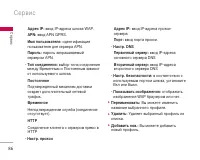
ë‚ËÒ 83 åÓÊÌÓ ÔÓÎÛ˜ËÚ¸ ‰ÓÒÚÛÔ Í ‡Á΢Ì˚ÏÛÒÎÛ„‡Ï WAP (Wireless Application Protocol),Ú‡ÍËÏ Í‡Í ·‡ÌÍÓ‚ÒÍË ÓÔ‡ˆËË, ÌÓ‚ÓÒÚË,҂Ӊ͇ ÔÓ„Ó‰˚ Ë ‡ÒÔËÒ‡ÌË ÂÈÒÓ‚. ùÚËÛÒÎÛ„Ë Ô‰̇Á̇˜ÂÌ˚ ÒÔˆˇθÌÓ ‰ÎflÏÓ·ËθÌ˚ı ÚÂÎÂÙÓÌÓ‚ Ë ÔÓ‰‰ÂÊË‚‡˛ÚÒflÔÓÒÚ‡‚˘Ë͇ÏË ÛÒÎÛ„ WAP. èӂ¸Ú ‰ÓÒÚÛÔÌÓÒÚ¸ ÛÒÎÛ„ WAP, ˆÂÌ˚ ËÚ‡...
Page 88 - èÂÂÈÚË Í URL
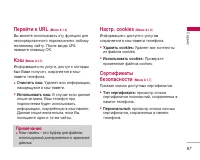
87 èÂÂÈÚË Í URL (åÂÌ˛ 8.1.4) Ç˚ ÏÓÊÂÚ ËÒÔÓθÁÓ‚‡Ú¸ ˝ÚÛ ÙÛÌÍˆË˛ ‰ÎflÌÂÔÓÒ‰ÒÚ‚ÂÌÌÓ„Ó ÔÓ‰Íβ˜ÂÌËfl Í Î˛·ÓÏÛÊ·ÂÏÓÏÛ Ò‡ÈÚÛ. èÓÒΠ‚‚Ó‰‡ URL̇ÊÏËÚ Í·‚Ë¯Û OK. ä˝¯ (åÂÌ˛ 8.1.5) àÌÙÓχˆËfl ËÎË ÛÒÎÛ„Ë, ‰ÓÒÚÛÔ Í ÍÓÚÓ˚Ï·˚ΠLJÏË ÔÓÎÛ˜ÂÌ, ÒÓı‡ÌflÂÚÒfl ‚ Í˝¯-Ô‡ÏflÚË ÚÂÎÂÙÓ̇. ] é˜ËÒÚËÚ¸ Í˝¯: 쉇ÎflÂÚ ‚Ò˛ ËÌÙÓ...
Page 89 - ë·ÓÒËÚ ̧ ÔÓÙËÎË
ë‚ËÒ 88 ë·ÓÒËÚ¸ ÔÓÙËÎË (åÂÌ˛ 8.1.8) Ç˚ ÏÓÊÂÚ ÔÂÂ̇ÒÚÓËÚ¸ ÔÓÙËÎË Ë‚ÂÌÛÚ¸ ËÏ Ô‚Ó̇˜‡Î¸Ì˚ ÛÒÚ‡ÌÓ‚ÍË. ÇÂÒËfl ·‡ÛÁ‡ (åÂÌ˛ 8.1.9) ç‡ ‰ËÒÔΠÓÚÓ·‡Ê‡ÂÚÒfl ÌÓÏ ‚ÂÒËËWAP-·‡ÛÁ‡. SIM-Ò‚ËÒ åÂÌ˛ 8.2 åÂÌ˛ Á‡‚ËÒËÚ ÓÚ SIM-͇Ú˚ Ë ÒÂÚ‚˚ıÒÎÛÊ·. ë‚ËÒ
Page 90 - 䇇ÓÍÂ; ÇÍÎ ̨ ̃ÂÌË ÂÊËχ 䇇ÓÍÂ
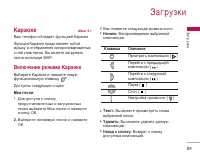
ᇄÛÁÍË 89 䇇ÓÍ åÂÌ˛ 9.1 LJ¯ ÚÂÎÂÙÓÌ Ó·Î‡‰‡ÂÚ ÙÛÌ͈ËÂÈ ä‡‡ÓÍ îÛÌ͈Ëfl 䇇ÓÍ Ô‰ÒÚ‡‚ÎflÂÚ ÒÓ·ÓÈÏÛÁ˚ÍÛ Ë ÓÚÓ·‡ÊÂÌË ÒËÌıÓÌËÁ‡Ó‚‡ÌÌ˚ıÒ ÌÂÈ ÒÎÓ‚ ÔÂÒÌË. Ç˚ ÏÓÊÂÚ Á‡„ÛʇڸÔÂÒÌË ËÒÔÓθÁÛfl WAP. ÇÍβ˜ÂÌË ÂÊËχ 䇇ÓÍ Ç˚·ÂËÚ 䇇ÓÍÂ Ë Ì‡ÊÏËÚ ÎÂ‚Û˛ÙÛÌ͈ËÓ̇θÌÛ˛ Í·‚Ë¯Û . ÑÓÒÚÛÔÌ˚ ÒÎÂ‰Û˛˘Ë Ó...
Page 91 - à„ ̊ Ë ÔËÎÓÊÂÌËfl; BÌËÏaÌËÂ
ᇄÛÁÍË 90 ] çÓ‚‡fl ÔÂÒÌfl Ç˚·ÂËÚ ÙÛÌÍˆË˛ çÓ‚‡fl ÔÂÒÌfl ̇ʇÚËÂÏÍÌÓÔÍË éä. çÓ‚‡fl ÔÂÒÌfl ÏÓÊÂÚ ·˚Ú¸Á‡„ÛÊÂ̇ ÔÛÚÂÏ ËÒÔÓθÁÓ‚‡ÌËfl ÒÂÚ‚ӄÓÒÓ‰ËÌÂÌËfl. ] àÌÙÓχˆËfl ëÓ‰ÂÊËÚ Í‡ÚÍÓ ÓÔËÒ‡ÌË ÙÛÌ͈ËË䇇ÓÍÂ. à„˚ Ë ÔËÎÓÊÂÌËfl åÂÌ˛ 9.2 åÓË Ë„˚ Ë ÔËÎÓÊÂÌËfl (åÂÌ˛ 9.2.1) Ç ‰‡ÌÌÓÏ ÏÂÌ˛ ÏÓÊÌÓ ÛÔ‡‚ÎflÚ¸ÔËÎÓÊÂÌ...
Page 94 - àÁÓ·‡ÊÂÌËfl; á‚ÛÍË
93 èÓÙËÎË (åÂÌ˛ 9.2.2) ùÚÓ ÏÂÌ˛ ÒÓ‰ÂÊËÚ Ú Ê ԇ‡ÏÂÚ˚, ˜ÚÓ ËàÌÚÂÌÂÚ ÏÂÌ˛. î‡ÍÚ˘ÂÒÍË, ‰Îfl Á‡„ÛÁÍËÌÓ‚˚ı ÔËÎÓÊÂÌËÈ ÌÂÓ·ıÓ‰ËÏÓ WAPÒÓ‰ËÌÂÌËÂ. àÁÓ·‡ÊÂÌËfl åÂÌ˛ 9.3 àÒÔÓθÁÓ‚‡Ìˠ΂ÓÈ ÙÛÌ͈ËÓ̇θÌÓÈÍ·‚Ë¯Ë [éÔˆËË] ÓÚÍÓÂÚ ÒÎÂ‰Û˛˘Ë ԇ‡ÏÂÚ˚. ] ä‡Í Ó·ÓË: ÏÓÊÌÓ ÛÒÚ‡ÌÓ‚ËÚ¸ ‚˚·‡ÌÌÓ ËÁÓ·‡ÊÂÌË ‚ Í...
Page 96 - é· ̆ËÂ
íÂıÌ˘ÂÒÍË ı‡‡ÍÚÂËÒÚËÍË 95 íÂıÌ˘ÂÒÍË ı‡‡ÍÚÂËÒÚËÍË é·˘Ë ç‡ËÏÂÌÓ‚‡ÌË ÔÓ‰ÛÍÚ‡ : S5000 ÑˇԇÁÓÌ : GSM 900 / DCS 1800/ PCS 1900 ùÍÒÔÎÛ‡Ú‡ˆËÓÌÌ˚ íÂÏÔ‡ÚÛ˚ å‡ÍÒ.: +55.C (á‡flʇڸ ·‡Ú‡Â˛ ÌÂθÁfl)+45.C (èÓ‰Á‡fl‰Í‡ ‚ÓÁÏÓÊ̇) åËÌ. : -10.C
Page 97 - U S E R G U I D E
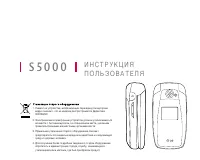
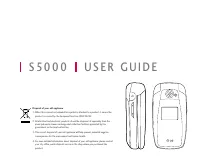
S 5 0 0 0 U S E R G U I D E Disposal of your old appliance 1. When this crossed-out wheeled bin symbol is attached to a product it means the product is covered by the European Directive 2002/96/EC. 2. All electrical and electronic products should be disposed of separately from the municipal waste st...
Page 98 - TA B L E O F C O N T E N T S
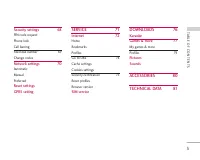
TA B L E O F C O N T E N T S 2 T ABLE OF CONTENTS INTRODUCTION 6 FOR YOUR SAFETY 7 GUIDELINES FOR SAFEAND EFFICIENT USE 8 S5000 FEATURES 13 Parts of the phoneDisplay information 16 On-Screen Icons GETTING STARTED 19 Installing the SIM card andbattery 16 Charging the Battery 20 Disconnecting the adap...
Page 99 - TOOLS
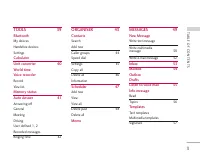
3 T ABLE OF CONTENTS TOOLS 39 Bluetooth 36 My devices 36 Handsfree devices 36 Settings 36 Calculator 35 Unit converter 40 World time 35 Voice recorder Record 36 View list 36 Memory status 37 Auto Answer 41 Answering off 36 General 36 Meeting 36 Driving 36 User defined 1, 2 36 Recorded messages 36 Ri...
Page 100 - TABLE OF CONTENTS; CAMERA
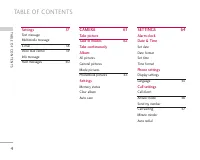
TABLE OF CONTENTS 4 Settings 57 Text message 50 Multimedia message E-mail 58 Voice mail centre 59 Info message Push messages 60 CAMERA 61 Take picture 53 Take in modes 62 Take continuouslyAlbum 54 All pictures 54 General pictures 54 Mode pictures PhoneBook pictures 63 Settings 55 Memory status 57 Cl...
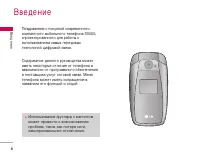
Page 102 - I N T RO D U C T I O N
Congratulations on your purchase of the advancedand compact S5000 mobile phone, designed tooperate with the latest digital mobile communicationtechnology. This user’s guide contains important information onthe use and operation of this phone. Please read allthe information carefully for optimal perf...
Page 103 - FO R YO U R SA F E T Y; WARNING; CAUTION
FO R YO U R SA F E T Y 7 Read these simple guidelines. Breaking the rules maybe dangerous or illegal. Further detailed informationis given in this manual. WARNING ] Mobile Phones must be switched off at all times inan aircraft. ] Do not hold the phone in your hand while driving. ] Do not use your ph...
Page 104 - G U I D E L I N E S FO R SA F E A N D E F F I C I E N T U S E; EXPOSURE TO RADIO
G U I D E L I N E S FO R SA F E A N D E F F I C I E N T U S E 8 EXPOSURE TO RADIO FREQUENCY ENERGY Radio wave exposure and Specific Absorption Rate(SAR) information This mobile phone model S5000 has been designedto comply with applicable safety requirement forexposure to radio waves. This requiremen...
Page 106 - GUIDELINES FOR SAFE AND EFFICIENT USE; EFFICIENT PHONE OPERATION
GUIDELINES FOR SAFE AND EFFICIENT USE 10 EFFICIENT PHONE OPERATION To enjoy optimum performance with minimum powerconsumption please: ] Hold the phone as you speak to any othertelephone. While speaking directly into themicrophone, angle the antenna in a direction upand over your shoulder. If the ant...
Page 108 - NETWORK SERVICE
GUIDELINES FOR SAFE AND EFFICIENT USE 12 ] Recharge the battery if it has not been used for along time to maximize usability. ] Do not expose the battery charger to direct sunlight or use it in high humidity, such as the bathroom. ] Do not leave the battery in hot or cold places, thismay deteriorate...
Page 109 - PART OF THE PHONE
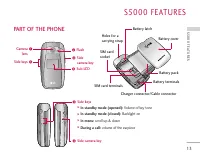
S 50 0 0 F E AT U R E S 13 PART OF THE PHONE S5000 FEA TURES ! # $ % @ # Camera lens Side keys Flash Sidecamera key $ Side camera key Sub LCD Side keys ] In standby mode (opened): Volume of key tone ] In standby mode (closed): Backlight on ] In menu: scroll up & down ] During a call: volume of t...
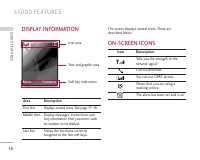
Page 112 - DISPLAY INFORMATION
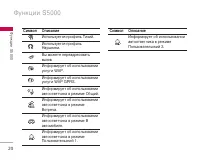
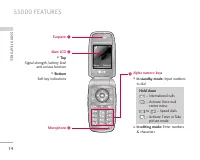
DISPLAY INFORMATION The screen displays several icons. There aredescribed below. ON-SCREEN ICONS S5000 FEATURES 16 S5000 FEA TURES Icon area Text and graphic area Soft key indications Icon Description Tells you the strength of thenetwork signal.* Call is connected. You can use GPRS service. Shows th...
Page 113 - Note
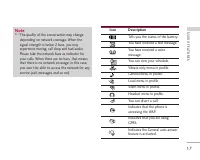
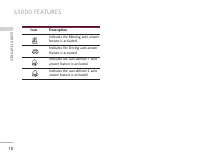
17 S5000 FEA TURES Icon Description Tells you the status of the battery. You have received a text message. You have received a voicemessage. You can view your schedule. Vibrate only menu in profile. General menu in profile. Loud menu in profile. Silent menu in profile. Headset menu in profile. You c...
Page 115 - G E T T I N G STA RT E D; INSTALLING THE SIM CARD
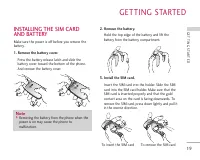
G E T T I N G STA RT E D 19 INSTALLING THE SIM CARD AND BATTERY Make sure the power is off before you remove thebattery. 1. Remove the battery cover. Press the battery release latch and slide thebattery cover toward the bottom of the phone.And remove the battery cover. 2. Remove the battery. Hold th...
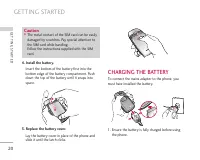
Page 116 - GETTING STARTED; CHARGING THE BATTERY; Caution
GETTING STARTED 20 4. Install the battery. Insert the bottom of the battery first into thebottom edge of the battery compartment. Pushdown the top of the battery until it snaps intospace. 5. Replace the battery cover. Lay the battery cover in place of the phone andslide it until the latch clicks. CH...
Page 117 - DISCONNECTING THE ADAPTER
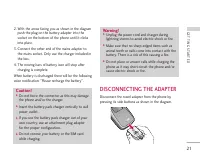
21 2. With the arrow facing you as shown in the diagram push the plug on the battery adapter into thesocket on the bottom of the phone until it clicksinto place. 3. Connect the other end of the mains adapter to the mains socket. Only use the charger included inthe box. 4. The moving bars of battery ...
Page 118 - G E N E RA L F U N C T I O N S; MAKING AND ANSWERING; Making a call
G E N E RA L F U N C T I O N S 22 MAKING AND ANSWERING CALLS Making a call 1. Make sure your phone is switched on. 2. Enter a phone number, including the area code. To edit a number on the display screen, simply pressthe key to erase one digit at a time. ] Press and hold the clear key ( ) to erase t...
Page 119 - Signal strength; Notice
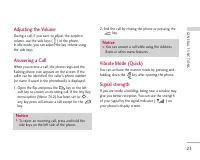
23 Adjusting the Volume During a call, if you want to adjust the earpiecevolume, use the side keys ( ) of the phone. In idle mode, you can adjust the key volume usingthe side keys. Answering a Call When you receive a call, the phone rings and theflashing phone icon appears on the screen. If thecalle...
Page 120 - GENERAL FUNCTIONS; Entering text; T9 mode; Symbolic Mode; Changing the text input mode; Using the T9 mode
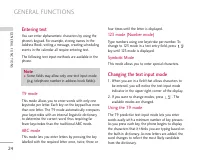
GENERAL FUNCTIONS 24 Entering text You can enter alphanumeric characters by using thephone’s keypad. For example, storing names in theAddress Book, writing a message, creating schedulingevents in the calendar all require entering text. The following text input methods are available in thephone. T9 m...
Page 121 - Using the ABC mode
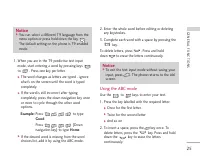
25 1. When you are in the T9 predictive text input mode, start entering a word by pressing keys to . Press one key per letter. ] The word changes as letters are typed - ignorewhat’s on the screen until the word is typedcompletely. ] If the word is still incorrect after typingcompletely, press the do...
Page 122 - Using the Symbol Mode
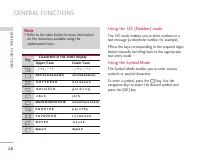
26 Using the 123 (Number) mode The 123 mode enables you to enter numbers in atext message (a telephone number, for example). PPress the keys corresponding to the required digitsbefore manually switching back to the appropriatetext entry mode. Using the Symbol Mode The Symbol Mode enables you to ente...
Page 123 - S E L E C T I N G F U N C T I O N S A N D O P T I O N S
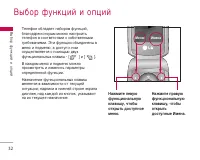
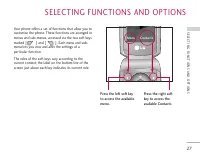
S E L E C T I N G F U N C T I O N S A N D O P T I O N S 27 Your phone offers a set of functions that allow you tocustomise the phone. These functions are arranged inmenus and sub-menus, accessed via the two soft keysmarked [ ] and [ ]. Each menu and sub- menu lets you view and alter the settings of ...
Page 124 - I N - C A L L M E N U; DURING A CALL; Making a Second Call; Answering an Incoming Call; Rejecting an Incoming Call
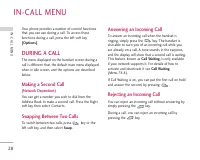
I N - C A L L M E N U 28 Your phone provides a number of control functionsthat you can use during a call. To access thesefunctions during a call, press the left soft key [Options] . DURING A CALL The menu displayed on the handset screen during acall is different than the default main menu displayedw...
Page 125 - Muting the Microphone; DTMF tones while calling; CONFERENCE CALLS
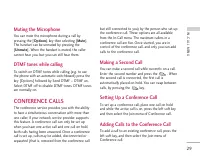
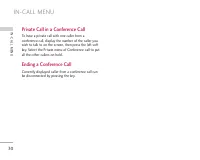
29 Muting the Microphone You can mute the microphone during a call bypressing the [ Options ] key then selecting [ Mute ]. The handset can be unmuted by pressing the[ Unmute ]. When the handset is muted, the caller cannot hear you, but you can still hear them. DTMF tones while calling To switch on D...
Page 127 - M E N U T R E E
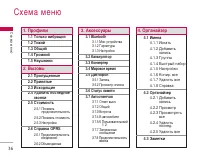
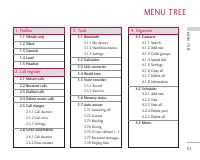
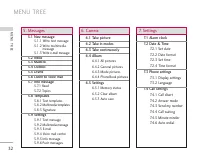
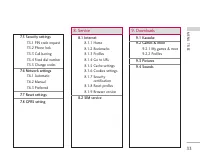
M E N U T R E E 31 MENU TREE 1. Profiles 1.1 Vibrate only 1.2 Silent 1.3 General 1.4 Loud 1.5 Headset 2. Call register 2.1 Missed calls 2.2 Received calls 2.3 Dialled calls 2.4 Delete recent calls 2.5 Call charges 2.5.1 Call duration 2.5.2 Call costs 2.5.3 Settings 2.6 GPRS information 2.6.1 Call du...
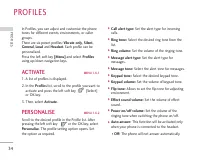
Page 130 - P RO F I L E S; ACTIVATE
P RO F I L E S 34 In Profiles, you can adjust and customise the phonetones for different events, environments, or callergroups. There are six preset profiles: Vibrate only , Silent , General , Loud and Headset . Each profile can be personalised. Press the left soft key [Menu] and select Profiles usi...
Page 131 - RENAME
35 • After 5 secs: After 5 seconds, the phone will answer automatically. • After 10 secs: After 10 seconds, the phone will answer automatically. RENAME MENU 1.X.3 You can rename a profile and give it any name youwant. 1. To change the name of a profile, scroll to the profile in the profile list and ...
Page 132 - C A L L R E G I ST E R; MISSED CALLS
C A L L R E G I ST E R 36 You can check the record of missed, received, anddialled calls only if the network supports the CallingLine Identification (CLI) within the service area. The number and name (if available) are displayedtogether with the date and time at which the call wasmade. You can also ...
Page 133 - Call duration
37 DELETE RECENT CALLS MENU 2.4 Allows you to delete Missed calls and Received calls lists. You can delete Dialled calls and All calls lists at one time. CALL CHARGES MENU 2.5 Call duration (Menu 2.5.1) Allows you to view the duration of your incoming andoutgoing calls. You can also reset the call t...
Page 134 - CALL REGISTER; GPRS INFORMATION
CALL REGISTER 38 GPRS INFORMATION MENU 2.6 You can check the amount of data transferred overthe network through the GPRS information option. Inaddition, you can also view how much time you areonline. Call duration (Menu 2.6.1) You can check the duration of Last call and All calls . You can also rese...
Page 135 - TO O L S; BLUETOOTH; My devices; CALCULATOR
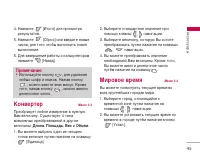
TO O L S 39 BLUETOOTH MENU 3.1 Bluetooth enables compatible mobile devices,peripherals and computers that are in close proximityto communicate directly with each other withoutwires. This handset supports built-in Bluetoothconnectivity, which makes it possible to connectthem with compatible Bluetooth...
Page 136 - UNIT CONVERTER; WORLD TIME; Record; MEMORY STATUS
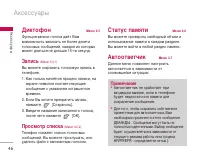
TOOLS 40 UNIT CONVERTER MENU 3.3 This converts any measurement into a unit you want.There are 4 types that can be converted into units: Length , Area , Weight , and Volume . 1. You can select one of four unit types by pressing [Unit] key. 2. Select the standard value by using , . 3. Select the unit ...
Page 137 - AUTO ANSWER; Answering off; General; Recorded messages
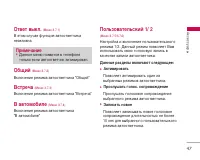
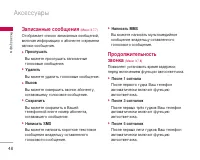
41 AUTO ANSWER MENU 3.7 Allow you to set your phone into automaticanswering mode for adjusting environment. Answering off (Menu 3.7.1) Allow you to inactivate the answering phone mode. General (Menu 3.7.2) You can adjust the answering phone mode asGeneral. Meeting (Menu 3.7.3) You can adjust the ans...
Page 138 - Ringing time
TOOLS 42 ] Save You can save phone number from the recordedvoice messages. ] Write short message You can send a short text message to the callerwho leave voice message. ] Write multimedia message You can send a multimedia message to the callerwho leave voice message. Ringing time (Menu 3.7.8) Allow ...
Page 139 - O RGA N I S E R; CONTACTS; Add new
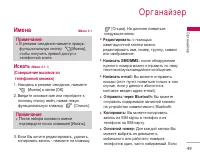
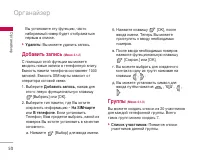
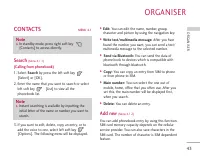
O RGA N I S E R 43 ORG ANISER CONTACTS MENU 4.1 Search (Menu 4.1.1) (Calling from phonebook) 1. Select Search by press the left soft key [Select] or [OK]. 2. Enter the name that you want to search or select left soft key [List] to view all the phonebook list. 3. If you want to edit, delete, copy an ...
Page 140 - ORGANISER; Caller groups
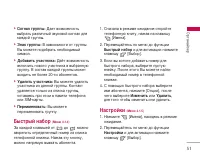
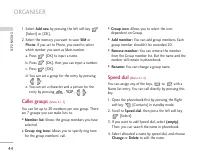
ORGANISER 44 ORG ANISER 1. Select Add new by pressing the left soft key [Select] or [OK]. 2. Select the memory you want to save: SIM or Phone . If you set to Phone, you need to select which number you want as Main number. a. Press [OK] to input a name. b. Press [OK], then you can input a number. c. ...
Page 141 - Settings
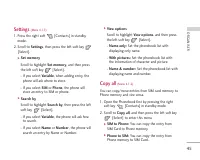
45 ORG ANISER Settings (Menu 4.1.5) 1. Press the right soft [Contacts] in standby mode. 2. Scroll to Settings , then press the left soft key [Select]. ] Set memory Scroll to highlight Set memory , and then press the left soft key [Select]. - If you select Variable , when adding entry, the phone will...
Page 142 - Delete all
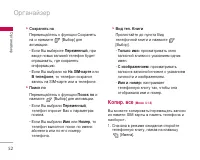
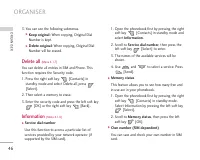
ORGANISER 46 3. You can see the following submenus. ] Keep original: When copying, Original Dial Number is kept. ] Delete original: When copying, Original Dial Number will be erased. Delete all (Menu 4.1.7) You can delete all entries in SIM and Phone. Thisfunction requires the Security code. 1. Pres...
Page 143 - SCHEDULER; View
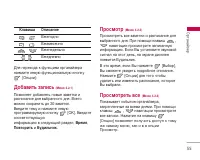
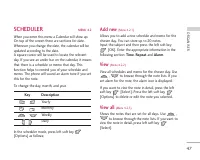
47 SCHEDULER MENU 4.2 When you enter this menu a Calendar will show up.On top of the screen there are sections for date.Whenever you change the date, the calendar will beupdated according to the date.A square cursor will be used to locate the releventday. If you see an under bar on the calendar, it ...
Page 144 - Delete past; MEMO
ORGANISER 48 Delete past (Menu 4.2.4) You can delete the past schedule that is no longerrequired. Delete all (Menu 4.2.5) You can delete all notes. MEMO MENU 4.3 1. Select the Memo by pressing the left soft key [Select]. 2. If empty, Add new by pressing the left soft key [Add]. 3. Input the memo and...
Page 145 - M E S SAG E S; NEW MESSAGE; Write text message
M E S SAG E S 49 This menu includes functions related to SMS (ShortMessage Service), MMS (Multimedia MessageService), voice mail, as well as the network’s servicemessages. NEW MESSAGE MENU 5.1 Write text message (Menu 5.1.1) You can write and edit text message, checking thenumber of message pages. 1...
Page 146 - MESSAGES; Write multimedia message
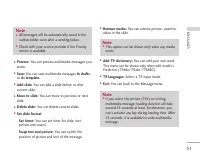
MESSAGES 50 Options ] Send: Sends text messages. 1. Enter numbers of recipient. 2. Press key to add more recipients. 3. You can add phone numbers in the address book. 4. Press the left soft key after entering numbers. All messages will be automatically saved in theoutbox folder, even after a sending...
Page 148 - Write e-mail message
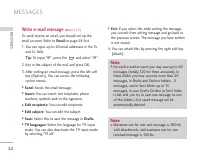
MESSAGES 52 Write e-mail message (Menu 5.1.3) To send/receive an email, you should set up theemail account. Refer to Email on page 58 first. 1. You can input up to 20 email addresses in the To and Cc field. Tip: To input "@", press the and select "@". 2. Key in the subject of the mai...
Page 149 - INBOX
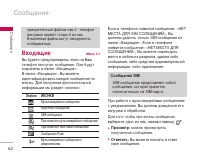
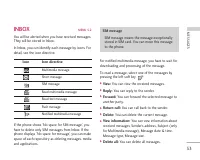
53 INBOX MENU 5.2 You will be alerted when you have received messages.They will be stored in Inbox. In Inbox, you can identify each message by icons. Fordetail, see the icon directive. If the phone shows ‘No space for SIM message’, youhave to delete only SIM messages from Inbox. If thephone displays...
Page 150 - MAILBOX; DRAFTS
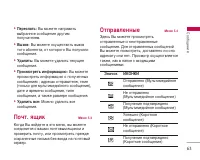
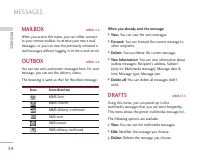
MESSAGES 54 MAILBOX MENU 5.3 When you access this menu, you can either connectto your remote mailbox to retrieve your new e-mailmessages, or you can view the previously retrieved e-mail messages without logging in to the e-mail server. OUTBOX MENU 5.4 You can see sent and unsent messages here. For s...
Page 151 - Read
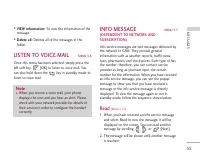
55 ] VIEW information: To view the information of the message. ] Delete all: Deletes all of the messages in the folder. LISTEN TO VOICE MAIL MENU 5.6 Once this menu has been selected, simply press theleft soft key [OK] to listen to voice mail. You can also hold down the key in standby mode to listen...
Page 152 - Topics; TEMPLATES; Text templates
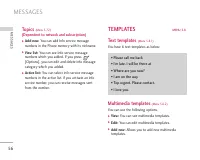
MESSAGES 56 Topics (Menu 5.7.2) (Dependent to network and subscription) ] Add new: You can add Info service message numbers in the Phone memory with its nickname. ] View list: You can see Info service message numbers which you added. If you press[Options], you can edit and delete info messagecategor...
Page 153 - Signature; SETTINGS; Text message; Multimedia message
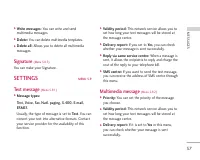
57 ] Write messages: You can write and send multimedia messages. ] Delete: You can delete multimedia templates. ] Delete all: Allows you to delete all multimedia messages. Signature (Menu 5.8.3) You can make your Signature. SETTINGS MENU 5.9 Text message (Menu 5.9.1) ] Message types: Text, Voice, Fa...
Page 155 - Voice mail centre
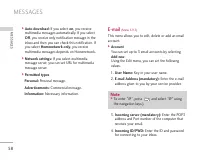
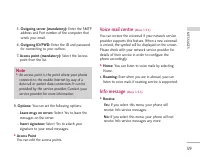
59 5. Outgoing server (mandatory): Enter the SMTP address and Port number of the computer thatsends your email. 6. Outgoing ID/PWD: Enter the ID and password for connecting to your outbox. 7. Access point (mandatory): Select the Access point from the list. 8. Options: You can set the following optio...
Page 156 - Push messages
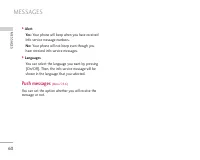
MESSAGES 60 ] Alert Yes: Your phone will beep when you have received Info service message numbers. No: Your phone will not beep even though you have received info service messages. ] Languages You can select the language you want by pressing[On/Off]. Then, the info service message will beshown in th...
Page 157 - C A M E RA; TAKE PICTURE
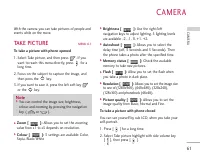
C A M E RA 61 With the camera you can take pictures of people andevents while on the move. TAKE PICTURE MENU 6.1 To take a picture with phone opened 1. Select Take picture, and then press . If you want to reach this menu directly, press for along time. 2. Focus on the subject to capture the image, a...
Page 158 - TAKE IN MODES; All pictures
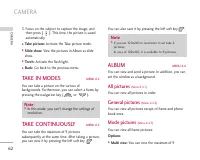
CAMERA 62 3. Focus on the subject to capture the image, and then press [ ]. This time, the picture is savedautomatically. ] Take picture: Activate the Take picture mode. ] Slide show: View the pictures in Album as slide show. ] Torch: Activate the flash light. ] Back: Go back to the previous menu. T...
Page 159 - PhoneBook pictures; Memory status
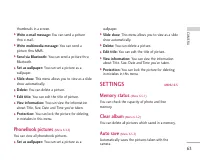
63 thumbnails in a screen. ] Write e-mail message: You can send a pciture thru e-mail. ] Write multimedia message: You can send a picture thru MMS. ] Send via Bluetooth: You can send a pciture thru Bluetooth. ] Set as wallpaper: You can set a picture as a wallpaper. ] Slide show: This menu allows yo...
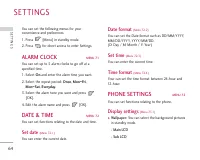
Page 160 - S E T T I N G S; ALARM CLOCK; Set date; PHONE SETTINGS; Display settings
S E T T I N G S 64 You can set the following menus for yourconvenience and preferences. 1. Press [Menu] in standby mode. 2. Press for direct access to enter Settings. ALARM CLOCK MENU 7.1 You can set up to 5 alarm clocks to go off at aspecified time. 1. Select On and enter the alarm time you want. 2...
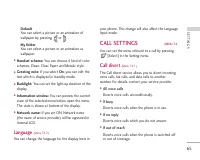
Page 161 - Language; CALL SETTINGS; Call divert
65 Default You can select a picture or an animation ofwallpaper by pressing or . My folder You can select a picture or an animation aswallpaper. ] Handset scheme: You can choose 4 kind of color schemes, Clean, Clear, Paper and Metalic style. ] Greeting note: If you select On , you can edit the text ...
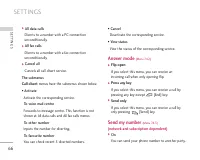
Page 162 - Answer mode; Send my number
SETTINGS 66 ] All data calls Diverts to a number with a PC connectionunconditionally. ] All fax calls Diverts to a number with a fax connectionunconditionally. ] Cancel all Cancels all call divert service. The submenus Call divert menus have the submenus shown below. • Activate Activate the correspo...
Page 163 - Call waiting; Minute minder; Auto redial
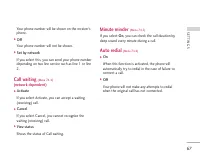
67 Your phone number will be shown on the receiver’sphone. ] Off Your phone number will not be shown. ] Set by network If you select this, you can send your phone numberdepending on two line service such as line 1 or line2. Call waiting (Menu 7.4.4) (network dependent) ] Activate If you select Activ...
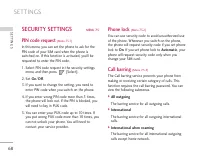
Page 164 - SECURITY SETTINGS; PIN code request
SETTINGS 68 SECURITY SETTINGS MENU 7.5 PIN code request (Menu 7.5.1) In this menu, you can set the phone to ask for thePIN code of your SIM card when the phone isswitched on. If this function is activated, you’ll berequested to enter the PIN code. 1. Select PIN code request in the security settings ...
Page 165 - Fixed dial number
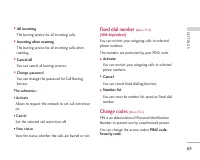
69 ] All incoming The barring service for all incoming calls. ] Incoming when roaming The barring service for all incoming calls whenroaming. ] Cancel all You can cancel all barring services. ] Change password You can change the password for Call BarringService. The submenus: • Activate Allows to re...
Page 166 - NETWORK SETTINGS; Automatic; RESET SETTINGS
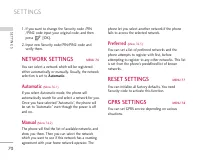
SETTINGS 70 1. If you want to change the Security code /PIN /PIN2 code input your original code, and thenpress [OK]. 2. Input new Security code/PIN/PIN2 code and verify them. NETWORK SETTINGS MENU 7.6 You can select a network which will be registeredeither automatically or manually. Usually, the net...
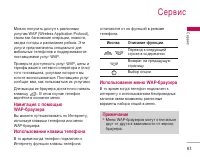
Page 167 - S E RV I C E; Navigating with the WAP browser
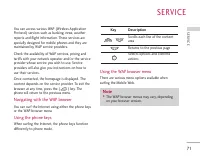
S E RV I C E 71 You can access various WAP (Wireless ApplicationProtocol) services such as banking, news, weatherreports and flight information. These services arespecially designed for mobile phones and they aremaintained by WAP service providers. Check the availability of WAP services, pricing and...
Page 168 - SERVICE; INTERNET; Home; Profiles
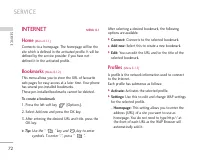
SERVICE 72 INTERNET MENU 8.1 Home (Menu 8.1.1) Connects to a homepage. The homepage will be thesite which is defined in the activated profile. It will bedefined by the service provider if you have notdefined it in the activated profile. Bookmarks (Menu 8.1.2) This menu allows you to store the URL of...
Page 170 - Go to URL
SERVICE 74 IP address: Input the IP address of the Proxy server you access. Port: Input the Proxy Port - DNS settings Primary server: Input the IP address of the primary DNS server you access Secondary server: Input the IP address of the secondary DNS server you access - Secure settings: According t...
Page 171 - SIM SERVICE
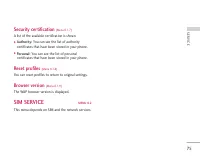
75 Security certification (Menu 8.1.7) A list of the available certification is shown. ] Authority: You can see the list of authority certificates that have been stored in your phone. ] Personal: You can see the list of personal certificates that have been stored in your phone. Reset profiles (Menu ...
Page 172 - D OW N LOA D S; KARAOKE; Start to Karaoke menu
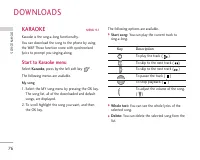
D OW N LOA D S 76 KARAOKE MENU 9.1 Karaoke is the sing-a-long functionality. You can download the song to the phone by usingthe WAP. These function come with synchronisedlyrics to prompt you singing along. Start to Karaoke menu Select Karaoke , press by the left soft key . The following menus are av...
Page 174 - DOWNLOADS
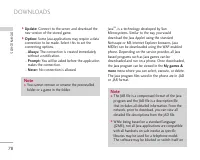
DOWNLOADS 78 ] Update: Connect to the server and download the new version of the stored game. ] Option: Some Java applications may require a data connection to be made. Select this to set theconnecting options. - Always: The connection is created immediately without a notification. - Prompt: You wil...
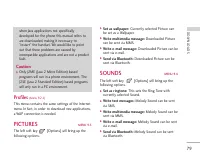
Page 175 - PICTURES; SOUNDS
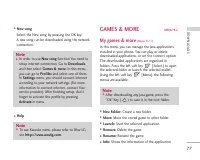
79 Profiles (Menu 9.2.2) This menu contains the same settings of the Internetmenu. In fact, in order to download new applications,a WAP connection is needed. PICTURES MENU 9.3 The left soft key [Options] will bring up the following options. ] Set as wallpaper: Currently selected Picture can be set a...
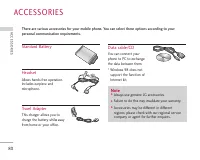
Page 176 - AC C E S S O R I E S; Standard Battery
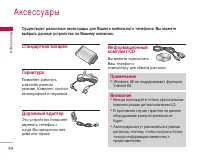
AC C E S S O R I E S 80 Standard Battery Headset Allows hands-free operation.Includes earpiece and microphone. Travel Adapter This charger allows you to charge the battery while awayfrom home or your office. D ata cable/CD You can connect yourphone to PC to exchange the data between them. * Windows ...
Page 177 - T E C H N I C A L DATA; Ambient Temperatures
T E C H N I C A L DATA 81 TECHNICAL D A T A General Product name : S5000 System : GSM 900 / DCS 1800 / PCS 1900 Ambient Temperatures Max : +55°C (discharging)+45°C (charging) Min : -10°C


 LG KG810 User Manual
 LG KG920 User Manual
 LG L342i User Manual
 LG M4410 User Manual
 LG M6100 User Manual
 LG P7200 User Manual
 LG S5200 User Manual
 LG T5100 User Manual
 LG W7000 User Manual
 LG X Power 2 M320 User Manual
 LG X Power K220DS Manual
 LG 600 User Manual
 LG B2000 User Manual
 LG B2100 User Manual
 LG B2150 User Manual
 LG B2250 User Manual
 LG C1100 User Manual
 LG C1400 User Manual
 LG C2100 User Manual
 LG C2200 User Manual