Page 2 - àçëíêìäñàü èéãúáéÇÄíÖãü
ëÓ‰ÂʇÌË ‰‡ÌÌÓ„Ó ÛÍÓ‚Ó‰ÒÚ‚‡ ÏÓÊÂÚ ËÏÂÚ¸ÌÂÍÓÚÓ˚ ÓÚ΢Ëfl ÓÚ ÚÂÎÂÙÓ̇ ‚ Á‡‚ËÒËÏÓÒÚË ÓÚÔÓ„‡ÏÏÌÓ„Ó Ó·ÂÒÔ˜ÂÌËfl Ë ÔÓÒÚ‡‚˘Ë͇ ÛÒÎÛ„ ÒÓÚÓ‚ÓÈÒ‚flÁË. åÂÌ˛ ÚÂÎÂÙÓ̇ ÏÓÊÂÚ ËÏÂÚ¸ ÒÓ͇˘ÂÌËfl ‚̇Á‚‡ÌËflı Â„Ó ÙÛÌ͈ËÈ Ë ÓÔˆËÈ. S 5 2 0 0 àçëíêìäñàü èéãúáéÇÄíÖãü êìëëäàâ 1. ëËÏ‚ÓΠ̇ ÛÒÚÓÈÒÚ‚Â, ËÁÓ·‡Ê‡˛˘ËÈ Ô˜...
Page 3 - ǂ‰ÂÌËÂ; éÒÌÓ‚Ì ̊ ÙÛÌ͈ËË 24
é„·‚ÎÂÌË 2 é„·‚ÎÂÌË ǂ‰ÂÌË 6 êÂÍÓÏẨ‡ˆËË ‰Îfl·ÂÁÓÔ‡ÒÌÓ„Ó Ë ˝ÙÙÂÍÚË‚ÌÓ„ÓËÒÔÓθÁÓ‚‡ÌËfl 7 îÛÌ͈ËË S5200 12 éÔËÒ‡ÌË ÚÂÎÂÙÓ̇éÚÓ·‡ÊÂÌËÂËÌÙÓχˆËË 16 èÓ‰„ÓÚӂ͇ Í Ì‡˜‡ÎÛ‡·ÓÚ˚ 18 ìÒÚ‡Ìӂ͇ SIM ͇Ú˚ Ë·‡Ú‡ÂË á‡fl‰Í‡ ·‡Ú‡ÂË 19 éÚÒÓ‰ËÌÂÌË ‡‰‡ÔÚ‡ 20 ÇÍβ˜ÂÌËÂ Ë ‚˚Íβ˜ÂÌËÂÚÂÎÂÙÓ̇ 21 äÓ‰˚ ‰ÓÒÚÛÔ‡...
Page 4 - ÄÍÒÂÒÒÛ‡ ̊
3 é„·‚ÎÂÌË ÄÍÒÂÒÒÛ‡˚ 44 ÅÛ‰ËθÌËÍBluetooth 36 åÓË ÛÒÚÓÈÒÚ‚‡ 45 ɇÌËÚÛ˚ç‡ÒÚÓÈÍË ä‡Î¸ÍÛÎflÚÓäÓÌ‚ÂÚ 46 ó‡ÒÓ‚ÓÈ ÔÓflÒ Ä‚ÚÓÓÚ‚ÂÚ˜ËÍ 36 чÍÚË‚ËÓ‚‡Ú¸ 47é·˘ËÈÇÒÚ˜‡ ᇠÛÎÂÏ èÓθÁÓ‚‡ÚÂθÒÍËÈ 1/ 2 á‡ÔËÒ‡ÌÌ˚ ÒÓÓ·˘ÂÌËfl 48 èÓ‰ÓÎÊËÚÂθÌÓÒÚ¸ Á‚ÓÌ͇ åÓ‰ÂÏ é„‡Ì‡ÈÁ 49 àÏÂ̇ àÒ͇ڸÑÓ·‡‚ËÚ¸ Á‡ÔËÒ¸ 50 ...
Page 5 - åÛÎ ̧ÚËωˇ
é„·‚ÎÂÌË 4 åÛθÚËωˇ 68 îÓÚÓ„‡ÙËÓ‚‡Ú¸á‡ÔËÒ‡Ú¸ ‚ˉÂÓåÓË ÙÓÚÓ„‡ÙËË 69 åÓ ‚ˉÂÓ 70 MP3 MP3 ÔΠ72 èÎÂÈÎËÒÚ 73 ç‡ÒÚÓÈÍË ÑËÍÚÓÙÓÌ á‡ÔËÒ¸èÓÒÏÓÚÂÚ¸ ÒÔËÒÓÍ 74 䇇ÓÍÂç‡ÒÚÓÈÍË 75 ä‡Ï‡ÇˉÂÓ͇χ ç‡ÒÚÓÈÍË 76 чڇ Ë ÇÂÏfl ìÒÚ‡ÌÓ‚. ‰‡ÚÛìÒÚ‡ÌÓ‚. ‚ÂÏfl íÂÎÂÙÓÌ ÑËÒÔÎÂÈíÂχ 77 üÁ˚Í Ç˚ÁÓ‚˚ 臉ÂÒ...
Page 6 - ë‚ËÒ; ᇄÛÁÍË
5 ë‚ËÒ 85 àÌÚÂÌÂÚ 86 ÑÓχ¯Ìflflá‡Í·‰ÍËèÂÂÈÚË Í URLç‡ÒÚÓÈÍË 87 SIM-Ò‚ËÒ 89 ᇄÛÁÍË 90 åÓË Ë„˚ Ë ‡ÁÌÓ åÓË Ë„˚ Ë ‡ÁÌÓÂèÓÙËÎË 91 ä‡ÚËÌÍË 92 á‚ÛÍËî‡ÈÎ˚ ÄÍÒÂÒÒÛ‡˚ 96 íÂıÌ˘ÂÒÍË ı‡‡ÍÚÂËÒÚËÍË 97 é„·‚ÎÂÌËÂ
Page 8 - ÇÓÁ‰ÂÈÒÚ‚ËÂ
êÂÍÓÏẨ‡ˆËË ‰Îfl ·ÂÁÓÔ‡ÒÌÓ„Ó Ë ˝ÙÙÂÍÚË‚ÌÓ„Ó ËÒÔÓθÁÓ‚‡ÌËfl 7 èÓ˜ËÚ‡ÈÚ ˝ÚË ÌÂÒÎÓÊÌ˚ ÂÍÓÏẨ‡ˆËË.çÂÒӷβ‰ÂÌË ˝ÚËı ËÌÒÚÛ͈ËÈ ÏÓÊÂÚ ·˚Ú¸ÓÔ‡ÒÌ˚Ï Ë Ì‰ÓÔÛÒÚËÏ˚Ï. èӉӷ̇flËÌÙÓχˆËfl Ó· ˝ÚÓÏ Ô˂‰Â̇ ‚ ‰‡ÌÌÓÏÛÍÓ‚Ó‰ÒÚ‚Â. ÇÓÁ‰ÂÈÒÚ‚Ë ‡‰ËÓ˜‡ÒÚÓÚÌÓÈ ˝Ì„ËË ë‚‰ÂÌËfl Ó ‚ÓÁ‰ÂÈÒÚ‚ËË ‡‰ËÓ‚ÓÎÌ Ë ËÛ‰ÂθÌÓÈ ...
Page 9 - é·‡ ̆ÂÌËÂ Ò ÚÂÎÂÙÓÌÓÏ Ë
êÂÍÓÏẨ‡ˆËË ‰Îfl ·ÂÁÓÔ‡ÒÌÓ„Ó Ë ˝ÙÙÂÍÚË‚ÌÓ„Ó ËÒÔÓθÁÓ‚‡ÌËfl 8 é·‡˘ÂÌËÂ Ò ÚÂÎÂÙÓÌÓÏ Ë Â„Ó Ó·ÒÎÛÊË‚‡ÌË è‰ÛÔÂʉÂÌËÂ! àÒÔÓθÁÛÈÚ ‡ÍÍÛÏÛÎflÚÓ˚, Á‡fl‰ÌÓ ÛÒÚÓÈÒÚ‚Ó Ë ÔË̇‰ÎÂÊÌÓÒÚË, Ô‰̇Á̇˜ÂÌÌ˚ ‰Îfl ‰‡ÌÌÓÈ ÏÓ‰ÂÎË ÚÂÎÂÙÓ̇. àÒÔÓθÁÓ‚‡ÌË ‰Û„Ëı ÚËÔÓ‚ ÛÒÚÓÈÒÚ‚ ÏÓÊÂÚ ÔË‚ÂÒÚË Í ÓÚ͇ÁÛ ‚ ÔËÂÏ ÔÂÚÂ...
Page 13 - éÔËÒ‡ÌË ÚÂÎÂÙÓ̇; Çˉ ÒÔ‰Ë
îÛÌ͈ËË S5200 12 éÔËÒ‡ÌË ÚÂÎÂÙÓ̇ Çˉ ÒÔÂÂ‰Ë 1. ÉÌÂÁ‰Ó ‰Îfl ÔÓ‰Íβ˜ÂÌËfl „‡ÌËÚÛ˚ 2. Ç‚Âı/‚ÌËÁ ÅÓÍÓ‚˚ Í·‚Ë¯Ë ] ê„ÛÎËӂ͇ „ÓÏÍÓÒÚË Ò˄̇ÎÓ‚Í·‚ˇÚÛ˚ ‚ ÂÊËÏ ÓÊˉ‡ÌËfl ÔËÓÚÍ˚ÚÓÏ ÚÂÎÂÙÓÌÂ. ] ê„ÛÎËӂ͇ „ÓÏÍÓÒÚË Ì‡Û¯ÌË͇ ‚Ó‚ÂÏfl ‡Á„Ó‚Ó‡. 3. ùÍ‡Ì îÛÌ͈ËË S5200 ÅÓÍÓ‚˚ Í·‚Ë¯Ë ‚‚Âı/‚ÌËÁ ÉÌ...
Page 15 - Ç ‡ÒÍ ̊ÚÓÏ ‚ˉÂ; ÇÌËχÌËÂ
îÛÌ͈ËË S5200 14 Ç ‡ÒÍ˚ÚÓÏ ‚ˉ îÛÌ͈ËË S5200 ! @ $ åÂÌ˛ àÏÂ̇ ÑË̇ÏËÍ ã‚‡fl ÙÛÌ͈ËÓ̇θ̇fl Í·‚˯‡ ä·‚˯‡ éÚÔ‡‚ËÚ¸ ä·‚Ë¯Ë ˆËÙ Ë Á̇ÍÓ‚ % åËÍÓÙÓÌ ùÍ‡Ì ^ & ä·‚˯‡ ìÔ‡‚ÎÂÌËfl 臂‡fl ÙÛÌ͈ËÓ̇θ̇fl Í·‚˯‡ * ( ä·‚˯‡ éÚÏÂÌËÚ¸ ëÔˆˇθÌ˚ Í·‚Ë¯Ë ä·‚˯‡ èËÚ‡ÌËÂ/ᇂ¯ËÚ¸ ) ä·‚˯‡ ÔÓ‰Ú‚Â...
Page 17 - éÚÓ·‡ÊÂÌË ËÌÙÓχˆËË; ëËÏ‚ÓÎ ̊ ̇ ͇̋ÌÂ
éÚÓ·‡ÊÂÌË ËÌÙÓχˆËË ÇÓ ‚ÂÏfl ‡·ÓÚ˚ ÚÂÎÂÙÓ̇ ̇ ‰ËÒÔÎÂÂÏÓ„ÛÚ ÓÚÓ·‡Ê‡Ú¸Òfl Ò‡ÁÛ ÌÂÒÍÓθÍÓËÌÙÓχˆËÓÌÌ˚ı Ë̉Ë͇ÚÓÓ‚. àı ÓÔËÒ‡ÌËÂÔË‚Ó‰ËÚÒfl ÌËÊÂ. ëËÏ‚ÓÎ˚ ̇ ˝Í‡Ì îÛÌ͈ËË S5200 16 îÛÌ͈ËË S5200 ëËÏ‚ÓÎ éÔËÒ‡ÌË ì͇Á˚‚‡ÂÚ ÒÓÒÚÓflÌËÂÁ‡fl‰‡ ·‡Ú‡ÂË. ì͇Á˚‚‡ÂÚ, ˜ÚÓ ÔÓÎÛ˜ÂÌÓÒÓÓ·˘ÂÌËÂ. ì͇Á˚‚‡ÂÚ, ˜ÚÓ ÔÓÎ...
Page 19 - ìÒÚ‡Ìӂ͇ SIM Í‡Ú ̊ Ë; èËÏ ̃‡ÌËÂ
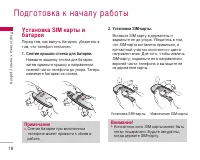
èÓ‰„ÓÚӂ͇ Í Ì‡˜‡ÎÛ ‡·ÓÚ˚ 18 ìÒÚ‡Ìӂ͇ SIM ͇Ú˚ Ë ·‡Ú‡ÂË è‰ ÚÂÏ, Í‡Í ‚˚ÌÛÚ¸ ·‡Ú‡Â˛, ۷‰ËÚÂÒ¸ ‚ÚÓÏ, ˜ÚÓ ÚÂÎÂÙÓÌ ÓÚÍβ˜ÂÌ. 1. ëÌflÚË Í˚¯ÍË ÓÚÒÂ͇ ‰Îfl ·‡Ú‡ÂË. ç‡ÊÏËÚ Á‡˘ÂÎÍÛ ÓÚÒÂ͇ ‰Îfl ·‡Ú‡ÂË,Á‡ÚÂÏ Ò‰‚Ë̸Ú Í˚¯ÍÛ ‚ ̇ԇ‚ÎÂÌËËÌËÊÌÂÈ ˜‡ÒÚË ÚÂÎÂÙÓ̇ ‰Ó ÛÔÓ‡. íÂÔ¸ËÁ‚ÎÂÍËÚ ·‡Ú‡Â˛ ËÁ ÓÚÒÂÍ...
Page 21 - éÚÒÓ‰ËÌÂÌË ‡‰‡ÔÚ‡
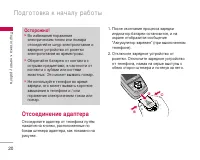
èÓ‰„ÓÚӂ͇ Í Ì‡˜‡ÎÛ ‡·ÓÚ˚ 20 éÚÒÓ‰ËÌÂÌË ‡‰‡ÔÚ‡ éÚÒÓ‰ËÌËÚ ‡‰‡ÔÚ ÓÚ ÚÂÎÂÙÓ̇ ÔÛÚfiÏ̇ʇÚËfl ̇ ÍÌÓÔÍË, ‡ÒÔÓÎÓÊÂÌÌ˚ ÔÓ·ÓÍ‡Ï ¯ÚÂ͇ ‡‰‡ÔÚ‡, Í‡Í ÔÓ͇Á‡ÌÓ Ì‡ËÒÛÌÍÂ. 1. èÓÒΠÓÍÓ̘‡ÌËfl ÔÓˆÂÒÒ‡ Á‡fl‰ÍË Ë̉Ë͇ÚÓ ·‡Ú‡ÂË ÓÒÚ‡ÌÓ‚ËÚÒfl, Ë Ì‡˝Í‡Ì ÓÚÓ·‡ÁËÚÒfl ÒÓÓ·˘ÂÌËÂ"ÄÍÍÛÏÛÎflÚÓ Á‡flÊÂÌ"...
Page 22 - ÇÍÎ ̨ ̃ÂÌËÂ Ë ‚ ̊ÍÎ ̨ ̃ÂÌËÂ; ÇÍÎ ̨ ̃ÂÌË ÚÂÎÂÙÓ̇; Ç ̊ÍÎ ̨ ̃ÂÌË ÚÂÎÂÙÓ̇; äÓ‰ ̊ ‰ÓÒÚÛÔ‡
21 èÓ‰„ÓÚӂ͇ Í Ì‡˜‡ÎÛ ‡·ÓÚ˚ ÇÍβ˜ÂÌËÂ Ë ‚˚Íβ˜ÂÌË ÚÂÎÂÙÓ̇ ÇÍβ˜ÂÌË ÚÂÎÂÙÓ̇ 1. ìÒÚ‡ÌÓ‚ËÚ ·‡Ú‡Â˛ ‚ ÚÂÎÂÙÓÌ Ë ÔÓ‰Íβ˜ËÚÂ Â„Ó Í ‚̯ÌÂÏÛ ËÒÚÓ˜ÌËÍÛÔËÚ‡ÌËfl, ̇ÔËÏÂ Í ÔÓÚ‡ÚË‚ÌÓÏÛ‡‰‡ÔÚÂÛ, ‡‰‡ÔÚÂÛ ‡‚ÚÓÏÓ·ËθÌÓ„ÓÔËÍÛË‚‡ÚÂÎfl ËÎË Í ‡‚ÚÓÏÓ·ËθÌÓÈ „‡ÌËÚÛÂ. åÓÊÌÓ Ú‡ÍÊ ÛÒÚ‡ÌÓ‚ËÚ¸ ‚ÚÂÎÂÙÓÌ Á‡flÊÂÌÌ...
Page 24 - è‡ÓÎ ̧ Á‡ÔÂÚ‡ ‚ ̊ÁÓ‚‡
23 " 0000 ". ùÚÓÚ ÍÓ‰ Ú·ÛÂÚÒfl ‰Îfl Û‰‡ÎÂÌËfl ‚ÒÂı Á‡ÔËÒÂÈ Ì‡ ÚÂÎÂÙÓÌÂ Ë ‡ÍÚË‚‡ˆËËÏÂÌ˛ ë·ÓÒËÚ¸ ̇ÒÚÓÈÍË. äÓ‰ ·ÂÁÓÔ‡ÒÌÓÒÚË ÌÂÓ·ıÓ‰ËÏ Ú‡ÍÊ ‰Îfl‚Íβ˜ÂÌËfl Ë ‚˚Íβ˜ÂÌËfl ÙÛÌ͈ËË·ÎÓÍËÓ‚ÍË ÚÂÎÂÙÓ̇ Ò ˆÂθ˛Ô‰ÓÚ‚‡˘ÂÌËfl Â„Ó ÌÂÒ‡Ì͈ËÓÌËÓ‚‡ÌÌÓ„ÓËÒÔÓθÁÓ‚‡ÌËfl. á̇˜ÂÌË ÍÓ‰‡·ÂÁÓÔ‡ÒÌÓÒÚË ÔÓ ÛÏÓΘ‡Ì˲ ...
Page 25 - ÇıÓ‰fl ̆ËÂ Ë ËÒıÓ‰fl ̆ËÂ; àÒıÓ‰fl ̆ËÈ ‚ ̊ÁÓ‚
éÒÌÓ‚Ì˚ ÙÛÌ͈ËË 24 ÇıÓ‰fl˘ËÂ Ë ËÒıÓ‰fl˘Ë Á‚ÓÌÍË àÒıÓ‰fl˘ËÈ ‚˚ÁÓ‚ 1. ì·Â‰ËÚÂÒ¸, ˜ÚÓ ‚‡¯ ÚÂÎÂÙÓÌ ‚Íβ˜ÂÌ. 2. ǂ‰ËÚ ÌÓÏ ÚÂÎÂÙÓ̇, ‚Íβ˜‡fl ÍÓ‰ ‡ÈÓ̇. ] ç‡ÊÏËÚÂ Ë Û‰ÂÊË‚‡ÈÚ ÍÌÓÔÍÛÛ‰‡ÎÂÌËfl ( ) ‰Îfl Û‰‡ÎÂÌËfl ‚ÒÂ„Ó ÌÓχ. 3. óÚÓ·˚ ‚˚Á‚‡Ú¸ ‡·ÓÌÂÌÚ‡, ̇ÊÏËÚ ÍÌÓÔÍÛ ( ). 4. ÑÎfl Á‡‚¯ÂÌËfl ‚˚ÁÓ‚‡ ̇ÊÏËÚ ...
Page 27 - åÓ ̆ÌÓÒÚ ̧ Ò˄̇·; êÂÊËÏ í9
éÒÌÓ‚Ì˚ ÙÛÌ͈ËË 26 2. ÑÎfl Á‡‚¯ÂÌËfl ‡Á„Ó‚Ó‡ Á‡ÍÓÈÚ Ò·ȉ ËÎË Ì‡ÊÏËÚ Í·‚Ë¯Û . êÂÊËÏ "ÇË·‡ˆËfl" (·˚ÒÚ˚È) êÂÊËÏ "ÇË·‡ˆËfl" ÏÓÊÌÓ ‚Íβ˜ËÚ¸, ̇ʇ‚Ë Û‰ÂÊË‚‡fl ÍÌÓÔÍÛ ÔÓÒΠ‚Íβ˜ÂÌËfl ÚÂÎÂÙÓ̇. åÓ˘ÌÓÒÚ¸ Ò˄̇· åÓ˘ÌÓÒÚ¸ Ò˄̇· ÏÓÊÌÓ ÓÔ‰ÂÎËÚ¸ ÔÓË̉Ë͇ÚÓÛ Ò˄̇· ( ) ̇ ˝Í‡Ì Ú...
Page 28 - êÂÊËÏ ‚‚Ó‰‡ ABC; àÁÏÂÌÂÌË ÂÊËχ ‚‚Ó‰‡; àÒÔÓÎ ̧ÁÓ‚‡ÌË ÂÊËχ í9
27 êÂÊËÏ ‚‚Ó‰‡ ABC ùÚÓÚ ÂÊËÏ ÔÓÁ‚ÓÎflÂÚ ‚‚Ó‰ËÚ¸ ·ÛÍ‚˚ ÔÛÚÂÏÏÌÓ„Ó͇ÚÌÓ„Ó Ì‡Ê‡ÚËfl Í·‚˯ Ò·ÛÍ‚ÂÌÌ˚ÏË Á̇˜ÂÌËflÏË, ÔÓ͇ ÌÛÊ̇fl ·ÛÍ‚‡Ì ÓÚÓ·‡ÁËÚÒfl ̇ ‰ËÒÔÎÂÂ. ñËÙÓ‚ÓÈ ÂÊËÏ (123) àÒÔÓθÁÛÂÚÒfl ‰Îfl ·˚ÒÚÓ„Ó Ì‡·Ó‡ ˜ËÒÂÎÔÛÚÂÏ Ó‰ÌÓ͇ÚÌÓ„Ó Ì‡Ê‡ÚËfl ̇ ÌÛÊÌÛ˛Í·‚˯Û. ÑÎfl ËÁÏÂÌÂÌËfl ÂÊËχ ̇ ÂÊËÏ123, ̇ÊËχ...
Page 29 - àÒÔÓÎ ̧ÁÓ‚‡ÌË ‡ÎÙ‡‚ËÚÌÓ„Ó ÂÊËχ.
28 ËÌÙÓχˆË˛ ̇ ‰ËÒÔΠ‰Ó ÚÂı ÔÓ,ÔÓ͇ Ì ̇Ô˜‡Ú‡ÂÚ ÒÎÓ‚Ó ÔÓÎÌÓÒÚ¸˛. ] ÑÎfl ÔÓÒÏÓÚ‡ ‚ÓÁÏÓÊÌ˚ı ‚‡Ë‡ÌÚÓ‚ËÒÔÓθÁÛÈÚ Í·‚Ë¯Ë Ì‡‚Ë„‡ˆËË. èËÏÂ˚ : ç‡ÊÏËÚ ˜ÚÓ·˚ ̇Ô˜‡Ú‡Ú¸ ÒÎÓ‚Ó Good ç‡ÊÏËÚ , ‡ Á‡ÚÂÏ Ì‡‚Ë„‡ˆËÓÌÌÛ˛Í·‚Ë¯Û ÇÌËÁ ˜ÚÓ·˚̇Ô˜‡Ú‡Ú¸ ÒÎÓ‚Ó Home ] ÖÒÎË ÌÂÓ·ıÓ‰ËÏÓ ÒÎÓ‚Ó ÓÚÒÛÚÒÚ‚ÛÂÚ ‚ÒÔËÒÍÂ...
Page 30 - àÒÔÓÎ ̧ÁÓ‚‡ÌË ˆËÙÓ‚Ó„Ó ÂÊËχ; åÂÌ ̨ ‚Ó ‚ÂÏfl ‡Á„Ó‚Ó‡
29 àÒÔÓθÁÓ‚‡ÌË ˆËÙÓ‚Ó„Ó ÂÊËχ (123) êÂÊËÏ 123 ËÒÔÓθÁÛÂÚÒfl ‰Îfl ‚‚Ó‰‡ ˆËÙ ‚ÚÂÍÒÚÓ‚ÓÏ ÒÓÓ·˘ÂÌËË (̇ÔËÏ ÌÓχÚÂÎÂÙÓ̇). ç‡ÊËχÈÚ ÔÓ Ó‰ÌÓÏÛ ‡ÁÛ Ì‡ Í·‚˯ËÒÓÓÚ‚ÂÚÒÚ‚Û˛˘Ë Ú·ÛÂÏ˚Ï ˆËÙ‡Ï.åÓÊÌÓ ·˚ÒÚÓ ÔÂÂÍβ˜ËÚ¸Òfl ËÁ ÂÊËχ‚‚Ó‰‡ ·ÛÍ‚ ‚ ÂÊËÏ ˆËÙ, ̇ʇ‚ ËÛ‰ÂÊË‚‡fl ÍÌÓÔÍÛ ( ) . åÂÌ˛ ‚Ó ‚ÂÏfl ...
Page 31 - ÉÓÏ͇fl Ò‚flÁ ̧; éÚ‚ÂÚ Ì‡ ‚ıÓ‰fl ̆ËÈ ‚ ̊ÁÓ‚
éÒÌÓ‚Ì˚ ÙÛÌ͈ËË 30 ÉÓÏ͇fl Ò‚flÁ¸ ÇÓ ‚ÂÏfl ‡Á„Ó‚Ó‡ Ç˚ ÏÓÊÂÚ‡ÍÚË‚ËÓ‚‡Ú¸ ‰Ë̇ÏËÍ, ‚˚·‡‚éÔˆËË/ÉÓÏ͇fl Ò‚flÁ¸ Çäã, ËÎË Ì‡Ê‡‚ ̇Í·‚Ë¯Û éä. ÑÎfl ÓÚÍβ˜ÂÌËfl ‰Ë̇ÏË͇‚˚·ÂËÚ éÔˆËË/ÉÓÏ͇fl Ò‚flÁ¸ Çõäã, ËÎË̇ÊÏËÚ ¢fi ‡Á Í·‚Ë¯Û éä. ÇÚÓÓÈ ËÒıÓ‰fl˘ËÈ Á‚ÓÌÓÍ óÚÓ·˚ ‚˚ÔÓÎÌËÚ¸ ‚ÚÓÓÈ ‚˚ÁÓ‚, ÏÓÊÌÓ‚˚·‡Ú¸ ÌÂÓ·ı...
Page 32 - éÚÍÎÓÌÂÌË ‚ıÓ‰fl ̆Â„Ó ‚ ̊ÁÓ‚‡; ÉÛÔÔÓ‚ÓÈ ‚ ̊ÁÓ‚ ËÎË
31 ÖÒÎË ‚Íβ˜ÂÌÓ éÊˉ‡ÌË ‚˚ÁÓ‚‡ , ÏÓÊÌÓ Û‰Âʇڸ Ô‚˚È ‚˚ÁÓ‚ Ë ÓÚ‚ÂÚËÚ¸ ̇‚ÚÓÓÈ, ̇ʇ‚ ËÎË ‚˚·‡‚ ÎÂ‚Û˛ ÙÛÌ͈ËÓ̇θÌÛ˛ ÍÌÓÔÍÛ. åÓÊÌÓ Á‡‚¯ËÚ¸ÚÂÍÛ˘ËÈ ‡Á„Ó‚Ó Ë ÓÚ‚ÂÚËÚ¸ ̇ÓÊˉ‡˛˘ËÈ ‚˚ÁÓ‚, ‚˚·‡‚ Ô‡‚Û˛ÙÛÌ͈ËÓ̇θÌÛ˛ ÍÌÓÔÍÛ Ë Á‡ÚÂÏ á‡‚Â¯ËÚ¸ Ë ÓÚ‚ÂÚËÚ¸ . éÚÍÎÓÌÂÌË ‚ıÓ‰fl˘Â„Ó ‚˚ÁÓ‚‡ Ç˚ ÏÓÊÂÚ ÓÚÍÎ...
Page 33 - ç‡·Ó ‚ÚÓÓ„Ó ÌÓχ
éÒÌÓ‚Ì˚ ÙÛÌ͈ËË 32 ÓÚ‚ÂÚËÎË. ÖÒÎË Ì‡ÒÚÓÂ̇ ÍÓÌÙÂÂ̈-Ò‚flÁ¸,‡·ÓÌÂÌÚ, ‚Íβ˜Ë‚¯ËÈ ˝ÚÛ ÙÛÌÍˆË˛, ÏÓÊÂÚ‰Ó·‡‚ÎflÚ¸, ÓÚÍβ˜‡Ú¸ ËÎË ÓÚ‰ÂÎflÚ¸ ‚˚ÁÓ‚˚(Ú.Â. ËÒÍβ˜‡Ú¸ Ëı ËÁ ÍÓÌÙÂ̈-Ò‚flÁË, ÔË˝ÚÓÏ ÒÓı‡Ìflfl ÔÓ‰Íβ˜ÂÌËÂ). ùÚ‡ ÙÛÌ͈Ëfl‰ÓÒÚÛÔ̇ ‚ ÏÂÌ˛ "ÇÓ ‚ÂÏfl ‡Á„Ó‚Ó‡".å‡ÍÒËχθÌÓ ˜ËÒÎÓ ‡·ÓÌÂÌÚÓ‚ÍÓÌÙÂÂ...
Page 34 - ᇂ ̄ÂÌË ÍÓÌÙÂÂ̈-Ò‚flÁË
33 ÑÓ·‡‚ÎÂÌË ‚˚ÁÓ‚‡ ÍÍÓÌÙÂÂ̈-Ò‚flÁË óÚÓ·˚ ‰Ó·‡‚ËÚ¸ ‚˚ÁÓ‚ Í ÒÛ˘ÂÒÚ‚Û˛˘ÂÏÛÒ‡ÌÒÛ ÍÓÌÙÂÂ̈-Ò‚flÁË, ̇ÊÏËÚ ÎÂ‚Û˛ÙÛÌ͈ËÓ̇θÌÛ˛ ÍÌÓÔÍÛ, ‡ Á‡ÚÂÏ‚˚·ÂËÚ äÓÌÙÂÂ̈Ëfl/ëÓ‰. ‚ÒÂı . éÚÓ·‡ÊÂÌË ‡·ÓÌÂÌÚÓ‚ÍÓÌÙÂÂ̈-Ò‚flÁË óÚÓ·˚ ÔÓÒÏÓÚÂÚ¸ ÌÓχ ‡·ÓÌÂÌÚÓ‚,Û˜‡ÒÚ‚Û˛˘Ëı ‚ ÍÓÌÙÂÂ̈-Ò‚flÁË, ̇ ˝Í‡ÌÂÚÂÎÂÙÓ̇, ËÒÔ...
Page 40 - èÓÙËÎË; ÄÍÚË‚ËÓ‚‡Ú ̧
èÓÙËÎË èÓÙËÎË 39 Ç ÏÂÌ˛ èÓÙËÎË ÏÓÊÌÓ ÓÚ„ÛÎËÓ‚‡Ú¸ Ò˄̇Î˚ ‚˚ÁÓ‚Ó‚ Ë Ì‡ÒÚÓËÚ¸ Ëı ‰ÎflÓÔ‰ÂÎÂÌÌ˚ı ÒÓ·˚ÚËÈ.ëÛ˘ÂÒÚ‚ÛÂÚ ÔflÚ¸ Á‡‰‡ÌÌ˚ı ÔÓÙËÎÂÈ: ÇË·‡ˆËfl, íËıËÈ, é·˘ËÈ, ÉÓÏÍÓ Ëç‡Û¯ÌËÍË. ä‡Ê‰˚È ÔÓÙËθ ÏÓÊÌÓ ‰ÓÔÓÎÌËÚÂθÌÓ Ì‡ÒÚÓËÚ¸ (ÍÓÏ ÔÓÙËÎÂÈÇË·‡ˆËfl Ë “íËıËÈ”).ç‡ÊÏËÚ ÎÂ‚Û˛ ÙÛÌ͈ËÓ̇θÌÛ˛ Í·‚...
Page 41 - èÂÂËÏÂÌÓ‚‡Ú ̧
èÓÙËÎË 40 ] ë˄̇ΠÍ·‚ˇÚÛ˚ : Ç˚·Ó Ò˄̇· Í·‚ˇÚÛ˚. ] ÉÓÏÍÓÒÚ¸ Í·‚ˇÚÛ˚ : ìÒÚ‡ÌÓ‚ËÚ „ÓÏÍÓÒÚ¸ Ò˄̇· Í·‚ˇÚÛ˚. ] íÓÌ Ò·ȉ‡: èÓÁ‚ÓÎflÂÚ Ì‡ÒÚÓËÚ¸ Á‚ÛÍ ÓÚÍ˚ÚËfl/Á‡Í˚ÚËfl Í˚¯ÍË. ] ÉÓÏÍÓÒÚ¸ ˝ÙÙÂÍÚÓ‚: ìÒÚ‡ÌÓ‚ËÚ „ÓÏÍÓÒÚ¸ Á‚Û͇ ‰Îfl ˝ÙÙÂÍÚÓ‚. ] ÉÓÏÍÓÒÚ¸ ‚ÍÎ/‚˚ÍÎ: ìÒÚ‡ÌÓ‚ËÚ ÛÓ‚Â̸ „ÓÏ...
Page 42 - èÓÔÛ ̆ÂÌÌ ̊Â; àÒıÓ‰fl ̆ËÂ
Ç˚ÁÓ‚˚ 41 èÓ‚ÂËÚ¸ Á‡ÔËÒ¸ Ó ÔÓÔÛ˘ÂÌÌ˚ı, ÔËÌflÚ˚ıË ËÒıÓ‰fl˘Ëı ‚˚ÁÓ‚‡ı ÏÓÊÌÓ ÚÓθÍÓ ‚ÒÎÛ˜‡Â, ÂÒÎË ‚ ÁÓÌ ӷÒÎÛÊË‚‡ÌËflˉÂÌÚËÙË͇ˆËfl ÎËÌËË ‚˚ÁÓ‚‡ÔÓ‰‰ÂÊË‚‡ÂÚÒfl ÒÂÚ¸˛. çÓÏÂ Ë ËÏfl (ÂÒÎË ËÏÂÂÚÒfl) ÓÚÓ·‡Ê‡˛ÚÒfl‚ÏÂÒÚÂ Ò ‰‡ÚÓÈ Ë ‚ÂÏÂÌÂÏ ‚˚ÁÓ‚‡. åÓÊÌÓÚ‡ÍÊ ÔÓÒÏÓÚÂÚ¸ ‚ÂÏfl ‚˚ÁÓ‚Ó‚. èÓÔÛ˘ÂÌÌ˚ åÂÌ˛ 2.1 чÌÌ...
Page 43 - 쉇ÎËÚ ̧ ÔÓÒΉÌËÂ
Ç˚ÁÓ‚˚ 42 ] ‚‚ÂÒÚË ÌÓ‚Ó ËÏfl ‰Îfl ÌÓχ Ë ÒÓı‡ÌËÚ¸Ë ËÏfl, Ë ÌÓÏ ‚ ÚÂÎÂÙÓÌÌÓÈ ÍÌË„Â. ] éÚÔ‡‚ËÚ¸ ̇ ˝ÚÓÚ ÌÓÏ ÒÓÓ·˘ÂÌË ] 쉇ÎËÚ¸ ‚˚ÁÓ‚ ËÁ ÒÔËÒ͇ 쉇ÎËÚ¸ ÔÓÒΉÌË Á‚ÓÌÍË åÂÌ˛ 2.4 èÓÁ‚ÓÎflÂÚ Û‰‡ÎËÚ¸ ÒÔËÒÍË èÓÔÛ˘ÂÌÌ˚Â, ÇıÓ‰fl˘ËÂ Ë àÒıÓ‰fl˘ËÂ. åÓÊÌÓ Û‰‡ÎËÚ¸ ÒÔËÒÍË ÇÒ ‚˚ÁÓ‚˚ Á‡ Ó‰ËÌ ‡Á. ëÚÓËÏÓÒÚ¸ åÂÌ...
Page 44 - ëÔ‡‚͇ GPRS
43 ç‡ÒÚÓÈÍË (åÂÌ˛ 2.5.3) (ᇂËÒËÚ ÓÚ SIM ͇Ú˚) ] ìÒÚ‡ÌÓ‚ËÚ¸ Ú‡ËÙ: Ç˚ ÏÓÊÂÚ ÛÒÚ‡ÌÓ‚ËÚ¸ ÒÚÓËÏÓÒÚ¸ ‰ËÌˈ˚ ÓÔ·Ú˚.é·‡ÚËÚÂÒ¸ Í Ç‡¯ÂÏÛ ÔÓÒÚ‡‚˘ËÍÛ ÛÒÎÛ„‰Îfl ÔÓÎÛ˜ÂÌËfl ˆÂÌ˚ Á‡ ‰ËÌËˆÛ ÓÔ·Ú˚.ÑÎfl ‚˚·Ó‡ ‰ËÌˈ˚ ÓÔ·Ú˚ ‚ ‰‡ÌÌÓÏÏÂÌ˛ Ç‡Ï ÔÓ̇‰Ó·ËÚÒfl ÍÓ‰ PIN2. ] ìÒÚ‡ÌÓ‚ËÚ¸ ͉ËÚ: чÌ̇fl ÒÂÚ‚‡fl ÛÒÎÛ„‡ ÔÓÁ‚...
Page 45 - ÅÛ‰ËÎ ̧ÌËÍ; Bluetooth
ÄÍÒÂÒÒÛ‡˚ 44 ÅÛ‰ËθÌËÍ åÂÌ˛ 3.1 Ç˚ ÏÓÊÂÚ ̇ÒÚÓËÚ¸ ‰Ó 5 Ò˄̇ÎÓ‚·Û‰ËθÌË͇, ÍÓÚÓ˚ ·Û‰ÛÚ Ò‡·‡Ú˚‚‡Ú¸ ‚Û͇Á‡ÌÌÓ ‚ÂÏfl. 1. Ç˚·ÂËÚ ÇÍÎ ÔÛÚÂÏ Ì‡Ê‡ÚËfl ̇ Í·‚˯Ë. 2. Ç˚·ÂËÚ ÔÂËÓ‰ ÔÓ‚ÚÓÂÌËfl ÔË ÔÓÏÓ˘Ë Í·‚˯ ̇‚Ë„‡ˆËË : é‰ËÌ ‡Á, èÓÌ~èflÚ, èÓÌ~ëÛ·, Öʉ̂ÌÓ. 3. Ç˚·ÂËÚ Ê·ÂÏ˚È Á‚ÛÍ ·Û‰ËθÌË͇ ...
Page 46 - ä‡Î ̧ÍÛÎflÚÓ
45 åÓË ÛÒÚÓÈÒÚ‚‡ (åÂÌ˛ 3.2.1) Ç˚ ÏÓÊÂÚ ÔÓÒÏÓÚÂÚ¸ ‚Ò ÛÒÚÓÈÒÚ‚‡Ì‡ıÓ‰fl˘ËÂÒfl ‚ ÁÓÌ ‰ÂÈÒÚ‚Ëfl Bluetooth‚‡¯Â„Ó ÚÂÎÂÙÓ̇. ɇÌËÚÛ˚ (åÂÌ˛ 3.2.2) Ç˚ ÏÓÊÂÚ ÔÓÒÏÓÚÂÚ¸ ÒÔËÒÓÍ „‡ÌËÚÛ,ÍÓÚÓ˚ ÒÓ‚ÏÂÒÚËÏ˚ Ò ‰‡ÌÌ˚Ï ÚÂÎÂÙÓÌÓÏ. ç‡ÒÚÓÈÍË (åÂÌ˛ 3.2.3) Ç ‰‡ÌÌÓÏ ÔÛÌÍÚ Ç˚ ÏÓÊÂÚ ̇ÒÚÓËÚ¸ÓÔˆËË Bluetooth. ä‡Î¸...
Page 47 - äÓÌ‚ÂÚÂ
ÄÍÒÂÒÒÛ‡˚ 46 äÓÌ‚ÂÚ åÂÌ˛ 3.4 èÂÓ·‡ÁÛÂÚ Î˛·Ó ËÁÏÂÂÌË ‚ ÌÛÊÌÛ˛Ç‡Ï ‚Â΢ËÌÛ. 1. Ç˚ ÏÓÊÂÚ ‚˚·‡Ú¸ β·Û˛ ËÁ ‚Â΢ËÌ. 2. Ç˚·ÂËÚ ‚Â΢ËÌÛ, ÍÓÚÓÛ˛ Ç˚ ıÓÚËÚ ÔÂÓ·‡ÁÓ‚‡Ú¸ ÔÛÚÂÏ Ì‡Ê‡ÚËfl ̇ Í·‚Ë¯Ë , ̇‚Ë„‡ˆËË. 3. Ç˚ ÏÓÊÂÚ ÔÂÓ·‡ÁÓ‚‡Ú¸ Á̇˜ÂÌË ÌÂÓ·ıÓ‰ËÏÓÈ Ç‡Ï ‚Â΢ËÌ˚. ó‡ÒÓ‚ÓÈ ÔÓflÒ åÂÌ˛ 3.5 Ç˚...
Page 48 - ÇÒÚ ̃‡; ᇠÛÎÂÏ
47 чÍÚË‚ËÓ‚‡Ú¸ (åÂÌ˛ 3.6.1) Ç ˝ÚÓÏ ÒÎÛ˜‡Â ÙÛÌ͈Ëfl ‡‚ÚÓÓÚ‚ÂÚ˜Ë͇̇ÍÚ˂̇. é·˘ËÈ (åÂÌ˛ 3.6.2) ÇÍβ˜ÂÌË ÂÊËχ ‡‚ÚÓÓÚ‚ÂÚ˜Ë͇ “é·˘ËÈ” ÇÒÚ˜‡ (åÂÌ˛ 3.6.3) ÇÍβ˜ÂÌË ÂÊËχ ‡‚ÚÓÓÚ‚ÂÚ˜Ë͇ “ÇÒÚ˜‡” ᇠÛÎÂÏ (åÂÌ˛ 3.6.4) ÇÍβ˜ÂÌË ÂÊËχ ‡‚ÚÓÓÚ‚ÂÚ˜Ë͇ “Ç ‡‚ÚÓÏÓ·ËΔ èÓθÁÓ‚‡ÚÂθÒÍËÈ 1/ 2 (åÂÌ˛ 3.6.5/6...
Page 49 - á‡ÔËÒ‡ÌÌ ̊Â; åÓ‰ÂÏ
ÄÍÒÂÒÒÛ‡˚ 48 á‡ÔËÒ‡ÌÌ˚ ÒÓÓ·˘ÂÌËfl (åÂÌ˛ 3.6.7) éÚÓ·‡Ê‡ÂÚ ÒÔËÒÓÍ Á‡ÔËÒ‡ÌÌ˚ı ÒÓÓ·˘ÂÌËÈ,‚Íβ˜‡fl ËÌÙÓχˆË˛ Ó ‡·ÓÌÂÌÚÂ Ë ‚ÂÏÂÌËÁ‡ÔËÒË ÒÓÓ·˘ÂÌËfl. ] ÇÓÒÔÓËÁ‚‰ÂÌËÂ: Ç˚ ÏÓÊÂÚ ÔÓÒÎÛ¯‡Ú¸ Á‡ÔËÒ‡ÌÌ˚ „ÓÎÓÒÓ‚˚ÂÒÓÓ·˘ÂÌËfl. ] 쉇ÎËÚ¸: Ç˚ ÏÓÊÂÚ ۉ‡ÎËÚ¸ „ÓÎÓÒÓ‚˚ ÒÓÓ·˘ÂÌËfl. ] Ç˚ÁÓ‚: Ç˚ ÏÓÊÂÚ Òӂ¯ËÚ¸ Á‚ÓÌÓÍ...
Page 50 - àÒÍ‡Ú ̧
鄇̇ÈÁ 49 àÏÂ̇ åÂÌ˛ 4.1 àÒ͇ڸ (åÂÌ˛ 4.1.1) (ëӂ¯ÂÌË ‚˚ÁÓ‚Ó‚ ËÁ ÚÂÎÂÙÓÌÌÓÈ ÍÌËÊÍË) 1. ç‡ıÓ‰flÒ¸ ‚ ÂÊËÏ ÓÊˉ‡ÌËfl, ̇ÊÏËÚ [àÏÂ̇] Ë Á‡ÚÂÏ [OK]. 2. ÑÎfl ‰‡ÍÚËÓ‚‡ÌËfl, Û‰‡ÎÂÌËfl ËÎË ÍÓÔËÓ‚‡ÌËfl Á‡ÔËÒË Ì‡ÊÏËÚ ÎÂ‚Û˛ÙÛÌ͈ËÓ̇θÌÛ˛ Í·‚Ë¯Û [éÔˆËË]. ç‡ ‰ËÒÔΠÔÓfl‚ËÚ¸Òfl ÒÎÂ‰Û˛˘Âe ÏÂÌ˛. ] ꉇÍÚËÓ...
Page 51 - ÉÛÔÔ ̊
鄇̇ÈÁ 50 ÑÓ·‡‚ËÚ¸ Á‡ÔËÒ¸ (åÂÌ˛ 4.1.2) ë ÔÓÏÓ˘¸˛ ˝ÚÓÈ Í·‚Ë¯Ë ÏÓÊÌÓ ‰Ó·‡‚ËÚ¸Á‡ÔËÒ¸ ‚ ÚÂÎÂÙÓÌÌÛ˛ ÍÌË„Û. ÖÏÍÓÒÚ¸ Ô‡ÏflÚËÚÂÎÂÙÓ̇ ÒÓÒÚ‡‚ÎflÂÚ 1000 Á‡ÔËÒÂÈ. ÖÏÍÓÒÚ¸Ô‡ÏflÚË SIM-͇Ú˚ ÓÔ‰ÂÎflÂÚÒflÔÓÒÚ‡‚˘ËÍÓÏ ÛÒÎÛ„. äÓ΢ÂÒÚ‚Ó ÒËÏ‚ÓÎÓ‚,ÍÓÚÓÓ ÏÓÊÌÓ ÒÓı‡ÌËÚ¸ ̇ SIM-͇ÚÂ,Á‡‚ËÒËÚ ÓÚ Í‡Ú˚. 1. Ç˚·ÂËÚ ÑÓ·...
Page 52 - Å ̊ÒÚ ̊È Ì‡·Ó
51 鄇̇ÈÁ ] ÑÓ·‡‚ËÚ¸ Û˜‡ÒÚÌË͇ : чfiÚ ‚ÓÁÏÓÊÌÓÒÚ¸ ‚Íβ˜ËÚ¸ ÌÓ‚Ó„Ó Û˜‡ÒÚÌË͇ ‚ ‚˚·‡ÌÌÛ˛„ÛÔÔÛ. Ç ÒÓÒÚ‡‚ ͇ʉÓÈ „ÛÔÔ˚ ÏÓÊÂÚ‚ıÓ‰ËÚ¸ Ì ·ÓΠ20-ÚË ‡·ÓÌÂÌÚÓ‚. ] 쉇ÎËÚ¸ ËÁ „ÛÔÔ˚ : Ç˚ ÏÓÊÂÚ ۉ‡ÎËÚ¸ Û˜‡ÒÚÌË͇ ËÁ ‰‡ÌÌÓÈ „ÛÔÔ˚. äÓÌÚ‡ÍÚÛ‰‡ÎflÂÚÒfl ÚÓθÍÓ ËÁ ÒÔËÒ͇ „ÛÔÔ˚,ÓÒÚ‡‚‡flÒ¸ ÔË ˝ÚÓÏ ‚ Ô‡ÏflÚË ÚÂ...
Page 53 - äÓÔËÓ‚‡Ú ̧ ‚ÒÂ
鄇̇ÈÁ 52 鄇̇ÈÁ ‚˚‚Ó‰ËÚ¸Òfl Á‡ÔÓÒ Ó ÏÂÒÚ ÂÂÒÓı‡ÌÂÌËfl: ‚ Ô‡ÏflÚË ÚÂÎÂÙÓ̇ ËÎË Ì‡SIM-͇ÚÂ. - ÖÒÎË Ç˚ ‚˚·‡ÎË Ì‡ ç‡ SIM--͇Ú ËÎË ç‡ ÚÂÎÂÙÓÌ , ÚÓ ÚÂÎÂÙÓÌ ÒÓı‡ÌËÚ Á‡ÔËÒ¸ ̇ SIM-͇Ú ËÎË ‚ ÚÂÎÂÙÓÌÂ. ] èÓ͇Á˚‚‡Ú¸ èÓÎËÒÚ‡ÈÚ ‰Ó ÔÛÌÍÚ‡ èÓ͇Á˚‚‡Ú¸ Ë̇ÊÏËÚ [OK]. - íÓθÍÓ ËÏfl : ÔÓÒχÚË‚‡Ú¸ Ó...
Page 54 - 쉇ÎËÚ ̧ ‚ÒÂ; ëÔ‡‚͇
53 鄇̇ÈÁ 쉇ÎËÚ¸ ‚Ò (åÂÌ˛ 4.1.7) Ç˚ ÏÓÊÂÚ ۉ‡ÎËÚ¸ ‚Ò Á‡ÔËÒË ËÁ Ô‡ÏflÚËSIM-͇Ú˚, Ô‡ÏflÚË ÚÂÎÂÙÓ̇. чÌ̇flÙÛÌ͈Ëfl Ú·ÛÂÚ ‰Îfl Ò‚ÓÂ„Ó ‚˚ÔÓÎÌÂÌËfl‚‚Ó‰‡ ÍÓ‰‡ ·ÂÁÓÔ‡ÒÌÓÒÚË. 1. ç‡ÊÏËÚ [àÏÂ̇], ̇ıÓ‰flÒ¸ ‚ ÂÊËÏ ÓÊˉ‡ÌËfl, ÔÓÒΠ˜Â„Ó ‚˚·ÂËÚ 쉇ÎËÚ¸ ‚ÒÂ Ë Ì‡ÊÏËÚ [OK]. 2. Ç˚‰ÂÎËÚ ԇÏflÚ¸, ÒÓ‰ÂÊËÏÓ ...
Page 55 - ä‡ÎẨ‡ ̧
鄇̇ÈÁ 54 2. èÂÂÏ¢‡ÈÚÂÒ¸ ÔÓ ÏÂÌ˛ ‰Ó ÙÛÌ͈ËË ëÚ‡ÚÛÒ Ô‡ÏflÚË Ë ‰Îfl ‡ÍÚË‚‡ˆËË̇ÊÏËÚ Í·‚Ë¯Û [OK]. ] ëÓ·ÒÚ‚ÂÌÌ˚È ÌÓÏ (‚ Á‡‚ËÒËÏÓÒÚË ÓÚ SIM ͇Ú˚) åÓÊÌÓ ÒÓı‡ÌËÚ¸ Ë ÔÓ‚ÂËÚ¸ Ò‚ÓÈ ÌÓÏ‚ SIM-͇ÚÂ. ä‡ÎẨ‡¸ åÂÌ˛ 4.2 èË ‚ıӉ ‚ ˝ÚÓ ÏÂÌ˛ ÓÚÓ·‡Ê‡ÂÚÒfl͇ÎẨ‡¸. åÂÒflˆ Ë „Ó‰ ÓÚÓ·‡Ê‡˛ÚÒfl ‚‚ÂıÌÂÈ ˜‡...
Page 56 - èÂÂÈÚË Í ‰‡ÚÂ; á‡ÏÂÚ͇
55 鄇̇ÈÁ 쉇ÎËÚ¸ ÔÓÒÎ. (åÂÌ˛ 4.2.3) åÓÊÌÓ Û‰‡ÎËÚ¸ ‡ÒÔËÒ‡ÌËÂ, ÂÒÎË ÒÓÍËÏÂÓÔËflÚËÈ, Û͇Á‡ÌÌ˚ı ‚ ÌÂÏ, ËÒÚÂÍÎË. 쉇ÎËÚ¸ ‚Ò (åÂÌ˛ 4.2.4) Ç˚ ÏÓÊÂÚ ۉ‡ÎËÚ¸ ‚Ò Á‡ÔËÒË. èÂÂÈÚË Í ‰‡Ú (åÂÌ˛ 4.2.5) åÓÊÌÓ ÔÂÂÈÚË ÌÂÔÓÒ‰ÒÚ‚ÂÌÌÓ Í‚˚·‡ÌÌÓÈ ‰‡ÚÂ. åÂÎÓ‰Ëfl Ò˄̇· (åÂÌ˛ 4.2.6) åÓÊÌÓ ÛÒÚ‡ÌÓ‚ËÚ¸ Á‚ÛÍÓ‚ÓÈ...
Page 57 - çÓ‚Ó ÒÓÓ· ̆ÂÌËÂ; ç‡ÔËÒ‡Ú ̧ SMS
ëÓÓ·˘ÂÌËfl 56 чÌÌÓ ÏÂÌ˛ ‚Íβ˜‡ÂÚ ÙÛÌ͈ËË,ÓÚÌÓÒfl˘ËÂÒfl Í SMS (ëÎÛÊ·‡ ÍÓÓÚÍËıÒÓÓ·˘ÂÌËÈ), MMS (ëÎÛÊ·‡ ÏÛθÚËωËÈÌ˚ıÒÓÓ·˘ÂÌËÈ), „ÓÎÓÒÓ‚ÓÈ ÔÓ˜ÚÂ, ‡ Ú‡ÍÊ ÍÒÎÛÊ·Ì˚Ï ÒÓÓ·˘ÂÌËflÏ ÒÂÚË.ç‡ÊÏËÚ ÍÌÓÔÍÛ åÂÌ˛ ( ) Ë ‚˚·ÂËÚÂëÓÓ·˘ÂÌËfl Ò ÔÓÏÓ˘¸˛ ̇‚Ë„‡ˆËÓÌÌ˚ıÍÌÓÔÓÍ. çÓ‚Ó ÒÓÓ·˘ÂÌË åÂÌ˛ 5.1 ç‡ÔËÒ‡Ú¸ SMS (åÂÌ˛ 5.1...
Page 59 - ç‡ÔËÒ‡Ú ̧ MMS
ëÓÓ·˘ÂÌËfl 58 ] àÏÂ̇: ‚ ÒÓÓ·˘ÂÌË ÏÓÊÌÓ ‰Ó·‡‚ÎflÚ¸ ÚÂÎÂÙÓÌÌ˚ ÌÓχ. ] ëËÏ‚ÓÎ : ÏÓÊÌÓ ‰Ó·‡‚ËÚ¸ ÒÔˆˇθÌ˚ ÒËÏ‚ÓÎ˚. ] èÓ‰ÔËÒ¸: ÏÓÊÌÓ ‚ÎÓÊËÚ¸ Ò‚Ó˛ ‚ËÁËÚÍÛ. ç‡ÔËÒ‡Ú¸ MMS (åÂÌ˛ 5.1.2) Ç ÏÛθÚËωËÈÌÓÏ ÒÓÓ·˘ÂÌËË ÏÓÊÂÚÒÓ‰ÂʇڸÒfl ÚÂÍÒÚÓ‚‡fl, „‡Ù˘ÂÒ͇flËÌÙÓχˆËfl Ë Á‚ÛÍÓ‚˚ ÍÎËÔ˚. чÌÌÛ˛ÙÛÌÍˆË˛ ÏÓÊÌÓ ËÒÔÓ...
Page 63 - óÂÌÓ‚ËÍË
62 éÚÔ‡‚ÎÂÌÌ˚Â: ] èÓÒÏÓÚ : ÏÓÊÌÓ ÔÓÒÏÓÚÂÚ¸ ÓÚÔ‡‚ÎÂÌÌÓ ÒÓÓ·˘ÂÌËÂ. ] èÂÂÒ·ڸ : Ç˚ ÏÓÊÂÚ ̇ԇ‚ËÚ¸ ÚÂÍÛ˘Â ÒÓÓ·˘ÂÌË ‰Û„ËÏ ‡‰ÂÒ‡Ú‡Ï. ] 쉇ÎËÚ¸ : Ç˚ ÏÓÊÂÚ ۉ‡ÎËÚ¸ ÚÂÍÛ˘Â ÒÓÓ·˘ÂÌËÂ. ] èÓÒÏÓÚÂÚ¸ ËÌÙÓχˆË˛: Ç˚ ÏÓÊÂÚ ÔÓÒÏÓÚÂÚ¸ ËÌÙÓχˆË˛ Ó· ËÒıÓ‰fl˘ËıÒÓÓ·˘ÂÌËflı; ĉÂÒ ÔÓÎÛ˜‡ÚÂÎfl, ÚÂχ(ÚÓÎ...
Page 64 - èÓÒÎÛ ̄‡Ú ̧ „ÓÎÓÒÓ‚Û ̨; àÌÙÓ ÒÓÓ· ̆ÂÌËfl
63 ] èÓÒÏÓÚÂÚ¸ ËÌÙÓχˆË˛ : ‰Îfl ÔÓÒÏÓÚ‡ ҂‰ÂÌËÈ Ó ÒÓÓ·˘ÂÌËË. ] 쉇ÎËÚ¸ ‚Ò : Û‰‡ÎflÂÚ ËÁ Ô‡ÔÍË ‚Ò ÒÓÓ·˘ÂÌËfl. èÓÒÎÛ¯‡Ú¸ „ÓÎÓÒÓ‚Û˛ ÔÓ˜ÚÛ åÂÌ˛ 5.5 ùÚÓ ÏÂÌ˛ Ó·ÂÒÔ˜˂‡ÂÚ ·˚ÒÚ˚È ‰ÓÒÚÛÔ Í„ÓÎÓÒÓ‚ÓÏÛ ÔÓ˜ÚÓ‚ÓÏÛ fl˘ËÍÛ (ÂÒÎË Ú‡Í‡flÛÒÎÛ„‡ Ô‰ÓÒÚ‡‚ÎflÂÚÒfl ‚ ÒÂÚË). è‰ËÒÔÓθÁÓ‚‡ÌËÂÏ ˝ÚÓÈ ÙÛÌ͈ËË ÌÂÓ·ıÓ‰ËÏ...
Page 65 - óËÚ‡Ú ̧; ä‡Ì‡Î ̊; ò‡·ÎÓÌ ̊; íÂÍÒÚÓ‚ ̊ ̄‡·ÎÓÌ ̊
64 óËÚ‡Ú¸ (åÂÌ˛ 5.6.1) ÖÒÎË Ç˚ ÔÓÎÛ˜ËÎË ËÌÙÓχˆËÓÌÌÓÂÒÎÛÊ·ÌÓ ÒÓÓ·˘ÂÌËÂ Ë ‚˚·‡ÎË « óËÚ‡Ú¸ », ÓÌÓ ÓÚÓ·‡ÁËÚÒfl ̇ ˝Í‡ÌÂ. ä‡Ì‡Î˚ (åÂÌ˛ 5.6.2) óÚÓ·˚ ÒÓÁ‰‡Ú¸ ÌÓ‚˚ ÚÂÏ˚, ̇ÊÏËÚ ÎÂ‚Û˛ÙÛÌ͈ËÓ̇θÌÛ˛ ÍÌÓÔÍÛ [éä] Ë ‚˚·ÂËÚ ÑÓ·‡‚ËÚ¸ Á‡ÔËÒ¸. ÖÒÎË ÚÂÏ˚ ÛÊ ÒÛ˘ÂÒÚ‚Û˛Ú, ÏÓÊÌÓ Ëı ÓÚÍβ˜ËÚ¸, ËÁÏÂÌËÚ¸ËÎË Û‰‡ÎË...
Page 66 - ò‡·ÎÓÌ ÏÛÎ ̧ÚËωˇ; SMS ÒÓÓ· ̆ÂÌËÂ
65 ] 쉇ÎËÚ¸ ‚Ò : Û‰‡ÎÂÌË ‚ÒÂı ¯‡·ÎÓÌÓ‚. ò‡·ÎÓÌ ÏÛθÚËωˇ (åÂÌ˛ 5.7.2) Ç˚ ÏÓÊÂÚ ËÒÔÓθÁÓ‚‡Ú¸ ÒÎÂ‰Û˛˘ËÂÓÔˆËË. ] èÓÒÏÓÚ: ÏÓÊÌÓ ÔÓÒÏÓÚÂÚ¸ ¯‡·ÎÓÌ ÏÛθÚËωˇ. ] 쉇ÎËÚ¸: Ç˚ ÏÓÊÂÚ ۉ‡ÎËÚ¸ ÏÛθÚËωËÈÌ˚È ¯‡·ÎÓÌ. ] ÑÓ·‡‚ËÚ¸ Á‡ÔËÒ¸: Ç˚ ÏÓÊÂÚ ̇ÔËÒ‡Ú¸ Ë ÒÓı‡ÌËÚ¸ ÏÛθÚËωËÈÌÓ ÒÓÓ·˘ÂÌË ͇ͯ‡·ÎÓÌ...
Page 68 - Push ÒÓÓ· ̆ÂÌËfl
67 ñÂÌÚ „ÓÎÓÒÓ‚ÓÈ ÔÓ˜Ú˚ (åÂÌ˛ 5.8.3) åÓÊÌÓ ÔÓÎÛ˜‡Ú¸ „ÓÎÓÒÓ‚Û˛ ÔÓ˜ÚÛ ÔËÛÒÎÓ‚ËË, ˜ÚÓ ˝Ú‡ ÛÒÎÛ„‡ ÔÓ‰‰ÂÊË‚‡ÂÚÒflÔÓÒÚ‡‚˘ËÍÓÏ ÛÒÎÛ„. èË ÔÓÎÛ˜ÂÌËË„ÓÎÓÒÓ‚ÓÈ ÔÓ˜Ú˚ ̇ ˝Í‡Ì ÓÚÓ·‡Ê‡ÂÚÒflÁ̇˜ÓÍ. ÑÎfl Ô‡‚ËθÌÓÈ Ì‡ÒÚÓÈÍËÚÂÎÂÙÓ̇ Ó·‡ÚËÚÂÒ¸ Í Ò‚ÓÂÏÛ ÔÓÒÚ‡‚˘ËÍÛÛÒÎÛ„ Ë ÔÓÎÛ˜ËÚ ÔÓ‰Ó·Ì˚ ҂‰ÂÌËfl ÓÔ‰ÓÒÚ‡‚ÎflÂ...
Page 70 - åÓË ÙÓÚÓ„‡ÙËË
69 åÛθÚËωˇ ] 䇘ÂÒÚ‚Ó : ̇ÒÚÓÈ͇ ͇˜ÂÒÚ‚‡ ‚ˉÂÓÍÎËÔ‡. ] Ň·ÌÒ ·ÂÎÓ„Ó: ̇ÒÚÓÈ͇ Ô‡‡ÏÂÚÓ‚ ‚ ÒÓÓÚ‚ÂÚÒÚ‚ËË Ò ÓÍÛʇ˛˘ÂÈ Ò‰ÓÈ. ] ÇÂÏfl Á‡ÔËÒË: ÛÒÚ‡Ìӂ͇ ‚ÂÏÂÌË Á‡ÔËÒË. ] Äθ·ÓÏ: ÔÓÒÏÓÚ Á‡ÔËÒ‡ÌÌ˚ı ‚ˉÂÓÍÎËÔÓ‚. ] Ç˚ıÓ‰: ‚˚ıÓ‰ ËÁ ÂÊËχ ‚ˉÂÓ͇ÏÂ˚. ] ùÙÙÂÍÚ: ÒÔˆ˝ÙÙÂÍÚ˚, ÍÓÚÓ˚ ÔËÏÂÌfl˛ÚÒfl ‰...
Page 71 - åÓ ‚ˉÂÓ
åÛθÚËωˇ 70 åÛθÚËωˇ ] èÓÒÏÓÚÂÚ¸ ËÌÙÓχˆË˛: ÏÓÊÌÓ ÔÓÒÏÓÚÂÚ¸ ËÌÙÓχˆË˛ Ó Ì‡Á‚‡ÌËË,‡ÁÏÂÂ, ‰‡ÚÂ Ë ‚ÂÏÂÌË Ò˙ÂÏÍË. åÓ ‚ˉÂÓ åÂÌ˛ 6.4 åÓÊÌÓ ‚ÓÒÔÓËÁ‚Ó‰ËÚ¸ Ë ÓÚÔ‡‚ÎflÚ¸‚ˉÂÓÍÎËÔ˚. éÔˆËË ] à„‡Ú¸: ‚ÓÒÔÓËÁ‚‰ÂÌË ‚ˉÂÓÍÎËÔ‡ ] éÚÔ‡‚͇ ˜ÂÂÁ Bluetooth : ÓÚÔ‡‚͇ ‚ˉÂÓÍÎËÔÓ‚ ˜ÂÂÁ Bluetooth. ]...
Page 73 - MP3 ÔÎÂÂ
åÛθÚËωˇ 72 åÛθÚËωˇ MP3 ÔΠ(åÂÌ˛ 6.5.1) 1. éÚÍÓÈÚ ÏÂÌ˛ "MP3", Á‡ÚÂÏ ‚˚·ÂËÚ ÔÛÌÍÚ "MP3 ÔÎÂÂ". 2. ç‡ÊÏËÚ ÎÂ‚Û˛ ÙÛÌ͈ËÓ̇θÌÛ˛ ÍÌÓÔÍÛ [éÔˆËË], ˜ÚÓ·˚ ÓÚÍ˚Ú¸ ÒÎÂ‰Û˛˘Ë ÏÂÌ˛. ] èÎÂÈÎËÒÚ: ÓÚÓ·‡ÊÂÌË ÒÔËÒ͇ ‚ÓÒÔÓËÁ‚‰ÂÌËfl ‚Ó ‚ÂÏfl ÔÓÒÎۯ˂‡ÌËflÏÛÁ˚ÍË. ] èÓ‚ÚÓ ‚˚‰ÂÎÂÌÌÓ„Ó:...
Page 74 - èÎÂÈÎËÒÚ; ÑËÍÚÓÙÓÌ; á‡ÔËÒ ̧
73 åÛθÚËωˇ èÎÂÈÎËÒÚ (åÂÌ˛ 6.5.2) Ç ˝ÚÓÏ ÏÂÌ˛ ÏÓÊÌÓ ÔÓÒÏÓÚÂÚ¸ ‚ÂÒ¸ÒÔËÒÓÍ ‚ÓÒÔÓËÁ‚‰ÂÌËfl. äÓÏ ÚÓ„Ó, Ò ÔÓÏÓ˘¸˛ Ô‡‡ÏÂÚ‡ ÏÂÌ˛ÏÓÊÌÓ Û‰‡ÎËÚ¸ Ù‡ÈÎ ËÎË ÔÓÒÏÓÚÂڸ҂‰ÂÌËfl Ó· ˝ÚÓÏ Ù‡ÈÎÂ. ç‡ÒÚÓÈÍË (åÂÌ˛ 6.5.3) Ç ˝ÚÓÏ ÏÂÌ˛ ÏÓÊÌÓ Ì‡ÒÚÓËÚ¸ ÒÎÂ‰Û˛˘ËÂÔ‡‡ÏÂÚ˚: "ùÍ‚‡Î‡ÈÁÂ", "êÂÊËÏ‚ÓÒÔÓËÁ...
Page 75 - èÓÒÏÓÚÂÚ ̧ ÒÔËÒÓÍ; 䇇ÓÍÂ
åÛθÚËωˇ 74 3. ǂ‰ËÚ ̇Á‚‡ÌË Á‡ÔËÒ‡ÌÌÓ„Ó „ÓÎÓÒ‡, ÔÓÒΠ˜Â„Ó Ì‡ÊÏËÚ [OK]. èÓÒÏÓÚÂÚ¸ ÒÔËÒÓÍ (åÂÌ˛ 6.6.2) íÂÎÂÙÓÌ ÔÓ͇ÊÂÚ ÒÔËÒÓÍ „ÓÎÓÒÓ‚˚ıÒÓÓ·˘ÂÌËÈ. Ç˚ ÏÓÊÂÚ ÔÓÒÎÛ¯‡Ú¸, ËÎËÛ‰‡ÎËÚ¸ Ù‡ÈÎ Ò Á‡ÔËÒ‡ÌÌ˚Ï „ÓÎÓÒÓÏ. 䇇ÓÍ åÂÌ˛ 6.7 LJ¯ ÚÂÎÂÙÓÌ Ó·Î‡‰‡ÂÚ ÙÛÌ͈ËÂÈ ä‡‡ÓÍÂîÛÌ͈Ëfl 䇇ÓÍ Ô‰ÒÚ‡‚ÎflÂÚ ÒÓ...
Page 76 - ä‡Ï‡; ÇˉÂÓ͇χ; BÌËÏaÌËÂ
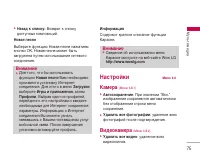
75 åÛθÚËωˇ ] ç‡Á‡‰ Í ÒÔËÒÍÛ: ÇÓÁ‚‡Ú Í ÒÔËÒÍÛ ‰ÓÒÚÛÔÌ˚ı ÍÓÏÔÓÁˈËÈ. çÓ‚‡fl ÔÂÒÌfl Ç˚·ÂËÚ ÙÛÌÍˆË˛ çÓ‚‡fl ÔÂÒÌfl ̇ʇÚËÂÏÍÌÓÔÍË éä. çÓ‚‡fl ÔÂÒÌfl ÏÓÊÂÚ ·˚Ú¸Á‡„ÛÊÂ̇ ÔÛÚÂÏ ËÒÔÓθÁÓ‚‡ÌËfl ÒÂÚ‚ӄÓÒÓ‰ËÌÂÌËfl. àÌÙÓχˆËfl ëÓ‰ÂÊËÚ Í‡ÚÍÓ ÓÔËÒ‡ÌË ÙÛÌ͈ËË䇇ÓÍÂ. ç‡ÒÚÓÈÍË åÂÌ˛ 6.8 ä‡Ï‡ (åÂÌ˛ 6.8.1) ] Ä‚...
Page 77 - чڇ Ë ÇÂÏfl; íÂÎÂÙÓÌ; ÑËÒÔÎÂÈ
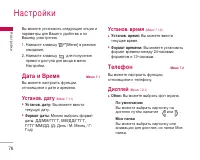
ç‡ÒÚÓÈÍË 76 Ç˚ ÏÓÊÂÚ ÛÒÚ‡ÌÓ‚ËÚ¸ ÒÎÂ‰Û˛˘Ë ÓÔˆËË ËÔ‡‡ÏÂÚ˚ ‰Îfl LJ¯Â„Ó Û‰Ó·ÒÚ‚‡ Ë ÔÓLJ¯ÂÏÛ ÛÒÏÓÚÂÌ˲. 1. ç‡ÊÏËÚ Í·‚Ë¯Û [åÂÌ˛] ‚ ÂÊËÏ ÓÊˉ‡ÌËfl. 2. ç‡ÊÏËÚ Í·‚Ë¯Û ‰Îfl ÔÓÎÛ˜ÂÌËfl ÔflÏÓ„Ó ‰ÓÒÚÛÔ‡ ‰Îfl ‚ıÓ‰‡ ‚ ÏÂÌ˛ç‡ÒÚÓÈÍË. чڇ Ë ÇÂÏfl åÂÌ˛ 7.1 Ç˚ ÏÓÊÂÚ ̇ÒÚÓËÚ¸ ÙÛÌ͈ËË,ÓÚÌÓÒfl˘ËÂÒfl Í ‰‡ÚÂ Ë ‚ÂÏ...
Page 78 - íÂχ; 臉ÂÒ‡ˆËfl
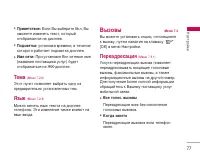
77 ç‡ÒÚÓÈÍË ] èË‚ÂÚÒÚ‚ËÂ: ÖÒÎË Ç˚ ‚˚·ÂËÚ ÇÍÎ, Ç˚ ÒÏÓÊÂÚ ËÁÏÂÌflÚ¸ ÚÂÍÒÚ, ÍÓÚÓ˚ÈÓÚÓ·‡Ê‡ÂÚÒfl ̇ ‰ËÒÔÎÂÂ. ] èÓ‰Ò‚ÂÚ͇: ÛÒÚ‡Ìӂ͇ ‚ÂÏÂÌË, ‚ Ú˜ÂÌË ÍÓÚÓÓ„Ó ‡·ÓÚ‡ÂÚ ÔÓ‰Ò‚ÂÚ͇ ‰ËÒÔÎÂfl. ] àÏfl ÒÂÚË: èË ÛÒÚ‡ÌÓ‚Í ÇÍÎ ÒÂÚ‚Ó ËÏfl (̇Á‚‡ÌË ÔÓÒÚ‡‚˘Ë͇ ÛÒÎÛ„) ·Û‰ÂÚÓÚÓ·‡Ê‡Ú¸Òfl ̇ Üä-‰ËÒÔÎÂÂ. íÂχ (åÂÌ...
Page 79 - Ä‚ÚÓÓÚ‚ÂÚ ̃ËÍ
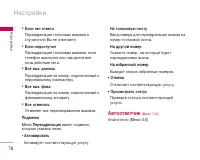
] ÖÒÎË ÌÂÚ ÓÚ‚ÂÚ‡ 臉ÂÒ‡ˆËfl „ÓÎÓÒÓ‚˚ı ‚˚ÁÓ‚Ó‚ ‚ÒÎÛ˜‡Â,ÂÒÎË Ç˚ Ì Óڂ˜‡ÂÚÂ. ] ÖÒÎË Ì‰ÓÒÚÛÔÂÌ è‡‰ÂÒ‡ˆËfl „ÓÎÓÒÓ‚˚ı ‚˚ÁÓ‚Ó‚, ÂÒÎËÚÂÎÂÙÓÌ ‚˚Íβ˜ÂÌ ËÎË Ì‡ıÓ‰ËÚÒfl ‚ÌÂÁÓÌ˚ ‰ÂÈÒÚ‚Ëfl ÒÂÚË. ] ÇÒ ‚˚Á. ‰‡ÌÌ˚ı 臉ÂÒ‡ˆËfl ̇ ÌÓÏÂ, ÔÓ‰Íβ˜ÂÌÌ˚È ÍÔÂÒÓ̇θÌÓÏÛ ÍÓÏÔ¸˛ÚÂÛ. ] ÇÒ ‚˚Á. Ù‡ÍÒ è‡‰ÂÒ‡ˆËfl...
Page 80 - êÂÊËÏ ÓÚ‚ÂÚ‡; èÓÒ ̊Î‡Ú ̧ Ò‚ÓÈ ÌÓÏÂ; (Á‡‚ËÒËÚ ÓÚ ÒÂÚË Ë Ô‰ÓÒÚ‡‚ÎflÂÏ ̊ı
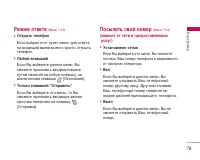
79 ç‡ÒÚÓÈÍË êÂÊËÏ ÓÚ‚ÂÚ‡ (åÂÌ˛ 7.3.3) ] éÚÍ˚Ú¸ ÚÂÎÂÙÓÌ ÖÒÎË ‚˚·‡Ì ˝ÚÓÚ ÔÛÌÍÚ ÏÂÌ˛, ‰Îfl ÓÚ‚Âڇ̇ ‚ıÓ‰fl˘ËÈ ‚˚ÁÓ‚ ÏÓÊÌÓ ÔÓÒÚÓ ÓÚÍ˚Ú¸ÚÂÎÂÙÓÌ. ] ã˛·ÓÈ Í·‚˯ÂÈ ÖÒÎË Ç˚ ‚˚·ÂÂÚ ‰‡ÌÌÓ ÏÂÌ˛, Ç˚ÒÏÓÊÂÚ ÔËÌËχڸ ‚ıÓ‰fl˘ËÈ ‚˚ÁÓ‚ÔÛÚÂÏ Ì‡Ê‡ÚËfl ̇ β·Û˛ Í·‚˯Û, Á‡ËÒÍβ˜ÂÌËÂÏ Í·‚Ë¯Ë [éÍÓ̘‡ÌËÂ]. ] íÓθÍÓ ...
Page 81 - áÛÏÏÂ; Ä‚ÚÓ‰ÓÁ‚ÓÌ; ÅÂÁÓÔ‡ÒÌÓÒÚ ̧
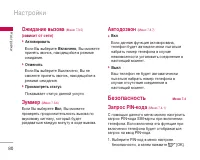
ç‡ÒÚÓÈÍË 80 éÊˉ‡ÌË ‚˚ÁÓ‚‡ (åÂÌ˛ 7.3.5) (Á‡‚ËÒËÚ ÓÚ ÒÂÚË) ] ÄÍÚË‚ËÓ‚‡Ú¸ ÖÒÎË Ç˚ ‚˚·ÂËÚ ÇÍβ˜ÂÌÓ , Ç˚ ÒÏÓÊÂÚ ÔËÌflÚ¸ Á‚ÓÌÓÍ, ̇ıÓ‰fl˘ËÈÒfl ‚ ÂÊËÏÂÓÊˉ‡ÌËfl. ] éÚÏÂÌËÚ¸ ÖÒÎË Ç˚ ‚˚·ÂËÚ Ç˚Íβ˜ÂÌÓ, Ç˚ ÌÂÒÏÓÊÂÚ ÔËÌflÚ¸ Á‚ÓÌÓÍ, ̇ıÓ‰fl˘ËÈÒfl ‚ÂÊËÏ ÓÊˉ‡ÌËfl. ] èÓÒÏÓÚÂÚ¸ ÒÚ‡ÚÛÒ èÓ͇Á˚‚‡ÂÚ ÒÚ‡ÚÛÒ ‰‡Ì...
Page 82 - ÅÎÓÍËӂ͇ ÚÂÎÂÙÓ̇
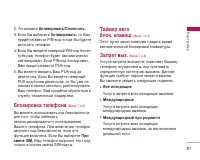
81 ç‡ÒÚÓÈÍË 2. ìÒÚ‡ÌÓ‚ËÚ ÄÍÚË‚ËÓ‚‡Ú¸/éÚÍβ˜ËÚ¸. 3. ÖÒÎË Ç˚ ‚˚·ÂËÚ ÄÍÚË‚ËÓ‚‡Ú¸, ÚÓ Ç‡Ï ÔˉfiÚÒfl ‚‚ÂÒÚË PIN-ÍÓ‰, ÍÓ„‰‡ Ç˚ ·Û‰ÂÚ‚Íβ˜‡Ú¸ ÚÂÎÂÙÓÌ. 4. ÖÒÎË Ç˚ ‚‚‰fiÚ Ì‚ÂÌ˚È PIN-ÍÓ‰ ·ÓΠÚfiı ‡Á, ÚÂÎÂÙÓÌ ·Û‰ÂÚ ‡‚ÚÓχÚ˘ÂÒÍËÁ‡·ÎÓÍËÓ‚‡Ì. ÖÒÎË PIN-ÍÓ‰ ·ÎÓÍËÓ‚‡Ì,Ç‡Ï ÔˉÂÚÒfl ‚‚ÂÒÚË PUK-ÍÓ‰. 5. Ç...
Page 84 - ëÂÚ ̧; Ç ̊·Ó ÒÂÚË; Ç ̊·Ó ‰Ë‡Ô‡ÁÓ̇
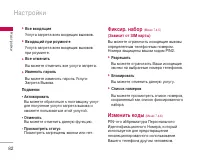
83 ç‡ÒÚÓÈÍË Ç˚ ÏÓÊÂÚ ËÁÏÂÌflÚ¸ ÍÓ‰˚ ‰ÓÒÚÛÔ‡: PIN ÍÓ‰, PIN 2 ÍÓ‰, ᇢËÚÌ˚È ÍÓ‰ . 1. ÖÒÎË Ç˚ ıÓÚËÚ ËÁÏÂÌËÚ¸ Ó‰ËÌ ËÁ ÍÓ‰Ó‚ ‰ÓÒÚÛÔ‡, ‚‚‰ËÚ LJ¯ ÓË„Ë̇θÌ˚È ÍÓ‰,‡ Á‡ÚÂÏ Ì‡ÊÏËÚ [OK]. 2. ǂ‰ËÚ ÌÓ‚˚È ÍÓ‰ ‰ÓÒÚÛÔ‡ Ë Ôӂ¸Ú Ëı. ëÂÚ¸ åÂÌ˛ 7.5 Ç˚ ÏÓÊÂÚ ‚˚·‡Ú¸ ÒÂÚ¸, ‚ ÍÓÚÓÓÈ Ç˚Á‡Â„ËÒÚËÛÂÚÂÒ¸ ‡‚ÚÓÏ...
Page 85 - GPRS; ÇÌÛÚÂÌÌflfl Ô‡ÏflÚ ̧
ç‡ÒÚÓÈÍË 84 GPRS åÂÌ˛ 7.6 Ç Á‡‚ËÒËÏÓÒÚË ÓÚ ÒËÚÛ‡ˆËË, ‚ÓÁÏÓÊ̇ÛÒÚ‡Ìӂ͇ ÙÛÌ͈ËË GPRS. ë·ÓÒËÚ¸ ̇ÒÚÓÈÍË åÂÌ˛ 7.7 Ç˚ ÏÓÊÂÚ ‚ÂÌÛÚ¸ LJ¯ÂÏÛ ÚÂÎÂÙÓÌÛ ‚ÒÂÁ‡‚Ó‰ÒÍË ̇ÒÚÓÈÍË. ÑÎfl ‡ÍÚË‚ËÓ‚‡ÌËfl˝ÚÓÈ ÙÛÌ͈ËË ÌÂÓ·ıÓ‰ËÏ ÍÓ‰ ·ÂÁÓÔ‡ÒÌÓÒÚË. é·˙ÂÏ Ô‡ÏflÚË åÂÌ˛ 7.8 ÇÌÛÚÂÌÌflfl Ô‡ÏflÚ¸ (åÂÌ˛ 7.8.1) ] ë ÔÓÏÓ˘¸˛ ‰‡ÌÌÓ...
Page 86 - 燂˄‡ˆËfl Ò ÔÓÏÓ ̆ ̧ ̨ WAP-·‡ÛÁ‡
ë‚ËÒ 85 åÓÊÌÓ ÔÓÎÛ˜ËÚ¸ ‰ÓÒÚÛÔ Í ‡Á΢Ì˚ÏÛÒÎÛ„‡Ï WAP (Wireless Application Protocol),Ú‡ÍËÏ Í‡Í ·‡ÌÍÓ‚ÒÍË ÓÔ‡ˆËË, ÌÓ‚ÓÒÚË,҂Ӊ͇ ÔÓ„Ó‰˚ Ë ‡ÒÔËÒ‡ÌË ÂÈÒÓ‚. ùÚËÛÒÎÛ„Ë Ô‰̇Á̇˜ÂÌ˚ ÒÔˆˇθÌÓ ‰ÎflÏÓ·ËθÌ˚ı ÚÂÎÂÙÓÌÓ‚ Ë ÔÓ‰‰ÂÊË‚‡˛ÚÒflÔÓÒÚ‡‚˘Ë͇ÏË ÛÒÎÛ„ WAP. èӂ¸Ú ‰ÓÒÚÛÔÌÓÒÚ¸ ÛÒÎÛ„ WAP, ˆÂÌ˚ ËÚ‡...
Page 87 - ÑÓχ ̄Ìflfl; èÂÂÈÚË Í URL
ë‚ËÒ 86 ë‚ËÒ àÌÚÂÌÂÚ åÂÌ˛ 8.1 ÑÓχ¯Ìflfl (åÂÌ˛ 8.1.1) á‡È‰ËÚ ̇ ‰Óχ¯Ì˛˛ ÒÚ‡ÌˈÛ. ÑÓχ¯ÌÂÈÒÚ‡ÌˈÂÈ ·Û‰ÂÚ Ò‡ÈÚ, ÍÓÚÓ˚ÈÓÔ‰ÂÎflÂÚÒfl ‡ÍÚË‚Ì˚Ï ÔÓÙËÎÂÏ. ÖÒÎË Ç˚Ì ÓÔ‰ÂÎËÎË Â„Ó ‚ ‡ÍÚË‚ÌÓÏ ÔÓÙËÎÂ, ÚÓÓÌ ·Û‰ÂÚ ÓÔ‰ÂÎÂÌ ÔÓ‚‡È‰ÂÓÏ. á‡Í·‰ÍË (åÂÌ˛ 8.1.2) чÌ̇fl ÛÒÚ‡Ìӂ͇ ÔÓÁ‚ÓÎflÂÚ Ç‡Ï ÒÓı‡ÌflÚ¸‡‰...
Page 93 - ä‡ÚËÌÍË; á‚ÛÍË; î‡ÈÎ ̊
ᇄÛÁÍË 92 ᇄÛÁÍË ä‡ÚËÌÍË åÂÌ˛ 9.2 àÒÔÓθÁÓ‚‡Ìˠ΂ÓÈ ÙÛÌ͈ËÓ̇θÌÓÈÍ·‚Ë¯Ë [éÔˆËË] ÓÚÍÓÂÚ ÒÎÂ‰Û˛˘Ë ԇ‡ÏÂÚ˚. ] ä‡Í Ó·ÓË: ÏÓÊÌÓ ÛÒÚ‡ÌÓ‚ËÚ¸ ‚˚·‡ÌÌÓ ËÁÓ·‡ÊÂÌË ‚ ͇˜ÂÒÚ‚Â Á‡ÒÚ‡‚ÍË. ] ç‡ÔËÒ‡Ú¸ MMS: Á‡„ÛÊÂÌÌ˚ ËÁÓ·‡ÊÂÌËfl ÏÓÊÌÓ ÓÚÔ‡‚ËÚ¸ÔÓÒ‰ÒÚ‚ÓÏ MMS. ê‡ÁÏ MMS Ì ÏÓÊÂÚÔ‚˚¯‡Ú¸ 100 kb. ]...
Page 96 - è‰ÛÔÂʉÂÌËÂ
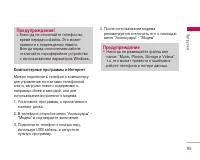
ᇄÛÁÍË äÓÏÔ¸˛ÚÂÌ˚ ÔÓ„‡ÏÏ˚ Ë àÌÚÂÌÂÚ åÓÊÌÓ ÔÓ‰Íβ˜ËÚ¸ ÚÂÎÂÙÓÌ Í ÍÓÏÔ¸˛ÚÂÛ‰Îfl ÛÔ‡‚ÎÂÌËfl ÍÓÌÚ‡ÍÚ‡ÏË ÚÂÎÂÙÓÌÌÓÈÍÌË„Ë, Á‡„ÛÁÍË ÌÓ‚Ó„Ó ÒÓ‰ÂÊËÏÓ„Ó,̇ÔËÏ ӷÓ‚ Ë ÏÂÎÓ‰ËÈ, ËÎË ‰ÎflËÒÔÓθÁÓ‚‡ÌËfl ‚ÒÚÓÂÌÌÓ„Ó ÏÓ‰Âχ. 1. ìÒÚ‡ÌÓ‚ËÚ ÔÓ„‡ÏÏ˚, Ò ÔË·„‡ÂÏÓ„Ó ÍÓÏÔ‡ÍÚ ‰ËÒ͇. 2. Ç ÚÂÎÂÙÓÌ ÓÚÍÓÈÚ ÏÂÌ˛...
Page 98 - íÂıÌË ̃ÂÒÍË ı‡‡ÍÚÂËÒÚËÍË; é· ̆ËÂ; ùÍÒÔÎÛ‡Ú‡ˆËÓÌÌ ̊ íÂÏÔ‡ÚÛ ̊
íÂıÌ˘ÂÒÍË ı‡‡ÍÚÂËÒÚËÍË íÂıÌ˘ÂÒÍË ı‡‡ÍÚÂËÒÚËÍË 97 鷢ˠç‡ËÏÂÌÓ‚‡ÌË èÓ‰ÛÍÚ‡ : S5200 ÑˇԇÁÓÌ : GSM 900 / DCS 1800 / PCS 1900 ùÍÒÔÎÛ‡Ú‡ˆËÓÌÌ˚ íÂÏÔ‡ÚÛ˚ å‡ÍÒ. : +55 ° C (á‡flʇڸ ·‡Ú‡Â˛ ÌÂθÁfl) +45 ° C (á‡fl‰Í‡ ·‡Ú‡ÂË ‚ÓÁÏÓÊ̇) åËÌ. : -10 ° C
Page 102 - U S E R G U I D E
Some of contents in this manual may differ from yourphone depending on the software of the phone oryour service provider. S 5 2 0 0 U S E R G U I D E ENGLISH Disposal of your old appliance 1. When this crossed-out wheeled bin symbol is attached to a product it means the product is covered by the Eur...
Page 103 - Ta b l e o f C o n te n ts
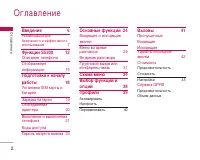
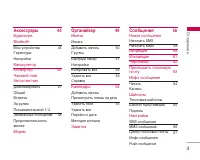
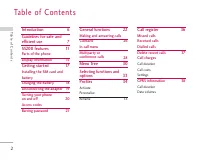
Ta b l e o f C o n te n ts 2 T able of Cont ent s Introduction 6 Guidelines for safe andefficient use 7 S5200 features 11 Parts of the phoneDisplay information 15 Getting started 17 Installing the SIM card andbattery 16 Charging the Battery 18 Disconnecting the adapter 19Turning your phone on and of...
Page 104 - Tools
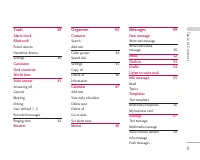
3 T able of Cont ent s Tools 39 Alarm clockBluetooth 36 Paired devices 36 Handsfree devices 36 Settings 40 Calculator 35 Unit converterWorld time 35 Auto answer 41 Answering off 36 General 36 Meeting Driving User defined 1, 2 Recorded messages Ringing time 42 Modem Organiser 43 Contacts 38 Search 38...
Page 105 - Table of Contents; Multimedia
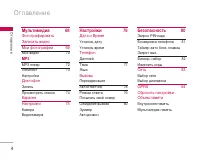
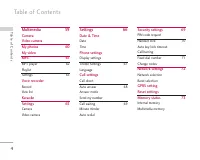
Table of Contents 4 Multimedia 59 Camera 53 Video cameraMy photos 60 My video 55 MP3 61 MP3 player 62 Playlist Settings 63 Voice recorder Record View list KaraokeSettings 65 Camera Video camera Settings 66 Date & Time 57 Date 57 Time 57 Phone settings 57 Display settings Theme Settings 67 Langua...
Page 106 - Service; Downloads; Accessories
5 Service 74 Internet Home 66 Bookmarks 75 Go to URL Settings 66 SIM service 77 Downloads 78 Games & Apps Games & Apps 66 Profiles 79 ImagesSounds 73 File storage 80 Accessories 83 Technical data 84 T able of Cont ent s
Page 107 - I n t ro d u c t i o n
Congratulations on your purchase of the advancedand compact S5200 mobile phone, designed tooperate with the latest digital mobile communicationtechnology. This user’s guide contains important information onthe use and operation of this phone. Please read allthe information carefully for optimal perf...
Page 108 - G u i d e l i n es f o r s a f e a n d e f f i c i e n t u s e; Exposure to radio frequency
G u i d e l i n es f o r s a f e a n d e f f i c i e n t u s e 7 Please read these simple guidelines. Not followingthese guidelines may be dangerous or illegal. Furtherdetailed information is given in this manual. Exposure to radio frequency energy Radio wave exposure and Specific AbsorptionRate (SA...
Page 109 - Guidelines for safe and efficient use; Electronics devices
Guidelines for safe and efficient use 8 ] The coating of the phone may be damaged if covered with wrap or vinyl wrapper. ] Use dry cloth to clean the exterior of the unit. (Do not use solvent such as benzene, thinner oralcohol.) ] Do not subject this unit to excessive smoke ordust. ] Do not keep the...
Page 110 - Children
9 ] RF energy may affect some electronic systems inyour motor vehicle such as car stereo or safetyequipment. ] When your vehicle is equipped with an air bag, donot obstruct with installed or portable wirelessequipment. It can cause serious injury due toimproper performance. Blasting area Do not use ...
Page 111 - Battery information and care
Guidelines for safe and efficient use 10 Battery information and care ] You do not need to completely discharge thebattery before recharging. Unlike other batterysystems, there is no memory effect that couldcompromise the battery’s performance. ] Use only LG batteries and chargers. LG chargers arede...
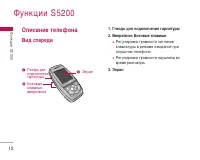
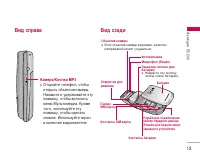
Page 112 - Parts of the phone; Front view
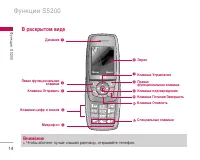
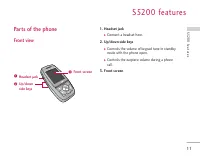
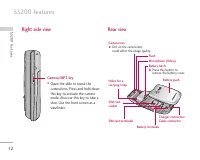
S 520 0 f e at u res 11 Parts of the phone Front view 1. Headset jack ] Connect a headset here. 2. Up/down side keys ] Controls the volume of keypad tone in standbymode with the phone open. ] Controls the earpiece volume during a phonecall. 3. Front screen S52 00 fea ture s Up/downside keys Headset ...
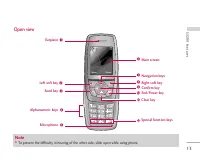
Page 114 - Open view; Note
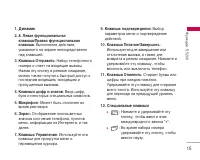
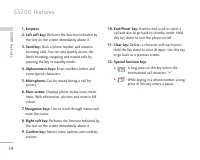
13 Open view S52 00 fea ture s ! @ $ Menu Name Earpiece Left soft key Send key Alphanumeric keys % Microphone Main screen ^ & Navigation keys Right soft key *( Clear key Special function keys End/Power key ) Confirm key # Note ] To prevent the difficulty in hearing of the other side, slide open ...
Page 116 - Display Information
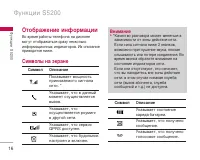
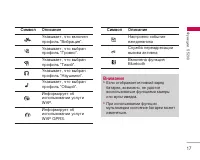
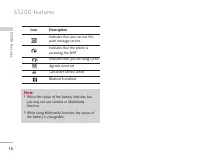
Display Information The table below describes various display indicatorsor icons that appear on the phone’s display screen. On-Screen Icons 15 Icon Description Indicates the strength of thenetwork signal. * Indicates a call is in progress. Indicates that you are roaming onanother network. S52 00 fea...
Page 118 - G ett i n g s ta r te d; Installing the SIM card and
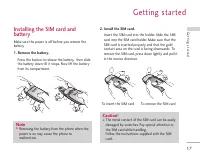
G ett i n g s ta r te d 17 Installing the SIM card and battery Make sure the power is off before you remove thebattery. 1. Remove the battery. Press the button to release the battery, then slidethe battery down till it stops. Now lift the batteryfrom its compartment. 2. Install the SIM card. Insert ...
Page 119 - Getting started; Charging the Battery
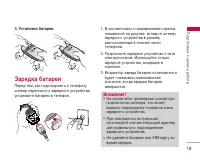
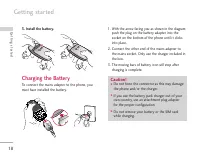
Getting started 18 3. Install the battery. Charging the Battery To connect the mains adapter to the phone, youmust have installed the battery. 1. With the arrow facing you as shown in the diagram push the plug on the battery adapter into thesocket on the bottom of the phone until it clicksinto place...
Page 120 - Disconnecting the adapter
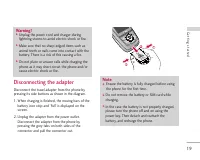
19 Disconnecting the adapter Disconnect the travel adapter from the phone bypressing its side buttons as shown in the diagram. 1. When charging is finished, the moving bars of the battery icon stop and ‘Full’ is displayed on thescreen. 2. Unplug the adapter from the power outlet. Disconnect the adap...
Page 121 - Turning your phone on and off; Turning your phone ON; Access codes
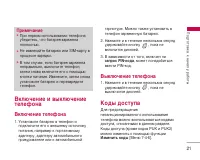
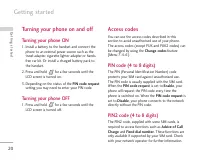
Getting started 20 Turning your phone on and off Turning your phone ON 1. Install a battery to the handset and connect the phone to an external power source such as thetravel adapter, cigarette lighter adapter or hands-free car kit. Or install a charged battery pack tothe handset. 2. Press and hold ...
Page 122 - Barring password
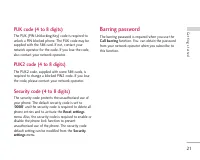
21 PUK code (4 to 8 digits) The PUK (PIN Unblocking Key) code is required tounlock a PIN blocked phone. The PUK code may besupplied with the SIM card. If not, contact yournetwork operator for the code. If you lose the code,also contact your network operator. PUK2 code (4 to 8 digits) The PUK2 code, ...
Page 123 - G e n e ra l Fu n c t i o n s; Making and answering calls; Making a call; Making a call from the call history list; Making an international call; Ending a call
G e n e ra l Fu n c t i o n s 22 Making and answering calls Making a call 1. Make sure your phone is switched on. 2. Enter a phone number, including the area code. ] Press and hold the clear key ( ) to erase the entire number. 3. Press the send key ( ) to call the number. 4. To end the call, press t...
Page 124 - Signal strength
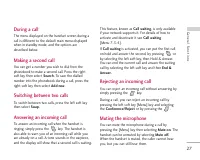
23 Adjusting the volume If you want to adjust the earpiece volume during acall, use the side keys ( ) . Press the up side key toincrease and down side key to decrease the volume. Answering a call When you receive a call, the phone rings and theflashing phone icon appears on the screen. If thecaller ...
Page 125 - General Functions; Entering text; T9 mode; Changing the text input mode; Using the T9 mode
General Functions 24 Entering text You can enter alphanumeric characters by using thephone’s keypad. For example, storing names in thephonebook, writing a message, creating a personalgreeting. The following text input methods are available in thephone. T9 mode This mode lets you enter words with onl...
Page 126 - Using the ABC mode
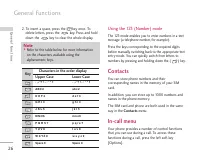
25 You can also add new words in the dictionary. As newwords are added, the word changes to reflect themost likely candidate from the dictionary. You canturn the T9 mode on or off, and change the T9language by holding down the ( ) key. 1. When you are in the T9 predictive text input mode, start ente...
Page 129 - Switching DTMF tones on during a call; Multiparty or conference calls; Making a second call; Setting up a conference call; Activate the conference call on hold
General Functions 28 Switching DTMF tones on during a call To turn DTMF tones on during a call, press the leftsoft key, and then select DTMF on . DTMF tones can be turned off the same way. DTMF tones allow yourphone to make use of an automated switchboard. Multiparty or conference calls The multipar...
Page 130 - Ending a conference call
29 Adding calls to the conference call To add a call to an existing conference call, press theleft soft key, then select the Conference/Join all. Displaying callers in a conference call To scroll through the numbers of the callers whomake up a conference call on the handset screen, usethe up/down na...
Page 131 - M e nu Tre e
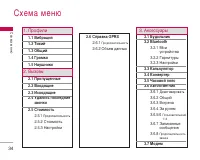
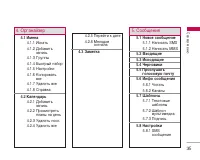
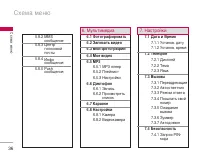
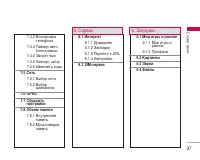
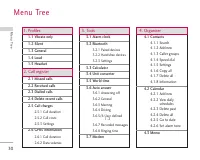
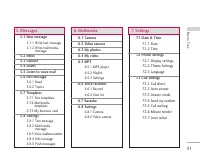
M e nu Tre e 30 1. Profiles 1.1 Vibrate only 1.2 Silent 1.3 General 1.4 Loud 1.5 Headset 2. Call register 2.1 Missed calls 2.2 Received calls 2.3 Dialled calls 2.4 Delete recent calls 2.5 Call charges 2.5.1 Call duration 2.5.2 Call costs 2.5.3 Settings 2.6 GPRS information 2.6.1 Call duration 2.6.2 ...
Page 133 - Menu Tree
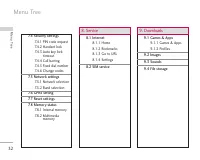
Menu Tree 32 Men u Tree 7.4 Security settings 7.4.1 PIN code request7.4.2 Handset lock7.4.3 Auto key lock timeout 7.4.4 Call barring 7.4.5 Fixed dial number7.4.6 Change codes 7.5 Network settings 7.5.1 Network selection7.5.2 Band selection 7.6 GPRS setting7.7 Reset settings7.8 Memory status 7.8.1 In...
Page 134 - S e l e c t i n g Fu n c t i o n s a n d O pt i o n s
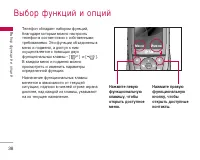
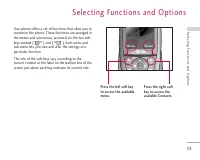
S e l e c t i n g Fu n c t i o n s a n d O pt i o n s 33 Selecting F unctions and Op tions Your phone offers a set of functions that allow you tocustomise the phone. These functions are arranged inthe menus and sub-menus, accessed via the two softkeys marked [ ] and [ ]. Each menu and sub-menu lets ...
Page 135 - P ro f i l es; Activate
P ro f i l es 34 In Profiles, you can adjust and customise the phonetones for different events, environments, or callergroups. There are five preset profiles: Vibrate only , Silent , General , Loud and Headset . Each profile can be personalised. Press the left soft key [Menu] and select Profiles usi...
Page 137 - C a l l re g i s te r; Missed calls
C a l l re g i s te r 36 You can check the record of missed, received, anddialled calls only if the network supports the CallingLine Identification (CLI) within the service area. The number and name (if available) are displayedtogether with the date and time at which the call wasmade. You can also v...
Page 138 - Call duration
37 Delete recent calls Menu 2.4 Allows you to delete Missed calls and Received calls lists. You can delete Dialled calls and All calls lists at one time. Call charges Menu 2.5 Call duration (Menu 2.5.1) Allows you to view the duration of your incoming andoutgoing calls. You can also reset the call t...
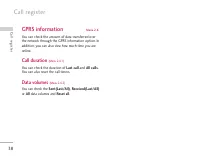
Page 139 - Call register; GPRS information; Data volumes
Call register 38 GPRS information Menu 2.6 You can check the amount of data transferred overthe network through the GPRS information option. Inaddition, you can also view how much time you areonline. Call duration (Menu 2.6.1) You can check the duration of Last call and All calls . You can also rese...
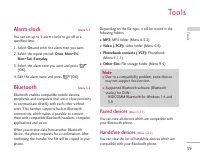
Page 140 - To o l s; Alarm clock; Paired devices
To o l s 39 Alarm clock Menu 3.1 You can set up to 5 alarm clocks to go off at aspecified time. 1. Select On and enter the alarm time you want. 2. Select the repeat period: Once , Mon ~ Fri , Mon ~ Sat , Everyday . 3. Select the alarm tone you want and press [OK]. 4. Edit the alarm name and press [O...
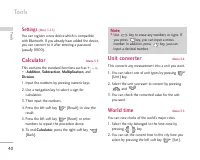
Page 141 - Settings; Calculator; Unit converter
Tools 40 Settings (Menu 3.2.3) You can register a new device which is compatiblewith Bluetooth. If you already have added the device,you can connect to it after entering a password(usually 0000). Calculator Menu 3.3 This contains the standard functions such as +, –, x,÷ : Addition , Subtraction , Mu...
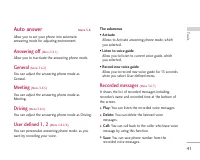
Page 142 - Auto answer; Answering off; Recorded messages
41 Auto answer Menu 3.6 Allow you to set your phone into automaticanswering mode for adjusting environment. Answering off (Menu 3.6.1) Allow you to inactivate the answering phone mode. General (Menu 3.6.2) You can adjust the answering phone mode asGeneral. Meeting (Menu 3.6.3) You can adjust the ans...
Page 143 - Ringing time; Modem
Tools 42 ] Write short message: You can send a short text message to the caller who leave voice message. ] Write multimedia message: You can send a multimedia message to the caller who leave voicemessage. Ringing time (Menu 3.6.8) Allow you to set your phone when the answering mode will be activated...
Page 144 - O rg a n i s e r; Add new
O rg a n i s e r 43 Organiser Contacts Menu 4.1 Search (Menu 4.1.1) (Calling from phonebook) 1. Select Search by press the left soft key [Select] or [OK]. 2. If you want to edit, delete or copy an entry, select the left soft key [Options]. The following menu will be displayed. ] Edit: You can edit t...
Page 145 - Organiser; Caller groups
Organiser 44 Organiser 1. Select Add new by pressing the left soft key [Select] or [OK]. 2. Select the memory you want to save to: SIM or Phone . If you set to Phone, you need to select which number you want as Main number. a. Press [OK] to input a name. b. Press [Save], then you can input a number....
Page 147 - Delete all
Organiser 46 Organiser Delete all (Menu 4.1.7) You can delete all entries in the SIM and Phone. Thisfunction requires the Security code. 1. Press the right soft key [Contacts] in standby mode and select Delete all, press [OK]. 2. Highlight the memory you wish to erase, and then press the left soft k...
Page 148 - Calendar
47 Organiser Calendar Menu 4.2 When you enter this menu a Calendar will bedisplayed. The month and year are shown at the topof the screen. Whenever you change the date underthe Settings menu, the calender will updateautomatically. The current date will be highlighted ingreen and any schedule or memo...
Page 149 - Memo
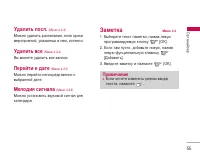
Organiser 48 Organiser Memo Menu 4.3 1. Select the Memo by pressing the left soft key [OK]. 2. If the entry is empty, add new by pressing the left soft key [Add]. 3. Input the memo and then press the left soft key [Ok]. Note ] If you want to change the text input mode,press the in order.
Page 150 - M es s a g es; New message; Write text message
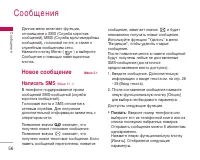
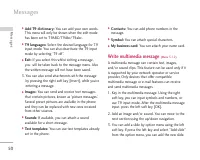
M es s a g es 49 Message s Press the Menu key ( ) and select Messagesusing navigation keys. New message Menu 5.1 Write text message (Menu 5.1.1) Your phone receives voice mail notification messagesand Short Message Service(SMS) messages. Voice mail and SMS are network services. Pleasecontact your ne...
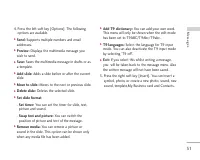
Page 151 - Messages; Write multimedia message
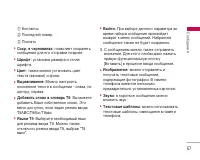
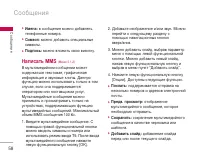
Messages 50 Message s ] Add T9 dictionary: You can add your own words. This menu will only be shown when the edit modehas been set to T9ABC/T9Abc/T9abc. ] T9 languages: Select the desired language for T9 input mode. You can also deactivate the T9 inputmode by selecting ‘T9 off ’. ] Exit: If you sele...
Page 153 - Inbox
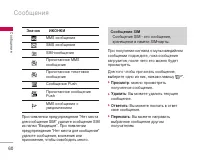
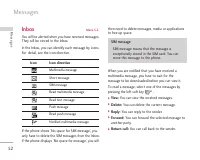
Messages 52 Message s Inbox Menu 5.2 You will be alerted when you have received messages.They will be stored in the Inbox. In the Inbox, you can identify each message by icons.For detail, see the icon directive. If the phone shows ‘No space for SIM message’, youonly have to delete the SIM messages f...
Page 154 - Outbox
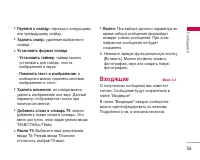
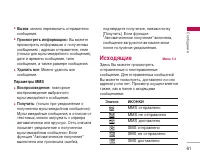
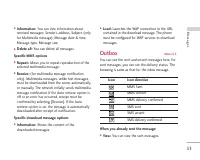
53 Message s ] Information: You can view information about received messages; Sender’s address, Subject (onlyfor Multimedia message), Message date & time,Message type, Message size. ] Delete all: You can delete all messages. Specific MMS options ] Repeat: Allows you to repeat reproduction of the...
Page 155 - Drafts
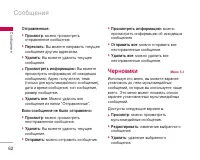
Messages 54 Message s ] Forward: You can forward the current message to other recipients. ] Delete: You can delete the current message. ] Information: You can view information about outbox messages; Recipient’s address, Subject(only for Multimedia message), Message date &time, Message type, Mess...
Page 156 - Info message; Topics; Templates; Text templates
55 Message s When new voice message is received, thesymbol will be displayed on the screen. Please checkwith your network provider for details of their servicein order to configure the handset correctly. Info message Menu 5.6 (Dependant to network and subscription) Info service messages are text mes...
Page 157 - Multimedia templates
Messages 56 Message s The following options are available. ] View: Views the selected message. ] Delete: Deletes the template. ] Add new: Uses this to create new template. ] Send via: To send via Text message or Multimedia message. ] Edit: Use this to edit the selected template. ] Delete all: Delete...
Page 158 - Text message
57 Message s Settings Menu 5.8 Text message (Menu 5.8.1) ] Message types: Text, Voice, Fax, Natl. paging, X.400, Email,ERMES Usually, the type of message is set to Text . You can convert your text into alternative formats. Contactyour service provider for the availability of thisfunction. ] Validity...
Page 159 - Voice mailbox number; Push messages
Messages 58 Message s Voice mailbox number (Menu 5.8.3) You can receive the voicemail if your network serviceprovider supports this feature. When a new voicemailhas arrived, the symbol will be displayed on thescreen. Please check with your network serviceprovider for details of their service in orde...
Page 160 - M u l t i m e d i a; Camera
M u l t i m e d i a 59 Multimedia Camera Menu 6.1 This application enables you to take a still picture.You can take a picture in your desired size, and use itfor the contacts photo, home screen and other moregeneral purposes. Once taken, a still image can besent via Multimedia msg or Email. Press th...
Page 161 - My Photos; My Video
Multimedia 60 Multimedia ] Exit: To exit the Video camera. ] Effect: Determines the special effect to the video clip. ] Flash: Determines the flash operation. ] Zoom: Determines the zoom rate. My Photos Menu 6.3 You can view and send a picture. In addition, you canset the picture as a wallpaper. Opt...
Page 163 - MP3 player; Playlist
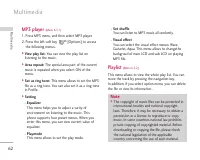
Multimedia 62 Multimedia MP3 player (Menu 6.5.1) 1. Press MP3 menu, and then select MP3 player. 2. Press the left soft key [Options] to access the following menus. ] View play list: You can view the play list on listening to the music. ] Area repeat: The special area part of the current music is rep...
Page 164 - Voice Recorder; Record; Karaoke
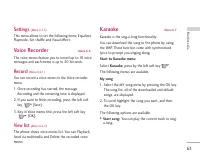
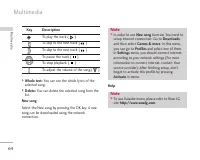
63 Multimedia Settings (Menu 6.5.3) This menu allows to set the following items; Equalizer,Playmode, Set shuffle and Visual effect. Voice Recorder Menu 6.6 The voice memo feature you to record up to 10 voicemessages and each memo is up to 20 Seconds. Record (Menu 6.6.1) You can record a voice memo i...
Page 166 - Video camera
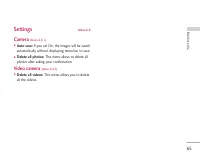
65 Multimedia Settings Menu 6.8 Camera (Menu 6.8.1) ] Auto save: If you set On, the images will be saved automatically without displaying menu bar to save. ] Delete all photos: This menu allows to delete all photos after asking your confirmation. Video camera (Menu 6.8.2) ] Delete all videos: This m...
Page 167 - S ett i n g s; Date; Phone settings; Display settings
S ett i n g s 66 You can set the following menus for yourconvenience and preferences. 1. Press [Menu] in standby mode. 2. Press for direct access to enter Settings. Date & Time Menu 7.1 You can set functions relating to the date and time. Date (Menu 7.1.1) ] Set Date: You can enter the current d...
Page 168 - Call settings; Call divert
67 Settings Theme settings (Menu 7.2.2) Allows you to choose from one of the preset themes. Language (Menu 7.2.3) You can change the language for the display texts inyour phone. This change will also affect the LanguageInput mode. Call settings Menu 7.3 You can set the menu relevant to a call by pre...
Page 170 - Call waiting; Minute minder; Auto redial; Security settings; PIN code request
69 Settings ] Off Your phone number will not be shown. Call waiting (Menu 7.3.5) (network dependent) ] Activate If you select Activate, you can accept a waiting(receiving) call. ] Cancel If you select Cancel, you cannot recognize thewaiting (receiving) call. ] View status Shows the status of Call wa...
Page 171 - Handset lock
Settings 70 Settings 1. Select PIN code request in the security settings menu, and then press [OK]. 2. Set On / Off . 3. If you want to change the setting, you need to enter PIN code when you switch on the phone. 4. If you enter wrong PIN code more than 3 times, the phone will lock out. If the PIN i...
Page 173 - Network settings; Network selection; Band selection; GPRS SETTING
Settings 72 Settings Network settings Menu 7.5 You can select a network which will be registeredeither automatically or manually. Usually, the networkselection is set to Automatic . Network selection (Menu 7.5.1) Automatic If you select Automatic mode, the phone willautomatically search for and sele...
Page 174 - Memory status; Internal memory
73 Settings Memory status Menu 7.8 Internal memory (Menu 7.8.1) ] This function shows the status of the user memoryof the handset. Multimedia memory (Menu 7.8.2) ] This function shows the status of the multimediamemory of the handset.
Page 175 - S e r v i c e; Navigating with the WAP browser
S e r v i c e 74 SER VICE You can access various WAP (Wireless ApplicationProtocol) services such as banking, news, weatherreports and flight information. These services arespecially designed for mobile phones and they aremaintained by WAP service providers. Check the availability of WAP services, p...
Page 176 - Bookmarks; Go to URL
75 SER VICE Bookmarks (Menu 8.1.2) This menu allows you to store the URL of favouriteweb pages for easy access at a later time. Your phonehas several pre-installed bookmarks. These pre-installed bookmarks cannot be deleted. To create a bookmark 1. Press the left soft key [Options]. 2. Select Add new...
Page 179 - D ow n l o a d s
D ow n l o a d s 78 Downloads Games & Apps Menu 9.1 Games & Apps (Menu 9.1.1) In this menu, you can manage the Java applicationsinstalled in your phone. You can play or deletedownloaded applications, or set the connect option.The downloaded applications are organised infolders. Press the lef...
Page 180 - Images; Sounds
Downloads 79 Profiles (Menu 9.1.2) This menu contains the same settings of the Internetmenu. In fact, in order to download new applications,a WAP connection is needed. Images Menu 9.2 The left soft key [Options] will bring up the following options. ] Set as wallpaper: Currently selected Picture can ...
Page 181 - File Storage
Downloads 80 Downloads ] Send via Bluetooth : Melody Sound can be sent via Bluetooth. File Storage Menu 9.4 This folder is similar to a file storage. It contains allthe file transferred through UMS functionality orBluetooth, as images, sounds and generic files notsupported by the phone. Pressing the...
Page 184 - Ac c es s o r i es; Standard Battery
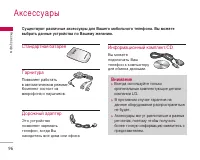
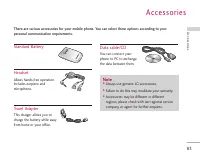
Ac c es s o r i es 83 A cce ssorie s Standard Battery Headset Allows hands-free operation.Includes earpiece and microphone. Travel Adapter This charger allows you to charge the battery while awayfrom home or your office. D ata cable/CD You can connect yourphone to PC to exchange the data between the...
Page 185 - Te c h n i c a l d ata; General; Ambient Temperatures
Te c h n i c a l d ata 84 T echnical da ta General Product name : S5200 System : GSM 900 / DCS 1800 / PCS 1900 Ambient Temperatures Max : +55°C (discharging) +45°C (charging) Min : -10°C
Page 188 - MEMO













 LG KG920 User Manual
 LG L342i User Manual
 LG M4410 User Manual
 LG M6100 User Manual
 LG P7200 User Manual
 LG S5000 User Manual
 LG T5100 User Manual
 LG W7000 User Manual
 LG X Power 2 M320 User Manual
 LG X Power K220DS Manual
 LG 600 User Manual
 LG B2000 User Manual
 LG B2100 User Manual
 LG B2150 User Manual
 LG B2250 User Manual
 LG C1100 User Manual
 LG C1400 User Manual
 LG C2100 User Manual
 LG C2200 User Manual
 LG C2500 User Manual