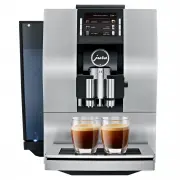
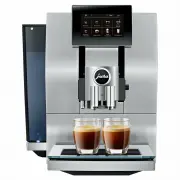
Page 2 - Control elements
2 Table of contents Your Z10 1 Control elements � � � � � � � � � � � � � � � � � � � � � � � � � � � � � � � � � � � � � � � � � � � � � � � � � � � � � � � � � � � � � � � � � � � � � � � � � � � � � � � � � � � � � � � � � � � � � � � � � � � � 4 2 For your safety � � � � � � � � � � � � � � � � ...
Page 6 - For your safety; are inexperienced or lack knowledge
2 For your safety 6 2 For your safety Before using the machine, read these instructions for use thoroughly and completely and comply with the instructions they contain� Keep these instructions for use close to the machine and pass them on to the next user�Failure to observe the instructions for use ...
Page 8 - Switch the machine off with the On/Off button
2 For your safety 8 U Do not allow the mains cable to rub against sharp edges and ensure that it does not become trapped� U Never allow the mains cable to loosely hang down� The mains cable could pose a tripping hazard or become damaged� U Protect the Z10 from weather and direct sunlight� U Only con...
Page 9 - Water conducts electricity. Do not bring water
2 For your safety 9 Water conducts electricity. Do not bring water and electricity into contact with one another: U Never touch the mains plug with wet hands� U Do not immerse the Z10 and/or mains cable in water� U Do not put the Z10 or any individual parts in the dishwasher� U Before cleaning, swit...
Page 10 - Preparing and using for the first time; Setting up the machine
3 Preparing and using for the first time 10 3 Preparing and using for the first time You can operate your Z10 in two ways: U Your Z10 has a touchscreen display� Tap or swipe the display to trigger an action� U Use the Rotary Switch, which can be turned or pressed� When setting up your Z10, please no...
Page 11 - ‘Sprachauswahl’
3 Preparing and using for the first time 11 T Fill the bean container with coffee beans and close the aroma preservation cover� When you use the machine for the first time, you must set the water hardness� If you do not know the hardness of your water, you can find this out first� Use the Aquadur®...
Page 12 - ‘Save’
3 Preparing and using for the first time 12 E If you do not know the hardness of your water, you must find this out first (see chapter 3 ‘Preparing and using for the first time – Determining the water hardness’)� T Touch 9 or 0 to change the water hardness setting� T Touch ‘Save’ � ‘Saved’ appea...
Page 13 - ‘Connect’
3 Preparing and using for the first time 13 T Touch ‘Connect’ to connect your Z10 to your network� T If necessary, scan the QR code with your mobile device to down- load the JURA app (J�O�E� ® )� T Touch ‘Connect’ � T Place a receptacle under the dual spout� ‘Machine is rinsing’ The start sc...
Page 14 - ‘Connect accessory’
3 Preparing and using for the first time 14 Your Z10 can be connected with your Cool Control milk cooler� Precondition: The JURA WiFi Connect is inserted into the service socket of your Z10� T Press the Rotary Switch� T Touch the ‘Machine setting’ f symbol� T Touch ‘1/2’ to go to the next pag...
Page 15 - Preparation; Basic information about preparing drinks:
4 Preparation 15 4 Preparation Basic information about preparing drinks: Aim What to do Change the coffee strength of a single product During the grinding operation, move your finger across the display or turn the Rotary Switch Change the amount for a single product During preparation, move your fin...
Page 16 - ‘Espresso’
4 Preparation 16 You can use Aroma Selection on your Z10 to change the consistency of grind and coffee strength of any product: Example: Espresso with higher coffee strength T Place a cup under the dual spout� T Touch the ‘Aroma Selection’ symbol (bottom right)� T Touch ‘Espresso’ � T Touch...
Page 17 - Z Z Z Z
4 Preparation 17 The ‘Cold Brew’ preselection is used to prepare a cold speciality cof-fee� Example: Coffee with ‘Cold Brew’ preselection T Fill the water tank with cold water� E You can influence the brewing result: The colder the water in the water tank, the colder the brewed beverage will be� ...
Page 18 - ‘Latte macchiato’
4 Preparation 18 T Place a glass under the dual spout� T Touch ‘Latte macchiato’ � The preset amounts of milk and milk foam flow into the glass� E There is a short interval while the hot milk separates from the milk foam� This allows the typical layers of a latte macchiato to form� The preset am...
Page 19 - ‘Not enough ground coffee’
4 Preparation 19 You can choose to use a second coffee variety, for example decaf-feinated coffee, with the filter funnel for ground coffee� U Never add more than two level measuring spoons of ground coffee� U Use ground coffee which is not ground too finely� Very fine coffee can block up the system...
Page 20 - approximately 2 seconds
4 Preparation 20 The Z10 allows you to prepare different variants of hot water: U ‘Hot water’ U ‘Hot water for green tea’ There is a danger of scalding from hot water splashes� T Avoid direct contact with the skin� Example: Hot water T Place a cup under the dual spout� T Touch ‘Hot water’ � T...
Page 21 - Daily operation; ‘Machine is rinsing’
5 Daily operation 21 5 Daily operation T Place a receptacle under the dual spout� T Press the On/Off button Q � ‘Machine is rinsing’ Your Z10 is switched on or off� E When the machine is switched off, the system is only rinsed if a speciality coffee has been prepared� E If milk has been prepared...
Page 22 - Maintenance action
5 Daily operation 22 Optimal coffee quality depends on many factors� One important prerequisite is regular maintenance of your Z10� Carry out the fol-lowing steps: Maintenance action Daily If necessary Note Empty the drip tray and coffee grounds container and rinse with warm water(The insert for the...
Page 23 - Machine settings; Programme item
6 Machine settings 23 6 Machine settings Press the Rotary Switch to open the Cockpit� In the ‘Machine setting’ f section, you can make the following settings: Programme item Explanation ‘Smart mode’ Arrange products by preparation frequency on the start screen after a certain amount of time (the h s...
Page 24 - Maintenance; ‘Rinse’
7 Maintenance 24 7 Maintenance Basic information about maintenance: U Press the Rotary Switch to open the Cockpit� This area consists of a ‘Maintenance status’ c section and a ‘Machine setting’ f section� You can manage the maintenance of your Z10 in the c section� U If a maintenance programme needs...
Page 25 - ‘Clean the milk system’
7 Maintenance 25 E JURA milk system cleaner is available from specialised dealers� E To clean the milk system, use the container supplied� Precondition: The start screen is displayed� T Press the Rotary Switch� T Touch c � T Touch ‘Clean the milk system’ � T Touch ‘Next’ � ‘Cleaning agent f...
Page 27 - ‘Change the filter’
7 Maintenance 27 T Fit the cover of the dual spout� Make sure the cover of the dual spout is correctly engaged� Once the filter cartridge stops working (depending on the water hardness setting), the Z10 will prompt you to change the filter� E Your Z10 no longer has to be descaled if you are using ...
Page 28 - Cleaning the machine
7 Maintenance 28 T Turn the filter casing clockwise until it audibly clicks into place� T Fill the water tank with fresh, cold water and reinsert the tank� The machine automatically detects that you have just inserted/changed the filter cartridge� ‘Filter is being rinsed’‘Empty drip tray’ T Em...
Page 29 - Descaling the machine
7 Maintenance 29 T Insert a JURA cleaning tablet into the filler funnel� T Close the cover of the filler funnel� T Touch ‘Next’ � ‘Machine is being cleaned’ , water flows out of the dual spout repeatedly� ‘Empty coffee grounds container’ T Empty the drip tray and coffee grounds container and...
Page 30 - empty
7 Maintenance 30 T Remove and empty the water tank� T Completely dissolve 3 JURA descaling tablets in a receptacle holding 600 ml of water� This may take several minutes� T Pour the solution into the empty water tank and insert it into the machine� ‘Press the Rotary Switch’ T Place a recepta...
Page 31 - ‘Fill bean container’
7 Maintenance 31 Limescale deposits may form in the water tank� To ensure correct function of the machine, descale the water tank from time to time� T Remove the water tank� T If you use a CLARIS Smart filter cartridge, remove this� T Completely fill the water tank and dissolve 3 JURA descalin...
Page 32 - Display messages; ‘Fill water tank’
8 Display messages 32 8 Display messages Messages on the start screen Message Cause/Result Action ‘Fill water tank’ The water tank is empty� You cannot prepare any products� T Fill the water tank (see chapter 5 ‘Daily operation – Filling the water tank’)� ‘Empty coffee grounds container’ / ‘Empty dr...
Page 33 - Troubleshooting; Problem
9 Troubleshooting 33 9 Troubleshooting Problem Cause/Result Action Insufficient foam is produced when the milk is frothed or milk sprays from the dual spout� The dual spout is dirty� T Make sure the cover of the dual spout is correctly fitted� T Clean the milk system in the dual spout (see chapter 7...
Page 35 - 0 Transport and environmentally friendly disposal; ‘Empty system’
10 Transport and environmentally friendly disposal 35 10 Transport and environmentally friendly disposal Keep the packaging for your Z10� It should be used to protect the machine during transport� In order to protect the Z10 from frost during transport, the system must be emptied� Precondition: The...
Page 36 - 1 Technical data
11 Technical data 36 11 Technical data Voltage 220–240 V ~, 50 Hz Power 1450 W Conformity mark A Energy consumption approx� 6 Wh Pump pressure static, max� 15 bar Holding capacity of water tank 2�4 l Holding capacity of bean container 280 g Holding capacity of coffee grounds container max� 20 portio...
Page 40 - 3 JURA contact details / Legal information; You can find additional contact details for your country at
13 JURA contact details / Legal information 40 13 JURA contact details / Legal information JURA Elektroapparate AGKaffeeweltstrasse 10CH-4626 NiederbuchsitenTel� +41 (0)62 38 98 233 E You can find additional contact details for your country at jura.com. E If you need assistance with using your machi...