Page 2 - Your GIGA 5
2 Table of contents Your GIGA 5 Control elements 4 Important information 6 Proper use ...................................................................................................................................................... 6For your safety .................................................
Page 3 - ‘Espresso’; Symbol description
3 Table of contents Warnings J WARNING J CAUTION Always take note of any information marked with the words CAUTION or WARNING and a warning sign. The signal word WARNING draws your attention to potential serious injury, and the signal word CAUTION to potential minor injury. CAUTION CAUTION draws you...
Page 4 - Control elements
4 Control elements Control elements 1 Bean container with aroma preservation cover 2 Bean container status indicator 3 Water tank cover 4 Water tank 5 Power switch and plug-in mains cable (back of the machine) 6 Coffee grounds container 7 Drip tray 8 Cup grille 9 Filler funnel for ground coffee 10 V...
Page 5 - Top of the machine
5 Control elements Top of the machine 1 Q On/Off button 2 g Rotary Switch 3 O P button (programming) Front 4 Display 5 Multi-function buttons (button function depends on what is shown in the display) Back of the machine 1 Service cover (Open by pressing with your finger) 2 Locking device 3 Sliding c...
Page 6 - Important information; To avoid danger of potentially fatal electric shock:; Proper use
6 Important information Important information The machine is designed and intended for private domestic use. It should only be used for coffee preparation and to heat milk and water. Use for any other purpose will be deemed improper. JURA Elektroapparate AG cannot accept any responsibility for the c...
Page 7 - There is a risk of scalds or burns on the spouts.
7 Important information U To completely and safely disconnect the machine from the power supply, first switch off the GIGA using the On/Off but-ton and then at the power switch. Only then should you remove the mains plug from the power socket. There is a risk of scalds or burns on the spouts. U Plac...
Page 9 - Preparing and using for the first time; short operating instruc-; JURA on the Internet; CAUTION
9 1 Preparing and using for the first time 1 Preparing and using for the first time Visit us on the Internet. You can download short operating instruc- tions for your machine from the JURA website (www.jura.com). You will also find interesting and up-to-date information on your GIGA and on every asp...
Page 10 - with; Filling the bean container
10 1 Preparing and using for the first time The bean containers have an aroma preservation cover. This will ensure that your coffee beans retain their aroma for longer. Coffee beans which have been treated with additives (e.g. sugar), ground coffee or freeze-dried coffee will damage the grinders. T ...
Page 11 - Quick installation
11 1 Preparing and using for the first time Precondition: The water tank and bean containers have been filled. T Connect the mains cable to the machine. T Insert the mains plug into a power socket. 3 T Switch on the GIGA using the power switch on the back of the machine. Q T Press the On/Off button ...
Page 13 - Deactivating the filter
13 1 Preparing and using for the first time T Remove and empty the water tank. T Open the filter holder and insert the filter cartridge into the water tank, exerting slight pressure. T Close the filter holder. It will click into place audibly. T Fill the water tank with fresh, cold water and reinser...
Page 14 - ‘Machine is rinsing.’; Connecting milk
14 1 Preparing and using for the first time T Place a receptacle under the dual spout. k T Press the Rotary Switch. ‘Machine is rinsing.’ , the machine rinses. The operation stops automatically. ‘Please select product:’ appears on the display. Your GIGA is ready for use. You can find out what the wa...
Page 15 - Preparation; amounts
15 2 Preparation 2 Preparation E While a product is being prepared, you can stop preparation at any time. To do this, press the Rotary Switch k or the ‘ ’ button. E During preparation, you can change the preset amounts (e.g. amount of milk foam or water) by turning the Rotary Switch g . E You can ...
Page 17 - ‘Please select product:’; Ground coffee
17 2 Preparation As soon as you turn the Rotary Switch, more products are displayed in a product selector. E The product selector view disappears automatically after 5 seconds if no preparation is started. Example: Proceed as follows to prepare a milky coffee using the product selector. Precondition...
Page 18 - permanently
18 2 Preparation Example: Proceed as follows to prepare one coffee using ground coffee. Precondition: ‘Please select product:’ is displayed. T Place a cup under the dual spout. T Open the cover of the filler funnel for ground coffee. ‘Please add ground coffee.’ T Place one level measuring spoon of g...
Page 20 - (within approximately; Hot water
20 2 Preparation Example: Proceed as follows to prepare a coffee with coffee beans from the grinder on the left. Precondition: ‘Please select product:’ is displayed. ‘Beans à la carte’ mode is activated. T Place a cup under the dual spout. T Press the ‘+’ button on the left-hand side several times u...
Page 21 - Daily; ‘Welcome to JURA’; Switching on
21 3 Daily operation 3 Daily operation When the GIGA is switched on, it automatically prompts you to per-form the rinse operation. Start the rinse operation by pressing the Rotary Switch k . In programming mode you can change this set- ting so that the machine starts the switch-on rinse automaticall...
Page 22 - Switching off
22 3 Daily operation When you switch off your GIGA, the dual spout is rinsed automati-cally. Precondition: ‘Please select product:’ is displayed. T Place a receptacle under the dual spout. Q T Press the On/Off button. ‘Machine is rinsing.’ , ‘Milk system is being rinsed.’ (if you have prepared a spe...
Page 23 - Permanent settings in programming mode; Programme item
23 4 Permanent settings in programming mode 4 Permanent settings in programming mode Press the P button to enter programming mode. You can navigate through the programme items and permanently save the required settings simply by turning the Rotary Switch and using the multi-function buttons. The fol...
Page 24 - In the programme item; Product settings
24 4 Permanent settings in programming mode In the programme item ‘Product settings (2/5)’ you can make indi- vidual settings for all speciality coffees, milk and hot water. The following settings can be made in the ‘Expert mode’ : Product Coffee strength Amount More settings Ristretto,espresso,coff...
Page 26 - Maintenance settings
26 4 Permanent settings in programming mode In the programme item ‘Product settings (2/5)’ / ‘Set consistency of grind’ you can adjust both grinders separately to the degree of roast of your coffee. The consistency of grind setting is correct if the coffee flows regu-larly from the dual spout. In ad...
Page 27 - immediately
27 4 Permanent settings in programming mode U ‘Rinse the milk system’ / ‘Manual after 10 min.’ U You are prompted to rinse the milk system 10 minutes after preparation of a speciality coffee with milk. U ‘Rinse the milk system’ / ‘Manual immediate’ U You are prompted to rinse the milk system immedia...
Page 29 - Time and date
29 4 Permanent settings in programming mode Example: Proceed as follows to change the energy-saving mode from ‘Save Level 1’ to ‘Save Level 2’ . Precondition: ‘Please select product:’ is displayed. O T Press the P button. ‘Maintenance status (1/5)’ g T Turn the Rotary Switch until the programme item...
Page 30 - every day of the week.; Timer
30 4 Permanent settings in programming mode T Press the ‘Save’ button. ‘Saved’ appears briefly on the display. ‘Time / date’ O T Press the P button to exit programming mode. ‘Please select product:’ In the programme item ‘Machine settings (3/5)’ / ‘Timer’ you can set an individual switch-on and swit...
Page 31 - Automatic switch-off
31 4 Permanent settings in programming mode T Press the ‘Every weekday’ button. ‘Saved’ appears briefly on the display. The switch-on and switch-off times you just set are adopted for every day of the week. ‘Timer’ O T Press the P button to exit programming mode. ‘Please select product:’ By instruct...
Page 32 - all products; Units
32 4 Permanent settings in programming mode In the programme item ‘Machine settings (3/5)’ / ‘Units’ you can make the following settings: U Unit for amount of water: ‘ml’ or ‘oz’ U Time format: ‘24 hrs.’ or ‘AM / PM’ Example: Proceed as follows to change the unit for the amount of water from ‘ml’ to...
Page 33 - Language
33 4 Permanent settings in programming mode g T Turn the Rotary Switch until the programme item ‘Machine settings (3/5)’ is displayed. T Press the ‘Factory setting’ button. ‘Factory setting’ T Press the ‘All products’ button. ‘All products’ / ‘Reset all products to the factory settings?’ T Press the...
Page 34 - Display settings
34 4 Permanent settings in programming mode In the programme item ‘Machine settings (4/5)’ / ‘Display’ you can make the following settings: U ‘Brightness’ (as percentages) U ‘Contrast’ (high, normal, low) U ‘Backlight’ (backlighting; as percentages) Example: Proceed as follows to change the brightne...
Page 35 - Querying information
35 4 Permanent settings in programming mode In the programme item ‘Information (5/5)’ you can view the follow- ing information: U ‘Product counter’ : Number of prepared coffee speciality cof- fees, speciality coffees with milk and hot water U ‘Maintenance counter’ : Number of maintenance programmes ...
Page 36 - Maintenance; daily; Rinsing the coffee system
36 5 Maintenance 5 Maintenance Your GIGA has the following integrated maintenance programmes: U Rinsing the coffee system ( ‘Rinse the coffee system’ ) U Rinsing the milk system in the dual spout ( ‘Rinse the milk system’ ) U Cleaning the milk system in the dual spout ( ‘Clean the milk system’ ) U C...
Page 37 - Rinsing the milk system
37 5 Maintenance Depending on the setting in programming mode, the GIGA prompts you to rinse the milk system or automatically performs rinsing fol-lowing milk preparation. Example: Proceed as follows to rinse the milk system when prompted to do so. Precondition: ‘Rinse the milk system.’ and the c sy...
Page 42 - Changing the filter
42 5 Maintenance T Empty the drip tray and coffee grounds container and put them back into the machine. ‘Filter’ / ‘Filter rinsing complete.’ The machine heats up. ‘Please select product:’ appears on the display. Your GIGA is once more ready for use. E After 50 litres of water have flowed through or...
Page 43 - Cleaning the machine
43 5 Maintenance After 220 preparations or 80 switch-on rinses, the GIGA will prompt you to clean it. If the wrong cleaning agent is used, the machine could be damaged and/or traces could be left behind in the water. T Use only original JURA maintenance products. E The cleaning programme lasts appro...
Page 44 - ‘Clean’; Descaling the machine
44 5 Maintenance T Empty the drip tray and coffee grounds container and put them back into the machine. ‘Clean’ / ‘Cleaning complete.’ Cleaning is now complete. Your GIGA is once more ready for use. The GIGA builds up deposits of limescale over time and automati-cally prompts you to descale it when ...
Page 46 - ‘Descale’
46 5 Maintenance T Empty the drip tray and coffee grounds container and put them back into the machine. ‘Descale’ / ‘Descaling complete.’ Descaling is now complete. Your GIGA is once more ready for use. E If the descaling operation stops unexpectedly, rinse the water tank thoroughly. Coffee beans ma...
Page 47 - Descaling the water tank
47 5 Maintenance Limescale deposits may form in the water tank. To ensure correct function of the machine, descale the water tank from time to time. T Remove the water tank. T If you use a CLARIS Blue filter cartridge, remove this. T Descale the tank with a mild conventional descaling agent in accor...
Page 48 - Display; Message
48 6 Display messages 6 Display messages Message Cause/Result Action ‘Fill water tank.’ The water tank is empty. You cannot prepare any products. T Fill the water tank (see Chapter 1 ‘Preparing and using for the first time – Filling the water tank’). ‘Empty coffee grounds container.’ The coffee grou...
Page 50 - Troubleshooting; Problem
50 7 Troubleshooting 7 Troubleshooting Problem Cause/Result Action Insufficient foam is produced when the milk is frothed, or milk sprays from the dual spout. The dual spout is dirty. T Rinse and clean the dual spout (see Chapter 5 ‘Maintenance – Cleaning the milk system’). Coffee only comes out in ...
Page 52 - Transport and environmentally friendly disposal; Disposal
52 8 Transport and environmentally friendly disposal 8 Transport and environmentally friendly disposal In order to protect the GIGA from frost during transport, the system must be emptied. Precondition: ‘Please select product:’ is displayed. T Place one receptacle under the dual spout and another un...
Page 53 - Technical
53 9 Technical data 9 Technical data Voltage 220–240 V ~, 50 Hz Power 2300 W Conformity mark A S Energy consumption ‘Save energy’ / ‘Save No’ Approx. 30 Wh Energy consumption ‘Save energy’ / ‘Save Level 1’ Approx. 12 Wh Energy consumption ‘Save energy’ / ‘Save Level 2’ Approx. 15 Wh Pump pressure St...
Page 59 - 1 JURA contact details / Legal information; You will find additional contact details for your country at
59 11 JURA contact details / Legal information 11 JURA contact details / Legal information JURA Elektroapparate AGKaffeeweltstrasse 10CH-4626 NiederbuchsitenTel. +41 (0)62 38 98 233 @ You will find additional contact details for your country at www.jura.com. The machine complies with the following d...
Page 60 - Machine data
60 11 JURA contact details / Legal information 1. Preparation Checking the scope of supply Setting up and connecting the machine Filling with coffee beans 2. First-time use Selecting your language Setting the time and date Inserting and activating the CLARIS Blue filter cartridge Filling the system ...



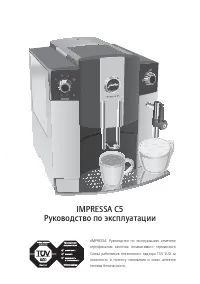
 Jura IMPRESSA S90 Manual
 Jura IMPRESSA X7 Manual
 Jura IMPRESSA X7-S Manual
 Jura IMPRESSA X9 Manual
 Jura JURAFOURTHCAREPACK User Manual
 Jura WE8 User Manual
 Jura 15115 User Manual
 Jura 15371 User Manual
 Jura 15465 User Manual
 Jura 72166 User Manual
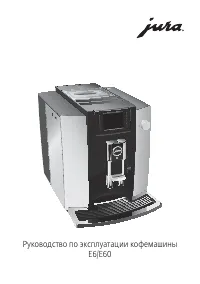 Jura E60 Manual
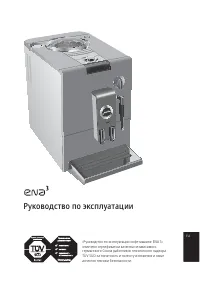 Jura ENA 3 Manual
 Jura ENA 5 Manual
 Jura F9 User Manual
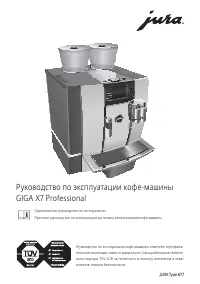 Jura GIGA X7 Professional Manual