Page 2 - Notice; Copyright
Notice Copyright © 2008 Huawei Technologies Co. Ltd. All Rights Reserved 1 Your Vodafone 830 is made exclusively for Vodafone by Huawei Technologies. 2 No part of this manual may be reproduced or transmitted in any form or by any means without prior written consent of Huawei Technologies Co. Ltd. 3 ...
Page 3 - Safety Precautions
14 Read the Safety Information section ofthis user guide on page 43. Do not use hand-held while driving. For body-worn operation maintain a separation of 1.5 cm. Small parts may cause a choking hazard. This device may produce a loud sound. Keep away from pacemakers and other personal medical devices...
Page 5 - Table of Contents
1 Table of Contents 1Getting to Know Your Phone 1 Packing List ................................................1Your Phone ................................................1Home Screen .............................................3Introduction to the Menu.............................4 Getting Started...
Page 7 - Getting to Know Your Phone; Note; Packing List; Your Phone
1 1 Getting to Know Your Phone Your Vodafone 830 phone can operate in virtually all countries, automatically switching between WCDMA/HSDPA 2100 and GSM/GPRS 900/1800/1900 networks. This allows you to enjoy communica-tion wherever you use your mobile phone. Note The services supported by your phone s...
Page 9 - Home Screen; Icon bar
Home Screen 3 Getting to K n ow Y our Phone 1 Home Screen Icon bar This area displays the phone status. The following table illustrates the icons that may appear on this bar. Icon Description Indicates signal strength. The more hori-zontal bars that appear, the stronger the signal.The phone is curre...
Page 10 - Introduction to the Menu
Introduction to the Menu 4 Introduction to the Menu Your phone provides an extensive range of functions. You can use these functions by navigating the follow-ing menus: Web, Email, Applications, Music, Mes-saging, My Files, Entertainment, Contacts, Organiser & Tools, Mobile TV, Calls and Setting...
Page 11 - Getting Started; Loading the SIM Card; Unloading the SIM Card
5 2 Getting Started Loading the SIM Card Load your SIM card before using your phone. To use the SIM card properly, please read the following instructions carefully. Note • Keep the SIM card out of the reach of chil- dren. • The SIM card and its metal contacts can be easily damaged by scratching or b...
Page 12 - Charging the Battery
Charging the Battery 6 1 Unload the back cover out of the phone. 2 Please unload the battery according to the fol-lowing picture. 3 Press the SIM card with one finger and slide it out of the slot. Charging the Battery Before charging the battery, please read the following precautions carefully. Note...
Page 14 - Powering On; Powering Off; Access Codes
Powering On/Off 8 Powering On/Off Powering On Ensure that the SIM card is in your phone and that the battery has been charged. Press and hold to power on your phone. Powering Off Press and hold to power off your phone. Access Codes For setting and changing the access codes, please refer to "Sett...
Page 15 - Call Service; Making or Answering Calls; Making a Voice or Video Call; Making Voice Calls Using SDN
9 3 Call Service Making or Answering Calls Making a Voice or Video Call You can make a video call to other person whose phone also supports video calls. 1 Enter or edit a phone number in one of the fol-lowing ways:• Enter a phone number through the keypad.• Select a number from the Calls screen. • S...
Page 16 - Operations During a Voice Call; Icon Description
Operations During a Voice Call 10 Note When the phone is closed and there is no ongoing call, you can press and hold the cam-era key to mute the ringtone of an incoming call. You can also press and hold the volume keys to reject the call. You can also set the auto answer mode to Immedi- ate answer ,...
Page 17 - Operations During a Video Call; Operations During a Video
Operations During a Video Call 11 3 C a ll S e rv ic e • Conference call/Private call : To switch to the con- ference call during a 3-party call or to talk with a party privately during a conference call. Operations During a Video Call Icon Description Operations During a video call, you can press t...
Page 18 - Calls
Calls 12 Calls The recently dialed calls, received calls and missed calls are saved automatically. Select Calls in the main menu and then press the left/right scroll key to select All calls , Missed , Received or Dialed . Then select Options for the following options. • Send message : To send a mess...
Page 19 - Text Input; Input Method; Traditional Input Method
13 4 Text Input You can use the keypad to enter alphanumeric char-acters and symbols. For example, you can add entries to the contacts, write messages or schedule events on the calendar. Note While entering text:• Press to switch between input methods. Press and hold the key to enable or dis- able t...
Page 20 - Symbol Input Method
"123" Numeric Input Method 14 1 Press that carries "h" repeatedly and all let- ters carried by this key will be displayed succes-sively on the screen. You can scroll through this list and select the character you want. Stop when you see an "h" on the screen. 2 After entering ...
Page 21 - Contacts; Making Calls from the Contacts
15 5 Contacts Contacts enables you to save and manage such information as phone numbers and addresses of your contacts. You can save such information in your phone or your SIM card. Making Calls from the Contacts You can make a voice/video call with a contact selected from the contacts list. 1 In th...
Page 22 - Groups; Adding/Deleting Group Members
Groups 16 • Memory status : To view the memory status of both your phone and SIM card. Groups Adding/Deleting Group Members 1 In the Contacts screen, press the left/right scroll key to select Groups . 2 Select a group and press OK key to view the details. 3 Select Options > Add contact . Select a...
Page 23 - Messages; Creating a Message
17 6 Messaging, Email Messages The maximum content for a single text message is 160 characters. If the characters you enter exceed this limit, the text is divided into two or more continu-ous messages when it is sent. Creating a Message With this option, you can create new SMS, MMS. 1 Select Messagi...
Page 25 - Message Settings; Email; Creating an Email
Email 19 M essaging, Emai l 6 ◆ Outbox Outbox is used to save the messages that failed to be sent. Icons in Outbox : A message that fails to be sent. Viewing and Editing Messages in the Outbox 1 Select Messaging > Outbox . 2 Press the up/down scroll key to select a mes-sage and press OK key to ed...
Page 27 - Email Settings; Broadcast Inbox
Broadcast Inbox 21 M essaging, Emai l 6 Viewing and Editing Emails in Outbox 1 Select an email and press OK key to access the editing screen. 2 Edit the related information. For details, perform the same operations as in creating an email. ◆ Blocked The blocked emails are saved in this folder. You c...
Page 28 - Recently Played; Screen Operations During Playing
22 7 Music Music enables you to manage your music files easily and conveniently. Recently Played Select this option, you can play the recently played music file. Music Library You can play various music files, including those sup-plied with the phone, recorded by using the phone, downloaded from the...
Page 29 - Alarms; Setting Alarm Clocks; Calendar
23 8 Organiser & Tools This function provides you with various helpful tools. You can select Organiser & Tools from the main menu. Alarms Setting Alarm Clocks Enter alarm function, you can select one alarm from the list, and then press OK key to set an alarm clock. Alarm Prompt When it is ti...
Page 30 - Synchronise; Calculator
Synchronise 24 Synchronise You can synchronise contacts with your personal phone book in the Vodafone network. Before use the synchronise function, you may need to set a profile. 1 To create a profile, select Options > New to cre- ate a profile. 2 Press the left/right scroll key to switch between...
Page 31 - Currency Converter
Currency Converter 25 Organise r & Tools 8 length. Select CE to clear the numeric values you entered. Currency Converter You can convert a value from one currency to another using your phone. Press the up/down scroll key to switch between the setup items. Press to clear the numeric values you en...
Page 32 - My Files
26 9 My Files You can select My Files from the main menu. My Files enables you to manage the Pictures, Ring- tones, Music, Videos, Themes, and Others files con-veniently. Select Pictures , Ringtones , Music or Videos folder. You can perform the following operations on files.• View : To view the pict...
Page 33 - Web; Applications; Download applications; Mobile TV
27 10 Web, Applications, Mobile TV Web The built-in browser makes it easy to browse the Vodafone live! portal. You can access the Vodafone live! by selecting Web from the main menu. Applications Select Applications from the main menu. You can run applications, download more applications and access t...
Page 34 - Entertainment; Games; Video Camera
28 11 Entertainment Games In the main menu, select Entertainment > Games . Vodafone offers a great choice of games for your mobile phone. To download one of these to the phone or memory card, select Download Games . Camera / Video Camera In the main menu, select Entertainment > Camera to start...
Page 35 - Operations During Recording
Camera/Video Camera 29 Enter tainm ent 11 • Edit : To edit the picture. Operations During Recording In the video camera viewfinder screen, you can press OK key to start recording the video. During the recording, you can perform the following operations.• Pause/Continue: To pause and then to start re...
Page 36 - Connections; USB
30 12 Connections Your phone provides you with many data communi-cation functions. You can access the Connectivity screen by selecting Settings from the main menu. Note • Your phone supports plug and play function. • The PC assistant installation programme and USB driver are embedded in the mobile p...
Page 38 - Accessing the Internet by USB
USB 32 2 The Vodafone PC Options software supplied on your phone will run automatically. And then select Music transfer on PC. 3 Select Yes on your phone to switch to the MTP mode. 4 Start the Windows Media Player 11, and you can synchronize files and playlists between the PC and mobile phone.During...
Page 40 - Bluetooth; Bluetooth-Based Synchronisation; Bluetooth-Based Data Transfer
Bluetooth ® 34 incompatible. If you enable the micro-SD card reader, other functions using the USBcable are unavailable. Bluetooth ® You may use the built-in Bluetooth function of your phone to synchronise data between a PC and your phone, or use the built-in modem of your phone to access the Intern...
Page 41 - Bluetooth-Based Internet Access
Bluetooth ® 35 Connect ions 12 device, that device must support Bluetooth and the Bluetooth function must be enabled. 1 Select Switch On/Off > On from the Bluetooth settings list to enable the Bluetooth device. 2 Select Devices from the Bluetooth settings list. Select Search to search a Bluetooth...
Page 43 - Settings; Phone settings; Display settings
37 13 Settings You can access the Settings screen by selecting Set- tings from the main menu. Phone settings You can change the settings of the phone.• Date and Time : To set the system date and time format of the phone. If you have removed the bat-tery from the mobile phone, you may need set the ti...
Page 44 - Message settings; Call forwarding
Message settings 38 • Intermittently alert : To turn the alert on or off. • Greeting message : To enter a greeting message that appears on the screen when you power on your phone. • Goodbye message : To enter a message that appears on the screen when you power off your phone. Message settings You ca...
Page 45 - Call settings; Call waiting
Call settings 39 Sett ings 13 3 Select Options > Activate / Deactivate to enable or disable the service. You can also select Check status to check the status of call barring service. ◆ Disable All Select one type from Voice call , Fax call , Data and video call and All services , and then enter t...
Page 46 - Caller ID; Video call
Video call 40 Caller ID This options allows you to select whether to display your phone number on the phone of the party who you called. If select Auto , whether your phone num- ber will be shown on the called phone depends on the network. Select line This option is used to set the call line for you...
Page 47 - Network; settings; Reset settings
Network 41 Sett ings 13 or Bluetooth. Your PC can use the built-in modem of your phone to access the Internet. For detailed infor-mation, refer to "Connections" on page 30. Network You can change the settings for the network. Four options are available: Mode , Select network , Cell informati...
Page 48 - Fixed dialer number; License setting; Streaming settings
License setting 42 4 Enter a new password. 5 Enter the new password again to confirm. Note • To modify the PIN code, you must set the "PIN locked" to "On" first. • If you enter the wrong PIN or PIN2 three times, the SIM card is locked. You need the PUK or PUK2 code to unlock the SIM ...
Page 49 - Warnings and Precautions; RF Exposure; General Statement on RF energy; EU Declaration of Conformity
43 14 Warnings and Precautions RF Exposure General Statement on RF energy Your phone contains a transmitter and a receiver. When it is ON, it receives and transmits RF energy. When you communicate with your phone, the system handling your call controls the power level at which your phone transmits. ...
Page 52 - Distraction; Driving; Product Handling
Distraction 46 Distraction Driving Full attention must be given to driving at all times in order to reduce the risk of an accident. Using a phone while driving (even with a hands free kit) causes distraction and can lead to an accident. You must comply with local laws and regulations restricting the...
Page 53 - Small children; Antenna; Normal use position
Product Handling 47 14 W a rn ings and Precaut ions Do not carry your phone in your back pocket as it could break when you sit down. Small children Do not leave your phone or its accessories within the reach of small children or allow them to play with it. They could hurt themselves or others, or co...
Page 54 - Electrical safety
Electrical safety 48 Repetitive Motion Injuries To minimise the risk of RSI, when texting or playing games with your phone: • Do not grip the phone too tightly.• Press the buttons lightly.• Make use of the special features in the handset which minimise the number of buttons which have to be pressed,...
Page 55 - Interference; General statement on interference
Interference 49 14 W a rn ings and Precaut ions Only qualified personnel must service or repair the phone or its accessories. If your phone or its accessory has been submerged in water, punctured, or subjected to a severe fall, do not use it until you have taken it to be checked at an authorised ser...
Page 56 - Aircraft; Explosive environments; Blasting Caps and Areas; Environmental Protection
Explosive environments 50 Aircraft Switch off your wireless device whenever you are instructed to do so by airport or airline staff. Consult the airline staff about the use of wireless devices on board the aircraft, if your device offers a 'flight mode' this must be enabled prior to boarding an airc...
Page 57 - Acronyms and Abbreviations
51 15 Acronyms and Abbreviations DRM Digital Rights Management FDN Fixed Dial Number GPRS General Packet Radio Service GSM Global System for Mobile communica-tion OTA Over-The-Air PIN Personal Identification Number PLMN Public Land Mobile Network PUK PIN Unblocking Key SD Secure Digital Card SAR Spe...
Page 58 - Appendix
52 16 Appendix The Vodafone 830 supports image files, video files and audio files of many formats. For details, see the following table. File type Formats Image JPG, PNG, BMP, GIF, BCI, WBMP, SVG, and SVGZ. Audio MP3, AAC/AAC+, AMR, MID, WAV(ADPCM), MMF, QCP, and XMF/DLS. Video 3GP,MP4, 3G2, and PMD...
Page 59 - Warranty Terms and Conditions
1. Vodafone warrants that, for the periods set out below, the enclosed products will be free from de- fects in materials and workmanship and agrees that it will, at its sole discretion, either repair or replace any defective products subject to the terms and con- ditions set out herein. 2. The warra...


 Husqvarna 115iHD55
User Manual
Husqvarna 115iHD55
User Manual
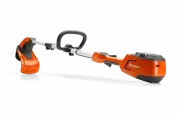 Husqvarna 115iL
User Manual
Husqvarna 115iL
User Manual
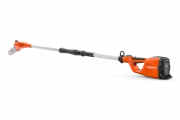 Husqvarna 115iPT4
User Manual
Husqvarna 115iPT4
User Manual
 Husqvarna 120
User Manual
Husqvarna 120
User Manual
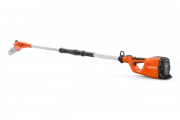 Husqvarna 120iTK4-P
User Manual
Husqvarna 120iTK4-P
User Manual
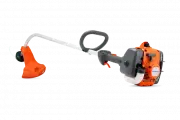
 Husqvarna 120 Mark II
User Manual
Husqvarna 120 Mark II
User Manual
 Husqvarna 122C
User Manual
Husqvarna 122C
User Manual
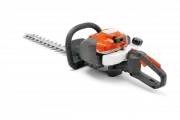 Husqvarna 122HD45
User Manual
Husqvarna 122HD45
User Manual
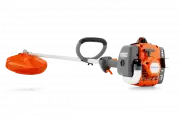 Husqvarna 122L
Quick Guide
Husqvarna 122L
Quick Guide
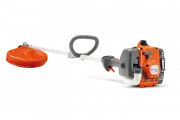 Husqvarna 122LK
User Manual
Husqvarna 122LK
User Manual
 Husqvarna 122LKE
Quick Guide
Husqvarna 122LKE
Quick Guide
 Husqvarna 122LKH
Quick Guide
Husqvarna 122LKH
Quick Guide
 Husqvarna 122LKP
Quick Guide
Husqvarna 122LKP
Quick Guide
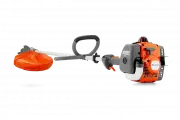 Husqvarna 122RJ
Quick Guide
Husqvarna 122RJ
Quick Guide
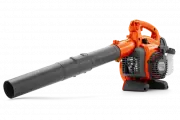 Husqvarna 125B
User Manual
Husqvarna 125B
User Manual