Page 2 - Contents
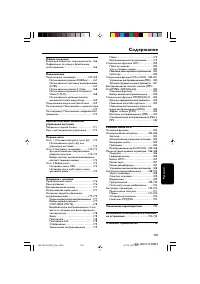
3 English EN 7 Additional information 17 Update software 17 CareSpecifications 18 8 Troubleshooting 18 9 Glossary 19 Contents 1 Important 4 Safety and impor tant notice 4 Trademark notice 4 2 Your product 5 Feature highlights 5 Product over view 5 3 Connect 7 Connect video cables 8 Connect audio cabl...
Page 3 - Copyright notice; Trademark notice; Important; Safety and important notice; About Progressive Scan
4 Cor rec t disposal of your old produc t helps to prevent potential negative consequences for the environment and human health. Your produc t contains bat teries covered by the European Direc tive 20 06/66/EC , which cannot be disposed with nor mal household waste.Please infor m your self about the...
Page 4 - Remote control; Your; Feature highlights; Region codes; Product overview; Main unit
5 Remote control a Tur n on this produc t or switch to • standby mode. b Switch to the USB mode. • c DISC MENU Access or exit the disc menu. • Switch to the disc mode. • For VCD and SVCD, tur n on or of f PBC • (playback control). d Navigate the menus • Search fast-for ward ( • ) or fast-back ward (...
Page 5 - Connect; Connect video cables
6 3 Connect Make the following connections to use this product. Basic connections: Video • Audio • Optional connections: Route audio to other devices: • Digital amplifier/receiver • Analog stereo system • USB flash drive • Note Refer to the t ype plate at the back or bot tom of the • produc t for iden...
Page 6 - Connect audio cables; Route audio to other devices; Connect to digital amplifier/receiver; Connect analogue stereo system
7 Connect audio cables Connec t the audio from this produc t to the T V to allow sound output through the T V. 1 Connec t the supplied AV cables to: the • AV OUT jack (3. 5mm) on this produc t.the audio input jack s on the T V. • Route audio to other devices Route the audio from this product to othe...
Page 7 - started; Prepare the remote control; Find the correct viewing channel; Connect USB flash drive; Connect power
8 4 Get started Prepare the remote control 1 Open the bat ter y compar tment. 2 Inser t 2 A A A bat teries with cor rec t polarity (+/-) as indicated. 3 Close the bat ter y compar tment. Caution Remove bat ter ies if they are exhaus ted or if the remote • control is not to be used for a long time.Do...
Page 8 - Play a disc; Play video; Turn on progressive scan
9 5 Play Play a disc Caution Do not place any objec ts other than discs into the disc • compar tment .Do not touch the disc optical lens inside the disc • compar tment . 1 Press PUSH TO OPEN to open the disc compar tment. 2 Load a disc with its label facing up. 3 Close the disc compar tment and star...
Page 9 - Access VCD menu
10 2 Press the Numeric buttons to selec t a play option, then press OK to star t play. If PBC is tur ned of f, it skips the menu • display and star ts play from the fir st tr ack . Preview disc contents1 During play, press INFO . The disc status menu is displayed. » 2 Selec t [Preview] , then press ....
Page 10 - Play photo; Play photo as slideshow; Play DivX® video; Play music
11 Button Action REPEAT Selec t or tur n of f repeat mode.Repeat options may var y from disc type. Play MP3/WMA music MP3/ WMA is a type of highly compressed audio file (files with .mp3, .wma ex tensions). 1 Inser t a disc or USB that contains the MP3/WMA music. For USB , press • . A contents menu is ...
Page 11 - Play from USB flash drive; Adjust; General setup; Play musical slideshow
12 Play from USB flash drive This product plays/views MP3, WMA, DivX or JPEG files that are stored on a USB flash drive. 1 Connec t a USB flash drive to the jack on this produc t. 2 Press the but ton. A contents menu is displayed. » 3 If play does not star t automatically, selec t a file to play. For mor...
Page 12 - Audio setup
13 [Analogue Output] Selec t an analogue set ting based on the audio device that is connec ted through the analogue audio jack .• [Stereo] - For stereo output. • [LT/RT] - For sur round sound output through two speaker s. [Digital Audio] Selec t a digital set ting based on the digital amplifier/recei...
Page 13 - Preferences; Video setup
14 • [4:3 Pan Scan] - For 4:3 screen T V: full-height display with the trimmed sides. • [4:3 Letter Box] - For 4:3 screen T V: wide- screen display with black bar s on the top and bot tom of the screen. • [16:9] - For wide-screen T V: display r atio 16:9. [Progressive] If a progressive scan T V is c...
Page 15 - Additional; Update software
16 Care Caution Never use solvents such as benzene, thinner, cleaner s • available commercially, or anti-s tatic spr ays intended for discs. Clean discs Wipe the disc with a micro fibre cleaning cloth from the centre to the edge in a str aight line movement. Specifications Note Specification and design...
Page 16 - Troubleshooting
17 8 Troubleshooting Warning Risk of elec tr ic shock . Never remove the casing of the • produc t . To keep the warranty valid, never tr y to repair the product yourself. If you have problems using this product, check the following points before you request ser vice. If you still have a problem, reg...
Page 17 - Play; Glossary
18 the DivX VOD sec tion in your device setup menu. Go to vod.div x.com with this code to complete the registr ation process and lear n more about DivX video. J JPEG A ver y common digital still pic ture for mat. A still-pic ture data compression system proposed by the Joint Photogr aphic Exper t Gr...
Page 18 - Language Code
19 Abkhazian 6566 Afar 6565 Afrikaans 6570 Amharic 6577 Arabic 6582 Armenian 7289 Assamese 6583 Avestan 6569 Aymara 6589 Azerhaijani 6590 Bahasa Melayu 7783 Bashkir 6665 Belarusian 6669 Bengali 6678 Bihari 6672 Bislama 6673 Bokmål, Norwegian 7866 Bosanski 6683 Brezhoneg 6682 Bulgarian 6671 Burmese 7...