Page 2 - Canada; that may cause undesired operation.
Canada English: This digital apparatus does not exceed the Class B limits for radio noise emissions from digital appar atus as set out in the Radio Interference Regulations of the Canadian Depar tment of Communications.This Class B digital apparatus complies with Canadian ICES-003. Français: Cet app...
Page 3 - Contents
Contents 1 Important 6 Impor tant Safety Instructions 6 Hearing safety 8 Notice 9 2 Your portable DVD player 12 Introduction 12What’s in the box 12 Over view of the main unit 13 Over view of the remote control 15 3 Get started 17 Preparation (for in-car use) 17 Charge the batter y 19 Install remote ...
Page 4 - *Product Safety Notification
4 EN Register online at www.philips.com/welcome today to get the very most from your purchase. *Product Safety Notification *Additional Benefits By registering your product, you'll receive notification - directly from the manufacturer. Registering your product guarantees that you'll receive all of the...
Page 6 - Important; Important Safety Instructions
6 1 Important Important Safety Instructions a Read these instructions. b Keep these instructions. c Heed all warnings. d Follow all instructions. e Do not use this apparatus near water. f Clean only with dry cloth. g Do not block any ventilation openings. Install in accordance with the manufacturer’...
Page 7 - Remove bat teries when the unit is not used for a long time.
7 m Unplug this apparatus during lightning storms or when unused for long periods of time. n Refer all servicing to qualified service personnel. Servicing is required when the apparatus has been damaged in any way, such as power-supply cord or plug is damaged, liquid has been spilled or objects have ...
Page 8 - Warning; Hearing safety; Listen at a moderate volume.
8 Warning Never remove the casing of this appar atus. • Never lubr icate any par t of this appar atus. • Never place this appar atus on other elec tr ical equipment . • Keep this appar atus away from direc t sunlight , naked flames or heat . • Never look into the laser beam inside this appar atus. • ...
Page 9 - Notice; These
9 You should use caution or tempor arily discontinue use in potentially • ha zardous situations. Do not use headphones while oper ating a motorized vehicle, cycling, skateboarding, etc.; it may create a tr af fic ha zard and is illegal in many areas. Notice Any changes or modifications made to this de...
Page 10 - Disposal of your old product and batteries; for additional infor mation on a
10 Disposal of your old product and batteries Your produc t is designed and manufac tured with high quality materials and components, which can be recycled and reused.Never dispose of your produc t with other household waste. Please infor m your self about the local r ules on the separ ate collec ti...
Page 11 - This apparatus includes this label:
11 The making of unauthorized copies of copy-protec ted material, including computer progr ams, files, broadcasts and sound recordings, may be an infringement of copyrights and constitute a criminal of fence. This equipment should not be used for such pur poses. Recording and playback of material mig...
Page 12 - Your portable DVD player; Introduction
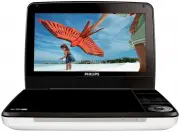
12 2 Your portable DVD player Congratulations on your purchase, and welcome to Philips! To fully benefit from the suppor t that Philips offers, register your product at www.philips.com/welcome. Introduction Your por table DVD player plays digital video discs that conform to the universal DVD Video st...
Page 13 - Overview of the main unit; Accesses options relating to the cur rent ac tivity or selec tion.
13 Overview of the main unit a Display panel b OPTIONS Accesses options relating to the cur rent ac tivity or selec tion. • c SOURCE Switches between DVD and USB . • d SUBTITLE Selec ts DVD subtitle language. • e SETUP Accesses or exits the setup menu. • f DC IN Power supply socket. • g AV OUT Audio...
Page 15 - Overview of the remote control
15 Overview of the remote control a SOURCE Switches between DVD and USB . • b DISPL AY Displays play infor mation. • c Adjusts brightness of the screen backlight. • i j k l m e f h a b c d g SOURCE MENU SETUP ZOOM SUB English EN
Page 17 - started; Caution
17 3 Get started Caution Use the controls only as s tated in this user manual. • Always follow the ins tr uc tions in this chapter in sequence. • If you contact Philips, you will be asked for the model and serial number of your player. The model number and serial number are on the bottom of your pla...
Page 18 - Screw tight the br acket onto the DVD player.
18 a Position the bracket on the bars of the headrest . b Fasten the screw to fix the bracket firmly on the bars. 2 Fix the DVD mount br acket to the por table DVD player. Note There are three holes on the br acket . Use any one as you like. • 3 Aim the screw of the br acket to the screw nut on the ba...
Page 19 - Charge the battery
19 a Release the node. b Adjust the viewing angle as desired. c Fasten the node. 6 Press the release but ton to release the DVD player from headrest. Charge the battery Caution Risk of produc t damage. Ensure that the power supply voltage cor responds to the • voltage pr inted on the bot tom of the ...
Page 21 - Install remote control battery; Connect additional equipment
21 Install remote control battery Caution Risk of explosion! Keep bat ter ies away from heat , sunshine or fire. Never discard • bat ter ies in fire.Danger of explosion if bat ter y is incor rec tly replaced. Replace only with the same or • equivalent t ype.Bat ter ies contain chemical subs tances, th...
Page 22 - Use your player; Turn on; Slide the
22 You can connect the player to a TV or an amplifier to enjoy DVDs. Match the color of the AV cables (the AV cable connected to TV is not supplied) with the jacks: the yellow cable is for the yellow video jack • the red/white cable is for the red/white audio jack s. • 4 Use your player Turn on Slide...
Page 24 - Play options; OPTIONS; Adjust brightness of screen backlight; Note
24 2 Press SOURCE to switch to USB mode. 3 Selec t a file, then press . Play star ts. » 4 To stop play, press . Play options 1 During play, press OPTIONS to selec t some play options. 2 Follow the on-screen instr uc tions. Adjust brightness of screen backlight Note You can adjus ts br ightness of the...
Page 25 - SETUP
25 5 Adjust settings To maximize your play experience, use SETUP to fine tune your settings. 1 Press SETUP . The setup menu is displayed. » 2 Press to selec t an option and press to confir m. [-- General Setup Page --] [OSD Language] Selec t on-screen display language. [Screen Saver] Ac tivate/deac ti...
Page 27 - Troubleshooting
27 7 Troubleshooting Warning Risk of elec tr ic shock . Never remove the casing of the player. • To keep the warranty valid, never tr y to repair the system yourself. If you encounter problems when using the player, check the following points before requesting ser vice. If the problem remains unsolv...
Page 29 - Philips Consumer Lifestyle
© 2011 Koninklijke Philips Electronics N.V. All rights reserved. PD9030_37_UM_V1.0 Philips Consumer Lifestyle A division of Philips Electronics North America Corporation P.O. Box 10313 Stamford, CT 06904 Phone: 1-888-PHILIPS (744-5477) Meet Philips at the Internet http://www.philips.com/welcome