Philips PD9030 - User Manual
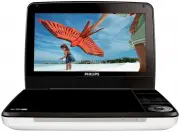
Philips PD9030 Player – User Manual, read for free online in PDF format. We hope this helps you resolve any issues you may have. If you have further questions, please contact us through the contact form.


Table of Contents:
- Page 3 – Contents
- Page 5 – Important; Important Safety Instructions
- Page 7 – Hearing safety
- Page 8 – Notice; Recycling
- Page 11 – Your portable DVD player; Introduction
- Page 13 – Overview of the main unit
- Page 14 – OK
- Page 17 – Get started
- Page 19 – Charge the battery
- Page 21 – Install remote control battery
- Page 22 – Connect additional equipment
- Page 23 – Use your player; Turn on; Select OSD language
- Page 24 – Play from USB
- Page 25 – Adjust brightness of screen backlight
- Page 26 – Adjust settings
- Page 27 – Product information
- Page 28 – 0 Troubleshooting
PD9030
Register your product and get support at
www.philips.com/welcome
User manual
Register your product and get support at
PD9030_79_UM_V1.0.indb 1
2012/3/2 10:27:06
"Loading the manual" means you need to wait until the file loads and becomes available for online reading. Some manuals are very large, and the time they take to appear depends on your internet speed.
Was this manual helpful?
About this manual
- Brand
- Philips
- Model
- PD9030
- Document type
- User Manual
- Category
- Player
- Language(s)
- English
- Pages
- 32
- File size
- 1.4 MB
- Format
Other Manuals for Philips PD9030
Summary
3 EN Contents 1 Important 5 Impor tant Safety Instructions 5 Hearing safety 7 Notice 8 2 Your portable DVD player 11 Introduction 11 3 What's in the box 12 4 Overview of the main unit 13 5 Overview of the remote control 15 6 Get started 17 Preparation (for in-car use) 17 Charge the batter y 19 Insta...
5 EN 1 Important Important Safety Instructions a Read these instructions. b Keep these instructions. c Heed all warnings. d Follow all instructions. e Do not use this apparatus near water. f Clean only with dry cloth. g Do not block any ventilation openings. Install in accordance with the manufactur...
7 EN Hearing safety Listen at a moderate volume. • Using headphones at a high volume can impair your hearing. This product can produce sounds in decibel ranges that may cause hearing loss for a normal person, even for exposure less than a minute. The higher decibel ranges are offered for those that ...
Ask a question
Related manuals
More Philips Players models




Other Philips appliances
 Philips 1 Manual
 Philips 2 Manual
 Philips 2 Series Manual
 Philips 2.44E+03 Manual
 Philips 3 Manual
- Philips 4 Manual
 Philips 4CM6088 Manual
 Philips 5.1 Manual
- Philips 6 Manual
 Philips 7FF1CWO Manual
- Philips 7FF1M4 Manual
 Philips 8P6054C Manual
 Philips 9P5031C1, 9P5531C1, 9P6031C1, 9P5034C1, 9P5534C1, 9P6034C1 Manual
 Philips 10 Manual