Page 2 - Contents; page
English EN 3 Cont e n ts Contents 1 Important 4 Safety and impor tant notice 4 Trademark Notice 5 2 Your DVD player 6 Features highlight 6 Product over view 7 3 Connect 9 Connect video cables 9 Connect audio cables 10 Route audio to other devices 11 Connect USB device 12 Connect to power outlet 12 4...
Page 3 - connection to the ‘standard de; Recycle notice; Important; Safety and important notice; Warning; About Progressive Scan; nition television sets are fully compatible
4 EN connection to the ‘standard de fi nition’ output. If there are questions regarding our TV set compatibility with this model 525p and 625p DVD player, please contact our customer service center. Recycle notice Your product is designed and manufactured with highly quality material and components,...
Page 4 - Copyright notice; Trademark Notice; DivX, DivX Ultra Certi
English EN 5 Impo rt an t Copyright notice This product incorporates copyright protection technology that is protected by method claims of certain U.S. patents and other intellectual property rights owned by Macrovision Corporation and other rights owners. Use of this copyright protection technology...
Page 5 - Features highlight; Note; fl; Region codes; ALL; Russia
6 EN 2 Your DVD player Congratulations on your purchase, and welcome to Philips! To fully bene fi t from the support that Philips offers, register your product at www.philips.com/welcome. This DVD player offers higher picture quality video play for an amazing viewing experience. Features highlight V...
Page 6 - Product overview; Main unit; Disc compartment; Remote control; DISC MENU
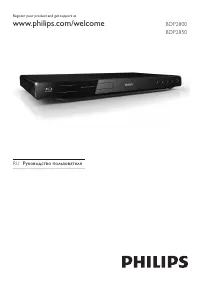
English EN 7 Y o u r D V D p laye r Product overview Main unit a 2 (Standby-on) Turn on the DVD player or switch to • standby mode. b Disc compartment c Z (Open/Close) Open or close the disc compartment. • d Display panel e u (Play/Pause) Start, pause or resume disc play. • f x (Stop) Stop disc play...
Page 7 - v V b B
8 EN d v V b B (Navigation buttons) Navigate through the menus. • Search fast-forward ( • B ) or fast- backward ( b ). Press repeatedly to change the search speed.Search slow-forward ( • v ) or slow- backward ( V ). Press repeatedly to change the search speed. e BACK Return to the previous display m...
Page 8 - Connect; Optional connections:; Connect video cables; Option 1: Connect to HDMI socket; HDMI OUT
English EN 9 Conne c t 3 Connect Make the following basic connections to use the DVD player. Basic connections: Video cables • Audio cables • Optional connections: Audio to other devices: • Multi channel receiver • Digital ampli fi er/receiver • Analogue stereo system • Note Refer to the type plate ...
Page 9 - Y Pb Pr; Tip; TV OUT; Tip; Connect audio cables; Connect the audio cables (supplied) to the
10 EN Option 2: Connect to component video sockets Pb COMPONENT VIDEO IN Y Pr Pb COMPONENT VIDEO OUT Y Pr 1 Connect the component video cables (not supplied) to the Y Pb Pr sockets on this DVD player and the component video input sockets on the TV. If a progressive scan TV is used, you • may turn on...
Page 10 - Route audio to other devices; Connect to multi channel receiver; Connect to analogue stereo system; AUDIO OUT
English EN 11 Conne c t Route audio to other devices Route the sound from this DVD player to other devices to enhance audio play. Connect to multi channel receiver FRONT R REAR R SUBWOOFER FRONT L REAR L CENTER FRONT R REAR R SUBWOOFER FRONT L REAR L CENTER MULTI CHANNEL AUDIO IN 1 Connect the audio...
Page 11 - Connect USB device; Connect the USB; Connect to power outlet; The DVD player is ready to be set up
12 EN Connect USB device 1 Connect the USB fl ash drive to the (USB) socket on this DVD player. Note This DVD player can only play/view MP3, WMA , • DivX , JPEG or WMV fi les that are stored on such devices.Press • to access the content and play the fi les. Connect to power outlet Warning Risk of pr...
Page 12 - Get started; Prepare the remote control; Close the battery compartment.; Caution; Navigate through the menu; Button; b B; Con
English EN 13 Get st ar ted 4 Get started Prepare the remote control 1 Push to open the battery compartment cover. 2 Insert two R03 or AAA batteries type with correct polarity ( + / - ) as indicated. 3 Close the battery compartment. Caution Remove batteries if they are exhausted or if the • remote c...
Page 13 - Select menu display language; SETUP; vV
14 EN Find the correct viewing channel 1 Press 2 to turn on the DVD player. 2 Turn on the TV and switch to the correct video-in channel. You may go to the lowest channel on • the TV, then press the Channel Down button on the TV remote control until you see the Video In channel.You may press • ° butt...
Page 14 - Turn on Progressive Scan; OK
English EN 15 Get st ar ted Turn on Progressive Scan Connect a progressive scan TV with component video sockets (see chapter ‘Connect video cables - Option 2: Connect to component video sockets’ for details). 1 Turn on the TV to the correct viewing channel for this DVD player. 2 Press SETUP . 3 Pres...
Page 15 - Use Philips EasyLink; You can now enjoy the following Philips
16 EN Use Philips EasyLink The DVD player supports Philips EasyLink, which uses the HDMI CEC (Consumer Electronics Control) protocol. EasyLink-compliant devices that are connected through HDMI connectors can be controlled by a single remote control. Philips does not guarantee 100% interoperability w...
Page 16 - Play from disc; Play a disc
English EN 17 Pla y 5 Play Play from disc Note DVDs and DVD players are designed with regional • restrictions. Ensure that the DVD video you play is for the same region zone as the player (indicated on its back).This DVD player can suppor t play of the following • fi le formats: MP3/ WMA /JPEG/DivX ...
Page 17 - Play video; Control a title; Use the remote control to control the title.; Change video play; SUBTITLE; navigation buttons; INFO
18 EN Play video Note For video disc, play always resumes from the point • where it was last stopped. To star t play from the beginning, press í while the message is displayed. Control a title 1 Play a title. 2 Use the remote control to control the title. Button Action u Start, pause or resume disc ...
Page 18 - Access DVD menu; Preview disc contents
English EN 19 Pla y Access DVD menu 1 Press DISC MENU to access disc main menu. 2 Select a play option, then press OK . In some menus, press the • numeric buttons to input your selection. To return to the title menu during play, • press BACK . Access VCD menu The PBC (Playback Control) for VCD/SVCD ...
Page 19 - Option; View DVD play from different angles
20 EN Quick skip play to a speci fi c time 1 During play, press INFO . The disc status menu is displayed. 2 Select the current elapsed playing time, then press B . [ TT Time ] • (title time) [ CH Time ] • (chapter time) [ Disc Time ] • (disc time) [ Track Time ] • (track time) 3 Press the numeric bu...
Page 20 - Set repeat play for a speci; Play DivX® video
English EN 21 Pla y Set repeat play for a speci fi c section 1 During play, press INFO . The disc status menu is displayed. 2 Select [ Repeat AB ] in the menu, then press OK at the start point. 3 Press OK again to set the end point. Repeat play starts. 4 To cancel repeat play, press OK again. Note T...
Page 21 - Play music; Control a track; Quick skip play; Display
22 EN Play music Note For some commercial audio disc, play may resume • from the point where it was last stopped. To star t play from fi rst track, press í . Control a track 1 Play a track. 2 Use the remote control to control the track. Button Action u Start, pause or resume disc play. x Stop disc p...
Page 22 - Play photo; Play photos as slideshow
English EN 23 Pla y Play MP3/WMA music MP3/WMA is a type of highly compressed audio fi le ( fi les with .mp3, .wma extensions). 1 Insert a disc or USB that contains the MP3/WMA music. For USB, press • . A contents menu is displayed. Play starts. 2 Select a track to play if play does not start automa...
Page 23 - Control photo play; ZOOM; Play pause in zoom mode.; Play musical slideshow
24 EN Note You may require longer time to display the disc • content on the T V due to the large number of songs/photos compiled onto one disc.If the JPEG photo is not recorded with an ‘exif ’ type • fi le, the actual thumbnail picture is not be shown on the display. It is replaced by a ‘blue mounta...
Page 24 - Play from USB device
English EN 25 Pla y Play from USB device This DVD player plays/views MP3, WMA, DivX , JPEG or WMV fi les that are stored on USB device. 1 Connect a USB fl ash drive to the (USB) socket on this DVD player. 2 Press . A contents menu is displayed. Play starts. 3 Select a fi le to play if play does not ...
Page 25 - Media copy; Create MP3
26 EN 6 Advanced features Media copy You can transfer data fi les such as MP3, WMA or JPEG from disc to the USB device. 1 Insert a disc contains the MP3/WMA/JPEG fi les. 2 Press x to stop disc play. 3 Connect the USB fl ash drive to the (USB) socket on this DVD player. 4 Select the fi le to copy, th...
Page 27 - Adjust sound; Karaoke settings; MIC; VOCAL
28 EN 7 Adjust sound Karaoke settings 1 Turn on the TV to the correct viewing channel for this DVD player. 2 Connect a microphone (not supplied) to MIC socket on this DVD player. 3 Press KARAOKE repeatedly to access various setting options. [ MIC ] : Press b B to turn on or off microphone output. [ ...
Page 28 - Adjust settings; General setup; Sleep; Press
English EN 29 Ad ju st se tt in gs 8 Adjust settings This section describes the various setting options of this DVD player. Note If the setup option is greyed out, it means the setting • cannot be changed at the current state. General setup 1 Press SETUP . [ General Setup Page ] menu is displayed. 2...
Page 29 - Audio setup
30 EN [ Volume ] Set the default volume level when you play a disc. Press 1. OK . Press 2. b B to set the volume. Press 3. OK to con fi rm and exit. [ Auto Standby ] Turn off or on automatic standby switching mode. It is an energy saving feature. [ On ] • – switch to standby after 15 minutes of inac...
Page 30 - Setup; Disable digital output.
English EN 31 Ad ju st se tt in gs [ Analog Output ] Select the analogue audio setting based on the audio device that is connected through the analogue audio socket. [ Stereo ] • – for stereo output. [ LT/RT ] • – for surround sound output through two speakers. [ Multi Channel ] • – for multi channe...
Page 31 - Speakers
32 EN [ Center Speaker ] / [ Rear Speaker ] • Option Description [ Large ] Produce low frequency signal below 120 Hz. [ Small ] Cannot produce low frequency signal below 120 Hz. [ Off ] No speaker is connected. [ Subwoofer ] • Option Description [ On ] A subwoofer is connected. [ Off ] No subwoofer ...
Page 32 - Video setup; Type
English EN 33 Ad ju st se tt in gs Video setup 1 Press SETUP . [ General Setup Page ] menu is displayed. 2 Press B repeatedly to select [ Video Setup Page ] . 3 Select an option, then press OK . Video Setup Page Picture Setting TV Display TV Type Progressive HD JPEG HDMI Setup 4 Select a setting, th...
Page 34 - EasyLink; Preference; Preference Page
English EN 35 Ad ju st se tt in gs [ • EasyLink ] – if this DVD player is connected to HDMI CEC compliant TV/devices, all connected devices can respond to the following commands simultaneously: Option Description [ Auto Wake Up TV ] When you press the STANDBY button, it turns on the TV and this DVD ...
Page 35 - Parental; Without Menu; buttons
36 EN [ Audio ] Select the default audio language for DVDs. [ Subtitle ] Select the default subtitle language for DVDs. [ Disc Menu ] Select the menu language for DVDs. Note If the language you have set is not available on the • disc, the disc uses its own default language.For some DVDs, the subtitl...
Page 37 - Update software; numeric button ‘55’; Care; Clean discs
38 EN 9 Additional information Update software To check for updates, compare the current software version of this DVD player with the latest software version (if available) at the Philips website. Caution Power supply must not be interrupted during • sof tware upgrade. 1 Press Z to open the disc com...
Page 38 - cation
English EN 39 Sp e c ifi ca ti o n 10 Speci fi cation Note Speci fi cation and design are subject to change • without notice. Accessories supplied Quick Start Guide • Remote control and batteries • Audio/video cables • Playback media DVD-Video, Video CD/SVCD, Audio CD, CD-R/ • CD-RW, DVD+R/+RW, DVD-...
Page 40 - 1 Troubleshooting
English EN 41 Tr o u b le sh o o ti n g 11 Troubleshooting Warning Risk of electric shock. Never remove the casing of • this unit. To keep the warranty valid, never try to repair the system yourself. If you encounter problems when using this DVD player, check the following points before requesting s...
Page 41 - Play
42 EN Play DivX video fi les cannot be played. Ensure that the DivX video fi le is complete. • Ensure that the fi le name extension is • correct. The aspect ratio of the screen is not aligned with the TV display setting. The aspect ratio is fi xed on the DVD. • DivX subtitle are not displayed correc...
Page 42 - Aspect ratio; on the DVD remote control, the TV
English EN 43 Gl o ssa ry 12 Glossary A Aspect ratio Aspect ratio refers to the length to height ratio of TV screens. The ratio of a standard TV is 4:3, while the ratio of a high-de fi nition or wide TV is 16:9. The letter box allows you to enjoy a picture with a wider perspective on a standard 4:3 ...
Page 44 - БЫТ
45 Г А Р А НТИЙНЫЙ Т А Л ОН М одель: (подпись покупателя) С ерийный но мер: Да та про дажи: ПРО Д АВЕЦ: Название ф ир м ы: Те ле ф он ф ир м ы : Адре с и E-mail: БЫТ О В А Я Э ЛЕК Т Р О НИКА ПЕЧАТЬ ФИРМЫ - ПРОДАВЦ А Из делие по лучил в исправно м сост оя нии. С у сло виями гарантии ознак омлен и сог...
Page 46 - Language Code
47 Abkhazian 6566 Afar 6565 Afrikaans 6570 Amharic 6577 Arabic 6582 Armenian 7289 Assamese 6583 Avestan 6569 Aymara 6589 Azerhaijani 6590 Bahasa Melayu 7783 Bashkir 6665 Belarusian 6669 Bengali 6678 Bihari 6672 Bislama 6673 Bokmål, Norwegian 7866 Bosanski 6683 Brezhoneg 6682 Bulgarian 6671 Burmese 7...