Page 3 - ČESKA REPUBLIKA; Technické údaje laseru:
ČESKA REPUBLIKA Výstraha! Tento přístroj pracuje s laserovým paprskem. Při nesprávné manipulaci s přístrojem (v rozporu s tímto návodem) můże dojít k nebezpečnému ozáření. Proto přístroj za chodu neotevírejte ani nesnímejte jeho kryty. Jakoukoli opravu vždy svěřte specializovanému servisu. Nebezpečí...
Page 4 - Trademark notice
4 Trademark notice ‘Blu-r ay Disc’ and ‘Blu-r ay Disc’ logo are tr ademar k s. HDMI, and HDMI logo and High-Definition Multimedia Inter face are tr ademar k s or registered tr ademar k s of HDMI licensing LLC in the United States and other countries. Manufac tured under license from Dolby Labor atori...
Page 5 - Contents
5 English EN Contents 1 Important 6 Safety and impor tant notice 6 2 Your Blu-ray disc player 7 Feature highlights 7 Playable media 7 Product over view 7 3 Connect 9 Connect video/audio cables 9 Route audio to other devices 10 Connect a USB device 10 Connect network 10 Connect power 11 4 Get started...
Page 6 - Copyright notice; Important; Safety and important notice
6 Please ac t according to your local r ules and do not dispose of your old produc ts with your nor mal household waste.Cor rec t disposal of your old produc t helps to prevent potential negative consequences for the environment and human health. Your produc t contains bat teries covered by the Euro...
Page 7 - Region codes; Product overview; Main unit; b c d e fg h; Your Blu-ray disc; Feature highlights
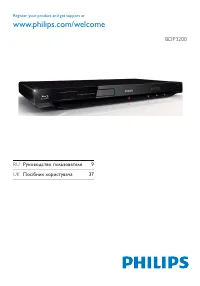
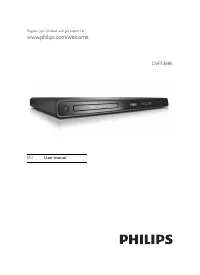
7 Region codes You can play discs with the following region codes. Region code Countries DVD Blu-r ay Europe, United Kingdom Product overview Main unit a Disc compar tment b IR sensor c Display panel d Open or close the disc compar tment. • e Star t or resume play. • f Pause play. • g Tur n on this ...
Page 8 - Remote control
8 g / Skip to the previous or nex t title, chapter, • or tr ack . h / Search back ward or for ward. • i SUBTITLE Selec t a subtitle language on a disc. • j AUDIO Selec t an audio language or channel on • a disc. k Alphanumeric buttons Selec t an item to play. • Enter values. • l / Stop play. • Press...
Page 9 - Connect; Connect video/audio cables; Option 1: Connect to the HDMI jack
9 Tip If the T V has a DVI connec tor only, connec t via an • HDMI/DVI adaptor. Connec t an audio cable for sound output .If there is a blank screen under HDMI connec tion, on the • remote control press and then press “731” (numer ic but tons) to recover pic ture display.If this player connec ts to ...
Page 10 - Connect an analogue stereo system; Connect a USB device; Connect network; Route audio to other devices; Connect to a digital AV amplifier/receiver
10 Connect an analogue stereo system 1 Connec t the audio cables to: the • AUDIO OUT on this player. the AUDIO input jack s on the device. • Connect a USB device A USB device provides an additional memor y to enjoy sof tware updates and BD -Live. 1 Connec t a USB device to the ( USB ) jack on the fr...
Page 11 - started; Prepare the remote control; Find the TV input; Use the Home menu; Connect power
11 4 Get started Caution Use of controls or adjus tments or per for mance of • procedures other than herein may result in ha zardous r adiation exposure or other unsafe oper ation. Always follow the instructions in this chapter in sequence. Prepare the remote control 1 Press and push the bat ter y c...
Page 12 - Set up a network; Navigate a menu
12 Set up a network To enjoy software updates of this player and BD-Live for cer tain Blu-ray discs, set up the network connection. Note Ensure that the net wor k cable is proper ly connec ted and • the router is switched on. 1 Connec t this player to the broadband modem or router. 2 Press to displa...
Page 13 - Play a disc; Play from a USB device
13 5 Play Play a disc Caution Do not place any objec ts other than discs into the disc • compar tment . 1 Press on the front panel to open the disc compar tment. You may also press and hold • / on the remote control to open/close the disc compar tment. 2 Inser t a disc with its label facing up. 3 Pr...
Page 14 - Display menu; Play video
14 Button Action AUDIO Direc tly selec t an audio language or channel on a disc. SUBTITLE Direc tly selec t a subtitle language on a disc. Access the above mentioned ac tions or more options (e.g. repeat or shuf fle play mode). Note Some oper ations may not wor k with some discs. See the • infor mati...
Page 15 - Manually shift subtitle display
15 View video play from different camera angles1 During play, press . The play options menu is displayed. » 2 Selec t [Angle List] in the menu, and press . 3 Selec t an angle option, and press OK . Play changes to the selected angle. » Note Applicable only to discs that contain multi-angle scenes. •...
Page 16 - Play photo; Play photo as slideshow; Play DivX
16 Play photo Play photo as slideshow You can play JPEG photos (files with .jpeg or .jpg ex tensions). 1 Inser t a disc or USB device that contains the JPEG photos. 2 Press , selec t [play Disc] or [browse USB] , and press OK . A contents menu is displayed. » 3 Selec t a photo folder, and press OK to...
Page 17 - Play a musical slideshow; Play music
17 Play MP3/WMA music MP3/ WMA is a type of compressed audio file (files with .mp3, .wma ex tensions). 1 Inser t a disc or USB device that contains the MP3/ WMA music. 2 Press , selec t [play Disc] or [browse USB] , and then press OK . A contents menu is displayed. » 3 Selec t a music folder, and pres...
Page 18 - Adjust; Video setup
18 • [21:9 Cinema] – For wide-screen T V of display r atio 21:9. Note If • [4:3 Panscan] you have selec ted is not suppor ted by the disc, the screen displays in the [4:3 Letterbox] for mat .Help tex t display is available in all modes, except • [21:9 Cinema] . For optimum viewing with Philips Cinem...
Page 19 - Network setup
19 • [PCM] - The audio device does not suppor t multi-channel for mat. Audio is downmixed to two-channel sound. • [Bitstream] - Selec t the original audio to experience Dolby or DTS audio (BD -video special sound ef fec t is disabled). Note Ensure that the audio for mat is suppor ted by the disc • a...
Page 20 - Preference setup; EasyLink setup
20 Preference setup 1 Press . 2 Selec t [Setup] , and press OK . 3 Selec t [Preference] , and press . Video Setup Advanced Setup Audio Setup Network Setup Preference Setup EasyLink Setup Menu Language Parental Control Disc Menu Audio Subtitle Screen Saver Change Password English English English Off ...
Page 21 - Advanced setup
21 Advanced setup 1 Press . 2 Selec t [Setup] , and press OK . 3 Selec t [Advanced] , and press . Video Setup Clear Memory Advanced Setup Audio Setup Network Setup Preference Setup EasyLink Setup Software Update 4 Selec t an option, and press OK . 5 Selec t a set ting, and press OK . To retur n to t...
Page 22 - Update software
22 7 Additional Information Update software For software updates to enchance performance, check the current software version of this player to compare with the latest software (if available) at the Philips website. 1 Press . 2 Selec t [Setup] , and press OK . 3 Selec t [Advanced] > [ Version Info...
Page 23 - Care; Specifications
23 Laser Specification Laser Type: • BD Laser Diode: SLD3134VL • DVD Laser Diode: SLN6167 XL • CD Laser Diode: SLN6167 XL _ • Wave leng th: • BD: 405nm( Typ.) • DVD: 658nm( Typ.) • CD: 790nm( Typ.) • Output power : • BD: Max. r atings: 20mW • DVD: Max. r atings: 7mW • CD: Max. r atings: 7mW • Care Ca...
Page 24 - Play; Troubleshooting
24 No audio output from the loudspeakers of the audio device (home theater /amplifier/receiver). Ensure that the audio cables are connec ted to • the audio input of the audio device. Tur n on the audio device to its cor rec t audio • input source. No sound on HDMI connection. You may not hear any sou...
Page 25 - Glossary
25 9 Glossary A Aspect ratio Aspec t r atio refer s to the width to height r atio of T V screens. The r atio of a standard T V is 4:3, while the r atio of a high-definition or wide T V is 16:9. The let ter box allows you to enjoy a pic ture with a wider per spec tive on a standard 4:3 screen. B Blu-r...
Page 27 - NOTICE; SOFTWARE END USER LICENSE AGREEMENT
English NOTICE SOFTWARE END USER LICENSE AGREEMENT THIS SOFTWARE END USER LICENSE AGREEMENT (“THIS AGREEMENT”) IS A LEGAL AND BINDING AGREEMENT BETWEEN YOU (EITHER AN INDIVIDUAL OR ENTITY) AND PHILIPS CONSUMER LIFESTYLE B.V. A DUTCH LIMITED LIABILITY COMPANY, WITH ITS PRINCIPAL OFFICE AT HIGH TECH C...
Page 30 - this Philips product
1 License Texts and Acknowledgements for any open source software used in this Philips product Instructions to obtain source code for this software can be found in the user manual, or in the supplied safety leaflet (if available). 1. U-boot # # (C) Copyright 2000 - 2008 # Wolfgang Denk, DENX Softwar...
Page 34 - Busybox, the Linux IR control package and SquashFS
5 If the program is interactive, make it output a shor t notice like this when it star ts in an interactive mode: Gnomovision version 69, Copyright (C) 19yy name of author Gnomovision comes with ABSOLUTELY NO WARR ANTY; for details type `show w’. This is free sof tware, and you are welcome to redist...
Page 40 - Unicode Bidirectional Algorithm
11 6. WPA Supplicant Copyright (c) 2003-2009, Jouni Malinen <[email protected]> and contributors All Rights Reser ved. Redistribution and use in source and binary forms, with or without modification, are permitted provided that the following conditions are met:1. Redistributions of source code...
Page 44 - Zlib general purpose compression library
15 * “This product includes cryptographic software written by * Eric Young ([email protected])” * The word ‘cryptographic’ can be left out if the rouines from the library * being used are not cryptographic related :-). * 4. If you include any Windows specific code (or a derivative thereof ) from * t...
Page 45 - International Components for Unicode
16 LIABILITY, WHETHER IN AN ACTION OF CONTR ACT, TORT OR OTHERWISE, ARISING FROM, OUT OF OR IN CONNECTION WITH THE SOFTWARE OR THE USE OR OTHER DEALINGS IN THE SOFTWARE.Except as contained in this notice, the name of a copyright holder shall not be used in adver tising or other wise to promote the s...