Page 3 - Table of Contents; Table of Contents · · · · · · · · · 1
1 Table of Contents Table of Contents · · · · · · · · · 1 Phone Overview · · · · · · · · · · · 6 Rear view · · · · · · · · · · · · · · · · · · · · · · · · · 7 Menus Overview · · · · · · · · · · 8 Getting Started with Your Phone · · · · · · · · · · · · · · · · · · 11 Step 1. Remove the Back Cover · ·...
Page 4 - Contacts · · · · · · · · · · · · · · · · 23; Recent Calls · · · · · · · · · · · · ·39
Table of Contents 2 Deleting a Contact Entry · · · · · · · · · ·22 Removing a Speed Dial · · · · · · · · · · · ·22 Speed Dialing · · · · · · · · · · · · · · · · · · · · 22 Single Digit Speed Dials · · · · · · · · · · ·22 Multiple Digit Speed Dials · · · · · · · · ·22 Speed Dials 95, 96, 97, 98, and ...
Page 5 - Settings & Tools · · · · · · · · ·52
3 2.1 Get New Ringtones · · · · · · · · · · · · 44 2.2 Get Ringback Tones · · · · · · · · · · · 45 2.3 My Ringtones · · · · · · · · · · · · · · · · 45 2.4 My Sounds · · · · · · · · · · · · · · · · · · · 46 3. Pictures · · · · · · · · · · · · · · · · · · · 46 3.1 Get New Pictures · · · · · · · · · · ...
Page 7 - Glossary · · · · · · · · · · · · · · · 122
5 Important Safety Precautions · · · · · · · · · · · · · · · · · · · · · · · 81 Safety · · · · · · · · · · · · · · · · · ·84 Consumer Information About Radio Frequency Emissions · · · · · · · · · · · 86 Consumer Information on SAR · ·90 FCC Hearing-Aid Compatibility (HAC) Regulations for Wireless De...
Page 8 - Phone Overview
6 Phone Overview Camera Lens Use to take photos. Keep it clean for optimal photo quality. Front LCD Screen Displays the digital clock and phone status. Earpiece Lets you hear the caller and automated prompts. Flip Use to make or answer calls. Flip open to reveal the keypad to dial a number or answer...
Page 9 - Rear view
7 International Call Prefix Key To make an international call, press and hold for 3 seconds. + is the international calling code. Right Soft Key Performs functions identified on the bottom-right corner of the screen. Clear/ Voice Commands Key Deletes single spaces or characters with a quick press, or ...
Page 10 - Menus Overview; Contacts; In Case of Emergency; Messaging; Settings; Recent Calls
8 Menus Overview Contacts 1. New Contact 2. Contact List 3. Backup Assistant 4. Favorites 1. ADD 1. Contacts 2. Group 5. Groups 6. Speed Dials 7. In Case of Emergency 8. My Name Card Messaging 1.New Message 1. TXT Message 2. Picture Message 3. Voice Message 2. Inbox 3. Sent 4. Drafts 5. Voicemail 6....
Page 13 - Getting Started with Your Phone; Step 1. Remove the Back Cover; Hold the phone securely with; Step 2. Insert the Battery
11 Getting Started with Your Phone Step 1. Remove the Back Cover 1. Hold the phone securely with both hands. 2. Use your thumb to press down on the indentation near the bottom of the back cover and slide the cover upwards to remove it. Step 2. Insert the Battery Align the battery contacts with the t...
Page 14 - Installing the Battery
Getting Started with Your Phone 12 Installing the Battery 2. Use your thumb to press down on the indentation near the bottom of the back cover and slide the cover upwards to remove it. 3. Align the battery contacts with the terminals near the top of the battery compartment and press down until the b...
Page 15 - Charging with USB; Battery Temperature Protection; at the top right corner of; Signal Strength; Turning the Phone On; Insert the battery and connect
13 NOTE Please make sure that the 'B' side faces up before inserting a charger or USB cable into the Accessory/Charger Port of your phone. The charge time varies depending upon the battery level. Charging with USB You can use your computer to charge your phone. To be able to charge with the USB cabl...
Page 16 - Turning the Phone Off; Making Calls; Clear/Voice Commands; Redialing Calls; Send; Receiving Calls; Screen Icons
Getting Started with Your Phone 14 Turning the Phone Off With the flip open, press and hold the Power/End Key until the LCD screen turns off. Making Calls 1. Open the flip and enter the phone number. 2. Press the Send Key to dial the call. 3. Press the Power/End Key to end the call. NOTE Your phone ha...
Page 17 - Quick Access to Convenient Features
15 Quick Access to Convenient Features Vibrate Mode Sets the phone to vibrate instead of ringing ( is displayed). To set Vibrate Mode, with the flip open, press and hold . To return to Normal Mode, press and hold again. Sounds Off Quickly deactivate your phone's sounds when you're in a place where ph...
Page 18 - Caller ID
Quick Access to Convenient Features 16 10-digit number of the second person. 2. Press the Send Key . The first person is automatically put on hold while the call is made. 3. When the second person answers, press [MERGE] to create a conference call. 4. If the second person does not answer, press the S...
Page 19 - Dial Search; Set the Dial Search setting to
17 Dial Search Set the Dial Search setting to On (see page 77) to easily find entries in your Contacts. From standby mode with the flip open, press the keypad key(s) with the first letter(s) of the Contact name you are trying to find. A list of matching names will be displayed for you to select to call,...
Page 20 - Entering and Editing Information; Text Input; Text Input Modes
18 Entering and Editing Information Text Input The following key functions are available to help with text entry: Left Soft Key : Press to change the text input mode. Shift: Press to change capitalization (initial cap, caps lock, lowercase). Next : Press to display other matching words in the databa...
Page 21 - Contacts in Your Phone’s Memory; Storing Basics; Customizing Individual Entries
19 Contacts in Your Phone’s Memory Storing Basics 1. With the flip open, enter a number (max. 48 digits), then press the Left Soft Key [Save] . 2. Use the Directional Key to highlight Add New Contact / Update Existing , then press . 3. Use the Directional Key to highlight Mobile 1 / Home / Business /...
Page 22 - Storing a Number with Pauses; Wait; Adding Another Phone Number; From standby mode; Update Existing
Contacts in Your Phone’s Memory 20 Storing a Number with Pauses Pauses allow you to enter additional series of numbers to access automated systems such as Voicemail or credit billing numbers. Pause types are: Wait (W) The phone stops dialing until you press the Left Soft Key [Release] to advance to ...
Page 23 - From the Contact List Screen; Changing Saved Information; Set As Default
21 3. Use the Directional Key to highlight an existing entry then press [SAVE] to update your contact entry. 4. Use the Directional Key to highlight Mobile 1/ Home/ Business/ Mobile 2/ Fax , then press [SAVE] to update your contact entry. From the Contact List Screen 1. With the flip open, press the ...
Page 24 - Deleting; Deleting a Contact Entry; Erase; Removing a Speed Dial; Remove Speed Dial; Speed Dialing; Single Digit Speed Dials
Contacts in Your Phone’s Memory 22 Deleting Deleting a Contact Entry 1. With the flip open, press the Right Soft Key [Contacts] . 2. Use the Directional Key to highlight an entry. 3. Press the Right Soft Key [Options] . 4. Press Erase . 5. Press [Yes] to confirm. Removing a Speed Dial 1. With the flip ...
Page 27 - Adding Contacts to a Group
25 5. Groups Allows you to view your grouped Contacts, add a new group, change the name of a group, delete a group, or send a message to everyone in the selected group. 1. Open the flip and press [MENU] . 2. Press Contacts . 3. Press Groups . 4. View a Group Use the Directional Key to highlight a gro...
Page 28 - In Case of Emergency; Entering Your ICE Personal Info; To unassign an ICE Contacts
Contacts 26 multiple numbers, highlight the number for the Speed Dial, then press .) 6. Press [Yes] to confirm. A confirmation message is displayed. 7. In Case of Emergency (ICE) This menu allows you to store names, phone numbers and other information, which will be very helpful in case of emergency. ...
Page 29 - To delete Personal Info entry
27 To delete Personal Info entry From the Personal Info menu, press the Right Soft Key [Erase] . Then press [Yes] . 8. My Name Card Allows you to create, edit, and view your own personal Contact information including name, phone numbers, and email address in one entry. 1. Open the flip and press [MEN...
Page 30 - New Message Alert; New Message
28 Messaging Messaging Shortcut From standby mode, pressing the Left Soft Key is a shortcut to your Messaging. Depending on the content and size of your messages, the phone can store up to 600 messages (including a max. of 300 text messages, 200 emergency alerts and 100 multimedia messages in the In...
Page 31 - Using Messaging Options
29 Using Messaging Options 'To' Field Options 1. With the 'To' field highlighted, press the Right Soft Key [Add] . 2. Select from the following add option(s). From Contacts/ From Recent Calls/ Favorites/ Groups/ Social Networks Text Field Options 1. With the Text field highlighted, press the Right...
Page 35 - Viewing Your Inbox; Inbox; Message Icon Reference
33 when you get a high priority message.) Viewing Your Inbox 1. Open the flip and press the Left Soft Key [Message] . 2. Press Inbox . 3. Highlight a message. The following options are available. Press [OPEN] to view the message. Press the Left Soft Key [Erase] to erase the highlighted message. ...
Page 36 - Sent
Messaging 34 Multiple Messages Delivered Multiple Messages Failed Multiple Message Delivery Incomplete Multiple Messages Pending Multiple Messages Sent TXT Message Draft Media Message Draft Namecard High Priority Lock Unlock Mobile Web Mail * Multimedia Message indicates Picture/ Voice Message. 3. S...
Page 37 - Drafts; Voicemail
35 recipient's name or by time sent. Settings Refer to Messaging settings. Manage Sent Allows you to manage (erase or lock) multiple messages. Message Info Allows you to check the sent message information. 4. Drafts Saved message drafts are stored here. 1. Open the flip and press the Left Soft Key [M...
Page 38 - Messaging Settings
Messaging 36 OR 1. Enter (*VM) and press the Send Key from your phone or dial your wireless phone number from any touch-tone phone. OR Press and hold from your phone, as a speed dial to your voicemail. 2. When the recorded announcement begins, press to interrupt (if applicable). 3. When prompted, en...
Page 39 - Messaging Font Size
37 Message Settings Sub-Menu Descriptions 1. Inbox View Select Time to display messages chronologically in Inbox and Sent folders. Select Contact to sort all messages alphabetically by Contact in one message folder. NOTE By default, Time is set as the Inbox View setting. If changed to Contact, the M...
Page 40 - Erasing Messages
Messaging 38 11. Emergency Alert Set your configuaration for receiving emergency alerts. This menu has three options: Receive Alerts/Alert Reminder/Alert Vibrate 12. Voicemail # Allows you to manually enter the access number for Voicemail Service. This number should be only used when a VMS (Voicemail...
Page 42 - Recent call
Recent call 40 3. Dialed Allows you to view the list of outgoing calls; up to 90 entries. 1. Open the flip and press [MENU] . 2. Press Recent Calls . 3. Press Dialed . 4. Use the Directional Key to highlight an entry, then Press [OPEN] to open the entry. Press the Send Key to place a call to the ...
Page 44 - Mobile Web; Open the flip and press
42 Mobile Web Mobile Web Allows you to access news, sports, weather, and email from your Verizon Wireless device. Accessibility and selections within this feature are dependent upon your service provider. For specific information on Mobile Web access through your phone, contact your service provider....
Page 45 - Media Center; Help; Ending a Browser Session
43 Media Center Media Center Media Center allows you to do more than just talk on your phone. Media Center is a technology and service that allows you to use applications on your phone. With Media Center, it’s quick and easy to personalize your phone to your lifestyle and tastes. Just download the a...
Page 46 - Scrolling by Page; Symbols; Deleting Text/Number Entered; Call; Access and Options; Get New Ringtones
Media Center 44 Scrolling by Page Press the Volume Keys to move up and down a page at a time. Home Page Press the Right Soft Key [Menu] and select 1. VZW Home or press and hold to go to the Home Page. Soft Keys To use (if available) special functions press the Soft Keys. The function, associated wit...
Page 47 - Get Ringback Tones
45 1. Open the flip and press [MENU] . 2. Press Media Center . 3. Press Tunes & Tones . 4. Press Get New Ringtones . 5. Press Get New Applications to shop for ringtones and ringtone applications. Playing the ringtone Press [Play] you can listen to the tone prior to selecting. Removing the rin...
Page 48 - How to record a new sound
Media Center 46 2.4 My Sounds Allows you to record a new sound or select a desired sound. How to record a new sound 1. Open the flip and press [MENU] . 2. Press Media Center . 3. Press Tunes & Tones . 4. Press My Sounds . 5. Press Record New and press to start recording, then press [STOP] to end ...
Page 51 - Backup Assistant
49 Removing a download application or game 1. Highlight the application or game you would like to delete. 2. Press the Right Soft Key [Options] . 3. Highlight Remove and press . 4. Highlight Yes and press to delete the application or game. 5. Browse & Download Browse & Download allows you to...
Page 52 - Mobile Email
Media Center 50 Download menu. It allows you to receive interesting and valuable information and offers from restaurants and retailers in your area. You will receive exclusive discounts on products and services useful to you, when and where they are most useful. For details, visit www.verizonwireles...
Page 53 - Mobile Email / V CAST Tones / My Pictures; V CAST Tones; My Pictures
51 Mobile Email / V CAST Tones / My Pictures Mobile Email The Mobile Email menu allows you to set up your email account and conveniently exchange emails wirelessly using your device. To use this feature, you may need to download the application first; read the instructions on your device and follow t...
Page 54 - Confirm Choices
52 Settings & Tools Settings & Tools 1. My Verizon Check your subscription information ranging from your payment plan to your software upgrade or other available service. 1. Open the flip and press [MENU] . 2. Press Settings & Tools . 3. Press My Verizon . 2. Master Volume Allows you to s...
Page 56 - Ez Tip Calculator
Settings & Tools 54 Messages, Missed Calls, Time, Signal Strength, Battery Level, Volume, Balance, Minutes, Payment and My Number . 3.1.5 Contacts <Name> You can look up names in your Contacts (for example, 'Contacts John') as well as manage your Contact List including creating, erasing or...
Page 58 - How to delete alarms
Settings & Tools 56 3.5 To Do List Allows you to add tasks to a To Do List. 1. Open the flip and press [MENU] . 2. Press Settings & Tools . 3. Press Tools . 4. Press To Do List . 5. Press the Left Soft Key [Add] . 6. Enter the subject in the Subject field, then press the Down Directional Key t...
Page 59 - How to edit alarms
57 2. Press Erase to delete an alarm or Erase All to delete all alarm entries. 3. Press [Yes] . How to edit alarms 1. From the Alarm Clock list, press [VIEW] and then press [EDIT] . 3.7 Info Search Allows you to search items stored on the phone. 1. Open the flip and press [MENU] . 2. Press Settings &...
Page 60 - Tools; Menu
Settings & Tools 58 3.9 World Clock Allows you to determine the current time in another time zone or country. 1. Open the flip and press [MENU] . 2. Press Settings & Tools . 3. Press Tools . 4. Press World Clock . 5. Press the Right Soft Key [Cities] for a list of available cities. 6. Highlig...
Page 61 - Turn On Bluetooth; device
59 enabled with Bluetooth ® wireless technology. Phone does not support ALL Bluetooth ® OBEX Profiles. * For vehicle/accessory compatibility go to www.verizonwireless.com/bluetoothchart Turn On Bluetooth Allows you to turn Bluetooth on or off and connect to other Bluetooth devices. 1. Open the flip an...
Page 62 - Wireless Connection; rename the paired device.; My Device Info
Settings & Tools 60 Icon Reference in Adding New Device When the Bluetooth ® wireless connection is built and paired devices are found, the following icons are displayed. Icon References When a Bluetooth ® Wireless Connection is Searched (neither connected nor paired). When a carkit device is fo...
Page 63 - Discovery Mode; Supported Profiles
61 4. Press the Right Soft Key [Options] . 5. Press My Device Info . 6. Press to clear the existing name. 7. Use the keypad to enter a new custom name. 8. Press to save and exit. Discovery Mode Allows you to set whether your device is able to be discovered/found by other Bluetooth ® devices in the a...
Page 65 - Digit Dial Readout; ERI
63 2. Press Settings & Tools . 3. Press Sounds Settings . 4. Press Alert Sounds . 5. Select TXT Message/ Multimedia Message/ Voicemail/ Emergency Tone/ Missed Call 6. The Alert Sounds menu has these options: Tone/ Vibrate/ Reminder The exception for this is the Emergency Tone menu. This menu has...
Page 66 - Software Update
Settings & Tools 64 Software Update Alerts you of an OTA software update to the device. 6. Use the Directional Key to highlight a setting, then press . On/ Off NOTE When highlighting On, you can play the alert option by pressing the Left Soft Key [Play] . 5.7 Power On/Off Allows you to set the p...
Page 69 - Main Menu Settings
67 5. Use the Directional Key to highlight a setting, then press . NOTE Brightness level can be 1 to 7. 6.5 Wallpaper Allows you to choose the kind of background to be displayed on the phone's LCD in standby mode. 1. Open the flip and press [MENU] . 2. Press Settings & Tools . 3. Press Display Se...
Page 70 - Reset Menu Settings; Display Settings
Settings & Tools 68 desired position by pressing Up, Down, Right and Left Directional Keys, then press [SET] . Reset Menu Settings Menu Layout/ Menu Items/ Item Positions/ All NOTE This User Guide gives navigation instructions according to the default "List" Main Menu Layout in the Dis...
Page 71 - Set Shortcut Keys
69 6.10 Internal Clock Allows you to choose the kind of clock to be displayed on the front and main LCD screens. 1. Open the flip and press [MENU] . 2. Press Settings & Tools . 3. Press Display Settings . 4. Select Internal Clock . 5. Use the Directional Key to highlight a setting, then press . A...
Page 81 - Automatic Update; Manual Update; Phone Info
79 4. Press SW/HW Version . 10.3 Icon Glossary Allows you to view all the icons and their meanings. 1. Open the flip and press [MENU] . 2. Press Settings & Tools . 3. Select Phone Info . 4. Press Icon Glossary . 5. Select a subcategory to view the icons. 10.4 Software Update This feature gives yo...
Page 82 - FONT SIZE
Settings & Tools 80 downloading after 30 seconds or you can begin the download immediately by pressing . 11. Set-up Wizard 1. Open the flip and press [MENU] . 2. Press Settings & Tools . 3. Select Set-up Wizard . 4. Use the Directional Key to scroll to a setting, then press [SET] . NOTE If yo...
Page 84 - Important Safety Precautions
Important Safety Precautions 82 9. Do not expose the battery charger or adapter to direct sunlight or use it in places with high humidity, such as a bathroom. 10. Do not use harsh chemicals (such as alcohol, benzene, thinners, etc.) or detergents to clean your phone. This could cause a fire. 11. Do n...
Page 86 - Safety; HAC; Any changes or modifications not; FCC RF Exposure Information
84 Safety HAC This phone has been tested and rated for use with hearing aids for some of the wireless technologies that it uses. However, there may be some newer wireless technologies used in this phone that have not been tested yet for use with hearing aids. It is important to try the different fea...
Page 87 - Caution; harmful interference.
85 guidelines and these international standards. Bodily Contact During Operation This device was tested for typical use with the back of the phone kept 0.78 inches (2.0 cm) from the body. To comply with FCC RF exposure requirements, a minimum separation distance of 0.78 inches (2.0 cm) must be maint...
Page 88 - Are wireless phones safe?
Safety 86 Part 15.105 statement This equipment has been tested and found to comply with the limits for a class B digital device, pursuant to Part 15 of the FCC rules. These limits are designed to provide reasonable protection against harmful interference in a residential installation. This equipment...
Page 89 - What does “SAR” mean?
87 large … believes that the weight of scientific evidence does not show an association between exposure to radiofrequency (RF) from cell phones and adverse health outcomes. Still the scientific community does recommend conducting additional research to address gaps in knowledge. That research is bein...
Page 90 - Can I minimize my RF exposure?
Safety 88 to the body while in use, and the use of hands-free devices. For more information about SARs, see the FCC’s OET Bulletins 56 and 65 at http://www.fcc.gov/Bureaus/Engineering_Technology/Documents/bulletins or visit the Cellular Telecommunications Industry Association website at http://www.c...
Page 91 - World Health Organization; Switzerland
89 using a cell phone causes brain tumors or other ill effects. [The UK’s] recommendation to limit cell phone use by children was strictly precautionary; it was not based on scientific evidence that any health hazard exists. A copy of the UK’s leaflet is available at http://www.dh.gov.uk (search “mobi...
Page 92 - c/o Bundesamt fur Strahlenschutz
Safety 90 Telephone: 011 41 22 791 21 11 http://www.who.int/mediacentre/factsheets/fs193/en/ International Commission on Non-Ionizing Radiation Protection c/o Bundesamt fur Strahlenschutz Ingolstaedter Landstr. 1 85764 Oberschleissheim Germany Telephone: 011 49 1888 333 2156 http://www.icnirp.de Ame...
Page 97 - TIA Safety Information; * American National Standards
95 Limit the amount of time you listen. As the volume increases, less time is required before your hearing could be affected. Avoid using headphones after exposure to extremely loud noises, such as concerts, that might cause temporary hearing loss. Temporary hearing loss might cause unsafe volum...
Page 98 - Antenna Care
Safety 96 on comprehensive and periodic evaluations of the relevant scientific literature. For example, over 120 scientists, engineers, and physicians from universities, government health agencies, and industry reviewed the available body of research to develop the ANSI Standard (C95.1). The design o...
Page 100 - Safety Information
Safety 98 could cause an explosion or fire resulting in bodily injury or even death. Areas with a potentially explosive atmosphere are often, but not always marked clearly. Potential areas may include: fueling areas (such as gasoline stations); below deck on boats; fuel or chemical transfer or storag...
Page 101 - Improper battery use may result; Charger and Adapter Safety
99 Do not short circuit a battery or allow metallic conductive objects to contact battery terminals. Replace the battery only with another battery that has been approved and qualified with the system per this standard, IEEE-Std-1725-2006. Use of an unqualified and non-approved battery may present ...
Page 103 - Do not use harsh chemicals
101 When the battery has rust, bad smell or something abnormal at first-time-using, do not use the equipment and go to bring the battery to the shop which it was bought. In case younger children use the battery, their parents should teach them how to use batteries according to the manual with car...
Page 104 - General Notice
Safety 102 Explosion, Shock, and Fire Hazards Do not put your phone in a place subject to excessive dust and keep the minimum required distance between the power cord and heat sources. Unplug the power cord prior to cleaning your phone, and clean the power plug pin when it’s dirty. When using ...
Page 105 - Do not paint your phone.; FDA Consumer Update
103 damaged antenna. Do not immerse your phone in water, liquid, or expose to high humidity. If this happens, turn it off immediately and remove the battery. Immediately, take it to an LG Authorized Service Center. Do not paint your phone. The data saved in your phone might be deleted due to c...
Page 106 - Design wireless phones in a way
Safety 104 studies, or in determining the reasons for inconsistent results. 2. What is the FDA's role concerning the safety of wireless phones? Under the law, the FDA does not review the safety of radiation-emitting consumer products such as wireless phones before they can be sold, as it does with n...
Page 113 - Get to know your wireless
111 Driving Check the laws and regulations on the use of wireless phones in the areas where you drive and always obey them. Also, if using your phone while driving, please observe the following: Give full attention to driving -- driving safely is your first responsibility; Use hands-free operatio...
Page 117 - LIMITED WARRANTY STATEMENT
115 LIMITED WARRANTY STATEMENT 1. WHAT THIS WARRANTY COVERS: LG offers you a limited warranty that the enclosed subscriber unit and its enclosed accessories will be free from defects in material and workmanship, according to the following terms and conditions: (1) The limited warranty for the produc...
Page 118 - defects in material or workmanship.
LIMITED WARRANTY STATEMENT 116 defects in material or workmanship. (4) That the Customer Service Department at LG was not notified by consumer of the alleged defect or malfunction of the product during the applicable limited warranty period. (5) Products which have had the serial number removed or ma...
Page 120 - Technical Details; Important Information; FCC Part 15 Class B Compliance
118 Technical Details Important Information This user’s guide provides important information on the use and operation of your phone. Please read this guide carefully prior to using the phone to be able to use your phone to its greatest advantage and to prevent any accidental damage or misuse. Any un...
Page 121 - The LG Revere
119 operated the equipment under FCC rules. Technical Details The LG Revere ™ 2 is an all digital phone that operates on both Code Division Multiple Access (CDMA) frequencies: Cellular services at 800 MHz and Personal Communication Services (PCS) at 1.9 GHz. CDMA technology uses a feature called DSS...
Page 122 - - Reorient or relocate the receiving
Technical Details 120 - Reorient or relocate the receiving antenna. - Increase the separation between the equipment and receiver. - Connect the equipment into an outlet on a circuit different from that to which the receiver is connected. - Consult the dealer or an experienced radio/TV technician for...
Page 124 - Glossary; Terminology
122 Glossary Terminology EZ Tip Calculator Feature for easy bill calculation using the total cost, tip, and number of people as variables. Advanced Voice Recognition Feature that allows you to perform a wide range of verbal commands by training the phone to recognize your individual speech patterns....
Page 126 - Index; Numbers; Calculator 54
124 Index Numbers 3-way call 15 A Acronyms and Abbreviations 122Adding Another Phone Number 20Add New Device 59Airplane Mode 69Alarm Clock 56Alert Sounds 62All 40Answer Options 74Assisted Dialing 77Auto Retry 75 B Backlight 66Backup Assistant 24Banner 65Battery Charge Level 13Battery Temperature Pro...
Page 127 - Keypad Volume 63
125 Info Search 57Installing the Battery 12Internal Clock 69 K Keypad Volume 63 L Language 70LIMITED WARRANTY STATEMENT 115Location 70 M Main Menu Settings 67Making Calls 14Master Volume 52Media Center 43Memory 78Menus Overview 8Messaging 28Messaging Settings 36Missed 39Mobile Email 36, 51Mobile Ema...
Page 129 - MEMO
Page 131 - Contenido; Contenido · · · · · · · · · · · · · · · 1
1 Contenido Contenido · · · · · · · · · · · · · · · 1 Descripción general del Teléfono · · · · · · · · · · · · · · · · · 6 Vista posterior · · · · · · · · · · · · · · · · · · · · 7 Vista general de menús · · · · · 8 Para hacer funcionar su teléfono por primera vez · · 11 Paso 1. Retire la tapa poste...
Page 132 - Contactos · · · · · · · · · · · · · ·26
Contenido 2 Cambio del número predeterminadoi 24 Borrar · · · · · · · · · · · · · · · · · · · · · · · · · · · 24 Borrar una entrada de contacto · · · ·24 Borrar un Marcado Rápido · · · · · · · ·24 Marcación Rápida · · · · · · · · · · · · · · · · · 25 Marcado Rápido de un dígito · · · · · ·25 Marcado...
Page 133 - Prog/Herr · · · · · · · · · · · · · · · 57
3 Iniciar una llamada telefónica desde el navegador · · · · · · · · · · · · · · · · · · · · · 48 2. Melodías y Tonos · · · · · · · · · · · 48 2.1 Obtén Nuevas Timbres · · · · · · · · · 49 2.2 Obtener tonos de llamada · · · · · · 49 2.3 Mis Timbres · · · · · · · · · · · · · · · · · · 49 2.4 Mis Sonid...
Page 135 - Seguridad · · · · · · · · · · · · · · ·93; Información de seguridad · · · · · 110; Detalles Técnicos · · · · · · · · 132; Terminología · · · · · · · · · · · 137; Terminología · · · · · · · · · · · · · · · 137; Índice · · · · · · · · · · · · · · · · · 139
5 Precaución de Seguridad Importante · · · · · · · · · · · · · ·90 Seguridad · · · · · · · · · · · · · · ·93 Información para el consumidor sobre emisiones de radiofrecuencia 96 Información al consumidor sobre la tasa de absorción específica · · ·100 Reglamentaciones de compatibilidad con dispositivo...
Page 136 - Descripción general del Teléfono
6 Descripción general del Teléfono Lente de la Cámara Úsela para tomar fotos y grabar video. Manténgalo limpio para obtener una calidad óptima de las fotografías. Pantalla LCD Frontal Muestra el reloj digital y estado del teléfono. Auricular Le permite escuchar la persona que habla y solicitaciones ...
Page 137 - Vista posterior
7 Puerto para accesorios/cargador Conecta el teléfono al cargador de pared/USB u otros accesorios compatibles. Tecla de prefijo de llamada internacional Para hacer una llamada internacional, presione por 3 segundos. + es el código de llamada internacional. Tecla suave derecha Realiza la función que a...
Page 138 - Vista general de menús; Contactos; Llmdas Rctes
8 Vista general de menús Contactos 1. Nuevo Contacto 2. Lista de Contactos 3. Backup Assistant 4. Favoritos 1. Añadir 1. Contactos 2. Grupos 5. Grupos 6. Marcados Rápidos 7. In Case of Emergency 8. Mi Tarjeta de Nombre Mensaje 1. Nuevo Mensaje 1. Mensaje de TXT 2. Mensaje de Foto 3. Mensaje de Voz 2...
Page 139 - Sonidos
9 Correo Elect Móvil V CAST Tones Mis Fotos Prog/Herr 1. Mi Verizon 2. Volumen Maestro 3. Herramientas 1. Comandos de Voz 1. Llamar <Nombre o Número> 2. Enviar Msj a <Nombre o Número> 3. Ir a <Menú> 4. Verificar <Elemento> 5. Contactos <Nombre> 6. Remarcar 7. Mi Verizon ...
Page 140 - Llamada
Vista general de menús 10 3. Comandos de Voz 1. Confirmar Selecciones 2. Sensibilidad 3. Adaptación de voz 4. Avisos 5. Activación de tecla CLR 4. Idioma 5. Ubicación 6. País Actual 7. Seguridad 1. Editar Códigos 2. Restricciones 3. Programación de bloqueo de teléfono 4. Bloquear teléfono ahora 5. Re...
Page 141 - Para hacer funcionar su teléfono por primera vez; Paso 1. Retire la tapa posterior; Sostenga el teléfono con las; Paso 2. Para instalar la batería
11 Para hacer funcionar su teléfono por primera vez Paso 1. Retire la tapa posterior 1. Sostenga el teléfono con las dos manos. 2. Utilice el pulgar para presionar sobre la indentación en la parte inferior de la tapa posterior y deslice la tapa hacia arriba para retirarla. Paso 2. Para instalar la b...
Page 142 - Paso 4. Para cargar el teléfono; Instalación de la batería; Extracción de la batería; Utilice el pulgar para presionar
Para hacer funcionar su teléfono por primera vez 12 Paso 4. Para cargar el teléfono El teléfono viene con un Cargador de pared/USB y un cable USB que se deben conectar juntos para cargar el teléfono. 1. Antes de encender el teléfono, debe cargarlo completamente. Asegúrese de utilizar el cargador que...
Page 143 - Cargar la batería; Conecte el cable USB con el; Cuidadosamente destape; Cargar con USB
13 Cargar la batería Su teléfono viene con un adaptador de pared y un cable USB que al conectarse carga su teléfono. AVISO Sólo use un accesorio de carga aprobado para cargar su teléfono LG. La manipulación inadecuada del Puerto para accesorios/cargador, así como el uso de un cargador no compatible,...
Page 144 - Nivel de carga de la batería; Encender el teléfono; Tecla Encender/Finalizar; Uso del teclado externo; Finalizar
Para hacer funcionar su teléfono por primera vez 14 NOTA No son compatibles los puertos USB de baja energía, como el que se encuentra en el teclado o en el concentrador USB con alimentación por bus. Protección de la temperatura de la batería Aunque raro, si la batería se sobrecalienta, el teléfono s...
Page 145 - Para hacer llamadas; Remarcado de llamadas
15 Para hacer llamadas 1. Abra el teléfono e introduzca el número de teléfono que desea marcar. 2. Oprima la Tecla Enviar . 3. Oprima la Tecla Encender/ Finalizar para terminar la llamada. NOTA Su teléfono tiene una característica de Comandos de Voz que le permite marcar llamadas al decir el número ...
Page 146 - Iconos de pantalla; Información de
Para hacer funcionar su teléfono por primera vez 16 Iconos de pantalla Cuando el teléfono está encendido, la línea superior de la pantalla LCD muestra iconos que indican el estado del teléfono. Para ver el glosario de iconos, abra el teléfono y oprima [MENÚ] > Prog/Herr > Información de Teléfo...
Page 147 - Acceso rápido a funciones de conveniencia; Modo de Vibración; Llamada en espera
17 Acceso rápido a funciones de conveniencia Modo de Vibración Ajusta el teléfono para vibrar en lugar de sonar (se muestra en la barra de estado). Para ajustar rápidamente el Modo de Vibración, con la pantalla desbloqueada y en modo de espera, mantenga oprimida la tecla . Para volver al Modo Normal...
Page 148 - Llamada en conferencia; Llamar
Acceso rápido a funciones de conveniencia 18 Llamada en conferencia Puede hablar con dos personas a la misma vez con una llamada en conferencia en su teléfono. Cargos de tiempo al aire y otros, cuales puede incluir tarifas o cargos de larga distancia, se aplican para todas las llamadas simultaneas h...
Page 149 - Búsqueda de marcación; Encendido
19 Pagos y Mi Número . 5. Contactos Puede buscar nombres entre sus contactos y administrar la lista de contactos, incluyendo crear, borrar o modificar. 6. Remarcar Permite realizar una llamada al último número que usted llama. 7. Mi Verizon Le proporciona acceso directo a la información de su cuenta ...
Page 150 - Introducir y editar información; Entrada de texto; : Oprima para cambiar; Modos de ingresar texto; para
20 Introducir y editar información Entrada de texto Las siguientes funciones de teclas están disponibles para ayudar con la entrada de texto: Tecla suave Izquierda : Oprima para cambiar el modo de ingresar texto. Shift : Oprima para cambiar de mayúscula/ minúscula (mayúscula inicial, todas mayúscula...
Page 151 - Contactos en la memoria de su teléfono; Marcación Rápida; Fijar Marcado Rápido
21 Contactos en la memoria de su teléfono Aspectos Básicos de Almacenamientoi 1. En el modo de espera, introduzca el número de teléfono (hasta 48 dígitos) y oprima la Tecla suave Izquierda [Grdr] . 2. Use la la Tecla Direccional para desplazarse hasta Nuevo Contacto/ Actualizar Existente y oprima . ...
Page 152 - Espera
Contactos en la memoria de su teléfono 22 Tecla Direccional para desplazarse hasta el dígito de Marcado Rápido y oprima [AJUST] . 6. Oprima [Sí] para confirmar y oprima [GRDR] para actualizar la entrada de contacto. Almacenar un número con una pausa Las pausas le permiten introducir series de números...
Page 153 - Desde el modo de espera; Actualizar; Desde la Lista de Contactos
23 para resaltar un número y luego oprima la Tecla suave Derecha [Opciones] . 4. Oprima Añadir 2-Seg Pausa o Añadir Espera . 5. Introduzca los números adicionales y oprima [GRDR] para actualizar la entrada de contacto. Agregar otro número de teléfono a un contacto existente Desde el modo de espera 1...
Page 154 - Fijar como Predet; Borrar una entrada de contacto; Borrar; Borrar un Marcado Rápido; Borrar Marcado
Contactos en la memoria de su teléfono 24 oprima [GRDR] para actualizar la entrada del contacto. Cambio del número predeterminadoi El número predeterminado es el número que se marca cuando inicia una llamada de la Lista de Contactos. Por manera predeterminada, es el primer número que introdució al c...
Page 155 - Marcado Rápido de un dígito; y luego
25 7. Oprima [GRDR] para actualizar la entrada de contacto. Marcación Rápida Le permite configurar sus números de Marcado Rápido. NOTA El Marcado Rápido 1 está reservado para el correo de voz. Marcado Rápido de un dígito Mantenga oprimido el dígito de Marcado Rápido. Su teléfono retira el número de C...
Page 156 - Lista de Contactos
26 Contactos Contactos El menú Contactos le permite almacenar nombres, números de teléfono y otros tipos de información en la memoria de su teléfono. ATAJO Oprimiendo la Tecla suave Derecha con el teléfono abierto es atajo a la Lista de Contactos. 1. Nuevo Contacto Le permite agregar una nueva entra...
Page 158 - Añadir un Contacto a un Grupo
Contactos 28 Mover Posición/ Quitar/ Quitar Todo/ Fijar como Contacto ICE 5. Grupos Le permite ver sus contactos agrupados, agregar un grupo nuevo, cambiar el nombre de un grupo, borrar un grupo o enviar un mensaje a todas las personas que están dentro del grupo seleccionado. 1. Abra el teléfono y o...
Page 160 - Para desasignar contactos ICE; Mi Tarjeta de Nombre
Contactos 30 5. Use para resaltar una de las entradas de Nota y luego oprima [AÑADIR] . 6. Ingrese la información necesaria para casos de emergencia (por ejemplo, su número de historia clínica) y luego oprima [GRDR] . La etiqueta genérica cambia al texto que haya introducido. SUGERENCIA Cuando haya ...
Page 161 - Mensaje; Tecla Enviar; Alerta de nuevo mensaje; Nuevo Mensaje
31 Mensaje ATAJO Desde el modo de espera, oprimiendo la Tecla suave Izquierda es un atajo a Mensajes. El teléfono puede almacenar alrededor de 600 mensajes (incluyendo un máximo de 300 mensajes de texto, 100 alertas de emergencia y 200 mensajes multimedia en la carpeta Entrada). La cantidad actual d...
Page 162 - Mensajería; Usando las opciones de mensaje; Opciones del campo Texto
Mensajería 32 hacia abajo para acceder al campo de texto. 6. Escriba su mensaje en el campo de texto. 7. Oprima [ENV] . Usando las opciones de mensaje Opciones del campo Para (A) 1. Resalte el campo Para (A) y oprima la Tecla suave Derecha [Añadir] . 2. Seleccione una opción. De Contactos/ De Llmd...
Page 166 - Tecla Borrar/ Comandos de; Ver su capeta Entrada; Entrada
Mensajería 36 para resaltar el campo Asunto e introduzca un asunto para el mensaje. 12. Oprima [ENV] . Nota de voz El grabador de voz se puede activar con una presión prolongada de la Tecla Borrar/ Comandos de Voz . Los mensajes de voz guardados se guardan como memo. Una vez detenida la grabación,...
Page 167 - Referencia de iconos de mensaje
37 Extraer direcciones Le permite extraer direcciones. Ordenar por remitente/Ordenado Por Tiemp Le permite ordenar los mensajes recibidos alfabéticamente o por fecha. Prog Consulte la Programación de Mensajería. Administrar Entrada Le permite administrar (asegurar, borrar y más) múltiples mensajes e...
Page 168 - Enviado
Mensajería 38 existir. Confirme la transmisión correcta, vea el contenido y más. 1. Con el teléfono abierto, oprima la Tecla suave Izquierda [Mensaje] . 2. Oprima Enviado . 3. Resalte un mensaje. Las siguientes opciones están disponibles. Oprima [ABRIR] para abrir el mensaje. Oprima la Tecla suav...
Page 169 - Mensajes de Voz; Correo Elect Móvil
39 [Opciones] para las siguientes opciones. Enviar Le permite enviar el mensaje seleccionado al recipiente. Añadir A Contactos Almacena en sus contactos el número de devolución de llamada, la dirección de correo electrónico y los números de la dirección del mensaje recibido. Administrar Borradores L...
Page 170 - Móvil; Vista del Buzón de Entrada; Tiempo
Mensajería 40 y recibir correos electrónicos mediante la aplicación Mobile Email, una vez que la haya descargado. 1. Abra el teléfono y oprima la Tecla suave Izquierda [Mensaje] . 2. Oprima Correo Elect. Móvil . 3. Registre al servicio (si necesario). 4. Acepte los Términos de servicio. 5. Resalte u...
Page 172 - Alerta De Emergencia; Borrar Mensajes
Mensajería 42 11. Alerta De Emergencia Ajuste su configuración para recibir alertas de emergencia. Este menú tiene tres opciones: Recibir Alertas/Recordatorio De Alerta/Alerta de Vibración 12. Mensajes de Voz # Le permite introducir manualmente el número de acceso del servicio de correo de voz. Este ...
Page 176 - Internet Móvil; Abra el teléfono y oprima
46 Internet Móvil Internet Móvil Permite acceder a noticias, deportes, clima y correo electrónico desde el teléfono Verizon Wireless. El acceso y las selecciones dentro de esta función dependen de su proveedor de servicios. Para obtener información específica sobre el acceso a Internet Móvil desde el...
Page 177 - Centro de Medios; Iniciar el navegador; Uso del navegador
47 Centro de Medios Centro de Medios Centro de Medios le permite hacer en su teléfono más que sólo hablar. Centro de Medios es y un servicio que le permite descargar y usar medios y aplicaciones en su teléfono. Con Centro de Medios, es rápido y fácil adaptar su teléfono a su estilo de vida y sus gus...
Page 178 - Desplazamiento; Inicio; Teclas suaves; Palabra; Borrar texto/número introducido
Centro de Medios 48 Texto o números Puede seleccionar elementos moviendo el cursor y oprimiendo . Desplazamiento Use la Tecla Direccional para desplazarse por el contenido si la página actual no cabe en la pantalla. Página de Inicio Oprima la Tecla suave Derecha [Menú] y seleccione 1. VZW Inicio o...
Page 179 - Acceso y opciones; Obtén Nuevas Timbres
49 Acceso y opciones 1. Abra el teléfono y oprima [MENÚ] . 2. Oprima Centro de Medios . 3. Oprima Melodías y Tonos . 4. Seleccione un submenú oprimiendo el número que corresponde con el submenú. 2.1 Obtén Nuevas Timbres Le permite conectarse a Centro de Medios y descargar varios tonos de timbre. 1. ...
Page 180 - Cómo grabar un nuevo sonido
Centro de Medios 50 para desplazarse a un tono de timbre y oprima [ESCU] para escuchar una muestra del timbre. Oprima la Tecla suave Izquierda [Fij como] para fijar el timbre como una de las siguientes: Timbre : Establece el timbre para llamadas entrantes. Contacto ID : Desplácese y seleccione el...
Page 181 - Acceso y Opciones; Obtén Nuevas Fotos; Enviar
51 3. Fotos Vea, tome y comparta sus imágenes y videos digital desde su teléfono inalámbrico. Acceso y Opciones 1. Abra el teléfono y oprima [MENÚ] . 2. Oprima Centro de Medios . 3. Oprima Fotos . 4. Navegue por los submenús. 3.1 Obtén Nuevas Fotos Le permite conectarse a Centro de Medios y descarga...
Page 183 - Navegar y Descargar
53 GUARDAR Encendido/ Apagado AVANCE Vista real/ Pantalla llena 6. Tome la foto oprimiendo [FOTO] . 7. Oprima la Tecla suave Izquierda [GRDR] . La imagen se almacena en Mis Fotos . 3.4 Álbum En Línea Accede al albúm en línea (Lugar de Fotos). 1. En el modo de espera, oprima [MENÚ] . 2. Oprima Centro...
Page 186 - Correo Elect Móvil/ V CAST Tones/ Mis Fotos; Correo Elect Móvil; Mis Fotos
56 Correo Elect Móvil/ V CAST Tones/ Mis Fotos Correo Elect Móvil Le permite enviar un correo electrónico a través de Internet móvil. También puede enviar y recibir correos electrónicos a través la aplicación Correo Elect Móvil una vez que la haya descargado. 1. Abra el teléfono y oprima [MENÚ] . 2....
Page 192 - Reloj Despertador; Para borrar alarmas
Prog/Herr 62 3.6 Reloj Despertador Le permite configurar hasta 10 alarmas. Al momento de la hora de la alarma, una notificación será mostrada en la pantalla LCD y la alarma sonará. 1. Abra el teléfono y oprima [MENÚ] . 2. Oprima Prog/Herr . 3. Oprima Herramientas . 4. Oprima Reloj Despertador . 5. Opr...
Page 194 - Cuaderno de Notas; Herramientas; Para encender Bluetooth
Prog/Herr 64 la ciudad y ver los datos de fecha y hora. NOTA Oprima la Tecla suave Izquierda [Fije DST] para establecer la hora de verano. Seleccione Sí y oprima para establecerla. 3.10 Cuaderno de Notas Le permite leer, agregar, editar y borrar notas para usted mismo. 1. Abra el teléfono y oprima [...
Page 197 - Perfiles Soportados
67 Mi Nombre de Teléfono Le permite editar el nombre de Bluetooth ® de su teléfono cuando se resalta el menú Anadir Nuevo Aparato. 1. Abra el teléfono y oprima [MENÚ] . 2. Oprima Prog/Herr . 3. Oprima Menú de Bluetooth . 4. Oprima la Tecla suave Derecha [Opciones] . 5. Oprima Mi Info de Dispositivo ...
Page 198 - Disposición fácil; Sonidos de Llamada
Prog/Herr 68 5. Programación de Sonidos Ofrece opciones para personalizar los sonidos del teléfono. 5.1 Disposición fácil Le permite establecer la programación de sonidos. 1. Abra el teléfono y oprima [MENÚ] . 2. Oprima Prog/Herr . 3. Oprima Programación de Sonidos . 4. Oprima Disposición fácil . 5....
Page 200 - IRO
Prog/Herr 70 5. Ajuste el volumen con la Tecla Direccional y oprima [FIJADO] para guardar la configuración. 5.5 Lectura de Dígito Marcado Permite configurar la Lectura de Dígito Marcado. 1. Abra el teléfono y oprima [MENÚ] . 2. Oprima Prog/Herr . 3. Oprima Programación de Sonidos . 4. Oprima Lectura d...
Page 201 - Pantalla; Disposición fácil
71 1. Abra el teléfono y oprima [MENÚ] . 2. Oprima Prog/Herr . 3. Oprima Programación de Sonidos . 4. Oprima Apagado/ Encendido . 5. Resalte Apagado o Encendido y oprima . 6. Use la Tecla Direccional para desplazarse hasta un ajuste y oprima . Encendido/ Apagado 5.8 Claridad de Voz Le permite configu...
Page 203 - Fondo de Pantalla
73 NOTA Oprima la Tecla Direccional para cambiar el color del texto. Use la Tecla Direccional para seleccionar el color que desee. 7. Oprima para guardar la configuración. 6.2.2 Aviso IRO Si usa el Servicio IRO, el texto IRO se muestra en el subaviso. 1. Abra el teléfono y oprima [MENÚ] . 2. Oprima P...
Page 204 - Menú Principal Fijado
Prog/Herr 74 son infinitas, pero las Animaciones Divertidas, en detalle, le proveen pantallas de destello lindas para su fondo de pantalla. 1. Abra el teléfono y oprima [MENÚ] . 2. Oprima Prog/Herr . 3. Oprima Programación de Pantalla . 4. Oprima Fondo de Pantalla . 5. Elija un submenú y oprima . Mis...
Page 206 - Teléfono; Acceso Directo para Ajustar
Prog/Herr 76 NOTA Oprima la Tecla suave Izquierda [Info] para previsualizar el tamaño de fuente seleccionado. 6.10 Reloj Interna Le permite elegir el tipo de reloj que se mostrará en la pantalla LCD. 1. Abra el teléfono y oprima [MENÚ] . 2. Oprima Prog/Herr . 3. Oprima Programación de Pantalla . 4. ...
Page 207 - direccionales
77 4. Oprima Acceso Directo para Ajustar . 5. Oprima Establecer mis atajos . 6. Use la Tecla de direccional para desplazarse a la tecla de acceso directo que desea configurar. Atajo 1/ Atajo 2/ Atajo 3/ Atajo 4 7. Oprima [FIJADO] para mostrar los accesos directos existentes. Use la Tecla Direccional ...
Page 210 - de teléfono; Desbloqueado
Prog/Herr 80 Mensajes: Mensajes Entrante Permitir Todas/ Bloquear Todas Mensajes: Mensajes Saliente Permitir Todas/ Bloquear Todas 7.7.3 Programación de bloqueo de teléfono Evita el uso no autorizado de su teléfono. Una vez que el teléfono está bloqueado, estará en modo restringido hasta que se intr...
Page 211 - Selección de Sistema
81 5. Introduzca el Código de Bloqueo de cuatro dígitos. 6. Oprima Restablecer Implícito . 7. Oprima después de leer el mensaje de advertencia. 8. Resalte Revertir y oprima . Aparece brevemente un mensaje de confirmación antes de que el teléfono se restablezca. 7.7.6 Restaurar teléfono Le permite eli...
Page 212 - Opciones de Contestar; Reenvío de llamada
Prog/Herr 82 5. Use la Tecla Direccional para desplazarse hasta un ajuste y oprima . NAM1/ NAM2 8. Programación de Llamada El menú Programación de Llamada le permite designar cómo manejará el teléfono las llamadas entrantes y salientes. 8.1 Opciones de Contestar Le permite determinar cómo manejar un...
Page 213 - Reintentar Automáticamente
83 8.3 Reintentar Automáticamente Le permite fijar cuánto tiempo espera el teléfono antes de remarcar automáticamente un número cuando la llamada intentada fracasa. 1. Abra el teléfono y oprima [MENÚ] . 2. Oprima Prog/Herr . 3. Oprima Programación de Llamada . 4. Oprima Reintentar Automáticamente . 5...
Page 216 - Búsqueda de marcación
Prog/Herr 86 desplazarse hasta un ajuste y oprima . Apagado/ Encendido 6. Resalte País referencia y oprima la Tecla suave Izquierda Ajustar para seleccionar un país. 7. Use la Tecla Direccional para desplazar al país deseado. 8. Oprima la Tecla suave Izquierda Detalles para editar y guardar el Códig...
Page 217 - Glosario de Iconos; Actualización de Software
87 10. Información de Teléfono Le permite ver información concreta respecto al modelo del teléfono y software. 1. Abra el teléfono y oprima [MENÚ] . 2. Oprima Prog/Herr . 3. Seleccione Información de Teléfono . 10.1 Mi Número Le permite ver su número de teléfono. 1. Abra el teléfono y oprima [MENÚ] ...
Page 218 - Actualización automática; Actualización manual; Programación
Prog/Herr 88 manualmente si existe alguna actualización para descargar. Actualización automática El teléfono recibirá una notificación de que tiene su disposición una versión de software actualizada para descargar. Cuando recibe la notificación, puede oprimir o la descarga puede ser automática. Una ve...
Page 220 - Precaución de Seguridad Importante
90 Precaución de Seguridad Importante Lea estas sencillas instrucciones. Rompiendo las reglas puede ser peligroso o ilegal. Se ofrece más información detallada en esta guía del usuario. Aviso! No seguir las instrucciones puede ocasionar lesiones graves o la muerte. 1. No use nunca una batería no apr...
Page 223 - Seguridad
93 Seguridad Compatibilidad con dispositivos de ayuda auditiva (HAC) Este teléfono ha sido probado y calificado para su uso con dispositivos de ayuda auditiva para algunas de las tecnologías inalámbricas que utiliza. Sin embargo, es posible que algunas tecnologías inalámbricas nuevas utilizadas en es...
Page 224 - Precaución
Seguridad 94 Información sobre la exposición a radiofrecuencias de la FCC ¡ADVERTENCIA! Lea esta información antes de hacer funcionar el teléfono. En agosto de 1996, la Comisión Federal de Comunicaciones (FCC, por sus siglas en inglés) de los Estados Unidos, con su acción en el Reporte y Orden FCC 9...
Page 225 - - Reorientar o reubicar la antena
95 (o antenas modificadas) puede afectar la calidad de la llamada telefónica, dañar el teléfono, anular su garantía y/o infringir las normas de la FCC. No use el teléfono con una antena dañada. Una antena dañada puede producir una leve quemadura en la piel. Comuníquese con su distribuidor local para ...
Page 226 - equipo y el receptor.
Seguridad 96 equipo y el receptor. - Conectar el equipo en una toma de un circuito diferente de aquél al que está conectado el receptor. - Consultar con el distribuidor o un técnico de radio/TV experimentado para obtener ayuda. Información para el consumidor sobre emisiones de radiofrecuencia El tel...
Page 230 - Avenue Appia 20
Seguridad 100 Teléfono: (613) 991-6990 http://www.rsc.ca/index.php?page=Expert_Panels_RF&Lang_id=120 Organización Mundial de la Salud Avenue Appia 20 1211 Geneva 27 Suiza Teléfono: 011 41 22 791 21 11 http://www.who.int/mediacentre/factsheets/fs193/en/ Comisión internacional para la protección c...
Page 237 - * Instituto de estándares; Cuidado de la antena
107 Informe NCRP 86 (1 986) ICNIRP (1 996) * Instituto de estándares nacionales de los EE. UU., Consejo nacional para las mediciones y la protección contra la radiación, Comisión internacional de protección contra la radiación no ionizante. Estos estándares se basaron en evaluaciones amplias y perió...
Page 238 - Dispositivos de ayuda auditiva
Seguridad 108 marcapasos para evitar posibles interferencias con el marcapasos. Estas recomendaciones son coherentes con las investigaciones independientes y las recomendaciones de Investigación en tecnología inalámbrica. Las personas con marcapasos: SIEMPRE deben mantener el teléfono a más de qui...
Page 240 - Información de seguridad
Seguridad 110 Información de seguridad Lea y revise la siguiente información para usar el teléfono de manera segura y adecuada, y para evitar daños. No cumplir con las instrucciones puede causar daños menores o graves en el producto. No desarme, abra, aplaste, doble, deforme, perfore ni raye el te...
Page 241 - una explosión u otro peligro.
111 una explosión u otro peligro. Seguridad del cargador y del adaptador El cargador y el adaptador están diseñados sólo para ser usados bajo techo. Inserte el cargador de la batería de modo vertical en el tomacorriente de la pared. Use sólo el cargador de batería aprobado. De lo contrario, po...
Page 244 - Aviso general
Seguridad 114 servicio al teléfono y a sus accesorios. La instalación o servicios incorrectos pueden provocar accidentes y por lo tanto invalidar la garantía. Peligros de explosión, descargas eléctricas e incendio No coloque el teléfono en sitios expuestos a exceso de polvo y mantenga la distancia...
Page 245 - No pinte el teléfono.
115 prolongado puede reducir la calidad de la llamada debido al calor generado durante la utilización. Cuando el teléfono no se usa durante mucho tiempo, déjelo en un lugar seguro con el cable de alimentación desconectado. El uso del teléfono cerca de equipo receptor (como un televisor o radio) ...
Page 248 - teléfono y la cabeza del usuario.
Seguridad 118 FCC que limitan la exposición a la RF. La FCC depende de la FDA y de otras instituciones de salud para las cuestiones de seguridad de los teléfonos inalámbricos. La FCC también regula las estaciones de base de las cuales dependen los teléfonos inalámbricos. Mientras que estas estacione...
Page 255 - Manejo; Conozca su teléfono
125 Manejo Compruebe las leyes y los reglamentos correspondientes al uso de teléfonos inalámbricos en las áreas donde usted maneja y obedézcalos siempre. Además, si usa el teléfono mientras maneja, tenga en cuenta lo siguiente: Preste toda su atención al manejo, manejar con seguridad es su primera...
Page 256 - Termine las conversaciones
Seguridad 126 en un momento inoportuno, si es posible, deje que el correo de voz conteste en su lugar. 4. Termine las conversaciones que se produzcan en condiciones o situaciones de conducción peligrosa. Comunique a la persona con la que está hablando que está conduciendo; si fuera necesario, termin...
Page 258 - Legislación sobre la garantía
Seguridad 128 7.11 Legislación sobre la garantía Las leyes siguientes rigen las garantías que surgen en virtud de las ventas minorista de productos para el consumidor: Ley Song-Beverly de Garantía del Consumidor de California [CC, Sección 1790 y siguientes] El Código Uniforme de Comercio de Cali...
Page 259 - DECLARACIÓN DE GARANTÍA LIMITADA
129 DECLARACIÓN DE GARANTÍA LIMITADA 1. LO QUE CUBRE ESTA GARANTÍA: LG le ofrece una garantía limitada de que la unidad de suscriptor adjunta y sus accesorios incluidos estaran libres de defectos de materiales y mano de obra segun los terminos y condiciones siguientes: (1) La garantía limitada del p...
Page 261 - . Llame o escriba para
131 enviar la unidad a LG, de modo de evitar una pérdida permanente de esa información. 4. DERECHOS DE LA LEY ESTATAL: No se aplica a este producto ninguna otra garantía explícita. LA DURACION DE CUALQUIER GARANTÍA IMPLÍCITA, INCLUIDA LA GARANTÍA IMPLÍCITA DE COMERCIABILIDAD, SE LIMITA A LA DURACION...
Page 262 - Detalles Técnicos; Información Importante; Aviso y precaución de la FCC; - Reoriente o reubique la antena
132 Detalles Técnicos Información Importante Esta guía del usuario ofrece información importante sobre el uso y funcionamiento de su teléfono. Lea toda la información cuidadosamente antes de usar el teléfono, para tener el mejor desempeño y para evitar cualquier daño al teléfono o su uso incorrecto....
Page 263 - El LG Revere
133 Las modificaciones no aprobadas expresamente por el fabricante podrían invalidar la autoridad del usuario para operar el equipo según las normas de la FCC. Detalles Técnicos El LG Revere ™ 2 es un teléfono totalmente digital que funciona en las dos frecuencias de Acceso Múltiple de División de Có...
Page 264 - - Aumentar la distancia entre el; Declaración del artículo 15.21; - Consultar con el distribuidor
Detalles Técnicos 134 utiliza y puede irradiar energía de radiofrecuencia y, si no se instala y utiliza de acuerdo con las instrucciones, podría causar interferencia dañina para las comunicaciones radiales. Sin embargo, no existe garantía de que la interferencia no se produzca en una instalación en ...
Page 265 - En agosto de 1996, la Comisión
135 Información de la FCC sobre exposición a la RF ¡ADVERTENCIA! Lea esta información antes de hacer funcionar el teléfono. En agosto de 1996, la Comisión Federal de Comunicaciones (FCC) de los Estados Unidos, con su acción sobre el Informe y orden FCC 96- 326, adoptó un estándar de seguridad actual...
Page 267 - Terminología
137 Terminología Terminología EZ Sugerencia Función para un fácil cálculo de las cuentas de restaurante usando como variables el costo total, la propina y el número de personas. Reconocimiento de voz avanzado Función que le permite efectuar una amplia variedad de comandos verbales entrenando al telé...
Page 268 - GPS
Terminología 138 de evolución) (abreviado como EVDO, EV-DO, EvDO, 1xEV-DO o 1xEvDO) ofrecer acceso inalámbrico rápido de banda ancha (3G) en cualquier lugar, sin necesidad de tener un punto de acceso de WiFi. GPS Global Positioning System (sistema de posicionamiento global) es un sistema de satélite...
Page 269 - Índice
139 Índice Numbers 10 consejos de seguridad paraconductores 125 A Acceso rápido a funciones de conveniencia 17Actualización de la FDA para los consumidores 116Actualización de Software 87Agregar otro número de teléfono a un contacto existente 23Ajuste rápido del volumen 17Álbum En Línea 53Alertas de...
Page 270 - Herramientas 57
Índice 140 G Glosario de Iconos 87Grupos 28 H Herramientas 57 I Iconos de pantalla 16Identificador. de llamadas 18Idioma 77In Case of Emergency (ICE) 29Índice 139Información al consumidor sobre la tasa de absorción específica 100Información de seguridad 110Información de seguridad de la Asociación de ...
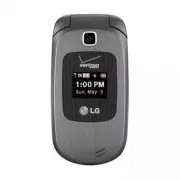


 LG A7110
User Manual
LG A7110
User Manual
 LG AX5000
User Manual
LG AX5000
User Manual
 LG C1300
User Manual
LG C1300
User Manual
 LG C1300A
User Manual
LG C1300A
User Manual
 LG C1300I
User Manual
LG C1300I
User Manual
 LG C1500
User Manual
LG C1500
User Manual
 LG C2000
User Manual
LG C2000
User Manual
 LG CB630
User Manual
LG CB630
User Manual
 LG CE500
User Manual
LG CE500
User Manual
 LG CF360
User Manual
LG CF360
User Manual
 LG CF360A
User Manual
LG CF360A
User Manual
 LG CG180
User Manual
LG CG180
User Manual
 LG CG225
User Manual
LG CG225
User Manual
 LG CG300
User Manual
LG CG300
User Manual
 LG CP150
User Manual
LG CP150
User Manual
 LG CU320
User Manual
LG CU320
User Manual
 LG CU400
User Manual
LG CU400
User Manual
 LG CU405
User Manual
LG CU405
User Manual
 LG CU500
User Manual
LG CU500
User Manual