LG LGL322DL - Manuals
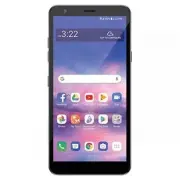
User Manual LG LGL322DL
Summary
1 About this user guide Thank you for choosing this LG product. Please carefully read this user guide before using the device for the first time to ensure safe and proper use. • Always use genuine LG accessories. The supplied items are designed only for this device and may not be compatible with oth...
2 Instructional notices WARNING : Situations that could cause injury to the user and third parties. CAUTION : Situations that may cause minor injury or damage to the device. NOTE : Notices or additional information.
Custom-designed Features 6 Multi-tasking feature Recent Uses Screen You can view the app screens that you used recently by using the preview function.To view the list of apps that you used recently, tap on the Navigation bar.If you change to Gestures navigation in Settings Display Navigation bar Ges...
Custom-designed Features 7 3 The app appears in the form of a pop-up window on the screen. • This feature may not be available in some apps or screens. Using the pop-up window • : Minimizes the pop-up window. The pop-up window is minimized into the app icon floating on the screen, which can be moved...
Custom-designed Features 8 • To move the pop-up window : Drag the top of the pop-up window. • To adjust the size of the pop-up window : Drag the left, right or bottom edge of the pop-up window. • You can open up to 5 apps using the pop-up windows. • To select an app from the opened apps, tap one of ...
Custom-designed Features 9 Using the app folder for pop-up windows If you tap on the pop-up window, the pop-up window is minimized into the app icon.You can move the app icon anywhere you want by dragging it. If two or more pop-up windows are minimized, the app folder is created to contain the app i...
Custom-designed Features 10 Pop-up windows apps folder • If you touch and hold the app folder for pop-up windows and drag the app folder into Remove , the app folder will be removed. • To remove one of the apps from the app folder, open the app folder and drag the app icon to Remove . Multi window W...
Custom-designed Features 11 3 Tap the other app to be displayed in the multi window. • To adjust the size of the split screen, drag the bar on the center of the screen. • To deactivate the multi window feature, drag the center bar up or down to the end of the screen. • The multi window feature is no...
Custom-designed Features 12 Google Assistant Overview Google Assistant on mobile makes it easy to get things done no matter where you are. Keep in touch, manage tasks and to do lists, get directions, control your connected home and more whether you are driving, on the go or at home. • To use this fe...
Basic Functions 14 Product components and accessories The following items are included with your device. • Device • USB cable • Charger • Quick Start Guide • Ejection pin • The items supplied with the device and any available accessories may vary depending on the area and service provider. • Do not ...
Basic Functions 15 Parts overview Earpiece Front camera lens Touch screen Proximity/Ambient light sensor Volume keys (+/-) Google Assistant keys Stereo headset jack Charger/USB cable port Power/Lock key Nano-SIM/Memory card tray Microphone Flash Speaker Rear camera lens • Press and hold the volume d...
Basic Functions 16 Do NOT attempt to remove the back cover. This device has a non-removable battery. Do not attempt to remove the back cover. Doing so may severely damage the battery and device, which could cause overheating, fire, and injury. • Proximity/Ambient light sensor - Proximity sensor: Dur...
Basic Functions 17 • Some functions may be restricted for access, depending on the device specifications. • Do not put heavy objects on the device or sit on it. Failure to do so may damage the touch screen. • Screen-protective film or accessories may interfere with the proximity sensor. • If your de...
Basic Functions 18 Power control options Press and hold the Power/Lock key, then select an option. • Power off : Turn the device off. • Power off and restart : Restart the device. Installing the SIM card Insert the SIM card provided by your mobile service provider to start using your device. • Be ca...
Basic Functions 19 3 Put the SIM card on the card tray with the gold-colored contacts facing downwards. Memory card (optional-sold separately) SIM card 4 Insert the card tray back into the slot.
Basic Functions 20 • When you insert the card tray back into the device, insert it horizontally in the direction of arrow as shown in the figure. Make sure that the card placed on the card tray does not move out of its position. Correct Wrong • This device supports only Nano SIM cards. • For problem...
Basic Functions 21 Inserting the memory card The device supports up to a 32 GB microSD card. (Not included)Depending on the memory card manufacturer and type, some memory cards may not be compatible with your device. • It is recommended to use an exFAT file system when using an external memory card ...
Basic Functions 22 Removing the memory card Unmount the memory card before removing it for safety. 1 On the home screen, tap Settings Storage . 2 Insert the ejection pin into the hole in the card tray and then pull out the card tray from the device. 3 Remove the memory card from the card tray. 4 Ins...
Basic Functions 23 • Do not charge while the device or charging cable is wet or contains moisture. This can cause fire, electric shock, injury or damage to device. If there is moisture, stop using the device immediately and remove the moisture completely. • Do not use unapproved USB cables or charge...
Basic Functions 24 Touch screen You can familiarize yourself with how to control your device by using touch screen gestures. Tapping Lightly tap with your fingertip to select or run an app or option. Touching and holding Touch and hold for several seconds to display a menu with available options. Do...
Basic Functions 25 Pinching and spreading Pinch two fingers to zoom out such as on a photo or map. To zoom in, spread your fingers apart. • Do not expose the touch screen to excessive physical shock. You might damage the touch sensor. • A touch screen failure may occur if you use the device near a m...
Basic Functions 26 Home screen Home screen overview The Home screen is the starting point for accessing various functions and apps on your device. Tap on any screen to directly go to the Home screen.You can manage all apps and widgets on the Home screen. Swipe the screen left or right to view all in...
Basic Functions 27 • Google Search widget : Type or speak to open Google Search. • Folder : You can create folders to classify the app based on desired criteria. • Page icon : Display the total number of Home screen canvases. You can tap the desired page icon to go to the page. The icon reflecting t...
Basic Functions 29 Notifications panel You can open the notifications panel by dragging the status bar downward on the main screen. • You can drag down the notice window or tap to open the list of quick setting icons. • You can tap to add, delete or arrange icons in the notice window. • If you touch...
Basic Functions 31 • To configure the Home screen settings, touch and hold on a blank area of the Home screen, then select Home screen settings . See Home screen settings for details. • To view or reinstall the uninstalled apps, touch and hold on a blank area of the Home screen, then select App tras...
Basic Functions 32 Viewing the background theme You can view only the background image by hiding the apps and widgets on the Home screen.Spread two fingers apart on the Home screen. • To return to the original screen, which displays apps and widgets, pinch your fingers on the Home screen. Moving app...
Basic Functions 33 Using folders from the Home screen Creating folders On the Home screen, touch and hold an app, then drag it over another app. • A new folder is created and the apps are added to the folder. Editing folders On the Home screen, tap a folder and do one of the following actions. • To ...
Basic Functions 34 • Google feed : Select whether to display Google feed on the screen located left to the main Home screen. • Grid : Change the app arrangement mode for the Home screen. • Loop Home screen : Enable to allow continuous Home screen scrolling (loop back to the first screen after the la...
Basic Functions 35 Setting a screen lock There are several options available for configuring the screen lock settings. 1 On the home screen, tap Settings Lock screen & security Select screen lock and then select the method you prefer. 2 Customize the following settings: • None : Deactivate the s...
Basic Functions 36 Secure lock settings You can set secure lock settings. 1 On the home screen, tap Settings Lock screen & security Secure lock settings . 2 Select a function you want to set. • Make pattern visible (shown only when Pattern is set as a screen lock): Turn on to make pattern visibl...
Basic Functions 38 Memory card encryption You can encrypt and protect data saved on the memory card. The encrypted data in the memory card cannot be accessed from another device. 1 On the home screen, tap Settings Lock screen & security Encryption & credentials Encrypt SD card . 2 Read the o...
Basic Functions 39 Taking screenshots You can take screenshots of the current screen you are viewing. Via a shortcut Press and hold the Power/Lock key and the Volume Down key at the same time for at least two seconds. • Screenshots can be viewed from the Screenshots folder in Gallery. Via Capture+ O...
Basic Functions 40 Smart Tool Tap to hide the smart tools.Tap to add emojis.Tap to enter text by using voice. • To maximize the voice command recognition, speak clearly. • To enter text with your voice, make sure that your device is connected to a network. • To select the language for voice recognit...
Basic Functions 41 Moving the cursor With the Smart keyboard, you can move the cursor to the exact position you want. When typing text, touch and hold on the space bar and then drag left or right. • This option is available only on the QWERTY keyboard. Suggesting words Smart keyboard automatically a...
Basic Functions 42 Changing the QWERTY keyboard layout You can add, delete or rearrange keys on the bottom row of the keyboard. 1 On the home screen, tap Settings System Language & keyboard Manage keyboards LG Keyboard Keyboard height and layout QWERTY keyboard layout . You can also tap on the k...
Basic Functions 43 Extended keyboard mode You can set to display number keys on the top row of the keyboard.On the home screen, tap Settings System Language & keyboard Manage keyboards LG Keyboard Keyboard height and layout Extended keyboard . You can also tap on the keyboard, then tap Keyboard ...
Basic Functions 44 Customizing the keyboard height You can customize the keyboard height to maximize hand comfort when typing. 1 On the home screen, tap Settings System Language & keyboard Manage keyboards LG Keyboard Keyboard height and layout Keyboard height . You can also tap on the keyboard,...
Basic Functions 45 Splitting the keyboard You can split the keyboard in half and place each piece on either side of the screen when the screen is in landscape mode.To split the keyboard, turn the device horizontally and spread it apart on both sides with holding the keyboard with two fingers. To att...
Basic Functions 46 Adding languages to the keyboard You can make additional languages available for keyboard input. 1 On the home screen, tap Settings System Language & keyboard Manage keyboards LG Keyboard Language & keyboard layout Select languages . You can also tap on the keyboard, then ...
Basic Functions 47 Clip Tray If you copy or cut an image or text, it is automatically saved to the clip tray and can be pasted to any space at any time. 1 On the keyboard, tap .You can also touch and hold the text input window, then select Clip Tray . 2 Select and paste an item from the clip tray. •...
Basic Functions 48 Do not disturb You can limit or mute notifications to avoid disturbances for a specific period of time.On the home screen, tap Settings Sound Do not disturb . • Mode : Select a desired mode. - Priority only : Receive sound or vibrate notifications for the selected apps. Even when ...
Useful Apps 50 Installing and uninstalling apps Installing apps Access an app store to search and download apps. • You can use SmartWorld, Google Play or the app store provided by your service provider. • Some app stores may require you to create an account and sign in. • Some apps may charge fees. ...
Useful Apps 52 App Shortcuts On the Home screen, touch and hold an app icon such as Phone, Messages, Camera, Gallery and Settings to display a quick access menu. Use apps more easily through App Shortcuts. • Tap to set a widget for the app. • Tap to check the app information. • This feature is avail...
Useful Apps 54 Answering/Ending a call To answer a call, drag on the incoming call screen. • When the stereo headset is connected, you can make calls by using the call/end button on the headset. • To end a call with the Power key, tap Settings Network & internet Call Answer and end calls , then ...
Useful Apps 55 Viewing missed calls If there is a missed call, the status bar at the top of the screen displays .To view missed call details, drag the status bar downwards. You can also tap on the home screen and tap Call logs . Functions accessible during a call During a call, you can access a vari...
Useful Apps 56 Making a three-way calling You can make a call to another contact during a call. 1 During a call, tap Add call . 2 Enter a phone number and tap . • The two calls are displayed on the screen at the same time, and the first call is put on hold. 3 To start a conference call, tap Merge ca...
Useful Apps 57 Messages Sending a message You can create and send messages to your contacts using the Messages app. • Sending messages abroad may incur additional charges. Consult with your service provider for more information. 1 On the home screen, tap . 2 Tap . 3 Specify a recipient and create a ...
Useful Apps 58 Camera You can use the Camera app to take and share photos and videos. Starting the camera On the home screen, tap . • Before taking a photo or recording a video, wipe the camera lens with a soft cloth. • Be careful not to stain the camera lens with your fingers or other foreign subst...
Useful Apps 59 Auto mode You can take photos or record videos by selecting a variety of camera options. 1 On the home screen, tap . 2 To take a photo, tap Photo , and tap . To record a video, tap Video , and tap . Change timer settings. Change flash settings. Apply filter effects. Set camera options...
Useful Apps 60 • To pause the video recording, tap . To resume the video recording, tap . • While recording a video, you may spread or pinch two fingers to zoom in or out. • While recording a video, you may tap the desired area to adjust the brightness. 3 Tap to end the video recording. Customizing ...
Useful Apps 62 Set camera options. Change the timer settings. Flash Jump-Cut Photos taken at a regular interval are saved as a GIF file. 1 On the home screen, tap . 2 Select More by swiping camera modes, then tap . • Photos are taken every 3 seconds and saved as a GIF file. • Tap on the screen to se...
Useful Apps 63 YouTube Live You can record a video and directly upload to YouTube. 1 On the home screen, tap . 2 Select More by swiping camera modes, then tap . To use this feature, you need to verify your phone number. • YouTube Live is available only when your device is connected to the Internet. ...
Useful Apps 64 Other useful features Auto-Exposure/Auto-Focus lock You can fix the current exposure level and focus position by touching and holding the screen. To turn off the feature, tap a blank area on the screen. • This feature is available only in specific modes. Switching between cameras You ...
Useful Apps 65 Selfie shot You can use the front camera to view your face on the screen and take selfies. Gesture shot You can take selfies by using gestures.Show your palm to the front camera and then clench your fist.You can also clench your fist and then open it towards the front camera. • In thr...
Useful Apps 66 Auto shot You can use the face detection feature to take selfies easily and conveniently. You can set the device so that, when you look at the screen, the front camera detects your face and takes a selfie automatically. • The white colored guide frame appears when the front camera det...
Useful Apps 68 2 Tap a folder and select a file. • View the selected file in full-screen mode. • While viewing a photo, swipe left or right to view the previous or next photo. • While viewing a video, swipe left or right to rewind or fast-forward the video. • If you save the location information or ...
Useful Apps 70 Creating a movie You can create a new movie by putting images and videos together. 1 While viewing an album, tap Create movie . 2 Select images or videos for your movie and tap Next . 3 Edit the selected images and videos and then tap Save .
Useful Apps 71 Deleting files You can select images or videos to delete from your video by tapping at the top left corner of its thumbnail. Adding files You can select images or videos to add after tapping at the bottom of the screen. You can also select the images or videos you have already previou...
Useful Apps 72 Creating a GIF You can easily make a GIF file using recorded video. Creating video 1 At the desired starting point while watching a video, tap . 2 Select the length of the GIF you want to create. • GIF is generated for the time selected from the current time. • For videos less than 5 ...
Useful Apps 73 Deleting files You can delete files by using one of the following options: • While viewing a photo, tap . • Touch and hold a file from the file list, select files you want to delete, then tap Delete . • Deleted files are automatically moved to Trash and they can be restored to Gallery...
Useful Apps 74 Google apps You can use Google apps by setting a Google Account. The Google Account registration window appears automatically when you use a Google app for the first time. If you do not have a Google Account., create one from your device. For details on how to use an app, see Help in ...
Useful Apps 75 Google Play Movies & TV Use your Google Account to rent or purchase movies. Purchased contentscan be played anywhere. Google Photos Google Photos is the home for all your memories to help you find and relive all the moments that matter. Google Keep Notes Create, edit, and share yo...
Useful Apps 76 Writing notes on a screenshot 1 While viewing the screen you want to capture, drag the status bar downwards and then tap . • The screenshot appears as the notepad background theme. Memo tools appear at the top of the screen. 2 Crop the image (if necessary) and take notes as desired. •...
Useful Apps 78 Searching for contacts You can search for contacts by using one of the following options: • Tap the search bar at the top of the Contacts screen and enter the contact or phone number you want to search for. • Scroll the contact list up or down. • From the index of the contact list scr...
Settings 88 Tethering USB tethering You can connect the device to another device via USB and share mobile data. 1 Connect your device and other devices via USB cable. 2 On the settings screen, tap Network & internet Tethering USB tethering and then tap to activate it. • This option uses mobile d...
Settings 92 Wireless Emergency Alerts You can view emergency alerts and customize your emergency alert settings. On the settings screen, tap Network & internet Wireless Emergency Alerts . Private DNS You can configure the Private DNS (Domain Name System) options. 1 On the settings screen, tap Ne...
Settings 93 Sending data via Bluetooth 1 Select a file. • You can send multimedia files or contacts. 2 Tap Bluetooth . 3 Select a target device for the file. • The file is sent as soon as the target device accepts it. • File sharing processes may differ, depending on the file. Sharing panel You can ...
Settings 94 Sound You can customize sound, vibration and notification settings.On the settings screen, tap Sound and customize the following settings: • Sound profile : Change the sound mode to Sound , Vibrate only , or Silent . • Volume : Adjust the sound volume for various items. • Ringtone : Sele...
Settings 95 Display You can customize detailed settings for each screen type.On the settings screen, tap Display and customize the following settings: • Home screen : Customize settings for the Home screen. See Home screen settings for details. • Wallpaper & theme : Select a screen wallpaper and...
Settings 96 • Screen saver : Display a screen saver when the device is connected to the holder or charger. Select a screen saver type to display. • One-handed screen : Make the screen size smaller to conveniently use the device with one hand. Drag the Home touch button at the bottom of the screen to...
Settings 98 Privacy You can find and adjust all your privacy settings. 1 On the settings screen, tap Privacy . 2 Customize the settings. • Permission manager : Allows you to check and change the permissions granted to the apps. • Lock screen : Allows you to set notifications to show on the lock scre...
Settings 103 System Update center From time to time, updates may become available for your phone. You can download and apply updates through the Settings menu.On the settings screen, tap System Update center . Language & keyboard You can customize language and keyboard settings for your device. ...
LG Cell Phones Manuals
-
LG A7110
User Manual
-
LG AX5000
User Manual
-
LG C1300
User Manual
-
LG C1300A
User Manual
-
LG C1300I
User Manual
-
LG C1500
User Manual
-
LG C2000
User Manual
-
LG CB630
User Manual
-
LG CE500
User Manual
-
LG CF360
User Manual
-
LG CF360A
User Manual
-
LG CG180
User Manual
-
LG CG225
User Manual
-
LG CG300
User Manual
-
LG CP150
User Manual
-
LG CU320
User Manual
-
LG CU400
User Manual
-
LG CU405
User Manual
-
LG CU500
User Manual
-
LG CU500
Manual














