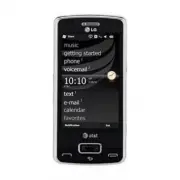
Page 2 - OR; Use our Interactive Web Tutorial available at; LG eXpo
Use this Quickstart to get a brief overview of the major features and services available with your device OR Use our Interactive Web Tutorial available at att.com/Tutorials for the most complete and up to date information available for setting up and using your new smartphone and all the services av...
Page 3 - Table of Contents
3 What’s in the Box .............................................................................................................................................. 4 Device Setup .............................................................................................................................
Page 4 - What’s in the Box; Device Setup; Insert the SIM card and battery
4 5 What’s in the Box The following items are included in the box to help you set up your LG eXpo. TM Power adapter Stylus Battery Hands-free headset with 3.5mm adapter Data cable Device Setup Insert the SIM card and battery 1. Pull the latch and and remove the battery cover. 2. Remove battery (if p...
Page 5 - Charge the battery; Power on the device; Insert a microSDTM memory card
6 7 Device Setup (cont.) Charge the battery 1. Before connecting the charger to the phone, check to make sure the battery is installed. 2. Connect the small end of the data cable to the USB port on the top of your LG eXpo. TM 3. Connect the large end of the data cable to the power adapter.4. Plug th...
Page 6 - Explore the Today screen; Message List Status Indicators; Learn to Use the Basic Functions; Indicators
8 9 Explore the Today screen The Today screen will appear when you turn on your LG eXpo.™ The Today screen displays current information and alerts, including new email, text messages, upcoming appointments, voicemails and missed calls. • Pictures: Displays pictures and videos saved on your smartphon...
Page 7 - Using your keypad
10 11 Touchscreen menu navigation • There’s no need to press hard, the touchscreen is sensitive enough to pick up on a light yet firm touch. • Use the tip of your finger to touch the icon or application you want to open.• Do not cover the phone with any screen cling as the touchscreen will not work ...
Page 8 - Entering text with your on-screen keyboard; Making a call
12 13 Entering text with your on-screen keyboard Full QWERTY In portrait mode, the Full QWERTY mode lets you enter characters by tapping the key labeled with the required letter. Half QWERTY In Half QWERTY mode, a single tap will display the first letter of the key you tapped. Quickly tapping the ke...
Page 9 - Contacts & Appointments; Ringtone
14 15 Contacts & Appointments Add a contact 1. Tap Start > Contacts > New . 2. Select the contact type.3. Enter contact information.4. When finished, tap OK . Add a recent caller to contacts 1. Press Send to display recent call history. 2. Tap the recent call number to save.3. Tap Menu >...
Page 10 - Sending a Text Message
16 17 When you need to communicate privately and quickly, use text messaging. You can send text messages to other wireless phones and email addresses. 1. Tap Start > Text . 2. Tap Menu > New . 3. Tap in the message box and type your message.4. Select your recipient by typing his/her name or en...
Page 11 - Camera & Multimedia Messages
18 19 Camera & Multimedia Messages (Cont.) Multimedia messaging lets you share photos, videos, audio and more. 1. Tap Start > Pictures & Video . 2. Tap the picture you want to send.3. After selecting a picture, tap Send > Messages . 4. The file will attach automatically and the message...
Page 12 - Corporate/personal email overview; Set-up personal email; Email; Send email
20 21 Corporate/personal email overview Your LG eXpo TM is capable of accessing your corporate or personal email. You can setup multiple email accounts, all accessible from the email section of the Today screen. When you setup corporate email, you may need to talk to your company’s IT administrator ...
Page 13 - Video Share
22 23 AT&T Navigator helps you get around town by providing voice guided turn-by-turn GPS driving directions with real-time traffic alerts and 3D maps. As you drive, the directions are spoken over the speakerphone so you can keep your hands on the wheel and eyes on the road. AT&T Navigator a...
Page 14 - Bluetooth; Turn on Bluetooth; How to sync media files with your computer; Sync to a Bluetooth headset
24 25 Bluetooth Bluetooth enables compatible mobile devices, accessories and computers that are in close proximity to communicate directly with each other wirelessly. Turn on Bluetooth 1. On the Today screen, tap Start > Settings > Bluetooth . 2. If Bluetooth is off, you will be asked if you w...
Page 16 - Troubleshooting
28 29 SIM does not activate Try the following actions: • Verify that your SIM card is inserted correctly. Phone cannot be switched on Try the following actions: • Press On/Off key for at least two seconds. • Try charging the device using the power adapter. The LED will appear amber when the device i...
Page 17 - MEMO














