Page 2 - | Table Of Contents; Table Of Contents; FCC Information and Copyright; Driver Installation; APPENDIX I: Specifications in Other Languages
2 | Table Of Contents Table Of Contents FCC Information and Copyright ������������������������������������������������������������������������������� 1 Chapter 1: Introduction ������������������������������������������������������������������������������������������� 3 1.1 Before You Start ............
Page 3 - Chapter 1: Introduction; Before You Start; sure you follow the instructions below:; Package Checklist; • Serial ATA Cable x2
Chapter 1: Introduction | 3 FX9830M Chapter 1: Introduction 1�1 Before You Start Thank you for choosing our product. Before you start installing the motherboard, please make sure you follow the instructions below: • Prepare a dry and stable working environment with sufficient lighting. • Always di...
Page 5 - Rear Panel Connectors
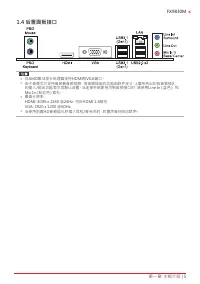
Chapter 1: Introduction | 5 FX9830M 1.4 Rear Panel Connectors Note » HDMI / VGA output require an AMD family processor with intedrated graphics. » Since the audio chip supports High Definition Audio Specification, the function of each audio jack can be defined by software. The input / output fun...
Page 6 - Motherboard Layout
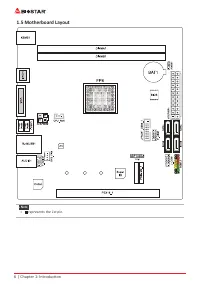
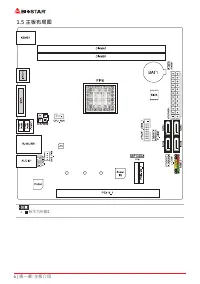
6 | Chapter 1: Introduction 1.5 Motherboard Layout Note » represents the 1st pin.
Page 7 - Chapter 2: Hardware installation; Connect Cooling Fans; may be different according to the fan manufacturer.; Install System Memory; DDR4 Modules
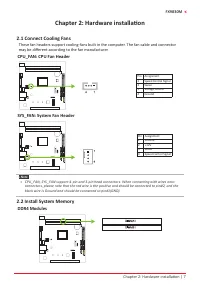
Chapter 2: Hardware installation | 7 FX9830M Chapter 2: Hardware installation 2.1 Connect Cooling Fans These fan headers support cooling-fans built in the computer. The fan cable and connector may be different according to the fan manufacturer. CPU_FAN: CPU Fan Header Pin Assignment1 Speed Control S...
Page 8 - Memory Capacity; DIMM Socket Location DDR4 Module; Dual Channel Memory Installation; Dual Channel Status
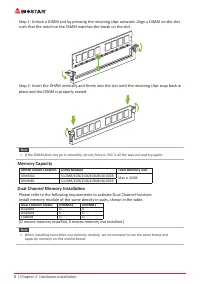
8 | Chapter 2: Hardware installation Step 1: Unlock a DIMM slot by pressing the retaining clips outward. Align a DIMM on the slot such that the notch on the DIMM matches the break on the slot. Step 2: Insert the DIMM vertically and firmly into the slot until the retaining clips snap back in place an...
Page 9 - Install an Expansion Card; You can install your expansion card by following steps:
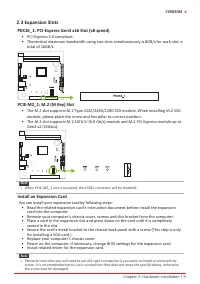
Chapter 2: Hardware installation | 9 FX9830M 2.3 Expansion Slots PEX16_1: PCI-Express Gen3 x16 Slot (x8 speed) • PCI-Express 3.0 compliant. • Theoretical maximum bandwidth using two slots simultaneously is 8GB/s for each slot, a total of 16GB/s. PCIE-M2_1: M.2 (M Key) Slot • The M.2 slot supports...
Page 10 - JCMOS1: Clear CMOS Jumper; follow the procedures to avoid damaging the motherboard.; Clear CMOS Procedures:; Load Optimal Defaults and save settings in CMOS.
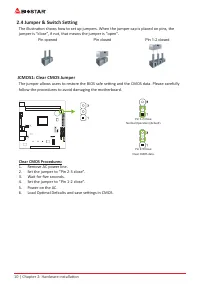
10 | Chapter 2: Hardware installation 2.4 Jumper & Switch Setting The illustration shows how to set up jumpers. When the jumper cap is placed on pins, the jumper is “close”, if not, that means the jumper is “open”. Pin opened Pin closed Pin 1-2 closed JCMOS1: Clear CMOS Jumper The jumper allows ...
Page 11 - ATXPWR1: ATX Power Source Connector; This connector will provide +12V to CPU power circuit.
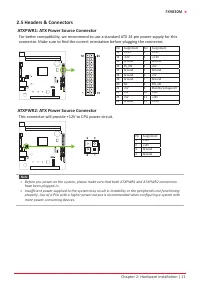
Chapter 2: Hardware installation | 11 FX9830M 2.5 Headers & Connectors ATXPWR1: ATX Power Source Connector For better compatibility, we recommend to use a standard ATX 24-pin power supply for this connector. Make sure to find the correct orientation before plugging the connector. Pin Assignment ...
Page 12 - PANEL1: Front Panel Header; TPM: Trusted Platform Module Header; These connectors connect to SATA hard disk drives via SATA cables.
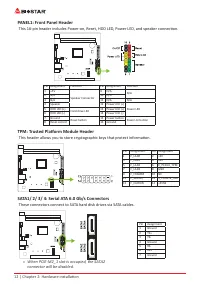
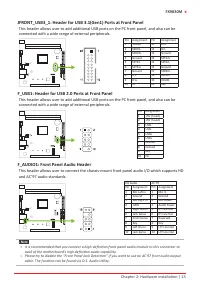
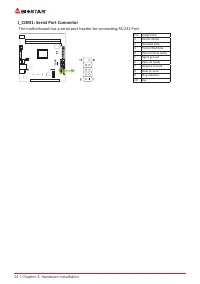
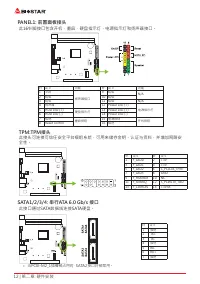
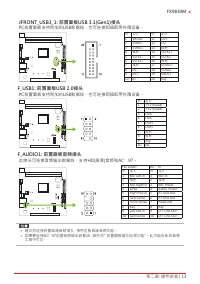
12 | Chapter 2: Hardware installation PANEL1: Front Panel Header This 16-pin header includes Power-on, Reset, HDD LED, Power LED, and speaker connection. Pin Assignment Function Pin Assignment Function 1 +5V Speaker Connector 9 N/A N/A 2 N/A 10 N/A 3 N/A 11 N/A N/A 4 Speaker 12 Power LED (+) Power L...
Page 15 - The BIOS can be updated using either of the following utilities:; Updating BIOS with BIOSTAR BIO-Flasher
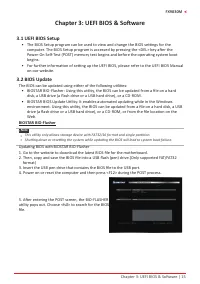
Chapter 3: UEFI BIOS & Software | 15 FX9830M Chapter 3: UEFI BIOS & Software 3.1 UEFI BIOS Setup • The BIOS Setup program can be used to view and change the BIOS settings for the computer. The BIOS Setup program is accessed by pressing the <DEL> key after the Power-On Self-Test (POST)...
Page 16 - computer. Then the BIOS Update is completed.; BIOS Update Utility (through the Internet); An open dialog will show up to request your
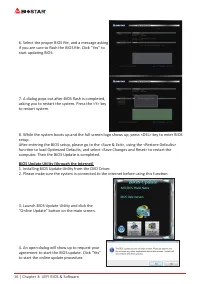
16 | Chapter 3: UEFI BIOS & Software 6. Select the proper BIOS file, and a message asking if you are sure to flash the BIOS file. Click “Yes” to start updating BIOS. 7. A dialog pops out after BIOS flash is completed, asking you to restart the system. Press the <Y> key to restart system. 8...
Page 17 - BIOS Update Utility (through a BIOS file); A warning message will show up to request your
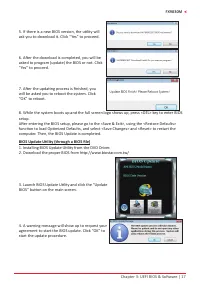
Chapter 3: UEFI BIOS & Software | 17 FX9830M 5. If there is a new BIOS version, the utility will ask you to download it. Click “Yes” to proceed. 6. After the download is completed, you will be asked to program (update) the BIOS or not. Click “Yes” to proceed. 7. After the updating process is fin...
Page 18 - then click on “Open”. It will take several minutes,; Backup BIOS; for the backup of BIOS, and select a proper
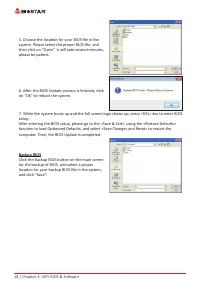
18 | Chapter 3: UEFI BIOS & Software 5. Choose the location for your BIOS file in the system. Please select the proper BIOS file, and then click on “Open”. It will take several minutes, please be patient. 6. After the BIOS Update process is finished, click on “OK” to reboot the system. 7. While ...
Page 19 - Installing Software; Follow the on-screen instructions to complete the installation.; Launching Software; BIOScreen Utility; logo so as to customize your computer.
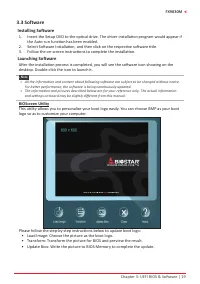
Chapter 3: UEFI BIOS & Software | 19 FX9830M 3.3 Software Installing Software 1. Insert the Setup DVD to the optical drive. The driver installation program would appear if the Auto-run function has been enabled. 2. Select Software Installation, and then click on the respective software title. 3....
Page 20 - Chapter 4: Useful help; Driver Installation; You will see the following window after you insert the DVD; A. Driver Installation; installation program.; B. Software Installation; Manual icon to browse for available manual.
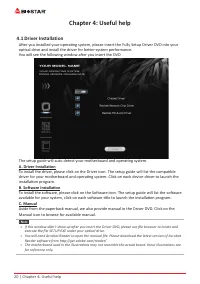
20 | Chapter 4: Useful help Chapter 4: Useful help 4.1 Driver Installation After you installed your operating system, please insert the Fully Setup Driver DVD into your optical drive and install the driver for better system performance. You will see the following window after you insert the DVD The ...
Page 21 - AMI BIOS Beep Code; Boot Block Beep Codes; POST BIOS Beep Codes; Number of Beeps; Troubleshooting; Probable
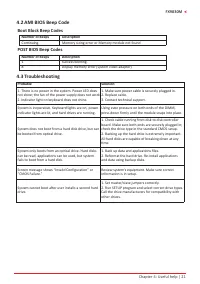
Chapter 4: Useful help | 21 FX9830M 4.2 AMI BIOS Beep Code Boot Block Beep Codes Number of Beeps Description Continuing Memory sizing error or Memory module not found POST BIOS Beep Codes Number of Beeps Description 1 Success booting. 8 Display memory error (system video adapter) 4.3 Troubleshooting...
Page 22 - CPU Overheated; protection function has been activated.
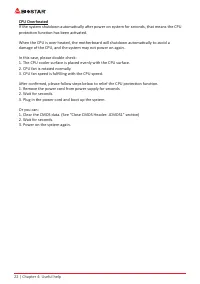
22 | Chapter 4: Useful help CPU Overheated If the system shutdown automatically after power on system for seconds, that means the CPU protection function has been activated. When the CPU is over heated, the motherboard will shutdown automatically to avoid a damage of the CPU, and the system may not ...
Page 23 - Arabic
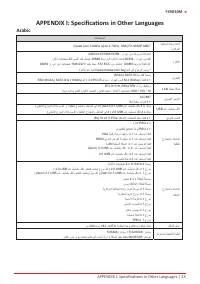
APPENDIX I: Specifications in Other Languages | 23 FX9830M APPENDIX I: Specifications in Other Languages Arabic تﺎﻔﺻاﻮﻤﻟا ﺔﺠﻟﺎﻌﻤﻟا ةﺪﺣو ةﺪﻋﺎﻗ ﺔﻳﺰآﺮﻤﻟا (Quad core 3.0GHz up to 3.7GHz, 35W) FX-9830P AMD ® ةﺮآاﺬﻟا يد ﺔﺟودﺰﻣ ةﺎﻨﻗ ﻢﻋﺪﺗ . يد . را . DDR4 2400/2133/1866 2 x يد . يد . را . DDR4 ﺔﺟودﺰﻤﻟا ةﺮآا...
Page 24 - German
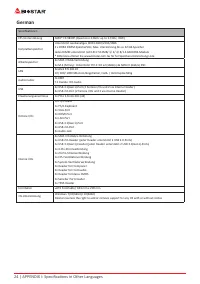
24 | APPENDIX I: Specifications in Other Languages German Spezifikationen CPU-Unterstützung AMD® FX-9830P (Quad core 3.0GHz up to 3.7GHz, 35W) Festplattenspeicher Unterstützt zweikanaliges DDR4 2400/2133/18662 x DDR4 DIMM-SpeicherSlot, Max. Uterstützung bis zu 32 GB-SpeicherJedes DIMM unterstützt ni...
Page 25 - Russian
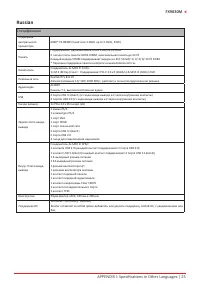
APPENDIX I: Specifications in Other Languages | 25 FX9830M Russian Спецификации Поддержка центрального процессора AMD® FX-9830P (Quad core 3.0GHz up to 3.7GHz, 35W) Память Поддерживает двухканальный DDR4 2400/2133/18662 гнезда платы памяти DDR4 DIMM, максимальная память до 32 ГбКаждый модуль DIMM по...
Page 26 - Spanish
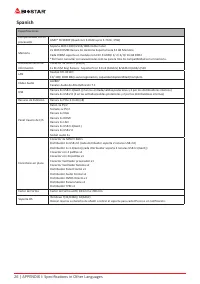
26 | APPENDIX I: Specifications in Other Languages Spanish Especificaciones Compatibilidad con el procesador AMD® FX-9830P (Quad core 3.0GHz up to 3.7GHz, 35W) Memoria Soporta DDR4 2400/2133/1866 Doble Canal2x DDR4 DIMM Ranura de memoria Soporta hasta 32 GB Memoria Cada DIMM soporta un modulo non-EC...
Page 27 - Thai
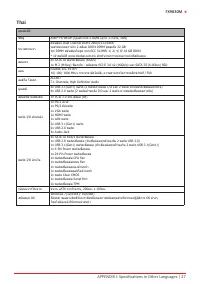
APPENDIX I: Specifications in Other Languages | 27 FX9830M Thai คุณสมบัติ ซีพียู AMD® FX-9830P (Quad core 3.0GHz up to 3.7GHz, 35W) หน่วยความจำา สนับสนุน Dual Channel DDR4 2400/2133/1866รองรับหน่วยความจำา 2 สล็อต DDR4 DIMM สูงสุดถึง 32 GBทุก DIMM สนับสนุนโมดูล non-ECC 512MB/ 1/ 2/ 4/ 8/ 16 GB DDR4* ...
Page 29 - 防静电操作规则
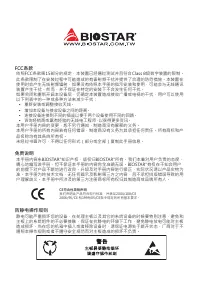
FCC条款 依照FCC条款第15部分的规定,本装置已经通过测试并且符合Class B级数字装置的限制。 此条款限制了在安装过程中可能造成的有害射频干扰并提供了合理的防范措施。本装置在 使用时会产生无线射频辐射,如果没有依照本手册的指示安装和使用,可能会与无线通讯 装置产生干扰。然而,并不保证在特定的安装下不会发生任何干扰。 如果关闭和重新开启本设备后,仍确定本装置造成接收广播或电视的干扰,用户可以使用 以下列表中的一种或多种方法来减少干扰: • 重新安装或调整接收天线。 • 增加本设备与接收设备之间的距离。 • 连接设备连接到不同的插座以便于两个设备使用不同的回路。 • 咨询经销商或富有经验的...
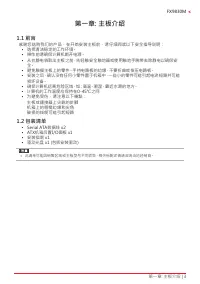
Page 30 - 目录; 第一章: 主板介绍 �������������������������������������������������������������������������������������������������������
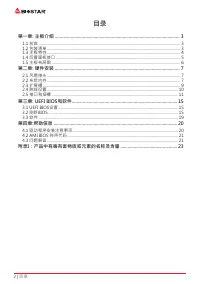
2 | 目录 目录 第一章: 主板介绍 ������������������������������������������������������������������������������������������������������� 3 1.1 前言 ............................................................................................................................................... 3 1.2 包装清单 ...............
Page 32 - 主板特性
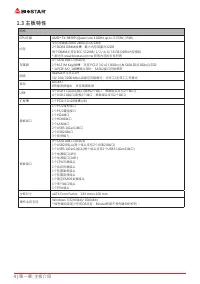
4 | 第一章: 主板介绍 1�3 主板特性 规格 CPU支援 AMD ® FX-9830P (Quad core 3.0GHz up to 3.7GHz, 35W) 内存 支持双通道DDR4 2400/2133/18662个DDR4 DIMM插槽,最大内存容量为32GB每个DIMM支持非ECC 512MB/ 1/ 2/ 4/ 8/ 16 GB DDR4内存模组* 请访问 www.biostar.com.tw 获取内存的支持列表 存储器 4个SATA III接口 (6Gb/s)1个M.2 (M Key)插槽:支持 PCI-E 3.0 x2 (16Gb/s) & SATA III (6....
Page 35 - 此风扇接头支持电脑内置的冷却风扇,风扇引线和插头可能因制造商而异。; DDR4内存模组
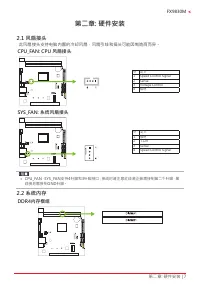
第二章: 硬件安装 | 7 FX9830M 第二章: 硬件安装 2�1 风扇接头 此风扇接头支持电脑内置的冷却风扇,风扇引线和插头可能因制造商而异。 CPU_FAN: CPU 风扇接头 针 定义1 Speed Control Signal 2 Sense 3 Voltage Control 4 接地 SYS_FAN: 系统风扇接头 针 定义1 接地 2 +12V 3 Sense 4 Speed Control Signal » CPU_FAN,SYS_FAN支持4针脚和3针脚接口;接线时请注意红线是正极需接到第二个针脚,黑 线接地需接到GND针脚。 2�2 系统内存 DDR4内存模组
Page 36 - 内存容量; DIMM插槽位置; 双通道内存安装; 为激活主板双通道功能,使用内存模组必须符合以下要求: 成对安装相同密度的内存模; 双通道状态
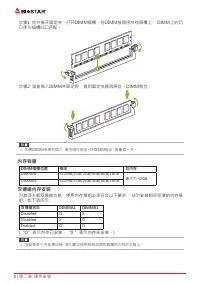
8 | 第二章: 硬件安装 步骤1: 向外推开固定夹,打开DIMM插槽。将DIMM按顺序放在插槽上, DIMM上的切 口须与插槽凹口匹配。 步骤2: 垂直插入DIMM并固定好,直到固定夹跳回原位,DIMM就位。 » 如果DIMM未顺利插入,请勿强行按压。将DIMM拔出,再重插一次。 内存容量 DIMM插槽位置 模组 总内存 DIMMA1 512MB/1GB/2GB/4GB/8GB/16GB 最大为 32GB. DIMMB1 512MB/1GB/2GB/4GB/8GB/16GB 双通道内存安装 为激活主板双通道功能,使用内存模组必须符合以下要求: 成对安装相同密度的内存模 组。如下表所示 双通道...
Page 37 - 安装扩展卡
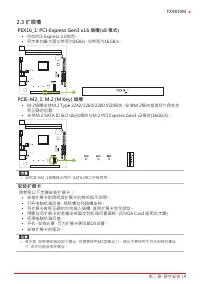
第二章: 硬件安装 | 9 FX9830M 2�3 扩展槽 PEX16_1: PCI-Express Gen3 x16 插槽(x8 模式) • 符合PCI-Express 3.0规范。 • 同步单向最大理论带宽为8GB/s,总带宽为16GB/s。 PCIE-M2_1: M�2 (M Key) 插槽 • M.2插槽支持M.2 Type 2242/2260/2280 SSD模块。安装M.2模块前请将六角柱放 到正确的位置。 • 支持M.2 SATA III (6.0 Gb/s)模块与M.2 PCI Express Gen3 x2模块(16Gb/s)。 » 当PCIE-M2_1插槽被占用时,SATA...
Page 38 - 下图展示如何设置跳线。当跳帽放置在针脚上时,跳线为闭合(close)状态。否则跳线为; 打开; 闭合
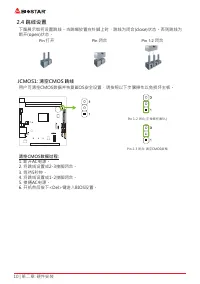
10 | 第二章: 硬件安装 2�4 跳线设置 下图展示如何设置跳线。当跳帽放置在针脚上时,跳线为闭合(close)状态。否则跳线为 断开(open)状态。 Pin 打开 Pin 闭合 Pin 1-2 闭合 JCMOS1: 清空CMOS 跳线 用户可清空CMOS数据并恢复BIOS安全设置,请按照以下步骤操作以免损坏主板。 Pin 1-2 闭合: 正常操作(默认) Pin 2-3 闭合: 清空CMOS数据 清空CMOS数据过程: 1. 断开AC电源。 2. 将跳线设置成2-3接脚闭合。 3. 等待5秒钟。 4. 将跳线设置成1-2接脚闭合。 5. 接通AC电源。 6. 开机然后按下<Del...
Page 39 - 为了更好的兼容性,我们建议使用标准的ATX24-pin电源供应此接口的电源。
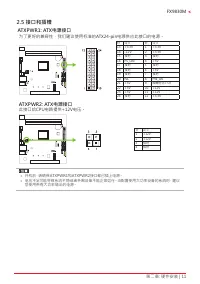
第二章: 硬件安装 | 11 FX9830M 2�5 接口和插槽 ATXPWR1: ATX电源接口 为了更好的兼容性,我们建议使用标准的ATX24-pin电源供应此接口的电源。 针 定义 针 定义 13 +3.3V 1 +3.3V 14 -12V 2 +3.3V 15 接地 3 接地 16 PS_ON 4 +5V 17 接地 5 接地 18 接地 6 +5V 19 接地 7 接地 20 NC 8 PW_OK 21 +5V 9 唤醒电压+5V 22 +5V 10 +12V 23 +5V 11 +12V 24 接地 12 +3.3V ATXPWR2: ATX电源接口 此接口给CPU电路提供+12V...
Page 42 - 此主板有一个串行端口可接出RS-232接头。
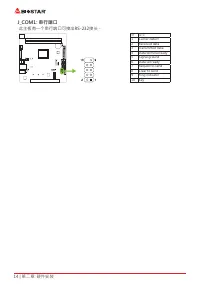
14 | 第二章: 硬件安装 J_COM1: 串行端口 此主板有一个串行端口可接出RS-232接头。 针 定义 1 Carrier detect 2 Received data 3 Transmitted data 4 Data terminal ready 5 Signal ground 6 Data set ready 7 Request to send 8 Clear to send 9 Ring indicator 10 Key
Page 43 - �1 UEFI BIOS设置
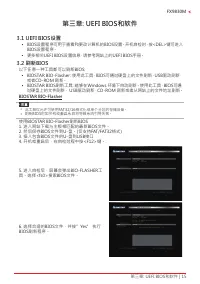
第三章: UEFI BIOS和软件 | 15 FX9830M 第三章: UEFI BIOS和软件 3�1 UEFI BIOS设置 • BIOS设置程序可用于查看和更改计算机的BIOS设置。开机自检时,按<DEL>键可进入 BIOS设置程序。 • 更多相关UEFI BIOS设置信息,请参考网站上的UEFI BIOS手册。 3�2 刷新BIOS 以下任意一种工具都可以刷新BIOS: • BIOSTAR BIO-Flasher: 使用此工具,BIOS可通过硬盘上的文件刷新,USB驱动刷新, 或者CD-ROM 刷新。 • BIOSTAR BIOS刷新工具: 能够在Windows 环境下自动...
Page 44 - BIOS刷新工具(通过网络)
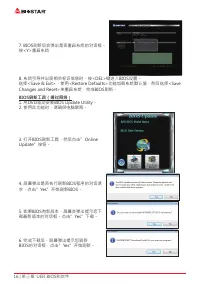
16 | 第三章: UEFI BIOS和软件 7. BIOS刷新后会弹出是否重启系统的对话框。 按<Y>重启系统 8. 系统引导并出现相关标识信息时,按<DEL>键进入BIOS设置。 选择<Save & Exit>,使用<Restore Defaults>功能加载系统默认值,然后选择<Save Changes and Reset>来重启系统,完成BIOS刷新。 BIOS刷新工具(通过网络) 1. 用DVD驱动安装BIOS Update Utility。 2. 使用此功能时,请确保电脑联网。 3. 打开BIOS刷新工具,然后点击...
Page 45 - BIOS刷新工具(通过BIOS文件)
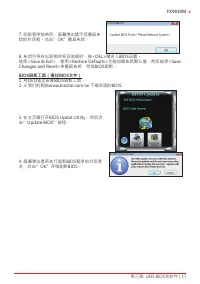
第三章: UEFI BIOS和软件 | 17 FX9830M 7. 刷新程序结束后,屏幕弹出提示您重启系 统的对话框。点击”OK”重启系统。 8. 系统引导并出现相关标识信息时,按<DEL>键进入BIOS设置。 选择<Save & Exit>,使用<Restore Defaults>功能加载系统默认值,然后选择<Save Changes and Reset>来重启系统,完成BIOS刷新。 BIOS刷新工具(通过BIOS文件) 1. 用DVD驱动安装BIOS刷新工具。 2. 从我们的网站www.biostar.com.tw 下载合适的BIO...
Page 46 - BIOS备份
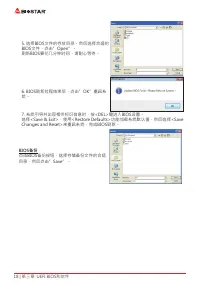
18 | 第三章: UEFI BIOS和软件 5. 选择BIOS文件的存放目录。然后选择合适的 BIOS文件,点击”Open”。 刷新BIOS要花几分钟时间,请耐心等待。 6. BIOS刷新过程结束后,点击”OK”重启系 统。 7. 系统引导并出现相关标识信息时,按<DEL>键进入BIOS设置。 选择<Save & Exit>,使用<Restore Defaults>功能加载系统默认值,然后选择<Save Changes and Reset>来重启系统,完成BIOS刷新。 BIOS备份 点击BIOS备份按钮,选择存储备份文件的合适 目录,...
Page 47 - BIOScreen 工具
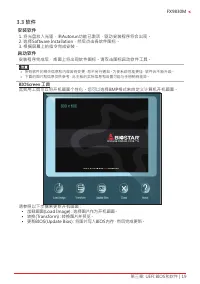
第三章: UEFI BIOS和软件 | 19 FX9830M 3�3 软件 安装软件 1. 将光盘放入光驱,若Autorun功能已激活,驱动安装程序将会出现。 2. 选择Software Installation,然后点击各软件图标。 3. 根据屏幕上的指令完成安装。 启动软件 安装程序完成后,桌面上将出现软件图标。请双击图标启动软件工具。 » 所有软件的相关信息和内容若有变更,恕不另行通知。为使系统性能更佳,软件会不断升级。 » 下面的图片和信息仅供参考,此主板的实际信息和设置可能与手册稍有差异。 BIOScreen 工具 此实用工具可以将开机画面个性化。您可以选择BMP格式来自定义计算机开...
Page 48 - 驱动程序安装注意事项; A� 驱动程序安装
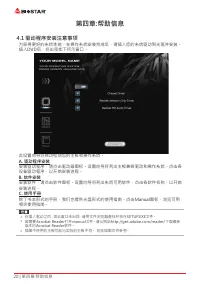
20 | 第四章:帮助信息 第四章:帮助信息 4�1 驱动程序安装注意事项 为获得更好的系统性能,在操作系统安装完成后,请插入您的系统驱动到光驱并安装。 插入DVD后,将出现如下所示窗口。 此设置向导将自动检测您的主板和操作系统。 A� 驱动程序安装 安装驱动程序,请点击驱动器图标。设置向导将列出主板兼容驱动和操作系统。点击各 设备驱动程序,以开始安装进程。 B� 软件安装 安装软件,请点击软件图标。设置向导将列出系统可用软件,点击各软件名称,以开始 安装进程。 C� 使用手册 除了书本形式的手册,我们也提供光盘形式的使用指南。点击Manual图标,浏览可用 相关使用指南。 » 在插入驱动之后...
Page 49 - AMI BIOS 哔声代码; 引导模块哔声代码; BIOS 开机自检哔声代码; 哔声次数; 问题
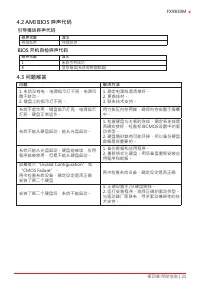
第四章:帮助信息 | 21 FX9830M 4�2 AMI BIOS 哔声代码 引导模块哔声代码 哔声次数 含义 持续哔声 持续哔声 BIOS 开机自检哔声代码 哔声次数 含义 1 系统引导成功 8 显存错误(系统视频适配器) 4�3 问题解答 问题 解决方法 1. 系统没有电,电源指示灯不亮,电源风 扇不转动。 2. 键盘上的指示灯不亮。 1. 确定电源线是否接好。 2. 更换线材。 3. 联系技术支持。 系统不起作用。键盘指示灯亮,电源指示 灯亮,硬盘正常运作。 用力按压内存两端,确保内存安置于插槽 中。 系统不能从硬盘启动,能从光盘启动。 1. 检查硬盘与主板的连线,确定各连线是 否确实...
Page 50 - CPU过热保护系统; 在开启系统数秒后如有自动关机的现象,这说明CPU保护功能已被激活。CPU过热时,
22 | 第四章:帮助信息 CPU过热保护系统 在开启系统数秒后如有自动关机的现象,这说明CPU保护功能已被激活。CPU过热时, 防止损坏CPU,主机将自动关机,系统则无法重启。 此种情况下,请仔细检查。 1. CPU 散热器平放在CPU表面。 2. CPU风扇能正常旋转。 3. CPU风扇旋转速度与CPU运行速度相符。 确认后,请按以下步骤缓解CPU保护功能。 1. 切断电源数秒。 2. 等待几秒钟。 3. 插上电源开启系统。 或是: 1. 清除CMOS数据。(查看“Close CMOS Header: JCMOS1” 部分) 2. 等待几秒钟。 3. 重启系统。
Page 51 - 附录I:产品中有毒有害物质或元素的名称及含量
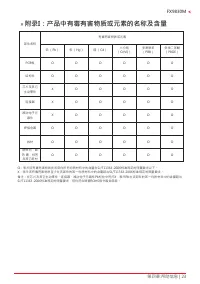
第四章:帮助信息 | 23 FX9830M » 附录I:产品中有毒有害物质或元素的名称及含量 部件名称 有毒有害物质或元素 铅 (Pb) 汞 (Hg) 镉 (Cd) 六价铬 (Cr(VI)) 多溴联苯 (PBB) 多溴二苯醚 (PBDE) PCB板 O O O O O O 结构件 O O O O O O 芯片及其它 主动零件 X O O O O O 连接器 X O O O O O 被动电子元 器件 X O O O O O 焊接金属 O O O O O O 线材 O O O O O O 助焊剂,散 热 膏,标签 及其它耗材 O O O O O O O:表示该有毒有害物质在该部件所有均质材料中的含...


 Biostar A68N-2100K
User Manual
Biostar A68N-2100K
User Manual
 Biostar AN9830
User Manual
Biostar AN9830
User Manual
 Biostar B450NH
User Manual
Biostar B450NH
User Manual
 Biostar B550
User Manual
Biostar B550
User Manual
 Biostar B550MH
User Manual
Biostar B550MH
User Manual
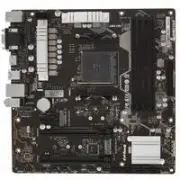 Biostar B550MX/E PRO
User Manual
Biostar B550MX/E PRO
User Manual
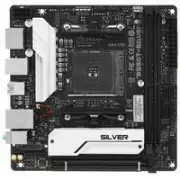 Biostar B550T
User Manual
Biostar B550T
User Manual
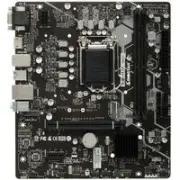 Biostar B560MH-E 2.0
User Manual
Biostar B560MH-E 2.0
User Manual
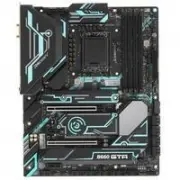 Biostar B660GTA
User Manual
Biostar B660GTA
User Manual
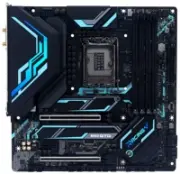 Biostar B660GTQ
User Manual
Biostar B660GTQ
User Manual
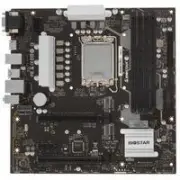 Biostar B660MX-E PRO
User Manual
Biostar B660MX-E PRO
User Manual
 Biostar B760
User Manual
Biostar B760
User Manual
 Biostar H510
User Manual
Biostar H510
User Manual
 Biostar H610
User Manual
Biostar H610
User Manual
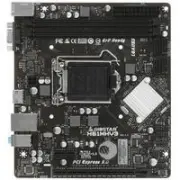 Biostar H61MHV3
User Manual
Biostar H61MHV3
User Manual
 Biostar H81MHV3 3.0
User Manual
Biostar H81MHV3 3.0
User Manual
 Biostar J4125
User Manual
Biostar J4125
User Manual
 Biostar Z490
User Manual
Biostar Z490
User Manual