Page 2 - | Table Of Contents; Table Of Contents; FCC Information and Copyright; Driver Installation; APPENDIX I: Specifications in Other Languages
2 | Table Of Contents Table Of Contents FCC Information and Copyright ������������������������������������������������������������������������������� 1 Chapter 1: Introduction ������������������������������������������������������������������������������������������� 3 1.1 Before You Start ............
Page 3 - Chapter 1: Introduction; Before You Start; sure you follow the instructions below:; Package Checklist; • Serial ATA Cable x2
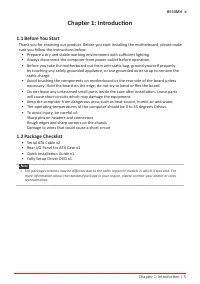
Chapter 1: Introduction | 3 B550MH Chapter 1: Introduction 1�1 Before You Start Thank you for choosing our product. Before you start installing the motherboard, please make sure you follow the instructions below: • Prepare a dry and stable working environment with sufficient lighting. • Always dis...
Page 5 - Rear Panel Connectors
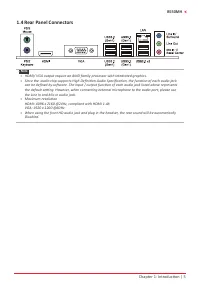
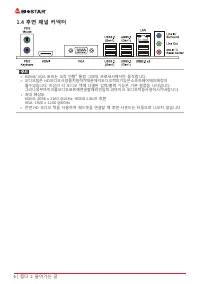
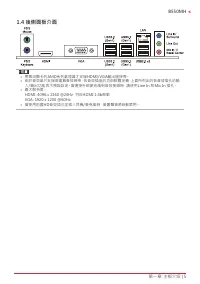
Chapter 1: Introduction | 5 B550MH 1.4 Rear Panel Connectors Note » HDMI/ VGA output require an AMD family processor with intedrated graphics. » Since the audio chip supports High Definition Audio Specification, the function of each audio jack can be defined by software. The input / output funct...
Page 6 - Motherboard Layout
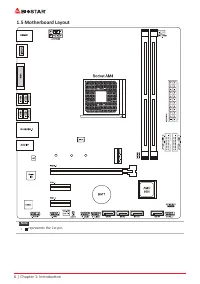
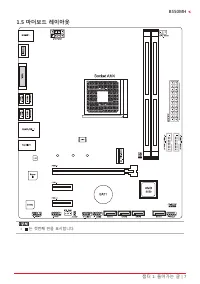
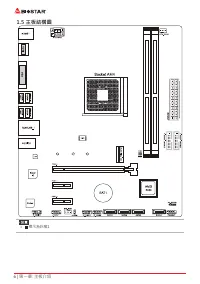
6 | Chapter 1: Introduction 1.5 Motherboard Layout Note » represents the 1st pin.
Page 7 - Chapter 2: Hardware installation; Step 1: Locate the CPU socket on the motherboard
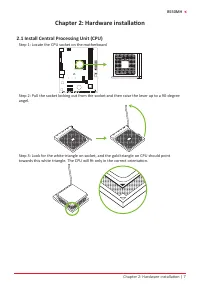
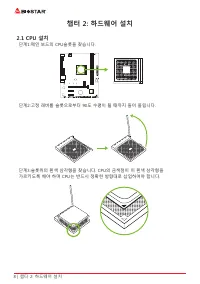
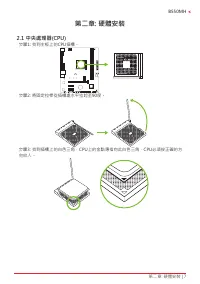
Chapter 2: Hardware installation | 7 B550MH Chapter 2: Hardware installation 2.1 Install Central Processing Unit (CPU) Step 1: Locate the CPU socket on the motherboard Step 2: Pull the socket locking out from the socket and then raise the lever up to a 90-degree angel. Step 3: Look for the white tri...
Page 8 - the retention frame, and then press down the locker until it stops.
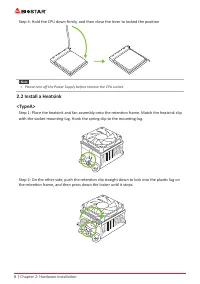
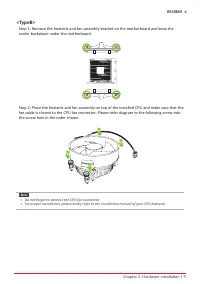
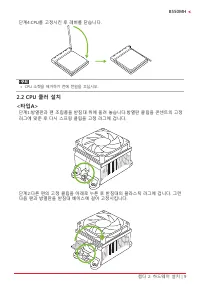
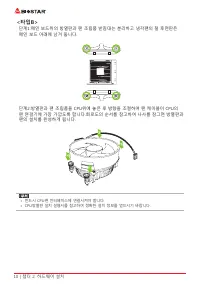
8 | Chapter 2: Hardware installation Step 4: Hold the CPU down firmly, and then close the lever to locked the position Note » Please turn off the Power Supply before remove the CPU socket. 2.2 Install a Heatsink<TypeA> Step 1: Place the heatsink and fan assembly onto the retention frame. Mat...
Page 10 - Connect Cooling Fans; may be different according to the fan manufacturer.; Install System Memory; DDR4 Modules
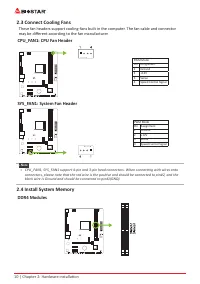
10 | Chapter 2: Hardware installation 2.3 Connect Cooling Fans These fan headers support cooling-fans built in the computer. The fan cable and connector may be different according to the fan manufacturer. CPU_FAN1: CPU Fan Header PWM ModePin Assignment1 Ground 2 +12V 3 Sense 4 Speed Control Signal S...
Page 11 - Memory Capacity; DIMM Socket Location DDR4 Module; Dual Channel Memory Installation; Dual Channel Status
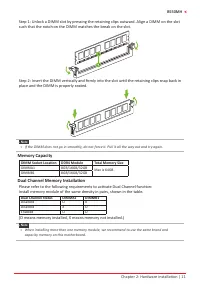
Chapter 2: Hardware installation | 11 B550MH Step 1: Unlock a DIMM slot by pressing the retaining clips outward. Align a DIMM on the slot such that the notch on the DIMM matches the break on the slot. Step 2: Insert the DIMM vertically and firmly into the slot until the retaining clips snap back in ...
Page 13 - Install an Expansion Card; You can install your expansion card by following steps:; JCMOS1: Clear CMOS Jumper; follow the procedures to avoid damaging the motherboard.
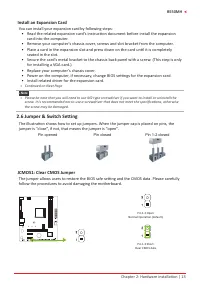
Chapter 2: Hardware installation | 13 B550MH Install an Expansion Card You can install your expansion card by following steps: • Read the related expansion card’s instruction document before install the expansion card into the computer. • Remove your computer’s chassis cover, screws and slot brack...
Page 14 - Clear CMOS Procedures:; Load Optimal Defaults and save settings in CMOS.; ATXPWR1: ATX Power Source Connector; ATXPWR2: ATX Power Source Connector
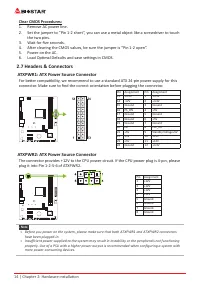
14 | Chapter 2: Hardware installation Clear CMOS Procedures: 1. Remove AC power line. 2. Set the jumper to “Pin 1-2 short”, you can use a metal object like a screwdriver to touch the two pins. 3. Wait for five seconds. 4. After clearing the CMOS values, be sure the jumper is “Pin 1-2 open”. 5. Power...
Page 15 - PANEL1: Front Panel Header; to connect the PC case’s front panel switch functions.
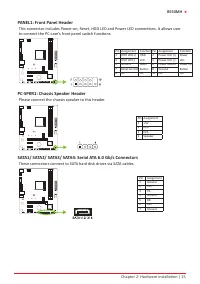
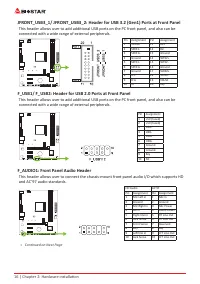
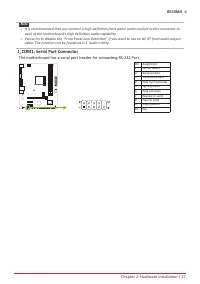
Chapter 2: Hardware installation | 15 B550MH PANEL1: Front Panel Header This connector includes Power-on, Reset, HDD LED and Power LED connections. It allows user to connect the PC case’s front panel switch functions. Pin Assignment Function Pin Assignment Function 1 HDD LED(+) HDD LED 2 Power LED (...
Page 18 - The BIOS can be updated using either of the following utilities:; Updating BIOS with BIOSTAR BIO-Flasher
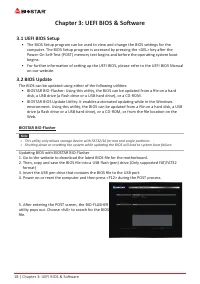
18 | Chapter 3: UEFI BIOS & Software Chapter 3: UEFI BIOS & Software 3.1 UEFI BIOS Setup • The BIOS Setup program can be used to view and change the BIOS settings for the computer. The BIOS Setup program is accessed by pressing the <DEL> key after the Power-On Self-Test (POST) memory ...
Page 19 - computer. Then the BIOS Update is completed.; BIOS Update Utility (through the Internet); An open dialog will show up to request your
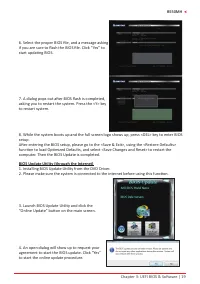
Chapter 3: UEFI BIOS & Software | 19 B550MH 6. Select the proper BIOS file, and a message asking if you are sure to flash the BIOS file. Click “Yes” to start updating BIOS. 7. A dialog pops out after BIOS flash is completed, asking you to restart the system. Press the <Y> key to restart sy...
Page 20 - BIOS Update Utility (through a BIOS file); A warning message will show up to request your
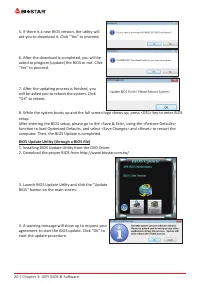
20 | Chapter 3: UEFI BIOS & Software 5. If there is a new BIOS version, the utility will ask you to download it. Click “Yes” to proceed. 6. After the download is completed, you will be asked to program (update) the BIOS or not. Click “Yes” to proceed. 7. After the updating process is finished, y...
Page 21 - then click on “Open”. It will take several minutes,; Backup BIOS; for the backup of BIOS, and select a proper
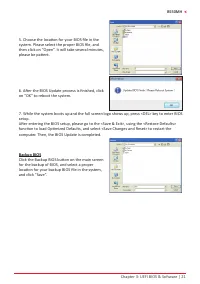
Chapter 3: UEFI BIOS & Software | 21 B550MH 5. Choose the location for your BIOS file in the system. Please select the proper BIOS file, and then click on “Open”. It will take several minutes, please be patient. 6. After the BIOS Update process is finished, click on “OK” to reboot the system. 7....
Page 22 - Installing Software; Follow the on-screen instructions to complete the installation.; Launching Software; BIOScreen Utility; logo so as to customize your computer.
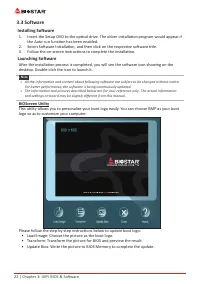
22 | Chapter 3: UEFI BIOS & Software 3.3 Software Installing Software 1. Insert the Setup DVD to the optical drive. The driver installation program would appear if the Auto-run function has been enabled. 2. Select Software Installation, and then click on the respective software title. 3. Follow ...
Page 23 - Chapter 4: Useful help; Driver Installation; You will see the following window after you insert the DVD; A. Driver Installation; installation program.; B. Software Installation; Manual icon to browse for available manual.
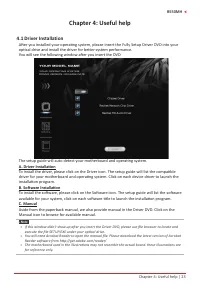
Chapter 4: Useful help | 23 B550MH Chapter 4: Useful help 4.1 Driver Installation After you installed your operating system, please insert the Fully Setup Driver DVD into your optical drive and install the driver for better system performance. You will see the following window after you insert the D...
Page 24 - AMI BIOS Beep Code; Boot Block Beep Codes; POST BIOS Beep Codes; Number of Beeps; AMI BIOS post code; Code Description
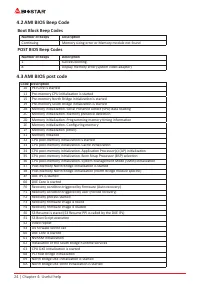
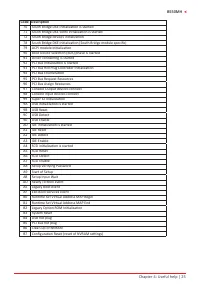
24 | Chapter 4: Useful help 4.2 AMI BIOS Beep Code Boot Block Beep Codes Number of Beeps Description Continuing Memory sizing error or Memory module not found POST BIOS Beep Codes Number of Beeps Description 1 Success booting. 8 Display memory error (system video adapter) 4.3 AMI BIOS post code Code...
Page 26 - Troubleshooting; Probable; CPU Overheated; protection function has been activated.
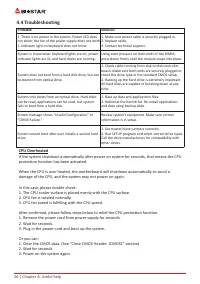
26 | Chapter 4: Useful help 4.4 Troubleshooting Probable Solution 1. There is no power in the system. Power LED does not shine; the fan of the power supply does not work 2. Indicator light on keyboard does not shine. 1. Make sure power cable is securely plugged in. 2. Replace cable. 3. Contact techn...
Page 27 - RAID Functions; RAID Definitions; written across all the drives in the array. By using multiple; Data are stored twice by writing them to both the data disk; Features and Benefits
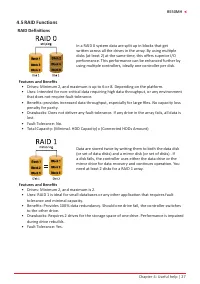
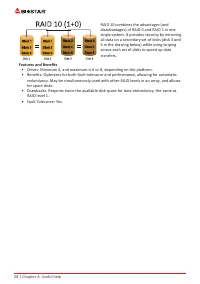
Chapter 4: Useful help | 27 B550MH 4.5 RAID Functions RAID Definitions In a RAID 0 system data are split up in blocks that get written across all the drives in the array. By using multiple disks (at least 2) at the same time, this offers superior I/O performance. This performance can be enhanced fur...
Page 29 - Arabic
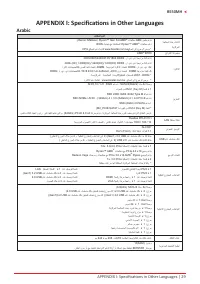
APPENDIX I: Specifications in Other Languages | 29 B550MH APPENDIX I: Specifications in Other Languages Arabic تﺎﻔﺻاﻮﻤﻟا ﺔﺠﻟﺎﻌﻤﻟا ةﺪﺣو ةﺪﻋﺎﻗ ﺔﻳﺰآﺮﻤﻟا .(Renoir /Matisse) Ryzen™ Gen 3rd AMD ® تﺎﺠﻟﺎﻌﻣ AM4 ﺲﺒﻘﻣ ﻢﻋﺪﻳ .BIOS ﺚﻳﺪﺤﺗ ﻊﻣ ﺔﻴﻠﺒﻘﺘﺴﻤﻟا Ryzen™ AMD ® تﺎﺠﻟﺎﻌﻣ ﻢﻋد * ﻊﻗﻮﻤﻟا ﻰﻟإ عﻮﺟﺮﻟا ﻰﺟﺮﻳ www.biostar....
Page 30 - German
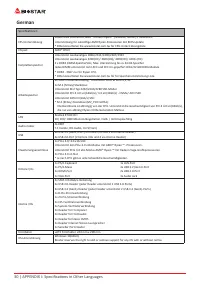
30 | APPENDIX I: Specifications in Other Languages German Spezifikationen CPU-Unterstützung Sockel AM4 unterstützt AMD® 3rd Gen Ryzen™ (Matisse/ Renoir)-ProzessorenUnterstützung für zukünftige AMD Ryzen-Prozessoren mit BIOS-Update* Bitte konsultieren Sie www.biostar.com.tw für CPU-Unterstützungslist...
Page 31 - Russian
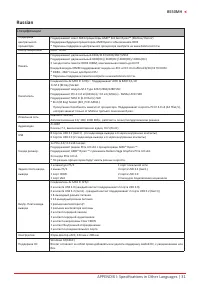
APPENDIX I: Specifications in Other Languages | 31 B550MH Russian Спецификации Поддержка центрального процессора Поддерживает cокет AM4 процессоры AMD® 3rd Gen Ryzen™ (Matisse/ Renoir)Поддержка будущих процессоров AMD Ryzen с обновлением BIOS * Перечень поддержки центрального процессора смотрите на ...
Page 32 - Spanish
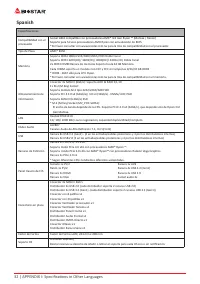
32 | APPENDIX I: Specifications in Other Languages Spanish Especificaciones Compatibilidad con el procesador Socket AM4 compatible con procesadores AMD® 3rd Gen Ryzen ™ (Matisse / Renoir) Soporte para futuros procesadores AMD Ryzen con actualización de BIOS *Por favor consultar con www.biostar.com.t...
Page 33 - Thai
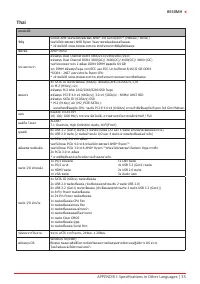
APPENDIX I: Specifications in Other Languages | 33 B550MH Thai คุณสมบัติ ซีพียู Socket AM4 รองรับโปรเซสเซอร ์AMD ® 3rd Gen Ryzen™ (Matisse / Renoir) รองรับโปรเซสเซอร์ AMD Ryzen ในอนาคตพร้อมอัพเดตไบออส.* เข้าชมได้ที่ www.biostar.com.tw สำาหรับรายการซีพียูที่สนับสนุน ชิพเซ็ต AMD ® B550 หน่วยความจำา สน...
Page 34 - Japan
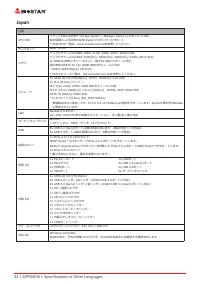
34 | APPENDIX I: Specifications in Other Languages Japan 仕様 CPU 対応 ソケットAM4 はAMD ® 3rd Gen Ryzen™ (Matisse/ Renoir)プロセッサ に対応 BIOS更新による将来のAMD Ryzenプロセッサーのサポート* 対応CPUの一覧は、www.biostar.com.twを参照してください チップセット AMD® B550 メモリ デュアルチャンネルDDR4 1866/ 2133/ 2400/ 2667/ 2933に対応デュアルチャンネルDDR4 3200(OC)/ 3600(OC)/ 4000...
Page 35 - 정전기방지 조작 규칙
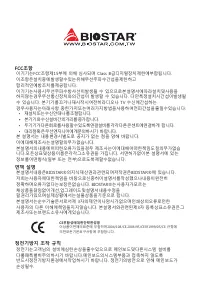
FCC조항 이기기는FCC조항제15부에 의해 심사되며 Class B급디지털장치제한에부합됩니다. 이조항은설치중에발생할수있는유해무선주파수간섭을제한하고 합리적인예방조치를제공합니다.이기기는사용시무선주파수방사선이발생될 수 있으므로본설명서에따라설치및사용을 하지않는경우무선통신장치와의간섭이 발생할 수 있습니다. 다만특정설치시간섭이발생될 수 있습니다. 본기기를끄거나재시작시여전히라디오나 TV 수신에간섭하는 경우사용자는아래사항 중한가지또는여러가지방법을사용하여전파간섭을줄일수있습니다: • 재설치또는수신안테나를조절합니다.• 본기기와수신설비간의거리를증가합니다....
Page 37 - 목차; 챕터 1: 들어가는 글 ������������������������������������������������������������������������������������������������
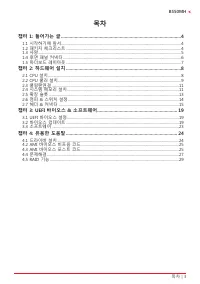
목차 | 3 B550MH 목차 챕터 1: 들어가는 글 ������������������������������������������������������������������������������������������������ 4 1.1 시작하기에 앞서 ................................................................................................................................4 1.2 패키지 체크리스트 .................
Page 38 - 패키지 체크리스트
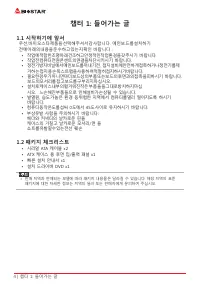
4 | 챕터 1: 들어가는 글 챕터 1: 들어가는 글 1�1 시작하기에 앞서 우선,바이오스타제품을선택해주셔서감사합니다. 메인보드를설치하기 전에아래의내용을준수하고있는지확인 바랍니다: • 작업에적합한조명아래건조하고안정적인작업환경을갖추시기 바랍니다.• 작업전컴퓨터전원콘센트의연결을차단시키시기 바랍니다.• 정전기방지비닐에서메인보드를꺼내기전, 접지설비에안전하게접촉하거나정전기를제 거하는접지용손목스트랩을사용하여적절히접지하시기바랍니다. • 필요한경우가아니면마더보드상의부품또는보드의후면과의접촉을피하시기 바랍니다. 보드의모서리를잡고보드를구부리지마십시오....
Page 45 - �4 시스템 메모리 설치; DDR4 모듈
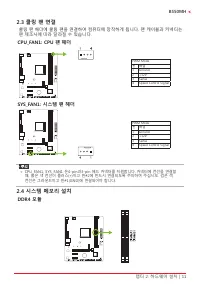
챕터 2: 하드웨어 설치 | 11 B550MH 2�3 쿨링 팬 연결 쿨링 팬 헤더에 쿨링 팬을 연결하여 컴퓨터에 장착하게 됩니다. 팬 케이블과 커넥터는 팬 제조사에 따라 달라질 수 있습니다. CPU_FAN1: CPU 팬 헤더 PWM Mode핀 배열 1 Ground 2 +12V 3 Sense 4 Speed Control Signal SYS_FAN1: 시스템 팬 헤더 PWM Mode핀 배열 1 Ground 2 +12V 3 Sense 4 Speed Control Signal » CPU_FAN1, SYS_FAN1 은4-pin과3-pin 헤...
Page 46 - 메모리 용량; DIMM소켓 위치; 듀얼 채널 메모리 설치; 듀얼 채널 상태
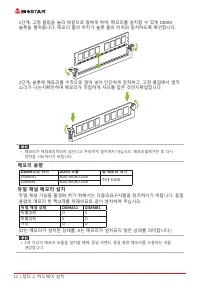
12 | 챕터 2: 하드웨어 설치 1단계: 고정 클립을 눌러 바깥으로 향하게 하여, 메모리를 설치할 수 있게 DIMM 슬롯을 열어줍니다. 메모리 홈의 위치가 슬롯 홈의 위치와 일치하도록 확인합니다. 2단계: 슬롯에 메모리를 수직으로 밀어 넣어 단단하게 장착하고, 고정 클립에서 딸깍 소리가 나는지확인하여 메모리가 적합하게 자리를 잡은 것인지확입합니다. » 메모리가 제대로장착되지 않는다고 무리하게 설치하지 마십시오. 메모리를제거한 후 다시 장착을 시도하시기 바랍니다. 메모리 용량 DIMM소켓 위치 DDR4 모듈 총 메모리 크기 DIMM...
Page 48 - 확장 카드 설치; 다음의 단계에 따라 확장 카드를 장착할 수 있습니다 :
14 | 챕터 2: 하드웨어 설치 확장 카드 설치 다음의 단계에 따라 확장 카드를 장착할 수 있습니다 : • 컴퓨터에 확장 카드를 설치하기 전에 확장 카드의 안내문을 읽으시기 바랍니다.• 컴퓨터에서 케이스 커버, 볼트, 슬롯 브라켓을 제거합니다.• 확장 슬롯에 카드를 놓고, 슬롯에 완벽하게 장착이 되도록 카드를 아래로 눌러 줍니다. • 카드의 금속 브라켓을 케이스 후면 패널에 드라이버를 이용하여 고정합니다.(이 단계는 VGA 카드 설치에만 해당됩니다. • 컴퓨터 케이스 커버를 다시 덮어씁니다.• 필요한 경우, 컴퓨터를 켜고 확장 카...
Page 50 - 이 커넥터들은 SATA 케이블을 통해 SATA 하드 디스크 드라이브에 연결됩니다.
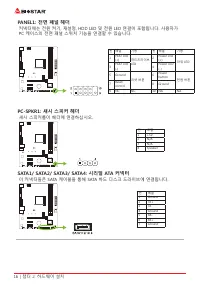
16 | 챕터 2: 하드웨어 설치 PANEL1: 전면 패널 헤더 커넥터에는 전원 켜기, 재설정, HDD LED 및 전원 LED 연결이 포함됩니다. 사용자가 PC 케이스의 전면 패널 스위치 기능을 연결할 수 있습니다. 핀 배열 기능 핀 배열 기능 1 HDD LED (+) 하드드라이브 LED 2 Power LED (+) 파워 LED 3 HDD LED (-) 4 Power LED (-) 5 Ground 리셋 버튼 6 Power button 전원 버튼 7 Reset control 8 Ground 9 NC NC 10 NA NA PC-SPKR...
Page 52 - 본 메인 보드는 1개의 직렬포트가 있으며RS-232커넥터를 연결할 수 있습니다.
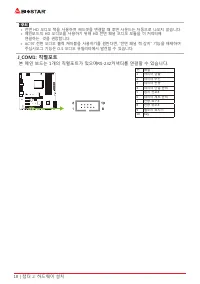
18 | 챕터 2: 하드웨어 설치 » 전면 HD 오디오 잭을 사용하여 헤드셋을 연결할 때 후면 사운드는 자동으로 나오지 않습니다.» 메인보드의 HD 오디오를 사용하기 위해 HD 전면 패널 오디오 모듈을 이 커넥터에 연결하는 것을 권장합니다. » AC’97 전면 오디오 출력 케이블을 사용하기를 원한다면, “전면 패널 잭 감지” 기능을 해제하여 주십시오그 기능은 O.S 오디오 유틸리티에서 발견할 수 있습니다. J_COM1: 직렬포트 본 메인 보드는 1개의 직렬포트가 있으며RS-232커넥터를 연결할 수 있습니다. 핀 배열 1 캐리어 검출...
Page 53 - �1 UEFI 바이오스 설정; • 바이오스 설정 프로그램은 컴퓨터의 바이오스 설정을 보거나 변경할 때 사용됩니다.
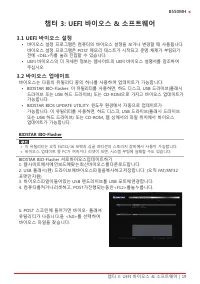
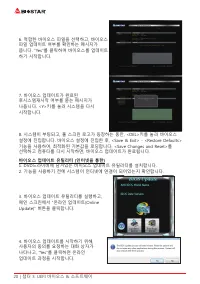
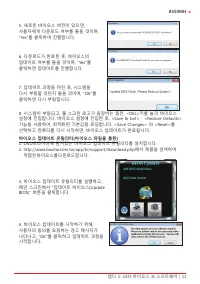
챕터 3: UEFI 바이오스 & 소프트웨어 | 19 B550MH 챕터 3: UEFI 바이오스 & 소프트웨어 3�1 UEFI 바이오스 설정 • 바이오스 설정 프로그램은 컴퓨터의 바이오스 설정을 보거나 변경할 때 사용됩니다. 바이오스 설정 프로그램은 POST 메모리 테스트가 시작되고 운영 체제가 부팅되기 전에 <DEL>키를 눌러 진입할 수 있습니다. • UEFI 바이오스의 더 자세한 정보는 웹사이트의 UEFI 바이오스 설명서를 참조하여 주십시오. 3�2 바이오스 업데이트 바이오스는 다음의 유틸리티 중의 하나를 ...
Page 56 - 바이오스의 백업
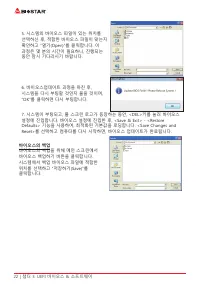
22 | 챕터 3: UEFI 바이오스 & 소프트웨어 5. 시스템의 바이오스 파일이 있는 위치를 선택하신 후, 적합한 바이오스 파일이 맞는지 확인하고 “열기(Open)”를 클릭합니다. 이 과정은 몇 분의 시간이 필요하니, 진행되는 동안 잠시 기다리시기 바랍니다. 6. 바이오스업데이트 과정을 마친 후, 시스템을 다시 부팅할 것인지 물을 것이며, “OK”를 클릭하면 다시 부팅합니다. 7. 시스템이 부팅되고, 풀 스크린 로고가 등장하는 동안, <DEL>키를 눌러 바이오스 설정에 진입합니다. 바이오스 설정에 진입한 후, &...
Page 57 - 소프트웨어의 설치; 광학 드라이브에 시작 DVD를 넣은 후, 자동 실행 기능이 활성화 되면 드라이버; 소프트웨어의 실행; 부트 로고를 업데이트 하기 위해 아래 지시사항을 순서대로 준수하시기 바랍니다 :
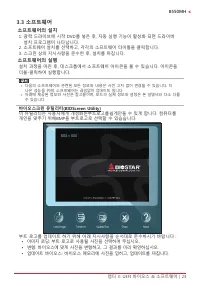
챕터 3: UEFI 바이오스 & 소프트웨어 | 23 B550MH 3�3 소프트웨어 소프트웨어의 설치 1. 광학 드라이브에 시작 DVD를 넣은 후, 자동 실행 기능이 활성화 되면 드라이버 설치 프로그램이 나타납니다. 2. 소프트웨어 설치를 선택하고, 각각의 소프트웨어 타이틀을 클릭합니다.3. 스크린 상의 지시사항을 준수한 후, 설치를 마칩니다. 소프트웨어의 실행 설치 과정을 마친 후, 데스크톱에서 소프트웨어 아이콘을 볼 수 있습니다. 아이콘을 더블-클릭하여 실행합니다. » 다음의 소프트웨어와 관련된 모든 정보와 내용은 사전 고...
Page 58 - 설정 가이드는 사용자의 마더보드와 운영 체제를 자동으로 감지합니다.; A� 드라이버 설치
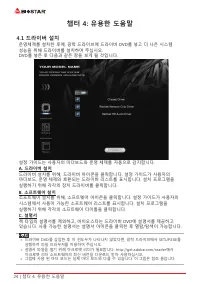
24 | 챕터 4: 유용한 도움말 챕터 4: 유용한 도움말 4�1 드라이버 설치 운영체제를 설치한 후에, 광학 드라이브에 드라이버 DVD를 넣고 더 나은 시스템 성능을 위해 드라이버를 설치하여 주십시오.DVD를 넣은 후 다음과 같은 창을 보게 될 것입니다. 설정 가이드는 사용자의 마더보드와 운영 체제를 자동으로 감지합니다. A� 드라이버 설치 드라이버 설치를 위해, 드라이버 아이콘을 클릭합니다. 설정 가이드가 사용자의 마더보드, 운영 체제와 호환되는 드라이버 리스트를 표시합니다. 설치 프로그램을 실행하기 위해 각각의 장치 드라이버를...
Page 59 - AMI 바이오스 비프 코드; 부트 블록 비프 코드; POST 바이오스 비프 코드; 비프음 횟수; �3 AMI 바이오스 포스트 코드; 코드 설명
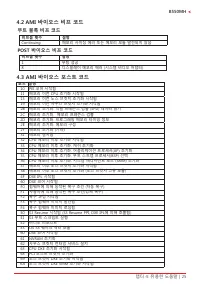
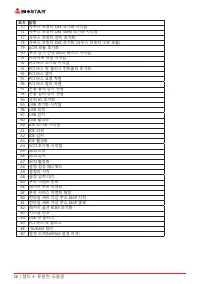
챕터 4: 유용한 도움말 | 25 B550MH 4�2 AMI 바이오스 비프 코드 부트 블록 비프 코드 비프음 횟수 설명 Continuing 메모리 사이징 에러 또는 메모리 모듈 발견되지 않음 POST 바이오스 비프 코드 비프음 횟수 설명 1 부팅 성공 8 디스플레이 메모리 에러 (시스템 비디오 어댑터) 4�3 AMI 바이오스 포스트 코드 코드 설명 10 PEI 코어 시작됨11 메모리 이전 CPU 초기화 시작됨15 메모리 이전 노스 브릿지 초기화 시작됨19 메모리 이전 사우스 브릿지 초기화 시작됨2B 메모리 초기화. 직렬 프레즌스 검...
Page 61 - 전원 케이블이 제대로 연결되어 있는지
챕터 4: 유용한 도움말 | 27 B550MH 4�4 문제 해결 증상 해결책 1. 시스템에 전원이 들어오지 않는다. 파워 LED가 반짝이지 않는다; 전원 공급 장치의 팬이 동작하지 않는다. 2. 키보드의인디케이터불이들어오지 않는다. 1. 전원 케이블이 제대로 연결되어 있는지 확인한다. 2. 케이블을 교체해본다.3. 기술 지원부서에 연락한다. 시스템이 동작하지 않는다. 키보드 라이트는 들어와 있고, 파워 인디케이터 라이트 역시 켜져 있고, 하드 드라이브는 동작중이다. 메모리 양쪽 끝에 힘을 주어 아래로 밀면서, 모듈이 딸깍 소리를 내...
Page 62 - CPU의 과열
28 | 챕터 4: 유용한 도움말 CPU의 과열 시스템에 전원을 인가하고 수 초 후에 저절로 시스템이 꺼진다면 그것은 CPU 보호 기능이 활성화된 것을 의미합니다. CPU가 과열되면, 마더보드는 CPU의 손상을 방지하기 위해 자동으로 전원을 차단하며, 시스템은 다시 전원이 들어오지 않을 수 있습니다. 이런 경우에, 더블 체크가 필요합니다:1. CPU 쿨러 표면이 CPU 표면 위에 평평하게 자리잡고 있는지 살펴봅니다.2. CPU 팬이 정상적으로 도는지 체크합니다.3. CPU 팬 스피드가 CPU 동작 속도와 적합한 지 여부를 체크합니다...
Page 63 - RAID 기능; RAID 정의; 오차를 요구하지 않는 환경을 위해 의도된 기술입니다.; 특징과 장점; 컨트롤러가 정상적인 다른 드라이브로 전환합니다.
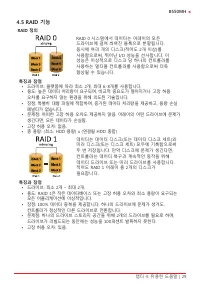
챕터 4: 유용한 도움말 | 29 B550MH 4�5 RAID 기능 RAID 정의 RAID 0 시스템에서 데이터는 어레이의 모든 드라이브에 걸쳐 씌여진 블록으로 분할됩니다. 동시에 여러 개의 디스크(적어도 2개 이상)를 사용함으로써, 뛰어난 I/O 성능을 선사합니다. 이 성능은 이상적으로 디스크 당 하나의 컨트롤러를 사용하는 멀티플 컨트롤러를 사용함으로써 더욱 향상될 수 있습니다. 특징과 장점 • 드라이브: 플랫폼에 따라 최소 2개, 최대 6-8개를 사용합니다.• 용도: 높은 데이터 처리량이 요구되며, 비교적 중요도가 떨어지거나 고...
Page 64 - • 문제점: 데이터 중복을 위해 RAID 레벨 1과 같이 두 배의 가용 디스크 공간이
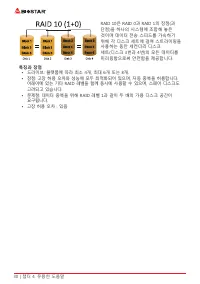
30 | 챕터 4: 유용한 도움말 RAID 10은 RAID 0과 RAID 1의 장점(과 단점)을 하나의 시스템에 조합해 놓은 것이며 데이터 전송 스피드를 가속하기 위해 각 디스크 세트에 걸쳐 스트라이핑을 사용하는 동안 세컨더리 디스크 세트(디스크 3번과 4번)의 모든 데이터를 미러링함으로써 안전함을 제공합니다. 특징과 장점 • 드라이브: 플랫폼에 따라 최소 4개, 최대 6개 또는 8개.• 장점: 고장 허용 오차와 성능에 모두 최적화되어 있으며, 자동 중복을 허용합니다. 어레이에 있는 기타 RAID 레벨을 함께 동시에 사용할 수 있으...
Page 65 - 防靜電操作規則
FCC條款 本裝置經測試,證實依據FCC規範第15篇規定,符合Class B數位裝置的限制。這些限制意 旨在提供合理的保護以防範有害的干擾。本設備會產生、使用並發出無線射頻能量,如未 依指示進行安裝與使用,可能會對無線電通訊造成有害的干擾。然而,無法保證在任一特 定安裝情況下不會產生任何干擾。如果本設備確實對無線電或電視收訊造成有害的干擾 (可 透過開啟和關閉設備電源的方式確定),則我們鼓勵使用者嘗試下列其中一項或多項方式來 改善干擾情況: • 重新調整接收天線的方向或位置。 • 增加設備與接收器之間的間隔距離。 • 將設備連接至與接收器所接電路不同的電源插座。 • 諮詢經銷商或有經驗的無線電...
Page 66 - 目錄; 第一章: 主板介绍 �������������������������������������������������������������������������������������������������������
2 | 目錄 目錄 第一章: 主板介绍 ������������������������������������������������������������������������������������������������������� 3 1.1 前言 ............................................................................................................................................... 3 1.2 包裝配件 ...............
Page 68 - 主板特性
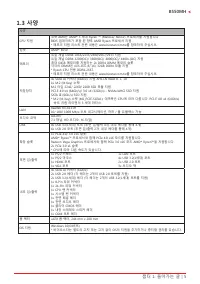
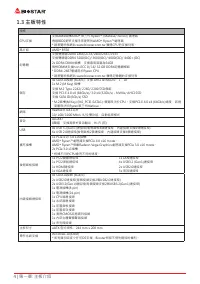
4 | 第一章: 主板介绍 1�3 主板特性 規格 CPU支援 支援AM4插槽AMD ® 第三代 Ryzen™ (Matisse/ Renoir) 處理器 透過BIOS更新支援未來更新的AMD ® Ryzen™處理器 * 請瀏覽映泰網站 www.biostar.com.tw 獲得CPU的支援列表。 晶片組 AMD ® B550 記憶體 支援雙通道DDR4 1866/2133/2400/2667/2933支援雙通道DDR4 3200(OC)/ 3600(OC)/ 4000(OC)/ 4400+(OC)2x DDR4 DIMM插槽,支援最高容量為64GB每根DIMM支援non-ECC 8/ 16/...
Page 72 - 步驟1: 將散熱片和風扇零件放置在支架上。散熱片夾對準插座並固定凸耳,再將彈簧夾
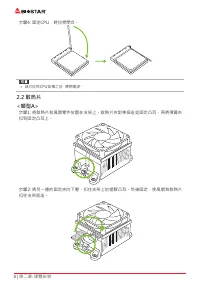
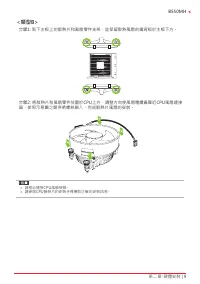
8 | 第二章: 硬體安裝 步驟4: 固定CPU,將拉桿閉合。 » 請於拔除CPU插槽之前,關閉電源。 2�2 散热片<類型A> 步驟1: 將散熱片和風扇零件放置在支架上。散熱片夾對準插座並固定凸耳,再將彈簧夾 扣到固定凸耳上。 步驟2: 將另一邊的固定夾向下壓,扣住支架上的塑膠凸耳。然後固定,使風扇和散熱片 扣住支架底座。
Page 74 - 此風扇接頭支援電腦上設置的冷卻風扇,風扇電纜和連接器可能因風扇製造商而有差; DDR4記憶體模組
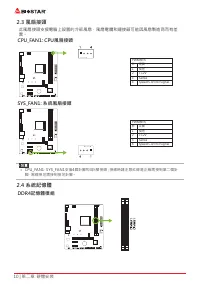
10 | 第二章: 硬體安裝 2�3 風扇接頭 此風扇接頭支援電腦上設置的冷卻風扇,風扇電纜和連接器可能因風扇製造商而有差 異。 CPU_FAN1: CPU風扇接頭 PWM模式針 定義1 接地 2 +12V 3 Sense 4 Speed Control Signal SYS_FAN1: 系統風扇接頭 PWM模式針 定義1 接地 2 +12V 3 Sense 4 Speed Control Signal » CPU_FAN1,SYS_FAN1支援4個針腳和3針腳接頭;接線時請注意紅線是正級需接到第二個針 腳,黑線接地需接到接地針腳。 2�4 系統記憶體 DDR4記憶體模組
Page 75 - 記憶體容量; DIMM插槽位置; 雙通道記憶安裝; 為啓動主板雙通道功能,使用記憶體模組必須符合以下要求: 成對安裝相同密度的記憶; 雙通道狀態
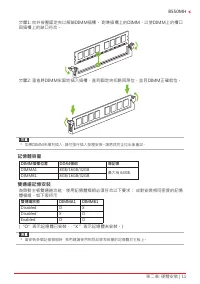
第二章: 硬體安裝 | 11 B550MH 步驟1: 向外按壓固定夾以解鎖DIMM插槽。 對準插槽上的DIMM,以使DIMM上的槽口 與插槽上的缺口符合。 步驟2: 垂直將DIMM牢固地插入插槽,直到固定夾扣跳回原位,並且DIMM正確就位。 » 如果DIMM未順利插入,請勿強行插入按壓安裝。請將其完全拉出後重試。 記憶體容量 DIMM插槽位置 DDR4模组 總記憶 DIMMA1 8GB/16GB/32GB 最大為 64GB. DIMMB1 8GB/16GB/32GB 雙通道記憶安裝 為啓動主板雙通道功能,使用記憶體模組必須符合以下要求: 成對安裝相同密度的記憶 體模組。如下表所示 雙通道狀態 ...
Page 77 - 安裝擴充卡
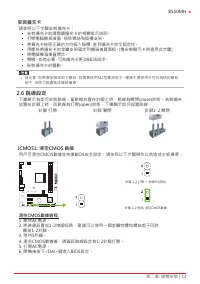
第二章: 硬體安裝 | 13 B550MH 安裝擴充卡 請參照以下步驟安裝擴充卡: • 安裝擴充卡前請閱讀擴充卡的相關指示說明。 • 打開電腦機箱後蓋,移除螺絲和插槽支架。 • 將擴充卡按照正確的方向插入插槽,直到擴充卡完全固定住。 • 用螺絲將擴充卡的金屬支架固定到機箱後置面板。(僅安裝顯示卡時適用此步驟) • 將電腦機箱後蓋閉合。 • 開機。如有必要,可為擴充卡更改BIOS設定。 • 安裝擴充卡的驅動。 » 請注意,如果要安裝或卸下螺絲,則需要使用M2型螺絲起子。建議不要使用不符合規格的螺絲 起子,否則可能會造成螺絲損壞。 2�6 跳線設定 下圖顯示為如何安裝跳線。當跳帽放置在針腳上時,跳...
Page 78 - 此10針腳接頭包含開機,重新啓動,硬碟指示燈和電源指示燈。
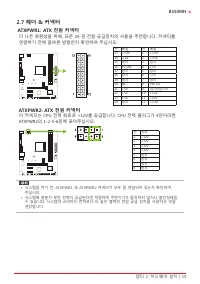
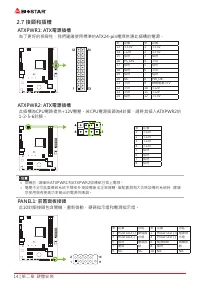
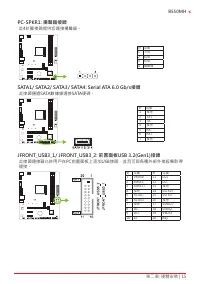
14 | 第二章: 硬體安裝 2�7 接頭和插槽 ATXPWR1: ATX電源插槽 為了更好的相容性,我們建議使用標準的ATX24-pin電源供應此插槽的電源。 針 定義 針 定義 13 +3.3V 1 +3.3V 14 -12V 2 +3.3V 15 接地 3 接地 16 PS_ON 4 +5V 17 接地 5 接地 18 接地 6 +5V 19 接地 7 接地 20 NC 8 PW_OK 21 +5V 9 喚醒電壓+5V 22 +5V 10 +12V 23 +5V 11 +12V 24 接地 12 +3.3V ATXPWR2: ATX電源插槽 此插槽為CPU電路提供+12V電壓。若CPU電...
Page 80 - 此主板提供序列埠接頭可接RS-232接頭。
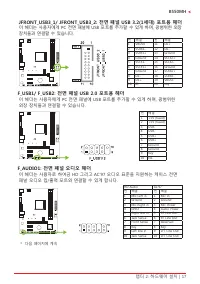
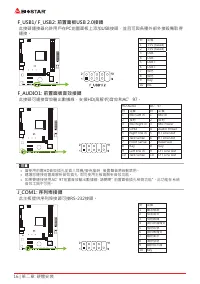
16 | 第二章: 硬體安裝 F_USB1/ F_USB2: 前置面板USB 2�0接頭 此接頭連接器允許用戶在PC前置面板上添加USB接頭,並且可與各種外部外接設備取得 連接。 針 定義 1 +5V (fused) 2 +5V (fused) 3 USB- 4 USB- 5 USB+ 6 USB+ 7 接地 8 接地 9 Key 10 NC F_AUDIO1: 前置面板音效接頭 此接頭可連接音效輸出數據線,支援HD(高解析)音效和AC’97。 HD Audio AC’97 針 定義 針 定義 1 Mic Left in 1 Mic In 2 接地 2 接地 3 Mic Right in 3 ...
Page 81 - �1 UEFI BIOS設定
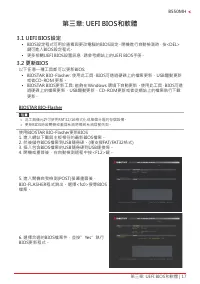
第三章: UEFI BIOS和軟體 | 17 B550MH 第三章: UEFI BIOS和軟體 3�1 UEFI BIOS設定 • BIOS設定程式可用於查看與更改電腦的BIOS設定。開機進行自動檢測時,按<DEL> 鍵可進入BIOS設定程式。 • 更多相關UEFI BIOS設置訊息,請參考網站上的UEFI BIOS手册。 3�2 更新BIOS 以下任意一種工具都可以更新BIOS: • BIOSTAR BIO-Flasher: 使用此工具,BIOS可透過硬碟上的檔案更新、USB驅動更新 或者CD-ROM 更新。 • BIOSTAR BIOS更新工具: 能夠在Windows 環境下自...
Page 82 - BIOS更新工具(通過網路)
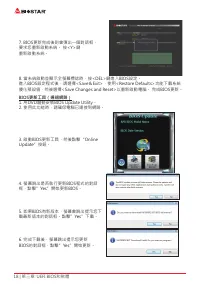
18 | 第三章: UEFI BIOS和軟體 7. BIOS更新完成後則會彈出一個對話框, 要求您重新啟動系統。 按<Y>鍵 重新啟動系統。 8. 當系統啟動並顯示全螢幕標誌時,按<DEL>鍵進入BIOS設定。 進入BIOS設定程式後,請選擇<Save&Exit>,使用<Restore Defaults>功能下載系統 優化預設值,然後選擇<Save Changes and Reset>以重新啟動電腦。 完成BIOS更新。 BIOS更新工具(通過網路) 1. 用DVD驅動安裝BIOS Update Utility。 2. 使用此功能時,...
Page 83 - BIOS更新工具(通過BIOS文件)
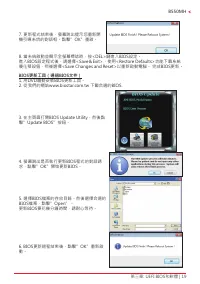
第三章: UEFI BIOS和軟體 | 19 B550MH 7. 更新程式结束後,螢幕跳出提示您重新開 機引導系统的對話框。點擊”OK”重啟。 8. 當系統啟動並顯示全螢幕標誌時,按<DEL>鍵進入BIOS設定。 進入BIOS設定程式後,請選擇<Save&Exit>,使用<Restore Defaults>功能下載系統 優化預設值,然後選擇<Save Changes and Reset>以重新啟動電腦。 完成BIOS更新。 BIOS更新工具(通過BIOS文件) 1. 用DVD驅動安裝BIOS更新工具。 2. 從我們的網站www.biostar.c...
Page 84 - 優化預設值,然後選擇以重新啟動電腦。 完成BIOS更新。; BIOS備份; 點擊BIOS備份按鈕,選擇備份檔案內的合適目
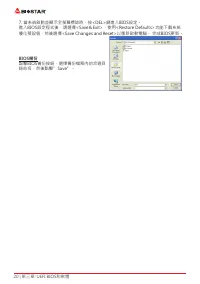
20 | 第三章: UEFI BIOS和軟體 7. 當系統啟動並顯示全螢幕標誌時,按<DEL>鍵進入BIOS設定。 進入BIOS設定程式後,請選擇<Save&Exit>,使用<Restore Defaults>功能下載系統 優化預設值,然後選擇<Save Changes and Reset>以重新啟動電腦。 完成BIOS更新。 BIOS備份 點擊BIOS備份按鈕,選擇備份檔案內的合適目 錄命名,然後點擊”Save”。
Page 85 - BIOScreen 工具
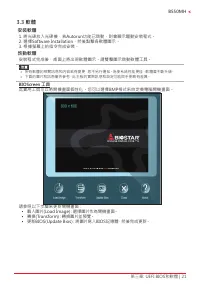
第三章: UEFI BIOS和軟體 | 21 B550MH 3�3 軟體 安裝軟體 1. 將光碟放入光碟機,若Autorun功能已啓動,則會顯示驅動安裝程式。 2. 選擇Software Installation,然後點擊各軟體圖示。 3. 根據螢幕上的指令完成安裝。 啓動軟體 安裝程式完成後,桌面上將出現軟體圖示。請雙擊圖示啓動軟體工具。 » 所有軟體的相關訊息和内容若有變更,恕不另行通知。為使系統性能更佳,軟體會不斷升級。 » 下面的圖片和訊息僅供參考,此主板的實際訊息和設定可能與手册略有差異。 BIOScreen 工具 此實用工具可以將開機畫面個性化。您可以選擇BMP格式來自定義電腦開機...
Page 86 - 驅動程式安裝注意事項; A� 驅動程式安裝
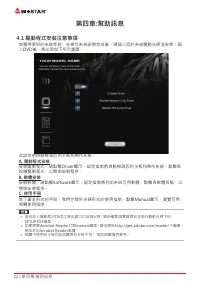
22 | 第四章:幫助訊息 第四章:幫助訊息 4�1 驅動程式安裝注意事項 為獲得更好的系統性能,在操作系統安裝完成後,請插入您的系統驅動光碟並安裝。插 入DVD後,將出現如下所示畫面。 此設定將自動檢測您的主板和操作系統。 A� 驅動程式安裝 安裝驅動程式,請點擊Driver圖示。設定指南將自動檢測您的主板和操作系統。點擊各 設備驅動程式,以開始安裝程序。 B� 軟體安裝 安裝軟體,請點擊Software圖示。設定指南將列出系統可用軟體,點擊各軟體名稱,以 開始安裝程序。 C� 使用手册 除了書本形式的手册,我們也提供光碟形式的使用指南。點擊Manual圖示,瀏覽可用 相關使用指南。 » 若...
Page 87 - AMI BIOS 提示音代碼; 啓動區塊模組提示音代碼; BIOS 開機自檢提示音代碼; 提示音次數; AMI BIOS 開機自檢代碼; 代碼 含義
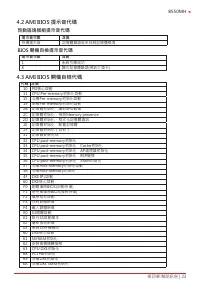
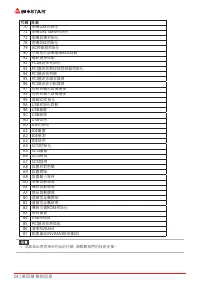
第四章:幫助訊息 | 23 B550MH 4�2 AMI BIOS 提示音代碼 啓動區塊模組提示音代碼 提示音次數 含義 持續提示音 記憶體錯誤或未找到記憶體模塊 BIOS 開機自檢提示音代碼 提示音次數 含義 1 系統引導成功 8 顯示記憶體錯誤(視訊介面卡) 4�3 AMI BIOS 開機自檢代碼 代碼 含義 10 PEI核心啓動11 CPU Pre-memory初始化啓動15 北橋Pre-memory初始化啓動19 南橋Pre-memory初始化啓動2B 記憶體初始化,讀取SPD數據 2C 記憶體初始化,檢測Memory presence 2D 記憶體初始化,程式化記憶體資訊 2E 記憶...
Page 89 - 問題解答; 問題
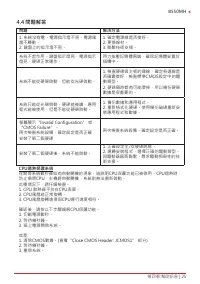
第四章:幫助訊息 | 25 B550MH 4�4 問題解答 問題 解决方法 1. 系統沒有電,電源指示燈不亮,電源風 扇不轉動。 2. 鍵盤上的指示燈不亮。 1. 確定電源線是否接好。 2. 更換線材。 3. 聯繫技術支援。 系統不起作用。鍵盤指示燈亮,電源指示 燈亮,硬碟正常運作。 用力按壓記憶體兩端,確保記憶體安置於 插槽中。 系統不能從硬碟啓動,但能從光碟啓動。 1. 檢查硬碟與主板的連線,確定各連線是 否確實接好,檢查標準CMOS設定中的驅 動類型。 2. 硬碟隨時都有可能壞掉,所以備份硬碟 數據是很重要的。 系統只能從光碟啓動。硬碟能被讀,應用 程式能被使用,但是不能從硬碟啓動。 1...
Page 90 - RAID 功能; RAID 定義; 性能及優點
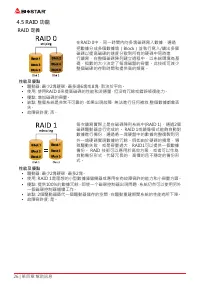
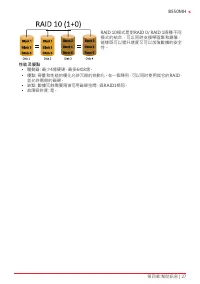
26 | 第四章:幫助訊息 4�5 RAID 功能 RAID 定義 在RAID 0中,同一時間內向多塊磁碟寫入數據,通過 把數據分成多個數據塊(Block)並執行寫入/讀出多個 磁碟以提高磁碟的速度分散到所有的硬碟中同時進 行讀寫,在整個磁碟陣列建立過程中,以系統環境為基 礎,指數的大小決定了每塊磁盤的容量。此技術可減少 整個磁碟的存取時間和提供高的頻寬。 性能及優點 • 驅動器: 最少2塊硬碟,最多達6塊或8塊,取決於平台。 • 使用: 使用RAID 0來提高磁碟的性能和流通量,但没有冗餘或錯誤修復能力。 • 優點: 增加磁碟的容量。 • 缺點: 整個系統是非常不可靠的,如果出現故障,無法進...
Page 92 - 8 | 附录:产品中有毒有害物质或元素的名称及含量; 附录:产品中有毒有害物质或元素的名称及含量
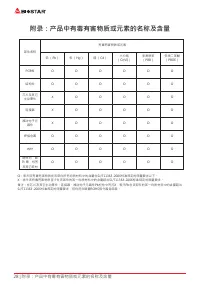
28 | 附录:产品中有毒有害物质或元素的名称及含量 附录:产品中有毒有害物质或元素的名称及含量 部件名称 有毒有害物质或元素 铅 (Pb) 汞 (Hg) 镉 (Cd) 六价铬 (Cr(VI)) 多溴联苯 (PBB) 多溴二苯醚 (PBDE) PCB板 O O O O O O 结构件 O O O O O O 芯片及其它 主动零件 X O O O O O 连接器 X O O O O O 被动电子元 器件 X O O O O O 焊接金属 O O O O O O 线材 O O O O O O 助焊剂,散 热 膏,标签 及其它耗材 O O O O O O O:表示该有毒有害物质在该部件所有均质材料中...

 Biostar A68N-2100K User Manual
 Biostar B450NH User Manual
 Biostar B550 User Manual
 Biostar B550MX/E PRO User Manual
 Biostar B550T User Manual
 Biostar B560MH-E 2.0 User Manual
 Biostar B660GTA User Manual
 Biostar B660GTQ User Manual
 Biostar B660MX-E PRO User Manual
 Biostar B760 User Manual
 Biostar H61MHV3 User Manual
 Biostar H81MHV3 3.0 User Manual
 Biostar H510 User Manual
 Biostar H610 User Manual
 Biostar J4125 User Manual
 Biostar Z490 User Manual