Biostar B760 - User Manual
Biostar B760 Motherboard – User Manual, read for free online in PDF format. We hope this helps you resolve any issues you may have. If you have further questions, please contact us through the contact form.
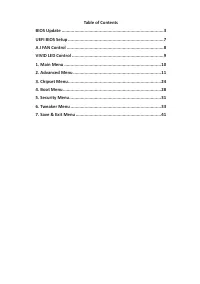
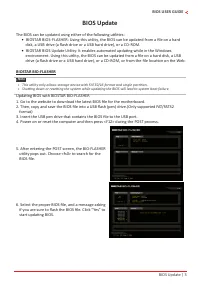
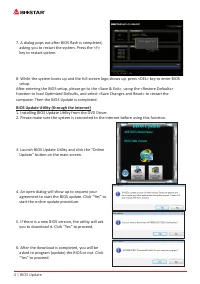
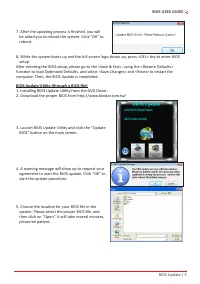
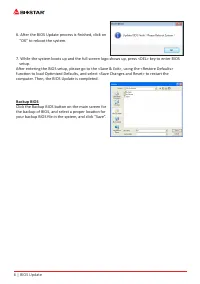
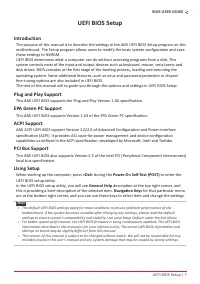
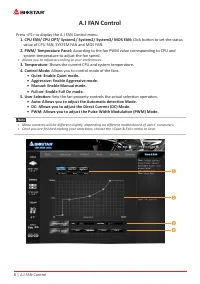
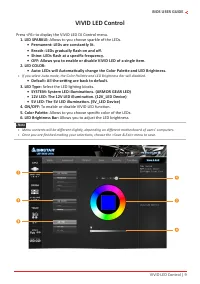
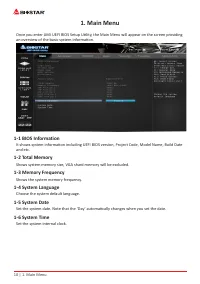
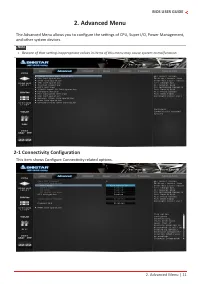
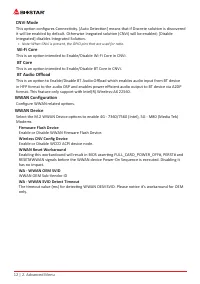
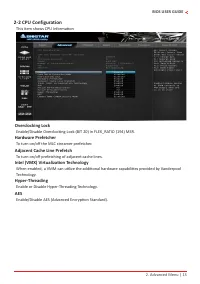
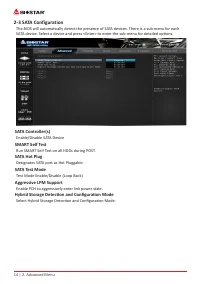
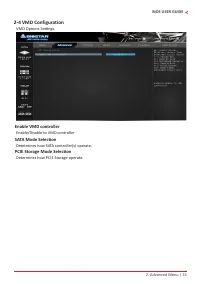
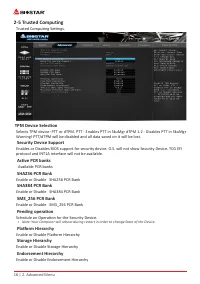
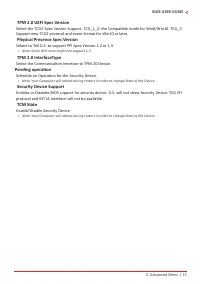
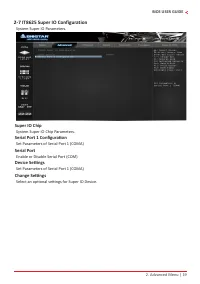
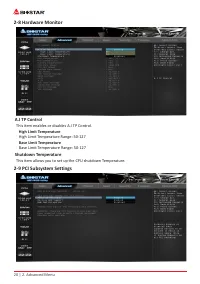
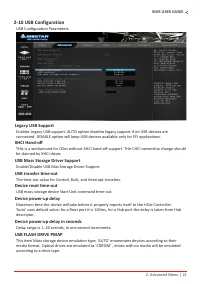
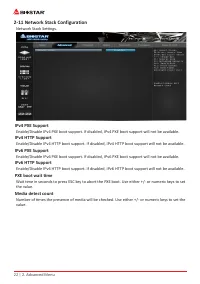
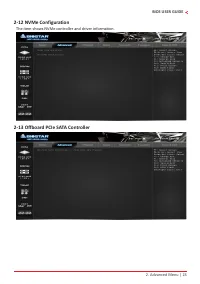
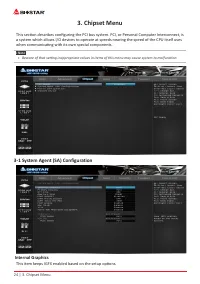
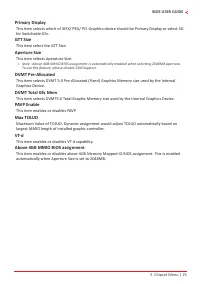
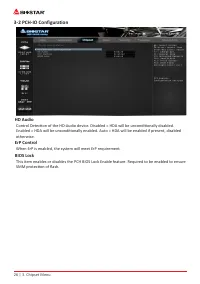
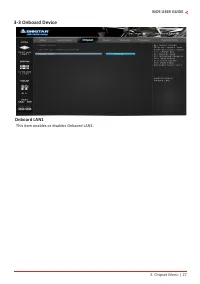
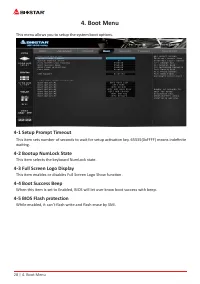
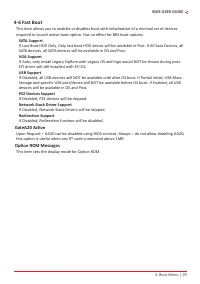
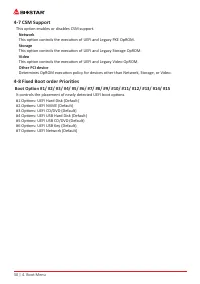
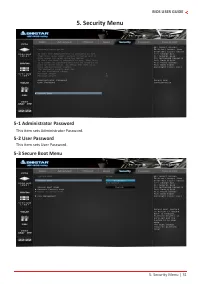
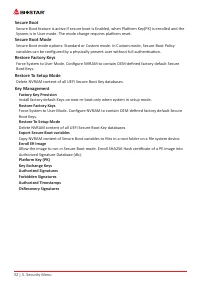
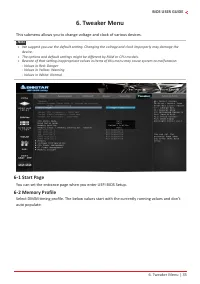
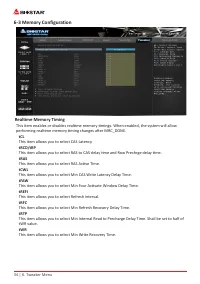
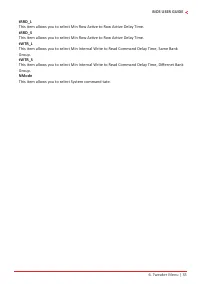
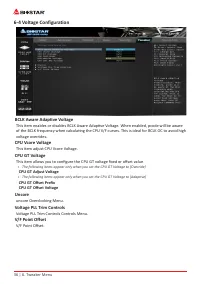
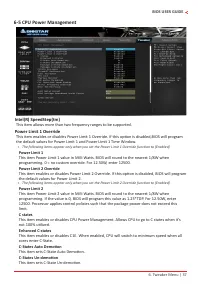
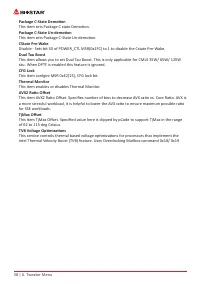
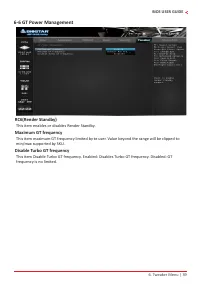
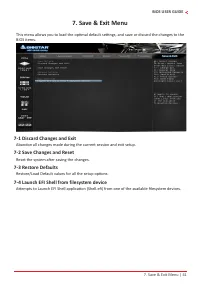

Table of Contents:
- Page 2 – Table of Contents
- Page 3 – BIOS USER GUIDE; BIOS Update; The BIOS can be updated using either of the following utilities:; Updating BIOS with BIOSTAR BIO-FLASHER
- Page 4 – BIOS Update Utility (through the Internet)
- Page 6 – Backup BIOS; Click the Backup BIOS button on the main screen for
- Page 7 – UEFI BIOS Setup; these settings to NVRAM.
- Page 8 – A�I FAN Control; value of CPU FAN, SYSTEM FAN and MOS FAN.
- Page 9 – VIVID LED Control | 9; VIVID LED Control
- Page 10 – � Main Menu; an overview of the basic system information.
- Page 11 – � Advanced Menu; and other system devices.; -1 Connectivity Configuration; This item shows Configure Connectivity related options.
- Page 12 – CNVi Mode; Integrated] disables Integrated Solution.; This is an option intended to Enable/Disable Wi-Fi Core in CNVi.; BT Core; This is an option intended to Enable/Disable BT Core in CNVi.; BT Audio Offload; Configure WWAN related options.; WWAN Device; Firmware Flash Device
- Page 13 – -2 CPU Configuration; This item shows CPU Information; Overclocking Lock; To turn on/off the MLC streamer prefetcher.; Adjacent Cache Line Prefetch; To turn on/off prefetching of adjacent cache lines.; AES
- Page 14 – -3 SATA Configuration; Enable/Disable SATA Device; SMART Self Test; Run SMART Self Test on all HDDs during POST.; SATA Hot Plug; Designates SATA port as Hot Pluggable.; SATA Test Mode; Enable PCH to aggressively enter link power state.; Hybrid Storage Detection and Configuration Mode; Select Hybrid Storage Detection and Configuration Mode.
- Page 15 – -4 VMD Configuration; VMD Options Settings.; Enable VMD controller; Enable/Disable to VMD controller; SATA Mode Selection; Determines how PCIE Storage operate.
- Page 16 – -5 Trusted Computing
- Page 17 – Support new TCG2 protocol and event format for Win10 or later.
- Page 19 – System Super IO Parameters.; Super IO Chip; System Super IO Chip Parameters.; Serial Port 1 Configuration; Select an optional settings for Super IO Device.
- Page 20 – A�I TP Control; This item enables or disables A.I TP Control.; High Limit Temperature; Shutdown Temperature; This item allows you to set up the CPU shutdown Temperature.; -9 PCI Subsystem Settings
- Page 21 – -10 USB Configuration; USB Configuration Parameters.
- Page 22 – -11 Network Stack Configuration; Network Stack Settings.
- Page 23 – -12 NVMe Configuration; The item shows NVMe controller and driver information.; -13 Offboard PCIe SATA Controller
- Page 24 – � Chipset Menu; when communicating with its own special components.; Internal Graphics; This item keeps IGFX enabled based on the setup options.
- Page 26 – When ErP is enabled, the system will meet ErP requirement.; BIOS Lock; SMM protection of flash.
- Page 27 – Onboard LAN1; This item enables or disables Onbaord LAN1.
- Page 28 – � Boot Menu; This menu allows you to setup the system boot options.; -1 Setup Prompt Timeout; This item selects the keyboard NumLock state.; -3 Full Screen Logo Display; This item enables or disables Full Screen Logo Show function.; -4 Boot Success Beep; While enabled, it can’t flash write and flash erase by SMI.
- Page 29 – If Disabled, Redirection function will be disabled.; GateA20 Active; this option is useful when any RT code is executed above 1MB; Option ROM Messages; This item sets the display mode for Option ROM.
- Page 30 – This option enables or disables CSM support.; Network; -8 Fixed Boot order Priorities; It controls the placement of newly detected UEFI boot options.
- Page 31 – � Security Menu; -1 Administrator Password; This item sets Administrator Password.
- Page 32 – Secure Boot; System is in User mode. The mode change requires platform reset.; Secure Boot Mode; Delete NVRAM content of all UEFI Secure Boot Key databases.; Key Management; Factory Key Provision
- Page 33 – � Tweaker Menu; You can set the entrance page when you enter UEFI BIOS Setup.
- Page 34 – -3 Memory Configuration; Realtime Memory Timing; performing realtime memory timing changes after MRC_DONE.; tCL; This item allows you to select Min Write Recovery Time.
- Page 35 – This item allows you to select System command tate.
- Page 36 – -4 Voltage Configuration; BCLK Aware Adaptive Voltage; This item adjust CPU Vcore Voltage.; CPU GT Voltage; CPU GT Adjust Voltage; Uncore; uncore Overclocking Menu.; Voltage PLL Trim Controls; Voltage PLL Trim Controls Controls Menu.
- Page 37 – -5 CPU Power Management; This item allows more than two frequency ranges to be supported.; Power Limit 1 Override; the default values for Power Limit 1 and Power Limit 1 Time Window.; Power Limit 1; the default values for Power Limit 2.; Power Limit 2
- Page 38 – Package C-State Demotion
- Page 39 – -6 GT Power Management; This item enables or disables Render Standby.; Maximum GT frequency; frequency is no limited.
- Page 40 – DIMM Profile; These items display memory information.
- Page 41 – -1 Discard Changes and Exit; Reset the system after saving the changes.; -4 Launch EFI Shell from filesystem device
BIOS User Guide
INTEL B760 STANDARD Series
"Loading the manual" means you need to wait until the file loads and becomes available for online reading. Some manuals are very large, and the time they take to appear depends on your internet speed.
Was this manual helpful?
About this manual
- Brand
- Biostar
- Model
- B760
- Document type
- User Manual
- Category
- Motherboard
- Language(s)
- English
- Pages
- 42
- File size
- 7.8 MB
- Format
Summary
Table of Contents BIOS Update ��������������������������������������������������������������������������������3UEFI BIOS Setup ���������������������������������������������������������������������������7A�I FAN Control ����������������������������������������������������������������������������8VIVI...
BIOS Update | 3 BIOS USER GUIDE BIOS Update The BIOS can be updated using either of the following utilities: • • BIOSTAR BIOS-FLASHER: Using this utility, the BIOS can be updated from a file on a hard disk, a USB drive (a flash drive or a USB hard drive), or a CD-ROM. • • BIOSTAR BIOS Update Utility...
4 | BIOS Update 7. A dialog pops out after BIOS flash is completed, asking you to restart the system. Press the <Y> key to restart system. 8. While the system boots up and the full screen logo shows up, press <DEL> key to enter BIOS setup. After entering the BIOS setup, please go to the ...
Ask a question
Related manuals
More Biostar Motherboards models
 Biostar A68N-2100K User Manual
 Biostar B450NH User Manual
 Biostar B550 User Manual
 Biostar B550MH User Manual
 Biostar B550MX/E PRO User Manual
 Biostar B550T User Manual
 Biostar B560MH-E 2.0 User Manual
 Biostar B660GTA User Manual
 Biostar B660GTQ User Manual
 Biostar B660MX-E PRO User Manual
 Biostar H61MHV3 User Manual
 Biostar H81MHV3 3.0 User Manual
 Biostar H510 User Manual
 Biostar H610 User Manual
 Biostar J4125 User Manual
 Biostar Z490 User Manual