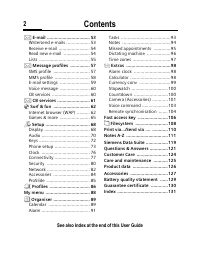
Page 2 - Contents; See also Index at the end of this User Guide
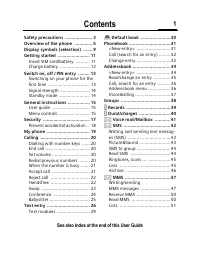
Contents 1 See also Index at the end of this User Guide Safety precautions ..................... 3Overview of the phone .............. 5Display symbols (selection) ....... 9Getting started ......................... 11 Insert SIM card/battery ........... 11Charge battery ....................... 12 Sw...
Page 4 - Safety precautions
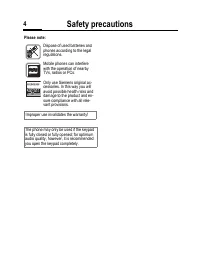
Safety precautions 3 ty cautions Notes for parents Read the user manual and safety instructions carefully before using the phone! Explain the contents of the phone to your children and the risks associated with using the phone! When in a hospital switch off your phone. Mobile phones can interfere wi...
Page 6 - Overview of the phone
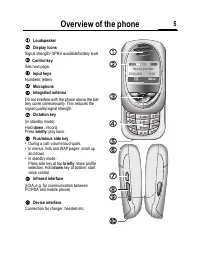
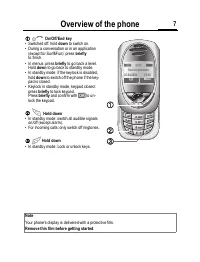
Overview of the phone 5 erview of phone | Loudspeaker ~ Display icons Signal strength/ GPRS available/battery level. ¡ Control key See next page. ¢ Input keys Numbers, letters £ Microphone ⁄ Integrated antenna Do not interfere with the phone above the bat-tery cover unnecessarily. This reduces the s...
Page 9 - Getting started; Insert SIM card/battery; Functions without SIM
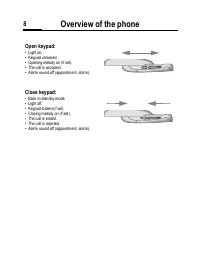
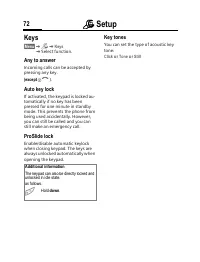
Overview of the phone 8 Open keypad: • Light on.• Keypad unlocked.• Opening melody on (if set).• The call is accepted.• Alarm sound off (appointment, alarm). Close keypad: • Back to standby mode.• Light off.• Keypad locked (if set).• Closing melody on (if set).• The call is ended.• The call is rejec...
Page 10 - Charge battery
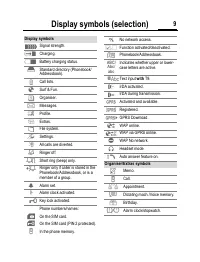
Display symbols (selection) 9 lay bols ection) Display symbols _ Signal strength. h Charging. d Battery charging status. è Standard directory (Phonebook/Addressbook). Z Call lists. É Surf & Fun. ç Organiser. ] Messages. ~ Profile. [ Extras. Ñ File system. m Settings. n All calls are diverted. j ...
Page 11 - Enter PIN; Signal strength; Standby mode
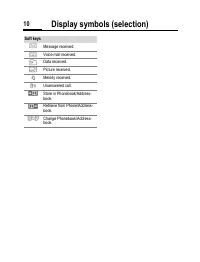
Display symbols (selection) 10 Soft keys ] Message received. \ Voice mail received. Data received. — Picture received. – Melody received. Unanswered call. Store in Phonebook/Address-book. · Retrieve from Phone/Address-book. O Change Phonebook/Address-book.
Page 12 - General instructions; User guide; D F E
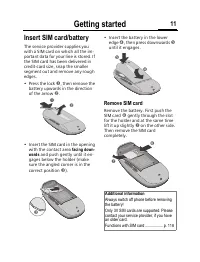
Getting started 11 ing ted Insert SIM card/battery The service provider supplies you with a SIM card on which all the im-portant data for your line is stored. If the SIM card has been delivered in credit-card size, snap the smaller segment out and remove any rough edges.• Press the lock ‹ , then rem...
Page 13 - Menu speed dialling; Codes; PIN control
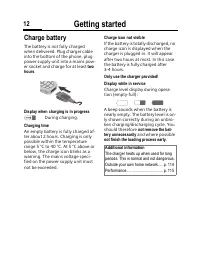
Getting started 12 Charge battery The battery is not fully charged when delivered. Plug charger cable into the bottom of the phone, plug power supply unit into a mains pow-er socket and charge for at least two hours . Display when charging is in progress h During charging. Charging time An empty bat...
Page 14 - Change PIN2; Clear SIM card barring
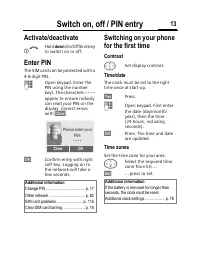
Switch on, off / PIN entry 13 ch on, off entry Activate/deactivate B Hold down On/Off/End key to switch on or off. Enter PIN The SIM card can be protected with a 4-8 digit PIN. J Open keypad. Enter the PIN using the number keys. The characters **** appear to ensure nobody can read your PIN on the di...
Page 15 - SIM services
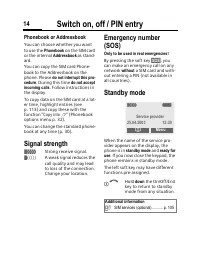
Switch on, off / PIN entry 14 Phonebook or Addressbook You can choose whether you want to use the Phonebook on the SIM card or the internal Addressbook as stand- ard. You can copy the SIM card Phone-book to the Addressbook on the phone. Please do not interrupt this pro- cedure . During this time do ...
Page 16 - Calling; End call
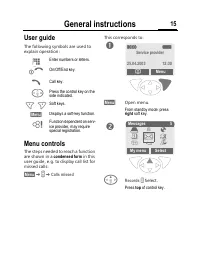
General instructions 15 neral ructions User guide The following symbols are used to explain operation: Menu controls The steps needed to reach a function are shown in a condensed form in this user guide, e.g. to display call list for missed calls: §Menu§ K Z K Calls missed This corresponds to: §Menu...
Page 17 - If the number is busy; Auto redial; Reminder; Accept call; Reject call
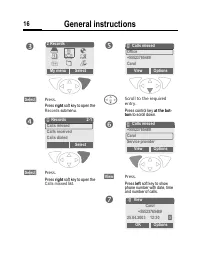
General instructions 16 §Select§ Press. Press right soft key to open the Records submenu. §Select§ Press. Press right soft key to open the Calls missed list. F Scroll to the required entry. Press control key at the bot- tom to scroll down. §View§ Press. Press left soft key to show phone number with ...
Page 18 - Swapping calls; Establish a second connection; End current call; Incoming calls during a call
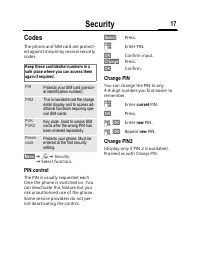
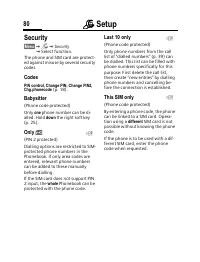
Security 17 ecurity Codes The phone and SIM card are protect-ed against misuse by several security codes. §Menu§ KmK Security K Select function. PIN control The PIN is usually requested each time the phone is switched on. You can deactivate this feature but you risk unauthorised use of the phone. So...
Page 19 - Multiparty; Multiparty menu; End
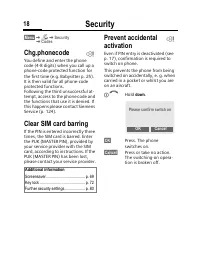
Security 18 §Menu§ KmK Security K Codes Chg.phonecode You define and enter the phone code (4-8 digits) when you call up a phone-code protected function for the first time (e.g. Babysitter p. 25). It is then valid for all phone-code protected functions. Following the third unsuccessful at-tempt, acce...
Page 20 - Call menu
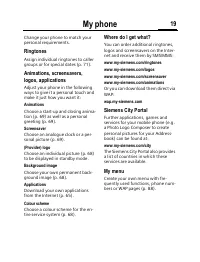
My phone 19 hone Change your phone to match your personal requirements. Ringtones Assign individual ringtones to caller groups or for special dates (p. 71). Animations, screensavers, logos, applications Adjust your phone in the following ways to give it a personal touch and make it just how you want...
Page 21 - Text entry; Text entry without T9; Correct a word; Special characters
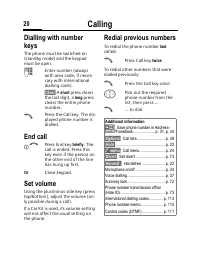
Calling 20 ling Dialling with number keys The phone must be switched on (standby mode) and the keypad must be open. J Enter number (always with area code, if neces-sary with international dialling code). §Clear§ A short press clears the last digit, a long press clears the entire phone number. A Pres...
Page 22 - Text entry with T9; T9 menu; Briefly activate, deactivate T9
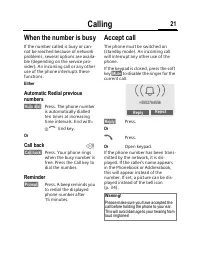
Calling 21 When the number is busy If the number called is busy or can-not be reached because of network problems, several options are availa-ble (depending on the service pro-vider). An incoming call or any other use of the phone interrupts these functions. Either Automatic Redial previous numbers ...
Page 23 - T9 word suggestions; Predefined text; Write text modules; Use text modules
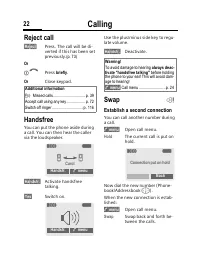
Calling 22 Reject call §Reject§ Press. The call will be di-verted if this has been set previously. (p. 73) Or B Press briefly . Or Close keypad. Handsfree You can put the phone aside during a call. You can then hear the caller via the loudspeaker. §Handsfr.§ Activate handsfree talking. §Yes§ Switch ...
Page 24 - Create new entry
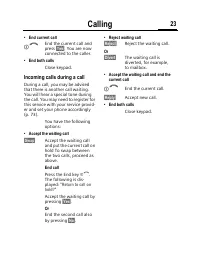
Calling 23 • End current call B End the current call and press §Yes§ . You are now connected to the caller. • End both calls Close keypad. Incoming calls during a call During a call, you may be advised that there is another call waiting. You will hear a special tone during the call. You may need to ...
Page 25 - Change entry; Call; Contacts menu
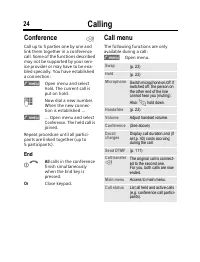
Calling 24 Conference Call up to 5 parties one by one and link them together in a conference call. Some of the functions described may not be supported by your serv-ice provider or may have to be ena-bled specially. You have established a connection: y menu§ Open menu and select Hold . The current c...
Page 26 - SIM entries; SIM card options
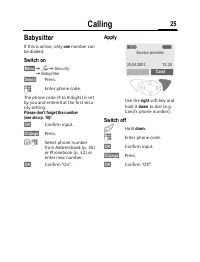
Calling 25 Babysitter If this is active, only one number can be dialled. Switch on §Menu§ KmK Security K Babysitter §Select§ Press. J Enter phone code. The phone code (4 to 8 digits) is set by you and entered at the first secu-rity setting. Please don't forget the number (see also p. 18)! §OK§ Confi...
Page 27 - Group; Display groups; Add group member; Group options
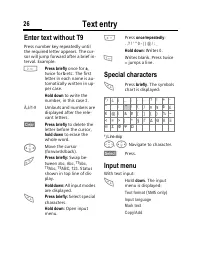
Text entry 26 ext entry Enter text without T9 Press number key repeatedly until the required letter appears. The cur-sor will jump forward after a brief in-terval. Example: 2 Press briefly once for a , twice for b etc. The first letter in each name is au-tomatically written in up-per case. Hold down...
Page 28 - Records; Missed calls; Calls dialled; Records menu
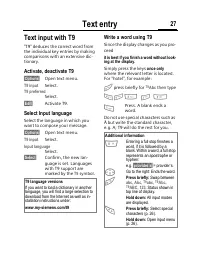
Text entry 27 Text input with T9 "T9" deduces the correct word from the individual key entries by making comparisons with an extensive dic-tionary. Activate, deactivate T9 §Options§ Open text menu. T9 input Select. T9 preferred Select. §Edit§ Activate T9. Select Input language Select the lan...
Page 29 - Display; Charge settings; Currency; Auto display
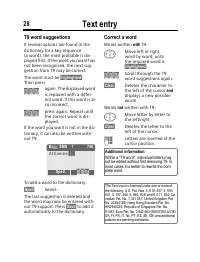
Text entry 28 T9 word suggestions If several options are found in the dictionary for a key sequence (a word), the most probable is dis-played first. If the word you want has not been recognised, the next sug-gestion from T9 may be correct.The word must be §highlighted§ . Then press » again. The disp...
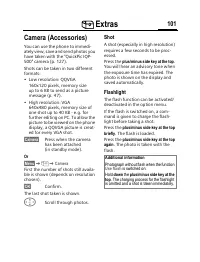
Page 30 - Take photos
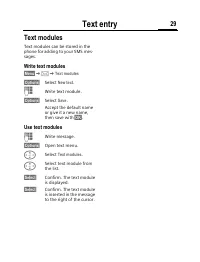
Text entry 29 Text modules Text modules can be stored in the phone for adding to your SMS mes-sages. Write text modules §Menu§ K]K Text modules §Options§ Select New text . J Write text module. §Options§ Select Save . Accept the default name or give it a new name, then save with §OK§ . Use text modul...
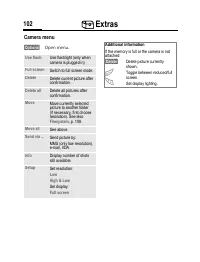
Page 31 - My photos; My photos options
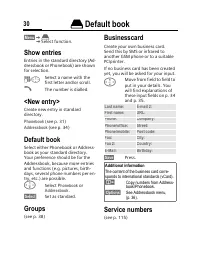
è Default book 30 è Default ook §Menu§ Kè K Select function. Show entries Entries in the standard directory (Ad-dressbook or Phonebook) are shown for selection. J / G Select a name with the first letter and/or scroll. A The number is dialled. <New entry> Create new entry in standard directory....
Page 32 - Resolution; Special effects; Nightshot
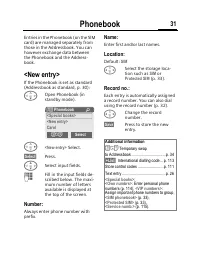
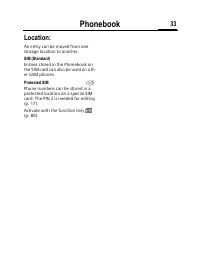
Phonebook 31 honebook Entries in the Phonebook (on the SIM card) are managed separately from those in the Addressbook. You can however exchange data between the Phonebook and the Address-book. <New entry> If the Phonebook is set as standard (Addressbook as standard, p. 30): F Open Phonebook (i...
Page 33 - End connection
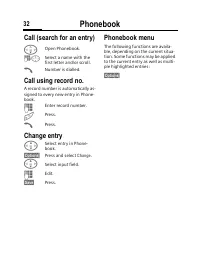
Phonebook 32 Call (search for an entry) F Open Phonebook. J / G Select a name with the first letter and/or scroll. A Number is dialled. Call using record no. A record number is automatically as-signed to every new entry in Phone-book. J Enter record number. # Press. A Press. Change entry G Select en...
Page 35 - WAP Push Setting
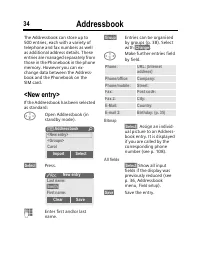
Addressbook 34 ddressbook The Addressbook can store up to 500 entries, each with a variety of telephone and fax numbers as well as additional address details. These entries are managed separately from those in the Phonebook in the phone memory. However you can ex-change data between the Address-book...
Page 36 - Downloads; Download more
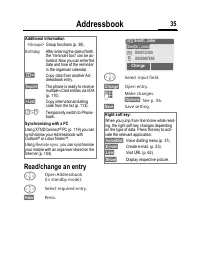
Addressbook 35 Read/change an entry F Open Addressbook (in standby mode). G Select required entry. §View§ Press. F Select input field. §Change§ Open entry. J Make changes. §Options§ See p. 36. §Save§ Save setting. Additional information <Groups> Group functions (p. 38) . Birthday After enterin...
Page 38 - Text menu
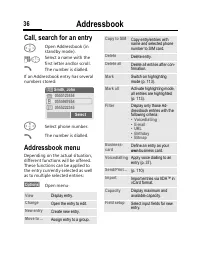
Addressbook 37 Voicedialling Dial numbers by voice command. Up to 20 recorded names for voice dial-ling or voice commands (p. 103) can be saved on the mobile (not on the SIM card). Record F Open Addressbook (in standby mode). J / G Select a name with the first letter and/or scroll. §Options§ Open me...
Page 39 - Read new SMS; Inbox
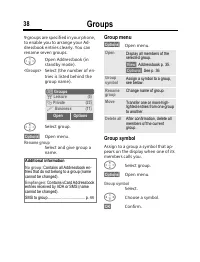
Groups 38 ups 9 groups are specified in your phone, to enable you to arrange your Ad-dressbook entries clearly. You can rename seven groups. F Open Addressbook (in standby mode). <Groups> Select (the number of en-tries is listed behind the group name). G Select group. §Options§ Open menu. Rena...
Page 40 - SMS archive; Read options
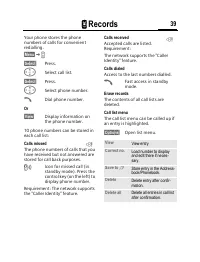
Z Records 39 Z Records Your phone stores the phone numbers of calls for convenient redialling. §Menu§ K Z §Select§ Press. G Select call list. §Select§ Press. G Select phone number. A Dial phone number. Or §View§ Display information on the phone number. 10 phone numbers can be stored in each call lis...
Page 41 - SMS setup; Activate the preselected profile
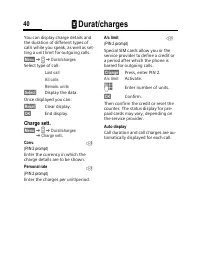
Z Durat/charges 40 Z Durat/ ges You can display charge details and the duration of different types of calls while you speak, as well as set-ting a unit limit for outgoing calls. §Menu§ K Z K Durat/charges Select type of call: Last call All calls Remain. units §Select§ Display the data. Once displaye...
Page 42 - MMS
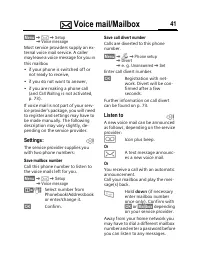
] Voice mail/Mailbox 41 ] Voice l/Mailbox §Menu§ K]K Setup K Voice message Most service providers supply an ex-ternal voice mail service. A caller may leave a voice message for you in this mailbox• if your phone is switched off or not ready to receive, • if you do not want to answer,• if you are mak...
Page 43 - Receive MMS; Lists
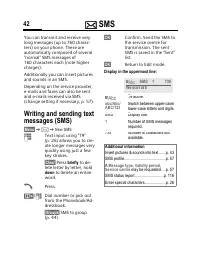
] SMS 42 ] SMS You can transmit and receive very long messages (up to 760 charac-ters) on your phone. These are automatically composed of several "normal" SMS messages of 160 characters each (note higher charges).Additionally you can insert pictures and sounds in an SMS.Depending on the serv...
Page 44 - Draft; MMS setup
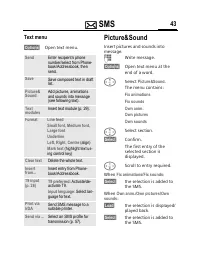
] SMS 43 Text menu §Options§ Open text menu. Picture&Sound Insert pictures and sounds into message. J Write message. §Options§ Open text menu at the end of a word. G Select Picture&Sound . The menu contains: Fix animations Fix sounds Own anim. Own pictures Own sounds G Select section. §Selec...
Page 45 - Memory status
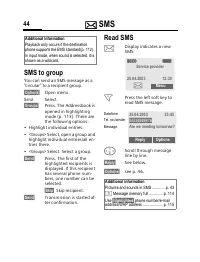
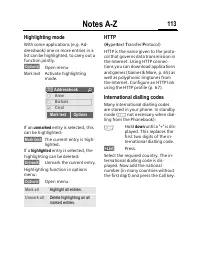
] SMS 44 SMS to group You can send an SMS message as a "circular" to a recipient group. §Options§ Open menu. Send Select. §Groups§ Press. The Addressbook is opened in highlighting mode (p. 113). There are the following options: • Highlight individual entries.• <Groups> Select, open a g...
Page 46 - Options; Add attachment
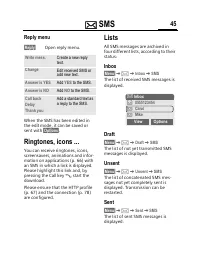
] SMS 45 Reply menu §Reply§ Open reply menu. When the SMS has been edited in the edit mode, it can be saved or sent with §Options§ . Ringtones, icons ... You can receive ringtones, icons, screensavers, animations and infor-mation on applications (p. 66) with an SMS in which a link is displayed. Plea...
Page 47 - Email setup; Set profile
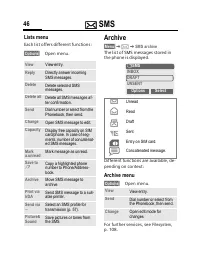
] SMS 46 Lists menu Each list offers different functions: §Options§ Open menu. Archive §Menu§ K]K SMS archive The list of SMS messages stored in the phone is displayed. Different functions are available, de-pending on context: Archive menu §Options§ Open menu. For further services, see Filesystem , ...
Page 49 - Listening to message
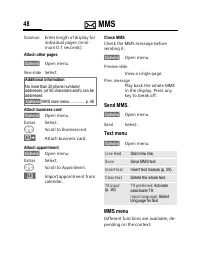
] MMS 48 Duration: Enter length of display for individual pages (mini-mum 0.1 seconds). Attach other pages §Options§ Open menu. New slide Select. Attach business card §Options§ Open menu. Extras Select. F Scroll to Businesscard . · Attach business card. Attach appointment §Options§ Open menu. Extras...
Page 50 - Cell broadcast; Broadcast; Topic list
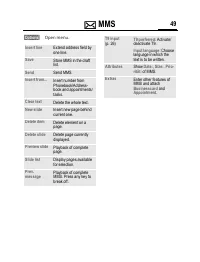
] MMS 49 §Options§ Open menu. Insert line Extend address field by one line. Save Store MMS in the draft list. Send Send MMS. Insert from... Insert number from Phonebook/Address-book and appointments/tasks. Clear text Delete the whole text. New slide Insert new page behind current one. Delete item De...
Page 51 - Audio Settings
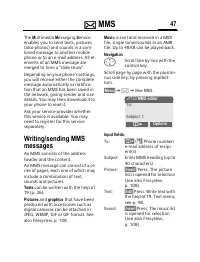
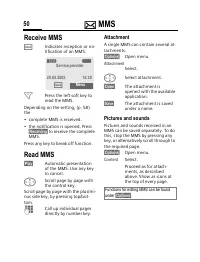
] MMS 50 Receive MMS ‰ Indicates reception or no-tification of an MMS. < Press the left soft key to read the MMS. Depending on the setting, (p. 58) the• complete MMS is received.• the notification is opened. Press §Receiving§ to receive the complete MMS. Press any key to break off function. Read ...
Page 52 - Composer; Device; Language
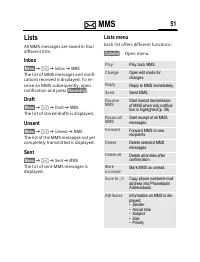
] MMS 51 Lists All MMS messages are saved in four different lists: Inbox §Menu§ K]K Inbox K MMS The list of MMS messages and notifi-cations received is displayed. To re-ceive an MMS subsequently, open notification and press §Receiving§ . Draft §Menu§ K]K Draft K MMS The list of stored drafts is disp...
Page 53 - Screen saver; Checking status
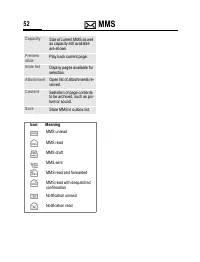
] MMS 52 Capacity Size of current MMS as well as capacity still available are shown. Preview slide Play back current page. Slide list Display pages available for selection. Attachment Open list of attachments re-ceived. Content Selection of page contents to be archived, such as pic-ture or sound. Sa...
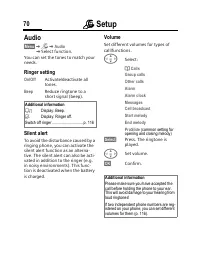
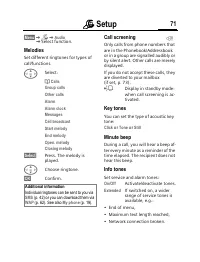
Page 54 - During calls; Call screening; Hide ID
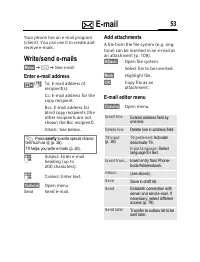
] E-mail 53 ] E-mail Your phone has an e-mail program (client). You can use it to create and receive e-mails. Write/send e-mails §Menu§ K]K New e-mail Enter e-mail address · / J To: E-mail address of recipient(s). Cc: E-mail address for the copy recipient. Bcc: E-mail address for blind copy recipien...
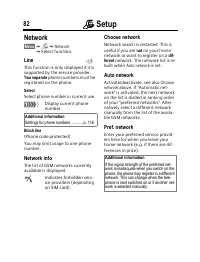
Page 55 - Security; Network; Line
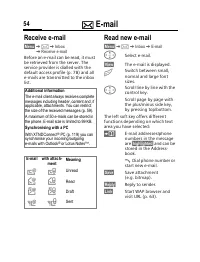
] E-mail 54 Receive e-mail §Menu§ K]K Inbox K Receive e-mail Before an e-mail can be read, it must be retrieved from the server. The service provider is dialled with the default access profile (p. 78) and all e-mails are transmitted to the inbox list. Read new e-mail §Menu§ K]K Inbox K E-mail G Sele...
Page 56 - Configuration; Connectivity
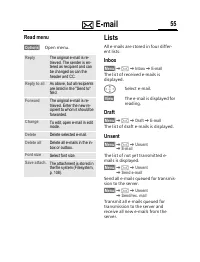
] E-mail 55 Read menu §Options§ Open menu. Lists All e-mails are stored in four differ-ent lists: Inbox §Menu§ K]K Inbox K E-mail The list of received e-mails is displayed. G Select e-mail. §View§ The e-mail is displayed for reading. Draft §Menu§ K]K Draft K E-mail The list of draft e-mails is displ...
Page 57 - Bearer settings; GPRS info
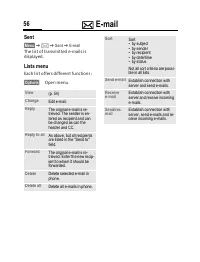
] E-mail 56 Sent §Menu§ K]K Sent K E-mail The list of transmitted e-mails is displayed. Lists menu Each list offers different functions: §Options§ Open menu. View (p. 54) Change Edit e-mail. Reply The original e-mail is re-trieved. The sender is en-tered as recipient and can be changed as can the he...
Page 58 - Divert
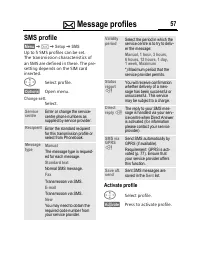
] Message profiles 57 ] Message iles SMS profile §Menu§ K]K Setup K SMS Up to 5 SMS profiles can be set. The transmission characteristics of an SMS are defined in these. The pre-setting depends on the SIM card inserted. G Select profile. §Options§ Open menu. Change sett. Select. Activate profile G S...
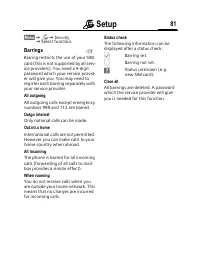
Page 59 - Status check
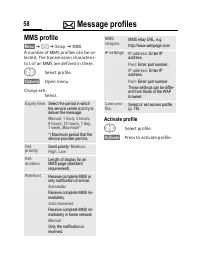
] Message profiles 58 MMS profile §Menu§ K]K Setup K MMS A number of MMS profiles can be se-lected. The transmission characteris-tics of an MMS are defined in these. G Select profile. §Options§ Open menu. Change sett. Select. Activate profile G Select profile. §Activate§ Press to activate profile. E...
Page 60 - Barrings; All outgoing; Clear all
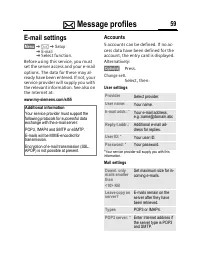
] Message profiles 59 E-mail settings §Menu§ K]K Setup K E-mail K Select function. Before using this service, you must set the server access and your e-mail options. The data for these may al-ready have been entered. If not, your service provider will supply you with the relevant information. See al...
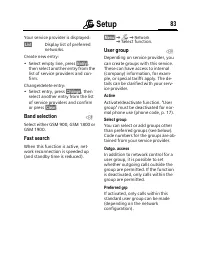
Page 61 - Closed user group; Select group
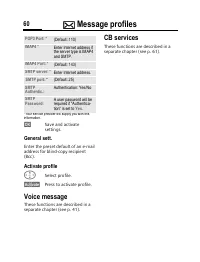
] Message profiles 60 *Your service provider will supply you with this information. §OK§ Save and activate settings. General sett. Enter the preset default of an e-mail address for blind-copy recipient (Bcc). Activate profile G Select profile. §Activate§ Press to activate profile. Voice message Thes...
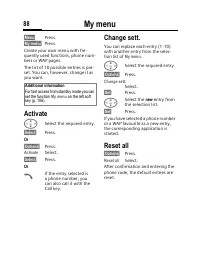
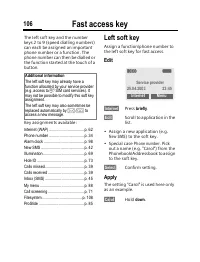
Page 62 - Fast access key; Left soft key; Apply; Change; Apply
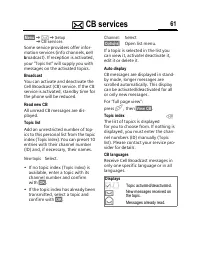
] CB services 61 ] CB ices §Menu§ K]K Setup K CB services Some service providers offer infor-mation services (info channels, c ell b roadcast). If reception is activated, your " Topic list " will supply you with messages on the activated topics. Broadcast You can activate and deactivate the ...
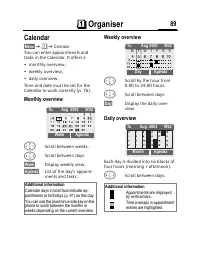
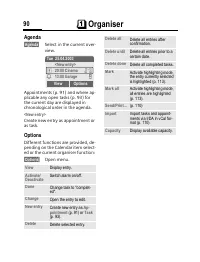
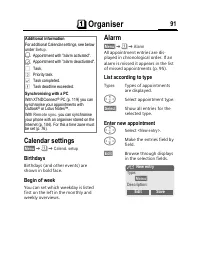
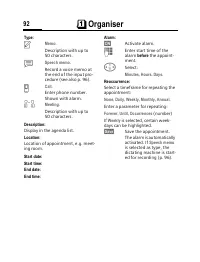
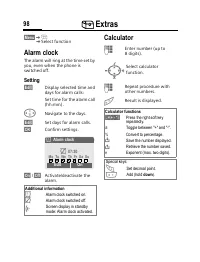
Page 63 - General; Organiser; Calendar
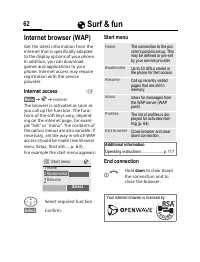
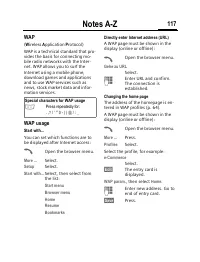
É Surf & fun 62 É urf & fun Internet browser (WAP) Get the latest information from the Internet that is specifically adapted to the display options of your phone. In addition, you can download games and applications to your phone. Internet access may require registration with the service pro...
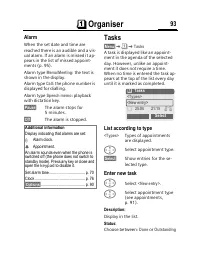
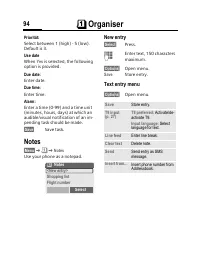
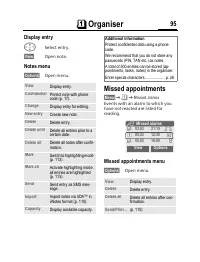
Page 64 - Appointments; Notes
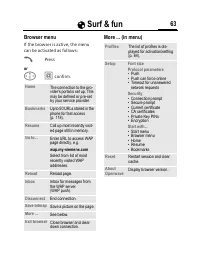
É Surf & fun 63 Browser menu If the browser is active, the menu can be activated as follows: A Press or E Í confirm. More ... (in menu) Home The connection to the pro-vider's portal is set up. This may be defined or pre-set by your service provider. Bookmarks Up to 50 URLs stored in the phone fo...
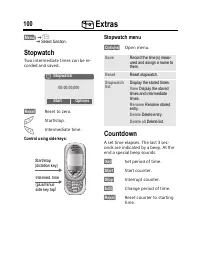
Page 65 - Clock; Countdown; World clock
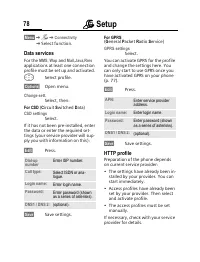
É Surf & fun 64 WAP profiles §Menu§ K É K Internet K Profiles Preparation of the phone for WAP In-ternet access depends on the current service provider:• The settings have already been in- stalled by provider. You can start immediately. • Access profiles for a number of providers have already be...
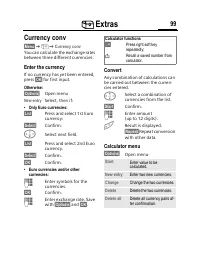
Page 66 - Auto off; Calculation; Calculator
É Surf & fun 65 Games & more Download games and other applica-tions. You are advised about relevant applications on the Internet. Once you have selected a game or application you can start to down-load it immediately. Then you can use the application. Most applications include instructions. ...
Page 67 - Voice control
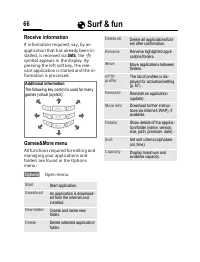
É Surf & fun 66 Receive information If information required, say, by an application that has already been in-stalled, is received via SMS , the ¦ symbol appears in the display. By pressing the left soft key, the rele-vant application is started and the in-formation is processed. Games&More m...
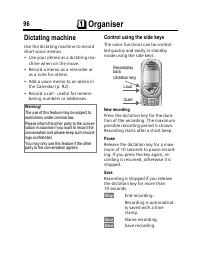
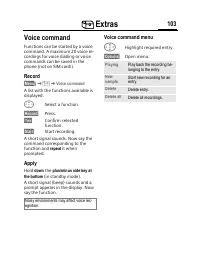
Page 68 - Voice command; Voice recording
É Surf & fun 67 HTTP profile §Menu§ K É K Games & more §Options§ Open menu G Select HTTP profile . Preparation of the phone depends on current service provider:• The settings have already been in- stalled by provider. You can start immediately. • Access profiles have already been set by your...
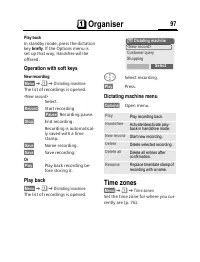
Page 69 - Play back; Voice recording options
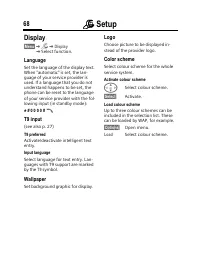
m Setup 68 m Setup Display §Menu§ KmK Display K Select function. Language Set the language of the display text. When "automatic" is set, the lan-guage of your service provider is used. If a language that you do not understand happens to be set, the phone can be reset to the language of your ...
Page 70 - Customer Care
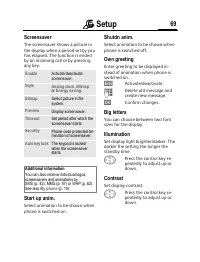
m Setup 69 Screensaver The screensaver shows a picture in the display when a period set by you has elapsed. The function is ended by an incoming call or by pressing any key. Start up anim. Select animation to be shown when phone is switched on. Shutdn anim. Select animation to be shown when phone is...
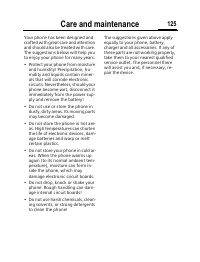
Page 75 - Care and maintenance
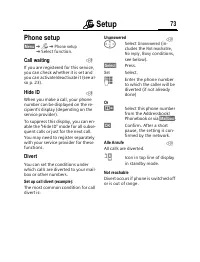
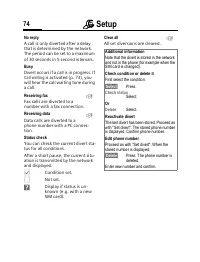
m Setup 74 No reply A call is only diverted after a delay that is determined by the network. The period can be set to a maximum of 30 seconds in 5 second intervals. Busy Divert occurs if a call is in progress. If Call waiting is activated (p. 73), you will hear the call waiting tone during a call. R...
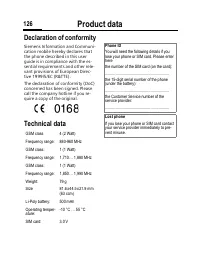
Page 76 - Product data; Declaration of conformity
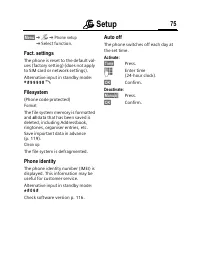
m Setup 75 §Menu§ KmK Phone setup K Select function. Fact. settings The phone is reset to the default val-ues (factory setting) (does not apply to SIM card or network settings).Alternative input in standby mode: * # 9 9 9 9 # A Filesystem (Phone code protected) Format The file system memory is forma...
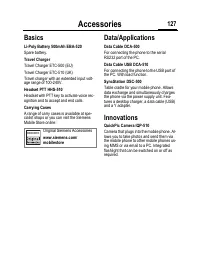
Page 77 - Accessories; Basics
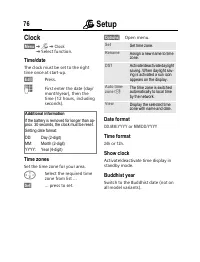
m Setup 76 Clock §Menu§ KmK Clock K Select function. Time/date The clock must be set to the right time once at start-up. §Edit§ Press. J First enter the date (day/month/year), then the time (12 hours, including seconds). Time zones Set the time zone for your area. F Select the required time zone fro...
Page 78 - Battery quality statement
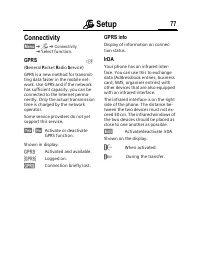
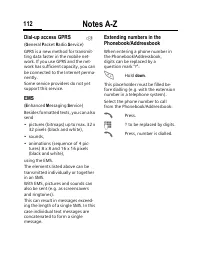
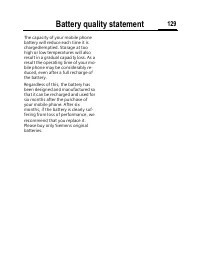
m Setup 77 Connectivity §Menu§ KmK Connectivity K Select function. GPRS ( G eneral P acket R adio S ervice) GPRS is a new method for transmit-ting data faster in the mobile net-work. Use GPRS and if the network has sufficient capacity, you can be connected to the Internet perma-nently. Only the actu...
Page 85 - Index
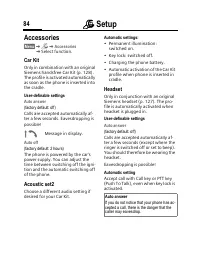
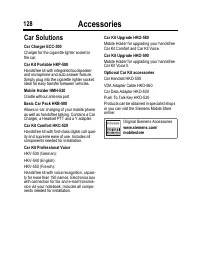
m Setup 84 Accessories §Menu§ KmK Accessories K Select function. Car Kit Only in combination with an original Siemens handsfree Car Kit (p. 128). The profile is activated automatically as soon as the phone is inserted into the cradle. User-definable settings Auto answer (factory default: off) Calls ...







 Siemens M50 User Manual
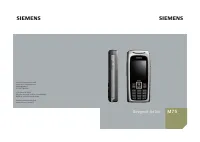 Siemens M75 User Manual
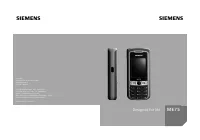 Siemens ME75 User Manual
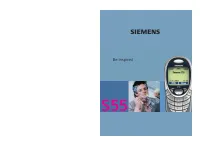 Siemens S55 User Manual
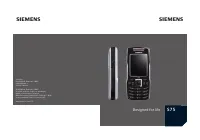 Siemens S75 User Manual
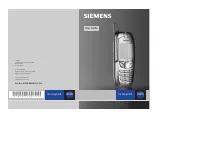 Siemens SL45i User Manual
 Siemens SL65 User Manual
 Siemens SL75 User Manual
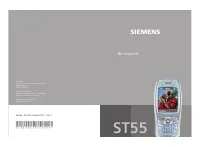 Siemens ST55 User Manual
 Siemens ST60 User Manual
 Siemens SX1 User Manual
 Siemens U15 User Manual
 Siemens Xelibri 1 User Manual
 Siemens Xelibri 2 User Manual
 Siemens Xelibri 3 User Manual
 Siemens Xelibri 4 User Manual
 Siemens Xelibri 5 User Manual
 Siemens Xelibri 6 User Manual