Page 2 - Note
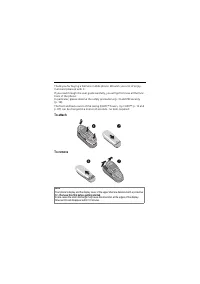
Thank you for buying a Siemens mobile phone. We wish you a lot of enjoy-ment and pleasure with it.If you read through the user guide carefully, you will get to know all the func-tions of the phone. In particular, please observe the safety precautions (p. 3) and PIN security (p. 10).The front and bac...
Page 3 - See also Index at the end of this user guide
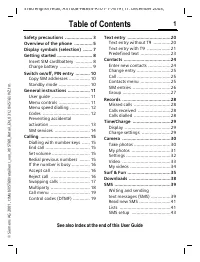
Contents 1 See also Index at the end of this user guide Safety precautions ..................... 3Overview phone ......................... 4General instructions ................... 5 User guide ............................... 5Soft keys .................................. 5 Getting started .............
Page 5 - Safety precautions; ty
Safety precautions 3 ty cautions Please note: Switch off in hospitals or in the vicinity of medical devices, e.g. pacemakers or hearing aids. Mobile phones can interfere with the function of these devices.A minimum distance of 20 cm between pacemaker and mobile phone should be kept. When us-ing the ...
Page 6 - Overview phone; erview; §New SMS§
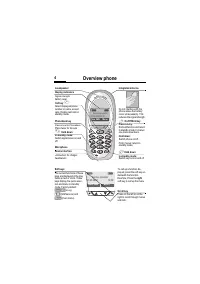
Overview phone 4 erview hone Service provider 01.05.200212:30 New SMS Menu Loudspeaker Display indicators Signal strength/battery level. Call key W Select displayed phone number or name, accept calls. Display last calls in standby mode. Phonebook key Press once for PhonebookPress twice for Groups * ...
Page 7 - General instructions; neral; User guide; condensed form; §Menu§; right; K L; §Menu
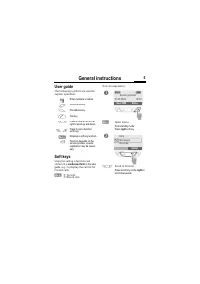
General instructions 5 neral ructions User guide The following symbols are used to explain operation: Soft keys Steps for calling a function are shown in a condensed form in this user guide , e.g.: to display the call list for missed calls: §Menu ¢ Records ¢ Missed calls This corresponds to: §Menu§ ...
Page 8 - §Select§
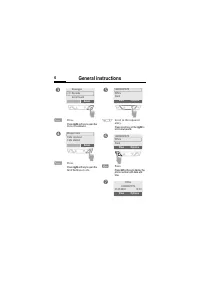
General instructions 6 §Select§ Press. Press right soft key to open the Records submenu. §Select§ Press. Press right soft key to open the list of the Missed calls . N Scroll to the required entry. Press scroll key on the right to scroll downwards. View Press. Press left soft key to display the phone...
Page 9 - Getting started; ing; Insert SIM card/battery
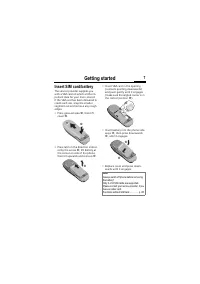
Getting started 7 ing ted Insert SIM card/battery The service provider supplies you with a SIM card on which all the im-portant data for your line is stored. If the SIM card has been delivered in credit card size, snap the smaller segment out and remove any rough edges.• Press grooved area ‹ , then ...
Page 10 - Charging; Display when charging is in progress
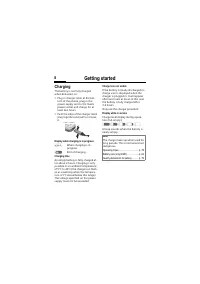
Getting started 8 Charging The battery is not fully charged when delivered, so:• Plug in charger cable at the bot- tom of the phone, plug in the power supply unit to the mains power socket and charge for at least two hours. • Push the sides of the charger cable plug together and pull to remove it. D...
Page 11 - down; Enter PIN; §Clear§; Standby mode; in standby mode; ready for
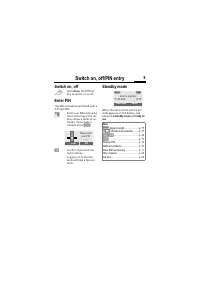
Switch on, off/PIN entry 9 ch on, f/PIN entry Switch on, off S Hold down On/Off/End key to switch on or off. Enter PIN The SIM card can be protected with a 4-8 digit PIN. J Enter your PIN code using the number keys (the dis-play shows a series of as-terisks, if you make a mistake press §Clear§ ). §O...
Page 12 - Security; ecurity; Codes; PIN control; old; new; new; Change PIN2; Change PIN
Security 10 ecurity The phone and SIM card are protect-ed against misuse by several security codes. §Menu ¢ Setup ¢ Security ¢ then select a function Codes PIN control The PIN is usually requested each time the phone is switched on. You can deactivate this feature but you risk unauthorised use of th...
Page 13 - Change phonecode
Security 11 Change phonecode You define and enter the phone code (4-8 digits) when calling up a phone code protected function (e.g. Babysitter, p. 17) for the first time. It is then valid for all functions. If you have forgotten it, please call Siemens Service (p. 85). Clear SIM card barring If the ...
Page 14 - My phone; hone; Ringer tones; To switch on; Siemens City Portal
My phone 12 hone Your phone offers a number of func-tions so that you can adapt it to meet your personal requirements. Ringer tones Assign individual ring tones to caller groups or anniversaries (p. 40).The melody manager is available for managing the ring tones (p. 39). Logos, screensavers, animati...
Page 15 - Making a phone call; king a; End call; §Options§
Making a phone call 13 king a hone call Dialling with number keys The phone must be switched on (standby mode). J Enter the number (always with prefix, if necessary with the international di-alling code). §Clear§ A short press clears the last digit, a long press clears the entire number. W Press the...
Page 16 - When a number is busy; Either; Auto redial previous numbers; §Auto dial§; Call back; §Call back§; Reminder; §Prompt§; Accept call; §Reply§; Reject call; §Reject§; briefly
Making a phone call 14 When a number is busy If the called number is busy or can-not be reached because of network problems several options are availa-ble (depending on the service pro-vider). An incoming call or any other use of the phone interrupts these functions. Either Auto redial previous numb...
Page 17 - Hold call; Accept the waiting call; Reject waiting call; or; End current call
Making a phone call 15 Hold call You can call another number during a call. §Hold§ The current call is put on hold. Now dial the new phone number. When the connection is established press... §Swap§ ... to swap back and forth between both calls. Call waiting/Swap You may need to register for this ser...
Page 18 - Conference; §Hold§; End; All; Call menu; menu§
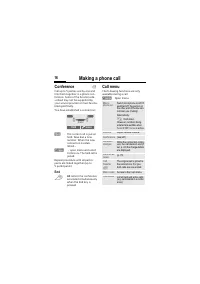
Making a phone call 16 Conference Call up to 5 parties one by one and link them together in a phone con-ference. Some of the functions de-scribed may not be supported by your service provider or must be ena-bled specifically.You have established a connection: §Hold§ The current call is put on hold. ...
Page 19 - Babysitter; Switch on; Setup; Switch off; Records
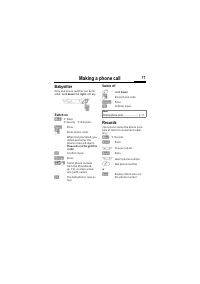
Making a phone call 17 Babysitter Only one phone number can be di-alled. Hold down the right soft key. Switch on §Menu ¢ Setup ¢ Security ¢ Babysitter §Select§ Press. J Enter phone code:When first prompted, you define and enter the phone code (4-8 digits). Please do not forget this code! §OK§ Confir...
Page 20 - Missed calls
Making a phone call 18 §Menu ¢ Records ¢ Select function The following call lists are available: Missed calls The phone numbers of calls that you have received but not answered can be recorded for call back purposes.When you have missed a call, the fol-lowing icon appears in the display above the le...
Page 21 - Phonebook; honebook; SIM card; mobile phone; Call/search for an entry; Select
Phonebook 19 honebook Enter frequently used phone num-bers in the Phonebook with a special name. To dial them, simply highlight the name. If a phone number is stored with a name, it appears on the display when you are called. En-tries that belong together can be combined to form a group . <New en...
Page 22 - Phonebook menu; §Options; once; §Clear
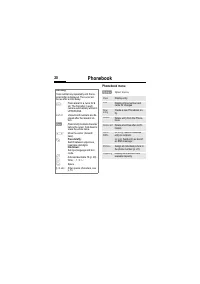
Phonebook 20 Phonebook menu §Options Open menu. Text entry Press number key repeatedly until the re-quired letter is displayed. The cursor ad-vances after a short delay. 2 Press once for a , twice for b etc. The first letter in each name is automatically written in UPPERCASE. Ä,ä/1-9 Umlauts and num...
Page 23 - Group; Select group; Group menu; VIP
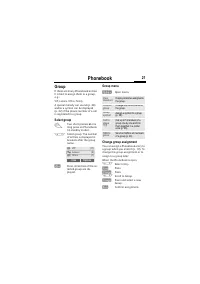
Phonebook 21 Group If there are many Phonebook entries it is best to assign them to a group, e.g.: VIP, Leisure, Office, Family A special melody can sound (p. 40) and/or a symbol can be displayed (p. 22) if the phone number of a call is registered in a group. Select group T Two short presses or one ...
Page 24 - Group entry menu; Group symbol; §OK§; Edit; Location; Picture
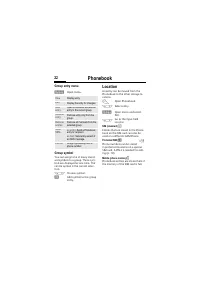
Phonebook 22 Group entry menu §Options Open menu. Group symbol You can assign one of many stand-ard symbols to a group. Three sym-bols are displayed at one time. The centre symbol is the current selec-tion. N Choose symbol. §OK§ Add symbol to the group entry. Location An entry can be moved from the ...
Page 25 - Call; Assign picture; Delete/change picture
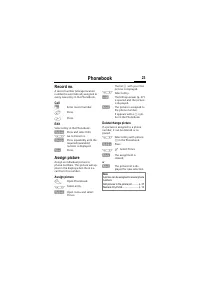
Phonebook 23 Record no. A record number (storage location number) is automatically assigned to every new entry in the Phonebook. Call J Enter record number. # Press. W Press. Edit Select entry in the Phonebook. §Options§ Press and select Edit . N Go to Record no. §Change§ Press repeatedly until the ...
Page 26 - ssage; Read messages; Pictures and sounds in SMS; Pictures; sounds; Reply menu; §highlighted§
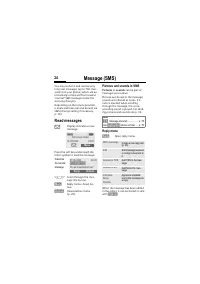
Message (SMS) 24 ssage (SMS) You may transmit and receive very long text messages (up to 760 char-acters) on your phone, which are au-tomatically composed from several "normal" SMS messages (note the accruing charges).Depending on the service provider, e-mails and faxes can also be sent via ...
Page 27 - Archive; View
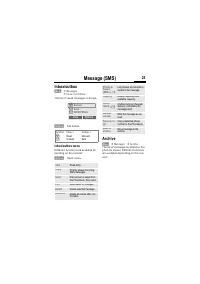
Message (SMS) 25 Inbox/outbox §Menu§ ¢ Messages ¢ Inbox / or Outbox / The list of saved messages is shown. §Options§ See below. Inbox/outbox menu Different functions are available de-pending on the context: §Options§ Open menu. Archive §Menu§ ¢ Messages ¢ Archive The list of messages recorded on the...
Page 28 - Archive menu; Compose a message; Display in the uppermost line:
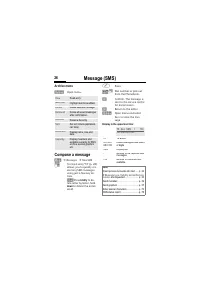
Message (SMS) 26 Archive menu §Options§ Open menu. Compose a message §Menu§ ¢ Messages ¢ New SMS J Text input using "T9" (p. 28) allows you to quickly cre-ate long SMS messages using just a few key en-tries. §Clear§ Press briefly to de- lete letter by letter, hold down to delete the entire w...
Page 29 - Text menu; Predefined text; Write text fragments; Use text fragments; SMS to group
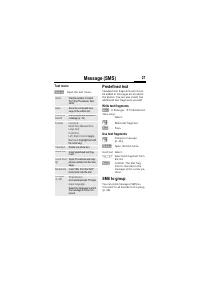
Message (SMS) 27 Text menu §Options§ Open the text menu. Predefined text Standard text fragments which can be added to messages are stored in the phone. You can also create five additional text fragments yourself. Write text fragments §Menu§ ¢ Messages ¢ Predefined text <New entry> Select. J W...
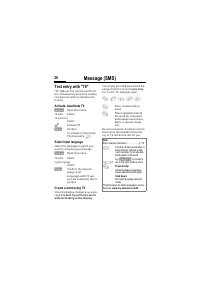
Page 30 - Activate, deactivate T9; Select Input language; Create a word using T9; it is best if you finish a word
Message (SMS) 28 Text entry with "T9" "T9" deduces the correct word from the individual key entires by making comparisons with an extensive dic-tionary. Activate, deactivate T9 §Options§ Open text menu. T9 input Select. T9 preferred Select. ^ Activate T9. §Select§ Confirm.To activate...
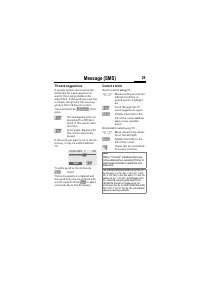
Page 31 - T9 word suggestions; highlighted§; Correct a word; using
Message (SMS) 29 T9 word suggestions If several options are found in the dictionary for a key sequence (a word), the most probable is dis-played first. If the word you want has not been recognised, the next sug-gestion from T9 may be correct.The word must be highlighted§ . Then press : The displayed...
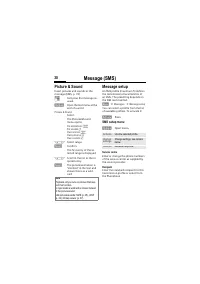
Page 32 - Message setup; SMS setup menu; Service centre
Message (SMS) 30 Picture & Sound Insert pictures and sounds in the message (EMS, p. 74). J Compose the message as usual. §Options§ Open the text menu at the end of a word. Picture & Sound Select. The Pictures&Sound menu opens: Fix animations Œ Fix sounds ‹ Own animat. Œ Own pictures ¸ Ow...
Page 33 - New
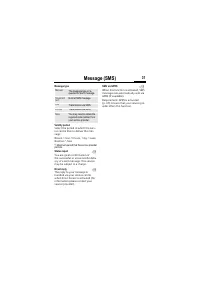
Message (SMS) 31 Message type Validity period Select the period in which the serv-ice centre tries to deliver the mes-sage: Manual, 1 hour, 12 hours, 1 day, 1 week, Maximum *, New *) Maximum period that the service provider permits. Status report You are given confirmation of the successful or unsuc...
Page 34 - Internet access; Homepage; Resume
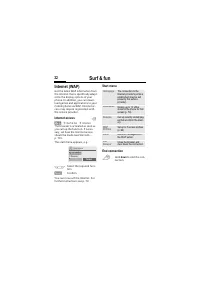
Surf & fun 32 & fun Internet (WAP) Get the latest WAP information from the Internet that is specifically adapt-ed to the display options of your phone. In addition, you can down-load games and applications to your mobile phone via WAP. Internet ac-cess may require registration with the servi...
Page 35 - Browser menu
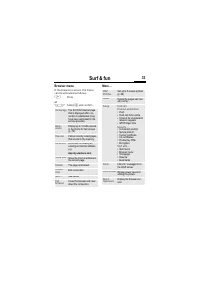
Surf & fun 33 Browser menu If the browser is active, the menu can be activated as follows: W Press or N Select † and confirm. More ... Homepage The first WAP Internet page that is displayed after con-nection is established (may have been set/preset by the service provider). Book-marks Display up...
Page 36 - WAP profiles; Activate WAP profile
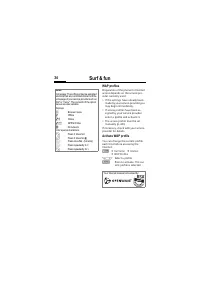
Surf & fun 34 WAP profiles Preparation of the phone for Internet access depends on the service pro-vider currently used:• If the settings have already been- made by your service provider you may begin immediately. • If access profiles have been as- signed by your service provider select a profil...
Page 37 - Games and applications; Receive information
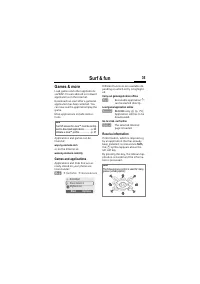
Surf & fun 35 Games & more Load games and other applications via WAP. You are advised on relevant applications on the Internet. Download can start after a game/an application has been selected. You can now use the application/play the game. Most applications include instruc-tions. Applicatio...
Page 38 - Java
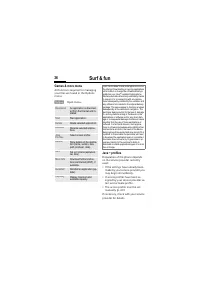
Surf & fun 36 Games & more menu All functions required for managing your files are found in the Options menu: §Options§ Open menu. Java ™ profiles Preparation of the phone depends on the service provider currently used:• If the settings have already been- made by your service provider you ma...
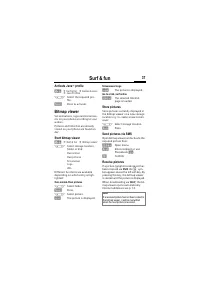
Page 39 - Java Profiles; Bitmap viewer; Go to a link, surf online; SMS; WAP
Surf & fun 37 Activate Java ™ profile §Menu§ ¢ Surf & fun ¢ Games & more ¢ Java Profiles N Select the required pro- file. §Select§ Press to activate. Bitmap viewer Set animations, logos and screensav-ers on your phone according to your wishes. Pictures and links that are already stored o...
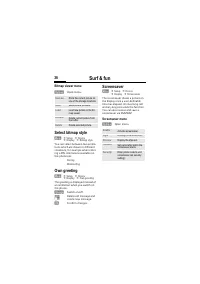
Page 40 - Bitmap viewer menu; Select bitmap style; Screensaver menu
Surf & fun 38 Bitmap viewer menu §Options§ Open menu. Select bitmap style §Menu§ ¢ Setup ¢ Device ¢ Display ¢ Bitmap style You can select between two anima-tions which are shown in different situations, for example when enter-ing a PIN. Animations available on the phone are: RacingWindsurfing Ow...
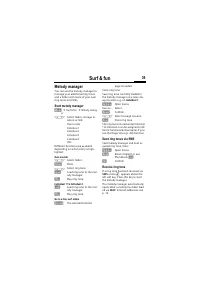
Page 41 - Melody manager; Start melody manager; er; Send ring tones via SMS
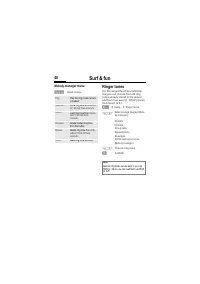
Surf & fun 39 Melody manager You can use the melody manager to manage your additional ring tones and a folder with more of your own ring tones and links. Start melody manager §Menu ¢ Surf & fun ¢ Melody manag- er N Select folder, storage lo-cation or link: Own soundsIndividual 1Individual 2I...
Page 42 - Melody manager menu
Surf & fun 40 Melody manager menu §Options§ Open menu. Ringer tones For the ranges/functions listed be-low you can choose from 20 ring tones already stored in the phone and from four own (p. 39) ring tones ( Individual 1 to 4 ,). §Menu§ ¢ Audio ¢ Ringer tones N Select range (except Melo- dy mana...
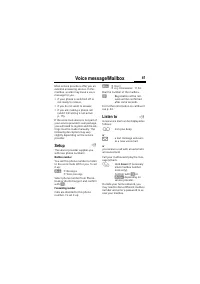
Page 43 - Voice message/Mailbox; ce; Mailbox number; Listen to
Voice message/Mailbox 41 ce ssage/ ilbox Most service providers offer you an external answering service. In this mailbox, a caller may leave a voice message for you• if your phone is switched off or not ready to receive, • if you do not want to answer,• if you are making a phone call (and if Call wa...
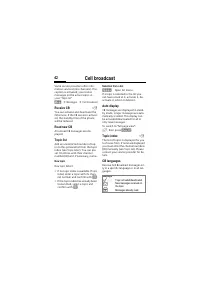
Page 44 - Cell broadcast; dcast
Cell broadcast 42 dcast Some service providers offer infor-mation services (info channels). If re-ception is activated, you receive messages on the active topics in your " Topic list ". §Menu§ ¢ Messages ¢ Cell broadcast Receive CB You can activate and deactivate the CB service. If the CB se...
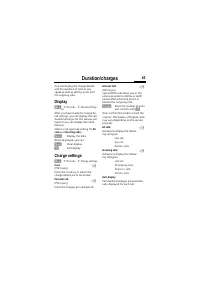
Page 45 - ges; Display; Charge settings
Duration/charges 43 tion/ ges You can display the charge details and the duration of calls as you speak as well as setting a unit limit for outgoing calls. Display §Menu§ ¢ Records ¢ Duration/charg- es After you have made the charge de-tail settings, you can display the call duration/charges for the...
Page 46 - Divert; rt; Unanswered; All calls; Receiving fax
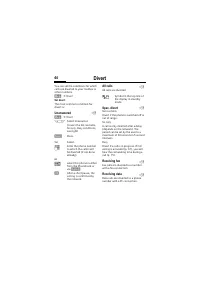
Divert 44 rt You can set the conditions for which calls are diverted to your mailbox or other numbers. §Menu§ ¢ Divert Set divert: The most common condition for divert is: Unanswered §Menu§ ¢ Divert N Select Unanswered . (covers the Not reachable , No reply , Busy conditions, see right) §Select§ Pre...
Page 47 - Status check
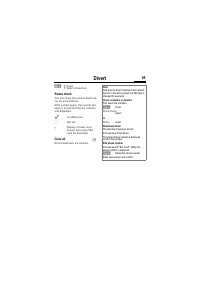
Divert 45 §Menu§ ¢ Divert ¢ Select a function. Status check You can check the current divert sta-tus for all conditions.After a short pause, the current situ-ation is transmitted by the network and displayed. ^ Condition set. _ Not set. ? Display if status is un-known (on a new SIM card for example)...
Page 48 - Groups; ups
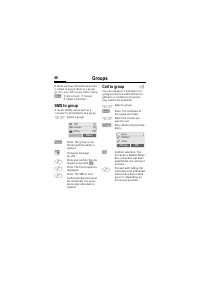
Groups 46 ups If there are many Phonebook entries it is best to assign them to a group (p. 21), e.g.: VIP, Leisure, Office, Family §Menu§ ¢ Get in touch ¢ Groups ¢ Select a function: SMS to group A memo (SMS) can be sent as a "circular" to all members of a group. N Select a group. §Select§ P...
Page 49 - Call to group menu; Dial
Groups 47 §Options Open the menu e.g. to link the calls on hold in a conference. Call to group menu §Options Open menu. Dial Dial current enty. Skip Skip next number. Conference Link all calls on hold in a conference (p. 16). Swap Accept the waiting call and put the current call on hold. Microphone ...
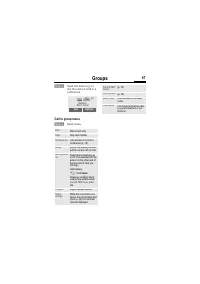
Page 50 - Group setup; Get in touch
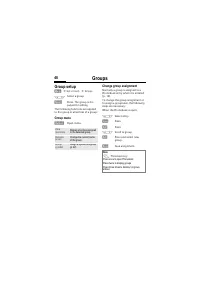
Groups 48 Group setup §Menu§ ¢ Get in touch ¢ Groups N Select a group. §Select§ Press. The group is dis-palyed for editing. The following functions are applied to the group or all entries of a group: Group menu §Options Open menu. Change group assignment Normally a group is assigned to a Phonebook e...
Page 51 - Organiser; Diary; New appointment; §Save§; Appointments menu; §Pause§
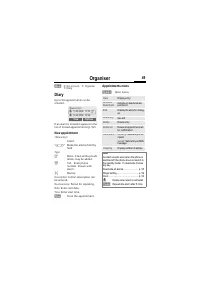
Organiser 49 Organiser §Menu§ ¢ Get in touch ¢ Organiser ¢ Diary Diary Up to 50 appointments can be entered. If an alarm is missed it appears in the list of missed appointments (p. 52). New appointment <New entry> Select. N Make the entries field by field. Type: y Memo . A text with up to 20 l...
Page 52 - Greetings; New event; Events menu
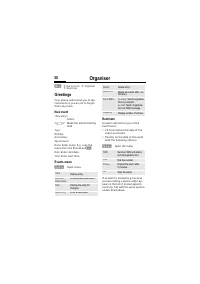
Organiser 50 §Menu§ ¢ Get in touch ¢ Organiser ¢ Greetings Greetings Your phone will remind you of spe-cial events so you do not to forget-them any more. New event <New entry> Select. N Make the entries field by field. Type:BirthdayAnniversarySpecial eventName: Enter name. E.g. copy the name f...
Page 53 - Notes; New entry; Display entry; §View§
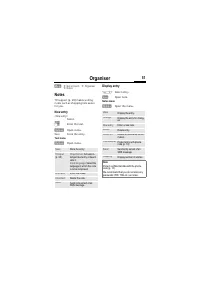
Organiser 51 §Menu§ ¢ Get in touch ¢ Organiser ¢ Notes Notes T9 support (p. 28) makes writing notes such as shopping lists easier for you. New entry <New entry> Select. J Enter the text. §Options§ Open menu. Save Store the entry. Text menu §Options§ Open menu. Display entry N Select entry. §Vi...
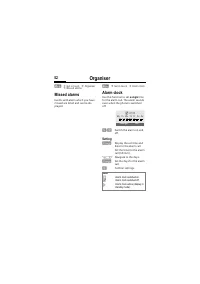
Page 54 - Missed alarms; Alarm clock; a single; Setting; Change
Organiser 52 §Menu§ ¢ Get in touch ¢ Organiser ¢ Missed alarms Missed alarms Events with alarm which you have missed are listed and can be dis-played. §Menu§ ¢ Get in touch ¢ Alarm clock Alarm clock Use this function to set a single time for the alarm call. The alarm sounds even when the phone is sw...
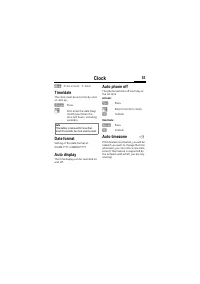
Page 55 - Clock; Date format; Auto display
Clock 53 k §Menu§ ¢ Get in touch ¢ Clock Time/date The clock must be set correctly once at start-up. §Change§ Press. J First enter the date (day/month/year) then the time (24 hours, including seconds). Date format Setting of the date format at: DD.MM.YYYY or MM/DD/YYYY Auto display The time display ...
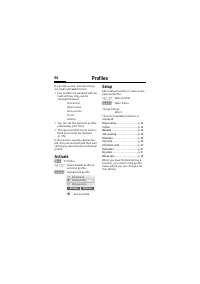
Page 56 - Profiles; iles; Car Kit; Aircraft mode; Activate
Profiles 54 iles If a profile is used, several settings are made with one function. • Five profiles are standard with de- fault settings, they can be changed however: Normal envi. Quiet environ. Noisy environ. Car Kit Headset • You can set two personal profiles individually ( <No Title> ). • T...
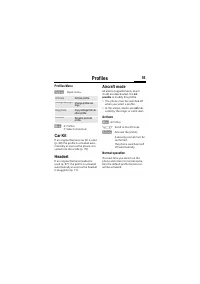
Page 57 - Profiles Menu; not; Normal operation
Profiles 55 Profiles Menu §Options§ Open menu. §Menu§ ¢ Profiles ¢ Select a function: Car Kit If an original Siemens Car Kit is used (p. 88) the profile is activated auto-matically as soon as the phone is in-serted into the cradle (p. 70). Headset If an original Siemens headset is used (p. 87), the ...
Page 58 - enu; My menu; Change settings; Reset all; on the left
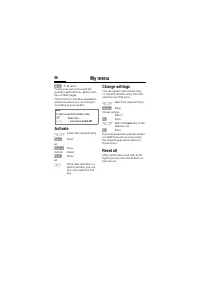
My menu 56 enu §Menu ¢ My menu Create your own menu with fre-quently used functions, phone num-bers or WAP pages. The list of the 10 entries available is preset. However you can change it according to your wishes. Activate N Select the required entry. §Select§ Press. or §Options§ Press. Activate Sel...
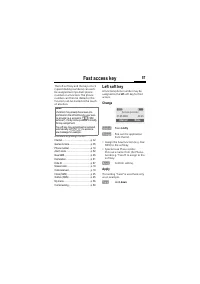
Page 59 - Fast access key; ast access; Left soft key; left; Phone number; Apply; §Carol§
Fast access key 57 ast access The left soft key and the keys 2 to 9 (speed dialling numbers) can each be assigned an important phone number or a function. The phone number can then be dialled or the function can be started at the touch of a button. Available key assignments : Internet .................
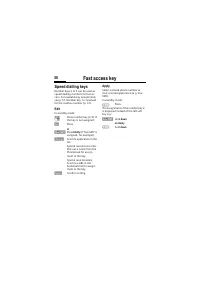
Page 60 - Speed dialling keys; §Set§
Fast access key 58 Speed dialling keys Number keys 2 to 9 can be used as speed dialling numbers for fast ac-cess. For available key assignments see p. 57. Number key 1 is reserved for the mailbox number (p. 41). Edit In standby mode: J Press number key (2-9). If the key is not assigned: §Set§ Press....
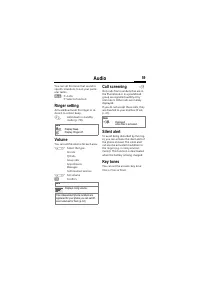
Page 61 - Audio; udio; Ringer setting; Call screening
Audio 59 udio You can set the tones that sound in specific situations to suit your partic-ular tastes. §Menu§ ¢ Audio ¢ Select a function: Ringer setting Activate/deactivate the ringer or re-duce it to a short beep. * Hold down in standby mode (p. 78). Volume You can set the volume for each area. N ...
Page 62 - Minute beep
Audio 60 §Menu§ ¢ Audio ¢ Select a function: Minute beep During the call, you hear a beep after every minute as a reminder of the time elapsed. Information tones Set service and alarm tones: §Select§ On/Off. §Change§ If activated, service tones are reproduced for an ex-tended range of func-tions. Me...
Page 63 - Device; Language; Keys
Setup 61 p Device §Menu§ ¢ Setup ¢ Device ¢ Select a function. Language Set the language of the display text. When "automatic" is set, the lan-guage of your service provider is used. If a language that you do not understand happens to be set, the phone can be reset to the language of your se...
Page 64 - Status; Phone identity; T9 input; T9 preferred; Battery care
Setup 62 §Menu§ ¢ Setup ¢ Device ¢ Select a function. Status Fact. settings The phone is reset to the default val-ues (factory setting) (does not apply to SIM card and network settings): * # 9 9 9 9 # W Phone identity The phone ID (IMEI) is displayed. This information may be useful for cus-tomer ser...
Page 65 - Allow only; Only; different
Setup 63 Security The phone and SIM card are protect-ed against misuse by several security codes. §Menu§ ¢ Setup ¢ Security ¢ Select a function: Codes PIN control, Change PIN, Change PIN2, Change phonecode, see p. 10. Babysitter (Phone code protected) Only one number can be dialled. Hold down the ri...
Page 66 - Network; Line
Setup 64 Network §Menu§ ¢ Setup ¢ Network ¢ Select a function: Line This function is only displayed if it is supported by the service provider. Two independent phone numbers must be registered on the phone. Select Select the currently used phone number. = Display the active phone number. Block line ...
Page 67 - Barrings; Outgo internat; All incoming
Setup 65 §Menu§ ¢ Setup ¢ Network ¢ Configuration ¢ Select a function: Pref. network The service providers you prefer af-ter your home network are displayed here (e.g. if there are several net-works that differ in price). Your service provider is displayed: §List§ Display list of preferred networks....
Page 68 - User group
Setup 66 §Menu§ ¢ Setup ¢ Network ¢ Barrings ¢ Select a function: Status check The following information can be displayed after a status check: ^ Barring set. _ Barring not set. ? Status unknown (e.g. new SIM card). Clear all All barrings are cleared. A password which the service provider will give ...
Page 69 - During a call; GPRS; §Change§; GPRS info
Setup 67 During a call §Menu§ ¢ Setup ¢ During a call ¢ Select a function: Call waiting If you are registered for this service, you can check whether it is set and you can activate/deactivate it (p. 15). Hide ID When you make a call, your phone number may be displayed on the recipient's display (dep...
Page 70 - WAP profile settings
Setup 68 §Menu§ ¢ Setup ¢ Connectivity ¢ Select a function: WAP profile settings You can set or change up to 5 WAP profiles (may be barred by the serv-ice provider). The entries may vary depending on your service provider. To set a new profile: N Select a profile. §Options§ Open menu. Change setting...
Page 71 - Set JavaTM profiles
Setup 69 §Menu§ ¢ Setup ¢ Connectivity ¢ Select a function: Set Java™ profiles Up to 5 profiles can be defined. The settings have normally been carried out by the service provider in ad-vance. To set a new profile: N Select profile. §Options§ Open menu. Change settings Select and confirm. N Select p...
Page 72 - Authentication; Accessories; User-defineable settings
Setup 70 §Menu§ ¢ Setup ¢ Connectivity ¢ Select a function: Fax/data mod. (p. 72). Authentication §Change§ Activate encrypted WAP dial-up (CHAP Challenge Authentication Proce-dure) or deactivate (PAP Personal Authentication Procedure). Accessories §Menu§ ¢ Setup ¢ Accessories ¢ Select a function: Ca...
Page 73 - Headset; HomeStation; Auto answer
Setup 71 Automatic settings: • Permanent illumination: switched on. • Auto key lock: switched off. • Charge the phone battery.• Automatically activate Car Kit, when the phone is inserted (p. 55). §Menu§ ¢ Setup ¢ Accessories ¢ Select a function: Headset If an original Siemens Headset is used (p. 87)...
Page 74 - Fax/data mode using a PC; data; Send; before; during; End transmission
Fax/data mode using a PC 72 data de using a §Menu§ ¢ Setup ¢ Connectivity ¢ Fax/data mod. With the phone and a connected PC, you can transmit and receive faxes and data. Appropriate software for data communication/fax communi-cation must be available on your PC and there must be a connection to the ...
Page 75 - CSD; Divert set; §Divert§; §SOS
Notes A-Z 73 s A-Z Control codes (DTMF) Send DTMF tones You can enter control codes (digits) during a call so that an answering machine can be controlled remotely. These digits are directly transmitted as DTMF tones (control codes). ; menu§ Open call menu. Send DTMF Select. Use the Phonebook Store p...
Page 76 - EMS; Enter special characters; Γ ∆ Θ Λ
Notes A-Z 74 EMS ( E nhanced M essaging S ervice) Besides (formatted) texts, you can also send • pictures (bitmaps),• sounds and • animations (sequence of 4 pictures) using the EMS.The segments specified above can be transmitted together or individually in an SMS. With EMS, pictures and sounds can a...
Page 77 - International dialling codes; JAD; Combined files
Notes A-Z 75 International dialling codes Many international dialling codes are stored in your phone. In standby mode ( 0 not necessary when dialling from the Phonebook): 0 Hold down until a "+" is displayed. This replaces the first two digits of the international dialling code. §+List§ Pres...
Page 79 - Quick menu selection; Messages; New SMS; Service numbers; Please insert SIM card; correctly; SMS Push
Notes A-Z 77 Quick menu selection All menu functions are numbered in-ternally.By entering these numbers one after the other the function may be start-ed at once.For example, to compose a new SMS: §Menu§ Press. 1 for Messages 1 for New SMS If your service provider offers addi-tional functions (SIM se...
Page 80 - SMS status report; Switch off ringer; current; T9 language versions; §Line 1§
Notes A-Z 78 highlighted. By pressing the Call key, the WAP browser is automatically started and the highlighted Internet address is called up. SMS status report If the phone was unable to send the message to the service centre a retry option is available. If this attempt al-so fails, contact your s...
Page 81 - WAP usage; Save; Online; §Go§; Special characters for WAP usage:
Notes A-Z 79 WAP usage Start with... You can set which functions are to be displayed after Internet access: W Open the browser menu. More ... Select. Start with... Select, then select from the list: Start menu (p. 32) Browser menu (p. 33) Homepage (p. 32) Resume (p. 32) Bookmarks (p. 32) Enter the I...
Page 82 - WAP parameters/Homepage; Without SIM card; without
Notes A-Z 80 Changing the home page The address of the home page is set in the (access) profile (p. 68). You can change it in standby mode (if permitted by the service provider!): §Menu§ ¢ Surf & fun ¢ Internet ¢ Profiles Select the profile, for example: e-Commerce Select. §Change§ The entry car...
Page 84 - swers; Question
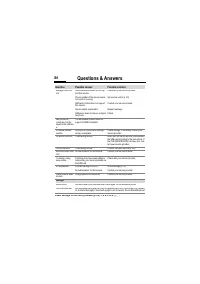
Questions & Answers 82 estions & swers If you have any questions about using your phone, visit us at www.my-siemens.com/customercare anytime. In addition we have listed some frequently asked questions and answers below. Question Possible causes Possible solution Phone cannot be switched on. ...
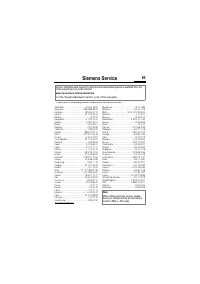
Page 87 - Siemens Service; ens
Siemens Service 85 ens ice Abu Dhabi .......................................... 0 26 42 38 00Argentina ...................................... 0 80 08 88 98 78Australia........................................... 18 00 62 24 14Austria.............................................. 05 17 07 50 04Bahrain...
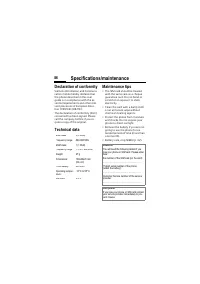
Page 88 - Specifications/maintenance; Declaration of conformity; Phone ID
Specifications/maintenance 86 cifica- ons/mainte- ce Declaration of conformity Siemens Information and Communi-cation mobile hereby declares that the phone described in this user guide is in compliance with the es-sential requirements and other rele-vant provisions of European Direc-tive 1999/5/EC (...
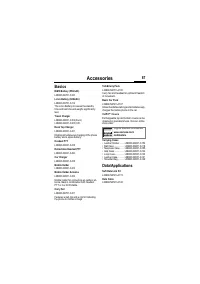
Page 89 - essories; Basics
Accessories 87 essories Basics NiMH Battery (550mAh) L36880-N4701-A100 Li-Ion Battery (600mAh) L36880-N4701-A112The Li-Ion Battery increases the standby time and talk time and weighs significantly less. Travel Charger L36880-N4001-A103 (Euro)L36880-N4001-A104 (UK) Desk Top Charger L36880-N4501-A101E...
Page 90 - Car Solutions
Accessories 88 Car Solutions Car Kit Portable L36880-N3015-A117Handsfree kit with integrated loudspeaker and microphone and auto answer feature. Simply plug into the cigarette lighter socket. Ideal for mobility between vehicles. Car Kit Comfort L36880-N4501-A104Handsfree kit with first-class digital...
Page 91 - Index
Index 89 x A Accessories ........................... 70, 87Account limit .............................. 43Activate phone profile .......................... 54WAP profile ............................. 34 Aircraft mode ............................. 55Alarm clock................................. 52Alar...


 Siemens AP75 User Manual
 Siemens C72 User Manual
 Siemens CF62 User Manual
 Siemens CX75 User Manual
 Siemens M75 User Manual
 Siemens ME75 User Manual
 Siemens S55 User Manual
 Siemens S75 User Manual
 Siemens SL45i User Manual
 Siemens SL55 User Manual
 Siemens SL65 User Manual
 Siemens SL75 User Manual
 Siemens ST55 User Manual
 Siemens ST60 User Manual
 Siemens SX1 User Manual
 Siemens U15 User Manual
 Siemens Xelibri 1 User Manual
 Siemens Xelibri 2 User Manual