Siemens Xelibri 2 - User Manual

Siemens Xelibri 2 Smartphone – User Manual, read for free online in PDF format. We hope this helps you resolve any issues you may have. If you have further questions, please contact us through the contact form.

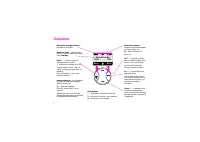
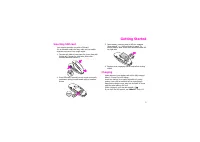

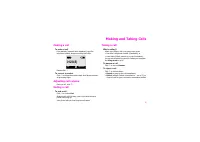
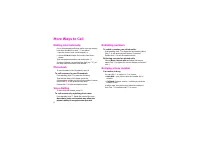



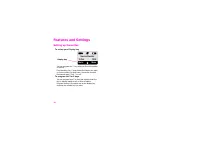
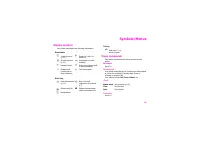
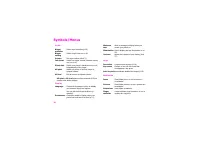


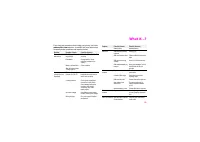

Table of Contents:
- Page 2 – Contents
- Page 3 – Overview
- Page 4 – Getting Started; Inserting SIM card; Charging
- Page 5 – Switching on; To switch on your phone; Entering a PIN; Setting the time and date; Switching off; To switch off your phone; Mobile phone safety; OK
- Page 6 – Making and Taking Calls; Making a call; To make a call; Adjusting call volume; To end a call; Taking a call; To answer a call; To reject a call; Options
- Page 7 – More Ways to Call; Dialling internationally; To call someone in your Phonebook; Voice dialling; To call someone by speaking their name; Redialling numbers; To redial a number you called earlier; Retrying a busy number; If a number is busy
- Page 8 – Call Features; Voice mail; To listen to voice mails; Noting a telephone number
- Page 9 – Receiving a second call; To accept an additional call; To end your current call and accept a new one
- Page 10 – Phonebook; About the Phonebook; To select a Phonebook entry; Saving Phonebook entries; To save a new entry in your Phonebook; Typing in the Phonebook; To type a name in the Phonebook; Phonebook tips
- Page 11 – Further Phonebook features; Updating Phonebook entries; To make a voice dial recording
- Page 12 – Text Messages; Receiving a text message; To view/play a message; Deleting messages; Starting a new message; Back; of
- Page 13 – Writing other characters
- Page 14 – Sending a message; If you’re replying to a message...; Sending messages to a group; To prepare your group; Ready messages; Service centre; Telephone numbers
- Page 16 – To insert an icon, a sound or animation; Saving media; To save a picture or sound; Longer messages; Happy Birthday
- Page 17 – Features and Settings; Key lock; To switch off ring tones; Using the alarm clock; To set the alarm
- Page 18 – Using the calendar; Network
- Page 19 – Setting up favourites; To set up your Display key; To program the 2 to 8 keys; Service Provider
- Page 20 – Display symbols; Reminders; Menu commands; Messages; Clock
- Page 22 – Setup
- Page 25 – Damage
- Page 26 – Precautions
- Page 27 – Xelibri Service/Accessories; Service; Approved accessories; Travel Charger; In your car; Basic Car Pack; Headset; Headset PTT
- Page 28 – Specifications; Technical data; SAR
- Page 29 – Guarantee certificate
- Page 30 – Index
Issued by
Information and Communication mobile
Haidenauplatz 1, D-81667 Munich, Germany
Ref. No:
A31008-H9220-A1-
4
-7619
©
AG 200
3
All rights reser ved. Subject to availability.
Rights of modification reser ved.
WWW.XELIBRI.COM
Contains all you need to know
to get the best from your
XELIBRI
!
THIS IS YOUR GUIDE TO THE COMMUNICATION OF THE FUTURE!
THIS IS YOUR GUIDE TO THE COMMUNICATION OF THE FUTURE!
Somebody is waiting for
you to call!
USER GUIDE
2
"Loading the manual" means you need to wait until the file loads and becomes available for online reading. Some manuals are very large, and the time they take to appear depends on your internet speed.
Was this manual helpful?
About this manual
- Brand
- Siemens
- Model
- Xelibri 2
- Document type
- User Manual
- Category
- Smartphone
- Language(s)
- English
- Pages
- 31
- File size
- 325.3 KB
- Format
Summary
1 Contents Overview ..................................... 2Getting Started ........................... 3 Inserting SIM card.........................3Charging ......................................3Switching on .................................4Setting the time and date ..............4Standby display...
2 Special keys* – hold down to switch all tones off 1 - hold down to call your voice mailbox # - hold down to lock keypad Ø j d Service Provider 15 Oct 12:30 Maria Ó Menu Overview Reception strength/battery – the blacker the better Network name – indicates your phone is ready to make and receive cal...
3 Getting Started Inserting SIM card Your network provides you with a SIM card.If it is delivered credit card size, snap out the smaller segment and remove any rough edges.1. Depress side catch to ease open the cover (best with thumb nail). Repeat for other side, slide cover towards base and remove ...
Ask a question
Related manuals
Popular Siemens Smartphones


More Siemens Smartphones models
 Siemens SL75 User Manual
 Siemens ST55 User Manual
 Siemens ST60 User Manual
 Siemens SX1 User Manual
 Siemens U15 User Manual
 Siemens Xelibri 1 User Manual
 Siemens Xelibri 3 User Manual
 Siemens Xelibri 4 User Manual
 Siemens Xelibri 5 User Manual
 Siemens Xelibri 6 User Manual
 Siemens Xelibri 7 User Manual
 Siemens Xelibri 8 User Manual
 Siemens A57 User Manual
 Siemens AP75 User Manual
 Siemens C72 User Manual
 Siemens CF62 User Manual
 Siemens CX75 User Manual
 Siemens M50 User Manual