Page 2 - Contents
1 Contents Overview .................................... 2Getting Started .......................... 3 Inserting SIM card .......................3Charging .....................................3Switching on ...............................3‘Typing’ numbers on your XELIBRI 4Setting the time and date .....
Page 3 - Overview; Service Provider
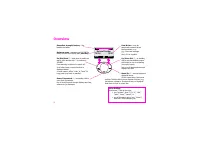
2 Overview Reception strength/battery – the blacker the better Network name – indicates your XELIBRI is ready to make and receive calls ( standby ) On/Dial/Back – hold down to switch on watch, then double-click to switch on XELIBRI.From standby, hold down to switch off.In all other cases, current fu...
Page 4 - Getting Started; Inserting SIM card; Charging; Battery; Switching on
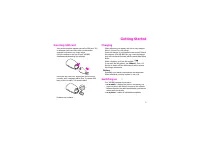
3 Getting Started Inserting SIM card Your service provider supplies you with a SIM card. If it is delivered credit card size, snap out the smaller segment and remove any rough edges.Press the button on the rear of your XELIBRI, simultaneously detaching the necklace. Press SIM into lower slot, aligni...
Page 5 - ‘Typing’ numbers on your XELIBRI; To enter a number; Setting the time and date; Options
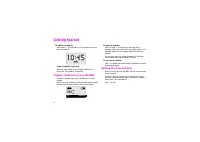
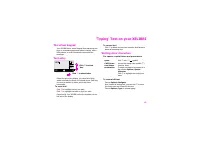
Getting Started 4 To switch on watch... Hold down . The first time, you’ll be asked to set the time (see below). ... then to switch on phone With the clock visible on the display, double-click . Enter your PIN number (if required). ‘Typing’ numbers on your XELIBRI Instead of number keys, your XELIBR...
Page 6 - Entering a PIN; Standby display; Switching off; To switch off phone; Mobile phone precautions; OK
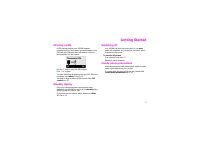
Getting Started 5 Entering a PIN A PIN number protects your XELIBRI against unauthorised use. Most service providers supply a new SIM card with PIN protection switched on; see your documentation for the number. Use the keys to enter the PIN number. Click to confirm. You have three tries at entering ...
Page 7 - Ways to use your XELIBRI; Headset use
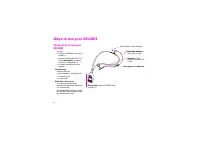
6 Ways to use your XELIBRI Three ways to use your XELIBRI You can:• hold your XELIBRI to your ear as normal, or • (during a call) double-click to choose Handsfree , operating the built-in loudspeaker, or • for total convenience, use the headset. Headset use Press the talk key:• from standby to voice...
Page 8 - Making and Taking Calls; Making a call using the key; Adjusting call volume; To end a call; Taking a call; To answer a call; To reject a call
7 Making and Taking Calls Making a call using the key From standby (network name displayed), click to choose Dial . Click to enter the telephone number (p 4), always including area code. Double-click . Adjusting call volume During a call, click . Ending a call To end a call Click to choose End. Alwa...
Page 9 - Voice dialling; About voice dialling; To call a number; Voice dialling from the Phonebook; To call someone in your Phonebook
8 Voice dialling About voice dialling Your XELIBRI uses state of the art voice recognition, enabling you to • dictate a telephone number (your XELIBRI recognises most accents) • speak the name of a Phonebook entry you have previously recorded. Voice dialling a number To call a number From standby, h...
Page 10 - Voice dialling tips; Voice commands
Voice dialling 9 Voice dialling tips A noisy environment may interfere with recognition.For zero, you can say “oh” or “zero”. You can also dictate the special characters: + (“plus”), # (“hash”) and * (“star”). When you pause when dictating, your XELIBRI writes a space between groups of numbers, maki...
Page 11 - More Ways to Call; Dialling internationally; Redialling numbers; To redial a number you called earlier; Phonebook; Back
10 More Ways to Call Dialling internationally For an international prefix that works from any country, use the keys to enter “+” as the first character and either:• click to choose +List and select the country from those shown, or • use to type the country code. Complete the telephone number and dou...
Page 12 - Call Features; Voice mail; Voice mail alerts; Using your XELIBRI hands-free
11 Call Features Voice mail Voice mail alerts Service providers have different ways of alerting you when a new voice mail is received:• \ a voice mail alert symbol • ] a text message: to view, see p 16 • a recorded announcement. To listen to voice mails If you receive a text message, you will see yo...
Page 13 - Making/handling more calls; To accept an additional call
Call Features 12 Making/handling more calls During a call, choose Options and Additional call . Dial a number (or choose to use Phonebook) and call as usual. When connected, you have the following options:• Swap – switch between calls. Ending one call enables you to resume the other. • Transfer – co...
Page 14 - About the Phonebook; To ‘type’ a new entry in your Phonebook; To save by voice dialling; Phonebook tips; Further Phonebook features; Updating Phonebook entries
13 Phonebook About the Phonebook The Phonebook makes it simple to dial your most frequently-used numbers.Select (or call) a Phonebook entry as shown on p 10. Saving Phonebook entries You can save Phonebook entries by voice or by ‘typing’ them. To ‘type’ a new entry in your Phonebook From standby, ch...
Page 15 - To add a voice sample to an entry; To update a voice sample
Phonebook 14 Voice dialling You can add voice dial samples to any existing Phonebook entry, enabling you to call the person by saying their name (p 8).When you voice dial, your XELIBRI matches your words with a recorded sample. You may save recordings for around 40 Phonebook entries. To add a voice ...
Page 16 - ‘Typing’ Text on your XELIBRI; The virtual keypad; To enter text; Writing other characters; For spaces, capital letters and punctuation; Hi M
15 ‘Typing’ Text on your XELIBRI The virtual keypad Your XELIBRI has a ‘virtual’ keypad that reproduces the keys on a standard phone and makes it simple, with a little practice, to write Phonebook names and text messages. Text entry Down the right of the display, you see a list of keys, which corres...
Page 17 - Text Messages; Receiving a text message; To view/play a message; Deleting messages; Starting a new message; To insert a telephone number
16 Text Messages Receiving a text message Your XELIBRI can send and receive multimedia messages (EMS) including text, pictures and sound, as well as standard SMS. To view/play a message When you receive a message, your XELIBRI displays the ] symbol. Click to choose View (within 10 seconds of receipt...
Page 18 - Sending a message; If you’re replying to a message...; Ready messages; Service centre; Telephone numbers
Text Messages 17 Sending a message If you’re replying to a message… Choose Options and Reply . With a new message… Choose Options and Send and then either: • enter the number (p 4), or• choose Options and Phonebook to select a name. Choose Send (or hold to cancel). Your message is sent to your servi...
Page 19 - To insert an icon, a sound or animation; Saving media; To save a ringer melody; To save a picture or sound; Happy Birthday
18 Multimedia (EMS) messages Cards On special occasions, you can send your friends greetings cards that include a picture and melody, and in which you can add a personal message.These can be received on the latest models from most prestige phone manufacturers.From the Messages menu, choose Cards and...
Page 20 - Features and Settings; To switch off ring tones; Using the alarm clock; To set the alarm; Using a screensaver; Network
19 Features and Settings Ring tones To switch off ring tones From the Audio menu, choose Ringer setting . Switching off ring tones won’t affect the vibrating alarm (p 22) or alarm clock (below). To change ring tones You can use different ring tones for callers you recognise and for messages.From the...
Page 21 - Setting up voice mail; To personalise voice dial
Features and Settings 20 Setting up voice mail Voice mail If you subscribe to your service provider’s answering service (voice mail), they will usually have set it up automatically. If not, you may need to enter your voice mailbox number. Your XELIBRI prompts you for your mailbox number the first ti...
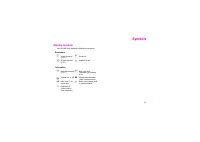
Page 22 - Symbols; Display symbols; Reminders
21 Symbols Display symbols Your XELIBRI may display the following information: Reminders Information y Alarm clock on (p 19) j Ringer off n All calls diverted (p 20) Headset in use ] New text message (p 16) \ New voice mail (depending on network, p 11) Missed call (p 10) Missed announcement (when sc...
Page 23 - Menus; Messages
22 Menus This section of the manual summarises the menu options on your XELIBRI. Messages See p 16. Recent calls Your XELIBRI retains the last 10 numbers you have dialled or, where the network(s) identify them, those of incoming or missed calls.Your options include Call , Save , Delete , etc. Clock ...
Page 25 - Settings/Cell broadcast
Menus 24 Settings/Cell broadcast Limited availability – please contact your service provider. Settings/Headset Switch your headset on or off (when it’s plugged in). Multimedia Phonebook See p 13. Watch Mode This provides the same facilities as when you switch off your XELIBRI. SIM Toolkit This subme...
Page 27 - Damage
What if...? 26 Damage Phonebook entries missing Changing SIM from another phone. Entries may be in phone memory. Voice mail does not work Call divert to the mailbox not set. Set call divert to the mailbox (p 20 ). Call waiting does not work Not set up in network. Set it up (p 23 ). SMS (message) … f...
Page 28 - Precautions
27 Precautions/Maintenance Precautions Interference Like any radio transmitter, a mobile phone can interfere with electrical equipment.To ensure compliance with legal requirements, always use necklace while switched on in phone mode.You must always switch off your phone:• in hospitals and near medic...
Page 29 - Xelibri Service/Accessories; Service; Approved accessories; Travel Charger; In your car; Car Charger
28 Xelibri Service/Accessories Service Please refer to our What if...? guide on p 25, or our web site at www.xelibri.com . If repair work is necessary please contact one of our service centres: Note When calling customer service, please have ready your receipt and the phone identity number (IMEI). T...
Page 30 - Specifications; Technical data; SAR
29 Specifications Declaration of conformity Xelibri is brand of Siemens Information and Communication Mobile which hereby declares that the phone described in this user guide is in compliance with the essential requirements and other relevant provisions of European Directive 1999/5/EC (R&TTE).Th...
Page 31 - Guarantee certificate
30 Guarantee certificate Without prejudice to any claim the user (customer) may have in relation to the dealer or retailer, the customer shall be granted a manufacturer's Guarantee under the conditions set out below: • In the case of new devices and their components exhibiting defects resulting from...
Page 32 - Index
31 Index A accessories ................................ 29 additional calls ........................... 13 alarm clock ................................ 20 animations inserting in text messages .... 19 saving from text messages ... 19 answering .................................... 8 Audio menu .........