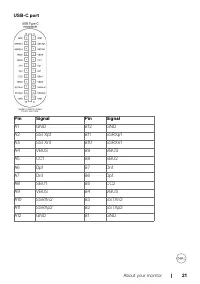
Page 3 - Contents
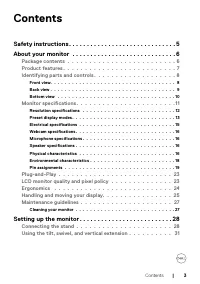
Contents Safety instructions . . . . . . . . . . . . . . . . . . . . . . . . . . . . . . 5About your monitor . . . . . . . . . . . . . . . . . . . . . . . . . . . . . 6 Package contents . . . . . . . . . . . . . . . . . . . . . . . . . 6Product features . . . . . . . . . . . . . . . . . . . . . . . ...
Page 4 - | Contents
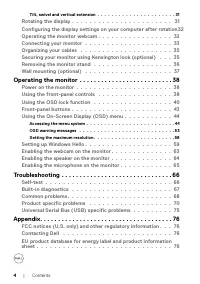
4 | Contents Tilt, swivel and vertical extension . . . . . . . . . . . . . . . . . . . . . . 31 Rotating the display . . . . . . . . . . . . . . . . . . . . . . . 31Configuring the display settings on your computer after rotation 32Operating the monitor webcam . . . . . . . . . . . . . . . . . 32Con...
Page 5 - Safety instructions
Safety instructions | 5 Safety instructions WARNING: Use of controls, adjustments, or procedures other than those specified in this documentation may result in exposure to shock, electrical hazards, or mechanical hazards. • Place the monitor on a solid surface and handle it carefully. The screen is ...
Page 6 - | About your monitor; About your monitor; Package contents; Contact Dell; Display
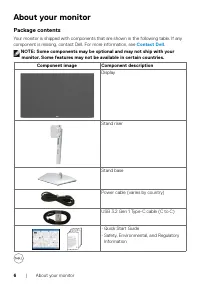
6 | About your monitor About your monitor Package contents Your monitor is shipped with components that are shown in the following table. If any component is missing, contact Dell. For more information, see Contact Dell . NOTE: Some components may be optional and may not ship with your monitor. Some...
Page 7 - Product features
About your monitor | 7 Product features The Dell S2422HZ/S2722DZ monitor has an active matrix, Thin-Film Transistor (TFT), Liquid Crystal Display (LCD), and LED backlight. The monitor features include: • S2422HZ: 60.47 cm (23.8 in.) active area display (measured diagonally) 1920 x 1080 (16:9) resolu...
Page 8 - Identifying parts and controls; Front view; Operating the monitor.
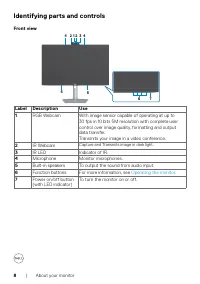
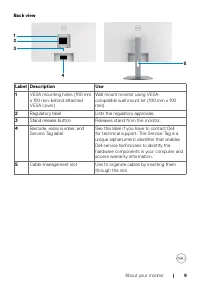
8 | About your monitor Identifying parts and controls Front view 7 6 1 5 5 4 4 2 3 2 Label Description Use 1 RGB Webcam With image sensor capable of operating at up to 30 fps in 10 bits 5M resolution with complete user control over image quality, formatting and output data transfer. Transmits your i...
Page 11 - Monitor specifications; Model
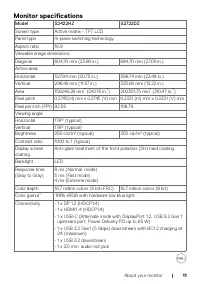
About your monitor | 11 Monitor specifications Model S2422HZ S2722DZ Screen type Active matrix - TFT LCD Panel type In-plane switching technology Aspect ratio 16:9 Viewable image dimensions:Diagonal 604.70 mm (23.80 in.) 684.70 mm (27.00 in.) Active area:Horizontal 527.04 mm (20.75 in.) 596.74 mm (2...
Page 12 - Resolution specifications
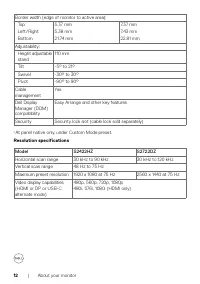
12 | About your monitor Border width (edge of monitor to active area): TopLeft/RightBottom 5.37 mm5.38 mm21.74 mm 7.37 mm7.43 mm22.81 mm Adjustability: Height adjustable stand 110 mm Tilt -5° to 21° Swivel -30° to 30° Pivot -90° to 90° Cable management Yes Dell Display Manager (DDM)compatibility Eas...
Page 13 - Display mode
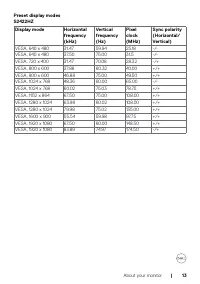
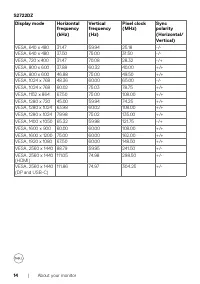
About your monitor | 13 Preset display modesS2422HZ Display mode Horizontal frequency (kHz) Vertical frequency (Hz) Pixel clock (MHz) Sync polarity (Horizontal/Vertical) VESA, 640 x 480 31.47 59.94 25.18 -/- VESA, 640 x 480 37.50 75.00 31.5 -/- VESA, 720 x 400 31.47 70.08 28.32 -/+ VESA, 800 x 600 3...
Page 15 - Electrical specifications; : Power consumption of On Mode as defined in Energy Star 8.0 version.
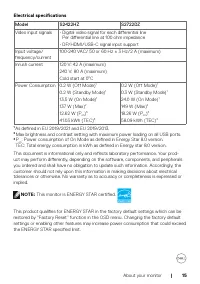
About your monitor | 15 Electrical specifications Model S2422HZ S2722DZ Video input signals • Digital video signal for each differential line Per differential line at 100 ohm impedance • DP/HDMI/USB-C signal input support Input voltage/ frequency/current 100-240 VAC/ 50 or 60 Hz ± 3 Hz/2 A (maximum)...
Page 16 - Speaker specifications; Physical characteristics
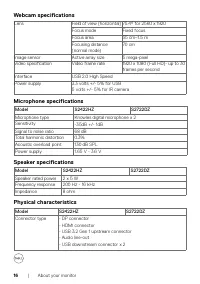
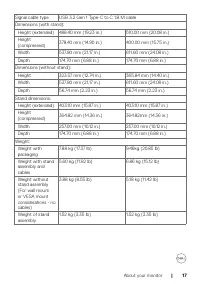
16 | About your monitor Webcam specifications Lens Field of view (horizontal) 75.4° for 2560 x 1920Focus mode Fixed focus Focus area 35 cm~1.5 m Focusing distance (normal mode) 70 cm Image sensor Active array size 5 mega-pixel Video specification Video frame rate 1920 x 1080 (Full HD)- up to 30 fram...
Page 18 - Environmental characteristics; Compliant standards
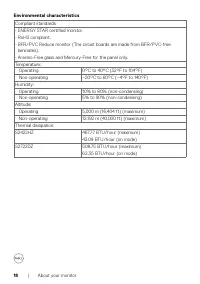
18 | About your monitor Environmental characteristics Compliant standards • ENERGY STAR certified monitor. • RoHS compliant. • BFR/PVC Reduce monitor (The circuit boards are made from BFR/PVC-free laminates). • Arsenic-Free glass and Mercury-Free for the panel only. Temperature: Operating 0°C to 40°...
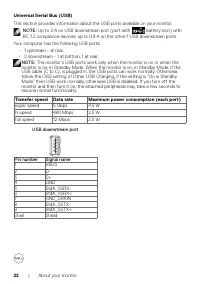
Page 22 - Transfer speed Data rate; USB downstream port
22 | About your monitor Universal Serial Bus (USB) This section provides information about the USB ports available on your monitor. NOTE: Up to 2 A on USB downstream port (port with battery icon) with BC 1.2 compliance devices; up to 0.9 A on the other 1 USB downstream ports. Your computer has the f...
Page 23 - Operating the monitor; LCD monitor quality and pixel policy
About your monitor | 23 Plug-and-Play You can install the monitor in any Plug-and-Play-compatible computer. The monitor automatically provides the computer with its extended display identification data (EDID) using display data channel (DDC) protocols so that the computer can configure itself and op...
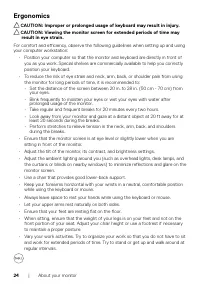
Page 24 - Ergonomics; result in eye strain.
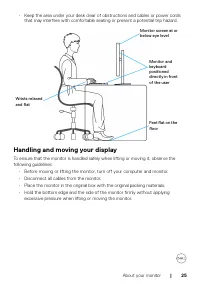
24 | About your monitor Ergonomics CAUTION: Improper or prolonged usage of keyboard may result in injury. CAUTION: Viewing the monitor screen for extended periods of time may result in eye strain. For comfort and efficiency, observe the following guidelines when setting up and using your computer wo...
Page 25 - Handling and moving your display; Disconnect all cables from the monitor.
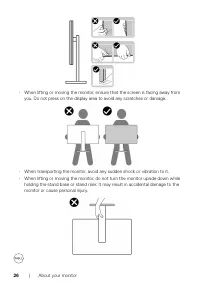
About your monitor | 25 • Keep the area under your desk clear of obstructions and cables or power cords that may interfere with comfortable seating or present a potential trip hazard. Monitor screen at or below eye level Monitor and keyboard positioned directl y in front of the user Feet flat on the...
Page 27 - Maintenance guidelines; Cleaning your monitor; from the electrical outlet.
About your monitor | 27 Maintenance guidelines Cleaning your monitor WARNING: Before cleaning the monitor, unplug the monitor power cable from the electrical outlet. CAUTION: Read and follow the Safety instructions before cleaning the monitor. For best practices, follow these instructions while unpa...
Page 28 - | Setting up the monitor; Setting up the monitor; Connecting the stand; shipped from the factory.; Align and place the stand riser on the stand base.
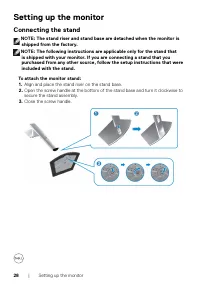
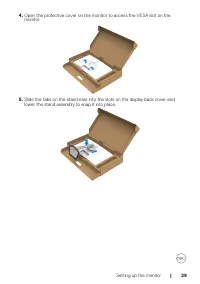
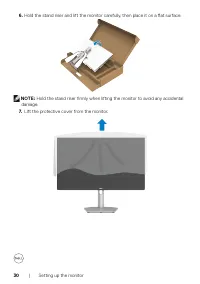
28 | Setting up the monitor Setting up the monitor Connecting the stand NOTE: The stand riser and stand base are detached when the monitor is shipped from the factory. NOTE: The following instructions are applicable only for the stand that is shipped with your monitor. If you are connecting a stand ...
Page 31 - Using the tilt, swivel, and vertical extension; Tilt, swivel and vertical extension; NOTE: The stand is detached when the monitor is shipped from the; Rotating the display
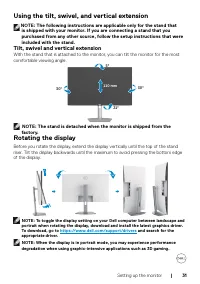
Setting up the monitor | 31 Using the tilt, swivel, and vertical extension NOTE: The following instructions are applicable only for the stand that is shipped with your monitor. If you are connecting a stand that you purchased from any other source, follow the setup instructions that were included wi...
Page 33 - Connecting your monitor; Turn off your computer.; Graphic card may not display normally.; Connecting the HDMI cable (optional purchase); Connecting the DP cable (optional purchase)
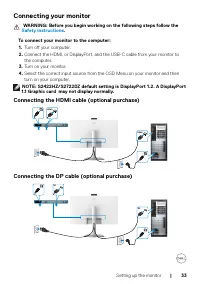
Setting up the monitor | 33 Connecting your monitor WARNING: Before you begin working on the following steps follow the Safety instructions . To connect your monitor to the computer: 1. Turn off your computer. 2. Connect the HDMI, or DisplayPort, and the USB-C cable from your monitor to the computer...
Page 34 - Connecting the USB-C cable; Maximum charging power; Not supported
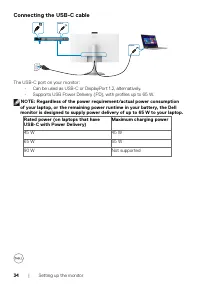
34 | Setting up the monitor Connecting the USB-C cable USB-C USB-C The USB-C port on your monitor: • Can be used as USB-C or DisplayPort 1.2, alternatively. • Supports USB Power Delivery (PD), with profiles up to 65 W. NOTE: Regardless of the power requirement/actual power consumption of your laptop...
Page 35 - Organizing your cables; for more information about; Securing your monitor using Kensington lock (optional); Security lock slot
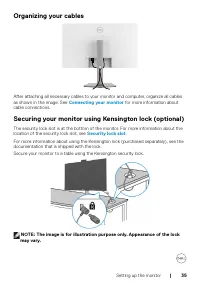
Setting up the monitor | 35 Organizing your cables After attaching all necessary cables to your monitor and computer, organize all cables as shown in the image. See Connecting your monitor for more information about cable connections. Securing your monitor using Kensington lock (optional) The securi...
Page 36 - Removing the monitor stand; is shipped with your monitor. If you are connecting a stand that you; Place the monitor on a soft cloth or cushion.
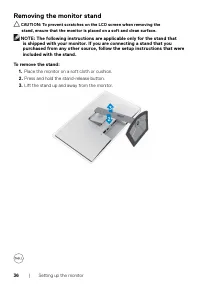
36 | Setting up the monitor Removing the monitor stand CAUTION: To prevent scratches on the LCD screen when removing the stand, ensure that the monitor is placed on a soft and clean surface. NOTE: The following instructions are applicable only for the stand that is shipped with your monitor. If yo...
Page 37 - NOTE: Use M4 x 11 mm screws to connect the monitor to the wall-; Place the monitor on a soft cloth or cushion on a stable flat table.; NOTE: For use only with UL or CSA or GS-listed wall mount bracket with
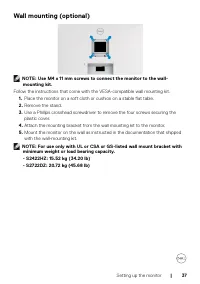
Setting up the monitor | 37 Wall mounting (optional) NOTE: Use M4 x 11 mm screws to connect the monitor to the wall- mounting kit. Follow the instructions that come with the VESA-compatible wall mounting kit. 1. Place the monitor on a soft cloth or cushion on a stable flat table. 2. Remove the stand...
Page 38 - | Operating the monitor; Power on the monitor; Press the; Using the front-panel controls
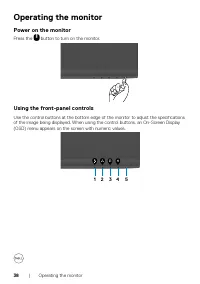
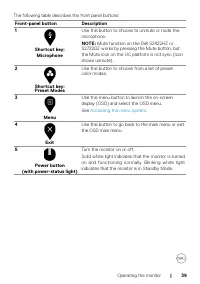
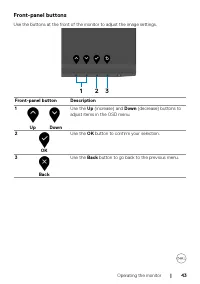
38 | Operating the monitor Operating the monitor Power on the monitor Press the button to turn on the monitor. Using the front-panel controls Use the control buttons at the bottom edge of the monitor to adjust the specifications of the image being displayed. When using the control buttons, an On-Scr...
Page 40 - Using the OSD lock function; Using the Lock menu to lock one or more buttons; Yes
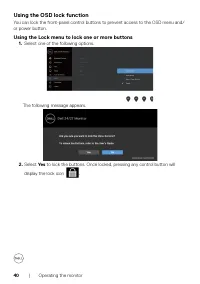
40 | Operating the monitor Using the OSD lock function You can lock the front-panel control buttons to prevent access to the OSD menu and/or power button. Using the Lock menu to lock one or more buttons 1. Select one of the following options. The following message appears. 2. Select Yes to lock the ...
Page 41 - Using the front-panel control button to lock one or more buttons
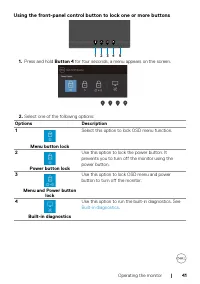
Operating the monitor | 41 Using the front-panel control button to lock one or more buttons 3 4 5 1 2 1. Press and hold Button 4 for four seconds, a menu appears on the screen. 2. Select one of the following options: Options Description 1 Menu button lock Select this option to lock OSD menu function...
Page 42 - Unlocking the front-panel control buttons; Press and hold
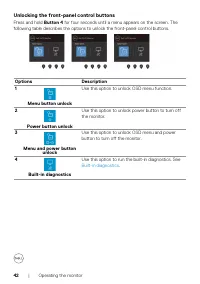
42 | Operating the monitor Unlocking the front-panel control buttons Press and hold Button 4 for four seconds until a menu appears on the screen. The following table describes the options to unlock the front-panel control buttons. Options Description 1 Menu button unlock Use this option to unlock OS...
Page 44 - Accessing the menu system
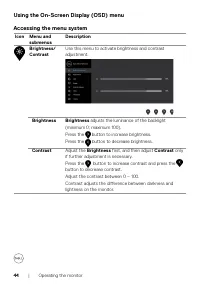
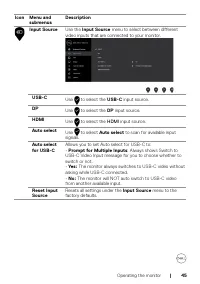
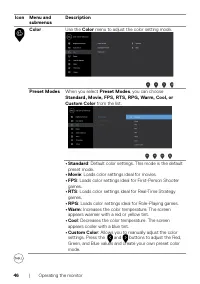
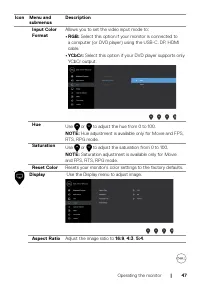
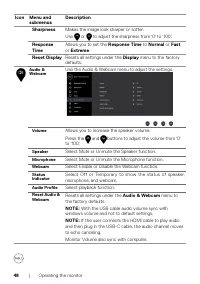
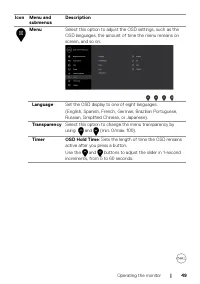
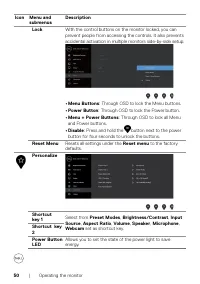
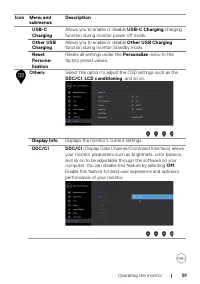
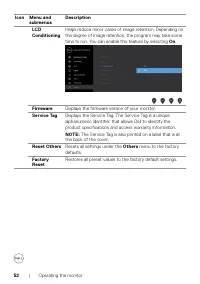
44 | Operating the monitor Using the On-Screen Display (OSD) menu Accessing the menu system Icon Menu and submenus Description Brightness/Contrast Use this menu to activate brightness and contrast adjustment. Brightness Brightness adjusts the luminance of the backlight (minimum 0; maximum 100).Press...
Page 53 - OSD warning messages; for the Horizontal and; Standby; mode, the following message is displayed.; OSD
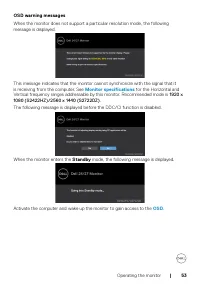
Operating the monitor | 53 OSD warning messages When the monitor does not support a particular resolution mode, the following message is displayed. This message indicates that the monitor cannot synchronize with the signal that it is receiving from the computer. See Monitor specifications for the Ho...
Page 54 - ” or “; Yes, and do not ask again
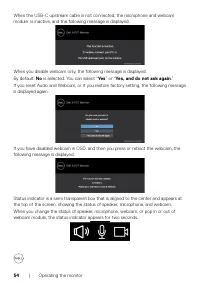
54 | Operating the monitor When the USB-C upstream cable is not connected, the microphone and webcam module is inactive, and the following message is displayed. When you disable webcam only, the following message is displayed.By default, No is selected. You can select “ Yes ” or “ Yes, and do not as...
Page 55 - Prompt for Multiple Inputs; When the USB-C cable is connected to the monitor.
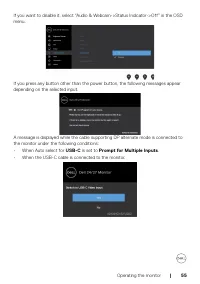
Operating the monitor | 55 If you want to disable it, select “Audio & Webcam->Status Indicator->Off” in the OSD menu. If you press any button other than the power button, the following messages appear depending on the selected input. A message is displayed while the cable supporting DP alt...
Page 57 - NOTE: For microphone and webcam to work, you must connect the USB-C; See; Troubleshooting; for more information.
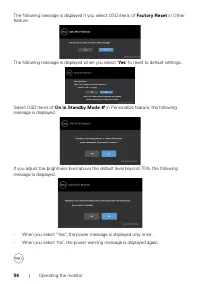
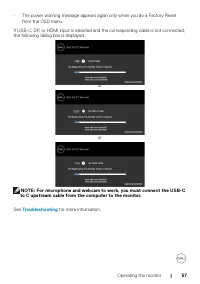
Operating the monitor | 57 • The power warning message appears again only when you do a Factory Reset from the OSD menu. If USB-C, DP, or HDMI input is selected and the corresponding cable is not connected, the following dialog box is displayed. or or NOTE: For microphone and webcam to work, you mus...
Page 59 - Setting up Windows Hello
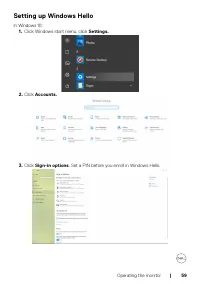
Operating the monitor | 59 Setting up Windows Hello In Windows 10: 1. Click Windows start menu, click Settings. 2. Click Accounts. 3. Click Sign-in options . Set a PIN before you enroll in Windows Hello.
Page 61 - Get started
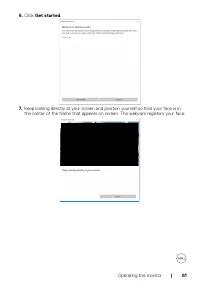
Operating the monitor | 61 6. Click Get started . 7. Keep looking directly at your screen and position yourself so that your face is in the center of the frame that appears on screen. The webcam registers your face.
Page 62 - Close; to exit; Windows Hello
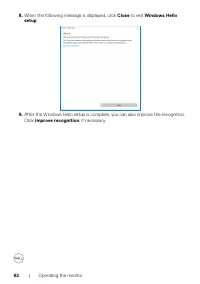
62 | Operating the monitor 8. When the following message is displayed, click Close to exit Windows Hello setup . 9. After the Windows Hello setup is complete, you can also improve the recognition. Click Improve recognition , if necessary.
Page 63 - Enabling the webcam on the monitor
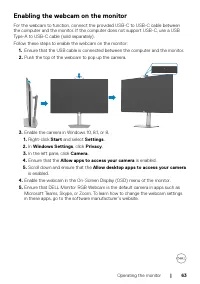
Operating the monitor | 63 Enabling the webcam on the monitor For the webcam to function, connect the provided USB-C to USB-C cable between the computer and the monitor. If the computer does not support USB-C, use a USB Type-A to USB-C cable (sold separately).Follow these steps to enable the webcam ...
Page 64 - Enabling the speaker on the monitor
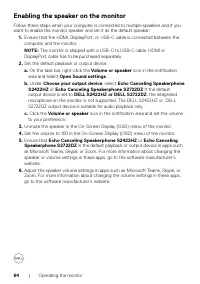
64 | Operating the monitor Enabling the speaker on the monitor Follow these steps when your computer is connected to multiple speakers and if you want to enable the monitor speaker and set it as the default speaker: 1. Ensure that the HDMI, DisplayPort, or USB-C cable is connected between the comput...
Page 65 - Enabling the microphone on the monitor; Volume
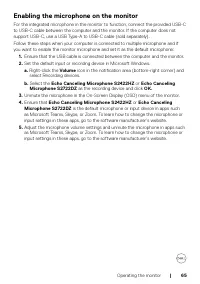
Operating the monitor | 65 Enabling the microphone on the monitor For the integrated microphone in the monitor to function, connect the provided USB-C to USB-C cable between the computer and the monitor. If the computer does not support USB-C, use a USB Type-A to USB-C cable (sold separately). Follo...
Page 66 - | Troubleshooting; Turn off both your computer and the monitor.
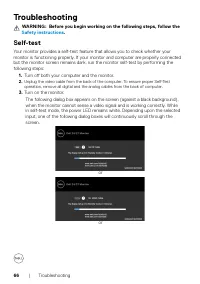
66 | Troubleshooting Troubleshooting WARNING: Before you begin working on the following steps, follow the Safety instructions . Self-test Your monitor provides a self-test feature that allows you to check whether your monitor is functioning properly. If your monitor and computer are properly connect...
Page 67 - Button 4; for four seconds, a menu appears on the screen.; on the front panel again. The color of the screen changes to red.; Button 1
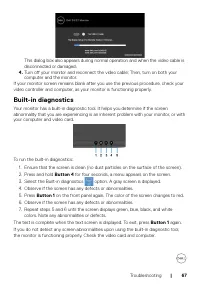
Troubleshooting | 67 This dialog box also appears during normal operation and when the video cable is disconnected or damaged. 4. Turn off your monitor and reconnect the video cable; Then, turn on both your computer and the monitor. If your monitor screen remains blank after you use the previous pro...
Page 68 - Common problems; Possible solutions; • For more information about Dell Monitor
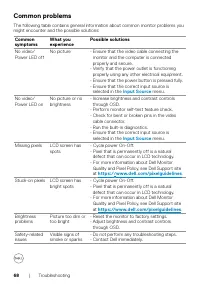
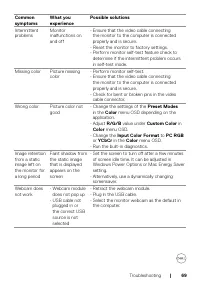
68 | Troubleshooting Common problems The following table contains general information about common monitor problems you might encounter and the possible solutions: Common symptoms What you experience Possible solutions No video/Power LED off No picture • Ensure that the video cable connecting the mo...
Page 70 - Product specific problems; Problem
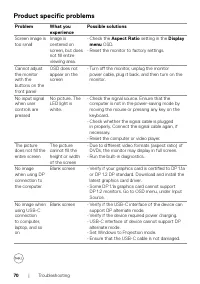
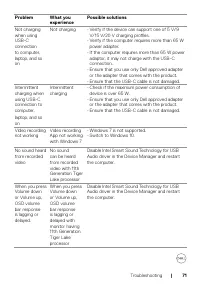
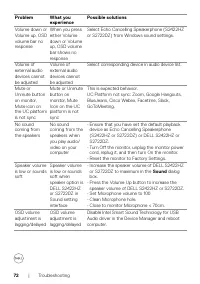
70 | Troubleshooting Product specific problems Problem What you experience Possible solutions Screen image is too small Image is centered on screen, but does not fill entire viewing area. • Check the Aspect Ratio setting in the Display menu OSD. • Reset the monitor to factory settings. Cannot adjust...
Page 73 - MAC MINI issue MAC MINI issue
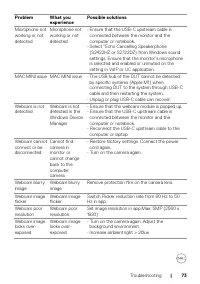
Troubleshooting | 73 Problem What you experience Possible solutions Microphone not working or not detected Microphone not working or not detected • Ensure that the USB-C upstream cable is connected between the monitor and the computer or notebook. • Select “Echo Cancelling Speakerphone (S2422HZ or S...
Page 74 - • Turn on the camera again. Adjust the
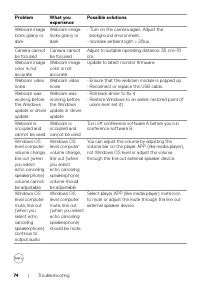
74 | Troubleshooting Problem What you experience Possible solutions Webcam image looks grainy or dark Webcam image looks grainy or dark • Turn on the camera again. Adjust the background environment. • Increase ambient light > 20lux. Camera cannot be focused Camera cannot be focused Adjust to suit...
Page 75 - Universal Serial Bus (USB) specific problems; Possible Solutions
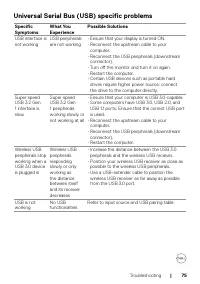
Troubleshooting | 75 Universal Serial Bus (USB) specific problems Specific Symptoms What You Experience Possible Solutions USB interface is not working USB peripherals are not working • Ensure that your display is turned ON. • Reconnect the upstream cable to your computer. • Reconnect the USB periph...
Page 76 - | Appendix; Appendix; information; NOTE: If you do not have an active Internet connection, you can find; Go to; Contact Us; Choose the method of contacting Dell that is convenient for you.; EU product database for energy label and product
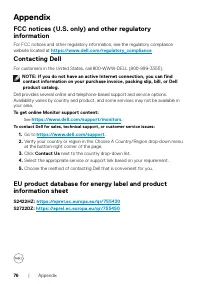
76 | Appendix Appendix FCC notices (U.S. only) and other regulatory information For FCC notices and other regulatory information, see the regulatory compliance website located at https://www.dell.com/regulatory_compliance . Contacting Dell For customers in the United States, call 800-WWW-DELL (800-9...