Page 3 - Contents
Contents | 3 Contents 1 About Your Monitor .................................................. 5 Package Contents ...................................................................... 5Product Features ........................................................................ 6Identifying Parts and Co...
Page 5 - About Your Monitor; Package Contents; Contact Dell
About Your Monitor | 5 1 About Your Monitor Package Contents Your monitor ships with the components shown below. Ensure that you have received all the components and Contact Dell if something is missing. NOTE: Some items may be optional and may not ship with your monitor. Some features or media may ...
Page 6 - Product Features
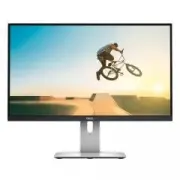
6 | About Your Monitor ∞ DP Cable (Mini-DP to DP) ∞ USB 3.0 Upstream Cable (Enables the USB Ports on the Monitor) Dell TM UltraSharp U2515H Monitor ∞ Drivers and Documentation Media ∞ Quick Setup Guide ∞ Safety and Regulatory Information ∞ Factory calibration report Product Features The Dell UltraSh...
Page 7 - Identifying Parts and Controls; Front View; Front panel controls
About Your Monitor | 7 ∞ Dell Display Manager Software included (comes in the CD shipped with the monitor). ∞ Energy Saver feature for Energy Star compliance. ∞ Security lock slot. ∞ Stand lock. ∞ Capability to switch from wide aspect to standard aspect ratio while maintaining the image quality. ∞ E...
Page 8 - Back View; Back View with monitor stand
8 | About Your Monitor Back View Back View with monitor stand Label Description Use 1 VESA mounting holes (100 mm x 100 mm - behind attached VESA Cover) Wall mount monitor using VESA-compatible wall mount kit (100 mm x 100 mm). 2 Regulatory label Lists the regulatory approvals. 3 Stand release butto...
Page 9 - Side View; Bottom view without monitor stand
About Your Monitor | 9 Side View Bottom View Bottom view without monitor stand Label Description Use 1 AC power cord connector Connect the power cable. 2 Dell Soundbar mounting slots Attach the optional Dell Soundbar. (Concealed below removable plastic sheets) 3 HDMI (MHL) port connector Connect you...
Page 10 - Connecting the monitor for DP; Monitor Specifications; Flat Panel Specifications; Model
10 | About Your Monitor 7 DisplayPort out (MST) connector DisplayPort output for MST (Multi-Stream Transport) capable monitor. DP 1.1 monitor can only be connected as the last monitor in the MST chain. To enable MST, refer to instruction on section " Connecting the monitor for DP Multi-Stream Tr...
Page 11 - Resolution Specifications
About Your Monitor | 11 Response time FAST mode: 6 ms gray to gray (typical)NORMAL mode: 8 ms gray to gray (typical) On/Off: 19 ms black to white (typical) Color depth 16.78 million colors Color gamut CIE 1976 (91%), CIE 1931 (76%) and sRGB coverage 99% Resolution Specifications Model U2515H Horizon...
Page 12 - MHL Source Display Modes; Display Mode; Electrical Specifications
12 | About Your Monitor MHL Source Display Modes Display Mode Frequency (Hz) 640 x 480p 60 720 x 480p 60 720 x 576p 50 1280 x 720p 60 1280 x 720p 50 1920 x 1080i 60 1920 x 1080i 50 1920 x 1080p 30 1920 x 1080p 60 1920 x 1080p 50 720 (1440) x 480i 60 720 (1440) x 576i 50 MST Multi-Stream Transport (M...
Page 13 - Physical Characteristics
About Your Monitor | 13 Physical Characteristics Model U2515H Connector type DP, black connector (includes DP in and DP out); Mini DisplayPort; HDMI (MHL); USB 3.0 Signal cable type ∞ Digital: detachable, HDMI, 19 pins ∞ Digital: detachable, MHL, 19 pins ∞ Digital: detachable, Mini-DP to DP, 20 pins...
Page 14 - Environmental Characteristics; Operating; Power Management Modes; Power Save Mode
14 | About Your Monitor Environmental Characteristics Model U2515H Temperature Operating 0 °C to 40 °C (32 °F to 104 °F) Non-operating ∞ Storage: -20 °C to 60 °C (-4 °F to 140 °F) ∞ Shipping: -20 °C to 60 °C (-4 °F to 140 °F) Humidity Operating 10% to 80% (non-condensing) Non-operating ∞ Storage: 5%...
Page 15 - or
About Your Monitor | 15 Dell UltraSharp U2515H There is no signal coming from your computer. Press any key on the keyboard or move the mouse to wake it up. If there is no display, press the monitor button now to select the correct input source on the On-Screen- Display menu. or Dell UltraSharp U2515...
Page 16 - Pin Assignments; DisplayPort Connector
16 | About Your Monitor Pin Assignments DisplayPort Connector Pin Number 20-pin Side of the Connected Signal Cable 1 ML0(p) 2 GND 3 ML0(n) 4 ML1(p) 5 GND 6 ML1(n) 7 ML2(p) 8 GND 9 ML2(n) 10 ML3(p) 11 GND 12 ML3(n) 13 GND 14 GND 15 AUX(p) 16 GND 17 AUX(n) 18 GND 19 Re-PWR 20 +3.3 V DP_PWR
Page 17 - Mini DisplayPort Connector
About Your Monitor | 17 Mini DisplayPort Connector Pin Number 20-pin Side of the Connected Signal Cable 1 GND 2 Hot Plug Detect 3 ML3(n) 4 GND 5 ML3(n) 6 GND 7 GND 8 GND 9 ML2(n) 10 ML0(p) 11 ML2(p) 12 ML0(p) 13 GND 14 GND 15 ML1(n) 16 AUX(p) 17 ML1(p) 18 AUX(n) 19 GND 20 +3.3 V DP_PWR
Page 18 - HDMI Connector
18 | About Your Monitor HDMI Connector Pin Number 19-pin Side of the Connected Signal Cable 1 TMDS DATA 2+ 2 TMDS DATA 2 SHIELD 3 TMDS DATA 2- 4 TMDS DATA 1+ 5 TMDS DATA 1 SHIELD 6 TMDS DATA 1- 7 TMDS DATA 0+ 8 TMDS DATA 0 SHIELD 9 TMDS DATA 0- 10 TMDS CLOCK+ 11 TMDS CLOCK SHIELD 12 TMDS CLOCK- 13 C...
Page 19 - MHL Connector; Plug and Play Capability; Operating the Monitor
About Your Monitor | 19 MHL Connector Pin Number 19-pin Side of the Connected Signal Cable 1 TMDS DATA 2+ 2 TMDS DATA 2 SHIELD 3 TMDS DATA 2- 4 TMDS DATA 1+ 5 GND 6 TMDS DATA 1- 7 MHL+ 8 TMDS DATA 0 SHIELD 9 MHL- 10 TMDS CLOCK+ 11 GND 12 TMDS CLOCK- 13 CEC 14 Reserved (N.C. on device) 15 DDC CLOCK (...
Page 20 - Transfer Speed; USB Upstream Connector; Pin Number
20 | About Your Monitor Universal Serial Bus (USB) Interface This section gives you information about the USB ports that are available on the monitor. NOTE: This monitor is SuperSpeed USB 3.0 compatible. Transfer Speed Data Rate Power Consumption* Super-speed 5 Gbps 4.5 W (Max, each port) High speed...
Page 21 - USB Downstream Connector; USB Ports; LCD Monitor Quality and Pixel Policy
About Your Monitor | 21 USB Downstream Connector Pin Number 9-pin Side of the Connector 1 VCC 2 D- 3 D+ 4 GND 5 SSTX- 6 SSTX+ 7 GND 8 SSRX- 9 SSRX+ USB Ports ∞ 1 upstream - back ∞ 5 downstream - back ∞ Power Charging Port- the port with lightning icon; supports fast current charging capability if th...
Page 22 - Maintenance Guidelines; Cleaning Your Monitor; CAUTION: Read and follow the
22 | About Your Monitor Maintenance Guidelines Cleaning Your Monitor CAUTION: Read and follow the Safety Instructions before cleaning the monitor. WARNING: Before cleaning the monitor, unplug the monitor power cable from the electrical outlet. For best practices, follow the instructions in the list ...
Page 23 - Setting Up the Monitor; Attaching the Stand; Safety Instructions
Setting Up the Monitor | 23 2 Setting Up the Monitor Attaching the Stand NOTE: The stand is detached when the monitor is shipped from the factory. NOTE: This is applicable for a monitor with a stand. When any other stand is bought, please refer to the respective stand setup guide for the setup instr...
Page 24 - Connecting the HDMI cable
24 | Setting Up the Monitor Connecting the HDMI cable Connecting the MHL cable Connecting the black DisplayPort (Mini-DP to DP) cable
Page 25 - Connecting the black DisplayPort (DP to DP) cable; U2515H supports the DP MST feature. To make use of this feature, your
Setting Up the Monitor | 25 Connecting the black DisplayPort (DP to DP) cable Connecting the monitor for DP Multi-Stream Transport (MST) function NOTE: U2515H supports the DP MST feature. To make use of this feature, your PC Graphics Card must be certified to DP1.2 with MST option. The default out o...
Page 26 - Go to
26 | Setting Up the Monitor Energy Use Dell UltraSharp U2515H Brightness / Contrast Input Source Color Energy Menu Others Personalize Aspect Ratio Sharpness Response Time Dynamic Contrast Wide 16:9 50 Normal DP 1.2 Reset Display Settings Disable Maximum: 2560x1440, 60Hz Resolution: 1920x1080, 60Hz 2...
Page 27 - DP; Appearance of the computer may vary.
Setting Up the Monitor | 27 B) Monitor fails to show any content (blank screen) 1. Use the and button to highlight DP or mDP . DP mDP 2. Press and hold the button for approximately 8 seconds. 3. The DisplayPort configuration message will appear: Dell UltraSharp U2515H DP 1.2? Enable Disable 4. Use t...
Page 28 - Connecting the USB 3.0 cable; Bottom View
28 | Setting Up the Monitor Connecting the USB 3.0 cable After you have completed connecting the Mini-DP to DP/DP/HDMI cable, follow the procedures below to connect the USB 3.0 cable to the computer and complete your monitor setup: 1. Connect the upstream USB 3.0 port (cable supplied) to an appropri...
Page 29 - Organizing Your Cables; Connecting
Setting Up the Monitor | 29 1. Plug the power cable of your monitor into an AC outlet. 2. Connect the (micro) USB port on your MHL source device to HDMI (MHL) 1 or HDMI (MHL) 2 port on the monitor with a MHL-certified cable (See Bottom View for details.) 3. Turn On the monitor and the MHL source dev...
Page 30 - Attaching the Cable Cover
30 | Setting Up the Monitor Attaching the Cable Cover NOTE: The cable cover is detached when the monitor is shipped from the factory. 1 2 1. Fit the two tabs on the bottom part of the cable cover to the groove on the back of the monitor. 2. Press the cable cover till it snaps into place. Removing th...
Page 31 - Removing the Cable Cover; Press the tab on the cable cover.
Setting Up the Monitor | 31 Removing the Cable Cover 1 2 1. Press the tab on the cable cover. 2. Remove the two tabs on the bottom part of the cable cover from the groove on the back of the monitor. Wall Mounting (Optional) (Screw dimension: M4 x 10 mm).Refer to the instructions that come with the V...
Page 32 - Power On the Monitor; Press the; Using the Front Panel Controls; The following table describes the front panel buttons:
32 | Operating the Monitor 3 Operating the Monitor Power On the Monitor Press the button to turn On the monitor. Using the Front Panel Controls Use the control buttons on the front of the monitor to adjust the characteristics of the image being displayed. As you use these buttons to adjust the contr...
Page 33 - Accessing the Menu System; Front Panel Button
Operating the Monitor | 33 Shortcut key/ Brightness/Contrast Use this button to directly access the Brightness/ Contrast menu. Menu Use the MENU button to launch the On-Screen Display (OSD) and select the OSD Menu. See Accessing the Menu System . Exit Use this button to go back to the main menu or e...
Page 42 - Display Rotation
42 | Operating the Monitor Menu Select this option to adjust the settings of the OSD, such as, the languages of the OSD, the amount of time the menu remains on screen and so on. Energy Use Dell UltraSharp U2515H Brightness / Contrast Input Source Color Display Energy Menu Others Personalize Language...
Page 45 - OSD Warning Messages
Operating the Monitor | 45 OSD Warning Messages When the Dynamic Contrast feature is enabled (in these preset modes: Game or Movie ), the manual brightness adjustment is disabled. Dell UltraSharp U2515H Do you wish to turn off Dynamic Contrast? No Yes When the monitor does not support a particular r...
Page 46 - When the monitor enters the; Activate the computer and wake up the monitor to gain access to the
46 | Operating the Monitor When the monitor enters the Power Save Mode , the following message appears: Dell UltraSharp U2515H Entering Power Save Mode. Activate the computer and wake up the monitor to gain access to the OSD . If you press any button other than the power button, one of the following...
Page 47 - See
Operating the Monitor | 47 Dell UltraSharp U2515H The dispaly will go into Power Save Mode in 5 minutes www.dell.com/support/monitors No HDMI (MHL) 2 Cable or Dell UltraSharp U2515H The dispaly will go into Power Save Mode in 5 minutes www.dell.com/support/monitors No mDP Cable or Dell UltraSharp U2...
Page 48 - Setting the Maximum Resolution; Screen Resolution
48 | Operating the Monitor Setting the Maximum Resolution To set the maximum resolution for the monitor: In Windows ® 7, Windows ® 8 and Windows ® 8.1: 1. For Windows ® 8 and Windows ® 8.1 only, select the Desktop tile to switch to classic desktop. 2. Right-click on the desktop and click Screen Reso...
Page 49 - Vertical Extension; how to extend the stand vertically.; Rotating the Monitor; tilted up to avoid hitting the bottom edge of the monitor.
Operating the Monitor | 49 Vertical Extension NOTE: The stand extends vertically up to 115 mm. The figure below illustrates how to extend the stand vertically. 115mm Rotating the Monitor Before you rotate the monitor, your monitor should be fully vertically extended ( NOTE: The stand is detached whe...
Page 50 - Rotate clockwise
50 | Operating the Monitor Rotate clockwise 90° 0° Rotate counterclockwise 90° 0°
Page 51 - Landscape
Operating the Monitor | 51 Reverse (180°) mount NOTE: To reverse (180°) mount, remove the stand and use wall mounting solution (optional). 180° NOTE: To use the Display Rotation function ( Landscape versus Portrait view) with your Dell computer, you require an updated graphics driver that is not inc...
Page 52 - Portrait
52 | Operating the Monitor Landscape (Top-bottom) 180° Supported by wall mounting solution (optional) Portrait 90° 90°
Page 54 - Troubleshooting; Before you begin any of the procedures in this section, follow the
54 | Troubleshooting 4 Troubleshooting WARNING: Before you begin any of the procedures in this section, follow the Safety Instructions . Self-Test Your monitor provides a self-test feature that allows you to check whether your monitor is functioning properly. If your monitor and computer are properl...
Page 55 - You can run the built-in diagnostics only when the video cable is
Troubleshooting | 55 Dell UltraSharp U2515H mDP Cable or Dell UltraSharp U2515H DP Cable 4. This box also appears during normal system operation, if the video cable becomes disconnected or damaged. 5. Turn Off your monitor and reconnect the video cable; then turn on both your computer and the monito...
Page 56 - Common Problems
56 | Troubleshooting To run the built-in diagnostics: 1. Ensure that the screen is clean (no dust particles on the surface of the screen). 2. Unplug the video cable(s) from the back of the computer or monitor. The monitor then goes into the self-test mode. 3. Press and hold Button 1 and Button 4 on ...
Page 58 - Product-Specific Problems; Specific
58 | Troubleshooting Missing Color Picture missing color ∞ Perform monitor self-test feature check. ∞ Ensure that the video cable connecting the monitor to the computer is connected properly and is secure. ∞ Check for bent or broken pins in the video cable connector. Wrong Color Picture color not go...
Page 60 - Universal Serial Bus (USB) Specific Problems
60 | Troubleshooting Universal Serial Bus (USB) Specific Problems Specific Symptoms What You Experience Possible Solutions USB interface is not working USB peripherals are not working ∞ Check that your monitor is turned On. ∞ Reconnect the upstream cable to your computer. ∞ Reconnect the USB periphe...
Page 61 - Appendix; WARNING: Safety Instructions; To get online Monitor support content:
Appendix | 61 5 Appendix WARNING: Safety Instructions WARNING: Use of controls, adjustments, or procedures other than those specified in this documentation may result in exposure to shock, electrical hazards, and/or mechanical hazards. For information on safety instructions, see the Product Informat...
Page 62 - Setting Up Your Monitor; Setting the display resolution
62 | Appendix Setting Up Your Monitor Setting the display resolution For maximum display performance with Microsoft ® Windows ® operating systems, set the display resolution to 2560 x 1440 pixels by performing the following steps: In Windows ® 7, Windows ® 8 and Windows ® 8.1: 1. For Windows ® 8 and...