Page 2 - Front Panel; Contents; Connections; Basic Operations; Basic Operations
2 Contents Front Panel ≫ Rear Panel ≫ Remote ≫ Contents ≫ Connections ≫ Playback ≫ Setup ≫ What’s in the box 5 Part Names 6 Front Panel 6 Display 8Rear Panel 9 Remote Controller 11 Connections Connecting speakers 13 Speaker Installation 14 Speaker Connections and “Speaker Setup” Settings 20Speaker c...
Page 3 - Playing back files on a PC and NAS (Music Server); Supported Audio Formats; Setup; Operations
3 Front Panel ≫ Rear Panel ≫ Remote ≫ Contents ≫ Connections ≫ Playback ≫ Setup ≫ Playing back files on a PC and NAS (Music Server) 53 Windows Media ® Player settings 53 Playing Back 54 Supported Audio Formats 57 Play Queue 58 Initial Setup 58 Adding Play Queue Information 58 Sort and Delete 59 Play...
Page 4 - Troubleshooting; When the unit is operating erratically; Appendix; About HDMI
4 Front Panel ≫ Rear Panel ≫ Remote ≫ Contents ≫ Connections ≫ Playback ≫ Setup ≫ Troubleshooting When the unit is operating erratically 120 Troubleshooting 121 Appendix About HDMI 130 General Specifications 132
Page 5 - What’s in the box
5 Front Panel ≫ Rear Panel ≫ Remote ≫ Contents ≫ Connections ≫ Playback ≫ Setup ≫ What’s in the box 1. Main unit (1) 2. Remote controller (RC-911R) (1), Batteries (AAA/R03) (2) 3. Speaker setup microphone (1) • Used during Initial Setup. 4. Indoor FM antenna (1) 5. AM loop antenna (1) 6. Power cord ...
Page 6 - Part Names
6 Contents ≫ Connections ≫ Playback ≫ Setup ≫ Front Panel ≫ Rear Panel ≫ Remote ≫ Part Names Front Panel ❏ For details, see ( p7 ) 1 bn bo bp bq br bs 8 34567 2 9 bl bm bk
Page 9 - Rear Panel; bk
9 Contents ≫ Connections ≫ Playback ≫ Setup ≫ Front Panel ≫ Rear Panel ≫ Remote ≫ Rear Panel ❏ For details, see ( p10 ) 180° 90° 8 5 4 6 2 3 7 9 4 4 bk bk 1 bm bn bo bp (Taiwanese models)
Page 11 - Remote Controller
11 Contents ≫ Connections ≫ Playback ≫ Setup ≫ Front Panel ≫ Rear Panel ≫ Remote ≫ Remote Controller 1. ON/STANDBY button 2. Input selector buttons: Switches the input to be played. 3. Q (QUICK MENU) button: Pressing this button during playback can make settings such as "Tone" and "Level...
Page 13 - Connecting speakers; Yes
13 Front Panel ≫ Rear Panel ≫ Remote ≫ Contents ≫ Connections ≫ Playback ≫ Setup ≫ Connecting speakers You can select the layout of speakers to be installed from various patterns when using this unit. Use the following flow chart to select the speaker layout that suits your speakers and usage enviro...
Page 16 - Front High Speakers/Rear High Speakers
16 Front Panel ≫ Rear Panel ≫ Remote ≫ Contents ≫ Connections ≫ Playback ≫ Setup ≫ 5.1.2 Channel System A 5.1.2 Channel System is a speaker layout consisting of the basic 5.1 Channel System ( p14 ) and added height speakers. Select the height speakers that suit your speakers and usage environment ...
Page 17 - or more
17 Front Panel ≫ Rear Panel ≫ Remote ≫ Contents ≫ Connections ≫ Playback ≫ Setup ≫ ❏ Front High Speakers/Rear High Speakers Installation Example *1 *2 7 8 7 8 *1: 22° to 30°, *2: 120° 3´ (0.9 m) or more 3´ (0.9 m) or more This is a system with the basic 5.1 channel system ( p14 ) consisting of front...
Page 18 - Ceiling Speakers Installation Example
18 Front Panel ≫ Rear Panel ≫ Remote ≫ Contents ≫ Connections ≫ Playback ≫ Setup ≫ ❏ Ceiling Speakers Installation Example *1 *2 *3 7 8 8 8 7 7 *1: 30° to 55°, *2: 65° to 100°, *3: 125° to 150° This is a system with the basic 5.1 channel system ( p14 ) consisting of front speakers, a center speaker,...
Page 19 - Dolby Enabled Speakers (Dolby Speakers)
19 Front Panel ≫ Rear Panel ≫ Remote ≫ Contents ≫ Connections ≫ Playback ≫ Setup ≫ ❏ Dolby Enabled Speakers (Dolby Speakers) Installation Example *1 *2 7 8 7 8 *1: 22° to 30°, *2: 120° This is a system with the basic 5.1 channel system ( p14 ) consisting of front speakers, a center speaker, surround...
Page 20 - Connect the Speaker Cables
20 Front Panel ≫ Rear Panel ≫ Remote ≫ Contents ≫ Connections ≫ Playback ≫ Setup ≫ Speaker Connections and “Speaker Setup” Settings Connections (Note) Speaker Impedance Connect speakers with an impedance of 4 Ω to 16 Ω. If any of the speakers to be connected has an impedance of 4 Ω or more and 6 Ω...
Page 21 - Connect the Subwoofer
21 Front Panel ≫ Rear Panel ≫ Remote ≫ Contents ≫ Connections ≫ Playback ≫ Setup ≫ Connect the Subwoofer a a Subwoofer cable Connect a powered subwoofer with this unit using a subwoofer cable. Up to two powered subwoofers can be connected. The same signal is output from each SUBWOOFER PRE OUT jack...
Page 30 - Connecting the TV
30 Front Panel ≫ Rear Panel ≫ Remote ≫ Contents ≫ Connections ≫ Playback ≫ Setup ≫ Connecting the TV Connect this unit between a TV and AV component. Connecting this unit with the TV can output the video and audio signals of the AV component to the TV, or play the audio of the TV on this unit. Conne...
Page 33 - Connecting Playback Devices; Connecting an AV Component with HDMI Jack Mounted
33 Front Panel ≫ Rear Panel ≫ Remote ≫ Contents ≫ Connections ≫ Playback ≫ Setup ≫ Connecting Playback Devices Connecting an AV Component with HDMI Jack Mounted This is a connection example of an AV component equipped with an HDMI jack. When connecting with an AV component that conforms to the CEC (...
Page 34 - OR
34 Front Panel ≫ Rear Panel ≫ Remote ≫ Contents ≫ Connections ≫ Playback ≫ Setup ≫ Connecting an AV Component without HDMI Jack Mounted This is a connection example of an AV component unequipped with an HDMI jack. Select cables that match the jacks of the AV component for connection. For example, wh...
Page 38 - Connecting Antennas
38 Front Panel ≫ Rear Panel ≫ Remote ≫ Contents ≫ Connections ≫ Playback ≫ Setup ≫ Connecting Antennas Connect the antenna to this unit, and set up the antenna at the best position for listening while receiving radio signals. Attach the indoor FM antenna to the wall using push pins or adhesive tape....
Page 39 - Network Connection
39 Front Panel ≫ Rear Panel ≫ Remote ≫ Contents ≫ Connections ≫ Playback ≫ Setup ≫ Network Connection This unit can be connected to the network using a wired LAN or Wi-Fi (wireless LAN). You can enjoy network functions such as Internet radio by network connection. If connection is made by the wired ...
Page 40 - Connecting the Power Cord
40 Front Panel ≫ Rear Panel ≫ Remote ≫ Contents ≫ Connections ≫ Playback ≫ Setup ≫ Connecting the Power Cord Connect the power cord after all the connections are completed. • Taiwanese models include removable power cords. Be sure to connect the power cord to the AC INLET of the unit first, and then...
Page 41 - Playback
41 Playback Front Panel ≫ Rear Panel ≫ Remote ≫ Contents ≫ Connections ≫ Playback ≫ Setup ≫ Playback AV Component Playback 42 BLUETOOTH ® Playback 43 Internet Radio 44 Spotify 46AirPlay ® 47 DTS Play-Fi ® 48 FlareConnect TM 49 USB Storage Device 50 Playing back files on a PC and NAS (Music Server) 5...
Page 42 - AV Component Playback; Input selector; Inputs; INPUT
42 Front Panel ≫ Rear Panel ≫ Remote ≫ Contents ≫ Connections ≫ Playback ≫ Setup ≫ AV Component Playback You can play the audio from AV components, such as Blu-ray disc players through this unit. • When a TV is connected to the HDMI OUT SUB jack, press Q, and select "Other” - "HDMI Out" ...
Page 43 - BLUETOOTH; Pairing; Playing Back
43 Front Panel ≫ Rear Panel ≫ Remote ≫ Contents ≫ Connections ≫ Playback ≫ Setup ≫ BLUETOOTH ® Playback You can wirelessly play the audio on a BLUETOOTH-enabled device, such as a smartphone. Basic Operations Perform the following procedure when this unit is on. Pairing 1. When you press the button, ...
Page 44 - Internet Radio; NET
44 Front Panel ≫ Rear Panel ≫ Remote ≫ Contents ≫ Connections ≫ Playback ≫ Setup ≫ Internet Radio By connecting this unit to an Internet-connected network, you can enjoy Internet radio services, such as TuneIn Radio, etc. • To play Internet radio services, the network needs to be connected to the In...
Page 45 - Internet Radio Service Menu
45 Front Panel ≫ Rear Panel ≫ Remote ≫ Contents ≫ Connections ≫ Playback ≫ Setup ≫ Internet Radio Service Menu You can bookmark specific stations, or delete stations that have been bookmarked. The displayed menu varies according to the service being selected. The menu icon is displayed while a stati...
Page 46 - Spotify
46 Front Panel ≫ Rear Panel ≫ Remote ≫ Contents ≫ Connections ≫ Playback ≫ Setup ≫ Spotify By connecting this unit to the same network as mobile devices, such as a smartphone and tablet, you can enjoy music played with Spotify Connect wirelessly. • To play Spotify Connect, install a Spotify applicat...
Page 47 - AirPlay
47 Front Panel ≫ Rear Panel ≫ Remote ≫ Contents ≫ Connections ≫ Playback ≫ Setup ≫ AirPlay ® By connecting this unit to the same network as iOS devices, such as iPhone ® , iPod touch ® and iPad ® , you can enjoy music files on iOS devices wirelessly. • Update the OS version on your iOS device to the...
Page 49 - FlareConnect
49 Front Panel ≫ Rear Panel ≫ Remote ≫ Contents ≫ Connections ≫ Playback ≫ Setup ≫ FlareConnect TM When downloading Onkyo Controller App (available on iOS or Android™) to mobile devices, such as a smartphone and tablet, you can enjoy the group playback that plays the same music on multiple audio pro...
Page 50 - USB Storage Device
50 Front Panel ≫ Rear Panel ≫ Remote ≫ Contents ≫ Connections ≫ Playback ≫ Setup ≫ USB Storage Device You can play music files stored on a USB storage device. Basic Operations Perform the following procedure when this unit is on. 1. Switch the input on the TV to the input connected to the unit. 2. P...
Page 51 - Device and Supported Format (
51 Front Panel ≫ Rear Panel ≫ Remote ≫ Contents ≫ Connections ≫ Playback ≫ Setup ≫ • To return to the previous screen, press . • To display an album title, artist name and album art of a file in WAV format, make the folder structure and file names as shown below when saving music files. The album ar...
Page 52 - USB Storage Device Requirements
52 Front Panel ≫ Rear Panel ≫ Remote ≫ Contents ≫ Connections ≫ Playback ≫ Setup ≫ Device and Supported Format USB Storage Device Requirements • This unit can use USB storage devices that comply with the USB mass storage class standard. • The format of USB storage devices supports FAT16 or FAT32 fil...
Page 53 - Windows Media; On Windows Media
53 Front Panel ≫ Rear Panel ≫ Remote ≫ Contents ≫ Connections ≫ Playback ≫ Setup ≫ Playing back files on a PC and NAS (Music Server) Streaming play of music files stored on PCs or NAS devices connected to the same network as this unit is supported. • The network servers supported by this unit are PC...
Page 55 - Searching music files to select
55 Front Panel ≫ Rear Panel ≫ Remote ≫ Contents ≫ Connections ≫ Playback ≫ Setup ≫ 6. Select the target server with the cursors, and press ENTER to display the items list screen. • This unit cannot access pictures and videos stored on servers. • Depending on the server sharing settings, contents sto...
Page 56 - Supported Audio Formats (
56 Front Panel ≫ Rear Panel ≫ Remote ≫ Contents ≫ Connections ≫ Playback ≫ Setup ≫ – It is playing a music file on a USB storage device. • Depending on the version of Windows Media ® Player, the names of items to select may differ from the above description. ❏ Supported Audio Formats ( p57 )
Page 58 - Play Queue; Initial Setup; Adding Play Queue Information
58 Front Panel ≫ Rear Panel ≫ Remote ≫ Contents ≫ Connections ≫ Playback ≫ Setup ≫ Play Queue When downloading Onkyo Controller App (available on iOS or Android™) to mobile devices, such as a smartphone and tablet, you can save your favorite playlist (Play Queue information) among music files stored...
Page 59 - Sort and Delete
59 Front Panel ≫ Rear Panel ≫ Remote ≫ Contents ≫ Connections ≫ Playback ≫ Setup ≫ • If there are no tracks on the Play Queue list, only “Play Now “ is displayed. Sort and Delete 1. Select the “NET” input, tap the “Play Queue” icon, and enter the Play Queue service screen. 2. Tap the “ ” icon of the...
Page 60 - Listening To the AM/FM Radio; Tuning into a Radio Station; Tuning Automatically; TUNER
60 Front Panel ≫ Rear Panel ≫ Remote ≫ Contents ≫ Connections ≫ Playback ≫ Setup ≫ Listening To the AM/FM Radio You can receive AM and FM radio stations on this unit with the built-in tuner. Tuning into a Radio Station Perform the following procedure when this unit is on. Tuning Automatically 1. Pre...
Page 61 - Tuning Manually; Frequency step setting; Presetting a Radio Station (
61 Front Panel ≫ Rear Panel ≫ Remote ≫ Contents ≫ Connections ≫ Playback ≫ Setup ≫ When FM broadcasts reception is poor: Perform the procedure for "Tuning Manually” ( p61 ). Note that if you tune manually, the reception for FM broadcasts will be monaural rather than stereo, irrespective of the s...
Page 62 - Registration Procedure
62 Front Panel ≫ Rear Panel ≫ Remote ≫ Contents ≫ Connections ≫ Playback ≫ Setup ≫ Presetting a Radio Station Registration Procedure You can preset up to 40 of your favorite AM/FM radio stations. After tuning in to the AM/FM radio station you want to register, perform the following procedure. 1. Pre...
Page 63 - Selecting a Preset Radio Station; Using RDS (European, Australian and Asian
63 Front Panel ≫ Rear Panel ≫ Remote ≫ Contents ≫ Connections ≫ Playback ≫ Setup ≫ Selecting a Preset Radio Station 1. Press TUNER. 2. Press the cursors / to select a preset number. Deleting a Preset Radio Station 1. Press TUNER. 2. Press the cursors / to select the preset number to delete. 3. After...
Page 64 - Search for Stations by Program Type
64 Front Panel ≫ Rear Panel ≫ Remote ≫ Contents ≫ Connections ≫ Playback ≫ Setup ≫ Using RDS (European, Australian and Asian models) RDS stands for Radio Data System, and is a method of transmitting data in FM radio signals. In regions where RDS can be used, when you tune in to a radio station broad...
Page 65 - MAIN; MODE
65 Front Panel ≫ Rear Panel ≫ Remote ≫ Contents ≫ Connections ≫ Playback ≫ Setup ≫ Multi-zone You can enjoy 2-ch audio in the separate room (ZONE 2) while performing 7.1 ch playback in the main room (where this unit is located). The same source can be played back in the main room and ZONE 2 simultan...
Page 67 - Convenience functions; Adjusting the tone
67 Front Panel ≫ Rear Panel ≫ Remote ≫ Contents ≫ Connections ≫ Playback ≫ Setup ≫ Convenience functions Adjusting the tone You can adjust the sound quality of the front speakers. 1. Press the TONE button on the main unit to select the setting to adjust from "Bass” and "Treble". Bass: En...
Page 68 - Listening Mode; Selecting a Listening mode; MUSIC
68 Front Panel ≫ Rear Panel ≫ Remote ≫ Contents ≫ Connections ≫ Playback ≫ Setup ≫ Listening Mode This unit is equipped with a variety of listening modes, and you can select the optimum listening mode for movies, TV, music, and games by pressing MOVIE/TV, MUSIC, and GAME. Selecting a Listening mode ...
Page 69 - Checking the input format and listening mode
69 Front Panel ≫ Rear Panel ≫ Remote ≫ Contents ≫ Connections ≫ Playback ≫ Setup ≫ Checking the input format and listening mode Pressing repeatedly will switch the display of the main unit in the following order. Input source and volume Listening mode Input format The display is switched in a few se...
Page 70 - AllCh Stereo; Listening Mode Effects
70 Front Panel ≫ Rear Panel ≫ Remote ≫ Contents ≫ Connections ≫ Playback ≫ Setup ≫ In alphabetical order AllCh Stereo This mode is ideal for background music. Stereo sound is played through the surround speakers as well as the front speakers, creating a stereo image. Direct This listening mode c...
Page 71 - DSD
71 Front Panel ≫ Rear Panel ≫ Remote ≫ Contents ≫ Connections ≫ Playback ≫ Setup ≫ DSD This mode is suitable for playing sources recorded in DSD. • This unit supports the DSD signal input from the HDMI input terminal. However, depending on the connected player, better sound may be obtained by sett...
Page 72 - Full Mono; Stereo
72 Front Panel ≫ Rear Panel ≫ Remote ≫ Contents ≫ Connections ≫ Playback ≫ Setup ≫ audio mixing, and it is characterized by the precise positioning of sounds and the ability to express sound movement. • To enable transfer of this audio format, connect via an HDMI cable and set audio output on the pl...
Page 73 - THX
73 Front Panel ≫ Rear Panel ≫ Remote ≫ Contents ≫ Connections ≫ Playback ≫ Setup ≫ T-D (Theater-Dimensional) In this mode, you can enjoy a virtual playback of multichannel surround sound even with only two or three speakers. This works by controlling how sounds reach the listener’s left and right ...
Page 74 - TV Logic
74 Front Panel ≫ Rear Panel ≫ Remote ≫ Contents ≫ Connections ≫ Playback ≫ Setup ≫ THX Loudness Plus is set to a level suited to the playback of music, and Timbre Matching is enabled. – THX Sel Cin (THX Select Cinema): The THX Select Cinema mode provides a high-quality surround sound experience by e...
Page 78 - MUSIC button
78 Front Panel ≫ Rear Panel ≫ Remote ≫ Contents ≫ Connections ≫ Playback ≫ Setup ≫ MUSIC button Input Format Listening Mode Analog Pure AudioDirectStereo DSur DTS Neural:X THX Music *1 Orchestra *2 Unplugged *2 Studio-Mix *2 AllCh Stereo *3 Full Mono *3 *1 Surround speakers need to be installed. *...
Page 82 - GAME button
82 Front Panel ≫ Rear Panel ≫ Remote ≫ Contents ≫ Connections ≫ Playback ≫ Setup ≫ GAME button Input Format Listening Mode Analog Direct DSur DTS Neural:X THX Games *1 Game-RPG *2 Game-Action *2 Game-Rock *2 Game-Sports *2 AllCh Stereo *3 Full Mono *3 T-D *1 Surround speakers need to be installed....
Page 86 - Setup Menu; Menu list
86 Setup Front Panel ≫ Rear Panel ≫ Remote ≫ Contents ≫ Connections ≫ Playback ≫ Setup ≫ Setup Menu Menu list You can configure advanced settings to have a more enjoyable experience with this unit. For operation details, refer to “Menu operations”. ( p88 ) 1. Input/Output Assign 1. TV Out / OSD Make...
Page 92 - Digital Audio Input
92 Front Panel ≫ Rear Panel ≫ Remote ≫ Contents ≫ Connections ≫ Playback ≫ Setup ≫ 4. Digital Audio Input Change input assignment between the input selectors and DIGITAL IN COAXIAL/ OPTICAL jacks. If you do not assign a jack, select "---". Setting Item Default Value Setting Details BD/DVD ...
Page 96 - Dolby Enabled Speaker
96 Front Panel ≫ Rear Panel ≫ Remote ≫ Contents ≫ Connections ≫ Playback ≫ Setup ≫ Setting Item Default Value Setting Details Surr Back Left 0 dB Select a value between “-12 dB” and “+12 dB” (in 1 dB increments). A test tone will be output each time you change the value. Select the desired level. • ...
Page 100 - Video Select
100 Front Panel ≫ Rear Panel ≫ Remote ≫ Contents ≫ Connections ≫ Playback ≫ Setup ≫ • This cannot be set if the "NET" or “BLUETOOTH" input is selected. Audio Select Select the priority for input selection when multiple audio sources are connected to one input selector, for example, con...
Page 108 - Quick Menu; Tone; Level; Menu operations
108 Front Panel ≫ Rear Panel ≫ Remote ≫ Contents ≫ Connections ≫ Playback ≫ Setup ≫ Quick Menu You can quickly adjust the settings you frequently use, such as tone adjustments, etc. You can make the settings on the TV screen during playback. Press Q on the remote controller to display the Quick Menu...
Page 109 - AccuEQ; Other
109 Front Panel ≫ Rear Panel ≫ Remote ≫ Contents ≫ Connections ≫ Playback ≫ Setup ≫ AccuEQ AccuEQ Room Calibration: Enable or disable the equalizer function that corrects for sound distortion caused by the acoustic environment of the room. To enable this setting, normally select "On (All Ch)&#...
Page 110 - Web Setup
110 Front Panel ≫ Rear Panel ≫ Remote ≫ Contents ≫ Connections ≫ Playback ≫ Setup ≫ Web Setup You can make the settings for the network function of this unit using an Internet browser on a PC, smartphone, etc.1. Press on the remote controller to display the Setup menu. 2. Select "5. Hardware"...
Page 111 - Firmware Update; Updating Function on This Unit; Updating the Firmware via Network (
111 Front Panel ≫ Rear Panel ≫ Remote ≫ Contents ≫ Connections ≫ Playback ≫ Setup ≫ Firmware Update Updating Function on This Unit This unit has a function to update the firmware (system software) via network or USB port. This function can improve various operations and add various functions. • For ...
Page 112 - Update; If an Error Message is Displayed
112 Front Panel ≫ Rear Panel ≫ Remote ≫ Contents ≫ Connections ≫ Playback ≫ Setup ≫ Updating the Firmware via Network • Check that the unit is turned on, and the connection to the Internet is secured. • Turn off the controller components (PC etc.) connected to the network. • Stop any playing Interne...
Page 116 - Initial Setup with Auto Start-up Wizard; MEMORY
116 Front Panel ≫ Rear Panel ≫ Remote ≫ Contents ≫ Connections ≫ Playback ≫ Setup ≫ Initial Setup with Auto Start-up Wizard When you turn the unit on for the first time after purchase, the Initial Setup screen is automatically displayed on the TV to allow you to make settings required for startup us...
Page 117 - AccuEQ Room Calibration; SETUP MIC; Multi Zone Sound Check
117 Front Panel ≫ Rear Panel ≫ Remote ≫ Contents ≫ Connections ≫ Playback ≫ Setup ≫ • If you have terminated the Initial Setup halfway, turn this unit to standby mode. Then turning the power on again can display the Initial Setup again. The Initial Setup appears on the screen each time the power is ...
Page 118 - Network Connection; Keyboard Input
118 Front Panel ≫ Rear Panel ≫ Remote ≫ Contents ≫ Connections ≫ Playback ≫ Setup ≫ 4. Network Connection Make the network connection settings. There are two methods for network connection. “Wired” : Use a wired LAN to connect to a network. “Wireless” : Wi-Fi connection using an access point such ...
Page 119 - Before starting the procedure; (this resets the unit settings to the default)
119 Troubleshooting Front Panel ≫ Rear Panel ≫ Remote ≫ Contents ≫ Connections ≫ Playback ≫ Setup ≫ Troubleshooting Before starting the procedure Problems may be solved by simply turning the power on/off or disconnecting/ connecting the power cord, which is easier than working on the connection, set...
Page 120 - Try restarting the unit; Resetting the unit (this resets the unit settings to the default)
120 Front Panel ≫ Rear Panel ≫ Remote ≫ Contents ≫ Connections ≫ Playback ≫ Setup ≫ When the unit is operating erratically ❏ Try restarting the unit Restarting this unit may solve the problem. After turning the unit to standby mode, press and hold the ON/STANDBY button of the main unit for at least ...
Page 121 - Power; Cannot turn on the unit; Audio; No sound from the TV
121 Front Panel ≫ Rear Panel ≫ Remote ≫ Contents ≫ Connections ≫ Playback ≫ Setup ≫ Troubleshooting Power ❏ Cannot turn on the unit • Make sure that the power cord is properly plugged into the wall outlet. • Unplug the power cord from the outlet once, wait 5 seconds or more, then plug it in again....
Page 122 - No sound from a connected player; The subwoofer produces no sound
122 Front Panel ≫ Rear Panel ≫ Remote ≫ Contents ≫ Connections ≫ Playback ≫ Setup ≫ ❏ No sound from a connected player • Change the input selector on this unit to the position of the terminal to which the player is connected. • Check the digital audio output setting on the connected device. On some ...
Page 123 - Sound suddenly reduces; Listening Modes; Cannot select a desired listening mode; Cannot select Pure Audio mode (for compatible models only)
123 Front Panel ≫ Rear Panel ≫ Remote ≫ Contents ≫ Connections ≫ Playback ≫ Setup ≫ ❏ Sound suddenly reduces • When using the unit for extended periods with the temperature inside the unit exceeding a certain temperature, the volume may be reduced automatically to protect the circuits. Listening M...
Page 124 - Video; No image from a device connected to HDMI IN jack; Linked operation
124 Front Panel ≫ Rear Panel ≫ Remote ≫ Contents ≫ Connections ≫ Playback ≫ Setup ≫ Video • Confirm that the connection between the output jack on the connected device and the input jack on this unit is correct. • Make sure that none of the connecting cables are bent, twisted, or damaged. • When t...
Page 125 - Tuner; Poor reception or much noise; BLUETOOTH function; Cannot connect with this unit
125 Front Panel ≫ Rear Panel ≫ Remote ≫ Contents ≫ Connections ≫ Playback ≫ Setup ≫ Tuner ❏ Poor reception or much noise • Recheck the antenna connection. • Move the antenna away from the speaker cord or power cord. • Move the unit away from your TV or PC. • Passing cars or airplanes in the vicini...
Page 126 - Network function; Cannot access the Internet radio
126 Front Panel ≫ Rear Panel ≫ Remote ≫ Contents ≫ Connections ≫ Playback ≫ Setup ≫ Network function • If you cannot select a network service, start up the network function to select it. It may take approx. one minute to start it up. • When the NET indicator is blinking, this unit is not properly ...
Page 127 - USB storage device; USB storage device is not displayed; Wireless LAN Network; Cannot access wireless LAN network; Connected to an SSID different from the selected SSID
127 Front Panel ≫ Rear Panel ≫ Remote ≫ Contents ≫ Connections ≫ Playback ≫ Setup ≫ USB storage device ❏ USB storage device is not displayed • Check if the USB storage device or USB cable is securely inserted to the USB port of the unit. • Disconnect the USB storage device once from the unit, and ...
Page 128 - Playback sound is interrupted, or communication is not possible; Others; The display does not light up
128 Front Panel ≫ Rear Panel ≫ Remote ≫ Contents ≫ Connections ≫ Playback ≫ Setup ≫ ❏ Playback sound is interrupted, or communication is not possible • You may not receive radio waves due to poor radio wave conditions. Shorten the distance from the wireless LAN router, or remove obstacles to improve...
Page 129 - Strange noise can be heard from the unit
129 Front Panel ≫ Rear Panel ≫ Remote ≫ Contents ≫ Connections ≫ Playback ≫ Setup ≫ Others ❏ Strange noise can be heard from the unit • If you have connected another device to the same outlet as this unit, strange noise may occur under the influence of the device. If the symptom is remedied by rem...
Page 131 - Supported resolutions
131 Front Panel ≫ Rear Panel ≫ Remote ≫ Contents ≫ Connections ≫ Playback ≫ Setup ≫ Supported Audio Formats 2 ch linear PCM: 32 kHz, 44.1 kHz, 48 kHz, 88.2 kHz, 96 kHz, 176.4 kHz, 192 kHz, 16/20/24 bitMulti-channel linear PCM: Maximum 7.1 channels, 32 kHz, 44.1 kHz, 48 kHz, 88.2 kHz, 96 kHz, 176.4 k...
Page 132 - General Specifications; Video Section
132 Front Panel ≫ Rear Panel ≫ Remote ≫ Contents ≫ Connections ≫ Playback ≫ Setup ≫ General Specifications Amplifier Section Rated Output Power (FTC) (North American) With 8 ohm loads, both channels driven, from 20-20,000 Hz; rated 100 watts per channel minimum RMS power, with no more than 0.08% t...
Page 133 - Network Section; BLUETOOTH Section; General
133 Front Panel ≫ Rear Panel ≫ Remote ≫ Contents ≫ Connections ≫ Playback ≫ Setup ≫ Network Section Ethernet LAN 10BASE-T/100BASE-TX Wireless LAN IEEE 802.11 a/b/g/n standard (Wi-Fi ® standard) 5 GHz/2.4 GHz band BLUETOOTH Section Communication system BLUETOOTH Specification version 4.1+LE Frequ...


 Onkyo A-9030
User Manual
Onkyo A-9030
User Manual
 Onkyo A-9050
User Manual
Onkyo A-9050
User Manual
 Onkyo ATMOS-57PKB
User Manual
Onkyo ATMOS-57PKB
User Manual
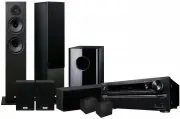 Onkyo ATMOS-64PACKB
User Manual
Onkyo ATMOS-64PACKB
User Manual
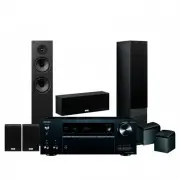 Onkyo ATMOS-68PACKB
User Manual
Onkyo ATMOS-68PACKB
User Manual
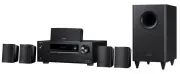 Onkyo HT-S3800B
User Manual
Onkyo HT-S3800B
User Manual
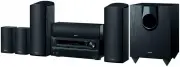 Onkyo HT-S7705B
User Manual
Onkyo HT-S7705B
User Manual
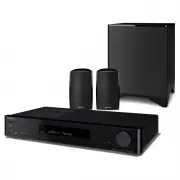 Onkyo LS-5200B
User Manual
Onkyo LS-5200B
User Manual
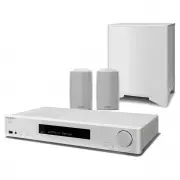 Onkyo LS-5200W
User Manual
Onkyo LS-5200W
User Manual
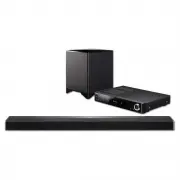 Onkyo LS-7200B
User Manual
Onkyo LS-7200B
User Manual
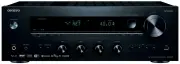 Onkyo TX-8270B
User Manual
Onkyo TX-8270B
User Manual
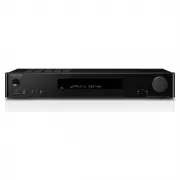 Onkyo TX-L20DB
User Manual
Onkyo TX-L20DB
User Manual
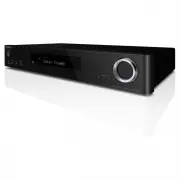 Onkyo TX-L50B
User Manual
Onkyo TX-L50B
User Manual
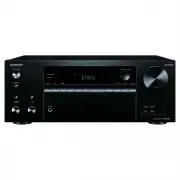 Onkyo TX-NR575EB
User Manual
Onkyo TX-NR575EB
User Manual
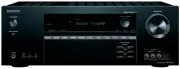 Onkyo TX-SR343B
User Manual
Onkyo TX-SR343B
User Manual
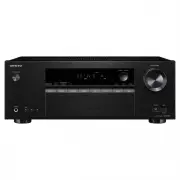 Onkyo TX-SR373B
User Manual
Onkyo TX-SR373B
User Manual
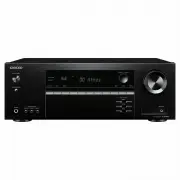 Onkyo TX-SR494B
User Manual
Onkyo TX-SR494B
User Manual