Page 2 - Contents
2 Thank you for buying this Onkyo product. Please read through these operating instructions so you will know how to operate your model properly. Before you start . . . . . . . . . . . . . . . . . . . . . . . . . . . . 3 Checking what’s in the box . . . . . . . . . . . . . . . . . . . . . 3 Installin...
Page 3 - Before you start; Checking what’s in the box; Flow of settings on the receiver; The colors of the steps indicate the following:; Required setting item; (When using connections other than the
3 Before you start Checking what’s in the box Please check that you’ve received the following supplied accessories: • Remote control • AAA size IEC R03 dry cell batteries (to confirm system operation) x2 • AM loop antenna • FM wire antenna • Speaker cables (3 m/10 ft.) x4 • Speaker cables (8 m/26 ft...
Page 4 - Controls and displays; Front panel; Operating
1: 4 2 33 4 Controls and displays Front panel 1 Í ON/STANDBY 2 BLUETOOTH Switches to the BT Audio input 3 Remote sensor Receives the signals from the remote control (see Operating range of remote control on page 7 ). 4 Listening mode buttons STEREO – Switches to the STEREO mode ( page 23 ). SURROUND...
Page 5 - Display; Listening in surround sound
Controls and displays 1 1 5 2 33 4 Display 14 Tuner indicatorsRDS – Lights when an RDS broadcast is received ( page 21 ). (For Europe) ST – Lights when a stereo FM broadcast is being received in auto stereo mode ( page 20 ). TUNE – Lights when a normal broadcast channel. PRESET – Shows when a preset...
Page 6 - Listening to the radio
Controls and displays 1 1 6 2 33 4 Remote control As for operating other devices, the remote control codes for the Onkyo products are preset. The settings cannot be changed. 1 Í RECEIVER Switches the receiver between standby and on. 2 Input function buttons Use to select the input source to this rec...
Page 7 - Loading the batteries; WARNING; Never use new and old batteries together.; Operating range of remote control; The remote control may not work properly if:
Controls and displays 1 1 7 2 33 4 Loading the batteries The batteries included with the unit are to check initial operations; they may not last over a long period. We recommend using alkaline batteries that have a longer life. WARNING • Do not use or store batteries in direct sunlight or other exce...
Page 8 - Connecting your equipment; Placing the speakers; By connecting the left and right front speakers (; SW; Subwoofer; Affixing Non-Skid Pads; CAUTION
2: 8 2 33 4 Connecting your equipment Placing the speakers By connecting the left and right front speakers ( L / R ), the center speaker ( C ), the left and right surround speakers ( SL / SR ), and the subwoofer ( SW ), a 5.1 ch surround system can be enjoyed.To achieve the best possible surround so...
Page 9 - Bare wire connections
Connecting your equipment 2 2 9 2 33 4 Connecting the speakers The receiver will work with just two stereo speakers (the front speakers in the diagram) but using at least three speakers is recommended, and a complete setup is best for surround sound.Make sure you connect the speaker on the right to ...
Page 10 - Important; HDMI cables; Setting the Audio options; THRU; Selecting the audio input signal; HDMI; About HDMI; The HDMI Setup menu; Note; are trademarks of Sony
Connecting your equipment 2 2 10 2 33 4 Making cable connections Make sure not to bend the cables over the top of this unit (as shown in the illustration). If this happens, the magnetic field produced by the transformers in this unit may cause a humming noise from the speakers. Important • Before ma...
Page 11 - Analog audio cables; Standard RCA video cables; About video outputs connection; HDMI OUT
Connecting your equipment 2 2 11 2 33 4 Analog audio cables Use stereo RCA phono cables to connect analog audio components. These cables are typically red and white, and you should connect the red plugs to R (right) terminals and white plugs to L (left) terminals. Digital audio cables Commercially a...
Page 12 - Connecting using HDMI; The Input Assign menu; Select one
Connecting your equipment 2 2 12 2 33 4 Connecting a TV and playback components Connecting using HDMI If you have an HDMI or DVI (with HDCP) equipped component (Blu-ray Disc player, etc.), you can connect it to this receiver using a commercially available HDMI cable. • The following connection/setti...
Page 13 - Connecting your component with no HDMI; AUDIO SEL; Selecting
Connecting your equipment 2 2 13 2 33 4 Connecting your component with no HDMI terminal This diagram shows connections of a TV and Blu-ray Disc/DVD player (or other playback component) with no HDMI terminal to the receiver. Important • When the receiver and TV are connected by composite cable, the O...
Page 14 - Push open the tabs, then insert one wire fully into each; Using external antennas; To improve AM reception; coaxial cable
Connecting your equipment 2 2 14 2 33 4 Connecting antennas Connect the AM loop antenna and the FM wire antenna as shown below. To improve reception and sound quality, connect external antennas (see Using external antennas below ). 1 Push open the tabs, then insert one wire fully into each terminal,...
Page 15 - This receiver does not support a USB hub.; Plugging in the receiver; USB mass
Connecting your equipment 2 2 15 2 33 4 Connecting a USB device It is possible to listen to two-channel audio using the USB interface on the front of this receiver. … Switch the receiver into standby then connect your USB device to the USB terminal on the front panel of this receiver. • It is not po...
Page 16 - Basic playback; Playing a source; DIRECT
3: 16 2 33 4 Basic playback Playing a source Here are the basic instructions for playing a source (such as a DVD disc) with your home theater system. 1 Switch on your system components and receiver. Start by switching on the playback component (for example a DVD player) and your TV, then the receive...
Page 17 - The Input; Tip
Basic playback 3 3 17 2 33 4 • When digital input (optical or coaxial) is selected, this receiver can only play back Dolby Digital, PCM (32 kHz to 96 kHz) and DTS (including DTS 96 kHz/24 bit) digital signal formats. The compatible signals via the HDMI terminals are: Dolby Digital, DTS, SACD (DSD 2 ...
Page 18 - Connecting a USB device; Basic playback controls; Compressed audio compatibility; Other compatibility information
Basic playback 3 3 18 2 33 4 Playing a USB device It is possible to listen to two-channel audio using the USB interface on the front of this receiver. Important • Onkyo cannot guarantee compatibility (operation and/or bus power) with all USB mass storage devices and assumes no responsibility for any...
Page 19 - Pairing with the unit (Initial registration); Listen to music on the unit from a BLUETOOTH; BLUETOOTH; Radio wave caution; Scope of operation
Basic playback 3 3 19 2 33 4 Music playback using BLUETOOTH ® wireless technology You can wirelessly enjoy music files stored in a smartphone or other BLUETOOTH capable device. The coverage area is about 33 feet (10 meters). Note • The BLUETOOTH ® word mark and logos are registered trademarks owned ...
Page 20 - Radio wave reflections; Saving; TUNER; Improving FM sound; BAND; Saving station presets; EDIT
Basic playback 3 3 20 2 33 4 In the following locations, poor condition or inability to receive radio waves may cause the audio to be interrupted or stopped: • In reinforced concrete buildings or steel framed or iron-framed buildings. • Near large metallic furniture. • In a crowd of people or near a...
Page 21 - Naming preset stations; Listening to station presets; Searching for RDS programs
Basic playback 3 3 21 2 33 4 Listening to station presets You will need to have some presets stored to do this. See Saving station presets on page 20 if you haven’t done this already. … Press PRESET +/– to select the station preset you want. Naming preset stations For easier identification, you can ...
Page 22 - Displaying RDS information; DISPLAY
Basic playback 3 3 22 2 33 4 Displaying RDS information Use the DISPLAY button to display the different types of RDS information available. … Press DISPLAY for RDS information. Each press changes the display as follows: • Listening mode • Master volume • Radio Text ( RT ) – Messages sent by the radi...
Page 23 - Listening to your system; Choosing the listening mode; Playing back in the STEREO mode; Type of surround modes
4: 23 2 33 4 Listening to your system Choosing the listening mode This receiver offers a variety of listening modes to accommodate playback of various audio formats. Choose one according to your speaker environment or the source. … While listening to a source, press the listening mode button repeate...
Page 24 - Using the Music Optimizer
Listening to your system 4 4 24 2 33 4 Using the Music Optimizer When audio data is removed during the compression process, sound quality often suffers from an uneven sound image. The Music Optimizer feature employs new DSP technology that helps bring CD quality sound back to compressed 2-channel au...
Page 25 - Displaying the
Listening to your system 4 4 25 2 33 4 a. You can change the Music Optimizer feature at any time by using M.OPT button. b. The default setting when the USB input is selected is ON . c. This setting works only with dual mono encoded Dolby Digital and DTS soundtracks. d. This is not displayed by defau...
Page 26 - The; AUTO SURROUND/STREAM; Changing the TV format setting of; TUNING; Each press switches between
Listening to your system 4 4 26 2 33 4 Displaying the Fixed PCM Setting menu The Fixed PCM Audio options are not displayed by default. Perform the following operations to display them. 1 Switch the receiver into standby. 2 While holding down AUTO SURROUND/STREAM DIRECT on the front panel, hold Í ON/...
Page 28 - Setup; Using the Setup; Manual speaker setup; Speaker Setting
5: 28 2 33 4 Setup Using the Setup The following section shows you how to make detailed settings to specify how you’re using the receiver, and also explains how to fine-tune individual speaker system settings to your liking. Important • The OSD will not appear if you have connected using the composi...
Page 29 - Speaker; Channel Level
Setup 5 5 29 2 33 4 • Subwoofer – LFE signals and bass frequencies of channels set to SMALL are output from the subwoofer when YES is selected (see notes below). Choose the PLUS setting if you want the subwoofer to output bass sound continuously or you want deeper bass (the bass frequencies that wou...
Page 30 - Speaker Distance
Setup 5 5 30 2 33 4 5 Adjust the level of each channel using / . If you selected Manual , use / to switch speakers. The Auto setup will output test tones in the order shown on-screen: Adjust the level of each speaker as the test tone is emitted. Note • If you are using a Sound Pressure Level (SPL)...
Page 31 - Before starting ARC operation
Setup 5 5 31 2 33 4 The Auto Power Down menu Set to automatically turn off the receiver after a specified time has passed (when the power has been on with no operation for several hours). (For the U.S.A., Canada and Latin America models) • Default setting: OFF (For the other models) • Default settin...
Page 33 - Additional information; Troubleshooting; General; on page 8; DIMMER
6: 33 2 33 4 Additional information Troubleshooting Incorrect operations are often mistaken for trouble and malfunctions. If you think that there is something wrong with this component, check the points below. Take a look at the other components and electrical appliances being used, because sometime...
Page 34 - TM Cable) to connect this receiver to a; setting is set to; AMP; Important information regarding the HDMI; Configuration; USB messages
Additional information 6 6 34 2 33 4 wireless technology device is not emitted or the sound is interrupted. # Check that no object that emits electromagnetic waves in the 2.4 GHz band (microwave oven, wireless LAN device or BLUETOOTH wireless technology apparatus) is near the receiver. If such an ob...
Page 35 - Precautions; Select the speaker setting of the receiver. (see
Additional information 6 6 35 2 33 4 About the Speaker System Precautions • Do not place heavy or large objects on top of the speaker. Doing so could provoke the speaker to fall, causing damages or bodily injury. • Do not place the speaker on an unstable surface, as doing so may cause the speaker to...
Page 36 - speaker system; Before mounting; Resetting the main unit; Cleaning the unit
Additional information 6 6 36 2 33 4 Wall-mounting the Front/Center/Surround speaker system CAUTION • Use the M5 metric thread screw. Do not use inch thread screw. Before mounting • Remember that the speaker system is heavy and that its weight could cause the wood screws to work loose, or the wall m...
Page 37 - For the other models
Additional information 6 6 37 2 33 4 Specifications Audio section For the U.S.A., Canada and Latin America models Continuous average power output of 60 watts* per channel, min., at 8 ohms, from 20 Hz to 20 000 Hz with no more than 0.7 %** total harmonic distortion. Front (stereo) . . . . . . . . . ....
Page 38 - Furnished Parts; The BLUETOOTH
Additional information 6 6 38 2 33 4 Furnished Parts Remote control . . . . . . . . . . . . . . . . . . . . . . . . . . . . . . . . . 1Dry cell batteries (AAA size IEC R03) . . . . . . . . . . . . . . . . 2AM loop antenna . . . . . . . . . . . . . . . . . . . . . . . . . . . . . . . . 1FM wire anten...


 Onkyo A-9030
User Manual
Onkyo A-9030
User Manual
 Onkyo A-9050
User Manual
Onkyo A-9050
User Manual
 Onkyo ATMOS-57PKB
User Manual
Onkyo ATMOS-57PKB
User Manual
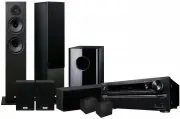 Onkyo ATMOS-64PACKB
User Manual
Onkyo ATMOS-64PACKB
User Manual
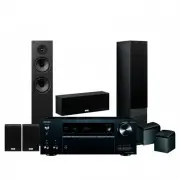 Onkyo ATMOS-68PACKB
User Manual
Onkyo ATMOS-68PACKB
User Manual
 Onkyo HT-S7705B
User Manual
Onkyo HT-S7705B
User Manual
 Onkyo LS-5200B
User Manual
Onkyo LS-5200B
User Manual
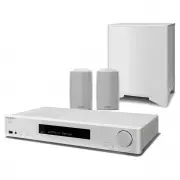 Onkyo LS-5200W
User Manual
Onkyo LS-5200W
User Manual
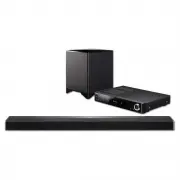 Onkyo LS-7200B
User Manual
Onkyo LS-7200B
User Manual
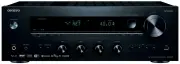 Onkyo TX-8270B
User Manual
Onkyo TX-8270B
User Manual
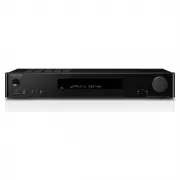 Onkyo TX-L20DB
User Manual
Onkyo TX-L20DB
User Manual
 Onkyo TX-L50B
User Manual
Onkyo TX-L50B
User Manual
 Onkyo TX-NR575EB
User Manual
Onkyo TX-NR575EB
User Manual
 Onkyo TX-NR686B
User Manual
Onkyo TX-NR686B
User Manual
 Onkyo TX-SR343B
User Manual
Onkyo TX-SR343B
User Manual
 Onkyo TX-SR373B
User Manual
Onkyo TX-SR373B
User Manual
 Onkyo TX-SR494B
User Manual
Onkyo TX-SR494B
User Manual