Page 2 - About this user guide
1 About this user guide Thank you for choosing this LG product. Please carefully read this user guide before using the device for the first time to ensure safe and proper use. • Always use genuine LG accessories. The supplied items are designed only for this device and may not be compatible with oth...
Page 3 - Instructional notices
2 Instructional notices WARNING : Situations that could cause injury to the user and third parties. CAUTION : Situations that may cause minor injury or damage to the device. NOTE : Notices or additional information.
Page 4 - Useful Apps; Table of contents; Features; Basic Functions
3 31 Home screen41 Screen lock44 Memory card encryption45 Taking screenshots46 Entering text53 Content sharing55 Do not disturb 03 Useful Apps 57 Installing and uninstalling apps58 App trash59 App Shortcuts60 Phone65 Messages66 Camera76 Gallery79 Chrome79 Google apps81 Contacts83 QuickMemo+85 Clock ...
Page 5 - Settings; For Your Safety
4 Table of contents 87 Calendar88 Music89 Calculator89 FM Radio89 Audio Recorder90 Game Launcher90 File Manager90 Smart cleaning91 LG SmartWorld91 Downloads 04 Settings 93 Settings93 Network103 Sound104 Display106 General 05 Appendix 119 LG Language Settings119 Phone software update121 Anti-Theft Gu...
Page 8 - Google Lens; Use Google Lens
Custom-designed Features 7 • Associated keywords for the object are displayed on the screen. Keywords do not appear on the actual photos or videos. • This feature is available only when the front and rear cameras are in the Auto mode. Google Lens You can get more information or take desired actions ...
Page 10 - Gallery features; Creating a movie; Deleting files
Custom-designed Features 9 Gallery features Creating a movie You can create a new movie by putting images and videos together. 1 Tap , select an album, then tap Create movie . 2 Select images or videos for your movie and tap NEXT . 3 Edit the selected images and videos and then tap SAVE . Deleting f...
Page 11 - Adding files; Rearranging files; Adding file effects; Resetting the movie edits
Custom-designed Features 10 Adding files You can select images or videos to add after tapping at the bottom of the screen. You can also select the images or videos you have already previously added. • Touch and hold a file, and then tap another file for multiple selection. Rearranging files To rearr...
Page 12 - Making a GIF; Sound quality and effects; Adjusting the sound direction
Custom-designed Features 11 Making a GIF You can easily make a GIF file using recorded video. 1 At the desired starting point while watching a video, tap . 2 Select the length of the GIF you want to create. • GIF is generated for the time selected from the current time. • For videos less than 5 seco...
Page 13 - Launching Google Assistant; Launching Google Assistant with your voice; Launching Google Assistant from the Home
Custom-designed Features 12 Google Assistant You can manage tasks, plan your day, get answers, and much more. • To use this feature, first connect to the network and sign in to your Google account. Launching Google Assistant 1 Press and hold from the Home screen to launch Google Assistant . 2 Tap GE...
Page 14 - Fingerprint recognition; Fingerprint recognition overview; Precautions for fingerprint recognition
Custom-designed Features 13 Fingerprint recognition Fingerprint recognition overview You must register your fingerprint on your device first before using the fingerprint recognition function.You can use the fingerprint recognition function in the following cases: • To unlock the screen. • To view lo...
Page 15 - Registering fingerprints
Custom-designed Features 14 • Scan only one finger for each registration. Scanning more than one finger may affect fingerprint registration and recognition. • The device may generate static electricity if the surrounding air is dry. If the surrounding air is dry, avoid scanning fingerprints, or touc...
Page 16 - Managing fingerprints
Custom-designed Features 15 3 Follow the on-screen instructions. • Repeat scanning the fingerprint by moving your finger little by little until the fingerprint registers. 4 When the fingerprint registration is done, tap OK . • Tap ADD MORE to register another fingerprint. If you register only one fi...
Page 17 - Multi-tasking feature
Custom-designed Features 16 Multi-tasking feature Multi-Window You can use two apps at the same time by separating the screen into multiple windows. 1 Tap from the Home touch buttons. • Recently-used apps appear. 2 Tap at the top of the desired app to use the Multi-Window feature. • The selected app...
Page 18 - Overview screen
Custom-designed Features 17 • To deactivate the Multi-Window feature, touch and hold on the Home touch button. • To adjust the size of the split screen, drag at the center of the screen. • The Multi-Window feature is not supported by some LG apps and apps downloaded from the Play Store. Overview scr...
Page 21 - Parts overview
Basic Functions 20 Parts overview Microphone Proximity/Ambient light sensor Earpiece Google Assistant Key Front camera lens SIM/microSD card slot Touch screen Flash Power/Lock key Speaker Stereo headset jack Rear camera lens Charger/USB cable port Flash Fingerprint sensor Volume keys (+/-)
Page 24 - Turning the power on or off; Turning the power on; Turning the power off; Power control options
Basic Functions 23 Turning the power on or off Turning the power on When the power is turned off, press and hold the Power/Lock key. • When the device is turned on for the first time, initial configuration takes place. The first booting time for the smart phone may be longer than usual. Turning the ...
Page 25 - Inserting the memory card
Basic Functions 24 Inserting the memory card The device supports up to a 2 TB microSD card. (Not included)Depending on the memory card manufacturer and type, some memory cards may not be compatible with your device. • It is recommended to use an exFAT file system when using an external memory card o...
Page 26 - Removing the memory card; Charging the battery
Basic Functions 25 Removing the memory card Unmount the memory card before removing it for safety. 1 Tap Settings General Storage . 2 Insert the ejection pin into the hole on the card tray. 3 Pull out the card tray and remove the memory card. • Do not remove the memory card while the device is trans...
Page 28 - Using the battery efficiently; Touch screen; Tapping
Basic Functions 27 Using the battery efficiently Battery lifespan may decrease if you keep many apps and functions running simultaneously and continuously.Stop apps and functions from running in the background to increase battery life.To minimize battery consumption, follow these tips: • Turn off th...
Page 29 - Touching and holding; Dragging
Basic Functions 28 Touching and holding Touch and hold for several seconds to display a menu with available options. Double-tapping Tap the screen twice quickly to zoom in or out on a specific app. Dragging Touch and hold an item, such as an app or widget, then move your finger to a desired location...
Page 30 - Swiping; Pinching and spreading
Basic Functions 29 Swiping Touch the screen with your finger and move it quickly without pausing. You can use this gesture to scroll through a list, a web page, photos, screens, and more. Pinching and spreading Pinch two fingers to zoom out such as on a photo or map. To zoom in, spread your fingers ...
Page 32 - Home screen; Home screen overview; Home screen layout
Basic Functions 31 Home screen Home screen overview The Home screen is the starting point for accessing various functions and apps on your device. Tap on any screen to directly go to the Home screen.You can manage all apps and widgets on the Home screen. Swipe the screen left or right to view all in...
Page 33 - Changing the style of the Home touch
Basic Functions 32 • Status bar : View status icons, the time and the battery level. • Google search widget : Perform a Google search by inputting spoken or written keywords. • Page icon : Display the total number of Home screen canvases. You can tap the desired page icon to go to the page. The icon...
Page 34 - Editing the Home touch buttons
Basic Functions 33 Editing the Home touch buttons You can rearrange the Home touch buttons or add frequently used functions to the Home touch buttons area.Tap Settings Display Home touch buttons Button combination and customize the settings. • Several functions, including QSlide , Notification and C...
Page 35 - Hiding the Home touch buttons
Basic Functions 34 Lock/hide icon The icon to lock or hide the Home touch buttons appears at the bottom left of the screen.If you want to lock the Home touch buttons while shown, tap on the left of the Home touch buttons.To hide the Home touch buttons again, double-tap .To deactivate the Lock/hide b...
Page 36 - Status icons
Basic Functions 35 Status icons When there is a notification for an unread message, calendar event or alarm, the status bar displays the corresponding notification icon. Check your device's status by viewing notification icons displayed on the status bar. No signalData is being transmitted over the ...
Page 37 - Notifications panel
Basic Functions 36 Notifications panel You can open the notifications panel by dragging the status bar downward on the main screen. • To open the quick access icons list, drag the notifications panel downwards or tap . • To rearrange, add, or remove icons, tap EDIT . • If you touch and hold the icon...
Page 38 - Switching the screen orientation
Basic Functions 37 Switching the screen orientation You can set the screen orientation to automatically switch according to the device's physical orientation.On the notification panel, tap Rotation from the quick access icon list. You can also tap Settings Display and activate Auto-rotate screen . E...
Page 40 - Viewing the background theme; Moving apps on the Home screen
Basic Functions 39 Viewing the background theme You can view only the background image by hiding the apps and widgets on the Home screen.Spread two fingers apart on the Home screen. • To return to the original screen, which displays apps and widgets, pinch your fingers on the Home screen or tap . Mo...
Page 41 - Using folders from the Home screen; Creating folders; Home screen settings
Basic Functions 40 Using folders from the Home screen Creating folders On the Home screen, touch and hold an app, then drag it over another app. • A new folder is created and the apps are added to the folder. Editing folders On the Home screen, tap a folder and do one of the following actions. • To ...
Page 42 - Screen lock; Screen lock overview
Basic Functions 41 • Sort apps by : Set how apps are sorted on the Home screen. • Grid : Change the app arrangement mode for the Home screen. • Hide apps : Select apps you want to hide from the Home screen. • Loop Home screen : Enable to allow continuous Home screen scrolling (loop back to the first...
Page 43 - Setting a screen lock
Basic Functions 42 Setting a screen lock There are several screen lock options available. 1 Tap Settings General Lock screen & security Select screen lock and then select the method you prefer. 2 Customize the following settings: • None : Deactivate the screen lock function. • Swipe : Swipe on t...
Page 44 - Precautions for the secure start-up feature; KnockON; Turning the screen on
Basic Functions 43 Precautions for the secure start-up feature • If you forget your decryption password, you cannot restore encrypted data and personal information. • Be sure to keep your screen lock passwords separately. • If you enter the screen lock passwords incorrectly more than the specified t...
Page 45 - Memory card encryption
Basic Functions 44 Memory card encryption You can encrypt and protect data saved on the memory card. The encrypted data in the memory card cannot be accessed from another device. 1 Tap Settings General Lock screen & security Encryption & credentials Encrypt SD card . 2 Read the on-screen ove...
Page 46 - Taking screenshots; Via a shortcut
Basic Functions 45 Taking screenshots You can take screenshots of the current screen you are viewing. Via a shortcut Press and hold the Power/Lock key and the Volume Down key at the same time for at least two seconds. • Screenshots can be viewed from the Screenshots album in Gallery . Via Capture+ O...
Page 47 - Entering text; Using the Smart toolbar
Basic Functions 46 Entering text Using the Smart toolbar You can use various keyboard input methods in one place. You can select the desired input method from the top of the keyboard. 1 Select the desired keyboard input method from the Smart toolbar. 2 Tap , then touch and drag each tool to reorgani...
Page 48 - Smart Tool
Basic Functions 47 Smart Tool Tap to hide the smart tools.Tap to add emojis.Tap to enter text by using voice. • To maximize the voice command recognition, speak clearly. • To enter text with your voice, make sure that your device is connected to a network. • To select the language for voice recognit...
Page 49 - Using the Smart keyboard; Moving the cursor
Basic Functions 48 Using the Smart keyboard You can use the Smart keyboard to enter and edit text.With the Smart keyboard, you can view text as you type without bothering to alternate between the screen and a conventional keyboard. This allows you to easily find and correct errors when typing. Movin...
Page 50 - Suggesting words; Changing the QWERTY keyboard layout
Basic Functions 49 Suggesting words Smart keyboard automatically analyzes your usage patterns to suggest frequently used words as you type. The longer you use your device, the more precise the suggestions are.Enter text, then tap a suggested word. • The selected word is automatically entered. You do...
Page 51 - Customizing the keyboard height
Basic Functions 50 Customizing the keyboard height You can customize the keyboard height to maximize hand comfort when typing. 1 Tap Settings General Language & keyboard On-screen keyboard LG Keyboard Keyboard height and layout Keyboard height . You can also tap Keyboard height and layout Keyboa...
Page 52 - Splitting the keyboard; One-handed operation mode
Basic Functions 51 Splitting the keyboard You can split the keyboard in half and place each piece on either side of the screen when the screen is in landscape mode.To split the keyboard, turn the device horizontally and spread it apart on both sides with holding the keyboard with two fingers. To att...
Page 53 - Entering text by using voice
Basic Functions 52 Adding languages to the keyboard You can make additional languages available for keyboard input. 1 Tap Settings General Language & keyboard On-screen keyboard LG Keyboard Select languages . You can also tap Select languages . 2 Select the languages you want to use on the keybo...
Page 54 - Clip Tray; Content sharing; Playing content from another device
Basic Functions 53 Clip Tray If you copy or cut an image or text, it is automatically saved to the clip tray and can be pasted to any space at any time. 1 On the keyboard, tap .You can also touch and hold the text input window, then select CLIP TRAY . 2 Select and paste an item from the clip tray. •...
Page 55 - Sending or receiving files; Sending files
Basic Functions 54 Sending or receiving files You can share files between your device and another LG device, or a tablet or computer. Sending files From the Gallery or File Manager app, tap Share or , then select a device on the file sharing list. Receiving files Drag the status bar downward and tap...
Page 56 - Do not disturb
Basic Functions 55 Do not disturb You can limit or mute notifications to avoid disturbances for a specific period of time.Tap Settings Sound Do not disturb . • Mode and select the mode you want: - Priority only : Receive sound or vibrate notifications for the selected apps. Even when Priority only i...
Page 58 - Installing and uninstalling apps; Installing apps; Uninstalling with the touch and hold gesture; Uninstalling by using the settings menu; Uninstalling apps from the app store
Useful Apps 57 Installing and uninstalling apps Installing apps Access an app store to search and download apps. • You can use SmartWorld, Play Store or the app store provided by your service provider. • Some app stores may require you to create an account and sign in. • Some apps may charge fees. •...
Page 59 - Installing and uninstalling apps during the; App trash
Useful Apps 58 Installing and uninstalling apps during the setup When you turn on the device for the first time, you can download recommended apps.You can skip to the next step without installation. App trash You can view the uninstalled apps on the Home screen. You can also reinstall apps within 24...
Page 60 - App Shortcuts
Useful Apps 59 App Shortcuts On the Home screen, touch and hold an app icon such as Phone, Messages, Camera, Gallery and Settings to display a quick access menu. Use apps more easily through App Shortcuts. • This feature is available only on some apps.
Page 61 - Phone; Voice call; Making a call from the keypad; Making a call from the contact list
Useful Apps 60 Phone Voice call Make a phone call by using one of the available methods, such as manually entering a phone number and making a call from the contact list or the list of recent calls. Making a call from the keypad 1 Tap Dial . 2 Make a call by using a method of your choice: • Enter a ...
Page 62 - Answering a call
Useful Apps 61 Answering a call To answer a call, drag on the incoming call screen. • When the stereo headset is connected, you can make calls by using the call/end button on the headset. • To answer a call using a shortcut key, tap Settings Network Call Answer and end calls Press the Volume Up key ...
Page 63 - Checking an incoming call while using an app; Viewing missed calls
Useful Apps 62 Checking an incoming call while using an app When a call comes in while using an app, a pop-up notification can be displayed at the top of the screen. You can receive the call, reject the call, or send message from the pop-up screen. • Tap Settings Network Call Additional settings Inc...
Page 64 - Functions accessible during a call; Making a three-way calling
Useful Apps 63 Functions accessible during a call During a call, you can access a variety of functions by tapping the on-screen buttons: • Contacts : Allows access to your contacts list. • Hold : Place the current call on hold. • Dialpad : Display or hide the dial pad. • Speaker : Turn on the speake...
Page 65 - Viewing call records; Configuring call options
Useful Apps 64 Viewing call records To view recent call records, tap Call logs . Then, you can use the following functions: • To view detailed call records, select a contact. To make a call to the selected contact, tap . • To delete call records, tap Delete . • The displayed call duration may differ...
Page 66 - Messages; Sending a message; Reading a message
Useful Apps 65 Messages Sending a message You can create and send messages to your contacts using the Messages app. • Sending messages abroad may incur additional charges. Consult with your service provider for more information. 1 Tap . 2 Tap Start chat . 3 Specify a recipient and create a message. ...
Page 67 - Camera; Starting the camera; Changing the camera mode
Useful Apps 66 Camera Starting the camera You can take a photo or record a video to cherish all of your memorable moments.Tap . • Before taking a photo or recording a video, wipe the camera lens with a soft cloth. • Be careful not to stain the camera lens with your fingers or other foreign substance...
Page 68 - Auto mode; Taking a photo
Useful Apps 67 Auto mode You can take photos or record videos by selecting a variety of camera modes and options. 1 Tap , then tap MODE Auto A . 2 To take a photo, tap . To record a video, tap . Change the camera options. Apply a film filter effect. Select a camera mode. Turn the flash on or off. Sw...
Page 69 - Recording a video
Useful Apps 68 Recording a video 1 Select a camera mode and tap the subject to focus the camera on. 2 Tap . • To take a photo while recording a video, tap . • To pause the video recording, tap . To resume the video recording, tap . 3 Tap to end the video recording. Customizing the camera options You...
Page 70 - Additional options on the front camera; Various camera modes; Food
Useful Apps 69 Storage Select if you want to store the pictures and videos in the Internal storage or SD card. (Available when the memory card is inserted.) Help Provides help information for each camera menu. Additional options on the front camera Selfie shot Take a selfie by selecting its option b...
Page 71 - YouTube Live; Burst shot
Useful Apps 70 YouTube Live You can record a video and directly upload to YouTube. 1 Tap , then tap MODE YouTube Live . To use this feature, you need to verify your phone number. • YouTube Live is available only when your device is connected to the Internet. If you use mobile data, you may be charge...
Page 72 - Other useful features in the Camera app; Switching between cameras
Useful Apps 71 Other useful features in the Camera app Auto-Exposure/Auto-Focus lock You can fix the current exposure level and focus position by touching and holding the screen in the Auto mode. To turn off the feature, tap a blank area on the screen. • This feature is available only in specific mo...
Page 73 - Zoom in or out; Selfie shot; Gesture shot
Useful Apps 72 • Use the front camera to take selfies. See Selfie shot for details. Zoom in or out You can use zoom in or out on the camera screen while taking a photo or recording a video. • On the camera screen, pinch or spread two fingers to zoom in or out, then use the displayed +/- slide bar. •...
Page 74 - Auto shot
Useful Apps 73 • To use this feature, switch to the front camera mode, then tap Selfie shot Gesture shot . • Make sure that your palm and fist are within the reference line so that the camera can detect them. • This feature may not be available while using some of the camera features. Auto shot You ...
Page 75 - Interval shot; Gesture view; Save as flipped
Useful Apps 74 Interval shot You can take selfies at an interval.While using the front camera, you can show your palm to the camera, then clench your fist twice quickly. • Four photos are taken at regular intervals after a timer delay of three seconds. Gesture view After taking a selfie with the fro...
Page 76 - quick share
Useful Apps 75 quick share You can share a photo or video using a desired app immediately after taking it. 1 Tap , then take a photo or record a video. 2 Tap the app icon that appears on the screen to share it using that app.You can also swipe the icon towards the opposite direction to see what othe...
Page 77 - Gallery; Gallery overview; Viewing photos
Useful Apps 76 Gallery Gallery overview You can view and manage photos and videos saved on your device. 1 Tap . • Saved photos and videos are displayed by folder. 2 Tap a folder and select a file. • View the selected file in full-screen mode. • While viewing a photo, swipe left or right to view the ...
Page 78 - Writing a memo on the photo; Editing photos; Playing a video
Useful Apps 77 Writing a memo on the photo 1 While viewing a photo, tap . 2 Write a memo on the photo and tap SAVE . • The memo is applied to the photo. • Some photos may not support the photo memo feature. Editing photos 1 While viewing a photo, tap . 2 Use a variety of effects and tools to edit th...
Page 79 - Editing videos; Creating a video
Useful Apps 78 Editing videos 1 While viewing a video, tap . 2 Use a variety of effects and edit tools to edit the video. Automatically create a 15 sec, 30 sec or 60 sec video clip. Revert the edit. Adjust the resolution. Create a movie using various effects. Select a section to change the play spee...
Page 80 - Sharing files; Chrome; Drive
Useful Apps 79 Sharing files You can share files by using one of the following options: • While viewing a photo, tap to share the file by using a desired method. • While viewing a video, tap Share to share the file by using a desired method. • Tap in an album to select files and share them using a d...
Page 82 - Sheets; Contacts overview; Adding new contacts
Useful Apps 81 Sheets Create spreadsheets or edit spreadsheets created online or from another device. Share and edit spreadsheets together with others. Slides Create presentation material or edit presentation material created online or from another device. Share and edit presentation material togeth...
Page 83 - Adding contacts to the speed dial list; Searching for contacts; Contact list; Editing contacts
Useful Apps 82 Adding contacts to the speed dial list 1 On the contact list screen, tap Speed dial . 2 Tap Add contact from a speed dial number. 3 Select a contact. • While adding a new contact, tap to add a speed dial number. Searching for contacts You can search for contacts by using one of the fo...
Page 84 - Adding favorites; Creating a note
Useful Apps 83 Adding favorites You can register frequently used contacts as favorites. 1 On the contact list screen, select a contact. 2 On the contact detail screen, tap . Creating groups 1 On the Groups tab, tap . 2 Enter a new group name. 3 Tap Add members , select contacts, then tap ADD . 4 Tap...
Page 85 - Writing notes on a photo; Writing notes on a screenshot
Useful Apps 84 • : Access additional. 3 Tap to save the note. Writing notes on a photo 1 Tap QuickMemo+ . 2 Tap to take a photo, then tap OK . • The photo is automatically attached into the notepad. 3 Tap or to write notes on the photo. • Write notes by hand on the photo. • Enter text below the phot...
Page 86 - Managing folders; Clock; Alarm
Useful Apps 85 Managing folders You can view notes grouped by the type of the notes. 1 Tap QuickMemo+ . 2 At the top of the screen, tap and select a menu item: • All memos : View all notes saved in QuickMemo+. • My memos : View notes created by QuickMemo+. • Photo memos : View notes created by . • C...
Page 87 - World clock
Useful Apps 86 World clock You can view the current time in cities around the world. 1 Tap Clock World clock . 2 Tap and add a city. Timer You can set the timer to trigger an alarm after a specified period of time. 1 Tap Clock Timer . 2 Set the time and tap Start . • To suspend the timer, tap Pause ...
Page 88 - Calendar; Calendar overview; Adding events
Useful Apps 87 Calendar Calendar overview You can use the calendar to manage events and tasks. Adding events 1 Tap Essentials Calendar . 2 Tap . 3 Select Goal , Reminder or Event . 4 Enter details and tap Save .
Page 89 - Music
Useful Apps 88 Music You can play and manage songs or music albums. 1 Tap Essentials Music . 2 Select a category. 3 Select a music file. Switch to the playlist. Turn on the camera flash to blink to the beat of the song played. Play in random order. Pause or play. Select a repeat mode. Tap to play th...
Page 90 - Calculator; Audio Recorder
Useful Apps 89 Calculator You can use two types of calculators: the simple calculator and the scientific calculator. 1 Tap Essentials Calculator . 2 Use the keypad to make a calculation. • To use the scientific calculator, drag the blue colored slide bar located in the right side of the screen to th...
Page 91 - Game Launcher
Useful Apps 90 Game Launcher You can use Game Launcher to view the entire list of installed games, or set the device to mute or prevent any notifications while playing games. 1 Tap Game Launcher . 2 Select the desired option. File Manager You can view and manage files saved on your device or cloud. ...
Page 92 - LG SmartWorld; Downloads
Useful Apps 91 LG SmartWorld You can download a variety of games, audio content, apps and fonts provided by LG Electronics. Customize your device to suit your preferences by using Home themes and fonts. • If you use mobile data, you may be charged for data usage depending on your pricing plan. • Thi...
Page 94 - Network; Airplane mode; Connecting to a Wi-Fi network
Settings 93 Settings You can customize the device settings in accordance with your preferences.Tap Settings . • Tap and enter a keyword in the search box to access a setting item. • Tap to change the view mode. This user guide assumes that you are using the Tab view. Network Airplane mode You can tu...
Page 96 - Pairing with another device; Sending data via Bluetooth
Settings 95 Bluetooth You can connect your device to nearby devices that support Bluetooth to exchange data with them. Connect your device to a Bluetooth headset and a keyboard. This makes it easier to control the device. Pairing with another device 1 On the settings screen, tap Network Bluetooth . ...
Page 97 - Mobile data; Turning on mobile data; Call
Settings 96 Mobile data You can turn mobile data on and off. You can also manage mobile data usage. Turning on mobile data 1 On the settings screen, tap Network Mobile data . 2 Tap to activate it. Customizing mobile data settings 1 On the settings screen, tap Network Mobile data . 2 Customize the fo...
Page 98 - Tethering; USB tethering
Settings 97 Tethering USB tethering You can connect the device to another device via USB and share mobile data. 1 Connect your device and other devices via USB cable. 2 On the settings screen, tap Network Tethering USB tethering and then tap to activate it. • This option uses mobile data and may inc...
Page 99 - Timeout
Settings 98 Wi-Fi hotspot You can set the device as a wireless router so that other devices can connect to the Internet by using your device’s mobile data. 1 On the settings screen, tap Network Tethering Wi-Fi hotspot and then tap to activate it. 2 Tap Set up Wi-Fi hotspot , and enter the Wi-Fi name...
Page 100 - Bluetooth tethering; Help; Sharing panel
Settings 99 Bluetooth tethering A Bluetooth-connected device can connect to the Internet by using your device’s mobile data. 1 On the settings screen, tap Network Tethering Bluetooth tethering and then tap to activate it. 2 Turn on Bluetooth on both devices and pair them. • This option uses mobile d...
Page 101 - File sharing
Settings 100 File sharing You can send and receive files between your device and other LG devices or tablets. 1 On the settings screen, tap Network File sharing . 2 Customize the following settings: • LG K40 : Change the device name. • Save to : Set the destination folder to save files sent from oth...
Page 102 - LG AirDrive
Settings 101 LG AirDrive You can use your LG account to manage files saved on the device from a computer. You do not need a USB connection. 1 On the settings screen, tap Network LG AirDrive . 2 Use a single LG account to sign in to LG Bridge on the computer and LG AirDrive on the device. • LG Bridge...
Page 103 - Mobile networks; Adding VPN
Settings 102 Mobile networks You can customize the mobile networks settings. 1 On the settings screen, tap Network Mobile networks . 2 Customize the following settings: • International Data roaming : Browse the web, use emails, multimedia messages and other data services overseas. • Network mode (Th...
Page 104 - Configuring VPN settings; Wireless Emergency Alerts; Sound
Settings 103 Configuring VPN settings 1 Tap a VPN from the VPNS list. 2 Enter the VPN user account details and tap CONNECT . • To save the account details, select the Save account information checkbox. Wireless Emergency Alerts If emergency alerts are issued, those alerts will appear on this menu.On...
Page 105 - Display
Settings 104 • Notification sound : Select a notification ringtone. Set music saved on the device as a notification ringtone. • Do not disturb : Set the time, range and app type to receive notification messages. Receive notification messages only on particular days of the week. • Sound quality and e...
Page 107 - General; Lock screen & security
Settings 106 General Lock screen & security You can customize lock screen and security settings.On the settings screen, tap General Lock screen & security and customize the following settings. • Google Play Protect : Scans your device daily for potentially harmful apps. • Find My Device : Re...
Page 109 - Battery
Settings 108 Battery You can view the current battery information or turn on power-saving mode. 1 On the settings screen, tap General Battery . 2 Customize the following settings: • Battery usage : View the battery usage details. To view more details, select a specific item. • Battery percentage on ...
Page 110 - Storage
Settings 109 Storage You can view and manage internal storage on the device or storage space of the memory card. 1 On the settings screen, tap General Storage . 2 Customize the following settings: • Internal storage : View the total storage space and free space in the device’s internal storage. View...
Page 112 - Digital Wellbeing & parental controls
Settings 111 • Motor & cognition Touch and hold for calls : Answer or decline calls by touching and holding the call button instead of dragging it. • Motor & cognition Screen timeout : Turn off the screen automatically when the device is left idle for a specified period of time. • Motor &...
Page 113 - Gaming; Dual App
Settings 112 Gaming You can configure settings for game tools, graphics and battery saving feature. • Game Launcher : Tap to use the game launcher. • Game tools : Tap to activate this feature. You can launch this feature by tapping the game tool icon at the bottom of the screen while playing games. ...
Page 114 - Shortcuts
Settings 113 Shortcuts You can use certain keys to directly launch apps when the screen is turned off or locked. 1 On the settings screen, tap General Shortcuts . 2 You can customize the shortcut keys settings. • View notification panel : Swipe down/up on the fingerprint sensor for the notification ...
Page 115 - Update center
Settings 114 Update center You can check and install the latest version of the app or software provided by LG. 1 On the settings screen, tap General Update center . 2 Customize the following settings: • App Updates : Check if an app update is available. If available, you • can install the update. • ...
Page 116 - Memory
Settings 115 Date & time You can customize date and time settings for your device. 1 On the settings screen, tap General Date & time . 2 Customize the settings. Memory You can view the average amount of memory usage over a certain period of time and the memory occupied by an app. 1 On the se...
Page 118 - About phone
Settings 117 About phone You can view information about your device, such as the name, status, software details and legal information.On the settings screen, tap General About phone and view information. Regulatory & safety You can view regulatory marks and related information on your device.On ...
Page 119 - Appendix
Page 120 - LG Language Settings; Phone software update; LG Mobile phone software update from the
Appendix 119 LG Language Settings Select a language to use on your device. • Tap Settings General Language & keyboard Language ADD LANGUAGE , and select a language. - Touch and hold and drag it to the top of the language list to set it as a default language. Phone software update LG Mobile phone...
Page 121 - LG Mobile Phone software update via
Appendix 120 LG Mobile Phone software update via Over-the-Air (OTA) This feature allows you to conveniently update your phone’s software to a newer version via OTA, without connecting a USB cable. This feature will only be available if and when LG makes a newer firmware version available for your de...
Page 123 - Open Source Software Notice; Trademarks
Appendix 122 Open Source Software Notice Information To obtain the source code under GPL, LGPL, MPL, and other open source licenses, that is contained in this product, please visit http://opensource.lge.com. In addition to the source code, all referred license terms, warranty disclaimers and copyrig...
Page 124 - FAQ
Appendix 123 FAQ This chapter lists some problems you might encounter when using your phone. Some problems require you to call your service provider, but most are easy to fix yourself. Message Possible causes Possible corrective measures SIM card error There is no SIM card in the phone or it is inse...
Page 128 - Important Information; HAC Statement; FCC RF Exposure Information; WARNING! Read this information before operating the device.
For Your Safety 127 Important Information This user guide contains important information on the use and operation of this device. Please read all the information carefully for optimal performance and to prevent any damage to or misuse of the device. Any changes or modifications not expressly approve...
Page 129 - Consumer Information about Radio Frequency; Are wireless devices safe?
For Your Safety 128 Body-worn Operation This device was tested for typical use with the back of the device kept 0.39 inches (1.0 cm) from the body. To comply with FCC RF exposure requirements, a minimum separation distance of 0.39 inches (1.0 cm) must be maintained between the user’s body and the ba...
Page 130 - What does “SAR” mean?; Can I minimize my RF exposure?
For Your Safety 129 What does “SAR” mean? In 1996, the FCC, working with the FDA, the U.S. Environmental Protection Agency, and other agencies, established RF exposure safety guidelines for wireless devices in the United States. Before a wireless device model is available for sale to the public, it ...
Page 131 - Do wireless devices pose any special risks to children?; Where can I get further information about RF emissions?
For Your Safety 130 Do wireless devices pose any special risks to children? The FDA/FCC website states that “the scientific evidence does not show a danger to users of wireless communication devices, including children.” The FDA/ FCC website further states that “some groups sponsored by other nation...
Page 132 - Consumer Information on SAR
For Your Safety 131 National Council on Radiation Protection and Measurements http://www.ncrponline.org Engineering in Medicine and Biology Society, Committee on Man and Radiation (COMAR) of the Institute of Electrical and Electronics Engineers http://ewh.ieee.org/soc/embs/comar/(websites current as...
Page 133 - Regulations for Wireless Devices
For Your Safety 132 The FCC has granted an Equipment Authorization for this model device with all reported SAR levels evaluated as in compliance with the FCC RF emission guidelines. SAR information on this model device is on file with the FCC and can be found under the Display Grant section of http:...
Page 135 - Caution! Avoid Potential Hearing Loss
For Your Safety 134 http://hraunfoss.fcc.gov/edocs_public/attachmatch/FCC-03-168A1.pdfHearing Loss Association of America [HLAA] http://hearingloss.org/content/telephones-and-mobile-devices Caution! Avoid Potential Hearing Loss Prolonged exposure to loud sounds (including music) is the most common c...
Page 136 - TIA Safety Information
For Your Safety 135 TIA Safety Information The following is the complete TIA Safety Information for wireless handheld devices. Exposure to Radio Frequency Signal Your wireless handheld portable device is a low power radio transmitter and receiver. When ON, it receives and sends out Radio Frequency (...
Page 138 - Blasting Areas; For Vehicles Equipped with an Air Bag
For Your Safety 137 Blasting Areas To avoid interfering with blasting operations, turn your device OFF when in a “blasting area” or in areas posted: “Turn off two-way radio.” Obey all signs and instructions. Potentially Explosive Atmosphere Turn your device OFF when in any area with a potentially ex...
Page 139 - Safety Information
For Your Safety 138 Part 15.105 Statement This equipment has been tested and found to comply with the limits for a class B digital device, pursuant to Part 15 of the FCC rules. These limits are designed to provide reasonable protection against harmful interference in a residential installation. This...
Page 140 - Charger and Adapter Safety; Battery Information and Care
For Your Safety 139 • Always unplug the charger from the wall socket after the device is fully charged to save unnecessary power consumption. • A soft reset may be used to reset the device if the screen freezes, or the buttons, touch screen, or device are no longer responding. To perform a soft rese...
Page 141 - WARNING! Notice for Battery Replacement
For Your Safety 140 • Improper handling of the charging port, as well as the use of an incompatible charger, may cause damage or defect to your device. • The charging temperature range is between 0 °C/32 °F and 40 °C/104 °F. Do not charge the battery out of the recommended temperature range. Chargin...
Page 142 - General Notice
For Your Safety 141 • Unplug the power cord prior to cleaning your device, and clean the power plug pin when it’s dirty. • When using the power plug, ensure that it’s firmly connected. If not, it may cause excessive heat or fire. • If you put your device in a pocket or bag without covering the recep...
Page 143 - FDA Consumer Update; Do wireless devices pose a health hazard?
For Your Safety 142 or recharge the product if it is wet. Once the product becomes wet, the liquid damage indicator changes color. Please note that this may render your product ineligible for repair services provided under the product’s limited warranty. FDA Consumer Update The U.S. Food and Drug Ad...
Page 144 - What kinds of devices are the subject of this update?
For Your Safety 143 • Support needed research into possible biological effects of RF of the type emitted by wireless devices; • Design wireless devices in a way that minimizes any RF exposure to the user that is not necessary for device function; and • Cooperate in providing users of wireless device...
Page 145 - What are the results of the research done already?
For Your Safety 144 to the telephone wiring in a house, typically operate at far lower power levels, and thus produce RF exposures far below the FCC safety limits. 4. What are the results of the research done already? The research done thus far has produced conflicting results, and many studies have...
Page 146 - What is the FDA doing to find out more about the possible
For Your Safety 145 this measurement, such as the angle at which the device is held, or which model of device is used. 6. What is the FDA doing to find out more about the possible health effects of wireless device RF? The FDA is working with the U.S. National Toxicology Program and with groups of in...
Page 147 - What has the FDA done to measure the Radio Frequency; What steps can I take to reduce my exposure to Radio
For Your Safety 146 the FCC. The FCC website ( http://www.fcc.gov/oet/rfsafety) gives directions for locating the FCC identification number on your device so you can find your device’s RF exposure level in the online listing. 8. What has the FDA done to measure the Radio Frequency energy coming from...
Page 148 - What about children using wireless devices?
For Your Safety 147 10. What about children using wireless devices? The scientific evidence does not show a danger to users of wireless devices, including children and teenagers. If you want to take steps to lower exposure to Radio Frequency (RF) energy, the measures described above would apply to c...
Page 149 - Where can I find additional information?; Driving; 0 Driver Safety Tips
For Your Safety 148 12. Where can I find additional information? For additional information, please refer to the following resources:FDA web page on wireless devices http://www.fda.gov/Radiation-EmittingProducts/ RadiationEmittingProductsandProcedures/HomeBusinessandEntertainment/ CellPhones/default...
Page 152 - LIMITED
Page 153 - Limited Warranty – USA
LIMITED WARRANTY - USA 152 Limited Warranty – USA ARBITRATION NOTICE: THIS LIMITED WARRANTY CONTAINS AN ARBITRATION PROVISION THAT REQUIRES YOU AND LG (as defined hereinafter in the Definitions) TO RESOLVE DISPUTES BY BINDING ARBITRATION INSTEAD OF IN COURT, UNLESS YOU CHOOSE TO OPT OUT. IN ARBITRAT...
Page 154 - HOW SERVICE IS HANDLED:
LIMITED WARRANTY - USA 153 or limitation of incidental or consequential damages or limitations on how long an implied warranty lasts, so the above exclusions or limitations may not apply to you. This limited warranty gives you specific legal rights and you may also have other rights that vary from s...
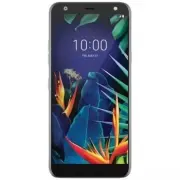


 LG A7110
User Manual
LG A7110
User Manual
 LG AX5000
User Manual
LG AX5000
User Manual
 LG C1300
User Manual
LG C1300
User Manual
 LG C1300A
User Manual
LG C1300A
User Manual
 LG C1300I
User Manual
LG C1300I
User Manual
 LG C1500
User Manual
LG C1500
User Manual
 LG C2000
User Manual
LG C2000
User Manual
 LG CB630
User Manual
LG CB630
User Manual
 LG CE500
User Manual
LG CE500
User Manual
 LG CF360
User Manual
LG CF360
User Manual
 LG CF360A
User Manual
LG CF360A
User Manual
 LG CG180
User Manual
LG CG180
User Manual
 LG CG225
User Manual
LG CG225
User Manual
 LG CG300
User Manual
LG CG300
User Manual
 LG CP150
User Manual
LG CP150
User Manual
 LG CU320
User Manual
LG CU320
User Manual
 LG CU400
User Manual
LG CU400
User Manual
 LG CU405
User Manual
LG CU405
User Manual
 LG CU500
User Manual
LG CU500
User Manual