Page 4 - Table of Contents
2 Table of Contents Important Customer Information...............................................1 Table of Contents .......................................................................2 Feature Highlight ........................................................................4 Easy Home Screen ....
Page 6 - Feature Highlight; Easy Home Screen; Tap
4 Feature Highlight Easy Home Screen Easy Home is a more simplified version of the Home screen that you can choose to use on your phone. It shows a simple layout with a large icon and font size. You can easily access your favorite contacts by specifying them as 4 shortcut icons. Tap Home > Settin...
Page 8 - Battery Saver Mode
Feature Highlight 6 Battery Saver Mode You can save battery by reducing performance and restricting features and apps in the background.1. Tap Home > Settings > Battery > Battery saver . 2. Select the mode you want to apply. Tap Off to turn off the battery saver mode. Tap Extended to activa...
Page 9 - Camera Features; Selfie Shot; Gesture shot; You can take selfies using gestures.; Interval shot; You can take a series of selfies at an interval.
Feature Highlight 7 Camera Features Selfie Shot You can use the front camera to view your face on the screen and take selfies. The camera settings allow you to configure the selfie shot settings. Gesture shot You can take selfies using gestures. Show your palm to the front camera and then clench you...
Page 10 - Gesture view
Feature Highlight 8 Auto shot You can use the face detection feature to take selfies easily and conveniently. You can set the device so that, when you look at the screen, the front camera detects your face and takes a selfie automatically. The white colored guide frame appears when the front camera ...
Page 11 - Gallery Features; Floating button; Back
Feature Highlight 9 Gallery Features Floating button You can use the floating button at the lower part of the Gallery app screen in landscape mode. After dragging Back upwards, release it when you reach Home to return to the Home screen. You can drag Back to the left or right to move the floating bu...
Page 12 - Deleting files
Feature Highlight 10 Creating a movie You can create a new video by putting images and videos together.1. Tap Home > Gallery , select an album, and then tap Options > Create movie . 2. Select images or videos for your movie and then tap NEXT . 3. Edit the selected images and videos and then ta...
Page 13 - Resetting the movie edits; Check your new video before saving it by tapping; Making a GIF file; Select the length of the GIF you want to create, if necessary.
Feature Highlight 11 Resetting the movie edits You can reset the edits made to the movie (e.g. play time, theme, background music and font) by tapping Revert . Previewing a file Check your new video before saving it by tapping Play . After the playback time elapses, the next file is played automatic...
Page 14 - Google Assistant; Opening Google Assistant
Feature Highlight 12 Google Assistant You can manage tasks, plan your day, get answers, and much more. NOTE To use this feature, first connect to the network and sign in to your Google account. Opening Google Assistant 1. Touch and hold Home from the Home screen to launch Google Assistant . 2. Tap G...
Page 15 - The Basics; Phone Overview; Front View; Proximity/Ambient light sensor
13 The Basics Phone Overview Front View Front camera Proximity/Ambient light sensor Earpiece Microphone USB/Charger port Volume buttons Headset jack NOTES • All screen shots in this guide are simulated. Actual displays may vary. • Instructions to perform tasks in this guide are based on the default ...
Page 16 - Rear View
The Basics 14 2. Front camera Use to take pictures and record videos of yourself. You can also use this for video chatting. Keep it clean for optimal performance. 3. Volume buttons Press to adjust the ringer, the media volumes, or the in-call volume during a call. They can also activate the camera...
Page 17 - Back camera; Help; To access Help, tap
The Basics 15 8. Back camera Use to take photos and record videos. Keep it clean for optimal performance. 9. Power/Lock button Press to turn off the screen backlight and lock the screen, or turn the screen backlight back on. Press and hold to turn the phone on/off, restart, or activate/deactivate ...
Page 18 - Setting Up Your Phone; Your phone already has a SIM card installed.; Step 1. Remove the Back Cover
The Basics 16 Setting Up Your Phone Your phone already has a SIM card installed. Step 1. Remove the Back Cover With the phone facing down, insert your fingernail into the cutout located on the lower left of the back cover and lift the cover up gently. Step 2. Insert the Battery Insert the battery, m...
Page 19 - Fully charge your phone before turning it on.
The Basics 17 Step 3. Replace the Back Cover Align the cover over the back of the phone and then press down along the edges to secure it. Step 4. Charge the Phone Fully charge your phone before turning it on. Plug the small end of the USB cable into the USB/charger port on your phone. Plug the other...
Page 20 - Removing the SIM Card; gently slide the SIM card out to remove it.
The Basics 18 Removing the SIM Card The SIM card is pre-installed in your smartphone. If you need to replace your SIM card, refer to the following instructions.1. Turn the phone off, then remove the back cover (as demonstrated in the previous instructions). 2. Locate the slot for the SIM card (at th...
Page 21 - Inserting and Removing a Memory Card; Inserting a microSD card; Removing the memory card
The Basics 19 Inserting and Removing a Memory Card Inserting a microSD card 1. Remove the back cover (as demonstrated in the previous instructions).2. Position the microSD card (sold separately) with the label side facing up and the gold contacts toward the slot, then carefully slide it into the slo...
Page 22 - Charging Your Phone; Before using the device, fully charge the battery.; Precautions when using the device
The Basics 20 Charging Your Phone Before using the device, fully charge the battery. WARNING! • Do not charge while the device or charging cable is wet or contains moisture. This can cause fire, electric shock, injury or damage to device. • Make sure to use the USB cable provided with your device. •...
Page 23 - Bluetooth
The Basics 21 Using the battery efficiently Battery lifespan may decrease if you keep many apps and functions running simultaneously and continuously. Cancel background operations to increase battery life. To minimize battery consumption, follow these tips: Turn off the Bluetooth ® or Wi-Fi network ...
Page 24 - Turning Your Phone On and Off; Turning your phone on; Turning your phone off; Power control options; Power off
The Basics 22 Turning Your Phone On and Off Turning your phone on Press and hold the Power/Lock button for a couple of seconds until the screen turns on. NOTES • When the device is turned on for the first time, initial configuration takes place. The first booting time for the smart phone may be long...
Page 25 - Touch Screen; Tapping; Lightly tap with your fingertip to select or run an app or option.; Touching and holding; Tap twice quickly to zoom in or out on a web page or map.
The Basics 23 Touch Screen You can familiarize yourself with how to control your device by using touch screen gestures. Tapping Lightly tap with your fingertip to select or run an app or option. Touching and holding Touch and hold for several seconds to display a menu with available options. Double-...
Page 28 - Getting to Know the Home Screen
The Basics 26 Getting to Know the Home Screen The Home screen is your starting point to access all of the features on your phone using simple motions on the screen. It’s comprised of multiple panels (swipe horizontally to switch). You can customize all of your Home screen panels with app shortcuts, ...
Page 30 - to choose the apps that will hide the; Using the Hide Home touch button option; While using an app, tap
The Basics 28 Hide the Home touch buttons You can choose to hide or display the Home touch buttons on the screen.1. Tap Home > Settings > Display > Home touch buttons . 2. Tap Hide Home touch buttons to choose the apps that will hide the buttons by default while you are using the app. Using...
Page 31 - Call icons
The Basics 29 Status Bar The Status Bar appears at the top of every screen. It displays icons indicating that you’ve received notifications (on the left) and icons indicating the phone’s status (on the right), along with the current time. Call icons In call Missed call Speakerphone on Microphone mut...
Page 32 - Connectivity icons
The Basics 30 Connectivity icons Syncing Mobile Hotspot on USB connected USB debugging mode Bluetooth connected Bluetooth on Bluetooth headset battery full Bluetooth headset battery low Headset connected Headset with microphone connected Internal storage full Email and Messaging icons New email New ...
Page 33 - View all
The Basics 31 Notifications panel You can open the notifications panel by dragging the status bar downward on the main screen. To open the quick access icons list, drag the notifications panel downwards or tap View all . To rearrange, add, or remove icons, tap EDIT . If you touch and hold the icon, ...
Page 35 - To change the default screen, move to desired screen, tap; Using folders from the Home screen; Creating folders; A new folder is created and the apps are added to the folder.; Editing folders; On the Home screen, tap a folder and do one of the following actions.
The Basics 33 To change the default screen, move to desired screen, tap Default screen , then tap the screen once more. Default screen Using folders from the Home screen Creating folders On the Home screen, touch and hold an app, then drag it over another app. A new folder is created and the apps ar...
Page 36 - See; Home with separate apps list; icon in the Quick Access Bar provides you with
The Basics 34 Easy Home screen See Easy Home Screen for details. Home with separate apps list Home with separate apps list is another version of the Home screen that you can use on your phone. This version places all of your installed and downloaded apps in an Applications screen instead of on your ...
Page 37 - Setting Your Lock Screen; Setting a Screen Lock; and then select the method you prefer.; Secure start-up settings
The Basics 35 Setting Your Lock Screen Your device's screen turns off and locks itself if you press the Power/Lock button. This also happens after the device is left idle for a specified period of time. If you press the Power/Lock button when a screen lock is not set, the Home screen appears immedia...
Page 38 - Be sure to keep your screen lock passwords separately.; KnockON; You can turn the screen on or off by double-tapping the screen.; Turning the screen on; Double-tap on an empty space on the Home screen and Lock screen.
The Basics 36 Precautions for the secure start-up feature If you forget your decryption password, you cannot restore encrypted data and personal information. Be sure to keep your screen lock passwords separately. If you enter the screen lock passwords incorrectly more than the specified times, the d...
Page 39 - Memory Card Encryption; Select an option and tap
The Basics 37 Memory Card Encryption You can encrypt and protect data saved on the memory card. The encrypted data in the memory card cannot be accessed from another device.1. Tap Home > Settings > Security > Encrypt SD card . 2. Read the on-screen overview of memory card encryption and the...
Page 40 - Entering Text; Using the Smart keyboard; You can use the Smart keyboard to enter and edit text.; Moving the cursor
The Basics 38 Entering Text Using the Smart keyboard You can use the Smart keyboard to enter and edit text. With the Smart keyboard, you can view text as you type without bothering to alternate between the screen and a conventional keyboard. This allows you to easily find and correct errors when typ...
Page 41 - Changing the QWERTY keyboard layout; You can also touch and hold
The Basics 39 Suggesting words Smart keyboard automatically analyzes your usage patterns to suggest frequently used words as you type. The longer you use your device, the more precise the suggestions are. Enter text, then tap a suggested word. The selected word is automatically entered. You do not n...
Page 42 - Customizing the keyboard height; Selecting a landscape keyboard mode
The Basics 40 NOTES • This option is available on the QWERTY, QWERTZ and AZERTY keyboards. • This function may not be supported for some languages. Customizing the keyboard height You can customize the keyboard height to maximize hand comfort when typing.1. Tap Home > Settings > Language &...
Page 43 - One-handed operation mode; Entering text by using voice; tap
The Basics 41 One-handed operation mode You can move the keyboard to one side of the screen so that you can use the keyboard with one hand.1. Tap Home > Settings > Language & input > LG Keyboard > Keyboard height and layout > One-handed operation . You can also touch and hold Voic...
Page 44 - Copy and Paste; Clip Tray
The Basics 42 Copy and Paste You can cut or copy text from an app, and then paste the text into the same app. Or, you can run other apps and paste the text into them.1. Touch and hold around the text you want to copy or cut.2. Drag / to specify the area to copy or cut.3. Select either CUT or COPY . ...
Page 45 - Languages; To change the main language; To add additional languages for your keyboard; Capturing a Screenshot; Using Capture+ to capture a screenshot
The Basics 43 Languages You can set only one main language for your phone's operating software, but you can set multiple secondary languages and switch as needed. In addition, you can set multiple languages used for the on-screen keyboard. To change the main language Tap Home > Settings > Lang...
Page 46 - Useful Apps; Calculator; Using your calculator; Calendar; Viewing Your Calendar and Events
44 Useful Apps Calculator Using your calculator 1. Tap Home > Essentials > Calculator . 2. Tap the number buttons and the function buttons ( , , or ) as necessary. The result automatically appears as soon as sufficient calculation information is entered. Drag the blue sidebar (on the right sid...
Page 48 - QSlide for the Calendar app
Useful Apps 46 Using Event pocket Use the Event pocket feature to easily add events to your Calendar. You can add events using images, text, memos, tasks, location, and also invites and events from your Facebook account.1. Tap Home > Calendar > Event pocket to split the screen (Calendar on the...
Page 49 - Camera; Starting the camera
Useful Apps 47 Camera You can use the Camera app to take and share pictures and videos. Your phone has an integrated standard camera that lets you capture sharp pictures and videos. It has many state-of-the-art features such as gesture shots, interval shots, burst shots, capturing still images while...
Page 50 - Recording a video
Useful Apps 48 Taking a photo 1. Select a camera mode and tap the subject to focus the camera on it.2. Tap Capture to take a photo. You can also press the Volume buttons to take a photo. NOTE When the screen is turned off or locked, start the camera by pressing the Volume Down button twice. Tap Home...
Page 51 - Enables taking photos with voice commands.; Additional options on the front camera
Useful Apps 49 Timer Sets the timer to automatically take photos after a specified period of time. Cheese shutter Enables taking photos with voice commands. Tag locations Saves the image with GPS location data. Grid Displays guide grids so that you can take photos or record videos based on the horiz...
Page 52 - Simple view
Useful Apps 50 Burst shot You can take continuous shots to create an illusion of moving pictures. Touch and hold Capture . Continuous shots are taken at a fast speed while Capture is held down. NOTE You can take up to 30 photos using the rear camera and 20 photos using the front camera. Simple view ...
Page 53 - On the camera screen, tap; Swap; or swipe the screen in any direction; Zoom in or out; You can also drag
Useful Apps 51 Switching between cameras You can switch between the front and rear cameras to suit your environment. On the camera screen, tap Swap or swipe the screen in any direction to switch between the front and back cameras. Zoom in or out You can use zoom in or out on the camera screen while ...
Page 54 - Clock; Alarm; World clock; Timer
Useful Apps 52 Clock You use the Clock app to access the Alarm, World clock, Timer, and Stopwatch functions. Access these functions by tapping the tabs across the top of the screen or swiping horizontally across the screen. Alarm 1. Tap Home > Clock > Alarm > Add . 2. Set an alarm by tappin...
Page 56 - Contacts; To open your Contacts app; Contacts list
Useful Apps 54 Contacts The Contacts app allows you to store names, phone numbers, and other information in your phone’s memory. Entries are listed alphabetically. You can scroll through the list or select the Groups tab. Use the Contacts app to add, view, and communicate with your friends, acquaint...
Page 58 - Tap the contact whose details you want to view.; Adding Contacts
Useful Apps 56 To view details about a contact 1. Tap Home > Contacts . 2. Tap the contact whose details you want to view. 3. The information you entered for the contact is displayed. The following options are available (depending on the types of information saved). Dial places a call to the numb...
Page 59 - Editing a Contacts entry
Useful Apps 57 To add a new contact 1. Tap Home > Contacts . 2. Tap New contact . 3. Tap the Accounts field to select an account in which you want to save the contact, if necessary. NOTE To change the account later, edit the entry, tap the account, then select the desired account. 4. Enter the co...
Page 60 - Designating multiple speed dials; Downloads
Useful Apps 58 Merging and separating contacts When you have two or more entries for the same contact, you can merge them into a single entry. You can also separate contacts that were merged. 1. Tap Home > Contacts , and then tap the contact entry you want to merge with another entry. 2. Tap the ...
Page 61 - Email; To open the Email app; The Accounts list
Useful Apps 59 Email The following account types are supported: Microsoft Exchange, Outlook, Yahoo! Mail, AOL Mail, Verizon, and other accounts. To open the Email app Tap Home > Email . The first time you open the Email app, a setup wizard opens to help you add an email account. After the initial...
Page 62 - To read an email; Other settings
Useful Apps 60 Message search Tap Search , enter the text you’re looking for, then tap one of the displayed results. Reading Your Email You can read your email from the Inbox, or from other folders within each individual account. Tap a message entry to open it. NOTE If you enable the Split view sett...
Page 63 - File Manager; To open the File Manager app
Useful Apps 61 File Manager Use the File Manager app to easily view and manage your folders and files stored in your phone. To access the desired file(s), manually browse by tapping any folder icon (and subsequent folder icons within each folder), or enter search text by tapping the Search . To open...
Page 64 - Gallery; Gallery overview; Home; Viewing photos
Useful Apps 62 Gallery Gallery overview You can view and manage photos and videos saved on your device.1. Tap Home > Gallery . Saved photos and videos are displayed by folder. 2. Tap a folder and select a file. View the selected file in full-screen mode. While viewing a photo, swipe left or right...
Page 65 - The edited photo overwrites the original file.; Writing a memo on the photo; Write a memo on the photo and tap; Playing a video
Useful Apps 63 Editing photos 1. While viewing a photo, tap Edit . 2. Use a variety of effects and tools to edit the photo.3. Tap SAVE to save changes. The edited photo overwrites the original file. To save the edited photo as another file, tap Options > Save copy . Writing a memo on the photo 1....
Page 66 - Making a GIF
Useful Apps 64 Editing videos 1. While viewing a video, tap Edit . 2. Use a variety of effects and edit tools to edit the video. Automatically create a 15-sec, 30-sec or 60-sec video clip. Adjust the resolution. Revert the edit. Create a movie using various effects. Adjust the video duration. Select...
Page 67 - Share
Useful Apps 65 Sharing files You can share a file using one of the following options: On the photo or video screen, tap Share to share the file using the desired method. While viewing a video, tap Options > Share to share the file using the desired method. Tap Share from the Albums screen to sele...
Page 68 - Google Apps
Useful Apps 66 Google Apps To use Google apps, a Google Account needs to be registered in your device first. The Google Account registration window appears automatically when you use a Google app for the first time (if you didn't register your account when you initially set up your device). If you d...
Page 70 - Messaging; To open the Messaging app
Useful Apps 68 Messaging Two apps are preloaded on your phone that allow you to send messages: the Messaging , and Message+ , but only one can be set as your default messaging app which will enable you to use all of the app's features. To open the Messaging app Tap Home > Essentials folder > M...
Page 72 - Receiving and viewing messages; To respond to messages you receive
Useful Apps 70 The subject text appears above the body text in bold letters. 4. Tap Attach to open a dialog box where you can choose the type of media file to attach to the message. NOTE To delete an attachment, simply tap Delete on the attached file. 5. Tap Send to send the message. Your sent and r...
Page 73 - Music; Playing a song
Useful Apps 71 Music Your phone has a music player that lets you play all of your favorite tracks. To access the Music player, tap Home > Music . Switch to the Now playing playlist. Add to or remove from your favorites. Play in random order. Adjust the sound volume. Tap to play from the beginning...
Page 74 - ringtones; Exiting the Music player; Close
Useful Apps 72 Other Music player options Touch and hold any song in the Music library to access its context menu which includes: Add to playlist, Delete, Phone ringtone, Caller ringtones and Details . Tap Options in the Music library to access its options menu which includes: Cloud, Select to play,...
Page 75 - Phone; To open the Phone app; Moving between the Phone app tabs; Tap any of the; Making a call by dialing
Useful Apps 73 Phone To open the Phone app Tap Home > Phone . Call Tap here to dial the number that you entered manually. Touch and hold to enter the plus ( + ) symbol to dial an international number. Delete Tap here to delete incorrect number(s) (appears after you begin entering numbers). Messag...
Page 76 - Answering or Rejecting Calls; To answer a call; To ignore a call and send a text message
Useful Apps 74 Ending a call Simply tap End on the Call screen to end the call. If you accessed other device functions while the call was in progress, there are several ways to return to the Call screen to end the call. Tap the Ongoing call portal. Tap Home > Phone . Drag the Status Bar down, the...
Page 77 - Checking an incoming call while using an app; During a Call
Useful Apps 75 Checking an incoming call while using an app When a call comes in while using an app, a pop-up notification can be displayed at the top of the screen. You can receive the call, reject the call, or send message from the pop-up screen. NOTE Tap Home > Phone > Options > Call set...
Page 78 - Opening the Recent tab; Deleting your Recent calls
Useful Apps 76 Recent Tab The Recent tab records all of the calls you’ve dialed, received, missed, or ignored. It offers a convenient way to redial a number, return a call, or add a number to your Contacts . Opening the Recent tab Tap Home > Phone > Recent . The Recent tab lists your calls chr...
Page 79 - Speed Dial; Create a Speed Dial; Managing Multiple Calls; To switch between current calls; OR
Useful Apps 77 Tap Clear to select entries to remove from the list. Checkmark the entries to delete, tap CLEAR , then CLEAR . Tap Clear all to remove all of the entries from the list. Tap CLEAR to confirm you want to delete the entire list. NOTE You can also select a specific number to be deleted. T...
Page 80 - on the Call screen. The participant; Activating Advanced Calling; To upgrade to Advanced Calling:; Activating Wi-Fi Calling; to enter the emergency
Useful Apps 78 Use the buttons on the dialpad to manually enter a number, then tap the Call . 4. After you’re connected, tap Merge on the Call screen. The participant is added to the conference call and the Call screen indicates a conference call is active. Activating Advanced Calling You can make h...
Page 81 - QSlide; To open a QSlide window
Useful Apps 79 QSlide The QSlide function enables an overlay window on your phone’s display for easy multi-tasking. The overlay window can be moved, resized, or made transparent. QSlide windows can be opened directly from the apps that support the QSlide function. To open a QSlide window While using...
Page 82 - Creating a note
Useful Apps 80 Tap to return to full window view. Slide to adjust the transparency. Tap to exit the QSlide function. Drag to adjust the size of the QSlide window. NOTE The QSlide function can support up to two windows at the same time. QSlide is supported only on the following apps: Video, Phone, Co...
Page 85 - Multi-tasking Feature; Multi window; Recent apps
Useful Apps 83 Multi-tasking Feature Multi window You can use two apps at the same time by separating the screen into the multiple windows.1. Tap Recent apps from the Home touch buttons. Recently-used apps appear. 2. Tap Multi window at the top of the de 3. sired app to use the Multi window feature....
Page 86 - Overview screen; The Overview screen provides a preview of your recently used apps.
Useful Apps 84 NOTES • To deactivate the Multi window feature, touch and hold Multi window on the Home touch buttons. • To adjust the size of the split screen, drag Multi window bar at the center of the screen. • The Multi window feature is not supported by some LG apps and apps downloaded from the ...
Page 87 - quick share
Useful Apps 85 quick share You can share a photo or video using a desired app immediately after taking it.1. Tap Home > Camera , then take a photo or record a video. 2. Tap the app icon that appears on the screen to share it using that app. You can also swipe the icon towards the opposite directi...
Page 88 - To open the Settings app; Viewing settings; Wireless Networks; Airplane mode
86 Settings Settings The Settings app allows you to customize and personalize your phone by setting how its screens look, how it notifies you, how it reacts, and a lot more. NOTE Settings that are specific to an app are accessed through its own Settings menu within the app. For example, the Chrome a...
Page 95 - Device; Sound
Settings 93 Device The Device category allows you to configure and manage the general device functions such as sound and display options. Sound GENERAL Sound profile Allows you to set your device to Sound, Vibrate only, or Silent. SOUND Volume Allows you to set individual volume levels for ringtone,...
Page 100 - Personal; Location
Settings 98 Smart cleaning Displays the space in use and free space in your phone and allows you to selectively clean up your files. Personal The Personal category allows you to configure, manage, and secure your personal information. Location Tap the switch at the top of its screen to toggle it On ...
Page 106 - System; Shortcut keys
Settings 104 System The System category allows you to view and manage various system settings. Shortcut keys Tap the switch at the top of its screen to toggle it On or Off. On enables the Volume buttons to directly launch apps when the screen is turned off or locked. Press the Volume Up button twice...
Page 110 - Appendix; Phone Software Update; LG Mobile phone software update from the Internet
108 Appendix Phone Software Update LG Mobile phone software update from the Internet For more information about using this function, please visit http://www.lg.com/common/index.jsp, select your country and language. This feature allows you to conveniently update the firmware on your phone to a newer...
Page 111 - All you need to make sure your device is protected is:
Appendix 109 Anti-Theft Guide You can set up your device to prevent other people from using it if it’s been reset to factory settings without your permission. For example, if your device is lost, stolen, or wiped, only someone with your Google account or screen lock information can use the device. A...
Page 112 - Open Source Software Notice Information; Google is a trademark of Google Inc.
Appendix 110 Open Source Software Notice Information To obtain the source code under GPL, LGPL, MPL, and other open source licenses, that is contained in this product, please visit http://opensource.lge.com. In addition to the source code, all referred license terms, warranty disclaimers and copyrig...
Page 113 - More Information; Guide to data movement
Appendix 111 More Information Guide to data movement For the data that can be exchange between LG devices or between the LG device and a third party device, see the following table. Division Item details LG device → LG device Third party Android device → LG device iOS device → LG device Personal dat...
Page 114 - Safety; Safety Information; Important Information
112 Safety Safety Information Important Information This user guide contains important information on the use and operation of this device. Please read all the information carefully for optimal performance and to prevent any damage to or misuse of the device. Any changes or modifications not express...
Page 115 - Consumer Information about Radio Frequency; Are wireless devices safe?
Safety 113 Body-worn Operation This device was tested for typical use with the back of the device kept 0.39 inches (1.0 cm) from the body. To comply with FCC RF exposure requirements, a minimum separation distance of 0.39 inches (1.0 cm) must be maintained between the user’s body and the back of the...
Page 116 - What does “SAR” mean?
Safety 114 In June 2000, the FDA entered into a cooperative research and development agreement through which additional scientific research is being conducted. The FCC issued its own website publication stating that “there is no scientific evidence that proves that wireless device usage can lead to ...
Page 117 - Do wireless devices pose any special risks to children?
Safety 115 convenience and comfort. These systems reduce the absorption of RF energy in the head because the device, which is the source of the RF emissions, will not be placed against the head. On the other hand, if the device is mounted against the waist or other part of the body during use, then ...
Page 118 - FDA Consumer magazine November-December 2000
Safety 116 U.S. Food and Drug Administration FDA Consumer magazine November-December 2000 Telephone: (888) INFO-FDA http://www.fda.gov (Under “c” in the subject index, select Cell Phones > Research.) U.S. Federal Communications Commission 445 12th Street, S.W. Washington, D.C.20554 Telephone: (88...
Page 119 - National Council on Radiation Protection and Measurements; Consumer Information on SAR
Safety 117 http://www.ansi.org National Council on Radiation Protection and Measurements 7910 Woodmont Avenue, Suite 800 Bethesda, MD 20814-3095 Telephone: (301) 657-2652 http://www.ncrponline.org Engineering in Medicine and Biology Society, Committee on Man and Radiation (COMAR) of the Institute of...
Page 120 - The highest SAR values are:
Safety 118 wireless base station antenna, the lower the power output. Before a device model is available for sale to the public, it must be tested and certified to the FCC that it does not exceed the limit established by the government-adopted requirement for safe exposure. The tests are performed i...
Page 121 - for Wireless Devices; : Devices rated M3 or M4 meet FCC requirements and are likely
Safety 119 FCC Hearing-Aid Compatibility (HAC) Regulations for Wireless Devices On July 10, 2003, the U.S. Federal Communications Commission (FCC) Report and Order in WT Docket 01-309 modified the exception of wireless devices under the Hearing Aid Compatibility Act of 1988 (HAC Act) to require digi...
Page 122 - and WLAN
Safety 120 A sum of 5 is considered acceptable for normal use. A sum of 6 is considered for best use. In the above example, if a hearing aid meets the M2 level rating and the wireless device meets the M3 level rating, the sum of the two values equal M5. This should provide the hearing aid user with ...
Page 123 - The Hearing Aid Compatibility FCC Order; Caution! Avoid Potential Hearing Loss
Safety 121 The Hearing Aid Compatibility FCC Order http://hraunfoss.fcc.gov/edocs_public/attachmatch/FCC-03-168A1.pdf Hearing Loss Association of America [HLAA] http://hearingloss.org/content/telephones-and-mobile-devices Caution! Avoid Potential Hearing Loss Prolonged exposure to loud sounds (inclu...
Page 124 - TIA Safety Information; Exposure to Radio Frequency Signal
Safety 122 • Avoid using headphones after exposure to extremely loud noises, such as rock concerts, that might cause temporary hearing loss. Temporary hearing loss might cause unsafe volumes to sound normal. • Do not listen at any volume that causes you discomfort. If you experience ringing in your ...
Page 125 - Electronic Devices; Persons with pacemakers:; Hearing Aids
Safety 123 Electronic Devices Most modern electronic equipment is shielded from RF signals. However, certain electronic equipment may not be shielded against the RF signals from your wireless device. Pacemakers The Health Industry Manufacturers Association recommends that a minimum separation of six...
Page 127 - For Vehicles Equipped with an Air Bag; that may cause undesired operation.
Safety 125 For Vehicles Equipped with an Air Bag An air bag inflates with great force. DO NOT place objects, including either installed or portable wireless equipment, in the area over the air bag or in the air bag deployment area. If in-vehicle wireless equipment is improperly installed and the air...
Page 128 - Increase the separation between the equipment and receiver.; Do not disassemble or open crush, bend or deform, puncture or shred.
Safety 126 • Increase the separation between the equipment and receiver. • Connect the equipment into an outlet on a circuit different from that to which the receiver is connected. • Consult the dealer or an experienced radio/TV technician for help. Safety Information Please read and observe the fol...
Page 129 - Charger and Adapter Safety; The charger and adapter are intended for indoor use only.; Battery Information and Care
Safety 127 • Avoid dropping the phone or battery. If the phone or battery is dropped, especially on a hard surface, and the user suspects damage, take it to a service center for inspection. • Improper battery use may result in a fire, explosion or other hazard. Charger and Adapter Safety • The charg...
Page 131 - General Notice; Do not paint your device.
Safety 129 • When using the power plug, ensure that it’s firmly connected. If not, it may cause excessive heat or fire. • If you put your device in a pocket or bag without covering the receptacle of the device (power plug pin), metallic articles (such as a coin, paperclip or pen) may short-circuit t...
Page 132 - Do not turn your device on or off when putting it to your ear.; FDA Consumer Update; Do wireless devices pose a health hazard?
Safety 130 • Do not turn your device on or off when putting it to your ear. • Use accessories, such as earphones and headsets, with caution. Ensure that cables are tucked away safely. FDA Consumer Update The U.S. Food and Drug Administration’s Center for Devices and Radiological Health Consumer Upda...
Page 133 - National Institute for Occupational Safety and Health
Safety 131 • Support needed research into possible biological effects of RF of the type emitted by wireless devices; • Design wireless devices in a way that minimizes any RF exposure to the user that is not necessary for device function; and • Cooperate in providing users of wireless devices with th...
Page 134 - What are the results of the research done already?
Safety 132 types of wireless devices can expose the user to measurable Radio Frequency (RF) energy because of the short distance between the device and the user’s head. These RF exposures are limited by FCC safety guidelines that were developed with the advice of the FDA and other federal health and...
Page 135 - devices poses a health risk?
Safety 133 5. What research is needed to decide whether RF exposure from wireless devices poses a health risk? A combination of laboratory studies and epidemiological studies of people actually using wireless devices would provide some of the data that are needed. Lifetime animal exposure studies co...
Page 136 - How can I find out how much Radio Frequency energy exposure I can
Safety 134 contracts with independent investigators. The initial research will include both laboratory studies and studies of wireless device users. The CRADA will also include a broad assessment of additional research needs in the context of the latest research developments around the world. 7. How...
Page 137 - What steps can I take to reduce my exposure to Radio Frequency
Safety 135 Standardized SAR test methodology is expected to greatly improve the consistency of measurements made at different laboratories on the same device. SAR is the measurement of the amount of energy absorbed in tissue, either by the whole body or a small part of the body. It is measured in wa...
Page 138 - Where can I find additional information?
Safety 136 They noted that no evidence exists that using a wireless device causes brain tumors or other ill effects. Their recommendation to limit wireless device use by children was strictly precautionary; it was not based on scientific evidence that any health hazard exists. 11. What about wireles...
Page 139 - International Commission on Non-lonizing Radiation Protection; Driving
Safety 137 Federal Communications Commission (FCC) RF Safety Program http://www.fcc.gov/oet/rfsafety International Commission on Non-lonizing Radiation Protection http://www.icnirp.de World Health Organization (WHO) International EMF Project http://www.who.int/emf National Radiological Protection Bo...
Page 140 - 0 Driver Safety Tips; Don’t take notes or look up phone numbers while driving. If you are
Safety 138 10 Driver Safety Tips Your wireless device gives you the powerful ability to communicate by voice almost anywhere, anytime. An important responsibility accompanies the benefits of wireless devices, one that every user must uphold. When operating a car, driving is your first responsibility...
Page 142 - LIMITED WARRANTY STATEMENT; Warranty; Limited Warranty Statement; Warranty Laws
140 LIMITED WARRANTY STATEMENT Warranty Your device has been designed to provide you with reliable, worry-free service. If for any reason you have a problem with your equipment, please refer to the manufacturer’s warranty in this section. Limited Warranty Statement ARBITRATION NOTICE: THIS LIMITED W...
Page 143 - (5) Upon request from LG, the consumer must provide information to
LIMITED WARRANTY STATEMENT 141 (1) The limited warranty for the product extends for TWELVE (12) MONTHS beginning on the date of purchase of the product with valid proof of purchase, or absent valid proof of purchase, FIFTEEN (15) MONTHS from date of manufacture as determined by the unit’s manufactur...
Page 144 - (4) That the Customer Service Department at LG was not notified by
LIMITED WARRANTY STATEMENT 142 (4) That the Customer Service Department at LG was not notified by consumer of the alleged defect or malfunction of the product during the applicable limited warranty period. (5) Products which have had the serial number removed or made illegible. (6) This limited warr...
Page 145 - Correspondence may also be mailed to:; DO NOT RETURN YOUR PRODUCT TO THE ABOVE ADDRESS.
LIMITED WARRANTY STATEMENT 143 OF ANY EXPRESS OR IMPLIED WARRANTY, INCLUDING THE IMPLIED WARRANTY OF MARKETABILITY OR MERCHANTABILITY OR FITNESS FOR A PARTICULAR PURPOSE APPLICABLE TO THIS PRODUCT. Some states do not allow the exclusive limitation of incidental or consequential damages or limitation...
Page 146 - PROCEDURE FOR RESOLVING DISPUTES:
LIMITED WARRANTY STATEMENT 144 PROCEDURE FOR RESOLVING DISPUTES: ALL DISPUTES BETWEEN YOU AND LG ARISING OUT OF OR RELATING IN ANY WAY TO THIS LIMITED WARRANTY OR THE PRODUCT SHALL BE RESOLVED EXCLUSIVELY THROUGH BINDING ARBITRATION, AND NOT IN A COURT OF GENERAL JURISDICTION. BINDING ARBITRATION ME...
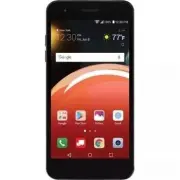


 LG A7110
User Manual
LG A7110
User Manual
 LG AX5000
User Manual
LG AX5000
User Manual
 LG C1300
User Manual
LG C1300
User Manual
 LG C1300A
User Manual
LG C1300A
User Manual
 LG C1300I
User Manual
LG C1300I
User Manual
 LG C1500
User Manual
LG C1500
User Manual
 LG C2000
User Manual
LG C2000
User Manual
 LG CB630
User Manual
LG CB630
User Manual
 LG CE500
User Manual
LG CE500
User Manual
 LG CF360
User Manual
LG CF360
User Manual
 LG CF360A
User Manual
LG CF360A
User Manual
 LG CG180
User Manual
LG CG180
User Manual
 LG CG225
User Manual
LG CG225
User Manual
 LG CG300
User Manual
LG CG300
User Manual
 LG CP150
User Manual
LG CP150
User Manual
 LG CU320
User Manual
LG CU320
User Manual
 LG CU400
User Manual
LG CU400
User Manual
 LG CU405
User Manual
LG CU405
User Manual
 LG CU500
User Manual
LG CU500
User Manual