Page 2 - All rights reserved
Copyright©2008 LG Electronics, Inc. All rights reserved . LG and the LG logo are registered trademarks of LG Groupand its related entities. All other trademarks are the propertyof their respective owners. VX8360_cover_1.0.qxd 8/12/08 9:47 AM Page 5
Page 3 - Violation of the instructions may cause serious injury or death.; Do not use a hand-held phone while driving.; Important Safety Precautions
Read these simple guidelines. Breaking the rules may be dangerousor illegal. Further detailed information is given in this user guide. Violation of the instructions may cause serious injury or death. ● Never use an unapproved battery since this coulddamage the phone and/or battery and could causethe...
Page 4 - Do not disassemble the phone.
Important Safety Precautions ● Do not expose the battery charger or adapter to directsunlight or use it in places with high humidity, such asa bathroom. ● Do not use harsh chemicals (such as alcohol,benzene, thinners, etc.) or detergents to clean yourphone. This could cause a fire. ● Do not drop, st...
Page 5 - Store the battery out of reach of children.
● Do not place or answer calls while charging thephone as it may short-circuit the phone and/or causeelectric shock or fire. ● Do not hold or let the antenna come in contact withyour body during a call. ● Make sure that no sharp-edged items, such asanimal’s teeth or nails, come into contact with the...
Page 6 - Table of Contents
Table of Contents Important Safety Precautions .1Welcome . . . . . . . . . . . . . . . . . . . .8Technical Details . . . . . . . . . . . . .9 Important Information . . . . . . . . . . . .9 Phone Overview . . . . . . . . . . . .12 Installing the Battery . . . . . . . . . . . . .14 Removing the Batter...
Page 9 - Consumer Information on SAR .109
8. USB Auto Sync . . . . . . . . . . . . . . . .86 9. Memory . . . . . . . . . . . . . . . . . . . . . .86 9.1 Save Options . . . . . . . . . . . . . . .87 9.2 Phone Memory . . . . . . . . . . . . .87 9.3 Card Memory . . . . . . . . . . . . . .88 0. Phone Info . . . . . . . . . . . . . . . . . . . ....
Page 10 - Welcome
Welcome Thank you for choosing the VX8360cellular phone designed to operatewith the latest digital mobilecommunication technology, CodeDivision Multiple Access (CDMA).Along with the many advancedfeatures of the CDMA system, suchas greatly enhanced voice clarity,this compact phone offers: ● V CAST Mu...
Page 11 - Important Information; FCC Part 15 Class B Compliance; antenna; Technical Details
Important Information This user’s guide provides importantinformation on the use andoperation of your phone. Pleaseread this guide carefully prior tousing the phone to be able to useyour phone to its greatestadvantage and to prevent anyaccidental damage or misuse. Anyunapproved changes ormodificatio...
Page 14 - Phone Overview
Phone Overview 1. Earpiece Lets you hear the caller and automated prompts. 2. Flip Use to make or answer calls. Flip open to reveal the keypad to dial a number or answeran incoming call. Close the flip to end the call. 3. Main LCD Screen Displays messages and indicator icons. 4. OK Key / Directional...
Page 15 - Battery; Rear view
VX8360 13 TIP If you hold the phone enclosing the upper edge, you may interfere with the antenna's ability to receive a clear signal which affects call quality for voice or data transfer. NOTE Antenna equipped insideyour phone. Battery Battery Cover NOTES • It’s important to fully chargethe battery ...
Page 16 - Installing the Battery; Insert the bottom of the battery into the; Removing the Battery; Remove the battery from the battery
Phone Overview Installing the Battery 1. Insert the bottom of the battery into the opening on the back of the phone. 2. Push the battery down until it clicks into place. 3. Place the battery cover over the opening on the back of the phone,then slide it upward until it clicksinto place. Removing the ...
Page 17 - Rhapsody; Web; Menus Overview
M M EDIA EDIA C C ENTER ENTER 1. Music & Tones 1. V CAST Music | Rhapsody 2. Get New Ringtones3. My Ringtones4. My Music5. My Sounds6. Sync Music 2. Picture & Video 1. V CAST Videos2. Get New Pictures3. My Pictures4. My Videos5. Take Picture6. Record Video 7. Online Album 3. Games 4. Mobile ...
Page 19 - Info
8. NAM Select 7. Call Settings 1. Answer Options2. Auto Retry3. TTY Mode4. One Touch Dial5. Voice Privacy6. DTMF Tones 8. USB Auto Sync Sync MusicSync DataAsk On Plug 9. Memory 1. Save Options2. Phone Memory3. Card Memory 0. Phone Info 1. My Number2. SW/HW Version3. Icon Glossary 4. Software Update ...
Page 20 - Charging the Battery; Plug the end of the AC adapter; Charging with USB; Battery Temperature Protection; Getting Started with Your Phone
Charging the Battery To use the charger provided with yourphone: NOTICE Please use only an approvedcharging accessory to charge yourLG phone. Improper handling of thecharging port, as well as the use ofan incompatible charger, may causedamage to your phone and void thewarranty. 1. Plug the end of th...
Page 21 - Card; Battery Charge Level
How to Install Your microSD TM Card 1. Locate the microSD TM slot on the right side of the phone and gentlyuncover the slot opening.(microSD™ slot cover staysattached to the phone so you don'tlose it). 2. Insert the microSD TM card in the correct direction until it clicks intothe slot. If you insert...
Page 22 - Turning the Phone On and Off; Redialing Calls; Screen Icons
Getting Started with Your Phone Turning the Phone On and Off Turning the Phone On 1. Install a charged battery or connect the phone to an externalpower source. 2. With the flip open, press (located above the key on the keypad) until the LCD screenlights up. Turning the Phone Off With the flip open, ...
Page 23 - Quick Access to Convenient Features
Vibrate Mode Sets the phone to vibrate instead ofring ( is displayed). To set Vibrate Mode, with the flip open,press and hold . To return to Normal Mode, press and hold . Sounds Off Quickly deactivate your phone'ssounds when you're in a placewhere phone sounds would bedisruptive.From standby mode wi...
Page 24 - Entering and Editing Information; Text Input; change text input mode.
Entering and Editing Information Text Input The following key functions areavailable to help with text entry: Left Soft Key : Press to change text input mode. Shift : Press to change capitalization (initial cap,caps lock, lowercase). Next : Press to display other matching words in thedatabase in wor...
Page 25 - Storing Basics; Add New Contact; Speed Dial; Set Speed Dial; Contacts in Your Phone’s Memory
Storing Basics 1. With the flip open, enter a number (max. 48 digits), thenpress the Left Soft Key [Save] . 2. Use the Directional Key to highlight Add New Contact / Update Existing , then press . 3. Use the Directional Key to highlight Mobile 1/ Home/ Work/ Mobile 2/ Fax , then press . 4. Enter a n...
Page 27 - Deleting
Changing Saved Information To edit any information you stored,access the Edit Contacts screen: 1. With the flip open, press the Right Soft Key [Contacts] . 2. Use the Directional Key to highlight a Contact entry, thenpress the Left Soft Key [Edit] . 3. Use the Directional Key to highlight the field ...
Page 28 - Speed Dialing
Contacts in Your Phone’s Memory 3. Press the Right Soft Key [Options] . 4. Press Erase . 5. Press Yes to confirm. Deleting a Speed Dial 1. With the flip open, press the Right Soft Key [Contacts] . 2. Use the Directional Key to highlight a Contact entry to editand press [VIEW] . 3. Select the phone n...
Page 29 - Access and Options; V CAST Music l Rhapsody; V CAST Music l; MEDIA CENTER
M ME ED DIIA A C CE EN NT TE ER R MEDIA CENTER allows you to domore than just talk on your phone.MEDIA CENTER is a technologyand service that allows you todownload and use applications onyour phone. With MEDIA CENTER,it’s quick and easy to personalizeyour phone to your lifestyle andtastes. Just down...
Page 30 - Get New Ringtones
MEDIA CENTER 1.2 Get New Ringtones Allows you to connect to MEDIACENTER and download variousringtones. 1. With the flip open, press [MENU] . 2. Use the Directional Key to scroll to MEDIA CENTER. 3. Press Music & Tones . 4. Press Get New Ringtones . 1.3 My Ringtones Allows you to select a desired...
Page 31 - Playing Your Music; Access My Music
5. Use the Directional Key to scroll to a category, then press . Playing Your Music It's easy to find and play the musicyou've stored in your phone. Access My Music 1. With the flip open, press [MENU] . 2. Use the Directional Key to scroll to MEDIA CENTER. 3. Press Music & Tones . 4. Press My Mu...
Page 32 - How to record a new sound
MEDIA CENTER 1.5 My Sounds Allows you to record a new soundor select a desired sound. How to record a new sound 1. With the flip open, press [MENU] . 2. Use the Directional Key to scroll to MEDIA CENTER. 3. Press Music & Tones . 4. Press My Sounds . 5. Press Record New and press to start recordi...
Page 33 - Download music to your PC
compatible phone, while managingyour existing PC music library all inone place. NOTE Subscribers may listen to song tracks as long as the subscription is maintained. The handset must be synced at least monthly, to renew the licenses of subscription music. Requires 1-time software download to Windows...
Page 36 - Send
MEDIA CENTER 5. Press the Left Soft Key [My Videos] . 6. Highlight the Video to delete using the Directional Key . 7. Press the Right Soft Key [Options] and press Erase . 8. Press [Yes] to erase Video. Configure Alerts for New Video Clips 1. With the flip open, press [MENU] . 2. Use the Directional ...
Page 37 - Editing a Picture
Set As Main Wallpaper/ Front Wallpaper/ Picture ID Take Picture Turns on the camera function. Get New Pictures Download various pictures. Manage My Pics Allows you to mark multiple pictures to beerased, moved or locked/unlocked. Rename Allows you to change the file name. *Lock (Unlock) Allows you to...
Page 38 - Set As Wallpaper/ File Info
MEDIA CENTER File Info Name/ Date/ Time/ Duration/ Size * This will not appear for protected content. 6. Press to play. NOTE File storage varies according to the size of each file as well as memory allocation of other applications. ● : Adjust the volume. ● Left Soft Key : Mute/ Unmute ● : Pause/ Pla...
Page 39 - My Pictures; Record Video
CAPTURE Camera/ Video 6. Take a picture by pressing [TAKE] . 7. Press the Left Soft Key [Save] . The picture is stored in My Pictures . TIP Taking pictures with the flip closed. ● Press and hold the side camerakey on the right side of the phone. ● Press the side camera key totake a picture. Or press...
Page 43 - during a message check.; New Message Alert; The phone displays a message; The Basics of Sending a Text; Soft Key; New Message; Enter the phone number of the; MESSAGING
M ME ES SS SA AG GIIN NG G SHORTCUT From standby mode, pressing the Left Soft Key is a hot key to your MESSAGING. Text messages, Picture messages,and the Voicemail box becomeavailable as soon as the phone ispowered on. ● Check types of messages bypressing the Left Soft Key [Message] . ● Make a call ...
Page 44 - Customizing the Message Using
MESSAGING 5. Press the Directional Key downward. 6. Type your message in the text field. 7. Press [SEND] . Customizing the Message Using Options ● Editing the To: field 1. With the To field highlighted, press the Right Soft Key [Add] . 2. Select the option(s) to customize. From Contacts/ Recent Call...
Page 50 - Forward; Message Icon Reference
MESSAGING Forward Forwards a received message to other destinationaddress(es). Add To Contacts Stores the callback number, email address,and numbers from the address ofthe received message into yourContacts. Extract Addresses Allows you to extract addresses. Sort By Sender/Time Allows you to sort me...
Page 52 - Add To Contacts
MESSAGING Add To Contacts Stores the callback number, email address,and numbers from the addressincluded in the message intoyour Contacts. Manage Drafts Allows you to manage (erase or lock)messages. Message Icon Reference Draft TXT Draft Multimedia Message 5. Voicemail Allows you to view the number ...
Page 53 - Messaging Settings; Message Settings Sub-Menu
7. Email Allows you to send an email viaMobile Web. 1. With the flip open, press the Left Soft Key [Message] . 2. Press Email . 3. A Mobile Web Browser session starts. 4. Highlight an email provider and press . 5. Login or enter your email address and password. 8. Chat Allows you to chat with Intern...
Page 54 - Messaging Font Size; Erasing Messages
MESSAGING 4. Messaging Font Size Allows you to set the message fontsize. Choose Normal or Large. 5. TXT Auto View (On/Off) Allows the phone to directly displaythe content when receiving amessage. 6. TXT Auto Scroll (On/Off) Allows the display to automaticallyscroll while viewing messages. 7. Multime...
Page 55 - CONTACTS; New Contact; Contact List
CONTACTS C CO ON NT TA AC CT TS S The Contacts Menu allows you tostore names, phone numbers andother information in your phone’smemory. SHORTCUT Pressing the Right Soft Key is a hot key to Contact List. 1. New Contact Allows you to add a new number toyour Contact List. NOTE Using this submenu, the n...
Page 57 - In Case of Emergency
5. In Case of Emergency (ICE) This menu allows you to storenames, phone numbers and otherinformation, which will be veryhelpful in case of emergency. Also,it allows you to add, read, edit, orerase the notes about yourself asnecessary in case an emergencytakes place. 1. With the flip open, press [MEN...
Page 58 - My Name Card
CONTACTS 6. My Name Card Allows you to view all of yourpersonal Contact informationincluding name, phone numbers,and email address in one entry. 1. With the flip open, press [MENU] . 2. Use the Directional Key to scroll to CONTACTS. 3. Press My Name Card . 4. Press [EDIT] to enter your personal Cont...
Page 59 - RECENT CALLS
R RE EC CE EN NT T C CA ALLLLS S The Recent Calls Menu is a list ofthe last phone numbers or Contactentries for calls you placed,accepted, or missed. It's continuallyupdated as new numbers areadded to the beginning of the listand the oldest entries are removedfrom the bottom of the list. 1. Missed A...
Page 63 - Train Words/ Train Digits; Prompts; Timeout; Earpiece
VX8360 61 patterns. Train Words/ Train Digits Prompts Mode/ Audio Playback/ Timeout For Mode, set Prompts/ Readout + Alerts/ Readout/ Tones Only . For Audio Playback, set Speakerphone or Earpiece . For Timeout, set 5 seconds or 10 seconds . Call Alert Ring Only/ Caller ID + Ring/ Name Repeat 2.1.1 C...
Page 64 - Ez Tip Calculator; Tools
SETTINGS & TOOLS 62 VX8360 2.1.6 My Verizon The 'My Verizon' commandprovides you with direct access toyour Verizon Wireless accountinformation. 2.1.7 Help Provides a general guideline tousing Voice Commands. 2.2 Calculator Allows you to perform simplemathematical calculations. You canenter numbe...
Page 65 - Repeat
VX8360 63 2.4 Calendar Allows you to keep your agendaconvenient and easy to access.Simply store your appointments andyour phone will alert you with areminder you set. SHORTCUT Pressing the Directional Key downward from standby mode is a hot key to Calendarby default. 1. With the flip open, press [ME...
Page 67 - Menu
VX8360 65 2.8 Notepad Allows you to add, read, edit, anderase notes to yourself. 1. With the flip open, press [MENU] . 2. Use the Directional Key to scroll to SETTINGS & TOOLS . 3. Press Tools . 4. Press Notepad . 5. Press the Left Soft Key [Add] to write a new note. 6. Press the Left Soft Key t...
Page 68 - wireless; Bluetooth
SETTINGS & TOOLS 66 VX8360 You may create and store 20pairings within the VX8360 andconnect to one device. The approximate communicationrange for Bluetooth ® wireless technology is up to 30 feet (10meters). Bluetooth ® QD ID B014194 NOTE Read the user guide of each Bluetooth ® accessory that you...
Page 70 - Turn On; Bluetooth Menu; My Device Info
SETTINGS & TOOLS 68 VX8360 ● Icon References When aBluetooth ® Wireless Connection is Searched (neither connected nor paired). ● Icon References When Successfully Connected Turn On Allows you to set the phone'sBluetooth ® power On/Off. 1. With the flip open, press [MENU] . 2. Use the Directional...
Page 71 - Discovery Mode; Supported Profiles
VX8360 69 1. With the flip open, press [MENU] . 2. Use the Directional Key to scroll to SETTINGS & TOOLS . 3. Press Bluetooth Menu . 4. Press the Right Soft Key [Options] . 5. Press My Device Info . 6. Press to clear the existing name. 7. Use the Alphanumeric Keypad to enter a new custom name. 8...
Page 72 - Auto Pair Handsfree
SETTINGS & TOOLS 70 VX8360 on the Client device. 2. Find your phone’s name from the list of available devices. 3. From the list of available services or menu, select dial-upnetworking. 4. Enter required information such as ID, password and phonenumber in the "Connect To"dialog box. 5. Pr...
Page 75 - ERI; Sounds Settings
5. Adjust the volume with the Directional Key then press to save the setting. 4.5 Service Alerts Allows you to set any of the fourAlert options to either On or Off. 1. With the flip open, press [MENU] . 2. Use the Directional Key to scroll to SETTINGS & TOOLS . 3. Press Sounds Settings . 4. Pres...
Page 78 - Main Menu Settings
SETTINGS & TOOLS 4. Press Display Themes . 5. Use the Directional Key to highlight a setting, then press . Classic/Water/Black NOTE Press the Left Soft Key [Preview] to preview the selected display theme. 5.5 Main Menu Settings Allows you to choose how the MainMenu displays for menu selection. 1...
Page 81 - Call Alert
Speakerphone / Earpiece . For Timeout, set 5 seconds or 10 seconds . Call Alert Ring Only/ Caller ID + Ring/ Name Repeat 6.4 Language Allows you to set the bilingual(English or Spanish) featureaccording to your preference. 1. With the flip open, press [MENU] . 2. Use the Directional Key to scroll to...
Page 82 - Restrictions
SETTINGS & TOOLS 6.6 Security The Security menu allows you tosecure the phone electronically. 1. With the flip open, press [MENU] . 2. Use the Directional Key to scroll to SETTINGS & TOOLS . 3. Press Phone Settings . 4. Press Security . 5. Enter the four-digit lock code. The lock code is the...
Page 83 - Phone Lock; Unlocked
9. Use the Directional Key to highlight the restrictionthen press . Location Setting Lock Setting/ Unlock Setting Calls: Incoming Calls Allow All / Contacts Only / Block All Calls: Outgoing Calls Allow All / Contacts Only / Block All Messages: IncomingMessages Allow All / Block All Messages: Outgoin...
Page 86 - TTY Full
SETTINGS & TOOLS 4. Press Auto Retry . 5. Use the Directional Key to highlight a setting, then press . Off/ Every 10 Seconds/ Every 30Seconds/ Every 60 Seconds 7.3 TTY Mode Allows you to attach a TTY deviceenabling you to communicate withparties also using a TTY device. Aphone with TTY support i...
Page 87 - TTY Off
TTY + Hear : Users who can hear but cannot talk send a textmessage and receive voice throughTTY equipment. TTY Off : Users send and receive without TTY equipment. Connecting TTY Equipment and a Terminal 1. Connect a TTY cable to TTY connection on the terminal (TTYconnection location is the sameas a ...
Page 92 - Safety; Exposure to Radio Frequency
Safety T TIIA A S Sa affe ettyy IIn nffo orrm ma attiio on n The following is the complete TIASafety Information for wirelesshandheld phones. Exposure to Radio Frequency Signal Your wireless handheld portablephone is a low power radiotransmitter and receiver. When ON,it receives and sends out RadioF...
Page 93 - Persons with pacemakers:
Tips on Efficient Operation For your phone to operate mostefficiently:Don’t touch the antennaunnecessarily when the phone is inuse. Contact with the antennaaffects call quality and may causethe phone to operate at a higherpower level than otherwise needed. Driving Check the laws and regulations onth...
Page 95 - Caution
always marked clearly. Potentialareas may include: fueling areas(such as gasoline stations); belowdeck on boats; fuel or chemicaltransfer or storage facilities;vehicles using liquefied petroleumgas (such as propane or butane);areas where the air containschemicals or particles (such asgrain, dust, or...
Page 96 - Charger and Adapter Safety
Safety ● Do not short circuit a battery orallow metallic conductiveobjects to contact batteryterminals. ● Replace the battery only withanother battery that has beenqualified with the system per thisstandard, IEEE-Std-1725-2006.Use of an unqualified batterymay present a risk of fire,explosion, leakag...
Page 97 - General Notice; Do not place items containing
performance. The battery can berecharged several hundred timesbefore replacement. ● Recharge the battery after longperiods of non-use to maximizebattery life. ● Battery life will vary due tousage patterns andenvironmental conditions. ● Use of extended backlighting,Browser, and data connectivitykits ...
Page 98 - Do not paint your phone.
Safety ● Talking on your phone for a longperiod of time may reduce callquality due to heat generatedduring use. ● When the phone is not used fora long period time, store it in asafe place with the power cordunplugged. ● Using the phone in proximity toreceiving equipment (i.e., TV orradio) may cause ...
Page 99 - or other
C Ca au uttiio on n:: A Avvo oiid d p po otte en nttiia all h he ea arriin ng g llo ossss.. Prolonged exposure to loud sounds(including music) is the mostcommon cause of preventablehearing loss. Some scientificresearch suggests that usingportable audio devices, such asportable music players and cell...
Page 100 - American Academy of Audiology; National Institutes of Health; National Institute for Occupational
Safety hear muffled speech orexperience any temporaryhearing difficulty after listeningto your portable audio device,discontinue use and consult yourdoctor. You can obtain additionalinformation on this subject from thefollowing sources: American Academy of Audiology 11730 Plaza American Drive, Suite...
Page 108 - Get to know your wireless phone
Safety interference be found to occur, theFDA will conduct testing to assessthe interference and work toresolve the problem. 12. Where can I find additionalinformation? For additional information, pleaserefer to the following resources: FDA web page on wireless phones(http://www.fda.gov/cellphones/)...
Page 110 - Use your wireless phone to help
Safety family in dangerous situations --with your phone at your side,help is only three numbers away.Dial 911 or other localemergency number in the caseof fire, traffic accident, roadhazard, or medical emergency.Remember, it’s a free call on yourwireless phone! 9. Use your wireless phone to help oth...
Page 114 - Gallaudet University, RERC
Safety American National StandardsInstitute (ANSI) C63.19 standard.When you're talking over the cellphone, it's recommended you'd turnthe BT (Bluetooth) mode off forHAC. 112 VX8360 For information about hearing aidsand digital wireless phones FCC Hearing Aid Compatibility andVolume Control http://ww...
Page 115 - Accessories; Chargers
Accessories VX8360 113 There are a variety of accessories available for your phone and three easyways to purchase them: shop online anytime at www.verizonwireless.com,call us at 1866 VZ GOT IT (894 6848) or visit one of our Verizon WirelessCommunication Stores. Chargers Car Charger Batteries Portabl...
Page 116 - LIMITED WARRANTY STATEMENT; WHAT THIS WARRANTY
LIMITED WARRANTY STATEMENT 1. WHAT THIS WARRANTY COVERS: LG offers you a limited warrantythat the enclosed subscriber unitand its enclosed accessories willbe free from defects in material andworkmanship, according to thefollowing terms and conditions: (1) The limited warranty for the product extends...
Page 118 - HOW TO GET WARRANTY
LIMITED WARRANTY STATEMENT THE DURATION OF THE EXPRESSWARRANTY HEREIN. LG SHALLNOT BE LIABLE FOR THE LOSS OFTHE USE OF THE PRODUCT,INCONVENIENCE, LOSS OR ANYOTHER DAMAGES, DIRECT ORCONSEQUENTIAL, ARISING OUTOF THE USE OF, OR INABILITY TOUSE, THIS PRODUCT OR FOR ANYBREACH OF ANY EXPRESS ORIMPLIED WAR...
Page 119 - Glossary
T Te errm miin no ollo og gyy EZ Tip Calculator Feature for easy bill calculation using the total cost, tip, and number of people as variables. Advanced Voice Recognition Feature that allows you to perform a wide range of verbal commands by training the phone to recognize your individual speech patt...
Page 121 - Index
10 Driver Safety Tips 106 A Accessories 113 Add New Device 67 Airplane Mode 77 Alarm Clock 63 Alert 72 Answer Options 83 Auto Pair Handsfree 70 Auto Retry 83 B Backlight 75 Banner 74 Battery Charge Level 19 Battery Temperature Protection 18 Bluetooth® Menu 65 C Calculator 62 Calendar 63 Call Setting...
Page 123 - MEMO
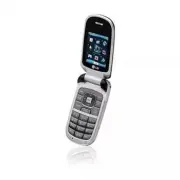


 LG A7110
User Manual
LG A7110
User Manual
 LG AX5000
User Manual
LG AX5000
User Manual
 LG C1300
User Manual
LG C1300
User Manual
 LG C1300A
User Manual
LG C1300A
User Manual
 LG C1300I
User Manual
LG C1300I
User Manual
 LG C1500
User Manual
LG C1500
User Manual
 LG C2000
User Manual
LG C2000
User Manual
 LG CB630
User Manual
LG CB630
User Manual
 LG CE500
User Manual
LG CE500
User Manual
 LG CF360
User Manual
LG CF360
User Manual
 LG CF360A
User Manual
LG CF360A
User Manual
 LG CG180
User Manual
LG CG180
User Manual
 LG CG225
User Manual
LG CG225
User Manual
 LG CG300
User Manual
LG CG300
User Manual
 LG CP150
User Manual
LG CP150
User Manual
 LG CU320
User Manual
LG CU320
User Manual
 LG CU400
User Manual
LG CU400
User Manual
 LG CU405
User Manual
LG CU405
User Manual
 LG CU500
User Manual
LG CU500
User Manual