Page 2 - A l l r i g h t s r e s e r v e d .; is a trademark of Verizon
Copyright©2010 LG Electronics, Inc. A l l r i g h t s r e s e r v e d . LG and the LG logo are registered trademarks of LG Groupand its related entities. Glance T M is a trademark of Verizon Wireless. All other trademarks are the property of theirrespective owners. VX7100_Cover_1.0_100304.qxd 3/4/10...
Page 3 - Violation of the instructions may cause serious injury or death.; Do not use a hand-held phone while driving.; Important Safety Precautions
1 Read these simple guidelines. Breaking the rules may be dangerousor illegal. Further detailed information is given in this user guide. Violation of the instructions may cause serious injury or death. ● Never use an unapproved battery since this coulddamage the phone and/or battery and could causet...
Page 4 - Do not disassemble the phone.
Important Safety Precautions 2 ● Do not expose the battery charger or adapter to directsunlight or use it in places with high humidity, such asa bathroom. ● Do not use harsh chemicals (such as alcohol,benzene, thinners, etc.) or detergents to clean yourphone. This could cause a fire. ● Do not drop, ...
Page 5 - Store the battery out of reach of children.
3 ● Do not place or answer calls while charging thephone as it may short-circuit the phone and/or causeelectric shock or fire. ● Do not hold or let the antenna come in contact withyour body during a call. ● Make sure that no sharp-edged items, such asanimal’s teeth or nails, come into contact with t...
Page 6 - Table of Contents
4 Table of Contents 4 Important Safety Precautions .1Table of Contents . . . . . . . . . . . . .4Welcome . . . . . . . . . . . . . . . . . . . .8Technical Details . . . . . . . . . . . . .9 Important Information . . . . . . . . . . . .9 Phone Overview . . . . . . . . . . . .13 Installing the Battery...
Page 9 - Consumer Information on SAR .110
7 8.3 TTY Mode . . . . . . . . . . . . . . . . .83 8.4 One Touch Dial . . . . . . . . . . . . .85 8.5 Voice Privacy . . . . . . . . . . . . . . . .85 8.6 DTMF Tones . . . . . . . . . . . . . . . .86 8.7 Assisted Dialing . . . . . . . . . . . . .86 8.8 Dial Search . . . . . . . . . . . . . . . . .86 ...
Page 10 - Welcome; Glance
8 Welcome Thank you for choosing the Glance TM cellular phone designed to operate with the latest digitalmobile communication technology,Code Division Multiple Access(CDMA). Along with the manyadvanced features of the CDMAsystem, such as greatly enhancedvoice clarity, this compact phoneoffers: ● Bui...
Page 11 - Important Information; FCC Part 15 Class B Compliance; antenna; Technical Details
9 Important Information This user’s guide provides importantinformation on the use andoperation of your phone. Pleaseread this guide carefully prior tousing the phone to be able to useyour phone to its greatestadvantage and to prevent anyaccidental damage or misuse. Anyunapproved changes ormodificat...
Page 12 - The; is an all digital phone
Technical Details Technical Details The Glance TM is an all digital phone that operates on both Code DivisionMultiple Access (CDMA)frequencies: Cellular services at 800MHz and Personal CommunicationServices (PCS) at 1.9 GHz.CDMA technology uses a featurecalled DSSS (Direct SequenceSpread Spectrum) t...
Page 14 - the equipment and receiver.
Technical Details supplied antenna. Use ofunauthorized antennas (ormodifications to the antenna) couldimpair call quality, damage thephone, void your warranty and/orviolate FCC regulations.Don't use the phone with adamaged antenna. A damagedantenna could cause a minor skinburn. Contact your local de...
Page 15 - Phone Overview
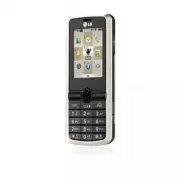
13 Phone Overview 1. Earpiece Lets you hear the caller and automated prompts. 2. LCD Screen Displays messages and indicator icons. 3. Center Select Key / Directional Key This key is a multifunctional "joystick-like" key. Use theCenter Select Key to select a field or option, by pushing in. Us...
Page 16 - Battery; Rear view
Phone Overview 14 Battery Battery Cover NOTES • It’s important to fully charge the battery before using the phone for the firsttime. • Battery life and signal strength are significant factors (among others) thataffect your phone’s ability to send/receive calls. Rear view 9. Right Soft Key Use to acc...
Page 17 - Installing the Battery; Insert the bottom of the battery into the; Removing the Battery; Remove the battery from the battery
15 Installing the Battery 1. Insert the bottom of the battery into the opening on the back of the phone. 2. Push the battery down until it clicks into place. 3. Align the the top of the battery cover with the two slots on thephone, then press down on thebottom part of the battery until itclicks. Rem...
Page 18 - Menus Overview; Contact
16 Menus Overview Contacts Contacts 1. New Contact 2. Contact List 3. Backup Assistant4. Favorites5. Groups6. Speed Dials 7. In Case of Emergency8. My Name Card Messaging Messaging 1. New Message 1. TXT Message2. Picture Message3. Voice Message 2. Inbox3. Sent4. Drafts5. Voicemail6. Mobile IM 7. Ema...
Page 19 - Announcement
17 Settings & T Settings & T ools ools 1. My Verizon2. Tools 1. Voice Commands2. Calculator3. Ez Tip Calculator4. Calendar5. To Do List6. Alarm Clock7. Info Search8. Stopwatch9. World Clock0. Notepad 3. Bluetooth Menu 1. Add New Device2. Ez Use Handsfree 4. Keyguard Settings 1. Auto Lock2. U...
Page 21 - Getting Started with Your Phone; Charging the Battery
19 Getting Started with Your Phone 19 Charging the Battery Your Glance TM device comes with a cableless travel adapter and a USBdata cable which are connectedtogether to charge your phone. Tocharge your phone: NOTICE Please use only an approvedcharging accessory to chargeyour LG phone. Improperhandl...
Page 22 - Charging with USB; Battery Temperature Protection; at the top right of the; Signal Strength; the; Turning the Phone On and Off; Turning the Phone On; Install a charged battery or
Charging with USB You can use your computer tocharge your phone. Connect oneend of the USB cable to thecharging accessory port on yourphone and the other end to a high-power USB port on your PC. NOTE Low power USB port is not supported, such as the USB port on your keyboard or bus-powered USB hub. U...
Page 23 - Turning the Phone Off; Making Calls; Correcting Dialing Mistakes; Redialing Calls; Screen Icons; MENU
21 Turning the Phone Off Unlock the screen, then press andhold until the display turns off. Making Calls 1. Make sure the phone is turned on. If not, press for about three seconds. If necessary, enter the lock code. 2. Enter the phone number. 3. Press . 4. Press to end the call. NOTE Your phone has ...
Page 24 - to answer it and put; Quick Access to Convenient Features
22 Vibrate Mode Sets the phone to vibrate instead ofring ( is displayed). To set Vibrate Mode, Press and hold . To return to Normal Mode, press and hold . Sounds Off Quickly deactivate your phone'ssounds when you're in a placewhere phone sounds would bedisruptive.From standby mode Press and holdthe ...
Page 25 - Entering and Editing Information; Text Input; change text input mode.
23 Entering and Editing Information 23 Text Input The following key functions areavailable to help with text entry: Left Soft Key : Press to change text input mode. Shift : Press to change capitalization (initial cap,caps lock, lowercase). Next : Press to change to other matching words inthe databas...
Page 26 - Storing Basics; Add New Contact; Speed Dial; SET; Contacts in Your Phone’s Memory
24 Storing Basics 1. With the Keyguard unlocked, enter a number (max. 48 digits),then press the Left Soft Key [Save] . 2. Use the Directional Key to highlight Add New Contact / Update Existing , then press . 3. Use the Directional Key to highlight Mobile 1/ Home/ Work/ Mobile 2/ Fax , then press . 4...
Page 31 - CONTACTS; Contacts
29 CONTACTS C CO ON NT TA AC CT TS S The Contacts Menu allows you tostore names, phone numbers andother information in your phone’smemory. SHORTCUT While in Standby mode,pressing the Right Soft Key is a shortcut to the CONTACT LIST 1. New Contact Allows you to add a new number toyour Contact List. N...
Page 33 - In Case of Emergency
31 31 • View a Group Use the Directional Key to highlight a group, then press . • Add a New Group Press the Left Soft Key [New] to add a new group to the list. • View the Options Available for aGroup Press the Right Soft Key [Options] to select one of the following: New TXT Message/ NewPicture Messa...
Page 35 - New Message Alert; The phone displays a message; MESSAGING
33 M ME ES SS SA AG GIIN NG G SHORTCUT When in Standby mode, pressing the LeftSoft Key is a shortcut to MESSAGING. Text messages, Picture messages,and Voicemails are available in thismenu. Depending on the type, contentand size of your messages, thephone can store up to 540messages. The information ...
Page 36 - New Message; Insert Quick Text
MESSAGING 1.1 TXT Message The Basics of Sending a TextMessage 1. With the Keyguard unlocked, press the Left Soft Key [Message] . 2. Press New Message . 3. Press TXT Message . 4. Enter the phone number of the recipient or the email address foran email message. You can enterup to 10 addresses for a si...
Page 37 - Using Contacts to Send a Message
Format Text Allows you to change the look of the text. Alignment/ Font Size/ Font Style/Text Color/ Background Priority Level Set the priority level for the message. High/ Normal Callback # Inserts a pre- programmed callback numberwith your message. On/ Off/ Edit Save Quick Text Allows you to save t...
Page 38 - Preview
MESSAGING 1.2 Picture Message The Basics of Sending a PictureMessage 1. With the Keyguard unlocked, press the Left Soft Key [Message] . 2. Press New Message . 3. Press Picture Message . 4. Enter the cellular phone number or email address of the recipient. 5. Press the Directional Key downward to edi...
Page 41 - Message Icon Reference
Reply Replies to the origination address of the received message. Reply With Copy Replies to the origination address with a copy ofthe original message attached. Forward Forwards a received message to other destinationaddress(es). Add To Contacts Stores the callback number, email address,and numbers...
Page 42 - Sent
MESSAGING 3. Sent Depending on the content and sizeof your messages, you can save upto 100 (50 SMS and 50 MMS) Sentmessages. This menu lists yourSent messages. Use it to verifywhether the transmission wassuccessful or not and viewmessage contents. 1. With the Keyguard unlocked, press the Left Soft K...
Page 43 - Drafts; Send
4. Drafts Displays draft messages. 1. With the Keyguard unlocked, press the Left Soft Key [Message] . 2. Press Drafts . 3. Options from here with a message highlighted: ● Press [EDIT] to continue editing the message. ● Press the Left Soft Key [Erase] to delete the selected Draft. ● Press the Right S...
Page 44 - Mobile IM; Mobile Email; Chat; Messaging Settings
MESSAGING 3. When prompted, enter your password, then . 6. Mobile IM Allows you to send and receiveInstant Messages at any time. 1. With the Keyguard unlocked, press the Left Soft Key [Message] . 2. Press Mobile IM . 7. Email Allows you to send an email viaMobile Web. 1. With the Keyguard unlocked, ...
Page 45 - Messaging Font Size
Message Settings Sub-MenuDescriptions 1. Messages View (By Time/ By Contact) Allows you to sort inbox and outboxdata alphabetically or by time sent. 2. Entry Mode (T9 Word/ Abc/ ABC/ 123) Allows you to select the defaultinput mode between T9 Word, Abc,ABC, or 123. 3. Auto Save Sent (On/ Off/ Prompt)...
Page 46 - Erasing Messages; press the Left Soft Key
MESSAGING #. Signature (None/ Custom) Allows you create/edit a signatureto automatically send with yourmessages. Erasing Messages You are able to erase messagesstored in your Inbox, Sent, or Draftsfolders. You can also erase allmessages at the same time. 1. With the Keyguard unlocked, press the Left...
Page 47 - RECENT CALLS; Recent Calls
45 RECENT CALLS R RE EC CE EN NT T C CA ALLLLS S The Recent Calls Menu is a list ofthe last phone numbers or Contactentries for calls you placed,accepted, or missed. It's continuallyupdated as new numbers areadded to the beginning of the listand the oldest entries are removedfrom the bottom of the l...
Page 50 - MY RINGTONES; My Ringtones
48 MY RINGTONES 48 M MY Y R RIIN NG GT TO ON NE ES S Allows you to view and listen to the Ringtone files saved on your phone. From this menu you are also able to set a Ringtone as a Contact ID and/or Alert Sounds. Please see the My Ringtones section on page 50. 1. With the Keyguard unlocked, press [...
Page 51 - Help; option to view; Access and Options; Get New Ringtones; Get New Ringtones
M ME ED DIIA A C CE EN NT TE ER R MEDIA CENTER allows you to domore than just talk with your phone.MEDIA CENTER is a technologyand service that allows you todownload and use applications onyour phone. With MEDIA CENTER,it’s quick and easy to personalizeyour phone to your lifestyle andtastes. Just do...
Page 52 - MEDIA CENTER
MEDIA CENTER 1.2 My Ringtones Allows you to view and listen to theRingtone files saved on your phone.From this menu you are also able toset a Ringtone as a Contact IDand/or Alert Sounds. 1. With the Keyguard unlocked, press [MENU] . 2. Press MEDIA CENTER. 3. Press Tunes & Tones . 4. Press My Rin...
Page 54 - Editing a Picture
MEDIA CENTER Lock (Unlock) Allows you to lock or unlock. Locked files can't beerased. File Info Name/ Date/ Time/ Resolution/ Size Editing a Picture Access My Pictures, then use theDirectional Key to highlight a picture. Press [VIEW] then press the Right Soft Key [Options] to access the Edit menu: E...
Page 58 - Download; Extras
MEDIA CENTER 5. Browse & Download Everything you need to know whileyou’re on the go. 1. With the Keyguard unlocked, press [MENU] . 2. Press MEDIA CENTER. 3. Press Browse & Download . 4. Press Get New Applications or highlight one of the pre-installedapplications and press . 6. Extras 1. With...
Page 59 - MY PICTURES; My Pictures
57 MY PICTURES M MY Y P PIIC CT TU UR RE ES S From the My Pictures gallery, you can view, manage and edit the pictures saved onto your phone. You can also take and send pictures from your friends and family or use them as Picture ID or Wallpaper images. Please see the My Pictures section on page 51....
Page 60 - VZ NAVIGATOR; Find points of interest; VZ Navigator
58 58 VZ NAVIGATOR V VZ Z N NA AV VIIG GA AT TO OR R The VZ Navigator Menu allows youto get directions to locations whenyou're out and about. Now you canfind the address of agreat restaurant or the nearestATM, Check movie times, Discoverthe latest hot spots, and knowexactly how to get where you’rego...
Page 61 - BLUETOOTH; BLLU; is compatible with; and; Bluetooth
59 BLUETOOTH 59 B BLLU UE ET TO OO OT TH H The Glance TM is compatible with devices that support the Headset,Handsfree, Phonebook Access andObject Push for vCard & vCal. You may create and store 20pairings within the Glance TM and connect to one device. The approximate communicationrange for Blu...
Page 62 - Confirm Choices
60 SETTINGS & TOOLS 60 S SE ET TT TIIN NG GS S & & T TO OO OLLS S 1. My Verizon Check your subscriptioninformation ranging from yourpayment plan to your softwareupgrade or other available service. 1. With the Keyguard unlocked, press [MENU] . 2. Press Settings & Tools . 3. Press My V...
Page 63 - Train; Digits; Prompts; Timeout; Earpiece
61 Sensitivity Control the sensitivity as More Sensitive/ Automatic/ LessSensitive . Adapt Voice If the phone often asks you to repeat voice command,train the phone to recognize yourvoice patterns. Train Words/ Train Digits Prompts Mode/ Audio Playback/ Timeout For Mode, set Prompts/ Readout + Alert...
Page 64 - Ez Tip Calculator; Tools
SETTINGS & TOOLS 62 2.1.5 Contacts <Name> You can look up names in yourContacts (for example, 'ContactsJohn') as well as manage yourContact List including call, creating,erasing or modifying. There aremore Contacts options available.Say 'Contacts' and you will beprompted for one of the fol...
Page 68 - Menu
SETTINGS & TOOLS 66 3. Bluetooth ® Menu 3.1 Add New Device Pairing is the process that allowsthe handset to locate, establish,and register 1-to-1 connection withthe target device. 3.1.1 For pairing with a new Bluetooth ® device 1. Follow the Bluetooth ® accessory instructions to set the device t...
Page 69 - Turn On; My Device Info
● Icon References When aBluetooth ® Wireless Connection is Searched (neither connected nor paired). ● Icon References WhenSuccessfully Connected Turn On Allows you to set the phone'sBluetooth ® power On/Off. 1. With the Keyguard unlocked, press [MENU] . 2. Press Settings & Tools . 3. Press Bluet...
Page 70 - Discovery Mode; Supported Profiles
SETTINGS & TOOLS 68 Discovery Mode Allows you to set whether yourdevice is able to be searched byother Bluetooth devices in the area. 1. With the Keyguard unlocked, press [MENU] . 2. Press Settings & Tools . 3. Press Bluetooth Menu . 4. Press the Right Soft Key [Options] . 5. Press Discovery...
Page 73 - Digit Dial Readout; ERI
71 The exception for this is theEmergency Tone menu. Thismenu has these options: Alert/ Vibrate/ Off 5.5 Keypad Volume Allows you to set the keypadvolume. 1. With the Keyguard unlocked, press [MENU] . 2. Press Settings & Tools . 3. Press Sounds Settings . 4. Press Keypad Volume . 5. Adjust the v...
Page 74 - Sounds Settings
SETTINGS & TOOLS 72 5.8 Power On/Off Allows you to set the phone tosound a tone when the phone ispowered on/off. 1. With the Keyguard unlocked, press [MENU] . 2. Press Settings & Tools . 3. Press Sounds Settings . 4. Press Power On/Off . 5. Select Power On/ Power Off . 6. Use the Directional...
Page 76 - My Pictures/ Fun Animations
SETTINGS & TOOLS 6.4 Brightness Allows you to set the brightnesslevels. 1. With the Keyguard unlocked, press [MENU] . 2. Press Settings & Tools . 3. Press Display Settings . 4. Press Brightness . 5. With the , set the brightness level and press [OK] . 6.5 Wallpaper Allows you to choose the k...
Page 77 - Main Menu Settings
6.7 Main Menu Settings Allows you to choose how the MainMenu displays for menu selection. 1. With the Keyguard unlocked, press [MENU] . 2. Press Settings & Tools . 3. Press Display Settings . 4. Press Main Menu Settings . 5. Use the Directional Key to highlight a setting, then press [OK] . Menu ...
Page 78 - Small; Display Settings; Phone Settings
SETTINGS & TOOLS 6. Press the Left Soft Key [Set] . 7. Use the Directional Key to highlight a setting, then press . Dial Digits: Large/ Medium/ Small Menu & Lists: Normal/ Large Message: Normal/ Large 6.0 Clock Format Allows you to choose the kind ofclock to be displayed on the LCDScreen. 1....
Page 79 - Train Words/ Train Digits
2. Press Settings & Tools . 3. Press Phone Settings . 4. Press Set Shortcuts . 5. Press Set My Shortcuts. 6. Use the Directional Key to highlight a shortcut key you wantto set. Shortcut 1/ Shortcut 2/ Shortcut3/ Shortcut 4 7. Press to display the available shortcuts. Use theDirectional Key to se...
Page 80 - CLR Key Activation
SETTINGS & TOOLS Speakerphone or Earpiece. - For Timeout: set 5 seconds or 10 seconds. CLR Key Activation If set to On, this setting allows you to activatethe Voice Commands featurewith key from Main Screen. 7.4 Language Allows you to use the bilingual(English or Spanish) featureaccording to you...
Page 82 - Restrictions; Location Setting; Phone Lock; Unlocked
SETTINGS & TOOLS 7.7.2 Restrictions Allows you to set separaterestrictions for Location Setting,Calls and Messages. 1. With the Keyguard unlocked, press [MENU] . 2. Press Settings & Tools . 3. Press Phone Settings . 4. Press Security . 5. Enter the four-digit lock code. 6. Press Restrictions...
Page 86 - TTY Mode; TTY Full
SETTINGS & TOOLS 4. Press TTY Mode . An explanation message isdisplayed. 5. Press to continue. 6. Use the Directional Key to highlight a setting, then press [OK] . TTY Full/ TTY + Talk/ TTY + Hear/TTY Off TTY Full : Users who cannot talk or hear send and receive a textmessage through TTY equipme...
Page 90 - Phone Info; Phone Info
SETTINGS & TOOLS *.1 My Number Allows you to view your phonenumber. 1. With the Keyguard unlocked, press [MENU] . 2. Press Settings & Tools . 3. Press Phone Info . 4. Press My Number . *.2 SW/HW Version Allows you to view the versions ofvarious applications such as SW,PRL, ERI, Browser, Medi...
Page 92 - Safety; Antenna Care
90 90 Safety T TIIA A S Sa affe ettyy IIn nffo orrm ma attiio on n The following is the complete TIASafety Information for wirelesshandheld phones. Exposure to Radio FrequencySignal Your wireless handheld portablephone is a low power radiotransmitter and receiver. When ON,it receives and sends out R...
Page 93 - Persons with pacemakers:
91 Tips on Efficient Operation For your phone to operate mostefficiently:Don’t touch the antennaunnecessarily when the phone is inuse. Contact with the antennaaffects call quality and may causethe phone to operate at a higherpower level than otherwise needed. Driving Check the laws and regulations o...
Page 94 - Hearing Aids
Safety 92 Hearing Aids Some digital wireless phones mayinterfere with some hearing aids. Inthe event of such interference, youmay want to consult your serviceprovider (or call the customerservice line to discuss alternatives). Other Medical Devices and HealthCare Facilities If you use any other pers...
Page 95 - Caution
93 vehicles using liquefied petroleumgas (such as propane or butane);areas where the air containschemicals or particles (such asgrain, dust, or metal powders); andany other area where you wouldnormally be advised to turn off yourvehicle engine. For Vehicles Equipped with an AirBag An air bag inflate...
Page 96 - Charger and Adapter Safety
Safety 94 ● Promptly dispose of usedbatteries in accordance withlocal regulations. ● Battery usage by children shouldbe supervised. ● Avoid dropping the phone orbattery. If the phone or battery isdropped, especially on a hardsurface, and the user suspectsdamage, take it to a servicecenter for inspec...
Page 99 - General Notice; Do not place items containing
97 Explosion, Shock, and Fire Hazards ● Do not put your phone in a placesubject to excessive dust andkeep the minimum requireddistance between the powercord and heat sources. ● Unplug the power cord prior tocleaning your phone, and cleanthe power plug pin when it’sdirty. ● When using the power plug,...
Page 100 - Do not paint your phone.
Safety 98 immediately and remove thebattery. If the phone does notwork, take it to an LG AuthorizedService Center. ● Do not paint your phone. ● The data saved in your phonemight be deleted due to carelessuse, repair of the phone, orupgrade of the software. Pleasebackup your important phonenumbers. (...
Page 101 - American Academy of Audiology; National Institutes of Health
99 portable audio device: ● Set the volume in a quietenvironment and select thelowest volume at which you canhear adequately. ● When using headphones, turnthe volume down if you cannothear the people speaking nearyou or if the person sitting nextto you can hear what you arelistening to. ● Do not tur...
Page 102 - National Institute for Occupational
Safety 100 National Institute for Occupational Safety and Health Hubert H. Humphrey Bldg. 200 Independence Ave., SW Washington, DC 20201 Voice: 1-800-35-NIOSH (1-800-356- 4674) Internet: http://www.cdc.gov/niosh/topics/no ise/default.html FFD DA A C Co on nssu um me err U Up pd da atte e The U.S. Fo...
Page 110 - Get to know your wireless phone
Safety 108 1100 D Drriivve err S Sa affe ettyy T Tiip pss Your wireless phone gives you thepowerful ability to communicate byvoice almost anywhere, anytime.An important responsibilityaccompanies the benefits ofwireless phones, one that everyuser must uphold.When operating a car, driving isyour first...
Page 112 - Your
Safety 110 urgent enough to merit a call foremergency services. But youcan still use your wirelessphone to lend a hand. If you seea broken-down vehicle posingno serious hazard, a brokentraffic signal, a minor trafficaccident where no one appearsinjured or a vehicle you know tobe stolen, call roadsid...
Page 116 - Gallaudet University, RERC
Safety Safety and UT marks are referenced inSection 20.19 of the FCC Rules. TheHAC rating and measurementprocedure are described in theAmerican National StandardsInstitute (ANSI) C63.19 standard. 114 For information about hearing aidsand digital wireless phones FCC Hearing Aid Compatibility andVolum...
Page 117 - Accessories; Batteries
115 Accessories 115 There are a variety of accessories available for your phone and three easyways to purchase them: shop online anytime at www.verizonwireless.com,call us at 1866 VZ GOT IT (894 6848) or visit one of our Verizon WirelessCommunication Stores. Batteries USB Cable Holster Cableless Wal...
Page 118 - LIMITED WARRANTY STATEMENT
116 116 LIMITED WARRANTY STATEMENT 1. WHAT THIS WARRANTYCOVERS: LG offers you a limited warrantythat the enclosed subscriber unitand its enclosed accessories willbe free from defects in material andworkmanship, according to thefollowing terms and conditions: (1) The limited warranty for the product ...
Page 121 - Glossary
119 T Te errm miin no ollo og gyy EZ Tip Calculator Feature for easy bill calculation using the total cost, tip, and number of people as variables. Advanced Voice Commands Feature that allows you to perform a wide range of verbal commands by training the phone to recognize your individual speech pat...
Page 123 - Index
1 10 Driver Safety Tips 108 A Accessories 115 Add New Device 66 Airplane Mode 76 Alarm Clock 64 Alert Sounds 70 Answer Options 83 Assisted Dialing 86 Auto Retry 83 B Backlight 73 Banner 73 Battery Charge Level 20 Battery Temperature Protection 20 Bluetooth ® Menu 66 Brightness 74 C Calculator 62 Cal...
Page 125 - MEMO
Page 128 - Precaución de Seguridad Importante
1 Lea estas sencillas instrucciones. Romper las reglas puede serpeligroso o ilegal. Se ofrece más información detallada en esta guíadel usuario. No seguir las instrucciones puede ocasionar lesiones graveso la muerte. ● No use nunca una batería no aprobada, ya que estopodría dañar el teléfono o la ba...
Page 129 - No desarme el teléfono.
Precaución de Seguridad Importante 2 ● No exponga cargador de baterías o el adaptador a laluz directa del sol, ni lo utilice en sitios con elevadahumedad, como por ejemplo el baño. ● No use sustancias químicas corrosivas (como alcohol,bencina, solventes, etc.) ni detergentes para limpiar elteléfono....
Page 131 - Contenido
4 Contenido 4 Precaución de SeguridadImportante . . . . . . . . . . . . . . . . . .1Contenido . . . . . . . . . . . . . . . . . . .4Bienvenidos . . . . . . . . . . . . . . . . .8Detalles Técnicos . . . . . . . . . . . .9 Información Importante . . . . . . . . . . .9 Descripción general delTeléfono ....
Page 133 - Información de seguridad de la TIA
6 6 Contenido 6 Desbloquear opciones . . . . . . . . . . .70 5. Programación de Sonidos . . . . . .71 5.1 Disposición fácil . . . . . . . . . . . . .71 5.2 Volumen Maestro . . . . . . . . . . . .71 5.3 Sonidos de Llamada . . . . . . . . . .71 5.3.1 Timbre de Llamada . . . . . .71 5.3.2 Vibrador de L...
Page 135 - Bienvenidos; Mobile Web
8 Bienvenidos Felicidades por elegir el avanzado ycompacto teléfono celular Glance TM , diseñado para funcionar con la másreciente tecnología decomunicaciones móviles digitales:Acceso múltiple de división decódigo (Code Division MultipleAccess, CDMA). Junto con lasmuchas funciones avanzadas delsiste...
Page 136 - Información Importante; Información para el usuario; Detalles Técnicos
9 Información Importante Esta guía del usuario ofreceinformación importante sobre el usoy funcionamiento de su teléfono. Leatoda la información cuidadosamenteantes de usar el teléfono, para tenerel mejor desempeño y para evitarcualquier daño al teléfono o su usoincorrecto. Cualquier cambio omodifica...
Page 138 - FCC Notice y Precaución
11 Información de la FCC sobreexposición a la RF ¡ADVERTENCIA! Lea estainformación antes de hacerfuncionar el teléfono. En agosto de 1996, la Comisiónfederal de comunicaciones (FCC)de los Estados Unidos, con suacción sobre el Informe y ordenFCC 96-326, adoptó un estándar deseguridad actualizado para...
Page 139 - equipo y el receptor.
Detalles Técnicos interferencia dañina y (2) estedispositivo y sus accesorios debenaceptar cualquier interferencia quereciban, incluida la interferencia quecause un funcionamiento nodeseado.Cualquier cambio o modificación noaprobado expresamente en esta guíadel usuario podría anular su garantíapara ...
Page 140 - Descripción general del Teléfono
13 Descripción general del Teléfono 1. Audífono Le permite escuchar la persona al otro lado de la línea. 2. Pantalla LCD principal Muestra los mensajes e iconos indicadores. 3. Tecla OK /Navegación Use para seleccionar distintas opciones en los menús delteléfono. Use la tecla de navegación para desp...
Page 141 - Batería; Vista posterior
Descripción general del Teléfono 14 Batería Cubierta de labatería NOTAS ● Es importante cargar completamente la batería antes de usar el teléfono por primera vez. ● La vida de la batería y la potencia de la señal son factores significativos (entreotros) que afectan la capacidad de su teléfono de hac...
Page 142 - Instalación de la batería; Introduzca la parte inferior de la; Extracción de la batería; Levante la parte superior de la
15 Instalación de la batería 1. Introduzca la parte inferior de la batería en la abertura de la parteposterior del teléfono. 2. Oprima la batería hacia abajo hasta que quede ajustada en su sitio. 3. Alinee la parte superior de la cubierta con las dos ranuras en el teléfono yoprima la parte inferior ...
Page 143 - Descripción general de los menús; Contacto
16 Descripción general de los menús Contactos Contactos 1. Nuevo Contacto 2. Lista de Contactos3. Asistente de copia de seguridad4. Favoritos5. Grupos6. Marcado Rápido 7. In Case of Emergency8. Mi Tarjeta de Nombre Mensajería Mensajería 1. Nuevo Mensaje 1. Mensaje de TXT2. Mensaje de Foto3. Mensaje ...
Page 144 - Programación de Guardia tecla
17 Pr Pr og/Her og/Her r r 1. Mi Verizon2. Herramientas 1. Comandos de Voz2. Calculadora3. Ez Sugerencia4. Calendario5. Lista de Tareas6. Reloj Despertador7. Búsqueda info8. Cronómetro9. Reloj Mundial0. Cuaderno de Notas 3. Menú de Bluetooth 1. Añadir Nuevo Aparato2. Manos Libres de Uso Fácil 4. Pro...
Page 145 - ahora; Programación de Llamada; Automáticamente
1. Editar Códigos2. Restricciones3. Bloqueo de teléfono4. Bloquear teléfono ahora 5. Restablecer a Implícito6. Restaurar teléfono 8. Selección de Sistema9. Seleccionar NAM 8. Programación de Llamada 1. Opciones de Resquesta2. Reintentar Automáticamente 3. Modo TTY4. Marcado oprimiendo un botón 5. Pr...
Page 146 - Para hacer funcionar su teléfono por primera vez; Carga de la batería; Su teléfono Glance; viene con un; Conecte el adaptador de viaje y el; Carga con USB
19 Para hacer funcionar su teléfono por primera vez 19 Carga de la batería Su teléfono Glance TM viene con un adaptador de viaje y un cable dedatos USB que se conectan parapoder cargar su teléfono. Para cargarel teléfono: AVISO Use únicamente un accesoriode carga aprobado para cargarsu teléfono LG. ...
Page 147 - Encender el teléfono; Para hacer llamadas
Protección de la temperaturade la batería En el extremamente raro caso quese sobrecaliente el teléfono, seapagará automáticamente. Alvolver a encender el teléfono, unmensaje emerge avisándole que elteléfono se apagó por su seguridad. Nivel de carga de la batería El nivel de carga de la batería se mu...
Page 148 - Remarcado de llamadas; Iconos de pantalla; MENÚ
21 NOTA Su teléfono tiene una función deComandos De Voz que tambiénle permite hacer llamadasdiciendo el número de teléfono,nombre o ubicación. Corrección de errores en lamarcación Oprima una vez para borrar la última cifra introducida, omantenga oprimida durante almenos 2 segundos para borrartodas l...
Page 149 - de arriba para; para responder y; Acceso rápido a funciones de conveniencia
22 Modo de vibración Ajusta el teléfono para vibrar enlugar de sonar (se muestra ). Para ajustar el Modo de vibración,mantenga oprimida . Para volver al Modalidad Normal,mantenga oprimida . Sonidos desactivados Desactive rápidamente los sonidosdel teléfono cuando usted seencuentre en un lugar en el ...
Page 150 - Introducir y editar información; Entrada de texto; introducir puntuación.
23 Introducir y editar información 23 Entrada de texto Las siguientes funciones de teclaestán disponibles para ayudar a laintroducción de texto: Tecla suave Izquierda : Toque para desplazarse yacceder a diferentesmodos de introducción detexto. Tecla Mayús : Oprima para cambiar de mayúscula/minúscula...
Page 151 - Aspectos Básicos; Nuevo; Marcación Rápida; Contactos; Contactos en la memoria de su teléfono
24 Aspectos Básicos 1. Con el teclado desbloqueado, introduzca el número de teléfono(de hasta 48 dígitos) y toque laTecla suave Izquierda [Grdr] . 2. Use la tecla direccional para desplazarse hasta Nuevo Contacto/ Actualizar Existente . 3. Use la tecla direccional para desplazarse hasta Móvil 1/ Cas...
Page 154 - Borrar
27 2. Use la tecla direccional para desplazarse hasta unaentrada. 3. Toque la Tecla suave Izquierda [Corregir] . 4. Use la tecla direccional para desplazarse hasta elnúmero de teléfono y toque laTecla suave Derecha [Opciones] . 5. Use la tecla direccional para desplazarse hasta Fijar como Predet . 6...
Page 155 - Marcado Rápido; Marcado rápido de una cifra; y luego
Marcado Rápido Le permite hacer llamadas deteléfono en sus contactos rápida yfácilmente. NOTA El número 1 de Marcado Rápidoes para Mensajes de Voz.El número 411 de MarcadoRápido es para Asistencia deDirectorio. Marcado rápido de una cifra Oprima y mantenga presionado eldígito de marcado rápido. Elte...
Page 157 - Asistente de copia de
30 Contactos 30 ● Toque la Tecla suaveIzquierda [Corregir] para editar. ● Oprima para ver los detalles de la entrada. SUGERENCIA Use el campo Ir A para acceder rápidamente auna entrada sin necesidadde desplazarse. Porejemplo, para ir a laentrada "Veterinario",ingrese la letra V . 3. Asistent...
Page 160 - Mi Tarjeta de Nombre; oprima
33 SUGERENCIA Cuando haya asignadoContactos ICE y elteléfono esté bloqueado,la Tecla suave Izquierda aparecerá como [ICE] , lo cual permitirá que se visualice lainformación deemergencia sindesbloquear el teléfono. 8. Mi Tarjeta de Nombre Le permite ver toda su informaciónde contacto personal, lo que...
Page 161 - Mensajería; Me; Alerta de nuevo mensaje; El teléfono muestra un mensaje
34 Mensajería M Me en nssa ajje erríía a ACCESO DIRECTO Desde el modo de espera, al oprimir laTecla suave Izquierda es una tecla directa a la Mensaje. Los mensajes de texto, los deimagen y el buzón de correo de vozquedan disponibles en este menú.Según el contenido y el tamaño delos mensajes, el telé...
Page 162 - Insertar Text Rápido
35 35 1.1 Mensaje de TXT Aspectos basicos de enviandoMensajes 1. Con el teclado desbloqueado, oprima la tecla suave izquierda [Mensaje] . 2. Oprima Nuevo Mensaje . 3. Oprima Mensaje de TXT . 4. Introduzca el número de teléfono del destinatario o la dirección decorreo electrónico para unmensaje de co...
Page 163 - Formato al Text; Nuevo Mensaje
Mensajería Formato al Text Le permite cambiar el aspecto del texto. Alineación/ Tamaño del Fuente/Estilo de Fuente/ Color de Text/Fondo Prioridad Da prioridad al mensaje. Alto/ Normal Dev Llmda # Introduce un número preprogramado dedevolución de llamada con sumensaje. Encendido/ Apagado/ Editar Guar...
Page 164 - Avance
37 1.2 Mensaje de Foto Aspectos básicos del envío de unMensaje de Foto 1. Con el teclado desbloqueado, oprima la tecla suave izquierda [Mensaje] . 2. Oprima Nuevo Mensaje . 3. Oprima Mensaje de Foto . 4. Introduzca el número de teléfono celular o la dirección de correoelectrónico del destinatario. 5...
Page 165 - Editar Foto
Mensajería Guardar Como Borrador Guarda el mensaje en la carpetaBorradores. Insertar Text Rápido Inserta frases predefinidas. Copiar Texto Le permite copiar texto. Pegar Le permite pegar el texto que copió por última vez en otrocampo. Añadir Dispositva Añade múltiples fotos o imágenes en elMensaje d...
Page 167 - Referencia de iconos de mensaje
Mensajería Contestar Responde a la dirección del remitente delmensaje recibido. Responder con copia Responde a la dirección de origenincluyendo el mensaje originalcon su respuesta. Adelantar Reenvía un mensaje recibido a otras direcciones dedestino. Añadir A Contactos Guarda en sus contactos el núme...
Page 168 - Enviado; Adelantar
41 3. Enviado Según el contenido y el tamaño delos mensajes, el teléfono puedeguardar hasta 100 (50 SMS y 50MMS) mensajes. Confirme latransmisión correcta, vea elcontenido, administre la lista y más. 1. Con el teclado desbloqueado, oprima la tecla suave izquierda [Mensaje] . 2. Oprima Enviado . 3. O...
Page 169 - Borradores; Enviar
Mensajería 4. Borradores Muestra los mensajes borradores. 1. Con el teclado desbloqueado, oprima la tecla suave izquierda [Mensaje] . 2. Oprima Borradores . 3. Opciones desde aquí: ● Oprima [CRRGR] para editar el mensaje. ● Toque la Tecla suaveIzquierda [Borrar] para borrar el proyectoseleccionado. ...
Page 171 - Programación de Mensajes; oprima la tecla suave izquierda; Tamaño de Fuente de Mensajeria
Mensajería Programación de Mensajes Le permite configurarconfiguracións para sus mensajes. 1. Con el teclado desbloqueado, oprima la tecla suave izquierda [Mensaje] . 2. Toque la Tecla suave Izquierda [Prog] . 3. Use la tecla direccional para desplazarse hasta uno delos ajustes y oprima . Descripcio...
Page 172 - Borrar Mensajes
45 9. Text Rápido Le permite mostrar, editar y agregarfrases de texto. Estas frases cortas leayudan a disminuir la entrada detexto manual en los mensajes. 0. Mensajes de Voz # Le permite introducir manualmenteel número de acceso del serviciode correo de voz. Este número sólodebería usarse cuando la ...
Page 175 - Recientes; Use la tecla direccional
Llamas. recientes 48 5. Ver Cronómetro Le permite ver la duración de lasllamadas seleccionadas. 1. Con el teclado desbloqueado, oprima [MENÚ] . 2. Oprima Llamas. Recientes . 3. Oprima Ver Cronómetro . 4. Use la tecla direccional para resaltar una lista dellamadas. Última Llamada/ Todas lasLlamadas/ ...
Page 176 - Miiss T; Mis Timbres
49 Mis Timbres 49 M Miiss T Tiim mb brre ess Le permite ver y escuchar los archivos de Timbres guardados en el teléfono. Desde este menú también se puede establecer un Timbre como un Identificador de Contacto y / o sonidos de alerta. Consulte la sección Mis Timbres en la página 51. 1. Con el teclado...
Page 177 - Centro de Medios; para vista la información; Obtén Nuevos Timbres
50 50 50 Centro de Medios 50 C Ce en nttrro o d de e M Me ed diio oss Centro de Medios le permite usarsu teléfono para más que sólohablar. Centro de Medios es unatecnología y un servicio que lepermite descargar y usaraplicaciones en su teléfono. ConCentro de Medios, es rápido y fáciladaptar su teléf...
Page 179 - Obtén Nuevas Fotos
Centro de Medios Con un archivo de sonidoresaltado, las opciones son: ● Toque la Tecla suaveIzquierda [Fij como] para fijar como: Timbre/ Contacto ID/ Sonidos deAlerta . ● Oprima [ESCU] . ● Toque la Tecla suave Derecha [Opciones] : Enviar/ Álbum En Línea/Renombrar/ Bloq (Desbloq)/Borrar/ Borrar Todo...
Page 181 - EFECTOS COLOR
Centro de Medios EFECTOS COLOR Normal/ Negativo/ Aqua/ Sepia/ Blanco yNegro MODO DE NOCHE Encendido/ Apagado FOTOMETRÍA Promedio/ Mancha/ Mancha Multiple AVANCE Vista real/ Pantalla llena 6. Tome la foto tocando [FOTO] . 7. Toque la Tecla suave Izquierda [Grdr] para guardar. La imagen se almacena en...
Page 184 - Navegar y Descargar
57 vuelve a la pantalla desde la cualinició dicha llamada. 5. Navegar y Descargar Todo lo que necesita sabermientras está en movimiento. 1. Con el teclado desbloqueado, oprima [MENÚ] . 2. Oprima Centro de Medios. 3. Oprima Navegar y Descargar 4. Oprima Obtén Nuevas Aplicacións o resaltar una de las ...
Page 185 - Miiss FFo; Mis Fotos
58 Mis Fotos 58 M Miiss FFo otto oss Mis imágenes de la galería, se puede ver, administrar y editar las fotos guardadas en su teléfono. También puede tomar y enviar fotos de tus amigos y familiares o utilizarlas como imagen o el Fondo de pantalla de imágenes. Consulte la sección Mis Fotos en la pági...
Page 186 - Puntos del hallazgo del interés
59 VZ Navigator V VZ Z N Na avviig ga atto orr El Menú Navegador le permiteobtener indicaciones a ubicacionescuando está en movimiento. Ahora puedes encontrar ladirección de un gran restaurante oel cajero automático más cercano.Ve los horarios de películas.Descubre los sitios más populares.Y conoce ...
Page 187 - Bllu; El Glance; es compatible con; y conectarse a un
60 Bluetooth 60 B Bllu ue etto oo otth h El Glance TM es compatible con aparatos que admiten los perfilesde Auricular, Manos Libres, Accesoa agenda telefónica y Push deObjeto para vCard y vCal. Puede crear y almacenar 20emparejamientos dentro delGlance TM y conectarse a un aparatos a la vez. El alca...
Page 188 - Confimar Selecciones
61 Prog/Herr P Prro og g//H He errrr 1. Mi Verizon Revise su información delsubscripción que se extiende desdesu plan del pago hasta la su mejoradel aparato o otro serviciodisponible. 1. Con el teclado desbloqueado, oprima [MENÚ] . 2. Oprima Herr . 3. Oprima Mi Verizon . ACCESO DIRECTO Desde el modo...
Page 189 - Entrenar; Avisos
62 62 62 sensibilidad como Más Sensible/ Automático/ Menos Sensible . Adaptación de voz Si el teléfono pide a menudo que usted repita elcomando de voz, entrene alteléfono para reconocer suspatrones de la voz. Entrenar Palabras/ Entrenar Dígitos Avisos Modo/ Reproducción de Audio/ Tiempo de Espera Pa...
Page 192 - Reloj Despertador; Herramientas
65 2.5 Lista de Tareas Le permite crear una lista de tareaspendientes. 1. Con el teclado desbloqueado, oprima [MENÚ] . 2. Oprima Prog/Herr . 3. Oprima Herramientas . 4. Oprima Lista de Tareas . 5. Oprima la tecla suave izquierda [Añadir] . 6. Introduzca un asunto. 7. Desplazarse a un campo del fecha...
Page 195 - agregar nuevo dispositivo; y se; Encendido; Menú de; Toque la Tecla suave Izquierda; Mi info de Dispositivo; de su teléfono cuando
Prog/Herr 68 conectado con el dispositivoBluetooth ® . También puede comprobar la conexión que tieneun icono azul en la lista. 3.1.2 Referencia de iconos para agregar nuevo dispositivo Cuando se crea la conexióninalámbrica Bluetooth ® y se encuentran dispositivos emparejados,se muestran los iconos s...
Page 196 - Modo de Descubrimiento; Perfiles Soportados; Manos Libres de Uso Fácil
69 3. Oprima Menú de Bluetooth . 4. Toque la Tecla suave Derecha [Opciones] . 5. Oprima Mi Info de Dispositivo . 6. Mantenga pulsada la tecla para borrar el nombre existente. 7. Use el teclado numérico para introducir un nuevo nombrepersonalizado. 8. Oprima para guardar y salir. Modo de Descubrimien...
Page 197 - Programación de Guardia; Desbloquear opciones
Prog/Herr 70 1. Con el teclado desbloqueado, oprima [MENÚ] . 2. Oprima Prog/Herr . 3. Oprima Menú de Bluetooth . 4. Oprima Manos Libres de Uso Fácil . 5. Coloque el manos libre o el auricular Bluetooth en modo deemparejamiento. ACCESO DIRECTO Al presionar el direccional tecla la baja desde el modo e...
Page 198 - Programación de Sonidos; Disposición fácil
71 5. Programación de Sonidos Ofrece opciones para personalizarlos sonidos del teléfono. 5.1 Disposición fácil Le permite configurar los sonidosfácilmente. 1. Con el teclado desbloqueado, oprima [MENÚ] . 2. Oprima Prog/Herr . 3. Oprima Programación de Sonidos . 4. Oprima Disposición fácil . 5.2 Volu...
Page 199 - Sonidos de Alerta
Prog/Herr 72 SUGERENCIA Para oír un tono de timbre antes de establecerlo, oprima la tecla suave izquierda [[E Essc cu u]]. 5.3.2 Vibrador de Llamada 1. Con el teclado desbloqueado, oprima [MENÚ] . 2. Oprima Prog/Herr . 3. Oprima Programación de Sonidos . 4. Oprima Sonidos de Llamada . 5. Oprima Vibr...
Page 201 - Programación de
5. Seleccione una opción de alerta. IRO Le avisa de las condiciones del servicio celular.IRO: Indicador de RoamingMejorado Sonido de Minutos Le avisa 10 segundos antes del final de cadaminuto durante una llamada. Conexión de Llamada Le avisa cuando la llamada se haconectado. Cargar Completado Le avi...
Page 202 - Programación de Pantalla; Disposición fácil
75 5.9 Claridad de Voz Le permite ajustar el teléfono paraque ajuste automaticamente elmicrófono en ambientes de muchoruido. NOTA La característica de Claridad deVoz es desactivadaautomáticamente cuando seutiliza el altavoz o el dispositivode manos libres. 1. Con el teclado desbloqueado, oprima [MEN...
Page 204 - Fondo de Pantalla; Menú Principal Fijado
77 oprima [MENÚ] . 2. Oprima Prog/Herr . 3. Oprima Programación de Pantalla . 4. Oprima Brillo . 5. Con la establezca el nivel de brillo y oprima [OK] . 6.5 Fondo de Pantalla Permite que usted elija la clase defondo que se exhibirá en elteléfono. 1. Con el teclado desbloqueado, oprima [MENÚ] . 2. Op...
Page 205 - Use la tecla direccional; Tipo de Fuente de Menú
5. Use la tecla direccional para desplazarse hasta un valor,y oprima [OK] . Diseno de menú/ Reemplazarelementos de menú/ Posicionarelementos de menú/Restablecer diseno de menú 1. Diseno de menú Tab/ Lista/ Cuadrícula 2. Reemplazar elementos demenú Seleccione el elemento quequiere reemplazar y luegop...
Page 207 - Teléfono; Establecer atajos
7. Programación de Teléfono El menú Programación de Teléfonole permite designar ajustesespecíficos de la configuración dered. 7.1 Modo Avion Si activa el modo de avión, sedesactivarán todas lascomunicaciones inalambricas. 1. Con el teclado desbloqueado, oprima [MENÚ] . 2. Oprima Prog/Herr . 3. Oprim...
Page 209 - Activación de tecla CLR
Activación de tecla CLR Si está activada, esta configuraciónpermite activar la funciónComando de voz mediante latecla desde la pantalla principal. 7.4 Idioma Le permite configurar la funciónbilingüe según su preferencia. Elijaentre English y Español. 1. Con el teclado desbloqueado, oprima [MENÚ] . 2...
Page 210 - Introduzca el código de
83 7.6 País Actual El menú País actual le permiteseleccionar su ubicación actual. 1. Con el teclado desbloqueado, oprima [MENÚ] . 2. Oprima Prog/Herr . 3. Oprima Programación de Teléfono . 4. Oprima País Actual. 5. Use la tecla direccional para desplazarse hasta un valor,y oprima [OK] . NOTA Para ga...
Page 213 - Selección de Sistema
7.7.6 Restaurar teléfono Le permite eliminar todos losdatos de usuario e informaciónde contactos que hayaingresado en la memoria delteléfono, de modo que quedecomo recién salido de fábrica. 1. Con el teclado desbloqueado, oprima [MENÚ] . 2. Oprima Prog/Herr . 3. Oprima Programación de Teléfono . 4. ...
Page 214 - Llamada; Opciones de Respuesta
87 7.9 Seleccionar NAM Le permite seleccionar el NAM(módulo de asignación de número)del teléfono si está registrado convarios proveedores de servicio. 1. Con el teclado desbloqueado, oprima [MENÚ] . 2. Oprima Prog/Herr . 3. Oprima Programación de Teléfono . 4. Oprima Seleccionar NAM . 5. Use la tecl...
Page 215 - TTY Completo
8.2 Reintentar Automáticamente Le permite fijar cuánto tiempoespera el teléfono antes deremarcar automáticamente unnúmero cuando falla una llamada. 1. Con el teclado desbloqueado, oprima [MENÚ] . 2. Oprima Prog/Herr . 3. Oprima Programación de Llamada . 4. Oprima Reintentar Automáticamente . 5. Use ...
Page 216 - Modo TTY (máquina de escribir a distancia)
89 Conexión de un equipo TTY y unterminal 1. Conecte un cable de TTY a la conexión TTY del terminal(Conexión TTY situada en elmismo sito que el conector paraaudífonos de manos libres). 2. Entre al menú del teléfono y ajuste el modo de TTY deseado. 3. Después de establecer un modo de TTY, compruebe l...
Page 218 - Marcación asistida
91 8.6 Tonos DTMF Le permite configurar los tonosDTMF. 1. Con el teclado desbloqueado, oprima [MENÚ] . 2. Oprima Prog/Herr . 3. Oprima Programación de Llamada . 4. Oprima Tonos DTMF . 5. Use la tecla direccional para desplazarse hasta un valor,y oprima [OK] . Normal/ Largo 8.7 Marcación asistida Mar...
Page 219 - Búsqueda de marcación; Configuración de joystick
8.8 Búsqueda de marcación Puede ver información decontactos en la pantalla demarcación a través del metodo deentrada de texto predictivo. 1. Con el teclado desbloqueado, oprima [MENÚ] . 2. Oprima Prog/Herr . 3. Oprima Programación de Llamada . 4. Oprima Búsqueda de marcación . 5. Use la tecla de dir...
Page 220 - Memoria; Información de Teléfono
93 0. Memoria Le permite revisar la memoriainterna de su teléfono Glance TM así como. Muestra la información de memoriaalmacenada en su teléfono. 1. Con el teclado desbloqueado, oprima [MENÚ] . 2. Oprima Prog/Herr . 3. Oprima Memoria . 4. Use la tecla direccional para seleccionar el tipo dealmacenam...
Page 223 - Seguridad; Cuidado de la antena
96 96 Seguridad IIn nffo orrm ma ac ciió ón n d de e sse eg gu urriid da ad d d de e lla a T TIIA A Lo que sigue es la Informacióncompleta de seguridad de la TIA(Asociación de la industria de lastelecomunicaciones) sobre teléfonosinalámbricos de mano. Exposición a las señales deradiofrecuencia Su te...
Page 227 - Información y cuidado de la batería
Seguridad 100 estándar. El uso de una batería ocargador no certificados puedepresentar riesgo de incendo,explosión, derrames o de otro tipo. ● No cortocircuite las baterías nipermita que objetos conductorsemetálicos toquen los terminales delas baterías. ● Sólo reemplace la batería con otraque haya s...
Page 229 - Aviso General; No pinte el teléfono.
Seguridad 102 bolsillo o bolso pueden provocar almoverse un cortocircuito en losterminales + y – de la batería (lastiras de metal de la batería). Elcortocircuito de los terminales puededañar la batería y ocasionar unaexplosión. Aviso General ● El uso de una batería dañada o elintroducir la batería e...
Page 230 - u otros
103 vibración para no molestar a otraspersonas. ● No apague o encienda el teléfonocuando se lo ponga al oído. ● Use los accesorios (especialmentelos micrófonos) con cuidado yasegúrese de que los cables estánprotegidos y no están en contactocon la antena innecesariamente. C Cu uiid da ad do o:: E Evv...
Page 231 - su oído pueda ser afectado.
Seguridad 104 su oído pueda ser afectado. ● Evite el uso de audífonos despuésde la exposición a ruidosextremadamente altos, comoconciertos de rock, que puedancausar pérdida temporal del oído.La pérdida temporal del oídopuede causar que los volúmenespeligrosos suenen normales. ● No escuche a un volum...
Page 241 - Conozca su teléfono inalámbrico y
Seguridad 114 12. ¿Dónde puedo hallarinformación adicional? Para obtener información adicional,por favor consulte los recursossiguientes: Página Web de la FDA sobreteléfonos inalámbricos(http://www.fda.gov/cellphones/) Programa de seguridad de RF de laComisión Federal de Comunicaciones(FCC)(http://w...
Page 243 - No mantenga conversaciones
Seguridad 116 7. No mantenga conversaciones conflictivas o de gran cargaemocional que puedan distraerle.Este tipo de conversaciones debeevitarse a toda costa, ya que ledistraen e incluso le pueden poneren peligro cuando está al volante.Asegúrese de que la gente con laque está hablando sabe que estác...
Page 244 - Su
117 Las sugerencias que aparecenarriba se ofrecen comolineamientos generales. Antes dedecidir si usar su dispositivo móvilmientras opera un vehículo, serecomienda que consulte con lasleyes locales aplicables de sujurisdicción u otras normativasrespecto de dicho uso. Tales leyesu otras normativas pue...
Page 250 - Accesorios; Baterías
123 Accesorios 123 Baterías Cable del USB Hay una variedad de accesorios disponibles para su teléfono y tres sencillasformas de adquirirlos: comprar en línea en cualquier momento enwww.verizonwireless.com, llamarnos al 1866 VZ GOT IT (894 6848) o visitaruna de nuestras Tiendas Verizon Wireless Commu...
Page 251 - DECLARACIÓN DE GARANTÍA LIMITADA; LO QUE NO CUBRE ESTA
124 124 DECLARACIÓN DE GARANTÍA LIMITADA 1. LO QUE CUBRE ESTA GARANTÍA: LG le ofrece una garantía limitada deque la unidad de suscriptor adjunta ysus accesorios incluidos estaranlibres de defectos de materiales ymano de obra segun los terminos ycondiciones siguientes: (1) La garantía limitada del pr...
Page 252 - accesorios no aprobados por LG.
125 abuso, accidentes, alteraciones,instalacion incorrecta o cualquierotro acto que no searesponsabilidad de LG, incluido eldano causado por latransportacion, fusibles fundidos yderrames de alimentos o liquidos. (3) Rotura o danos a las antenas a menos que hayan sidoocasionadas directamente pordefec...
Page 253 - CÓMO OBTENER SERVICIO POR; Llame o escriba para conocer la
DECLARACIÓN DE GARANTÍA LIMITADA 126 copia de seguridad de todo dato oinformación de ese tipo antes deenviar la unidad a LG, de modo deevitar una pérdida permanente deesa información. 4. DERECHOS DE LA LEY ESTATAL: No se aplica a este producto ningunaotra garantía explícita. LA DURACIONDE CUALQUIER ...
Page 254 - Calculadora EZ Tip; Glosario
127 T Te errm miin no ollo og gíía a Calculadora EZ Tip Función para un fácil cálculo de lascuentas de restaurante usando comovariables el costo total, la propina y elnúmero de personas. Reconocimiento de voz avanzado Función que le permite efectuar unaamplia variedad de comandosverbales entrenando ...
Page 256 - SSL; ecure; ele; ty
SSL S ecure S ockets L ayer Protocol (Protocolo decapas de sockets seguros)empleada para cifrar datosque se envían por el aire. TTY T ele ty pewriter (máquina de escribir a distancia). Unamáquina de escribirelectromecánica quetransmite o recibe mensajescodificados en las señaleseléctricas. Un teléfo...
Page 257 - Índice
1 10 Consejos de Seguridad para Conductores 114 A Accesorios 123 Actualización de la FDA para los consumidores 105 Actualización de Software 94 Ajuste rápido del volumen 22 Álbum En Línea 54 Alertas de Servicio 73 Anadir Nuevo Aparato 67 Apagar/Encender 74 Asistente de Programación 95 Aviso 75 B Bor...


 LG A7110
User Manual
LG A7110
User Manual
 LG AX5000
User Manual
LG AX5000
User Manual
 LG C1300
User Manual
LG C1300
User Manual
 LG C1300A
User Manual
LG C1300A
User Manual
 LG C1300I
User Manual
LG C1300I
User Manual
 LG C1500
User Manual
LG C1500
User Manual
 LG C2000
User Manual
LG C2000
User Manual
 LG CB630
User Manual
LG CB630
User Manual
 LG CE500
User Manual
LG CE500
User Manual
 LG CF360
User Manual
LG CF360
User Manual
 LG CF360A
User Manual
LG CF360A
User Manual
 LG CG180
User Manual
LG CG180
User Manual
 LG CG225
User Manual
LG CG225
User Manual
 LG CG300
User Manual
LG CG300
User Manual
 LG CP150
User Manual
LG CP150
User Manual
 LG CU320
User Manual
LG CU320
User Manual
 LG CU400
User Manual
LG CU400
User Manual
 LG CU405
User Manual
LG CU405
User Manual
 LG CU500
User Manual
LG CU500
User Manual