Page 2 - Copyright 2006 LG Electronics, Inc.; All rights reserved; . LG and the LG logo are registered trademarks of
Copyright 2006 LG Electronics, Inc. All rights reserved . LG and the LG logo are registered trademarks of LG Group and its related entities. All other trademarks are the property of their respective owners. *VX3400-(E) .qxd 4/10/06 4:58 PM Page 2
Page 3 - Important Safety Precautions; Violation of the instructions may cause serious injury or death.; Warning
VX3400 1 Important Safety Precautions Read these simple guidelines. Breaking the rules may be dangerous or illegal. Further detailedinformation is given in this user guide. Violation of the instructions may cause serious injury or death. ● Never use an unapproved battery since this could damage the ...
Page 4 - Do not disassemble the phone.
2 VX3400 2 VX3400 Important Safety Precautions ● Do not expose the battery charger or adapter to direct sunlight or use it in places withhigh humidity, such as a bathroom. ● Do not use harsh chemicals (such as alcohol, benzene, thinners, etc.) or detergents toclean your phone. This could cause a fir...
Page 5 - Store the battery out of reach of children.
VX3400 3 ● Do not place or answer calls while charging the phone as it may short-circuit the phoneand/or cause electric shock or fire. ● Do not hold or let the antenna come in contact with your body during a call. ● Make sure that no sharp-edged items such as animal’s teeth or nails, come into conta...
Page 6 - Table of Contents
4 VX3400 4 VX3400 Table of Contents Welcome . . . . . . . . . . . . . . . . . . . . . . . . 7 Important Information . . . . . . . . . . . . .7 FCC RF Exposure Information . . . . . . 9 Phone Overview . . . . . . . . . . . . . . . . .10 Menus Overview . . . . . . . . . . . . . . . . 12 Getting Starte...
Page 9 - Welcome; Melody Composer capability.; Important Information; FCC Part 15 Class B Compliance
VX3400 7 Welcome Congratulations for choosing the advanced andcompact VX3400 cellular phone designed to operatewith the latest digital mobile communicationtechnology, Code Division Multiple Access (CDMA)and Advanced Mobile Phone Service (AMPS).Along with the many advanced features of theCDMA system,...
Page 10 - CDMA; Designator
8 VX3400 Welcome mode or singlemode phone.CDMA technology uses a feature called DSSS(Direct Sequence Spread Spectrum) that enablesthe phone to keep communication from beingcrossed and to use one frequency channel bymultiple users in the same specific area. Thisresults in a 10-fold capacity increase ...
Page 11 - FCC RF Exposure Information; Bodily Contact During Operation
VX3400 9 FCC RF Exposure Information WARNING! Read this information before operating thephone. In August 1996, the Federal CommunicationsCommission (FCC) of the United States, with itsaction in Report and Order FCC 96-326, adopted anupdated safety standard for human exposure toRadio Frequency (RF) e...
Page 12 - Phone Overview; Alphanumeric Keypad
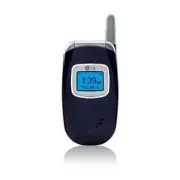
10 VX3400 Phone Overview 2. Flip 3. LCD Screen 4. Speakerphone Key 7. Side Keys 6. Left Soft Key 5. Headset Jack 10. Navigation Keys 9. Manner Mode Key 8. SEND Key 11. Right Soft Key 13. END/PWR Key 12. Message Key 14. CLR Key 15. Alphanumeric Keypad 16. Lock Mode Key 17. Microphone 1. Earpiece Outs...
Page 14 - Menus Overview
12 VX3400 Menus Overview 1. Contacts 1. List Contacts2. New Number3. New E-mail4. Groups5. Speed Dials6. Voice Dials7. My VCard 2. Recent Calls 1. Dialed Calls2. Received Calls3. Missed Calls4. Erase Calls 1. Dialed Calls2. Received Calls3. Missed Calls4. All Calls 5. Call Timer 1. Last Call2. Home ...
Page 15 - Getting Started with Your Phone; The Battery; Installing the Battery; Charging the Battery; To use the charger provided with your phone:; Battery Charge Level; LOW BATTERY
VX3400 13 Getting Started with Your Phone The Battery The phone comes with a rechargeable battery.Keep it charged even while you’re not using it soit’s ready when you need it. N N O O T T E E It’s important to fully charge the battery before using the phone for the first time. N N O O T T E E Batter...
Page 16 - Signal Strength; Turning the Phone On and Off; Turning the Phone On; Install a charged battery or connect the phone; Turning the Phone Off; until the display turns off.; Screen Icons
14 VX3400 Getting Started with Your Phone Signal Strength Call quality depends on the signal strength in yourarea. You can tell how much signal strength youhave by the number of bars next to the signalstrength icon: the more bars, the stronger thesignal. If you’re having problems with signal quality...
Page 17 - Making Calls; for about three seconds.; Correcting Dialing Mistakes; Press; Redialing Calls; twice to redial the last call.; Receiving Calls; To answer a call, open the flip or press
VX3400 15 Making Calls 1. Make sure the phone is turned on. If not, press for about three seconds. 2. Enter the phone number (if necessary, enter the lock code). 3. Press . 4. Press to end the call. Correcting Dialing Mistakes Press once to erase the last digit entered, or hold it down for at least ...
Page 18 - Quick Access to Convenient Features; Manner Mode; Mute Function
16 VX3400 Quick Access to Convenient Features Manner Mode Sets the phone to vibrate instead of ring ( is displayed). To set Manner Mode press and hold . To return to Normal Mode, press and hold . Lock Mode Sets your phone to require your 4-digit password inorder to use the phone. NOTE Until you chan...
Page 19 - To dial Speed Dials
VX3400 17 Call Waiting During a call, one beep indicates another incoming call. Check with your service provider for information about this function. Press to receive the waiting call then press again to switch between calls. Caller ID Caller ID displays the number and/or name of theperson calling w...
Page 20 - Entering and Editing Information; Text Input; Call the office
18 VX3400 Entering and Editing Information Text Input The following key functions are available to helpwith text entry: Key Functions Left Soft Key : Press to change text input mode. Shift : Press to change case (initial cap, caps lock, lowercase). Next : Press to display other matching words in the...
Page 21 - Using the NEXT Key; Good; Symbols Mode
VX3400 19 Using the NEXT Key After entering a word, if the word displayed is notthe one you want, press to display additional words from the database. 1. Press . Good is displayed. 2. Press . Additional choices are displayed such as: Home , Gone , Hood , etc. Abc (Multi-tap) Mode Type text pressing ...
Page 22 - Contacts in Your Phone’s Memory; Contacts Entries; Storing Basics
20 VX3400 20 VX3400 Contacts in Your Phone’s Memory Contacts Entries Store up to 300 entries with up to 5 phone numberseach. Storing Basics 1. Enter a number (max. 48 digits), then press Left Soft Key [Save] . 2. Use to select a Label and press . Home / Home2 / Office / Office2 / Mobile / Mobile2 / ...
Page 23 - Speed Dial; Storing a Number with Pause; Wait
VX3400 21 Memo Allows you to enter a memo for the contact (e.g.,birthday, address, etc.) up to 70 characters. Picture ID Sets a picture to display to identify the caller whenthey call your phone. Speed Dial Allows you to set up your Speed Dials. NOTE One-Touch Dial must be activated to use the Speed...
Page 24 - Adding Another Phone Number
22 VX3400 Contacts in Your Phone’s Memory 2. Use to select Wait/ 2-sec Pause, then press . 3. Enter additional number(s) (e.g., pin number, credit card number, etc.). 4. Press Left Soft Key [Save] and continue saving the Contact entry as needed. Adding Another Phone Number From Standby Mode 1. Enter...
Page 25 - Deleting; Deleting a Phone Number
VX3400 23 Changing Saved Information To change any information you stored, access theEdit Entry screen: 1. Press Right Soft Key [Contacts] . 2. Use to select an entry and press , then press Left Soft Key [Edit] . 3. Use to select the information you want to change, then press . 4. Make the changes, ...
Page 26 - Searching Your Phone’s Memory
24 VX3400 24 VX3400 Contacts in Your Phone’s Memory NOTE If you try to delete the default number, an error message will pop up. Deleting a Contact Entry 1. Select the entry from your Contacts. 2. Press Right Soft Key [Options] , then press Erase . 3. A confirmation message is displayed. Press to era...
Page 27 - Calling From Your Phone’s Memory; Speed Dialing
VX3400 25 Calling From Your Phone’s Memory Place calls quickly and easily to numbers stored inyour phone. From Contacts 1. Press Right Soft Key [Contacts] . 2. Use to highlight the Contact entry. 3. Press to place the call. NOTE When you press the Default Number is dialed. If multiple numbers are sa...
Page 28 - Menu Access; Contacts; Access and Options; Contacts
26 VX3400 26 VX3400 Contacts Menu Access Press Left Soft Key [Menu] to have access the six phone menus. There are two ways to accessmenus and submenus: ● Use the navigation key to highlight and select,or ● Press the number key that corresponds to themenu or submenu. For example: 1. Press Left Soft K...
Page 30 - Edit Group
28 VX3400 28 VX3400 Contacts 4. Groups Allows you to view your grouped Contacts, add anew group, change the name of a group, or deletea whole group. 1. Press , , . 2. Options from here: ● Use to highlight a group to view and press . ● Press Left Soft Key [Add] to add a new group to the list. ● Use t...
Page 31 - Play
VX3400 29 Contacts 6. Voice Dials Allows you to add, view, or delete Voice Dialcommands. 1. Press , , . 2. Options from here: ● Press Left Soft Key [New] to record a new Voice Dial command. Follow the phone’s prompts. ● Use to highlight a Voice Dial and press Right Soft Key [Options] to choose one o...
Page 32 - Recent Calls; indicates a dialed call.; Press Left Soft Key; Recent Calls
30 VX3400 30 VX3400 Recent Calls Recent Calls The Recent Calls Menu is a list of the last phonenumbers or Contact entries for calls you made,answered, or missed. It's continually updated withnew numbers added to the beginning of the list andthe oldest entries removed from the bottom of thelist. NOTE...
Page 34 - Messages
32 VX3400 32 VX3400 Messages 5. Call Timer Allows you to view the duration of selected calls. 1. Press , , . 2. Use to highlight a call list and press . Last Call / Home Calls / Roam Calls / All Calls 6. KB Counter Allows you to view the list of received andtransmitted data calls. 1. Press , , . 2. ...
Page 35 - New Message Alert
Messages The phone can store up to 115 messages (forexample, 50 inbox text messages, 50 outbox textmessages, 15 saved text messages). The VX3400supports up to 160 characters per messageincluding header information. The information storedin the message is determined by phone mode andservice capabilit...
Page 36 - Send
34 VX3400 34 VX3400 Messages 4. Press to open the message screen. 5. Type your message (text or e-mail) then press . 6. Press Left Soft Key [Send] . A confirmation message is displayed. Customizing the Text Message using options 1. Create a new message. 2. Press Right Soft Key [Options] . 3. Select ...
Page 37 - Insert Object
VX3400 35 Messages Text Options Allows you stylize your text message, insert QuickText, and include Objects in your messages for thatpersonalized touch. 1. Use to highlight Message then press . 2. Select text input mode by pressing Left Soft Key . T9Word / Abc / 123 / Symbols / Smiley 3. Enter your ...
Page 38 - Out of Memory Warning
36 VX3400 36 VX3400 Messages NOTE If you receive the same message twice, you'll only see the most recent one and "Duplicate" appears at the top of the message. Out of Memory Warning If the message NOT ENOUGH MEMORY! appears on your display, you've filled up your allottedmessage memory and yo...
Page 40 - to highlight a setting and press; Message Settings Sub-Menu Descriptions; Allows you to manually enter the callback number.
38 VX3400 38 VX3400 Messages 6. Msg Settings Allows you to configure nine settings for receivedmessages. 1. Press , , . 2. Use to highlight a setting and press to select it. Auto Save Auto Save / Prompt / Do Not Save Auto Delete On / Off Callback # Voice Mailbox # Signature None / Custom / My VCard ...
Page 41 - Inbox
VX3400 39 Messages 6.6 Auto View Sets the phone to automatically display thecontents of received messages instead of havingto open the message first. 6.7 Entry Mode Allows you to select the default text input method. 6.8 Quick-Text Allows you to change the pre-programmed quicktext phrases and even a...
Page 42 - Media
40 VX3400 Media Media The Media Menu allows you to download and usea wide variety of graphics, sounds, and more. Access and Options 1. Press Left Soft Key [Menu] . 2. Press Media . 3. Select a sub-menu. 1. Small Pictures 2. Large Pictures 3. My Pictures 4. Sounds 5. My Melodies 6. Animations 7. My A...
Page 44 - Allows you to manage your own animations.; Erase; to control the following options:; allows you to manage your melodies.
42 VX3400 42 VX3400 Media 7. My Animations Allows you to manage your own animations. 1. Press , , . 2. Use to highlight your selection then press . 3. Press Right Soft Key [Options] . Erase / Rename / Erase All 8. Melody Composer 1. Press , , . 8.1 Compose Melody Allows you to compose melodies in ei...
Page 45 - Tools; Tools
VX3400 43 Tools Tools Your phone tools include a Schedule, Alarm Clock,Voice Memo, My Shortcut, Notepad, EZ Tip Calc,Calculator, World Clock, and Unit Converter. Access and Options 1. Press Left Soft Key [Menu] . 2. Press Tools . 3. Select a sub-menu. 1. Schedule 2. Alarm Clock 3. Voice Memo 4. My S...
Page 46 - Alarm 1; Edit Title
44 VX3400 44 VX3400 Tools NOTE Scheduler will not alert you during a call or during SMS transmitting. It will sound the reminder after you exit a call. 2. Alarm Clock Allows you to set one of four alarms. The currenttime is displayed at the top of the screen when youselect an alarm to set. At the al...
Page 48 - Settings; Settings
46 VX3400 46 VX3400 Settings 8. World Clock Allows you to determine the current time inanother time zone or country by navigating with theleft or right navigation keys. 1. Press , , . NOTE Left Soft Key Set DST , sets the time to daylight saving time. 9. Unit Converter Allows you to measure Length, ...
Page 49 - Beep
VX3400 47 Settings 1. Sounds Options to customize the phone’s sounds. 1.1 Ringers Allows you to assign ring tones for incoming calls. 1. Press , , , . 2. Select Caller ID / No Caller ID / Restrict . 3. Use to select a ringer then press to save the sound. 1.2 Key Tone Allows you to select the Key Ton...
Page 50 - Normal
48 VX3400 48 VX3400 Settings 1.5 Service Alerts Allows you to set any of the seven Alert options toeither On or Off . 1. Press , , , . 2. Select an alert option and press . 3. Set On / Off with then press . 1. 5. 1 Service Change Alerts you when service changes. The phonedisplays Entering Service Ar...
Page 51 - Options to customize the phone’s display screen.; Main LCD; Choose a setting and press; Timer; Timer Options
VX3400 49 Settings NOTE Dual-Tone Multi Frequency (DTMF) Signaling by the simultaneous transmission of two tones, one from a group of low frequencies and another from a group of high frequencies. Each group of frequencies consists of four frequencies. Setting the Key Beep length to Long will extend ...
Page 54 - On; then press; Lock Phone; Select an option then press
52 VX3400 52 VX3400 Settings 3.3 Auto NAM Allows the phone to automatically switch betweenprogrammed telephone numbers corresponding tothe service provider area. 1. Press , , , . 2. Select On / Off then press . 3.4 Serving System Identifies the channel number of a system that isserved as an SID Numb...
Page 56 - Off
54 VX3400 54 VX3400 Settings 5. Call Setup The Call Setup Menu allows you to designate howthe phone handles both incoming and outgoingcalls. 5.1 Auto Retry Allows you to set the length of time the phonewaits before automatically redialing a number afteran attempted call fails. 1. Press , , , . 2. Se...
Page 58 - Connecting TTY Equipment and a Terminal
56 VX3400 Connecting TTY Equipment and a Terminal 1. Connect a TTY cable to TTY connection on the terminal. (TTY connection location the same as a hands free earjack) 2. Enter the phone menu and set up the desired TTY mode. (For a TTY mode, see the chart at left) 3. After setting a TTY mode, check t...
Page 59 - Voice Dial Prompt
VX3400 57 Settings 6. Standalone Mode Allows you to use certain phone functions andfeatures (but no calls or web access) in areaswhere radio transmission is restricted. 1. Press , , . 2. Read the message, then press to continue. 3. Select On / Off then press . 7. Data Settings 7.1 PC Connection Allo...
Page 60 - Location On; My Phone Number; Allows you to view your phone number.
58 VX3400 58 VX3400 Settings 9. Location Allows you to set the GPS (Global PositioningSystem: Satellite assisted location informationsystem) mode. 1. Press , , . 2. Select Location On / E911 Only then press . NOTE GPS satellite signals are not always transmitted, especially under bad atmospheric and...
Page 61 - Safety; TIA Safety Information; Exposure to Radio Frequency Signal
VX3400 59 Safety TIA Safety Information The following is the complete TIA Safety Information forwireless handheld phones. Exposure to Radio Frequency Signal Your wireless handheld portable phone is a low power radiotransmitter and receiver. When ON, it receives and sends outRadio Frequency (RF) sign...
Page 62 - Pacemakers; Vehicles
60 VX3400 Safety Electronic Devices Most modern electronic equipment is shielded from RF signals.However, certain electronic equipment may not be shieldedagainst the RF signals from your wireless phone. Pacemakers The Health Industry Manufacturers Association recommendsthat a minimum separation of f...
Page 63 - Blasting Areas; Potentially Explosive Atmosphere; For Vehicles Equipped with an Air Bag; Safety Information; Charger and Adapter Safety; Battery Information and Care; Caution
VX3400 61 Blasting Areas To avoid interfering with blasting operations, turn your phoneOFF when in a “blasting area” or in areas posted: “Turn off two-way radio”. Obey all signs and instructions. Potentially Explosive Atmosphere Turn your phone OFF when in any area with a potentiallyexplosive atmosp...
Page 64 - General Notice
62 VX3400 Safety ● Replace the battery when it no longer provides acceptableperformance. The battery can be recharged several hundredtimes before replacement. ● Recharge the battery after long periods of non-use tomaximize battery life. ● Battery life will vary due to usage patterns and environmenta...
Page 65 - Avoid damage to your hearing; FDA Consumer Update
VX3400 63 ● Do not paint your phone. ● The data saved in your phone might be deleted due tocareless use, repair of the phone, or upgrade of the software.Please backup your important phone numbers. Themanufacturer is not liable for damage due to the loss of data. ● When you use the phone in public pl...
Page 70 - 0 Driver Safety Tips
68 VX3400 68 VX3400 Safety The FDA continues to monitor the use of wireless phones forpossible interactions with other medical devices. Should harmfulinterference be found to occur, the FDA will conduct testing toassess the interference and work to resolve the problem. 12. Where can I find additiona...
Page 72 - Consumer Information on SAR
70 VX3400 70 VX3400 Safety Consumer Information on SAR (Specific Absorption Rate) This Model Phone Meets the Government’s Requirements forExposure to Radio Waves. Your wireless phone is a radiotransmitter and receiver. It is designed and manufactured not toexceed the emission limits for exposure to ...
Page 74 - FCC Hearing Aid Compatibility and Volume Control
72 VX3400 In the above example, if a hearing aid meets the M2 level rating and the wireless phone meets the M3 level rating, the sum of the two values equal M5. This should provide the hearing aid user with “normal usage” while using their hearing aid with the particular wireless phone. “Normal usag...
Page 75 - Accessories
VX3400 73 Accessories Battery Two batteries are available. The standard battery, and theextended battery. Battery Charger The battery charger allows you tocharge the battery. Vehicle Power Adapter (Portable) The vehicle power adapter allowsyou to operate the phone and tricklecharge the phone’s batte...
Page 76 - LIMITED WARRANTY STATEMENT
74 VX3400 74 VX3400 LIMITED WARRANTY STATEMENT 1. WHAT THIS WARRANTY COVERS: LG offers you a limited warranty that the enclosed subscriberunit and its enclosed accessories will be free from defects inmaterial and workmanship, according to the following terms andconditions: (1) The limited warranty f...
Page 78 - Index
76 VX3400 76 VX3400 10 Driver Safety Tips 68 A A Accessories 73Alarm Clock 44Animations 41Answer Call 54Antenna Care 59Auto Delete 38Auto NAM 52Auto Play 39Auto Retry 54Auto Save 38Auto View 39Auto Volume 55Auto Answer 54 B B Backlight 49Banner 49Battery 13 C C Calculator 45Call Setup 54Call Timer 3...
Page 80 - Glossary; Terminology; Melody composer; Acronyms and Abbreviations; DTMF
78 VX3400 Glossary Terminology Melody composer Feature that allows you to create melodies usingthe phone's keypad. EZ Tip Calc Feature for easy bill calculation using the totalcost, tip, and number of people as variables. Acronyms and Abbreviations DTMF D ual- T one M ulti F requency (or “touch- ton...


 LG A7110
User Manual
LG A7110
User Manual
 LG AX5000
User Manual
LG AX5000
User Manual
 LG C1300
User Manual
LG C1300
User Manual
 LG C1300A
User Manual
LG C1300A
User Manual
 LG C1300I
User Manual
LG C1300I
User Manual
 LG C1500
User Manual
LG C1500
User Manual
 LG C2000
User Manual
LG C2000
User Manual
 LG CB630
User Manual
LG CB630
User Manual
 LG CE500
User Manual
LG CE500
User Manual
 LG CF360
User Manual
LG CF360
User Manual
 LG CF360A
User Manual
LG CF360A
User Manual
 LG CG180
User Manual
LG CG180
User Manual
 LG CG225
User Manual
LG CG225
User Manual
 LG CG300
User Manual
LG CG300
User Manual
 LG CP150
User Manual
LG CP150
User Manual
 LG CU320
User Manual
LG CU320
User Manual
 LG CU400
User Manual
LG CU400
User Manual
 LG CU405
User Manual
LG CU405
User Manual
 LG CU500
User Manual
LG CU500
User Manual