Page 2 - All rights reserved
Copyright©2016 LG Electronics, Inc. All rights reserved . LG and the LG logo are registered trademarks of LG Corp. G3 is a trademark of LG Electronics, Inc.All other trademarks are the property of their respective owners.
Page 4 - Table of Contents
2 Important Customer Information...............................................1 Table of Contents .......................................................................2 The Basics ...................................................................................5 Phone Overview ....................
Page 7 - The Basics; Phone Overview; Front View; Proximity Sensor; Notification LED
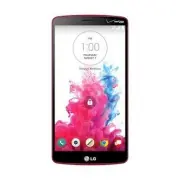
5 The Basics Phone Overview Front View Proximity Sensor QuickTap Bar Back Key Home Key Recent Apps Key Home Screen Earpiece Front Camera Notification LED NOTES s All screen shots in this guide are simulated. Actual displays may vary. s Instructions to perform tasks in this guide are based on the defa...
Page 8 - Rear View
6 The Basics 5. Back Key Tap this Touch Key (in the Touch Keys bar) to return to the previous screen or close pop-up items (such as menus, dialog boxes, and the on-screen keyboard). Touch and hold it to access the Dual window function which allows you to use two apps at the same time. 6. Home Key Ta...
Page 9 - Laser Detection Auto-focus; NFC Touch Point; LED Flash; Top and Bottom View
7 The Basics 11. Laser Detection Auto-focus Detects the distance between the rear camera lens and nearby objects using laser technology. This feature helps the camera to focus quickly and accurately at short or long distances. NOTE Don't cover the Proximity Sensor and Laser Detection Auto-focus with...
Page 10 - Microphone; Help; To access Help, from the Home screen, tap the; Setting Up Your Phone; Step 1. Remove the Back Cover
8 The Basics 18. Microphone Transmits your voice to the other caller. It's also used for voice-activated functions. 19. USB/Charger Port Allows you to connect the phone and the USB Cable for use with the Charger Adapter, or other compatible accessories. NOTE You may purchase a separate fast data cab...
Page 11 - Step 2. Insert the Battery; Charging the phone
9 The Basics Step 2. Insert the Battery Insert the battery in its compartment, making sure to align the gold contacts. Press down gently to secure the battery. Step 3. Replace the Back Cover Place the cover over the back of the phone, then press down along the edges to secure the cover. Step 4. Char...
Page 12 - Removing the Battery and SIM Card; Removing the battery; and lift the cover up gently.
10 The Basics NOTE It’s important to fully charge the battery before initial use of the phone to maximize the battery's lifetime. Removing the Battery and SIM Card Removing the battery 1. Insert your fingernail into the slot located on the lower left of the back cover and lift the cover up gently. 2....
Page 13 - Removing the SIM card; Turn the phone off, then remove the back cover and the battery (as
11 The Basics SIM card/SD card slot location SIM Slot MicroSD Slot Removing the SIM card The SIM card is pre-installed in your smartphone. If you need to replace your SIM card, refer to the following instructions. 1. Turn the phone off, then remove the back cover and the battery (as demonstrated in ...
Page 14 - Inserting and Removing a Memory Card; Inserting a microSD card; Remove the back cover (as demonstrated in the; To remove the microSD card; To unmount the microSD card; From the Home screen, touch and hold the
12 The Basics Inserting and Removing a Memory Card Inserting a microSD card 1. Remove the back cover (as demonstrated in the previous instructions) and locate the dual slot just above the upper-right corner of the battery compartment. (microSD is inscribed near the slot opening.) 2. Position the mic...
Page 15 - Charging the Phone; Charging with the USB Cable; USB Cable
13 The Basics Charging the Phone Your phone comes with a USB Cable and a Charger Adapter which connect together to charge your phone. Correctly orient the USB Cable plug before inserting it in the USB/Charger Port to avoid damaging your phone. NOTE Please only use an approved charging accessory to c...
Page 16 - Optimizing Battery Life; Tips to extend the life of your battery; To check the battery charge level; Recent Apps Key; To monitor and control what uses the battery
14 The Basics NOTE You may experience a slower charging rate when charging from your computer. Optimizing Battery Life You can extend your battery’s life between charges by turning off features that run in the background. You can also monitor how apps and system resources consume battery power. Tips...
Page 17 - Battery saver mode
15 The Basics From the Home screen, touch and hold the Recent Apps Key (in the Touch Keys bar) > Settings > About phone > Battery > Battery usage . OR From the Home screen, touch and hold the Recent Apps Key (in the Touch Keys bar) > Settings > Battery > Battery usage . The top ...
Page 18 - Turning the Phone On and Off; Turning the phone on; Power off; Turning the screen on using the Knock Code feature; Turning the screen on using the KnockON feature
16 The Basics Turning the Phone On and Off Turning the phone on Press and hold the Power/Lock Key on the back of the phone for a couple of seconds until the screen turns on. Turning the phone off 1. Press and hold the Power/Lock Key on the back of the phone until the Phone options menu appears. 2. T...
Page 19 - To unlock the phone; Press the; OR
17 The Basics Setting up the Knock Code feature 1. From the Home screen, touch and hold the Recent Apps Key (in the Touch Keys bar) > Lock screen settings . 2. Tap Select screen lock > Knock Code . 3. Tap the squares in a pattern (from 6 to 8 taps) to set your Knock Code, then tap DONE , enter...
Page 20 - From the center of the screen, swipe in any direction; Your Google Account; Setting up your Google Account
18 The Basics 2. From the center of the screen, swipe in any direction to unlock it. To use a shortcut, swipe the shortcut icon (at the bottom of the screen) in any direction. The screen will unlock and launch the app. NOTE The default Lock screen simply locks the screen to prevent unintentional act...
Page 21 - NEXT
19 The Basics 2. Enter your email and tap NEXT . NOTE If you do not already have a Google Account, tap Or create a new account and follow the on-screen prompts to create your new account. 3. Enter your password and tap NEXT . 4. Follow the rest of the instructions on the screen. Your Gmail, Google C...
Page 22 - Phone’s Status Icons; Call icons
20 The Basics Phone’s Status Icons The Status Bar appears at the top of every screen. It displays icons indicating that you’ve received notifications (on the left) and icons indicating the phone’s status (on the right), along with the current time. Notification icons Status icons If you have more noti...
Page 25 - Getting to Know the Home Screen; QuickTap bar icons; Phone
23 The Basics Getting to Know the Home Screen The Home screen is your starting point to access all of the features on your phone using simple motions on the touchscreen. It’s comprised of multiple panels (swipe horizontally to switch). You can customize all of your Home screen panels with app shortc...
Page 26 - Modifying the Touch Key bar
24 The Basics : Opens the Message+ app so you can send and view text and multimedia messages. Modifying the QuickTap bar icons You can modify the icons in the QuickTap bar to suit your needs. Rearrange : Touch and hold the icon to move, then drag it to another position in the QuickTap bar. Add : Ope...
Page 28 - Mini Panel View; Add panel
26 The Basics Pinch in on the Home screen to display the mini panel view, then tap the Home screen panel you want to access. Tap here to set the default Home screen. Tap here to add another panel. Full Screen View Mini Panel View Mini Panel View Mini panel view allows direct access to any of the Hom...
Page 29 - Using Dual View; Home screen version
27 The Basics Hiding items on the Home screen Place two fingers on the screen, then spread them apart to hide the items on your Home screen so that only your wallpaper and the Status Bar are displayed. To redisplay your normal Home screen with all of its icons and widgets, pinch in on the screen or t...
Page 30 - Touchscreen; Touch or tap; Touch and hold
28 The Basics Swipe to the right on the main panel to access a panel you can customize with call/text message shortcuts for the contacts you set and also open your call history. Tap Call logs to open the Phone app's Recent tab that lists all of your recent calls. Tap one of the 12 Contact shortcut l...
Page 31 - Drag; Touch and hold an item for a moment and then, without lifting your; Use your index finger and thumb in a pinch motion (to; Rotate the screen; From many apps and menus, the orientation of the
29 The Basics Drag Touch and hold an item for a moment and then, without lifting your finger, move your finger on the screen until you reach the target position. For example, you can drag items on the Home screen to reposition them. Swipe, slide, or flick Move your finger quickly across the surface of t...
Page 32 - Capturing the screen; The Smart screen feature
30 The Basics Rotate the phone sideways for landscape orientation. Rotate the phone upright for portrait orientation. Capturing the screen Press and hold the Volume Down Key and the Power/Lock Key on the back of the phone at the same time to capture the current image on the screen. The captured imag...
Page 33 - Text Input Methods; Modifying your LG keyboard characteristics
31 The Basics Text Input Methods The on-screen keyboard displays automatically on the screen when you need to enter text. To manually display the on-screen keyboard, simply tap a text field where you want to enter text. Touch to enter text by voice. Touch and hold for handwriting or to access the cli...
Page 35 - Text input settings; Languages; To change the default language
33 The Basics Accessing the Clip Tray and keyboard settings Touch and hold the Voice input Key then drag your finger to the Clip Tray icon or the Settings icon (in the pop-up that appears). Text input settings To change your text input settings and see the dictionary of terms you’ve used, from the Ho...
Page 36 - Hardware key control mode; To activate Hardware key control mode
34 The Basics To add additional languages for your keyboard From the Home screen, touch and hold the Recent Apps Key (in the Touch Keys bar) > Settings > Language & input . Tap the Settings icon (to the right of LG Keyboard), tap Input language and keyboard layout , then checkmark the lang...
Page 37 - Opening and Closing the Applications screen; Opening the Applications screen; Home Key; Closing the Applications screen; To manually close the Applications screen, tap the
35 The Basics Apps: How to View, Open, and Switch All of the apps on your phone, including any apps that you downloaded and installed from Play Store or other sources, are grouped together on the Applications screen, which you access from your Home screen. If you have more apps than can fit on the Ap...
Page 38 - Customizing the Applications screen
36 The Basics NOTE The Applications screen closes automatically when you tap an icon to open its app. Dragging an icon onto your Home screen also closes the Applications screen automatically. Customizing the Applications screen Your phone includes a wide variety of apps and you can download even mor...
Page 39 - Checking App information; Opening and Switching Apps
37 The Basics Rearranging the Applications screen icons You can rearrange the order of the icons on the Applications screen to provide more convenient access to the apps you use the most. 1. From the Home screen, tap the Apps icon (in the QuickTap bar), then tap the Apps tab, if necessary. 2. Tap th...
Page 40 - Opening an app; Open an app simply by tapping its icon on the screen.; Opening multiple apps; Apps; Switching between multiple apps
38 The Basics Opening an app Open an app simply by tapping its icon on the screen. TIP You can customize your Home screen with the app icons you use most often. Apps are located on the Applications screen, but you can copy any app icon to your Home screen for faster, more convenient access. No matte...
Page 41 - Applications screen; Dual view; Moving apps to other Home screen panels; Customizing an app icon on your Home screen
39 The Basics Adding items to the Home screen Customize your Home screen with the apps you use most often. Applications screen 1. From the Home screen, tap the Apps icon (in the QuickTap bar), then tap the Apps tab, if necessary. NOTE You can tap the Widgets tab (at the top of the screen) to place a...
Page 42 - OK; Changing an icon into a widget
40 The Basics Touch, hold, release, then tap an icon to edit it. Customize Icon Screen Home Screen 1. Touch and hold the icon you want to customize, then release the icon. An editing icon appears at the upper-right corner of the app icon. NOTE If an icon you placed can be resized, you'll see a blue ...
Page 43 - Drag the corners of the frame to make it larger and change it into a; Working with Menus; Options menus; Menu; Context menus
41 The Basics 2. Drag the corners of the frame to make it larger and change it into a widget. Touch, hold, and release the widget again to change the size of the widget, if necessary. You can also change it back into a normal icon by dragging the corners of the resizing frame back in. Working with M...
Page 44 - Managing Notifications; To open the Notifications panel; Touch and drag the Status Bar to the bottom of the screen.; To respond to a notification
42 The Basics Managing Notifications Notification icons report the arrival of new messages, calendar events, alarms, as well as ongoing events, such as when you’re in a call. When you receive a notification, the notification icon will be displayed in the Status Bar. You can open the Notifications panel ...
Page 45 - Clear; To close the Notifications panel; Back Key; Quick settings on the Notifications panel; Using the Quick settings icons
43 The Basics The Notifications panel will close and the app that corresponds to your selection will open. For example, new voicemail notifications dial your voicemail box and Gmail notifications open the Gmail app so you can read your new messages. To clear all notifications 1. Open the Notifications p...
Page 46 - Settings; Customizing the Quick settings bar icons; Edit
44 The Basics QSlide Apps Bar displayed or QSlide Apps Bar hidden . QuickRemote bar displayed . QuickRemote bar hidden . VoiceMate On or VoiceMate Off . Do not disturb On or Do not disturb Off . Airplane mode On or Airplane mode Off . Sound , Vibrate , or Silent . Battery saver On or Battery saver O...
Page 47 - QSlide apps on the Notifications panel; Searching Your Phone and the Web; Phone and Web search using text entry; Google
45 The Basics QSlide apps on the Notifications panel You can choose to display QSlide apps in a bar on the Notifications panel below the Quick settings bar. These icons provide a quick, convenient way to multi-task on the same screen (similar to picture-in-picture on a TV). QSlide displays a small ap...
Page 48 - Locking Your Phone
46 The Basics 2. Enter the text you’re searching for in the search box. As you type, search results from your phone, previous search terms, and web search suggestions appear. Tap an item to activate that search result. 3. Tap the Search Key on the on-screen keyboard to search for the text you entere...
Page 49 - Setting your Lock screen; Setting a Screen Lock for the First Time
47 The Basics The default Lock screen The default Lock screen is Swipe which protects against unintentional touchscreen actions. The Lock screen is activated when the screen times-out from inactivity. Press the Power/Lock Key (on the back of the phone) to illuminate the screen. The Swipe default Loc...
Page 50 - Disabling a Screen Lock
48 The Basics None: No Lock screen is enabled so the screen will never be locked from use. Swipe: A swipe motion in any direction on the touchscreen will unlock the screen. This is the default Lock screen that simply guards against unintentional actions. Knock Code : Unlocks the screen using a tappi...
Page 51 - Security lock timer
49 The Basics Changing Your Screen Lock 1. From the Home screen, touch and hold the Recent Apps Key (in the Touch Keys bar) > Lock screen settings . 2. Tap Select screen lock . 3. Confirm your unlock information (if necessary). 4. Tap the desired screen lock option. 5. You’re prompted to enter you...
Page 53 - Guest Mode; Setting up Guest mode
51 The Basics Guest Mode Use Guest mode when you let someone else use your phone. They’ll only be able to use the apps that you’ve selected. Once you set it up, you can easily put your phone in Guest mode by accessing the Lock screen and drawing the guest pattern that you set, which is different fro...
Page 54 - Customizing the Home Screen; To add an item to the Home screen; Touch and hold an empty spot on the Home screen panel where you; To move an item on the Home screen
52 The Basics Customizing the Home Screen You can personalize your Home screen by adding app icons, shortcuts, widgets, and other items to any Home screen panel. You can also change the wallpaper. To add an item to the Home screen 1. Touch and hold an empty spot on the Home screen panel where you wa...
Page 56 - Connecting to Networks and Devices; Connecting to Mobile Networks; To disable data when roaming
54 Connecting to Networks and Devices Connecting to Mobile Networks When you buy your phone and sign up for service, your phone is configured to use your provider’s mobile networks for voice calls and for transmitting data. Different locations may have different mobile networks available. Initially, ...
Page 57 - Connecting to Wi-Fi Networks; Modify network; To turn Wi-Fi on and connect to a Wi-Fi network
55 Connecting to Networks and Devices Connecting to Wi-Fi Networks Wi-Fi is a wireless networking technology that can provide Internet access at distances of up to 100 meters, depending on the Wi-Fi router and your surroundings. To use Wi-Fi on your phone, you must connect to a wireless access point...
Page 58 - To forget a Wi-Fi network; Forget network
56 Connecting to Networks and Devices To add a Wi-Fi network You can add a Wi-Fi network so the phone will remember it, along with any security credentials, and connect to it automatically when it’s in range. You can also add a Wi-Fi network manually if it doesn’t broadcast its name (SSID) or if you...
Page 59 - USB Connection; Using the Status Bar to change the connection mode setting; To enjoy SmartShare; SmartShare
57 Connecting to Networks and Devices USB Connection USB connection is a feature that allows your phone to connect to a PC using a USB Cable. Using the Status Bar to change the connection mode setting The Status Bar displays the USB connection icon, when connected via USB. When connected via USB, th...
Page 60 - Nearby devices; To set nearby devices
58 Connecting to Networks and Devices To enjoy content from nearby devices on your phone You can play content saved to nearby devices on your phone. Your nearby devices must be supported by the DLNA function. 1. To connect nearby devices to your device, tap the Nearby devices option in the Gallery a...
Page 61 - Calls; Placing and Ending Calls; To open the Phone app
59 Calls Placing and Ending Calls The Phone app allows you to dial phone numbers manually or make calls from your phone’s memory. Manually dial calls using the Dial tab. Dial from your phone’s memory using the Recent calls tab, the Contacts tab, the Favorites tab, or the Groups tab. To open the Phon...
Page 63 - To end a call; Calling numbers in your phone’s memory
61 Calls bar), then tap the Phone icon (in the QuickTap bar), or tap the Contact's name or number (at the upper-left corner of the Home screen). You can also drag the Status Bar down and tap the Call icon on the Notifications panel. You can make High Definition Voice and Video Calls with this phone wh...
Page 64 - To place a Direct dial widget on your Home screen; Answering or Rejecting Calls; To answer a call
62 Calls To place a Direct dial widget on your Home screen 1. Touch and hold an empty area on your Home screen. 2. Tap the Widgets tab (at the bottom of the screen) > Direct dial . 3. Tap the contact in your Contacts list. TIP You can change the look of each Direct dial widget for easy identificat...
Page 65 - To ignore a call and send a text message
63 Calls To ignore a call and divert it to voicemail If the screen is unlocked, simply tap the Ignore icon . If the screen is locked, swipe the Ignore icon in any direction to ignore the call. The caller is sent directly to your voicemail box to leave a message. Locked Screen Tap the Ignore with mes...
Page 66 - Working With the Recent Tab; To open the Recent tab; Viewing call entry details
64 Calls Working With the Recent Tab The Recent tab records all of the calls you’ve dialed, received, or missed. It offers a convenient way to redial a number, return a call, or add a number to your Contacts. To open the Recent tab From the Home screen, tap the Phone icon (in the QuickTap bar), then...
Page 67 - To add a number from the Recent tab to your Contacts
65 Calls Tap the Back Key (in the Touch Keys bar) to return to the Recent tab screen. To dial a number in the Recent tab From the Recent tab, tap the Call icon at the right of the call entry. From the Recent tab, tap the image to the left of the call entry to view all of the contact's numbers saved ...
Page 68 - Calling Your Contacts; To call a contact; To call a favorite contact; Contacts; Instant List; Sequence matches; Cancel
66 Calls Calling Your Contacts Instead of manually dialing phone numbers using the dialpad, you can use your Contacts list to dial quickly and easily. You can also quickly call a contact using Quick Contact or Direct dial icons that you placed on your Home screen. If you have contacts on the web, th...
Page 69 - Selecting an Instant list entry; Call Key; Options During a Call; To mute the microphone; Mute; To turn the speakerphone on or off; Speaker
67 Calls Selecting an Instant list entry Tap an entry in the Instant list to insert it on the dialpad and tap the Call Key (on the dialpad) to dial it. Options During a Call Bluetooth Button Tap here to switch between a Bluetooth device and the phone. The button is blue when the call is using a Blue...
Page 70 - Bluetooth; Managing Multiple Calls; To switch between current calls; Swap calls
68 Calls To switch between a Bluetooth headset and the phone When a Bluetooth headset is paired and connected to your phone, you can conduct calls on the headset for hands-free conversation. During a call, you can opt to use the Bluetooth headset or just the phone. When using the Bluetooth headset d...
Page 71 - Listening to Your Voicemail
69 Calls To set up a conference call Contact your wireless service provider to find out whether they support conference calls and how many participants you can include. 1. Place a call to the first participant. 2. When you’re connected, tap the Add call button on the Call screen. 3. Enter a phone numb...
Page 72 - To set up your Voicemail
70 Calls To listen to your Voicemail Open the Notifications panel and tap New voicemail . OR Tap the Voice Mail icon on the Home screen. OR From the Home screen, tap the Phone icon (in the QuickTap bar), then tap the Voicemail Key (on the dialpad). To set up your Voicemail Typically, your carrier’s v...
Page 73 - Web; Chrome; Browse web pages
71 Web Chrome The Chrome app allows you to access the Internet from your phone. Access and selections within this feature are dependent upon your service provider. For specific information on Internet access through your phone, contact your service provider. NOTES s You may incur additional charges f...
Page 74 - Browse with tabs; Create a new tab
72 Web Search within a webpage 1. While viewing the page, tap the Menu icon (at the upper-right corner of the screen), then tap Find in page . 2. Type the text you’re looking for in the find bar at the top of the screen. Matches are highlighted on the page (the current match in orange and the remaini...
Page 75 - Download files; To view downloaded files:; Chrome Settings
73 Web The New Tab page Tap an icon at the bottom of the new tab screen to help you quickly open the page that you want. Bookmarks Icons for sites that you’ve bookmarked are listed here. Tap a bookmark icon to visit the site using the new tab you created. Touch and hold a bookmark to open a Context ...
Page 76 - Communication; tab or; To open your Contacts app; From the Home screen, tap the; Contacts list
74 Communication Contacts The Contacts app allows you to store names, phone numbers, and other information in your phone’s memory. Entries are listed alphabetically. You can scroll through the list, or select the Favorites tab or Groups tab (at the top of the screen). Use the Contacts app to add, vi...
Page 79 - Adding Contacts; To add a new contact
77 Communication The Menu icon accesses the following menu options: Refresh, Delete, Share , Forward, Merge, Set as default, Export , Add to Home screen , and All calls to voice mail . Adding Contacts You can add contacts on your phone and synchronize them with the contacts in your Google™ Account, ...
Page 80 - Editing a Contacts entry; Favorites Contacts; Adding or removing contacts in your Favorites list
78 Communication 6. Personalize the contact entry. Set a ringtone to identify calls from this contact. Set the color of the notification LED (located at the upper-left corner of your phone) to identify notifications from this contact. Tap the Picture frame icon to select a picture to identify the name...
Page 82 - Communicating With Your Contacts; General communication; Quick Contact for Android
80 Communication Send as one file : This setting combines all of your contacts into one file. It allows a faster transfer, but some devices can't receive contact information sent using this option. Send separately : This setting sends each contact as a separate vCard file. It allows all devices to rece...
Page 83 - Messaging; To open the Messaging app; Using the Messaging app
81 Communication Messaging Three apps are preloaded on your phone that allow you to send messages. The Messaging app , the Message+ app , and the Hangouts app . You can set any of these as your default messaging app. To open the Messaging app From the Home screen, tap the Apps icon (in the QuickTap ...
Page 84 - To delete a message thread from the Messaging window
82 Communication Tap here to create a new message. Tap here to set Messaging as your default app. Tap an existing message thread to open it. Tap the Menu icon to access Search , Delete , and Settings . NOTE Pinch in (or spread apart) on your list of messages to resize it for easier viewing or naviga...
Page 85 - To create and send a multimedia message
83 Communication A character counter is displayed to the right of the message field to let you know how many more characters you can type and also the number of pages in the message. Contacts Icon Tap here to enter the recipient(s) by selecting from entries in your Contacts. To Box Tap here to enter ...
Page 86 - Receiving and viewing messages
84 Communication 3. Tap the text field, then enter your message. 4. Tap the Menu icon (at the upper-right corner of the screen) > Add subject to add a message subject. The subject text appears above the body text in bold letters. 5. Tap the Attachment icon to open a dialog box where you can choose...
Page 87 - Changing Messaging Settings
85 Communication activated, you’ll receive a pop-up notification on the current screen which you can use to directly reply. If the Auto-retrieve setting isn’t checkmarked, tap Download (at the bottom of the screen) to view the full message. If the message contains a media file, tap the Play button to ...
Page 88 - Email; To open the Email app
86 Communication Email The Email app allows you to read email from services other than Gmail™. The following account types are supported: Microsoft Exchange, Outlook, Yahoo! Mail, AOL Mail, Verizon, and other accounts. To open the Email app From the Home screen, tap the Apps icon (in the QuickTap ba...
Page 89 - Reading Your Email; To read an email; To add an account
87 Communication Tap the Menu icon to open the Options menu to access QSlide , Refresh , Folders , Sort by , Downloads for Wi-Fi , and Settings . Drag downward from the top of the Inbox list to refresh the list. Message search Tap the Search icon enter the text you’re looking for, then tap one of th...
Page 90 - General settings
88 Communication Changing Email Settings To change the Email settings, open the Email app, tap the Menu icon > Settings . General settings The General settings menu includes the following options: Set default account, Select download storage, Email preview, Conversation view , Split view , Load l...
Page 91 - Voicemail; To be able to use Voicemail
89 Communication Voicemail The Voicemail app allows the management of voicemail directly from the phone rather than accessing voicemail via traditional methods. Voicemail can display a list of your messages allowing you to choose which message(s) to listen to or delete, without having to dial into y...
Page 92 - Gmail; To open the Gmail app
90 Communication Gmail When you open the Gmail app, the most recent conversations are displayed at the top of your Inbox list. All of your conversations are displayed in your Inbox unless you delete, archive, or filter them. To open the Gmail app From the Home screen, tap the Apps icon (in the QuickT...
Page 95 - Reading Your Messages; Gmail Inbox header icons
93 Communication Reading Your Messages From your Gmail Inbox, tap a conversation that contains the message you want to read. The conversation opens to the first new (unread) message, or to the first starred message, if you’ve previously starred a message in the conversation. Tap the Contact's picture ...
Page 96 - Composing and Sending a Message; To compose and send a message
94 Communication To reread a message When you open a conversation, messages that you’ve already read are minimized into a tab that indicates the number of hidden messages. 1. From your Gmail Inbox, tap the conversation you want to view. 2. Tap the contact name to open that message. While reading a m...
Page 97 - Replying to or Forwarding a Message; To reply to or forward a message; Gmail account settings
95 Communication NOTE If you aren't ready to send the message, tap the Menu icon (at the upper-right corner of the screen), then tap Save draft . Replying to or Forwarding a Message Continue an email conversation by replying to a message or by forwarding it without changing the Subject text. Change ...
Page 98 - Changing specific Gmail account settings
96 Communication Swipe actions: Checkmark to archive a conversation when you swipe it. Sender image: Checkmark to display the sender’s image to beside the name in the conversation list. Reply all: Checkmark to make Reply all the default message action. Auto-fit messages: Checkmark to shrink the messa...
Page 99 - Hangouts; To Open the Hangouts app
97 Communication Signature: Sets the signature you want to include with every outgoing email from this account. Vacation responder : Sets up an automatic email to respond with when you are out of the office (or otherwise unavailable). Tap the switch to turn it on, enter the dates for the responder, a...
Page 100 - Hangouts chatting list
98 Communication Tap the name of the person in your contacts list. If your friend is not yet on Hangouts, your friend will receive an SMS inviting them to Hangouts. OR Tap the text field to enter a name, email, number, or circle. 3. Tap the message box (at the bottom of the screen), then enter your m...
Page 102 - Entertainment; Camera and Video; To open the Camera app; Getting to know the viewfinder
100 Entertainment Camera and Video You can use the Camera app to take and share pictures and videos. Your phone comes with a 13 megapixel camera that lets you capture sharp pictures and videos. It has many state-of-the-art features such as laser auto-focus, dual camera mode, still photo capture whil...
Page 103 - Taking Pictures; Camera; Interval shot; Burst shot; Capture
101 Entertainment Taking Pictures Taking pictures with your phone’s built-in camera is as simple as choosing a subject, pointing the lens, and tapping a button icon. When you take a picture, the Multi-point Auto-focus (AF) function operates automatically to allow you to see a clear image. To take a ...
Page 104 - Gesture shot; To take photos with a gesture; Record Videos
102 Entertainment Gesture shot The Gesture shot feature allows you to take a picture with a hand gesture using the front camera. To take photos with a gesture 1. Activate the front camera lens. 2. Activate a gesture shot by raising your hand, with an open palm, until the front camera detects it (a b...
Page 106 - View Your Pictures
104 Entertainment s Image size : Sets the file size of your picture. Choose from 13M 4160x3120 , W10M 4160x2340 , 9M 3120x3120 , and 3M 2048x1536 . Also sets the file size of your video. Choose from UHD 3840x2160 , FHD 1920x1080 , and HD 1280x720 . s Voice shutter : Allows you to take pictures with vo...
Page 107 - Dual Feature; To share a video
105 Entertainment Dual Feature The Dual feature allows you to take a picture or record video with the front and rear camera lens at the same time. A smaller image window overlays the main image (similar to picture-in-picture). You can resize and move the overlay image window, as well as swap the len...
Page 108 - Play a Video; Live Zoom
106 Entertainment 2. Checkmark the video(s) you want to delete, tap DELETE (at the bottom of the screen), then tap YES to confirm. Play a Video 1. From the Home screen, tap the Apps icon (in the QuickTap bar) > the Apps tab (if necessary) > Gallery . Scroll up or down to view more albums. 2. Ta...
Page 109 - Dual Play; Gallery; To open the Gallery app
107 Entertainment Dual Play Dual Play connects two devices using a wired (Slimport-HDMI) cable or a wireless connection (Miracast) allowing you to view content on a different screen. The connectable device can be a TV or a monitor supported by an HDMI cable or Miracast. Viewable content can come fro...
Page 112 - Working with photos; To view and browse photos
110 Entertainment Home screen wallpaper to assign the picture as a background image, crop the image and tap OK to assign the picture. Working with photos Use the Gallery app to view pictures that you’ve taken with the Camera app or that you’ve downloaded. To view and browse photos 1. From the Home s...
Page 113 - Play Store; To open the Play Store app; To get help with Play Store; Feedback; To open a screen with details about an app
111 Entertainment Camera Mode Icon Tap here to change to camera mode. Share Icon Tap here to share the photo using the method you select. Delete Icon Tap here to delete the photo. Menu Icon Tap here to access the Menu options. Favorites Icon Tap here to add the photo to your Favorites album. Edit Ic...
Page 114 - Downloading and Installing Apps; To download and install an app
112 Entertainment The following icons are available at the top of the App details screen: - Returns to the Play Store homepage. - Allows you to search for apps. - Adds the app to your wishlist. - Allows you to share the App details information using the available sharing choices. Downloading and Ins...
Page 115 - Music; Add music files to your phone
113 Entertainment Play Store menu options The Play Store menu icon (at the upper-left corner of the screen) accesses the Play Store Options menu. The options vary depending on the screen in which it was accessed. Options can include: Apps & Games, Entertainment, Movies & TV, Music, Books, Ne...
Page 116 - Music player icons
114 Entertainment Transfer music using Media sync (MTP) 1. Connect the phone to your PC using the USB Cable. 2. Select the Media sync (MTP) option. Your phone will appear as another hard drive on your computer. Click on the drive to view it. Copy the files from your PC to the drive folder. 3. When yo...
Page 117 - Other music player options
115 Entertainment Tap to see the current playlist. Tap to access the Music player Options menu. Tap to set the shuffle mode (toggle it on or off). Tap to set the repeat mode (on, off, or same song). Tap to manage the music volume. The pop-up window also allows you to modify all phone sounds and set t...
Page 118 - To use a song as a ringtone; Working with Playlists; To create a playlist
116 Entertainment ţ Music file copyrights may be protected by international treaties and national copyright laws. Therefore, it may be necessary to obtain permission or a license to reproduce or copy music. In some countries, national laws prohibit private copying of copyrighted material. Before down...
Page 120 - YouTubeTM; Opening YouTube and Watching Videos; To open the YouTube app
118 Entertainment YouTube™ Opening YouTube and Watching Videos You can browse, search for, view, upload, and rank YouTube videos on your phone with the YouTube app. To open the YouTube app From the Home screen, tap the Apps icon (in the QuickTap bar) > the Apps tab (if necessary) > YouTube . S...
Page 121 - Tools; Dual window; To activate the Dual window function
119 Tools Dual window The Dual window feature splits the screen to enable multi-tasking, drag and drop interaction, auto-linking and recently used apps. To activate the Dual window function 1. From the Home screen, touch and hold the Recent Apps Key (in the Touch Keys bar) > Settings > Dual wi...
Page 122 - Pen type
120 Tools Capture+ Use the Capture+ feature to capture a screen shot and use it to write a memo. To access the Capture+ feature 1. While viewing the screen you want to capture, drag the Status Bar downward, then tap the Capture+ icon . 2. Select the desired tool from the toolbar ( Pen type , Color ,...
Page 123 - Capturing a screen shot; QSlide
121 Tools Using Capture+ options The following options are available when using Capture+. Tap to save your memo. Tap to undo the most recent action. Tap to redo the most recently deleted action. Tap to insert text into your memo. Tap to crop the image of memo. Tap to select the pen type, color, and ...
Page 124 - , then tap the desired app on the; Using QSlide
122 Tools the Notifications panel, or directly from the apps that support the QSlide function. To open a QSlide window 1. Drag the Status Bar downward, tap , then tap the desired app on the QSlide apps bar. OR While using an app that supports QSlide, tap the Menu icon , then tap QSlide . Using QSlide...
Page 125 - Set up QuickRemote
123 Tools Customizing the QSlide bar icons You can set the order of the icons displayed in the QSlide bar, as well as which icons are displayed. 1. Open the Notifications panel and swipe to the left on the QSlide apps bar, then tap the Edit icon . Drag one of the icon handles at the left side of the ...
Page 126 - Using QuickRemote; QuickRemote options
124 Tools 3. Select the type and brand of device, then follow the on-screen instructions to configure the device(s). NOTE The QuickRemote operates the same way as an ordinary infrared (IR) remote control in your region or country. Be careful not to cover the infrared sensor at the top of the phone wh...
Page 127 - Calendar; Viewing Your Calendar and Events; Adding an event to your calendar
125 Tools Calendar Viewing Your Calendar and Events The Calendar app allows you to track your schedule of events (that you created or that you’ve been invited to), organized by day, week, month, year, or agenda. Tap the Calendar Menu icon to switch calendar views or access your Tasks list. When you ...
Page 128 - Calculator; To open and use the Calculator
126 Tools QSlide for the Calendar app You can view your month calendar in a QSlide window allowing you to easily check dates, obligations, etc. while using other apps at the same time. 1. Open the Calendar app. 2. Tap the Menu icon , then tap QSlide to display the month Calendar in a QSlide window. ...
Page 130 - Clock; To open the Clock app; Setting and Activating Alarms; To set an alarm
128 Tools Clock You use the Clock app to access the Alarms, Timer, World clock, and Stopwatch functions. Access these functions by tapping the tabs across the top of the screen, or swiping horizontally across the screen. To open the Clock app From the Home screen, tap the Apps icon (in the QuickTap ...
Page 132 - Setting the Timer
130 Tools When the alarm sounds Tap DISMISS or, if set, use the gesture feature of simply turning the phone over to stop the alarm. Tap SNOOZE to stop the alarm for the snooze duration you set. NOTE If Puzzle lock is set to On, using the gesture feature of turning the phone over will snooze the alar...
Page 133 - Using the Stopwatch
131 Tools Managing the World Clock Cities Tap the New City icon (at the bottom of the screen) to select another city for your list. Tap the Delete icon (at the top of the screen) to select one or more cities to delete from your list. Touch and hold an entry in the list to open a Context menu to sele...
Page 134 - Maps; To open the Maps app; Maps navigation
132 Tools Maps The Maps app allows you to find places and get directions. To open the Maps app Tap the Home Button > the Apps icon > Maps . Current Location Tap here to show your current location on the map. Maps Menu Directions Icon Tap here to get directions to a destination. Search Box Tap h...
Page 135 - Voice Command; To open the Voice Command app
133 Tools Tap to get directions to a destination. Use the starting point to insert Your location or select from recent Map history. Get directions by Car , Transit , Walking , or Bicycling . Tap the estimated time to view the directions in text format (instead of map view). Once starting and destina...
Page 136 - To open the Voice Search app; Voice Recorder; Record a Voice Memo
134 Tools Voice Search You can also use the Voice Search app to perform phone functions using your voice. To open the Voice Search app From the Home screen, tap the Apps icon (in the QuickTap bar) > the App tab (if necessary) > Google folder > Voice Search . Voice Recorder The Voice Recorde...
Page 138 - File Manager; To open the File Manager app
136 Tools Tap the Volume button to increase or decrease the volume. It also allows you to modify all phone volumes and sets allowed interruptions to your current task. Tap on the slider recording bar to listen to a specific part of the recording. Tap the Bookmark icon to mark a place within the recor...
Page 140 - To open the Settings app; Viewing Settings categories
138 Settings Settings The Settings app contains most of the tools for customizing and configuring your phone. All of the settings in the Settings app are described in this section. For settings specific to the Chrome app, see the Chrome section and for settings specific to your Google Account, see the ...
Page 141 - WIRELESS NETWORKS; Airplane mode
139 Settings WIRELESS NETWORKS The Wireless and Networks category allows you to configure and manage your device’s wireless radio communications. Airplane mode Tap the Airplane mode switch to toggle it On or Off. On disables all wireless connections. Wi-Fi Tap the Wi-Fi switch to toggle it On or Off....
Page 143 - Data usage
141 Settings Edit phone name : Changes your phone name for easy identification when pairing and connecting. Enter your new phone name, then tap SAVE . Received files : Displays a list of your Bluetooth received files. Turn on/off Audio channel mode : Allows you to use your phone as a Bluetooth speaker ...
Page 148 - DEVICE
146 Settings LG VPN : Sets your phone to use an advanced LG VPN client supporting full IP Security features and interoperability. You can add an LG VPN network or select from your list of VPN connections. NOTE Tap the Menu icon (at the upper-right corner of the screen) to access additional settings....
Page 154 - PERSONAL; Guest mode
152 Settings Tap an entry to view more information, tap Stop (or Force stop ), then OK to stop an app from running. Dual window Split view : Checkmark to automatically open the Dual window feature when you tap a link on the full screen or tap an email attachment (images only). Help : Displays help i...
Page 158 - SYSTEM; Shortcut key
156 Settings LG BACKUP LG Backup : Allows you to copy data from a previous device to a new device. You can also back up data or restore data from a previous back up. GOOGLE BACKUP Back up my data : Enable this option to automatically backup your data to Google servers. Backup account : Allows you to...
Page 163 - Safety; This product contains chemicals known to the State of; HAC
161 Safety WARNING: This product contains chemicals known to the State of California to cause cancer and birth defects or reproductive harm. Call (800) 243-0000 for more information. Wash hands after handling. HAC This phone has been tested and rated for use with hearing aids for some of the wireles...
Page 164 - Caution; (2) This device must accept any interference received, including
162 Safety Body-worn Operation This device was tested for typical body-worn operations with the back of the phone kept 0.39inches (1cm) between the user’s body and the back of the phone. To comply with FCC RF exposure requirements, a minimum separation distance of 0.39 inches (1cm) must be maintaine...
Page 166 - Your wireless phone; Are wireless phones safe?
164 Safety Consumer Information About Radio Frequency Emissions Your wireless phone , which contains a radio transmitter and receiver , emits radio frequency energy during use. The following consumer information addresses commonly asked questions about the health effects of wireless phones. Are wire...
Page 167 - Can I minimize my RF exposure?
165 Safety available for sale to the public, it must be tested by the manufacturer and certified to the FCC that it does not exceed limits established by the FCC. One of these limits is expressed as a Specific Absorption Rate, or “SAR.” SAR is a measure of the rate of absorption of RF energy in the bo...
Page 168 - Do wireless phones pose any special risks to children?; FDA Consumer magazine November-December 2000
166 Safety wireless phone manufacturer’s instructions for the safe operation of your phone. Do wireless phones pose any special risks to children? The FDA/FCC website states that “the scientific evidence does not show a danger to users of wireless communication devices, including children.” The FDA/F...
Page 169 - 83 Sparks Street Ottawa, Ontario K1R 7X9 Canada
167 Safety Independent Expert Group on Mobile Phones http://www.iegmp.org.uk Royal Society of Canada Expert Panels on Potential Health Risks of Radio Frequency Fields from Wireless Telecommunication Devices 283 Sparks Street Ottawa, Ontario K1R 7X9 Canada Telephone: (613) 991-6990 http://www.rsc.ca/...
Page 170 - Consumer Information on SAR
168 Safety Consumer Information on SAR (Specific Absorption Rate) This model phone meets the government’s requirements for exposure to radio waves. Your wireless phone is a radio transmitter and receiver. It is designed and manufactured not to exceed the emission limits for exposure to Radio Frequenc...
Page 173 - and WLAN
171 Safety (ATIS). The U and UT marks are referenced in Section 20.19 of the FCC Rules. The HAC rating and measurement procedure are described in the American National Standards Institute (ANSI) C63.19 standard. To ensure that the Hearing Aid Compatibility rating for your phone is maintained, second...
Page 174 - TIA Safety Information; Exposure to Radio Frequency Signal
172 Safety The amount of sound produced by a portable audio device varies depending on the nature of the sound, the device, the device settings and the headphones. You should follow some commonsense recommendations when using any portable audio device: s Set the volume in a quiet environment and sel...
Page 175 - Antenna Care; For your phone to operate most efficiently:
173 Safety Those guidelines are consistent with the safety standards previously set by both U.S. and international standards bodies: ANSI C95.1 (1992) * NCRP Report 86 (1986) ICNIRP (1996) * American National Standards Institute; National Council on Radiation Protection and Measurements; Internation...
Page 176 - Electronic Devices; Should not carry the phone in a breast pocket; Hearing Aids
174 Safety Electronic Devices Most modern electronic equipment is shielded from RF signals. However, certain electronic equipment may not be shielded against the RF signals from your wireless phone. Pacemakers The Health Industry Manufacturers Association recommends that a minimum separation of six ...
Page 178 - For Vehicles Equipped with an Air Bag; Safety Information; Do not disassemble or open crush, bend or deform, puncture or shred.
176 Safety For Vehicles Equipped with an Air Bag An air bag inflates with great force. DO NOT place objects, including either installed or portable wireless equipment, in the area over the air bag or in the air bag deployment area. If in-vehicle wireless equipment is improperly installed and the air ...
Page 179 - Improper battery use may result in a fire, explosion or other hazard.; Charger and Adapter Safety; The charger and adapter are intended for indoor use only.; Battery Information and Care
177 Safety s Avoid dropping the phone or battery. If the phone or battery is dropped, especially on a hard surface, and the user suspects damage, take it to a service center for inspection. s Improper battery use may result in a fire, explosion or other hazard. Charger and Adapter Safety s The charge...
Page 181 - General Notice
179 Safety s Do not place or answer calls while charging the phone as it may short-circuit the phone and/or cause electric shock or fire. Explosion, Shock, and Fire Hazards s Do not put your phone in a place subject to excessive dust and keep the minimum required distance between the power cord and h...
Page 182 - Do not paint your phone.; FDA Consumer Update; Do wireless phones pose a health hazard?
180 Safety s Do not paint your phone. s The data saved in your phone might be deleted due to careless use, repair of the phone, or upgrade of the software. Please backup your important phone numbers (Ringtones, text messages, voice messages, pictures, and videos could also be deleted.) The manufactu...
Page 183 - What is the FDA's role concerning the safety of wireless phones?
181 Safety 2. What is the FDA's role concerning the safety of wireless phones? Under the law, the FDA does not review the safety of radiation-emitting consumer products such as wireless phones before they can be sold, as it does with new drugs or medical devices. However, the agency has authority to...
Page 184 - What kinds of phones are the subject of this update?
182 Safety United States must comply with FCC safety guidelines that limit RF exposure. The FCC relies on the FDA and other health agencies for safety questions about wireless phones. The FCC also regulates the base stations that the wireless phone networks rely upon. While these base stations opera...
Page 185 - phones poses a health risk?
183 Safety pre-disposed to develop cancer in the absence of RF exposure. Other studies exposed the animals to RF for up to 22 hours per day. These conditions are not similar to the conditions under which people use wireless phones, so we do not know with certainty what the results of such studies me...
Page 186 - How can I find out how much Radio Frequency energy exposure I can
184 Safety studies are conducted to address important questions about the effects of exposure to Radio Frequency (RF) energy. The FDA has been a leading participant in the World Health Organization International Electro Magnetic Fields (EMF) Project since its inception in 1996. An influential result ...
Page 187 - What has the FDA done to measure the Radio Frequency energy
185 Safety number on your phone so you can find your phone’s RF exposure level in the online listing. 8. What has the FDA done to measure the Radio Frequency energy coming from wireless phones? The Institute of Electrical and Electronic Engineers (IEEE) is developing a technical standard for measurin...
Page 188 - What about children using wireless phones?
186 Safety concerned about the RF exposure from these products, you can use measures like those described above to reduce your RF exposure from wireless phone use. 10. What about children using wireless phones? The scientific evidence does not show a danger to users of wireless phones, including chil...
Page 189 - Where can I find additional information?; +10 Driver Safety Tips
187 Safety phones so that no interference occurs when a person uses a “compatible” phone and a “compatible” hearing aid at the same time. This standard was approved by the IEEE in 2000. The FDA continues to monitor the use of wireless phones for possible interactions with other medical devices. Shou...
Page 190 - Suspend conversations during hazardous driving conditions or
188 Safety can use the speed dial function without taking your attention off the road. 2. When available, use a hands-free device. A number of hands-free wireless phone accessories are readily available today. Whether you choose an installed mounted device for your wireless phone or a speaker phone ...
Page 191 - Cautions; The user interface of Google apps (Google Search, Google Maps,
189 Safety 8. Use your wireless phone to call for help. Your wireless phone is one of the greatest tools you can own to protect yourself and your family in dangerous situations -- with your phone at your side, help is only three numbers away. Dial 911 or other local emergency number in the case of fi...
Page 192 - DECLARATION OF CONFORMITY; LG Electronics; Exposure to radio frequency energy
190 Safety doesn't match your phone. In addition, please be aware that third party apps with programming defects may cause issues with your phone, including lock ups and resets. All of the phone's contents, including content which you create or download, will be deleted after a Factory Reset. Use yo...
Page 193 - The radio wave exposure guidelines employ a unit of measurement
191 Safety The radio wave exposure guidelines employ a unit of measurement known as the Specific Absorption Rate (SAR). Tests for SAR are conducted using standardized methods with the phone transmitting at its highest certified power level in all used frequency bands. While there may be differences be...
Page 194 - Laser Safety Statement; CDRH Compliance
192 Safety Laser Safety Statement CDRH Compliance THIS PRODUCT COMPLIES WITH APPLICABLE REQUIREMENT OF THE DHHS PERFORMANCE STANDARD FOR LASER PRODUCT, 21 CFR SUBCHAPTER J. Caution! This product employs a laser system. To ensure proper use of this product, please read this owner’s manual carefully a...
Page 195 - Specifications; DivX HD
193 Specifications DivX HD ABOUT DIVX VIDEO: DivX ® is a digital video format created by DivX, LLC, a subsidiary of Rovi Corporation. This is an official DivX Certified ® device that has passed rigorous testing to verify that it plays DivX video. Visit divx.com for more information and software tools ...
Page 196 - Trademarks
194 Specifications Trademarks s Bluetooth ® is a registered trademark of Bluetooth SIG, Inc. worldwide. s Wi-Fi ® and the Wi-Fi logo are registered trademarks of the Wi-Fi Alliance. s Google™, Google Maps™, Gmail™, YouTube™, Hangouts™ and Play Store™ are trademarks of Google, Inc.
Page 197 - FAQ
195 FAQ Please check to see if any issues you’ve encountered with your phone are described in this section, before taking the phone in for service or calling a service representative. CATEGORY SUB-CATEGORY QUESTION ANSWER Bluetooth Bluetooth Devices What are the functions available via Bluetooth? St...
Page 204 - LIMITED WARRANTY STATEMENT; Warranty Laws
202 LIMITED WARRANTY STATEMENT ARBITRATION NOTICE: THIS LIMITED WARRANTY CONTAINS AN ARBITRATION PROVISION THAT REQUIRES YOU AND LG TO RESOLVE DISPUTES BY BINDING ARBITRATION INSTEAD OF IN COURT, UNLESS YOU CHOOSE TO OPT OUT. IN ARBITRATION, CLASS ACTIONS AND JURY TRIALS ARE NOT PERMITTED. PLEASE SE...
Page 207 - DO NOT RETURN YOUR PRODUCT TO THE ABOVE ADDRESS.
205 LIMITED WARRANTY STATEMENT DO NOT RETURN YOUR PRODUCT TO THE ABOVE ADDRESS. Please call or write for the location of the LG authorized service center nearest you and for the procedures for obtaining warranty claims.
Page 208 - PROCEDURE FOR RESOLVING DISPUTES:
206 LIMITED WARRANTY STATEMENT PROCEDURE FOR RESOLVING DISPUTES: ALL DISPUTES BETWEEN YOU AND LG ARISING OUT OF OR RELATING IN ANY WAY TO THIS LIMITED WARRANTY OR THE PRODUCT SHALL BE RESOLVED EXCLUSIVELY THROUGH BINDING ARBITRATION, AND NOT IN A COURT OF GENERAL JURISDICTION. BINDING ARBITRATION ME...
Page 209 - . Send a copy of your written demand for
207 LIMITED WARRANTY STATEMENT (referred to as the “AAA Rules”) and under the procedures set forth in this section. The AAA Rules are available online at www.adr.org/consumer . Send a copy of your written demand for arbitration, as well as a copy of this provision, to the AAA in the manner described...
Page 211 - Index; Numbers
209 Index Numbers 10 Driver Safety Tips 187 A Adding Contacts 77 Answering or Rejecting Calls 62 Apps: How to View, Open, and Switch 34 Avoid potential hearing loss. 171 B Browse with tabs 72 C Calculator 126 Calendar 125 Calling Your Contacts 66 Calls 59 Camera and Video 100 Capture+ 120 Changing M...


 LG A7110
User Manual
LG A7110
User Manual
 LG AX5000
User Manual
LG AX5000
User Manual
 LG C1300
User Manual
LG C1300
User Manual
 LG C1300A
User Manual
LG C1300A
User Manual
 LG C1300I
User Manual
LG C1300I
User Manual
 LG C1500
User Manual
LG C1500
User Manual
 LG C2000
User Manual
LG C2000
User Manual
 LG CB630
User Manual
LG CB630
User Manual
 LG CE500
User Manual
LG CE500
User Manual
 LG CF360
User Manual
LG CF360
User Manual
 LG CF360A
User Manual
LG CF360A
User Manual
 LG CG180
User Manual
LG CG180
User Manual
 LG CG225
User Manual
LG CG225
User Manual
 LG CG300
User Manual
LG CG300
User Manual
 LG CP150
User Manual
LG CP150
User Manual
 LG CU320
User Manual
LG CU320
User Manual
 LG CU400
User Manual
LG CU400
User Manual
 LG CU405
User Manual
LG CU405
User Manual
 LG CU500
User Manual
LG CU500
User Manual