Page 4 - Table of Contents
2 Table of Contents Important Customer Information........................................................... 1 Table of Contents ................................................................................... 2 The Basics ............................................................................
Page 6 - The Basics; Phone overview; Front View; QuickTap Bar; Back Key
4 The Basics Phone overview Front View Front Camera QuickTap Bar Back Key Home Key Recent Apps Key Home Screen Earpiece Proximity Sensor NOTES • All screen shots in this guide are simulated. Actual displays may vary. • Instructions to perform tasks in this guide are based on the default settings and...
Page 7 - Home Screen; Front Camera; Earpiece; Side Views; Volume Keys
5 The Basics 5. Home Screen Displays all of the items needed to operate your phone including icons for app access, widgets, and the Status Bar (with status icons) allowing simple touch access to all of its functions and features. WARNING! Placing a heavy object on the phone or sitting on it can dama...
Page 8 - Allows you to plug in an optional headset for; Microphone; Rear View
6 The Basics Top and Bottom View Microphone Charger/USB Port 3.5mm Headset Jack 11. 3.5mm Headset Jack Allows you to plug in an optional headset for convenient, hands-free conversations. You can also plug in headphones to listen to music. 12. USB/Charging Port Allows you to connect the phone and the...
Page 9 - Installing the battery
7 The Basics 14. Back Camera Use to take photos and record videos. Keep it clean for optimal performance. 15. Flash Brightens up the captured image or recorded video when you turn on the flash. 16. MicroSD Card Slot Use for additional storage space of items, such as pictures, videos, music, etc. 17. ...
Page 10 - Align the back cover over the battery compartment and press down; Charging the phone
8 The Basics 2. Insert the battery into the opening on the back on the phone, making sure the connectors align and press down until it clicks into place . 3. Align the back cover over the battery compartment and press down along the outer edge of phone . Charging the phone Your phone comes with a US...
Page 11 - Optimizing Battery Life; consuming a large percentage of your battery power.
9 The Basics WARNING! To avoid damage to your phone's port and cable plug, orient the plug with the port before inserting it. NOTE Do not open the back cover while your phone is charging. NOTE Only use approved charging accessories to charge your LG phone. Improper handling of the USB/Charging Port,...
Page 12 - The memory card
10 The Basics To check the battery power level: From the Home screen, touch and hold the Recent Apps Key > Settings > About phone > Battery . The battery status (charging or discharging) and battery level (percentage charged) are displayed. To monitor and control how battery power is being ...
Page 13 - Locking and unlocking the screen; Using a Screen Lock
11 The Basics Turning the Phone On and Off To turn on your phone, press and hold the Power/Lock key (on the right side of the phone) for a couple of seconds until the screen lights up. To turn off the phone, press and hold the Power/Lock key (on the right side of the phone), tap Power off in the men...
Page 14 - To unlock the phone
12 The Basics Performing a Hard Reset (Factory Reset) If your phone does not restore to its original condition after an error or you forgot your screen lock, perform a Hard Reset (Factory Reset) to initialize it. WARNING If you perform a Hard Reset, all user apps, user data, and DRM licenses will be...
Page 15 - Automatic timeout; To manually turn off and lock the screen:
13 The Basics TIP If the Widgets option is enabled under the Lock screen settings menu, swiping from the left edge of the Lock screen towards the right will allow you to add a widget to your Lock screen. Automatic timeout If you'ren't actively using your phone, it will automatically timeout by turni...
Page 16 - Turn off data communications; OR; To wake up your phone; Touch screen tips
14 The Basics When your phone is set to the Swipe Lock screen, you can change its shortcuts. From the Home screen, touch and hold the Recent Apps Key > Lock screen settings > Shortcuts . Tap the icon you want to change, tap the application you want, then tap Save . Global access shortcuts You ...
Page 17 - Touch or tap; Touch and hold
15 The Basics Touch or tap – A single finger tap selects items, links, shortcuts, and letters on the on-screen keyboard. NOTES • To select an item, tap the center of the icon. • Don't press too hard on the touchscreen. It's sensitive enough to pick up a light, yet firm tap. • Use the tip of your finger...
Page 18 - Home screen; Changing the QuickTap Bar:
16 The Basics Spread apart on the normal Home screen to hide all of your Home screen items, then pinch in to redisplay them. Rotate the screen – From many apps and menus, the orientation of the screen adjusts to the device's physical orientation. You can deactivate this function in the Display setti...
Page 19 - Customizing the Home screen; To add items on your Home screen:; Apps; To remove an item from the Home screen:; Remove; Moving items and creating folders
17 The Basics To remove an icon, drag it out of the QuickTap Bar to the Remove icon (that appears at the top of the screen) and release it. To change the order of the icons, drag an icon to the new position. Customizing the Home screen For more convenience using your phone, add your favorite apps, w...
Page 20 - Changing an icon into a widget
18 The Basics 1. Touch and hold the icon you want to customize, then release the icon. An editing icon appears in its upper-right corner. 2. Tap the icon. 3. Tap the image you want then tap OK . OR Tap Add new and select the desired size of the icon. Then choose and image from your Gallery and crop ...
Page 21 - Add; Hide view; Home key
19 The Basics Mini panel view Pinch in on the Home screen to change to mini panel view. Mini panel view allows you to manage your Home screen panels. You can add, delete, rearrange, and set your default panel. Tap the Add icon to add a new panel. Drag a panel to the Remove icon that appears at the t...
Page 22 - The Apps screen
20 The Basics Dual view Dual view allows you to customize your Home screen panels by displaying your Home screen panels (on top) and the Apps screen (on the bottom) at the same time. Touch and hold an empty spot on a Home screen panel. OR From the Home screen, touch and hold the Recent Apps Key , th...
Page 23 - Opening apps and switching apps
21 The Basics Hide/Show apps : Tap to set which app icons will be displayed in your Applications screen. Checkmark the icons you want to hide, then tap the Done icon (at the upper-right corner of the screen). Edit/Uninstall apps : Tap to view app information, move apps on the screen, or uninstall ap...
Page 24 - From the Home screen, touch and hold the; Notifications; Accessing the Notifications Panel
22 The Basics Stopping apps from running 1. From the Home screen, touch and hold the Recent Apps Key > Settings > Application manager . 2. Scroll horizontally to display one of the tabs along the top, tap the desired app, then tap Stop (or Force stop ) to stop it. Notifications Notifications ale...
Page 25 - Edit; Notification icons on the Status Bar; Icon
23 The Basics To rearrange Quick Setting items on the Notification Panel Swipe the Quick Settings bar to the left (if necessary), then tap the Edit icon to customize the Quick Settings bar. Checkmark the desired icons to display them (or remove the checkmark to hide). Drag an icon's handle move it to...
Page 26 - Using the keyboard and entering text
24 The Basics Icon Description Icon Description Data is syncing Bluetooth is on New Gmail message System warning New Hangouts message Alarm is set New text or multimedia message New voicemail Song is playing Ringer is silenced Phone is connected to PC via USB Cable Battery saver is on Content sharin...
Page 27 - Entering special characters; Cut
25 The Basics Entering special characters The LG Keyboard allows you to enter special characters (e.g. “á”) when entering text. For example, to enter “á”, touch and hold the “a” key. When the pop-up with its additional characters is displayed, slide your finger over the "á", then lift your fin...
Page 28 - Google Account Setup; Your Google Account; Setting up your Google Account; Existing; Continue
26 Google Account Setup The first time you open a Google app on your phone, you'll be required to sign in with your existing Google Account. If you don't have a Google Account, you'll be prompted to create one. Your Google Account You must sign into a Google Account to use Gmail, Hangouts, Google Cal...
Page 29 - Your Gmail, Google Contacts, and Google Calendar events will all be
27 Google Account Setup Your Gmail, Google Contacts, and Google Calendar events will all be synchronized with your phone automatically. NOTE This is automatic for the first Google Account you add. When adding additional Google accounts, you've to select which options to synchronize. You can use the a...
Page 30 - Turning Wi-Fi on and connecting to a Wi-Fi network; Recent Apps Key; Adding a Wi-Fi network; Menu
28 Connecting to Networks and Devices Wi-Fi By connecting with Wi-Fi, you can use high-speed Internet access within the coverage of the wireless access point (AP). Enjoy wireless Internet using Wi-Fi, without extra charges. Connecting to Wi-Fi networks To use Wi-Fi on your phone, you need to access ...
Page 31 - Bluetooth
29 Connecting to Networks and Devices Enter the required passwords and security credentials. 4. Tap Connect to save the network information. Removing a Wi-Fi network 1. Turn on Wi-Fi, then tap Wi-Fi to access its settings. 2. Touch and hold the network that you want to remove from your phone's memor...
Page 32 - Connecting to Networks and Devices; Send data using the Bluetooth wireless feature; Receive data using the Bluetooth wireless feature; Connecting to Virtual Private Networks; To add a VPN
30 Connecting to Networks and Devices Once pairing is successful, your phone will connect to the other device. NOTE Some devices, especially headsets or hands-free car kits, may have a fixed Bluetooth PIN, such as 0000. If the other device has a PIN, you will be asked to enter it. Send data using the...
Page 33 - USB Connection; To select a USB mode for a connection; Using the Status Bar to change the connection mode setting
31 Connecting to Networks and Devices 4. In the screen that opens, follow the instructions from your network administrator to configure each component of the VPN settings. 5. Tap Save . The VPN will be added to the list on the VPN settings screen. USB Connection USB connection is a feature that allow...
Page 34 - Calls; Making a call; Dialing a number; Calling your contacts; From your Contacts list; Using Speed dial
32 Calls Making a call Dialing a number 1. From the Home screen, tap the Phone icon to open the dial pad in the Phone app. 2. Enter the number using the dial pad. To delete a digit, tap the Delete key . 3. Tap the Call button to call the number you entered. 4. To end a call, tap the End button . TIP...
Page 35 - Answering and rejecting a call; When the screen is locked
33 Calls Using Direct dial Place a Direct dial widget on one of your Home screen panels (or even in the QuickTap Bar) to use this calling feature. Tap the Direct dial widget on the Home screen to call the number with a single tap. To end a call Tap the End button on the Call screen to end the call. ...
Page 36 - Adjusting the in-call volume; Viewing your call logs; Viewing call entries
34 Calls Adjusting the in-call volume To adjust the in-call volume during a call, press the Volume Up and Volume Down keys on the left-hand side of the phone. Making a second call 1. During your first call, tap Add call and dial the number. You can also use the recently dialed numbers list by tapping...
Page 37 - Call settings; Call Options menu
35 Calls Clearing Recent call entries You can delete the entire list of recent calls all at once, or selectively delete entries. 1. Open the Recent tab in the Phone app. 2. Tap the Menu icon . Tap Clear to select entries to remove from the list. Checkmark the entries to delete, tap Clear , then Yes ...
Page 38 - Communication; Contacts; Searching for a contact; Adding a contact to your favorites
36 Communication Contacts Add contacts to your phone and synchronize them with the contacts in your Google Account or other accounts that support contact syncing. Searching for a contact 1. From the Home screen, tap the Contacts icon to open your contact list. 2. Tap the Search contacts box and ente...
Page 39 - Creating a group; Contacts settings
37 Communication Removing a contact from your favorites list 1. From the Home screen, tap the Contacts icon to open your contact list. 2. Tap the Favorites tab, then tap a contact to view its details. 3. Tap the yellow star in the upper-right corner of the screen. The star changes to gray and the co...
Page 41 - Messaging
39 Communication 4. Tap the entry to join with the first entry. Once entries have been joined, Separate is included in the Options menu to allow you to separate the joined entries. 1. Open the Contacts app, then tap the contact entry you want to separate. 2. Tap the Menu icon (at the upper-right corn...
Page 42 - Sending a message; View mode
40 Communication Sending a message 1. From the Home screen, tap Apps > Messaging > New icon (in the upper-right corner of the screen). 2. Enter the recipient(s) in the To field. Tap the Contacts icon (to the right of the To field) to easily select one or more entries from your contacts. Manually...
Page 43 - Messaging Options menu; Email; Managing an email account; To add another email account:
41 Communication Open the Messaging app and tap the Menu icon > Settings . Message settings include: Storage (sets limits, signature, and callback number), Text message (sets delivery reports and priority), Multimedia message (sets delivery reports, auto-retrieve, and priority), Group Conversatio...
Page 44 - Switching between accounts; To delete an email account:; Working with account folders
42 Communication Switching between accounts If you've added more than one account, you can easily switch between them. From any email folder, tap the current account (at the top of the screen), then tap the account you want to access. To change an email account's settings: Open the Email app, then t...
Page 45 - Receiving emails
43 Communication 4. Tap the Attach icon (at the top of the screen) to attach files, if needed. 5. Tap the Send button (at the top of the screen) to send the email. If you'ren't connected to a network, for example, if you're working in Airplane mode, the messages that you send will be stored in your O...
Page 46 - Entertainment; Camera; To open the Camera app; From the Home screen, tap; Getting to know the viewfinder; Taking Pictures
44 Entertainment Camera You can use the Camera app to take and share pictures and videos. Your phone comes with a 5 megapixel camera that lets you capture sharp pictures and videos. It has many state-of-the-art features that will allow you to easily and creatively capture your world. NOTE Be sure to...
Page 47 - Record Videos
45 Entertainment To take a picture: 1. From the Home screen, tap Camera (in the QuickTap bar). 2. Frame your subject on the screen. Tap the screen to choose the focus point. A square around the subject indicates that the camera has focused. Place two fingers on the screen and spread them apart to zoo...
Page 49 - Storage; Help; Switch camera
47 Entertainment • Storage : Allows you to choose where to save your images and videos. NOTE This menu is displayed only when a microSD card is inserted. • Help : Displays a quick guide so you can learn how each Camera function works. Switch camera Swipe to switch front and rear cameras, and take ph...
Page 50 - Gallery; To open the Gallery app
48 Entertainment Gallery Open the Gallery app to view albums of your pictures and videos. To open the Gallery app From the Home screen, tap the Apps icon (in the QuickTap bar) > the Apps tab (if necessary) > Gallery . View Your Pictures The Gallery is where you can access all of your stored ca...
Page 51 - Working with Photos; To view and browse photos
49 Entertainment Wallpaper to assign the picture as a background image, crop the image, then tap SET WALLPAPER (at the upper-left corner of the screen) to assign the picture. Working with Photos Use the Gallery app to view pictures that you’ve taken with the Camera app or downloaded. To view and bro...
Page 52 - Tools; Clock; Setting your alarm; Alarm settings; Calendar; Viewing Your Calendar and Events
50 Tools Clock Setting your alarm 1. From the Home screen, tap Apps > the Apps tab (if necessary) > Clock > the Alarms tab (if necessary) > the New alarm icon at the top of the screen. 2. Set the time and select AM or PM . 3. Set Repeat , Snooze duration , Vibration , Alarm sound , Alarm...
Page 53 - Adding an event to your calendar
51 Tools When you first set up your phone, you configured it to use an existing Google Account or you created a new account. The first time you open the Calendar app on your phone, it displays any existing calendar events from your Google Account on the web. To open the Calendar app From the Home scree...
Page 55 - Viewing Event Details; To view information about an event
53 Tools Viewing Event Details You can view more information about an event in a number of ways, depending on the current calendar view. To view information about an event Days with saved calendar event(s) are indicated with text and color within the selected calendar. In Day, Week, or Agenda view, ...
Page 56 - Voice Search; Voice Command
54 Tools Voice Search The Voice Search app allows you to search webpages using your voice instead of typing. 1. From the Home screen, tap Apps > the Apps tab (if necessary) > Voice Search . 2. Say a keyword or phrase when Speak now appears on the screen. Select one of the suggested keywords th...
Page 57 - Web; Chrome; Viewing webpages; Opening a page
55 Web Chrome Use the Chrome app to search for information and browse webpages. Access and selections within this feature are dependent upon your service provider. From the Home screen, tap Chrome . Viewing webpages Tap the address field (at the top of the screen), enter a web address or search crite...
Page 58 - Searching the web by voice; Syncing with other devices; Chrome Options menu
56 Web Searching the web by voice Tap the address field in the Chrome app, tap the Microphone icon (on the right side of the address field), say a keyword, then tap one of the displayed results. NOTE This feature may not be available depending on the region or service provider. Syncing with other devi...
Page 60 - Settings; To open the Settings app; WIRELESS NETWORKS; Airplane mode
58 Settings Settings The Settings app contains most of the tools for customizing and configuring your phone. All of the settings in the Settings app are described in this section. To open the Settings app From the Home screen, tap the Apps icon (in the QuickTap bar) > the Apps tab (if necessary) &...
Page 62 - Mobile data
60 Settings INFORMATION MAC address : Displays your phone's MAC address (which may need to be entered in the router to connect to some wireless networks with MAC filters). IP address : Displays your phone's IP address. Help : Displays Wi-Fi help information. Bluetooth Tap the Bluetooth switch to togg...
Page 67 - DEVICE; Sound
65 Settings Basic VPN : Sets your phone to use the built-in Android VPN client supporting basic features. LG VPN : Sets your phone to use an advanced LG VPN client supporting full IP Security features and interoperability. You can add an LG VPN network or select from your list of VPN connections. NO...
Page 71 - Battery
69 Settings INTERNAL STORAGE Total space : Displays the total amount of space in the phone’s memory. It’s listed in Gigabytes and also on a colored bar graph with a color-coordinated list of the apps as well as the amount of space they use. Remaining memory space is gray. SD CARD Total space : Displ...
Page 73 - PERSONAL; Location
71 Settings PERSONAL The Personal category allows you to configure and manage your personal information. Location Use the Location access menu to set your preferences for using and sharing your location when you search for information and use location-based apps, such as Maps. Tap the Location switch...
Page 77 - ACCOUNTS; Shortcut key
75 Settings Backup & reset This menu allows you to back up and/or erase your data. BACKUP & RESTORE Back up my data : Checkmark to backup app data, Wi-Fi passwords, and other settings to Google servers. Backup account : Sets the account to backup. Automatic restore : Checkmark to allow your ...
Page 83 - FAQ
81 FAQ Please check to see if any problems you have encountered with your phone are described in this section before taking the phone in for service or calling a service representative. CATEGORY SUB-CATEGORY QUESTION ANSWER Bluetooth Bluetooth Devices What are the functions available via Bluetooth? ...
Page 89 - Safety; This product contains chemicals known to the State of; HAC
87 Safety WARNING: This product contains chemicals known to the State of California to cause cancer and birth defects or reproductive harm. Call (800) 243-0000 for more information. Wash hands after handling. HAC This phone has been tested and rated for use with hearing aids for some of the wireless...
Page 91 - - Reorient or relocate the receiving antenna.; Are wireless phones safe?
89 Safety Part 15.21 statement Changes or modifications that are not expressly approved by the manufacturer could void the user’s authority to operate the equipment. Part 15.105 statement This equipment has been tested and found to comply with the limits for a class B digital device, pursuant to Part...
Page 94 - FDA Consumer magazine November-December 2000
92 Safety that using a cell phone causes brain tumors or other ill effects. [The UK’s] recommendation to limit cell phone use by children was strictly precautionary; it was not based on scientific evidence that any health hazard exists. A copy of the UK’s leaflet is available at http://www.dh.gov.uk (...
Page 95 - Consumer Information on SAR
93 Safety World Health Organization Avenue Appia 20 1211 Geneva 27 Switzerland Telephone: 011 41 22 791 21 11 http://www.who.int/mediacentre/factsheets/fs193/en/ International Commission on Non-Ionizing Radiation Protection c/o Bundesamt fur Strahlenschutz Ingolstaedter Landstr. 1 85764 Oberschleiss...
Page 98 - FCC Hearing Aid Compatibility and Volume Control
96 Safety M-Ratings: Phones rated M3 or M4 meet FCC requirements and are likely to generate less interference to hearing devices than phones that are not labeled. M4 is the better/higher of the two ratings. T-Ratings: Phones rated T3 or T4 meet FCC requirements and are likely to generate less interf...
Page 99 - or other wireless
97 Safety Caution: Avoid potential hearing loss. Prolonged exposure to loud sounds (including music) is the most common cause of preventable hearing loss. Some scientific research suggests that using portable audio devices, such as portable music players and cellular telephones, at high volume settin...
Page 100 - TIA Safety Information; Exposure to Radio Frequency Signal
98 Safety TIA Safety Information The following is the complete TIA Safety Information for wireless handheld phones. Exposure to Radio Frequency Signal Your wireless handheld portable phone is a low power radio transmitter and receiver. When ON, it receives and sends out Radio Frequency (RF) signals....
Page 101 - For your phone to operate most efficiently:; Electronic Devices; Should not carry the phone in a breast pocket; Hearing Aids
99 Safety Phone Operation NORMAL POSITION: Hold the phone as you would any other telephone with the antenna pointed up and over your shoulder. Tips on Efficient Operation For your phone to operate most efficiently: Don’t touch the antenna unnecessarily when the phone is in use. Contact with the antenn...
Page 103 - Safety Information; Caution; Do not disassemble or open crush, bend or deform, puncture or shred.
101 Safety facilities; vehicles using liquefied petroleum gas (such as propane or butane); areas where the air contains chemicals or particles (such as grain, dust, or metal powders); and any other area where you would normally be advised to turn off your vehicle engine. For Vehicles Equipped with an...
Page 104 - Battery usage by children should be supervised.; Charger and Adapter Safety; The charger and adapter are intended for indoor use only.; Battery Information and Care
102 Safety authorized service providers shall replace battery (If the battery is non-user replaceable). • Promptly dispose of used batteries in accordance with local regulations. • Battery usage by children should be supervised. • Avoid dropping the phone or battery. If the phone or battery is dropp...
Page 107 - Do not paint your phone.
105 Safety General Notice • Using a damaged battery or placing a battery in your mouth or animal’s mouth may cause serious injury including a fire or explosion. • Do not place items containing magnetic components such as a credit card, phone card, bank book, or subway ticket near your phone. The magn...
Page 108 - FDA Consumer Update; Do wireless phones pose a health hazard?
106 Safety • Use accessories, such as earphones and headsets, with caution. Ensure that cables are tucked away safely and do not touch the antenna unnecessarily. FDA Consumer Update The U.S. Food and Drug Administration’s Center for Devices and Radiological Health Consumer Update on Mobile Phones: 1...
Page 109 - National Institute for Occupational Safety and Health
107 Safety • Support needed research into possible biological effects of RF of the type emitted by wireless phones; • Design wireless phones in a way that minimizes any RF exposure to the user that is not necessary for device function; and • Cooperate in providing users of wireless phones with the b...
Page 110 - What are the results of the research done already?
108 Safety types of wireless phones can expose the user to measurable Radio Frequency (RF) energy because of the short distance between the phone and the user’s head. These RF exposures are limited by FCC safety guidelines that were developed with the advice of the FDA and other federal health and s...
Page 111 - phones poses a health risk?
109 Safety 5. What research is needed to decide whether RF exposure from wireless phones poses a health risk? A combination of laboratory studies and epidemiological studies of people actually using wireless phones would provide some of the data that are needed. Lifetime animal exposure studies coul...
Page 112 - How can I find out how much Radio Frequency energy exposure I can
110 Safety contracts with independent investigators. The initial research will include both laboratory studies and studies of wireless phone users. The CRADA will also include a broad assessment of additional research needs in the context of the latest research developments around the world. 7. How ...
Page 113 - from my wireless phone?
111 Safety methodology is expected to greatly improve the consistency of measurements made at different laboratories on the same phone. SAR is the measurement of the amount of energy absorbed in tissue, either by the whole body or a small part of the body. It is measured in watts/kg (or milliwatts/g...
Page 114 - Where can I find additional information?
112 Safety recommendation in December 2000. They noted that no evidence exists that using a wireless phone causes brain tumors or other ill effects. Their recommendation to limit wireless phone use by children was strictly precautionary; it was not based on scientific evidence that any health hazard ...
Page 115 - Driving
113 Safety Federal Communications Commission (FCC) RF Safety Program (http://www.fcc.gov/oet/rfsafety) International Commission on Non-lonizing Radiation Protection (http://www.icnirp.de) World Health Organization (WHO) International EMF Project (http://www.who.int/emf) National Radiological Protect...
Page 116 - Don’t take notes or look up phone numbers while driving. If you're
114 Safety 2. When available, use a hands-free device. A number of hands-free wireless phone accessories are readily available today. Whether you choose an installed mounted device for your wireless phone or a speaker phone accessory, take advantage of these devices if available to you. 3. Make sure...
Page 118 - Cautions; Locations are inaccurate when GPS and Wi-Fi are not set.
116 Safety Cautions The user interface of Google applications (Google Search, Google Maps, Navigation, etc.) can vary depending on its software version. Locations are inaccurate when GPS and Wi-Fi are not set. With the Android operating system, some available Play Store applications only operate cor...
Page 119 - LIMITED WARRANTY STATEMENT
117 LIMITED WARRANTY STATEMENT 1. WHAT THIS WARRANTY COVERS: LG offers you a limited warranty that the enclosed subscriber unit and its enclosed accessories will be free from defects in material and workmanship, according to the following terms and conditions: (1) The limited warranty for the produc...
Page 120 - (7) Damage resulting from use of non LG approved accessories.
118 LIMITED WARRANTY STATEMENT (5) Products which have had the serial number removed or made illegible. (6) This limited warranty is in lieu of all other warranties, express or implied either in fact or by operations of law, statutory or otherwise, including, but not limited to any implied warranty ...
Page 121 - DO NOT RETURN YOUR PRODUCT TO THE ABOVE ADDRESS.
119 LIMITED WARRANTY STATEMENT Some states do not allow the exclusive limitation of incidental or consequential damages or limitations on how long an implied warranty lasts; so these limitations or exclusions may not apply to you. This warranty gives you specific legal rights and you may also have ot...
Page 123 - Index; Numbers
121 Index Numbers 10 Driver Safety Tips 113 A Adding an event to your calendar 51 Adding a new contact 36 Adjusting the in-call volume 34 Alarm/Clock 50 Answering and rejecting a call 33 Automatic timeout 13 Avoid potential hearing loss. 97 B Bluetooth 29 Bookmarks 56 C Calendar 50 Calling your cont...
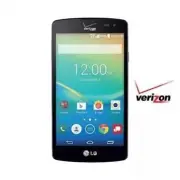


 LG A7110
User Manual
LG A7110
User Manual
 LG AX5000
User Manual
LG AX5000
User Manual
 LG C1300
User Manual
LG C1300
User Manual
 LG C1300A
User Manual
LG C1300A
User Manual
 LG C1300I
User Manual
LG C1300I
User Manual
 LG C1500
User Manual
LG C1500
User Manual
 LG C2000
User Manual
LG C2000
User Manual
 LG CB630
User Manual
LG CB630
User Manual
 LG CE500
User Manual
LG CE500
User Manual
 LG CF360
User Manual
LG CF360
User Manual
 LG CF360A
User Manual
LG CF360A
User Manual
 LG CG180
User Manual
LG CG180
User Manual
 LG CG225
User Manual
LG CG225
User Manual
 LG CG300
User Manual
LG CG300
User Manual
 LG CP150
User Manual
LG CP150
User Manual
 LG CU320
User Manual
LG CU320
User Manual
 LG CU400
User Manual
LG CU400
User Manual
 LG CU405
User Manual
LG CU405
User Manual
 LG CU500
User Manual
LG CU500
User Manual