Page 3 - Table of Contents; Table of Contents ·····················································································1
1 Table of Contents Table of Contents ·····················································································1 The Basics ································································································4 Phone Overview ···················································...
Page 4 - Communication ···················································································· 26
2 Table of Contents Communication ···················································································· 26 Contacts ······························································································································ 26Messaging ······························...
Page 5 - DivX Mobile ······················································································································· 63
3 Table of Contents Phone software update ········································································ 62 Specifications ······················································································· 63 DivX Mobile ·································································...
Page 6 - The Basics; Phone Overview
4 The Basics Phone Overview Menu Key Displays all of the available menu options for the current screen or applications. Press and hold to perform a Google search. Home Key Return to the Home screen from any screen. Press and hold to view a list of recently used applications. Back Key Return to the p...
Page 8 - Installing the battery; Step1. Remove the Back Cover
6 The Basics Installing the battery Step1. Remove the Back Cover Place your fingertips under the ledge at the top of phone and gently lift back to remove. Step2. Insert the Battery Insert the battery making sure to align the gold contacts. Press down gently to secure the battery.
Page 9 - Step3. Replace the Back Cover; Charging your phone
7 The Basics Step3. Replace the Back Cover Align the back cover over the battery compartment and press it down until it locks into place. Charging your phone Before turning on your phone, charge it fully. Be sure to use the charger that came with your phone.
Page 10 - Inserting the microSD card; Removing a microSD card; Turning the Phone On and Off; Lock your phone
8 The Basics Inserting the microSD card If you have a microSD Card, slide the microSD card into the microSD card slot, located under the Back Cover. NOTE The microSD card is sold separately. Removing a microSD card 1. Remove the back cover and locate the microSD card slot. 2. Gently pull the microSD...
Page 11 - Touch screen tips; Lock screen
9 The Basics Also, if you do not use the phone for a while, the Home screen or another screen you are viewing is replaced with the lock screen to conserve battery power. If there are any programs running when the screen locks, they may still be running in Lock mode. It is recommended that you exit a...
Page 12 - Silent mode; Home screen panels; To add an item to the Home screen
10 The Basics Silent mode If you’re in a place where your phone sounds may disturb others, you can quickly silence your phone from the Home screen. 1. Press and hold the Power/Lock Key until the Phone options menu appears. 2. Tap Silent mode . OR 1. Drag the Status Bar down to open the Notifications ...
Page 14 - Quick Keys; Returning to recently-used applications; Notifications panel
12 The Basics 㻌 Touch Wallpaper to choose from picturesque static images to apply to your device. 3. Touch Set wallpaper or Save (if necessary). Quick Keys In your Home screen, you can view the Quick Keys at the bottom of the screen. The Quick Keys provide easy, one-tap access to the functions you u...
Page 15 - To open the Notifications panel; To respond to a notification
13 The Basics To open the Notifications panel 㻌 Tap and slide the Status Bar down with your finger to open the Notifications panel. The Quick Settings are displayed at the top of the Notifications panel. OR 㻌 From the Home screen, tap the Menu Key and select Notifications . Wi-Fi GPS Data connectivity Bl...
Page 16 - To clear all notifications; To close the Notifications panel; Quick settings on the Notifications panel
14 The Basics To clear all notifications 1. Open the Notifications panel. 2. Tap Clear . All event-based notifications will be cleared; ongoing notifications will remain in the list. To close the Notifications panel Tap and drag the tab at the bottom of the Notifications panel to the top of the screen or ...
Page 17 - Viewing the Status Bar; Call icons
15 The Basics Viewing the Status Bar The Status Bar uses different icons to display phone information such as signal strength, new messages, battery life and active Bluetooth and data connections. The following table explains the meaning of icons you are likely to see in the Status Bar. [Status Bar]...
Page 19 - Text Input Methods
17 The Basics SD card inserted Preparing SD card SD card error Sync error Sync error Battery empty Battery full Battery charging Battery status unknown Text Input Methods On-screen Keyboard You can easily enter text using the on-screen keyboard. The on-screen keyboard displays automatically when you...
Page 20 - Text input settings
18 The Basics Language toggle Tap and hold the Language Key to open a menu to set alternate languages. Then while typing, simply tap the Language Key to toggle between your language keyboards. Text input settings To change your text entry settings and see the dictionary of terms you have used, from ...
Page 21 - Using the QuickMemo options
19 The Basics QuickMemo The QuickMemo feature allows you to create memos and capture screen shots. You can use QuickMemo to easily and efficiently create memos during a call, with a saved picture or on the current phone screen. 1 Access the QuickMemo feature by pressing both Volume Keys for one secon...
Page 22 - Google Account Setup; To set up your Google account
20 The Basics Google Account Setup When you first turn on your phone, you have the opportunity to activate the network, to sign into your Google account and how you want to use some Google services. To set up your Google account 㻌 Sign into a Google account from the prompted set up screen. OR 㻌 From ...
Page 23 - Web and Data; Connecting to Bluetooth Devices; To turn Bluetooth on or off
21 Web and Data With Wi-Fi, you can use high-speed Internet access within the coverage of the wireless access point (AP). Enjoy wireless Internet using Wi-Fi, without extra charges. Turning on Wi-Fi From the Home screen, open the Notifications panel and tap . OR From the Home screen, tap the Applicat...
Page 24 - Connecting to Virtual Private Networks; To add a VPN; Browser; Using the web toolbar
22 Web and Data Connecting to Virtual Private Networks Virtual private networks (VPNs) allow you to connect to resources inside a secured local network, from outside that network. To add a VPN 1. From the Home screen, press the Menu Key . 2. Tap Settings > Wireless & networks > VPN setting...
Page 25 - Using options
23 Web and Data Tap to hide the toolbar. View and manage bookmark and view the web pages saved in Most visited , Read it later and History . Using options Tap the Menu Key to view the following options: Read it later – Allows you to save web pages to read later. Add RSS feed – Allows you to select t...
Page 26 - Call; Making a call; Calling your contacts; Adjusting call volume
24 Call Making a call 1. From the Home screen, tap the Phone Key to open the keypad. 2. Enter the number using the keypad. To delete a digit, tap Clear . 3. Tap Call to make a call. 4. To end a call, tap End . TIP! To enter “+” to make international calls, tap and hold . Calling your contacts From t...
Page 27 - Making a second call; Call settings
25 Call Making a second call 1. During your first call, tap Menu Key > Add call . 2. Dial the number or search your contacts. 3. Tap Call to connect the call. 4. Your first call will be put on hold while the second call is active. 5. Tap Merge calls to make a conference call. 6. To end active calls...
Page 28 - Communication; Contacts; Searching for a contact; Adding a contact to your favorites
26 Communication Contacts Add contacts to your phone and synchronize them with the contacts in your Google account or other accounts that support contact syncing. Searching for a contact 1. From the Home screen, tap the Contacts Key to open your contacts. 2. Tap the Search field at the top and enter ...
Page 30 - Messaging; Sending a message; Conversation view
28 Communication Messaging Your phone combines text and multimedia messages into one intuitive, easy-to-use menu. Sending a message 1. From the Home screen, tap the Messaging Key and then tap New message . 2. Enter a contact name or contact number in the To field. As you enter the contact name, match...
Page 31 - Changing your message settings; Storage settings
29 Communication Changing your message settings Your phone message settings are predefined, so you can send messages immediately. You can change the settings based on your preferences. Tap Messaging Key from the Home screen, then tap the Menu Key > Settings . Storage settings Delete old messages: ...
Page 32 - Message display
30 Communication Multimedia message (MMS) settings Delivery reports: Checkmark this setting to allow your phone to receive delivery reports for the multimedia messages you send. Auto-retrieve: Remove the checkmark to download only the heading of multimedia messages, allowing you to manually download...
Page 33 - Email; Opening Email and the Accounts Screen; Managing an email account
31 Communication Email Opening Email and the Accounts Screen You can use the Email application to read email from services other than Gmail. The Email application supports the following account types: Microsoft Exchange, Windows Live Hotmail, Yahoo! Mail, Gmail, AOL Mail, Verizon and other accounts....
Page 34 - Adding and Editing Email Accounts; To change an account’s settings; Composing and Sending Email; To compose and send a message
32 Communication 2. Tap Combined Inbox (in the Accounts screen). Messages in the Combined Inbox are color coded along their left sides, by account, using the same colors that are used for your accounts in the Accounts screen. Only your account’s most recent emails are downloaded to your phone. To do...
Page 35 - Working with Account Folders
33 Communication 2. Enter an address for the message’s intended recipient. As you enter text, matching addresses are offered from your Contacts. Separate multiple addresses with commas. 3. Tap the Menu Key and then tap Add Cc/Bcc to send copy or blind copy of the mail to other contacts/email address...
Page 36 - Entertainment; Camera; Getting to know the viewfinder
34 Entertainment Camera To open the Camera application, from the Home screen, tap Camera . Getting to know the viewfinder Zoom - Zoom in or out. Alternatively you can use the Volume Keys. Brightness - This defines and controls the amount of sunlight entering the image. Slide the brightness indicator a...
Page 37 - Using the advanced settings
35 Entertainment Using the advanced settings In the viewfinder, tap Settings to open all advanced options. Change camera settings by scrolling through the list. After selecting the option, tap the Back Key . ISO – The ISO rating determines the sensitivity of the camera’s light sensor. The higher the ...
Page 38 - Taking a photo; Viewing saved photos
36 Entertainment Taking a photo 1. Open the Camera application. 2. Hold the phone horizontally and point the lens towards the subject you want to photograph. 3. Tap the Capture button . Once you’ve taken the photo If Auto review is set to On, your captured photo appears on the screen. Share Tap to s...
Page 40 - Video camera
38 Entertainment Video camera To open the Video camera application, from the Home screen tap Camera . Slide the Mode Switch icon down for Video mode. Getting to know the viewfinder Zoom - Zoom in or zoom out. Alternatively you can use the Volume Keys. Brightness - This defines and controls the amount ...
Page 42 - After recording video; Watching saved videos
40 Entertainment After recording video If Auto review is set to On, a sill image representing your video will appear on the screen. Play Tap to play the video. Share Tap to share your video using Bluetooth , Email , Gmail , Google+ , Messaging , YouTube or any other application that supports sharing...
Page 43 - Gallery; To open Gallery and view your albums; View mode; Voice Recorder; Recording a Voice Memo
41 Entertainment Gallery To open Gallery and view your albums From the Home screen, tap the Applications Key , then select Gallery . All of your pictures and videos are displayed. OR Open Gallery from the Camera application by tapping the thumbnail image at the bottom of the screen. The Gallery appl...
Page 44 - Sharing Audio; Music; To play music
42 Entertainment 2. Tap to begin recording. 3. Tap to end the recording. 4. Tap to listen to the recording. NOTE Tap to access your list of recordings. You can listen to the saved recording. The available recording time may differ from the real time. Sharing Audio Once you have finished recording, yo...
Page 45 - Control playback; Transferring files using USB mass storage devices; To transfer files using USB devices
43 Entertainment Control playback The Playback screen contains several icons that you can tap to control the playback of songs, albums, and playlists: Tap to pause playback. Tap to resume playback. Tap to skip to the next track in the album, playlist, or shuffle. Tap and hold to fast-forward the song...
Page 46 - Sending data from your phone using Bluetooth; Sending data using Bluetooth
44 Entertainment If there is a video file with a subtitle file (*.srt file with the same name as the video file), place it in the same folder to display subtitles automatically when playing the video file. When downloading music or video files, copyrights must be secured. Note that corrupted files or files ...
Page 48 - Clock; Setting your alarm; Calculator; Using your calculator; Tools
46 Clock You can use the Clock application to access the Alarm. Setting your alarm 1. From the Home screen, tap the Applications Key and select Clock . 2. If you want to add a new alarm, tap and select Add alarm . 3. Set the desired alarm time. 4. Set Repeat , Ringtone and Vibrate , then add a Label...
Page 49 - Calendar; Adding an event to your calendar
47 Tools Calendar Open the Calendar application to view events you’ve created or that others have invited you to. When you first set up your phone, you configured it to use an existing Google Account or you created a new account. The first time you open the Calendar application on your phone, it displa...
Page 50 - Polaris Viewer; Managing files; Task Manager; To stop running applications
48 Tools Polaris Viewer Polaris Viewer is a professional mobile office solution that lets users conveniently view various types of office documents, including Word, Excel and PowerPoint using their mobile devices. To access this application, from the Home screen, tap the Applications Key > Polaris ...
Page 51 - To uninstall an application; Help
49 Tools To uninstall an application 1. From the Home screen, tap the Applications Key and select Task Manager . Then tap the Downloaded apps tab. 2. Tap Uninstall next to the desired application. 3. Tap OK to confirm. Help To get help about the Task Manager, open Task Manager and tap the Help tab .
Page 52 - Settings; Accessing Settings
50 Settings Accessing Settings From the Home screen, tap the Applications Key , then tap Settings . OR From the Home screen, tap the Menu Key , then tap Settings . Wireless & networks This menu allows you to manage Wi-Fi and Bluetooth. You can also set up mobile networks and switch to airplane m...
Page 53 - Voicemail
51 Settings Device name - Allows you to view and edit the name your phone displays to other Bluetooth devices when trying to pair. Discoverable - Checkmark to make your phone discoverable to other Bluetooth devices for 120 seconds. Scan for devices - Tap to search for and display information about n...
Page 54 - Sound; General
52 Settings Other call settings Excuse messages – When you want to reject a call, you can send a quick message using this function. This is useful if you need to reject a call during a meeting. This menu allows you to manage the excuse messages. Auto retry - Allows you to enable or disable Auto retr...
Page 55 - Display; My location
53 Settings Notifications Notification ringtone – Allows you to set your default notification ringtone. Feedback Audible tap tones – Allows you to set the phone to play tones when using the dialpad to dial numbers. Audible selection – Allows you to set your phone to play a sound when you tap buttons, i...
Page 56 - Applications
54 Settings within an accuracy as close as several meters (“street level”). Actual GPS accuracy depends on a clear view of the sky and other factors. Google Location Services - Allows you to use information from Wi-Fi and mobile networks to determine your approximate location, used while searching i...
Page 58 - Privacy
56 Settings to control how they synchronize data; see the sections on those applications for details. General sync settings Background data – Permits applications to synchronize data in the background, whether or not you are actively working in them. Deselecting this setting can save battery power a...
Page 62 - Accessibility; Accessibility services
60 Settings data is already installed. Speech rate – Allows you to select how quickly you want the synthesizer to speak. Language – Allows you to select the language of the text you want the synthesizer to read. This is particularly useful in combination with Always use my settings to ensure that te...
Page 63 - About phone
61 Settings About phone View legal information and check phone status and software version.
Page 64 - Phone software update; Update your smart phone by connecting it to your PC
62 Phone software update Phone software update Update your smart phone by connecting it to your PC This feature allows you to update the firmware on your phone to a newer version conveniently from the Internet without you needing to visit a service center. 1. Go to www.lg.com > Support > Search...
Page 65 - Specifications; DivX Mobile
63 Specifications DivX Mobile ABOUT DIVX VIDEO: DivX ® is a digital video format created by DivX, LLC, a subsidiary of Rovi Corporation. This is an official DivX Certified ® device that plays DivX video. Visit divx.com for more information and software tools to convert your files into DivX videos. ABOUT...
Page 66 - Optimizing battery life; Extending your battery's life
64 Important notice Please check to see whether any problems you encountered with your phone are described in this section before taking the phone in for service or calling a service representative. 1. Phone memory When available space in your phone memory is less than 10%, your phone cannot receive...
Page 67 - Monitoring and controlling what uses the battery; Installing an open source operating system; Using an unlock pattern
65 Important notice Checking the battery charge level 1. From the Home screen, tap the Applications Key , then select Settings > About phone > Status . 2. The battery status (Charging, Not charging) and level (percentage charged) is displayed at the top of the screen. Monitoring and controllin...
Page 68 - Important notice; Using the hard reset; Turning Wi-Fi on and connecting to a Wi-Fi network
66 Important notice account on the phone but failed to enter the correct pattern 5 times, tap the Forgot pattern? button. You are then required to log in with your Google account to unlock your phone. 㻌 If you have not created a Google account on the phone or you forgot it, you have to perform a Har...
Page 69 - Opening and switching applications; Opening an application; Opening multiple applications
67 Important notice 2. Tap Wi-Fi to turn it on and begin scanning for available Wi-Fi networks. 㻌 A list of available Wi-Fi networks is displayed. Secured networks are indicated by a lock icon. 3. Tap a network to connect to it. 㻌 If the network is open, you are asked to confirm that you want to conn...
Page 70 - Transferring music, photos and videos using USB mass
68 Important notice Switching between multiple applications 1. Press and hold the Home Key . A screen with the icons of applications that you’ve used recently will appear. 2. Tap the application icon you want to open or tap the Back Key to return to the current screen. Stopping applications 1. From ...
Page 71 - Important Customer Information; ELECTRICAL SAFETY; SAFETY PRECAUTIONS FOR POWER SUPPLY UNIT
69 Important Customer Information When using this product, the safety precautions below must be taken to avoid possible legal liabilities and damages. Retain and follow all product safety and operating instructions. Observe all warnings in the product operating instructions. To reduce the risk of bo...
Page 73 - SAFETY PRECAUTIONS FOR DIRECT SUNLIGHT
71 Important Customer Information especially on a hard surface, and the user suspects damage, take it to a service center for inspection. • Improper battery use may result in a fire, explosion or other hazard. SAFETY PRECAUTIONS FOR DIRECT SUNLIGHT Keep this product away from excessive moisture and e...
Page 76 - Bodily Contact During Operation
74 Technical Details HAC This phone has been tested and rated for use with hearing aids for some of the wireless technologies that it uses. However, there may be some newer wireless technologies used in this phone that have not been tested yet for use with hearing aids. It is important to try the di...
Page 78 - Technical Details; Consumer Information on SAR (Specific Absorption Rate)
76 Technical Details - Consult the dealer or an experienced radio/TV technician for help. Consumer Information on SAR (Specific Absorption Rate) This model phone meets the government's requirements for exposure to radio waves. Your wireless phone is a radio transmitter and receiver. It is designed an...
Page 81 - Cautions
79 Technical Details American National Standards Institute (ANSI) C63.19 standard. When you are talking over the cell phone, it is recommended that you turn the BT (Bluetooth) or WLAN mode off for HAC. This phone has been tested and rated for use with hearing aids for some of the wireless technologi...
Page 82 - LIMITED WARRANTY STATEMENT
80 LIMITED WARRANTY STATEMENT 1. WHAT THIS WARRANTY COVERS: LG offers you a limited warranty that the enclosed subscriber unit and its enclosed accessories will be free from defects in material and workmanship, according to the following terms and conditions : (1) The limited warranty for the produc...
Page 84 - DO NOT RETURN YOUR PRODUCT TO THE ABOVE ADDRESS.
82 LIMITED WARRANTY STATEMENT Some states do not allow the exclusive limitation of incidental or consequential damages or limitations on how long an implied warranty lasts; so these limitations or exclusions may not apply to you. This warranty gives you specific legal rights and you may also have oth...
Page 85 - Index
83 Index A About phone 61 Accessibility 60 Accessing Settings 50 Accounts & sync 55 Adding and Editing email Accounts 32 Adding a new contact 26 Adjusting call volume 24 Answering and rejecting a call 24 Applications 54 B Browser 22 C Calculator 46 Calendar 47 Call 24 Calling your contacts 24 Ca...
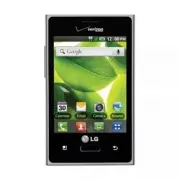


 LG A7110
User Manual
LG A7110
User Manual
 LG AX5000
User Manual
LG AX5000
User Manual
 LG C1300
User Manual
LG C1300
User Manual
 LG C1300A
User Manual
LG C1300A
User Manual
 LG C1300I
User Manual
LG C1300I
User Manual
 LG C1500
User Manual
LG C1500
User Manual
 LG C2000
User Manual
LG C2000
User Manual
 LG CB630
User Manual
LG CB630
User Manual
 LG CE500
User Manual
LG CE500
User Manual
 LG CF360
User Manual
LG CF360
User Manual
 LG CF360A
User Manual
LG CF360A
User Manual
 LG CG180
User Manual
LG CG180
User Manual
 LG CG225
User Manual
LG CG225
User Manual
 LG CG300
User Manual
LG CG300
User Manual
 LG CP150
User Manual
LG CP150
User Manual
 LG CU320
User Manual
LG CU320
User Manual
 LG CU400
User Manual
LG CU400
User Manual
 LG CU405
User Manual
LG CU405
User Manual
 LG CU500
User Manual
LG CU500
User Manual