Page 3 - Table of Contents; Table of Contents · · · · · · · · · 1
1 Table of Contents Table of Contents · · · · · · · · · 1 Phone Overview · · · · · · · · · · · 6 Rear view · · · · · · · · · · · · · · · · · · · · · · · · · 7 Menus Overview · · · · · · · · · · 8 Getting Started with Your Phone · · · · · · · · · · · · · · · · · · 10 Step 1. Remove the Back Cover · ·...
Page 6 - Safety · · · · · · · · · · · · · · · · · ·82
Table of Contents 4 7.2 Banner · · · · · · · · · · · · · · · · · · · · · · · 62 7.2.1 Personal Banner · · · · · · · · · · · · ·62 7.2.2 ERI Banner · · · · · · · · · · · · · · · · 63 7.3 Backlight · · · · · · · · · · · · · · · · · · · · 63 7.4 Brightness · · · · · · · · · · · · · · · · · · · · 63 7.5...
Page 7 - Technical Details · · · · · · · · 119; Glossary · · · · · · · · · · · · · · · 124
5 FCC Hearing-Aid Compatibility (HAC) Regulations for Wireless Devices · · · · · · · · · · · · · · · · · · · · · · 89 Caution: Avoid potential hearing loss. · · · · 91 TIA Safety Information · · · · · · · · · 93 Safety Information · · · · · · · · · · · ·96 FDA Consumer Update · · · · · · · · 101 Dri...
Page 8 - Phone Overview
6 Phone Overview 1. Main Screen Displays messages, indicator icons and active functions. 2. Left Soft Key Performs functions identified on the bottom-left corner of the screen. 3. Headset Jack Allows you to plug in an optional 3.5mm headset for convenient, hands-free conversations. 4. Volume Keys Use...
Page 9 - Rear view
7 1. Camera Lens Use to take photos. Keep it clean for optimal photo quality. 2. microSD ™ Slot 3. Camera Key Briefly press to access camera mode to take pictures. Press and hold to access video mode to record videos. 4. Battery 5. Back Cover NOTE The antenna is located inside your phone. Tip If you...
Page 10 - Menus Overview; In Case of Emergency
8 Menus Overview Contacts 1. New Contact 2. Contact List 3. Backup Assistant 4. Favorites 5. Groups 6. Speed Dials 7. In Case of Emergency 8. My Name Card Messaging 1. New Message 2. Messages 3. Drafts 4. Voice mail 5. Social Networks Settings 1. Messages View 2. Entry Mode 3. Auto Save Sent 4. Auto...
Page 12 - Getting Started with Your Phone; Step 1. Remove the Back Cover
10 Getting Started with Your Phone Step 1. Remove the Back Cover Use the fingertip cutout at the bottom of the phone to pull the back cover off. Step 2. Insert the Battery Align the battery contacts with the terminals in the battery compartment and push the battery down until it clicks into place. S...
Page 13 - END Key
11 Removing the Battery 1. Turn the phone off. 2. Use the fingertip cutout at the bottom of the phone to pull the back cover off. 3. Use the fingertip opening near the bottom of the battery compartment to lift the battery out. Charging with USB You can use your computer to charge your phone. To be abl...
Page 14 - Making Calls; Correcting Dialing Mistakes; Redialing Calls
Getting Started with Your Phone 12 Making Calls Open the flip and enter the phone number using the keypad. Press the SEND Key to dial the number. Press the PWR/END Key to end the call. NOTE Your phone has a Voice Commands feature that also lets you make calls by saying a phone number or Contact name....
Page 15 - Quick Access to Convenient Features
13 Quick Access to Convenient Features Vibrate Mode Sets the phone to vibrate instead of ringing ( is displayed). To set Vibrate Mode, with the flip open, press and hold . To return to Normal Mode, press and hold again. Sounds Off Quickly deactivate your phone's sounds when you're in a place where ph...
Page 16 - Caller ID
Quick Access to Convenient Features 14 1. While on the first call, dial the 10-digit number of the second person. 2. Press the SEND Key . The first person is automatically put on hold while the call is made. 3. When the second person answers, press [MERGE] to create a conference call. 4. If the second...
Page 18 - Entering and Editing Information; Text Input; Press to change; Text Input Modes; ݟࡗ
16 Entering and Editing Information Text Input The following key functions are available to help with text entry: Left Soft Key : Press to change the text input mode. Shift: Press to change capitalization (initial cap, caps lock, lowercase). Next : Press to display other matching words in the databa...
Page 19 - Contacts in Your Phone’s Memory; Creating a Contact; Customizing Individual Entries
17 Contacts in Your Phone’s Memory Creating a Contact 1. With the flip open, enter a number (max. 48 digits), then press the Left Soft Key [Save] . 2. Use the Navigation Key to highlight Add New Contact or Update Existing , then press . 3. Use the Navigation Key to highlight Mobile 1 / Home / Busines...
Page 20 - Storing a Number with Pauses; Adding Another Phone Number; From standby mode
Contacts in Your Phone’s Memory 18 Storing a Number with Pauses Pauses allow you to enter additional series of numbers to access automated systems such as Voice mail or credit billing numbers. Pause types are: Wait (W) The phone stops dialing until you press the Left Soft Key [Release] to advance to...
Page 21 - From the Contact List Screen; Changing Saved Information; Set As Default
19 3. Use the Navigation Key to highlight an existing entry then press to update your contact entry. 4. Use the Navigation Key to highlight Mobile 1/ Home/ Business/ Mobile 2/ Fax , then press to update your contact entry. From the Contact List Screen 1. With the flip open, press the Right Soft Key [...
Page 22 - Deleting; Deleting a Contact Entry; Erase; Removing a Speed Dial; Remove Speed Dial; Speed Dialing; Single Digit Speed Dials
Contacts in Your Phone’s Memory 20 Deleting Deleting a Contact Entry 1. With the flip open, press the Right Soft Key [Contacts] . 2. Use the Navigation Key to highlight an entry. 3. Press the Right Soft Key [Options] . 4. Press Erase . 5. Press [Yes] to confirm. Removing a Speed Dial 1. With the flip o...
Page 24 - Contacts; Contacts
Contacts 22 Contacts Contacts The Contacts menu allows you to store names, phone numbers and other information in your phone’s memory. Shortcut The Right Soft Key is a shortcut key to the Contact List from standby mode. 1. New Contact Allows you to add a new contact to your Contact List. NOTE Using ...
Page 26 - Adding Contacts to a Group
Contacts 24 3. Press Groups . 4. View a Group Use the Navigation Key to highlight a group, then press [VIEW] . Add a New Group Press the Left Soft Key [New] to add a new group to the list. Enter a name and picture (if desired) and press [SAVE] . Group's options Press the Right Soft Key [Options] to ...
Page 27 - In Case of Emergency; Entering Your ICE Personal Info; To unassign an ICE Contacts
25 7. In Case of Emergency (ICE) This menu allows you to store names, phone numbers and other information, which will be very helpful in case of emergency. 1. Open the flip and press [MENU] . 2. Press Contacts . 3. Press In Case of Emergency . 4. Use the Navigation Key to highlight Contact 1, 2 , or ...
Page 29 - Messaging; SEND Key; New Message Alert; Open the flip and press
27 Messaging Messaging Shortcut From standby mode, pressing the Left Soft Key is a shortcut to Messaging. Depending on the content and size of your messages, the phone can store up to 790 messages (including a max. of 300 text messages, 100 emergency alerts, 100 multimedia message notifications, and ...
Page 30 - From Contacts
Messaging 28 or continue entering the phone number. 5. Press to access the text field. 6. Use the keypad to enter your message. 7. Press [SEND] . Select Recipient(s) Using Add 1. Open the flip and press [MENU] . 2. Press Messaging . 3. Press New Message . 4. With the To field highlighted, press the Rig...
Page 31 - Viewing Your Inbox
29 6. Record Voice Allows you to record a sound clip and insert it. 7. Name Card 1. My Name Card Allows you to insert your name card information. 2. From Contacts Allows you to insert the name card information from a contact. 2. Insert Quick Text Allows you to enter a Quick Text. 3. Save As Draft Al...
Page 32 - Sort Alphabetically; Message Icon Reference
Messaging 30 Sort Alphabetically Allows you to sort your messages in alphabetical order. Messaging Menu Takes you to the Messaging menu. Settings Allows you to change various Messaging settings. Message Icon Reference New Text Message Read Text Message Unopened Downloaded Multimedia Message Opened D...
Page 34 - Messaging Settings
Messaging 32 5. Social Networks The upgraded text-based social networks allow you to update your status, picture upload, and write on someone’s wall by sending a text message. 1. Open the flip and press [MENU] . 2. Press Messaging . 3. Press Social Networks . 4. Select one of the social networking se...
Page 36 - Erasing Messages
Messaging 34 15. Signature Select Custom to create/edit a signature to automatically send with your messages. Select None for no signature. 16. Delivery Receipt When Delivery Receipt is set to On , you can see if your sent messages have been delivered ( ). Or select Off . 17. TXT-Media Msg Notificati...
Page 37 - Recent Calls
35 Recent Calls Recent Calls The Recent Calls menu is a list of the last phone numbers or Contact entries for calls you placed, accepted, or missed. It's continually updated as new numbers are added to the beginning of the list and the oldest entries are removed from the bottom of the list. 1. Misse...
Page 38 - Recent call
Recent call 36 3. Dialed Allows you to view the list of outgoing calls; up to 90 entries. 1. Open the flip and press [MENU] . 2. Press Recent Calls . 3. Press Dialed . 4. Use the Navigation Key to highlight an entry, then Press [OPEN] to open the entry. Press the SEND Key to place a call to the n...
Page 40 - Internet
38 Internet Internet Allows you to access news, sports, weather, and email from your Verizon Wireless device. Accessibility and selections within this feature are dependent upon your service provider. For specific information on Mobile Web access through your phone, contact your service provider. Sho...
Page 41 - Media Center; Access and Options
39 Media Center Media Center Everything you need to know while you’re on the go. 1. Music & Tones Personalize your phone with ringtones. A wide variety of choices are available, such as current hits, pop, hip-hop, and more. Access and Options 1. Open the flip and press [MENU] . 2. Press Media Cen...
Page 42 - Play your Music
Media Center 40 1. Open the flip and press [MENU] . 2. Press Media Center . 3. Press Music & Tones . 4. Press My Music . 5. Select from the following sub-menus: Play All Songs/All Songs/ Playlists/ Artists/ Genres/ Albums /Manage My Music/ Music Settings 6. Select the name of the song you want to...
Page 43 - Send
41 3. Press Music & Tones . 4. Press My Sounds . 5. Use the Navigation Key to scroll and highlight a preloaded sound. Options with a sound file highlighted: Press the Left Soft Key [Set As] to set it as the Ringtone, Contact ID or Alert Sounds. Press [PLAY] . Press the Right Soft Key [Optio...
Page 45 - Take Picture; My Pictures
43 4. Press Take Picture . 5. Set the brightness by pressing the Navigation Key up and down, zoom by pressing the Navigation Key left and right, and press the Right Soft Key [Options] to change other settings. NOTE Zooming is not available on the highest resolution. Press the Navigation Key left a...
Page 46 - Ending a Browser Session
Media Center 44 For Save RESOLUTION 320x240/ 176x144 WHITE BALANCE Auto/ Sunny/ Cloudy/ Fluorescent/ Glow COLOR EFFECTS Normal/ Negative/ Aqua/ Sepia/ Black&White AUTO SAVE On/ Off SAVE OPTION Internal/ External CAPTURE Camera/ Video 6. Start recording by pressing [RECORD] . Press [STOP] to stop...
Page 47 - Call
45 You can select the items by moving the cursor and pressing . Scrolling Use the Navigation Key . The browser's cursor will highlight currently selected items. Fast Scrolling Press and hold the Navigation Key to quickly move the cursor up and down on the current screen. Soft Keys To use (if availab...
Page 51 - Turn Off All Sounds; Confirm Choices
49 3.5 Turn Off All Sounds Allows you to turn off all sounds. 1. Open the flip and press [MENU] . 2. Press Settings & Tools . 3. Press Accessibility . 4. Press Turn Off All Sounds . 5. Use the Navigation Key to highlight a setting, then press [SET] . On/ Off 4. Tools This menu includes useful too...
Page 53 - Ez Tip Calculator; Tools
51 to search for information over the internet. 4.1.7 Redial Say "Redial" and the phone will redial the last phone number. 4.1.8 Play State the playlist that you want to listen to and the phone will find it out. 4.1.9 My Verizon The 'My Verizon' command provides you with direct access to your...
Page 55 - How to delete alarms
53 5. Use the Navigation Key to highlight the scheduled day. 6. Press the Left Soft Key [Add] . 7. Enter the Subject , then scroll down to set the remaining settings. 8. Highlight a Calendar setting field, then press the Left Soft Key [Set] . For each Calendar event you can set: s Subject s Start Dat...
Page 56 - How to edit alarms
Settings & Tools 54 2. Press Erase to delete an alarm or Erase All to delete all alarm entries. 3. Press [Yes] . How to edit alarms 1. From the Alarm Clock list, press [VIEW] and then press [EDIT] . 4.7 Info Search Allows you to search items stored on the phone. 1. Open the flip and press [MENU] ...
Page 57 - USB Mass Storage
55 4.9 World Clock Allows you to determine the current time in another time zone or country. 1. Open the flip and press [MENU] . 2. Press Settings & Tools . 3. Press Tools . 4. Press World Clock . 5. Press the Right Soft Key [Cities] for a list of available cities. 6. Highlight a city from the li...
Page 58 - Menu; Turn On Bluetooth; Bluetooth Menu
Settings & Tools 56 5. Bluetooth ® Menu The phone is compatible with devices that support the Headset, Handsfree, Stereo, Phonebook Access, Object Push and File Transfer.* You may create and store 20 pairings within the phone and connect to one device. The approximate communication range for Blu...
Page 60 - My Phone Info; Discovery Mode; Supported Profiles
Settings & Tools 58 NOTES While in the Bluetooth Menu, you can turn the Bluetooth functionality off by pressing the Left Soft Key [Turn Off] . You can turn it on by pressing the Left Soft Key [Turn On] again. When connected with a phone or PC supporting OPP, the following menus are possible: s S...
Page 66 - Main Menu Settings
Settings & Tools 64 My Pictures/ Fun Animations/ Slide Show 6. Highlight a wallpaper and press [SET] . 7.6 Display Themes Allows you to choose between the different themes for the phone's menus. 1. Open the flip and press [MENU] . 2. Press Settings & Tools . 3. Press Display Settings . 4. Pre...
Page 69 - Set Shortcut Keys; Navigation Key
67 5. Use the Navigation Key to highlight a setting, then press [SET] . On/ Off 8.2 Set Shortcut Keys Allows you to set shortcuts to phone menus using the down, up, left and right Navigation Keys. 8.2.1 Set My Shortcuts Allows you to personalize the shortcuts displayed on the My Shortcuts screen. NO...
Page 70 - ⦽ǎᨕ
Settings & Tools 68 8.4 Language Allows you to set the Multi-language (English, Spanish,Chinese, Korean) feature according to your preference. 1. Open the flip and press [MENU] . 2. Press Settings & Tools . 3. Press Phone Settings . 4. Press Language . 5. Use the Navigation Key to highlight a...
Page 73 - Data Roaming Access
71 8.7 System Select Allows you to set up the phone management environment. Leave this setting as the default unless you want to alter system selection as instructed by your service provider. 1. Open the flip and press [MENU] . 2. Press Settings & Tools . 3. Press Phone Settings . 4. Press System...
Page 77 - Reference Country; USB Mode
75 5. Use the Navigation Key to highlight a setting, then press . On/ Off 6. Highlight Reference Country and press the Left Soft Key [Set] to select country. 7. Use the Navigation Key to scroll to the desired country. 8. Press the Left Soft Key [Details] to edit and save the Country Code, IDD Prefix ...
Page 79 - Automatic Update; Manual Update; Phone Info
77 4. Press SW/HW Version . 12.3 Icon Glossary Allows you to view all the icons and their meanings. 1. Open the flip and press [MENU] . 2. Press Settings & Tools . 3. Select Phone Info . 4. Press Icon Glossary . 5. Select a subcategory to view the icons. 12.4 Software Update This feature gives yo...
Page 80 - CLOCK FORMAT; Front Display Patterns; FONT SIZE
Settings & Tools 78 CLOCK FORMAT Select the format of the clock. Analog/ Large Analog/ Digital 12/ Large Digital 12/ Digital 24/ Large Digital 24/ Dual City/ Off 5. Press the Right Soft Key [Done] to complete set-up. downloading after 30 seconds or you can begin the download immediately by pre...
Page 81 - Important Safety Precautions; WARNING
79 Important Safety Precautions Read these instructions. Breaking the rules may be dangerous or illegal. Further detailed information is given in this user guide. Violation of the instructions may cause serious injury or death. WARNING : This product contains chemicals known to the State of Californ...
Page 84 - Safety; HAC
82 Safety HAC This phone has been tested and rated for use with hearing aids for some of the wireless technologies that it uses. However, there may be some newer wireless technologies used in this phone that have not been tested yet for use with hearing aids. It is important to try the different fea...
Page 85 - Caution; harmful interference.
83 Caution Use only the supplied antenna. Use of unauthorized antennas (or modifications to the antenna) could impair call quality, damage the phone, void your warranty and/or violate FCC regulations. Don't use the phone with a damaged antenna. A damaged antenna could cause a minor skin burn. Contact...
Page 86 - - Consult the dealer or an; Are wireless phones safe?
Safety 84 - Consult the dealer or an experienced radio/TV technician for help. Consumer Information About Radio Frequency Emissions Your wireless phone, which contains a radio transmitter and receiver, emits radio frequency energy during use. The following consumer information addresses commonly ask...
Page 88 - recommendation to limit
Safety 86 part of the body during use, then that part of the body will absorb more RF energy. Wireless phones marketed in the U.S. are required to meet safety requirements regardless of whether they are used against the head or against the body. Either configuration should result in compliance with t...
Page 89 - World Health Organization
87 http://www.fda.gov (Under “c” in the subject index, select Cell Phones > Research.) U.S. Federal Communications Commission 445 12th Street, S.W. Washington, D.C. 20554 Telephone: (888) 225-5322 http://www.fcc.gov/oet/rfsafety Independent Expert Group on Mobile Phones http://www.iegmp.org.uk Ro...
Page 93 - Gallaudet University, RERC
91 The M mark is intended to be synonymous with the U mark. The T mark is intended to be synonymous with the UT mark. The M and T marks are recommended by the Alliance for Telecommunications Industries Solutions (ATIS). The U and UT marks are referenced in Section 20.19 of the FCC Rules. The HAC rat...
Page 95 - TIA Safety Information; * American National Standards; Antenna Care
93 TIA Safety Information The following is the complete TIA Safety Information for wireless handheld phones. Exposure to Radio Frequency Signal Your wireless handheld portable phone is a low power radio transmitter and receiver. When ON, it receives and sends out Radio Frequency (RF) signals. In Aug...
Page 96 - Electronic Devices; • Should ALWAYS keep the phone; Hearing Aids
Safety 94 affects call quality and may cause the phone to operate at a higher power level than otherwise needed. Electronic Devices Most modern electronic equipment is shielded from RF signals. However, certain electronic equipment may not be shielded against the RF signals from your wireless phone....
Page 98 - Safety Information
Safety 96 Safety Information Please read and observe the following information for safe and proper use of your phone and to prevent damage. Caution Violation of the instructions may cause minor or serious damage to the product. • Do not disassemble or open crush, bend or deform, puncture or shred. •...
Page 102 - General Notice
Safety 100 an explosion. Always cover the receptacle when not in use. • Don’t short-circuit the battery. Metallic articles such as a coin, paperclip or pen in your pocket or bag or contact with sharp objects including animal bites may short-circuit the + and – terminals of the battery (metal strips ...
Page 103 - FDA Consumer Update; Do wireless phones pose a
101 • When you use the phone in public places, set the ringtone to vibration so you don't disturb others. • Do not turn your phone on or off when putting it to your ear. • Use accessories, such as earphones and headsets, with caution. Ensure that cables are tucked away safely and do not touch the an...
Page 106 - What research is needed to
Safety 104 2000. Between them, the studies investigated any possible association between the use of wireless phones and primary brain cancer, glioma, meningioma, or acoustic neuroma, tumors of the brain or salivary gland, leukemia, or other cancers. None of the studies demonstrated the existence of ...
Page 107 - How can I find out how much
105 since its inception in 1996. An influential result of this work has been the development of a detailed agenda of research needs that has driven the establishment of new research programs around the world. The project has also helped develop a series of public information documents on EMF issues. ...
Page 108 - What has the FDA done to
Safety 106 directions for locating the FCC identification number on your phone so you can find your phone’s RF exposure level in the online listing. 8. What has the FDA done to measure the Radio Frequency energy coming from wireless phones? The Institute of Electrical and Electronic Engineers (IEEE) i...
Page 110 - Where can I find additional; Driving; • Give full attention to driving
Safety 108 The FDA has tested hearing aids for interference from handheld wireless phones and helped develop a voluntary standard sponsored by the Institute of Electrical and Electronic Engineers (IEEE). This standard specifies test methods and performance requirements for hearing aids and wireless p...
Page 111 - 0 Driver Safety Tips; Get to know your wireless
109 10 Driver Safety Tips Your wireless phone gives you the powerful ability to communicate by voice almost anywhere, anytime. An important responsibility accompanies the benefits of wireless phones, one that every user must uphold. When operating a car, driving is your first responsibility. When usin...
Page 112 - Dial sensibly and assess the
Safety 110 or writing and not paying attention to the road or nearby vehicles. 6. Dial sensibly and assess the traffic; if possible, place calls when you are not moving or before pulling into traffic. Try to plan your calls before you begin your trip or attempt to coincide your calls with times you ma...
Page 114 - LIMITED WARRANTY STATEMENT; Warranty Laws; or replace defective goods.
112 LIMITED WARRANTY STATEMENT ARBITRATION NOTICE: THIS LIMITED WARRANTY CONTAINS AN ARBITRATION PROVISION THAT REQUIRES YOU AND LG TO RESOLVE DISPUTES BY BINDING ARBITRATION INSTEAD OF IN COURT, UNLESS YOU CHOOSE TO OPT OUT. IN ARBITRATION, CLASS ACTIONS AND JURY TRIALS ARE NOT PERMITTED. PLEASE SE...
Page 117 - Please call or write for
115 5. HOW TO GET WARRANTY SERVICE: To obtain warranty service, please call or fax to the following telephone numbers from anywhere in the continental United States: Tel. 1-800-793-8896 or Fax. 1-800-448-4026 Or visit http://us.lgservice.com. Correspondence may also be mailed to: LG Electronics Serv...
Page 121 - Technical Details; Important Information; FCC Part 15 Class B Compliance
119 Technical Details Important Information This user’s guide provides important information on the use and operation of your phone. Please read this guide carefully prior to using the phone to be able to use your phone to its greatest advantage and to prevent any accidental damage or misuse. Any un...
Page 123 - FCC RF Exposure Information
121 1xRTT system receives twice as many subscribers in the wireless section as IS-95. Its battery life is twice as long as IS-95. The table on the following page lists some major CDMA standards. Part 15.105 statement This equipment has been tested and found to comply with the limits for a class B di...
Page 125 - Trademarks; Google
123 Trademarks Google ™ , Google Maps ™ , Gmail ™ , YouTube ™ , Hangouts ™ and Play Store ™ are trademarks of Google, Inc. Bluetooth is a registered trademark of Bluetooth SIG, Inc. worldwide. Wi-Fi ® and the Wi-Fi ® logo are registered trademarks of the Wi-Fi ® Alliance. All other trademark...
Page 126 - Glossary; Terminology
124 Glossary Terminology EZ Tip Calculator Feature for easy bill calculation using the total cost, tip, and number of people as variables. Advanced Voice Recognition Feature that allows you to perform a wide range of verbal commands by training the phone to recognize your individual speech patterns....
Page 128 - Index; Numbers
126 Index Numbers 3-way call 1310 Driver Safety Tips 109 A Accessibility 46Acronyms and Abbreviations 124Adding Another Phone Number 18Add New Device 56Airplane Mode 66Alarm Clock 53Alert Sounds 60All 36Answer Options 71Assisted Dialing 74Auto Retry 72Avoid potential hearing loss. 91 B Backlight 63B...
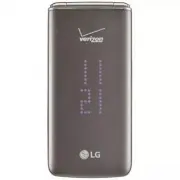


 LG A7110
User Manual
LG A7110
User Manual
 LG AX5000
User Manual
LG AX5000
User Manual
 LG C1300
User Manual
LG C1300
User Manual
 LG C1300A
User Manual
LG C1300A
User Manual
 LG C1300I
User Manual
LG C1300I
User Manual
 LG C1500
User Manual
LG C1500
User Manual
 LG C2000
User Manual
LG C2000
User Manual
 LG CB630
User Manual
LG CB630
User Manual
 LG CE500
User Manual
LG CE500
User Manual
 LG CF360
User Manual
LG CF360
User Manual
 LG CF360A
User Manual
LG CF360A
User Manual
 LG CG180
User Manual
LG CG180
User Manual
 LG CG225
User Manual
LG CG225
User Manual
 LG CG300
User Manual
LG CG300
User Manual
 LG CP150
User Manual
LG CP150
User Manual
 LG CU320
User Manual
LG CU320
User Manual
 LG CU400
User Manual
LG CU400
User Manual
 LG CU405
User Manual
LG CU405
User Manual
 LG CU500
User Manual
LG CU500
User Manual