Page 3 - New Contacts · · · · · · · · · · · · · · 27
1 6CDNGQH%QPVGPVU Table of Contents · · · · · · · · · · 1 Phone Overview · · · · · · · · · · · 5 Quick Glance of the Touch Screen and How to Use It · · · 9 Getting Started with Your Phone · · · · · · · · · · · · · · · · · · · 10 Turning the Phone On and Off · · · · · · 10 Turning the Phone On · · · ...
Page 4 - Table of Contents; Recent Calls · · · · · · · · · · · · · · 30
Table of Contents 2 6. In Case of Emergency (ICE) · · · 29 Recent Calls · · · · · · · · · · · · · · 30 1. Missed · · · · · · · · · · · · · · · · · · · · 30 2. Received · · · · · · · · · · · · · · · · · · 30 3. Dialed · · · · · · · · · · · · · · · · · · · · 31 4. All · · · · · · · · · · · · · · · · ·...
Page 5 - Mobile Email · · · · · · · · · · · · · 64
3 3.7 Display Backlight · · · · · · · · · · · · · · 493.8 Keypad Backlight · · · · · · · · · · · · · 493.9 Charging Screen · · · · · · · · · · · · · · 493.10 Display Themes · · · · · · · · · · · · · · 503.11 Fonts · · · · · · · · · · · · · · · · · · · · · · · 503.12 Dial Fonts · · · · · · · · · · · ...
Page 7 - Phone Overview
5 Phone Overview Earpiece Lets you hear the caller. Shortcuts Key Allows quick access to a customizable Shortcuts Menu. Quick Keys The Quick Keys provide easy access to Messages, the Dialpad, the Main Menu, and the Contact List which easily activate with the touch of your fingertip. Send Key Use to a...
Page 9 - Using the QWERTY Keyboard; Clear Key; To enter text with the QWERTY keyboard; In a text entry screen, slide open the QWERTY keyboard.; Function/Favorites Key
7 Using the QWERTY Keyboard Your phone features a slide-out QWERTY keyboard, specifically designed for easy and comfortable text entry. The QWERTY keyboard uses the same layout as the keyboard on your computer, but has several added features and options to make text entry easier. Clear Key Shift/ Mes...
Page 10 - Directional Key Shortcuts on the QWERTY keyboard; Up Key
Phone Overview 8 Directional Key Shortcuts on the QWERTY keyboard Up Key Opens the Browser. Down Key Allows you quick access to your notifications and to change the ringer volume. Right Key Allows you to access the Favorites Home screen pane where you can add up to 12 media files for quick acces...
Page 11 - Quick Keys; ) to turn on the screen and; How to Unlock the Screen
9 3WKEM)NCPEGQHVJG6QWEJ5ETGGPCPF*QYVQ7UG+V Quick Keys ( , , , ) For optimal performance, make sure your hands are clean and dry. Remove moisture from the surface of your hands. Don't use the Quick Keys in a humid environment. The touch screen is sensitive to your light touch. You don't need to p...
Page 12 - Getting Started with Your Phone; Turning the Phone On and Off; Turning the Phone On; Install a charged battery or; Turning the Phone Off; Swipe your finger across the; The Battery; Installing the Battery
10 Getting Started with Your Phone Turning the Phone On and Off Turning the Phone On 1. Install a charged battery or connect the phone to an external power source if the battery level is low. 2. Press the Power/End Key for a few seconds until the LCD screen turns on. Turning the Phone Off 1. Swipe y...
Page 13 - Charging the Battery; Connect the USB cable into; Charging with USB
11 Charging the Battery Your phone comes with a charger adapter and a USB cable which connect together to charge your phone. To charge your phone: NOTICE Please use only an approved charging accessory to charge your LG phone. Improper handling of the Charging/USB Port, as well as the use of an incom...
Page 14 - How to Install a microSD; How to Remove a microSD
Getting Started with Your Phone 12 NOTE If the phone is about to reset, a warning message will appear on the Home screen. How to Install a microSD ™ Card microSD ™ slot 1. Use the fingertip cutout to uncover the microSD slot. It is located on the left side of the phone. 2. Insert the microSD ™ card (...
Page 15 - Making Calls
13 Battery Temperature Protection Though extremely rare, if the battery becomes overheated, the phone will automatically turn off. When you turn the phone back on, a message pops up alerting you that the phone was powered off for your safety. Battery Charge Level You can find the battery charge level...
Page 16 - Correcting Dialing Mistakes; Redialing Calls
Getting Started with Your Phone 14 3. Press the Send Key or touch the Call Key to place the call. 4. Press the Power/End Key or touch the End Key to end the call. Correcting Dialing Mistakes If you make a mistake while dialing a number, touch the Back/ Voice Commands Key once or touch on the dialing...
Page 17 - Shortcuts Menu; Shortcuts Menu
15 Shortcuts Menu Shortcuts Menu The Shortcuts Menu allows instant access to menus and phone features with the quick touch of your fingertip. To use the Shortcuts Menu: 1. Swipe your finger across the screen in any direction to unlock. 2. Touch the Shortcuts Menu icon on the Home screen or press the F...
Page 18 - When you touch the; To view other Home screen panes
Shortcuts Menu 16 When you touch the Phone Key the following dialpad is displayed: Touch and hold this key to call your voicemail box. Touch and hold this key to toggle your phone between Vibrate Mode and Normal Mode. Touch this key to delete digits entered one by one. Hold down to delete the entire...
Page 19 - Entering and Editing Information; Text Input
17 Entering and Editing Information Text Input You can enter information using the touch screen keypad. There are special key functions to help you with text entry. Text Input While Composing a Text Message 1. Swipe your finger across the screen in any direction to unlock. 2. Touch the Messaging Key ...
Page 20 - Menu Overview; My Verizon; Airplane Mode
18 Menu Overview My Verizon Tools 1. Voice Commands 2. Notepad 3. Calendar 4. Alarm Clock 5. Stopwatch 6. World Clock 7. Calculator 8. Ez Tip Calculator 9. Eco-Calculator 10. USB Mass Storage Settings Airplane Mode Bluetooth Music Only Mode 1. Bluetooth Menu 2. Sounds Settings 1. Master Volume...
Page 21 - Mobile Email
19 5. Phone Settings 1. Set Qwerty Shortcut 2. Voice Commands 3. Language 4. Location 5. Current Country 6. Security 7. System Select 8. NAM Select 9. Data Roaming Access 6. Call Settings 1. Answer Options 2. End Call Options 3. Ignore With Message 4. Call Forwarding 5. Show Dialpad 6. Auto Retry 7....
Page 22 - Download; Apps; My Music; Alarm Clock
Menu Overview 20 2.4 Take Picture2.5 Record Video 3. Games 4. Internet 5. Browse & Download 6. My Place 7. Extras Apps Calendar My Music 1. All Songs 2. Playlists 3. Artists 4. Genres 5. Albums 6. Manage My Music 1. Erase 2. Move to Card * 3. Move to Phone* Airplane Mode Music Only Mode Alar...
Page 23 - Menu Access; The
21 Menu Access Menu Access The Menu Key provides access to the phone's main menu. To access the main menu, swipe your finger across the screen in any direction to unlock. Touch the Menu Key at the bottom of the screen to open the main menu. The main menu is displayed as shown below. Touch any of the ...
Page 24 - Shortcuts Menu on the Touch Screen
22 Shortcuts Menu on the Touch Screen Shortcuts Menu The Shortcuts Menu allows quick, direct access to several frequently used features from the touch screen. Up to 8 different shortcuts can be set. To access the Shortcuts Menu, unlock the touch screen, then touch the Shortcuts Menu icon along the l...
Page 25 - Quick Access to Convenient Features; Restrictions; Quick Volume Adjustment; Vibrate Mode; Call Waiting; Ignoring Call Waiting; IGNORE; Answering Call Waiting
23 Quick Access to Convenient Features Restrictions Sets your phone to require a 4 digit password in order to use the phone. To set Lock Mode while on the standby screen, touch Menu > Settings > Phone Settings > Security > enter the Phone Lock Code . Touch Security Unlock to toggle the s...
Page 26 - Voice Commands; CLR Key Activation
Quick Access to Convenient Features 24 the first call on hold and answer the new call. 2. Press the Send Key again, to put the second call on hold and return to the first caller. Voice Commands Voice Commands allow you to do things by verbal command (e.g., make calls, check Voicemail, etc.). 1. With t...
Page 27 - Storing New Contacts; Changing Contact Entries
25 %QPVCEVUKP;QWT2JQPG¶U/GOQT[ Storing New Contacts 1. Swipe your finger across the screen in any direction to unlock. 2. Touch the Contacts Key . 3. Touch New Contact . 4. Touch an information field and use the keypad to enter the necessary information. Then touch Done . Do this for each field you wan...
Page 28 - Contacts in Your Phone’s Memory; Storing a Number with Pauses; Release; Deleting; Deleting a Contact Entry; Erase
Contacts in Your Phone’s Memory 26 4. Touch an unassigned Speed Dial number. 5. Touch Yes to confirm. 6. Touch Save to save your updates to the contact entry. Storing a Number with Pauses Pauses allow you to enter additional series of numbers to access automated systems such as Voicemail or credit bi...
Page 29 - Contacts; Contacts Key; Phone Key; Save; Update Existing; Contacts Key
27 Contacts Contacts The Contacts Menu allows you to store names, phone numbers and other information in your phone’s memory. 1. New Contacts Allows you to add a new contact. 1. Swipe your finger across the screen in any direction to unlock. 2. Touch the Contacts Key . 3. Touch New Contact . 4. Touch...
Page 30 - New Group
Contacts 28 Touch Send Message to send the contact a text or picture message. Touch Send Name Card to send the contact your name card. NOTE If you have saved a speed dial to an entry, Speed Dials appears as the last option for the contact entry. 3. Backup Assistant Backup Assistant safeguards yo...
Page 31 - Entering Your ICE Personal Info; In Case of Emergency
29 4. Touch the contact you wish to assign a Speed Dial to. 5. Touch the contact number you want to assign (if applicable), then touch Yes . 6. In Case of Emergency (ICE) This menu allows you to store names, phone numbers and other information, which could be helpful in case of an emergency. 1. Swip...
Page 32 - Recent Calls; Send Key; Send Key
30 Recent Calls Recent Calls The Recent Calls Menu is a list of the last phone numbers or contact entries for calls you missed, received, or dialed. It's continually updated as new numbers are added to the beginning of the list and the oldest entries are removed from the bottom of the list. 1. Misse...
Page 34 - More; View; Reset; Recent Calls/ My Verizon
32 5. View Timers Allows you to view the duration of the different call types. Also allows you to view data counters. 1. Swipe your finger across the screen in any direction to unlock and press the Send Key . 2. Touch More and then View Timers . 3. Touch Reset next to an option to reset it. The timer...
Page 35 - Tools
33 Tools Tools 1. Voice Commands 1. Swipe your finger across the screen in any direction to unlock and touch the Menu Key . 2. Touch Tools . 3. Touch Voice Commands . OR From the Home screen, press the Voice Commands/Back Key . 4. Touch Settings to set Confirm Choices/ Sensitivity/ Adapt Voice/ Prompt...
Page 36 - to write a new note.; Managing Notes
Tools 34 1.5 Contacts <Name> You can look up names in your Contacts (for example, say "Contacts John"). Once a contact's info is read out, you will be prompted for the following options: Call/ Read out/ Create New/ Modify/ Erase 1.6 Redial Allows you to automatically redial the last nu...
Page 37 - OR; NEW; Add New Event
35 OR To add a note touch NEW . To delete all notes, touch More and then Erase All . 3. Calendar Allows you to store and access your agenda(s). Simply store your appointments in your Calendar and your phone will alert you with a reminder. 1. Swipe your finger across the screen in any direction to unl...
Page 38 - Add; Start
Tools 36 2. Touch Tools . 3. Touch Alarm Clock . 4. Touch Add . NOTE If no alarms have been created, you will be notified with a pop-up and prompted to create a new one. Touch Yes to set an alarm. 5. Touch the Set Time field to set the alarm time. 6. Touch the Repeat field to set the recurrence for the...
Page 42 - Settings
40 Settings Settings Airplane Mode Turns off all wireless communications. This feature allows you to use the phone when radio transmission is restricted. When in Airplane Mode, services using the Location On functionality will not function completely. 1. Swipe your finger across the screen in any dir...
Page 43 - Add New Device; device
41 NOTE Read the user guide of each Bluetooth ® accessory that you are trying to pair with your phone because the instructions may be different. NOTE Your phone is based on the Bluetooth ® specification, but it is not guaranteed to work with all devices enabled with Bluetooth ® wireless technology. Y...
Page 44 - My Phone Name; Discovery Mode
Settings 42 Icon Reference in Adding New Device When the Bluetooth ® wireless connection is created and paired devices are found, the following icons are displayed. When an audio device is found by your phone. When a PC is found by your phone. When a PDA is found by your phone. When another phone de...
Page 45 - My Device Info; Supported Profiles; Set
43 My Device Info Allows you to view your device's Bluetooth ® information. 1. Swipe your finger across the screen in any direction to unlock and touch the Menu Key . 2. Touch Settings . 3. Touch Bluetooth Menu . 4. Touch Settings . 5. Touch My Device Info . Supported Profiles Allows you to see profile...
Page 46 - Caller ID Readout
Settings 44 2.2 Ringtones Allows you to set ringtones for various features. 1. Swipe your finger across the screen in any direction to unlock and touch the Menu Key . 2. Touch Settings . 3. Touch Sounds Settings . 4. Touch Ringtones . 5. Select a ringtone for Incoming Call , TXT Message , Media Messa...
Page 48 - Digit Dial Readout
Settings 46 2.9 Menu Readout Allows the phone to read menus out loud. 1. Swipe your finger across the screen in any direction to unlock and touch the Menu Key . 2. Touch Settings . 3. Touch Sounds Settings . 4. Touch Menu Readout to toggle the setting between ON and OFF . 2.10 Digit Dial Readout Allo...
Page 49 - Main Menu Setting
47 5. Touch Lock Screen or Home Screen . Then touch My Pictures or Fun Animations . 6. Touch your choice, then touch Set . 3.2 Banner Allows you to enter text to display on the screen. 3.2.1 Personal Banner 1. Swipe your finger across the screen in any direction to unlock and touch the Menu Key . 2. ...
Page 51 - Notification Light
49 settings, then touch Set to save the setting. 3.6 Notification Light Allows you to choose which notifications display the notification light. 1. Swipe your finger across the screen in any direction to unlock and touch the Menu Key . 2. Touch Settings . 3. Touch Display Settings . 4. Touch Notification...
Page 52 - Allows you to set menu fonts.
Settings 50 4. Touch Charging Screen . 5. Touch a setting. No Image/ Desk Clock/ Calendar 3.10 Display Themes Allows you to choose between different themes for the phone's menus. 1. Swipe your finger across the screen in any direction to unlock and touch the Menu Key . 2. Touch Settings . 3. Touch Di...
Page 54 - Set Qwerty Shortcut
Settings 52 4. The following options are available to customize the Touch Settings: Vibrate Type Short / Double / Long Vibrate Level Low/Medium/ High Vibrate Feedback ON/ OFF Audio Feedback Click / Woodblock / Beep / Off 5. Phone Settings The Phone Settings Menu allows you to designate specific setti...
Page 57 - OK
55 2. Touch Settings . 3. Touch Phone Settings . 4. Touch Security . 5. Enter the four-digit lock code. 6. Touch Restrictions . 7. Enter the four-digit lock code. 8. Touch a Restrictions submenu, then the setting. Location Setting Lock Setting/ Unlock Setting Incoming Calls Allow All/ Contacts Only/...
Page 58 - Data Roaming Access
Settings 56 5.7 System Select Allows you to set up the phone management environment. Leave this setting as the default unless you want to alter system selection as instructed by your service provider. 1. Swipe your finger across the screen in any direction to unlock and touch the Menu Key . 2. Touch ...
Page 59 - Ignore With Message; TEXT
57 6.1 Answer Options Allows you to determine how the phone will answer an incoming call. 1. Swipe your finger across the screen in any direction to unlock and touch the Menu Key . 2. Touch Settings . 3. Touch Call Settings . 4. Touch Answer Options . 5. Touch the setting(s) you want. Slide Out/ Any ...
Page 61 - Call Settings
59 5. Touch a setting. TTY Full: Â Users who cannot talk and hear can send and receive a text message through TTY equipment. TTY + Talk: Â Users who can talk but cannot hear receive a text message and send voice through TTY equipment. TTY + Hear: Â Users who can hear but cannot talk send a text mess...
Page 62 - Assisted Dialing
Settings 60 4. Touch One Touch Dial to toggle the setting between ON and OFF . 6.9 Voice Privacy Allows you to set the voice privacy feature for CDMA calls. CDMA technology already offers inherent voice privacy. Check with your service provider for availability. 1. Swipe your finger across the screen...
Page 67 - Messaging; New Message Alert; The message icon
65 /GUUCIKPI Messaging Depending on the content and size of your messages, the phone can store up to 500 messages (including a max. of 300 text messages, 100 emergency alerts and 100 multimedia messages in the Inbox). Content stored in the message may be limited by phone model and service capability...
Page 68 - To change the message settings:; Viewing Your Messages; REPLY
Messaging 66 To change the message settings: 1. Swipe your finger across the screen in any direction to unlock and touch the Menu Key . 2. Touch Messaging . 3. Touch More . 4. Touch Settings to access following settings: Message View/ Language/ Text Entry Settings/ Auto Save Sent/ Auto Erase Inbox/ T...
Page 69 - Message Icon Reference
67 Save Sound(with sound)/ Save as Quick Text/ Lock(Unlock)/ Add to Contact/ Extract Address/ Move to Vault/ Message Info/ Mark as Unread Message Icon Reference New Text Message Text Message Read New Media Message New Media Message Received New Media Message Unread Media Message Read Message Deliver...
Page 70 - Send; CLEAR
Messaging 68 Touch Send to send the message. Touch More for the following additional options Text: Add Recipient/Save As Draft/Priority Level Picture: Add Recipient/ Preview/Save As Draft/Add Slide/Remove Picture/Remove Subject/Priority Level Message Icon Reference Text Message Draft Media Messa...
Page 71 - Quick Text Options
69 6. Social Networks Social Networks allows you to easily update your social networking accounts, providing access to Facebook, Twitter, and more*. Check with your service provider for details. 1. Swipe your finger across the screen in any direction to unlock and touch the Menu Key . 2. Touch Messag...
Page 72 - Text Entry Settings
Messaging 70 4. Touch Quick Text . 5. Touch a message to view its content and edit it. Touch Done to save it. 6. Touch New to create a new Quick Text. Enter the desired text and touch Done . 9. Settings Allows you to configure settings for your messages. 1. Swipe your finger across the screen in any d...
Page 73 - Media Message Auto Receive; ON; Message Font Size; Group Conversation
71 8. Media Message Auto Receive Select ON to automatically receive Media Messages as opposed to having to accept them. 9. Voicemail # Allows you to manually enter the access number for Voicemail Service. This number should be only used when a VMS (Voicemail Service) access number is not provided by...
Page 74 - Internet
72 +PVGTPGV Internet Allows you to access news, sports, weather, and email from your Verizon Wireless device. Accessibility and selections within this feature are dependent upon your service provider. For specific information on Internet access through your phone, contact your service provider. 1. Sw...
Page 75 - Media Center; Access and Options; Shop Ringback Tones
73 /GFKC%GPVGT Media Center Media Center gives you customizable service right on your wireless device that lets you get ringtones, play games, surf the web, get up-to-the-minute information and more. Visit verizonwireless.com/getitnow to view all of the applications available for your wireless devic...
Page 77 - Playing Your Music; All Songs; Creating a playlist; your playlist, then touch; Music Player Controls
75 Playing Your Music It’s easy to find and play the music you’ve stored in your phone and memory card. All Songs Allows you to view all of your songs alphabetically. Touch a song to play it. Playlists Allows you to view and play your songs by playlist. It is also possible to create playlists on your...
Page 78 - Allows you to control
Media Center 76 Genres Allows you to view and play songs grouped by genre. Albums Allows you to view and play songs grouped by album. Manage My Music Allows you to manage your music files. (Erase/ *Move to Card/ *Move to Phone) * Move to Card and Move to Phone is displayed only when the microSD card ...
Page 80 - White Balance
Media Center 78 1. Swipe your finger across the screen in any direction to unlock and touch the Menu Key . 2. Touch Media Center . 3. Touch Picture & Video . 4. Touch My Videos. 5. Touch More for the options below: Send/ Camera/ (Move To Card / Move To Phone)/ (Lock)/ Erase/ Erase All The followi...
Page 81 - Wallpaper
79 Shutter Sound Shutter/ Silent/ Say Cheeze/ Ready!123 Resolution 1600X1200/ 1280X960/ 640X480/ 320X240 Color Effects Normal/ Negative/ Aqua/ Sepia/ Black&White Save Option Internal/ External Restore Factory Setting Auto Save ON/ OFF Touch to preview the pictures stored on your phone. Touch...
Page 84 - Backup Assistant; Additional fees may apply.; Calendar
82 Apps/ %CNGPFCT Apps Allows you to manage your downloaded and preloaded applications. 1. Swipe your finger across the screen in any direction to unlock and touch the Menu Key . 2. Touch Apps . 3. Select an application to access or touch Get New Applications to browse for and download new applicatio...
Page 85 - Manage My Music; About Music Only Mode
83 /[/WUKE#NCTO%NQEM My Music Allows you to store and to listen to music right from your phone. Access and Options 1. Swipe your finger across the screen in any direction to unlock and touch the Menu Key . 2. Touch My Music . 3. Select the type of lists from All Songs , Playlists , Artists , Genres a...
Page 86 - My Pictures
84 /[2KEVWTGU My Pictures Allows you to view and manage your pictures. 1. Swipe your finger across the screen in any direction to unlock and touch the Menu Key . 2. Touch My Pictures . NOTE You can go back to Camera mode or Add Slideshow by touching More .
Page 87 - WARNING
85 +ORQTVCPV5CHGV[2TGECWVKQPU Read these instructions. Breaking the rules may be dangerous or illegal. Further detailed information is given in this user guide. Violation of the instructions may cause serious injury or death. WARNING : This product contains chemicals known to the State of California...
Page 88 - Important Safety Precautions
Important Safety Precautions 86 • Do not damage the power cord by bending, twisting, pulling, or heating. Do not use the plug if it is loose as it may cause electric shock or fire. • Do not place any heavy items on the power cord. Do not allow the power cord to be crimped as it may cause electric sho...
Page 91 - Caution; harmful interference.
89 Caution Use only the supplied antenna. Use of unauthorized antennas (or modifications to the antenna) could impair call quality, damage the phone, void your warranty and/or violate FCC regulations. Don't use the phone with a damaged antenna. A damaged antenna could cause a minor skin burn. Contact...
Page 92 - Safety; - Consult the dealer or an; Are wireless phones safe?
Safety 90 - Consult the dealer or an experienced radio/TV technician for help. Consumer Information About Radio Frequency Emissions Your wireless phone, which contains a radio transmitter and receiver, emits radio frequency energy during use. The following consumer information addresses commonly ask...
Page 94 - recommendation to limit
Safety 92 that part of the body will absorb more RF energy. Wireless phones marketed in the U.S. are required to meet safety requirements regardless of whether they are used against the head or against the body. Either configuration should result in compliance with the safety limit.” Also, if you use...
Page 95 - World Health Organization
93 http://www.fda.gov (Under “c” in the subject index, select Cell Phones > Research.) U.S. Federal Communications Commission 445 12th Street, S.W. Washington, D.C. 20554 Telephone: (888) 225-5322 http://www.fcc.gov/oet/rfsafety Independent Expert Group on Mobile Phones http://www.iegmp.org.uk Ro...
Page 100 - TIA Safety Information
Safety 98 • Set the volume in a quiet environment and select the lowest volume at which you can hear adequately. • When using headphones, turn the volume down if you cannot hear the people speaking near you or if the person sitting next to you can hear what you are listening to. • Do not turn the vo...
Page 101 - * American National Standards; Antenna Care; • Should ALWAYS keep the phone
99 * American National Standards Institute; National Council on Radiation Protection and Measurements; International Commission on Non-Ionizing Radiation Protection Those standards were based on comprehensive and periodic evaluations of the relevant scientific literature. For example, over 120 scient...
Page 102 - • Should not carry the phone in a
Safety 100 their pacemaker when the phone is turned ON; • Should not carry the phone in a breast pocket; • Should use the ear opposite the pacemaker to minimize the potential for interference; • Should turn the phone OFF immediately if there is any reason to suspect that interference is taking place...
Page 103 - Potentially Explosive Atmosphere; Safety Information; • Do not disassemble or open
101 Potentially Explosive Atmosphere Turn your phone OFF when in any area with a potentially explosive atmosphere and obey all signs and instructions. Sparks in such areas could cause an explosion or fire resulting in bodily injury or even death. Areas with a potentially explosive atmosphere are ofte...
Page 104 - Charger and Adapter Safety
Safety 102 risk of fire, explosion, leakage, or other hazard. • Do not short circuit a battery or allow metallic conductive objects to contact battery terminals. • Replace the battery only with another battery that has been approved and qualified with the system per this standard, IEEE-Std-1725-2006. ...
Page 107 - General Notice
105 upon moving. Short-circuit of the terminal may damage the battery and cause an explosion. • Never use an unapproved battery since this could damage the phone and/or battery and could cause the battery to explode. Only use the batteries and chargers provided by LG. The warranty will not be applie...
Page 108 - Do not paint your phone.; FDA Consumer Update
Safety 106 the phone may damage the data stored in the magnetic strip. • Talking on your phone for a long period of time may reduce call quality due to heat generated during use. • When the phone is not used for a long period time, store it in a safe place with the power cord unplugged. • Using the ...
Page 109 - Do wireless phones pose a; • Support needed research into
107 1. Do wireless phones pose a health hazard? The available scientific evidence does not show that any health problems are associated with using wireless phones. There is no proof, however, that wireless phones are absolutely safe. Wireless phones emit low levels of Radio Frequency (RF) energy in t...
Page 110 - What kinds of phones are the
Safety 108 • Cooperate in providing users of wireless phones with the best possible information on possible effects of wireless phone use on human health. The FDA belongs to an interagency working group of the federal agencies that have responsibility for different aspects of RF safety to ensure coo...
Page 112 - What research is needed to
Safety 110 5. What research is needed to decide whether RF exposure from wireless phones poses a health risk? A combination of laboratory studies and epidemiological studies of people actually using wireless phones would provide some of the data that are needed. Lifetime animal exposure studies coul...
Page 114 - What steps can I take to
Safety 112 Specific Absorption Rate (SAR) in the Human Body Due to Wireless Communications Devices: Experimental Techniques”, sets forth the first consistent test methodology for measuring the rate at which RF is deposited in the heads of wireless phone users. The test method uses a tissue-simulating ...
Page 115 - What about wireless phone
113 measures described above would apply to children and teenagers using wireless phones. Reducing the time of wireless phone use and increasing the distance between the user and the RF source will reduce RF exposure. Some groups sponsored by other national governments have advised that children be ...
Page 116 - Where can I find additional; Driving; • Give full attention to driving; 0 Driver Safety Tips; Get to know your wireless
Safety 114 interference and work to resolve the problem. 12. Where can I find additional information? For additional information, please refer to the following resources: FDA web page on wireless phones (http://www.fda.gov/cellphones/) Federal Communications Commission (FCC) RF Safety Program (http:/...
Page 118 - Use your wireless phone to
Safety 116 driving do not mix; they are distracting and even dangerous when you are behind the wheel of a car. Make people you are talking with aware you are driving and if necessary, suspend conversations which have the potential to divert your attention from the road. 8. Use your wireless phone to...
Page 119 - cosmetic parts shall be free; WHAT THIS WARRANTY
117 .+/+6'&9#44#06;56#6'/'06 1. WHAT THIS WARRANTY COVERS: LG offers you a limited warranty that the enclosed subscriber unit and its enclosed accessories will be free from defects in material and workmanship, according to the following terms and conditions: (1) The limited warranty for the prod...
Page 120 - LIMITED WARRANTY STATEMENT; non approved accessories.
LIMITED WARRANTY STATEMENT 118 which are not the fault of LG, including damage caused by shipping, blown fuses, spills of food or liquid. (3) Breakage or damage to antennas unless caused directly by defects in material or workmanship. (4) That the Customer Service Department at LG was not notified by...
Page 121 - HOW TO GET WARRANTY
119 IS LIMITED TO THE DURATION OF THE EXPRESS WARRANTY HEREIN. LG SHALL NOT BE LIABLE FOR THE LOSS OF THE USE OF THE PRODUCT, INCONVENIENCE, LOSS OR ANY OTHER DAMAGES, DIRECT OR CONSEQUENTIAL, ARISING OUT OF THE USE OF, OR INABILITY TO USE, THIS PRODUCT OR FOR ANY BREACH OF ANY EXPRESS OR IMPLIED WA...
Page 122 - • The California Song-Beverly
LIMITED WARRANTY STATEMENT 120 7.11 Warranty Laws The following laws govern warranties that arise in retail sales of consumer goods: • The California Song-Beverly Consumer Warranty Act [CC §§1790 et seq], • The California Uniform Commercial Code, Division Two [Com C §§2101 et seq], and • The federal...
Page 123 - Notice: Open Source Software
121 6GEJPKECN&GVCKNU The device is an all digital phone that operates on both Code Division Multiple Access (CDMA) frequencies: Cellular services at 800 MHz and Personal Communication Services (PCS) at 1.9 GHz. CDMA technology uses a feature called DSSS (Direct Sequence Spread Spectrum) that ena...
Page 124 - Terminology
122 )NQUUCT[ Terminology EZ Tip Calculator Feature for easy bill calculation using the total cost, tip, and number of people as variables. Advanced Voice Recognition Feature that allows you to perform a wide range of verbal commands by training the phone to recognize your individual speech patterns....
Page 126 - Numbers
124 +PFGZ Numbers 10 Driver Safety Tips 114 A Acronyms and Abbreviations 122 Alarm Clock 35, 83 All 31 Avoid potential hearing loss. 97 B Backup Assistant 28 Battery Charge Level 13 Battery Temperature Protection 13 Bluetooth Menu 40 Browse & Download 80 C Calculator 37 Calendar 35 Call <Name...
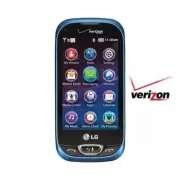


 LG A7110
User Manual
LG A7110
User Manual
 LG AX5000
User Manual
LG AX5000
User Manual
 LG C1300
User Manual
LG C1300
User Manual
 LG C1300A
User Manual
LG C1300A
User Manual
 LG C1300I
User Manual
LG C1300I
User Manual
 LG C1500
User Manual
LG C1500
User Manual
 LG C2000
User Manual
LG C2000
User Manual
 LG CB630
User Manual
LG CB630
User Manual
 LG CE500
User Manual
LG CE500
User Manual
 LG CF360
User Manual
LG CF360
User Manual
 LG CF360A
User Manual
LG CF360A
User Manual
 LG CG180
User Manual
LG CG180
User Manual
 LG CG225
User Manual
LG CG225
User Manual
 LG CG300
User Manual
LG CG300
User Manual
 LG CP150
User Manual
LG CP150
User Manual
 LG CU320
User Manual
LG CU320
User Manual
 LG CU400
User Manual
LG CU400
User Manual
 LG CU405
User Manual
LG CU405
User Manual
 LG CU500
User Manual
LG CU500
User Manual