Page 2 - Touch is a trademark of
Copyright©2010 LG Electronics, Inc. All rights reserved . LG and the LG logo are registered trademarks of LG Group and its related entities. Cosmos TM Touch is a trademark of Verizon Wireless. All other trademarks are the property of their respective owners.
Page 3 - Violation of the instructions may cause serious injury or death.; Important Safety Precautions
Read these instructions. Breaking the rules may be dangerous or illegal.Further detailed information is given in this user guide. Violation of the instructions may cause serious injury or death. ● Never use an unapproved battery since this could damage the phone and/or the battery and could cause th...
Page 4 - Do no
Important Safety Precautions ● Do no t expose the battery charger or adapter to direct sunlight or use it in places with high humidity, such as a bathroom. ● Do not use harsh chemicals (such as alcohol, benzene, thinner, etc.) or detergent to clean your phone. This could cause a fire. ● Do not drop,...
Page 6 - Table of Contents
Table of Contents Important Safety Precautions 1Table of Contents . . . . . . . . . .4Welcome . . . . . . . . . . . . . . . . . .8Technical Details . . . . . . . . . . .9Phone Overview . . . . . . . . . . .13Quick Glance of the TouchScreen and How to Use It . .16Getting Started with YourPhone . . . ...
Page 10 - Welcome; NOTE
Welcome Thank you for choosing theCosmos TM Touch cellular phone, designed to operate with the latestdigital mobile communicationtechnology, Code Division MultipleAccess (CDMA). Along with themany advanced features of theCDMA system, such as greatlyenhanced voice clarity, this compactphone offers: ●...
Page 11 - Important Information; Technical Details; Touch is an all
9 Technical Details Important Information This user’s guide providesimportant information on the useand operation of your phone.Please read this guide carefullyprior to using the phone to be ableto use your phone to its greatestadvantage and to prevent anyaccidental damage or misuse. Anyunapproved c...
Page 12 - Bodily Contact During Operation
Technical Details safety standard previously set byboth U.S. and internationalstandards bodies. The design ofthis phone complies with the FCCguidelines and these internationalstandards. Bodily Contact During Operation This device was tested for typicaluse with the back of the phonekept 0.79 inches (...
Page 14 - - Reorient or relocate the receiving
Technical Details Part 15.105 statement This equipment has been testedand found to comply with thelimits for a class B digital device,pursuant to Part 15 of the FCCRules. These limits are designed toprovide reasonable protectionagainst harmful interference in aresidential installation. Thisequipment...
Page 15 - Phone Overview
Phone Overview 13 1. Earpiece Lets you hear the caller. 2. Shortcuts Key Allows quick access to a customizable Shortcut Menu. 3. Quick Keys The Quick Keys provide easy access to Messages, the phone Dialpad, theMain Menu, the Contact List, and Favoriteswhich easily activate with the touch of yourfing...
Page 17 - Using the QWERTY Keyboard; To change capitalization, press the; then press; Shift Key
Using the QWERTY Keyboard Your phone features a slide-out QWERTY keyboard, specifically designed foreasy and comfortable text entry. The QWERTY keyboard uses the samelayout as the keyboard on your computer, but has several added featuresand options to make text entry easier. To enter text with the Q...
Page 18 - Quick Glance of the Touch Screen and How to Use It; Quick Keys; How to Unlock; OR
Quick Glance of the Touch Screen and How to Use It Quick Keys ( , , , ) 1. For optimal performance, make sure your hands are clean anddry. Remove moisture from thesurface of your hands. Don't usethe touch keys in a humidenvironment. 2. The touch screen is sensitive to your light touch. You don't nee...
Page 19 - Getting Started with Your Phone; Turning the Phone On and
Getting Started with Your Phone 17 Turning the Phone On and Off Turning the Phone On 1. Install a charged battery or connect the phone to an externalpower source. 2. Press the PWR/End Key for a few seconds until the LCDscreen turns on. Turning the Phone Off 1. Unlock the touch screen by dragging to ...
Page 20 - To remove the back cover; Charging the Battery; NOTICE
Getting Started with Your Phone To remove the back cover 1. Hold the phone securely with both hands (as demonstrated). 2. Push the back cover up with your thumb until it disengages fromthe phone and then slide it up toremove. To install the back cover 1. Align the battery cover slightly lower than t...
Page 21 - Connect the USB data cable into; Charging with USB; Card; Locate the microSD slot on the
1. Connect the USB data cable into the wall adapter, as shown below. 2. Gently uncover the phone's accessory/ charger port. Thenplug the USB data cable (asshown in the next image) into theaccessory/ charger port and theother end into an electricaloutlet. The charge time variesdepending upon the batt...
Page 22 - Battery Temperature
Getting Started with Your Phone 2. Insert the microSD TM card (purchased separately) with thelabel side facing up. Gently pushit in until it clicks into place.Please note that if you insert thecard in the wrong direction, itmay damage your phone or yourcard. How to Remove a microSD TM Card 1. Uncove...
Page 23 - Unlock the touch screen by
Battery Charge Level You can find the battery charge levelat the top right of the LCD screen.When the charge level becomes low,the battery sensor sounds a warningtone, blinks the battery icon, anddisplays a warning message. As thecharge level approaches empty, thephone automatically switches offwith...
Page 24 - Making Calls; Redialing Calls; END
Getting Started with Your Phone Making Calls 1. Unlock the touch screen by dragging to the right or press the Unlock Key ( ) on the right side of your phone. 2. Touch the Phone Quick Key to display the dialpad you canuse to dial. Enter the phonenumber you want to call. NOTE You can search your Conta...
Page 25 - Receiving Calls; to the right; Sliding the QWERTY; Answer
Receiving Calls 1. When the phone rings and/or vibrates, unlock the touch screenby dragging to the right then touch , or press the Send Key . 2. Touch End Key to end the call. NOTE To ignore the incoming call, pressthe PWR/End Key twice to immediately end the call. Or, youcan touch . You can also se...
Page 26 - Calibrating the Touch Screen
Calibrating the Touch Screen 24 Calibration allows the phone to recognize the accuracy of your touch. 1. Unlock the touch screen by dragging to the right or press the Unlock Key ( ) on the right side of your phone.Then, touch the Menu Quick Key . 2. Touch Settings . 3. Touch Touch Settings . 4. Touc...
Page 27 - Shorcuts Menu; Shortcuts Menu; Unlock Key
Shorcuts Menu 25 Shortcuts Menu The Shortcuts Menu allows instantaccess to menus and phone featureswith the quick touch of yourfingertip. To use the ShortcutsMenu: 1. Unlock the touch screen by dragging to the right or press the Unlock Key ( ) on the right side of your phone. 2. Touch the Shortcuts ...
Page 29 - Screen; To view other Home screen panes
Screen 27 To view other Home screen panes Slide your finger left or right across the Home screen. If you slide yourfinger left, you could access and edit Favorites. If you slide your finger right,you can access Messages. Favorites Allows you to add upto 11 Contact entriesor Contact groups toyour lis...
Page 30 - Entering and Editing Information; Text Input
Entering and Editing Information 28 Text Input You can enter information using thetouch screen keypad. There arespecial key functions to help youwith text entry. Text Input While Composing a TXT Message 1. Unlock the touch screen by dragging to the right or press the Unlock Key ( ) on the right side...
Page 31 - Changing Input Method; TIP
29 When entering text, besides"typing" the text with the touchkeys, you also have the option towrite with your fingertip. The touchscreen interprets your movementsinto characters. 1. Touch a text field, then touch the Pen icon on the right side of the display. 2. Use your fingertip to write ...
Page 33 - Menu Tree; Emergency
Menu Tree 31 M M y V y V erizon erizon M M e e ssaging ssaging 1. New Message 1. TXT Message2. Picture Message 3. Voice Message 2. Messages3. Drafts4. Voicemail5. Mobile IM6. Social Beat7. Mobile Email8. Social Networks 9. Settings 1. Messages View2. Entry Mode3. Text Entry Settings 4. Auto Save Sen...
Page 34 - Download
Menu Tree 32 6. Browse & Download 1. Get New Applications Mobile E-mailSocial BeatBing SearchVZ Navigator 7. Extras 1. Get New Applications 8. Info M M y Music y Music M M obile obile W W eb eb S S ear ear ch ch M M obile obile E E mail mail VZ N VZ N a a viga viga t t or or T T ools ools 1. Voi...
Page 36 - Menu Access; Menu Quick Key
Menu Access 34 Menu Access The Menu Quick Key provides access to the phone's main menu. To access the main menu, unlock the phone first by pressing the Unlock Key ( ) on the right side of your phone or sliding the Unlock icon to the right. Touch the Menu Quick Key at the bottom of the screen to open...
Page 37 - Shortcuts Menu on the Touch Screen
Shortcuts Menu on the Touch Screen 35 Clock Widget Calendar Widget Memo Widget Alarm Clock Drawing Pad TXT Msg Games My Pictures Remove Shortcuts Menu The Shortcuts Menu allows quick, direct access to several frequently usedfeatures from the touch screen. Up to 8 different shortcuts can be set. Toac...
Page 38 - Quick Access to Convenient Features; Lock Mode; Vibrate Mode; Ignore
Quick Access to Convenient Features Lock Mode Sets your phone to require a 4 digitpassword in order to use the phone. To set Lock Mode on, touch Menu -> Settings -> Phone Settings -> Security -> Enter the Phone Lock Code -> Lock Phone Now . Quick Volume Adjustment Quickly adjust the M...
Page 39 - Voice Commands; press the
Voice Commands Voice Commands allow you to dothings by verbal command (e.g.,make calls, check Voicemail, etc.).For more information, see page 83. 1. With the touch screen unlocked, press the Clear / Voice Commands Key once (an extended press activates theVoice Recorder feature instead). 2. Follow th...
Page 40 - Contacts in Your Phone’s Memory; Storing Basics
Contacts in Your Phone’s Memory Storing Basics 1. Unlock the touch screen by dragging to the right or press the Unlock Key ( ) on the right side of your phone. 2. Touch the Contact Quick Key . 3. Touch . 4. Touch an information field and use the keypad to enter thenecessary information. Thentouch . ...
Page 41 - SAVE
Speed Dials Allows you to set up your SpeedDials. 1. Unlock the touch screen by dragging to the right or press the Unlock Key ( ) on the right side of your phone. 2. Touch the Contacts Quick Key . 3. Touch the Contact you want to set with a Speed Dial, then touch Options . 4. Touch Set Speed Dial , ...
Page 42 - Deleting; Deleting a Contact Entry
Contacts in Your Phone’s Memory 40 Deleting Deleting a Contact Entry 1. Unlock the touch screen by dragging to the right or press the Unlock Key ( ) on the right side of your phone. 2. Touch the Contacts Quick Key . 3. Touch the Contact you want to delete. 4. Touch . 5. Touch Yes . ERASE
Page 43 - Options in Camera Mode; Camera Features; Camera Settings
Camera Features 41 Options in Camera Mode Brightness Setting Touch the level of brightness you want. White Balance Auto/ Sunny/ Cloudy/ Fluorescent/ Glow Camera Settings Allows you to configure thefollowing camera settings: Resolution: 1280x960/ 640X480 / 320X240 Keep in mind that higher resolutionu...
Page 44 - Picture Editing
Camera Features 42 Editing Touch Keys Picture Editing With the Cosmos TM Touch's many picture editing features, you have endless possibilites in creating fun pictures. To edit while viewing a picture, touch Options , then touch Edit . Drawing 1. Touch the Drawing Key . The following options are avai...
Page 45 - Camera Features/ My Verizon; My Verizon
43 Camera Features/ My Verizon Adjustments Improve your photos by adjustingContrast, Sharpness, Blur orBrightness. Touch the Adjustments Key , then use the scroll bar to adjust each setting. Frames and Stamps The Cosmos TM Touch has multiple frames and stamps to choose fromto enhance your pictures. ...
Page 46 - Messaging; SHORTCUT
Messaging Messaging The phone can store up to 690(depending on message sizes, lessmay be available) messages. Theinformation stored in the messageis determined by phone mode andservice capability. Other limits toavailable characters per messagemay exist. Please check with yourservice provider for sy...
Page 47 - Other Message Options; The Text Field Options; Options; Contact
45 Other Message Options Entering saved addresses in theTo: field 1. With the QWERTY keypad open, touch , touch , or touch. ● Your list of Favorite Contacts is displayed. Select theone(s) to send a message to. ● Your Contact List is displayed. Select the ones youwant to send a message to. ● Select F...
Page 55 - Select the social network
53 4. Select the social network provider option to completeyour update. NOTE For more information, access 'Help' foreach Social Networks Message option.(Messaging -> Social Networks -> Options -> Help). *Social Networks Options Facebook Status Updates : Sends a text message to Facebook that...
Page 58 - Contacts
Contacts Contacts The Contacts Menu allows you tostore names, phone numbers andother information in your phone’smemory. 1. New Contact Allows you to add a new number toyour Contact List. 1. Unlock the touch screen by dragging to the right or press the Unlock Key ( ) on the right side of your phone a...
Page 59 - MESSAGE
NOTE From the Contact List, touch Options . Then touch Erase . With this menu you can erasemultiple contacts at the sametime. Select (mark) the Contactsyou want to delete then touch Erase . 4. Touch a Contact entry. 5. The following options are available. ● Touch to erase the Contact. ● Touch to edi...
Page 60 - NEW GROUP
Contacts 4. Groups Allows you to view your groupedContacts, add a new group, changethe name of a group, delete agroup, or send a message toeveryone in the selected group. 1. Unlock the touch screen by dragging to the right or press the Unlock Key ( ) on the right side of your phone andtouch the Menu...
Page 61 - In Case of Emergency
4. Touch an unassigned Speed Dial position. 5. Touch Contact you wish to assign a Speed Dial to. 6. Touch the Contact number you want to assign (if applicable),then touch Yes. 6. In Case of Emergency (ICE) This menu allows you to storenames, phone numbers and otherinformation, which could be helpful...
Page 62 - Recent Calls
Contacts 7. My Name Card Allows you to create, edit and viewyour own Contact informationincluding name, phone numbers,and email address. 1. Unlock the touch screen by dragging to the right or press the Unlock Key ( ) on the right side of your phone andtouch the Menu Quick Key . 2. Touch Contacts . 3...
Page 66 - Info; Media Center
Media Center Media Center gives youcustomizable service right on yourwireless device that lets you getringtones, play games, surf the web,get up-to-the-minute informationand more. Visitverizonwireless.com/getitnow toview all of the applications availablefor your wireless device. NOTE The touch scree...
Page 71 - Music Player Controls; choose from the following:
69 Music Player Controls Shuffle Back Key OptionsSong list Repeat Play/ Pause Fast Forward/ Skip to Next Song Rewind/Skip Back to Previous Song Song Name Controlling the Music Player While listening to your music, usethe following to control the MusicPlayer: ● Options : Allows you to choose from the...
Page 72 - USB Autorun
Media Center 70 5. Touch or touch a sound file to listen to it. The following options areavailable for pre-loaded sounds: Set As/ Send/ To Online Album/ Erase All/ File Info The following options areavailable for user-recordedsounds: Set As/ Send/ To Online Album/ Erase/ Rename/ Move/ Erase All/ Fil...
Page 73 - NOTES; Autorun is not available when:
71 NOTES ● USB Autorun only works withWindows ® XP, Window 7 and Vista TM operating systems. ● Log on to the PC asAdministrator. Non-Administrator accounts haveinsufficient privilege to installUSB Modem driver and don’trun Autorun feature. ● Do not unplug USB cable duringAutorun. Autorun automatical...
Page 74 - Connecting the Phone to; Downloading the LG USB
Media Center Step 1. Connecting the Phone to the PC - Connect your phone to your PC with a compatible USBcable (supplied) and LGAutorun starts automatically. - Click ‘I accept the terms in the agreement’ and ‘Yes’. NOTE ● Autorun does not support MACOS. ● Without the Autorun, Releasenotes for USB Au...
Page 75 - EUT Step 1; EUT Step 2
Step 3. Installing the LG USB Modem Driver and EUT. EUT Step 1 Software upgrade case using EUT. You are allowed to upgrade softwarefor your phone using EUT(End UserUpgrade Tool). NOTE If connection is not available tothe internet, the device isswitched back to the user setmode. EUT Step 2 Upgrade Ap...
Page 76 - EUT Step 4; Monitoring Application: VZW
Media Center EUT Step 4 Upgrade Application: Upgrade process NOTE During the upgrade, theprogress bar and timeremaining are displayed. Monitoring Application: VZW Software Upgrade Assistant NOTE In the Windows’ system tray,“VZW Software Upgrade Assistant– LG” is running. NOTES Click the right mouse ...
Page 78 - TIPS; SHORTCUTS; ERASE
Media Center ● Touch to erase picture. ● Touch Options for the options below: Options for Standard Images: Set As Wallpaper/ Picture ID Take Picture Opens the Camera function and allows you to take apicture. Get New Pictures Opens the Get New Pictures menu in the MediaCenter. Slide Show Allows you t...
Page 80 - Get New Applications
Media Center 78 4. Games Allows you to play games as well asdownload new games andapplications from the Media Centerserver. 4.1 Get New Applications 1. Unlock the touch screen by dragging to the right or press the Unlock Key ( ) on the right side of your phone andtouch the Menu Quick Key . 2. Touch ...
Page 82 - Ending a Browser Session; CAUTION
My Music/ Mobile Web 80 My Music Allows you to store and to listen tomusic right from your phone. Formore details on using this feature,please see the My Music section onpage 66. 1. Unlock the touch screen by dragging to the right or press the Unlock Key ( ) on the right side of your phone andtouch ...
Page 83 - Search; Access
Search Search The Bing Search applicationprovides Verizon Wirelesssubscribers with a superior,comprehensive mobile searchexperience that includes highlyrelevant search results from topquality content sources. Bing Search develops a userexperience that: ● Provides search results from theWeb and VZW D...
Page 84 - Mobile Email/ VZ Navigator
Mobile Email The Mobile Email applications allowyou stay connected on the go soyou don't miss an important email. Access 1. Unlock the touch screen by dragging to the right or press the Unlock Key ( ) on the right side of your phone andtouch the Menu Quick Key . 2. Touch Mobile Email . VZ Navigator ...
Page 85 - Tools
Tools 83 Tools Your phone tools include VoiceCommands, Calculator, Ez TipCalculator, Calendar, Alarm Clock,Stopwatch, World Clock, Notepad,Drawing Pad, and USB MassStorage. 1. Voice Commands This feature provides you with thefollowing options equipped withAVR (Advanced Voice Recognition)technology. ...
Page 88 - ADD
3. Ez Tip Calculator Allows you to quickly and easilycalculate bill amounts using the billtotal, tip % and number of peopleas variables. 1. Unlock the touch screen by dragging to the right or press the Unlock Key ( ) on the right side of your phone andtouch the Menu Quick Key . 2. Touch Tools . 3. T...
Page 90 - CITIES
7. World Clock Allows you to determine the currenttime in another time zone orcountry. 1. Unlock the touch screen by dragging to the right or press the Unlock Key ( ) on the right side of your phone andtouch the Menu Quick Key . 2. Touch Tools . 3. Touch World Clock . 4. Touch to zoom in on a countr...
Page 92 - Media Manager; Media Manager lets
Tools 90 V CAST TM Media Manager V CAST TM Media Manager lets allows you to move the picturesfrom the phone to the PC via a USBcable. You can also use V CAST TM Media Manager—which is poweredby a customized version ofQuickLink Media Software fromSmith Micro Software—to transferunprotected music from...
Page 93 - Settings
Settings 1. My Verizon Check your subscriptioninformation ranging from yourpayment plan to your softwareupgrade or other available services. 1. Unlock the touch screen by dragging to the right or press the Unlock Key ( ) on the right side of your phone andtouch the Menu Quick Key . 2. Touch Settings...
Page 94 - REFRESH
Settings 2.1 Add New Device Pairing is the process that allowsthe handset to locate, establish, andregister 1-to-1 connection with thetarget device. For pairing with a new Bluetooth ® device 1. Follow the Bluetooth ® accessory instructions to set the device topairing mode. 2. Unlock the touch screen...
Page 95 - Save
● Icon References When a Bluetooth ® Wireless Connection is found (neither connected norpaired). My Device Info Allows you to view your device'sBluetooth ® information and to edit the name of the Bluetooth ® device. 1. Unlock the touch screen by dragging to the right or press the Unlock Key ( ) on t...
Page 96 - Supported Profiles
Settings 1. Unlock the touch screen by dragging to the right or press the Unlock Key ( ) on the right side of your phone andtouch the Menu Quick Key . 2. Touch Settings . 3. Touch Bluetooth Menu . TIP Simply touch to enter Discovery Mode. 4. Touch Options . 5. Touch Discovery Mode . 6. Touch a setti...
Page 99 - Digit Dial Readout; SET
97 3.5 Button Sounds Allows you to set the volume levelfor the touch keys (buttons). 1. Unlock the touch screen by dragging to the right or press the Unlock Key ( ) on the right side of your phone andtouch the Menu Quick Key . 2. Touch Settings . 3. Touch Sounds Settings . 4. Touch Button Sounds . 5...
Page 101 - Display Backlight
99 2. Touch Settings . 3. Touch Display Settings . 4. Touch Easy Set-up . 5. Follow the prompts to set the Display settings for your phone. 4.2 Banner Allows you to enter text to displayon the LCD. You can enter up to 23characters. 4.2.1 Personal Banner 1. Unlock the touch screen by dragging to the ...
Page 106 - Set Qwerty Shortcut
6.2 Set Qwerty Shortcut Allows you to set Qwerty shortcutsfor the Home screen. 1. Unlock the touch screen by dragging to the right or press the Unlock Key ( ) on the right side of your phone andtouch the Menu Quick Key . 2. Touch Settings . 3. Touch Phone Settings . 4. Touch Set Qwerty Shortcut . 5....
Page 112 - DONE
6.9 NAM Select Allows you to select the phone’sNAM (Number Assignment Module)if the phone is registered withmultiple service providers. 1. Unlock the touch screen by dragging to the right or press the Unlock Key ( ) on the right side of your phone andtouch the Menu Quick Key . 2. Touch Settings . 3....
Page 114 - TTY Full
7.6 TTY Mode Allows you to attach a TTY deviceenabling you to communicate withparties also using a TTY device. Aphone with TTY support is able totranslate typed characters to voice.Voice can also be translated intocharacters and then displayed onthe TTY. 1. Unlock the touch screen by dragging to the...
Page 122 - Troubleshooting
Troubleshooting This section lists some problems that you might encounter while using yourphone. Some problems require that you call your service provider, but mostof problems you encounter are easy to correct yourself 120 Symptom Possible causes Possible Corrective measures No connectionto the netw...
Page 124 - Safety; TIA Safety Information; Radiation Protection
122 Cosmos TM Safety TIA Safety Information The following is the complete TIASafety Information for wirelesshandheld phones. Exposure to Radio Frequency Signal Your wireless handheld portablephone is a low power radiotransmitter and receiver. When ON,it receives and sends out RadioFrequency (RF) sig...
Page 125 - Persons with pacemakers:; Should turn the phone OFF
Tips on Efficient Operation For your phone to operate mostefficiently: Don’t touch the antennaunnecessarily when the phone is inuse. Contact with the antennaaffects call quality and may causethe phone to operate at a higherpower level than otherwise needed. Driving Check the laws and regulations ont...
Page 127 - Safety Information; Violation of the; Caution
could cause an explosion or fireresulting in bodily injury or evendeath. Areas with a potentially explosiveatmosphere are often, but notalways marked clearly. Potentialareas may include: fueling areas(such as gasoline stations); belowdeck on boats; fuel or chemicaltransfer or storage facilities;vehi...
Page 128 - to contact battery terminals.
126 Cosmos TM Safety to contact battery terminals. ● Replace the battery only withanother battery that has beenqualified with the system per thisstandard, IEEE-Std-1725-200x.Use of an unqualified batterymay present a risk of fire,explosion, leakage or otherhazard. ● Promptly dispose of usedbatteries...
Page 130 - Hazards
Safety that small children do notremove the battery from thecharger or device. ● If liquid from the battery rubsagainst skin or clothing, rinsewith clean water. The batteryliquid could cause skin irritation. ● Do not handle the phone withwet hands while it is beingcharged. It may cause an electricsh...
Page 132 - Avoid potential hearing; or other
Safety backup your important phonenumbers. (Ringtones, textmessages, voice messages, andpictures could also be deleted.)The manufacturer is not liablefor damage due to the loss ofdata. ● When you use the phone inpublic places, set the ringtoneto vibration so you don't disturbothers. ● Do not turn yo...
Page 134 - FDA Consumer Update; Do wireless phones pose a
Safety FDA Consumer Update The U.S. Food andDrug Administration’sCenter for Devices and Radiological Health ConsumerUpdate on Mobile Phones: 1. Do wireless phones pose a health hazard? The available scientific evidencedoes not show that any healthproblems are associated with usingwireless phones. Th...
Page 136 - What are the results of the
Safety Radio Frequency (RF) energybecause of the short distancebetween the phone and the user’shead. These RF exposures are limited byFCC safety guidelines that weredeveloped with the advice of theFDA and other federal health andsafety agencies. When the phone islocated at greater distances fromthe ...
Page 138 - How can I find out how much
Safety information documents on EMFissues. The FDA and the CellularTelecommunications & InternetAssociation (CTIA) have a formalCooperative Research AndDevelopment Agreement (CRADA)to do research on wireless phonesafety. The FDA provides thescientific oversight, obtaining inputfrom experts in go...
Page 140 - What about children using
Safety does not demonstrate that wirelessphones are harmful. But if you areconcerned about the RF exposurefrom these products, you can usemeasures like those describedabove to reduce your RF exposurefrom wireless phone use. 10. What about children using wireless phones? The scientific evidence does ...
Page 141 - Where can I find additional; 0 Driver Safety Tips
for interference from handheldwireless phones and helpeddevelop a voluntary standardsponsored by the Institute ofElectrical and Electronic Engineers(IEEE). This standard specifies testmethods and performancerequirements for hearing aids andwireless phones so that nointerference occurs when a personu...
Page 142 - Get to know your wireless
Safety 1. Get to know your wireless phone and its features such asspeed dial and redial. Carefullyread your instruction manualand learn to take advantage ofvaluable features most phonesoffer, including automatic redialand memory. Also, work tomemorize the phone keypad soyou can use the speed dialfun...
Page 144 - Consumer Information on; Government’s Requirements for
Safety may prohibit or otherwiserestrict the manner in which adriver may use his or her phonewhile operating a vehicle. Consumer Information on SAR (Specific Absorption Rate)This Model Phone Meets the Government’s Requirements for Exposure to Radio Waves. Your wireless phone is a radiotransmitter an...
Page 146 - Regulations for Wireless
Safety uses the phone FCC ID numberwhich is usually printed somewhereon the case of the phone.Sometimes it may be necessary toremove the battery pack to find thenumber. Once you have the FCC IDnumber for a particular phone,follow the instructions on thewebsite and it should providevalues for typical...
Page 148 - FCC Hearing Aid Compatibility and Volume Control
Safety “normal usage” while using theirhearing aid with the particularwireless phone. “Normal usage” inthis context is defined as a signalquality that’s acceptable for normaloperation. The M mark is intended to besynonymous with the U mark. TheT mark is intended to besynonymous with the UT mark.The ...
Page 149 - Accessories; Charger
Accessories 147 There are a variety of optional accessories available for your phone andthree easy ways to purchase them: shop online anytime atwww.verizonwireless.com, call us at 1866 VZ GOT IT (894 6848) or visitone of our Verizon Wireless Communication Stores. Vehicle Power Charger Bluetooth Head...
Page 150 - LIMITED WARRANTY STATEMENT; WHAT THIS WARRANTY
LIMITED WARRANTY STATEMENT 1. WHAT THIS WARRANTY COVERS: LG offers you a limited warrantythat the enclosed subscriber unitand its enclosed accessories will befree from defects in material andworkmanship, according to thefollowing terms and conditions: (1) The limited warranty for the product extends...
Page 152 - HOW TO GET WARRANTY
LIMITED WARRANTY STATEMENT 4. STATE LAW RIGHTS: No other express warranty isapplicable to this product. THEDURATION OF ANY IMPLIEDWARRANTIES, INCLUDING THEIMPLIED WARRANTY OFMARKETABILITY, IS LIMITED TOTHE DURATION OF THE EXPRESSWARRANTY HEREIN. LG SHALLNOT BE LIABLE FOR THE LOSS OFTHE USE OF THE PR...
Page 153 - Terminology; Acronyms and; Glossary
Terminology Ez Tip Calculator Feature for easy bill calculationusing the total cost, tip, andnumber of people as variables. Voice Commands Feature that allows you to performa wide range of verbal commandsby training the phone to recognizeyour individual speech patterns. Bluetooth ® wireless technolo...
Page 154 - NAM
Glossary IS 2000 Type of digital signaling. It's thesecond generation of CDMA digitalcellular, an extension of IS-95.Differences between signalingtypes have to do with pilot signaland links to provide more trafficchannels, and control protocols. NAM N N umber A A ssignment M M odule is how the phone...
Page 155 - Index
123 10 Driver Safety Tips 139 A Accessories 147 Acronyms and Abbreviations 151 Add New Device 92 Airplane Mode 103 Alarm Clock 87 Alert Sounds 96 All 62 Answer Options 110 Assisted Dialing 114 Auto Retry 111 B Backup Assistant 57 Banner 99 Battery Charge Level 21 Battery Temperature Protection 20 Bl...
Page 158 - MEMO
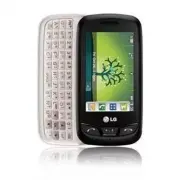


 LG A7110
User Manual
LG A7110
User Manual
 LG AX5000
User Manual
LG AX5000
User Manual
 LG C1300
User Manual
LG C1300
User Manual
 LG C1300A
User Manual
LG C1300A
User Manual
 LG C1300I
User Manual
LG C1300I
User Manual
 LG C1500
User Manual
LG C1500
User Manual
 LG C2000
User Manual
LG C2000
User Manual
 LG CB630
User Manual
LG CB630
User Manual
 LG CE500
User Manual
LG CE500
User Manual
 LG CF360
User Manual
LG CF360
User Manual
 LG CF360A
User Manual
LG CF360A
User Manual
 LG CG180
User Manual
LG CG180
User Manual
 LG CG225
User Manual
LG CG225
User Manual
 LG CG300
User Manual
LG CG300
User Manual
 LG CP150
User Manual
LG CP150
User Manual
 LG CU320
User Manual
LG CU320
User Manual
 LG CU400
User Manual
LG CU400
User Manual
 LG CU405
User Manual
LG CU405
User Manual
 LG CU500
User Manual
LG CU500
User Manual