Page 2 - All rights reserved
Copyright©2015 LG Electronics, Inc. All rights reserved . LG and the LG logo are registered trademarks of LG Corp. TERRA is a trademark of LG Electronics, Inc. All other trademarks are the property of their respective owners.
Page 3 - Table of Contents; Table of Contents · · · · · · · · · 1; New Contact · · · · · · · · · · · · · · · 22
1 Table of Contents Table of Contents · · · · · · · · · 1 Phone Overview · · · · · · · · · · · 6 Rear view · · · · · · · · · · · · · · · · · · · · · · · · · 8 Menus Overview · · · · · · · · · · 9 Getting Started with Your Phone · · · · · · · · · · · · · · · · · · 11 Step 1. Remove the Back Cover · ·...
Page 4 - Messaging · · · · · · · · · · · · · ·27
Table of Contents 2 2. Contact List · · · · · · · · · · · · · · · · 22 3. Backup Assistant · · · · · · · · · · · · 23 4. Favorites · · · · · · · · · · · · · · · · · · · 23 5. Groups · · · · · · · · · · · · · · · · · · · · 23 Adding Contacts to a Group · · · · · · ·24 6. Speed Dials · · · · · · · · ·...
Page 5 - Tools · · · · · · · · · · · · · · · · · · · · · 48
Table of Contents 3 3.1.4 Caller ID Readout · · · · · · · · · · 46 3.1.5 Passwords Readout · · · · · · · · 46 3.1.6 Speech Rate · · · · · · · · · · · · · · ·47 3.2 Invert Color · · · · · · · · · · · · · · · · · · 47 3.3 Large Text · · · · · · · · · · · · · · · · · · · · 47 3.4 Mono Audio · · · · · ·...
Page 6 - Safety · · · · · · · · · · · · · · · · · ·82
Table of Contents 4 7.6 Display Themes · · · · · · · · · · · · · · · 63 7.7 Main Menu Settings · · · · · · · · · · · · 64 7.8 Font Type · · · · · · · · · · · · · · · · · · · · 64 7.9 Font Size · · · · · · · · · · · · · · · · · · · · · 64 7.10 Clock Format · · · · · · · · · · · · · · · · 65 7.10.1 Ma...
Page 7 - Glossary · · · · · · · · · · · · · · · 120
Table of Contents 5 Safety Information · · · · · · · · · · · · 95 FDA Consumer Update · · · · · · · · 101 Driving · · · · · · · · · · · · · · · · · · · · · 108 10 Driver Safety Tips · · · · · · · · · 108 LIMITED WARRANTY STATEMENT · · · · · · · · · · · 113 Glossary · · · · · · · · · · · · · · · 120 ...
Page 8 - Phone Overview
6 Phone Overview 1. Main Screen Displays messages, indicator icons and active functions. 2. Left Soft Key Performs functions identified on the bottom-left corner of the screen. 3. Headset Jack Allows you to plug in an optional 3.5mm headset for convenient, hands-free conversations. 4. Message Key Qui...
Page 9 - Use to turn the
Phone Overview 7 12. PWR/END Key Use to turn the power on/off and to end a call. Also exits menus and returns to standby mode. 13. Clear / Voice Commands Key Deletes single spaces or characters with a quick press, or press and hold to delete entire words in text entry screens. Press to back out of m...
Page 10 - SIM Card Slot; Rear view
Phone Overview 8 1. SIM Card Slot 2. Battery 3. Back Cover NOTE The antenna is located inside your phone. Tip If you hold the phone enclosing the lower edge, you may interfere with the antenna's ability to receive a clear signal which affects call quality for voice or data transfer. NOTE s It’s impo...
Page 11 - Menus Overview; In Case of Emergency
9 Menus Overview Contacts 1. New Contact 2. Contact List 3. Backup Assistant 4. Favorites 5. Groups 6. Speed Dials 7. In Case of Emergency 8. My Name Card Messaging 1. New Message 2. Messages 3. Drafts 4. Voice mail 5. Social Networks Settings 1. Inbox View 2. Entry Mode 3. Auto Save Sent 4. Auto Er...
Page 13 - Getting Started with Your Phone; Step 1. Remove the Back Cover
11 Getting Started with Your Phone Step 1. Remove the Back Cover Use the fingertip cutout at the bottom of the phone to pull the back cover off. Step 2. Insert the Battery Align the battery contacts with the terminals in the battery compartment and push the battery down until it clicks into place. St...
Page 14 - Use the fingertip cutout at the; at the top right corner of
Getting Started with Your Phone 12 Removing the Battery 1. Turn the phone off. 2. Use the fingertip cutout at the bottom of the phone to pull the back cover off. 3. Use the fingertip opening near the bottom of the battery compartment to lift the battery out. Charging with USB You can use your computer...
Page 15 - Making Calls; Correcting Dialing Mistakes; Redialing Calls
Getting Started with Your Phone 13 Making Calls With the phone open, enter the phone number using the keypad. Press the SEND Key to dial the number. Press the PWR/END Key to end the call. NOTE Your phone has a Voice Commands feature that also lets you make calls by saying a phone number or Contact n...
Page 16 - Quick Access to Convenient Features
14 Quick Access to Convenient Features Vibrate Mode Sets the phone to vibrate instead of ringing ( is displayed). To set Vibrate Mode, with the flip open, press and hold . To return to Normal Mode, press and hold again. Sounds Off Quickly deactivate your phone's sounds when you're in a place where ph...
Page 17 - Caller ID
Quick Access to Convenient Features 15 1. While on the first call, dial the 10-digit number of the second person. 2. Press the SEND Key . The first person is automatically put on hold while the call is made. 3. When the second person answers, press [MERGE] to create a conference call. 4. If the second...
Page 19 - Entering and Editing Information; Text Input; Press to change; Text Input Modes
17 Entering and Editing Information Text Input The following key functions are available to help with text entry: Left Soft Key : Press to change the text input mode. Shift: Press to change capitalization (initial cap, caps lock, lowercase). Space : Press to insert a space. Next : Press to display o...
Page 20 - Contacts in Your Phone’s Memory; Creating a Contact; Customizing Individual Entries
18 Contacts in Your Phone’s Memory Creating a Contact 1. With the flip open, enter a number (max. 48 digits), then press the Left Soft Key [Save] . 2. Use the Navigation Key to highlight Add New Contact or Update Existing , then press . 3. Use the Navigation Key to highlight Mobile 1 / Home / Busines...
Page 21 - Storing a Number with Pauses; Adding Another Phone Number; From standby mode
Contacts in Your Phone’s Memory 19 Storing a Number with Pauses Pauses allow you to enter additional series of numbers to access automated systems such as Voice mail or credit billing numbers. Pause types are: Wait (W) The phone stops dialing until you press the Left Soft Key [Release] to advance to...
Page 22 - From the Contact List Screen; Changing Saved Information; Set As Default
Contacts in Your Phone’s Memory 20 3. Use the Navigation Key to highlight an existing entry then press to update your contact entry. 4. Use the Navigation Key to highlight Mobile 1/ Home/ Business/ Mobile 2/ Fax , then press to update your contact entry. From the Contact List Screen 1. With the flip ...
Page 23 - Deleting; Deleting a Contact Entry; Erase; Removing a Speed Dial; Remove Speed Dial; Speed Dialing; Single Digit Speed Dials
Contacts in Your Phone’s Memory 21 Deleting Deleting a Contact Entry 1. With the flip open, press the Right Soft Key [Contacts] . 2. Use the Navigation Key to highlight an entry. 3. Press the Right Soft Key [Options] . 4. Press Erase . 5. Press [Yes] to confirm. Removing a Speed Dial 1. With the flip o...
Page 24 - Contacts; Contacts; Contacts
22 Contacts Contacts The Contacts menu allows you to store names, phone numbers and other information in your phone’s memory. Shortcut The Right Soft Key is a shortcut key to the Contact List from standby mode. 1. New Contact Allows you to add a new contact to your Contact List. NOTE Using this subm...
Page 26 - Adding Contacts to a Group; In Case of Emergency
Contacts 24 4. View a Group Use the Navigation Key to highlight a group, then press [VIEW] . Add a New Group Press the Left Soft Key [New] to add a new group to the list. Enter a name and picture (if desired) and press [SAVE] . Group's options Press the Right Soft Key [Options] to select one of the ...
Page 27 - Entering Your ICE Personal Info; To unassign an ICE Contacts
Contacts 25 2. Press Contacts . 3. Press In Case of Emergency . 4. Use the Navigation Key to highlight Contact 1, 2 , or 3 , then press [ADD] . 5. Press From Contacts or From Favorites to add a Contact from your Contact List. OR Press New Contact to enter information not stored in your Contact List....
Page 28 - to enter your
Contacts 26 4. Press [EDIT] to enter your personal Contact information. 5. Use the Navigation Key to scroll to the information you want to enter. 6. Enter your information as necessary, then press [SAVE] . NOTE Press the Right Soft Key [Send] to send your name card.
Page 29 - Messaging; SEND Key; New Message Alert; The phone displays a message
27 Messaging Messaging Shortcut From standby mode, pressing the Left Soft Key is a shortcut to Messages. Depending on the content and size of your messages, the phone can store up to 790 messages (including a max. of 300 text messages, 100 emergency alerts, 100 multimedia message notifications, and 1...
Page 30 - From Contacts
Messaging 28 5. Press to access the text field. 6. Use the keypad to enter your message. 7. Press [SEND] . Select Recipient(s) Using Add 1. Open the flip and press [MENU] . 2. Press Messaging . 3. Press New Message . 4. With the To field highlighted, press the Right Soft Key Add . 5. Select an option a...
Page 31 - High; Viewing Your Inbox
Messaging 29 5. Name Card 1. My Name Card : Press to add. 2. From Contacts : Press [MARK] to mark the name cards and press [Done] . 2. Insert Quick Text Highlight the text and press . 3. Save As Draft Press to save as draft. 4. Priority Level Choose from High or Normal and press [SET] . 5. Cancel Me...
Page 32 - Message Icon Reference
Messaging 30 Message Icon Reference New TXT Message Read TXT Message Unopened Multimedia Message Notification Opened Multimedia Message Notification Unread Multimedia Message Read Multimedia Message Message Delivered Message Failed Pending Message Message Sent New Webmail Webmail Read Multiple Message...
Page 33 - Send
Messaging 31 Send Sends the selected message. Add To Contacts Stores the number, email address, and numbers from the address included in the message into your Contacts. Manage Drafts Allows you to manage (erase or lock) messages. Message Icon Reference Draft Text Message Draft Multimedia Message 4. ...
Page 34 - Messaging Settings; Messaging Font Size
Messaging 32 2. Press Messaging . 3. Press Social Networks . 4. Select one of the social networking service providers. 5. Update your information as desired. NOTE Press the Right Soft Key [Options] and select Help to find out how to subscribe to text-based updates. Messaging Settings Allows you to co...
Page 35 - Multimedia Auto Receive
Messaging 33 6. TXT Auto View Select On to automatically display message content on the screen. Select On + Readout to automatically display content and read it aloud. Select Off for more security and privacy by requiring the message to be opened to view it. 7. TXT Instant Reply Select On to text a ...
Page 36 - Delivery Receipt; Erasing Messages
Messaging 34 16. Delivery Receipt When Delivery Receipt is set to On , you can see if your sent messages have been delivered ( ). Or select Off . 17. TXT-Media Msg Notification Displays pop-up notification when switching message types between text and media. Erasing Messages You can erase messages sto...
Page 37 - Recent Calls
35 Recent Calls Recent Calls The Recent Calls menu is a list of the last phone numbers or Contact entries for calls you placed, accepted, or missed. It's continually updated as new numbers are added to the beginning of the list and the oldest entries are removed from the bottom of the list. 1. Misse...
Page 40 - Internet; Open the flip and press
38 Internet Internet Allows you to access news, sports, weather, and email from your Verizon Wireless device. Accessibility and selections within this feature are dependent upon your service provider. For specific information on Internet access through your phone, contact your service provider. Short...
Page 41 - Media Center; Access and Options
39 Media Center Media Center Everything you need to know while you’re on the go. 1. Tunes & Tones Personalize your phone with ringtones. A wide variety of choices are available, such as current hits, pop, hip-hop, and more. Access and Options 1. With the phone open, press [MENU] . 2. Press Media...
Page 42 - How to record a new sound
Media Center 40 All Messages/ TXT Message/ Multimedia Message/ Voice mail 1.3 My Sounds Allows you to record a new sound or select a desired sound. How to record a new sound 1. With the phone open, press [MENU] . 2. Press Media Center . 3. Press Tunes & Tones . 4. Press My Sounds . 5. Press Reco...
Page 45 - Call
Media Center 43 Ending a Browser Session End a Browser session by pressing the PWR/END Key . Navigating Through the Internet On-screen items appear in one of the following ways: Numbered options You can use your numeric keypad or you can select the items by moving the cursor and pressing the appro...
Page 46 - VZ Navigator
Media Center 44 5. Browse & Download Allows you to browse and access your applications, view information about them, and download new applications. 1. With the phone open, press [MENU] . 2. Press Media Center . 3. Press Browse & Download . 4. Touch the application you want to run, touch to v...
Page 50 - Turn Off All Sounds; Confirm Choices
Settings & Tools 48 3.5 Turn Off All Sounds Allows you to turn off all sounds. 1. Open the flip and press [MENU] . 2. Press Settings & Tools . 3. Press Accessibility . 4. Press Turn Off All Sounds . 5. Use the Navigation Key to highlight a setting, then press [SET] . On/ Off 4. Tools This men...
Page 52 - Ez Tip Calculator; Tools
Settings & Tools 50 4.1.6 Search The “Search” command opens the browser and allows you to search for information over the internet. 4.1.7 Redial Say "Redial" and the phone will redial the last phone number. 4.1.8 My Verizon The 'My Verizon' command provides you with direct access to your...
Page 56 - Menu
Settings & Tools 54 8. After time has stopped, press the Right Soft Key [Reset] . 4.9 World Clock Allows you to determine the current time in another time zone or country. 1. Open the flip and press [MENU] . 2. Press Settings & Tools . 3. Press Tools . 4. Press World Clock . 5. Press the Righ...
Page 57 - Turn On Bluetooth; device
Settings & Tools 55 NOTE Your phone is based on the Bluetooth ® specification, but it is not guaranteed to work with all devices enabled with Bluetooth ® wireless technology. Phone does not support ALL Bluetooth ® OBEX Profiles. * For vehicle/accessory compatibility go to www.verizonwireless.com/b...
Page 58 - Wireless Connection; rename the paired device.; My Phone Info
Settings & Tools 56 Icon Reference in Adding New Device When the Bluetooth ® wireless connection is created and paired devices are found, the following icons are displayed. Icon References When a Bluetooth ® Wireless Connection is Searched (neither connected nor paired) When a carkit device is f...
Page 59 - Discovery Mode; Supported Profiles
Settings & Tools 57 4. Press the Right Soft Key [Options] . 5. Press My Phone Info . 6. Press to clear the existing name. 7. Use the keypad to enter a new custom name. 8. Press [SET] to save and exit. Discovery Mode Allows you to set whether your device is able to be discovered/found by other Bl...
Page 62 - Software Update
Settings & Tools 60 Software Update Alerts you of an Over-the-Air (OTA) software update to the device. 6. Use the Navigation Key to highlight a setting, then press [SET] . On/ Off NOTE When highlighting On, you can play the alert option by pressing the Left Soft Key [Play] . 6.6 Hearing Assist A...
Page 66 - Main Menu Settings
Settings & Tools 64 7.7 Main Menu Settings Allows you to choose how the Main Menu displays for menu selection. 1. Open the flip and press [MENU] . 2. Press Settings & Tools . 3. Press Display Settings . 4. Press Main Menu Settings . 5. Use the Navigation Key to highlight a setting, then press...
Page 68 - Set Shortcut Keys; Phone Settings; Navigation Key
Settings & Tools 66 8. Phone Settings The Phone Settings menu allows you to designate specific settings to customize how you use your phone. 8.1 Airplane Mode Turning on Airplane Mode will disable all wireless communications. 1. Open the flip and press [MENU] . 2. Press Settings & Tools . 3. P...
Page 69 - ೠҴয
Settings & Tools 67 3. Press Phone Settings . 4. Press Set Shortcut Keys 5. Press Set Navigation Keys . 6. Use the Navigation Key to highlight a shortcut key you want to set. Up Navigation Key/ Left Navigation Key/ Down Navigation Key 7. Press [SET] to display the available shortcuts. Use the Na...
Page 74 - Data Roaming Access
Settings & Tools 72 8.10 Data Roaming Access Allows you to use data connections when you are roaming. 1. Open the flip and press [MENU] . 2. Press Settings & Tools . 3. Press Phone Settings . 4. Press Data Roaming Access . 5. Use the Navigation Key to highlight a setting, then press [SET] . D...
Page 79 - Automatic Update; Manual Update; Phone Info
Settings & Tools 77 2. Press Settings & Tools . 3. Select Phone Info . 4. Press Icon Glossary . 5. Select a subcategory to view the icons. 11.5 Software Update This feature gives your phone the ability to upgrade to the latest software and keeps your phone operating with the latest features ...
Page 80 - Press the Right Soft Key
Settings & Tools 78 11.6 SIM ID Allows you to check the SIM ID of the SIM inserted in your phone. 1. Open the flip and press [MENU] . 2. Press Settings & Tools . 3. Select Phone Info . 4. Press SIM ID . 12. Set-up Wizard 1. Open the flip and press [MENU] . 2. Press Settings & Tools . 3. Se...
Page 81 - Important Safety Precautions; WARNING
79 Important Safety Precautions Read these instructions. Breaking the rules may be dangerous or illegal. Further detailed information is given in this user guide. Violation of the instructions may cause serious injury or death. WARNING : This product contains chemicals known to the State of Californ...
Page 83 - • Only use the batteries and chargers provided by LG. The
Important Safety Precautions 81 • Only use the batteries and chargers provided by LG. The warranty will not be applied to products provided by other suppliers. • Only authorized personnel should service the phone and its accessories. Faulty installation or service may result in accidents and consequ...
Page 84 - Safety; HAC
82 Safety HAC This phone has been tested and rated for use with hearing aids for some of the wireless technologies that it uses. However, there may be some newer wireless technologies used in this phone that have not been tested yet for use with hearing aids. It is important to try the different fea...
Page 85 - Caution; harmful interference.
Safety 83 Caution Use only the supplied antenna. Use of unauthorized antennas (or modifications to the antenna) could impair call quality, damage the phone, void your warranty and/or violate FCC regulations. Don't use the phone with a damaged antenna. A damaged antenna could cause a minor skin burn. ...
Page 86 - - Consult the dealer or an; Are wireless phones safe?
Safety 84 - Consult the dealer or an experienced radio/TV technician for help. Consumer Information About Radio Frequency Emissions Your wireless phone, which contains a radio transmitter and receiver, emits radio frequency energy during use. The following consumer information addresses commonly ask...
Page 87 - What does “SAR” mean?
Safety 85 What does “SAR” mean? In 1996, the FCC, working with the FDA, the U.S. Environmental Protection Agency, and other agencies, established RF exposure safety guidelines for wireless phones in the United States. Before a wireless phone model is available for sale to the public, it must be test...
Page 88 - recommendation to limit
Safety 86 that part of the body will absorb more RF energy. Wireless phones marketed in the U.S. are required to meet safety requirements regardless of whether they are used against the head or against the body. Either configuration should result in compliance with the safety limit.” Also, if you use...
Page 89 - World Health Organization
Safety 87 http://www.fda.gov (Under “c” in the subject index, select Cell Phones > Research.) U.S. Federal Communications Commission 445 12th Street, S.W. Washington, D.C. 20554 Telephone: (888) 225-5322 http://www.fcc.gov/oet/rfsafety Independent Expert Group on Mobile Phones http://www.iegmp.or...
Page 93 - Gallaudet University, RERC
Safety 91 quality that’s acceptable for normal operation. The M mark is intended to be synonymous with the U mark. The T mark is intended to be synonymous with the UT mark. The M and T marks are recommended by the Alliance for Telecommunications Industries Solutions (ATIS). The U and UT marks are re...
Page 94 - TIA Safety Information
Safety 92 lead to permanent noise-induced hearing loss. This includes the use of headphones (including headsets, earbuds and Bluetooth ® or other wireless devices). Exposure to very loud sound has also been associated in some studies with tinnitus (a ringing in the ear), hypersensitivity to sound an...
Page 95 - * American National Standards; Antenna Care
Safety 93 Exposure to Radio Frequency Signal Your wireless handheld portable phone is a low power radio transmitter and receiver. When ON, it receives and sends out Radio Frequency (RF) signals. In August, 1996, the Federal Communications Commissions (FCC) adopted RF exposure guidelines with safety ...
Page 96 - Pacemakers; • Should ALWAYS keep the phone; Hearing Aids
Safety 94 However, certain electronic equipment may not be shielded against the RF signals from your wireless phone. Pacemakers The Health Industry Manufacturers Association recommends that a minimum separation of six (6) inches be maintained between a handheld wireless phone and a pacemaker to avoi...
Page 97 - Posted Facilities; Safety Information
Safety 95 also consult the manufacturer of any equipment that has been added to your vehicle. Posted Facilities Turn your phone OFF in any facility where posted notices so require. Aircraft FCC regulations prohibit using your phone while in the air. Switch OFF your phone before boarding an aircraft....
Page 98 - Charger and Adapter Safety
Safety 96 Violation of the instructions may cause minor or serious damage to the product. • Do not disassemble or open crush, bend or deform, puncture or shred. • Do not modify or remanufacture, attempt to insert foreign objects into the battery, immerse or expose to water or other liquids, expose t...
Page 99 - Battery Information and Care
Safety 97 • Insert the battery pack charger vertically into the wall power socket. • Only use the approved battery charger. Otherwise, you may cause serious damage to your phone. • Use the correct adapter for your phone when using the battery pack charger abroad. Battery Information and Care • Alway...
Page 102 - General Notice; • Using a damaged battery or
Safety 100 and – terminals of the battery (metal strips on the battery) upon moving. Short-circuit of the terminal may damage the battery and cause an explosion. General Notice • Using a damaged battery or placing a battery in your mouth or animal's mouth may cause serious injury including a fire or ...
Page 103 - • There is risk of explosion if; FDA Consumer Update; Do wireless phones pose a
Safety 101 • Use accessories, such as earphones and headsets, with caution. Ensure that cables are tucked away safely and do not touch the antenna unnecessarily. • There is risk of explosion if the battery is replaced with an incorrect type. • Dispose of used batteries according to the manufacturer'...
Page 105 - What kinds of phones are the
Safety 103 3. What kinds of phones are the subject of this update? The term “wireless phone” refers here to handheld wireless phones with built-in antennas, often called “cell”, “mobile”, or “PCS” phones. These types of wireless phones can expose the user to measurable Radio Frequency (RF) energy be...
Page 106 - What research is needed to
Safety 104 2000. Between them, the studies investigated any possible association between the use of wireless phones and primary brain cancer, glioma, meningioma, or acoustic neuroma, tumors of the brain or salivary gland, leukemia, or other cancers. None of the studies demonstrated the existence of ...
Page 107 - How can I find out how much
Safety 105 since its inception in 1996. An influential result of this work has been the development of a detailed agenda of research needs that has driven the establishment of new research programs around the world. The project has also helped develop a series of public information documents on EMF i...
Page 108 - What has the FDA done to
Safety 106 directions for locating the FCC identification number on your phone so you can find your phone’s RF exposure level in the online listing. 8. What has the FDA done to measure the Radio Frequency energy coming from wireless phones? The Institute of Electrical and Electronic Engineers (IEEE) i...
Page 109 - What about children using
Safety 107 example, you could use a headset and carry the wireless phone away from your body or use a wireless phone connected to a remote antenna. Again, the scientific data does not demonstrate that wireless phones are harmful. But if you are concerned about the RF exposure from these products, you...
Page 110 - Where can I find additional; Driving; • Give full attention to driving; 0 Driver Safety Tips
Safety 108 The FDA has tested hearing aids for interference from handheld wireless phones and helped develop a voluntary standard sponsored by the Institute of Electrical and Electronic Engineers (IEEE). This standard specifies test methods and performance requirements for hearing aids and wireless p...
Page 111 - Get to know your wireless
Safety 109 An important responsibility accompanies the benefits of wireless phones, one that every user must uphold. When operating a car, driving is your first responsibility. When using your wireless phone behind the wheel of a car, practice good common sense and remember the following tips: 1. Get ...
Page 112 - Dial sensibly and assess the
Safety 110 6. Dial sensibly and assess the traffic; if possible, place calls when you are not moving or before pulling into traffic. Try to plan your calls before you begin your trip or attempt to coincide your calls with times you may be stopped at a stop sign, red light, or otherwise stationary. But...
Page 114 - Notice: Open Source Software
Safety 112 Notice: Open Source Software To obtain the source code under GPL, LGPL, MPL, and other open source licenses, that is contained in this product, please visit http://opensource.lge.com. In addition to the source code, all referred license terms, warranty disclaimers and copyright notices ar...
Page 115 - LIMITED WARRANTY STATEMENT; Warranty Laws; or replace defective goods.
113 LIMITED WARRANTY STATEMENT ARBITRATION NOTICE: THIS LIMITED WARRANTY CONTAINS AN ARBITRATION PROVISION THAT REQUIRES YOU AND LG TO RESOLVE DISPUTES BY BINDING ARBITRATION INSTEAD OF IN COURT, UNLESS YOU CHOOSE TO OPT OUT. IN ARBITRATION, CLASS ACTIONS AND JURY TRIALS ARE NOT PERMITTED. PLEASE SE...
Page 122 - Glossary; Terminology
120 Glossary Terminology EZ Tip Calculator Feature for easy bill calculation using the total cost, tip, and number of people as variables. Advanced Voice Recognition Feature that allows you to perform a wide range of verbal commands by training the phone to recognize your individual speech patterns....
Page 123 - NAM; Trademarks; Google
Glossary 121 IS 2000 Type of digital signaling. It's the second generation of CDMA digital cellular, an extension of IS-95. Differences between signaling types have to do with pilot signal and links to provide more traffic channels, and control protocols. NAM Number Assignment Module is how the phone...
Page 124 - Index; Numbers; Browse & Download 44
122 Index Numbers 3-way call 1410 Driver Safety Tips 108 A Accessibility 45Acronyms and Abbreviations 120Adding Another Phone Number 19Add New Device 55Airplane Mode 66Alarm Clock 52Alert Sounds 59All 36Answer Options 72Assisted Dialing 75Auto Retry 73Avoid potential hearing loss. 91 B Backlight 62B...
Page 125 - Hearing Assist 60
Index 123 G Games 42Getting Started with Your Phone 11Glossary 120Groups 23 H Hearing Assist 60 I Icon Glossary 76Important Safety Precautions 79In Case of Emergency (ICE) 24Info Search 53Internet 38, 42 K Keypad Volume 59 L Language 67LIMITED WARRANTY STATEMENT 113Location 67 M Main Menu Settings 6...
Page 126 - Voice Privacy 74
Index 124 SIM ID 78Social Networks 31Software Update 77Sounds Off 14Sounds Settings 57Speed Dial 18Speed Dialing 21Speed Dials 24Stopwatch 53Storing a Number with Pauses 19Supported Profiles 57SW/HW Version 76System Select 70 T Take Picture 41Terminology 120Text Input 17TIA Safety Information 92Tools...
Page 127 - MEMO
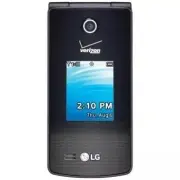


 LG A7110
User Manual
LG A7110
User Manual
 LG AX5000
User Manual
LG AX5000
User Manual
 LG C1300
User Manual
LG C1300
User Manual
 LG C1300A
User Manual
LG C1300A
User Manual
 LG C1300I
User Manual
LG C1300I
User Manual
 LG C1500
User Manual
LG C1500
User Manual
 LG C2000
User Manual
LG C2000
User Manual
 LG CB630
User Manual
LG CB630
User Manual
 LG CE500
User Manual
LG CE500
User Manual
 LG CF360
User Manual
LG CF360
User Manual
 LG CF360A
User Manual
LG CF360A
User Manual
 LG CG180
User Manual
LG CG180
User Manual
 LG CG225
User Manual
LG CG225
User Manual
 LG CG300
User Manual
LG CG300
User Manual
 LG CP150
User Manual
LG CP150
User Manual
 LG CU320
User Manual
LG CU320
User Manual
 LG CU400
User Manual
LG CU400
User Manual
 LG CU405
User Manual
LG CU405
User Manual
 LG CU500
User Manual
LG CU500
User Manual