Page 3 - Table of Contents; Table of Contents · · · · · · · · · 1
1 Table of Contents Table of Contents · · · · · · · · · 1 Welcome · · · · · · · · · · · · · · · · · 6 Phone Overview · · · · · · · · · · · 7 Rear view · · · · · · · · · · · · · · · · · · · · · · · · · 8 Menus Overview · · · · · · · · · · 9 Getting Started with Your Phone · · · · · · · · · · · · · · ...
Page 6 - Safety · · · · · · · · · · · · · · · · · · 81
Table of Contents 4 7.4 Brightness · · · · · · · · · · · · · · · · · · · · 64 7.5 Wallpaper · · · · · · · · · · · · · · · · · · · · 64 7.6 Display Themes · · · · · · · · · · · · · · · 64 7.7 Main Menu Settings · · · · · · · · · · · · 65 7.8 Font Type · · · · · · · · · · · · · · · · · · · · 65 7.9 Fo...
Page 7 - Technical Details · · · · · · · · 113; Glossary · · · · · · · · · · · · · · · 117; Terminology · · · · · · · · · · · · · · · · 117; Index · · · · · · · · · · · · · · · · · · 119
5 LIMITED WARRANTY STATEMENT · · · · · · · · · · · 110 Technical Details · · · · · · · · 113 Important Information · · · · · · · · · · · · 113 Glossary · · · · · · · · · · · · · · · 117 Terminology · · · · · · · · · · · · · · · · 117 Acronyms and Abbreviations · · · 117 Index · · · · · · · · · · · ·...
Page 8 - GNEQOG
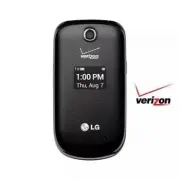
6 9GNEQOG Thank you for choosing the LG Revere ® 3 cellular phone designed to operate with the latest digital mobile communication technology, Code Division Multiple Access (CDMA). Along with the many advanced features of the CDMA system, such as greatly enhanced voice clarity, this compact phone of...
Page 10 - Phone Overview; Rear view
Phone Overview 8 International Call Prefix Key To make an international call, press and hold for 3 seconds. + is the international calling code. Alarm Key Press to access and manage your alarms. Right Select Key Performs functions identified on the bottom-right corner of the screen. Speakerphone Key U...
Page 12 - Menus Overview; Settings
Menus Overview 10 4. Check <Item> 5. Contacts <Name> 6. Search 7. Redial 8. My Verizon 9. Help Settings 1. Confirm Choices 2. Sensitivity 3. Train Voice 4. Prompts 5. CLR Key Activation 2. Calculator 3. Ez Tip Caculator 4. Eco-Calculator 5. Calendar 6. Alarm Clock 7. Info Search 8. Stopwa...
Page 15 - Turning the Phone On
13 The charge time varies depending upon the battery level. Charging with USB You can use your computer to charge your phone. To be able to charge with the USB cable, you may need to have the necessary USB Driver installed on your PC first. Connect one end of the USB cable to the USB/Charging Port on...
Page 16 - Getting Started with Your Phone; Correcting Dialing Mistakes; Redialing Calls; MENU; Screen Icons
Getting Started with Your Phone 14 for about three seconds. If necessary, enter the lock code. 2. Enter the phone number. 3. Press the SEND key to dial the call. 4. Press the Power/END key to end the call. NOTE Your phone has a Voice Commands feature that also lets you make calls by saying a phone n...
Page 17 - SEND key
15 3WKEM#EEGUUVQ%QPXGPKGPV(GCVWTGU Vibrate Mode Sets the phone to vibrate instead of ringing ( is displayed). To set Vibrate Mode, with the phone open, press and hold . To return to Normal Mode, press and hold again. Sounds Off Quickly deactivate your phone's sounds when you're in a place where phon...
Page 18 - Quick Access to Convenient Features; MERGE; Caller ID
Quick Access to Convenient Features 16 3-way call You can talk with two people at the same time with a three-way conversation on your wireless phone. Airtime and other charges, which may include toll or long distance charges, will apply for all simultaneous calls until you end one call. 1. While on ...
Page 20 - Text Input; Text Input Modes
18 'PVGTKPICPF'FKVKPI+PHQTOCVKQP Text Input The following key functions are available to help with text entry: Left Select key : Press to change the text input mode. Shift: Press to change capitalization (initial cap, caps lock, lowercase). Next : Press to display other matching words in the databas...
Page 21 - Storing Basics; Customizing Individual Entries
19 %QPVCEVUKP;QWT2JQPG¶U/GOQT[ Storing Basics 1. With the phone open, enter a number (max. 48 digits), then press the Left Select key Save . 2. Use the Directional key to highlight Add New Contact / Update Existing , then press the OK key . 3. Use the Directional key to highlight Mobile 1 / Home / B...
Page 22 - Contacts in Your Phone’s Memory; Storing a Number with Pauses
Contacts in Your Phone’s Memory 20 Storing a Number with Pauses Pauses allow you to enter additional series of numbers to access automated systems such as Voice mail or credit billing numbers. Pause types are: Wait (W) The phone stops dialing until you press the Left Select key Release to advance to...
Page 23 - Adding Another Phone Number; From standby mode; Changing Saved Information
21 Adding Another Phone Number From standby mode 1. With the phone open, enter a phone number, then press the Left Select key SAVE . 2. Use the Directional key to highlight Update Existing , then press the OK key . 3. Use the Directional key to highlight an existing entry then press the OK key to up...
Page 24 - Deleting; Deleting a Contact Entry; Speed Dialing; Single Digit Speed Dials
Contacts in Your Phone’s Memory 22 5. Use the Directional key to highlight Set As Default, then press the OK key . 6. Press the OK key Yes to confirm the new number as the default. A confirmation message is displayed. 7. Press the OK key SAVE to update your contact entry. Deleting Deleting a Contact E...
Page 26 - Contacts
24 %QPVCEVU Contacts The Contacts menu allows you to store names, phone numbers and other information in your phone’s memory. Shortcut The Right Select key is a shortcut key to the Contact List. 1. New Contact Allows you to add a new contact to your Contact List. NOTE Using this submenu, the number ...
Page 28 - Adding Contacts to a Group
Contacts 26 Use the Directional key to highlight a group, then press the OK key VIEW . Add a New Group Press the Left Select key New to add a new group to the list. Enter a new name and add a picture, then press the OK key SAVE . Group's options Press the Right Select key Options to select one of th...
Page 29 - In Case of Emergency; Entering Your ICE Personal Info; To unassign an ICE Contacts
27 7. In Case of Emergency This menu allows you to store names, phone numbers and other information, which will be very helpful in case of emergency. 1. Open the phone and press the OK key MENU . 2. Press Contacts . 3. Press In Case of Emergency . 4. Use the Directional key to highlight Contact 1, 2...
Page 30 - Open the phone and press the
Contacts 28 8. My Name Card Allows you to create, edit, and view your own personal Contact information including name, phone numbers, and email address in one entry. 1. Open the phone and press the OK key MENU . 2. Press Contacts . 3. Press My Name Card . 4. Press the OK key EDIT to enter your perso...
Page 31 - Messaging; New Message Alert; The phone displays a message
29 /GUUCIKPI Messaging SHORTCUT From standby mode, pressing the Left Select key is a shortcut to Messaging. Depending on the content and size of your messages, the phone can store up to 790 messages (including a max. of 300 text messages, 100 emergency alerts, 100 multimedia message notifications, an...
Page 32 - SEND
Messaging 30 5. Press the OK key to access the text field. 6. Use the keypad to enter your message. 7. Press the OK key SEND . Select Recipient(s) Using Add 1. Open the phone and press the OK key MENU . 2. Press Messaging . 3. Press New Message . 4. With the To field highlighted, press the Right Selec...
Page 33 - Viewing Your Inbox; Reply
31 4. Name Card 1. My Name Card : Press the OK key to add. 2. From Contacts : Press the OK key MARK to mark the name cards you want to send and press Done . Insert Quick Text Highlight the text and press the OK key . Save As Draft Press the OK key to save as draft. Priority Level Choose from High or...
Page 34 - Add To Contacts; Message Icon Reference
Messaging 32 Add To Contacts Stores the callback number, email address, and numbers from the address of the received message into your Contacts. Extract Addresses Allows you to extract addresses. Message Info Allows you to check the received message information. Manage Inbox Allows you to manage (lo...
Page 36 - Send
Messaging 34 Press the Left Select key Erase to erase the message. Press the Right Select key Options for the following options. Send Sends the selected message. Add To Contacts Stores the number, email address, and numbers from the address included in the message into your Contacts. Manage Draf...
Page 37 - Messaging Settings
35 Email after downloading the application. 1. Open the phone and press the OK key MENU . 2. Press Messaging . 3. Press Mobile Email . 4. Subscribe to the service (if necessary). 5. Accept the Terms of Service. 6. Highlight an email provider and press the OK key . 7. Follow the instructions to set u...
Page 38 - Messaging Font Size
Messaging 36 3. Auto Save Sent Select On to automatically save your Sent messages. Select Off if you don't want to save automatically. Select Prompt to be asked to save. 4. Auto Erase Inbox Select On to automatically delete read messages when you exceed the storage limit. Or, select Off . 5. Messagi...
Page 39 - Erasing Messages
37 13. Voice mail # Allows you to manually enter the access number for Voice mail Service. This number should be only used when a VMS (Voice mail Service) access number is not provided by the network. 14. Callback # Select On to automatically send a designated callback number with your messages. Or,...
Page 40 - Recent Calls
38 4GEGPV%CNNU Recent Calls The Recent Calls menu is a list of the last phone numbers or Contact entries for calls you placed, accepted, or missed. It's continually updated as new numbers are added to the beginning of the list and the oldest entries are removed from the bottom of the list. 1. Missed...
Page 42 - Recent call; Left Select key
Recent call 40 Last Reset/ Lifetime Calls/ Lifetime Data Counter 5. Press the Left Select key Reset to reset the highlighted timer. 6. Reset all the recorded timers by pressing the Right Select key Reset All . NOTE Lifetime Calls and Lifetime Data Counter cannot be reset.
Page 43 - Internet
41 +PVGTPGV Internet Allows you to access news, sports, weather, and email from your Verizon Wireless device. Accessibility and selections within this feature are dependent upon your service provider. For specific information on Internet access through your phone, contact your service provider. Short...
Page 44 - Media Center; Backup Assistant; Ending a Browser Session
42 /GFKC%GPVGT Media Center Everything you need to know while you’re on the go. 1. Apps This menu allows you to download apps and access your current apps. 1. Open the phone and press the OK key MENU . 2. Press Media Center . 3. Press Apps . 4. Select SHOP APPS or highlight an application using the ...
Page 46 - How to record a new sound
Media Center 44 4. Select a submenu by pressing the number that corresponds with the submenu. 3.1 My Ringtones Allows you to select a desired ringtone. 1. Open the phone and press the OK key MENU . 2. Press Media Center . 3. Press Tunes & Tones . 4. Press My Ringtones . 5. Use the Directional ke...
Page 47 - Access and Options
45 Press the OK key PLAY to preview the sound. Press the Right Select key Options to select: Send/ Via Email/ Rename/ Lock(Unlock)/ Erase/ Erase All/ File Info 4. Pictures View, take, and trade digital pictures right from your wireless phone. Access and Options 1. Open the phone and press the OK...
Page 48 - Editing a Picture
Media Center 46 Editing a Picture Access My Pictures, then use the Directional key to highlight a picture. Press the OK key VIEW and then press the Right Select key Options to access: Edit Allows you to zoom, rotate and crop the photo. 4.2 Take Picture Lets you to take digital pictures. Shortcut Pre...
Page 49 - Mobile Email; Apps; My Pictures
47 /QDKNG'OCKN#RRU/[2KEVWTGU Mobile Email The Mobile Email menu allows you to set up your email account and conveniently exchange emails wirelessly using your device. To use this feature, you may need to download the application first; read the instructions on your device and follow them. 1. Open the...
Page 52 - Confirm Choices
Settings & Tools 50 3.5. Turn Off All Sounds Allows you to set the phone to turn off all sounds. 1. Open the phone and press the OK key MENU . 2. Press Settings & Tools . 3. Press Accessibility . 4. Press Turn Off All Sounds . 5. Use the Directional key to highlight a setting, then press the...
Page 55 - Ez Tip Calculator
53 4.3 Ez Tip Calculator Allows you to quickly and easily calculate bill amounts using the bill total, tip % and number of people as variables. 1. Open the phone and press the OK key MENU . 2. Press Settings & Tools . 3. Press Tools . 4. Press Ez Tip Calculator . 5. Enter the variable fields (Tot...
Page 57 - How to delete alarms
55 6. Use the Directional key to highlight the information you want to set, then press the Left Select key Set to view your setting choices. Enter the alarm information including: • Turn On/Off • Set Time • Repeat • Ringtone 7. Press the OK key SAVE after setting all of the Alarm fields as necessary....
Page 59 - SAVE; Menu; Turn On Bluetooth; device
57 Paste or to Cancel the notepad entry. 7. After typing your note, press the OK key SAVE to save it. 5. Bluetooth ® Menu Your phone is compatible with devices that support the Headset, Handsfree, Phonebook Access, Object Push for vCard and vCalendar, File Transfer, and Message Access profiles. You m...
Page 60 - PAIR; Wireless Connection
Settings & Tools 58 7. The device will appear in Add New Device menu once it has been located. Highlight the device and press the OK key PAIR . 8. The handset will prompt you for the passcode. Consult the Bluetooth ® accessory instructions for the appropriate passcode (typically “0000” - 4 zeroe...
Page 61 - My Phone Info; Discovery Mode
59 4. Service Discovery : Allows you to search for the services that the selected device supports. 5. Device Info : Shows the device information. NOTES While in the Bluetooth Menu, you can turn the Bluetooth functionality off by pressing the Left Select key Turn Off . Reversely, you can turn it on b...
Page 62 - Supported Profiles
Settings & Tools 60 Supported Profiles Allows you to see profiles that your phone can support. 1. Open the phone and press the OK key MENU . 2. Press Settings & Tools . 3. Press Bluetooth Menu . 4. Press the Right Select key Options . 5. Press Supported Profiles . 6. Press the OK key VIEW to vi...
Page 67 - Main Menu Settings
65 5. Use the Directional key to highlight a setting, then press SET . Green Amethyst/ Simple Basic NOTE Press the Left Select key Preview to preview the selected display theme. Default setting is Green Amethyst. 7.7 Main Menu Settings Allows you to choose how the Main Menu displays for menu selecti...
Page 69 - Set Shortcut Keys
67 2. Press Settings & Tools . 3. Press Phone Settings . 4. Press Airplane Mode . 5. Use the Directional key to highlight a setting, then press SET . 8.2 Set Shortcut Keys Allows you to set shortcuts to phone menus using the down, up, left and right Directional keys . 8.2.1 Set My Shortcuts NOTE...
Page 73 - Data Roaming Access
71 5. Use the Directional key to highlight a setting, then press SET . Home Only/ Automatic A/ Automatic B 8.8 NAM Select Allows you to select the phone’s NAM (Number Assignment Module) if the phone is registered with multiple service providers. 1. Open the phone and press the OK key MENU . 2. Press...
Page 78 - Automatic Update; Manual Update
Settings & Tools 76 11.4 Software Update This feature gives your phone the ability to upgrade to the latest software and keeps your phone operating with the latest features without visiting a Verizon Wireless Communications Store for the upgrade. You can either be notified automatically that ther...
Page 79 - Press the
77 12. Set-up Wizard Allows you to quickly set the font size, call sounds, display themes, menu layout or clock format. 1. Open the phone and press the OK key MENU . 2. Press Settings & Tools . 3. Select 12. Set-up Wizard . 4. Use the Directional key to scroll to a setting, then press the OK key...
Page 80 - WARNING
78 +ORQTVCPV5CHGV[2TGECWVKQPU Read these instructions. Breaking the rules may be dangerous or illegal. Further detailed information is given in this user guide. Violation of the instructions may cause serious injury or death. WARNING : This product contains chemicals known to the State of California...
Page 82 - Important Safety Precautions; • Only use the batteries and chargers provided by LG. The
Important Safety Precautions 80 • Only use the batteries and chargers provided by LG. The warranty will not be applied to products provided by other suppliers. • Only authorized personnel should service the phone and its accessories. Faulty installation or service may result in accidents and consequ...
Page 84 - Safety; Caution; harmful interference.
Safety 82 Caution Use only the supplied antenna. Use of unauthorized antennas (or modifications to the antenna) could impair call quality, damage the phone, void your warranty and/or violate FCC regulations. Don't use the phone with a damaged antenna. A damaged antenna could cause a minor skin burn. ...
Page 85 - - Consult the dealer or an; Are wireless phones safe?
83 - Consult the dealer or an experienced radio/TV technician for help. Consumer Information About Radio Frequency Emissions Your wireless phone, which contains a radio transmitter and receiver, emits radio frequency energy during use. The following consumer information addresses commonly asked ques...
Page 86 - What does “SAR” mean?
Safety 84 What does “SAR” mean? In 1996, the FCC, working with the FDA, the U.S. Environmental Protection Agency, and other agencies, established RF exposure safety guidelines for wireless phones in the United States. Before a wireless phone model is available for sale to the public, it must be test...
Page 88 - World Health Organization
Safety 86 http://www.fda.gov (Under “c” in the subject index, select Cell Phones > Research.) U.S. Federal Communications Commission 445 12th Street, S.W. Washington, D.C. 20554 Telephone: (888) 225-5322 http://www.fcc.gov/oet/rfsafety Independent Expert Group on Mobile Phones http://www.iegmp.or...
Page 93 - TIA Safety Information
91 • Set the volume in a quiet environment and select the lowest volume at which you can hear adequately. • When using headphones, turn the volume down if you cannot hear the people speaking near you or if the person sitting next to you can hear what you are listening to. • Do not turn the volume up...
Page 94 - Antenna Care; • Should ALWAYS keep the phone
Safety 92 on Radiation Protection and Measurements; International Commission on Non-Ionizing Radiation Protection Those standards were based on comprehensive and periodic evaluations of the relevant scientific literature. For example, over 120 scientists, engineers, and physicians from universities, ...
Page 96 - Potentially Explosive Atmosphere; Safety Information; • Do not disassemble or open
Safety 94 Potentially Explosive Atmosphere Turn your phone OFF when in any area with a potentially explosive atmosphere and obey all signs and instructions. Sparks in such areas could cause an explosion or fire resulting in bodily injury or even death. Areas with a potentially explosive atmosphere ar...
Page 100 - General Notice
Safety 98 the terminal may damage the battery and cause an explosion. • Never use an unapproved battery since this could damage the phone and/or battery and could cause the battery to explode. Only use the batteries and chargers provided by LG. The warranty will not be applied to products provided b...
Page 101 - Do not paint your phone.; FDA Consumer Update; Do wireless phones pose a
99 • Talking on your phone for a long period of time may reduce call quality due to heat generated during use. • When the phone is not used for a long period time, store it in a safe place with the power cord unplugged. • Using the phone in proximity to receiving equipment (i.e., TV or radio) may ca...
Page 102 - • Support needed research into
Safety 100 emit low levels of Radio Frequency (RF) energy in the microwave range while being used. They also emit very low levels of RF when in standby mode. Whereas high levels of RF can produce health effects (by heating tissue), exposure to low level RF that does not produce heating effects cause...
Page 104 - What are the results of the
Safety 102 4. What are the results of the research done already? The research done thus far has produced conflicting results, and many studies have suffered from flaws in their research methods. Animal experiments investigating the effects of Radio Frequency (RF) energy exposures characteristic of wir...
Page 105 - What is the FDA doing to find
103 but ten or more years follow-up may be needed to provide answers about some health effects, such as cancer. This is because the interval between the time of exposure to a cancer-causing agent and the time tumors develop — if they do — may be many, many years. The interpretation of epidemiologica...
Page 106 - How can I find out how much
Safety 104 7. How can I find out how much Radio Frequency energy exposure I can get by using my wireless phone? All phones sold in the United States must comply with Federal Communications Commission (FCC) guidelines that limit Radio Frequency (RF) energy exposures. The FCC established these guidelin...
Page 108 - What about wireless phone
Safety 106 distributed leaflets containing such a recommendation in December 2000. They noted that no evidence exists that using a wireless phone causes brain tumors or other ill effects. Their recommendation to limit wireless phone use by children was strictly precautionary; it was not based on scie...
Page 109 - Driving; • Give full attention to driving; 0 Driver Safety Tips; Get to know your wireless
107 International Commission on Non-lonizing Radiation Protection (http://www.icnirp.de) World Health Organization (WHO) International EMF Project (http://www.who.int/emf) National Radiological Protection Board (UK) (http://www.hpa.org.uk/radiation/) Driving Check the laws and regulations on the use...
Page 114 - LIMITED WARRANTY STATEMENT
LIMITED WARRANTY STATEMENT 112 TO USE, THIS PRODUCT OR FOR ANY BREACH OF ANY EXPRESS OR IMPLIED WARRANTY, INCLUDING THE IMPLIED WARRANTY OF MARKETABILITY APPLICABLE TO THIS PRODUCT. Some states do not allow the exclusive limitation of incidental or consequential damages or limitations on how long an...
Page 115 - Important Information; FCC Part 15 Class B Compliance; antenna
113 6GEJPKECN&GVCKNU Important Information This user’s guide provides important information on the use and operation of your phone. Please read this guide carefully prior to using the phone to be able to use your phone to its greatest advantage and to prevent any accidental damage or misuse. Any...
Page 116 - Technical Details
Technical Details 114 Technical Details The VN170 is an all digital phone that operates on both Code Division Multiple Access (CDMA) frequencies: Cellular services at 800 MHz and Personal Communication Services (PCS) at 1.9 GHz. CDMA technology uses a feature called DSSS (Direct Sequence Spread Spec...
Page 117 - FCC RF Exposure Information
115 Part 15.105 statement This equipment has been tested and found to comply with the limits for a class B digital device, pursuant to Part 15 of the FCC rules. These limits are designed to provide reasonable protection against harmful interference in a residential installation. This equipment gener...
Page 119 - Terminology
117 )NQUUCT[ Terminology EZ Tip Calculator Feature for easy bill calculation using the total cost, tip, and number of people as variables. Advanced Voice Recognition Feature that allows you to perform a wide range of verbal commands by training the phone to recognize your individual speech patterns....
Page 120 - Glossary; NAM
Glossary 118 cellular, an extension of IS-95. Differences between signaling types have to do with pilot signal and links to provide more traffic channels, and control protocols. NAM Number Assignment Module is how the phone stores the phone number and its electronic serial number. SSL Secure Sockets ...
Page 121 - Numbers; Brightness 64
119 +PFGZ Numbers 3-way call 1610 Driver Safety Tips 107 A Accessibility 48Acronyms and Abbreviations 117Adding Another Phone Number 21Add New Device 57Airplane Mode 66Alarm Clock 54Alert Sounds 61All 39Answer Options 71Apps 42Assisted Dialing 74Auto Retry 72Avoid potential hearing loss. 90 B Backli...
Page 122 - Index; Hearing Assist 62
Index 120 FDA Consumer Update 99Font Size 66Font Type 65 G Getting Started with Your Phone 12Glossary 117Groups 25 H Hearing Assist 62 I Icon Glossary 75Important Safety Precautions 78Inbox 31In Case of Emergency (ICE) 27Info Search 55Installing the Battery 12Internal Clock 66Internet 41, 42 K Keypa...


 LG A7110
User Manual
LG A7110
User Manual
 LG AX5000
User Manual
LG AX5000
User Manual
 LG C1300
User Manual
LG C1300
User Manual
 LG C1300A
User Manual
LG C1300A
User Manual
 LG C1300I
User Manual
LG C1300I
User Manual
 LG C1500
User Manual
LG C1500
User Manual
 LG C2000
User Manual
LG C2000
User Manual
 LG CB630
User Manual
LG CB630
User Manual
 LG CE500
User Manual
LG CE500
User Manual
 LG CF360
User Manual
LG CF360
User Manual
 LG CF360A
User Manual
LG CF360A
User Manual
 LG CG180
User Manual
LG CG180
User Manual
 LG CG225
User Manual
LG CG225
User Manual
 LG CG300
User Manual
LG CG300
User Manual
 LG CP150
User Manual
LG CP150
User Manual
 LG CU320
User Manual
LG CU320
User Manual
 LG CU400
User Manual
LG CU400
User Manual
 LG CU405
User Manual
LG CU405
User Manual
 LG CU500
User Manual
LG CU500
User Manual