Page 2 - Important Safety Precautions; Do not use a hand-held phone while driving.
2 UX4750 Important Safety Precautions ● Unplug the power cord and charger during lightning storms to avoid electric shock or fire. ● When riding in a car, do not leave your phone or set up the hands-free kit near to the air bag. If wireless equipment is improperly installed and the air bag is activa...
Page 3 - Do not disassemble the phone.
UX4750 3 ● Do not damage the power cord by bending, twisting, pulling, or heating. Do not use the plug if it is looseas it may cause a fire or electric shock. ● Do not place any heavy items on the power cord. Do not allow the power cord to be crimped as it maycause fire or electric shock. ● Do not h...
Page 4 - Contents; Contacts in Your Phone’s Memory .23
4 UX4750 Contents Important Safety Precautions . . . . .1 Welcome . . . . . . . . . . . . . . . . . . . . . . .7 Important Information . . . . . . . . . . . .7 FCC RF Exposure Information . . . . . .9 Phone Overview . . . . . . . . . . . . . . . .10 Menus Overview . . . . . . . . . . . . . . . .11 G...
Page 5 - SpeedTalk; easy; edge; Phone Download
UX4750 5 6.5 Voice Mail # . . . . . . . . . . . . . . .46 6.6 Auto View . . . . . . . . . . . . . . . . .46 6.7 Entry Mode . . . . . . . . . . . . . . . .46 6.8 Insert Quick-Text . . . . . . . . . . . .46 6.9 Auto Play . . . . . . . . . . . . . . . . . .46 7. Erase All . . . . . . . . . . . . . . . ...
Page 7 - Welcome; Important Information; FCC Part 15 Class B Compliance
UX4750 7 Welcome Thank you for choosing the advanced and compact UX4750 cellular phone, designed to operate with the latest digital mobile communication technology, Code Division Multiple Access (CDMA) and Advanced Mobile Phone Service (AMPS). Along with the many advanced features of the CDMA system...
Page 8 - CDMA; Designator
8 UX4750 Welcome compared with analog mode. In addition, features such as soft / softer handoff, hard Handoff, and dynamic RF power control technologies combine to reduce call interruptions. The Cellular and PCS CDMA networks consist of MSO (Mobile Switching Office), BSC (Base Station Controller), B...
Page 9 - FCC RF Exposure Information; Bodily Contact During Operation
UX4750 9 FCC RF Exposure Information WARNING! Read this information before operating thephone. In August 1996, the Federal Communications Commission (FCC) of the United States, with its action in Report and Order FCC 96-326, adopted an updated safety standard for human exposure to Radio Frequency (R...
Page 10 - Phone Overview
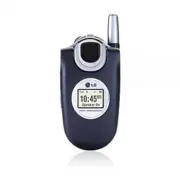
10 UX4750 Phone Overview 1 2 3 4 56 9 1817 8 7 10 11 121314 1516 1. Earpiece 2. Flip Flip open the case to answer an incoming call and close to end the call. 3. LCD Screen Displays messages and indicator icons. 4. Left Soft Key Use to display the function setting menu. 5. Side Keys Use to adjust the...
Page 11 - Menus Overview; Contacts; Phone; Media
UX4750 11 Menus Overview Contacts 1. List Contacts2. New Number3. New E-mail4. Groups5. Speed Dials6. My Contact Info Recent Calls 1. Dialed Calls2. Received Calls3. Missed Calls4. Erase Calls 1. Dialed Calls2. Received Calls3. Missed Calls4. All Calls 5. Call Timer 1. Last Call2. Home Calls3. Roam ...
Page 12 - Tools
12 UX4750 Menus Overview Tools 1. Schedule2. Alarm Clock 1. Alarm 12. Alarm 23. Alarm 34. Quick Alarm 3. Voice Memo4. My Shortcut5. Notepad6. Ez Tip Calc7. Calculator8. World Clock Settings 1. Sounds 1. Ringers2. Key Tone3. Volume4. Message Alerts5. Service Alerts6. Power On/Off Tone 7. DTMF Length ...
Page 13 - Getting Started with Your Phone; The Battery; N O; Installing the Battery; Battery Charge Level; Low Battery
UX4750 13 Getting Started with Your Phone The Battery N N O O T T E E It is important to fully charge the battery before initial use of the phone. The phone comes with a rechargeable battery. Keep the battery charged while not in use in order to maximize talk and standby time. The battery charge lev...
Page 14 - Turning the Phone On and Off; Turning the Phone On; Turning the Phone Off; Signal Strength
14 UX4750 Getting Started with Your Phone Turning the Phone On and Off Turning the Phone On 1. Install a charged battery or connect the phone to an external power source such as a vehicle power charger or hands-free car kit. 2. Press for a few seconds until the LCD screen lights up. N N O O T T E E ...
Page 15 - Screen Icons
UX4750 15 Screen Icons When the phone is powered on, the top line of the LCD screen displays icons indicating the status of the phone. Signal strength indicator. The strength of the signalreceived by the phone is indicaed by the number ofbars displayed. Battery indicator. Indicates battery charge le...
Page 16 - Making Calls; Call Failed; Correcting Dialing Mistakes; Receiving Calls
16 UX4750 Getting Started with Your Phone Making Calls 1. Make sure the phone is turned on. If not, press for about 3 seconds. 2. Enter the phone number (include the area code if needed). 3. Press . lf the phone is locked, enter the lock code. Call Failed - indicates the call did not go through. Res...
Page 17 - Quick Access to Convenient Features; Manner Mode; Mute Function
UX4750 17 Quick Access to Convenient Features Manner Mode Use Manner Mode in public places. When Manner Mode is set, is displayed on the screen, the key tones are silent, and the phone is set to vibrate. Manner Mode Quick Activation 1. From Main Menu Screen press for 3 seconds. Manner Mode Quick Can...
Page 18 - Adjusting Speaker On; Call Waiting; Dialing Single Digit Speed Dials (from 1 to 9)
18 UX4750 Quick Access to Convenient Features Adjusting Speaker On During a call, press the Speakerphone key to quickly activate Speaker On allowing your phone to function as a speaker box. N N O O T T E E To cancel Speaker On, press Speakerphone Key again. Call Waiting Your cellular service may off...
Page 19 - Voice Command Dialing
UX4750 19 Voice Command Dialing Voice Command is a convenient feature that allows you to activate certain feature quickly and easily by verbal command. Using this Voice Commands, you can make phone calls, confirm Voice Mail and missed calls, set driving/announce mode, edit the contact entries and so...
Page 20 - Entering and Editing Information; Text Input
20 UX4750 Entering and Editing Information Text Input You can input and edit your Banner, Schedule, Contacts,and Messages. Key Functions Right Soft Key (Left Soft Key): Press to scroll through the following text input modes: T9Word -> Abc -> 123 -> Symbols -> Smileys Shift : Press to cha...
Page 21 - Changing Letter Case; Text Input Examples; LG; Using T9 Mode Text Input
UX4750 21 Changing Letter Case Using T9 and Abc text input modes you can set the capitalization. Press to reach the following: Initial Cap (T9Word / Abc) Only the first letter is capitalized and subsequent letters are lower case. Caps Lock (T9WORD / ABC) All letters are capitalized. Lower Case (T9wo...
Page 22 - Using the NEXT Key
22 UX4750 Entering and Editing Information Using the NEXT Key After you have finished entering a word, if the word displayed is not the one you want, press to display additional choices of words from the database. 1. Press . Good is displayed. 2. Press . The display gives you additional choices such...
Page 23 - Contacts in Your Phone’s Memory; The Basics of Storing Contacts Entries
UX4750 23 Contacts in Your Phone’s Memory Contacts Entries This allows you to have easy access to your most frequently dialed phone numbers. You may store up to 500 entries with up to 5 phone numbers each. Each entry may be up to 22 characters. Each phone number may be up to 48 digits. The Basics of...
Page 24 - Options to Customize Your Contacts
24 UX4750 Contacts in Your Phone’s Memory Options to Customize Your Contacts Once the basic phone number and name information is stored in your Contacts, you can edit and customize each entry. 1. Press Right Soft Key Contacts and use to highlight the contact entry you want to edit, then press . 2. P...
Page 26 - Editing Contacts Entries
26 UX4750 Contacts in Your Phone’s Memory Adding Speed Dial 1. Press Right Soft Key Contacts and use to highlight an entry, then press . 2. Press Left Soft Key Edit . 3. Use to highlight the phone number you want to set with a Speed Dial, then press . 4. Press to select Speed Dial , then press . 5. ...
Page 28 - Deleting
28 UX4750 Contacts in Your Phone’s Memory 4. Use to highlight the name, then press . 5. Edit the name as necessary, then press . 6. Press Left Soft Key Done to save the change. Editing Customized Options Edit any of the Contacts options in the same manner as when the Contact is created. 1. Press Rig...
Page 30 - Phone Numbers With Pauses
30 UX4750 Contacts in Your Phone’s Memory Phone Numbers With Pauses When you call automated systems such as Voice Mail or credit billing numbers, you often have to enter a series of numbers. Instead of entering these numbers by hand, you can store the numbers in your Contacts separated by special pa...
Page 31 - Searching Your Phone’s Memory
UX4750 31 Searching Your Phone’s Memory The UX4750 phone is able to perform a dynamic search of the contents in your phone’s memory. A dynamic search compares entered letters or numbers against the entries in your Contacts. A matching list is displayed in descending order. You can then select a numb...
Page 32 - Making a Call From Your Phone’s Memory; N o
32 UX4750 Contacts in Your Phone’s Memory Making a Call From Your Phone’s Memory Once you have stored phone numbers in your Contacts, you can place calls to those numbers quickly and easily. ● By pressing after searching for a phone number in Contacts or Recent Calls and highlighting it. ● Use Speed...
Page 33 - Using Phone Menus; Menu Access; Menu
UX4750 33 Using Phone Menus Menu Access Press Left Soft Key Menu to access nine phone menus. There are two methods of accessing menus and submenus: ● Use the navigation key to highlight and select, or ● Press the number key that corresponds to the menu (or submenu). For example: 1. Press Left Soft K...
Page 34 - Access and Options
34 UX4750 Using Phone Menus Contacts The Contacts Menu allows you to store names, phone numbers and other information in your phone’s memory. When you access your Contacts, the number in parentheses represents the number of entries you have stored (up to 500). Access and Options 1. Press Left Soft K...
Page 35 - Add
UX4750 35 Contacts 2. New Number Allows you to add a new number to your Contacts N N O O T T E E Using this sub-menu, the number is saved as a new Contact. To save the number into an existing Contact, edit the Contact entry. 1. Press , , . 2. Enter the number, then press . 3. Select the Label you wa...
Page 37 - Recent Calls
UX4750 37 Recent Calls Recent Calls The Recent Calls Menu is a list of the last phone numbers or Contact entries for calls you placed, accepted, or missed. It is continually updated as new numbers are added to the beginning of the list and the oldest entries are removed from the bottom of the list. ...
Page 39 - Messages
UX4750 39 Messages Messages Access and Options 1. Press Left Soft Key Menu . 2. Press Messages . 3. Select a sub-menu. 1. Voice Mail : Shows the number of messages in Voice Mail box. 2. New Message : Sends a message. 3. Inbox : Shows the list of received messages. 4. Outbox : Shows the list of sent ...
Page 42 - Text Options; Insert Signature; Message Icon Reference; Icons; Sent; Fail; Delivery; Pending
42 UX4750 Using Phone Menus Text Options While you are composing the text of a message you can insert customized text. 1. Create a new message. 2. Use to highlight Message then press . 3. Press Right Soft Key Options . 4. Select the option(s) to customize. Insert Quick-Text Inserts 11 predefined phr...
Page 43 - Out of Memory Warning
UX4750 43 Messages 3. Inbox The phone alerts you in 3 ways when you receive a new message by: ● Displaying a message notification on the screen. ● Sounding a beep, vibrating or sound, if set. ● Displaying the message icon . It blinks when the message is urgent. Received text messages, page messages,...
Page 44 - Resend
44 UX4750 Using Phone Menus used as wallpaper or ring tone. Save Quick-Text Saves the message into the Quick-Text list. Save Message Saves Inbox message into the Saved Folder. Lock/UnLock Locks or unlocks the selected message. Locked messages can not be deleted by the Erase Inbox or Erase All functi...
Page 45 - Resume; Message Settings Sub-Menu Descriptions
UX4750 45 Messages 5. Saved Displays saved messages and draft messages. 1. Press , , . 2. Use to highlight a Saved message. ● Press Left Soft Key Resume . ● Press Right Soft Key Options . Erase Deletes the selected message. Lock/Unlock Locks a message so that it is not erased if the Erase Saved or E...
Page 46 - Inbox
46 UX4750 Using Phone Menus 6.4 Signature Allows you designate a signature to automatically send with your messages. You can create a custom signature line. 6.5 Voice Mail # Allows you to manually enter the number for Voice Mail Service. This number should be only used when a VMS access number is no...
Page 48 - Alert
48 UX4750 Using Phone Menus Call from ST Contact List (Alert) 1. From Idle Screen press and hold the SpeedTalk SM key to access your ST Contact List. 2. Use to highlight the ST Contact entry you wish to alert. 3. Press Left Soft Key Alert . Press SpeedTalk SM key. ● Receiver hears alerting tone and ...
Page 50 - Making a ST call when the phone is closed; Copy to Contacts
50 UX4750 Using Phone Menus Incoming ST (Group) 1. The name of the Group will be displayed. One person can speak at a time. 2. If floor control released, press and hold SpeedTalk SM key, speak after the talk tone is heard. N N O O T T E E During a voice call, ST calls will not come through. The send...
Page 51 - On
UX4750 51 SpeedTalk SM 3. Enter the name, then press . 4. Connect to server and update Contact information. A confirmation message is displayed briefly. 3. New ST Group Allows you to add a new ST group. 1. Press , , . 2. Enter the SpeedTalk SM Group name, then press . 3. Select the individuals with ...
Page 53 - Phone Download Service
UX4750 53 easy edge SM Phone Download Service 1. easy edge SM Phone Download Service Allows you to download selected applications while displaying the easy edge SM application list relayed from the easy edge SM server connection. 1. Press , , . 2. Press . S S h h o o rr tt C C u u tt Pressing the ri...
Page 58 - Cities
58 UX4750 Using Phone Menus 7. Calculator Allows you to perform simple mathematical calculations. You can enter numbers up to the second decimal place. 1. Press , , . 2. Enter data. ● Use keypad to enter numbers. ● Use to enter decimals. ● Use to enter plus/minus change. ● Press Left Soft Key to cle...
Page 59 - Settings; Beep
UX4750 59 Settings Settings The Settings menu has options to customize your phone. Access and Options 1. Press Left Soft Key Menu . 2. Press Settings . 3. Select a sub-menu. 1. Sounds 2. Display 3. System 4. Security 5. Call Setup 6. Data Settings 7. Voice Services 8. Location 1. Sounds Options to c...
Page 61 - Timer
UX4750 61 Settings 1.7 DTMF Length Allows you to set the Key tone length and touch tone playback speed. 1. Press , , , . 2. Select an option, then press . Normal Sends out a tone for a fixed period of time even if you keep the key pressed. Long Sends out a continuous tone for as long as you keep the...
Page 63 - Status Light
UX4750 63 Settings 2.8 Fonts Allows you to set the size and color of the font for calling digits and text editor. 2.8.1 Calling Digits 1. Press , , , , . 2. Select Size or Color . 3. Press to choose a setting, then press to save. Size : Normal / Large Color : Black / Blue / Red / Green / Pink 2.8.2 ...
Page 64 - Home Only
64 UX4750 Using Phone Menus 3. System The System menu allows you to designate specific system network settings. 3.1 Select System Allows you to set up the phone producer’s management environment. Leave this setting as the default unless you want to alter system selection as instructed by your servic...
Page 65 - Lock Phone; Unlock; Restrict Calls
UX4750 65 Settings 4. Security The Security menu allows you to secure the phone electronically. 4.1 Lock Phone Keeps your phone from unauthorized use. Once the phone is locked, it is in restricted mode until the lock code is entered. You can receive phone calls and still make emergency calls. You ca...
Page 69 - USB
UX4750 69 Settings 6.2 PC Connection Allows you to select the data port. 1. Press , , , . 2. Use to select a setting, then press . USB / RS-232C(COM Port) / Closed N N O O T T E E When using the 1X HSPD data service via an RS- 232C data cable, the port speed is set to 115,200 (230,400 is not support...
Page 72 - Menu for GPS (Global Positioning System: Satellite; Location On; Phone Info; Provides you with specific information pertaining to your; Press Left Soft Key
72 UX4750 Using Phone Menus 8. Location Menu for GPS (Global Positioning System: Satellite assisted location information system) mode. 1. Press , , . 2. Use to select a setting, then press . ● Location On / E911 Only N N O O T T E E GPS satellite signals are not always transmitted, especially under ...
Page 73 - TIA Safety Information; Exposure to Radio Frequency Signal; Safety
UX4750 73 TIA Safety Information The following is the complete TIA Safety Information for wireless handheld phones. Exposure to Radio Frequency Signal Your wireless handheld portable phone is a low power radio transmitter and receiver. When it is ON, it receives and also sends out Radio Frequency (R...
Page 74 - Driving
74 UX4750 Safety Driving Check the laws and regulations on the use of wirelessphones in the areas where you drive and always obeythem. Also, if using your phone while driving, pleaseobserve the following: ● Give full attention to driving -- driving safely is your firstresponsibility; ● Use hands-fre...
Page 76 - Safety Information; Charger and Adapter Safety; Caution
76 UX4750 Safety Safety Information Please read and observe the following information for safe and proper use of your phone and to prevent damage. Also, keep the user guide in an accessible place at all the times after reading it. Violation of the instructions may causeminor or serious damage to the...
Page 77 - General Notice; Do not paint your phone.
UX4750 77 ● If you put your phone in a pocket or bag withoutcovering the receptacle of the phone (power plug pin),metallic articles (such as a coin, paperclip or pen) mayshort-circuit the phone. Always cover the receptaclewhen not in use. ● Do not short-circuit the battery. Metallic articles suchas ...
Page 78 - FDA Consumer Update; Do wireless phones pose a health hazard?
78 UX4750 Safety FDA Consumer Update The U.S. Food and Drug Administration’sCenter for Devices and Radiological HealthConsumer Update on Mobile Phones: 1. Do wireless phones pose a health hazard? The available scientific evidence does not show that any health problems are associated with using wirel...
Page 79 - What kinds of phones are the subject of this update?
UX4750 79 The FDA belongs to an interagency working group of the federal agencies that have responsibility for different aspects of RF safety to ensure coordinated efforts at the federal level. The following agencies belong to this working group: ● National Institute for Occupational Safety and Heal...
Page 80 - What are the results of the research done already?
80 UX4750 Safety 4. What are the results of the research done already? The research done thus far has produced conflicting results, and many studies have suffered from flaws in their research methods. Animal experiments investigating the effects of Radio Frequency (RF) energy exposures characteristi...
Page 83 - What about children using wireless phones?
UX4750 83 10. What about children using wireless phones? The scientific evidence does not show a danger to users of wireless phones, including children and teenagers. If you want to take steps to lower exposure to Radio Frequency (RF) energy, the measures described above would apply to children and ...
Page 84 - Where can I find additional information?; 0 Driver Safety Tips
84 UX4750 Safety for possible interactions with other medical devices. Should harmful interference be found to occur, the FDA will conduct testing to assess the interference and work to resolve the problem. 12. Where can I find additional information? For additional information, please refer to the ...
Page 86 - Consumer Information on SAR
86 UX4750 Safety to be a “Good Samaritan” in your community. If you see an auto accident, crime in progress or other serious emergency where lives are in danger, call 911 or other local emergency number, as you would want others to do for you. 10. Call roadside assistance or a special wireless non- ...
Page 88 - Accessories
88 UX4750 Accessories There are a variety of accessories available for your mobile phone. Consult your local dealer for availability. Standard Charger The standard charger allows you to power your phone. Input Voltage: 100-240VAC 50-60Hz Output Voltage: 5.0V, 1000mA Battery Two batteries are availab...
Page 89 - Warranty Information; LG offers you a limited warranty that the enclosed
UX4750 89 Warranty Information 1. WHAT THIS WARRANTY COVERS: LG offers you a limited warranty that the enclosed subscriber unit and its enclosed accessories will be free from defects in material and workmanship, according to the following terms and conditions: (1) The limited warranty for the unit a...
Page 91 - II; Index
10 Driver Safety Tips 84123 (Numbers) Mode 202-sec Pause (T) 30 A A Abc (Multi-tap) Mode 20Accessories 88Adjusting Speaker On 18Alarm Clock 56Announce Alerts 70Answer Call 67Auto Answer 67Auto Erase 45Auto NAM 64Auto Play 46Auto Retry 66Auto Save 45Auto View 46Auto Volume 68 B B Back To Top 60Backli...


 LG A7110
User Manual
LG A7110
User Manual
 LG AX5000
User Manual
LG AX5000
User Manual
 LG C1300
User Manual
LG C1300
User Manual
 LG C1300A
User Manual
LG C1300A
User Manual
 LG C1300I
User Manual
LG C1300I
User Manual
 LG C1500
User Manual
LG C1500
User Manual
 LG C2000
User Manual
LG C2000
User Manual
 LG CB630
User Manual
LG CB630
User Manual
 LG CE500
User Manual
LG CE500
User Manual
 LG CF360
User Manual
LG CF360
User Manual
 LG CF360A
User Manual
LG CF360A
User Manual
 LG CG180
User Manual
LG CG180
User Manual
 LG CG225
User Manual
LG CG225
User Manual
 LG CG300
User Manual
LG CG300
User Manual
 LG CP150
User Manual
LG CP150
User Manual
 LG CU320
User Manual
LG CU320
User Manual
 LG CU400
User Manual
LG CU400
User Manual
 LG CU405
User Manual
LG CU405
User Manual
 LG CU500
User Manual
LG CU500
User Manual