Page 3 - ELECTRICAL SAFETY; Handle battery packs carefully; I m p o r ta nt H ea l t h I nfo r m at i o n a n d Sa fet y P re c a u t i o n s
When using this product, thesafety precautions below mustbe taken to avoid possible legalliabilities and damages.Retain and follow all productsafety and operatinginstructions. Observe allwarnings in the productoperating instructions. To reducethe risk of bodily injury, electricshock, fire, and damag...
Page 5 - SAFETY IN AIRCRAFT; s navigation system and
Do not allow the leaking fluidto come in contact with eyes.If contact occurs, DO NOTrub; rinse with clean waterimmediately and seekmedical advice. Take extra precautions tokeep a leaking battery awayfrom fire as there is a dangerof ignition or explosion. SAFETY PRECAUTIONSFOR DIRECT SUNLIGHT Keep th...
Page 6 - EXPLOSIVE ATMOSPHERES; ROAD SAFETY
ENVIRONMENTRESTRICTIONS Do not use this product in gasstations, fuel depots, chemicalplants or where blastingoperations are in progress, or inpotentially explosive atmospheressuch as fueling areas, fuelstorehouses, below deck onboats, chemical plants, fuel orchemical transfer or storagefacilities, a...
Page 9 - Ta b l e of Co nte nt s
7 Ta b l e of Co nte nt s Important Health Information and Safety Precautions . . . .1 Table of Contents . . . . . . . . . . . . . . . . . . . . . . . . . . . . . . . . . .7 Technical Details . . . . . . . . . . . . . . . . . . . . . . . . . . . . . . . . . . .8 The Basics . . . . . . . . . . . . . ...
Page 10 - Te c h n i c a l D eta i l s; FCC RF Exposure Information; Technical Details
8 Te c h n i c a l D eta i l s FCC RF Exposure Information WARNING! Read this information before operating the phone. In August 1996, the FederalCommunications Commission(FCC) of the United States, withits action in Report and OrderFCC 96-326, adopted anupdated safety standard forhuman exposure to R...
Page 11 - Bodily Contact During Operation
9 Te c h n i c a l D eta i l s Bodily Contact During Operation This device was tested fortypical use with the back of thephone kept 0.79 inches (2.0 cm)from the body. To comply withFCC RF exposure requirements,a minimum separation distanceof 0.79 inches (2.0 cm) must bemaintained between the user ’ ...
Page 13 - T h e Ba s i c s; Phone Overview; Front View
11 T h e Ba s i c s Phone Overview Front View Earpiece Menu Key Quick Keys - Phone Key- Contacts Key- Messaging Key- Browser Key Home Key Touchscreen Applications Launcher Key Search Key Back Key Microphone Camera Flash Camera Lens Back Cover Speaker Rear View
Page 15 - Installing the Battery and microSD Card
13 T h e Ba s i c s Installing the Battery and microSD Card NOTE It is important to fully charge the battery before initial use of the phone. 1. Hold the phone with both hands and use the protruding ridges to slide open the battery cover. 2. Then use the fingertip cutout to lift the bottom edge of t...
Page 16 - Charging the Phone; Charging with USB
14 T h e Ba s i c s Charging the Phone Your LG Genesis device comes with a Wall/USB charger and a USBcable which connect together to charge your phone. To charge yourphone: NOTICE Please use only an approved charging accessory to charge your LG phone. Improper handling of the charger port, as well a...
Page 17 - Turning the Phone On and Off; Turning the phone on; To unlock the phone
15 T h e Ba s i c s Turning the Phone On and Off Turning the phone on © Press and hold the Power/Lock Key for a couple of seconds. Turning the phone off 1. Press and hold the Power/Lock Key until the pop-up menu appears. 2. Touch Power off in the pop-up menu. 3. Touch OK to confirm that you want to ...
Page 18 - Setting Up Your Device; To set up your device, follow the steps below :; Setting up your Google Account
16 T h e Ba s i c s Setting Up Your Device When you turn on your wireless device for the first time, you havethe option to quickly set up various accounts. Simply follow theonscreen instructions to complete the initial setup of your wirelessdevice. To set up your device, follow the steps below : 1. ...
Page 19 - Phone’s Status Icons; ve received notifications (on the left) and icons; Status icons; The following icons indicate the status of your phone.
17 T h e Ba s i c s Phone’s Status Icons The Status Bar appears at the top of every screen. It displays iconsindicating that you ’ ve received notifications (on the left) and icons indicating the phone ’ s status (on the right), along with the current time. Status icons The following icons indicate ...
Page 20 - The following icons indicate that you've received a notification.
18 T h e Ba s i c s Notification icons The following icons indicate that you've received a notification. New Gmail message 3 more notifications notdisplayed New text or multimediamessage Call in progress Problem with text ormultimedia message delivery Call in progress usingBluetooth headset New Goog...
Page 21 - Getting to Know the Home Screen; Quick Keys; application which displays the dialpad so; To return to the Home screen; Press the
19 T h e Ba s i c s Getting to Know the Home Screen The Home screen is your starting point to access all the features onyour phone. It displays application shortcuts, icons, widgets,and other features. Quick Keys : opens the Phone application which displays the dialpad so you can dial an unsaved num...
Page 22 - Touchscreen; To view other Home screen panes
20 T h e Ba s i c s Touchscreen To view other Home screen panes © Slide your finger left or right across the Home screen. The Home screen spans five screen widths allowing morespace for icons, widgets, shortcuts, and other items. The following terms are used for describing the different availableact...
Page 23 - Rotate the screen; From many applications, the orientation of the; Keyboard Type; QWERTY Keyboard
21 T h e Ba s i c s Rotate the screen From many applications, the orientation of the screen rotates with the phone as you turn it from vertical tohorizontal and back again. Keyboard Type QWERTY Keyboard Your device has a inner QWERTY keyboard, specifically designed foreasy and comfortable text entry...
Page 24 - : SwypeTM is a text input method that allows you to enter a; Swype Text Entry Tips; Touch and hold a key to view the punctuation menu then; Swype Settings; To configure Swype settings:; Configure the Swype settings as you desire.
22 T h e Ba s i c s Swype : Swype™ is a text input method that allows you to enter a word by sliding your finger from letter to letter, lifting your fingerbetween words. Swype uses error correcting algorithms and alanguage model to predict the next word. Swype also includes apredictive text system. ...
Page 25 - Editing text
23 T h e Ba s i c s Using the onscreen keyboard 1. Touch a text field where you want to type. The onscreen keyboard will open automatically.Text fields for phonenumbers and other special purposes may display numbersand symbols or other custom keyboards to make it easier toenter the required informat...
Page 27 - Using the QWERTY keyboard
25 T h e Ba s i c s To change the keyboard language 1. Touch and hold the Space key. 2. Without lifting your finger, move it to the left or right until the language you want appears in the center of the smallwindow above the Space Key. 3. Lift your finger. If you have many languages available, you m...
Page 28 - Entering text by speaking; To turn on voice input
26 T h e Ba s i c s Entering text by speaking To turn on voice input If the onscreen keyboard does not display a Microphone Key, voiceinput is not turned on or you have it configured to display on thesymbols keyboard. 1. Press the Home Key and Menu Key , then touch Settings > Language & keybo...
Page 29 - Applications: How to View, Open and Switch; Overview
27 T h e Ba s i c s Applications: How to View, Open and Switch Overview NOTE The Launch screen closes automatically when you touch an icon to open its application. Dragging an icon onto your Home screen alsocloses the Launch screen automatically. Launch screen LG Home screen Quick Keys Touch an appl...
Page 30 - Moving a item; Adding panels to the Home screen
28 T h e Ba s i c s Customizing the LG Home Launch Screen You can customize the LG Home Launch screen by moving theposition of applications so that you don't have to scroll the screenup to access the applications you use most often. You can also addadditional categories to the screen to organize you...
Page 31 - Opening multiple applications; Switching between multiple applications; Adding application icons to the Home screen
29 T h e Ba s i c s Opening and Switching Applications Opening multiple applications 1. Touch an application icon to open it. 2. Press the Home Key . NOTE If the application icon you want is on your Home screen, simply touchthe icon to open and use it. 3. Touch the Applications Launcher Key . 4. Tou...
Page 32 - From the Home screen, press the; Working with Menus; Options menus; all applications have Options menus if you press the
30 T h e Ba s i c s Setting Keyboard Shortcuts to Applications You can set certain keys to launch selected applications. This maybe helpful for multi-tasking when you are using the QWERTYkeyboard. © From the Home screen, press the Menu Key , touch Settings > Applications > Quick launch , then ...
Page 33 - Managing Notifications; To open the Notifications panel; Touch and drag the Status Bar to the bottom of the screen.; and touch
31 T h e Ba s i c s Context menus Context menus contain options that apply to a specific item on thescreen. To open a Context menu, touch and hold an item on thescreen. Not all items have Context menus. If you touch and hold anitem that has no Context menu, nothing will happen. Managing Notification...
Page 34 - Searching Your Phone and the Web; Phone and Web search using text entry
32 T h e Ba s i c s To respond to a notification 1. Open the Notifications panel. Your current notifications are listed in the panel, each with a brief description. 2. Touch a notification to view it. Searching Your Phone and the Web You can search for information on your phone and on the web byusin...
Page 35 - Locking the Screen; Setting a Lock Pattern
33 T h e Ba s i c s 2. Enter the text you're searching for in the Quick Search Box. 3. Touch to search for the entered terms. OR If what you want to search for what appears in thesuggestions list, touch that item to conduct the search. Locking the Screen You can lock your screen so that only you can...
Page 36 - Reenter your PIN and touch
34 T h e Ba s i c s PIN : Enter a PIN (at least of 4 digits) and touch Continue . Reenter your PIN and touch OK to confirm it. Password : Enter a Password (at least of 4 characters) and touch Continue . Reenter your password and touch OK to confirm it. From then on, any time you wish to turn the pho...
Page 37 - Customizing the Home Screen; To add an item to the Home screen
35 T h e Ba s i c s Customizing the Home Screen You can personalize your Home screen by adding application icons,shortcuts, widgets, and other items to any Home screen pane. Youcan also change the wallpaper. To add an item to the Home screen 1. Go to the Home screen pane where you want to add the it...
Page 38 - and; To rename a folder; Touch the current folder name in the text box that appears,; Connecting Quickly With Your Contacts
36 T h e Ba s i c s To change the Home screen wallpaper 1. From the Home screen, press the Menu Key and touch Wallpaper . 2. Touch Gallery , Live wallpapers , or Wallpaper gallery . 3. Touch Set wallpaper or Save . To rename a folder 1. Touch the folder icon to open it. 2. Touch and hold the folder ...
Page 39 - Optimizing Battery Life; To check the battery charge level; To monitor and control what uses the battery
37 T h e Ba s i c s If you add a shortcut for a contact to your Home screen, you will beable to open Quick Contact for that contact. Optimizing Battery Life You can extend your battery's life between charges by turning offfeatures that run in the background. You can also monitor howapplications and ...
Page 40 - Connecting to Mobile Networks; To disable data when roaming; Connecting to Wi-Fi Networks; To turn Wi-Fi on and connect to a Wi-Fi network
Connecting to Mobile Networks To disable data when roaming 1. From the Home screen, press the Menu Key . 2. Touch Settings > Wireless & networks > Mobile networks . 3. Touch Data roaming to remove the checkmark from the box. With Data roaming unchecked, you can still transmit data with a W...
Page 41 - Co n n e c t i n g to N et wo r k s a n d D ev i c es; MediaShare; To turn MediaShare on and allow sharing contents
39 Co n n e c t i n g to N et wo r k s a n d D ev i c es MediaShare MediaShare uses DLNA (Digital Living Network Alliance) technologyto share digital content through a wireless network. Both devicesmust be DLNA certified to support this feature. To turn MediaShare on and allow sharing contents 1. To...
Page 42 - Tethering & portable hotspot; USB Auto Run
40 Co n n e c t i n g to N et wo r k s a n d D ev i c es ● Some DLNA enabled device devices (e.g., TV) support only the Digital Media Player (DMP) feature of DLNA and will not appear in the renderer device list. ● Your device might not be able to play some contents. Tethering & portable hotspot ...
Page 43 - Auto Run is not available when:; . Connecting Your Your Phone to Your PC; Downloading the LG USB Modem Driver.; Installing the LG USB Modem Driver.
41 Co n n e c t i n g to N et wo r k s a n d D ev i c es NOTES ● USB Auto Run only works with Windows ® XP, Window 7, Vista™, and Mac OS X ® above v10.5 operating systems. ● Log on to the PC as Administrator. Non-Administrator accounts haveinsufficient privilege to install USB Modem driver and don’t...
Page 44 - Enable Dial-up Networking; Before you proceed; To connect your phone to a computer via USB
42 Co n n e c t i n g to N et wo r k s a n d D ev i c es Enable Dial-up Networking While traveling, you can use your phone as a modem for your notebook. Before you proceed © To connect your device to a computer via USB, you must first install the USB driver on the computer. © Make sure your phone ha...
Page 46 - Connecting to Bluetooth Devices; To turn Bluetooth on or off; to turn the function on or off. A checkmark; To change your phone’s Bluetooth name; If Bluetooth is off, touch; To pair your phone with a Bluetooth device
44 Co n n e c t i n g to N et wo r k s a n d D ev i c es Connecting to Bluetooth Devices To turn Bluetooth on or off 1. From the Home screen, press the Menu Key . 2. Touch Settings > Wireless & networks . 3. Touch Bluetooth to turn the function on or off. A checkmark indicates that the functi...
Page 47 - Connecting to Virtual Private Networks; To add a VPN
• If Bluetooth is off, touch Bluetooth to turn it on. A checkmark indicates that the function is on. 3. Touch the ID of the device you want to pair with your phone. • Often, the target device will be discovered and pairing willoccur automatically. • If you're prompted to enter a passcode, try enteri...
Page 48 - To disconnect from a VPN; Working With Secure Certificates; To install a secure certificate from the microSD card; Co n n e c t i n g to n et wo r k s a n d d ev i c es
3. Touch the VPN to which you want to connect. 4. In the dialog box that opens, enter any requested credentials then touch Connect . To disconnect from a VPN © Open the Notifications panel, then touch the ongoingnotification for the VPN connection. This will allow you todisconnect from the VPN. Work...
Page 49 - P l a c i n g a n d Re c e i v i n g C a l l s; Placing and Ending Calls; To open the Phone application
47 P l a c i n g a n d Re c e i v i n g C a l l s Placing and Ending Calls You can place calls using the Phone application. You can dial calls manually using the Phone tab. To open the Phone application © From the Home screen, or the Launch screen, touch the Phone icon . © Dial 011 plus the country ...
Page 50 - Press and hold the; Answering or Rejecting Calls; To silence the ringer, press the; Working with the Call Log
Airplane mode Some locations may require you to turn off your phone's wirelessconnections by placing your phone in Airplane mode. 1. Press and hold the Power/Lock Key . 2. Touch Airplane mode . You can also set to Airplane mode with the Wireless &networks menu. Answering or Rejecting Calls © To ...
Page 51 - Calling Your Contacts; To call a contact; To call a favorite contact; Managing Multiple Calls
49 P l a c i n g a n d Re c e i v i n g C a l l s To add an entry’s number to your Contacts 1. Touch and hold the entry. 2. Touch Add to contacts . 3. In the list of contacts that opens, touch Create new contact at the top, or touch an existing contact to add the newnumber to that existing contact. ...
Page 52 - Listening to Your Voicemail
50 P l a c i n g a n d Re c e i v i n g C a l l s To set up a conference call 1. Place a call to the first participant. 2. When you're connected, touch Add call . The first participant is put on hold and you're prompted todial the second caller. 3. Place the next call using the Phone, Call log, Cont...
Page 53 - We b; Browser; Browse web pages
51 We b Browser Browse web pages 1. From the Home screen, open the Launch screen and select Browser . To access a specific web page, touch the URL input field, enter the web address (URL) of the web page, and touch . 2. While browsing the web page, use the following options: © To zoom in or out, dou...
Page 54 - City ID; To purchase City ID
52 We b © To select text on the web page, press the Menu Key > > Select text . Highlight the text you want with your finger. The highlighted text is copied to the phone's memorytemporarily and you can paste it anywhere. © To view the web page details, press the Menu Key > > Page info . N...
Page 55 - Market; Opening Android Market and Finding Applications; To open Android Market; To get help with Android Market
53 We b Market Opening Android Market and Finding Applications Open Android Market to browse and search for free and paid applications. To open Android Market © Touch Market on the Home screen or in the Launch screen. When you open Android Market for the first time, you must read and accept the term...
Page 56 - To return to the Android Market home screen; Managing Your Downloads; To view your downloaded applications
54 We b 3. Touch a search result to open that application’s details screen. To return to the Android Market home screen You can return to the home screen from most other screens inAndroid Market. © Touch the Market icon at the top left of the screen. OR © Press the Menu Key and touch Home . Managing...
Page 57 - News and Weather; Checking the news and weather; Changing News and Weather settings
55 We b News and Weather Checking the news and weather © Touch a tab at the top of the screen to view the weather or top stories by category. Or just swipe left or right across thescreen to switch news categories. © Touch a headline to read the full story. © While viewing the weather or news headlin...
Page 58 - Google Maps; To open Google Maps and view your location; To get an address and additional information for a location; To view map, satellite, or traffic layers; Searching For Locations and Places
56 We b Google Maps TM To open Google Maps and view your location 1. Touch the Maps icon in the Launch screen. 2. Touch . The map centers on a blue dot that indicates your location. Ablue circle around the dot indicates that your actual locationis within the circle. To get an address and additional ...
Page 59 - To search for a location; Getting Directions; To get directions
57 We b To search for a location 1. While viewing a map, press the Menu Key and touch Search or press the Search Key . 2. In the search box, enter the place you ' re looking for. You can enter an address, a city, or a type of business or establishment. 3. Press the Search icon . Markers with letter ...
Page 60 - To search for locations along your route; Latitude; Finding Your Friends with Google Latitude; Places; To find places; RSS Reader; Using RSS reader
58 We b To search for locations along your route © Press the Search Key and search for locations of interest. © When you ' re finished, touch the Navigation icon to return to Navigation View. Latitude Finding Your Friends with Google Latitude TM Google Latitude lets you and your friends view each ot...
Page 61 - Co m m u n i c at i o n
59 Co m m u n i c at i o n Contacts © Touch the Contacts icon on the Home screen or in the Launch screen. All of your contacts are displayed alphabetically in a list. Touch the contact whose details you want to view. Touch the green Phone icon to call the number or touch theText icon to start a text...
Page 62 - To add a new contact; Adding a Contact to Your Favorites
60 Co m m u n i c at i o n To add a new contact 1. From the Home screen, touch Contacts . 2. Press the Menu Key and touch New contact . To import/export contacts from your microSD card You can copy contacts, in vCard format, onto your microSD cardthen import/export them into your phone. 1. Insert th...
Page 63 - Searching for a Contact; To search for a contact; Setting Individual Ringtones
61 Co m m u n i c at i o n Searching for a Contact It is easy to search for a contact by name. To search for a contact 1. From the Home screen, touch Contacts . 2. Touch the Search Key . 3. Enter the Contact's name. To connect by using Quick Contact for Android TM 1. Touch a contact's picture to ope...
Page 64 - Opening Email and the Accounts Screen; To open the Email application; The Accounts screen
62 Co m m u n i c at i o n Email Opening Email and the Accounts Screen You can use the Email application to read email from services other than Gmail TM . The Email application supports the following account types: POP3, IMAP and Exchange. To open the Email application © From the Home screen, open t...
Page 65 - To open your Combined Inbox; If you have multiple email accounts, touch; Reading Your Messages; To read a message
63 Co m m u n i c at i o n Each folder and account on the Accounts screen displays thenumber of unread messages in green, or will display thenumber of messages in Starred, Drafts and Outbox in gray.You can touch an account to view its Inbox, or an account'sfolder icon to view a list of that account'...
Page 66 - Composing and Sending Email; To compose and send a message; Working with Account Folders; To view an account’s folders
64 Co m m u n i c at i o n 2. Touch the message you want to read. The message opens in a screen that includes informationabout who sent it, the date it was sent, and other relatedinformation. Composing and Sending Email You can send email to your contacts or to other people or groups. To compose and...
Page 67 - Adding and Editing Email Accounts; To add an email account
65 Co m m u n i c at i o n 2. Touch an account's folder icon. The account's Folders screen will open, with a list of thefolders in the account. Touch a folder to view a list of themessages it contains. Adding and Editing Email Accounts To add an email account 1. Open the Accounts screen. 2. Press th...
Page 68 - To change an account’s settings; Facebook for LG; Using the Facebook application
66 Co m m u n i c at i o n To change an account’s settings You can change a number of settings for an account, including howoften email is checked and how you're notified of new mail. 1. Open the Accounts screen. 2. Touch and hold the account whose settings you want to change. In the menu that opens...
Page 69 - To open the Gmail application; Touch the; icon
67 Co m m u n i c at i o n Adding the My status and Social Feeds widget Add the My status and Social Feeds widget to the Home screen tolet you quickly share your thoughts and view your friends’ statusupdates. NOTE The widget will only link to the Facebook account that you logged intoon the Facebook ...
Page 70 - To open your Inbox when Gmail is running; To switch accounts
68 Co m m u n i c at i o n To open your Inbox when Gmail is running © Touch the Back Key until you return to your Inbox. OR © When reading a message, press the Menu Key and touch Go to inbox . OR © When viewing a list of labeled conversations, press the Menu Key and touch Go to inbox . To switch acc...
Page 71 - To reread a message; Touch the contact name to open that message.; to return a read
69 Co m m u n i c at i o n To reread a message When you open a conversation, messages that you've already readare minimized into a tab that indicates the number of hiddenmessages. 1. From the Home screen, touch Gmail , touch the conversation you want to view, then touch the tab indicatingminimized m...
Page 72 - Composing and Sending a Message; Replying to or Forwarding a Message; To reply to or forward a message
70 Co m m u n i c at i o n Composing and Sending a Message You can compose and send a message to people or groups withGmail addresses or other email addresses. To compose and send a message 1. From the Home screen, touch Gmail , press the Menu Key and touch Compose . 2. Enter a recipient's address. ...
Page 73 - Working with Conversations in Batches; From the Inbox or messages with another label, touch the; Labeling a Conversation
71 Co m m u n i c at i o n Working with Conversations in Batches You can archive, label, delete, or perform other actions on a batch ofconversations at once, in your Inbox or in another label views. 1. From the Inbox or messages with another label, touch the checkmark for all the messages you want t...
Page 74 - Viewing Conversations by Label; application to control how and when; Changing Gmail Settings
72 Co m m u n i c at i o n Viewing Conversations by Label You can view a list of the conversations that have the same label,including conversations with starred messages. Reporting Spam The Gmail webmail service is quite effective at preventing spam(junk mail) from reaching your Inbox. But when spam...
Page 75 - To open Messaging; Exchanging Messages
73 Co m m u n i c at i o n © From the Home screen, touch Gmail , press the Menu Key and touch More > Settings . Messaging To open Messaging © From the Home screen, touch Messaging . The Messaging window will open, where you can create anew message or open an ongoing message thread. © Touch New me...
Page 76 - To create and send a message; Changing Messaging Settings; Call log
74 Co m m u n i c at i o n Multimedia (MMS) messages can contain text and a picture, arecorded voice, an audio file, a video, or a picture slideshow.The Messaging application converts a message into a multimedia message if you attach a subject or attach a media file. To create and send a message 1. ...
Page 77 - Talk; To open Google Talk and sign in; To return to your friends list
75 Co m m u n i c at i o n Contacts You could Search , New contact, Multiselect, Display options, Accounts and More by pressing the Menu Key . Favorites You can add contact to your list of favorites. Talk To open Google Talk and sign in © Open the Launch screen and touch the Talk icon . When you fir...
Page 78 - Chatting with Friends; To chat with a friend; To configure notifications for new Google Talk messages
76 Co m m u n i c at i o n © From your Friends list, press the Menu Key and touch Sign out . You will no longer receive chat notifications or see others'Google Talk status in other applications, such as Gmail TM . Chatting with Friends To chat with a friend 1. From the Home screen, open the Launch s...
Page 79 - To set whether you sign into Google Talk automatically; Twitter for LG; Tweeting on your phone
77 Co m m u n i c at i o n 4. Checkmark Vibrate to set the phone to vibrate when you receive notification of a new chat. To show or hide the mobile indicator to friends 1. From the Friends list, press the Menu Key and touch Settings . 2. Checkmark or uncheck Mobile indicator . If Mobile indicator is...
Page 80 - Let’s you view all the tweets sent from everyone you follow.
78 Co m m u n i c at i o n Twitter for LG home screen 1. Let’s you view all the tweets sent from everyone you follow. 2. Shows all tweets that mentions your username using the “@[your username]” convention. 3. Touch to view your profile. 4. Shows people who are marked as favorites. 5. Shows all peop...
Page 81 - To use the Voice Search
79 Co m m u n i c at i o n Sending a direct message You can only send a direct message to someone who is following you. 1. From the Twitter for LG home screen, touch Directed messages . 2. Touch New Direct Message . 3. Touch the To field and then enter the name. As you enter characters, the names of...
Page 82 - Opening Camera and Taking Pictures; To open the Camera application; To take a picture; Ente r ta i n m e nt
Camera Opening Camera and Taking Pictures You take pictures and record videos using the Camera application. You can also view your pictures with the Gallery application. IMPORTANT Be sure to clean the protective lens cover with a microfiber cloth beforetaking pictures. A lens cover with smudges from...
Page 83 - To shoot a video; Reviewing Your Pictures
81 Ente r ta i n m e nt To take pictures with digital zoom © Touch the screen to display the settings controls, touch theZoom control , and slide the Zoom bar left (zoom out) or right (zoom in). OR Touch to zoom in or to zoom out. You can also control zoom in or zoom out using the VolumeKeys. To sho...
Page 84 - To review your pictures; Reviewing Your Videos; To change Camera settings
To review your pictures 1. After taking a picture, touch the Gallery icon . The picture review screen opens. 2. Touch a picture to view it. Reviewing Your Videos You can review the videos you’ve recorded, share them withfriends, delete them, or view them in a slideshow. 1. After recording a video, t...
Page 85 - Opening YouTube and Watching Videos; To open the YouTube application; To watch and interact with YouTube videos; On a YouTube screen, touch a video to play it.
83 Ente r ta i n m e nt YouTube TM Opening YouTube and Watching Videos You can browse, search for, view, upload, and rank YouTube videoson your phone with the YouTube application. To open the YouTube application © Touch the YouTube icon on the Home screen or in the Launch screen. YouTube presents th...
Page 87 - Opening Gallery and viewing Your Albums; To open Gallery and view your albums; Working with Albums
85 Ente r ta i n m e nt Gallery Opening Gallery and viewing Your Albums Open the Gallery application to view albums of your pictures and videos. To open Gallery and view your albums © Touch the Gallery icon on the Home screen or in the Launcher. OR © Open Gallery from the Camera application by touch...
Page 88 - To open an album and view its contents; To change how the contents of an album are displayed
To open an album and view its contents © Open the Gallery application and touch the album whose contents you want to view. © Use the slider bar at the bottom of the screen to scroll horizontally through your pictures and videos. © The date of the images in view is displayed, so you can scroll by dat...
Page 89 - To get details about an album; To delete an album; Working with Pictures; To view and browse pictures
87 Ente r ta i n m e nt © Drag the Album View switch to the left to view the album contents in a chronological grid again. To get details about an album 1. Open the main Gallery window. 2. Press the Menu Key twice. 3. Checkmark or uncheck the album(s) you want to see details about. 4. Touch the More...
Page 92 - To view the location of a picture in Google Maps; To share a picture; Working with Videos
To view the location of a picture in Google Maps TM If you have configured the Camera application to save location data with your pictures, you can view the location where you took thepicture in Google Maps. 1. Press the Menu Key while viewing the picture you want to view its location in Google Maps...
Page 93 - Touch the video to view the playback controls.; To share a video; Checkmark the videos or pictures to share.; In the menu that opens, touch the application you would like; To delete a video
91 Ente r ta i n m e nt To play videos © Open a Gallery album then touch a video.The video plays, with the orientation (landscape) you shot it in. © Touch the video to view the playback controls. To share a video You can share a video by sending it in an email or with a multimedia(MMS) message. MMS ...
Page 94 - Music; Opening Music and Working with Your Library; To open Music and view your music library
Music Opening Music and Working with Your Library After you ' ve copied some music onto your microSD card you can open the Music application and see your library of music files, sorted in one of four ways. To open Music and view your music library © Touch the Music icon on the Home screen or in the ...
Page 95 - To play music; To control playback volume
93 Ente r ta i n m e nt To delete a song from the microSD card You can delete music from the storage card. © Touch and hold a song in a library list. In the menu that opens, touch Delete . OR © On the Playback screen, press the Menu Key and touch Delete . To play music © Touch a song in your library...
Page 96 - Video Player
94 Ente r ta i n m e nt To control playback The Playback screen contains several icons that you can touch tocontrol the playback of songs, albums, and playlists. Manufactured under license from Dolby Laboratories. Dolby andthe double-D symbol are trademarks of Dolby Laboratories. Video Player Learn ...
Page 97 - Voice Recorder; Record a voice memo; Play a voice memo
95 Ente r ta i n m e nt 3. Rotate the device counter-clockwise to landscape view. 4. Control playback with the following icons: Voice Recorder Learn to operate your phone’s voice recorder. You can set voicememos as call or alarm ringtones. Record a voice memo 1. From the Home screen, touch the Appli...
Page 98 - To open Calendar; To change your calendar view; To o l s
Calendar To open Calendar © Touch the Calendar on the Home screen or in the Launcher. Events from each account you’ve added to your phone andconfigured to synchronize calendars is displayed in Calendar.Events from each calendar are displayed in a different color. To change your calendar view © Press...
Page 99 - Creating an event; To create an event; Editing or deleting an event; To edit an event
97 To o l s Creating an event You can use Calendar on your phone to create events that appearon your phone and in Google Calendar on the web. To create an event 1. In any Calendar view, press the Menu Key and touch More > New event to open an Event details screen for a new event. 2. Add details a...
Page 100 - Setting an event reminder; To set an event reminder
98 To o l s © In Day or Week view, touch and hold the event and touch Delete event in the menu that opens. Setting an event reminder You can set one or more reminders for an event, whether or notyou created the event or have permission to edit its other details. To set an event reminder 1. Open the ...
Page 101 - Changing Calendar settings; Calculator; To open and use the Calculator
99 To o l s Changing Calendar settings You can change the following settings for how Calendar displaysevent and how it notifies you of upcoming events. © To change Calendar settings, open a Calendar view, press the Menu Key , and touch More > Settings . Calculator Allows you to perform simple mat...
Page 102 - Viewing the Date, Time, and Other Information; To open the Clock application; To play a slideshow
100 To o l s Clock Viewing the Date, Time, and Other Information You use the Clock application to monitor several kinds of information at once, in addition to the current date and time. To open the Clock application © Touch the Clock icon on the Home screen or in the Launch screen. To return to the ...
Page 103 - Setting Alarms; To set an alarm
101 To o l s To play music You can play music while the Clock is displayed. © Touch the Music icon at the bottom of the Clock screen. To dim the Clock display © If you want to use your phone as a bedside clock, you canset the screen brightness very low. Touch the Dimmer icon on the top right of the ...
Page 104 - Changing Clock Alarm Settings; ThinkFree Office; Create a new document
102 To o l s 5. Touch Ringtone to select a ringtone for the alarm. The ringtone plays briefly when you select it. 6. Touch Vibrate to have the phone vibrate, in addition to playing the ringtone. 7. Touch Label to enter a name for the alarm. 8. When you ' re finished, touch the Done button. 9. Press ...
Page 105 - View and edit a document on your device
103 To o l s 7. Press the Menu Key and then File > Save/Save as to save the documents. NOTE You can save the files at a desired folder by touching 'Save as'. View and edit a document on your device 1. Open ThinkFree Office . 2. Touch the My Docs tab and select a document. 3. Select a text encodin...
Page 106 - Opening Settings; Changing Browser Settings; S et t i n g s
Settings Opening Settings © From the Home screen, press the Menu Key and touch Settings . OR © Touch the Settings icon in the Launch screen. Changing Browser Settings You can configure a number of Browser settings, including severalthat you can use to manage your privacy. © To open the Browser setti...
Page 107 - C a r H o m e
105 C a r H o m e Car Home You can use the Car Home application whether or not you have a LG Genesis car dock (the optional accessory.) © Insert the phone into the LG Genesis car dock. OR © Touch the Car Home icon on the Home screen or in the Launch screen. The Car Home application opens with five l...
Page 108 - Sa fet y; TIA Safety Information
106 Sa fet y TIA Safety Information The following is the complete TIASafety Information for wirelesshandheld phones. Exposure to Radio Frequency Signal Your wireless handheld portablephone is a low power radiotransmitter and receiver. When ON,it receives and sends out RadioFrequency (RF) signals. In...
Page 110 - Safety Information; Caution
108 Sa fet y Aircraft FCC regulations prohibit using yourphone while in the air. Switch OFFyour phone before boarding anaircraft. Blasting Areas To avoid interfering with blastingoperations, turn your phone OFFwhen in a “blasting area” or in areasposted: “Turn off two-way radio”.Obey all signs and i...
Page 114 - FDA Consumer Update
112 Sa fet y Voice: (301) 496-7243Email: [email protected]Internet:http://www.nidcd.nih.gov/health/hearing National Institute for OccupationalSafety and Health Hubert H. Humphrey Bldg.200 Independence Ave., SWWashington, DC 20201Voice: 1-800-35-NIOSH (1-800-356-4674)Internet:http://www.cdc.gov/niosh...
Page 119 - 0 Driver Safety Tips
117 Sa fet y United Kingdom distributed leafletscontaining such a recommendationin December 2000. They noted thatno evidence exists that using awireless phone causes brain tumorsor other ill effects. Theirrecommendation to limit wirelessphone use by children was strictlyprecautionary; it was not bas...
Page 124 - For information about hearing aids and digital wireless phones
122 Sa fet y not be able to use a rated phonesuccessfully. Trying out the phone withyour hearing device is the best way toevaluate it for your personal needs. M-Ratings: Phones rated M3 or M4meet FCC requirements and arelikely to generate less interference tohearing devices than phones that arenot l...
Page 125 - S p e c i f i c at i o n s
123 S p e c i f i c at i o n s The LG Genesis phone and Android TM 2.2 mobile platform feature the following specifications. Physical dimensions Height: 4.56 inchesWidth: 2.22 inches Depth: 0.62 inches Weight: 5.57 oz. Storage Internal Memory: Approximately 430MBmicroSD card: 8GB microSD card includ...
Page 127 - FAQ
125 FAQ Please check to see if any problems you have encountered withyour phone are described in this section, before taking the phone infor service or calling a service representative. Category Sub-Category Question Answer BT Bluetooth Devices What are thefunctionsavailable viaBluetooth? Connecting...
Page 138 - L I M I T E D WA R R A N T Y STAT E M E N T
1. WHAT THIS WARRANTY COVERS: LG offers you a limited warranty that the enclosed subscriber unit andits enclosed accessories will be free from defects in material andworkmanship, according to the following terms and conditions: (1)The limited warranty for the product extends for TWELVE (12) MONTHS b...
Page 139 - in material or workmanship.
137 L I M I T E D WA R R A N T Y STAT E M E N T (3)Breakage or damage to antennas unless caused directly by defects in material or workmanship. (4)That the Customer Service Department at LG was not notified by consumer of the alleged defect or malfunction of the productduring the applicable limited ...
Page 141 - I n d e x
139 I n d e x 123 10 Driver Safety Tips 117 A Adding a Contact to Your Favorites 60 Adding and Editing Email Accounts 65 Adding application icons to the Home screen 29 Adding panels to the Home screen 28 Adding the Facebook widget 67 Airplane mode 48 Answering or Rejecting Calls 48 Applications: How...
Page 146 - M E M O
Page 148 - SEGURIDAD ELÉCTRICA
Al usar este producto, debeseguir las siguientesprecauciones de seguridad paraevitar posiblesresponsabilidades legales ydaños. Conserve y siga todaslas instrucciones de seguridad yde funcionamiento del producto.Observe todas las advertenciasen las instrucciones defuncionamiento del producto.Tenga en...
Page 149 - Precauciones adicionales
PRECAUCIONES DESEGURIDAD PARA LAUNIDAD DE FUENTE DEALIMENTACIÓN Use la fuente de alimentaciónexterna correcta El producto debe funcionarúnicamente desde el tipo defuente de alimentación indicadoen la etiqueta de clasificacioneseléctricas. Si no está seguro deltipo de fuente de alimentaciónnecesario,...
Page 152 - SEGURIDAD EN LA RUTA
resultado lesiones personales oincluso la muerte. Serecomienda a los usuarios noutilizar el equipo en puntos derecarga de combustible comoestaciones de servicio. Además,deben recordar observar lasrestricciones de uso de equiposde radio en depósitos decombustible, plantas químicas olugares en donde s...
Page 154 - HAC
que exceden los límitesrecomendados. Además, esposible que resulte en elincumplimiento de los requisitosnormativos locales de su país. Para garantizar el rendimientoóptimo del teléfono y asegurarque la exposición humana a laenergía de RF esté dentro delas directrices presentadas enlos estándares per...
Page 155 - Co nte n i d o
8 Co nte n i d o Información importante sobre la salud y precauciones deseguridad . . . . . . . . . . . . . . . . . . . . . . . . . . . . . . . . . . . . . . . . .1 Contenido . . . . . . . . . . . . . . . . . . . . . . . . . . . . . . . . . . . . . . . .8 Detalles técnicos . . . . . . . . . . . . . ...
Page 156 - D eta l l es té c n i c os
9 D eta l l es té c n i c os CDMA Estándar Designador Descripción Interfaz aérea básica TIA/EIA-95A TSB-74 ANSI J-STD-008 TIA/EIA-IS2000 Operaciones de interfaz aérea de modo dobleIS-95 adaptada para la banda de frecuencia PCSInterfaz aérea 1xRTT CDMA2000 Red TIA/EIA/IS-634TIA/EIA/IS-651TIA/EIA/IS-4...
Page 157 - Aviso de la FCC y precauciones
internacionales. El diseño deeste teléfono cumple con loslineamientos de la FCC y esasnormas internacionales. Contacto corporal durante elfuncionamiento Este dispositivo fue probado parael uso típico con la parte posteriordel teléfono a una distancia de 2cm (0,79 pulgadas) del cuerpo delusuario. Par...
Page 159 - As p e c tos b á s i c os; Descripción general del teléfono; Vista frontal
12 As p e c tos b á s i c os Descripción general del teléfono Vista frontal Auricular Tecla de menú Teclas rápidas - Tecla de teléfono- Tecla de contactos- Tecla de mensajería- Tecla del navegador Tecla de inicio Pantalla táctil Tecla de inicio deaplicaciones Tecla de búsqueda Tecla Atrás Micrófono ...
Page 160 - Teclado QWERTY que se desliza hacia afuera
Tecla de comandos de voz 13 As p e c tos b á s i c os Lado izquierdo Lado derecho Puerto paraaccesorios/cargador Toma para auricular de3,5 mm Tecla deencender/bloquear Teclas de volumen Tecla de cámara Tecla de menú Tecla de inicio Tecla Atrás Tecla de búsqueda Tecla Caps/Shift Tecla devibración Tec...
Page 161 - Instalar la batería y la tarjeta SIM
14 As p e c tos b á s i c os Instalar la batería y la tarjeta SIM NOTA Es importante cargar la batería por completo antes de usar el teléfono por primera vez. 1. Sostenga el teléfono con ambas manos y utilice las crestas sobresalientes para deslizar la tapa de la batería. 2. Use la abertura de dedo ...
Page 162 - Carga del teléfono; el puerto de carga del teléfono.; Carga con USB
15 As p e c tos b á s i c os Carga del teléfono El teléfono LG Genesis viene con un cargador de pared/USB y uncable USB que se conectan en conjunto para cargar el teléfono.Para cargar el teléfono: AVISO Solamente use un accesorio de carga aprobado para cargar su teléfono LG.La manipulación inadecuad...
Page 163 - Encender y apagar el teléfono; Encender el teléfono
16 Encender y apagar el teléfono Encender el teléfono © Mantenga presionada la tecla de encender/bloquear durante unos segundos hasta que se ilumine la pantalla. Apagar el teléfono 1. Mantenga presionada la tecla de encender/bloquear hasta que aparezca el menú emergente. 2. Toque Apagar en el menú e...
Page 164 - Configurar el teléfono; Configuración de la cuenta de Google
17 As p e c tos b á s i c os Configurar el teléfono Cuando enciende el teléfono por primera vez, tiene la opción deconfigurar varias cuentas de forma rápida. Simplemente siga lasinstrucciones que aparecen en pantalla para completar laconfiguración inicial de su teléfono. Para configurar su teléfono,...
Page 165 - Iconos de estado del teléfono; Iconos de estado; Los siguientes iconos indican el estado del teléfono.
18 As p e c tos b á s i c os Iconos de estado del teléfono La barra de estado aparece en la parte superior de cada pantalla.Muestra iconos que indican que recibió notificaciones (a la izquierda) eiconos que indican el estado del teléfono (a la derecha), junto con lahora actual. Iconos de estado Los ...
Page 166 - Los siguientes iconos indican que recibió una notificación.
19 As p e c tos b á s i c os Iconos de notificación Los siguientes iconos indican que recibió una notificación. Nuevo mensaje de Gmail Otras tres notificaciones sinmostrar Nuevo mensaje de texto omultimedia Llamada en curso Problema con la entrega delmensaje de texto o multimedia Llamada en curso us...
Page 167 - Características de la pantalla principal; Teclas rápidas; Para volver a la pantalla principal
20 As p e c tos b á s i c os Características de la pantalla principal La pantalla principal es el punto de partida para acceder a todas lasfunciones del teléfono. Muestra accesos directos de aplicaciones,iconos, controles y otras funciones. Teclas rápidas : abre la aplicación Teléfono que muestra el...
Page 168 - Pantalla táctil; Tocar; Un solo toque con el dedo selecciona elementos.; Tocar y mantener presionado; Toque y mantenga presionado un; Arrastrar; Toque y mantenga presionado un elemento por un
21 As p e c tos b á s i c os Para ver otros paneles de la pantalla principal © Deslice el dedo hacia la izquierda o derecha por la pantallaprincipal. La pantalla principal agrega hasta cinco panelesadicionales, lo que permite más espacio para iconos,controles, accesos directos, etc. Pantalla táctil ...
Page 169 - Desplazar o deslizar; Para desplazar o deslizar, mueva el dedo; Tocar dos veces; Toque dos veces para acercar a una página web; Pellizcar para acercar; Junte el dedo índice y el pulgar y; Girar la pantalla; En muchas aplicaciones, la orientación de la
22 Desplazar o deslizar Para desplazar o deslizar, mueva el dedo por la superficie de la pantalla con rapidez, sin detenerse cuandotoca la pantalla por primera vez (de lo contrario, arrastrará elelemento en vez de desplazarlo o deslizarlo). Tocar dos veces Toque dos veces para acercar a una página w...
Page 170 - Teclado QWERTY
23 As p e c tos b á s i c os Teclado QWERTY El dispositivo cuenta con un teclado QWERTY interno, diseñadoespecíficamente para introducir texto de manera fácil y cómoda. Elteclado QWERTY tiene el mismo diseño y funciona de la mismamanera que el teclado de una computadora. Con la tapa abierta, useel t...
Page 171 - Consejos sobre Swype; Para configurar las opciones de Swype; Establezca las configuraciones como desee.
Swype : Swype ™ es un método de entrada de texto que le permite escribir una palabra deslizando el dedo de una letra a otra,levantando el dedo entre las palabras. Swype usa algoritmos decorrección de errores y un modelo de idioma para predecir lasiguiente palabra. Swype también incluye un sistema de...
Page 173 - Editar texto; Para copiar o cortar y pegar parte del texto
3. Cuando haya terminado de escribir, toque la tecla Atrás para cerrar el teclado. NOTA Para cambiar la orientación del teclado, gire el teléfono hacia la posiciónhorizontal o vertical.El teclado gira para aprovechar al máximo la nuevaorientación del teléfono. Muchas personas consideran el teclado e...
Page 174 - Para cambiar el idioma del teclado
27 As p e c tos b á s i c os Para introducir texto 1. Toque un campo de texto. Se abrirá el teclado en pantalla. 2. Toque las teclas en el teclado para escribir. Los caracteres que introdujo aparecen en una tira sobre elteclado, con sugerencias para la palabra que estáintroduciendo a la derecha. Toq...
Page 175 - Introducir texto; Usar el teclado QWERTY
Introducir texto Usar el teclado QWERTY 1. Abra el teclado QWERTY para introducir texto. 2. Use los dedos para escribir. Presione para borrar caracteres a la izquierda del cursor. Presione una vez para introducir en mayúscula la siguiente letra que escriba. Presione dos veces para que todas las letr...
Page 176 - Introducción de texto usando la voz; Para activar la función Entrada de voz; y la; Para introducir texto usando la voz; en el teclado (si configuró la
29 As p e c tos b á s i c os Introducción de texto usando la voz Para activar la función Entrada de voz Si no aparece la tecla de micrófono en el teclado en pantalla, no seactivará la entrada de voz, o está configurada para aparecer en elteclado de símbolos. 1. Presione la tecla de inicio y la tecla...
Page 178 - Agregar una categoría; Agregar paneles a la pantalla principal
31 As p e c tos b á s i c os Personalizar la pantalla de inicio LG Puede personalizar la pantalla de inicio LG si cambia las aplicacionesde lugar, de modo tal que no sea necesario desplazar la pantallahacia arriba para acceder a las aplicaciones que usa con másfrecuencia. Asimismo, puede agregar más...
Page 179 - Abrir varias aplicaciones; Toque el icono de una aplicación para abrirla.; Toque el icono correspondiente a la otra aplicación que; Alternar entre varias aplicaciones; Mantenga presionada la; Toque el icono de la aplicación que desea abrir.; para volver a la
32 As p e c tos b á s i c os Abrir y alternar aplicaciones Abrir varias aplicaciones 1. Toque el icono de una aplicación para abrirla. 2. Presione la tecla de inicio . NOTA Si el icono de la aplicación que desea está en la pantalla principal,simplemente tóquelo para abrirla y usarla. 3. Toque la tec...
Page 180 - Usar los menús; Menús con opciones
33 As p e c tos b á s i c os Agregar iconos de aplicaciones a la pantalla principal Personalice la pantalla principal con las aplicaciones que usa conmás frecuencia. 1. Abra la pantalla de inicio. 2. Toque y mantenga presionado el icono de la aplicación que desea agregar a la pantalla principal. La ...
Page 182 - Administrar notificaciones; Para abrir el panel de notificaciones; Toque y arrastre la barra de estado hacia la parte inferior de la; toque; Para responder una notificación; Abra el panel de notificaciones. Se mostrarán las
35 As p e c tos b á s i c os Administrar notificaciones Los iconos de notificación informan la recepción de nuevosmensajes, eventos del calendario y alarmas, así como eventosexistentes, por ejemplo, cuando está realizando una llamada. Para abrir el panel de notificaciones © Toque y arrastre la barra...
Page 183 - Buscar en el teléfono y la Web; Buscar en el teléfono y la Web a través de la entrada de texto; Al presionar la; en la pantalla; Si toca la; , se abrirá el cuadro de
36 As p e c tos b á s i c os Buscar en el teléfono y la Web Puede buscar información en el teléfono y en la Web con labúsqueda de Bing. Buscar en el teléfono y la Web a través de la entrada de texto 1. Presione la tecla de búsqueda . Al presionar la tecla de búsqueda en la pantalla principal o en ot...
Page 184 - Bloquear la pantalla; Establecer un patrón de bloqueo
37 As p e c tos b á s i c os 3. Toque el icono de para buscar los elementos ingresados. O Si desea buscar lo que aparece en la lista de sugerencias,toque ese elemento para realizar la búsqueda. Bloquear la pantalla Puede bloquear la pantalla con el objetivo de que sólo usted puedadesbloquearla para ...
Page 185 - Ingrese un PIN (de al menos 4 dígitos) y toque; Vuelva a introducir el PIN y toque; introduzca una contraseña (de al menos 4
38 As p e c tos b á s i c os PIN: Ingrese un PIN (de al menos 4 dígitos) y toque Continuar . Vuelva a introducir el PIN y toque Aceptar para confirmarlo. Contraseña: introduzca una contraseña (de al menos 4 caracteres) y toque Continuar. Vuelva a introducir la contraseña y toque Aceptar para confirm...
Page 186 - Personalizar la pantalla principal; Para agregar un elemento a la pantalla principal; Vaya hasta el panel de la pantalla principal donde desea; y luego toque; En el menú que se abre, toque el tipo de elemento que; Agregue accesos directos a aplicaciones, una; Agregue cualquier tipo de aplicaciones de controles a la
39 As p e c tos b á s i c os Personalizar la pantalla principal Puede personalizar la pantalla principal al agregar iconos deaplicaciones, accesos directos, controles y otros elementos acualquier panel de la pantalla principal. Además, puede cambiar elpapel tapiz. Para agregar un elemento a la panta...
Page 187 - Conectarse rápidamente con los contactos
40 As p e c tos b á s i c os Carpetas Agregue una carpeta en donde pueda organizar otros accesos directos e iconos de la pantalla principal, o carpetas quecontengan todos los contactos, contactos con números deteléfono o contactos destacados. El contenido de las carpetas semantiene actualizado en fo...
Page 188 - Optimización de la vida útil de la batería; Para comprobar el nivel de carga de la batería; Para supervisar y controlar las aplicaciones que usan la batería
41 As p e c tos b á s i c os © Toque un icono de contacto rápido para comunicarse con el contacto. Según el icono que haya tocado, se abrirá unaaplicación diferente. Si agrega un acceso directo para un contacto en la pantalla principal,podrá abrir la opción Contacto rápido para ese contacto. Optimiz...
Page 189 - Conectarse a redes de celulares; Para deshabilitar datos en roaming; Conectarse a redes Wi-Fi; Para activar la tecnología Wi-Fi y conectarse a una red Wi-Fi
Conectarse a redes de celulares Para deshabilitar datos en roaming 1. En la pantalla principal, presione la tecla de menú . 2. Toque Configuración > Redes inalám. y redes > Redes de celulares . 3. Toque Roaming de datos para anular la selección del cuadro. Si la opción Roaming de datos no está...
Page 190 - Co n e c ta rs e a re d e s y d i s p os i t i vos; Para activar MediaShare y permitir compartir contenidos
43 Co n e c ta rs e a re d e s y d i s p os i t i vos MediaShare MediaShare usa la tecnología DLNA (Digital Living Network Alliance)para compartir contenido a través de una red inalámbrica. Ambosdispositivos deben ser certificados por DLNA para admitir estacaracterística. Para activar MediaShare y p...
Page 191 - Anclaje a red y zona activa portátil; Para compartir la conexión de datos de su teléfono vía USB
44 4. Seleccione el dispositivo de la lista que se muestra. 5. Toque el botón de reproducción para que su dispositivo procesador reproduzca los archivos. NOTAS ● Siga los mismos pasos para utilizar el reproductor de música paracompartir archivos de música. ● Asegúrese de que el dispositivo está cone...
Page 192 - usando los pasos; Ejecución automática USB; Instala automáticamente el controlador del módem USB LG.; La Ejecución automática no se encuentra disponible cuando:
45 Co n e c ta rs e a re d e s y d i s p os i t i vos Para compartir la conexión de datos de su teléfono víazona activa Wi-Fi portátil 1. Habilita Zona activa Wi-Fi portátil usando los pasos mencionados arriba. 2. Usando el otro dispositivo, encuente y conecte a la zona activa Wi-Fi portátil. Introd...
Page 193 - . Conectar el teléfono a la computadora; Descargar el controlador de módem USB de LG; Instalar el controlador de módem USB de LG.; Activar red telefónica; Antes de continuar
46 Paso 1 . Conectar el teléfono a la computadora © Conecte el teléfono a la computadora con un cable USBcompatible (suministrado) y la Ejecución automática de LGcomenzará automáticamente. © Haga clic en "I accept the terms in the agreement" (Aceptolos términos del contrato) y en "Yes�...
Page 194 - Para conectar el teléfono a una computadora mediante USB
47 Co n e c ta rs e a re d e s y d i s p os i t i vos NOTA Un plan de zona activa portátil se requiere de su proveedor de serviciosinalámbricos para usar este servicio. Por favor contacte a su proveedor deservicios para más información. © Para utilizar una conexión Bluetooth, asegúrese de que sucomp...
Page 196 - Conectarse a dispositivos Bluetooth; Para activar o desactivar Bluetooth
49 Co n e c ta rs e a re d e s y d i s p os i t i vos Conectarse a dispositivos Bluetooth Para activar o desactivar Bluetooth 1. En la pantalla principal, presione la tecla de menú . 2. Toque Configuración > Redes inalám. y redes . 3. Toque Bluetooth para activar o desactivar la función. Una marc...
Page 197 - Toque el nombre del dispositivo que desea vincular con el; Conectarse a redes privadas virtuales; Para agregar una VPN; En la pantalla principal, presione la; Toque el tipo de VPN que desea agregar.
50 Co n e c ta rs e a re d e s y d i s p os i t i vos Para vincular el teléfono con un dispositivo Bluetooth Debe vincular el teléfono con otro dispositivo antes de conectarse. 1. En la pantalla principal, presione la tecla de menú . 2. Toque Configuración > Redes inalám. y redes > Config. de ...
Page 198 - Para conectarse a una VPN; En la Pantalla principal, presione la; Toque la VPN que a la que desea conectarse.; Para desconectarse de una VPN; Usar certificados seguros
6. Presione la tecla de menú y luego toque Guardar . La VPN se agregará a la lista en la pantalla de configuraciónde VPN. Para conectarse a una VPN 1. En la Pantalla principal, presione la tecla de menú . 2. Toque Configuración > Redes inalám. y redes > Configuración de VPN . Las VPN que agreg...
Page 200 - H a c e r y re c i b i r l l a m a d a s; Realizar y finalizar llamadas; Puede realizar llamadas utilizando la aplicación; Para abrir la aplicación de teléfono; En la pantalla principal o la pantalla de inicio, toque el icono; Toque la; para marcar el número
53 H a c e r y re c i b i r l l a m a d a s Realizar y finalizar llamadas Puede realizar llamadas utilizando la aplicación Teléfono en cualquiera de las cuatro fichas de la parte superior de la pantalla. Para abrir la aplicación de teléfono © En la pantalla principal o la pantalla de inicio, toque e...
Page 201 - Presione las; para ajustar el volumen de; Modo avión; Responder o rechazar llamadas; Para sileciar el timbre, presione la tecla de volumen inferior.
● Presione las teclas de volumen para ajustar el volumen de la llamada. Modo avión Es posible que en algunos lugares deba apagar las conexionesinalámbricas del teléfono y colocar el teléfono en modo avión. 1. Mantenga presionada la tecla de encender/bloquear . 2. Toque Modo avión. La configuración d...
Page 202 - Usar el registro de llamadas; Para agregar el número de una entrada a los contactos; Toque y mantenga presionada la entrada.; En la lista de contactos que se abre, toque; en la parte superior o bien, toque un contacto; Llamar a los contactos; Para llamar a un contacto; En la pantalla principal, toque el icono; Toque el número de teléfono deseado para llamar al
55 H a c e r y re c i b i r l l a m a d a s Usar el registro de llamadas Para agregar el número de una entrada a los contactos 1. Toque y mantenga presionada la entrada. 2. Toque Agregar a contactos . 3. En la lista de contactos que se abre, toque Crear nuevo contacto en la parte superior; o bien, t...
Page 203 - Administrar varias llamadas; Para establecer una llamada en conferencia
56 H a c e r y re c i b i r l l a m a d a s Para llamar a un contacto favorito 1. En la pantalla principal, toque el icono Contactos y después la ficha Favoritos . Puede agregar o eliminar favoritos al tocar la estrella queaparece junto a los nombres (cuando esté viendoinformación sobre el contacto)...
Page 204 - Escuchar el correo de voz; Abra el Panel de notificaciones y luego toque; En la pantalla principal, toque el icono; y luego
57 H a c e r y re c i b i r l l a m a d a s Escuchar el correo de voz © Abra el Panel de notificaciones y luego toque Correo de voz nuevo . O © En la pantalla principal, toque el icono Teléfono y luego mantenga oprimida . Típicamente, el sistema de correo de voz de su proveedor de servicios lo guía ...
Page 205 - Navegador; Navegar por páginas web
Navegador Navegar por páginas web 1. En la pantalla principal, abra la pantalla de inicio y seleccione Navegador . Para acceder a una página web específica, seleccione el campo de ingreso de la URL, introduzca ladirección web (URL) de la página web y seleccione . 2. Navegue por las páginas web usand...
Page 206 - Para comprar City ID
59 We b © Para marcar la página web actual como favorita, presione la tecla de menú > > Agregar marcador . © Para buscar texto en la página web, presione la tecla de menú > > Buscar en la página . © Para seleccionar texto en la página web, presione la tecla de menú > > Seleccionar ...
Page 207 - Abrir Android Market y buscar aplicaciones; Para abrir la aplicación Android Market; Para obtener ayuda con Android Market
60 We b 2. Toque City ID . 3. Para comprar la aplicación, toque Estado de Suscripción y luego toque Subscribir Ahora . 4. Para confirmar que desea adquirir la aplicación, toque Sí . Market Abrir Android Market y buscar aplicaciones Abra Android Market para examinar y buscar aplicaciones gratuitas yp...
Page 208 - Para buscar aplicaciones; Administrar descargas; Para ver las aplicaciones descargadas
61 We b Para buscar aplicaciones 1. Presione el icono Buscar en la parte superior derecha de la pantalla o presione la tecla de búsqueda . 2. Introduzca una descripción o el nombre completo o parcial de la aplicación, o el nombre del desarrollador que deseabuscar, y toque Buscar . 3. Toque un result...
Page 209 - Para mover aplicaciones del teléfono a la tarjeta SD; Toque la aplicación que desea mover de la lista y luego; Noticias y tiempo; Consultar las noticias y la información de tiempo; Toque la ficha en la parte superior de la pantalla para ver el
Para mover aplicaciones del teléfono a la tarjeta SD 1.Toque la tecla de inicio de aplicaciones > Configuración > Aplicaciones > Administrar aplicaciones. 2. Toque la aplicación que desea mover de la lista y luego toque Mover a la tarjeta SD. Noticias y tiempo Consultar las noticias y la in...
Page 210 - Cambiar la configuración de Noticias y tiempo; Para abrir Google Maps y ver su ubicación
63 We b © Mientras visualiza los titulares de noticias o tiempo, presionela tecla de menú y toque Actualizar para obtener la información más reciente. Cambiar la configuración de Noticias y tiempo Puede configurar una serie de opciones para Noticias y tiempo. © Para abrir la pantalla de configuració...
Page 211 - Buscar ubicaciones y lugares; Para buscar una ubicación; Obtener indicaciones; Para obtener indicaciones
64 We b © Toque el globo para acceder opciones adicionales. Para ver las capas de mapa, satélite y tráfico © Toque y seleccione una opción de capas, incluyendo una capa de mapa, satélite y tráfico. Buscar ubicaciones y lugares Puede buscar una ubicación y verla en el mapa. También puedebuscar lugare...
Page 212 - Encontrar a sus amigos con Google Latitude
65 We b Para invertir las ubicaciones, presione la tecla de menú y toque Invertir origen y destino . 3. Toque el icono para obtener indicaciones para ir en automóvil, en tránsito público, bicicleta o a pie. 4. Toque Ir . Las indicaciones a su destino aparecen en una lista. Para ver las indicaciones ...
Page 213 - para las siguientes opciones de; Lugares; Toque el icono; desde la pantalla de inicio y elija una; Visor de RSS; Uso del Visor de RSS
Presione la tecla de menú para las siguientes opciones de Latitude: Actualizar amigos, Ver mapa, Añadir amigos y Privacidad . Lugares Para encontrar lugares Toque el icono Lugares desde la pantalla de inicio y elija una categoría, como gasolineras, cafeterías, bares, restaurantes y más.Una vez selec...
Page 214 - Co m u n i c a c i ó n
67 Co m u n i c a c i ó n Contactos © Toque el icono Contactos en la pantalla principal o en la pantalla de inicio. Todos los contactos aparecerán en orden alfabético en unalista. 2. Toque el contacto deseado. Toque el icono de Teléfono verde para llamar al número otoque el icono Texto para empezar ...
Page 215 - Para agregar un nuevo contacto; Agregar un contacto a los favoritos
68 Co m u n i c a c i ó n Para agregar un nuevo contacto 1. En la pantalla principal, toque Contactos . 2. Presione la tecla de menú y luego toque Nuevo contacto . Para importar contactos desde la tarjeta microSD Puede copiar contactos, en formato vCard, a la tarjeta microSD ydespués importarlos en ...
Page 216 - Establecer Tonos Individuales
Para buscar un contacto 1. En la pantalla principal, toque Contactos . 2. Toque el cuadro de búsqueda o presione la tecla de búsqueda . Para comunicar usando Contacto rápido de Android™ 1. Toque la foto de un contacto para abrir Contacto rápido de Android. 2. Toque el icono que corresponde al tipo d...
Page 217 - Abrir el correo electrónico y la pantalla de cuentas; Puede usar la aplicación; para leer correos; Para abrir la aplicación Correo electrónico; Desde la pantalla principal, abra la pantalla de inicio y toque; La pantalla Cuentas
70 Co m u n i c a c i ó n Correo electrónico Abrir el correo electrónico y la pantalla de cuentas Puede usar la aplicación Correo electrónico para leer correos electrónicos de servicios distintos a Gmail™. La aplicación Correoelectrónico permite acceder a los siguientes tipos de cuentas:POP3, IMAP a...
Page 218 - Para abrir la Bandeja de entrada combinada; Si tiene varias cuentas de correo electrónico, toque
71 Co m u n i c a c i ó n Cada carpeta y cuenta en la pantalla Cuentas muestra el númerode mensajes no leídos en verde o muestra el número deMarcado con asterisco, Borradores o Bandeja de salida en gris.Puede tocar una cuenta para ver su Bandeja de entrada o el iconode carpeta de una cuenta para ver...
Page 219 - Leer mensajes; Para leer un mensaje; Redactar y enviar correos electrónicos; Para redactar y enviar un mensaje
Sólo se descargan al teléfono los correos electrónicos másrecientes de la cuenta. Para descargar más mensajes de correoelectrónicos (anteriores), toque Cargar más mensajes en la parte inferior de la lista de correos electrónicos. Leer mensajes Puede leer mensajes en la Bandeja de entrada o en otras ...
Page 220 - para enviar una foto con el mensaje.; para enviar el mensaje.; Usar las carpetas de las Cuentas; Para ver las carpetas de una cuenta; Agregar y editar cuentas de correo electrónico; Para agregar una cuenta
4. Introduzca un asunto para el mensaje. 5. Escriba el texto del mensaje. 6. Presione la tecla de menú y luego toque Agregar archivo adjunto para enviar una foto con el mensaje. 7. Toque Enviar para enviar el mensaje. Usar las carpetas de las Cuentas Cada cuenta contiene las carpetas Bandeja de entr...
Page 221 - Para borrar una cuenta de correo electrónico
74 Co m u n i c a c i ó n 2. Presione la tecla de menú y luego toque Agregar cuenta . En la pantalla de configuración de correo electrónico, introduzca su dirección de correo electrónico ycontraseña. Si va agregar una dirección de correo electrónicosecundaria o subsiguiente, también puede selecciona...
Page 222 - Usar la aplicación de Facebook for LG; Agregar el control Contenido social o Mi estado
3. Toque Eliminar cuenta en el menú que se abre. 4. Toque Aceptar en el cuadro de diálogo para confirmar que desea borrar la cuenta. Facebook for LG Usar la aplicación de Facebook for LG 1. En la pantalla principal, toque la tecla de inicio de aplicaciones y después Facebook for LG. 2. Si es la prim...
Page 223 - Para abrir la aplicación Gmail
Gmail Para abrir la aplicación Gmail © Toque el icono Gmail en la pantalla principal o en la pantalla de inicio. : indica que este mensaje se envió al usuario en forma directa. : indica que este mensaje se envió con copia al usuario. (Sin indicador): indica que este mensaje se envió a un grupo en el...
Page 224 - Para alternar cuentas; Desde la Bandeja de entrada de Gmail, presione la; Toque la cuenta que contiene el correo electrónico que; Toque una conversación que contenga el mensaje que desea; Para volver a leer un mensaje; , la conversación que
Para alternar cuentas 1. Desde la Bandeja de entrada de Gmail, presione la tecla de menú y luego toque Cuentas . 2. Toque la cuenta que contiene el correo electrónico que desea leer. Leer mensajes Durante la visualización de una lista de conversaciones en laBandeja de entrada o en cualquier lista de...
Page 225 - y tocar; para que el estado de un mensaje leído vuelva a; Redactar y enviar un mensaje
2. Toque el nombre del contacto para abrir ese mensaje. Al leer un mensaje, puede presionar la tecla de menú y tocar Marcar no leída para que el estado de un mensaje leído vuelva a ser no leído. Por ejemplo, para recordar volver a leerloposteriormente. Redactar y enviar un mensaje Puede redactar y e...
Page 226 - Responder o reenviar un mensaje; Para responder o reenviar un mensaje
79 Co m u n i c a c i ó n Para redactar y enviar un mensaje 1. En la pantalla principal, toque Gmail , presione la tecla de menú y toque Redactar . 2. Escriba la dirección de un destinatario.Al escribir el texto, se sugieren direcciones que coinciden de la lista de contactos.Puede tocar una direcció...
Page 227 - Usar las conversaciones en lotes; En la Bandeja de entrada o en los mensajes con otra; Etiquetar una conversación
80 Co m u n i c a c i ó n Usar las conversaciones en lotes Puede archivar, etiquetar, borrar o realizar otras acciones en un lote deconversaciones de una sola vez, en Recibidos o en otras vistas de etiquetas. 1. En la Bandeja de entrada o en los mensajes con otra etiqueta, toque la marca de verifica...
Page 228 - Ver conversaciones por etiqueta
81 Co m u n i c a c i ó n Ver conversaciones por etiqueta Puede ver una lista de las conversaciones que tienen la mismaetiqueta, incluidas las conversaciones con mensajes destacados. Marcar como spam El servicio de correo en línea de Gmail es bastante efectivo paraevitar que ingrese spam o correo no...
Page 229 - Cambiar la configuración de Gmail; Para abrir la mensajería
82 Co m u n i c a c i ó n Cambiar la configuración de Gmail Puede cambiar varias opciones de configuración de Gmail. Cadacuenta de Google tiene su propia configuración, de manera que loscambios afectan sólo a la cuenta actual. También se pueden cambiarlos volúmenes de notificación y algunas opciones...
Page 230 - Intercambiar mensajes; Para crear y enviar un mensaje
83 Co m u n i c a c i ó n Para borrar una cadena de mensajes desde la ventanaMensajería 1. Toque y mantenga presionada la cadena de mensajes. 2. Toque Eliminar artículo en el menú que aparece. 3. Toque Aceptar para confirmar que desea borrar la cadena de mensajes. Intercambiar mensajes Puede enviar ...
Page 231 - Cambiar la configuración de mensajes; Llamadas
84 Co m u n i c a c i ó n Cambiar la configuración de mensajes Puede cambiar varias opciones de configuración de mensajes. © Para cambiar la configuración de Mensajería, abra la ventanaMensajería y presione la tecla de menú y toque Configuración . Teléfono Le permite hacer llamadas con el teclado de...
Page 232 - Google Talk; Para abrir Google Talk e iniciar sesión; Para volver a la lista de amigos
85 Co m u n i c a c i ó n Google Talk Para abrir Google Talk e iniciar sesión © Abra la pantalla de inicio y toque Google Talk . Al abrir Google Talk por primera vez, aparecerá la lista de amigos.Esta lista incluye todos los amigos que agregó por medio deGoogle Talk en la web o en el teléfono. Para ...
Page 233 - Chatear con amigos; Para chatear con un amigo
86 Co m u n i c a c i ó n Chatear con amigos Para chatear con un amigo 1. En la página principal, abra la pantalla de inicio y toque Google Talk . Si ya está chateando con una persona, puede presionar la tecla de menú y tocar Lista de amigos para volver a la lista de amigos. 2. Toque el amigo con el...
Page 234 - Tweets en su teléfono
87 Co m u n i c a c i ó n Para mostrar u ocultar el indicador móvil a los amigos 1. En la lista de amigos, presione la tecla de menú y luego toque Ajustes . 2. Toque Indicador móvil para realizar o cancelar la selección. Al seleccionar Indicador móvil , sus amigos ven el perfil de Android TM junto a...
Page 236 - Configuración de las opciones de Twitter para LG; Abra la aplicación de Twitter for LG.; y toque; Establezca las configuraciones deseadas.; Para usar Búsqueda por voz; En la pantalla principal, toque la; y hable cuando se muestre
Configuración de las opciones de Twitter para LG 1. Abra la aplicación de Twitter for LG. 2.Presione la tecla de menú y toque Configuración . Establezca las configuraciones deseadas. Búsqueda por voz La Búsqueda por voz de Google le permite buscar varios elementoscon la voz. Para usar Búsqueda por v...
Page 237 - Abrir la cámara y tomar fotos; Para abrir la aplicación Cámara; en la pantalla principal o en la; Para tomar una foto; Abra la aplicación; Para controlar la exposición de la foto de forma manual,; Ent rete n i m i e nto
Cámara Abrir la cámara y tomar fotos Tome fotos y grabe videos con la aplicación Cámara.Además, puede ver las fotos con la aplicación Galería. IMPORTANTE Asegúrese de limpiar la tapa protectora de la lente con un paño demicrofibra antes de tomar fotos. Una tapa de lente con manchas de dedospuede pro...
Page 238 - Revisar las fotos
91 Ent rete n i m i e nto Para tomar una foto con zoom digital © Toque la pantalla para ver los controles de configuración. A continuación, toque el control de zoom y deslice la barra dezoom hacia la izquierda (alejar) o hacia la derecha (acercar). O Toque para acercar o para alejar. Puede controlar...
Page 239 - Revisar los videos; Para cambiar la configuración de cámara
92 Ent rete n i m i e nto Para revisar las fotos 1. Después de tomar una foto, toque el icono Galería . 2. Toque una foto para verla. Revisar los videos Puede revisar los videos que grabó, compartirlos con amigos,borrarlos o verlos en una presentación de diapositivas. 1. Después de grabar un video, ...
Page 240 - Abrir YouTube y mirar videos; Para abrir la aplicación YouTube; Para mirar e interactuar con los videos de YouTube
93 Ent rete n i m i e nto YouTube TM Abrir YouTube y mirar videos Puede examinar, buscar, ver, cargar y calificar los videos de YouTubeen el teléfono con la aplicación YouTube. Para abrir la aplicación YouTube © Toque YouTube en la pantalla principal o en la pantalla de inicio. YouTube presenta los ...
Page 242 - Abrir la galería y ver los álbumes; Para abrir la galería y ver los álbumes
95 Ent rete n i m i e nto Galería Abrir la galería y ver los álbumes Abra la aplicación Galería para ver los álbumes de fotos y videos. Para abrir la galería y ver los álbumes © Toque Galería en la pantalla principal o en la pantalla de inicio. O © Abra la Galería desde la aplicación Cámara tocando ...
Page 243 - Usar los álbumes; Para abrir un álbum y ver su contenido; Para cambiar la visualización del contenido de un álbum
Usar los álbumes Los álbumes son grupos de imágenes y videos en carpetas de latarjeta microSD o en álbumes web de Picasa. Para abrir un álbum y ver su contenido © Abra la aplicación Galería y toque el álbum cuyo contenido desea ver. © Use la barra deslizante en la parte inferior de la pantalla para ...
Page 245 - Usar las fotos; Para ver y examinar fotos; Para rotar una foto
Usar las fotos Use la Galería para ver las fotos que tomó con la aplicación Cámara,las que descargó, las que copió en la tarjeta microSD o las queestán almacenadas en los álbumes web de Picasa. Para ver y examinar fotos 1. Abra un álbum de la Galería y toque una foto. Para mirar una presentación de ...
Page 248 - Para compartir una imagen; Para borrar una foto; Usar los videos; Para reproducir videos
101 Ent rete n i m i e nto 2. Toque el botón Más . 3. Toque Mostrar mapa . Google Maps se abre con el mapa centrado en la ubicación guardada en la foto. Para compartir una imagen Puede compartir una imagen al enviarla a amigos o al publicarla enun álbum web de Picasa. 1. Presione la tecla de menú mi...
Page 249 - Para compartir un video; Para borrar un video
© Toque el video para ver los controles de reproducción. Para compartir un video Para compartir un video, envíelo en un correo electrónico o con unmensaje multimedia (MMS).Por lo general, los mensajes MMSposeen límites de tamaño de 1,2 MB, o aproximadamente 1minuto de video de cualquier calidad (exc...
Page 250 - Abrir la música y usar la biblioteca; Para abrir la música y ver la biblioteca de música; Para buscar música en la biblioteca
103 Ent rete n i m i e nto Música Abrir la música y usar la biblioteca Después de copiar algo de música en la tarjeta microSD, puedeabrir la aplicación Música y ver la biblioteca de archivos de música,ordenada en una de cuatro formas. Para abrir la música y ver la biblioteca de música © Toque Música...
Page 251 - Para borrar una canción de la tarjeta microSD; Reproducir música; Para reproducir música
Para borrar una canción de la tarjeta microSD Puede borrar música de la tarjeta de almacenamiento. © To q u e y m a n t e n g a p r e s i o n a d a u n a c a n c i ó n e n u n a l i s t a d e b i b l i o t e c a . E n e l m e n ú e m e r g e n t e , t o q u e E l i m i n a r . O © En la pantalla Rep...
Page 253 - Reproductor de video; En la pantalla principal, toque la tecla; Gire el teléfono en sentido contrario a las agujas del reloj a la
Reproductor de video Aprenda a usar el reproductor de video para reproducir varios tiposde videos. El reproductor de video es compatible con los siguientesformatos de archivo: 3gp, mp4, avi, wmv, asf (códec: MPEG4,H.263, H.264, VC-1, DivX/XviD). • No se admiten algunos formatos de archivo según el s...
Page 254 - Grabador de voz; Grabar un memorando de voz
107 Ent rete n i m i e nto Grabador de voz El Grabador de voz le permite grabar notas de voz para uso personalo para compartir. Además, puede configurar una grabación de vozcomo tono de timbre para su teléfono. Grabar un memorando de voz 1. En la pantalla principal, toque la tecla de inicio de aplic...
Page 255 - H e r ra m i e nta s; Para abrir la aplicación Calendario; Para cambiar la vista del calendario; Para ver los eventos de un día de la vista por mes, toque un día.
108 H e r ra m i e nta s Calendario Para abrir la aplicación Calendario © Toque el icono Calendario en la pantalla principal o en la pantalla de inicio.En el Calendario aparecen los eventos de cada una de lascuentas que agregó al teléfono y configuró para lasincronización de calendarios.Los eventos ...
Page 256 - Crear un evento; Para crear un evento; Editar o borrar un evento; Para editar un evento
Crear un evento Puede usar la aplicación Calendario del teléfono para crear eventosque aparecen en el teléfono y en el Calendario de Google en laweb. Para crear un evento 1. En cualquier vista del calendario, presione la tecla de menú , toque Más > Nuevo evento para abrir una pantalla de detalles...
Page 257 - Para borrar un evento; Configurar un recordatorio de evento; Para configurar un recordatorio de evento
Para borrar un evento Existen varias maneras de borrar un evento. © En la vista de agenda, toque un evento para ver sus detalles.Luego presione la tecla de menú y luego toque Suprimir evento > Aceptar. © En la vista por día o por semana, mantenga presionado elevento, toque Suprimir evento en el m...
Page 258 - Cambiar la configuración del calendario; Le permite realizar cálculos matemáticos simples.; Para abrir y usar la calculadora
111 H e r ra m i e nta s El o los iconos a la derecha de cada calendario indican si loseventos del calendario están sincronizados (en estecontexto, almacenados) en el teléfono y si son visibles enCalendario. 3. Toque Aceptar . Cambiar la configuración del calendario Puede cambiar las siguientes opci...
Page 259 - Ver la fecha, la hora y otra información; Para abrir la aplicación Reloj
© Introduzca números y operadores aritméticos en el panelbásico. © Arrastre el panel básico hacia la izquierda para abrir el panelavanzado. © Mantenga presionada la pantalla de la calculadora para abrirun menú donde puede copiar lo que introdujo y acceder aotras herramientas. © Toque Borrar para bor...
Page 260 - Para atenuar la pantalla del reloj; Establecer alarmas; Para establecer una alarma
113 H e r ra m i e nta s Para reproducir una presentación de diapositivas Puede reproducir una presentación de diapositivas de las fotos enlos álbumes de la galería desde la aplicación Reloj. © Toque el icono Presentación de diapositivas en la parte inferior de la pantalla Reloj. © Presione la tecla...
Page 261 - Cambiar la configuración de alarma del reloj; Crear un documento nuevo
2. Toque una alarma existente para cambiarle la hora y otros atributos o toque Agregar alarma para agregar una nueva. 3. Toque Hora para establecer la hora de la alarma. 4. Toque Repetir para establecer en qué día o días desea que suene la alarma. Si no establece la repetición, la alarmasuena sólo u...
Page 262 - Ver y editar documentos en el teléfono
115 H e r ra m i e nta s 2. Toque Aceptar > Activar ahora > Cerrar (Esto sólo es necesario cuando ejecuta la aplicación por primera vez). 3. Toque la ficha Mis docs. . 4. Presione la tecla de menú y luego toque Nuevo y seleccione el tipo de documento que desea iniciar. 5. Introduzca un nombre ...
Page 263 - Abrir la configuración; Para abrir la configuración; Cambiar la configuración del navegador; Co nf i g u ra c i ó n
Configuración Abrir la configuración La aplicación Configuración contiene la mayoría de las herramientas para personalizar y configurar el teléfono. Todas las opciones de laaplicación Configuración se describen en esta sección. Para abrir la configuración © En la pantalla principal, presione la tecl...
Page 264 - Pa ra Au to H o g a r; en la pantalla principal o; se abre con cinco iconos
117 Pa ra Au to H o g a r Para Auto Hogar Puede usar la aplicación Auto Hogar aunque no posea la base paraautomóviles del LG Genesis. (el accesorio opcional). © Coloque el teléfono en la base para automóviles del LGGenesis. O © Toque el icono Para Auto Hogar en la pantalla principal o en la pantalla...
Page 265 - S e g u r i d a d
118 S e g u r i d a d Información deseguridad de TÍA A continuación se incluyeinformación de seguridad de laAsociación de la Industria de lasTelecomunicaciones (TÍA) parateléfonos inalámbricos de mano. Exposición a las señales deradiofrecuencia El teléfono inalámbrico de manoportátil es un transmiso...
Page 286 - Es p e c i f i c a c i o n es
139 Es p e c i f i c a c i o n es El teléfono LG Genesis y la plataforma móvil Android 2.2 presentanlas siguientes especificaciones. Dimensiones físicas Altura: 11,58 cm (4,56 pulgadas) Ancho : 5,64 cm (2,22 pulgadas) Profundidad: 1,57 cm (0,62 pulgadas) Peso: 157,91 g (5,57 onzas) Almacenamie nto M...
Page 287 - DivX Mobile
DivX Mobile ACERCA DEL VIDEO DIVX: DivX ® es un formato de video digital creado por DivX, Inc. Este es un dispositivo oficial certificado por DivX ® , que reproduce videos DivX. Visite www.divx.com si desea obtener más información y herramientas de software paraconvertir sus archivos en videos DivX....
Page 290 - P R EG U N TAS M AS F R EC U E N T ES
143 P R EG U N TAS M AS F R EC U E N T ES Categoría Subcategor ía Pregunta Respuesta Función del teléfono YouTube TM ¿Se puedenreproducir videosde YouTube? Sí. El teléfono admite los videos deYouTube, pero se deben mirarutilizando la aplicación YouTube (no elnavegador). Función del teléfono Correo e...
Page 299 - D e c l a ra c i ó n d e g a ra nt í a l i m i ta d a
1. ESTA GARANTÍA CUBRE: LG le ofrece una garantía limitada de que la unidad adjunta para elsuscriptor y sus accesorios adjuntos estarán libres de defectos demateriales y mano de obra, según los siguientes términos ycondiciones: (1) La garantía limitada del producto se extiende durante DOCE (12) MESE...
Page 301 - DERECHOS SEGÚN LA LEGISLACIÓN ESTATAL:
3. LO QUE HARÁ LG: LG, a su exclusivo criterio, reparará, reemplazará o reembolsará elprecio de compra de cualquier unidad que no cumpla con lapresente garantía limitada. LG puede, a su elección, optar por usarpartes o unidades nuevas, restauradas o reacondicionadasequivalentes en cuanto a funcional...
Page 302 - CÓMO OBTENER EL SERVICIO POR GARANTÍA:
155 D e c l a ra c i ó n d e g a ra nt í a l i m i ta d a 5. CÓMO OBTENER EL SERVICIO POR GARANTÍA: Si tuvo cualquier problema con el auricular Bluetooth o con elteléfono móvil, en cada caso según lo que cubre esta garantíalimitada, solo deberá devolver el dispositivo afectado. Por ejemplo,si tiene ...
Page 303 - Í n d i c e
123 10 consejos de seguridad para conductores 133 A Abrir Android Market y buscar aplicaciones 60 Abrir el correo electrónico y la pantalla de cuentas 70 Abrir la configuración 116 Abrir la cámara y tomar fotos 90 Abrir la galería y ver los álbumes 95 Abrir la música y usar la biblioteca 103 Abrir y...
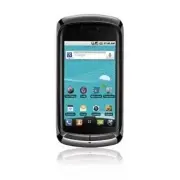


 LG A7110
User Manual
LG A7110
User Manual
 LG AX5000
User Manual
LG AX5000
User Manual
 LG C1300
User Manual
LG C1300
User Manual
 LG C1300A
User Manual
LG C1300A
User Manual
 LG C1300I
User Manual
LG C1300I
User Manual
 LG C1500
User Manual
LG C1500
User Manual
 LG C2000
User Manual
LG C2000
User Manual
 LG CB630
User Manual
LG CB630
User Manual
 LG CE500
User Manual
LG CE500
User Manual
 LG CF360
User Manual
LG CF360
User Manual
 LG CF360A
User Manual
LG CF360A
User Manual
 LG CG180
User Manual
LG CG180
User Manual
 LG CG225
User Manual
LG CG225
User Manual
 LG CG300
User Manual
LG CG300
User Manual
 LG CP150
User Manual
LG CP150
User Manual
 LG CU320
User Manual
LG CU320
User Manual
 LG CU400
User Manual
LG CU400
User Manual
 LG CU405
User Manual
LG CU405
User Manual
 LG CU500
User Manual
LG CU500
User Manual