Page 2 - About this user guide
1 About this user guide Thank you for choosing this LG product. Please carefully read this user guide before using the device for the first time to ensure safe and proper use. • Always use genuine LG accessories. The supplied items are designed only for this device and may not be compatible with oth...
Page 3 - Instructional notices
2 Instructional notices WARNING : Situations that could cause injury to the user and third parties. CAUTION : Situations that may cause minor injury or damage to the device. NOTE : Notices or additional information.
Page 4 - Table of contents; Features
3 02 Basic Functions 16 Product components and accessories 17 Parts overview 20 Turning the power on or off 21 Installing the SIM card 23 Inserting the memory card 24 Removing the memory card 25 Battery 27 Touch screen 30 Home screen 36 Screen lock 39 Memory card encryption 40 Taking screenshots 41 ...
Page 5 - Phone Settings
4 Table of contents 55 Messaging 56 Camera 64 Gallery 67 Chrome 67 Google apps 69 Outdoor Essentials 69 Clock 70 Calculator 70 File Manager 71 Voice Recorder 71 FM Radio 71 Downloads 72 LG Health 73 Contacts 75 Music 76 Tasks 76 LG SmartWorld 77 Facebook 77 Instagram 77 QuickMemo+ 79 Calendar 04 Pho...
Page 7 - Notes on Water Resistant
Custom-designed Features 6 Notes on Water Resistant Properties This product is water and dust resistant in compliance with the Ingress Protection rating IP68.Your product has undergone testing in a controlled environment and is proven to be water and dust resistant in certain circumstances (meets th...
Page 9 - Fingerprint recognition; Fingerprint recognition overview; Precautions for fingerprint recognition
Custom-designed Features 8 Fingerprint recognition Fingerprint recognition overview You must register your fingerprint on your device first before using the fingerprint recognition function.You can use the fingerprint recognition function in the following cases: • To unlock the screen. • To view the...
Page 10 - Registering fingerprints
Custom-designed Features 9 • Scan only one finger for each registration. Scanning more than one finger may affect fingerprint registration and recognition. • The device may generate static electricity if the surrounding air is dry. If the surrounding air is dry, avoid scanning fingerprints, or touch...
Page 11 - Managing fingerprints
Custom-designed Features 10 3 Follow the on-screen instructions. • Repeat scanning the fingerprint by moving your finger little by little until the fingerprint registers. 4 When the fingerprint registration is done, tap OK . • Tap ADD MORE to register another fingerprint. If you register only one fi...
Page 12 - Multi-tasking feature
Custom-designed Features 11 Multi-tasking feature Multi-Window You can use two apps at the same time by separating the screen into multiple windows.While using an app, press and hold from the Home buttons, then select an app from the recently-used apps list. • You can use two apps at the same time. ...
Page 13 - Overview screen
Custom-designed Features 12 Overview screen The Overview screen provides a preview of your recently-used apps.To view the list of recently-used apps, press on the Home buttons. • Touch and hold an app and drag it to the top of the screen to start the app with the Multi-Window feature. You can also t...
Page 14 - quick share
Custom-designed Features 13 quick share You can share a photo or video using a desired app immediately after taking it. 1 Press and tap , then take a photo or record a video. 2 Tap the app icon that appears on the screen to share it using that app.You can also swipe the icon towards the opposite dir...
Page 15 - QuickButton
Custom-designed Features 14 QuickButton You can use the QuickButton to directly launch apps, or turn a feature on or off. The following actions are turned on by default: • Press once on the QuickButton to access Outdoor Essentials . • Double press the QuickButton to turn Glove mode on or off. • Pres...
Page 16 - Basic Functions
Page 18 - Parts overview
Basic Functions 17 Parts overview Earpiece Touch screen Notification LED Proximity/Ambient light sensor Stereo headset jack Back key Microphone Home key/ Fingerprint sensor Overview key Front camera lens Rear camera lens Charger/USB cable port QuickButton SIM/microSD card tray Flash Speaker Power/Lo...
Page 21 - Turning the power on or off; Turning the power on; Turning the power off; Power control options
Basic Functions 20 Turning the power on or off Turning the power on When the power is turned off, press and hold the Power/Lock key. • When the device is turned on for the first time, initial configuration takes place. The first booting time for the smart phone may be longer than usual. Turning the ...
Page 22 - Installing the SIM card
Basic Functions 21 Installing the SIM card Insert the SIM card provided by your mobile service provider to start using your device. • Be careful with the ejection pin since it has a sharp edge. • In order for the water-resistant and dust-resistant features to work effectively, the card tray must be ...
Page 24 - Precautions when using the SIM card; Inserting the memory card
Basic Functions 23 Precautions when using the SIM card • Do not lose your SIM card. LG is not responsible for damage and other issues caused by loss or transfer of a SIM card. • Be careful not to damage the SIM card when you insert or remove it. Inserting the memory card Insert the memory card into ...
Page 25 - Removing the memory card
Basic Functions 24 • Frequent writing and erasing of data may shorten the memory card lifespan. Removing the memory card Unmount the memory card before removing it for safety. 1 Press and tap Settings General Storage . 2 Insert the ejection pin into the hole on the card tray. 3 Pull out the card tra...
Page 26 - Battery; Charging the battery
Basic Functions 25 Battery Charging the battery Before using the device, fully charge the battery.Charge the device with the USB micro-B cable. • Do not charge while the device or charging cable is wet or contains moisture. This can cause fire, electric shock, injury or damage to device. • Make sure...
Page 27 - Precautions when using the device; Using the battery efficiently
Basic Functions 26 • Remove the charger from the power socket after the device is fully charged. This prevents unnecessary power consumption. • A charging adapter that supports fast charging is included with the product. • The fast charging feature may not work if a fast charging adapter other than ...
Page 28 - Touch screen; Tapping; Touching and holding
Basic Functions 27 Touch screen You can familiarize yourself with how to control your device by using touch screen gestures. Tapping Lightly tap with your fingertip to select or run an app or option. Touching and holding Touch and hold for several seconds to display a menu with available options.
Page 29 - Dragging
Basic Functions 28 Double-tapping Tap twice quickly to zoom in or out on a web page or map. Dragging Touch and hold an item, such as an app or widget, then move your finger to another location in a controlled motion. You can use this gesture to move an item. Swiping Touch the screen with your finger...
Page 30 - Pinching and spreading
Basic Functions 29 Pinching and spreading Pinch two fingers to zoom out such as on a photo or map. To zoom in, spread your fingers apart. • Do not expose the touch screen to excessive physical shock. You might damage the touch sensor. • A touch screen failure may occur if you use the device near a m...
Page 31 - Home screen; Home screen overview; Home screen layout
Basic Functions 30 Home screen Home screen overview The Home screen is the starting point for accessing various functions and apps on your device. Press on any screen to directly go to the Home screen.You can manage all apps and widgets on the Home screen. Swipe the screen left or right to view all ...
Page 32 - Status icons
Basic Functions 31 • Google search widget : Perform a Google search by inputting spoken or written keywords. • Folder : Create folders to group apps by your preferences. • Page icon : Display the total number of Home screen canvases. Tap the desired page icon to go to the page. The icon reflecting t...
Page 33 - Notifications panel
Basic Functions 32 • Some of these icons may appear differently or may not appear at all, depending on the device's status. Refer to the icons according to the actual environment and area in which you are using the device and your service provider. Notifications panel You can open the notifications ...
Page 34 - Switching the screen orientation
Basic Functions 33 Switching the screen orientation You can set the screen orientation to automatically switch according to the device's physical orientation.On the notification panel, tap Rotation from the quick access icon list. You can also press , tap Settings Display and activate Auto- rotate s...
Page 35 - Viewing the background theme
Basic Functions 34 Viewing the background theme You can view only the background image by hiding the apps and widgets on the Home screen.Spread two fingers apart on the Home screen. • To return to the original screen, which displays apps and widgets, pinch your fingers on the Home screen or press . ...
Page 36 - Using folders from the Home screen; Creating folders
Basic Functions 35 Using folders from the Home screen Creating folders On the Home screen, touch and hold an app, then drag it over another app. • A new folder is created and the apps are added to the folder. • To add apps, touch and hold an app, then drag it over the folder and release it. Editing ...
Page 37 - Screen lock; Screen lock overview; Setting a screen lock
Basic Functions 36 Screen lock Screen lock overview Your device's screen turns off and locks itself if you press the Power/ Lock key. This also happens after the device is left idle for a specified period of time.If you press the Power/Lock key when a screen lock is not set, the Home screen appears ...
Page 38 - Secure start-up settings
Basic Functions 37 • If you incorrectly attempt to unlock the device 5 times, the screen is blocked for 30 seconds. Secure start-up settings For additional security for your device, you can enable the Secure start-up option when setting a screen lock. • You cannot use all functions, except for emerg...
Page 39 - KnockON; Turning on the screen; Knock Code
Basic Functions 38 • Power key instantly locks : Instantly lock the screen when the Power/Lock key is pressed. • Available setting items may vary, depending on the selected screen lock method. KnockON You can turn the screen on or off by double-tapping the screen. • This option is available only on ...
Page 40 - Creating a Knock Code; Memory card encryption
Basic Functions 39 • You can use your Knock Code together with the KnockOn feature. • Make sure to use your fingertip when tapping the screen. Creating a Knock Code 1 Press and tap Settings Display Lock screen Select screen lock Knock Code . 2 Tap the squares in a pattern of your choice to create a ...
Page 41 - Taking screenshots; Via a shortcut
Basic Functions 40 • Exclude media files : Encrypt all files, except for media files such as music, photos and videos. • To encrypt the memory card, make sure that a screen lock is set using a PIN or password. • Once memory card encryption starts, some functions are not available. • If the device is...
Page 42 - Entering text; Using the Smart keyboard; Moving the cursor
Basic Functions 41 • When the screen is turned off or locked, you can access Capture+ by pressing the Volume Up (+) key twice. To use this feature, press , tap Settings General and turn on Shortcut keys . • See Writing notes on a screenshot for details. Entering text Using the Smart keyboard You can...
Page 43 - Suggesting words; Changing the QWERTY keyboard layout
Basic Functions 42 Suggesting words Smart keyboard automatically analyzes your usage patterns to suggest frequently used words as you type. The longer you use your device, the more precise the suggestions are.Enter text, then tap a suggested word. • The selected word is automatically entered. You do...
Page 44 - Customizing the keyboard height
Basic Functions 43 • This option is available on the QWERTY, QWERTZ and AZERTY keyboards. • This function may not be supported for some languages. Customizing the keyboard height You can customize the keyboard height to maximize hand comfort when typing. 1 Press and tap Settings General Language &am...
Page 45 - Splitting the keyboard; One-handed operation mode
Basic Functions 44 Splitting the keyboard You can split the keyboard in half and place each piece on either side of the screen when the screen is in landscape mode.Press and tap Settings General Language & keyboard LG Keyboard Keyboard height and layout Split keyboard . You can also tap on the k...
Page 46 - Entering text by using voice; Adding languages to the keyboard
Basic Functions 45 Entering text by using voice On the keyboard, touch and hold and tap . • To maximize the voice command recognition, speak clearly. • To enter text with your voice, make sure that your device is connected to a network. • To select the language for voice recognition, tap Languages o...
Page 47 - Clip Tray; Content sharing; Playing content from another device
Basic Functions 46 Clip Tray If you copy or cut an image or text, it is automatically saved to the clip tray and can be pasted to any space at any time. 1 On the keyboard, touch and hold and select .You can also touch and hold the text input window, then select CLIP TRAY . 2 Select and paste an item...
Page 48 - Viewing content from nearby devices; Connecting the devices; Sending or receiving files; Sending files
Basic Functions 47 Viewing content from nearby devices You can view content from various devices, such as a computer, NAS or mobile device, by using the Gallery or Music apps. Connecting the devices Connect both your device and another device that support DLNA function to the same wireless network. ...
Page 49 - Sending files to a computer; Do not disturb
Basic Functions 48 Sending files to a computer You can quickly send large files to your computer. 1 Install LG Bridge on your computer. 2 Start LG Bridge on the computer, then sign in using your LG account. 3 Press , tap Settings Networks Share & connect LG AirDrive , then sign in using your LG ...
Page 50 - Useful Apps
Page 51 - Installing and uninstalling apps; Installing apps; Uninstalling with the touch and hold gesture; Uninstalling by using the settings menu
Useful Apps 50 Installing and uninstalling apps Installing apps Access an app store to search and download apps. • You can use the SmartWorld, Play Store or the app store provided by your service provider. • Some app stores may require you to create an account and sign in. • Some apps may charge fee...
Page 52 - Uninstalling apps from the app store
Useful Apps 51 Uninstalling apps from the app store To uninstall an app, access the app store from which you download the app and uninstall it. • Some apps cannot be uninstalled by users. Uninstalled apps You can view the uninstalled apps on the Home screen. You can also reinstall apps within 24 hou...
Page 53 - Phone; Voice call; Making a call from the keypad; Making a call from the contact list; Answering a call
Useful Apps 52 Phone Voice call Make a phone call by using one of the available methods, such as manually entering a phone number and making a call from the contact list or the list of recent calls. Making a call from the keypad 1 Press and tap Dial . 2 Make a call by using a method of your choice: ...
Page 54 - Rejecting a call
Useful Apps 53 Rejecting a call To reject an incoming call, drag across the incoming call screen. • To send a rejection message, drag the rejection message option across the screen. • To add or edit a rejection message, press , tap Settings Networks Call Call blocking & Ignore with message Allow...
Page 55 - Making a three-way calling; Viewing call records; Configuring call options
Useful Apps 54 • Available setting items may vary depending on the area or service provider. Making a three-way calling You can make a call to another contact during a call. 1 During a call, tap Add call . 2 Enter a phone number and tap . • The two calls are displayed on the screen at the same time,...
Page 56 - Messaging; Sending a message; Reading a message
Useful Apps 55 Messaging Sending a message You can create and send messages to your contacts using the Messaging app. • Sending messages abroad may incur additional charges. Consult with your service provider for more information. 1 Press and tap . 2 Tap . 3 Specify a recipient and create a message....
Page 57 - Camera; Starting the camera
Useful Apps 56 Camera Starting the camera You can take a photo or record a video to cherish all of your memorable moments.Press and tap . • Before taking a photo or recording a video, wipe the camera lens with a soft cloth. • Be careful not to stain the camera lens with your fingers or other foreign...
Page 58 - Taking a photo; Recording a video
Useful Apps 57 Taking a photo 1 Select a camera mode and tap the subject to focus the camera on. 2 Tap to take a photo. • You can also press the Volume Down (-) or Volume Up (+) key to take a photo. • When the screen is turned off or locked, start the camera by pressing the Volume Down (-) key twice...
Page 60 - Panorama; Burst shot
Useful Apps 59 Panorama You can create a panoramic photo by moving the camera in one direction to photograph and stitch continuous shots of a wide view. 1 In the camera screen, tap MODE . 2 Tap and then slowly move the camera in one direction. • Move the device by following the direction of the arro...
Page 61 - Switching between cameras; Zoom in or out
Useful Apps 60 Switching between cameras You can switch between the front and rear cameras to suit your environment.On the camera screen, tap or swipe the screen in any direction to switch between the front and rear cameras. • Use the front camera to take selfies. See Selfie shot for details. Zoom i...
Page 62 - Selfie shot; Gesture shot
Useful Apps 61 Selfie shot You can use the front camera to view your face on the screen and take selfies. Gesture shot You can take selfies by using gestures.Show your palm to the front camera and then clench your fist.You can also clench your fist and then open it towards the front camera. • In thr...
Page 63 - Auto shot; Interval shot
Useful Apps 62 Auto shot You can use the face detection feature to take selfies easily and conveniently. You can set the device so that, when you look at the screen, the front camera detects your face and takes a selfie automatically. • The white colored guide frame appears when the front camera det...
Page 64 - Save as flipped
Useful Apps 63 Gesture view After taking a selfie with the front camera, you can preview the selfie immediately by placing the screen close to your face. • Tap Gesture view to enable the Gesture view feature. • Only one preview is available each time a photo is taken. • If you rotate the device whil...
Page 65 - Gallery overview; Viewing photos
Useful Apps 64 Gallery Gallery overview You can view and manage photos and videos saved on your device. 1 Press and tap . • Saved photos and videos are displayed by folder. 2 Tap a folder and select a file. • View the selected file in full-screen mode. • While viewing a photo, swipe left or right to...
Page 66 - Editing photos; Playing a video
Useful Apps 65 Editing photos 1 While viewing a photo, tap . 2 Use a variety of effects and tools to edit the photo. 3 Tap SAVE to save changes. • The changes are overwritten to the original file. • To save the edited photo as another file, tap Save copy . Playing a video Add to or remove from your ...
Page 67 - Deleting files; Sharing files
Useful Apps 66 Deleting files You can delete files by using one of the following options: • Touch and hold a file from the file list, then tap Delete . • Tap in an album, select files you want to delete, then tap DELETE . • Deleted files are automatically moved to Trash and they can be restored to t...
Page 68 - Chrome; Google
Useful Apps 67 Chrome Sign in to Chrome and import opened tabs, bookmarks and address bar data from a computer to your device.Press and tap . Google apps You can use Google apps by setting a Google account. The Google account registration window appears automatically when you use a Google app for th...
Page 70 - Alarm; World clock
Useful Apps 69 Outdoor Essentials You can gain quick access to tools and apps like weather, barometer, LG Health, compass, and flashlight. 1 Press and tap Outdoor Essentials . 2 Select your desired tool. Clock Alarm You can set an alarm to trigger it at a specified time. 1 Press and tap Tools Clock ...
Page 71 - Stopwatch; Calculator
Useful Apps 70 2 Set the time and tap Start . • To suspend the timer, tap Pause . To resume the timer, tap Resume . • To reset the timer settings, tap Reset . Stopwatch You can use the stopwatch to record a lap time. 1 Press and tap Tools Clock Stopwatch . 2 Tap Start to initiate the stopwatch. • To...
Page 73 - LG Health; LG Health overview; Using LG Health
Useful Apps 72 LG Health LG Health overview You can manage your health and maintain good exercise habits by keeping track of the exercises you do. Getting started with LG Health You can configure LG Health when launching the app for the first time or after resetting it. 1 Press and tap LG LG Health ...
Page 74 - Contacts; Contacts overview; Adding new contacts
Useful Apps 73 • : Set your daily exercise goals including calories and steps, or set various LG Health settings. • Health-related information provided by LG Health is designed for user convenience and cannot be used for purposes of disease prevention, treatment, diagnosis or other medical issues. •...
Page 75 - Adding contacts to the speed dial list; Searching for contacts; Editing contacts; Deleting contacts; Adding favorites
Useful Apps 74 Adding contacts to the speed dial list 1 On the contact list screen, tap Speed dial . 2 Tap Add contact from a speed dial number. 3 Select a contact. Searching for contacts You can search for contacts by using one of the following options: • On the contact list screen, enter a contact...
Page 76 - Creating groups; Music
Useful Apps 75 Creating groups 1 On the contact list screen, tap Groups New group . 2 Enter a new group name. 3 Tap Add members , select contacts, then tap ADD . 4 Tap SAVE to save the new group. Music You can play and manage songs or music albums. 1 Press and tap LG Music . 2 Select a category. 3 S...
Page 78 - Facebook; Instagram; Creating a note
Useful Apps 77 Facebook You can use a social networking service to update, view and share posts, photos and videos with your online contacts.Press and tap Recommended Facebook . Instagram Use a social networking service to capture and share your photos and videos. You can also apply filter effects t...
Page 79 - Writing notes on a photo; Writing notes on a screenshot; Managing folders
Useful Apps 78 • : Access additional. 3 Tap to save the note. Writing notes on a photo 1 Press and tap QuickMemo+ . 2 Tap to take a photo, then tap OK . • The photo is automatically attached into the notepad. 3 Tap or to write notes on the photo. • Write notes by hand on the photo. • Enter text belo...
Page 80 - Calendar; Calendar overview
Useful Apps 79 • My memos : View notes created by QuickMemo+. • Capture+ : View notes created by Capture+. • Photo memos : View notes created by . • Trash : View deleted notes. • New category : Add categories. • : Rearrange, add or delete categories. To change the name of a category, tap the categor...
Page 81 - Syncing events; Event pocket
Useful Apps 80 Syncing events Tap Calendars to sync and select a calendar to sync. • When your events are saved from the device to your Google account, they are automatically synced with the Google calendar, too. Then, you can sync other devices with the Google calendar in order to make those device...
Page 83 - Airplane mode; Connecting to a Wi-Fi network
Phone Settings 82 Settings You can customize the device settings in accordance with your preferences.Press and tap Settings . • Tap and enter a keyword in the search box to access a setting item. • Tap to change the view mode. This user guide assumes that you are using the Tab view . Networks Airpla...
Page 84 - Wi-Fi network settings
Phone Settings 83 • The device skips this process for previously accessed Wi-Fi networks. If you do not want to automatically connect to a certain Wi-Fi network, touch and hold the network and then tap Forget network . Wi-Fi network settings On the settings screen, tap Networks Wi-Fi . • : Customize...
Page 85 - Pairing with another device; Sending data via Bluetooth
Phone Settings 84 Bluetooth You can connect your device to nearby devices that support Bluetooth to exchange data with them. Connect your device to a Bluetooth headset and a keyboard. This makes it easier to control the device. Pairing with another device 1 On the settings screen, tap Networks Bluet...
Page 86 - Mobile data; Turning on mobile data; Call; Advanced Calling
Phone Settings 85 Mobile data You can turn on or off mobile data. You can also manage mobile data usage. Turning on mobile data 1 On the settings screen, tap Networks Mobile data . 2 Tap to activate it. Customizing mobile data settings 1 On the settings screen, tap Networks Mobile data . 2 Customize...
Page 87 - File sharing; Media server
Phone Settings 86 Share & connect File sharing You can send and receive files between your device and other LG devices or tablets. • See Sending or receiving files for details. 1 On the settings screen, tap Networks Share & connect File sharing . 2 Customize the following settings: • LG X ve...
Page 88 - LG AirDrive
Phone Settings 87 • Not-allowed devices : View a list of devices not permitted to access content on your device. LG AirDrive You can use your LG account to manage files saved on the device from a computer. You do not need a USB connection. 1 On the settings screen, tap Networks Share & connect L...
Page 89 - Tethering; USB tethering
Phone Settings 88 Tethering USB tethering You can connect the device to another device via USB and share mobile data. 1 Connect your device and other devices via USB cable. 2 On the settings screen, tap Networks Tethering USB tethering and then tap to activate it. • This option uses mobile data and ...
Page 91 - Bluetooth tethering; Help; More; Mobile networks
Phone Settings 90 Bluetooth tethering A Bluetooth-connected device can connect to the Internet by using your device's mobile data. 1 On the settings screen, tap Networks Tethering Bluetooth tethering and then tap to activate it. 2 Turn on Bluetooth on both devices, and pair them. • This option uses ...
Page 92 - VPN
Phone Settings 91 2 Customize the following settings: • Mobile data : Turn mobile data on or off. • Data roaming : Turn data roaming on or off. • System select : Select a network mode. • Access Point Names : View or change the access point for using mobile data services. To change the access point, ...
Page 94 - Display
Phone Settings 93 • More Message/call voice notifications : Set the device to read the caller information or message content via voice. Display You can customize detailed settings for each screen type.On the settings screen, tap Display and customize the following settings: • Home screen : Customize...
Page 95 - General; Location
Phone Settings 94 • More Motion sensor calibration : Correct the angle and speed of the motion sensor to improve the tilt accuracy and speed of the sensor. General Language & keyboard You can customize language and keyboard settings for your device. 1 On the settings screen, tap General Language...
Page 96 - Accessibility
Phone Settings 95 • RECENT LOCATION REQUEST : View apps that recently requested location information. • Low power location estimation : Estimate the device location by using low power consumption. • Google Location History : Configure the Google location history settings. • Google Location Sharing :...
Page 98 - Shortcut keys
Phone Settings 97 • Motor & cognition Auto mouse click : Automatically click where the pointer stops. • Motor & cognition Touch and hold for calls : Answer or decline calls by touching and holding the call button instead of dragging it. • Motor & cognition Screen timeout : Turn off the s...
Page 99 - Google services
Phone Settings 98 2 Tap to activate it. • Press the Volume Down (-) key twice to launch the Camera app when the screen is locked or turned off. Press the Volume Up (+) key twice to launch Capture+ . Google services You can use Google settings to manage your Google apps and account settings.On the se...
Page 100 - Storage
Phone Settings 99 • Trust agents : View and use trust agents installed on the device. • Screen pin : Fix the app screen so that only the currently active app can be used. • Usage access : View details on usage of apps on the device. Date & time You can customize date and time settings for your d...
Page 101 - Memory
Phone Settings 100 • Battery saver : Reduce battery consumption by cutting down some device settings, such as the display brightness, speed and vibration intensity. The status bar displays when power- saving mode is on. Memory You can view the average amount of memory usage over a certain period of ...
Page 102 - About phone
Phone Settings 101 • Network settings reset : Reset Wi-Fi, Bluetooth and other network settings. • Factory data reset : Reset all settings for the device and delete data. • Resetting your device deletes all data on it. Enter your device name, Google account and other initial information again. About...
Page 103 - Appendix
Page 104 - LG Bridge; LG Bridge overview; LG Bridge functions
Appendix 103 LG Bridge LG Bridge overview LG Bridge is an app that helps you manage the photos, music, videos and documents saved on your LG smartphone from your computer conveniently. You can back up contacts, photos and more to the computer or update the device software. • The supported features m...
Page 105 - Phone software update; LG Mobile phone software update from the
Appendix 104 Phone software update LG Mobile phone software update from the Internet For more information about using this function, please visit http:// www.lg.com/common/index.jsp, select your country and language.This feature allows you to conveniently update the firmware on your phone to a newer...
Page 106 - LG Mobile Phone software update via Over-the-
Appendix 105 LG Mobile Phone software update via Over-the- Air (OTA) This feature allows you to conveniently update your phone’s software to a newer version via OTA, without connecting a USB cable. This feature will only be available if and when LG makes a newer firmware version available for your d...
Page 108 - Open Source Software Notice; Trademarks
Appendix 107 Open Source Software Notice Information To obtain the source code under GPL, LGPL, MPL, and other open source licenses, that is contained in this product, please visit http://opensource.lge.com.In addition to the source code, all referred license terms, warranty disclaimers and copyrigh...
Page 109 - FAQ
Appendix 108 FAQ This chapter lists some problems you might encounter when using your phone. Some problems require you to call your service provider, but most are easy to fix yourself. Message Possible causes Possible corrective measures SIM card error There is no SIM card in the phone or it is inse...
Page 112 - For Your Safety
Page 113 - Important Information
For Your Safety 112 Important Information This user guide contains important information on the use and operation of this phone. Please read all the information carefully for optimal performance and to prevent any damage to or misuse of the phone. Any changes or modifications not expressly approved ...
Page 116 - HAC statement
For Your Safety 115 HAC statement This phone has been tested and rated for use with hearing aids for some of the wireless technologies that it uses. However, there may be some newer wireless technologies used in this phone that have not been tested yet for use with hearing aids. It is important to t...
Page 118 - Consumer Information About Radio Frequency
For Your Safety 117 • Connect the equipment into an outlet on a circuit different from that to which the receiver is connected. • Consult the dealer or an experienced radio/TV technician for help. Consumer Information About Radio Frequency Emissions Your wireless phone, which contains a radio transm...
Page 119 - Can I minimize my RF exposure?
For Your Safety 118 wireless phones in the United States. Before a wireless phone model is available for sale to the public, it must be tested by the manufacturer and certified to the FCC that it does not exceed limits established by the FCC. One of these limits is expressed as a Specific Absorption...
Page 120 - Where can I get further information about RF emissions?
For Your Safety 119 national governments have advised that children be discouraged from using wireless phones at all”. For example, the Stewart Report from the United Kingdom [“UK”] made such a recommendation in December 2000. In this report a group of independent experts noted that no evidence exis...
Page 122 - Consumer Information on SAR
For Your Safety 121 Consumer Information on SAR (Specific Absorption Rate) This model phone meets the government’s requirements for exposure to radio waves. Your wireless phone is a radio transmitter and receiver. It is designed and manufactured not to exceed the emission limits for exposure to Radi...
Page 123 - Regulations for Wireless Devices
For Your Safety 122 The FCC has granted an Equipment Authorization for this model phone with all reported SAR levels evaluated as in compliance with the FCC RF emission guidelines. SAR information on this model phone is on file with the FCC and can be found under the Display Grant section of http://...
Page 125 - Avoid potential hearing loss.
For Your Safety 124 For information about hearing aids and digital wireless phonesWireless Phones and Hearing Aid Accessibility http://www.accesswireless.org/ Gallaudet University, RERC http://tap.gallaudet.edu/Voice/ FCC Hearing Aid Compatibility and Volume Control https://www.fcc.gov/general/heari...
Page 126 - TIA Safety Information
For Your Safety 125 • Do not turn the volume up to block out noisy surroundings. If you choose to listen to your portable device in a noisy environment, use noise- canceling headphones to block out background environmental noise. • Limit the amount of time you listen. As the volume increases, less t...
Page 127 - Tips on Efficient Operation
For Your Safety 126 Tips on Efficient Operation For your phone to operate most efficiently:Don’t touch the antenna unnecessarily when the phone is in use. Contact with the antenna affects call quality and may cause the phone to operate at a higher power level than otherwise needed. Electronic Device...
Page 129 - For Vehicles Equipped with an Air Bag; Caution; Charger and Adapter Safety
For Your Safety 128 For Vehicles Equipped with an Air Bag An air bag inflates with great force. DO NOT place objects, including either installed or portable wireless equipment, in the area over the air bag or in the air bag deployment area. If in-vehicle wireless equipment is improperly installed an...
Page 131 - General Notice
For Your Safety 130 Notice for Battery replacement • Li-Ion Battery is a hazardous component which can cause injury. • Battery replacement by non-qualified professional can cause damage to your device. • Your device has an internal battery. For your safety, do not remove the back cover. If you need ...
Page 132 - FDA Consumer Update
For Your Safety 131 of the phone, or upgrade of the software. Please backup your important phone numbers. (Ringtones, text messages, voice messages, pictures, and videos could also be deleted.) The manufacturer is not liable for damage due to the loss of data. • When you use the phone in public plac...
Page 136 - What has the FDA done to measure the Radio
For Your Safety 135 7. How can I find out how much Radio Frequency energy exposure I can get by using my wireless phone? All phones sold in the United States must comply with Federal Communications Commission (FCC) guidelines that limit Radio Frequency (RF) energy exposures. The FCC established thes...
Page 139 - Driving
For Your Safety 138 Driving Check the laws and regulations on the use of wireless phones in the areas where you drive and always obey them. Also, if using your phone while driving, please observe the following: • Give full attention to driving -- driving safely is your first responsibility; • Use ha...
Page 141 - LIMITED
Page 142 - Limited Warranty – USA
LIMITED WARRANTY - USA 141 Limited Warranty – USA ARBITRATION NOTICE: THIS LIMITED WARRANTY CONTAINS AN ARBITRATION PROVISION THAT REQUIRES YOU AND LG (as defined hereinafter in the Definitions) TO RESOLVE DISPUTES BY BINDING ARBITRATION INSTEAD OF IN COURT, UNLESS YOU CHOOSE TO OPT OUT. IN ARBITRAT...
Page 143 - HOW SERVICE IS HANDLED:
LIMITED WARRANTY - USA 142 DAMAGES WHETHER BASED IN CONTRACT, TORT, OR OTHERWISE. LG’S TOTAL LIABILITY, IF ANY, SHALL NOT EXCEED THE PURCHASE PRICE PAID BY YOU FOR THE PRODUCT. Some states do not allow the exclusion or limitation of incidental or consequential damages or limitations on how long an i...
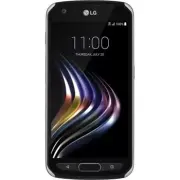


 LG A7110
User Manual
LG A7110
User Manual
 LG AX5000
User Manual
LG AX5000
User Manual
 LG C1300
User Manual
LG C1300
User Manual
 LG C1300A
User Manual
LG C1300A
User Manual
 LG C1300I
User Manual
LG C1300I
User Manual
 LG C1500
User Manual
LG C1500
User Manual
 LG C2000
User Manual
LG C2000
User Manual
 LG CB630
User Manual
LG CB630
User Manual
 LG CE500
User Manual
LG CE500
User Manual
 LG CF360
User Manual
LG CF360
User Manual
 LG CF360A
User Manual
LG CF360A
User Manual
 LG CG180
User Manual
LG CG180
User Manual
 LG CG225
User Manual
LG CG225
User Manual
 LG CG300
User Manual
LG CG300
User Manual
 LG CP150
User Manual
LG CP150
User Manual
 LG CU320
User Manual
LG CU320
User Manual
 LG CU400
User Manual
LG CU400
User Manual
 LG CU405
User Manual
LG CU405
User Manual
 LG CU500
User Manual
LG CU500
User Manual