Page 2 - LIMITED WARRANTY STATEMENT; Warranty Laws
LIMITED WARRANTY STATEMENT ARBITRATION NOTICE: THIS LIMITED WARRANTY CONTAINS AN ARBITRATION PROVISION THAT REQUIRES YOU AND LG TO RESOLVE DISPUTES BY BINDING ARBITRATION INSTEAD OF IN COURT, UNLESS YOU CHOOSE TO OPT OUT. IN ARBITRATION, CLASS ACTIONS AND JURY TRIALS ARE NOT PERMITTED. PLEASE SEE TH...
Page 5 - DO NOT RETURN YOUR PRODUCT TO THE ABOVE ADDRESS.; PROCEDURE FOR RESOLVING DISPUTES:
4 5. HOW TO GET WARRANTY SERVICE: To obtain warranty service, please call or fax to the following telephone numbers from anywhere in the continental United States: Tel. 1-800-793-8896 or Fax. 1-800-448-4026 Or visit http://www.lg.com/us/support. Correspondence may also be mailed to:LG Electronics Se...
Page 9 - Table of contents
8 Basics .......................................... 10 Accessories .............................................. 11 Phone layout ............................................ 12 Phone Components ................................................... 12 Menus Overview ......................................
Page 12 - Accessories
Basics 11 Accessories There are a variety of accessories available for your mobile phone, some of which may be sold separately. A Travel Adaptor A USB Cable A Battery NOTE A Always use genuine LG accessories. The supplied items are designed only for this device and may not be compatible with other d...
Page 13 - Phone layout; Phone Components
Basics 12 Phone layout Phone Components < < < < OK Key / Navigation Key Earpiece Right Soft Key PWR/END Key Clear Key Alarm Clock Key Vibrate Mode Key Main Screen SEND Key Speakerphone Key Left Soft Key Headset Jack USB/Charger Port
Page 16 - Speaker
Basics 15 Speaker Use to listen to the audio from the selected function (e.g., music, videos, sound clips, etc.). Volume Keys Use to adjust the Master Volume in standby mode and the Earpiece Volume during a call. Use to adjust font sizes when viewing messages, entering phone numbers (in standby mode...
Page 17 - Contacts; Menus Overview; Menu Access; MENU
Basics 16 Contacts 1. New Contact 2. Contact List 3. Favorites 4. Groups 5. Speed Dials 6. My vCard Messaging 1. New Message 2. Messages 3. Drafts 4. Voice mail 5. Templates 6. Settings 1. Message View 2. Entry Mode 3. Auto Save Sent 4. Auto Erase Inbox 5. Messaging Font Size 6. TXT Auto View 7. TXT...
Page 19 - Settings
Basics 18 6. World Clock 7. Notepad 8. USB Mass Storage Settings 1. Sounds Settings 1. Master Volume 2. Call Sounds 1. Call Ringtone 2. Call Vibrate 3. Caller ID Readout 3. Alert Sounds 1. TXT Message 2. Multimedia Message 3. Voice mail 4. Emergency Tone 5. Missed Call 4. Keypad Volume 5. Digit Dial...
Page 22 - Getting Started with Your Phone; Step 1. Remove the Back Cover
Basics 21 Getting Started with Your Phone Step 1. Remove the Back Cover Use the fingertip cutout at the bottom of the phone to pull the back cover off. Step 2. Insert the Battery Align the battery contacts with the terminals in the battery compartment and push the battery down until it clicks into p...
Page 23 - Step 3. Replace the Back Cover; USB cable
Basics 22 Step 3. Replace the Back Cover Place the back cover over the battery compartment, the press it downward until it clicks into place. Step 4. Charge the Phone Your device comes with a charging adapter and a USB cable which connect together to charge your phone.Before turning on your phone, c...
Page 24 - Removing the Battery; Battery Temperature Protection
Basics 23 Removing the Battery 1 Turn the phone off. 2 Use the fingertip cutout at the bottom of the phone to pull the back cover off. 3 Use the fingertip opening near the bottom of the battery compartment to lift the battery out. Charging with USB You can use your computer to charge your phone. To ...
Page 25 - Signal Strength; Key; Making Calls; SEND Key; Correcting Dialing Mistakes; Clear Key
Basics 24 Signal Strength Call quality depends on the signal strength in your area. You can tell how much signal strength you have by the number of bars next to the signal strength icon : the more bars, the stronger the signal. If you’re having problems with signal quality, move to an open area or, ...
Page 26 - Redialing Calls
Basics 25 Redialing Calls With the flip open, press the SEND Key twice to redial the last number dialed. Receiving Calls When the flip is open and you receive an incoming call, the following options are available. [ Quiet ] Press the Left Soft Key to mute the ringing or vibration for that call. [ Ig...
Page 27 - Quick Access to Convenient Features; Vibrate Mode
Basics 26 Quick Access to Convenient Features Vibrate Mode Sets the phone to vibrate instead of ringing ( is displayed). To set Vibrate Mode, with the flip open, press and hold . To return to Normal Mode, press and hold again. Sounds Off Quickly deactivate your phone's sounds when you're in a place ...
Page 28 - Quick Font Resize; Call Waiting
Basics 27 Quick Font Resize When you view messages, enter phone numbers, or view sub-menus, press the Volume Keys simultaneously to quickly adjust the font size. NOTE A Not supported on the Main menu. Call Waiting During a call, one beep indicates another incoming call. Press the SEND Key to answer ...
Page 29 - Voice Commands
Basics 28 Voice Commands Voice Commands allow you to do things by verbal command (e.g., make calls, check Voicemail, etc.). 1 Call Say "Call" and then call someone simply by saying the name or phone number. 2 Send Msg to Say "Send Message" and the command will prompt you for the type...
Page 30 - Entering and Editing Information; Text Input; Text Input Modes
Basics 29 Entering and Editing Information Text Input The following key functions are available to help with text entry: Left Soft Key : Press to change the text input mode. Shift : Press to change capitalization (initial cap, caps lock, lowercase). Next : Press to display other matching words in th...
Page 31 - Contacts in Your Phone’s Memory; Creating a Contact; Customizing Individual Entries
Basics 30 Contacts in Your Phone’s Memory Creating a Contact 1 With the flip open, enter a number (max. 48 digits), then press the Left Soft Key [ Save ]. 2 Use the Navigation Key to highlight Add New Contact or Update Existing , then press . 3 Use the Navigation Key to highlight Mobile 1 / Home / B...
Page 32 - Storing a Number with Pauses
Basics 31 5 Select a Speed Dial digit. A Enter a digit using the keypad, then press [ SET ]. A Use the Navigation Key to highlight the Speed Dial digit, then press [ SET ]. 6 Press [ Yes ] to confirm, then press [ SAVE ] to update your contact entry. Storing a Number with Pauses Pauses allow you to ...
Page 33 - Adding a Pause to an Existing Contact Entry; Adding Another Phone Number; From standby mode
Basics 32 Adding a Pause to an Existing Contact Entry 1 With the flip open, press the Right Soft Key [ Contacts ]. 2 Use the Navigation Key to highlight a Contact entry, then press the Left Soft Key [ Edit ]. 3 Use the Navigation Key to highlight the number, then press the Right Soft Key [ Options ]...
Page 34 - Changing Saved Information; Deleting a Contact Entry
Basics 33 Changing Saved Information To edit any information you stored, access the Edit Contact screen: 1 With the flip open, press the Right Soft Key [ Contacts ]. 2 Use the Navigation Key to highlight a Contact entry, then press the Left Soft Key [ Edit ]. 3 Use the Navigation Key to highlight th...
Page 35 - Removing a Speed Dial; Speed Dialing; Single Digit Speed Dials
Basics 34 Removing a Speed Dial 1 With the flip open, press the Right Soft Key [ Contacts ]. 2 Use the Navigation Key to highlight a Contact entry to edit and press [ VIEW ]. 3 Highlight the phone number with the Speed Dial, then press [ EDIT ]. 4 Press the Right Soft Key [ Options ]. 5 Press Remove...
Page 39 - Adding Contacts to a Group
General Functions 38 4. Groups Allows you to view your grouped Contacts, add a new group, change the name of a group, delete a group, or send a message to everyone in the selected group. 1 Open the flip and press [ MENU ]. 2 Press Contacts . 3 Press Groups . 4 View a Group Use the Directional Key to...
Page 41 - Messaging; Send Key; New Message Alert
General Functions 40 Messaging SHORTCUT A From standby mode, pressing the Left Soft Key is a shortcut to Messaging. Depending on the content and size of your messages, the phone can store up to 790 messages (including a max. of 300 text messages, 100 CMAS messages, 100 multimedia message notificatio...
Page 42 - The Basics of Sending a Text Message
General Functions 41 1. New Message Allows you to send messages (Text, Picture, Video and Voice). Depending on the type of message you choose to send, you can also attach files to your messages including pictures, videos, sounds, record voice and name cards. The Basics of Sending a Text Message 1 Op...
Page 43 - Multimedia Message Using Options
General Functions 42 Multimedia Message Using Options Allows you send messages with text, picture, video, sound and name card attachments. 1 Open the flip and press [ MENU ]. 2 Press Messaging . 3 Press New Message . 4 Enter a phone number or a recipient's name in the To field. 5 Press to access the...
Page 44 - Viewing Your Inbox
General Functions 43 2. Messages The phone alerts you in up to 3 ways when you receive a new message: A By displaying a notification message on the screen. A By sounding a tone or vibration, if set. A By displaying (The icon will be when you get a high priority message.) Viewing Your Inbox 1 Open th...
Page 45 - Message Icon Reference
General Functions 44 Multiple Messages Delivered Multiple Pending Messages Multiple Message Delivery Incomplete TXT Message Draft Multiple Messages Sent Namecard Media Message Draft Lock High Priority Unlock * Multimedia Message indicates Picture/Video/Voice Message. 3. Drafts Saved message drafts a...
Page 46 - Checking Your Voice mail Box
General Functions 45 4. Voice mail Allows you to view the number of new voice messages recorded in the Voice mail box. Once you exceed the storage limit, old messages are overwritten. When you have a new voice message, your phone will alert you. Checking Your Voice mail Box 1 Open the flip and press...
Page 47 - Message Settings Sub-Menu Descriptions
General Functions 46 6. Settings Allows you to configure settings for your messages. 1 With the flip open, press [ MENU ]. 2 Press Messaging . 3 Press Settings . 4 Use the Directional Key to highlight one of the settings and press to select it. Message Settings Sub-Menu Descriptions 1. Message View ...
Page 50 - Call History
General Functions 49 Call History The Call History menu is a list of the last phone numbers or Contact entries for calls you placed, accepted, or missed. It's continually updated as new numbers are added to the beginning of the list and the oldest entries are removed from the bottom of the list. 1. ...
Page 53 - Turn On Bluetooth; Bluetooth Menu; Turn On
General Functions 52 Bluetooth The phone is compatible with devices that support the Headset, Handsfree, Stereo, Phonebook Access, Object Push and File Transfer.* You may create and store 20 pairings within the phone and connect to one device. The approximate communication range for Bluetooth® wirel...
Page 54 - Add New Device; For pairing with a new Bluetooth® device
General Functions 53 Add New Device Pairing is the process that allows the handset to locate, establish, and register 1-to-1 connection with the target device. For pairing with a new Bluetooth® device 1 Follow the Bluetooth® accessory instructions to set the device to pairing mode. 2 Open the flip a...
Page 55 - Remove Device
General Functions 54 Icon References When a Bluetooth® Wireless Connection is Searched (neither connected nor paired) When a carkit device is found by your device When an audio device is found by your device When a PC is found by your device When a PDA is found by your device When another phone devi...
Page 56 - My Device Info
General Functions 55 NOTE A While in the Bluetooth Menu, you can turn the Bluetooth functionality off by pressing the Left Soft Key [ Turn Off ]. You can turn it on by pressing the Left Soft Key [ Turn On ] again. When connected with a phone or PC supporting OPP, the following menus are available af...
Page 57 - Discovery Mode; Supported Profiles
General Functions 56 Discovery Mode Allows you to set whether your device is able to be discovered/found by other Bluetooth® devices in the area. 1 Open the flip and press [ MENU ]. 2 Press Bluetooth . 3 Press Bluetooth Menu . 4 Press the Right Soft Key [ Options ]. 5 Press Discovery Mode . 6 Use th...
Page 58 - Multimedia
General Functions 57 Multimedia Allows you to access your multimedia files and features. 1. Take Picture Lets you to take digital pictures. SHORTCUT A Press the Camera Key to open the camera function. 1 Open the flip and press [ MENU ]. 2 Press Multimedia . 3 Press Take Picture . 4 Set the brightnes...
Page 59 - How to record a new sound
General Functions 58 2. Record Video Lets you to record videos. SHORTCUT A Press and hold the Camera Key to open the video recording function. 1 Open the flip and press [ MENU ]. 2 Press Multimedia . 3 Press Record Video . 4 Set the brightness by pressing the Directional Key up and down, zoom by pre...
Page 64 - My Schedule
General Functions 63 My Schedule 1. Calendar Allows you to store and access your agenda(s). Simply enter your appointments in the Calendar, and your phone can (depending on your settings) alert you with a reminder. 1 Open the flip and press [MENU]. 2 Press My Schedule . 3 Press Calendar . 4 Use to h...
Page 66 - Notepad; Add; SAVE
General Functions 65 Notepad Allows you to add, read, edit, and erase notes to yourself. 1 Open the flip and press [ MENU ]. 2 Press Notepad . 3 Press the Left Soft Key [ Add ] to write a new note. 4 Press the Left Soft Key to change the entry mode. Or press the Right Soft Key [ Options ] to copy an...
Page 67 - Tools; Access and Options
General Functions 66 Tools Your phone’s tools include: Voice Commands, Calculator, Ez Tip Calculator, Info Search, World Clock, Stopwatch, and Unit Converter. 1. Voice Commands This feature provides you with the following options equipped with AVR (Advanced Voice Recognition) technology. Each option...
Page 68 - Redial; Play
General Functions 67 Call <Name or Number> Say "Call" and then call someone simply by saying the name or phone number. Please speak clearly and say the name or number exactly as it is entered in your Contact List. When you have more than one contact number, you can state the name and n...
Page 69 - Help
General Functions 68 Help Provides a general guideline to using Voice Commands. 2. Calculator Allows you to perform simple mathematical calculations. 1 Open the flip and press [MENU] . 2 Press Tools . 3 Press Calculator . 4 Enter the numbers to get the value you want. To clear entered items, press t...
Page 75 - Digit Dial Readout
Settings 74 1.4 Keypad Volume Allows you to set the keypad volume. 1 Open the flip and press [ MENU ]. 2 Press Settings . 3 Press Sounds Settings . 4 Press Keypad Volume . 5 Adjust the volume with the Directional Key and press [ SET ] to save the setting. 1.5 Digit Dial Readout Allows you to set the...
Page 81 - Set Shortcut Keys
Settings 80 3. Phone Settings The Phone Settings menu allows you to designate specific settings to customize how you use your phone. 3.1 Airplane Mode Turning on Airplane Mode will disable all wireless communications. 1 Open the flip and press [ MENU ]. 2 Press Settings . 3 Press Phone Settings . 4 ...
Page 89 - Connecting TTY Equipment and a Terminal
Settings 88 Connecting TTY Equipment and a Terminal 1 Connect a TTY cable to TTY connection on the terminal (TTY connection location is the same as a headset jack). 2 Enter the phone menu and set the desired TTY mode. 3 After setting a TTY mode, check the LCD screen of the phone for the TTY icon. 4 ...
Page 95 - Front Display Patterns
Settings 94 performed, status information will be unavailable. Press Check for Update to check if any new software updates are available to download. If a newer software version is available, it will automatically begin downloading after 30 seconds or you can begin the download immediately by pressi...
Page 98 - Turn Off All Sounds
Settings 97 8.3 Large Text Allows you to set the text size to large. 1 Open the flip and press [ MENU ]. 2 Press Settings . 3 Press Accessibility . 4 Press Large Text . 5 Use the Navigation Key to highlight a setting, then press [ SET ]. On / Off 8.4 Mono Audio Plays the same sounds to both earpiece...
Page 101 - More information; Open Source Software Notice Information
Appendix 100 More information Open Source Software Notice Information To obtain the source code under GPL, LGPL, MPL, and other open source licenses, that is contained in this product, please visit http://opensource. lge.com.In addition to the source code, all referred license terms, warranty discla...
Page 103 - Important Information; WARNING; Wash hands after handling
For Your Safety 102 Important Information This user guide contains important information on the use and operation of this phone. Please read all the information carefully for optimal performance and to prevent any damage to or misuse of the phone. Any changes or modifications not expressly approved ...
Page 105 - HAC statement; WARNING! Read this information before operating the phone.
For Your Safety 104 A Use and store your phone in temperatures between 0°C/32°F and 45°C/113°F, if possible. Exposing your phone to extremely low or high temperatures may result in damage, malfunction, or even explosion. HAC statement This phone has been tested and rated for use with hearing aids fo...
Page 106 - Caution; Are wireless phones safe?
For Your Safety 105 cm) separation distance between the user’s body and the back of the phone and have not been tested for typical body-worn operations may not comply with FCC/IC RF exposure limits and should be avoided. Caution Use only the supplied antenna. Use of unauthorized antennas (or modific...
Page 107 - What does “SAR” mean?
For Your Safety 106 at (888) 463-6332 or (888) INFO-FDA. In June 2000, the FDA entered into a cooperative research and development agreement through which additional scientific research is being conducted. The FCC issued its own website publication stating that “there is no scientific evidence that ...
Page 108 - Do wireless phones pose any special risks to children?
For Your Safety 107 You can place more distance between your body and the source of the RF, as the exposure level drops off dramatically with distance. The FDA/FCC website states that “hands-free kits can be used with wireless phones for convenience and comfort. These systems reduce the absorption o...
Page 109 - Where can I get further information about RF emissions?; Independent Expert Group on Mobile Phones
For Your Safety 108 Where can I get further information about RF emissions? For further information, see the following additional resources (websites current as of April 2005): U.S. Food and Drug Administration FDA Consumer magazine November-December 2000 Telephone: (888) INFO-FDA http://www.fda.gov...
Page 110 - American National Standards Institute; Consumer Information on SAR
For Your Safety 109 Germany Telephone: 011 49 1888 333 2156 http://www.icnirp.de American National Standards Institute 1819 L Street, N.W., 6th Floor Washington, D.C. 20036 Telephone: (202) 293-8020 http://www.ansi.org National Council on Radiation Protection and Measurements 7910 Woodmont Avenue, S...
Page 113 - Gallaudet University, RERC
For Your Safety 112 A sum of 5 is considered acceptable for normal use. A sum of 6 is considered for best use. In the above example, if a hearing aid meets the M2 level rating and the wireless phone meets the M3 level rating, the sum of the two values equal M5. This should provide the hearing aid us...
Page 115 - TIA Safety Information
For Your Safety 114 A Do not listen at any volume that causes you discomfort. If you experience ringing in your ears, hear muffled speech or experience any temporary hearing difficulty after listening to your portable audio device, discontinue use and consult your doctor. TIA Safety Information The ...
Page 116 - Antenna Care
For Your Safety 115 Antenna Care Use only the supplied or an approved replacement antenna. Unauthorized antennas, modifications, or attachments could damage the phone and may violate FCC regulations. Tips on Efficient Operation For your phone to operate most efficiently: Don’t touch the antenna unne...
Page 118 - Potentially Explosive Atmosphere
For Your Safety 117 Potentially Explosive Atmosphere Turn your phone OFF when in any area with a potentially explosive atmosphere and obey all signs and instructions. Sparks in such areas could cause an explosion or fire resulting in bodily injury or even death.Areas with a potentially explosive atm...
Page 119 - Safety Information
For Your Safety 118 interference in a residential installation. This equipment generates, uses, and can radiate radio frequency energy and, if not installed and used in accordance with the instructions, may cause harmful interference to radio communications. However, there is no guarantee that inter...
Page 120 - Charger and Adapter Safety
For Your Safety 119 A Replace the battery only with another battery that has been qualified with the system per this standard, IEEE-Std-1725. Use of an unqualified battery may present a risk of fire, explosion, leakage or other hazard. Only authorized service providers shall replace battery (If the ...
Page 122 - General Notice
For Your Safety 121 Explosion, Shock, and Fire Hazards A Do not put your phone in a place subject to excessive dust and keep the minimum required distance between the power cord and heat sources. A Unplug the power cord prior to cleaning your phone, and clean the power plug pin when it’s dirty. A Wh...
Page 123 - FDA Consumer Update; Do wireless phones pose a health hazard?
For Your Safety 122 and videos could also be deleted.) The manufacturer is not liable for damage due to the loss of data. A When you use the phone in public places, set the ringtone to vibration so you don't disturb others. A Do not turn your phone on or off when putting it to your ear. A Use access...
Page 125 - What kinds of phones are the subject of this update?
For Your Safety 124 3. What kinds of phones are the subject of this update? The term “wireless phone” refers here to handheld wireless phones with built-in antennas, often called “cell”, “mobile”, or “PCS” phones. These types of wireless phones can expose the user to measurable Radio Frequency (RF) ...
Page 126 - What research is needed to decide whether RF exposure from
For Your Safety 125 from wireless phone RF exposures. However, none of the studies can answer questions about long-term exposures, since the average period of phone use in these studies was around three years. 5. What research is needed to decide whether RF exposure from wireless phones poses a heal...
Page 127 - How can I find out how much Radio Frequency energy exposure I
For Your Safety 126 scientific oversight, obtaining input from experts in government, industry, and academic organizations. CTIA-funded research is conducted through contracts with independent investigators. The initial research will include both laboratory studies and studies of wireless phone user...
Page 128 - What steps can I take to reduce my exposure to Radio Frequency
For Your Safety 127 is deposited in the heads of wireless phone users. The test method uses a tissue-simulating model of the human head. Standardized SAR test methodology is expected to greatly improve the consistency of measurements made at different laboratories on the same phone. SAR is the measu...
Page 129 - Where can I find additional information?
For Your Safety 128 the government in the United Kingdom distributed leaflets containing such a recommendation in December 2000. They noted that no evidence exists that using a wireless phone causes brain tumors or other ill effects. Their recommendation to limit wireless phone use by children was s...
Page 130 - Driving; 0 Driver Safety Tips
For Your Safety 129 (http://www.fcc.gov/oet/rfsafety)International Commission on Non-lonizing Radiation Protection(http://www.icnirp.de)World Health Organization (WHO) International EMF Project(http://www.who.int/emf)National Radiological Protection Board (UK)(http://www.hpa.org.uk/radiation/) Drivi...
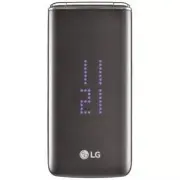


 LG A7110
User Manual
LG A7110
User Manual
 LG AX5000
User Manual
LG AX5000
User Manual
 LG C1300
User Manual
LG C1300
User Manual
 LG C1300A
User Manual
LG C1300A
User Manual
 LG C1300I
User Manual
LG C1300I
User Manual
 LG C1500
User Manual
LG C1500
User Manual
 LG C2000
User Manual
LG C2000
User Manual
 LG CB630
User Manual
LG CB630
User Manual
 LG CE500
User Manual
LG CE500
User Manual
 LG CF360
User Manual
LG CF360
User Manual
 LG CF360A
User Manual
LG CF360A
User Manual
 LG CG180
User Manual
LG CG180
User Manual
 LG CG225
User Manual
LG CG225
User Manual
 LG CG300
User Manual
LG CG300
User Manual
 LG CP150
User Manual
LG CP150
User Manual
 LG CU320
User Manual
LG CU320
User Manual
 LG CU400
User Manual
LG CU400
User Manual
 LG CU405
User Manual
LG CU405
User Manual
 LG CU500
User Manual
LG CU500
User Manual