Page 3 - Important Safety Precautions
1 Impor tant Saf e ty Pr ecautions Important Safety Precautions Read these instructions. Breaking the rules may be dangerous or illegal. Further detailed information is given in this user guide. Violation of the instructions may cause serious injury or death. WARNING! This product contains chemicals...
Page 6 - Table of Contents
T able of Cont ents 4 Table of Contents Important Safety Precautions 1 Table of Contents 4 Technical Details 9 Welcome .................................................. 9 Important Information.......................... 9 Phone Overview 14 Using the QWERTY Keyboard......... 16 Quick Glance of the To...
Page 7 - Call History
Table of Contents 5 T able of Cont ents Shortcuts Menu on the Touch Screen 34 Shortcuts Menu .................................. 34 Contacts in Your Phone’s Memory 35 Storing New Contacts ....................... 35 Changing Contact Entries ............... 35 Speed Dials .................................
Page 8 - My Schedule
Table of Contents T able of Cont ents 6 My Schedule 55 1. Alarm Clock ....................................55 2. Calendar ........................................55 Browser 57 1. Launch ............................................ 57 2. Prompt ........................................... 57 Tools 58 1...
Page 9 - Tone Room Deluxe
Table of Contents 7 T able of Cont ents 2.11 Dial Fonts ...................................... 69 2.12 Menu Font Size .......................... 69 2.13 Clock Format............................... 69 2.14 Favorite Bin .................................. 69 2.15 Name Match for Dialing ...........70 3....
Page 10 - Limited Warranty Statement 114
Table of Contents T able of Cont ents 8 Music 86 Music ..................................................86 Safety 88 TIA Safety Information .....................88 Exposure to Radio Frequency Signal .......................................................88 Antenna Care ................................
Page 11 - Welcome; Technical Details
9 T echnical De tails Technical Details Welcome Thank you for choosing the your phone, designed to operate with the latest digital mobile communication technology, Code Division Multiple Access (CDMA). Important Information This user’s guide provides important information on the use and operation of...
Page 12 - FCC Notice and Cautions
Technical Details T echnical De tails 10 with its action in Report and Order FCC 96-326, adopted an updated safety standard for human exposure to Radio Frequency (RF) electromagnetic energy emitted by FCC regulated transmitters. Those guidelines are consistent with the safety standard previously set...
Page 15 - HAC
Technical Details 13 Te ch nic al D et ail s HAC This phone has been tested and rated for use with hearing aids for some of the wireless technologies that it uses. However, there may be some newer wireless technologies used in this phone hat have not been tested yet for use with hearing aids. It is ...
Page 16 - Phone Overview
Phone Ov erview 14 Phone Overview NOTE The Send, Clear/Speaker Key, Power/End Keys are not illuminated when the display is off. Press the Lock Key , or Power/End Key to illuminate the display and keys. To unlock the screen and keys, lightly drag upwards. 1. Earpiece Lets you hear the caller. 2. Shor...
Page 18 - Using the QWERTY Keyboard
Phone Overview Phone Ov erview 16 To enter text with the QWERTY keyboard 1. In a text entry screen, slide open the QWERTY keyboard. (The display automatically adjusts to landscape mode.) 2. Use your thumbs to enter text. To change capitalization, press the Shift/Messaging Key . To enter an alter...
Page 20 - Quick Keys; How to Unlock the Screen; Quick Glance of the Touch Screen and How to Use It
18 Quick Glance of the T ouch Scr een and Ho w to U s e It Quick Keys ( , , , ) For optimal performance, make sure your hands are clean and dry. Remove moisture from the surface of your hands. Don't use the Quick Keys in a humid environment. The touch screen is sensitive to your light touch. You...
Page 21 - Menu Overview
19 Menu Ov erview Contacts 1. More 2. New Contact Messaging 1. New Message 2. Messages 3. Drafts 4. Voicemail 5. Templates 6. Settings 1. Message View 2. Text Entry Settings 3. Auto Save Sent 4. Auto Erase Inbox 5. TXT Auto View 6. TXT Auto Scroll 7. Media Message Auto Receive 8. Voicemail # 9. Call...
Page 22 - Menus Overview; Settings
Menus Overview Menus Ov erview 20 3. Stopwatch 4. World Clock 5. Calculator 6. Ez Tip Calculator 7. Eco-Calculator 8. USB Mass Storage 9. Unit Converter 1. Currency 2. Area 3. Length 4. Mass 5. Temperature 6. Volume 7. Velocity Settings 1. Airplane mode 2. Bluetooth 3. Music Only Mode 4. Sound Setti...
Page 24 - Turning the Phone On; The Battery; Installing the Battery; Getting Started with Your Phone
Getting S tarted with Y our Phone 22 Turning the Phone On and Off Turning the Phone On 1. Install a charged battery or connect the phone to an external power source if the battery level is low. 2. Press the Power/End Key for a few seconds until the LCD screen turns on. Turning the Phone Off 1. Unloc...
Page 25 - Charging the Battery
Getting Started with Your Phone 23 Getting S tarted with Y our Phone Charging the Battery Your phone comes with a Charging adapter and a USB Cable which connect together to charge your phone. To charge your phone: NOTICE Please use only an approved charging accessory to charge your LG phone. Imprope...
Page 26 - Charging with USB
Getting Started with Your Phone Getting S tarted with Y our Phone 24 Charging with USB You can use your computer to charge your phone. To be able to charge with the USB Cable, you may need to have the necessary USB Driver installed on your PC first. Connect one end of the USB Cable to the Charging/US...
Page 27 - Card; Battery Charge Level
Getting Started with Your Phone 25 Getting S tarted with Y our Phone How to Remove a microSD ™ Card 1. Remove the back cover and gently push the card inward, this will release the exposed edge of the microSD™ card to eject it. 2. Remove the microSD™ card from the slot and replace the cover. NOTE s D...
Page 28 - Screen Icons; Correcting Dialing Mistakes; Redialing Calls
Getting Started with Your Phone Getting S tarted with Y our Phone 26 a building, try moving near a window. Screen Icons When the phone is on, the LCD screen displays the phone's status icons. To view what they mean: 1. Unlock the touch screen by dragging up and touch the Menu Quick Key . 2. Touch Se...
Page 29 - Receiving Calls
Getting Started with Your Phone 27 Getting S tarted with Y our Phone Receiving Calls 1. When the phone rings and/or vibrates, drag up, or press the Send Key . 2. Press the Power/End Key to end the call. NOTE To ignore the incoming call, press the Power/End Key twice to immediately end the call. Or, ...
Page 30 - Shortcuts Menu
Shor cuts Menu 28 Shortcuts Menu Shortcuts Menu The Shortcuts Menu allows instant access to menus and phone features with the quick touch of your fingertip. To use the Shortcuts Menu: 1. Unlock the touch screen by dragging up. 2. Touch the Shortcuts Menu icon on the Home screen. 3. To close the Short...
Page 31 - Shorcuts Menu; To view other Home screen panes
Shorcuts Menu 29 Shor cuts Menu When you touch the Phone Quick Key the following dialpad is displayed: To view other Home screen panes Slide your finger left or right across the Home screen. If you slide your finger left, you could access and edit Favorites. If you slide your finger right, you can acce...
Page 32 - Quick Access to Convenient Features; Restrictions; Quick Volume Adjustment; Vibrate Mode; Call Waiting
Quick A cce s s t o Conv enient F e atur e s 30 Quick Access to Convenient Features Restrictions Sets your phone to require a 4 digit password in order to use the phone. To set Lock Mode on with the touch screen unlocked, touch Menu > Settings > Phone Settings > Security . Enter the Phone L...
Page 33 - Ignoring Call Waiting; Voice Commands
Quick Access to Convenient Features 31 Quick A cce s s t o Conv enient F e atur e s Ignoring Call Waiting If you don't want to answer an incoming call, touch [IGNORE] on the touch screen. The Call Waiting beep stops and the call goes to your voicemail, if available. Answering Call Waiting 1. While o...
Page 34 - Entering and Editing Information; Text Input
E ntering and E ditng Inf ormation 32 Entering and Editing Information Text Input You can enter information using the touch screen keypad. There are special key functions to help you with text entry. Text Input While Composing a TXT Message 1. Unlock the touch screen by dragging up. 2. Touch the Mes...
Page 35 - Menu Access
33 Menu A cce s s Menu Access Menu Access The Menu Quick Key provides access to the phone's main menu. To access the main menu, unlock the phone first by dragging up. Touch the Menu Quick Key at the bottom of the screen to open the main menu. The main menu is displayed as shown below. Touch any of th...
Page 36 - Shortcuts Menu on the Touch Screen
34 Shor tcuts Menu on the T ouch Scr een Shortcuts Menu on the Touch Screen Shortcuts Menu The Shortcuts Menu allows quick, direct access to several frequently used features from the touch screen. Up to 36 different shortcuts can be set. To access the Shortcuts Menu, unlock the touch screen, then to...
Page 37 - Contacts in Your Phone’s Memory; Storing New Contacts; Changing Contact Entries
35 Contacts in Y our Phone ’s Memor y Contacts in Your Phone’s Memory Storing New Contacts 1. Unlock the touch screen by dragging up. 2. Touch the Contacts Quick Key . 3. Touch . 4. Touch an information field and use the keypad to enter the necessary information. Then touch [Done] . Do this for each ...
Page 38 - Deleting; Deleting a Contact Entry
Contacts in Your Phone’s Memory Contacts in Y our Phone ’s Memor y 36 NOTE If you have more than 1 number assigned to a contact, you must first select the desired number and then choose the speed dial entry. 4. Touch an unassigned Speed Dial number. 5. Touch Yes to confirm. 6. Touch Save to save your ...
Page 39 - Contacts; Contacts
37 Contacts Contacts Contacts The Contacts Menu allows you to store names, phone numbers and other information in your phone’s memory. 1. New Contact Allows you to add a new contact. 1. Unlock the touch screen by dragging up. 2. Touch the Contacts Quick Key . 3. Touch . 4. Touch an information field ...
Page 42 - New Message Alert
Me s s aging 40 Messaging Depending on the content and size of your messages, the phone can store up to 500 messages (including a max. of 300 text messages, 100 emergency alerts and 100 multimedia messages in the Inbox). Content stored in the message may be limited by phone model and service capabil...
Page 43 - Viewing Your Messages
Messaging 41 Me s s aging To change the message settings: 1. Unlock the touch screen by dragging up and touch the Menu Quick Key . 2. Touch Messaging . 3. Touch Settings to access following settings: Message View/Text Entry Settings/Auto Save Sent/Auto Erase Inbox/TXT Auto View/TXT Auto Scroll/Media...
Page 44 - Message Icon Reference
Messaging Me s s aging 42 Save Picture(with Picture)/Save Video(with Video)/ Save As Ringtone(with sound)/Save Sound(with sound)/Save as Template/Lock(Unlock)/Add to Contact/Extract Address/Move to Vault/Message Info/Mark as Unread Message Icon Reference New Text Message Text Message Read New Media ...
Page 46 - Text Entry Settings
Messaging Me s s aging 44 5. Touch New to create a new Templates. Enter the desired text and touch Done . 6. Settings Allows you to configure settings for your messages. 1. Unlock the touch screen by dragging up and touch the Menu Quick Key . 2. Touch Messaging . 3. Touch Settings . Message Settings ...
Page 47 - MMS Delivery Receipt
Messaging 45 Me s s aging 8. Voicemail # Allows you to manually enter the access number for Voicemail Service. This number should be only used when a VMS (Voicemail Service) access number is not provided by the network. 9. Callback # Select ON to automatically send a designated callback number with ...
Page 51 - Multimedia; Multimedia
49 Multimedia Multimedia NOTE The touch screen automatically accomodates incoming calls while you are playing music, browsing the net. The touch screen unlocks for you to answer the call, and if you answer the call, it pauses the player/feature until you end the call. 1. Take Picture Take pictures s...
Page 55 - Default Ringtones
Multimedia 53 Multimedia Contact ID : Allows you to set the ringtone to notify you when a specific contact is calling you. Alert Sounds : Allows you to set the ringtone to notify for All Messages, TXT Message, Media Message, or Voicemail. 6.2 Default Ringtones 1. Unlock the touch screen by draggi...
Page 56 - easyedge; SM; Downloading Applications; Incoming Calls
easy edge 54 easyedge easyedge SM easyedge SM allows you to do more than just talk on your phone. easyedge SM is a technology and service that allows you to download and use applications on your phone. With easyedge SM , it is quick and easy to personalize your phone to suit your lifestyle and taste...
Page 59 - Browser
57 Bro wser Browser Browser The Browser feature allows you to view Internet content. Accessibility and selections within this feature are dependent upon your service provider. For specific information on Browser access through your phone, contact your service provider. 1. Unlock the touch screen by d...
Page 60 - Tools
T ools 58 Tools Tools 1. Voice Commands 1. Unlock the touch screen by dragging up and touch the Menu Quick Key . 2. Touch Tools . 3. Touch Voice Commands . 4. Touch Settings to set Confirm Choices/Sensitivity/Adapt Voice/Prompts/Info . 5. Touch Info and select an option to learn more about it. 1.1 Ca...
Page 61 - Managing Notes
Tools 59 T ools say "Contacts John"). Once a contact's info is read out, you will be prompted for the following options: Call/Read out/Create New/Modify/Erase 1.6 Redial Allows you to automatically redial the last number called. 1.7 Play Allows you to play songs saved in the phone. 1.8 Help ...
Page 65 - Airplane Mode
63 Settings Settings Settings Airplane Mode Turns off all wireless communications. This feature allows you to use the phone when radio transmission is restricted. When in Airplane Mode, services using the Location On functionality will not function completely. 1. Unlock the touch screen by dragging ...
Page 66 - Caller ID Readout
Settings Settings 64 5. Press the Volume Keys or touch the volume bars to adjust the Master Volume. 6. Touch to listen to the volume level. 7. Touch [Set] to save the setting. 1.2 Ringtones Allows you to set the ringtone for different items. 1. Unlock the touch screen by dragging up and touch the Me...
Page 69 - Notification Light
Settings 67 Settings 2.3 Lockscreen Type Allows you to select the type of lockscreen you want to use for your phone. 1. Unlock the touch screen by dragging up and touch the Menu Quick Key . 2. Touch Settings . 3. Touch Display Settings . 4. Touch Lockscreen Type . 5. Select Drag screen to unlock , o...
Page 72 - Name Match for; Set Qwerty Shortcut
Settings Settings 70 2. Touch Settings . 3. Touch Display Settings . 4. Touch Favorite Bin to toggle the setting between ON and OFF . 2.15 Name Match for Dialing Allows you to display names when entering matching phone numbers to dial. 1. Unlock the touch screen by dragging up and touch the Menu Qui...
Page 76 - Ignore With Message
Settings Settings 74 home or roam network. Roaming rates may apply when not in the home service area. 5. Call Settings The Call Settings Menu allows you to designate how the phone handles both incoming and outgoing calls. 5.1 Answer Options Allows you to determine how the phone will answer an incomi...
Page 81 - Digit Dial Readout
Settings 79 Settings 9.1 Menu Readout Allows the phone to read menus out loud. 1. Unlock the touch screen by dragging up and touch the Menu Quick Key . 2. Touch Settings . 3. Touch Accessibility . 4. Touch Menu Readout to toggle the setting between ON and OFF . 9.2 Digit Dial Readout Allows the phon...
Page 85 - Add New Device; device; Bluetooth
83 Blue tooth 1. Bluetooth Menu Your phone is compatible with devices that support the Bluetooth Headset, Handsfree, Stereo, Phonebook Access, Object Push*, and File Transfer. You may create and store 20 pairings within the phone and connect to one device at a time. The approximate communication ran...
Page 86 - My Phone Name
Bluetooth Blue tooth 84 Enter the passcode or verify that the passcodes match. 8. Once pairing is successful, touch either Always Ask or Always Connect (except audio devices). 9. Once connected, you will see the device listed in the phone's Bluetooth Menu. If your search fails to find any pairing dev...
Page 87 - Discovery Mode
Bluetooth 85 Blue tooth Discovery Mode Allows you to set whether your device is able to be searched by other Bluetooth ® devices in the area. 1. Unlock the touch screen by dragging up and touch the Menu Quick Key . 2. Touch Bluetooth . 3. Touch [Settings] . 4. Touch Discovery Mode to alternate betwe...
Page 88 - Music; Playing Your Music; Creating a playlist; Music
Music 86 Music The your phone allows you to store and to listen to music right from your phone. NOTE Storage availability depends on the size of each file as well as memory allocation of other applications. 1. Unlock the touch screen by dragging up and touch the Menu Quick Key . 2. Touch Music . 3. T...
Page 90 - TIA Safety Information; Antenna Care; Safety
Saf e ty 88 TIA Safety Information The following is the complete TIA Safety Information for wireless handheld phones. Exposure to Radio Frequency Signal Your wireless handheld portable phone is a low power radio transmitter and receiver. When ON, it receives and sends out Radio Frequency (RF) signal...
Page 91 - Tips on Efficient Operation
Safety 89 Saf e ty Tips on Efficient Operation For your phone to operate most efficiently: Don’t touch the antenna unnecessarily when the phone is in use. Contact with the antenna affects Call quality and may cause the phone to operate at a higher power level than otherwise needed. Driving Check the l...
Page 92 - Hearing Aids
Safety Saf e ty 90 Should turn the phone OFF immediately if there is any reason to suspect that interference is taking place. Hearing Aids Some digital wireless phones may interfere with some hearing aids. In the event of such interference, you may want to consult your service provider (or call th...
Page 93 - Safety Information
Safety 91 Saf e ty in such areas could cause an explosion or fire resulting in bodily injury or even death. Areas with a potentially explosive atmosphere are often, but not always marked clearly. Potential areas may include: fueling areas (such as gasoline stations); below deck on boats; fuel or chem...
Page 94 - Charger and Adapter Safety
Safety Saf e ty 92 Do not short circuit a battery or allow metallic conductive objects to contact battery terminals. Replace the battery only with another battery that has been qualified with the system per this standard, IEEE-Std-1725-200x. Use of an unqualified battery may present a risk of fire,...
Page 97 - General Notice
Safety 95 Saf e ty personnel should service the phone and its accessories. Faulty installation or service may result in accidents and consequently invalidate the warranty. Explosion, Shock, and Fire Hazards Do not put your phone in a place subject to excessive dust and keep the minimum required di...
Page 100 - FDA Consumer Update; Do wireless phones pose a
Safety Saf e ty 98 American Academy of Audiology 11730 Plaza American Drive, Suite 300 Reston, VA 20190 Voice: (800) 222-2336 Email: [email protected] Internet: www.audiology.org National Institute on Deafness and Other Communication Disorders National Institutes of Health 31 Center Drive, MSC 2320 ...
Page 102 - What kinds of phones are
Safety Saf e ty 100 Occupational Safety and Health Administration National Telecommunications and Information Administration The National Institutes of Health participates in some interagency working group activities, as well. The FDA shares regulatory responsibilities for wireless phones with t...
Page 103 - What research is needed to
Safety 101 Saf e ty 4. What are the results of the research done already? The research done thus far has produced conflicting results, and many studies have suffered from flaws in their research methods. Animal experiments investigating the effects of Radio Frequency (RF) energy exposures characterist...
Page 104 - What is the FDA doing to
Safety Saf e ty 102 However, very large numbers of animals would be needed to provide reliable proof of a cancer promoting effect, if one exists. Epidemiological studies can provide data that is directly applicable to human populations, but ten or more years follow-up may be needed to provide answer...
Page 105 - How can I find out how
Safety 103 Saf e ty conducted through contracts with independent investigators. The initial research will include both laboratory studies and studies of wireless phone users. The CRADA will also include a broad assessment of additional research needs in the context of the latest research development...
Page 106 - What steps can I take to
Safety Saf e ty 104 FDA scientists and engineers. The standard, “Recommended Practice for Determining the Spatial-Peak Specific Absorption Rate (SAR) in the Human Body Due to Wireless Communications Devices: Experimental Techniques”, sets forth the first consistent test methodology for measuring the r...
Page 107 - What about children using
Safety 105 Saf e ty are concerned about the RF exposure from these products, you can use measures like those described above to reduce your RF exposure from wireless phone use. 10. What about children using wireless phones? The scientific evidence does not show a danger to users of wireless phones, i...
Page 108 - Where can I find additional; 0 Driver Safety Tips
Safety Saf e ty 106 pacemakers and defibrillators are safe from wireless phone EMI. The FDA has tested hearing aids for interference from handheld wireless phones and helped develop a voluntary standard sponsored by the Institute of Electrical and Electronic Engineers (IEEE). This standard specifies t...
Page 116 - Limited Warranty Statement
Limit ed W arrant y S tat ement 114 1. WHAT THIS WARRANTY COVERS: LG offers you a limited warranty that the enclosed subscriber unit and its enclosed accessories will be free from defects in material and workmanship, according to the following terms and conditions: (1) The limited warranty for the p...
Page 119 - Terminology; Glossary
117 Glos sar y Terminology Ez Tip Calculator Feature for easy bill calculation using the total cost, tip, and number of people as variables. Voice Commands Feature that allows you to perform a wide range of verbal commands by training the phone to recognize your individual speech patterns. Bluetooth...
Page 120 - NAM
Glossary Glos sar y 118 NAM N umber A ssignment M odule is how the phone stores the phone number and its electronic serial number. SSL S ecure S ockets L ayer Protocol is used to encrypt data sent over the air. TTY T ele ty pewriter. An electromechanical typewriter that either transmits or receives ...
Page 121 - Numbers; Index
119 Index Numbers 10 Driver Safety Tips 106 A Accessibility 78 Acronyms and Abbreviations 117 Add New Device 83 Airplane Mode 63 Alarm Clock 55 Alert Reminder 65 Alert Vibrate 64 All Calls 47 Answer Options 74 Auto Retry 75 B Banner 66 Battery Charge Level 25 Battery Temperature Protection 25 Blueto...
Page 126 - MEMO
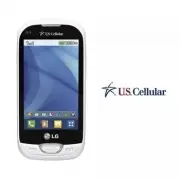


 LG A7110
User Manual
LG A7110
User Manual
 LG AX5000
User Manual
LG AX5000
User Manual
 LG C1300
User Manual
LG C1300
User Manual
 LG C1300A
User Manual
LG C1300A
User Manual
 LG C1300I
User Manual
LG C1300I
User Manual
 LG C1500
User Manual
LG C1500
User Manual
 LG C2000
User Manual
LG C2000
User Manual
 LG CB630
User Manual
LG CB630
User Manual
 LG CE500
User Manual
LG CE500
User Manual
 LG CF360
User Manual
LG CF360
User Manual
 LG CF360A
User Manual
LG CF360A
User Manual
 LG CG180
User Manual
LG CG180
User Manual
 LG CG225
User Manual
LG CG225
User Manual
 LG CG300
User Manual
LG CG300
User Manual
 LG CP150
User Manual
LG CP150
User Manual
 LG CU320
User Manual
LG CU320
User Manual
 LG CU400
User Manual
LG CU400
User Manual
 LG CU405
User Manual
LG CU405
User Manual
 LG CU500
User Manual
LG CU500
User Manual