Page 2 - A l l r i g h t s r e s e r v e d
Copyright ©2010 LG Electronics, Inc. A l l r i g h t s r e s e r v e d . LG and the LG logo are registered trademarks of LGGroup and its related entities. All other trademarks arethe property of their respective owners. By selecting a rate plan and activating your phone,you agree to the metroPCS Ter...
Page 3 - I m p o r ta n t S a f ety P re c a u t i o n s
I m p o r ta n t S a f ety P re c a u t i o n s 1 Impor tant Safe ty Precautions Read these instructions. Breaking the rules may be dangerous orillegal. Further detailed information is given in this user guide. WARNING! Violation of the instructions may cause serious injury or death. 1. Never use an...
Page 4 - Important Safety Precautions
Important Safety Precautions 2 Impor tant Safe ty Precautions 1. Do not expose the battery charger or adapter to direct sunlight or use it in places with high humidity, such asa bathroom. 2. Do not use harsh chemicals (such as alcohol, benzene, thinners, etc.) or detergents to clean your phone. This...
Page 6 - Ta b l e o f C o n te n ts
Ta b l e o f C o n te n ts 4 T able of Cont ent s Important Safety Precautions 1 Table of Contents 4 Welcome 9 Technical Details 10 Important Information 10 FCC Part 15 Class B Compliance 10Technical Details 10 FCC RF Exposure Information 12 Bodily Contact During Operation 12Vehicle-Mounted the Exte...
Page 7 - Contacts in Your Phone’s; Phone Menus; Messaging; Contacts
5 T able of Cont ent s Text Input 28 Key Functions 28 Contacts in Your Phone’s Memory 29 The Basics of Storing ContactsEntries 29 Phone Numbers With Pauses 29 Storing a Number with Pause or Wait 30 Adding Pause or Wait to an ExistingNumber 30 Searching Your Phone’s Memory 31 Scrolling Through Your C...
Page 8 - Table of Contents
Table of Contents 6 T able of Cont ent s @metro 52 1. @metro Apps 52 MetroWEB 52 1. Start MetroWEB 52 Recent Calls 53 1. Missed Calls 53 2. Received Calls 53 3. Dialed Calls 53 4. All Calls 53 5. Call Timer 53 6. Data Counter 54 Voice Command 54 1. Start Command 54 1.1 Call <Name> or <Numbe...
Page 9 - Safety
7 T able of Cont ent s 1.4 Alert Type 65 1.5 Service Alerts 66 1.5.1 Minute Beep 66 1.5.2 Call Connect 66 1.5.3 Back to Top 66 1.5.4 Low Battery 66 1.5.5 Roam Alert 66 1.6 Power On/Off Tone 66 1.7 Flip Tone 66 2. Display 67 2.1 Shortcuts Display 67 2.2 Wallpaper 67 2.2.1 Main Screen 67 2.2.2 Front S...
Page 10 - Accessories
Table of Contents 8 T able of Cont ent s Driving 78 Electronic Devices 78 Pacemakers 79 Persons with pacemakers: 79 Hearing Aids 79 Other Medical Devices 79 Health Care Facilities 80 Vehicles 80 Posted Facilities 80 Aircraft 80 Blasting Areas 80 Potentially Explosive Atmosphere 80For Vehicles Equipp...
Page 11 - We l c o m e
We l c o m e 9 W e lcome Thank you for choosing theMT310 cellular phone designedto operate with the latest digitalmobile communicationtechnology, Code DivisionMultiple Access (CDMA). Alongwith the many advanced featuresof the CDMA system, thiscompact phone offers: ● Slim and sleek design with aninte...
Page 12 - Te c h n i c a l D eta i l s; Important Information
Te c h n i c a l D eta i l s 10 T echnical De tails Important Information This user’s guide provides important information on the use and operation of your phone. Please read all the information carefully prior to using the phone for the best performance and to prevent any damage to or misuse of the...
Page 14 - Technical Details; FCC RF Exposure Information
Technical Details 12 T echnical De tails * TSB-74: Protocol between an IS-95A system and ANSI J-STD-008 1xRTT system receives twice asmany subscribers in the wirelesssection as IS-95. Its battery lifeis twice as long as IS-95. High-speed data transmission is alsopossible. The following table lists s...
Page 15 - FCC Notice and Cautions
13 T echnical De tails metallic components should notbe used. Avoid the use ofaccessories that cannot maintain0.79 inches (2.0 cm) distancebetween the user’s body and theback of the phone and have notbeen tested for compliance withFCC RF exposure limits. Vehicle-Mounted the ExternalAntenna (Optional...
Page 16 - Caution
Technical Details 14 T echnical De tails Caution Use only the supplied andapproved antenna. Use ofunauthorized antennas ormodifications could impair callquality, damage the phone, voidyour warranty and/or result inviolation of FCC regulations. Donot use the phone with adamaged antenna. If a damageda...
Page 17 - - Reorient or relocate the
15 W e lcome Part 15.105 statement This equipment has been testedand found to comply with thelimits for a class B digital device,pursuant to Part 15 of the FCCRules. These limits are designedto provide reasonable protectionagainst harmful interference in aresidential installation. Thisequipment gene...
Page 18 - P h o n e O ve r v i ew
P h o n e O ve r v i ew 16 Phone Ov ervie w 1. Earpiece Lets you hear the caller. 2. LCD Screen Displays content, messages and indicator icons. 3. Left Soft Key Use to access Menu from the standby screen, or the function immediatelyabove it. 4. Speakerphone Key Use to turn Speakerphone On or Off. 5....
Page 20 - M e nu s O ve r v i ew; Press
M e nu s O ve r v i ew 18 Men us Ov ervie w Messaging 1. New Text Message 2. New Picture Message 3. Inbox 4. Sent 5. Drafts 6. Voicemail 7. Email 8. Web Message 9. Templates 0. Settings 1. All Messages 2. Text Message 3. Picture Message 4. Edit Voicemail# *. Delete All 1. Delete Inbox 2. Delete Sent...
Page 22 - Menus Overview; Settings
Menus Overview 20 Men us Ov ervie w Settings 1. Sound 1. Ringers 2. Volume 3. Message Alerts 4. Alert Type 5. Service Alerts 6. Power On/Off Tone 7. Flip Tone 2. Display 1. Shotcuts Display 2. Wallpaper 3. Banner 4. Backlight 5. Menu Style 6. Languages 7. Clocks & Calendar 8. Font Settings 9. Na...
Page 23 - G ett i n g S ta r te d w i t h Yo u r P h o n e; The Battery; Installing the Battery; Note
21 G ett i n g S ta r te d w i t h Yo u r P h o n e Getting St ar ted with Y our Phone The Battery The phone comes with arechargeable battery. The batterycharge level is shown at the topof the LCD screens, when thephone is on. Installing the Battery Remove the battery cover bypressing down below the...
Page 24 - Charging the Battery; Plug the end of the adapter; B attery Charge Level; Getting Started with Your Phone
22 Charging the Battery Use the charger provided withyour phone: Warning! Use only the chargerprovided with the phone. Usingany charger other than the oneincluded with the MT310 maydamage your phone or battery. 1. Plug the end of the adapter into the phone’s charger portand the other end into anelec...
Page 25 - Turning the Phone On; Install a charged battery or; Turning the Phone Off; until the; Signal Strength
23 Getting St ar ted with Y our Phone Turning the Phone On andOff Turning the Phone On 1. Install a charged battery or connect the phone to anexternal power source. 2. Press for about 3 seconds until the LCD screenlights up. Turning the Phone Off 1. Press and hold until the display turns off. Signal...
Page 26 - Screen Icons; To see the icon glossary, go to; Making Calls; Enter the phone number
24 Getting St ar ted with Y our Phone Screen Icons To see the icon glossary, go to Menu -> Settings -> Phone Info -> Icon Glossary on your phone. Making Calls 1. With the phone turned on, open the flip. 2. Enter the phone number (include the area code ifneeded). 3. Press . 4. Press to end t...
Page 27 - Correcting Dialing Mistakes; for; Redialing Calls; twice to redial the; Receiving Calls; to answer
25 Getting St ar ted with Y our Phone Correcting Dialing Mistakes If you make a mistake whiledialing a number, press once to erase the last digitentered, or hold down for at least 2 seconds to go back tostandby mode. Redialing Calls 1. Press twice to redial the number from the last call. Themost rec...
Page 28 - Q u i c k Ac c es s to C o nve n i e n t Fe at u res; Mute Function; Mute; Quick Volume Adjustments; to answer a waiting; Caller ID
26 Q u i c k Ac c es s to C o nve n i e n t Fe at u res Quick A cce ss t o Con venient F e a tur e s Mute Function The Mute Function can be usedduring a phone call. To quicklyactivate Mute press Left Soft Key Mute , then to cancel press Left Soft Key Unmute . Quick Volume Adjustments Use the side ke...
Page 29 - Speed Dialing
27 Quick A cce ss t o Con venient F e a ture s Speed Dialing Speed dialing is a convenientfeature that allows you to makephone calls quickly. A speed dialnumber can be assigned to aspecific phone number. Bypressing and holding down anumber key, your phone willrecall the phone numberassociated from t...
Page 30 - E n te r i n g a n d E d i t i n g I n f o r m at i o n; capitalization
28 E n te r i n g a n d E d i t i n g I n f o r m at i o n Ent ering and Editing Informa tion Text Input You can enter text in many of thefunctions in your phone.Includes, but is not limited to:the Banner, Calendar, Contactsand more. While entering text,the following are your options: Key Functions ...
Page 31 - C o n ta c ts i n Yo u r P h o n e ’s M e m o r y
29 C o n ta c ts i n Yo u r P h o n e ’s M e m o r y Cont acts in Y our Phone’ s Memory The Basics of StoringContacts Entries 1. From standby mode enter the phone number you want tosave (up to 48 digits). 2. Press Left Soft Key Save . 3. Select either Save New or Update Existing . 4. Use to highligh...
Page 32 - Contacts in Your Phone’s Memory
30 Contacts in Your Phone’s Memory Cont acts in Y our Phone’ s Memory Storing a Number with Pauseor Wait 1. Press Menu . 2. Press Contacts . 3. Press New Contact . 4. Enter a name (up to 22 characters) and enter anumber. 5. While entering a number, press Right Soft Key Options. 6. Press Wait or Paus...
Page 34 - contact information.
32 Cont acts in Y our Phone’ s Memory Contacts in Your Phone’s Memory Edit : Edit the selected contact information. Delete Multiple : Choose Selective / All to delete multiple entries at onetime. Send via Bluetooth ® : Send the contact (as a vCard)via Bluetooth ® . Set Speed Dial/ RemoveSpeed Dial :...
Page 35 - From Call History
33 Cont acts in Y our Phone’ s Memory From Call History 1. Press Menu . 2. Press Recent Calls . 3. Use to highlight the type of recent call, then press . Missed Calls/ReceivedCalls/Dialed Calls/All Calls 4. Use to highlight the phone number. 5. Press to place the call. Speed Dialing For a single-dig...
Page 36 - P h o n e M e nu s; The
34 P h o n e M e nu s Messaging Messaging The MT310 can store up to 700 messages (including a maximumof 500 SMS, 100 Notificationmessages and 100 MMS in theInbox). The information stored inthe messages is determined byphone mode and servicecapability. Other limits such asavailable characters per mes...
Page 37 - Customize Your Text Message
35 Messaging Messaging Recent Calls To select a recipient from your Recent Calls. Recent Messages Choose Inbox/ Sent to select a recipient from your recent Messages. Groups Select a recipient from your Groups. Cancel Cancels the text message. 4. Complete your message and press to send it. Customize ...
Page 38 - Message Icon Reference
36 Messaging Messaging Message Icon Reference Inbox New/Unread Text/Picture Message Opened/Read Text/Picture Message New/Unread Notification Message Opened/Read Notification Message Priority High Sent Failed Text/Picture Messages Failed Multi Text/Picture Messages Multi Text/Picture Messages in tran...
Page 40 - Viewing Your Inbox
38 Messaging Messaging 3. Inbox The phone can alert you inseveral ways when you receive anew message, including: ● Displaying a notificationmessage on the screen. ● Displaying the message icon on the status bar (It blinks when the message is urgent). ● Ringing and/or Vibrating(depending on the Volum...
Page 44 - highlight
Messaging 42 Messaging 0. Settings Allows you to configure settings forMessaging: 1. Press , , . 2. Use to highlight All Messages / Text Message / Picture Message/ EditVoicemail # then press . 3. Use to highlight one of the settings and press to select it. Messaging Settings Sub-MenuDescriptions 0.1...
Page 47 - Save
45 Contacts Cont acts 2. Enter the name, then press . 3. Enter the phone number or e-mail address. 4. Continue adding the desired contact information to theentry. 5. When you are finished entering the desired contactinformation, press Save to save the entry into yourContact List. 2. Contact List All...
Page 48 - View
46 Contacts Cont acts 2. Choose from the following options: ● Use to highlight a group, then press View to view the contacts in theselected group. ● Press Left Soft Key New to add a new group. ● Use to highlight a group, then press RightSoft Key Options to choose from the followingoptions: Delete/ S...
Page 49 - Assign
47 Cont acts 6. Speed Dials Allows you to view your SpeedDials list, designate new SpeedDials, or remove Speed Dialdesignations entered in yourContacts. 1. Press , , . 2. Use to highlight the desired Speed Dial location(or enter the Speed Dialdigits), and press Assign . 3. Use to highlight the Conta...
Page 50 - Multimedia; Options
48 Multimedia Multimedia Multimedia View, take, and trade your digitalpictures or recorded audio filesright from your wireless phone. 1. Take Photo 1. Press , , . 2. Set the brightness using , zoom (not available at thehighest resolution) using and press Right Soft Key Options to change other settin...
Page 54 - has finished; MetroWEB
52 @metro/ MetroWEB @me tr o/ Me tr oWEB @metro Allows you to download newapplications from the @metro service. 1. @metro Apps Allows you to initiate an @metroWeb session. 1. Press , . 2. Once @metro has finished loading, you can browse forapplications. 3. Choose which application you want to downlo...
Page 55 - Recent Calls; to highlight an entry.
53 Recent Calls R ecent Calls Recent Calls The Recent Calls menu has listsof phone numbers and/orContact entries for calls youmissed, received or dialed. It is continually updated as newnumbers are added to thebeginning of the list and theoldest entries are removed fromthe bottom of the list. 1. Mis...
Page 56 - Recent Calls/ Voice Command; Reset; Voice Command
54 Recent Calls/ Voice Command R ecent Calls/ V o ice Command 2. Use to highlight a call type, then press to exit, Left Soft Key Reset or Right Soft Key Reset All . Timers available are: Last Call/ Dialed Calls/Received Calls/ Home Calls/Roam Calls/ All Calls/Lifetime Calls/ Lifetime SentMessages/ L...
Page 57 - Yes
55 Voice Command V o ice Command Press and say "Call". 2. Say the Contact name (and phone type, if applicable) orsay the number. 1.2 Voicemail 1. Press , , , . - Or - Press and say "Voicemail". 1.3 Missed Calls 1. Press , , , . - Or - Press and say "Missed Calls". 2. The hand...
Page 59 - My Schedule; New
57 My Schedule My Schedule My Schedule Your My Schedule tools include aCalendar, Notepad, and AlarmClock. 1. Calendar Allows you to store and accessyour agenda(s). Simply enteryour appointments in theCalendar, and your phone can(depending on your MasterVolume settings) alert you with areminder. 1. P...
Page 61 - My Menu; Select the location for your; Bluetooth
59 My Menu/ Bluetooth My Men u/ Blue to o th My Menu Allows you quick access to yourfavorite menus or functions. Amaximum of 12 items can bestored in My Menu. 1. Press , . 2. Select the location for your menu (or function) by using , then press Set . 3. Select the menu (or function) you wish to add ...
Page 62 - For pairing new Bluetooth; Search
60 Bluetooth Blue to o th 1. Paired Devices Pairing is the process that allowsthe handset to locate, establishand register 1-to-1 connectionwith the target device. For pairing new Bluetooth ® device 1. Press , , . Follow the Bluetooth ® accessory instructions to setthe target device to pairingmode. ...
Page 63 - Always
61 Blue to o th 6. The handset will prompt you for your connectionpreferences. Highlight Always Ask or Always Connect and press . 7. Once connected, you will see the device listed in the PairedDevices menu. 2. Power Allows you to set Bluetooth ® power to On/Off. 1. Press , , . 2. Use to select a set...
Page 64 - Use the alphanumeric keypad; Tools
62 Bluetooth/ Tools Blue to o th/ T ools 3. Use the alphanumeric keypad to enter a new alias. 4. Press Save to save and exit. 5. My Bluetooth Info Allows you to view informationregarding the Bluetooth ® functionality. 1. Press , , . Tools Your phone's tools include Ez TipCalc, Calculator, World Cloc...
Page 68 - then press
66 Settings Settings 1.5 Service Alerts Allows you to set any the ServiceAlert preferences. 1. Press , , , . 2. Select an alert type: 1.5.1 Minute Beep Alerts you 10 seconds before theend of every minute during a call. 1.5.2 Call Connect Alerts you when the call isconnected. 1.5.3 Back to Top Alerts...
Page 69 - On; My
67 Sett ings 1. Press , , , . 2. Use to set to On / Off , then press . 2. Display Options to customize yourphone's display screen: 2.1 Shortcuts Display Allows you to enable/disable thepopup shortcut from thestandby screen. When set to On,you can access the metroPCSApps by pressing . When set to Off...
Page 71 - Main Screen/ Front Screen; Name Match for Dialing
69 Sett ings 2.7 Clocks & Calendar Allows you to select the type ofclocks displayed on the main LCD. 1. Press , , , . 2. Select a submenu, then press . Main Screen/ Front Screen 3. Use to choose a setting and press . Options for Main Screen Normal Clock/ AnalogClock/ Digital Clock/ DualClock/ Ca...
Page 72 - Lock Phone
70 Settings Settings 1. Press , , , . 2. Select On/ Off then press . 3. Security The Security menu allows you tosecure the phone electronically. 3.1 Lock Phone Keeps your phone fromunauthorized use. Once thephone is locked, it is in restrictedmode until the lock code isentered. You can receive phone...
Page 74 - Change Lock Code
72 Settings Settings 3. Press Change Lock Code . 4. Use to select a setting, then press . Phone Only Allows you to change the lock code used tolock/unlock the phone. Call & Applications Allows you to change the lock codethat is used to access theRestrictions menu (Calls,Messages, Camera and Data...
Page 77 - metroPCS
75 Sett ings 1. Press , , , , . 2. Use to select metroPCS Only/ Automatic then press . 5.1.2 Set NAM Allows you to select the phone’sNAM (Number AssignmentModule) if the phone is registeredwith multiple service providers. 1. Press , , , , . 2. Use to select NAM1 or NAM2 , then press . 5.1.3 Serving ...
Page 79 - S a f ety
S a f ety TIA Safety Information The following is the completeTIA Safety Information forwireless handheld phones. Exposure to Radio FrequencySignal Your wireless handheld portablephone is a low power radiotransmitter and receiver. WhenON, it receives and sends outRadio Frequency (RF) signals. In Aug...
Page 80 - Phone Operation
Safety 78 Safe ty could damage the phone andmay violate FCC regulations. Phone Operation NORMAL POSITION: Hold thephone as you would any othertelephone with the antennapointed up and over yourshoulder. Tips on Efficient Operation For your phone to operatemost efficiently: Don’t touch the antennaunne...
Page 81 - Pacemakers
Safe ty 79 Pacemakers The Health IndustryManufacturers Associationrecommends that a minimumseparation of six (6) inches bemaintained between a handheldwireless phone and a pacemakerto avoid potential interferencewith the pacemaker. Theserecommendations are consistentwith the independent researchby a...
Page 82 - Health Care Facilities
Safety 80 Safe ty Health Care Facilities Turn your phone OFF in healthcare facilities when anyregulations posted in these areasinstruct you to do so. Hospitalsor health care facilities may useequipment that could besensitive to external RF energy. Vehicles RF signals may affect improperlyinstalled o...
Page 83 - Safety Information; Violation of the
Safe ty 81 Areas with a potentially explosiveatmosphere are often, but notalways marked clearly. Potentialareas may include: fueling areas(such as gasoline stations);below deck on boats; fuel orchemical transfer or storagefacilities; vehicles using liquefiedpetroleum gas (such as propaneor butane); ...
Page 84 - Charger and Adapter Safety
Safety 82 Safe ty to fire, explosion or otherhazard. ● Only use the battery for thesystem for which it isspecified. ● Only use the battery with acharging system that has beenqualified with the system perIEEE-Std-1725-2006. Use ofan unqualified battery orcharger may present a risk offire, explosion, ...
Page 85 - Battery Information and Care
Safe ty 83 ● Insert the battery packcharger vertically into the wallpower socket. ● Use the correct adapter foryour phone when using thebattery pack charger abroad. ● Only use the approved batterycharger. Otherwise, you maycause serious damage to yourphone. Battery Information and Care ● Please disp...
Page 86 - General Notice
Safety 84 Safe ty Explosion, Shock, and FireHazards ● Do not put your phone in aplace subject to excessive dustand keep the minimum requireddistance between the powercord and heat sources. ● Unplug the power cord priorto cleaning your phone, andclean the power plug pin whenit’s dirty. ● When using t...
Page 87 - Do not paint your phone.
Safe ty 85 ● Talking on your phone for along period of time mayreduce call quality due to heatgenerated during use. ● When the phone is not usedfor a long period time, store itin a safe place with the powercord unplugged. ● Using the phone in proximityto receiving equipment (i.e.,TV or radio) may ca...
Page 88 - Avoiding hearing damage
Safety 86 Safe ty Warning! Importantsafety information Avoiding hearing damage Permanent hearing loss mayoccur if you use your phoneand/or headset at a high volume.Set the volume to a safe level.You can adapt over time to ahigher volume of sound that maysound normal but can bedamaging to your hearin...
Page 99 - For additional information, please
Safe ty 97 now part of a standardsponsored by the Association forthe Advancement of MedicalInstrumentation (AAMI). Thefinal draft, a joint effort by theFDA, medical devicemanufacturers, and many othergroups, was completed in late2000. This standard will allowmanufacturers to ensure thatcardiac pacem...
Page 100 - 0 Driver Safety Tips
Safety 98 Safe ty Commission (FCC) RF SafetyProgram(http://www.fcc.gov/oet/rfsafety) International Commission onNon-lonizing RadiationProtection(http://www.icnirp.de) World Health Organization(WHO) International EMFProject(http://www.who.int/emf) National Radiological ProtectionBoard (UK)(http://www...
Page 101 - Make sure you place your
Safe ty 99 take advantage of thesedevices if available to you. 3. Make sure you place your wireless phone within easyreach and where you canreach it without removingyour eyes from the road. Ifyou get an incoming call at aninconvenient time, if possible,let your voicemail answer it foryou. 4. Suspend...
Page 102 - Do not engage in stressful or
Safety 100 Safe ty your mirrors, then continue. 7. Do not engage in stressful or emotional conversations thatmay be distracting. Stressfulor emotional conversationsand driving do not mix; theyare distracting and evendangerous when you arebehind the wheel of a car.Make people you are talkingwith awar...
Page 103 - Your
Safe ty 101 wireless phone to lend ahand. If you see a broken-down vehicle posing noserious hazard, a brokentraffic signal, a minor trafficaccident where no oneappears injured or a vehicleyou know to be stolen, callroadside assistance or otherspecial non-emergencywireless number. The above tips are ...
Page 104 - Tests for SAR are conducted
Safety 102 Safe ty developed by scientific andengineering experts drawn fromindustry, government, andacademia after extensive reviewsof the scientific literature relatedto the biological effects of RFenergy. The exposure Limit for wirelessmobile phones employs a unit ofmeasurement known as theSpecif...
Page 106 - after searching on FCC ID.
Safety 104 Safe ty after searching on FCC ID. To find information that pertainsto a particular model phone, thissite uses the phone FCC IDnumber which is usually printedsomewhere on the case of thephone. Sometimes it may benecessary to remove the batterypack to find the number. Onceyou have the FCC ...
Page 109 - transmitters such as Bluetooth; Wireless Phones and Hearing Aid Accessibility
Safe ty 107 American National StandardsInstitute (ANSI) C63.19standard. To enter that the Hearing AidCompatibility rating for yourphone is maintained, secondary transmitters such as Bluetooth ® and WLAN components must bedisabled during a call. See Page52 for instructions to disablethese components....
Page 110 - Ac c es s o r i es; B attery Charger
Ac c es s o r i es 108 A cce ssorie s There are a variety of accessories available for your mobile phone.Consult your local dealer for availability. Optional items are soldseparately. B attery Charger The battery charger allows youto charge your phone. B attery Vehicle Power Charger The vehicle powe...
Page 111 - L i m i te d Wa r ra n ty S tate m e n t
L i m i te d Wa r ra n ty S tate m e n t Limit ed W a rr anty St a tement 109 1. WHAT THIS WARRANTYCOVERS: LG offers you a limited warrantythat the enclosed subscriber unitand its enclosed accessories willbe free from defects in materialand workmanship, according tothe following terms andconditions:...
Page 112 - Limited Warranty Statement
Limited Warranty Statement 110 Limit ed W a rr anty Sta tement Department of LG. LG shallbear the cost of shippingthe product back to theconsumer after thecompletion of service underthis limited warranty. 2. WHAT THIS WARRANTYDOES NOT COVER: (1) Defects or damages resulting from use of theproduct in...
Page 113 - published maximum ratings.
Limit ed W a rr anty St a tement 111 including, but not limited toany implied warranty ofmarketability or fitness for aparticular use. (7) Damage resulting from use of non-LG approvedaccessories. (8) All plastic surfaces and all other externally exposedparts that are scratched ordamaged due to norma...
Page 114 - . Please call or write
Limited Warranty Statement 112 Limit ed W a rr anty Sta tement LG SHALL NOT BE LIABLE FORTHE LOSS OF THE USE OF THEPRODUCT, INCONVENIENCE,LOSS OR ANY OTHERDAMAGES, DIRECT ORCONSEQUENTIAL, ARISINGOUT OF THE USE OF, ORINABILITY TO USE, THISPRODUCT OR FOR ANYBREACH OF ANY EXPRESS ORIMPLIED WARRANTY,INC...
Page 115 - I n d ex
I n d ex Inde x 113 Inde x 1 10 Driver Safety Tips98@metro 52@metro Apps 52 A Accessories 108Airplane Mode 74Alarm Clock 58Alert Type 65All Calls 53All Messages 42Announce Alert 56Answer Options 73Audios 50Auto Retry 73 B Back to Top 66Backlight 68Banner 68Battery Charge Level22 Best Match 56Bluetoo...
Page 116 - Index
Index Inde x 114 Inde x Flip Tone 66Font Settings 69Front Screen 67 G Getting Started withYour Phone 21Groups 45 H Help 55 I Images 50Important SafetyPrecautions 1Inbox 38Index 113 L Languages 68Limited WarrantyStatement 109Location 75 Lock Phone 70Low Battery 66 M Main Screen 67Making a Call FromYo...
Page 119 - Precaución de Seguridad Importante
Precaución de Seguridad Importante 1 Pr ecaución de Seguridad Impor ta nt e Lea estas sencillas instrucciones. Romper las reglas puede serpeligroso o ilegal. Se ofrece más información detallada en esta guíadel usuario. ¡Aviso! No seguir las instrucciones puede ocasionar lesiones graves o la muerte. ...
Page 122 - C o n te n i d o; Contenido
C o n te n i d o 4 Cont enido Precaución de SeguridadImportante 1 Contenido 4 Bienvenidos 9 Detalles Técnicos 10 Información importante 10 Cumplimiento de clase B según elartículo 15 de la FCC 10 Detalles técnicos 10 Información de la FCC sobreexposición a la RF 12 Contacto corporal durante elfuncio...
Page 123 - Menús del Teléfono; Mensajería; Contactos
5 Cont enido Introducir y editarinformación 28 Introducción de texto 28 Funciones de las teclas 28 Contactos en la memoria delteléfono 29 Aspectos básicos delalmacenamiento de entradas decontactos 29 Números de teléfono con pausas 29 Almacenar un número con pausas 30Agregar una pausa a un número yae...
Page 125 - Ambiente
7 Cont enido 5. Convertidor de Unidades 65 Ambiente 66 1. Sonido 66 1.1 Timbres 66 1.2 Volumen 66 1.3 Alertas de Mensaje 67 1.4 Tipo de Alerta 67 1.5 Alertas de Servicio 67 1.6 Tono de Encender/ Apagar 681.7 Tono de Traladar 68 2. Pantalla 69 2.1 Mostrar Atajos 69 2.2 Papel Tapiz 69 2.2.1 Pantalla P...
Page 126 - Accesorios
Contenido 8 Cont enido Exposición a las señales deradiofrecuencia 80 Cuidado de la antena 81 Funcionamiento del teléfono 81 Sugerencias para un funcionamientomás eficiente 81 Manejo 81 Dispositivos electrónicos 82 Marcapasos 82 Las personas con marcapasos: 82 Aparatos para la sordera 83 Otros dispos...
Page 127 - B i e nve n i d o s; Teclado de 21 teclas.
B i e nve n i d o s 9 Bien venidos Felicidades por elegir el avanzadoy compacto teléfono celularMT310, diseñado para funcionarcon la más reciente tecnología decomunicaciones móviles digitales:Acceso múltiple de división decódigo (CDMA). Junto con lasmuchas funciones avanzadas delsistema CDMA, este t...
Page 128 - D eta l l es Té c n i c o s; Información importante; Detalles técnicos
D eta l l es Té c n i c o s 10 Deta lles T écnicos Información importante Esta guía del usuario contieneinformación importante acerca deluso y funcionamiento delteléfono. Lea toda la informacióncon cuidado antes de usar elteléfono para obtener undesempeño óptimo y evitarcualquier daño o mal uso dela...
Page 130 - Detalles Técnicos
Detalles Técnicos 12 Deta lles T écnicos Contacto corporal durante elfuncionamiento Este dispositivo se probó para unuso ordinario con la parteposterior del teléfono a una distancia de 2.0 cm (0.79pulgadas) del cuerpo. Para cumplircon los requisitos de exposición aRF de la FCC, debe mantenerseuna di...
Page 132 - Declaración del articulo 15.19
Detalles Técnicos 14 Deta lles T écnicos Declaración del articulo 15.19 Este dispositivo y sus accesorioscumplen con las reglas de la FCCde la parte 15. El funcionamientoesta sujeto a las dos condicionessiguientes: (1) Este dispositivo y sus accesorios no puede causarinterferencias perjudiciales. (2...
Page 134 - D es c r i p c i ó n g e n e ra l d e l te l é f o n o
D es c r i p c i ó n g e n e ra l d e l te l é f o n o 16 Descripción gener al del t e léfono 1. Auricular Le permite escuchar a quien le llama, alertas y avisos automáticos. 2. Pantalla de cristal líquido Muestra contenido, mensajes e iconos indicadores. 3. Tecla suave izquierda Usela para accesar ...
Page 136 - D es c r i p c i ó n g e n e ra l d e l o s m e nú s; Acceso a los menús; Oprima la tecla suave izquiera
D es c r i p c i ó n g e n e ra l d e l o s m e nú s Descripción gener al de los men ús 18 Descripción gener al de los men ús Mensajería 1. Nuevo Mensaje Texto 2. Nuevo Mensaje Foto 3. Entrada 4. Enviados 5. Borrador 6. Correo de Voz 7. Email 8. Mensaje de Web 9. Texto Rápido 0. Ambiente 1. Todos lo...
Page 137 - Lista Llam; Mi Horario
19 Descripción gener al de los men ús Multimedia 1. Tomar Foto 2. Grabar Voz 3. Imágenes Mis Imágenes Preferido 4. Audios Mis Audios Preferido 5. Revolver Lista de Timbres Lista de Papel Tapiz @metro 1. @metro Apps MetroWEB 1. Iniciar MetroWEB Lista Llam 1. Llamadas Perdidas 2. Llamadas de Entrada 3...
Page 138 - Descripción general de los menús
Descripción general de los menús 20 Descripción gener al de los men ús Ambiente 1. Sonido 1. Timbres 2. Volumen 3. Alertas de Mensaje 4. Tipo de Alerta 5. Alertas de Servicio 6. Tono de Encender/Apagar 7. Tono de Traladar 2. Pantalla 1. Mostrar Atajos 2. Papel Tapiz 3. Pancarta 4. Luz de Fondo 5. Es...
Page 139 - C ó m o e m p e z a r c o n s u te l é f o n o; La batería; Instalación de la batería
C ó m o e m p e z a r c o n s u te l é f o n o 21 Cómo empezar con su t eléfono La batería El teléfono viene con una bateríarecargable. El nivel de carga de labatería se muestra en la partesuperior de la pantalla de cristallíquido cuando el teléfono estaencendido. Instalación de la batería Para quit...
Page 140 - Cargar la batería; Conecte el cargador al; Nivel de carga de la batería; Cómo empezar con su teléfono
Cargar la batería Use el cargador incluido con suteléfono: ¡Advertencia! Use únicamente elcargador que viene incluido conel teléfono. El uso de cualquiercargador distinto del que vieneincluido con el MT310 puededañar el teléfono o la batería. 1. Conecte el cargador al teléfono y el adaptador delcarg...
Page 141 - Encender el teléfono; Instale una batería cargada o; Apagar el teléfono; Mantenga oprimido; Fuerza de la señal
23 Cómo empezar con su t eléfono Encender y apagar elteléfono Encender el teléfono 1. Instale una batería cargada o conecte el teléfono a unafuente de corriente externa. 2. Mantenga oprimido por 3 segundos hasta que seencienda la pantalla de cristallíquido. Apagar el teléfono 1. Mantenga oprimido ha...
Page 142 - Iconos en pantalla; Hacer llamadas; Introduzca el número de
Cómo empezar con su teléfono 24 Cómo empezar con su t eléfono Iconos en pantalla Para ver el glosario de iconos,vaya a Menú -> Ambiente -> Info. de Tel -> Glosario de Iconos de su teléfono. Hacer llamadas 1. Con el teléfono encendido, abra la tapa. 2. Introduzca el número de teléfono (inclu...
Page 143 - Remarcado de llamadas
25 Cómo empezar con su t eléfono Corrección de errores demarcado Si comete un error al marcar unnúmero, oprima una vez para borrar el último número queintrodujo o mantenga oprimido por 2 segundos para borrar todos los números. Remarcado de llamadas 1. Oprima dos veces para remarcar el último número ...
Page 144 - Acceso rápido a funciones prácticas; Función de silencio; Mudo; Ajuste rápido del volumen; contestar; ID de Llamador
Acceso rápido a funciones prácticas 26 A cce so r ápido a funcione s pr áctica s Función de silencio La función muda se utilizadurante una llamada telefónica.Para activar Silencio rápidamente,oprima la tecla suave izquierda Mudo , y para cancelarlo oprima la tecla suave izquierda Nomudo . Ajuste ráp...
Page 145 - Marcado Veloz
27 A cce so r ápido a funcione s pr áctica s persona que llama estáalmacenada en Contactos,aparece el nombre con elnúmero. Hable con su proveedorde servicio para asegurarse siofrecen esta función. Marcado Veloz El Marcardo Veloz es unacaracterística conveniente quepermite que usted haga llamadastele...
Page 146 - I n t ro d u c i r y e d i ta r i n f o r m a c i ó n
I n t ro d u c i r y e d i ta r i n f o r m a c i ó n 28 Intr oducir y edit ar información Introducción de texto Puede introducir y editar textopara varias funciones en suteléfono, incluyendo, pero nolimítado a, Pendón, Calendario,Contactos y más. Cuandointroduce texto, las siguientesopciones son di...
Page 147 - Contactos en la memoria del teléfono
Contactos en la memoria del teléfono 29 Cont actos en la memoria del t e léfono Aspectos básicos delalmacenamiento deentradas de contactos 1. En el modo de espera introduzca el número deteléfono (hasta 48 dígitos)que desee guardar. 2. Oprima la tecla suave izquierda Guar . 3. Seleccione Guardar Nuev...
Page 149 - Introduzca los números
31 Cont actos en la memoria del t e léfono 8. Oprima Espera o Pausa . 9. Introduzca los números adicionales y oprima Guar . Búsqueda en la memoriadel teléfono El teléfono MT310 le permiterealizar una búsqueda dinámicadel contenido de su Lista deContactos. La búsquedadinámica compara las letras onúme...
Page 152 - M e nú s d e l Te l é f o n o; Env
M e nú s d e l Te l é f o n o List a Llam 34 Mensajería El MT310 puede almacenar hasta 700 mensajes (incluyendoun máximo de 500 SMS, 100Notificaciones de Mensaje MMSy 100 MMS en la bandeja deentrada). La informaciónalmacenada en el mensaje estádeterminada por el modo delteléfono y la capacidad delse...
Page 154 - Entrada; Enviado; Borrador; Nuevo Mensaje Foto; Opciones
Referencia de los iconos demensaje Entrada Mensajes de Texto/Foto nuevas/noleídas Mensajes de Texto/Fotoabiertos/leídos Mensajes de Notificaciones nuevos/noleídos Mensajes de Notificacionesabiertos/leídos Prioridad Enviado Mensajes Fallados De Texto/Foto Mensajes múltiples fallados deTexto/Foto Mens...
Page 159 - Si la aplicación no se ha
41 Mensajería 7. Email Le permite mandar correoselectrónicos a través de MobileEmail. Mobile Email es unaaplicación que puededescargarse desde el menú demensajería. No pierda unmensaje de correo electrónicoimportante. Gracias a MobileEmail, puede recibir sus mensajesde correo electrónico en suteléfo...
Page 163 - Guar
Contactos 45 Cont actos Contactos El Menú de Contactos le permitealmacenar nombres, números deteléfono y otros datos en lamemoria de su teléfono. 1. Nuevo Contacto Le permite agregar un contactonuevo. 1. Oprima , , . 2. Introduzca el nombre y oprima para resaltar el campo en donde desea introducirin...
Page 166 - Asignar; Mi Tarjeta de Nombre; Editar
6. Marcado Veloz Le permite ver su lista deMarcados Veloz o designarMarcados Veloz para númerosintroducidos en sus Contactos. 1. Oprima , , . 2. Use para resaltar la posición de Marcados Veloz(o introduzca el dígito deMarcados Veloz) y oprima Asignar . 3. Use para resaltar el Contacto y oprima . Apa...
Page 171 - termine de
@metro/ MetroWEB 53 @me tr o/ Me tr oWEB @metro Le permite descargaraplicaciones nuevas del servicio @metro . 1. @metro Apps 1. Oprima , . 2. Cuando @metro termine de cargar, puede navegar por lasaplicaciones. 3. Elija la aplicación que desea descargar y siga lasinstrucciones en pantalla paradescarg...
Page 172 - Llamadas de Entrada
Lista Llam 54 List a Llam Lista Llam El menú de Lista Llam es una listade los últimos números deteléfono o entradas deContactos de llamadas que hayaperdido, recibido o marcado. Seactualiza constantemente con losnúmeros nuevos agregándose alprincipio de la lista y las entradasantiguas borrándose de l...
Page 173 - Lista Llam/ Comando de Voz; Rest
Lista Llam/ Comando de Voz 55 Comando de V o z 5. Tiempo de Uso Le permite ver la duración de lasllamadas seleccionadas. 1. Oprima , , . 2. Use para resaltar una lista de llamadas y oprima para salir del menú, teclasuave izquierda Rest . para restablecer el camposeleccinado o tecla suavederecha Rest...
Page 174 - Comando de Voz
Comando de Voz 56 Comando de V o z Comando de Voz Le permite hacer llamadas deteléfono rápido y fácilmente através comandos verbales. Su teléfono retira el número desus Contactos y lo marca. Estemenú es útil para quienes estánmanejando o son ciegos. Ofreceinformación de la hora por voz ypermite comp...
Page 175 - El teléfono le preguntará si
57 Comando de V o z 2. El teléfono le preguntará si quiere marcar el número.Responda con un Yes o No para proceder. 1.4 Mensajes 1. Oprima , , , . -O- Oprima y diga "Messages". 1.5 Hora & Fecha 1. Oprima , , , . -O- Oprima y diga "Time & Date". 1.6 Ayuda Le permite oir inform...
Page 176 - Comando de Voz/ Mi Horario; para resaltar el día
Comando de Voz/ Mi Horario 58 Comando de V oz/ Mi Hor ario 2. Seleccione opciones. Inhabilitado/ Anunciar/Anunciar + Timbre 4. Entrenar Palabra Le permite entrenar sus palabraspara mejorar las ordenes deComando de Voz. 1. Oprima , , . 2. Seleccione opciones. Comando de Voz/Contestar/ Dígito deMarcac...
Page 178 - Mi Menú
Mi Horario/ Mi Menú 60 Mi Hor ario/ Mi Men ú 2. Use para resaltar la alarma que desea configurar yoprima para seleccionarlo. 3. Oprima la tecla suave izquierda Fijada para establecer la hora de la alarma. 4. Use para resaltar el campo Repetido (ajuste de repetición). 5. Oprima para seleccionar uno d...
Page 179 - El; Emparejados
Bluetooth El MT310 es compatible con aparatos que soportan losperfiles* de auricular, manoslibres, Push de Objeto (ObjectPush), Transferencia de Archivo,Impresión Básica y Acceso aAgenda Telefónica. Usted puedecrear y guardar variosemparejamientos con el MT310 y conectarse a un dispositivo a lavez. ...
Page 181 - Visible; Mi Info de Bluetooth
63 Blue to o th 3. Mi Visibilidad Le permite establecer lavisibilidad de su funciónBluetooth ® . 1. Oprima , , . 2. Use para resaltar un ajuste y oprima para seleccionar. Visible / Ocultado 4. Mi Nombre de Bluetooth Le permite editar el nombre deldispositivo Bluetooth ® . 1. Oprima , , . 2. Mantenga...
Page 182 - Herramientas; Borrar; Operador
Herramientas 64 Herr amient a s Herramientas La herramienta de su teléfonoincluye Ez Sugerencia,Calculadora, Reloj Mundial,Cronómetro y Convertidor deUnidades. 1. Ez Sugerencia Le permite calcular la propina deuna cuenta rápido y fácilmenteusando la cantidad total dedinero, el porcentaje de propinay...
Page 183 - Ciudades; Unidades
65 Herr amient a s 2. Oprima la tecla suave derecha Ciudades para seleccionar una ciudadespecífica y mostrar la fecha yla hora en ese lugar. 3. Oprima para seleccionar la ciudad resaltada. 4. Use para desplazarse por todas las ciudades disponiblesen el mapa. 5. Oprima tecla suave izquierda Fije DST ...
Page 185 - Alertas de Mensaje
67 Ambient e 1.3 Alertas de Mensaje Le permite seleccionar el tipo deaviso para un mensaje nuevo yfijar la frecuencia delrecordatorio de mensajes. 1. Oprima , , , . 2. Use para resaltar Mensaje de Texto / Mensaje de Foto/ Correo de Voz / Todos los Mensajes / Recordatorio de Mensaje y oprima para sel...
Page 186 - Apagado; Apagar; Encendido
Ambiente 68 Ambient e 2. Resalte una opción de aviso y oprima para seleccionar. 1.5.1 Bip de Minuto Le avisa 10 segundos antes delfinal de cada minuto durante unallamada. 1.5.2 Conex. de Llam Le avisa cuando la llamada se haconectado. 1.5.3 Regreso a Arriba Le avisa cuando se desplaza másallá del fi...
Page 189 - Configuraciones de Fuente
71 Ambient e 2.6 Idiomas Le permite configurar la funcióndel idioma según su preferencia.Elija entre inglés y español. 1. Oprima , , , . 2. Resalte Inglés o Español con y oprima para seleccionar. 2.7 Relojes & Calendario Le permite elegir el tipo de relojque se mostrará en la pantallaLCD princip...
Page 190 - Normal; Nombre de Igualar de
Ambiente 72 Ambient e 3. Use para resaltar el tipo de fuente y oprima para seleccionar. Opciones del Tipo de Fuente LG Gothic/ LG Secret/ LG Mint Opciones de Fuente deMarcación Mágico/ Digital/ Básico Tamaño de Fuente de Marcación: Normal / Grande 2.9 Nombre de Igualar de Marcación Encuentra un Cont...
Page 191 - Bloquear
73 Ambient e 3. Oprima Bloquear Teléfono . 4. Use para resaltar una opción y oprima para seleccionar. Desbloq. El teléfono se mantiene desbloqueadopredeterminadamente hastaque es bloqueadomanualmente. Bloq. El teléfono se mantiene bloqueado. Al estarbloqueado, puede recibirllamadas entrantes o sóloh...
Page 192 - Emergencia
Ambiente 74 Ambient e 3.3 #s de Emergencia Le permite introducir 3 númerosde emergencia. Podrá llamar aestos números de emergencia yal 911 incluso si el teléfono estábloqueado o restringido. 1. Oprima , , . 2. Introduzca el código de bloqueo de cuatro dígitos y oprima . 3. Oprima #s de Emergencia . ...
Page 193 - Llamada y Aplicaciones
75 Ambient e Llamada y Aplicaciones Permite cambiar el código debloqueo que se utiliza paraacceder al menú derestricciones (llamadas,mensajes, cámara y datos). 5. Introduzca el nuevo código de bloqueo de cuatro dígitos y oprima . 6. Su teléfono le preguntará que introduzca el nuevo Código deBloqueo ...
Page 194 - Opcns de Contestar
Ambiente 76 Ambient e 4.1 Opcns de Contestar Le permite determinar cómocontestar las llamadas entrantesen su teléfono. 1. Oprima , , , . 2. Use para resaltar una opción y oprima para seleccionar. Abrir Flip/ Cualquier Tecla/Solamente Botón SEND/Auto-Respuesta 4.2 Auto-Reintentar Le permite fijar el ...
Page 196 - resaltar
Ambiente 78 Ambient e 5. Sistema El menú Sistema le permitedesignar configuracionesespecíficas de red del sistema. 5.1 Red 5.1.1 Selección de Sistema Le permite configurar laadministración productiva delteléfono. Deje esta configuracióncomo predeterminada a menosque desee alterar la selección delsis...
Page 197 - Ubicación Activada
79 Ambient e 5.2 Ubicación Le permite Encender o Apagar lafunción de Ubicación en suteléfono. Si está configurada enEncendida, los servicios desatelite basados en GPS (Sistemade Posicionamenteo Global) sonaccedidos. 1. Oprima , , , . 2. Resalte su selección con y luego oprima para seleccionar. Ubica...
Page 198 - S e g u r i d a d
S e g u r i d a d 80 Seguridad Información deseguridad de la TIA Lo que sigue es la Informacióncompleta de seguridad de la TIA(Asociación de la Industria de lasTelecomunicaciones) sobreteléfonos inalámbricos de mano. Exposición a las señales deradiofrecuencia Su teléfono celular de manoinalámbrico e...
Page 199 - Cuidado de la antena
81 Seguridad realizadas para desarrollar elestándar ANSI (C95.1). El diseño de su teléfono cumplelos lineamientos de la FCC (yesas normas internacionales). Cuidado de la antena Utilice solamente la antenaincluida o una antena dereemplazo aprobada. Lasantenas, modificaciones oaccesorios no autorizado...
Page 200 - Dispositivos electrónicos
Seguridad 82 Seguridad seguridad es su primeraresponsabilidad; ● Use la operación a manoslibres, si la tiene; ● Salga del camino yestaciónese antes de hacer orecibir una llamada si lascondiciones de manejo o laley así lo demandan. Dispositivos electrónicos La mayoría del equipo electrónicomoderno es...
Page 201 - Aparatos para la sordera
83 Seguridad ● Deben apagar el teléfono deinmediato si tienen motivopara sospechar que estáocurriendo una interferencia. Aparatos para la sordera Algunos teléfonos inalámbricosdigitales pueden interferir conalgunos aparatos para la sordera.En caso de presentarse talinterferencia, es recomendableque ...
Page 202 - Aeronaves
Seguridad 84 Seguridad Aeronaves Los reglamentos de la FCCprohíben el uso del teléfono enel aire. Apague el teléfono antesde abordar una aeronave. Áreas de explosivos Para evitar la interferencia enzonas donde se realicenexplosiones, apague el teléfonocuando esté en estos sitios o enáreas con letrer...
Page 203 - No seguir las
85 Seguridad incluido el equipo inalámbrico, yasea instalado o portátil, en elárea que está sobre la bolsa deaire o en el área donde sedespliega. Si el equipoinalámbrico del interior delvehículo está mal instalado y seinfla la bolsa de aire, puedenproducirse graves lesiones. Información deseguridad ...
Page 205 - Aviso general
87 Seguridad ● Al usar la clavija dealimentación, asegúrese deque esté conectadafirmemente. En caso contrario,puede provocar calor excesivoo incendio. ● Si coloca el teléfono en unbolsillo o bolso sin cubrir elreceptáculo (clavija dealimentación), los artículosmetálicos (tales como unamoneda, clip o...
Page 206 - No pinte el teléfono.
Seguridad 88 Seguridad almacénelo en un lugar segurocon el cable de alimentacióndesconectado. ● El uso del teléfono cerca deequipo receptor (como untelevisor o radio) puedecausar interferencia en elteléfono. ● No use el teléfono si la antenaestá dañada. Si una antenadañada toca la piel, puedecausar ...
Page 207 - Evite los daños a la audición; audífonos a un volumen alto.
89 Seguridad ¡Información deSeguridad Importante! Evite los daños a la audición Puede haber pérdida permanentede la audición si usa su teléfono oaudífonos a un volumen alto.Ajuste el volumen en un nivelseguro. Al paso del tiempo puedeadaptarse a un volumen más altodel sonido del que puede parecernor...
Page 209 - Actualización de; ¿Representan un riesgo para la
91 Seguridad Actualización de la FDA para los consumidores Actualización para consumidoressobre teléfonos móviles del Centrode dispositivos y salud radiológicade la Administración de alimentosy medicamentos de EE.UU.: 1. ¿Representan un riesgo para la salud los teléfonosinalámbricos? La evidencia ci...
Page 211 - ¿Qué tipos de teléfonos son el
93 Seguridad ● National Institute forOccupational Safety and Health ● Environmental ProtectionAgency ● Occupational Safety and HealthAdministration ● National Telecommunicationsand Information Administration El National Institutes of Healthtambién participa en algunasactividades del grupo de trabajo...
Page 212 - ¿Cuáles son los resultados de
Seguridad 94 Seguridad exponer al usuario a una energíade radiofrecuencia (RF)mensurable debido a la cortadistancia entre el teléfono y lacabeza del usuario. Estasexposiciones a RF están limitadaspor los lineamientos de seguridadde la FCC que se desarrollaroncon indicaciones de la FDA y otrasdepende...
Page 213 - ¿Qué investigaciones se
95 Seguridad sustancias químicas causantes decáncer de modo que estuvieranpredispuestos a desarrollar cánceraún sin la presencia de unaexposición a RF. Otros estudiosexpusieron a los animales a RFdurante períodos de hasta 22horas al día. Estas condiciones nose asemejan a las condiciones bajolas cual...
Page 215 - ¿Cómo puedo averiguar cuánta
97 Seguridad establecimiento de nuevosprogramas de investigación portodo el mundo. El proyectotambién ha ayudado a desarrollaruna serie de documentos deinformación pública sobre temasde EMF. La FDA y la Asociación deTelecomunicaciones e InternetCelular (CTIA) tienen un Acuerdode investigación y desa...
Page 216 - ¿Qué ha hecho la FDA para
Seguridad 98 Seguridad W/kg). El límite de la FCC esconsistente con los estándares deseguridad desarrollados por elInstituto de Ingenieros enElectrónica y Electricidad (Instituteof Electrical and ElectronicEngineering, IEEE) y el ConsejoNacional para la Protección yMedición de la Radiación(National ...
Page 217 - ¿Qué pasos puedo dar para
99 Seguridad primera metodología consistentede pruebas para medir la tasa a lacual se deposita la RF en la cabezade los usuarios de teléfonosinalámbricos. El método de pruebautiliza un modelo de la cabezahumana que simula sus tejidos. Seespera que la metodología depruebas de SAR estandarizadamejore ...
Page 218 - ¿Qué hay del uso de
Seguridad 100 Seguridad a una antena remota. Reiteramos que los datoscientíficos no demuestran que losteléfonos inalámbricos seandañinos. Pero si le preocupa laexposición a RF de estosproductos, puede usar medidascomo las descritas arriba parareducir su exposición a RFproducto del uso de teléfonosin...
Page 220 - ¿Dónde puedo hallar
Seguridad 102 Seguridad para evaluar la interferencia ytrabajará para resolver elproblema. 12. ¿Dónde puedo hallar información adicional? Para obtener informaciónadicional, por favor consulte losrecursos siguientes: Página Web de la FDA sobreteléfonos inalámbricos (http://www.fda.gov/Radiation-Emitt...
Page 221 - Conozca su teléfono
103 Seguridad volante, sea sensato y tengapresente los siguientes consejos: 1. Conozca su teléfono inalámbrico y sus funciones,como la marcación rápida y larellamada. Lea el manual deinstrucciones con atención yaprenda a sacar partido de lasvaliosas funciones que ofrecenla mayoría de teléfonos, entr...
Page 222 - No tome notas ni busque
Seguridad 104 Seguridad necesario, termine la llamadaen situaciones de tráficodenso o en las que lascondiciones climatológicascomporten un peligro para laconducción. La lluvia, elaguanieve, la nieve y el hielopueden ser peligrosos, asícomo un tráfico denso. Comoconductor, su principalresponsabilidad...
Page 223 - Utilice el teléfono inalámbrico
105 Seguridad conversaciones debe evitarsea toda costa, ya que ledistraen e incluso le puedenponer en peligro cuando estáal volante. Asegúrese de quela gente con la que estáhablando sabe que estáconduciendo y, si fueranecesario, termine aquellasconversaciones que puedandistraer su atención de lacarr...
Page 225 - Su teléfono
107 Seguridad Información alconsumidor sobre laSAR (Tasa de Absorción Específica,Specific Absorption Rate) Este modelo de teléfonocumple los requisitos delgobierno sobre exposición a lasondas radiales. Su teléfono inalámbrico es esencialmente untransmisor y receptor de radio.Ha sido diseñado y fabri...
Page 231 - Para obtener información sobre los aparatos para audición y los
113 Seguridad usuario del aparato para sorderaun "uno normal” al usar sudispositivo auditivo con eseteléfono inalámbrico en particular.“Uso normal” en este contexto sedefine como una calidad de señalque es aceptable para elfuncionamiento normal. La marca M tiene tiene porobjeto ser sinónimo de l...
Page 232 - Ac c es o r i o s; Cargador de viajero
114 Ac c es o r i o s A cce sorios Cargador de viajero El adaptador de cargar le permite cargar suteléfono. B atería Cargador para el automóvil El cargador para el automóvil le permite operar elteléfono y llevar a cabo una carga lenta de labatería del teléfono en su vehículo. USB Cable Hay diversos ...
Page 233 - D e c l a ra c i ó n D e G a ra n t í a L i m i ta d a
115 D e c l a ra c i ó n D e G a ra n t í a L i m i ta d a Declar ación De Gar antía Limit ada 1. LO QUE CUBRE ESTA GARANTÍA: LG le ofrece una garantía limitadade que la unidad de suscriptoradjunta y sus accesoriosincluidos estaran libres dedefectos de materiales y manode obra segun los terminos yco...
Page 234 - Declaración De Garantía Limitada; LO QUE NO CUBRE ESTA
116 Declaración De Garantía Limitada Declar ación De Gar antía Limit ada (5) A solicitud de LG, el consumidor debera aportarinformacion aceptable paraprobar la fecha de compra. (6) El cliente se hara cargo del costo de envio del productoal Departamento de servicioal cliente de LG. LG se haracargo de...
Page 236 - DERECHOS DE LA LEY
Declaración De Garantía Limitada 118 Declar ación De Gar antía Limit ada 3. LO QUE HARÁ LG: LG, a su exclusivo criterio,reparará, reemplazará orembolsará el precio de comprade cualquier unidad que nocumpla con la presente garantíalimitada. LG puede, a su elección,optar por usar partes o unidadesnuev...
Page 237 - CÓMO OBTENER SERVICIO
119 Declar ación De Gar antía Limit ada IMPLÍCITA DECOMERCIABILIDAD APLICABLEA ESTE PRODUCTO. Algunos paises no permiten laexcluyente de limitación dedaños incidentales oconsecuenciales, o laslimitaciones sobre la duración dela garantía implícita, de modoque es posible que estaslimitaciones o exclus...
Page 238 - Í n d i c e
Í n d i c e Índice 1 10 Consejos deSeguridad paraConductores 102 A Acceso rápido afunciones prácticas 26Accesorios 114Actualización de laFDA para losconsumidores 91Ajuste rápido delvolumen 26Alertas de Mensaje 67Alertas de Servicio 67Ambiente 42, 66Anunciar Alertas 57Aparatos Emparejados61Aspectos b...
Page 241 - Otro
T Texto Rápido 41Tiempo de Uso 55Timbres 66Tipo de Alerta 67Todas las Llamadas 54Todos los mensajes 42Tomar Foto 49Tono de Encender/Apagar 68Tono de Traladar 68 U Ubicación 79 V Volumen 66 Otro # de Correo de Voz44#s de Emergencia 74@metro 53@metro Apps 53¡Información deSeguridad Importante!89 123 Í...
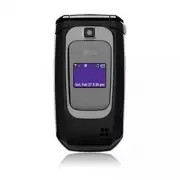


 LG A7110
User Manual
LG A7110
User Manual
 LG AX5000
User Manual
LG AX5000
User Manual
 LG C1300
User Manual
LG C1300
User Manual
 LG C1300A
User Manual
LG C1300A
User Manual
 LG C1300I
User Manual
LG C1300I
User Manual
 LG C1500
User Manual
LG C1500
User Manual
 LG C2000
User Manual
LG C2000
User Manual
 LG CB630
User Manual
LG CB630
User Manual
 LG CE500
User Manual
LG CE500
User Manual
 LG CF360
User Manual
LG CF360
User Manual
 LG CF360A
User Manual
LG CF360A
User Manual
 LG CG180
User Manual
LG CG180
User Manual
 LG CG225
User Manual
LG CG225
User Manual
 LG CG300
User Manual
LG CG300
User Manual
 LG CP150
User Manual
LG CP150
User Manual
 LG CU320
User Manual
LG CU320
User Manual
 LG CU400
User Manual
LG CU400
User Manual
 LG CU405
User Manual
LG CU405
User Manual
 LG CU500
User Manual
LG CU500
User Manual