Page 3 - User Guide
t Screen displays and illustrations may differ from those you see on the actual phone. t Some of the contents of this guide may not apply to your phone, depending on the software and your service provider. All information in this document is subject to change without notice. t Copyright ©2014 LG Ele...
Page 4 - Table of contents
2 Table of contents Your Phone ..........................................5 Phone overview ................................... 5 Getting Started .................................. 7 Installing the SIM card and battery .. 7Charging your phone.......................... 9 On-Screen Icons ..................
Page 7 - Phone overview; Your Phone
5 Phone overview Earpiece Lets you hear the caller during a call. Left Soft Key/Right Soft Key Each of these keys perform the functions indicated by the text on the display immediately above them. Clear/Back Key Allows you to return to the previous screen. Press and hold to activate the Voice Comman...
Page 9 - Getting Started; Installing the SIM card and battery
7 Getting Started Installing the SIM card and battery 1 Remove the back cover Place your thumb at the top part of the back cover and slide it downwards to remove it. 2 Remove the battery Hold the top edge of the phone and use the fingernail cutout near the bottom of the battery to lift the battery f...
Page 11 - Charging your phone
9 ICON/ INDICATOR DESCRIPTION Network signal strength (number of bars will vary) No network signal ICON/ INDICATOR DESCRIPTION Low Battery New text message New email Charging your phone Locate the Charger/USB Port on the left side of your phone. Insert the charger connector to the phone (the ‘B’ sid...
Page 13 - General Functions; Before you begin; Making a Call with the Send Key
11 General Functions Before you begin Remember that you can select the menu icons from the Menu screen using the number keys if you set the Menu Styles option as List . If you set the Menu Styles option as Icon , you can only use the Navigation Keys to select the menu icons. Making a Call 1 Make sur...
Page 14 - Making a Call from the Contacts; Answering a Call
12 General Functions Making a Call from the Contacts You can store frequently called names and phone numbers in the SIM card as well as in your Contacts List.You can dial a number by simply highlighting a name in the Contacts List and pressing the Send Key . 1 To access Contact List, from the standb...
Page 15 - Signal Strength; Entering Text; Changing the Text Input Mode; Symbol Mode
13 Signal Strength If you are inside a building, being near a window may give you better reception. You can see the strength of your signal by the signal indicator on your phone’s display screen. Entering Text You can enter alphanumeric characters by using the phone’s keypad. For example, storing na...
Page 16 - ABC Mode
14 General Functions ABC Mode This mode allows you to enter letters by pressing the key labeled with the required letter. Using the ABC Mode Use the alphanumeric keypad to enter your text. 1 Press the key labeled with the required letter. 2 To insert a space, press the key once. To delete letters, p...
Page 18 - During a Call; Making a Second Call
16 During a Call Your phone provides a number of control functions that you can use during a call. To access these functions during a call, press the Left Soft Key Options . Making a Second Call You can select a number you wish to dial from the Contacts to make a second call. 1 Press the Left Soft K...
Page 20 - All Calls; Missed Calls; Dialed Calls; Received Calls; Recent Calls
18 This menu allows you to see the list of recent calls. To access Recent Calls, from the standby screen, press the Left Soft Key Menu and select Recent Calls . All Calls This menu allows you to view the list of all calls.To access All Calls, from the standby screen, press the Left Soft Key Menu , R...
Page 21 - Contact List; New Contact; Groups; Speed Dial; Contacts
19 Contact List This menu allows you to save and manage contact address information. The Contact List allows you to add a new address or search saved contact addresses by name.To access Contact List, from the standby screen, press the Left Soft Key Menu , Contacts and Contact List . New Contact This...
Page 22 - SIM Management; Own Number; My Business Card
20 Contacts SIM Management This menu allows you to copy information from your SIM card to your phone and vice versa. If a name is duplicated during the copying operation, the information is also duplicated. You can also delete information from the SIM card.To access SIM Management, from the standby ...
Page 23 - Create Message; Selecting a recipient; Messages
21 This menu includes functions related to SMS (Short Message Service), MMS (Multimedia Message Service), Voicemail as well as the network’s service messages. Create Message 1 From the standby screen, press the Left Soft Key Menu . 2 Select Messages . 3 Press Create Message . OR You can simply press...
Page 24 - Text Entry Settings:; Editing a message; Using Insert
22 - Text Entry Mode: Allows you to change the text entry mode. - Text Entry Settings: Allows you to set the options for Text Entry Language, T9 Word Candidate List, T9 Next Word Prediction, and T9 Dictionary. - Cancel Message: Allows you to cancel the message. Editing a message The following option...
Page 25 - Using Options; Text Entry Language:; T9 Word Candidate List:; T9 Next Word Prediction:; Sending a Message
23 t Multimedia: Preset multimedia templates can be created ( Menu > Messages > Message Settings > Multimedia Message > Multimedia Templates > New ). t Signature: Allows you to insert your own created signature. More: Allows you to insert Subject, vCard, vCalendar, vNote, vTask or Con...
Page 27 - Message Settings; Message Alert
25 While viewing the Drafts, press the Left Soft Key Options for the following options: Select Multiple: Allows you to select multiple messages to delete. Message Details: Allows you to view the details of the message. Message Settings To access and configure your Message Settings, from the standby ...
Page 28 - Multimedia Message
26 Messages t Delete All: Deletes all messages in the folder. t Cancel: Returns to Text Message Settings menu. Msg Center No.: Allows you to view the phone number for the Message Center. Delivery Report: Allows you to set the delivery report to On or Off. Insert Signature: Allows you to insert your ...
Page 29 - Group Messaging; Voicemail; Emergency Alerts
27 t Discard: Enabling this option will block incoming multimedia messages from being received. Roaming Auto-retrieve Allows you to set the Roaming Auto-retrieve feature to On or Off. Selecting On will allow the device to download multimedia messages while roaming. Convert to MMS Allows you to set t...
Page 30 - Email
28 Sending an email using your new account To send/receive an email, you should set up an email account. 1 Press the Left Soft Key Menu , select Email and choose the account you want to use. 2 Press the Left Soft Key Options and choose Write Email to write an email. 3 Enter the recipient ’s address ...
Page 31 - Changing your email settings
29 Changing your email settings 1 Press the Left Soft Key Menu , choose Email > Left Soft Key Options > Mailbox > Options > Settings . 2 Set any of the following options. Accounts: You can edit e-mail account settings. Frequency: Choose how often you want to synchronize the account and c...
Page 32 - Edit Alarm; Alarm Clock
30 The alarm function allows you to set up multiple separate alarms. You can also set the time, repetition interval, and alarm tone. If there is no alarm setting, press the Left Soft Key New to add a new alarm. To access Alarm Clock, from the standby screen, press the Left Soft Key Menu , and Alarm ...
Page 33 - Browser; Launch the Browser
31 Browser The Browser is one of the services provided by your network operator and it gives you access to all the cool things you can do with your wireless phone. NOTE: Check the availability of services, pricing, and tariffs with your network operator and/or the service provider whose service you ...
Page 34 - Menus for the Browser
32 Recent Pages : Allows you to view your history of recently viewed web sites. Settings : Allows you to set options for web pages and appearance. Menus for the Browser You can surf the Internet using either the phone keys or the Browser menu. Using the Navigation Keys When surfing the Internet, the...
Page 35 - Take Photo; Preview Tab; Camera
33 To access Camera from the standby screen, press the Left Soft Key Menu and select Camera . Take Photo Using the camera you can take pictures of people or events while on the move. Additionally, you can send photos to other people in a picture message.The following options will appear (as icons) a...
Page 36 - Record Video
34 Others Tab Shutter Tones: You can choose from Tone 1, Tone 2, Tone 3, or Off. Reset Settings: Allows you to set the Camera to the default settings. Using Zoom In Camera mode, you can zoom in and out by using the up and down Volume Keys . The maximum zoom scale depends on the resolution as follows...
Page 37 - Others Tab; Album
35 Others Tab Recording Tones: Allows you set Recording Tones to On or Off. Reset Settings: Allows you to set the Camcorder to the default settings. NOTE: In Video mode, you can adjust the zoom scale by using the up and down Volume Keys . The zoom scale ranges from Level 1 to Level 9. Album Allows y...
Page 38 - Calendar
36 Calendar When you enter this menu, a calendar will be displayed. The red square cursor is used to locate a particular day. The bottom bar on the calendar indicates saved schedules (if any) for that day. This function helps you keep track of your schedule. The phone can sound an alarm tone if it h...
Page 39 - My Folder; Audio
37 My Folder Audio To access Audio, from the standby screen, press the Left Soft Key Menu , My Folder , and Audio . Record Voice: Allows you to record voice notes. Saved audio files are displayed in the list. Pictures To access Pictures, from the standby screen, press the Left Soft Key Menu , My Fol...
Page 42 - File Manager
40 File Manager This function allows you to view the content in your internal phone memory.To access File Manager, from the standby screen, press the Left Soft Key Menu , My Folder , and File Manager . Games & Apps This menu allows you to download or access the various games. To access the Games...
Page 43 - Tools; Voice Command
41 Tools Voice Command Voice Command is the function whereby your phone’s voice recognition engine identifies the voice of the user and carries out the requested commands. When the user operates the Voice Command function, there are five possible commands, Call <Name or Number>, Listen Voicema...
Page 44 - Voice Command Options
42 Tools Voice Command Options When the Voice Command option is activated, you can press the Left Soft Key Options for the following options: t Mode - Speed: Voice Command is abbreviated. - Normal: Voice Command is played normally with prompts. t Best Match - 1 Match: The most likely match will be d...
Page 45 - Notepad
43 - Ring After Name: The phone announces the name or number of the incoming call, then rings repeatedly. - Name Repeat: The phone announces an incoming call by repeating the name or number of the caller. Notepad You can create up to a maximum of 30 memos.To access Notepad, from the standby screen, ...
Page 46 - Stopwatch
44 Tools Mark ‘Complete’: Allows you to change the status of the selected task as Completed. Edit: Allows you to edit a saved task. Delete: Deletes the selected task. Selective Delete: Allows you to delete All Completed/All Past Tasks selectively. Send Task Via: Enables the selected task to be sent ...
Page 48 - Ringtone
46 Settings Audio & Ringtones This menu allows you to configure the audio and ringtone settings for your phone. To access Audio & Ringtones, from the standby screen, press the Left Soft Key Menu , Settings , and Audio & Ringtones . Ringtone Sounds: Allows you to set a sound as the ringto...
Page 49 - Phone Settings
47 Keypad Tone Sounds: Allows you to select a tone that the phone sounds when a key is pressed on the dialpad. You can select an option from Beep and Voice . Volume: Allows you to control your Keypad Tone volume. Multimedia This menu allows you to control your Multimedia volume. Call This menu allow...
Page 50 - Languages; Flight Mode
48 Settings Languages Allows you to change the language for the display text on your phone. This change will also affect the Language Input mode. Set Hotkeys Allows you to change the preferences on the Hotkeys that are currently assigned for your Navigation Keys (when in standby mode). Flight Mode T...
Page 51 - Reset Settings
49 Fixed Dial Number: This feature allows you to restrict your outgoing calls to selected phone numbers, if supported by your SIM Card. The PIN2 code is required. t FDN On/Off - On: You can only call phone numbers stored in the FDN List. You must enter your PIN2 code. - Off: You can call any number....
Page 52 - Display; Call
50 Settings Display This menu allows you to configure your Display settings. To access Display, from the standby screen, press the Left Soft Key Menu , Settings , and Display . Wallpapers This menu allows you to set a picture or color as your background. Fonts You can configure the font size and col...
Page 54 - Minute Minder; Send DTMF Tones
52 Settings Minute Minder This option allows you to specify whether the phone will beep every minute during an outgoing call to keep you informed of the length of the call. Call Waiting This menu allows you to activate and deactivate call waiting on your device. You can also view the current Call Wa...
Page 55 - Accessibility
53 Accessibility This menu allows you to easily control various accessibility options.To access Accessibility, from the standby screen, press the Left Soft Key Menu , Settings , and Accessibility . Menu Readout This option allows the phone to read out menus that are accessed. Keypad Tone Sounds: All...
Page 56 - Hearing Aid; Bluetooth
54 Settings Hearing Aid Allows you to enable or disable the Hearing Aid function. Voice Command Allows you to set the Voice Command options. Refer to page 41. Bluetooth Your phone has built-in Bluetooth wireless technology, which makes it possible for you to connect your phone wirelessly to other Bl...
Page 58 - Memory; Used Space; Applications
56 Settings Memory This menu allows you to configure your Memory settings. To access Memory, from the standby screen, press the Left Soft Key Menu , Settings , and Memory . Used Space This function shows the memory status of the phone. Phone Common This function shows the Memory Status of the phone ...
Page 59 - Accounts; Appearance
57 Accounts This includes the network information used to connect the Browser to the Internet. Select the desired account by highlighting it and pressing the Right Soft Key Activate . This will activate the account that will be used for future connections. Activate: Select the account among the list...
Page 61 - Connection; Network Selection; Internet Profiles
59 1. Enter URL3. View Bookmarks5. Full Screen7. Page Up9. Zoom In*. Page Down 2. This Page4. Info.6. Saved Pages8. Recent Pages0. Search Text#. Zoom Out You can adjust the Browser text and image size by pressing the up and down Volume Keys to zoom in and out. Voice Command Allows you to set the Voi...
Page 62 - System Update
60 Settings System Update The user can check for the software update using the menu "Check for software updates". If the new software does not exist the user can not use this feature in 24 hours. Before updating new software after downloading it from the network server, users can decide whet...
Page 63 - Accessories
61 Accessories There are a variety of accessories available for your mobile phone, some of which may be sold separately. You can select these options according to your personal communication requirements. Consult your local dealer for availability. Travel Adapter This adapter allows you to charge th...
Page 64 - For Your Safety; Safety Information
62 For Your Safety Safety Information Please read and observe the following information for safe and proper use of your phone and to prevent damage. WARNING! This product contains chemicals known to the State of California to cause cancer and birth defects or reproductive harm. Wash hands after hand...
Page 65 - Charger and Adapter Safety; Battery Information and Care
63 ţ Repairs under warranty, at LG’s option, may include replacement parts or boards that are either new or reconditioned, provided that they have functionality equal to that of the parts being replaced. ţ For those host devices that utilize a USB port as a charging source, the host device’s user ma...
Page 67 - Care and Maintenance
65 ţ Always unplug the charger from the wall socket after the phone is fully charged to save unnecessary power consumption of the charger. Care and Maintenance Your mobile device is a product of superior design and craftsmanship and should be treated with care. The suggestions below will help you fu...
Page 68 - Shock or vibration
66 For Your Safety Wipe it with a soft cloths lightly dampened in a mild soap-and-water solution. Shock or vibration Do not drop, knock, or shake the mobile device.Rough handling can break internal circuit boards. Paint Do not paint the mobile device. Paint can clog the device’smoving parts or venti...
Page 70 - FCC RF Exposure Information; Vehicle-Mounted External Antenna
68 For Your Safety FCC RF Exposure Information WARNING! Read this information before operating the phone. In August 1996, the Federal Communications Commission (FCC) of the United States, with its action in Report and Order FCC 96-326, adopted an updated safety standard for human exposure to Radio F...
Page 71 - Consumer Information About Radio Frequency Emissions; Are wireless phones safe?
69 Consumer Information About Radio Frequency Emissions Your wireless phone, which contains a radio transmitter and receiver, emits radio frequency energy during use. The following consumer information addresses commonly asked questions about the health effects of wireless phones. Are wireless phone...
Page 72 - Can I minimize my RF exposure?
70 For Your Safety certified to the FCC that it does not exceed limits established by the FCC. One of these limits is expressed as a Specific Absorption Rate, or “SAR.” SAR is a measure of the rate of absorption of RF energy in the body. Tests for SAR are conducted with the phone transmitting at its...
Page 74 - Independent Expert Group on Mobile Phones
72 For Your Safety Independent Expert Group on Mobile Phones http://www.iegmp.org.uk Royal Society of Canada Expert Panels on Potential Health Risks of Radio Frequency Fields from Wireless Telecommunication Devices 283 Sparks StreetOttawa, Ontario K1R 7X9CanadaTelephone: (613) 991-6990 World Health ...
Page 75 - TIA Safety Information; Consumer Information on SAR
73 Bethesda, MD 20814-3095Telephone: (301) 657-2652 http://www.ncrponline.org Engineering in Medicine and Biology Society, Committee on Man and Radiation (COMAR) of the Institute of Electrical and Electronics Engineers http://ewh.ieee.org/soc/embs/comar/ TIA Safety Information The following is the c...
Page 78 - Electronic Devices; Hearing Aids
76 For Your Safety Electronic Devices Most modern electronic equipment is shielded from RF signals. However, certain electronic equipment may not be shielded against the RF signals from your wireless phone. Pacemakers The Health Industry Manufacturers Association recommends that a minimum separation...
Page 80 - FDA Consumer Update; Do wireless phones pose a health hazard?
78 For Your Safety FDA Consumer Update The U.S. Food and Drug Administration’s Center for Devices and Radiological Health Consumer Update on Mobile Phones: 1. Do wireless phones pose a health hazard? The available scientific evidence does not show that any health problems are associated with using w...
Page 81 - What kinds of phones are the subject of this update?
79 ţ Design wireless phones in a way that minimizes any RF exposure to the user that is not necessary for device function; and ţ Cooperate in providing users of wireless phones with the best possible information on possible effects of wireless phone use on human health. The FDA belongs to an interag...
Page 82 - What are the results of the research done already?
80 For Your Safety to RF is drastically lower because a person’s RF exposure decreases rapidly with increasing distance from the source. The so-called “cordless phones,” which have a base unit connected to the telephone wiring in a house, typically operate at far lower power levels, and thus produce...
Page 85 - What about children using wireless phones?
83 of matter. This measurement is used to determine whether a wireless phone complies with safety guidelines. 9. What steps can I take to reduce my exposure to Radio Frequency energy from my wireless phone? If there is a risk from these products — and at this point we do not know that there is — it ...
Page 86 - What about wireless phone interference with medical
84 For Your Safety 11. What about wireless phone interference with medical equipment? Radio Frequency (RF) energy from wireless phones can interact with some electronic devices. For this reason, the FDA helped develop a detailed test method to measure Electro Magnetic Interference (EMI) of implanted...
Page 87 - Driving; HAC statement
85 Driving Check the laws and regulations on the use of wireless phones in the areas where you drive and always obey them. Also, if using your phone while driving, please observe the following: ţ Give full attention to driving -- driving safely is your first responsibility; ţ Use hands-free operatio...
Page 90 - Limited Warranty Statement
Limited Warranty Statement 1. WHAT THIS WARRANTY COVERS: LG offers you a limited warranty that the enclosed subscriber unit and its enclosed accessories will be free from defects in material and workmanship, according to the following terms and conditions:(1) The limited warranty for the product ext...
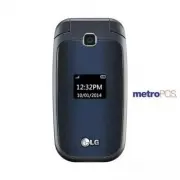


 LG A7110
User Manual
LG A7110
User Manual
 LG AX5000
User Manual
LG AX5000
User Manual
 LG C1300
User Manual
LG C1300
User Manual
 LG C1300A
User Manual
LG C1300A
User Manual
 LG C1300I
User Manual
LG C1300I
User Manual
 LG C1500
User Manual
LG C1500
User Manual
 LG C2000
User Manual
LG C2000
User Manual
 LG CB630
User Manual
LG CB630
User Manual
 LG CE500
User Manual
LG CE500
User Manual
 LG CF360
User Manual
LG CF360
User Manual
 LG CF360A
User Manual
LG CF360A
User Manual
 LG CG180
User Manual
LG CG180
User Manual
 LG CG225
User Manual
LG CG225
User Manual
 LG CG300
User Manual
LG CG300
User Manual
 LG CP150
User Manual
LG CP150
User Manual
 LG CU320
User Manual
LG CU320
User Manual
 LG CU400
User Manual
LG CU400
User Manual
 LG CU405
User Manual
LG CU405
User Manual
 LG CU500
User Manual
LG CU500
User Manual