Page 2 - Table of Contents
Table of Contents Introduction . . . . . . . . . . . . . . . . . . . . . . . . . . .iYour Phone’s Menu . . . . . . . . . . . . . . . . . . . .iiSection 1: Getting Started . . . . . . . . . . . . . .1 1A. Setting Up Service . . . . . . . . . . . . . . . . . . . . .2 Setting Up Your Phone . . . . . . ...
Page 7 - Introduction
i Introduction This User Guide introduces you to Sprint ¨ Service and all the features of your new phone. It’s divided into foursections: Section 1: Getting Started Section 2: Using Your Phone Section 3: Sprint Service Features Section 4: Safety and Warranty Information Throughout this guide, you’ll...
Page 8 - Your Phone’s Menu; ii
Your Phone’s Menu The following table outlines your phone’s menustructure. For more information about using yourphone’s menus, see “Navigating Through the Menus”on page 18. 3: Pictures 1: Camera Select Options (right softkey) and press the navigation key up and down to display the following options:...
Page 9 - iii
iii 4: Tools 1: Alarm Clock 1: Alarm 1 2: Alarm 2 3: Alarm 3 4: Quick Alarm 5: Reset All 2: Calculator 3: EzTip Calculator 4: Bluetooth <Add New> <Settings> 1: On/Off 2: Visibility 3: Device Name 4: Device Info 5: Exchange FTP Folder 5: Voice Control 6: Scheduler 7: Voice Memo 8: Notepad...
Page 10 - iv
Applications Get New My Content Manager IM & Email Get New My Content Manager Call Tones <Options> Memory Status Get New My Content Manager 8: Messaging 1: Voicemail 1: Call Voicemail 2: Voicemail Details 3: Clear Icon 2: Send Message 1: Text Message 2: Email 3: Picture Mail 4: VoiceSMS 5:...
Page 13 - IN USE MENU; vii
8: Restrict and Lock 1: Restrict Voice 2: Lock Data 3: Lock Pictures 4: Lock My Phone 9: Roaming 1: Set Mode 2: Call Guard 3: Data Roaming 0: Security 1: Lock My Phone 2: Change Lock Code 3: Special Numbers 4: Edit Contacts List 5: Delete/Reset *: Mobile Sync IN USE MENU Mute/Unmute Contact Details/...
Page 15 - Section 1; Getting Started
Section 1 Getting Started LX400_Eng_0603.qxp 6/3/09 10:51 AM Page 1
Page 16 - Section 1A. Setting Up Service; Section 1A; Setting Up Service; Setting Up Your Phone
2 Section 1A. Setting Up Service Section 1A Setting Up Service Setting Up Your Phone (page 2) Activating Your Phone (page 3) Setting Up YourVoicemail (page 4) Sprint Account Passwords (page 4) Getting Help (page 5) Setting up service on your new phone is quick and easy. This section walks you throug...
Page 17 - Activating Your Phone; If y
Section 1A. Setting Up Service 3 Activating Your Phone If y ou purchased your phone at a Sprint Store, your phone should be activated and ready to use. If yo u received your phone in the mail and it is for a new Sprint account or a new line of service, you need to take a few steps to activate your p...
Page 18 - Setting Up YourVoicemail; Account Username and Password
4 Section 1A. Setting Up Service Setting Up YourVoicemail All unanswered voice calls to your phone areautomatically transferred to your voicemail, even if yourphone is in use or turned off. Therefore, Sprintrecommends that you set up your voicemail andpersonal greeting as soon as your phone is activ...
Page 19 - Voicemail Password; Getting Help; Managing Your Account
Section 1A. Setting Up Service 5 Voicemail Password You will create your voicemail password (or passcode)when you set up your voicemail. See “Setting Up YourVoicemail” on page 4 or page 122 for more informationon your voicemail password. Sprint Vision Password With your Sprint Vision Phone, you may ...
Page 20 - From Your Sprint Phone; Sprint Operator Services; To access Sprint Operator Services:
6 Section 1A. Setting Up Service From Your Sprint Phone Press to check minute usage and account balance. Press to make a payment. Press to access a summary of your Sprint service plan or get answers to other questions. From Any Other Phone Sprint Customer Service: 1-888-211-4727 . Business Customer ...
Page 21 - Section 2; Your Phone
Section 2 Your Phone LX400_Eng_0603.qxp 6/3/09 10:51 AM Page 7
Page 22 - Section 2A; Phone Basics; This section will guide; Section 2A. Phone Basics
Section 2A Phone Basics Your Phone (page 8) Viewing the Display Screen (page 11) Features of Your Phone (page 13) Turning Your Phone On and Off (page 15) Using Your Phone’s Battery and Charger (page 16) Navigating Through the Menus (page 18) Displaying Your Phone Number (page 19) Making and Answerin...
Page 23 - Key Functions
Phone Basics Key Functions 1. Earpiece lets you hear the caller and automated prompts. 2. Signal Strength Indicator represents the signal strength by displaying bars. The more barsdisplayed, the better the signal strength. 3. Softkey Buttons let you select softkey actions or menu items corresponding...
Page 25 - Viewing the Display Screen
Section 2A. Phone Basics 11 21. Speaker lets you hear the different ringers and sounds. You can mute the ringer when receivingincoming calls by pressing , , or any of the side keys. The speaker also lets you hear thecaller’s voice in speakerphone mode. 22. External Display provides convenient access...
Page 27 - Features of Your Phone
Section 2A. Phone Basics 13 indicates answered Group Connect or TeamDCCall. indicates dialed Group Connect or TeamDCCall. indicates TeamDC group mode is on. indicates Group Connect group mode is on. indicates Opt-In TeamDC. indicates Camera Mode. indicates Camcorder Mode. indicates Camera Resolution...
Page 28 - You can wirelessly pair your
14 Section 2A. Phone Basics Nextel Direct Connect push-to-talk services allowinstant communication at the click of a button (page 32). Sprint Vision provides access to the wireless Internetin digital mode (page 132). Sprint Mail (page 137), SMS Text Messaging (page 125), and SMS Voice Messaging (pag...
Page 29 - Erase Contacts from Lost Device.; Turning Your Phone On and Off; Turning Your Phone On; Press
Section 2A. Phone Basics 15 Have your contacts securely saved online so ifyour phone is ever lost, they can be automaticallyre-populated on your new device. Have your contacts follow you when you changeto another capable device. Contacts will berepopulated on your new device as soon as it isactivate...
Page 30 - Turning Your Phone Off; Battery Capacity
16 Section 2A. Phone Basics Turning Your Phone Off Press and hold for two seconds until you see the powering down animation on the displayscreen. Your screen remains blank while your phone is off(unless the battery is charging). Using Your Phone’s Battery andCharger Sprint-approved or LG -approved b...
Page 31 - Installing the Battery
Section 2A. Phone Basics 17 Installing the Battery 1. Push and slide the cover downward until it comesfree from the phone. 2. To install, insert the battery into the opening on theback of the phone (1) and gently press down untilthe latch snaps into place (2). Removing the Battery 1. Make sure the p...
Page 32 - Using the Phone Charger; Navigating Through the Menus
18 Section 2A. Phone Basics icon ( ) blinks and the phone sounds a warning tone. Always use a Sprint-approved or LG -approved desktop charger, travel charger, or vehicle power adapter tocharge your battery. Using the Phone Charger Plug the flat end of the charger into the phone’scharger jack and the...
Page 33 - Selecting Menu Items; Backing Up Within a Menu; To go to the previous menu:; Displaying Your Phone Number
Section 2A. Phone Basics 19 Selecting Menu Items As you navigate through the menu, menu options arehighlighted. Select any option by highlighting it andpressing . If the option is numbered, you can select it by pressing the corresponding number on the phone’skeypad. For example, if you want to view ...
Page 34 - Making and Answering Calls; Making Calls; Dialing Options
20 Section 2A. Phone Basics Making and Answering Calls Making Calls Placing a call from your wireless phone is as easy asmaking a call from any landline phone. Enter thenumber, press , and you’re on your way to clear calls. 1. Make sure your phone is on. 2. Enter a phone number from standby mode. (I...
Page 35 - Answering Calls
Section 2A. Phone Basics 21 Send Msg accesses a menu which you can use to send Text Message, Picture Mail, or Voice SMS for thedialed number. Save allows you to enter a seven- or ten-digit number (phone number and area code) and save the phonenumber in your Contacts. (See “Saving a PhoneNumber” on p...
Page 36 - Ending a Call; Missed Call Notification; To display a Missed Call entry from standby mode:; Missed Direct Connect Call Notification
22 Section 2A. Phone Basics Answering a Roam Call With Call GuardEnabled Call Guard is an option that helps you manage yourroaming charges when making or receiving calls whileoutside the Sprint National Network. Please see“Roaming “ on page 74 for more information aboutroaming. Select Answer to answ...
Page 37 - Calling Emergency Numbers; To exit Emergency mode:
Section 2A. Phone Basics 23 Calling Emergency Numbers You can place calls to 911 (dial ), even if your phone is locked or your account is restricted. During an emergency call, press to select your options. Speaker On or Speaker Off to route the phone's audio through the speaker or through the earpie...
Page 39 - Saving a Phone Number; To save a number from standby mode:; Finding a Phone Number
Section 2A. Phone Basics 25 Saving a Phone Number Your phone can store up to 7 phone numbers in each of 600 Contacts entries. Each entry’s name can contain 64 characters. Your phone automatically sorts the Contactsentries alphabetically. (For more information, see“Contacts” on page 82.) To save a nu...
Page 40 - To dial or save phone numbers with pauses:; Using Abbreviated Dialing; To place a call using Prepend abbreviated dialing:
Dialing and Saving Phone Numbers WithPauses You can dial or save phone numbers with pauses foruse with automated systems, such as voicemail or creditcard billing numbers. There are two types of pauses available on your phone: Hard Pause sends the next set of numbers when you press . 2-Second Pause a...
Page 41 - Dialing From the Contacts List; To use One-Touch Dialing for speed dial locations 1–9:
Phone Basics Dialing From the Contacts List 1. Press > Contacts . 2. Select the entry you want to call and press to dial the entry’s default phone number.– or –To dial another number from the entry, select thename and press , and then select a number and press . Using Speed Dialing You can store ...
Page 42 - Entering Text; Selecting a Text Input Mode
28 Section 2A. Phone Basics Entering Text Selecting a Text Input Mode Your phone provides convenient ways to enter words,letters, punctuation, and numbers whenever you areprompted to enter text (for example, when adding aContacts entry or when using Sprint Mail and SMS TextMessaging). 1. From a scre...
Page 43 - Entering Text Using T9 Text Input; mode when; Adding a Word to the T9 Database; Select the
Section 2A. Phone Basics 29 Entering Text Using T9 Text Input T9 Text Input lets you enter text by pressing keys justonce per letter. (To select the T9 Word mode when entering text, see “Selecting a Text Input Mode” on page 28.) T9 Text Input uses an intuitive word database to analyzethe letters you...
Page 44 - Entering Text Using ABC Mode; to erase a; English Sequence; Lower Case
30 Section 2A. Phone Basics Entering Text Using ABC Mode 1. Select the Abc text input mode. (See “Selecting a Text Input Mode” on page 28.) 2. Press the corresponding keys repeatedly until thecorrect letter appears. (For example, to enter theword “Bill,” press twice, three times, three times, and th...
Page 45 - To enter preset messages:
Section 2A. Phone Basics 31 Entering Numbers, Symbols, Smileys andPreset Messages To enter numbers: Select the 123 text input mode and press the appropriate key. (See “Selecting a Text Input Mode”on page 28). To enter symbols: Select the Symbols text input mode. (See “Selecting a Text Input Mode” on...
Page 46 - Section 2B. Nextel Direct Connect; Section 2B; Nextel Direct Connect; Perfect for get-in get-out conversations such as; – Create a group online that allows
32 Section 2B. Nextel Direct Connect Section 2B Nextel Direct Connect Before Making Your First Direct Connect Call (page 33) About Your Direct Connect Number (page 33) Making and Answering Direct Connect Calls (page 34) Using Group Connect (page 41) Using TeamDC (page 44) Saving Direct Connect and G...
Page 47 - Register and Activate Direct Connect; Dialing Direct Connect Numbers
Section 2B. Nextel Direct Connect 33 Before Making Your First DirectConnect Call For Direct Connect to be enabled on your phone, it mustbe added to your account by a Sprint Customer Servicerepresentative. See “Activating Your Phone” on page 3. Register and Activate Direct Connect 1. Confirm the Dire...
Page 48 - To tell if a number is a valid Direct Connect number:
34 Section 2B. Nextel Direct Connect in the number. If you are saving the number in yourContacts, choose DC Only for the phone type. If the person you are calling has a single number forboth voice calls and for Direct Connect, use that 10-digit phone number to make Direct Connect calls. Youdo not ne...
Page 49 - Making a Direct Connect Call From Contacts:
Section 2B. Nextel Direct Connect 35 Making a Direct Connect Call by Entering aNumber 1. Use your keypad to enter a Direct Connect number. The Direct Connect number may be the 10-digitwireless phone number of the person you arecalling ( Mobile + DC ). – or – If calling a Nextel customer, the Direct ...
Page 50 - Making a Direct Connect Call From History; Answering Direct Connect Calls
36 Section 2B. Nextel Direct Connect 3. Use the navigation key to highlight the entry’s DirectConnect-capable number (DC Only or Mobile + DC). 4. Press and release the Direct Connect button tocontinue the Direct Connect call as describedpreviously. Making a Direct Connect Call From History 1. Press ...
Page 51 - ” appears on the display.; Ending a Direct Connect Call
Section 2B. Nextel Direct Connect 37 2. Accept the incoming call. If available, the caller’sname and Direct Connect number also appear onthe display. 3. When the caller has finished speaking, a tonesounds and “ Open ” appears on the display. 4. Press and hold the Direct Connect button and waitfor a ...
Page 52 - Using Call Alerts
38 Section 2B. Nextel Direct Connect Making Direct Connect Calls (Phone Open) 1. Press the DC speaker button until “DC Speakermode on” is displayed on the external display. 2. Press and release the Direct Connect button todisplay the History on the external display. 3. Use the volume button to scrol...
Page 53 - Sending a Call Alert; Preset Text Feature With Call Alert
Section 2B. Nextel Direct Connect 39 Sending a Call Alert 1. Enter a Direct Connect number or select a numberfrom History or Contacts. 2. Press Msg/Alert (left softkey) and select Call Alert . (A prompt is displayed.) 3. Press and release the Direct Connect button. (Therecipient’s phone will emit an...
Page 54 - Replying to a Call Alert; To dismiss a Call Alert:; Setting Direct Connect Permissions
40 Section 2B. Nextel Direct Connect Replying to a Call Alert 1. With the Call Alert displayed, press and hold theDirect Connect button to return the call. 2. Continue with the Direct Connect call as previouslydetailed. To dismiss a Call Alert: Press Ignore (right softkey). Setting Direct Connect Pe...
Page 55 - Follow the instructions to add or edit the; or the; Using Group Connect; By setting up a Group contact on your phone.; Making Group Connect Calls
Section 2B. Nextel Direct Connect 41 3. Follow the instructions to add or edit the Blocked DC #s or the Allowed DC #s list. Using Group Connect A Group Connect call is a Direct Connect call made toup to 20 Direct Connect users with Sprint phonesnationwide at one time. You can make a Group Connectcal...
Page 56 - Making a Group Connect Call From Contacts; When you are finished, press; Making a Group Connect Call From History
42 Section 2B. Nextel Direct Connect Making a Group Connect Call From Contacts 1. Press Contacts (right softkey). 2. Select a Group and press the Direct Connect buttonto begin the Group Connect call. 3. Continue the Group Connect call in the samemanner as a one-to-one Direct Connect call. 4. When yo...
Page 57 - Joining or Rejoining a Group Connect Call
Section 2B. Nextel Direct Connect 43 Making a Group Connect Call On-the-Fly 1. Press > Contacts > Add New > New Group . 2. Press Start (left softkey) to add Contacts entries with DC-capable numbers to the group. When adding a contact for the Group Connectcall, make sure you highlight the en...
Page 58 - Group Connect Call Information; The name of the Group.; Using TeamDC
44 Section 2B. Nextel Direct Connect Group Connect Call Information During a Group Connect call, the following informationmay appear on your screen: The name of the Group. The name or Direct Connect number of the personspeaking. The number of Group members who are connectedto the call out of the num...
Page 59 - Setting Up a TeamDC Group
Section 2B. Nextel Direct Connect 45 Setting Up a TeamDC Group TeamDC groups are created online by any DirectConnect subscriber on Sprint phones. Only the TeamDCgroup creator or an account administrator may modify agroup member list once it has been created. 1. Sign on to your account at www.sprint....
Page 60 - Making a TeamDC Call; Joining or Rejoining a TeamDC Call
Making a TeamDC Call 1. Press Contacts (right softkey). – or –Press > History . 2. Select a TeamDC group and press the DirectConnect button. 3. Continue the TeamDC call as any other DirectConnect or Group Connect call. 4. When you are finished, press to end the call. (When you end a TeamDC call t...
Page 61 - TeamDC Call Information; The name of the group.
Direct Connect TeamDC Call Information During a TeamDC call, the following information mayappear on your screen: The name of the group. The name or Direct Connect number of the personspeaking. The number of TeamDC members who areconnected to the call out of the number invited (forexample, 4 out of 6...
Page 63 - Unblocking a Direct Connect Number; Creating Groups in Contacts; Types of Groups; Creating a Group Connect Member List
Direct Connect Unblocking a Direct Connect Number 1. Press > Contacts . 2. Highlight an entry and press . 3. Select the DC-capable phone number. 4. Press Options (right softkey) > Allow DC . 5. Press Allow (left softkey) to unblock the number. Creating Groups in Contacts Creating Group entries...
Page 64 - To create a Group Connect member list:; Adding Group Members to the Group
To create a Group Connect member list: 1. Press > Contacts > Add New > New Group > Start (left softkey). 2. Scroll through the available entries and press after each entry you want to add to the Group. (A check mark will appear in the box next to theselected entry.) 3. When you’ve marked...
Page 65 - Editing Group Entries; To remove a member from a Group:; Using Sprint Mobile Sync
Direct Connect Editing Group Entries You can add or remove members or edit the name of aGroup you have created in your Contacts. 1. Display the Contacts list and scroll to the Group youwant to edit. 2. Press Options (right softkey) > Edit Group . 3. Highlight the part of the entry you wish to edi...
Page 66 - Activating Sprint Mobile Sync
Erase contact information from a lost phone. If your phone is lost or stolen, Sprint Mobile Sync can remotelyremove all the contact information. You can then sendthe information to your replacement phone. Import and export contacts with online address books. Import or or export contact information f...
Page 67 - Section 2C; Sound Settings; RingerTypes; Selecting RingerTypes forVoice Calls
Settings Section 2C Settings Sound Settings (page 53) Display Settings (page 56) Location Settings (page 59) Messaging Settings (page 60) Airplane Mode (page 62) TTY Use With Sprint Service (page 63) Phone Setup Options (page 64) Mobile Sync (page 66) You can customize your phone to sound, look, and...
Page 68 - Selecting RingerTypes for Messages; Selecting a Key Tone
Selecting RingerTypes for Messages 1. Press > Settings > Sounds > RingerType > Messages . 2. Select Voicemail , Text Message , Picture Mail , VoiceSMS or Email . (A list of ring type categories will be displayed.) 3. Select a category, and then use your navigation keyto scroll through th...
Page 69 - Noise Reduction; or; and press; Silence All; To activate Silence All:
Settings Noise Reduction Noise reduction is the process of reducing noise from asignal for the caller to transmit voice without noise. 1. Press > Settings > Sounds > Noise Reduction . 2. Select On or Off and press . Silence All The Silence All option allows you to mute all soundswithout tur...
Page 70 - Display Settings; Changing the Text Greeting
Display Settings Changing the Text Greeting A text greeting is displayed on your phone's screen instandby mode. Choose the phone’s default greeting( “Sprint”), or enter your own custom greeting. 1. Press > Settings > Display > Main Screen > Foregrounds > Greeting . 2. Select Off or Cu...
Page 71 - Slide Show; To create a slide show:; Changing the Display Screen
Settings Slide Show You can create a slide show screen saver of up to nineimages that will change continuously on your standbyscreen. To create a slide show: 1. Press > Settings > Display > Main Screen > Slide Show . 2. Select a slide from 1 to 4 and press . 3. Select Preloaded , My Albu...
Page 72 - To change the keypad light setting:
Changing the Theme Color Customize your phone’s display appearance byselecting a color scheme to reflect your personality. 1. Press > Settings > Display > Main Screen > Skins . 2. Select an option and press . Changing the Dialing Font Choose the style of the dialing font to be displayed ...
Page 73 - Changing the Status Light Mode; To change the status light mode:; Display Language; To assign a language for the phone’s display:; Location Settings; To enable your phone’s Location feature:
Settings Changing the Status Light Mode This feature uses a blinking light to inform you of your phone’s current status. To change the status light mode: 1. Press > Settings > Display > Status Light . 2. Select On or Off and press . Display Language You can choose to display your phone’s on...
Page 74 - Messaging Settings; Setting Message Notification; Deleting Old Messages; To automatically delete read messages:; Setting Message Alerts
When the Location feature is on, your phone’s standby screen will display the icon. When Location is turned off, the icon will be displayed. Messaging Settings Staying connected to your friends and family has neverbeen easier. With your phone’s advanced messagingcapabilities, you can send and receiv...
Page 75 - To hear an alert when you receive a new message:; Callback Number; To edit or delete a preset message:
Settings To hear an alert when you receive a new message: 1. Press > Settings > Messaging > Message Reminder . 2. Select On or Off and press . Callback Number 1. Press > Settings > Messaging > Callback Number . 2. Select None , My Phone Number , or Other and press . (If you select ...
Page 76 - To add a new preset message:; SMS Voice Options; Airplane Mode
To add a new preset message: 1. Press > Settings > Messaging > Preset Messages . (The list of preset messages will be displayed.) 2. To add a new message, select <Add New> . 3. Enter your message (see “Entering Text” on page28), and press . (Your new message will be added to the begin...
Page 77 - TTY Use With Sprint Service; Then provide the state TRS with this number:; to turn TTY mode off.
Settings TTY Use With Sprint Service A TTY (teletypewriter, also known as a TDD orTextTelephone) is a telecommunications device that allowspeople who are deaf, hard of hearing, or who havespeech or language disabilities, to communicate bytelephone. Your phone is compatible with select TTY devices.Pl...
Page 78 - Phone Setup Options; Side Keyguard
Phone Setup Options Side Keyguard Allows you to set the side keyguard. Side keyguardsetting applies to flip closed position only. 1. Press > Settings > Side Keyguard . (An information window is displayed.) 2. Read the information and press . 3. Select On or Off and press . Shortcuts Your phone...
Page 79 - Call Answer Mode; Setting Abbreviated Dialing; To set your abbreviated dialing options:
Settings 4. Using the navigation key or your keypad, select thedesired shortcut and press . 5. Press to return to standby mode. Call Answer Mode Select how to answer incoming calls on your phone:whether you want to be required to press , to press any number key, or to simply open the phone. 1. Press...
Page 80 - Contacts Match; To set your Contacts match options:; Text Entry; Mobile Sync; To activate the Mobile Sync service:
Contacts Match Your Contacts match option allows you to enable or disable Contacts Match dialing (page 26). To set your Contacts match options: 1. Press > Settings > More... > Call Setup > Contacts Match . 2. Select On or Off and press . Text Entry 1. Press > Settings > Text Entry ...
Page 81 - To deactivate the Mobile Sync service:; Viewing Your Mobile Sync Status
Settings To deactivate the Mobile Sync service: 1. Press > Settings > More... > Mobile Sync > Deactivate . (A message will be displayed.) 2. Select Deactivate or Cancel . Viewing Your Mobile Sync Status 1. Press > Settings > More... > Mobile Sync > View Status . 2. Press . Se...
Page 82 - Section 2D; Security; This section will; Accessing the Security Menu; Using Your Phone’s Lock Feature; Locking Your Phone
Section 2D Security Accessing the Security Menu (page 68) Using Your Phone’s Lock Feature (page 68) Using Special Numbers (page 70) Erasing Private BrowserData (page 70) Erasing Contacts (page 70) Resetting YourPicture Mail Account (page 71) Resetting Default Settings (page 71) Resetting YourPhone (...
Page 83 - Unlocking Your Phone; To turn data lock on or off :; Locking Pictures; To turn picture lock on or off :; Changing the Lock Code
Security 1. Press > Settings > More... > Security and enter your lock code. 2. Select Lock My Phone > Lock Now . (To set your phone to lock the next time it is turned on, select On Power Up .) Unlocking Your Phone 1. From standby mode, press Unlock (right softkey). 2. Enter your lock cod...
Page 84 - Using Special Numbers; To add or replace a special number:; Erasing Private Browser Data; Erasing Contacts
Using Special Numbers Special numbers are important numbers that you havedesignated as being “always available.” You can call andreceive calls from special numbers even if your phone islocked. You can save up to 10 special numbers in addition toyour Contacts entries (the same number may be in bothdi...
Page 85 - To reset your Picture Mail account:; Resetting Default Settings; To reset default settings:
Security Resetting Your Picture MailAccount This option resets your authentication ID for your SprintPicture Mail account. To reset your Picture Mail account: 1. Press > Settings > More... > Security and enter your lock code. 2. Select Delete/Reset > Reset Picture Mail . (A disclaimer ap...
Page 86 - Resetting Your Phone; Security Features for Sprint Vision; To disable Sprint Vision services:
Resetting Your Phone Resetting the phone restores all the factory defaults,including the ringer types and display settings. All datafrom Contacts, Messaging, Pictures, My Contents, Tools,and Settings will be lost, and preference settings will beset to factory defaults. 1. Press > Settings > Mo...
Page 87 - To enable Sprint Vision services:
Security To enable Sprint Vision services: 1. Press > Settings > More... > Data > On/Off . (A message will be displayed.) 2. Press Yes (right softkey) to enable Vision service. Note When Direct Connect is enabled on a device, thefollowing settings menu options are not accessibleto the us...
Page 88 - Section 2E; Roaming; Your new dual-band LX400 by; Understanding Roaming; Roaming on Other Digital Networks
Section 2E Roaming Understanding Roaming (page 74) Setting Your Phone’s Roam Mode (page 75) Using Call Guard (page 76) Using Data Roam Guard (page 77) Roaming is the ability to make or receive calls when you’re offthe Sprint National Network. Your new dual-band LX400 by LG ¨ works anywhere on the Sp...
Page 89 - Setting Your Phone’s Roam Mode
Roaming Checking for Voicemail Messages WhileRoaming When you are roaming off the Sprint National Network,you may not receive on-phone notification of newvoicemail messages. Callers can still leave messages,but you will need to periodically check your voicemail fornew messages if you are in a roamin...
Page 90 - Using Call Guard; To turn Call Guard on or off:; To place roaming calls with Call Guard on:; To answer incoming roaming calls with Call Guard on:
Using Call Guard Your phone has two ways of alerting you when you areroaming off the Sprint National Network: the onscreenroaming icon and Call Guard. Call Guard makes it easyto manage your roaming by requiring an extra stepbefore you can place or answer a roaming call. (Thisadditional step is not r...
Page 91 - Using Data Roam Guard; To set your Data Roam Guard notification:; To use data services when Data Roam Guard is active:
Roaming Using Data Roam Guard Depending on service availability and roamingagreements, your phone may be able to access dataservices while roaming on certain digital systems. Youcan set your phone to alert you when you are roamingoff the Sprint National Network and try to use dataservices such as me...
Page 92 - Section 2F; History; This section guides you through accessing; Viewing History
Section 2F History Viewing History (page 78) History Options (page 79) Making a Call From History (page 79) Saving a Phone Number From History (page 80) Prepend a Phone Number From History (page 81) Erasing History (page 81) History keeps track of incoming calls, outgoing calls, andmissed calls. Thi...
Page 93 - History Options; Viewing History Thread
Histor y History Options Select a History entry and press to display the date and time of the call, the phone number (if available), andthe caller’s name (if the number is already in yourContacts). By pressing Options (right softkey), you can select from the following options: New Group allows you t...
Page 95 - Erasing History
Histor y Prepend a Phone Number FromHistory If you need to make a call from History and you areoutside your local area code, you can prepend thenumber by adding the appropriate prefix. 1. Select a History entry and press . 2. Select Prepend and press . 3. Enter the prefix and press to call the numbe...
Page 96 - Section 2G; Adding a New Contacts Entry
Section 2G Contacts Adding a New Contacts Entry (page 82) Finding Contacts Entries (page 83) Contacts Entry Options (page 84) Adding a Phone Number to a Contacts Entry (page 84) Editing a Contacts Entry’s Phone Number (page 85) Assigning Speed Dial Numbers (page 85) Editing a Contacts Entry (page 86...
Page 97 - Finding Contacts Entries; Finding Contacts by Name
Contacts After you have saved the number, the new Contactsentry is displayed. (See “Contacts Entry Options” onpage 84.) Finding Contacts Entries There are several ways to display your Contacts entries:by name, by speed dial number, and by group. Followthe steps outlined in the sections below to disp...
Page 98 - Contacts Entry Options
Contacts Entry Options To access a Contacts entry’s options, after displaying theentry, press Options (right softkey) > Edit and press . Select an option and press . [Add Name] to add a new contact name to the entry. [Add Number] to add a phone or DC number to the entry. [Add Email] to add an ema...
Page 99 - Assigning Speed Dial Numbers; To assign a speed dial number to a new phone number:
Contacts Editing a Contacts Entry’s PhoneNumber 1. Display a Contacts entry (see page 83). 2. Press Options (right softkey) > Edit Contact and press . 3. Select the number you wish to edit and press . 4. Press to clear one digit at a time, or press and hold to erase the entire number. 5. Re-enter...
Page 100 - Editing a Contacts Entry
5. Press Done (left softkey) to save the new speed dial number. To assign a speed dial number to an existing phonenumber: 1. Display a Contacts entry. (See “Finding ContactsEntries” on page 83.) 2. Press Options (right softkey) > Edit Contact and press . 3. Highlight the phone number for which yo...
Page 101 - Secret Contacts Entries; To make an entry secret:
Contacts Selecting a RingerType for anEntry Assign a ringer type to a Contacts entry so you canidentify the caller by the ringer type. (See “Ringer Types”on page 53.) 1. Display a Contacts entry. 2. Press Options (right softkey) > Edit Contact and press . 3. Select Default Ringer > Default Rin...
Page 102 - Dialing Sprint Services; To dial a service from your Contacts:
Dialing Sprint Services Your Contacts list is preprogrammed with contactnumbers for various Sprint services. To dial a service from your Contacts: 1. Press > Contacts > Options > Settings > Services . 2. Select Customer Service , Dir Assistance (Sprint 411), Pay by Phone , Account Info ,...
Page 103 - Section 2H; Calendar and Tools; This section shows you how to use these; Using Your Phone’s Calendar; Adding an Event to the Calendar; Enter a title for the event by highlighting; Section 2H. Calendar and Tools
Section 2H Calendar and Tools Using Your Phone’s Calendar (page 89) Using Your Phone’s Alarm Clock (page 92) Using Your Phone’s Notepad (page 93) Using EZTips (page 93) Using the Calculator (page 93) Using the World Clock (page 94) Using the Unit Converter (page 94) Your phone is equipped with sever...
Page 105 - Going to Today’s Calendar Menu; To go to the Calendar menu for today’s date:; Erasing a Day’s Events
Calendar / T ools Going to Today’s Calendar Menu To go to the Calendar menu for today’s date: Press > Tools > Scheduler , press Options (right softkey) > Go to Today . Erasing a Day’s Events 1. Press > Tools > Scheduler . 2. Select the day for which you would like to eraseevents and p...
Page 106 - Erasing All Events; Using Your Phone’s Alarm Clock; To use the Quick Alarm:
Erasing All Events 1. Press > Tools > Scheduler > Options > Delete All . (A dialog will be displayed informing you that allevents will be deleted.) 2. Select Yes to erase all events or No to return to the calendar view. Using Your Phone’s Alarm Clock Your phone comes with a built-in alar...
Page 107 - Using Your Phone’s Notepad; To read a saved note:; Using EZTips; Using the Calculator
Calendar / T ools Using Your Phone’s Notepad Your phone comes with a notepad that you can use tocompose and store reminders and notes to help keepyou organized. To compose a note: 1. Press > Tools > Notepad > <Add New> . 2. Type your note using the numeric keypad and press . (See “Ent...
Page 108 - Using the World Clock; To view the time in over 50 different locations:; Using the Unit Converter
Using the World Clock To view the time in over 50 different locations: 1. Press > Tools > World Clock . 2. Press Cities (right softkey) to choose a city. – or – Press the navigation key left or right to scroll throughdifferent time zones. Using the Unit Converter 1. Press > Tools > Unit ...
Page 109 - Section 2I; Voice Services; instructions for using and managing voice memos.; Managing Voice Memos; Recording Voice Memos; To record a conversation during a phone call:; Section 2I. Voice Services
Section 2I Voice Services Managing Voice Memos (page 95) Using Voice Control (page 96) Using DC Voice Control (page 97) Your phone’s Voice Services let you record memos right onyour phone. This section includes easy-to-follow instructions for using and managing voice memos. Managing Voice Memos Use ...
Page 110 - To end the recording of your conversation:; Voice Memo Options; To play the voice memos you have recorded:; Erasing Voice Memos; To erase all voice memos:; Using Voice Control; To access Voice Control through Menu:
To end the recording of your conversation: Select Voice Memo and press to end the recording prior to the countdown completion. Voice Memo Options To play the voice memos you have recorded: 1. Press > Tools > Voice Memo . 2. Select the voice memo you wish to hear and press . Play to play the se...
Page 111 - Using DC Voice Control; Allows you to customize DC Voice Control.; to activate DC Voice Control.
3. Your request will be repeated and you will be askedto verify. Say “Yes” to call the number or person.(The number will automatically be dialed.) Say “No”if you wish to cancel. You have 11 voice control options. Say "Voice Control" toreturn to the main voice control menu. The menus are 1. C...
Page 112 - Section 2J; Camera; Taking Pictures; To take a picture with the phone open:
Section 2J Camera Taking Pictures (page 98) Recording Videos (page 102) Storing Pictures and Videos (page 104) Sending Sprint Picture Mail (page 107) Managing Sprint Picture Mail (page 110) Printing Pictures From Your Phone (page 113) Settings and Info (page 114) Your phone’s built-in camera gives y...
Page 113 - To take a picture with the phone closed:
Camera To return to camera mode to take another picture,press the side camera button. 4. Press Options (right softkey) for more options: Send to send your picture. (See page 107 for details.) Upload to upload the picture to the Sprint Picture Mail Web site ( www.sprint.com/picturemail ). Assign to a...
Page 114 - Camera Mode Options
Registering Your Sprint Picture MailAccount The first time you use any of the picture managementoptions involving the Sprint Picture Mail Web site, youwill be prompted to register your Sprint Picture Mailaccount and establish a password through your phone.This password will also allow you to sign in...
Page 115 - Setting the Self-timer; To cancel the Self-timer after it has started:; Using the Zoom
Camera Brightness to select Auto or Manual brightness control. If you select Manual , press the navigation key right (increase) or left (decrease) to select a setting, and press to apply the selected setting. White Balance to adjust white balance based on changing conditions. Select from Auto, Tungs...
Page 116 - Selecting Camera Settings; Recording Videos
2. Press Capture (left softkey), , or the side camera button to take the picture. (The picture willautomatically be saved in your phone.) Selecting Camera Settings 1. From camera mode, press Options > Settings . 2. Select an option and press : Resolution to select a picture’s file size [ 1.3M (96...
Page 117 - Video Mode Options
Upload to upload videos from the In Phone Folder to the Sprint Picture Mail Web site( www.sprint.com/picturemail ). Depending on your settings, you may be prompted to accept a Sprint Vision connection. Choose My Uploads or My Albums . Assign to assign the video as an animated screen saver or ringer....
Page 118 - Selecting Video Settings; To select your video settings:; Storing Pictures and Videos; In Phone Folder
Review/Send Media to display the videos saved in the In Phone and to send the videos. Camera Mode to switch to Camera mode. (See “Taking Pictures” on page 98 for details.) Selecting Video Settings To select your video settings: 1. From camcorder mode, select Options > Settings . 2. Select one of ...
Page 119 - In Phone Folder Options
In Phone Folder Options When you are viewing the In Phone folder, press Options (right softkey) to display the following options: Play to play a video (if applicable). Send to send an image to another user using Picture Mail. Upload to upload files from the In Phone folder to the Picture Mail Web si...
Page 120 - Online Albums; To save pictures and videos to an online album:; Online Album Options
Media Filter to display the following options: All to display all media. Pictures Only to display only pictures. Videos Only to display only videos. Album List to display the My Album list. Camera/Camcorder Mode to activate Camera/Camcorder mode. Zoom When you are viewing images in a folder, press E...
Page 121 - Sending Sprint Picture Mail
Camera Assign to download the selected item and assign it to a phone task. (See “In Phone Folder Options” on page 105.) Delete to delete and videos from the current online album. Select Delete selection or Delete all . Print to order prints that can be delivered by mail or picked up at a retail outl...
Page 124 - Managing Sprint Picture Mail; Using the Sprint Picture Mail Web Site; To access the Sprint Picture Mail Web site:
Managing Sprint Picture Mail Using the Sprint Picture Mail Web Site Once you have uploaded pictures or videos to youronline Sprint Picture Mail account at www.sprint.com/picturemail (see “In Phone Folder Options” on page 105), you can use your computer tomanage your pictures. From the Sprint Picture...
Page 125 - To send pictures using the online Address Book:
3. Select a picture and press Options (right softkey) to display your online picture options. Uploading Pictures 1. Press > Pictures > My Albums > In Phone . (Thumbnail pictures will be displayed.) 2. Select the picture(s) you wish to upload and press Options (right softkey) and select Uplo...
Page 127 - To print pictures directly from your phone:
Camera 4. Select an option and press . Send to share the album through the Sprint Picture Mail Web site. (See “Sending Online Sprint PictureMail” on page 111.) Create Album to create a new album. Enter a new album name and press Save (left softkey). Rename Album to rename the selected album. Enter a...
Page 128 - Settings and Info; To access the settings and info menu:
Date Stamp : You can imprint the date on your pictures. Select Yes or No . (Date stamping may not be available depending on the type of printer youhave.) 4. When you have finished selecting the printersettings, select Print . 5. When printing is finished, press . 6. Select Yes . Follow the instructi...
Page 129 - Section 2K. Bluetooth; Section 2K; Bluetooth; Turning Bluetooth On and Off; To turn Bluetooth on:; To turn Bluetooth off:
Section 2K. Bluetooth 115 Section 2K Bluetooth Turning Bluetooth On and Off (page 115) Using the Bluetooth Settings Menu (page 116) Bluetooth Profiles (page 116) Pairing Bluetooth Devices (page 118) Sending Contacts Using Bluetooth (page 119) Your phone features built-in Bluetooth technology, allowi...
Page 130 - Bluetooth Status Indicators; To access the Bluetooth Settings menu:; Bluetooth Profiles
116 Section 2K. Bluetooth Bluetooth Status Indicators The following icons show your Bluetooth connection status at a glance: indicates Bluetooth Enabled (Hidden). indicates Bluetooth Enabled (Visible). indicates Bluetooth Connected. Using the Bluetooth SettingsMenu The Bluetooth Settings menu allows...
Page 132 - Pairing Bluetooth Devices; Paired Devices; To pair your phone with another Bluetooth device:; Waiting for Pairing; Exchange Folder; To access the Exchange Folder:
118 Section 2K. Bluetooth Pairing Bluetooth Devices Paired Devices The Bluetooth pairing process allows you to establish trusted connections between your phone and anotherBluetooth device. When devices are paired, a passkey isshared between devices, allowing for fast, secureconnections while bypassi...
Page 133 - To send all Contacts:
Section 2K. Bluetooth 119 Pictures : Allows you to upload picture and video files. (You can also check this in > Pictures > MyAlbums > In Phone .) Voice Memo : Upload voice memo files. (You can also check this in > Tools > Voice Memo .) Sending Contacts UsingBluetooth This allows you ...
Page 135 - Section 3; Sprint
Section 3 Sprint ® Service LX400_Eng_0603.qxp 6/3/09 10:52 AM Page 121
Page 136 - Section 3A; Using Voicemail
122 Section 3A. Sprint Service: The Basics Section 3A Sprint Service Features: The Basics Using Voicemail (page 122) Using SMS Text Messaging (page 125) Using SMS Voice Messaging (page 128) Using Caller ID (page 129) Responding to Call Waiting (page 130) Making a Three-Way Call (page 130) Using Call...
Page 137 - Voicemail Notification; To call your voicemail:; Retrieving YourVoicemail Messages; Using One-Touch Message Access
Section 3A. Sprint Service: The Basics 123 Sprint Ser vice Voicemail Notification There are several ways your phone alerts you to a newmessage: By displaying a message on the screen. By sounding the assigned ringer type. By the LED blinking red. By displaying at the top of your screen. New Voicemail...
Page 138 - Using Another Phone to Access Messages; Voicemail Key Guide
124 Section 3A. Sprint Service: The Basics Using the Menu Keys on Your Phone to AccessYour Messages 1. Press > Messaging > Voicemail . 2. Press to listen to your messages. Using Another Phone to Access Messages 1. Dial your wireless phone number. 2. When your voicemail answers, press . 3. Ente...
Page 139 - Using SMS Text Messaging; To compose an SMS Text message using the TEXT key:
Section 3A. Sprint Service: The Basics 125 Using Expert Mode Using the Expert Mode setting for your personalvoicemail box helps you navigate through the voicemailsystem more quickly by shortening the voice promptsyou hear at each level. 1. Press and hold to access your voicemail. (If your voicemail ...
Page 140 - Composing SMS Text Messages
126 Section 3A. Sprint Service: The Basics Multiple (left softkey) to add multiple recipients. 2. Press . 3. Compose a text message. Composing SMS Text Messages 1. Press > Messaging > Send Message > Text Message and select the entry method you prefer. (See “Using SMS Text Messaging” on page...
Page 141 - Accessing SMS Text Messages; To read an SMS Text message:; and select the recent list.; Using Preset Messages; To add or edit preset messages:; Enter your new message and press
Section 3A. Sprint Service: The Basics 127 Accessing SMS Text Messages To read an SMS Text message: When you receive a text message, it will bedisplayed automatically on your phone’s screen.Use your navigation key to scroll down and view theentire message. To reply to an SMS Text message: 1. Press &...
Page 142 - Using SMS Voice Messaging; Playing an SMS Voice Message
128 Section 3A. Sprint Service: The Basics Using SMS Voice Messaging In addition to SMS Text Messaging, your phone isenabled with SMS Voice Messaging. With SMS VoiceMessaging, you can send a voice message to otherSMS-enabled phones or to working email addresseswithout making a phone call. Just recor...
Page 143 - Accessing SMS Voice Messages; To reply to an SMS Voice message:; Record your reply, and then press; Using Caller ID
Section 3A. Sprint Service: The Basics 129 Accessing SMS Voice Messages When you receive a voice message, a pop-upnotification will automatically be displayed on yourphone’s screen. Use your softkeys to access andplay the voice message. To reply to an SMS Voice message: 1. From the SMS Voice inbox, ...
Page 144 - Responding to Call Waiting; To respond to an incoming call while you’re on a call:; Making a Three-Way Call; Enter a number you wish to call and press
130 Section 3A. Sprint Service: The Basics Responding to Call Waiting When you’re on a call, Call Waiting alerts you toincoming calls by sounding two beeps. Your phone’sscreen informs you that another call is coming in anddisplays the caller’s phone number (if it is available andyou are in digital m...
Page 145 - Using Call Forwarding; To activate Call Forwarding:
Section 3A. Sprint Service: The Basics 131 Using Call Forwarding Call Forwarding lets you forward all your incoming callsto another phone number – even when your phone isturned off. You can continue to make calls from yourphone when Call Forwarding is activated. To activate Call Forwarding: 1. Press...
Page 146 - Section 3B: Sprint Vision; Section 3B; Sprint Vision; Sprint Vision Applications; receive email messages and
132 Section 3B: Sprint Vision Section 3B Sprint Vision Sprint Vision Applications (page 132) Getting Started With Sprint Vision (page 133) Accessing Messaging (page 137) Downloading Content (page 141) Exploring the Web (page 143) Sprint Vision FAQs (page 147) Sprint Vision offers easy and amazing da...
Page 147 - Getting Started With Sprint Vision; Your User Name; Finding Your User Name; Updating Your User Name
Section 3B: Sprint Vision 133 Getting Started With Sprint Vision With your Sprint service, you are ready to start enjoyingthe advantages of Sprint Vision. This section will helpyou learn the basics of using your Sprint Vision services,including managing your user name, launching a Visionconnection, ...
Page 148 - Launching a Sprint Vision Connection; To launch a Sprint Vision connection:; The Sprint Vision Home Page; Net Guard; To change your Net Guard settings:
134 Section 3B: Sprint Vision Launching a Sprint Vision Connection To launch a Sprint Vision connection: Press > Web . (Your Sprint Vision connection will start and the Sprint Vision home page will bedisplayed.) The Sprint Vision Home Page While connecting, an animation and a “Connecting”message ...
Page 149 - indicates an EVDO connection.; Navigating the Web; Softkeys
Section 3B: Sprint Vision 135 Sprint Vision Connection Status andIndicators Your phone displays the current status of your SprintVision connection through indicators at the top of thescreen. The following symbols are used: Your Sprint Vision connection is active (data isbeing transferred); the trans...
Page 150 - Scrolling; To scroll line by line through Web sites:; Selecting; To select onscreen items:; Going Back; Press the; Going Home; Press and hold
136 Section 3B: Sprint Vision Scrolling As with other parts of your phone’s menu, you’ll have toscroll up and down to see everything on some Websites. To scroll line by line through Web sites: Press the navigation key up and down. To scroll page by page through Web sites: Press the volume buttons on...
Page 151 - Accessing Messaging; Message Types; Getting Started With Email
Section 3B: Sprint Vision 137 Accessing Messaging You can send and receive email messages, instantmessages, and text messages and participate in Web-based chat rooms right from your phone. Messagingallows you to stay connected 24 hours a day anywhereon the Sprint National Network. Message Types Ther...
Page 152 - Accessing Email
138 Section 3B: Sprint Vision 6. If applicable, read the notice regarding Mail Push. Ifyou would like to enable Mail Push, press Yes (right softkey). If another notice appears, review it andpress Yes (right softkey) again to enable Mail Push. Accessing Email Using Email on your phone is even easier ...
Page 153 - Accessing Additional Email Providers
Section 3B: Sprint Vision 139 To add a new account, use your navigation key toselect the Home tab at the top of the screen, and then select Add Account . Follow the instructions in “Getting Started With Email” on page 137 to set upa new account. Accessing Additional Email Providers With Sprint Visio...
Page 154 - Accessing Sprint Instant Messaging; Accessing Wireless Chatrooms
140 Section 3B: Sprint Vision Accessing Sprint Instant Messaging Sprint Vision also provides you with access to popularinstant messaging (IM) clients, including AOL ® Instant Messenger TM , MSN ® Messenger, and Yahoo! ® Messenger. 1. From the Sprint Vision home page, select Messaging > Instant Me...
Page 155 - Downloading Content; Accessing the Download Menus
Section 3B: Sprint Vision 141 Downloading Content With Sprint Vision, you have access to a dynamic varietyof Premium Services content, such as downloadableGames, Ringers, Screen Savers, and other applications.(Additional charges may apply.) The basic stepsrequired to access and download Premium Serv...
Page 156 - To download a selected item:; Using My Content Manager; To access My Content Manager:
142 Section 3B: Sprint Vision which outlines the price, license type, and length oflicense for the download, and the Terms of Use page, which details the Premium Services Terms of Use andyour responsibility for payment. To download a selected item: 1. From the information page, select Buy . (The ite...
Page 157 - Exploring the Web
Section 3B: Sprint Vision 143 To download purchased content from My ContentManager: 1. From the My Content Manager display (see above), highlight the item you wish to download, and press . (The information page for the selected item will be displayed.) 2. Select Download and press . (The item will d...
Page 158 - Using the Browser Menu; Opening the Browser Menu; To open the browser menu:
144 Section 3B: Sprint Vision colorful, graphically rich Web categories, including News, Weather, Entertainment, Sports, Money, Travel,Shopping, and Tools , as well as useful management options including My Account and Search . Many sites are available under more than one menu – choose the onethat’s...
Page 159 - Creating a Bookmark
Section 3B: Sprint Vision 145 History keeps a list of links to your most recently visited sites. To navigate to a site, highlight it and press , and then select Connect . Page info displays information about the current Web page. Browser Options displays additional options: Settings provides access ...
Page 160 - Deleting a Bookmark
146 Section 3B: Sprint Vision Deleting a Bookmark 1. Press Menu (right softkey) to open the browser menu. 2. Select Bookmarks . 3. Select a bookmark and press Option (right softkey). 4. Select Delete . (A confirmation will be displayed.) 5. Press Yes (right softkey) to remove the bookmark. Going to ...
Page 161 - Sprint Vision FAQs; will be displayed when you access; indicator flashes on
Section 3B: Sprint Vision 147 Sprint Vision FAQs How will I know when my phone is ready for Sprint Visionservice? Your user name (for example, [email protected] ) will be displayed when you access Menu > Settings > Phone Information > My Phone Number . How do I sign in for the first time? Y...
Page 162 - in
148 Section 3B: Sprint Vision Can I sign out of data services? You can sign out without turning off your phone;however, you will not be able to browse the Web or useother Sprint Vision services. While signed out, you canstill place or receive phone calls, check voicemail, anduse other voice services...
Page 163 - Section 4; Safety and Warranty
Section 4 Safety and Warranty Information LX400_Eng_0603.qxp 6/3/09 10:52 AM Page 149
Page 164 - Section 4A: Important Safety Information; Section 4A; Failure to; General Precautions
150 Section 4A: Important Safety Information Section 4A Important SafetyInformation General Precautions (page 150) Maintaining Safe Use of and Access to Your Phone (page 151) Using Your Phone With a Hearing Aid Device (page 152) Caring for the Battery (page 154) Radio Frequency (RF) Energy (page 155...
Page 168 - Caring for the Battery
154 Section 4A: Important Safety Information Position the phone so the internal antenna is farthest fromyour hearing aid. Move the phone around to find the point with leastinterference. Caring for the Battery Protecting Your Battery The guidelines listed below help you get the most out of yourbatter...
Page 170 - FCC Radio Frequency Emission
156 Section 4A: Important Safety Information in safety. SAR values at or below the federal standard of 1.6 W/kgare considered safe for use by the public. The highest reported SAR values of the LX400 are: Cellular CDMA mode (Part 22): Head: 0.358 W/kg; Body-worn: 0.659 W/kg PCS mode (Part 24): Head: ...
Page 171 - Owner’s Record
Section 4A: Important Safety Information 157 If this equipment does cause harmful interference to radio ortelevision reception, which can be determined by turning theequipment off and on, the user is encouraged to try to correctthe interference by one or more of the following measures: Reorient the ...
Page 172 - Section 4B; Manufacturer’s Warranty; If for any reason you have a problem
158 Section 4B. Warranty Section 4B Manufacturer’s Warranty Manufacturer’s Warranty (page 159) Your phone has been designed to provide you with reliable,worry-free service. If for any reason you have a problem with your equipment, please refer to the manufacturer’swarranty in this section. For infor...
Page 175 - Index
Index 161 Index Index A Abbreviated Dialing 26, 65Account Management 5Activating Your Phone 3AIM Mail 139Airplane Mode 62Alarm Clock 92Alert Notification 54Answering Calls 21AOL Instant Messenger 140AOL Mail 139Auto-Answer Mode 65 B Backlight 56Battery 16-18 Capacity 16Charger 18Charging 17 Disposal...
Page 180 - N OTES
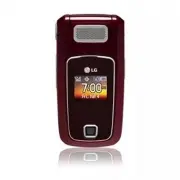


 LG A7110
User Manual
LG A7110
User Manual
 LG AX5000
User Manual
LG AX5000
User Manual
 LG C1300
User Manual
LG C1300
User Manual
 LG C1300A
User Manual
LG C1300A
User Manual
 LG C1300I
User Manual
LG C1300I
User Manual
 LG C1500
User Manual
LG C1500
User Manual
 LG C2000
User Manual
LG C2000
User Manual
 LG CB630
User Manual
LG CB630
User Manual
 LG CE500
User Manual
LG CE500
User Manual
 LG CF360
User Manual
LG CF360
User Manual
 LG CF360A
User Manual
LG CF360A
User Manual
 LG CG180
User Manual
LG CG180
User Manual
 LG CG225
User Manual
LG CG225
User Manual
 LG CG300
User Manual
LG CG300
User Manual
 LG CP150
User Manual
LG CP150
User Manual
 LG CU320
User Manual
LG CU320
User Manual
 LG CU400
User Manual
LG CU400
User Manual
 LG CU405
User Manual
LG CU405
User Manual
 LG CU500
User Manual
LG CU500
User Manual