Page 3 - Table of Contents
Table of Contents Introduction . . . . . . . . . . . . . . . . . . . . . . . . . . .i Your Phone’s Menu . . . . . . . . . . . . . . . . . . . . .i Section 1: Getting Started . . . . . . . . . . . . . .1 1A. Setting Up Service . . . . . . . . . . . . . . . . . . . . .2 Setting Up Your Phone . . . . ....
Page 7 - Introduction; This; introduces you to Sprint; Your Phone’s Menu; :Sprint Family Locator
Introduction This User Guide introduces you to Sprint ® service and all the features of your new phone. It’s divided into foursections: Section 1: Getting Started Section 2: Your Phone Section 3: Sprint Service Section 4: Safety and Warranty Information Your Phone’s Menu The following table outlines...
Page 8 - ii
2: Color Tone Normal Black & White Negative Sepia 3: Image Controls 1: Brightness 2: White Balance 4: Fun Frames 5: Settings 1: Resolution 2: Quality 3: Shutter Sound 4: Status Bar 5: Night Mode 6: Review/Send Media 7: Camcorder Mode 2: Camcorder Select OPTIONS (right softkey) and press the navi...
Page 9 - iii
3: Picture Mail Inbox Sent Mail Saved Mail Pending Messages 4: My Albums In Phone Memory Card Online Albums 5: PictBridge 6: Order Prints 7: Settings & Info 1. Auto-Save to 2. Status Bar 3. Location 4. Account Info 5. Help iii 8: Messages 1: Voicemail 1: Call Voicemail 2: Voicemail Details 3: Cl...
Page 10 - iv
5: Email 6: IM 7: Chat & Dating 8: VoiceSMS 9: Settings 1: Notification 2: Callback Number 3: Preset Messages 4: Signature 5: VoiceSMS Options 1: Speakerphone 2: From Name 9: Contacts iv *: Settings 1: Display 1: Main Screen 1: Screen Saver 2: Backlight 3: Picture ID 2: Font Size 1: Messages 2: ...
Page 12 - : Memory Card Manager
0: Tools 1: Memory Card Manager 2: Alarm Clock 1: Alarm 1 2: Alarm 2 3: Alarm 3 4: Alarm 4 5: Alarm 5 6: Walk the Dog 7: Quick Alarm 3: Bluetooth 1: Pair with Hands Free 2: Send a Contact 3: Send Files 4: Add a New… 5: Trusted Devices 6: More... <Settings> 1: On/Off 2: Visibility 3: My Device ...
Page 13 - IN CALL MENU; vii
4: Calendar 5: World Clock 6: USB Mode 7: Calculator 8: Voice Control 9: Voice Memo *: Notepad 0: Unit Converter #: Update Phone #:Shopping IN CALL MENU Mute/Unmute Speaker Contact Details/Save Main Menu 3-Way Call Contacts Voice Memo Phone Info vii LX370_Eng_090403:Sprint_UG_8a 09. 04. 04 오오 3:04 P...
Page 14 - viii
viii LX370_Eng_090403:Sprint_UG_8a 09. 04. 04 오오 3:04 Page viii
Page 15 - Section 1; Getting Started
Section 1 Getting Started LX370_Eng_090403:Sprint_UG_8a 09. 04. 04 오오 3:04 Page 1
Page 16 - Setting Up Your Phone; Press and hold; A. Setting Up Service
2 1A. Setting Up Service Setting Up Your Phone (page 2) Activating Your Phone (page 3) Setting Up Your Voicemail (page 3) Sprint Account Passwords (page 4) Getting Help (page 5) Setting Up Your Phone 1. Install the battery. Press down on the top part of the battery cover(directly above the Camera Le...
Page 17 - Activating Your Phone; Setting Up Your Voicemail
1A. Setting Up Service 3 Activating Your Phone If you purchased your phone at a Sprint Store, your phone should be activated and ready to use. If you received your phone in the mail and it is for a newSprint account or a new line of service, it is designed to activate automatically. To confirm your ...
Page 18 - Sprint Account Passwords; Account Username and Password; to get; Voicemail Password; or call Sprint Customer Service at
4 1A. Setting Up Service For more information about using your voicemail, see“Setting Up Your Voicemail” on page 106. Sprint Account Passwords As a Sprint customer, you enjoy unlimited access toyour personal account information, your voicemailaccount, and your data servuces account. To ensure thatno...
Page 19 - Getting Help; Managing Your Account; From Your Sprint Phone
1A. Setting Up Service 5 Getting Help Managing Your Account Online: www.sprint.com Access your account information. Check your minutes used (depending on your Sprintservice plan). View and pay your bill. Enroll in Sprint online billing and automatic payment. Purchase accessories. Shop for the latest...
Page 20 - Sprint Operator Services; To access Sprint Operator Services:
6 1A. Setting Up Service Sprint Operator Services Sprint Operator Services provides assistance whenplacing collect calls or when placing calls billed to alocal telephone calling card or third party. To access Sprint Operator Services: Press . For more information or to see the latest in products and...
Page 21 - Section 2; Your Phone
Section 2 Your Phone LX370_Eng_090403:Sprint_UG_8a 09. 04. 04 오오 3:04 Page 7
Page 23 - Key Functions
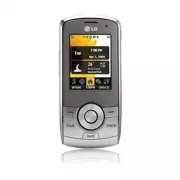
2A. Phone Basics 9 Key Functions 1. Earpiece lets you hear the caller and automated prompts. 2. Signal Strength Indicator represents the signal strength by displaying bars. The more barsdisplayed, the better the signal strength. 3. Display Screen displays all the information needed to operate your p...
Page 25 - lets you place or conduct calls in; lets you activate the camera and; Viewing the Display Screen
2A. Phone Basics 11 20. Speaker Button lets you place or conduct calls in speakerphone mode. Holding down this key for 3seconds activates the Voice Control function. 21. Camera Button lets you activate the camera and video mode and take pictures and videos. Viewing the Display Screen Your phone’s di...
Page 28 - Turning Your Phone On and Off; Turning Your Phone On
14 2A. Phone Basics Turning Your Phone On and Off Turning Your Phone On Press and hold for three seconds. Once your phone is on, it may display “Searching forService.” When your phone finds a signal, itautomatically enters standby mode – the phone’s idlestate. At this point, you are ready to begin m...
Page 29 - Turning Your Phone Off; Battery and Charger; Battery Capacity
2A. Phone Basics 15 Turning Your Phone Off Press and hold for two seconds until you see the powering down animation on the displayscreen. Your screen remains blank while your phone is off(unless the battery is charging). Battery and Charger Sprint-approved or LG -approved batteries and accessories c...
Page 31 - Charging the Battery; Always use a Sprint-approved or; means the battery is charging.; means the battery is at least 90; Navigating Through the Menus; , you may also navigate to the next or
2A. Phone Basics 17 Charging the Battery Charge your battery as soon as possible so you canbegin using your phone. Keeping track of your battery’s charge is important. Ifyour battery level becomes too low, your phoneautomatically turns off, and you can lose any unsaveddata. Always use a Sprint-appro...
Page 32 - Selecting Menu Items; Backing Up Within a Menu; To go to the previous menu:; Displaying Your Phone Number
18 2A. Phone Basics Selecting Menu Items As you navigate through the menu, menu options arehighlighted. Select any option by highlighting it andpressing . If the option is numbered, you can select it by pressing the corresponding number on the phone’skeypad. For example, to view your text messages: ...
Page 33 - Making and Answering Calls; Making Calls; Dialing Options
2A. Phone Basics 19 Making and Answering Calls Making Calls 1. Slide the phone open and enter a phone numberfrom standby mode. (If you make a mistake whiledialing, press to erase the numbers.) 2. Press . (To make a call when you are roaming and Call Guard is enabled, select Roam Call and press and s...
Page 34 - Answering Calls
20 2A. Phone Basics Save allows you to save the phone number in your Contacts. (See “Saving a Phone Number” on page 23.) Hard Pause allows you to enter a hard pause. (See “Dialing and Saving Phone Numbers With Pauses” onpage 24.) 2-sec Pause allows you to enter a two-second pause. (See “Dialing and ...
Page 35 - Ending a Call; Missed Call Notification; To display a missed call entry from standby mode:; Calling Emergency Numbers
2A. Phone Basics 21 Answering a Roam Call With Call GuardEnabled Call Guard is an option that helps you manage yourroaming charges when making or receiving calls whileoutside the Nationwide Sprint Network. Please see“Roaming “ on page 114 for more information aboutroaming. Select YES to answer the c...
Page 36 - To exit Emergency mode:
22 2A. Phone Basics During an emergency call, press to select your options. Speaker On or Speaker Off to route the phone’s audio through the speaker or through the earpiece. Select Speaker On to route the phone’s audio through the speaker. (You can adjust the speakervolume using the volume keys on t...
Page 37 - Saving a Phone Number
2A. Phone Basics 23 Speaker to route the phone’s audio through the speaker. (You can adjust the speaker volume using the volumekeys on the side of the phone.) Save to save a phone number in your Contacts. (See “Saving a Phone Number” on this page.) Contact Details to display the contact details. (If...
Page 38 - To save a number from standby mode:; Finding a Phone Number
24 2A. Phone Basics To save a number from standby mode: 1. Enter a phone number. 2. Press OPTIONS (right softkey), highlight Save and press . 3. Highlight New Entry for a new contact or Existing Entry to add a number to an existing contact and press . 4. Select Mobile, Home, Work, Pager, Fax, or Oth...
Page 39 - To dial or save phone numbers with pauses:; Abbreviated Dialing; To place a call using abbreviated dialing:; Contacts Match Dialing; To place a call using contacts match dialing:
2A. Phone Basics 25 To dial or save phone numbers with pauses: 1. Enter the phone number. 2. Press OPTIONS (right softkey) > Hard Pause or 2-sec Pause . 3. Enter additional numbers. 4. Press to dial the number. – or – To save the number in your Contacts list, press OPTIONS (right softkey), highli...
Page 40 - To use One-Touch Dialing for speed dial locations 2–9:; Entering Text; Selecting a Text Input Mode
26 2A. Phone Basics Dialing From the Contacts List 1. Highlight and press > Contacts . 2. Highlight the entry you want to call and press to dial the entry’s default phone number.– or – To dial another number from the entry, highlight thename and press , and then highlight a number and press . Spe...
Page 41 - ABC Mode
2A. Phone Basics 27 1. From a screen where you can enter text, press OPTIONS (right softkey) and select Text Mode to change the text input mode. 2. Select one of the following options: Abc to use multi-tap entry – press once for “a,” twice for “b,” three times for “c” (see “ABCMode” on this page). P...
Page 42 - Predictive Text Input; Adding a Word to the Predictive Text Database
28 2A. Phone Basics Characters scroll in the following order: Predictive Text Input Predictive Text Input lets you enter text using fewerkeypresses per word. (To select the Predictive Text modewhen entering text, see “Selecting a Text Input Mode” onpage 26.) Predictive Text Input uses an intuitive w...
Page 43 - To enter emoticons; mode and press the
2A. Phone Basics 29 Entering Numbers, Symbols andEmoticons To enter numbers: Select the 123 mode and press the appropriate key. (See “Selecting a Text Input Mode” on page 26.) To enter symbols: Select the Symbols mode. (See “Selecting a Text Input Mode” on page 26.) To enter a symbol, pressthe appro...
Page 44 - B. Navigating the Main Screen; Getting to Know Sprint One Click; The Sprint One Click Main Screen; B. Navigating the Main
30 2B. Navigating the Main Screen Getting to Know Sprint One Click (Page 30) Personalizing the Carousel (page 32) Personalizing the Home Screen (page 35) Getting to Know Sprint One Click Sprint One Click brings all your favorite features to yourfingertips. Instead of navigating through the levels of...
Page 46 - Take the Tutorial; Personalizing the Carousel; Adding a Tile to the Carousel
32 2B. Navigating the Main Screen Take the Tutorial Your phone has a built-in menu of tutorials to teach youall you need to know about Sprint One Click. 1. Highlight and press OPTIONS (left softkey) > Tutorial . – or –Highlight ( Personalize My Phone ) > Tutorial . 2. Highlight a topic and pre...
Page 48 - Removing a Tile From the Carousel
34 2B. Navigating the Main Screen Removing a Tile From the Carousel 1. Highlight and press OPTIONS (left softkey) > Personalize Carousel . 2. Press the navigation key right or left to highlight atile, and then highlight Remove Tile and press . 3. Highlight Yes and press to remove the tile. Rearra...
Page 49 - Editing Tiles; To reset the carousel to the original default settings:; Personalizing the Home Screen; Adding a Bubble to the Home Screen
2B. Navigating the Main Screen 35 Editing Tiles Certain tiles, such as Shortcuts and Favorite Contacts,contain editable content. You can use the PersonalizeCarousel menu to edit these tiles. 1. Highlight and press OPTIONS (left softkey) > Personalize Carousel . 2. Press the navigation key right o...
Page 50 - When you are finished, press; Press the navigation key left or right to select the; option and then press
36 2B. Navigating the Main Screen 5. When you are finished, press . Removing a Bubble From the HomeScreen 1. Highlight and press OPTIONS (left softkey) > Personalize Home Screen . 2. Press the navigation key up or down to highlight abubble. 3. Press the navigation key left or right to select the ...
Page 51 - Sound Settings; RingerTypes; Selecting Ringer Types for Voice Calls
Sound Settings (page 37) Display Settings (page 41) Location Settings (page 43) Messaging Settings (page 43) Airplane/Music Mode (page 45) TTY Use With Sprint Service (page 46) Phone Setup Options (page 47) Security Settings (page 50) Sound Settings RingerTypes Ringer types help you identify incomin...
Page 54 - Silence All; To activate Silence All:; Alert Notification
40 2C. Settings To set your phone always to vibrate in addition to anyringer settings: 1. With the phone open, press the volume button up ordown in standby mode until a volume settingappears on the screen. 2. Press VIBRATE (left softkey) to check the Vibrate On option. (If you have already checked t...
Page 55 - Display Settings; Changing the Display Screen
Display Settings Changing the Display Screen Choose what you see on the display screen whilepowering on or off and when in standby mode. 1. Highlight and press > Settings > Display > Main Screen > Screen Saver . 2. Select Preloaded, My Albums, Assigned Media, My Stuff, or New Picture . 3...
Page 56 - To change the status light mode:
42 2C. Settings 4. Use the navigation key to highlight your selectionand press to view the image. (Once an image is displayed, you can use your navigation key to scrollthrough and view the other default images.) 5. Press or ASSIGN (left softkey)to assign an image. Changing the Text Input Font Adjust...
Page 57 - Location Settings; To enable your phone’s Location feature:; Messaging Settings
Location Settings Your phone is equipped with a Location feature for use inconnection with location-based services. The Location feature allows the network to detect yourposition. Turning Location off will hide your location fromeveryone except 911. To enable your phone’s Location feature: 1. Highli...
Page 58 - To edit a preset message:
44 2C. Settings Setting Message Notification When you receive a message, your phone notifies youby displaying an icon on your display screen. You canalso choose to see the entire message on your displayscreen. 1. Highlight and press > Settings > Messages > Notification . 2. Highlight Messag...
Page 59 - To add a new preset message:; Adding a Customized Signature
To add a new preset message: 1. Highlight and press > Settings > Messages > Preset Messages . (You will see the list of preset messages.) 2. To add a new message, press ADD (left softkey). 3. Enter your message (see “Entering Text” on page26), and press . (Your new message will be added to ...
Page 60 - TTY Use With Sprint Service; To turn TTY Mode on or off:
46 2C. Settings 2. Read the disclaimer and press . 3. Highlight On , Off or On Power Up and press . While in Airplane Mode, your phone’s standby screenwill display “Phone off.” TTY Use With Sprint Service A TTY (teletypewriter, also known as a TDD or TextTelephone) is a telecommunications device tha...
Page 61 - Phone Setup Options; Main Screen; To access a shortcut:
Phone Setup Options Main Screen Your phone’s Sprint One Click main screen lets youcustomize your phone and provides quick access to thefeatures and functions you use the most. See“Personalizing the Carousel” on page 32 and“Personalizing the Home Screen” on page 35 for details. Shortcuts Your phone o...
Page 62 - To create a new shortcut:; Auto Keyguard
48 2C. Settings To create a new shortcut: 1. Highlight to access the Shortcuts menu. 2. Highlight Add Shortcut and press . 3. Select from one of the following categories: My Stuff, My Albums, Browser Bookmark, or Menu Item . 4. Press ASSIGN (left softkey) to assign the new shortcut. Auto Keyguard Al...
Page 63 - Setting Abbreviated Dialing; To set your abbreviated dialing options:; Setting Contacts Match Dialing; To turn contacts match dialing on or off:; Text Entry Settings
2. Highlight an option and press . Off to disable Auto-Answer. Headset to answer calls automatically when the phone is connected to a headset (soldseparately). Remember, your phone will answercalls in Auto-Answer mode even if you are notpresent. Setting Abbreviated Dialing To set your abbreviated di...
Page 64 - Security Settings; Accessing the Security Menu; Locking Your Phone
50 2C. Settings Security Settings Accessing the Security Menu All of your phone’s security settings are availablethrough the Security menu. You must enter your lockcode to view the Security menu. 1. Highlight and press > Settings > More... > Security . 2. Enter your lock code to display the...
Page 65 - Locking Photos; Special Numbers; To add or replace a special number:
2C. Settings 51 Settings Locking Photos 1. Highlight and press > Settings > More... > Restrict and Lock . 2. Enter your lock code and scroll to Lock Photos and press . 3. Highlight Lock and press . Changing the Lock Code 1. Highlight and press > Settings > More... > Security and en...
Page 66 - To reset your Picture Mail account:
52 2C. Settings Erasing Phone Content Use the Security menu to erase all content you havecreated, downloaded, or stored in your phone. 1. Highlight and press > Settings > More... > Security and enter your lock code. 2. Select Delete/Reset . 3. To select an option, highlight it and press . D...
Page 67 - Resetting Default Settings; To reset default settings:; Resetting Your Phone
2C. Settings 53 Settings Resetting Default Settings Resetting the current default settings restores all thefactory defaults, including the ringer types and displaysettings. Contacts, Call History, Calendar, andMessaging are not affected. To reset default settings: 1. Highlight and press > Setting...
Page 68 - Security Features for Data Service; Enabling and Disabling Data Services; To disable data services:; To enable data services:
54 2C. Settings Security Features for Data Service Enabling and Disabling Data Services You can disable data services without turning off yourphone; however, you will not have access to all dataservices, including Web and messaging. Disabling dataservices will avoid any charges associated with these...
Page 69 - Viewing History; Highlight
2D. History 55 Histor y Viewing History (page55) History Options (page 56) Making a Call From History (page 56) Saving a Number From History (page 57) Prepending a Number From History (page 57) Erasing History (page 58) Viewing History History is a list of the last 60 phone numbers (orContacts entri...
Page 70 - Viewing History Thread
History Options Highlight a History entry and press to display the date and time of the call, the phone number (ifavailable), and the caller’s name (if the number isalready in your Contacts). Press OPTIONS (right softkey) to display the following options: New Group to save the current history entry ...
Page 71 - Saving a Number From History
2D. History 57 Histor y Saving a Number From History Your phone can store up to 600 Contacts entries. Contacts entries can store up to a total of 7 phone numbers, and each entry’s name can contain 64 characters. 1. Highlight a History entry and press . 2. Press OPTIONS (right softkey) > Save Cont...
Page 72 - Erasing History; Press; [right softkey] to return to the previous
58 2D. History Erasing History To erase individual History entries, see “History Options”on page 56. 1. Highlight and press > History . 2. Press OPTIONS (right softkey) > Delete All . (A confirmation dialog will appear.) 3. Press DELETE (left softkey) to erase History. (Press CANCEL [right sof...
Page 73 - Adding a New Contacts Entry
2E. Contacts 59 Contacts - - - - Adding a New Contacts Entry (page 59) Saving a Phone Number (page 60) Contacts Entry Options (page 60) Editing a Contacts Entry (page 61) Adding a Number to a Contacts Entry (page 61) Editing a Contacts Entry’s Numbers (page 62) Assigning Speed Dial Numbers (page 62)...
Page 74 - Contacts Entry Options; To display a Contacts entry:
60 2E. Contacts After you have saved the number, the new Contactsentry is displayed. (See “Contacts Entry Options” onpage 60.) Saving a Phone Number To save a number from standby mode: 1. Enter a phone number and press OPTIONS (right softkey) > Save . 2. Highlight New Entry or Existing Entry and ...
Page 75 - Editing a Contacts Entry
2E. Contacts 61 Contacts [No Secret] to display Contacts entry’s information. Change to Secret will not allow the user to see or edit the contact’s info unless heenters the phone’s lock code. [URL] to add a Web address. [IM] to add an Instant Messaging address. Editing a Contacts Entry 1. Highlight ...
Page 76 - Assigning Speed Dial Numbers; To assign a speed dial number to a new phone number:
62 2E. Contacts Editing a Contacts Entry’sNumbers 1. Highlight a Contacts entry (see “Contacts EntryOptions” on page 60) and press OPTIONS (right softkey) > Edit Contact . 2. Highlight a number and press . 3. Press to clear one digit at a time, or press and hold to erase the entire number. 4. Re-...
Page 77 - Selecting a Ringer Type for an Entry
2E. Contacts 63 Contacts To assign a speed dial number to an existing phonenumber: 1. Highlight a Contacts entry and press OPTIONS (right softkey) > Edit Contact . 2. Highlight the phone number for which you wish toassign a speed dial number, and press . 3. Press OPTIONS (right softkey) > Set ...
Page 78 - Finding Contacts by Name
64 2E. Contacts Assigning a Picture to an Entry 1. Highlight a Contacts entry (see “Contacts EntryOptions” on page 60) and press OPTIONS (right softkey) > Edit Contact . 2. Highlight the current picture and press to display the Select Photo menu. 3. Highlight an option ( None, New Picture, My Alb...
Page 79 - Secret Contacts Entries; To make an entry secret:; Dialing Sprint Services; To dial a service from your Contacts:
2E. Contacts 65 Contacts Secret Contacts Entries Making an entry secret hides its phone number(s) andrequires your lock code to edit the entry. The name is stilldisplayed, but the phone numbers and otherinformation are replaced with “(SECRET)”. To make an entry secret: 1. Press CONTACTS (right softk...
Page 80 - Wireless Backup; Select
66 2E. Contacts Sprint Operator – Community Information – Non-Emergency Svcs – Traffic Information – Carrier Service Repair – TRS for TTY users – Call Before You Dig – 2. Press to place the call. Wireless Backup This feature allows you to back up all of your contacts tothe Sprint website and restore...
Page 81 - To deactivate the wireless backup service:; Viewing Your Wireless Backup Status
2E. Contacts 67 Contacts 3. Press SUBSCRIBE (left softkey) and follow the onscreen instructions to purchase the license. 4. Please wait while registering the license. (You willsee a confirmation screen once registration iscomplete.) To deactivate the wireless backup service: 1. Press CONTACTS (right...
Page 82 - Calendar; Adding an Event to the Calendar; F. Calendar and Tools
68 2F. Calendar and Tools Calendar(page 68) Alarm Clock (page 71) Notepad (page 71) EZ Tips (page 72) Calculator (page 72) Unit Converter (page 73) World Clock (page 73) Updating Phone Software (page 73) Updating the PRL (page 73) Calendar Adding an Event to the Calendar Your Calendar helps organize...
Page 83 - Event Alert Menu; To go to the Calendar menu for today’s date:
2F. Calendar and Tools 69 Calendar / T ools 7. Select a ringer type for the alarm by highlighting theringer field and pressing . Select a ringer menu ( Downloaded Ringers, Voice Memo, Other Ringers, or No Ringer) , highlight a ringer, and press . 8. Select a location for the event by highlighting[ L...
Page 84 - Erasing a Day’s Events
70 2F. Calendar and Tools Erasing a Day’s Events 1. Highlight and press > Tools > Calendar . 2. Select the day for which you would like to eraseevents and press . 3. Press OPTIONS (right softkey) > Delete or Delete All. (An alert will be displayed notifying you that allevents will be delete...
Page 85 - Alarm Clock; To use the Quick Alarm:; Notepad
2F. Calendar and Tools 71 Calendar / T ools Alarm Clock Your phone comes with a built-in alarm clock that hasmultiple alarm capabilities. 1. Highlight and press > Tools > Alarm Clock . 2. Select Alarm 1-5, Walk the Dog, or Quick Alarm. 3. Turn the alarm on or off by highlighting theactivation ...
Page 86 - To read a saved note:; EZ Tips
72 2F. Calendar and Tools To compose a note: 1. Highlight and press > Tools > Notepad > ADD (left sofkey). 2. Type your note using the keypad. (See “EnteringText” on page 26.) 3. Press SAVE (left softkey) or to save your note. To read a saved note: 1. Highlight and press > Tools > Not...
Page 87 - Unit Converter; World Clock; To view the time in over 50 different locations:; Updating Phone Software
2F. Calendar and Tools 73 Calendar / T ools Unit Converter 1. Highlight and press > Tools > Unit Converter . 2. Select Length, Area, Mass, Volume, or Temperature . 3. Highlight the known unit type and enter the value.The conversion is displayed automatically. World Clock To view the time in ov...
Page 88 - Voice Control; To access Voice Control:
74 2G. Voice Services Voice Control (page 74) Managing Voice Memos (page 75) Voice Control You can use your phone’s built-in Voice Control automaticspeech recognition (ASR) software to dial a phonenumber in your Contacts or to launch phone functions. Allyou have to do is to talk into the phone, and ...
Page 89 - Managing Voice Memos; Recording Voice Memos; To end the recording of your memo:
2G. Voice Services 75 V o ice Ser vices 6. Phone Status 7. Training 8. Bookmark 9. Help 0. Exit Voice Control Managing Voice Memos Use your phone’s voice services to record brief memos toremind you of important events, phone numbers, orgrocery list items. Recording Voice Memos 1. Highlight and press...
Page 90 - Playing Voice Memos; To play the voice memos you have recorded:; Voice Memo Options; To choose voice memo options:; Erasing Voice Memos; To erase all voice memos:
76 2G. Voice Services Playing Voice Memos To play the voice memos you have recorded: 1. Highlight and press > Tools > Voice Memo . 2. Highlight a voice memo and press . Voice Memo Options To choose voice memo options: 1. Highlight and press > Tools > Voice Memo . 2. Highlight a voice mem...
Page 91 - Using the microSD Card; Your phone is equipped with a microSD; Inserting the microSD Card; Push in and then release the microSD card to eject.
2H. microSD Card 77 microSD Card Your Phone’s microSD Card and Adapter (page 77) microSD Card Settings (page 79) microSD Card Folders (page 80) Connecting Your Phone to Your Computer(page 80) Your Phone’s microSD Card andAdapter Using the microSD Card Your phone is equipped with a microSD TM (Secure...
Page 92 - microSDIcon Indicators; Using the microSD Adapter; To insert the microSDcard into the microSD adapter:
78 2H. microSD Card microSDIcon Indicators The following icons will be displayed on your phone’sdisplay screen when a microSD card is properlyinserted into the microSD card slot: Indicates that a microSD card has been insertedinto your phone. Using the microSD Adapter A microSD adapter (included whe...
Page 93 - microSD Card Settings; Creating Folders in the microSD Card
2H. microSD Card 79 microSD Card microSD Card Settings Creating Folders in the microSD Card The following steps allow your phone to create defaultfolders for storing files in your microSD card. 1. With the microSD card inserted, highlight and press > Tools > Memory Card Manager . 2. Press OPTI...
Page 94 - microSD Card Folders; Displaying Your microSD Card Folders; To remove the connection:
80 2H. microSD Card microSD Card Folders Displaying Your microSD Card Folders All the files stored in your microSD card are accessiblethrough your microSD card folders. 1. With the microSD card inserted, highlight and press > Tools > Memory Card Manager . 2. Highlight a folder and press . 3. T...
Page 95 - Important Connection Information
2H. microSD Card 81 microSD Card Important Connection Information No driver installation is required for WindowsVista/2000/ME/XP users. If you use Windows98/98SE, you have to download and install the USBMass Storage Driver from the Sprint website at www.sprint.com . To avoid loss of data, DO NOT rem...
Page 96 - Taking Pictures; To take a picture with the phone open:
82 2I. Camera Taking Pictures (page 82) Recording Videos (page 86) Storing Pictures and Videos (page 88) Sending Sprint Picture Mail (page 91) Managing Sprint Picture Mail (page 94) Printing Pictures From Your Phone (page 98) Settings and Info (page 100) Taking Pictures Taking pictures with your pho...
Page 98 - Camera Mode Options
84 2I. Camera Once you have received confirmation that your accounthas been successfully registered, you may upload andshare pictures and access the Sprint Picture Mailwebsite. Camera Mode Options When the phone is in camera mode, press OPTIONS (right softkey) to display additional camera options: S...
Page 99 - To cancel the Self-timer after it has started:; Zoom; Camera Settings
2I. Camera 85 Camera 4. Get ready for the picture. (When the timer is down tothree seconds, the countdown numbers will turnred.) To cancel the Self-timer after it has started: Press CANCEL (right softkey). Zoom This feature allows you to zoom in on an object whenyou take a picture. Depending on your...
Page 100 - Recording Videos
86 2I. Camera Recording Videos In addition to taking pictures, you can also record,view, and send videos with your phone’s built-in videocamera. 1. Highlight and press > Photos > Camcorder to activate video mode. 2. Select the video length between Video Mail and Long Video . 3. Using the phone...
Page 101 - Video Mode Options; To select your video settings:
2I. Camera 87 Camera Video Mode Options When the phone in camcorder mode, press OPTIONS (right softkey) to display additional camera options: Self Timer to activate the timer ( Off , 5 seconds , or 10 seconds ). Color Tone : Press the navigation key right or left to select Normal , Black & White...
Page 102 - Storing Pictures and Videos; In Phone and Memory Card Folders
88 2I. Camera Storing Pictures and Videos Your phone’s picture and video storage area is called My Albums . There are three types of folders in My Albums: In Phone Memory Card Online Albums In Phone and Memory Card Folders You can save pictures and videos directly in yourphone’s memory (In Phone fol...
Page 104 - Online Albums; To save pictures and videos to an online album:; Online Album Options
90 2I. Camera When you are viewing images in a folder, press EXPAND (left softkey) to display the following option: Expand/Thumbnail to switch the display from expanded view to thumbnail view (up to three picturesper screen). Online Albums Sprint Picture Mail allows you to save your pictures andvide...
Page 105 - Sending Sprint Picture Mail
2I. Camera 91 Camera Post to Service to send the image to a number of popular third-party Web image services. Save To to download the image to your phone’s In Phone Folder or memory card. Copy/Move to copy or move pictures to a selected album. Edit to display the following options: Copy/Move to copy...
Page 108 - Managing Sprint Picture Mail; Using the Sprint Picture Mail Website; (see “In Phone and Memory
94 2I. Camera Managing Sprint Picture Mail Using the Sprint Picture Mail Website Once you have uploaded pictures or videos to youronline Sprint Picture Mail account at http://pictures.sprintpcs.com (see “In Phone and Memory Card Folder Options” on page 88), you can use yourcomputer to manage your pi...
Page 109 - Uploading Pictures
2I. Camera 95 Camera 2. Select thumbnail pictures, up to three per screen,are displayed. 3. Select a picture and press OPTIONS (right softkey) to display your online picture options. Uploading Pictures 1. Highlight and press > Photos> My Albums > In Phone or Memory Card (Thumbnail pictures ...
Page 110 - Sending Online Sprint Picture Mail; To send an album from the online Albums menu:
96 2I. Camera Sending Online Sprint Picture Mail To send an album from the online Albums menu: 1. Highlight and press > Photos > My Albums > Online Albums . 2. Scroll through an online album list you wish to send. 3. Press OPTIONS (right softkey) and select Send . Accessing Online Picture O...
Page 112 - To access your online Albums options from your phone:; Printing Pictures From Your Phone; To print pictures directly from your phone:
98 2I. Camera To access your online Albums options from your phone: 1. Display the album list in the Online Sprint PictureMail menu. (See “Managing Online Pictures andVideos From Your Phone” on page 94.) 2. Select an album (or Inbox). 3. Press OPTIONS (right softkey) to display options. 4. Select an...
Page 113 - Order Prints
Camera 2I. Camera 99 Size: You can set the print size from Default, 4x6 in, letter, or Card. (Print sizes may vary according tothe type of printer you have.) Date: You can imprint the date on your pictures. Select On or Off . (Date stamping may not be available depending on the type of printer youha...
Page 114 - Settings and Info; To access the settings and info menu:
100 2I. Camera Settings and Info The settings and info menu allows you to configure,view your account information, or switch the formatbetween portrait or landscape mode. To access the settings and info menu: 1. Highlight and press > Photos > Settings & Info . 2. Select one of the followin...
Page 115 - About Bluetooth; Turning Bluetooth On and Off; To turn Bluetooth on:; To turn Bluetooth off:
2J. Bluetooth 101 Bluetooth Turning Bluetooth On and Off (page 101) Using the Bluetooth Settings Menu (page 102) Pairing Bluetooth Devices (page 103) Sending Items Using Bluetooth (page 104) About Bluetooth Bluetooth ® is a short-range communications technology that allows you to connect wirelessly ...
Page 116 - Using the Bluetooth Settings Menu; To access the Bluetooth Settings menu:
102 2J. Bluetooth Bluetooth Status Indicators The following icons show your Bluetooth connectionstatus at a glance: indicates Bluetooth enabled (hidden). indicates Bluetooth enabled (visible). indicates Bluetooth connected. Using the Bluetooth Settings Menu The Bluetooth Settings menu allows you to ...
Page 117 - Section 2J. Bluetooth; To access the Trusted Devices list:; Pairing Bluetooth Devices; Paired Devices; Bluetooth; Exchange Folder; To access the Exchange Folder:
Bluetooth Section 2J. Bluetooth 103 To access the Trusted Devices list: Highlight and press > Tools > Bluetooth > Trusted Devices or Pair with Hands Free . This displays your phone's current list of externaltrusted Bluetooth devices. Pairing Bluetooth Devices Paired Devices The Bluetooth pa...
Page 118 - Sending Items Using Bluetooth; Sending Contacts
104 2J. Bluetooth Sending Items Using Bluetooth Sending Contacts This allows you to send all Contacts information in yourphone to another party via Bluetooth. 1. If Bluetooth is not set to on, set to On . 2. Highlight and press > Contacts , select a contact and press OPTIONS (right softkey) > ...
Page 119 - Section 3; Sprint Service
Section 3 Sprint Service LX370_Eng_090403:Sprint_UG_8a 09. 04. 04 오오 3:05 Page 105
Page 120 - Voicemail; The Basics
106 3A. Sprint Service: The Basics Voicemail (page 106) Text Messaging (SMS) (page 109) VoiceSMS Messaging (page 111) Caller ID (page 112) Call Waiting (page 113) Making a Three-Way Call (page 113) Call Forwarding (page 114) Roaming (page 114) Voicemail Setting Up Your Voicemail All unanswered voice...
Page 121 - To call your voicemail:; Retrieving Your Voicemail Messages; Using One-Touch Message Access
Voicemail Notification There are several ways your phone alerts you to a newmessage: By displaying a message on the screen. By sounding the assigned ringer type. By the LED blinking red. By displaying at the top of your screen. New Voicemail Message Alerts When you receive a new voice message, your ...
Page 122 - Using Another Phone to Access Messages; Voicemail Key Guide
108 3A. Sprint Service: The Basics Using the Menu Keys on Your Phone to AccessYour Messages 1. Highlight and press > Messages > Voicemail > Call Voicemail . 2. Press to listen to your messages. Using Another Phone to Access Messages 1. Dial your wireless phone number. 2. When your voicemail...
Page 124 - Composing Text Messages
110 3A. Sprint Service: The Basics Composing Text Messages 1. Highlight and press > Messages > Send Message > Text Message and select the entry method you prefer. Go to Contacts to select a recipient from your Contacts. (Qualifying Contacts entries must containa wireless phone number or an ...
Page 125 - Accessing Text Messages; To read a text message:; VoiceSMS Messaging; Playing a VoiceSMS Message
Accessing Text Messages To read a text message: When you receive a text message, it will bedisplayed automatically on your phone’s screen.Use your navigation key to scroll down and view theentire message. To reply to a text message: 1. From the text message display, press REPLY (left softkey).– or –...
Page 126 - To reply to a VoiceSMS message:; Caller ID
112 3A. Sprint Service: The Basics Composing VoiceSMS Messages 1. Highlight and press > Messages > Send Message > Voice SMS . 2. Select Go to Contacts, MULTIPLE (left softkey), or NEW ADDR (right softkey) to select or enter a recipient. 3. Start recording after the beep. (You can record up ...
Page 127 - Call Waiting; To respond to an incoming call while you’re on a call:; Making a Three-Way Call
To permanently block your number, call SprintCustomer Service. Call Waiting When you’re on a call, Call Waiting alerts you toincoming calls by sounding one beep. Your phone’sscreen informs you that another call is coming in anddisplays the caller’s phone number (if it is available andyou are in digi...
Page 128 - Call Forwarding; To activate Call Forwarding:; Roaming; Roaming Icon
114 3A. Sprint Service: The Basics Call Forwarding Call Forwarding lets you forward all your incoming callsto another phone number – even when your phone isturned off. You can continue to make calls from yourphone when Call Forwarding is activated. To activate Call Forwarding: 1. Press . 2. Enter th...
Page 129 - Setting Roam Mode
Checking for Voicemail Messages WhileRoaming When you are roaming off the Nationwide SprintNetwork, you may not receive on-phone notification ofnew voicemail messages. Callers can still leavemessages, but you will need to periodically check yourvoicemail for new messages if you are in a roamingservi...
Page 130 - Call Guard; To turn Call Guard on or off:; To place roaming calls with Call Guard on:; To answer incoming roaming calls with Call Guard on:; Data Roam Guard
116 3A. Sprint Service: The Basics Call Guard Your phone has two ways of alerting you when you areroaming off the Nationwide Sprint Network: theonscreen roaming icon and Call Guard. Call Guardmakes it easy to manage your roaming by requiring anextra step before you can place or answer a roamingcall....
Page 131 - To set your Data Roam Guard notification:; To use data services when Data Roam Guard is active:
To set your Data Roam Guard notification: 1. Highlight and press > Settings > More... > Roaming > Data Roaming . 2. Highlight an option and press . Default : Data Roam Guard may appear when roaming internationally. Always Ask sets your phone’s Data Roam Guard feature on. You will see a p...
Page 132 - B: Web and Data Services; Getting Started With Data Services; Your User Name; Finding Your User Name; B. Web and Data Services
118 3B: Web and Data Services - Getting Started With Data Services (page 118) Messaging (page 122) Downloading Games, Ringers and More (page 125) Browser Options Menu (page 128) Data Services FAQs (page 129) Getting Started With Data Services With your Sprint service, you are ready to start enjoying...
Page 133 - Updating Your User Name; Launching a Web Connection; To change your Net Guard settings:
3B: Web and Data Services 119 Web and Data Updating Your User Name If you choose to change your user name and select anew one online, you must then update the user name onyour phone. Highlight and press > Settings > More... > Data > Update Profile . (To cancel, press before completing th...
Page 134 - Data Connection Status and Indicators; Softkeys
120 3B: Web and Data Services Data Connection Status and Indicators Your phone displays the current status of your dataconnection through indicators at the top of the screen.The following symbols are used: Your phone is connected to the high-speed SprintMobile Broadband Network (EVDO). When thetrian...
Page 135 - Scrolling; To scroll line by line through websites:; Selecting; To select onscreen items:; Going Back
3B: Web and Data Services 121 Web and Data To use softkeys: Press a softkey. (If an additional pop-up menu isdisplayed when you press the softkey, select themenu items using your keypad [if they’renumbered], or by highlighting the option andpressing .) Scrolling As with other parts of your phone’s m...
Page 136 - Going Home; To return to the home page from any other page:; Messaging; Email; Getting Started With Email
122 3B: Web and Data Services Going Home To return to the home page from any other page: Press and hold . – or –Press OPTIONS (right softkey) > MY HOMEPAGE. Messaging You can send and receive email messages, instantmessages, and text messages and participate in Web-based chat rooms right from you...
Page 137 - Accessing Email; Once you have set up your email, select
3B: Web and Data Services 123 Web and Data 5. Follow the setup wizard instructions to enter therequired sign-up information. Press Accept (right softkey) if you are prompted to accept any licenseagreements or disclaimers. 6. If applicable, read the notice regarding Mail Push. Ifyou would like to ena...
Page 138 - Sprint Instant Messaging
124 3B: Web and Data Services 2. Use your keypad and navigation keys to read,manage, and reply to your email messages. Press Menu (right softkey) to select messaging options, such as Delete , Compose , Reply , Send/Receive , or Settings . Press Menu (right softkey) > Send/Receive to manually chec...
Page 139 - Accessing Wireless Chatrooms; Accessing the Download Menus
3B: Web and Data Services 125 Web and Data name or password, and select Sign In . (Your IM screen for the selected provider will be displayed.) 4. Follow the onscreen instructions to read, reply to,compose, and send messages and manage yourIM account. Accessing Wireless Chatrooms Data service gives ...
Page 140 - Selecting an Item to Download; To download a selected item:
126 3B: Web and Data Services information on navigating the Web, see “Navigatingthe Web” on page 120.) Selecting an Item to Download You can search for available items to download in anumber of ways: Featured displays a rotating selection of featured items. Categories allows you to narrow your searc...
Page 141 - Using My Content Manager; To access My Content Manager:
3B: Web and Data Services 127 Web and Data Press to quit the browser and return to standby mode. Using My Content Manager Whether you purchase your Premium Services contentfrom your phone or from your online accountmanagement page at www.sprint.com , all of your purchases are stored in My Content Ma...
Page 142 - Browser Options Menu; Opening the Browser Options Menu; To open the browser options menu:; Creating a Bookmark
128 3B: Web and Data Services Browser Options Menu Although the home page offers a broad and convenientarray of sites and services for you to browse, not all sitesare represented, and certain functions, such as goingdirectly to specific websites, are not available. For theseand other functions, you ...
Page 143 - Accessing a Bookmark; Going to a Specific Website; Restarting the Web Browser; Data Services FAQs
3B: Web and Data Services 129 Web and Data Accessing a Bookmark 1. Press OPTIONS (right softkey) to open the browser options menu. 2. Select MY PAGES. 3. Highlight a bookmark and press . Going to a Specific Website To go to a particular website by entering a Web address(URL): 1. Highlight the URL fi...
Page 144 - in your
130 3B: Web and Data Services How do I know when my phone is connected to dataservices? Your phone automatically connects when data serviceis used or an incoming message arrives. Your phone willalso display the or indicator. Can I make calls and use data services at the same time? You cannot use voi...
Page 145 - TV; Your Sprint TV Channel Options; TV and Music
3C. Entertainment: TV and Music 131 TV and Music TV (page 131) Music – Sprint Music Store (page 134) Streaming Music (page 139) Sprint TV gives you the ability to listen to audio clips and to view video clips right from your phone’s display.Watch live TV and catch up on episodes of your favoriteshow...
Page 146 - Watching TV; TV FAQs
132 3C. Entertainment: TV and Music Watching TV 1. Highlight and press > Entertainment > TV. Depending on your settings, you may be asked toaccept a data connection. 2. Select Sprint TV , Sprint Radio, Sprint Movies, or Premium Channels to display channel options. 3. Use your navigation key an...
Page 147 - To cancel your Sprint TV service, visit
3C. Entertainment: TV and Music 133 TV and Music 3. Can I access a clip wherever I am, as long as I have myphone? As long as you are on the Nationwide SprintNetwork, you will have access to the audio andvideo clips. 4. Are the videos that I’m viewing “live” videos? It depends on the content provider...
Page 148 - and the episode; Music – Sprint Music Store; Accessing the Sprint Music Store
134 3C. Entertainment: TV and Music 9. If I put on my stereo headset and insert them into thephone’s headset jack, can I close the phone while I amplaying an audio (or video) clip without interrupting theclip? Yes. When you insert your stereo headset into thephone’s headset jack, the phone automatic...
Page 149 - Purchasing and Downloading Music; Accessing the Music Player
3C. Entertainment: TV and Music 135 TV and Music Purchasing and Downloading Music Now that you’re in the store, you can shop for songs topurchase and download to your phone’s microSD card. 1. From the Sprint Music Store opening page, selectan option to browse the store: Featured Musi c offers a revo...
Page 150 - Backing Up Your Downloaded Music Files; Multitasking
136 3C. Entertainment: TV and Music 3. To begin playing music, highlight a song and press . Backing Up Your Downloaded Music Files Sprint recommends you back up your downloadedmusic files to your computer. Although the downloadedfiles can only be played on your phone and on youraccount, backing them...
Page 151 - To multitask on your phone while playing music:
3C. Entertainment: TV and Music 137 TV and Music To multitask on your phone while playing music: 1. Launch the Sprint Music Store application (highlight and press > Entertainment > Music ). 2. Select the player tab and press . 3. Select a file and press begin playing music. 4. Press to exit th...
Page 152 - Receiving an Incoming Call While Playing Music
138 3C. Entertainment: TV and Music Receiving an Incoming Call While Playing Music An incoming call causes the currently played music fileto be paused while the phone call is active. Once thecurrent call is ended, you can select to resume anypaused applications. (Music will resume playingautomatical...
Page 153 - Streaming Music; to see and hear a preview of your
3C. Entertainment: TV and Music 139 TV and Music Streaming Music In addition to the Sprint Music Store, Sprint offers avariety of musical options through the Music category inthe Sprint TV menu, including SIRIUS Music, MusicChoice, VH1, and many others. Choose from rock, pop,hip-hop, and R&B, an...
Page 154 - GPS Services; Activating Location Mode; Sprint Navigation; Registering Sprint Navigation
140 3D. GPS Navigation GPS Services (page 140) Sprint Navigation (page 140) Sprint Family Locator (page 141) GPS Services Your phone’s built-in GPS capability gives you access toa number of location-based services, including Sprint Navigation and Sprint Family Locator . Activating Location Mode Befo...
Page 155 - Using Sprint Navigation; Sprint Family Locator; Signing Up for Sprint Family Locator
3D. GPS Navigation 141 GPS Navigation Using Sprint Navigation 1. Highlight to access the Sprint Navigation menu. – or – Highlight and press > Maps > Sprint Navigation . 2. Select an option and follow the onscreeninstructions to get directions or view maps. Drive To lets you enter an address (v...
Page 156 - Using Sprint Family Locator
142 3D. GPS Navigation Using Sprint Family Locator 1. Press > Maps > Sprint Family Locator . 2. Enter the parent phone number and password tosign in to your account. 3. Select a phone to locate from the available childphone list. 4. When you are finished, select Sign Out . Note Sprint Family L...
Page 157 - Section 4; Safety and Warranty
Section 4 Safety and Warranty Information LX370_Eng_090403:Sprint_UG_8a 09. 04. 04 오오 3:06 Page 143
Page 158 - A: Important Safety Information; Failure to; General Precautions; Information
144 4A: Important Safety Information General Precautions (page 144) Maintaining Safe Use of and Access to Your Phone (page 145) Using Your Phone With a Hearing Aid Device (page 146) Caring for the Battery (page 148) Radio Frequency (RF) Energy (page 149) Owner’s Record (page 151) User Guide Propriet...
Page 162 - Caring for the Battery
148 4A: Important Safety Information Position the phone so the internal antenna is farthest fromyour hearing aid. Move the phone around to find the point with leastinterference. Caring for the Battery Protecting Your Battery The guidelines listed below help you get the most out of yourbattery’s perf...
Page 164 - FCC Radio Frequency Emission
150 4A: Important Safety Information in safety. SAR values at or below the federal standard of 1.6 W/kgare considered safe for use by the public. The highest reported SAR values of the LX370 are: Cellular CDMA mode (Part 22): Head: 1.41 W/kg; Body-worn: 0.686 W/kg PCS mode (Part 24): Head: 1.12 W/kg...
Page 165 - Owner’s Record
Impor tant Safety Information 4A: Important Safety Information 151 If this equipment does cause harmful interference to radio ortelevision reception, which can be determined by turning theequipment off and on, the user is encouraged to try to correctthe interference by one or more of the following m...
Page 166 - Warranty
152 4B. Warranty Manufacturer’s Warranty (page 153) Your phone has been designed to provide you with reliable,worry-free service. If for any reason you have a problem with your equipment, please refer to the manufacturer’swarranty in this section. For information regarding the terms and conditionsof...
Page 167 - Manufacturer’s Warranty
Warranty 4B. Warranty 153 Manufacturer’s Warranty 1. WHAT THIS WARRANTY COVERS: LG offers you a limited warranty that the enclosed subscriberunit and its enclosed accessories will be free from defects inmaterial and workmanship, according to the following termsand conditions: (1) The limited warrant...
Page 169 - Index; Numerics
Index 155 Index Numerics 3-Way Call 23, 113 A Abbreviated Dialing 25, 49Activating Your Phone 3Airplane/Music Mode 45Alarm Clock 71Answering Calls 20Applications Downloading 125 Auto-Answer Mode 48 B Backlight 41Battery 15–17 Capacity 15Charging 17Disposal 148Installing 16 Removing 16 Bluetooth 101–...


 LG A7110
User Manual
LG A7110
User Manual
 LG AX5000
User Manual
LG AX5000
User Manual
 LG C1300
User Manual
LG C1300
User Manual
 LG C1300A
User Manual
LG C1300A
User Manual
 LG C1300I
User Manual
LG C1300I
User Manual
 LG C1500
User Manual
LG C1500
User Manual
 LG C2000
User Manual
LG C2000
User Manual
 LG CB630
User Manual
LG CB630
User Manual
 LG CE500
User Manual
LG CE500
User Manual
 LG CF360
User Manual
LG CF360
User Manual
 LG CF360A
User Manual
LG CF360A
User Manual
 LG CG180
User Manual
LG CG180
User Manual
 LG CG225
User Manual
LG CG225
User Manual
 LG CG300
User Manual
LG CG300
User Manual
 LG CP150
User Manual
LG CP150
User Manual
 LG CU320
User Manual
LG CU320
User Manual
 LG CU400
User Manual
LG CU400
User Manual
 LG CU405
User Manual
LG CU405
User Manual
 LG CU500
User Manual
LG CU500
User Manual